Hide Locked Tabs in Interviews
Last updated: September 28, 2025
You can use the Automatic Tab Locking and Hiding feature to help candidates stay focused during an interview. This feature ensures that only the active tab is visible to the candidate, allowing you to control the interview flow.
Key benefits
The Automatic Tab Locking and Hiding feature offers the following benefits:
Controlled access for interviewers: Interviewers can restrict poorly performing candidates from accessing additional tabs. These tabs remain hidden from the candidate.
Improved candidate focus: Candidates stay attentive without distractions from other tabs, including those the interviewer plans to use later in the interview.
Note: The Automatic Tab Locking and Hiding feature is disabled by default.
Enable automatic tab lock and hide
To enable automatic tab lock and hide:
Log in to your HackerRank for Work account using your credentials.
Select your Profile icon in the upper-right corner.
Select Settings from the drop-down menu.
In the left panel, select Interview Settings under the Company section.
Select the Enable Automatic lock checkbox.
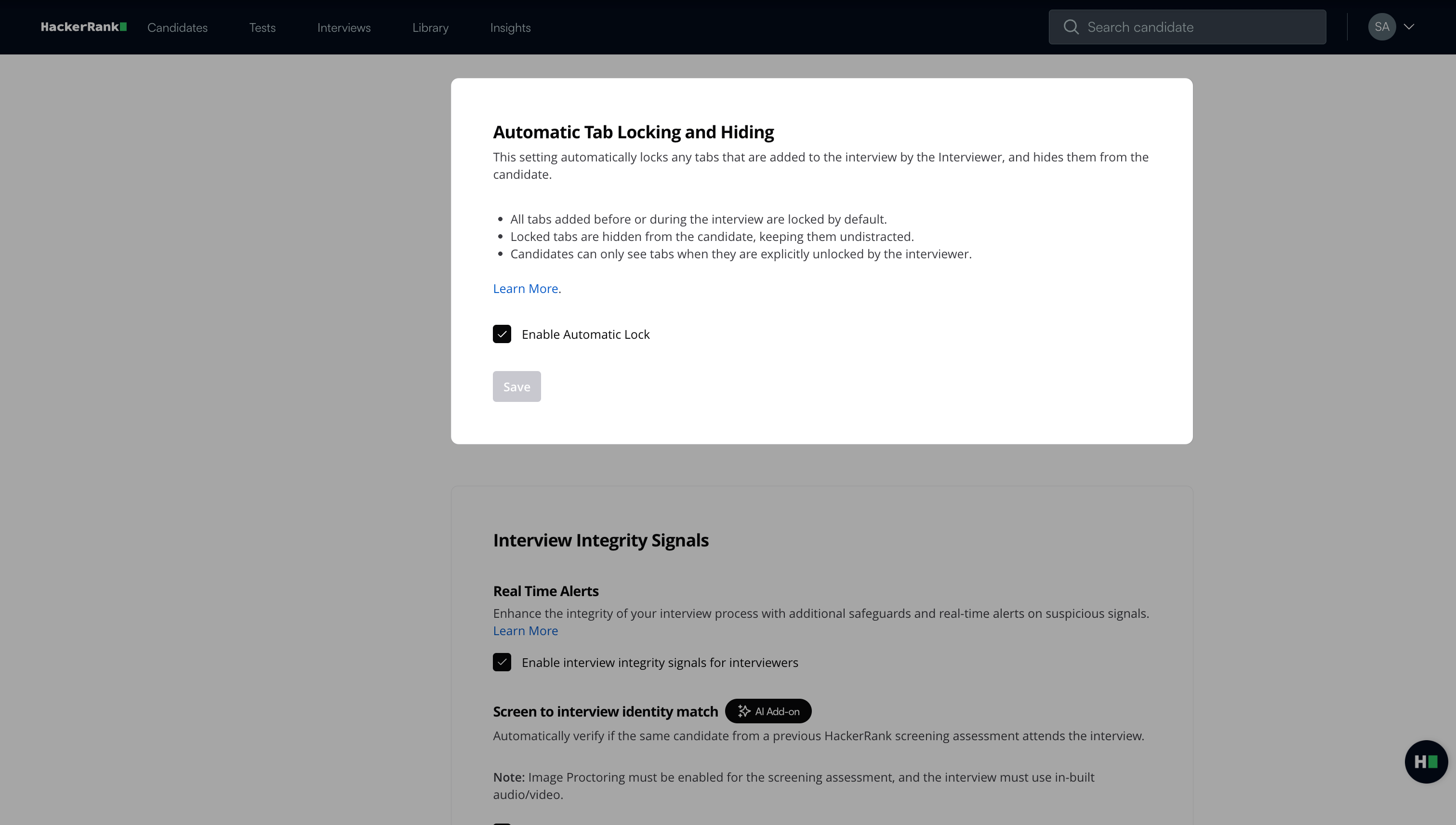
Click Save.
When enabled, this setting applies to all interviews in the account.
Interviewer experience
After you enable the Automatic Tab Locking and Hiding feature and open an interview, the system locks all tabs added before or during the interview by default. The system hides these locked tabs from the candidate.
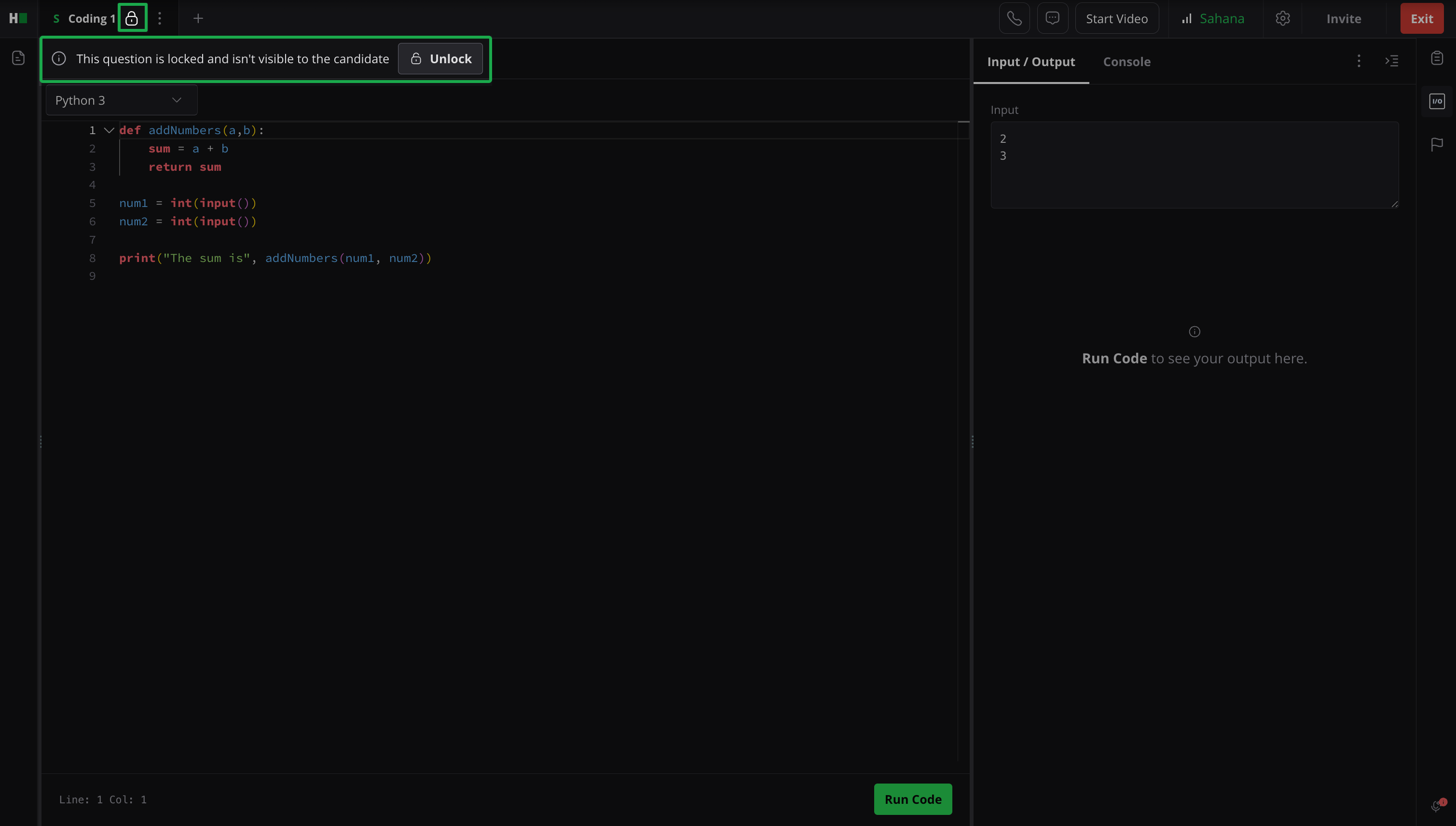
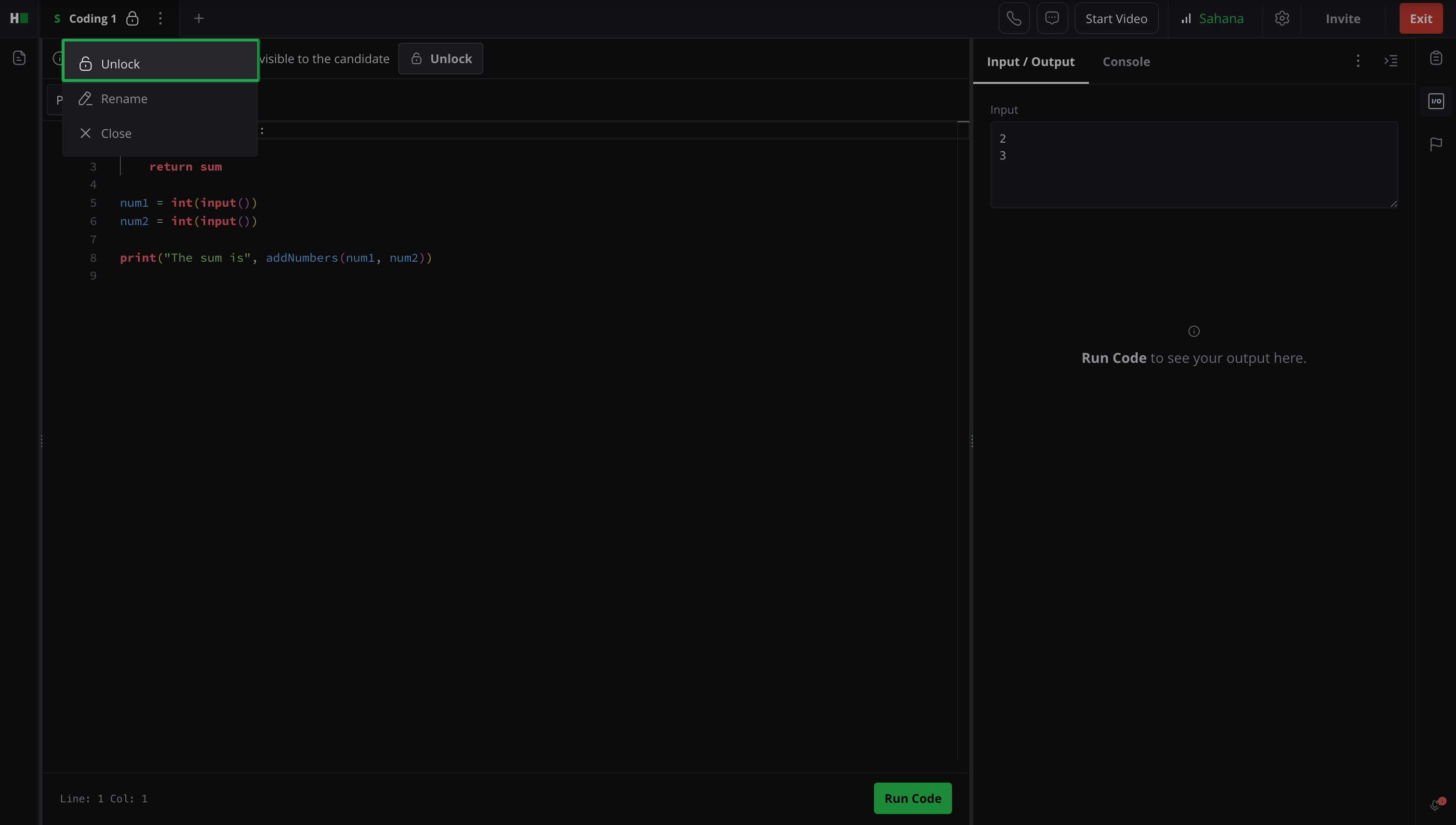
To make a tab visible to the candidate, click Unlock.
Candidate experience
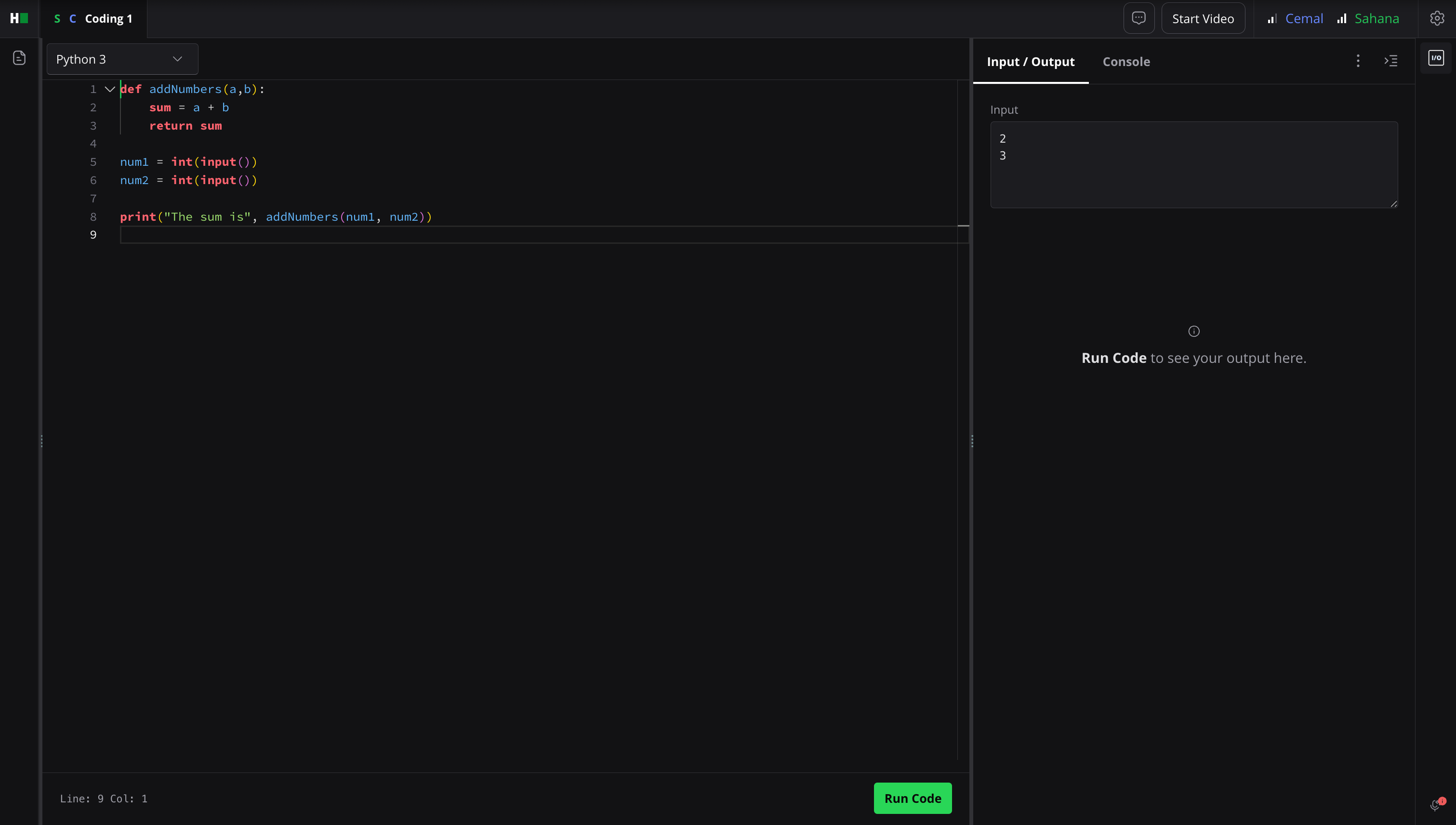
When a candidate joins the interview, they see a blank screen until the interviewer unlocks a tab.
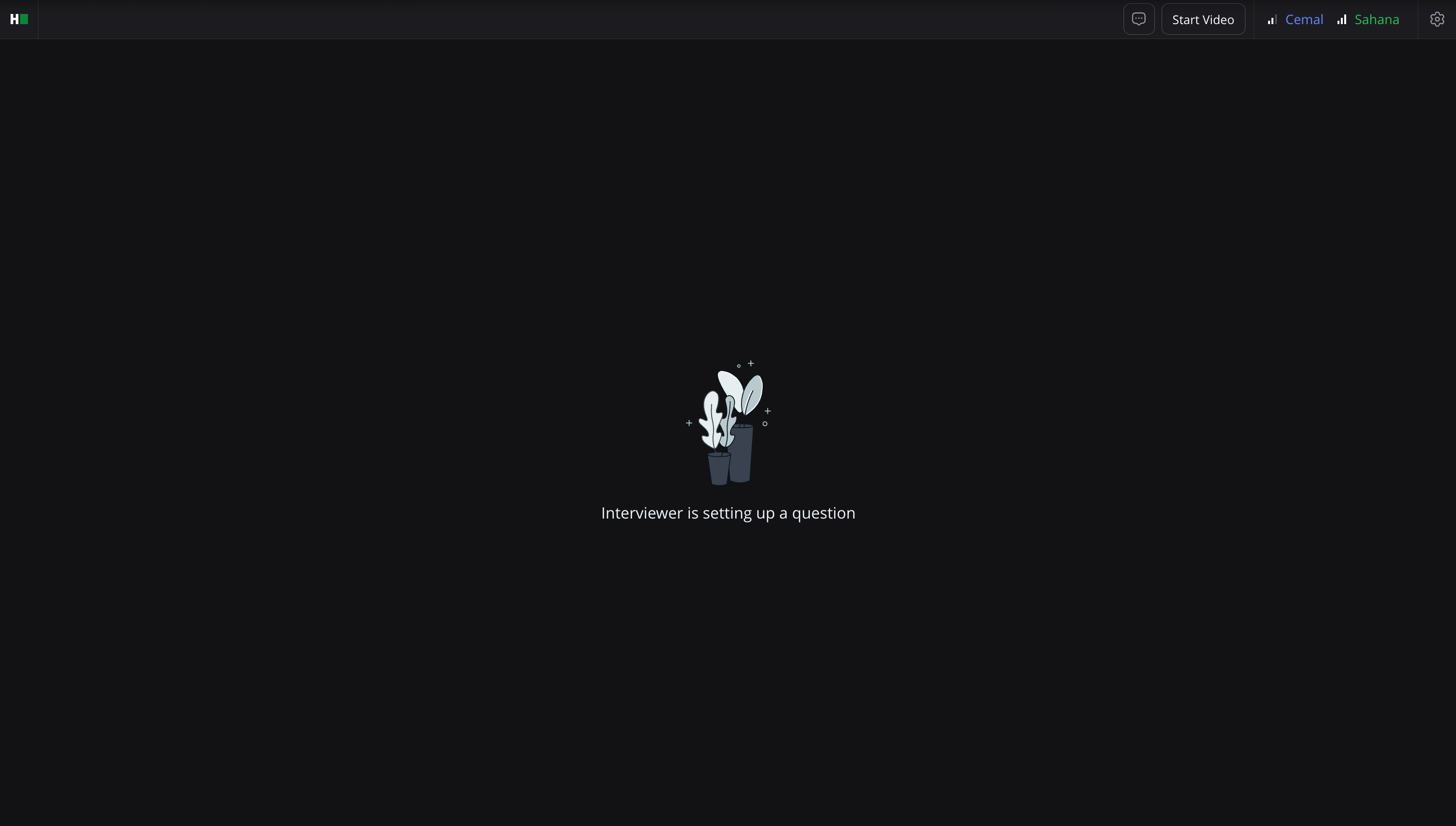
Once a question tab is unlocked, the candidate can view and interact with it.