Configure Email Settings for Tests
Last updated: October 15, 2025
You can manage the emails sent before, during, and after a test. HackerRank lets you configure the following types of test emails:
Test Reports Email
Leakage Alert Emails
Reminder Emails
Invite Email
Confirmation Email
Prerequisites
You must have already created a test.
Configuring email settings
To configure email settings:
Log in to your HackerRank for Work account using your credentials.
Go to the Tests tab.
Open the test you want to configure.
Go to Settings > Emails.
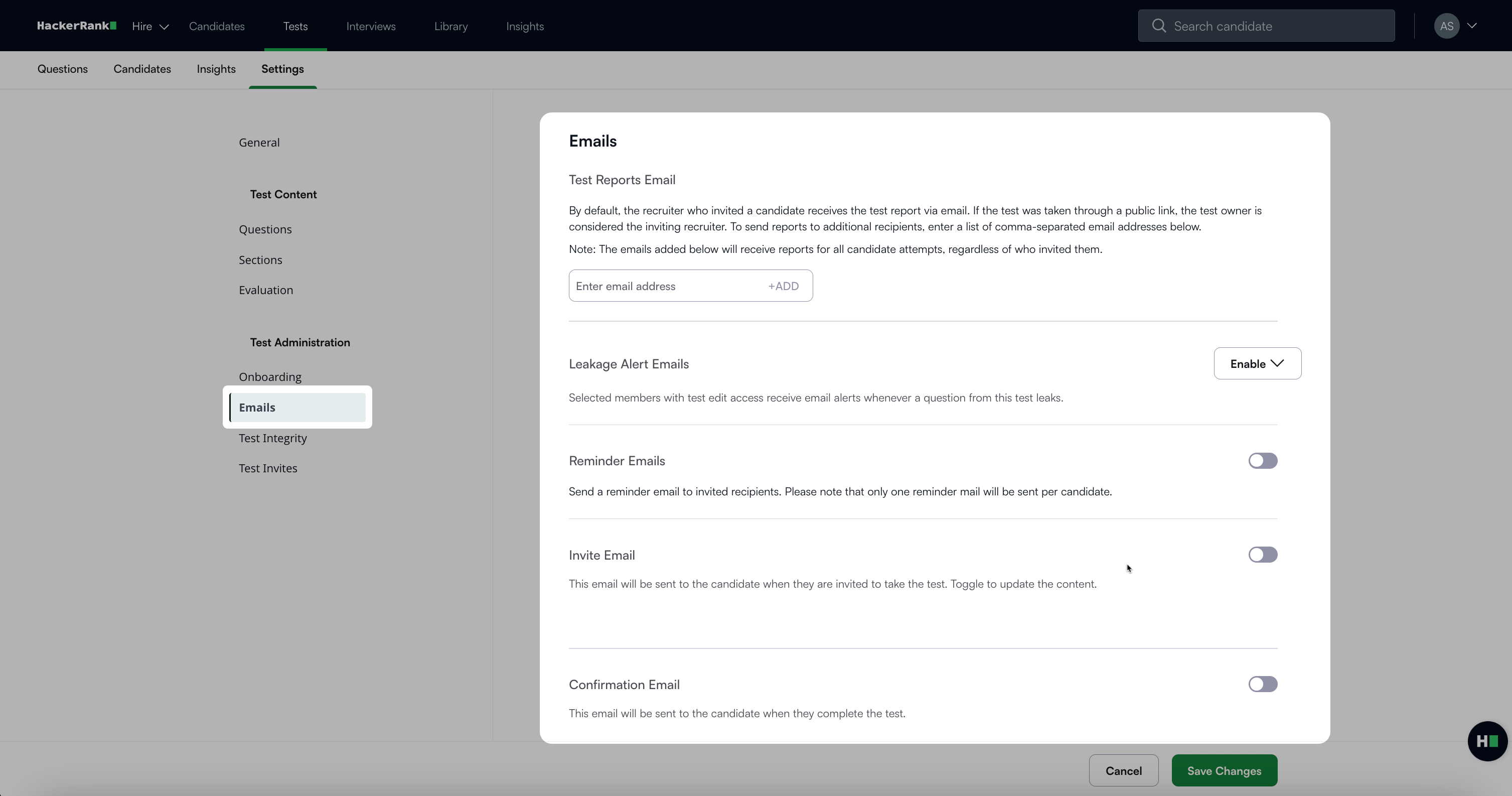
In the Emails section, you can:
Click Save Changes to apply your changes.
Note: When multiple levels of email templates exist, the system applies them in the following order of priority.
If the email template in Centralized Test Settings is locked, it takes the highest priority. This configuration overrides all other template settings.
If the Centralized Test Settings are unlocked but include a default message:
The test-level template takes precedence, even if a user has set a personal default template.
If no test-level template is defined, the system uses the user’s default email template.
If no Centralized Test Settings are locked, and neither test-level nor user-level templates are defined, the system uses the default language template from the Centralized Test Settings.
Configure Test Reports Emails
You can add team members to receive candidate test reports in addition to the test owner.
By default, the recruiter who invites a candidate receives the test report. If a candidate takes the test through a public link, the system treats the test owner as the inviting recruiter.
To add additional recipients:
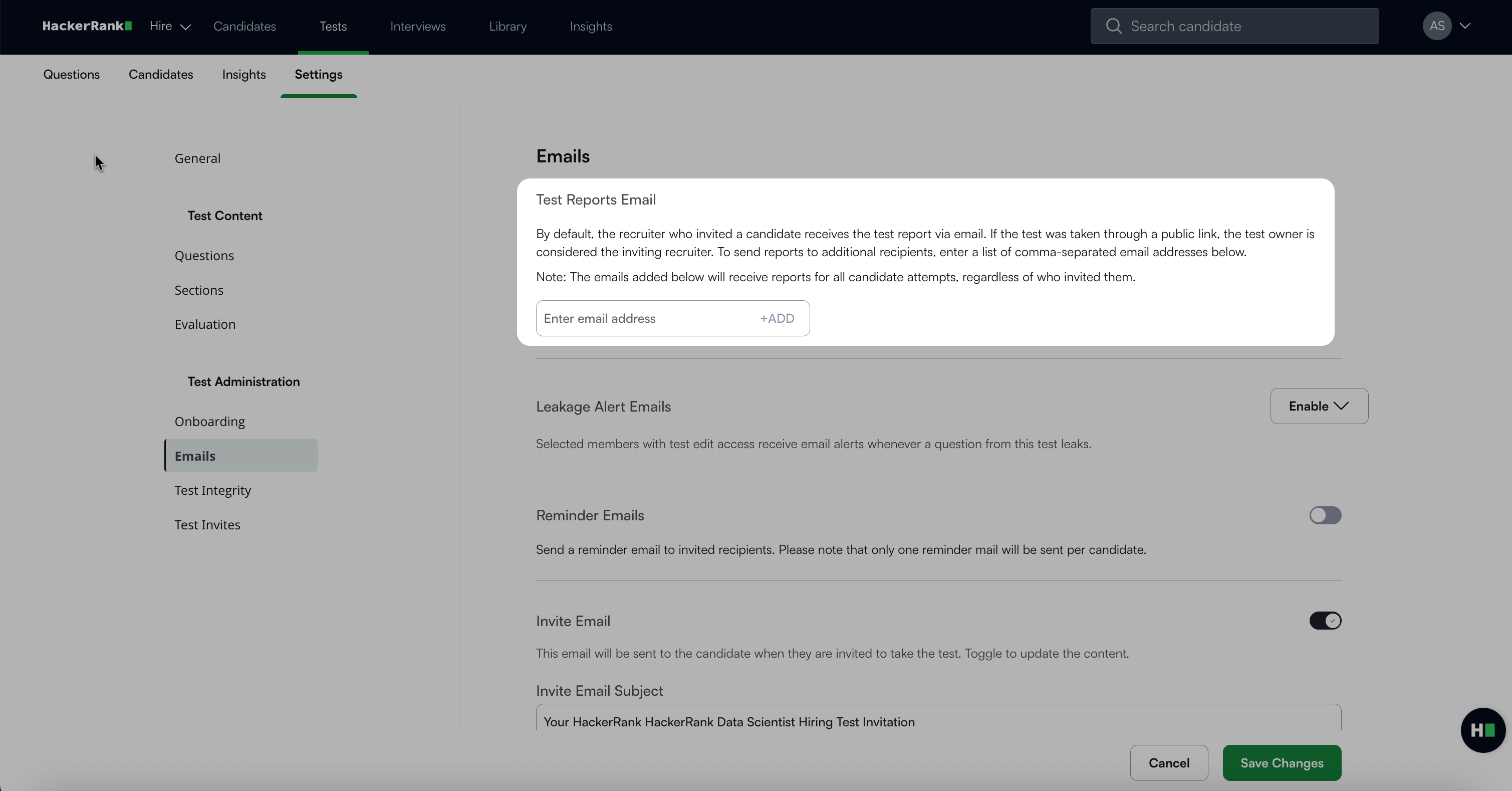
In the Test Reports Email section, enter the email address in the input field
Click + Add.
Note: All added recipients receive reports for every candidate attempt, regardless of who invited the candidate.
Configure Leakage Alert Emails
You can add users to receive notifications when HackerRank detects a leaked test question.
To enable leakage alerts for specific team members:
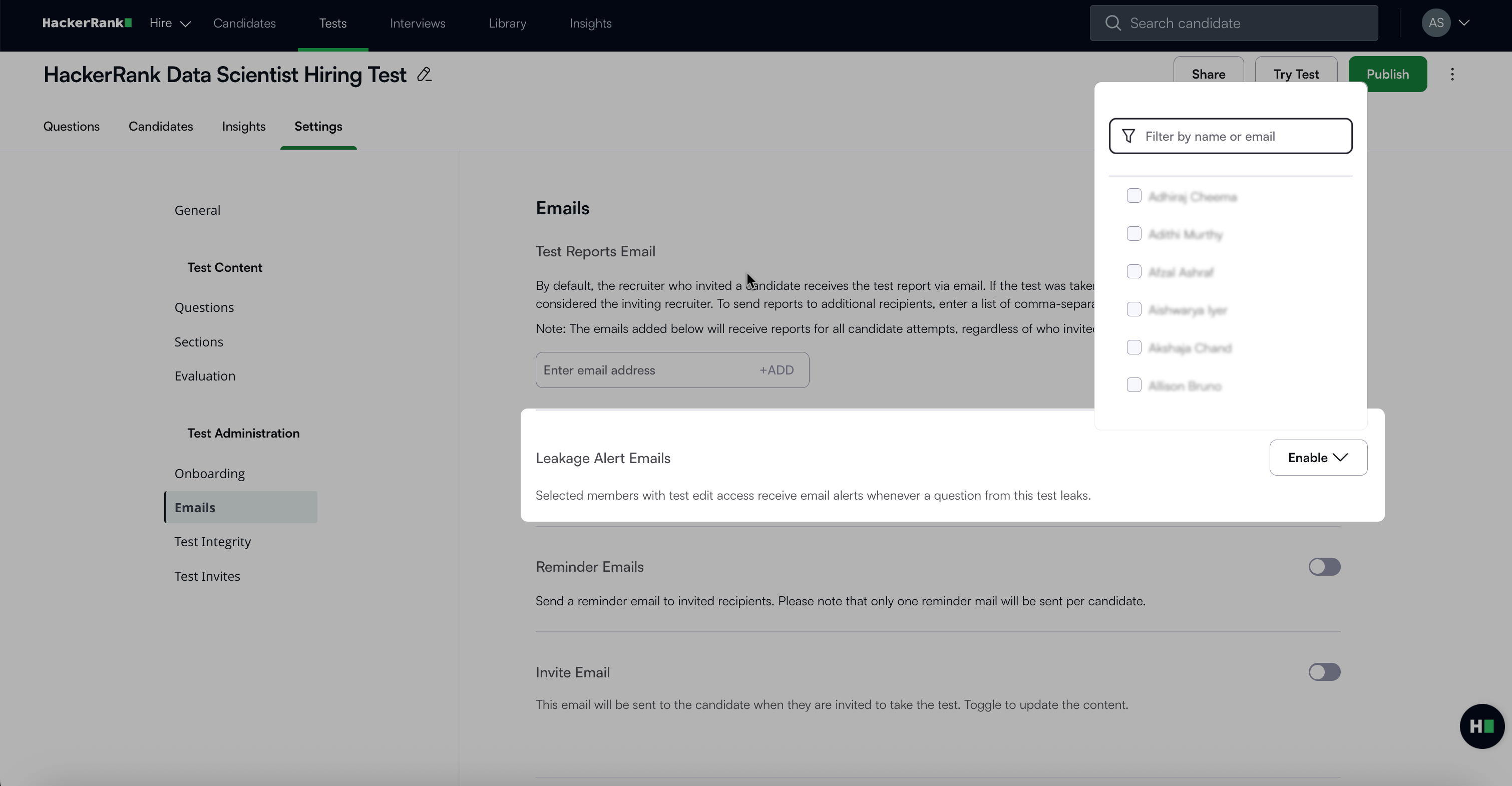
In the Leakage Alert Emails section, select the Enable drop-down menu.
Select the checkbox to add users from the list or use the search bar to filter by name or email.
Note:
By default, only users with edit access to the test can receive leakage alerts.
HackerRank automatically sends an email notification to these users when a potential content leak is detected.
Configure Reminder Emails
Send reminder emails to candidates who have not attempted the test. By default, reminder emails are disabled, and each candidate receives only one reminder.
To enable and customize reminder emails:
Turn on the Reminder Emails toggle.
Select one of the following options:
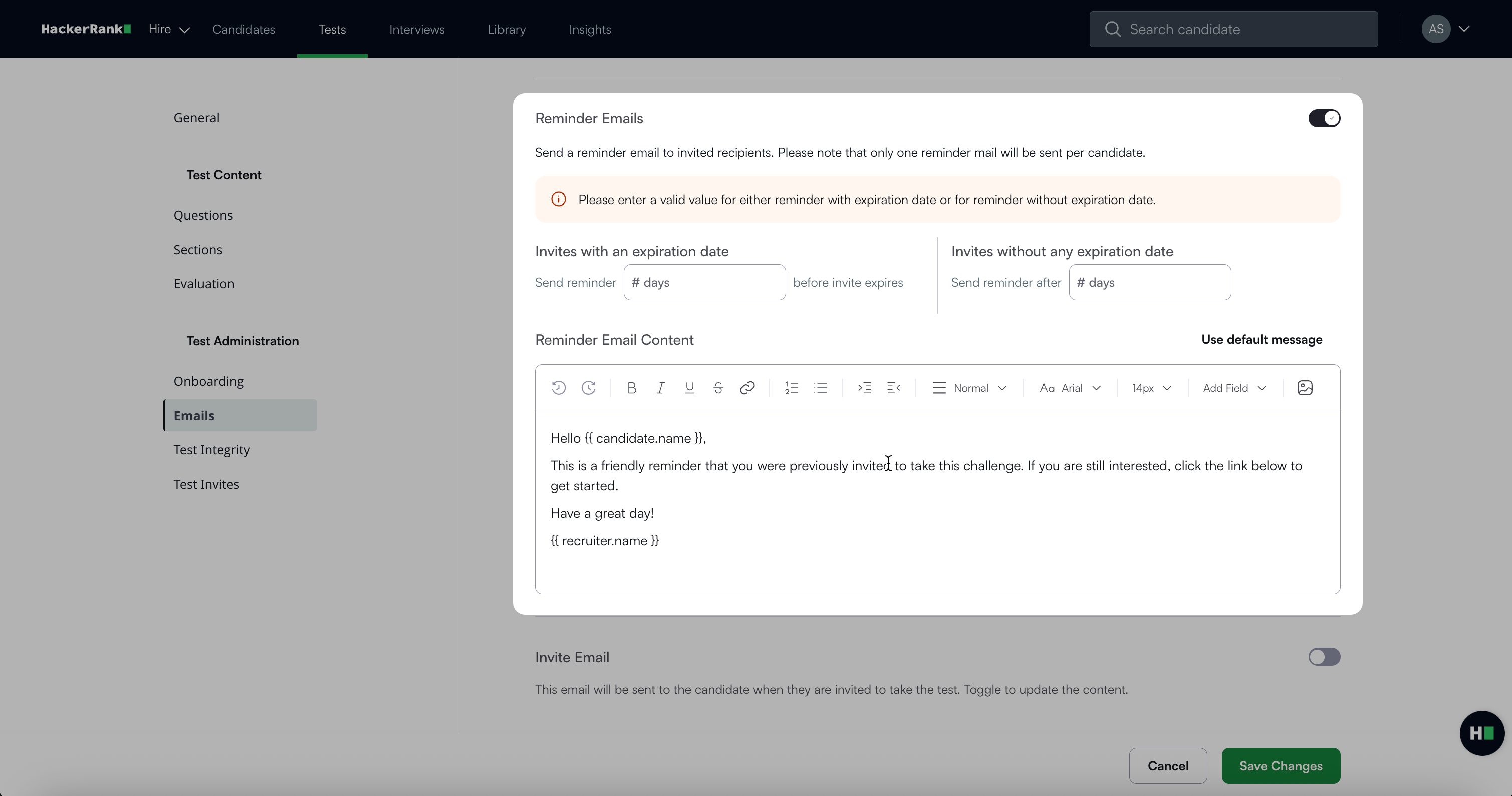
If the test has an expiration date, select how many days before the expiration date to send the reminder.
If the test has no expiration date, select how many days after the invite to send the reminder.
Customize the message in the Reminder Email Contents section
Or
Click Use Default Message to apply the default content instead.
Configure Invite Email
You can configure a custom invite email template at the test level. This option allows you to tailor the invitation message to match the context of each test, ensuring candidates always receive accurate and relevant information.
To enable and customize the invite email at the test level:
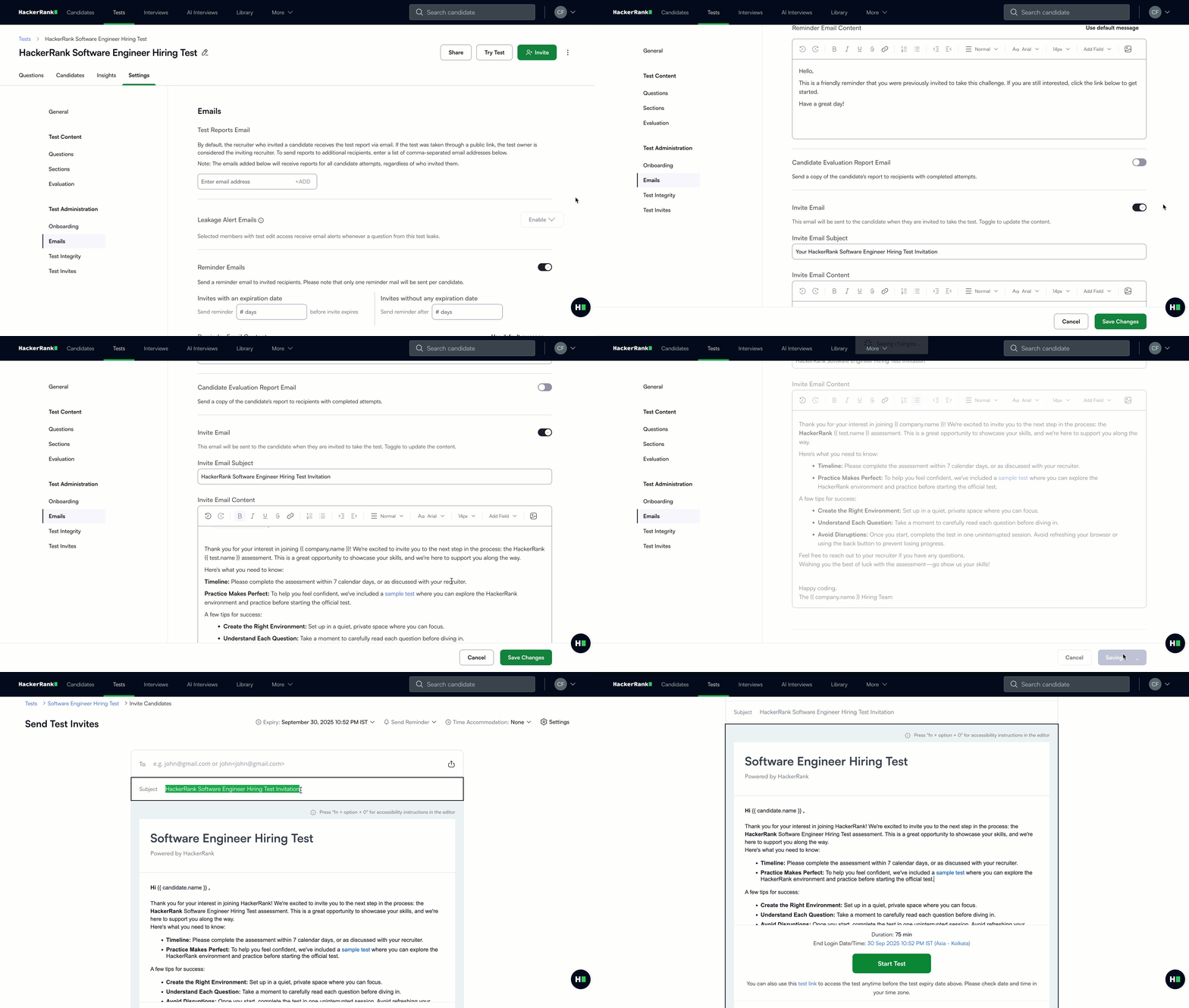
Turn on the Invite Email toggle.
Edit the Invite Email Subject and Invite Email Content text boxes as needed.
Note:
When Centralized Test Settings lock the invite message, that message takes priority.
When centralized settings are unlocked, the system applies the test-level template.
When no test-level template exists, the system applies the user-level template.
When no templates exist, the system uses the default message in the centralized settings.
Configure Confirmation Emails
Send confirmation emails to candidates after they complete a test. By default, this setting is enabled.
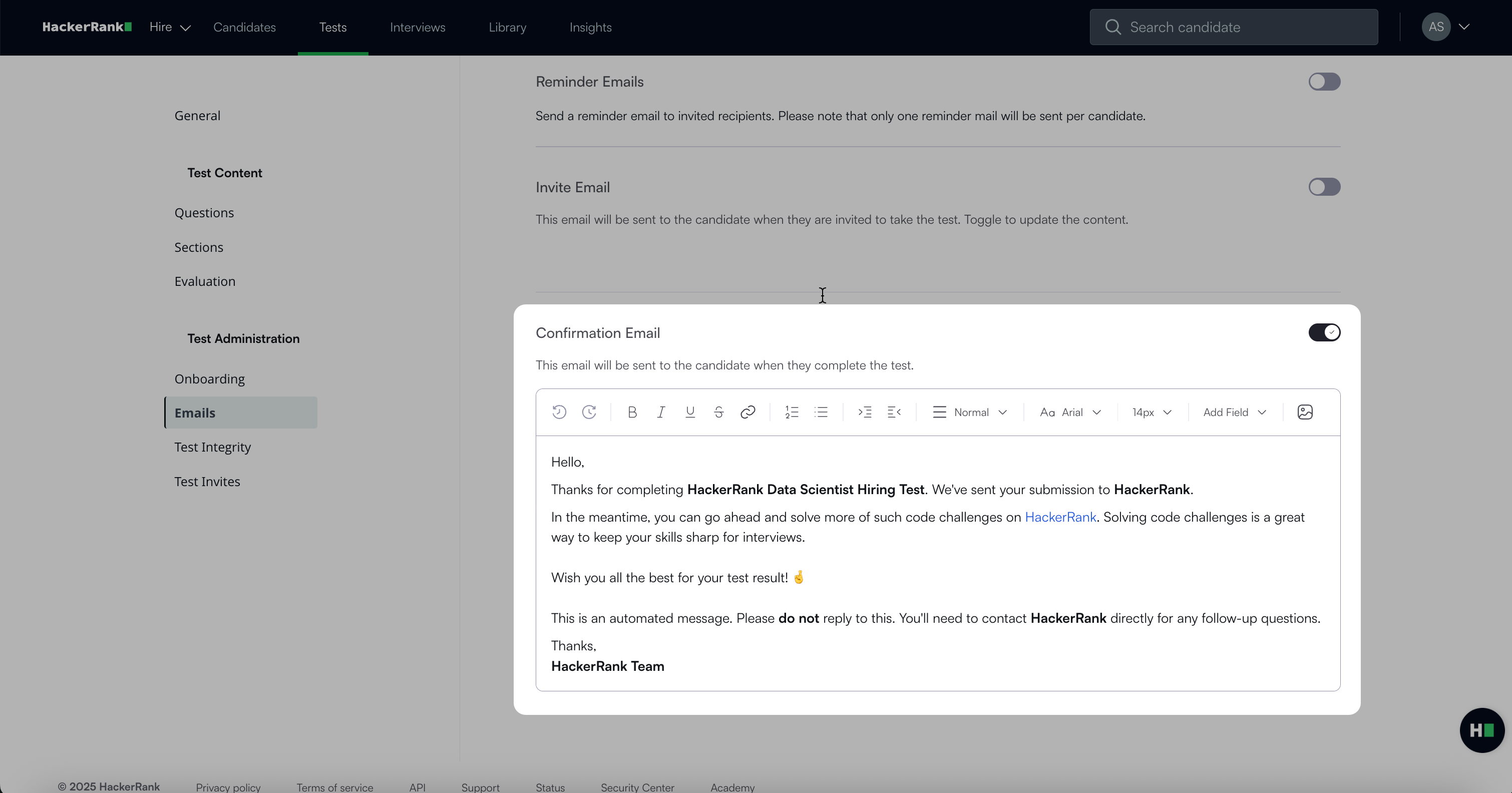
To enable and customize confirmation emails:
Turn on the Confirmation Email toggle.
Edit the confirmation email content in the text box to include next steps or additional links.