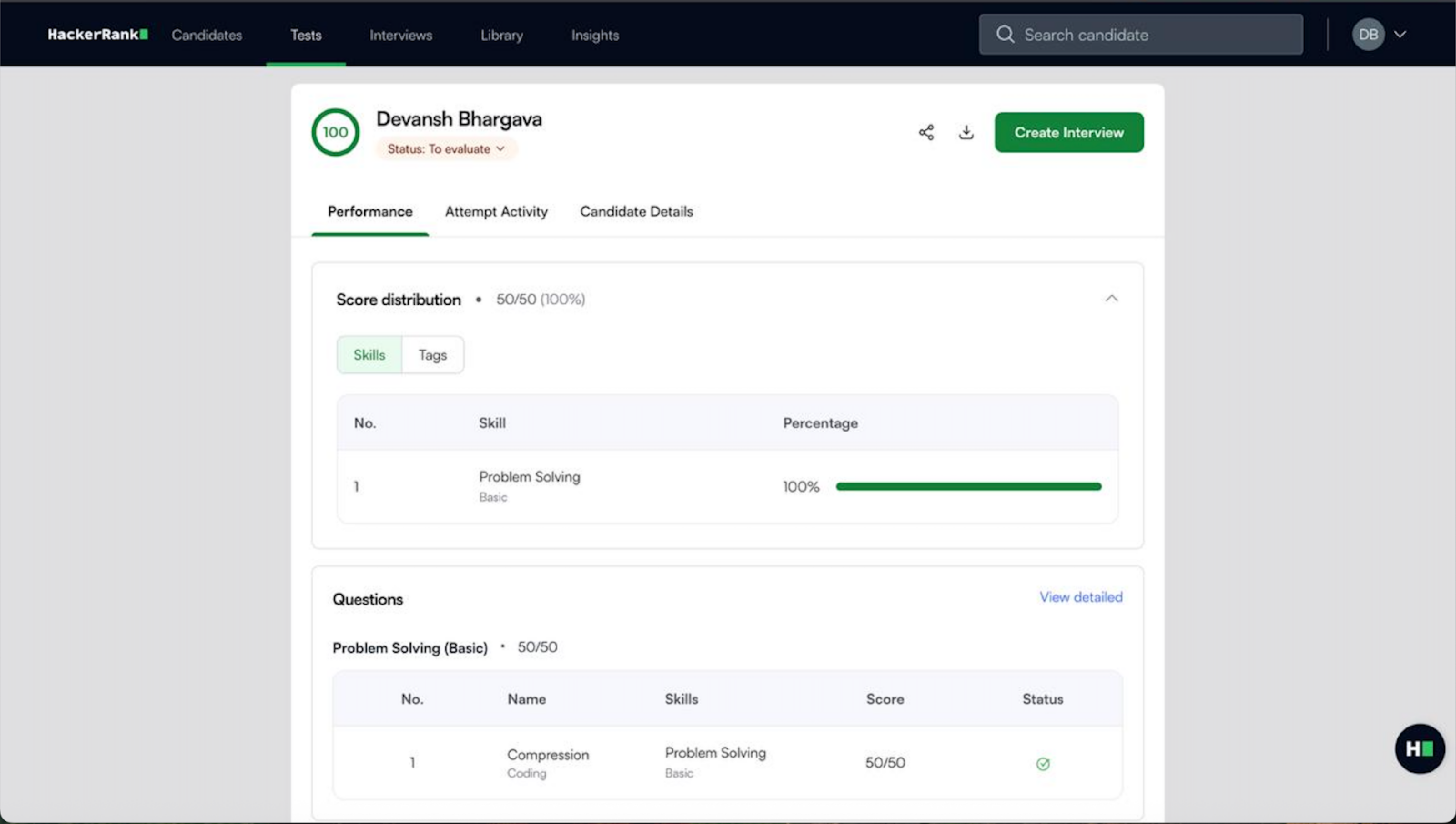
Northstarz - HackerRank Integration User Guide
Last updated: September 8, 2025
HackerRank integrates with Northstarz to send Test and Interview invites directly from the Northstarz ATS portal. Recruiters managing jobs and candidate profiles in Northstarz can use this integration to run skill assessments for job requisitions.
Candidates receive HackerRank Test and Interview invites, then complete the assessments. After submission, the candidate’s score and performance data automatically appear in Northstarz for evaluation
Workflow for assessing candidates with the HackerRank–Northstarz integration:
Create a test in HackerRank with the required roles.
Add the HackerRank test when you create a job in Northstarz.
Select the candidate in Northstarz and move them to the stage defined by your organization to trigger the HackerRank test.
View the results in Northstarz after the candidate completes the test.
Move the candidate to the interview stage in Northstarz to schedule further rounds.
View the candidate’s performance report in Northstarz.
Adding HackerRank test to a job on Northstarz
To add HackerRank test to a job on Northstarz:
Go to the Job tab in the Northstarz platform.
Click Add New Job.
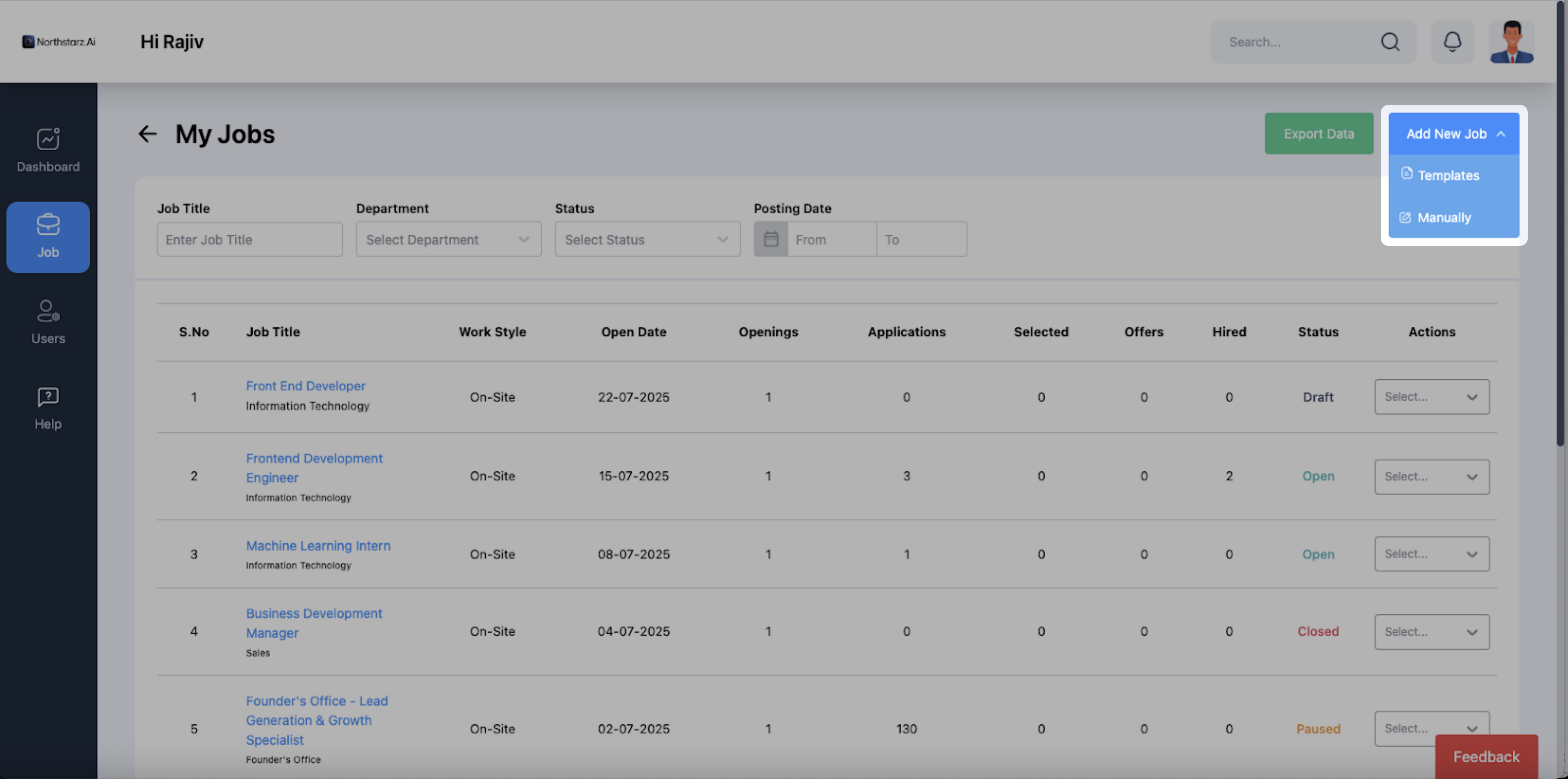
Select Templates to use an existing template.
Select Manually to create a job manually.
Go to the Job Modules tab and select HackerRank Assessment.
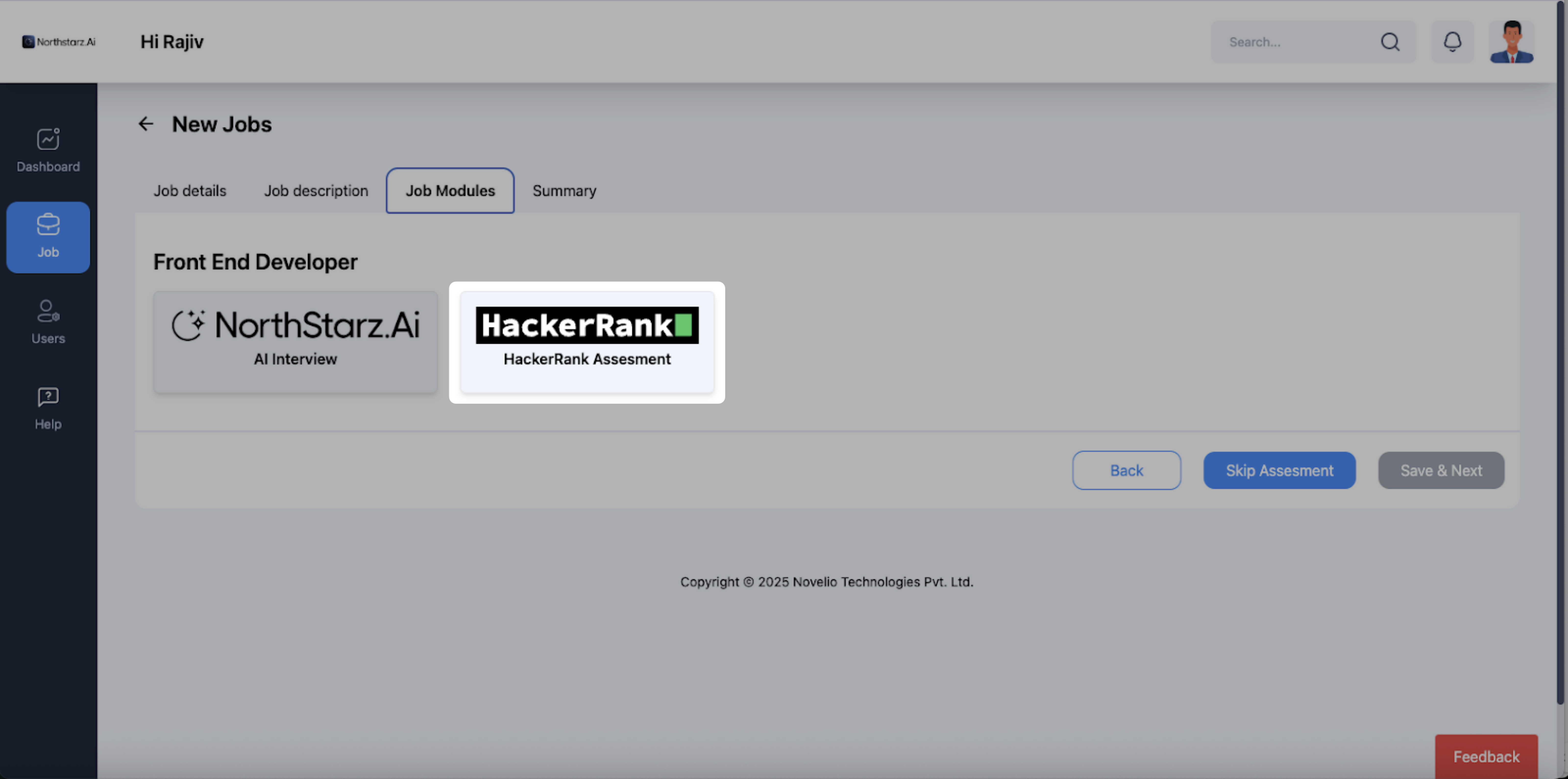
In the HackerRank Assessment Settings section:
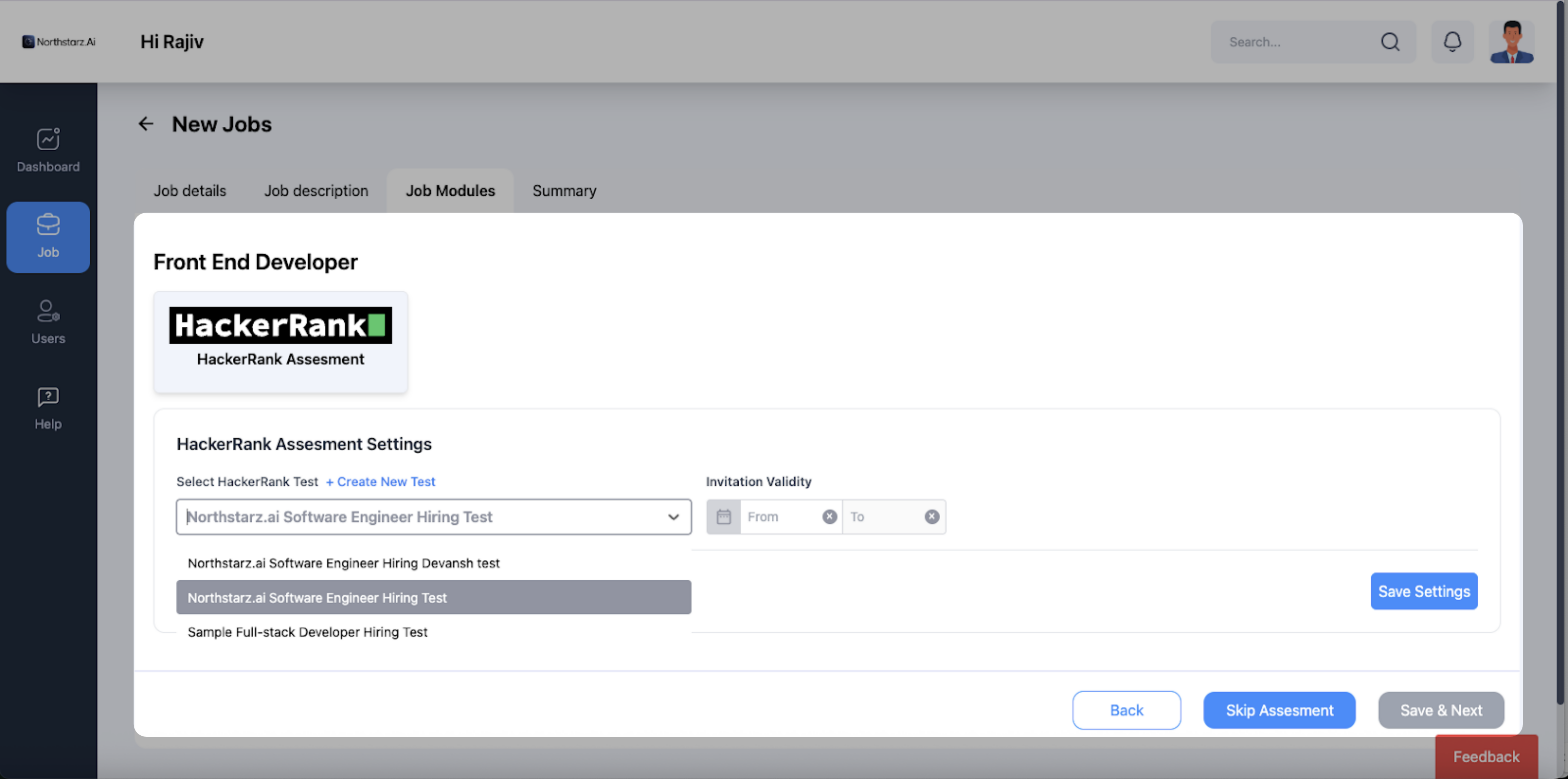
Select the HackerRank test you want to associate with the job.
Enter the Invitation Validity dates to define when candidates can access the test.
Click Save Settings to apply your changes. The HackerRank Test button becomes grayed out.
Click Save & Next to review the job summary.
Click Save or Publish > Publish to complete job creation.
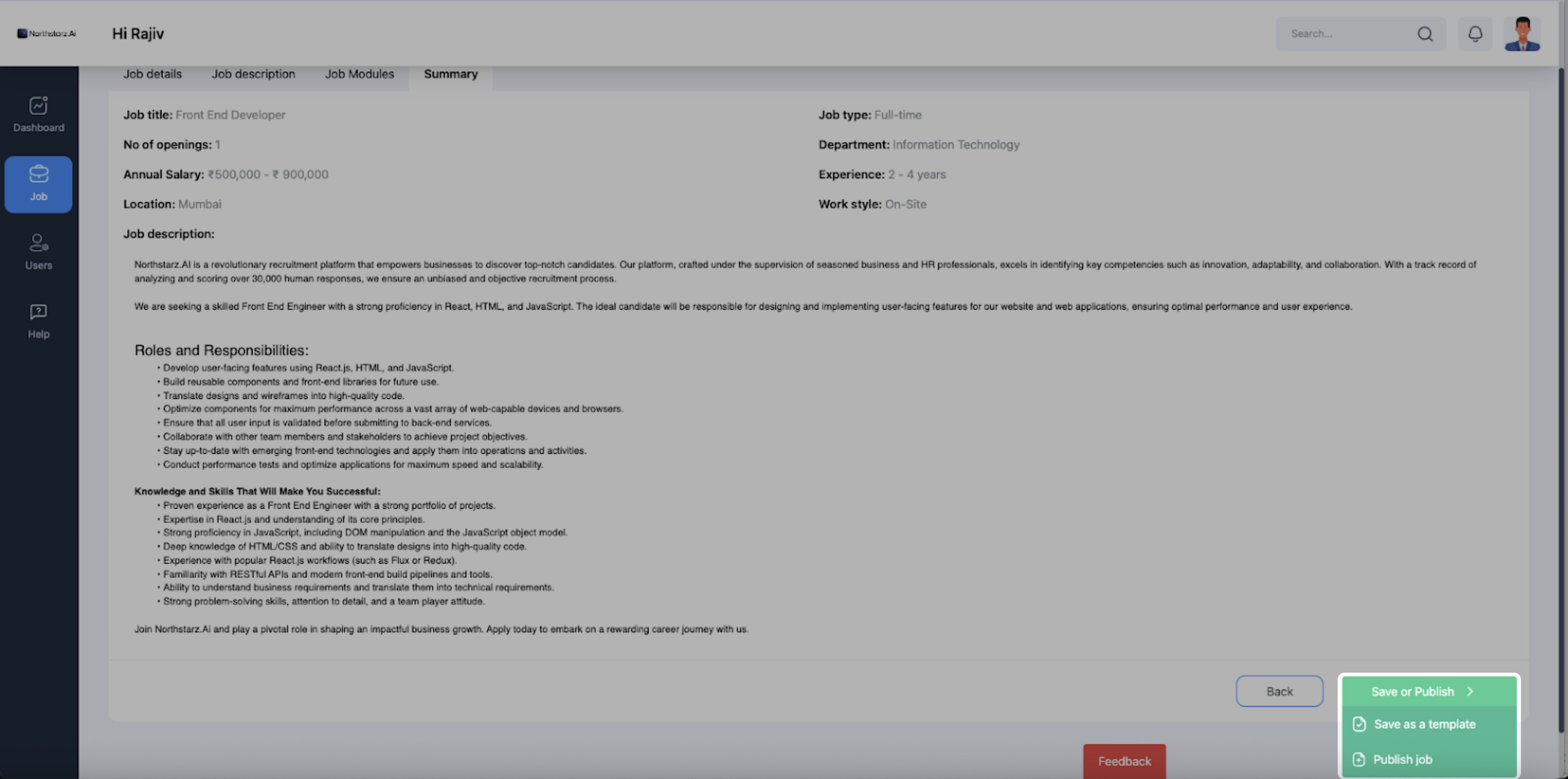
Note: You can also click on Save as template to save the job as a template.
The HackerRank Test is now mapped to the newly created job. The selected HackerRank Test can be triggered for applicants for this job.
Sending HackerRank test invites from Northstarz
To send HackerRank test invites from Northstarz:
Go to the Job tab in the Northstarz platform to view all available jobs.
Select the Job Title for which you want to send the test invite.
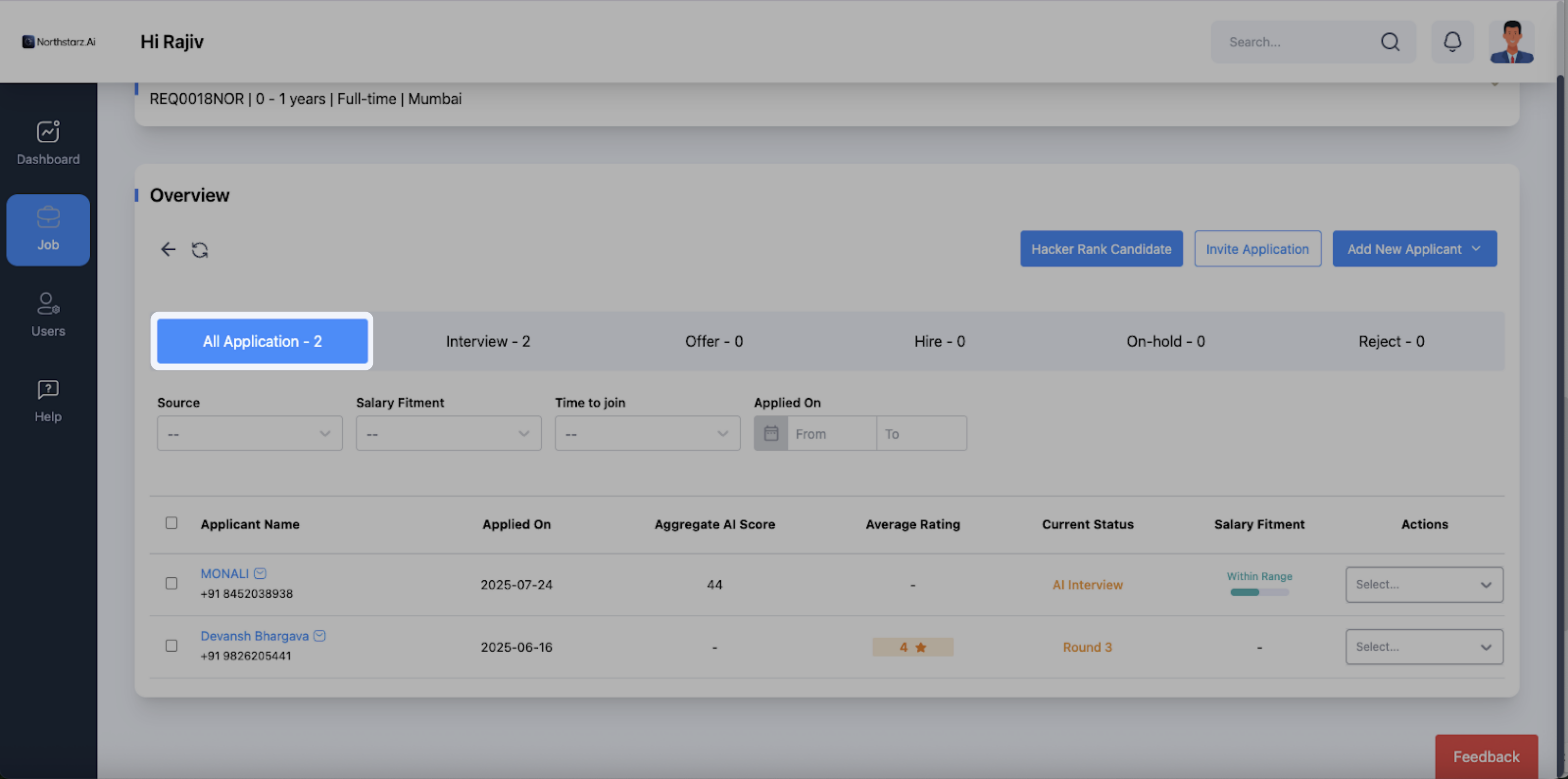
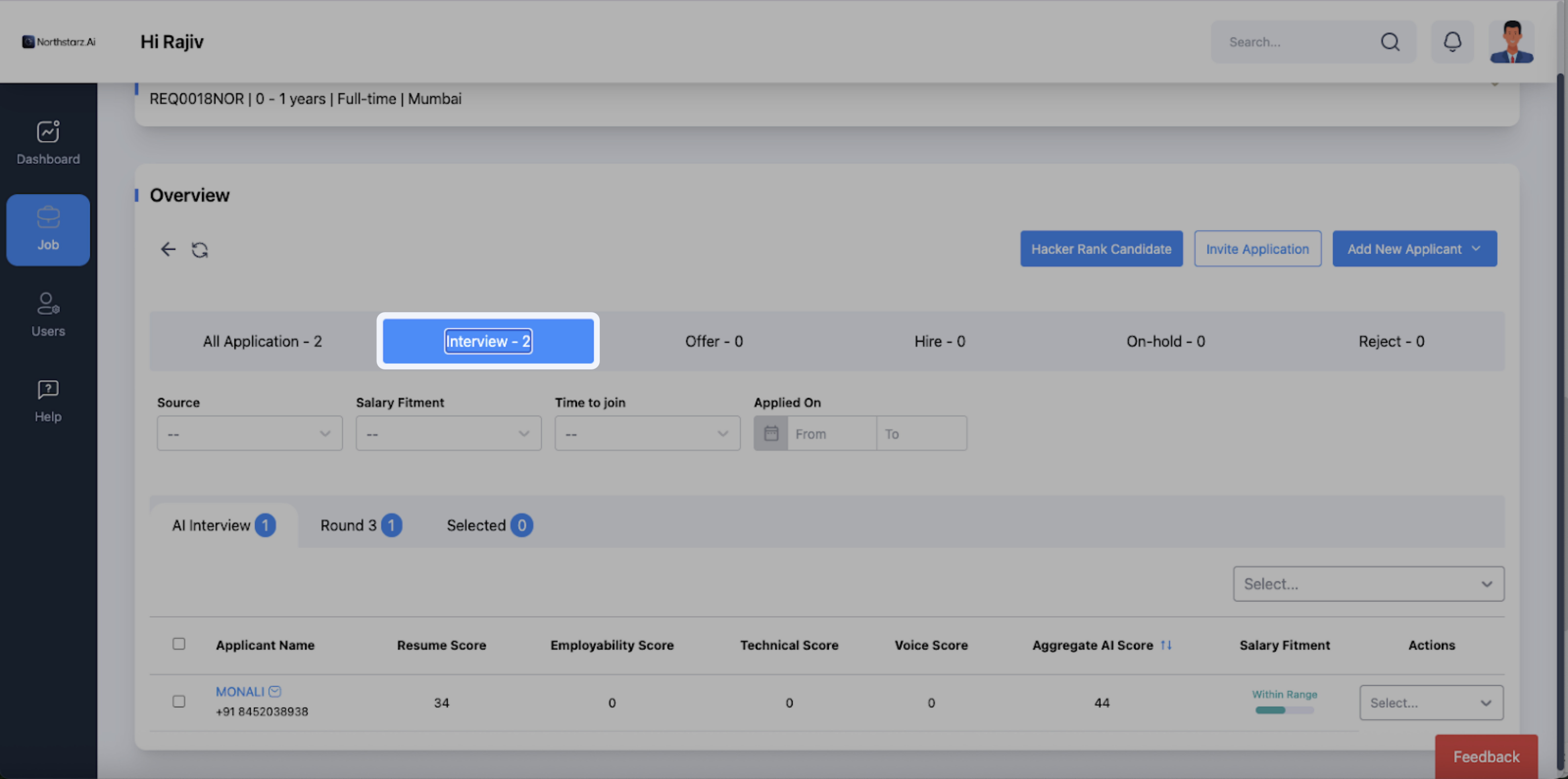
Review candidates in one of the following tabs:
All Application
Interview > AI Interview
Select the candidate(s) you want to assess.
Invite one candidate: Click the Action dropdown next to the candidate’s name and select Trigger HackerRank Test.
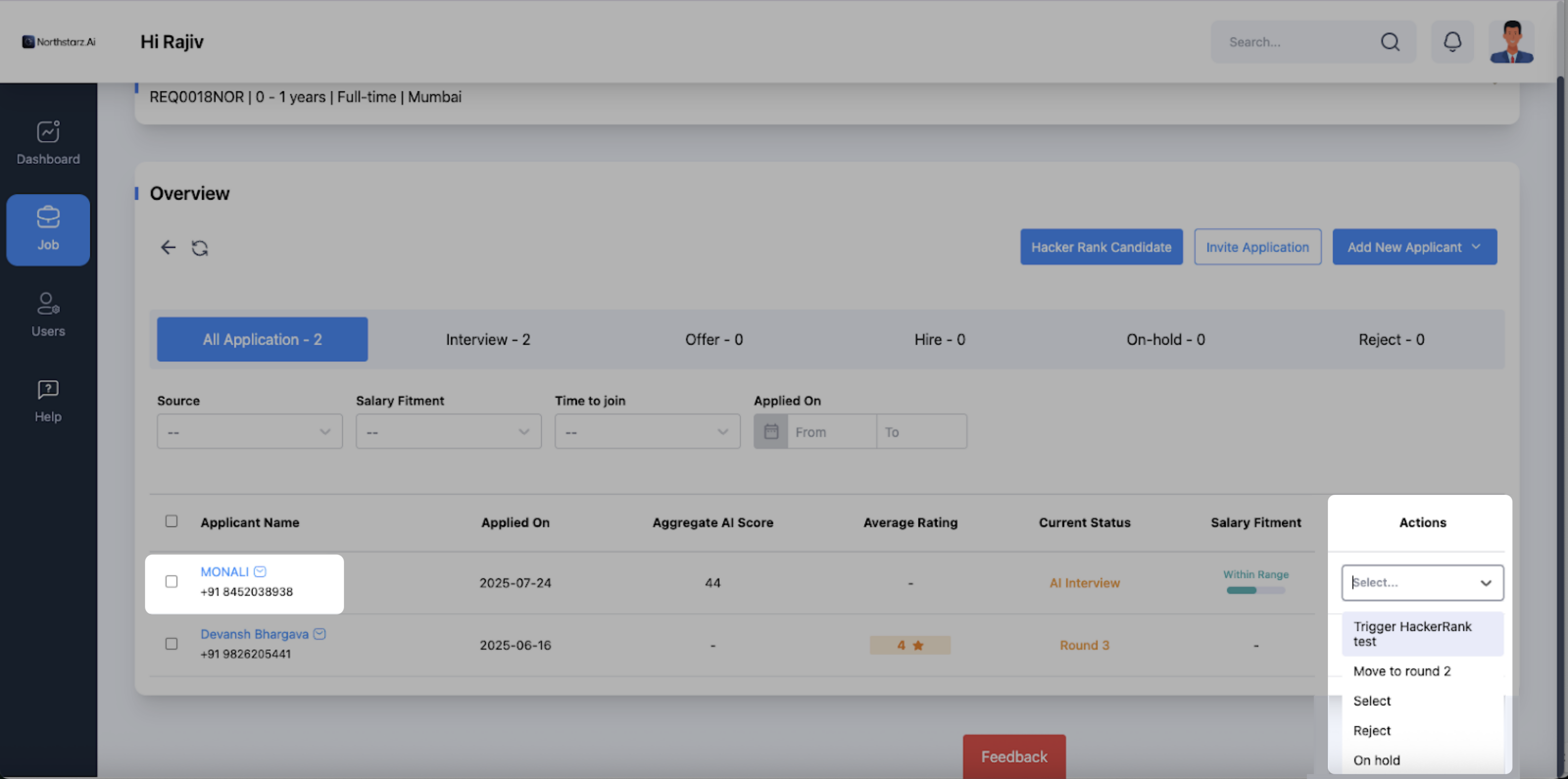
Invite multiple candidates: Select the checkboxes next to the candidates you want to invite. Open the Select Action dropdown and choose Trigger HackerRank Test.
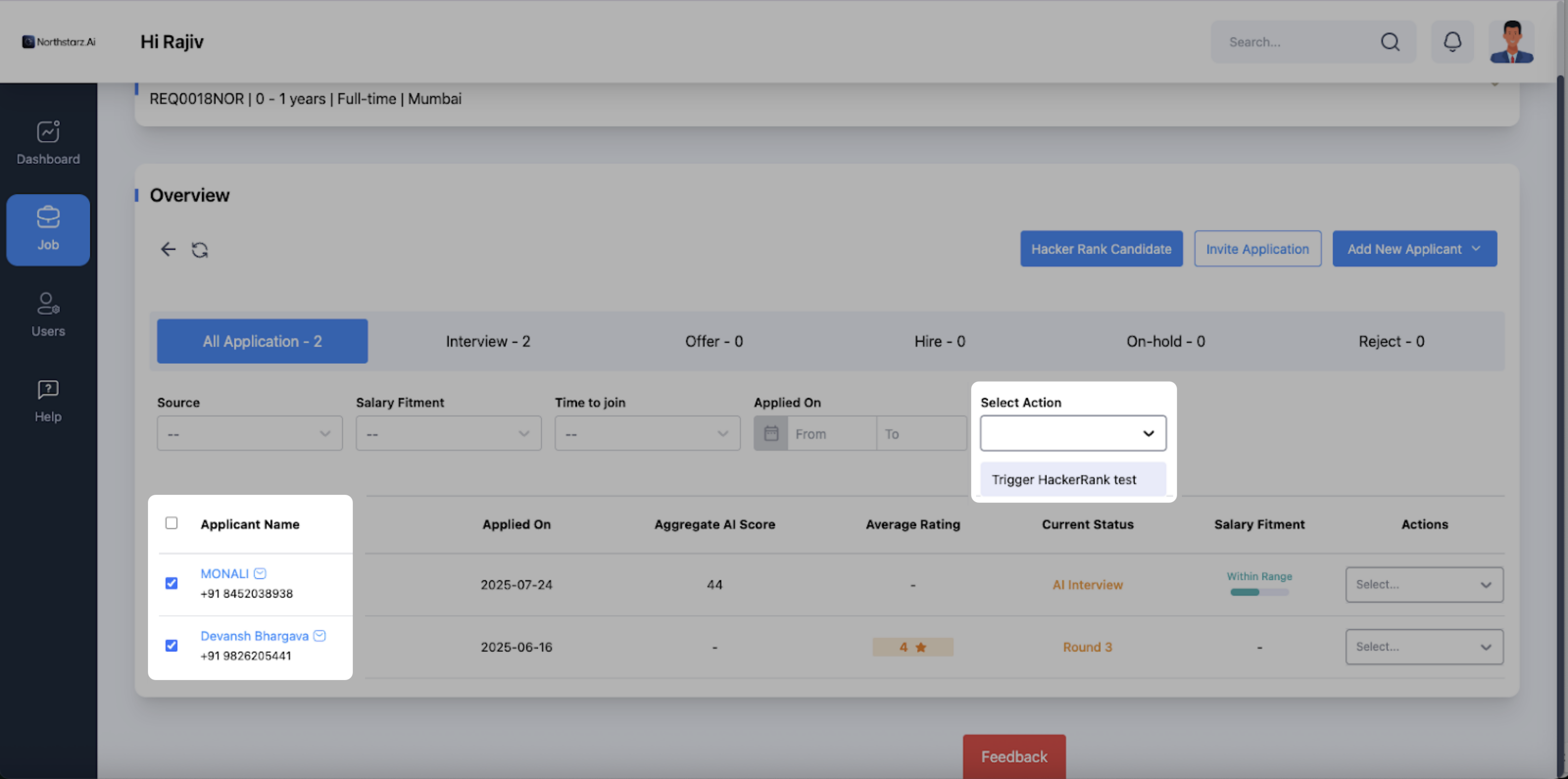
After triggering the HackerRank Test:
The Northstarz platform displays a confirmation message. The system sends the candidate an email invite using the default template that the recruiter configures in HackerRank.
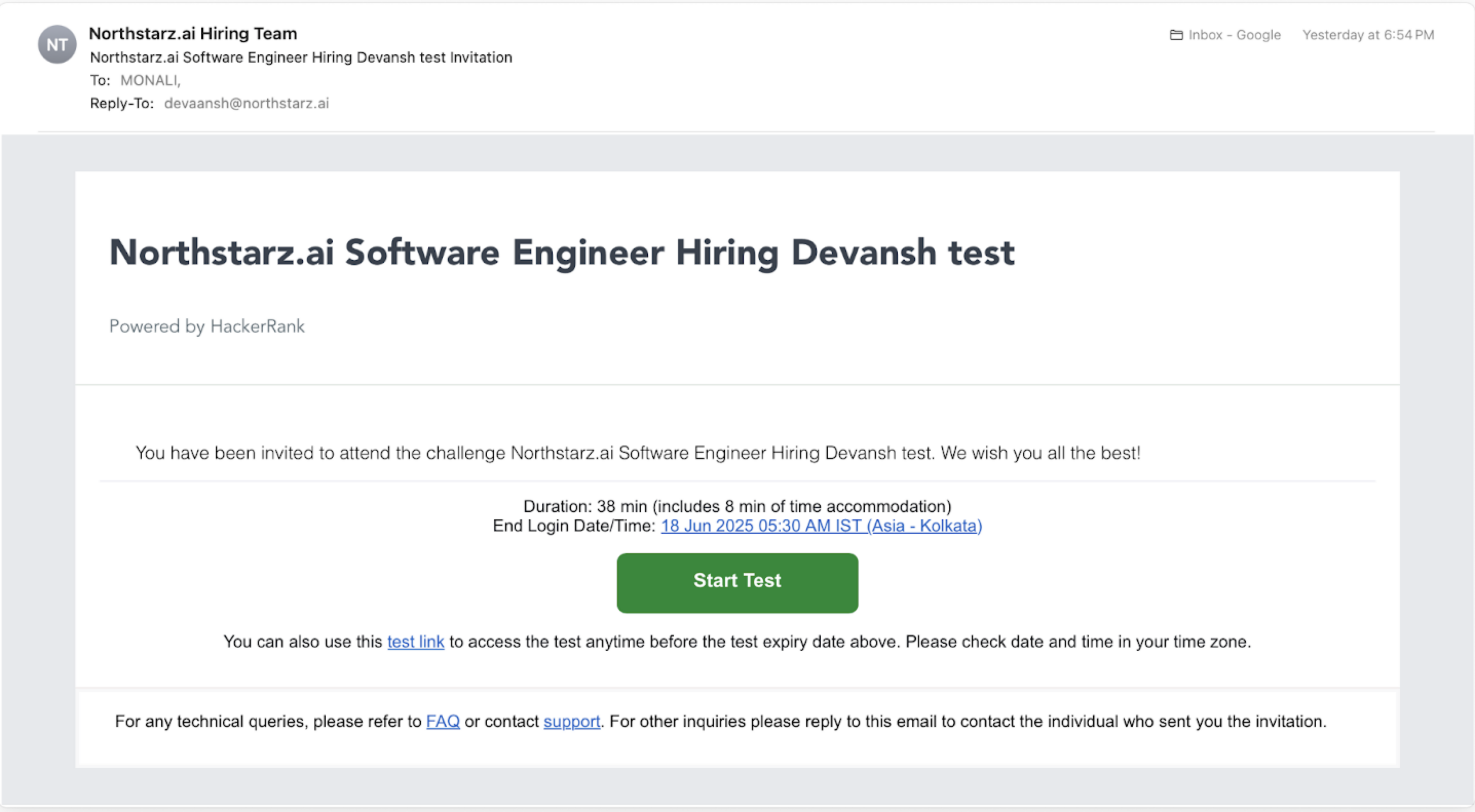
The candidate can click Start Test in the email, and the system redirects them to the HackerRank login page.
After the candidate completes the test, HackerRank automatically updates the test status. The recruiter can view the candidate’s assessment reports in HackerRank.
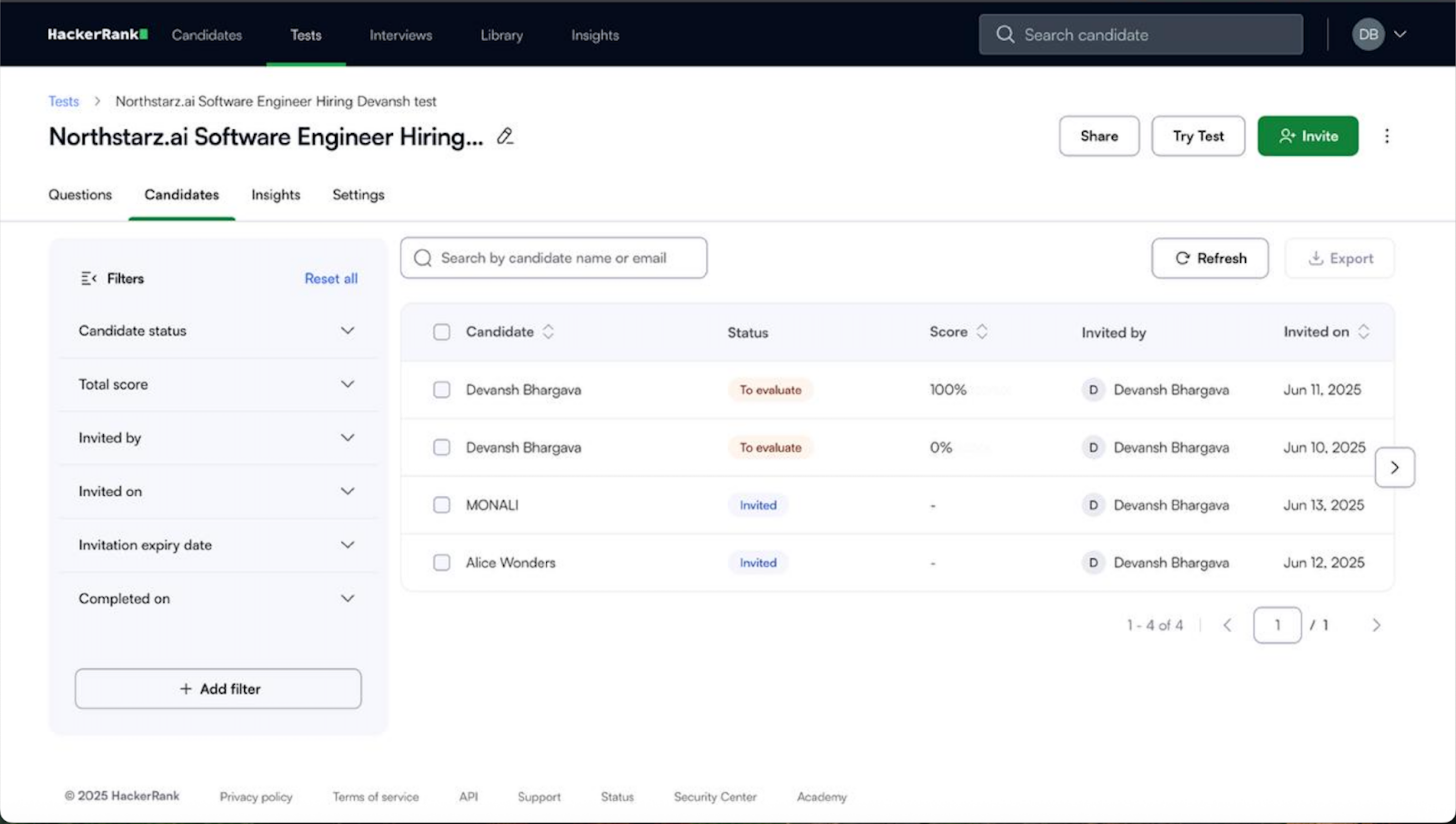
Viewing a candidate test report on Northstarz
After a candidate completes an assessment, Northstarz displays the results on the candidate’s profile.
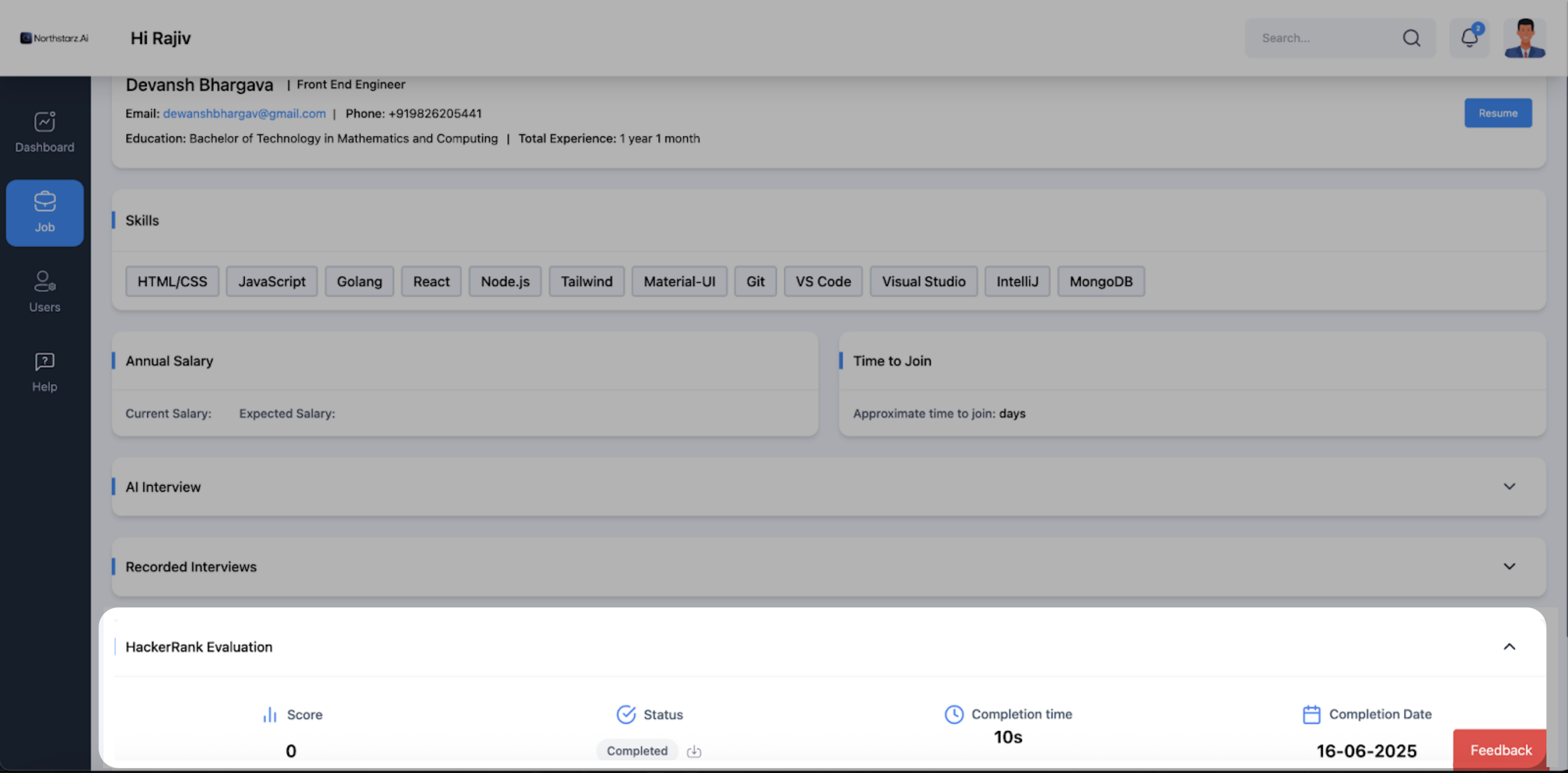
To view the candidate's test report:
Click HackerRank Candidate to view candidates who have submitted a HackerRank Test.
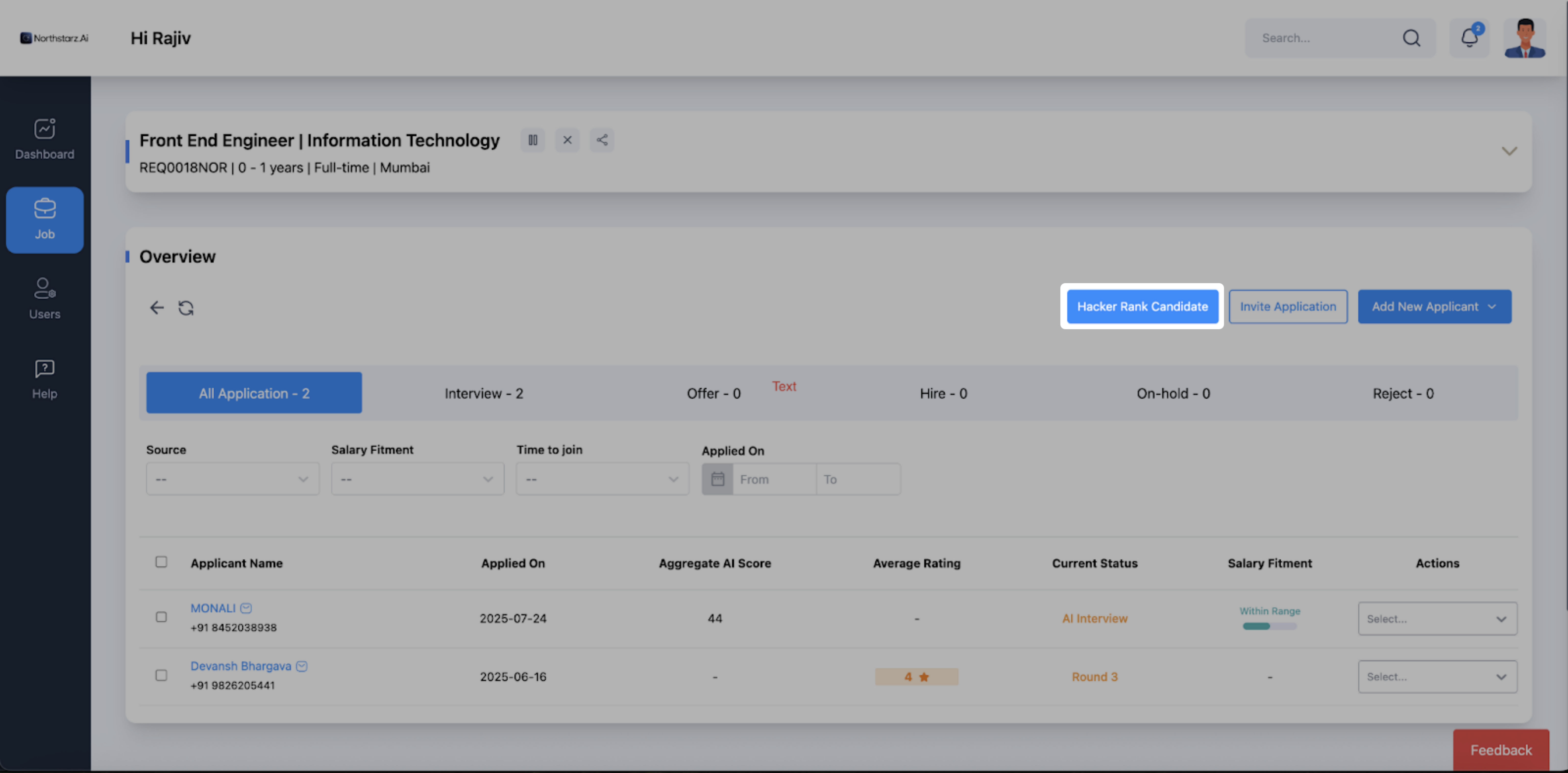
Click View Report next to the candidate whose report you want to view.
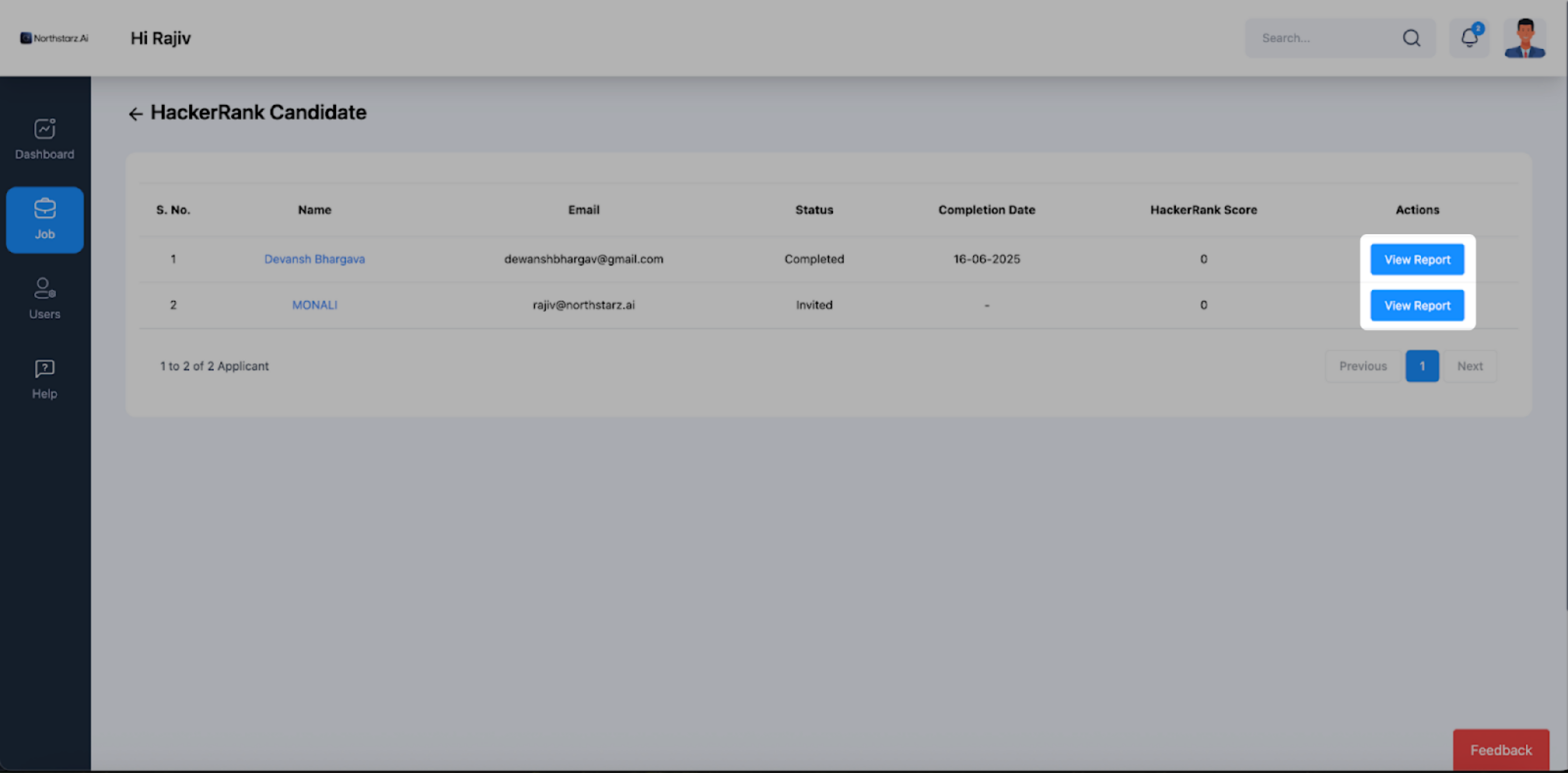
The report opens in the HackerRank platform, and the recruiter can review the candidate’s assessment results.