HackerRank MCP
Last updated: October 15, 2026
This feature is currently available in limited availability. Contact your account manager to request access.
HackerRank MCP is a hosted MCP server that connects your AI assistant to HackerRank for Work. After you connect your AI assistant and authenticate your HackerRank for Work account, you can retrieve hiring information, review assessments and interviews, generate recruiting summaries, and access other supported resources by using natural language.
What is MCP?
Model Context Protocol (MCP) is an open standard that enables AI applications to securely interact with external systems through a standard interface.
With HackerRank MCP:
HackerRank hosts the MCP server.
Your AI assistant acts as the MCP client.
OAuth authenticates your HackerRank for Work account before the AI assistant can access supported data.
How HackerRank MCP works
Using HackerRank MCP involves the following steps:
Connect a supported AI assistant to the HackerRank MCP server.
Authenticate with your HackerRank for Work account.
Ask questions or give instructions in natural language.
After authentication, your AI assistant automatically selects the appropriate MCP tools to retrieve the requested information.
Connect HackerRank MCP
The following sections explain how to connect HackerRank MCP to each AI assistant.
Connect with Claude Code CLI
To connect HackerRank MCP from the Claude Code CLI:
Open a terminal.
Run the following command to add the HackerRank MCP server.
claude mcp add hackerrank \
  --scope user \
  --transport http \
  https://www.hackerrank.com/work/mcp
Start Claude Code.
claudeRun the following command:
/mcpSelect hackerrank.
If the server status displays Needs authentication, press Enter.
Complete the HackerRank for Work sign-in in your browser.
Return to Claude Code.
Run
/mcpagain and verify that the HackerRank MCP server displays a Connected status.
Note: If you need to change the server URL or scope, remove the existing configuration and add the server again.
Connect with Claude Desktop
HackerRank MCP is available as a hosted remote MCP server.
To connect HackerRank MCP from Claude Desktop:
Open Claude Desktop.
Go to Customize > Connectors.
Click Add custom connector.
Enter the following server URL.
https://www.hackerrank.com/work/mcpLeave the OAuth Client ID and Client Secret fields empty.
Click Add.
Locate HackerRank in the connector list.
Click Connect.
Complete the HackerRank for Work sign-in in your browser.
Return to Claude Desktop.
Open or create a Code session.
Open Connectors from the + menu.
Enable HackerRank for the current session.
Note: For Claude Team and Enterprise plans, an organization owner must first add the connector before team members can connect their HackerRank accounts.
Connect with ChatGPT Codex
To connect HackerRank MCP from ChatGPT Codex:
Open Settings.
Go to Plugins > MCP.
Click Add Server.
Enter the following server URL.
https://www.hackerrank.com/work/mcpSave the configuration.
Return to the MCP server list.
Click Authenticate next to hackerrank.
Complete the HackerRank for Work sign-in in your browser.
Return to ChatGPT Codex.
Verify that the HackerRank MCP server displays a Connected status.
Note: If the connection is not established:
Verify that you entered the production server URL.
Complete the OAuth sign-in process.
Retry authentication from your AI assistant.
Use HackerRank MCP
After the connection is established, you can ask questions or give instructions in natural language. Your AI assistant automatically uses the appropriate MCP tools to retrieve the requested information.
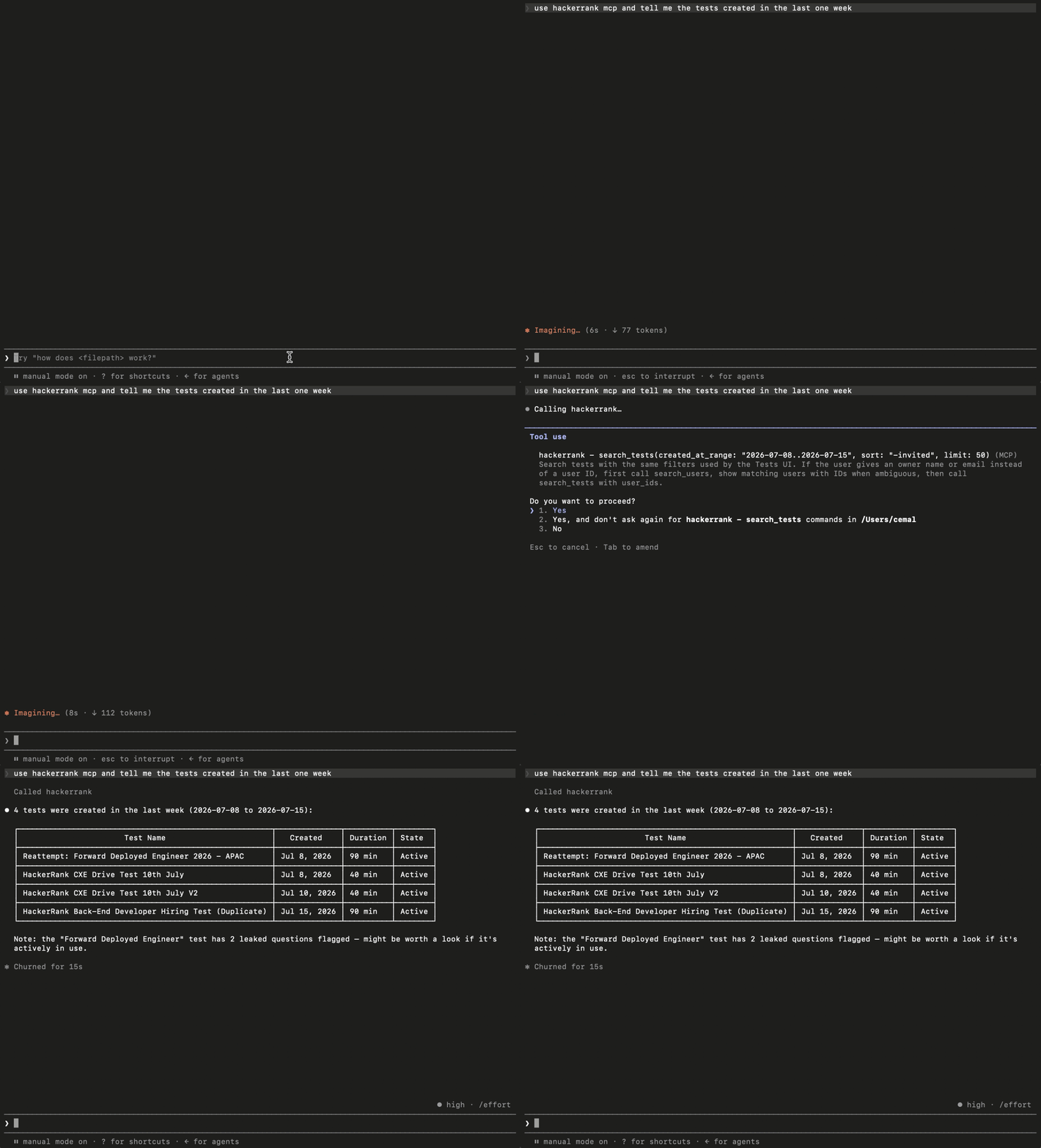
Supported capabilities
HackerRank MCP provides read-only access to the following HackerRank for Work resources.
Capability | Description |
|---|---|
Users | Retrieve user information |
Teams | Retrieve teams and memberships |
Tests | Retrieve tests, questions, and summaries |
Candidates | Search candidates, reports, and pipelines |
Interviews | Retrieve interview details, transcripts, and reports |
Interview templates | Retrieve interview templates |
Questions | Search and retrieve question details |
Invite templates | Retrieve invitation templates |
Audit logs | Retrieve account audit activity |
Frequently Asked Questions
Do I need an API token to use HackerRank MCP?
No. HackerRank MCP uses OAuth authentication. Sign in with your HackerRank for Work account when prompted.
Can HackerRank MCP create or modify HackerRank for Work resources?
No. HackerRank MCP provides read-only access to supported HackerRank for Work resources. It cannot create, update, archive, delete, or modify resources.
Do I need to select an MCP tool manually?
No. Your AI assistant automatically selects the appropriate HackerRank MCP tools based on your request.
Can I use MCP with a self-service subscription plan?
No. MCP is not available to customers with self-service subscription plans.
For more information on HackerRank MCP, visit the HackerRank MCP site.