Greenhouse - HackerRank Integration Guide
Last updated: July 6, 2026
HackerRank integrates with Greenhouse to streamline the candidate screening process for recruiters. As a trusted Greenhouse partner, HackerRank uses the Greenhouse Harvest v3 API to integrate with Greenhouse
This guide explains how to integrate Greenhouse with HackerRank for Work, allowing you to send tests, schedule interviews, and view results seamlessly.
Prerequisites
Before you begin, ensure you meet the following requirements:
You have admin access to your HackerRank and Greenhouse accounts.
Your organization has an active Pro or Enterprise plan with HackerRank.
Your HackerRank login email address matches the email address associated with your Greenhouse account.
Integrating Greenhouse with HackerRank
To integrate Greenhouse with HackerRank:
Step 1: Complete the one-time Harvest v3 connection in HackerRank
This establishes the new Harvest v3 connection for your account.
Log in to your HackerRank account using your company admin credentials.
Go to Settings > Integrations > Greenhouse > Connect, or open the Greenhouse integration page directly.
In the Connect to Greenhouse Harvest v3 API section, click Connect.
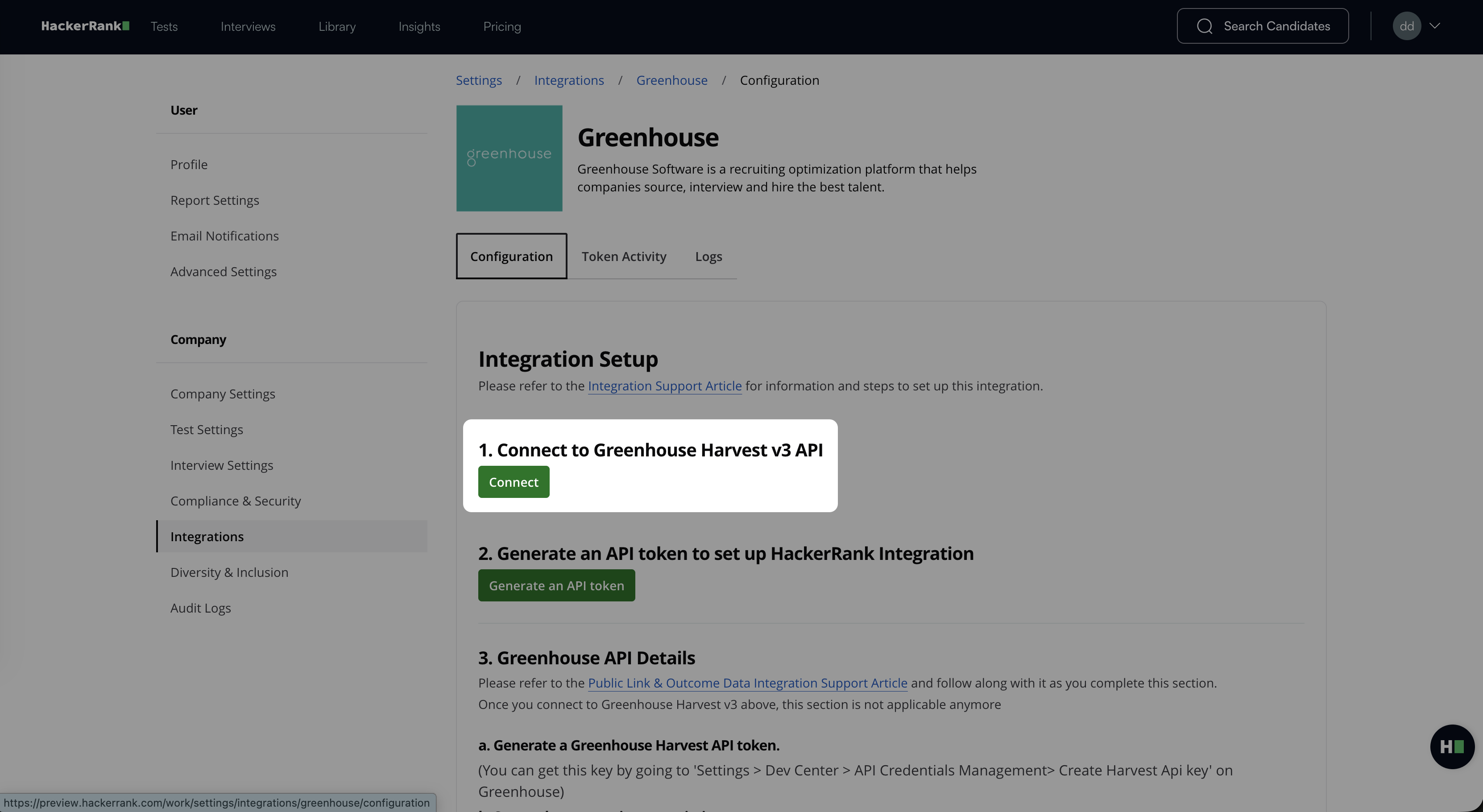
Log in to your Greenhouse account as prompted. Once you are logged in to Greenhouse, you will be redirected to HackerRank to complete the authorization process.
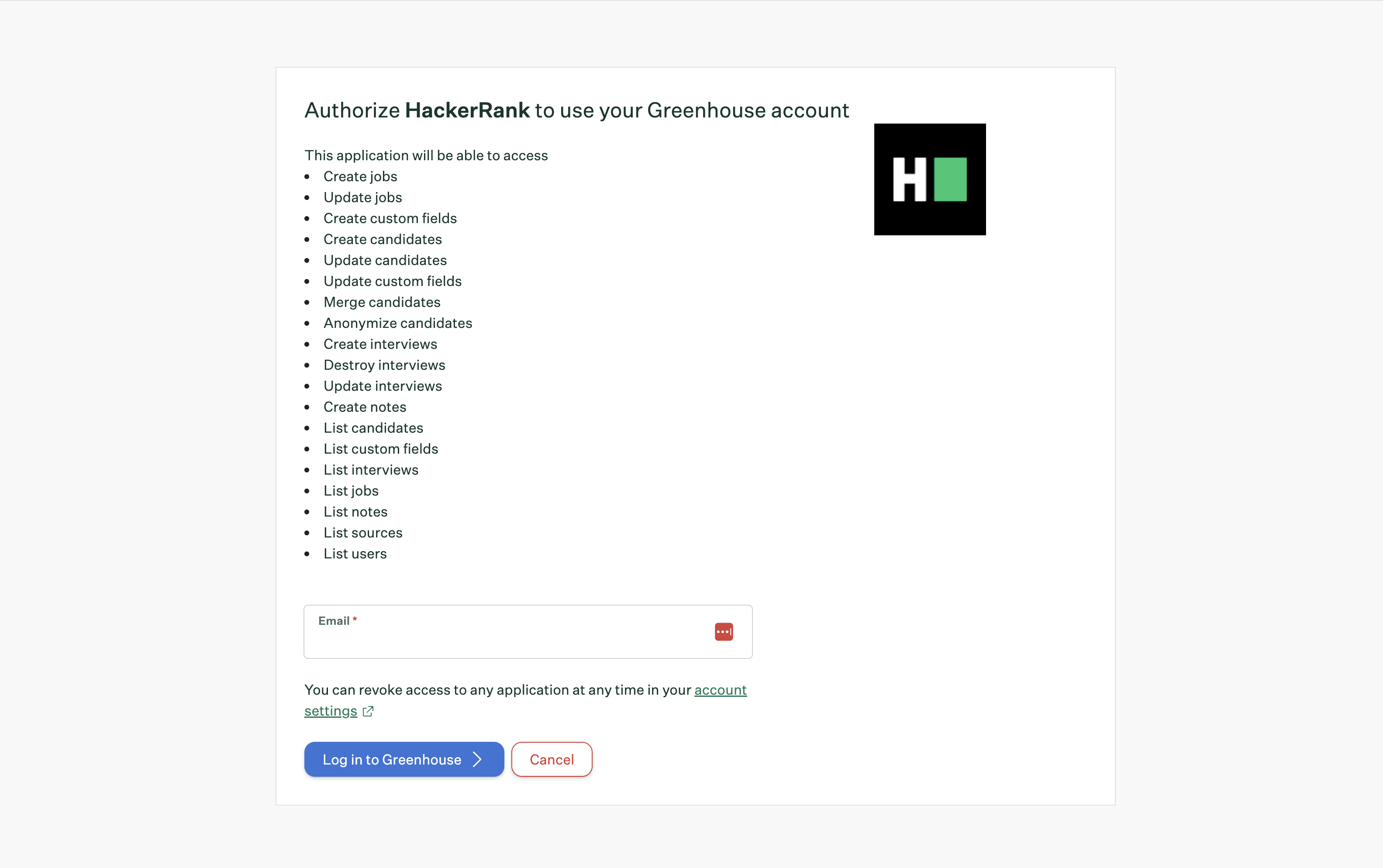
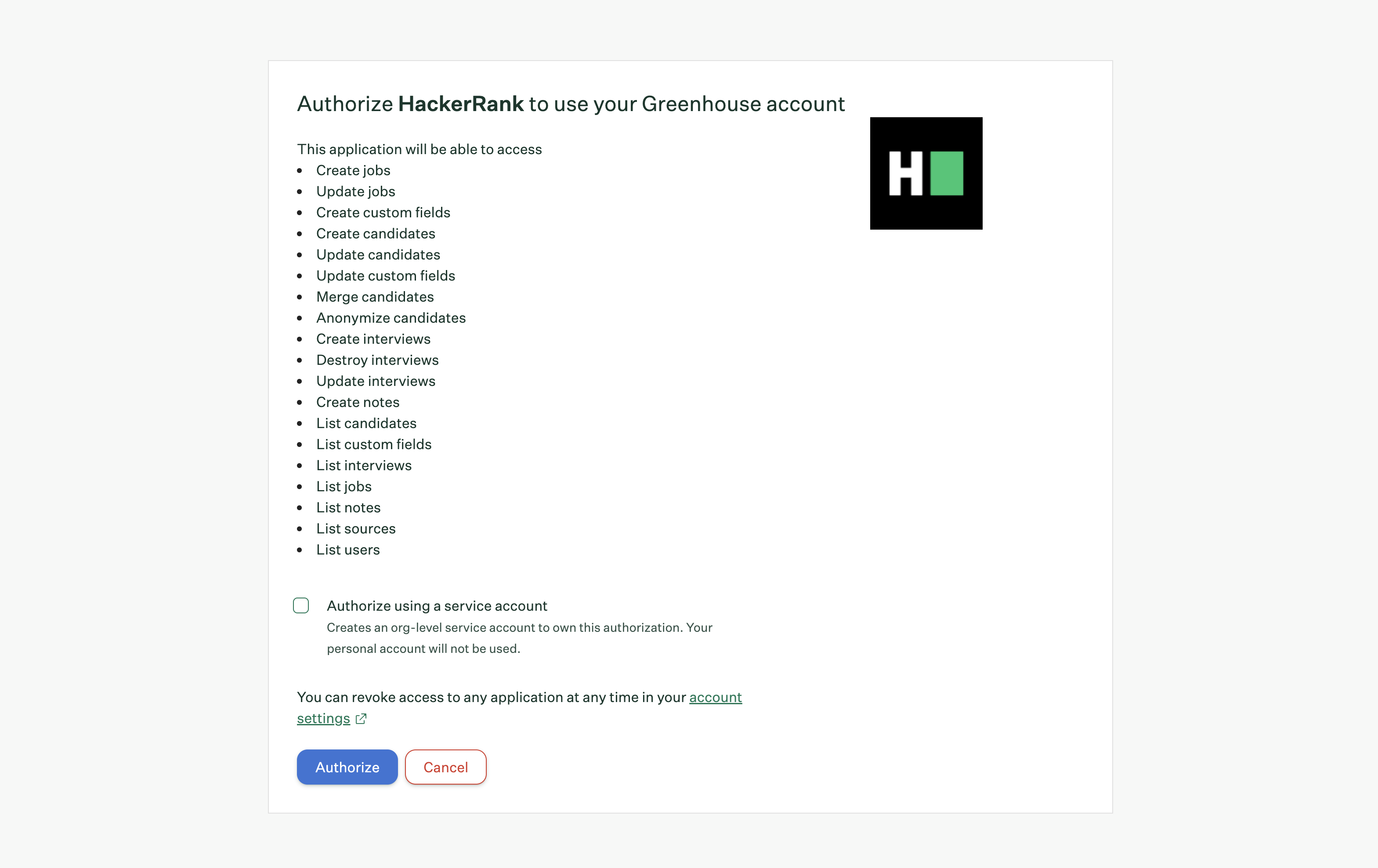
Review the permissions requested by HackerRank and click Authorize.
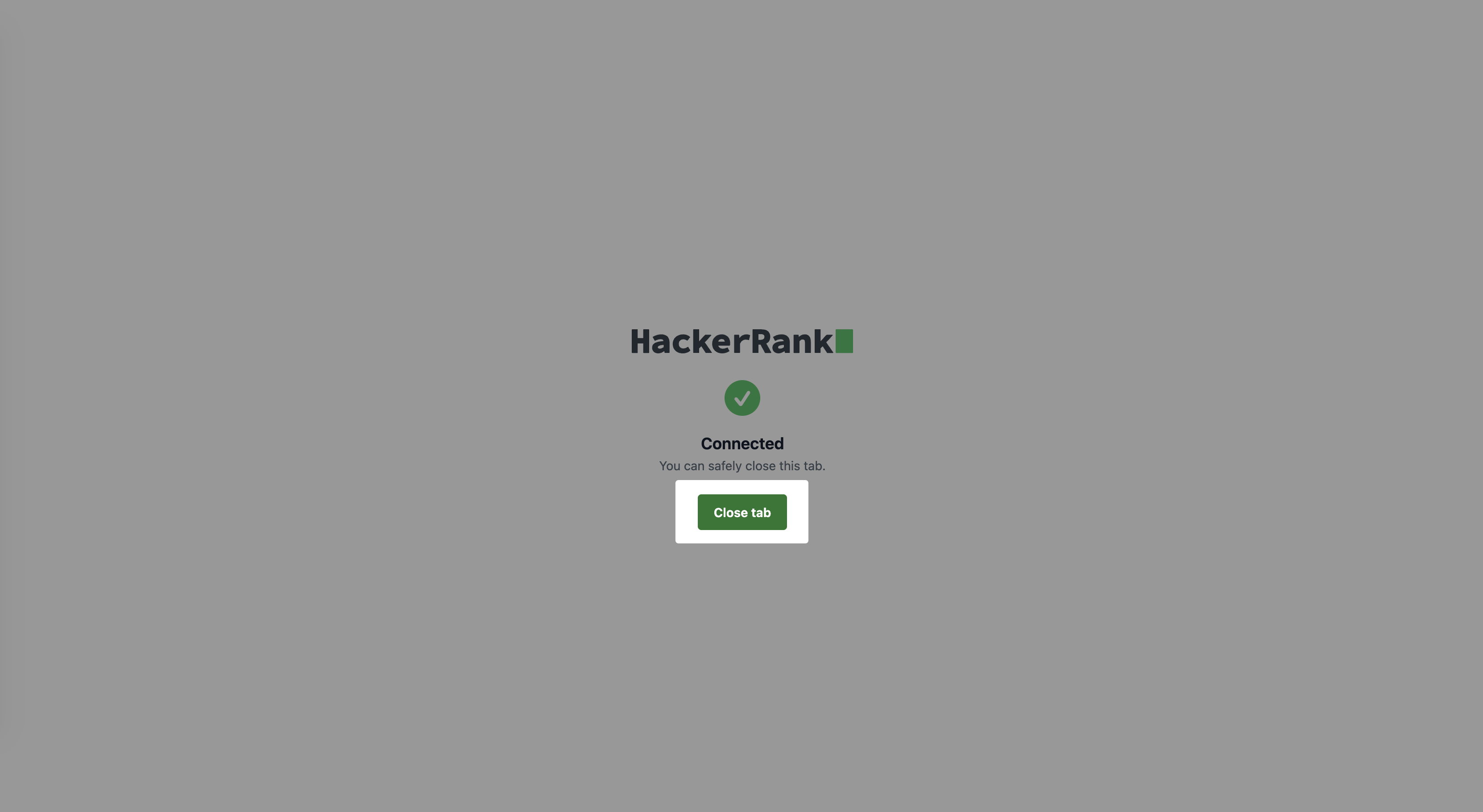
After you complete the authorization, a confirmation page appears displaying the status Connected.
Click Close tab to return to the Greenhouse integration page in HackerRank.
Verify that the Connect to Greenhouse Harvest v3 API section displays Connected.
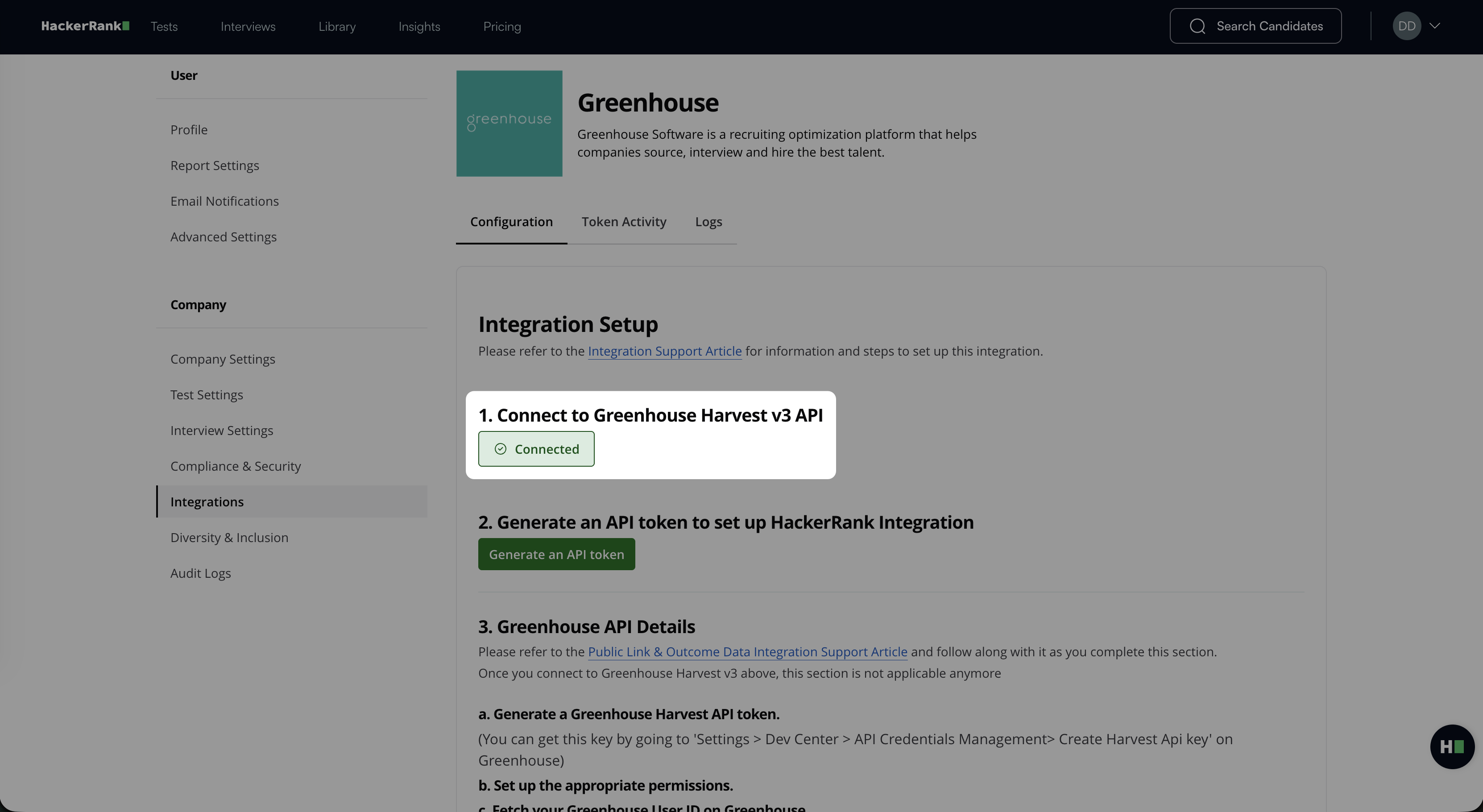
Step 2: Generate an integration API token in HackerRank
The integration API token allows Greenhouse to connect securely with your HackerRank account.
Log in to your HackerRank account using your credentials.
Go to Settings > Integrations > Greenhouse > Connect, or open the Greenhouse integration page directly.
In the Configuration tab, click Generate an API token.
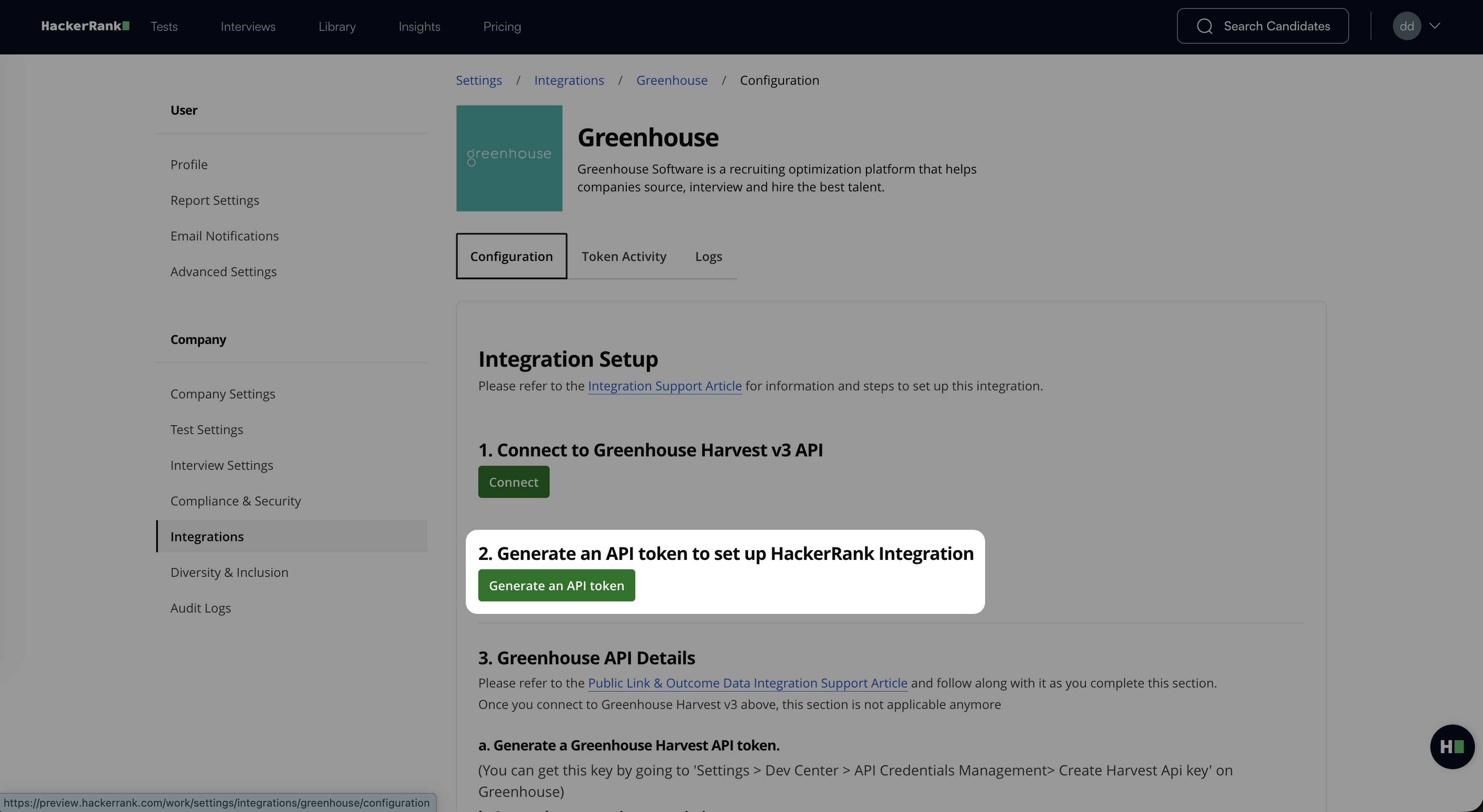
Click Copy and close to copy your token.
Note: Use an API key associated with a user who has both Recruiter and Company Admin permissions. These permissions ensure full access to all configured assessments.
Step 3: Add the HackerRank API token in Greenhouse
This step authorizes Greenhouse to connect with your HackerRank account.
Log in to your Greenhouse account using your credentials.
Go to Integrations > HackerRank, or open the HackerRank Integration page directly.
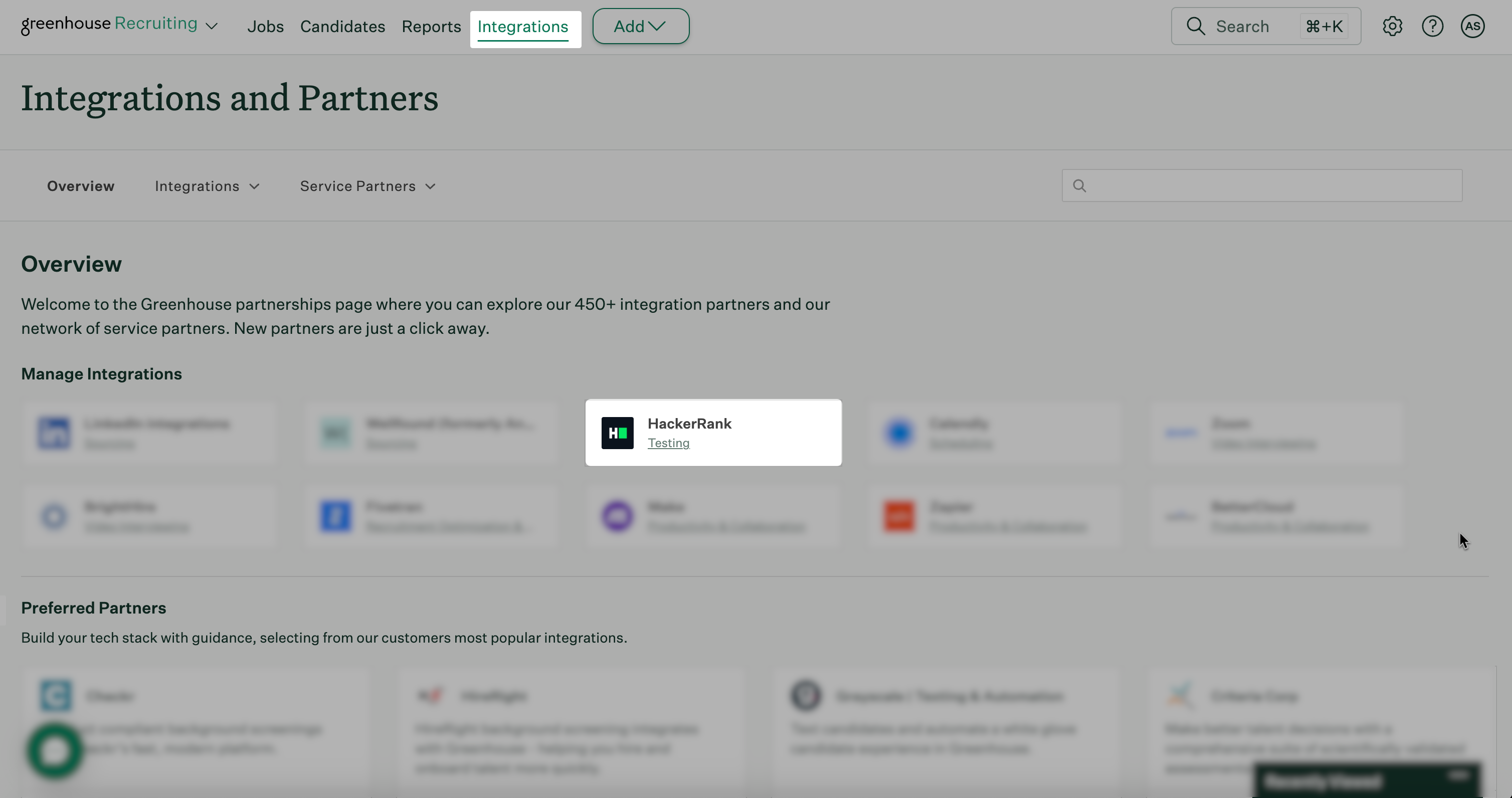
Click Connect.
In the API Key field, paste the API token generated in Step 1.
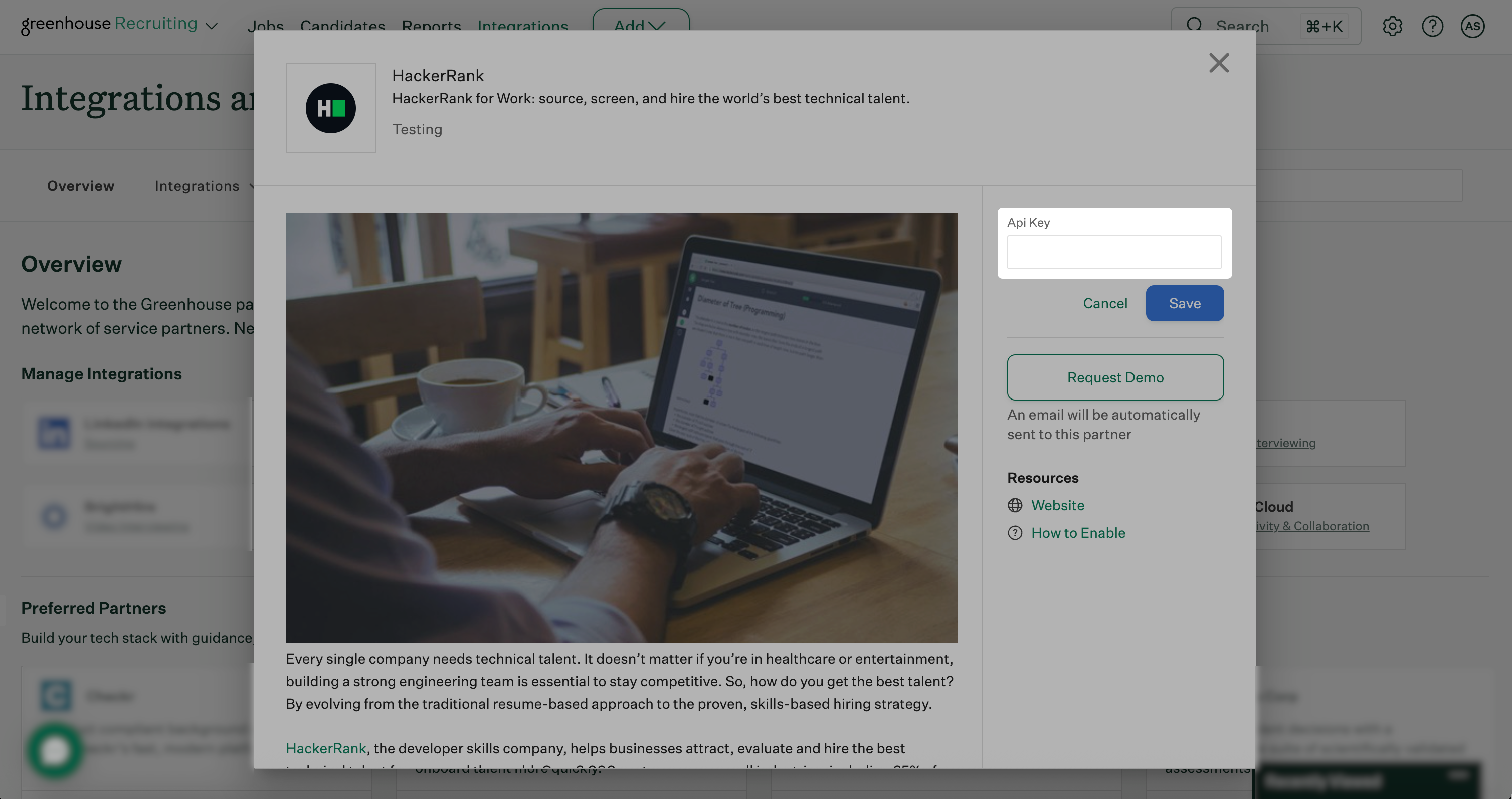
Click Save. Your Greenhouse account is now integrated with HackerRank.
Set up the assessment integration
To add your HackerRank assessments to Greenhouse, follow the steps in this article. Use the API key generated in HackerRank during the setup process, provide it to Greenhouse Support, and add the assessment stage to your interview plans.
Adding HackerRank assessment or interview stage in Greenhouse
After you enable the Greenhouse integration for your organization, you can add the HackerRank assessment or interview stage to a job interview plan in Greenhouse.
For instructions, see:
Glossary
Harvest v3 API: Greenhouse’s data-sharing interface that connects partner applications such as HackerRank.
Admin User ID: A unique identifier for your Greenhouse admin account that specifies who creates the integration connection.
API Token: A secure key that allows Greenhouse to recognize and authenticate HackerRank’s connection request.
Frequently Asked Questions (FAQs)
Why is the Greenhouse Integration page not showing in my HackerRank account?
You do not have admin access to your HackerRank account. Only admins can access the integration settings page.
Why don’t I see the ATS Settings updated message after I click Test and Save?
Verify that you entered the correct Greenhouse User ID and Harvest API Token in HackerRank.
Why am I the only user who can’t send tests through Greenhouse?
Check the following:
Your HackerRank and Greenhouse login email addresses match.
You have a Recruiter or Company Admin access in HackerRank.
You have Send Test permissions in HackerRank.
The test you are trying to send is active (not expired or deleted).