Greenhouse - HackerRank Integration Test User Guide
Last updated: June 3, 2026
This guide outlines how to use the Greenhouse–HackerRank integration to send HackerRank test invitations and review test results directly in Greenhouse.
Prerequisites
Before you begin, ensure you meet the following requirements:
You have active HackerRank and Greenhouse accounts.
The HackerRank integration with Greenhouse is complete. For more information, see 📄 Greenhouse - HackerRank Integration Guide.
Note: To migrate Greenhouse Harvest v3, see 📄 Greenhouse Harvest v3 Migration Guide.
Adding HackerRank assessment stage in Greenhouse
Interview plans in Greenhouse consist of multiple stages, such as Application Review, Interview, and Offer. You can add a HackerRank Assessment stage to allow candidates to complete a HackerRank test as part of the hiring process.
To add HackerRank Assessment stage to a job interview plan in Greenhouse:
Log in to your Greenhouse account using your credentials.
Go to the Jobs tab.
Select the job you want to update.
Go to Job Setup > Interview Plan.
Click Add stage.
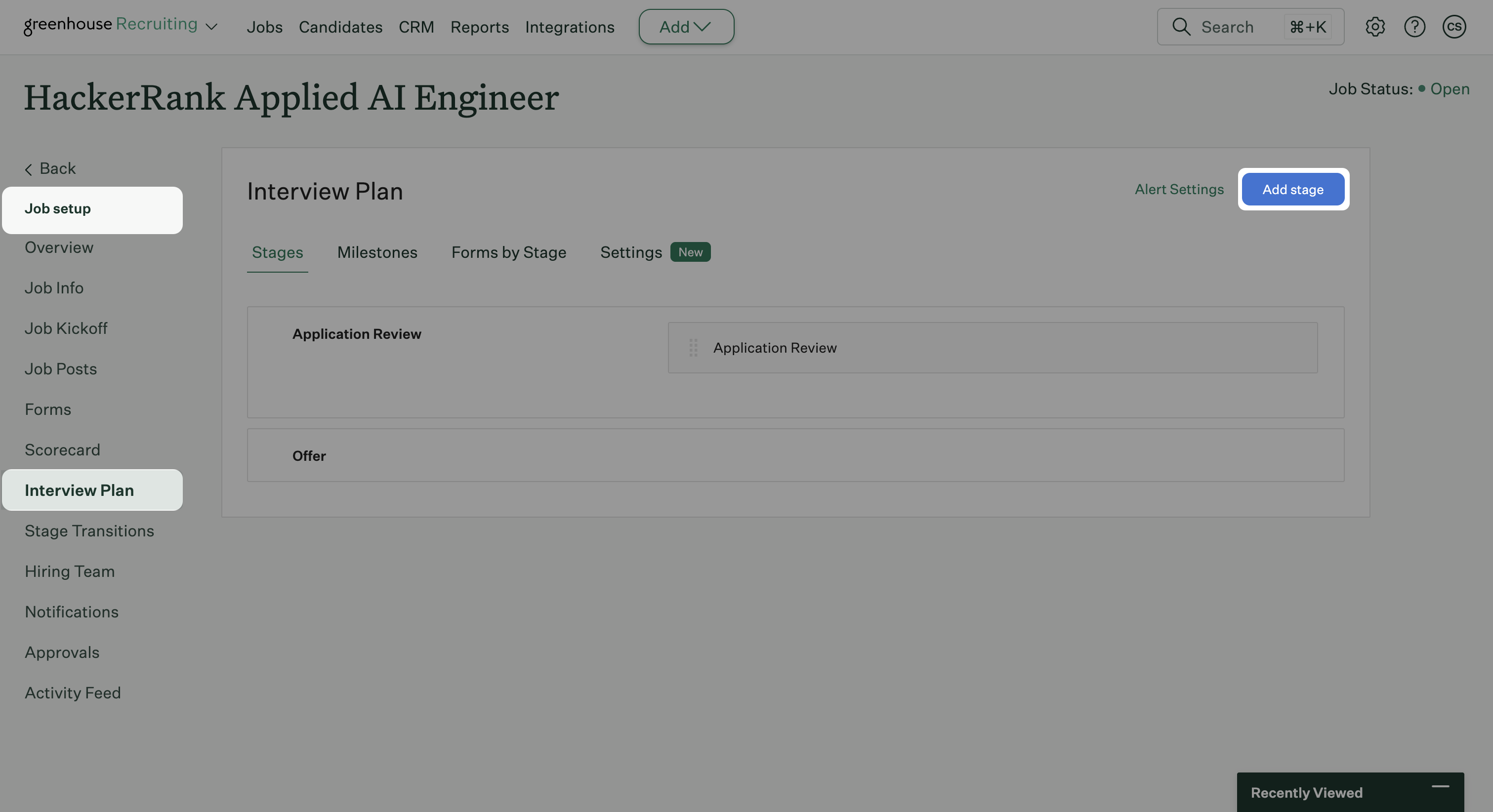
In the Add Stage dialog, select HackerRank Assessment.
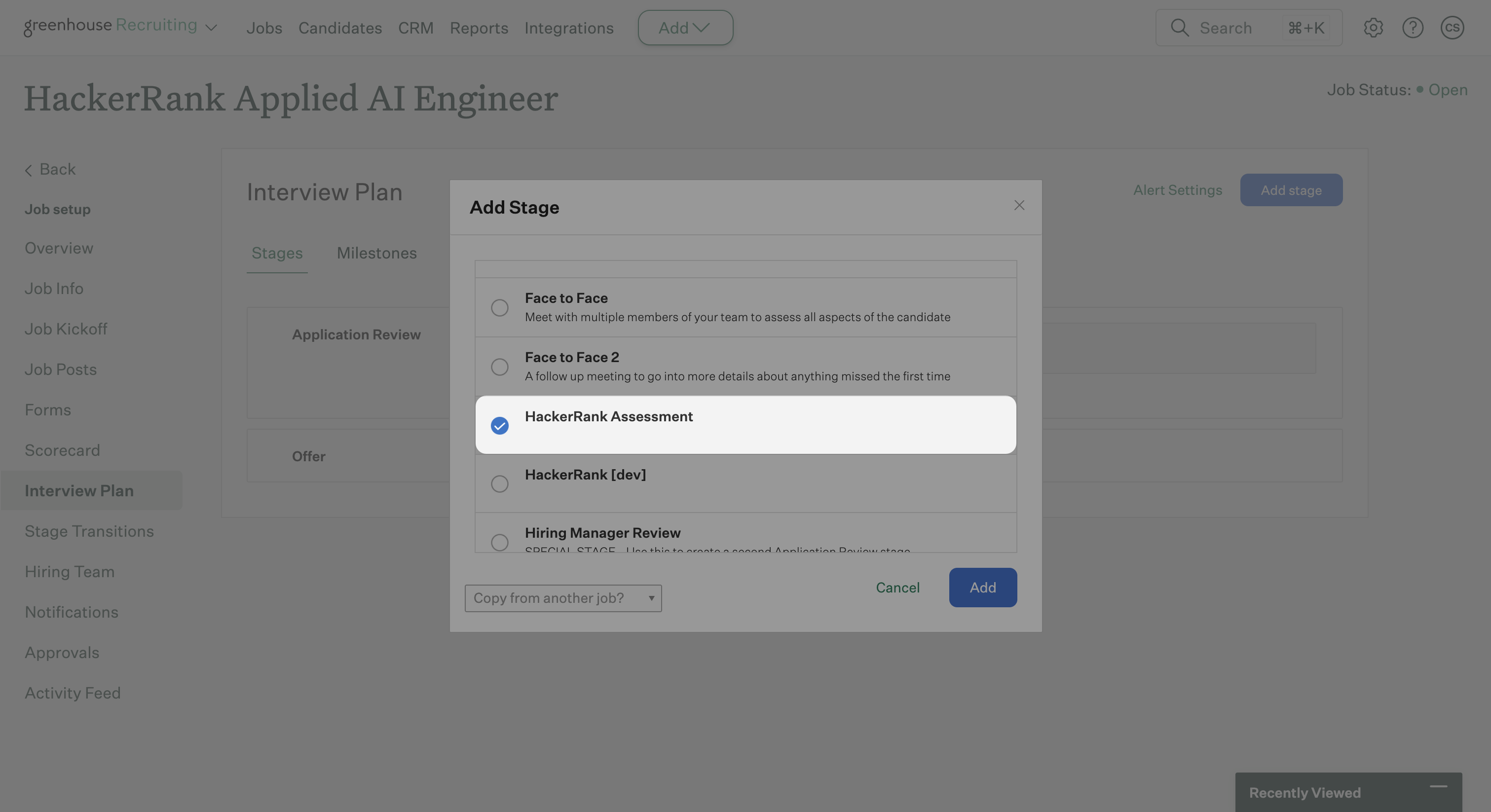
Note: If HackerRank Assessment does not appear in the stage list, the integration is not configured correctly. For more information, see 📄 Greenhouse - HackerRank Integration Guide.
Click Add. Greenhouse adds the HackerRank Assessment stage to the interview plan.
Tips:
Rename the stage to match your hiring workflow.
Move the HackerRank Assessment stage to the appropriate position in the interview plan.
Sending HackerRank test invite to a candidate
Note: Before you send a test invite:
Create and publish the required HackerRank tests in your HackerRank for Work account.
Add HackerRank Assessment stage to a job interview plan in Greenhouse. For more information, see Adding HackerRank assessment stage in Greenhouse.
To send a HackerRank test invite to a candidate:
Open the candidate's profile in Greenhouse.
Go to the Stages tab.
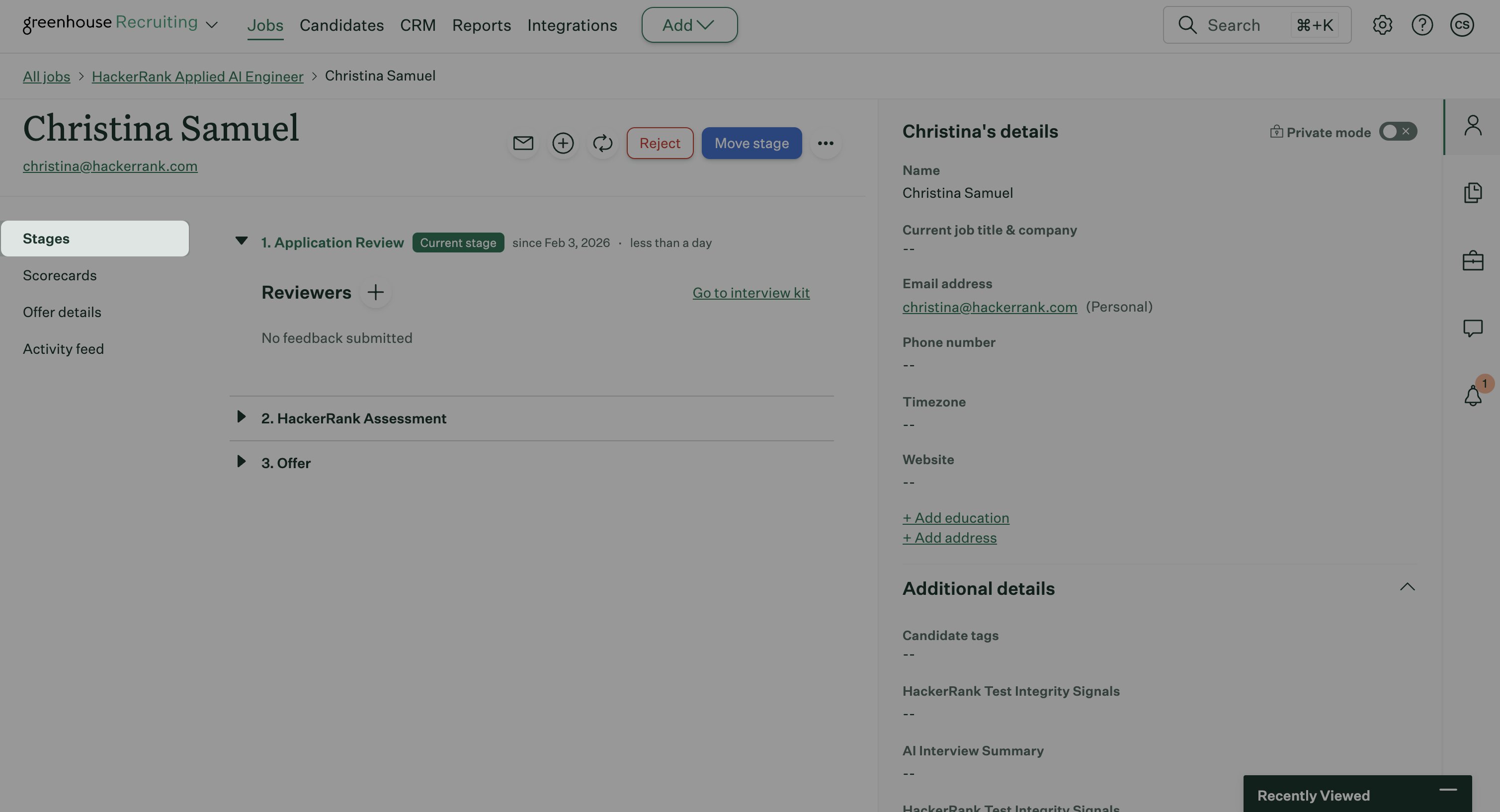
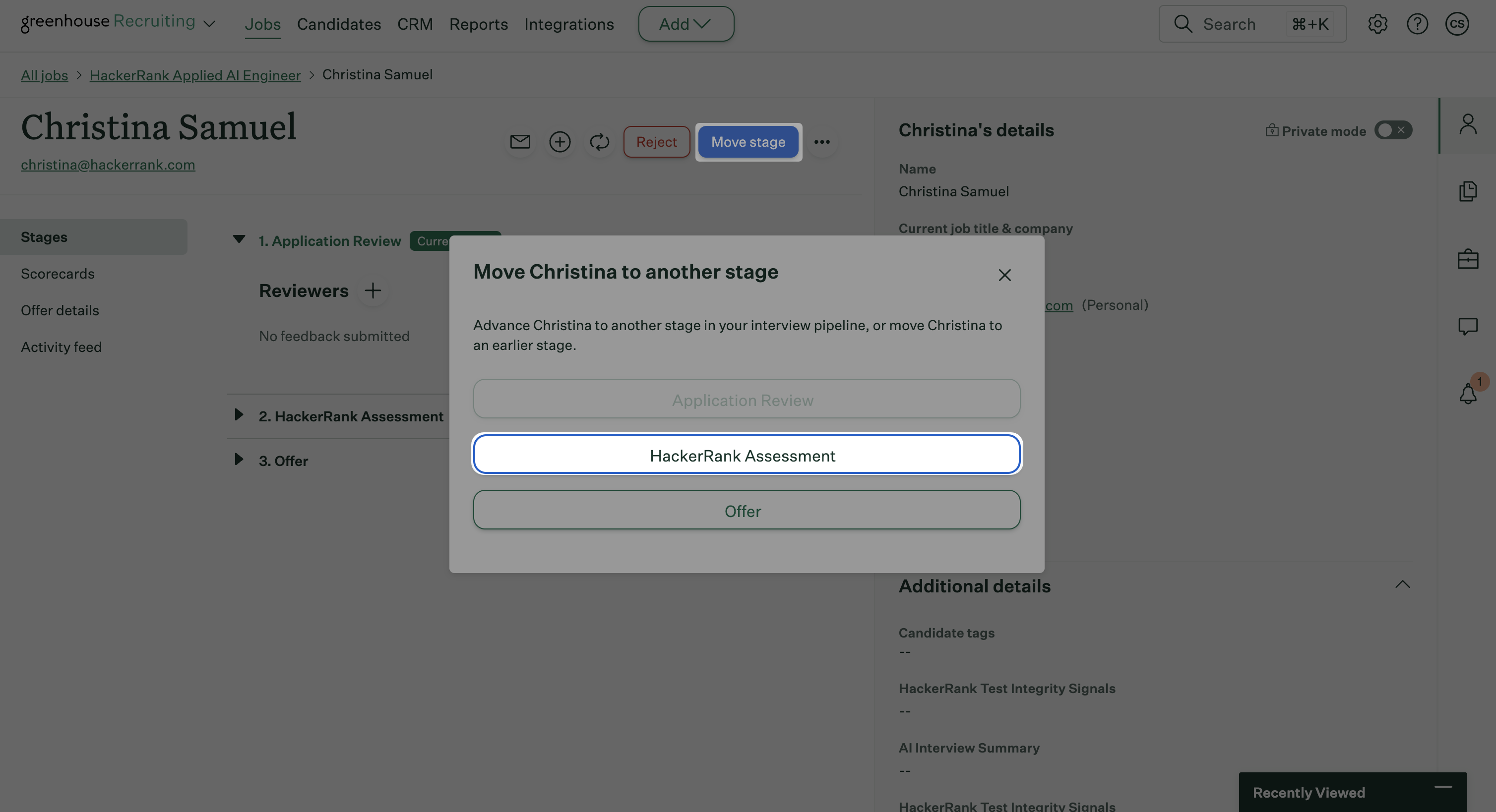
Click Move stage and select HackerRank Assessment.
In the HackerRank Assessment stage, click Send test to candidate.
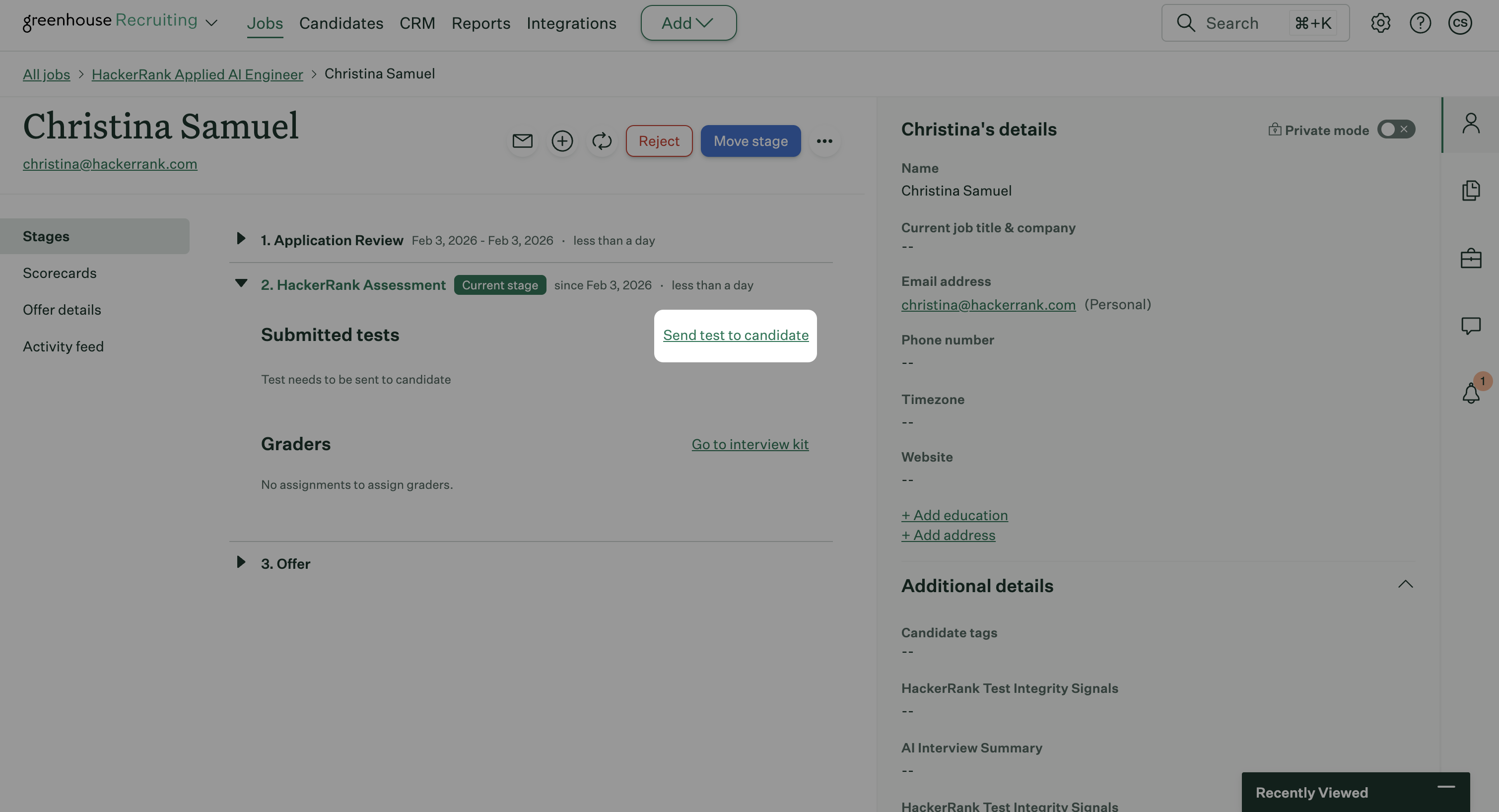
In the Send test dialog:
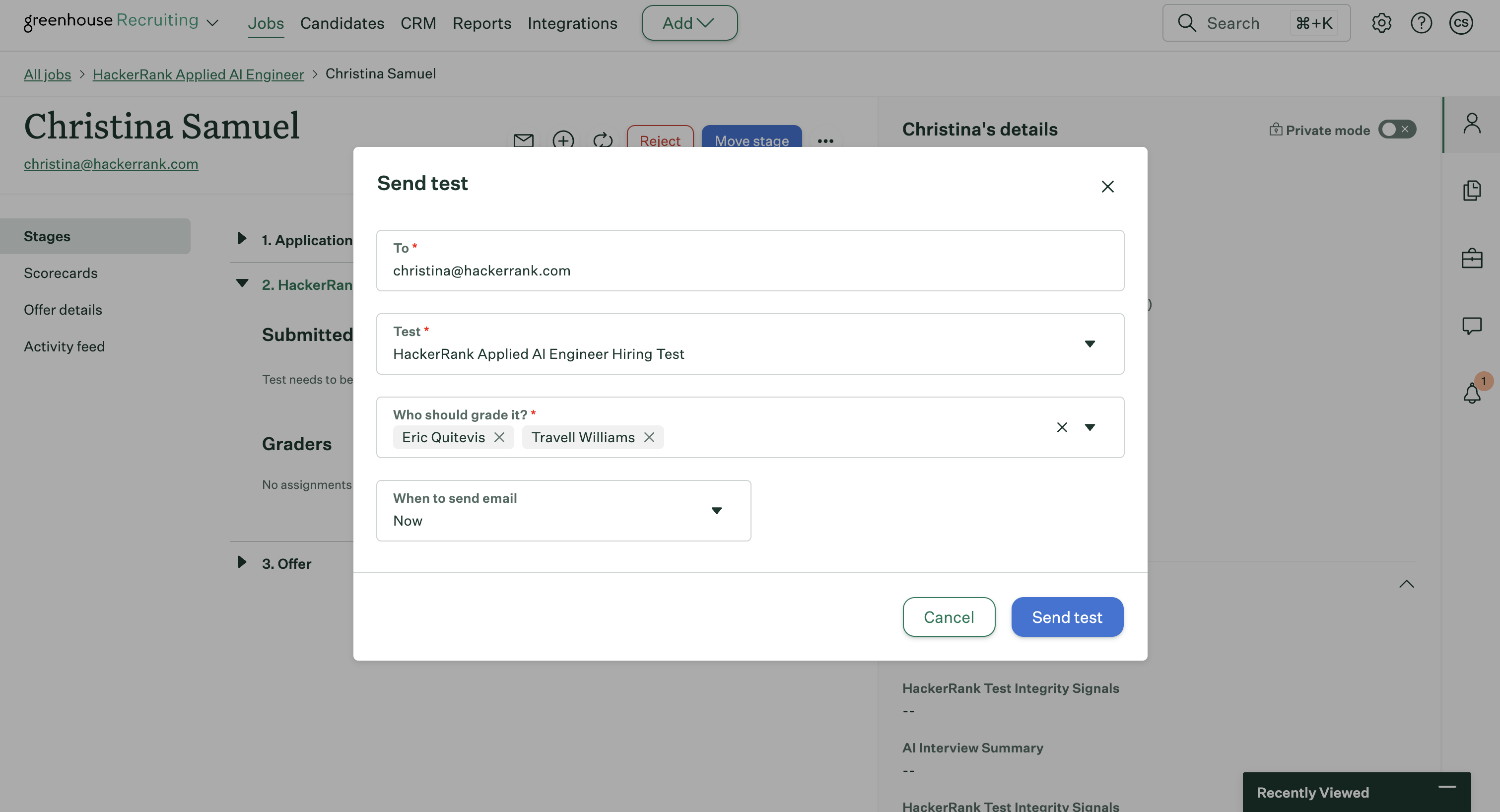
Enter the candidate's email address in the To field.
Select a HackerRank test from the Test dropdown.
Select the Greenhouse user who evaluates the test report in Who should grade it? Field.
Choose when to send the email:
Select a predefined option, or
Select Pick a custom time and specify the date and time.
Click Send test.
Greenhouse sends the HackerRank test invitation email to the candidate.
Sending bulk HackerRank test invites to candidates
You can send HackerRank test invites to multiple candidates at once by using Bulk Actions in Greenhouse.
To send bulk test invites:
Go to the Candidates tab in Greenhouse.
Apply the following filters:
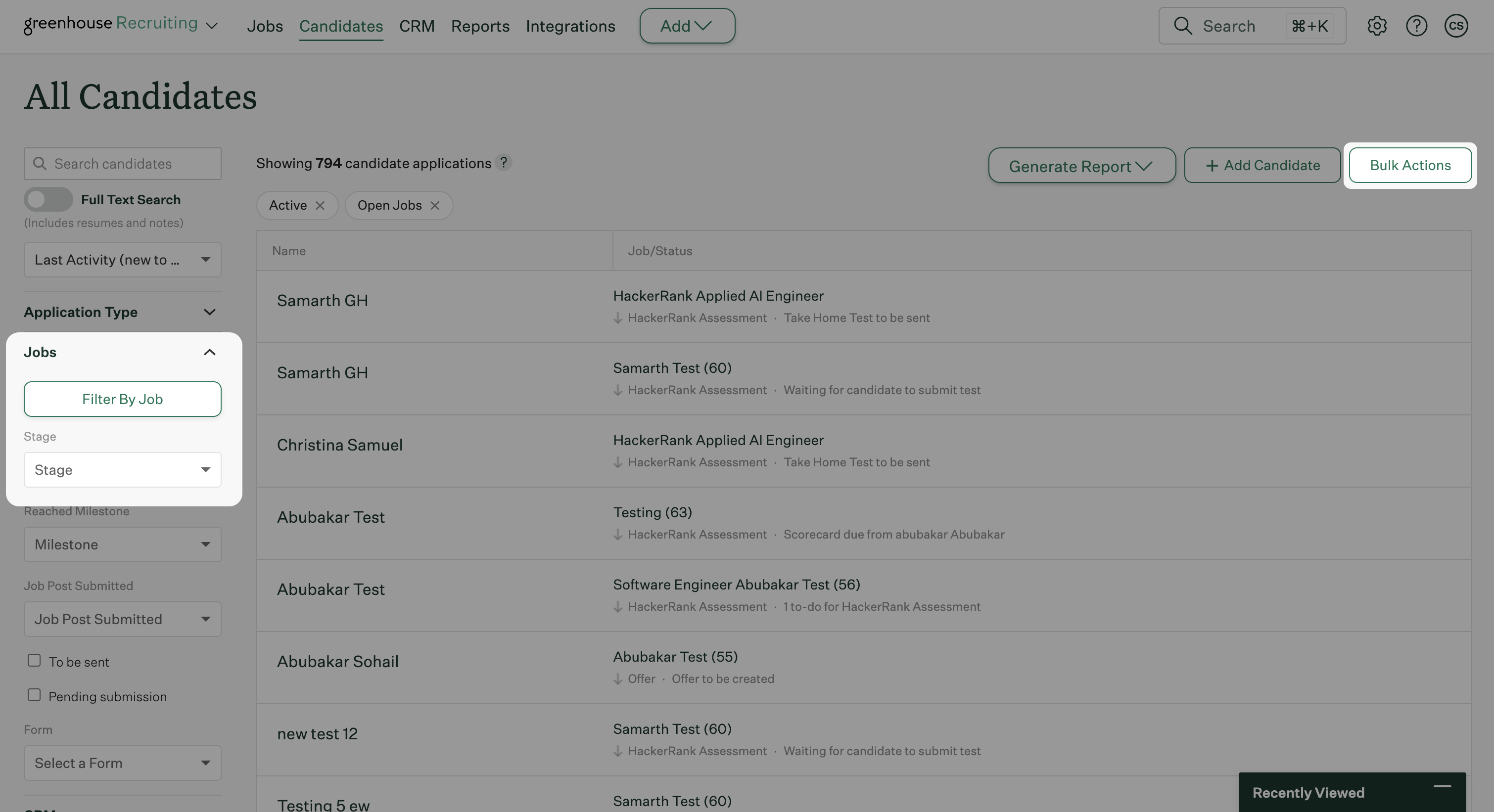
In the Jobs section:
Select a single job.
Select HackerRank Assessment from the Stage drop-down.
In the Pipeline Tasks section, set Test Status to To be Sent.
Click Save.
Click Bulk Actions in the upper-right corner.
Select the checkboxes next to the candidates you want to invite.
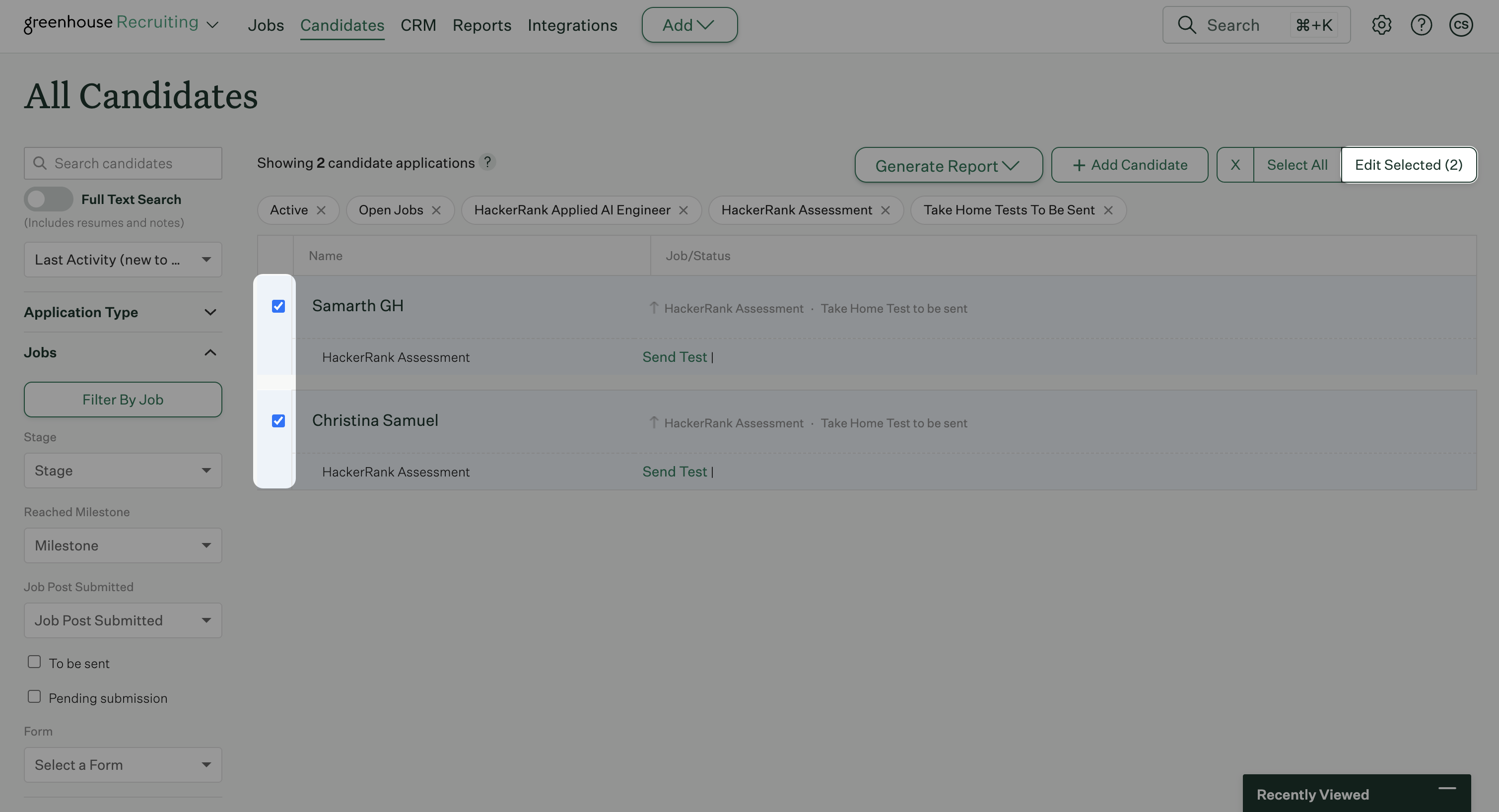
Click Edit Selected.
Click Send Tests.
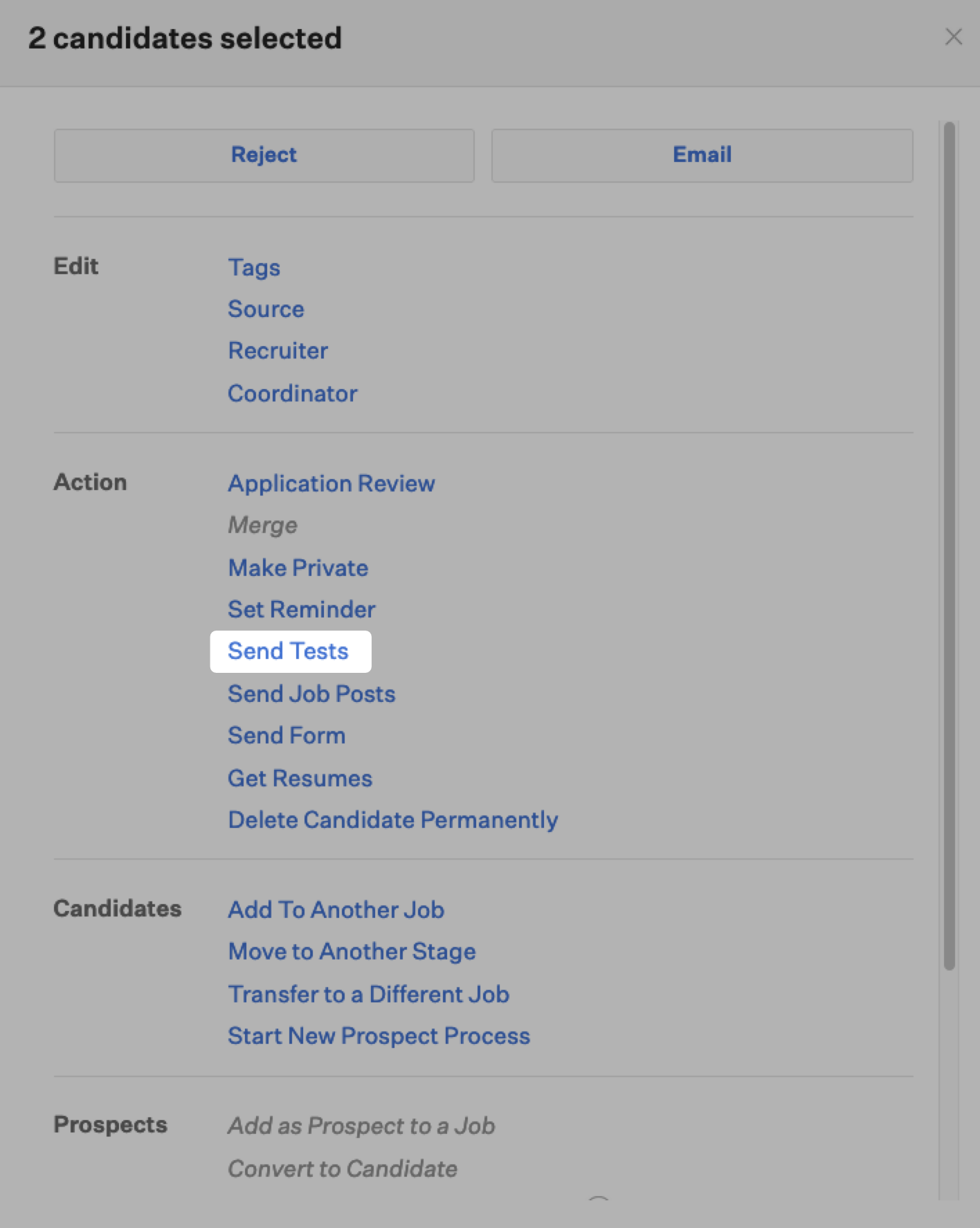
In the Send Test dialog:
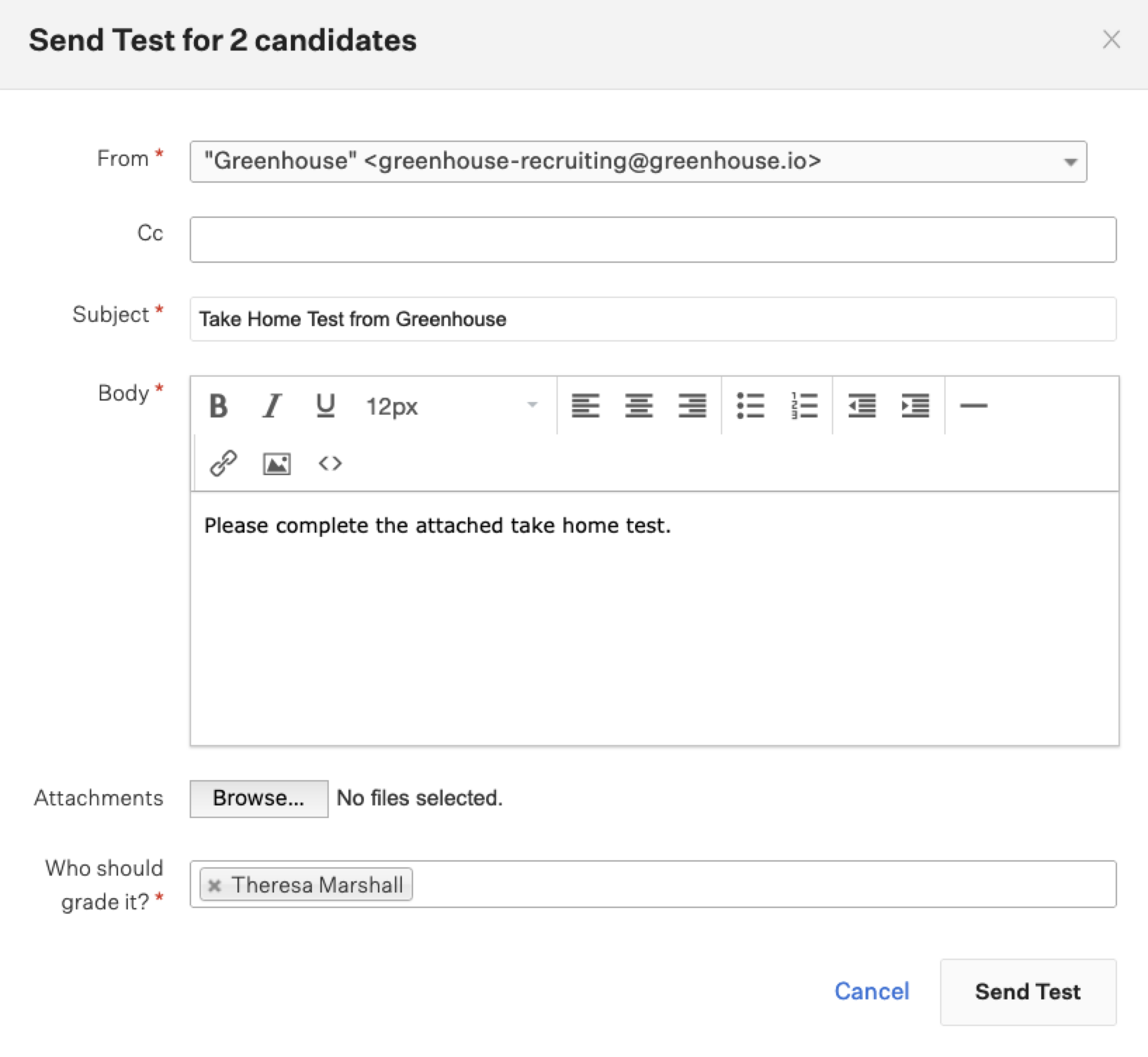
Review the From, Subject, and Body fields, and update them if required.
(Optional) Add recipients in the Cc field.
(Optional) Add files in Attachments field.
Select the Greenhouse user who evaluates the test report in Who should grade it? field.
Click Send Test.
Greenhouse sends the test invitation email to all selected candidates.
Viewing candidate test results
When a candidate completes a HackerRank test, Greenhouse displays the test results in the candidate's profile.
To view the candidate’s test results:
Open the candidate's profile in Greenhouse.
Go to the Stages tab.
Open the HackerRank Assessment stage.
Review the test score, which reflects the candidate’s overall performance.
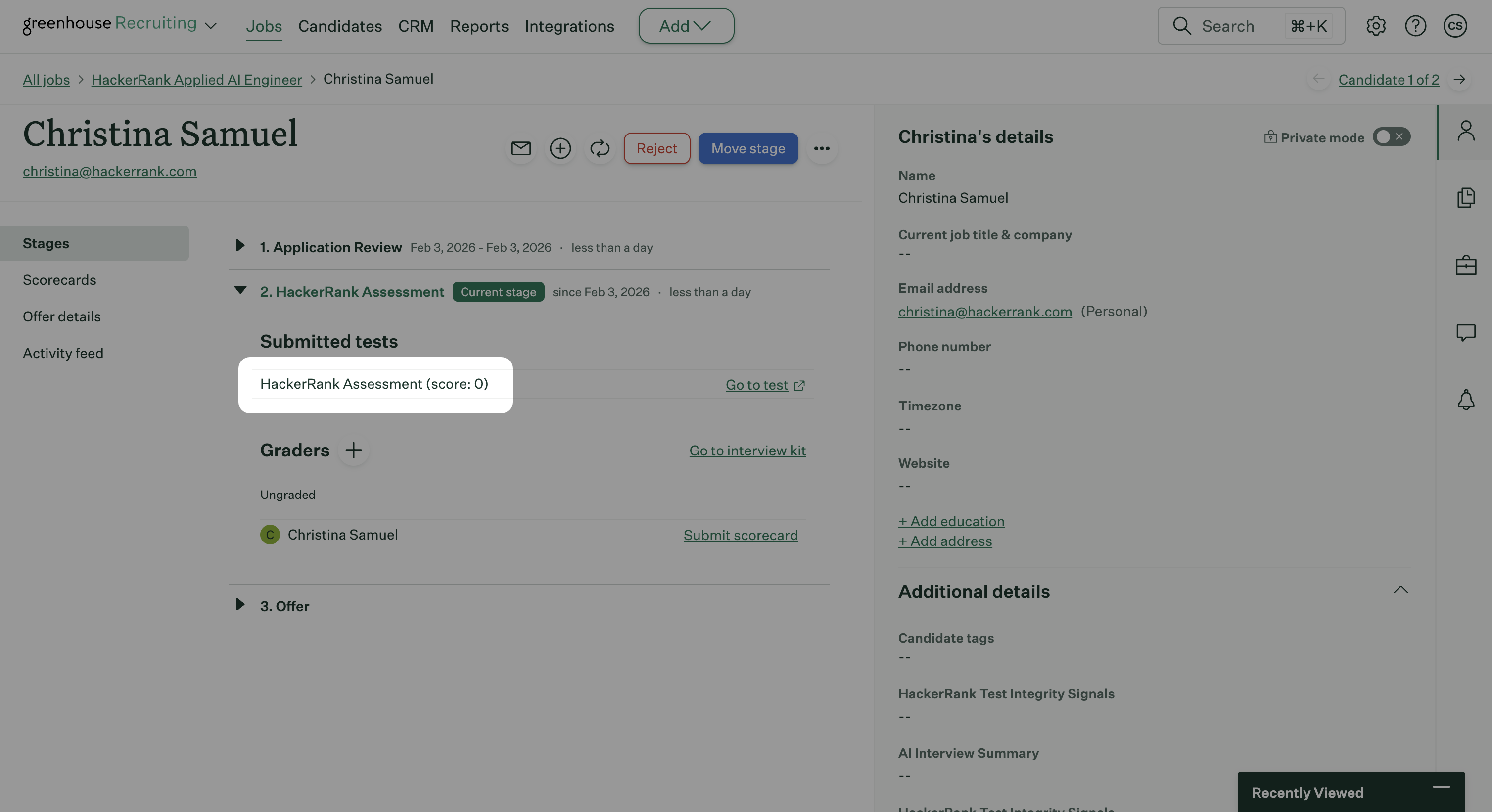
Click Go to Interview Kit to view the following details in Grading Instructions tab.
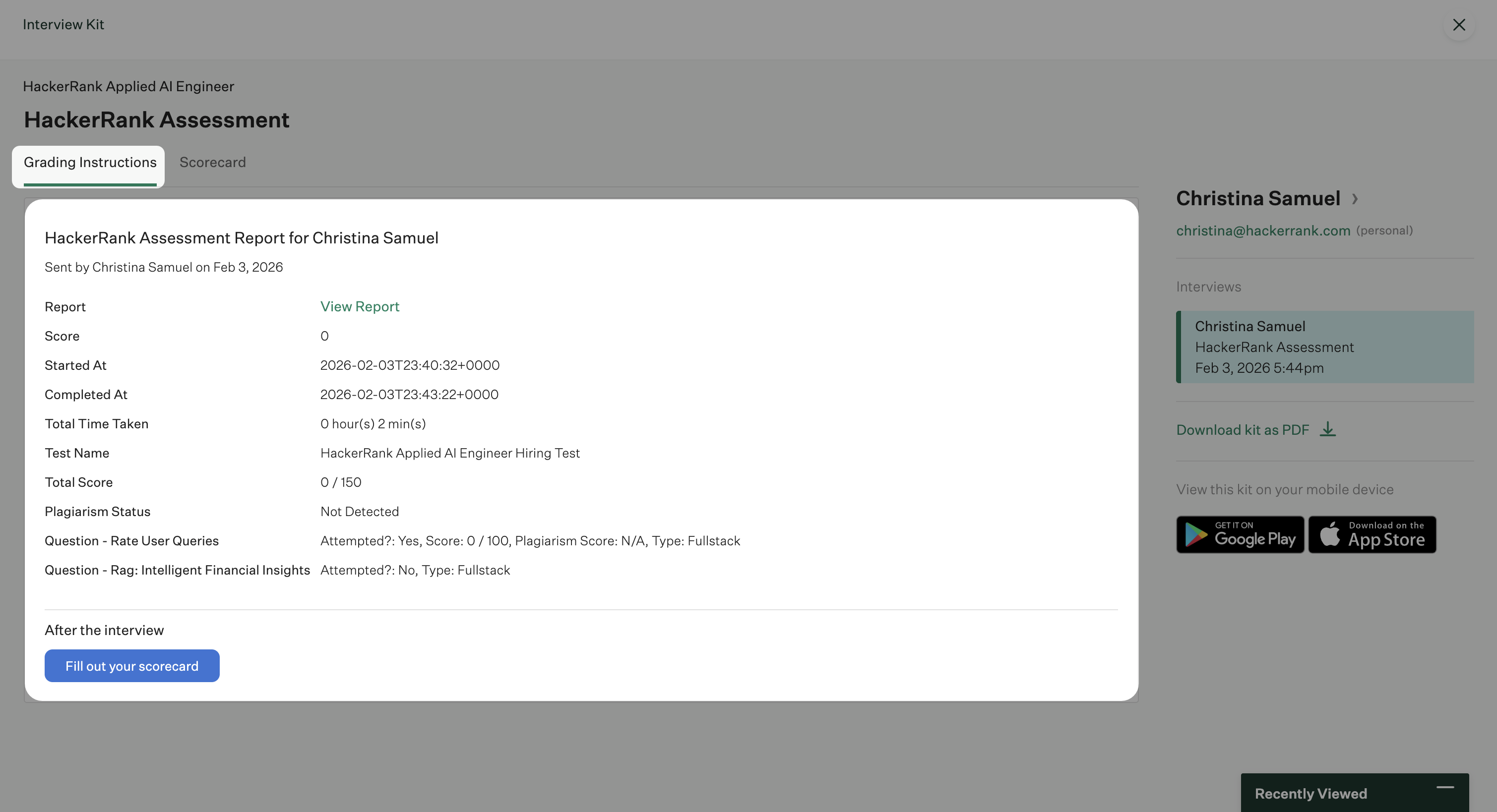
Score: Candidate’s final assessment score.
Started At: Date and time when the candidate started the test.
Completed At: Date and time when the candidate submitted the test.
Total Time Taken: Total time the candidate spent completing the test.
Test Name: Name of the assigned HackerRank test.
Total Score: Candidate’s score relative to the maximum possible score.
Plagiarism Status: Indicates whether HackerRank detected potential plagiarism in the candidate’s submission.
Question details: Provides a breakdown for each question, including:
Question name: Title of the question.
Attempted: Indicates whether the candidate attempted the question.
Score: Score achieved for the question.
Question type: Identifies the question format, such as coding or multiple choice.
Click View Report to open the detailed performance report in HackerRank for Work account.
Note: Click Download kit as PDF to download the Interview Kit.
Viewing updated scores in Greenhouse
When a recruiter updates a candidate’s test score in the HackerRank for Work account, Greenhouse adds a note to the candidate’s Activity Feed.
To view the updated scores in Greenhouse:
Open the candidate's profile in Greenhouse.
Go to the Activity Feed tab.
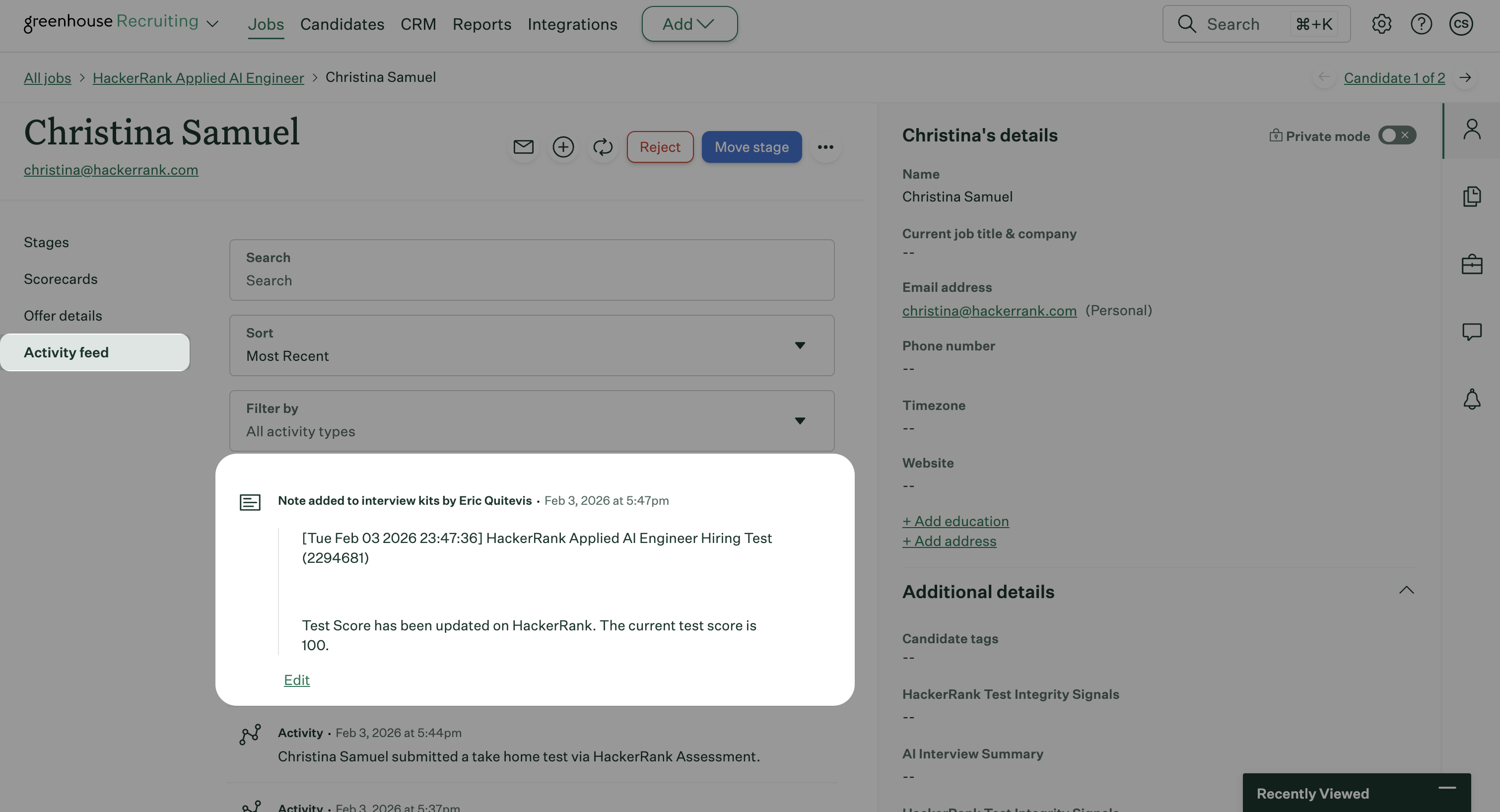
Review the note added to the Interview Kit, which shows the recruiter’s name, the test name, and the latest updated test score.