Greenhouse - Chakra Integration User Guide
Last updated: April 22, 2026
This guide outlines how to use the Greenhouse - HackerRank integration to schedule Chakra interviews and review interview results directly in Greenhouse.
Prerequisites
Before you begin, ensure you meet the following requirements:
You have an active Chakra account. To enable, contact HackerRank support at chakra-support@hackerrank.com.
You have an active Greenhouse account.
The HackerRank integration with Greenhouse is complete. For more information, see 📄 Greenhouse - HackerRank Integration Guide.
Adding an AI Interviewer stage in Greenhouse
Interview plans in Greenhouse consist of multiple stages, such as Application Review, Interview, and Offer. You can add an AI Interviewer stage to allow candidates to complete a HackerRank AI interview as part of the hiring process.
To add an AI Interviewer stage to a job interview plan in Greenhouse:
Log in to your Greenhouse account using your credentials.
Go to the Jobs tab.
Select the job you want to update.
Go to Job Setup > Interview Plan.
Click Add stage.
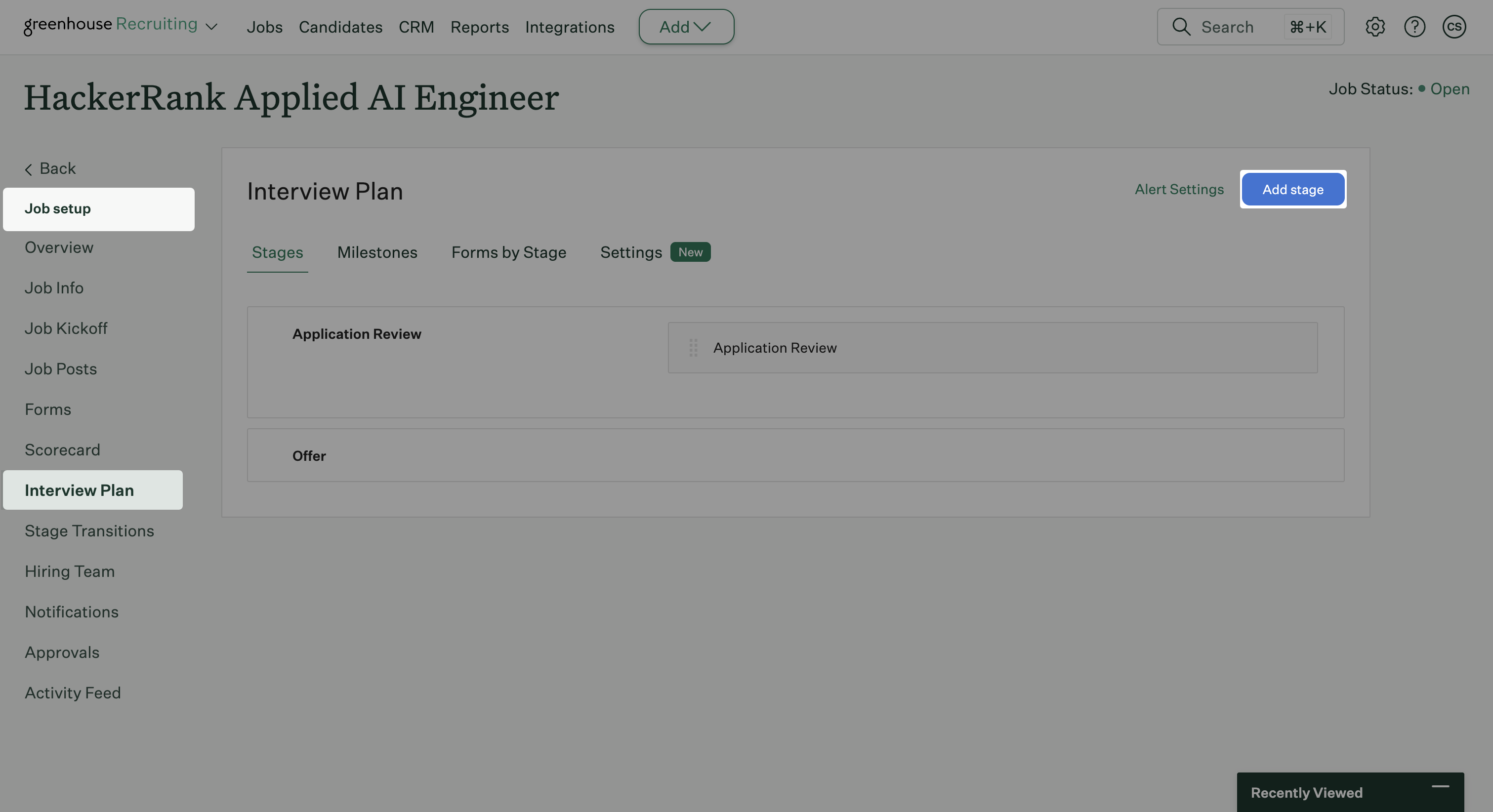
In the Add Stage dialog, select HackerRank Assessment.
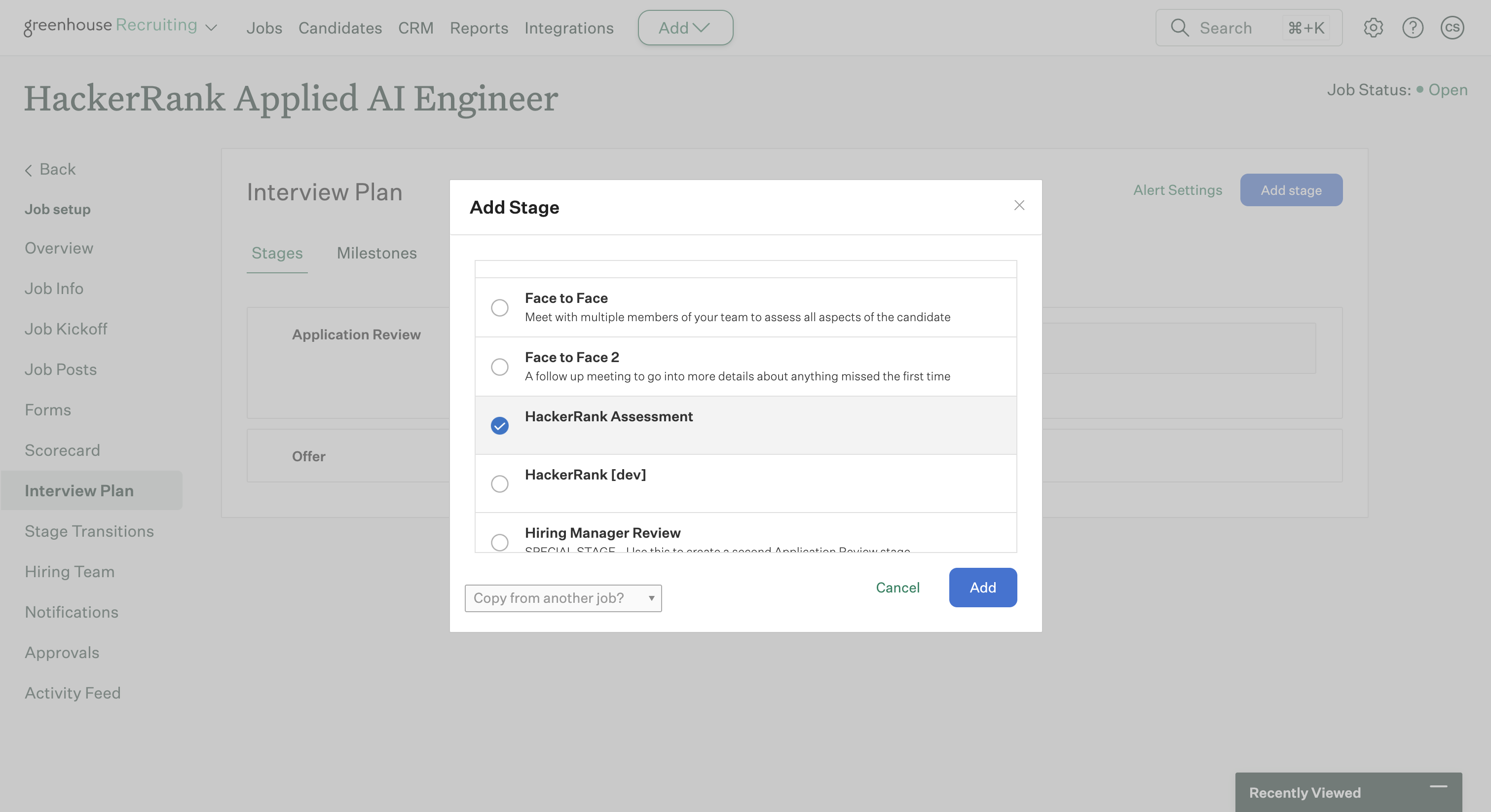
Note: If HackerRank Assessment does not appear in the stage list, the integration is not configured correctly. For more information, see 📄 Greenhouse - HackerRank Integration Guide.
Click Add. Greenhouse adds the HackerRank Assessment stage to the interview plan.
Click the edit icon next to the stage to rename it to match your hiring workflow. For example, HackerRank AI Interviewer.
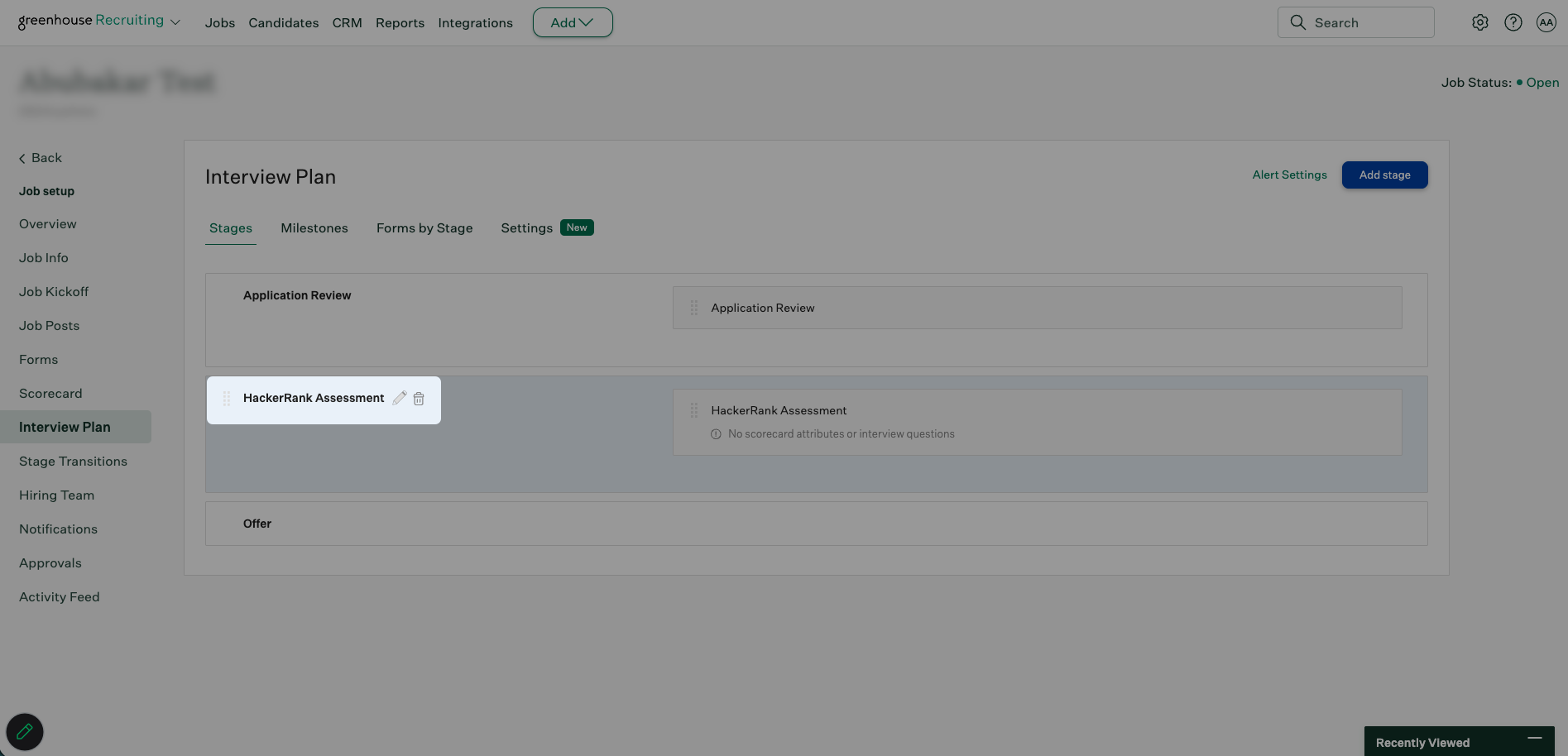
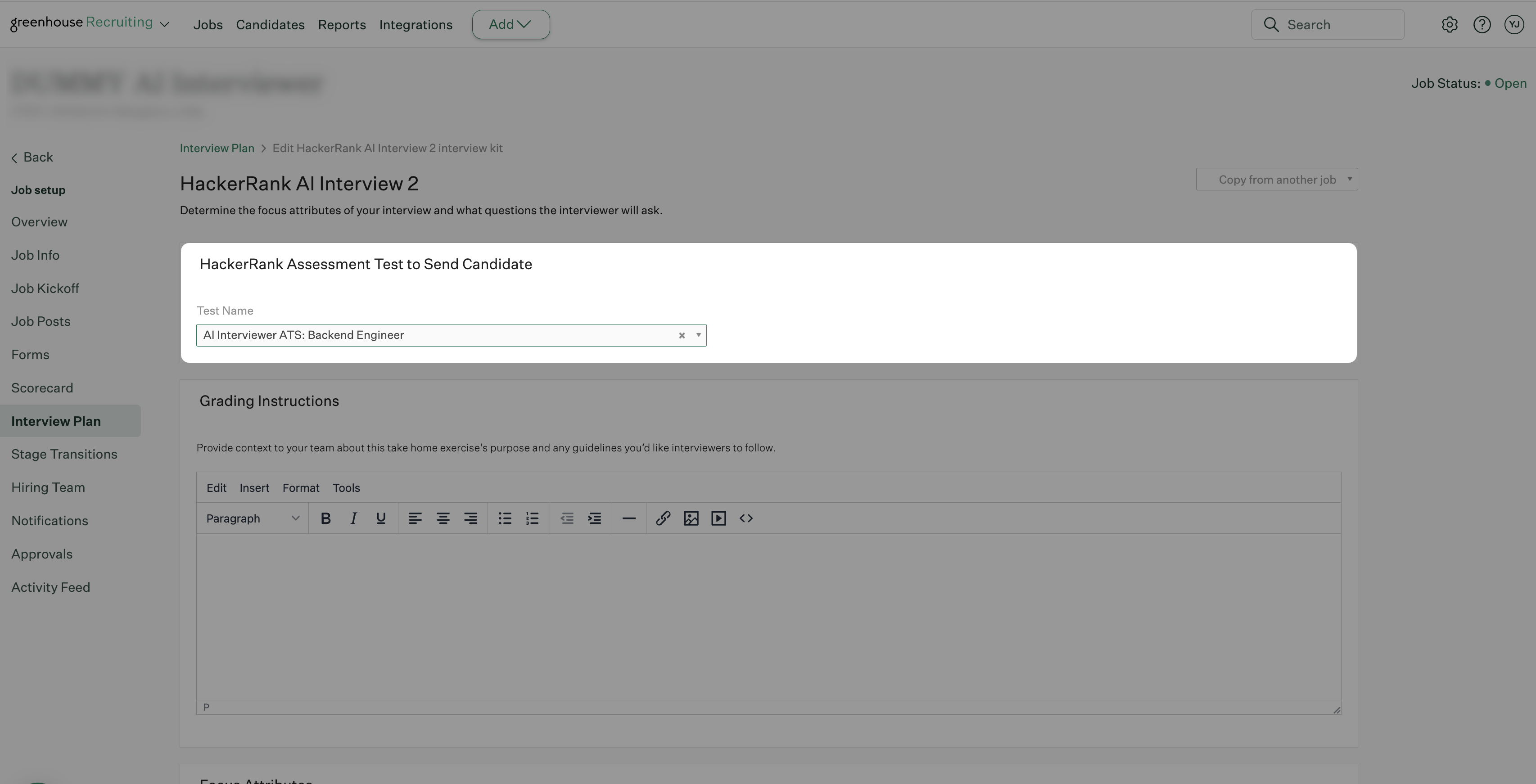
Click Edit Interview next to the AI Interviewer stage.
Select the AI interviewer from the Test name drop-down.
Tip: Move the AI Interviewer stage to the appropriate position in the interview plan.
Scheduling an AI Interview from Greenhouse
Note: Before you schedule an interview, ensure that the AI Interviewer stage is added to the job interview plan in Greenhouse. For more information, see Adding HackerRank AI interview stage in Greenhouse.
To schedule an AI interview in Greenhouse:
Open the candidate's profile in Greenhouse.
Go to the Stages tab.
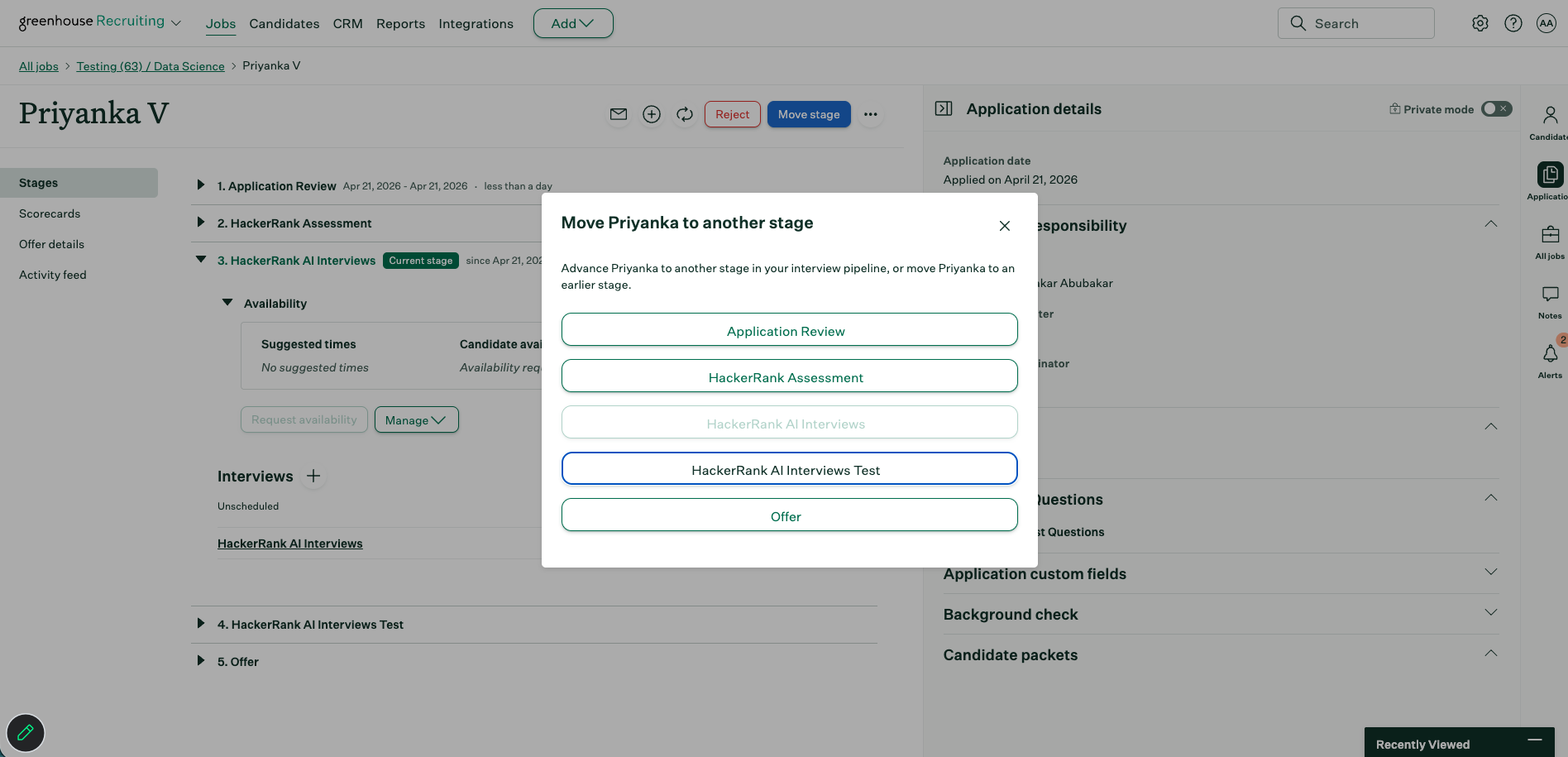
Click Move stage and select the AI Interviewer stage.
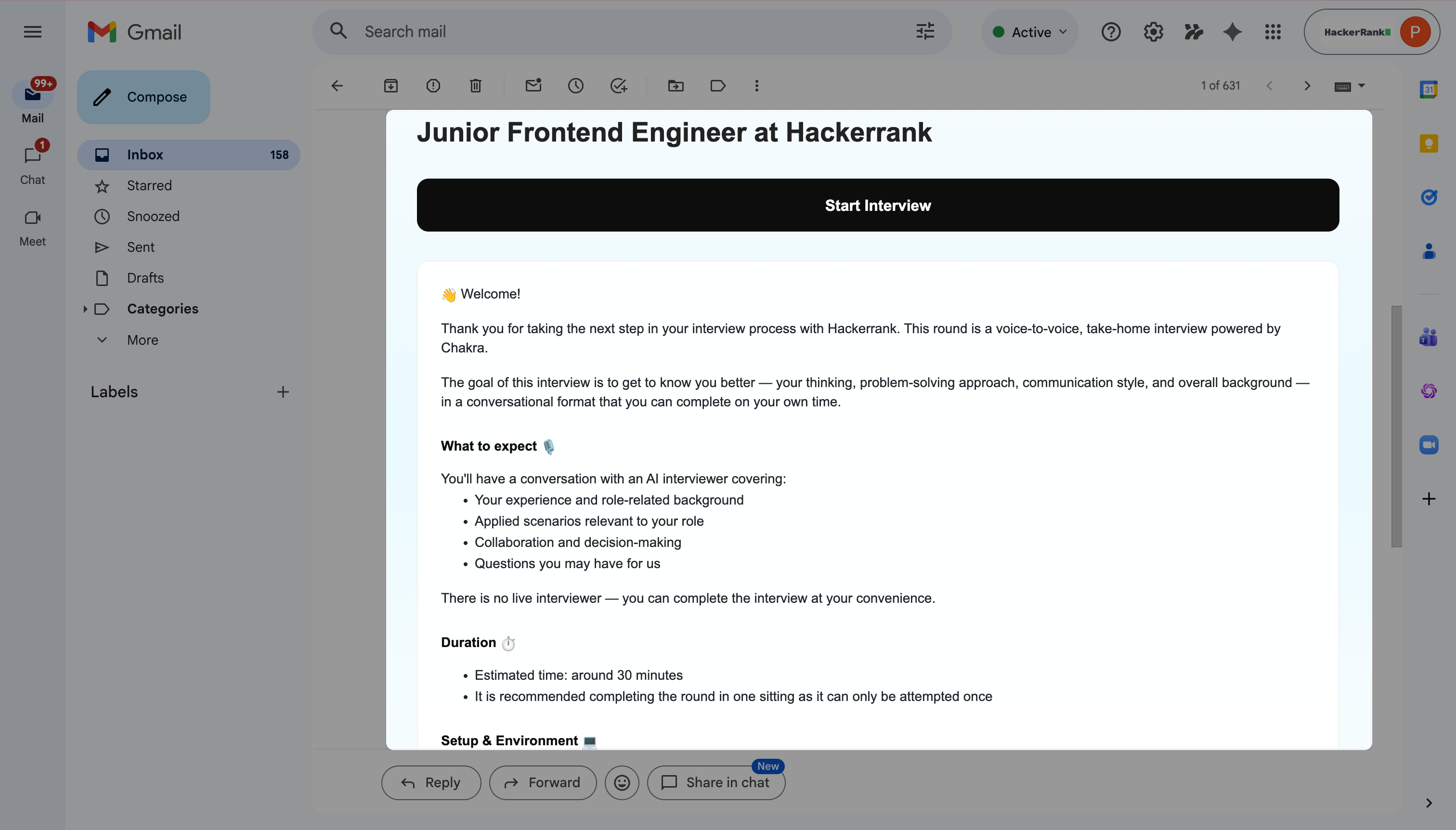
Greenhouse sends the candidate an email with the AI interview link.
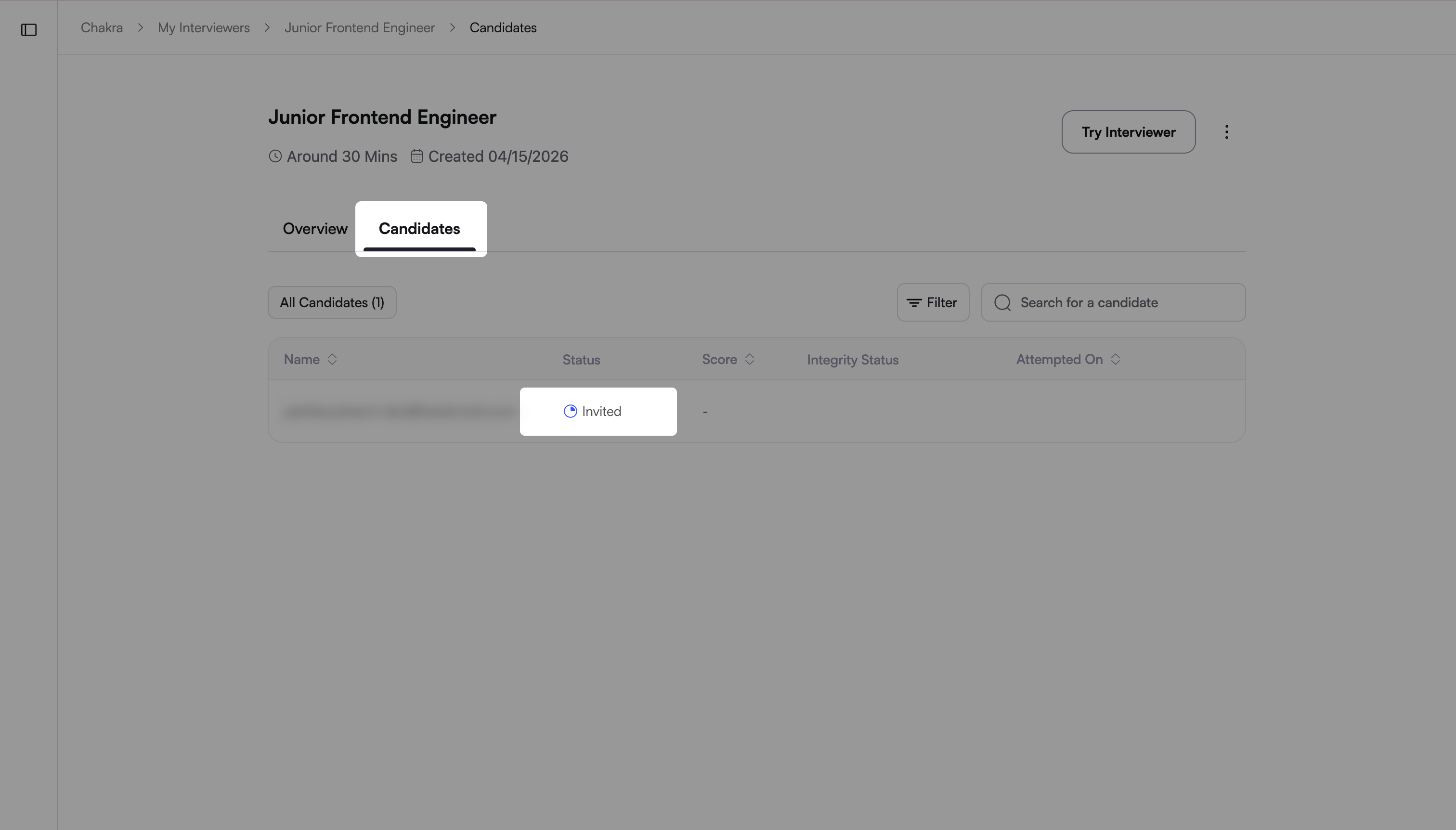
In Chakra, the candidate appears with the status Invited.
Viewing interview results
When a candidate completes an AI interview, Greenhouse displays the interview report in the candidate's profile.
To view the interview results in Greenhouse:
Open the candidate’s profile in Greenhouse.
Go to the Stages tab.
Select the AI Interviewer stage to view the candidate’s score.
Click Go to test to view the detailed interview scorecard in Chakra.
Note: You can also view the AI interview report in the Notes panel.