Ashby - Chakra Integration User Guide
Last updated: June 17, 2026
This guide outlines how to use the Ashby - HackerRank integration to schedule Chakra interviews and review interview results directly in Ashby.
Prerequisites
Before you begin, ensure you meet the following requirements:
You have an active Chakra account. To enable it, contact HackerRank support at chakra-support@hackerrank.com.
You have an active Ashby account.
The HackerRank integration with Ashby is complete. For more information, see 📄 Ashby - HackerRank Integration Configuration Guide.
Adding an AI Interviewer activity in Ashby
To add an AI Interviewer activity to a stage in the job interview plan:
Log in to your Ashby account using your credentials.
Go to the Jobs tab.
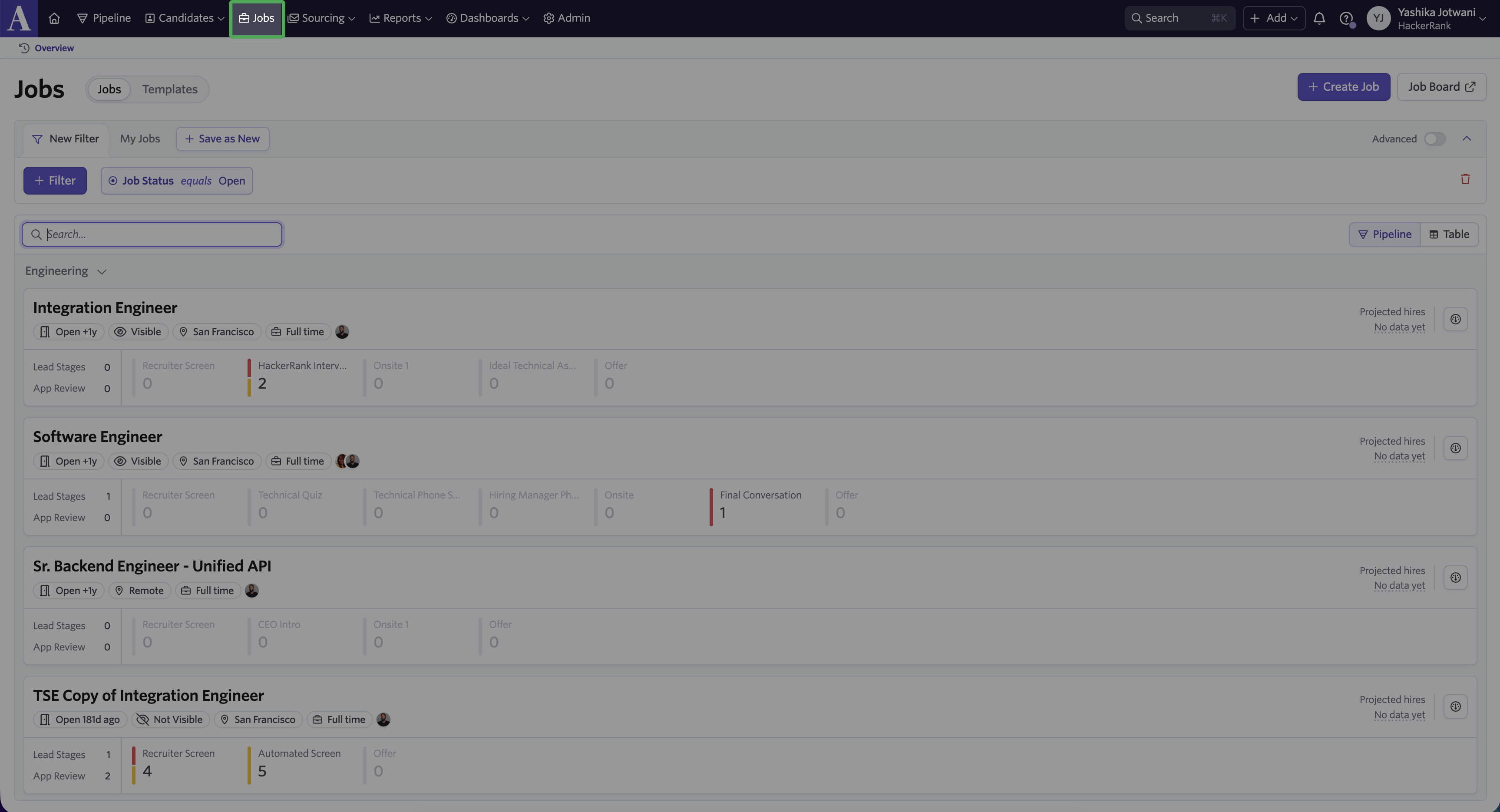
Select the job you want to update.
Go to the Interview Plan.
Select the stage where you want to add the AI Interviewer activity.
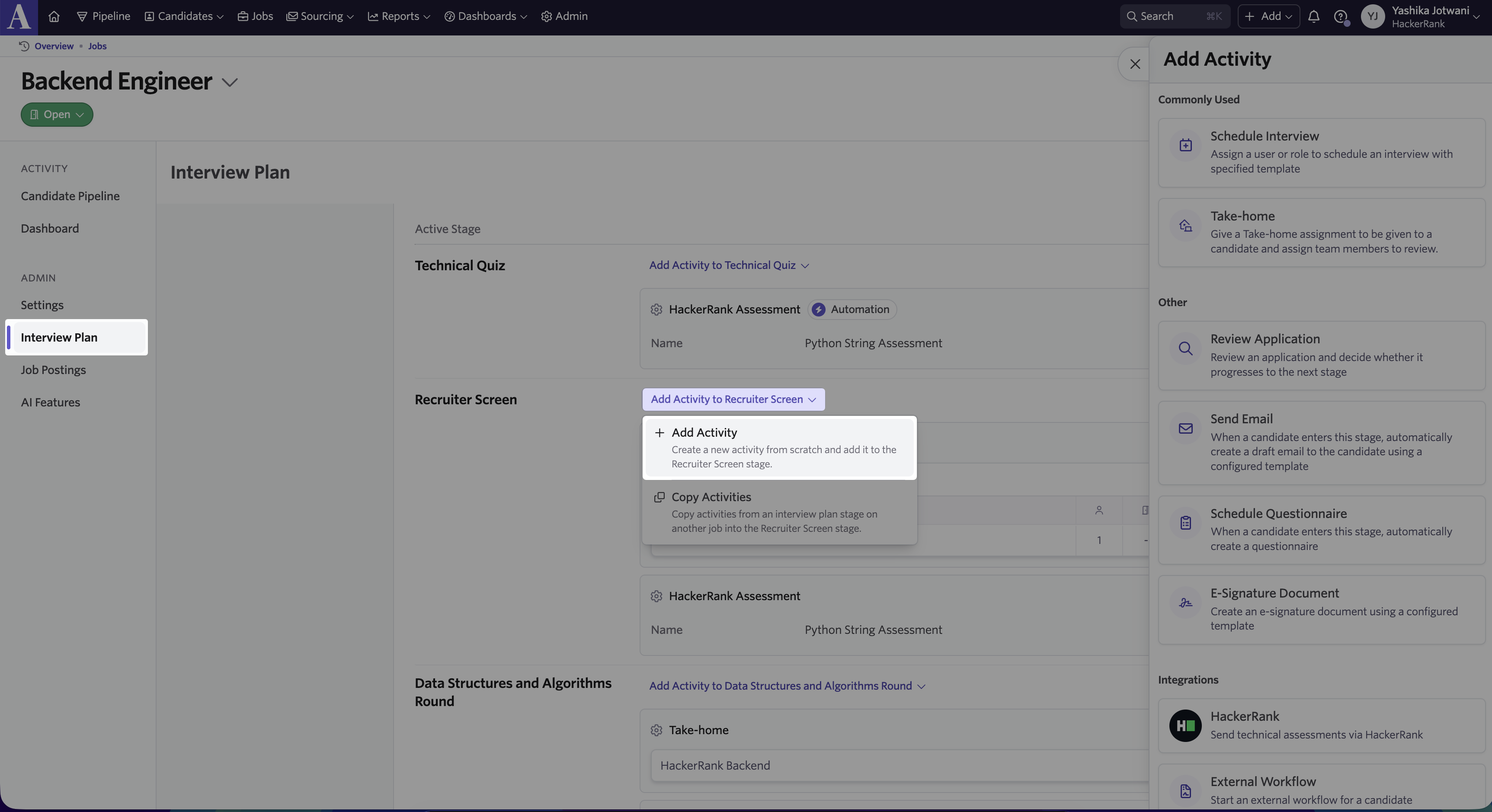
Click Add Activity to [stage name].
Select Add Activity from the drop-down menu.
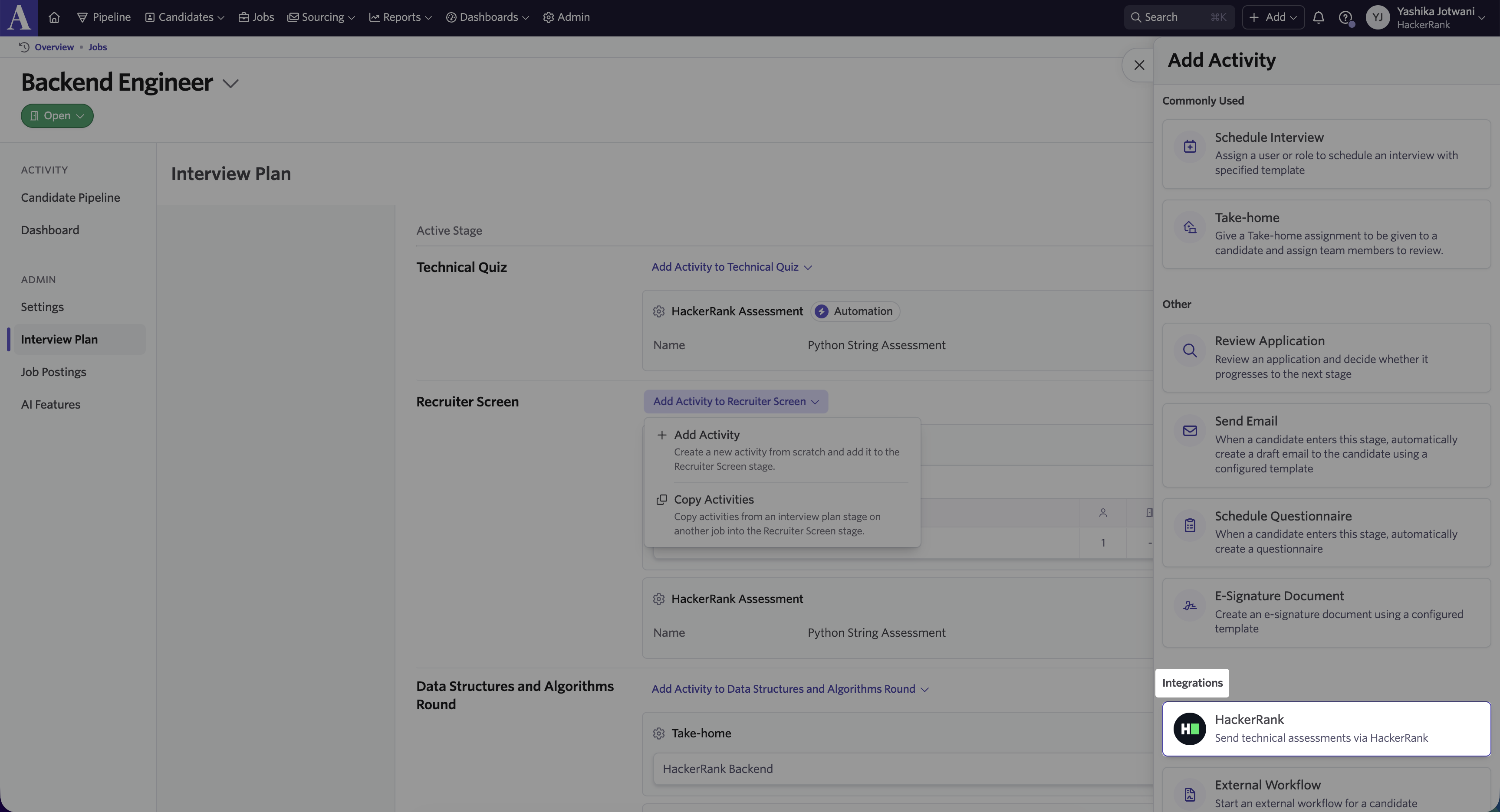
In the Add Activity dialog, scroll down to Integrations.
Select HackerRank.
In the Add Assessment Activity dialog, select the AI interviewer from the Assessment Type drop-down.
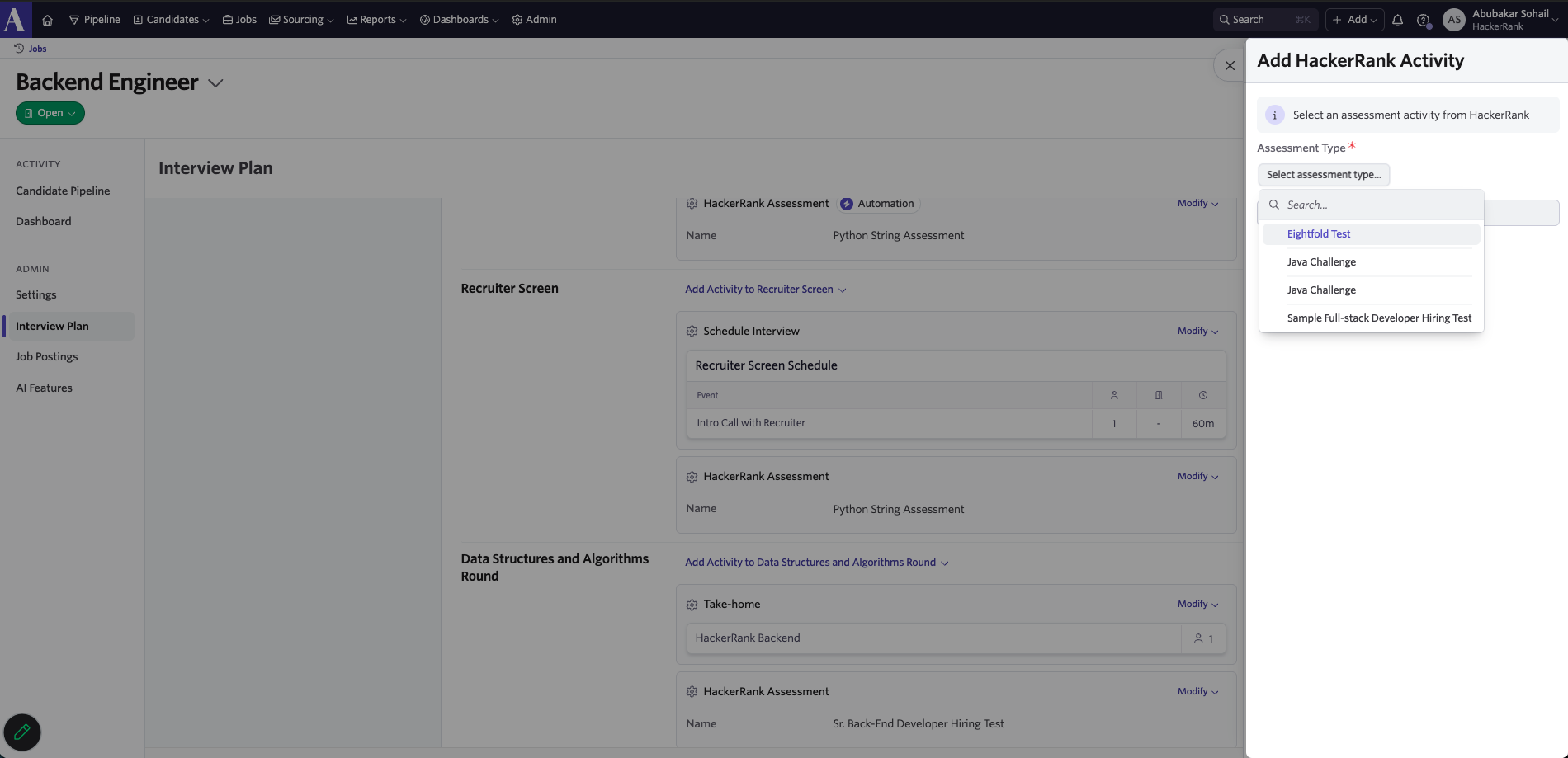
Click Add Activity.
Ashby adds the AI Interviewer activity to the selected stage.
Scheduling HackerRank AI Interview from Ashby
Note: Before you schedule an interview, ensure that the AI Interviewer activity is added to a stage in the job interview plan in Ashby. For more information, see Adding HackerRank AI Interviewer activity in Ashby.
To schedule an AI interview in Ashby:
Go to Candidates > Candidate Pipeline
Select a candidate from the pipeline for the respective job.
Click Change Stage.
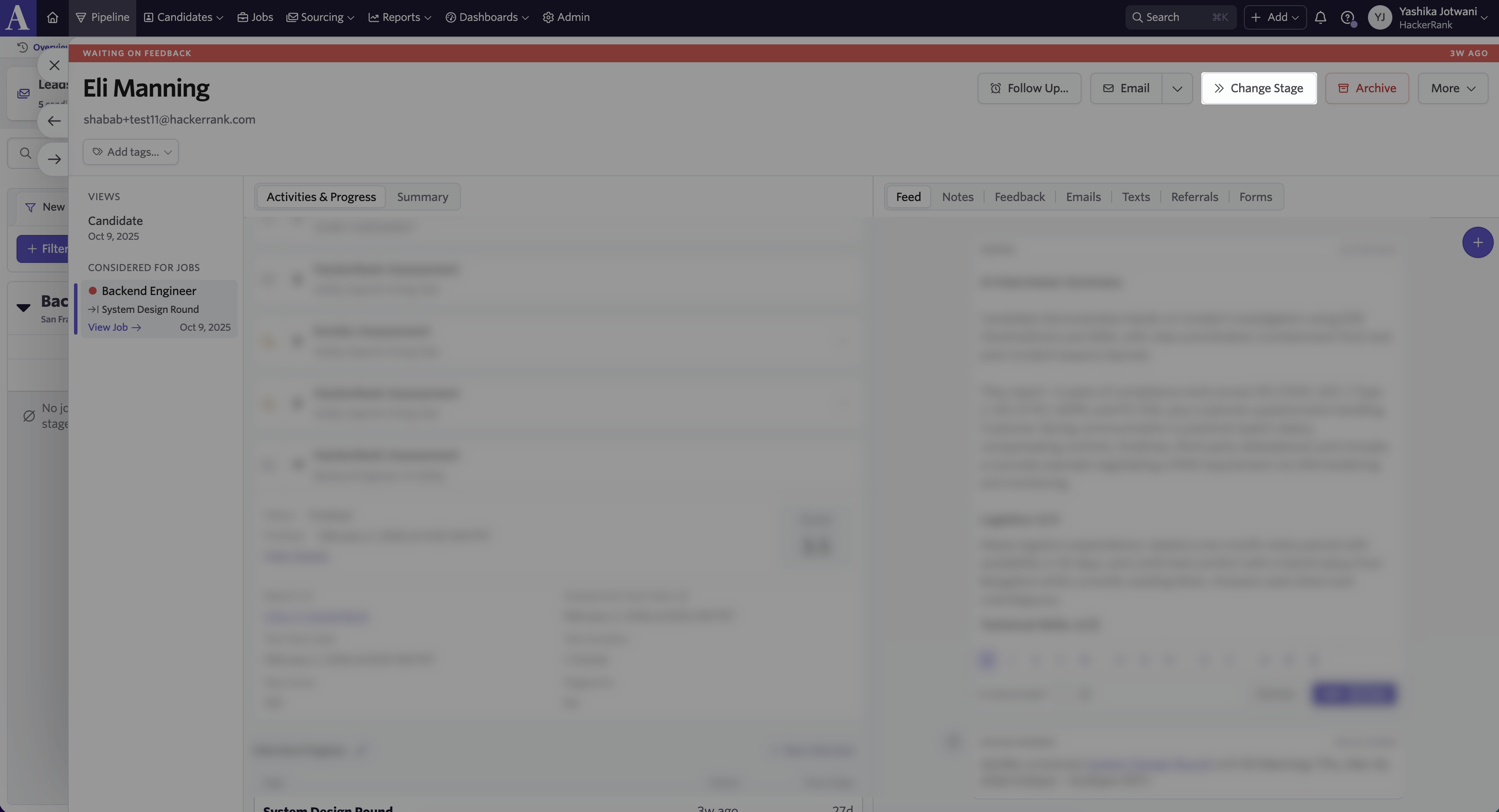
Select the stage where you added the AI interviewer activity from the drop-down.
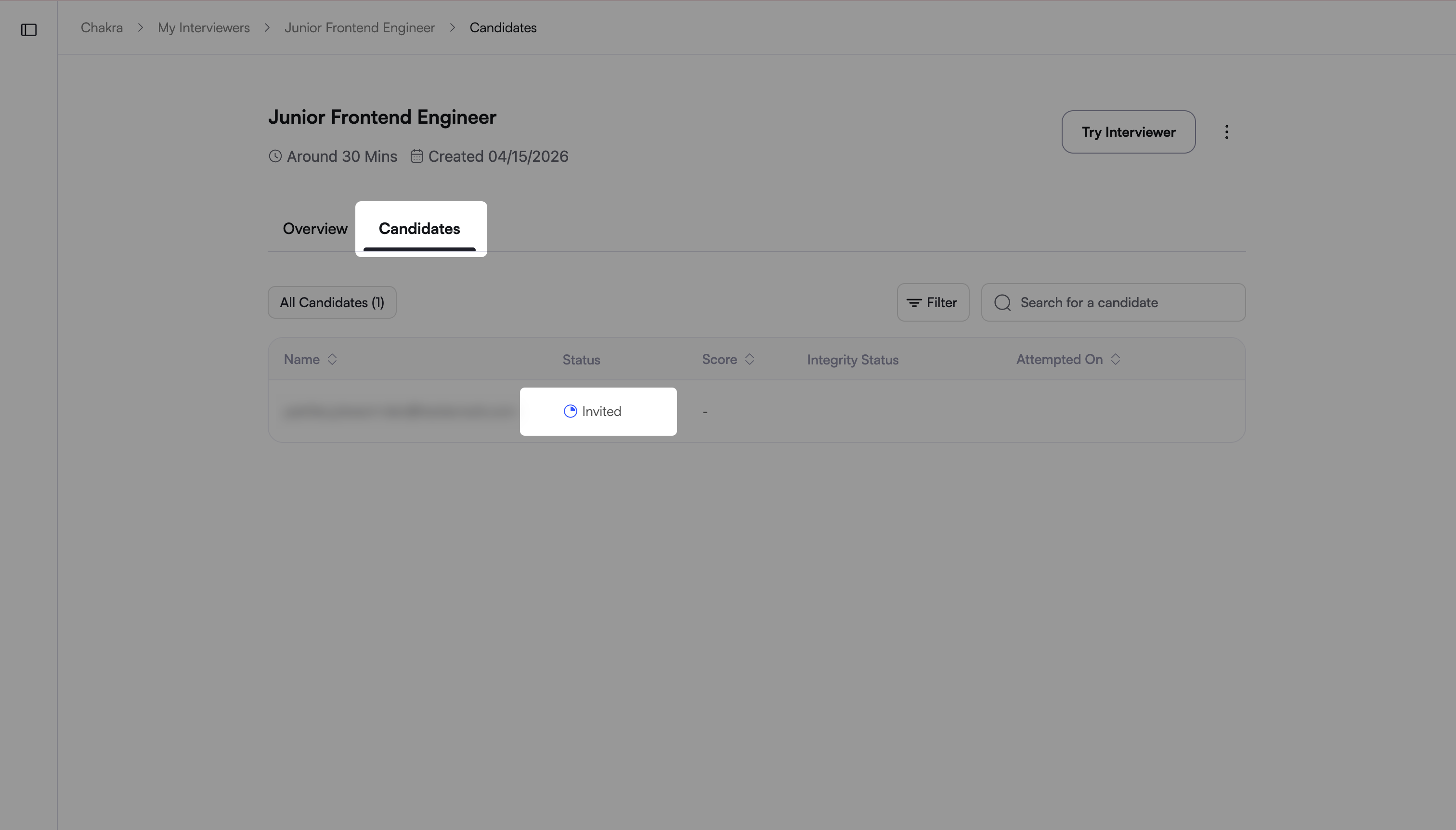
Ashby sends the candidate an email with the AI interview link.
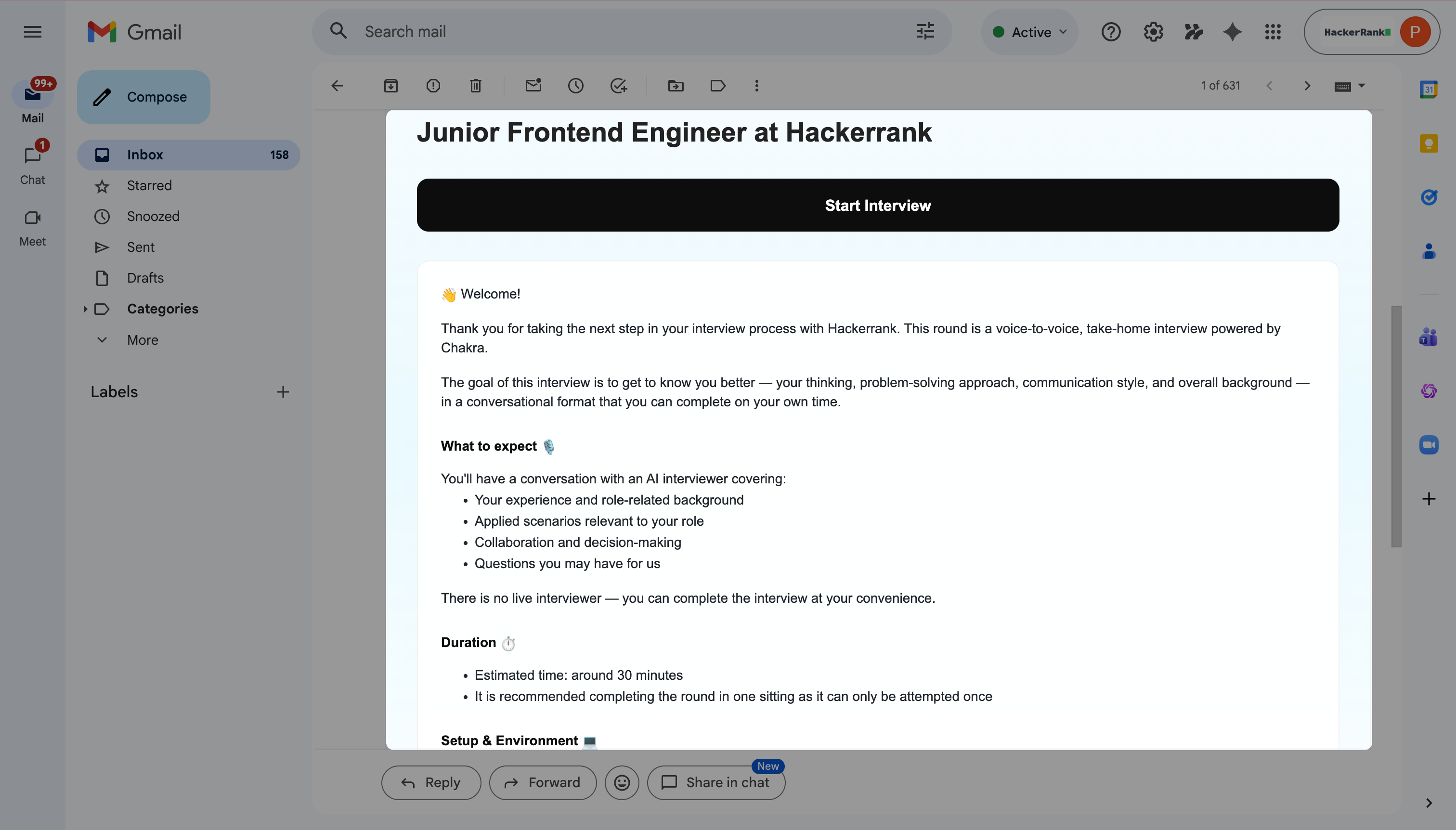
In Chakra, the candidate appears with the status Invited.
Viewing Interview results
When a candidate completes an AI interview, Ashby displays the interview report in the candidate's profile.
To view the interview results in Ashby:
Open the candidate's profile in Ashby.
Go to the Activities & Progress tab.
Select the stage where the candidate completed the AI interview to view following details:
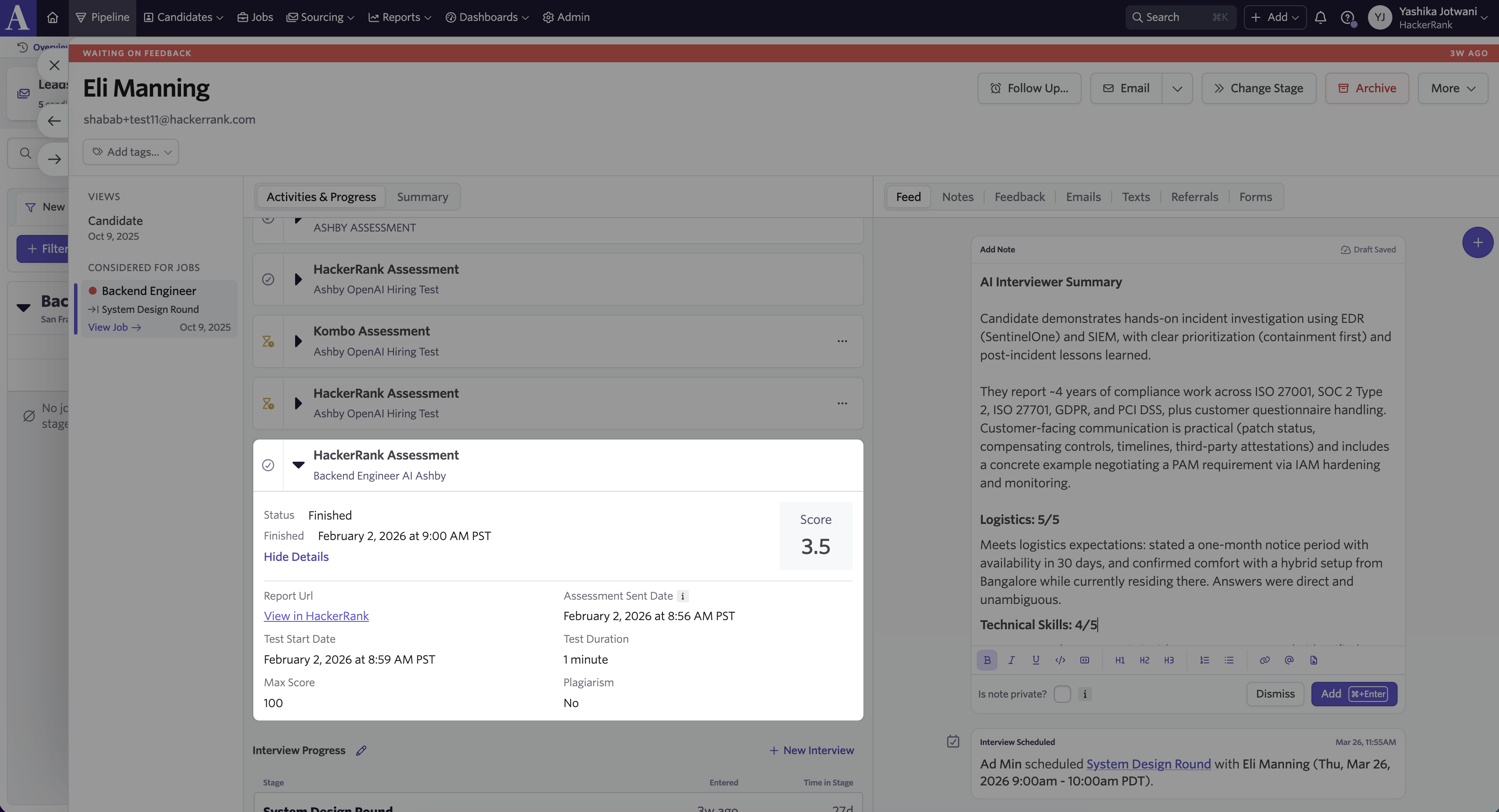
Status: The status of the assessment.
Finished: Date and time when the candidate completed the assessment.
Score: Candidate’s final interview score.
Report URL: Click View in HackerRank to open the detailed report in Chakra.
Assessment Sent Date: Date and time when the assessment was sent to the candidate.
Test Start Date: Date and time when the candidate started the assessment.
Test Duration: The total time taken to complete the assessment by the candidate.
Max Score: The maximum score a candidate can achieve in the assessment.
Plagiarism: Indicates whether potential plagiarism is detected