Workday - Chakra Integration User Guide
Last updated: July 22, 2026
This guide outlines how to use the Workday - HackerRank integration to schedule Chakra interviews and review interview results directly in Workday.
Prerequisites
Before you begin, ensure you meet the following requirements:
You have an active Chakra account. To enable, contact HackerRank support at chakra-support@hackerrank.com.
You have an active Workday account.
The HackerRank integration with Workday is complete. For more information, see the 📄 Workday - HackerRank Tests Configuration Guide.
Adding an AI interviewer in Workday
Each Chakra interviewer has a unique test ID. Before you can schedule Chakra interviews from Workday, you must add the corresponding AI interviewer to Workday as an assessment.
To add an AI interviewer in Workday:
Step 1: Copy the AI interviewer test ID from Chakra
Log in to Chakra using your credentials.
Click the sidebar icon and select My Interviewers.
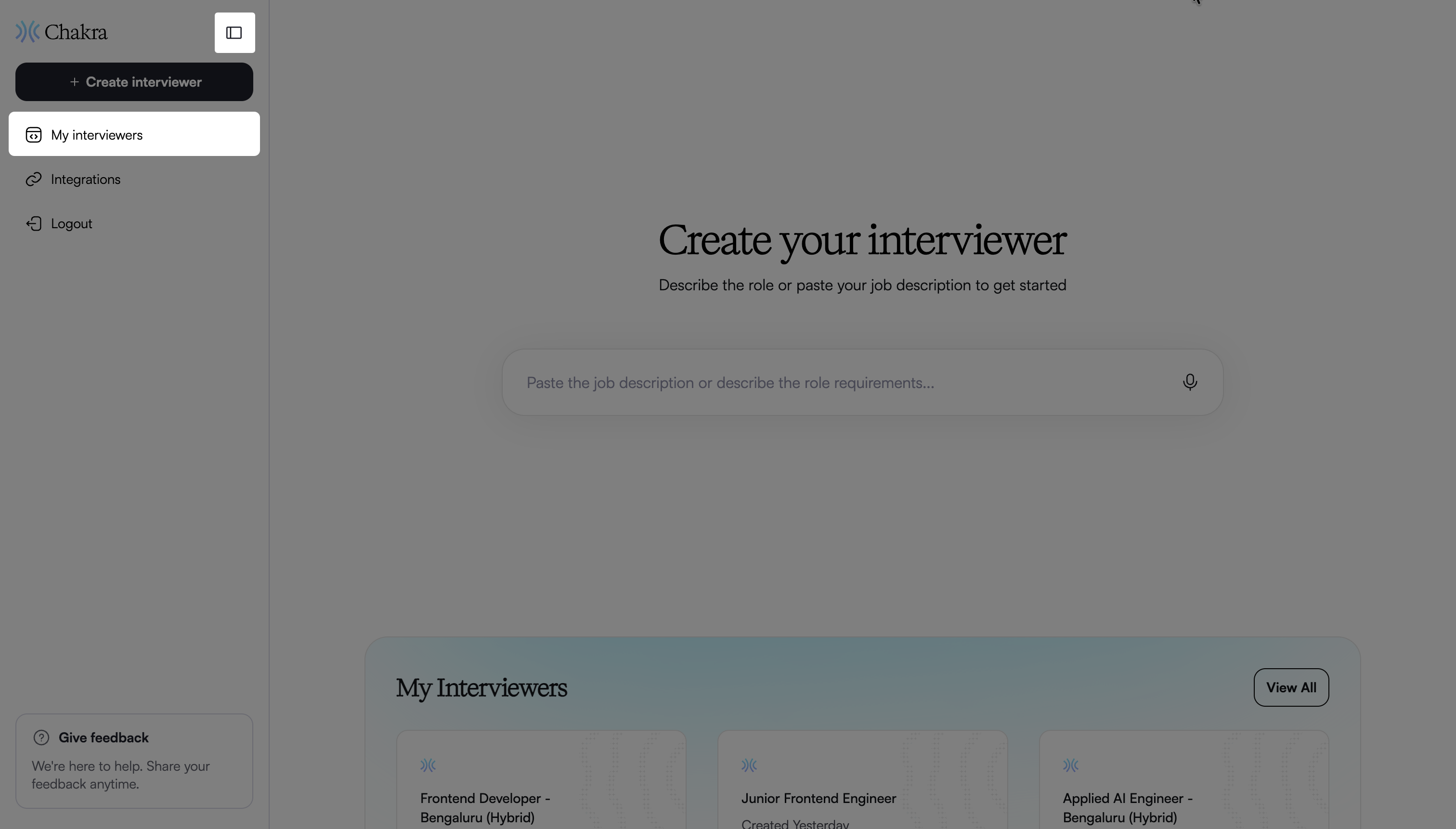
Select the interview for which you want to copy the test ID.
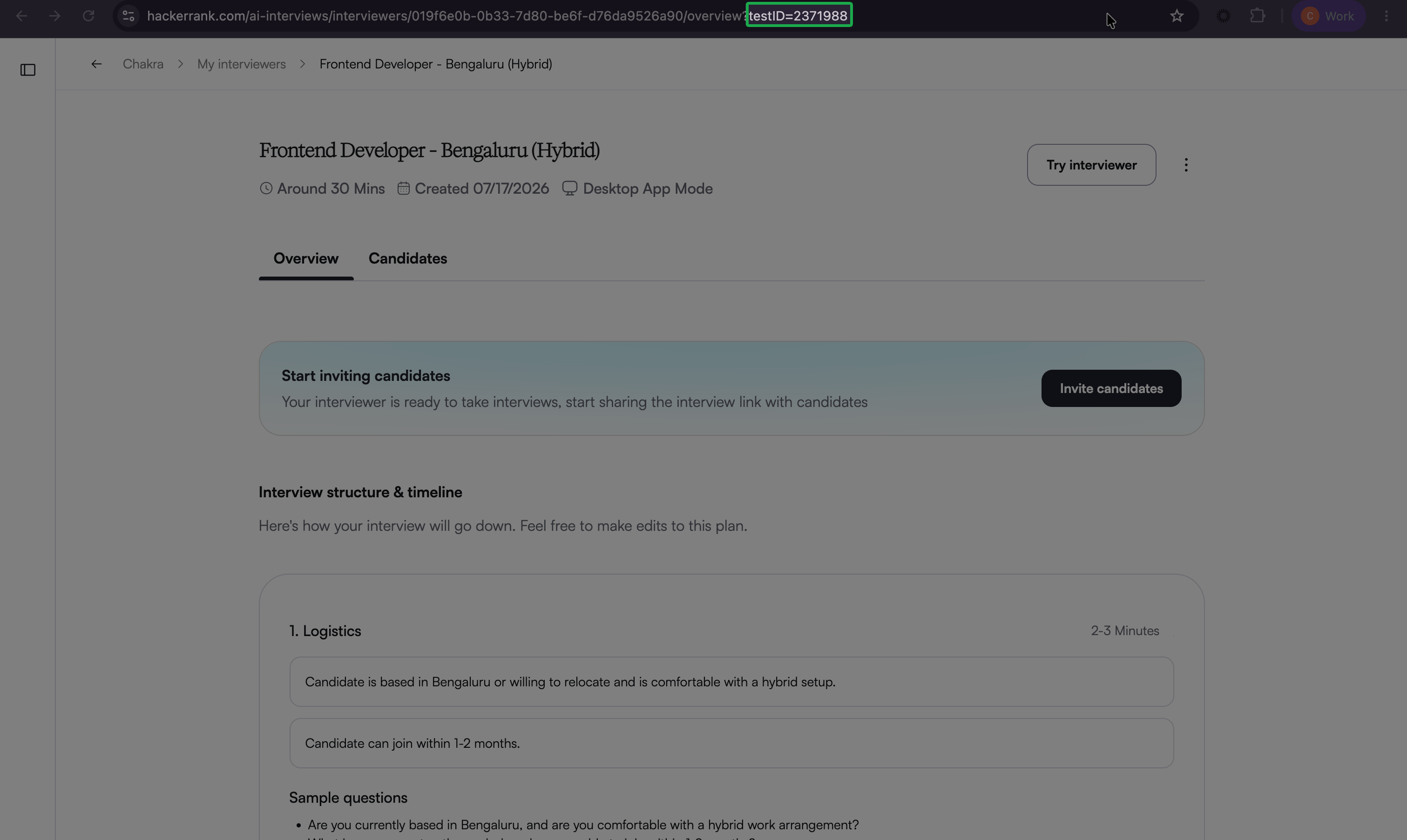
Copy the test ID from the interviewer URL.
Step 2: Add the AI interviewer to Workday
Log in to your Workday account using your credentials.
Go to the Maintain Recruiting Assessment Tests task.
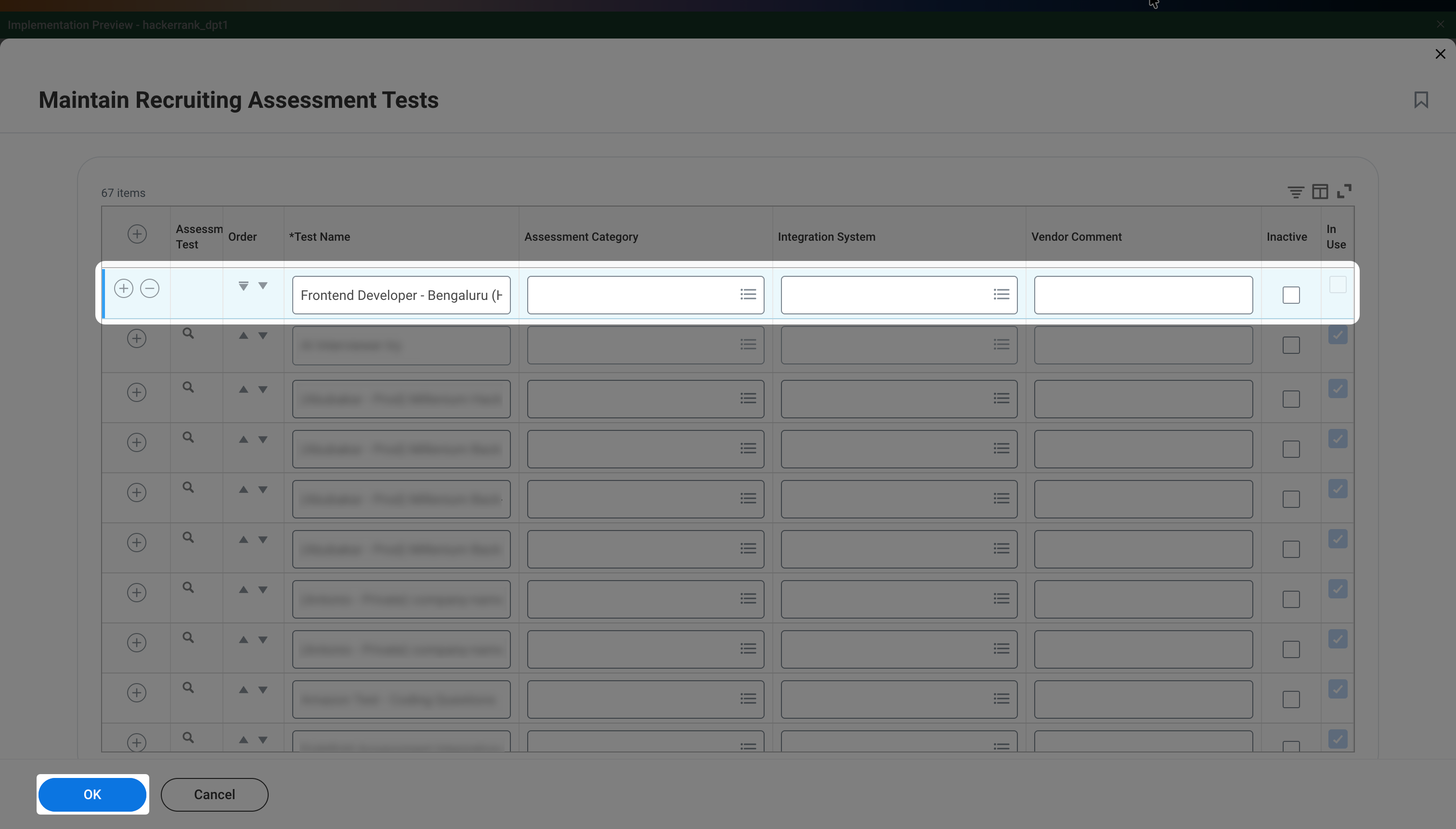
Click + to add a new assessment.
In the Test Name field, enter the AI interviewer name, and then click OK.
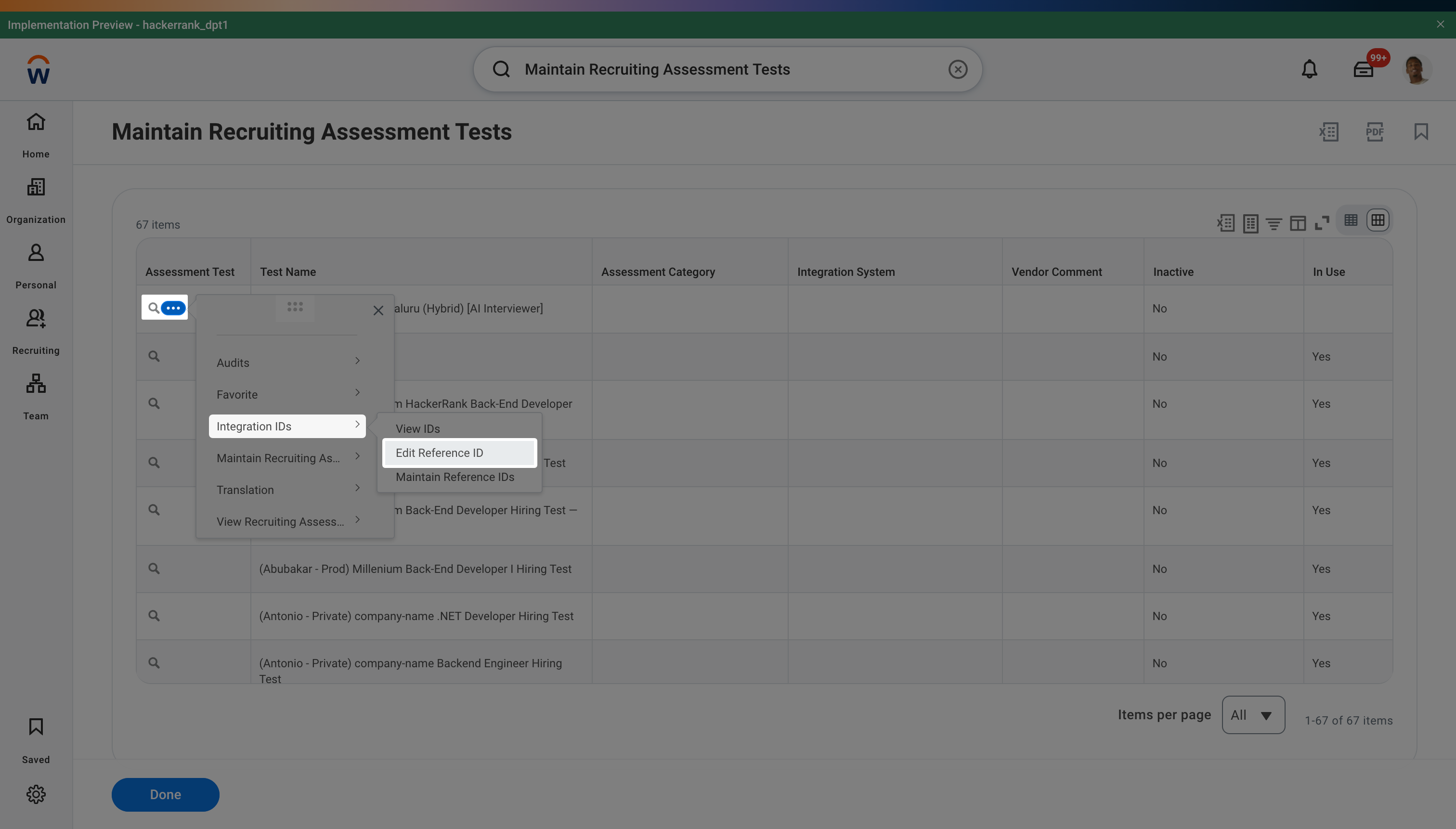
Click the magnifying glass next to the assessment, and then select Integration IDs > Edit Reference ID.
Paste the Chakra test ID into the Reference ID field, and then click OK.
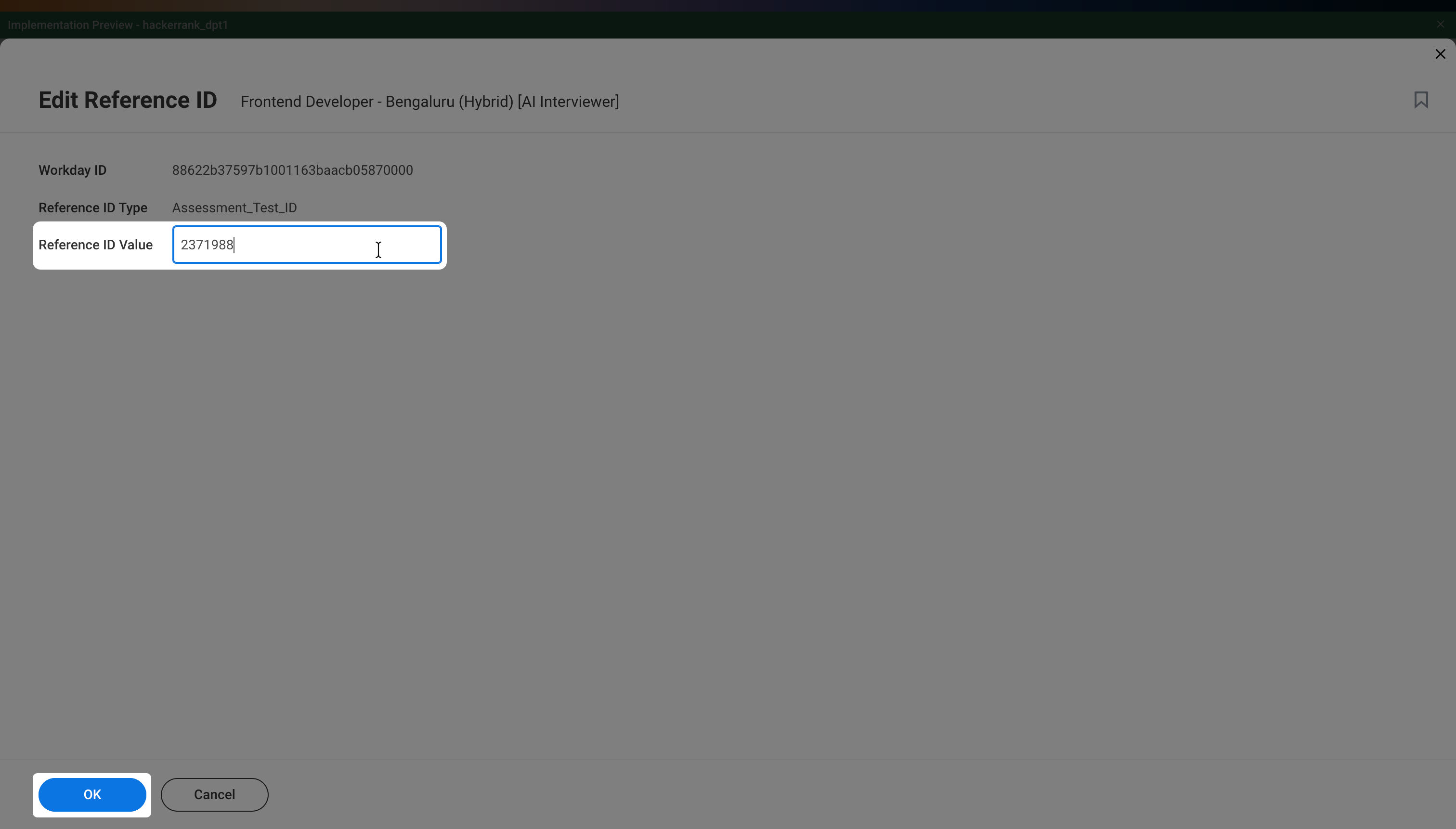
Click Done.
Scheduling an AI interview from Workday
After you add the AI interviewer, you can schedule interviews from Workday.
To schedule an AI interview in Workday:
In the left pane, select Recruiting, and then open the job requisition.
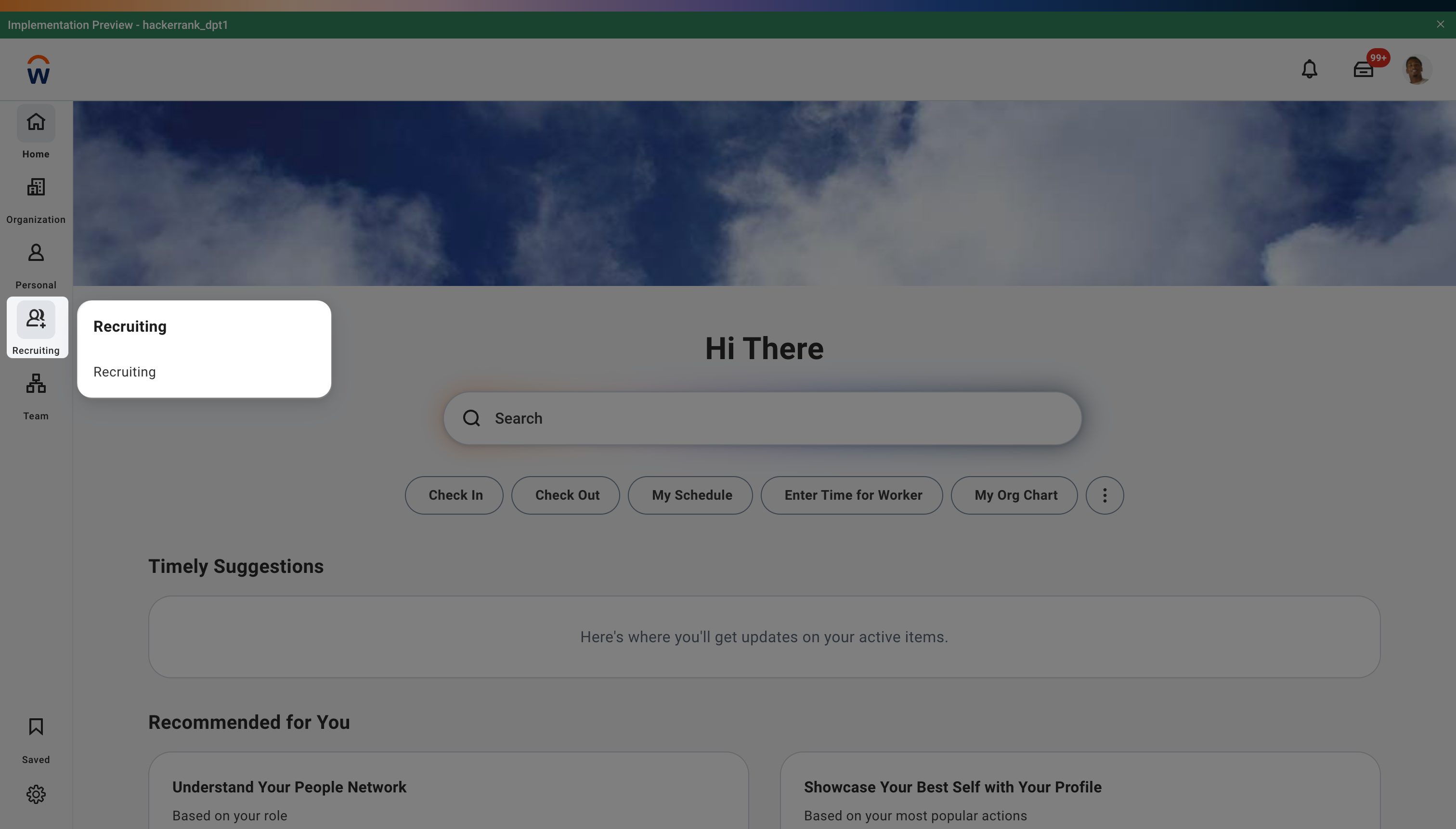
Go to the Candidates tab.
Select the candidate you want to invite to open their profile.
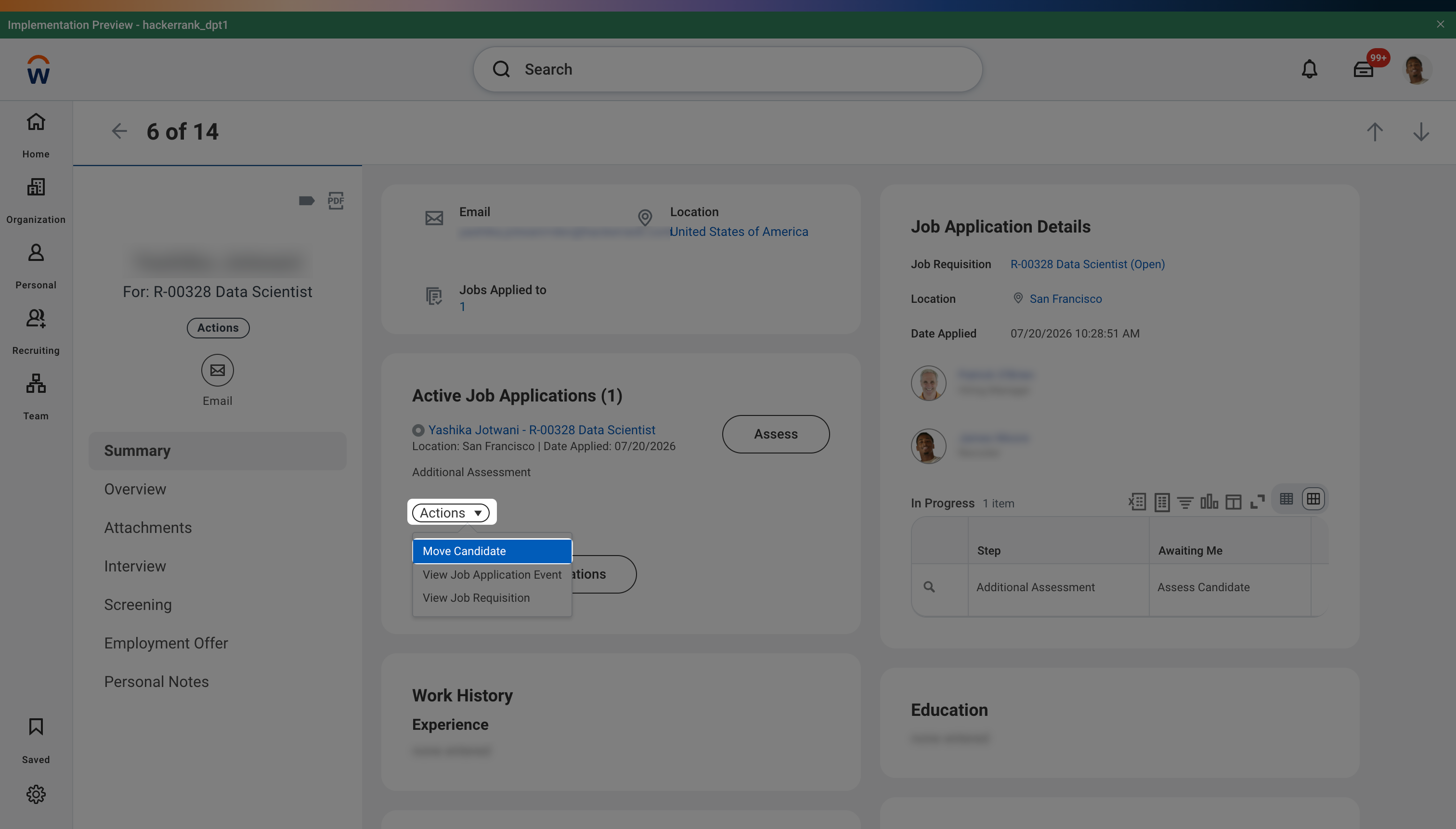
Click Actions > Move Candidate.
Select Move Forward and select Assessment from the drop-down.
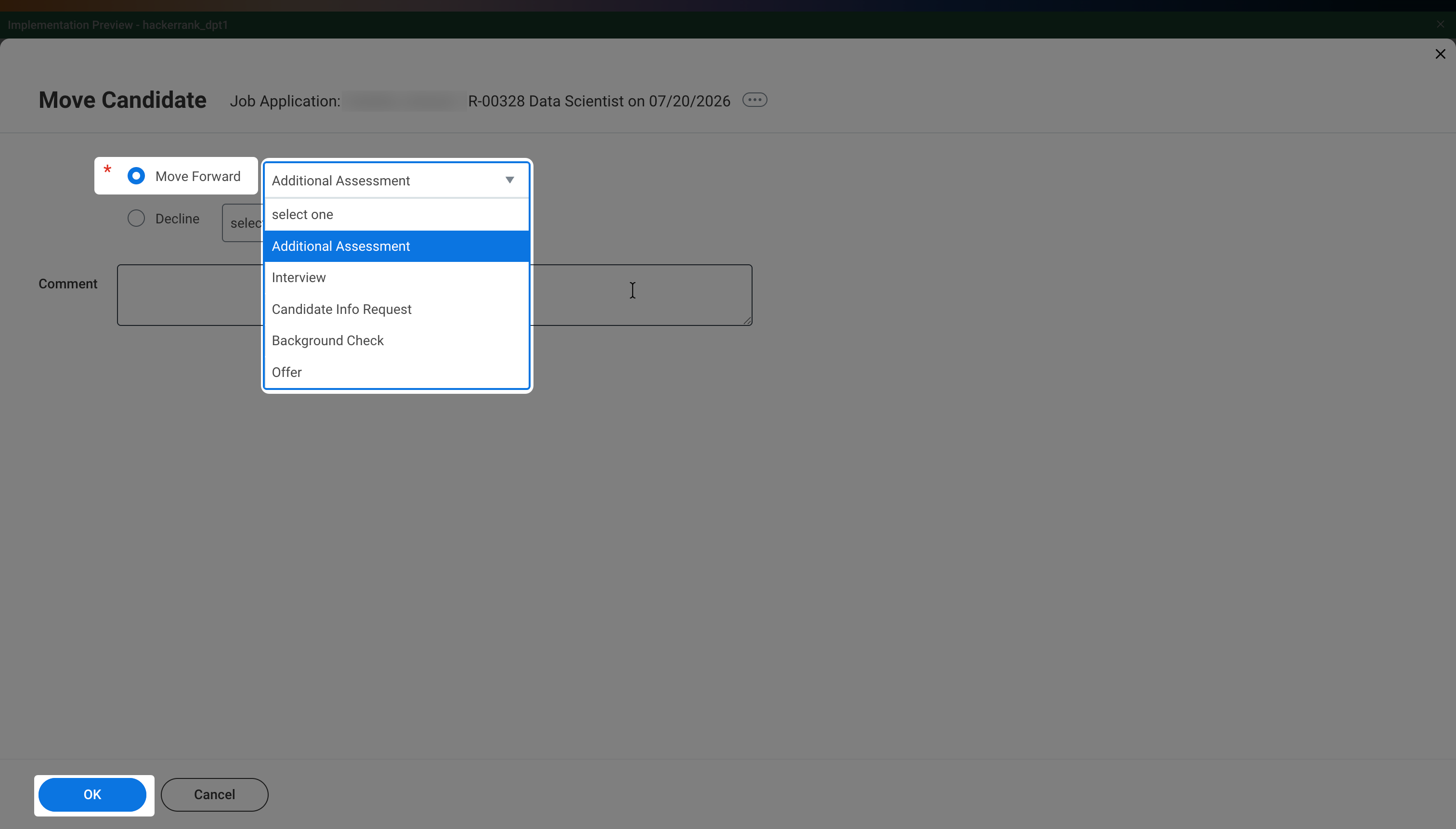
Click OK. A pop-up will appear confirming your submission.
Click Assess.
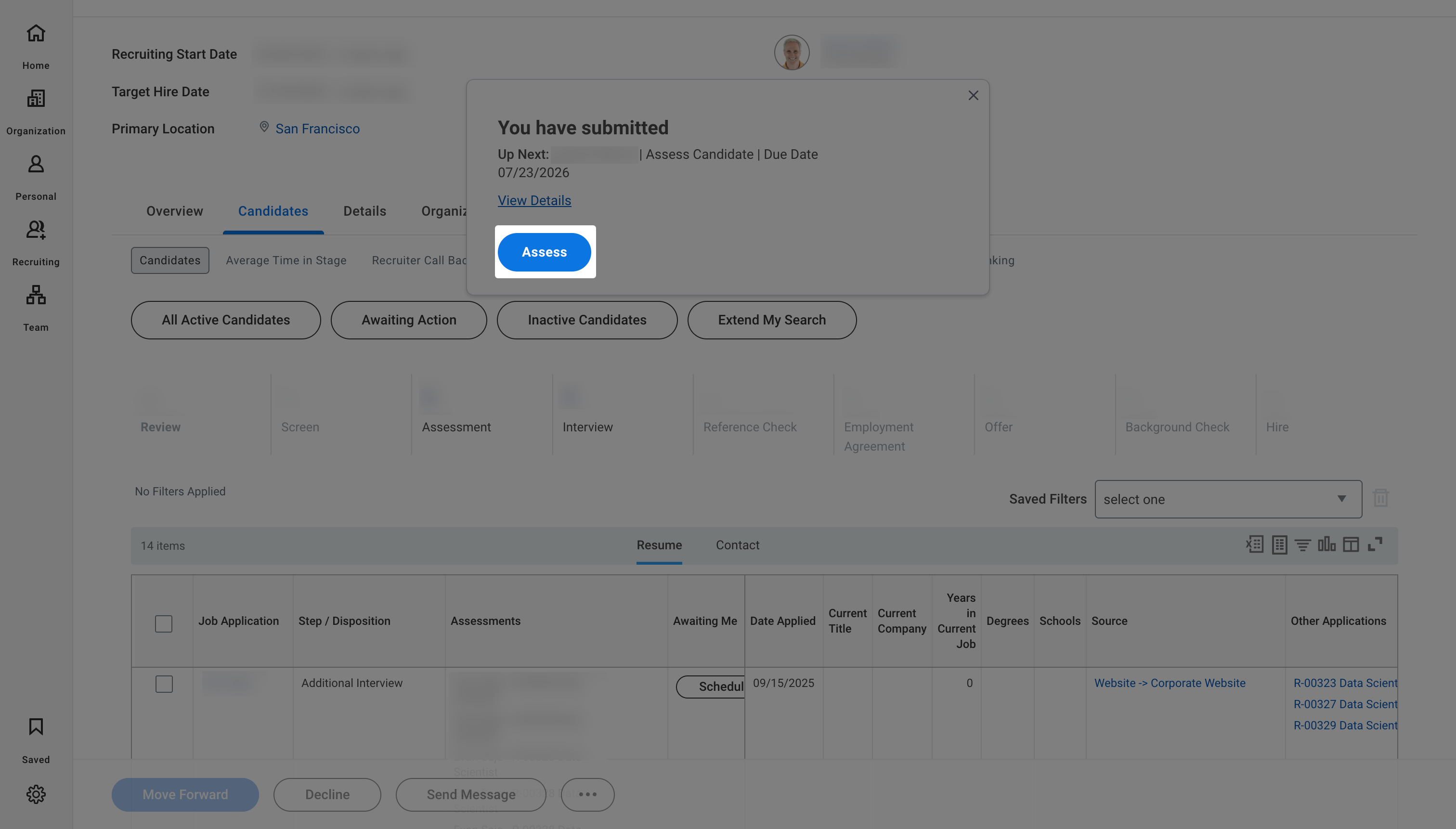
In the Assess Candidate dialog box:
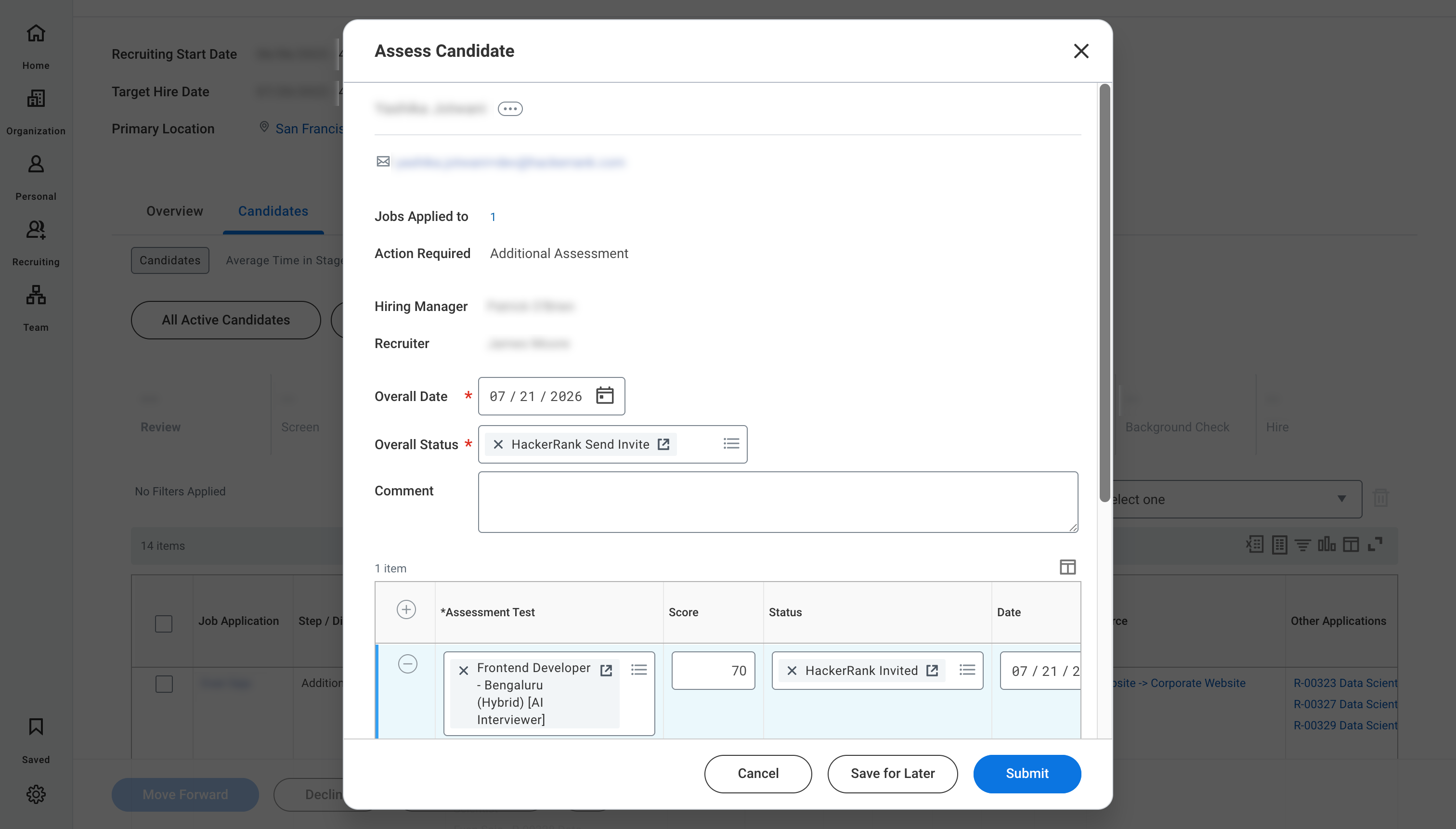
Select a date under Overall Date.
Select HackerRank Send Invite from the Overall Status drop-down.
(Optional) Add a comment in the Comment field.
In the Assessment Test section, select the AI Interviewer assessment.
Enter the score in the Score field.
Select HackerRank Invited under Status field.
Click Submit.
Workday sends the candidate an email with the AI interview link. In Chakra, the candidate appears with the status Invited.
Note: If the HackerRank AI interviewer does not appear in the list, the integration is not configured correctly. For more information, see the 📄 Workday - HackerRank Tests Configuration Guide.
Viewing interview results
When a candidate completes the AI interview, Workday displays the score and interview report in the candidate's profile.
To view the interview results in Workday:
Open the candidate's profile in Workday.
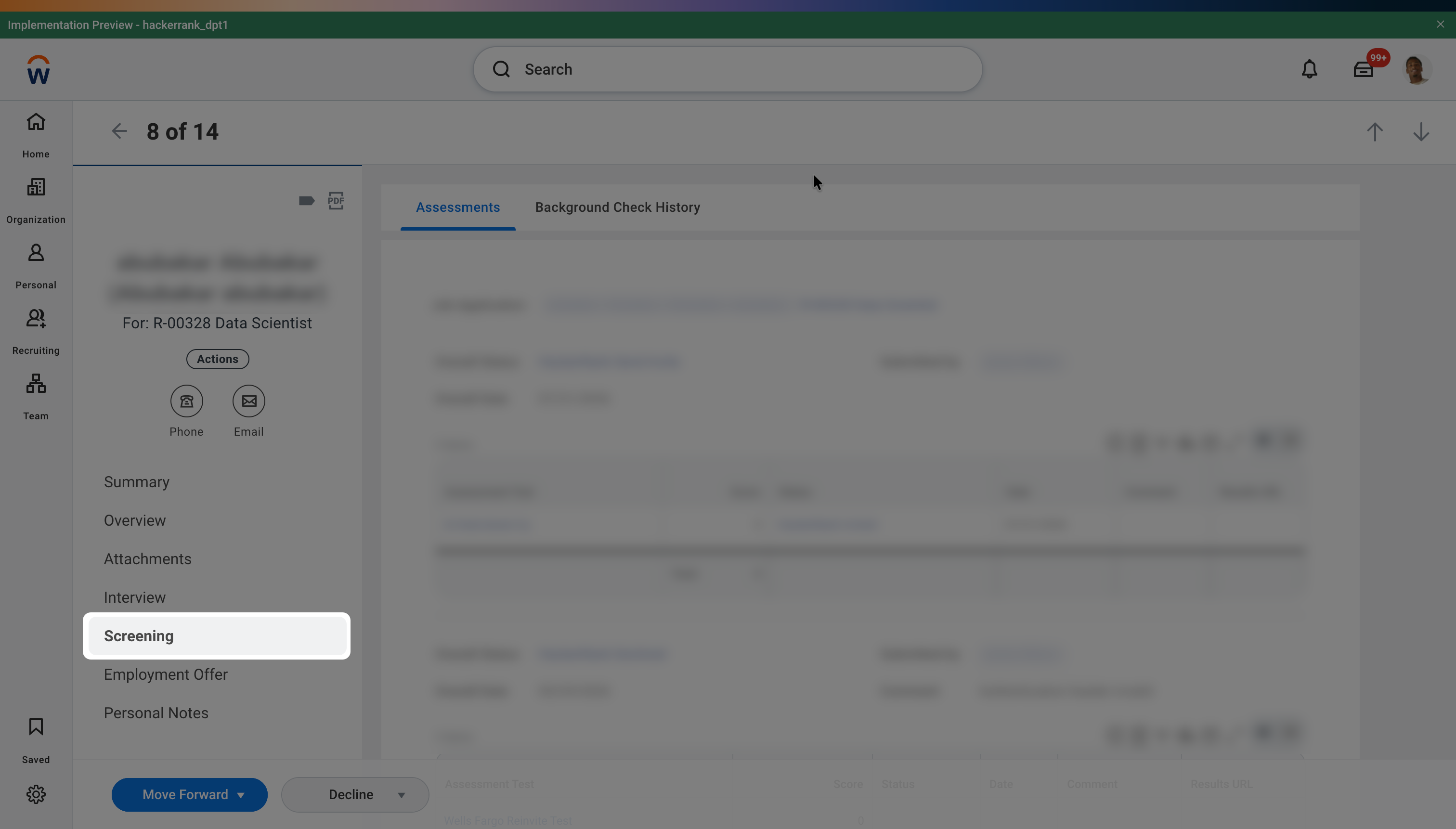
Go to the Screening tab.
Review the candidate's score under Score field.
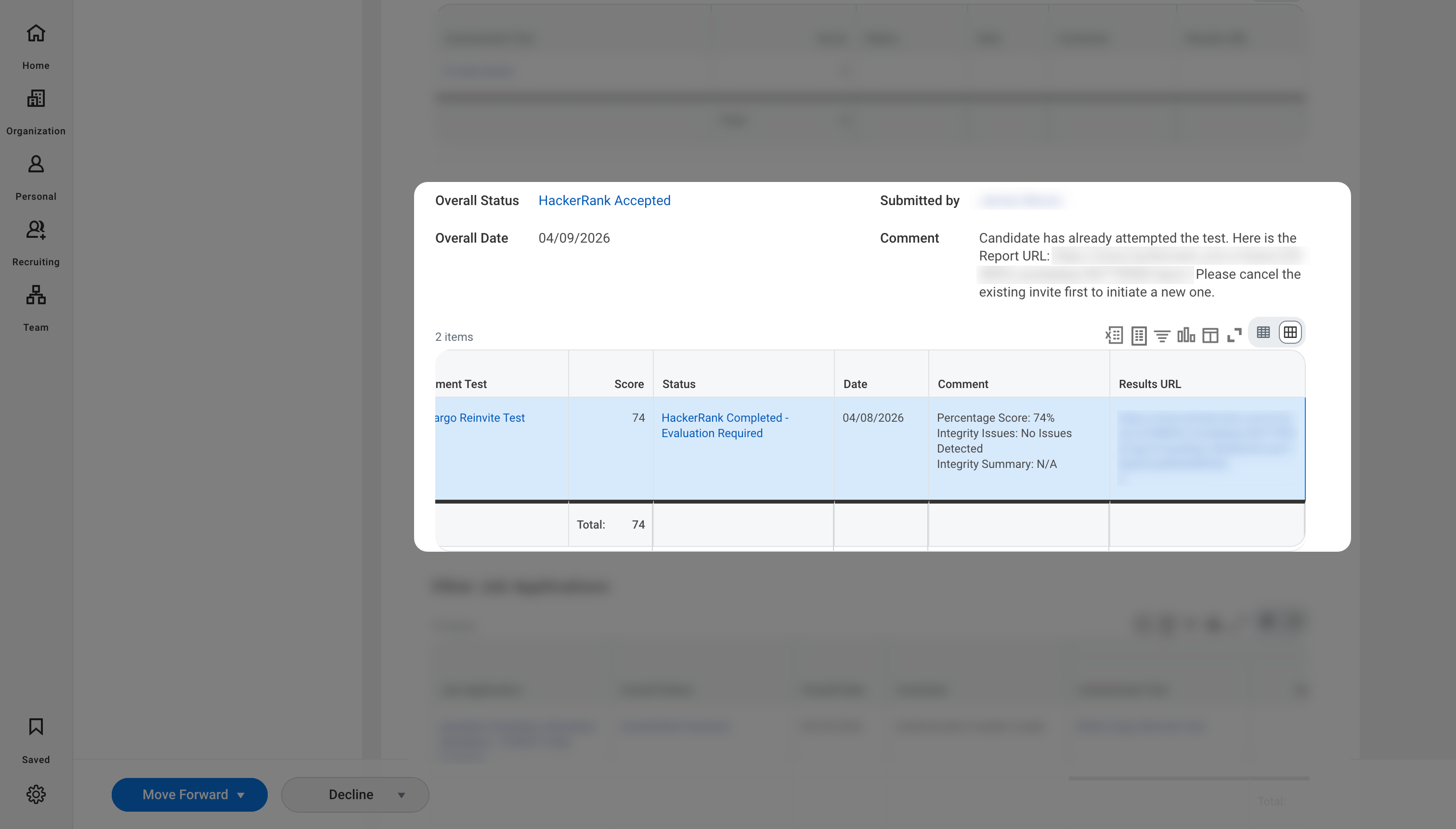
Click the report link in the Results URL column to open the detailed interview scorecard in Chakra.