Filtering and Sorting Candidate Test Reports
Last updated: January 20, 2025
You can use various filters to search and view relevant reports. You can filter reports with filters such as the candidate's name, email ID, and status. After filtering reports, you can also sort these reports based on your selected criteria.
Prerequisites
You must be logged in to your HackerRank for Work account.
You must have created a test for which you want to view reports.
Steps
Click the Tests tab on the home page and then click the required test.
Click on the Candidates option from the test page.
Now you have the complete list of the candidates who have been invited or participated in that test.
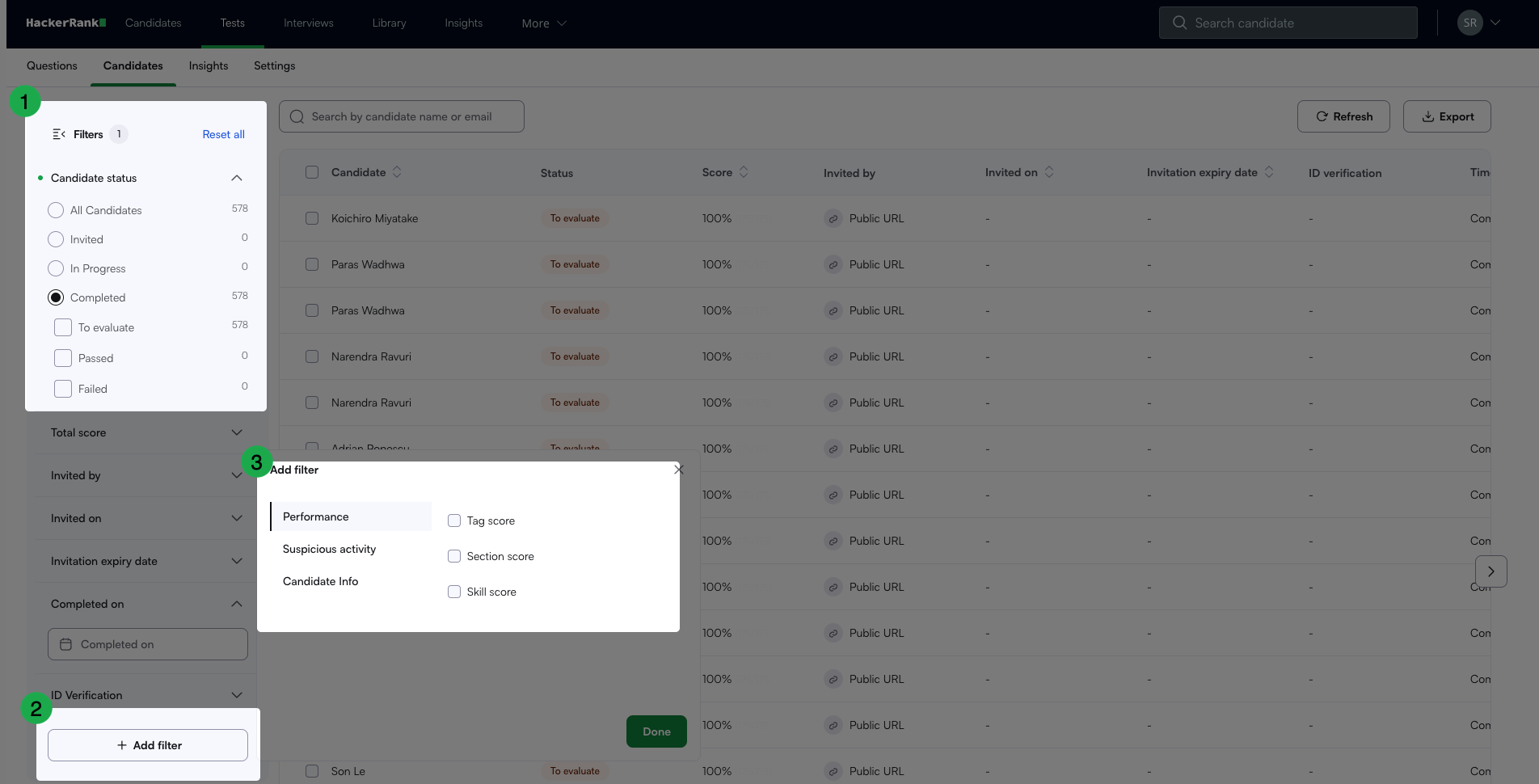
On the left pane, you have the Candidate Status filters, which allow you to filter the precise list of candidates based on your requirements.
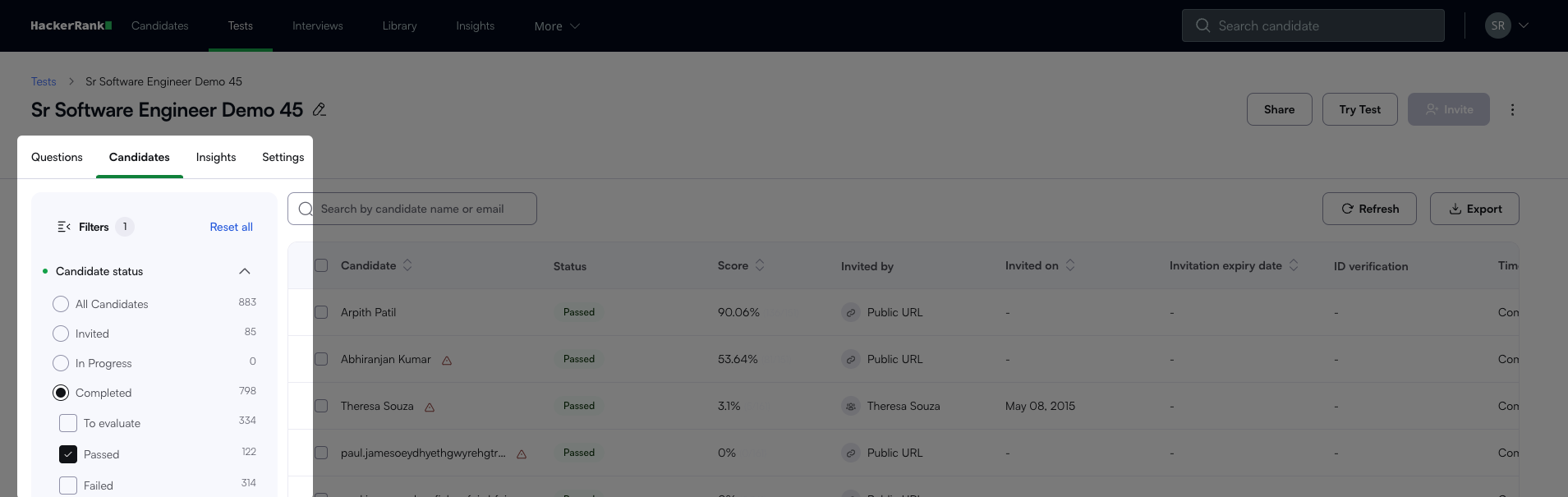
Note: The report list automatically refreshes to display the appropriate data when you enter or select any of the filters.
The available default filters are:
Candidate Status: This option enables you to filter the candidates by their test status, such as passed, failed, in progress, to be evaluated, etc…
Total Score: This filter enables you to set a range of scores to filter the candidates falling in that score zone.
Invited By: This filter enables you to select the candidates you invited rather than those who joined using the public URL.
Invited On: This filter lets you find the candidates invited within a particular time frame.
Invitation expiry date: This filter enables you to find the candidates whose invitations expired on a certain date.
You can also add a separate filter by clicking the Add Filter from the Filters section.