Eightfold - HackerRank Integration Guide
Last updated: May 29, 2026
HackerRank integrates with Eightfold to let you invite candidates to HackerRank assessments and interviews and view results directly from Eightfold.
This guide explains how to integrate Eightfold with HackerRank for Work.
Prerequisites
Before you begin, ensure you meet the following requirements:
You have admin access to your HackerRank and Eightfold accounts.
Your organization has an active Enterprise plan with HackerRank.
Integrating Eightfold with HackerRank
To integrate Eightfold with HackerRank:
Step 1: Generate an integration API token in HackerRank
The integration API token allows Eightfold to connect securely with your HackerRank account.
Log in to your HackerRank for Work account using your credentials.
Go to Settings > Integrations > Eightfold > Connect, or open the Eightfold integration page directly.
In the Configuration tab, click Generate an API Token.
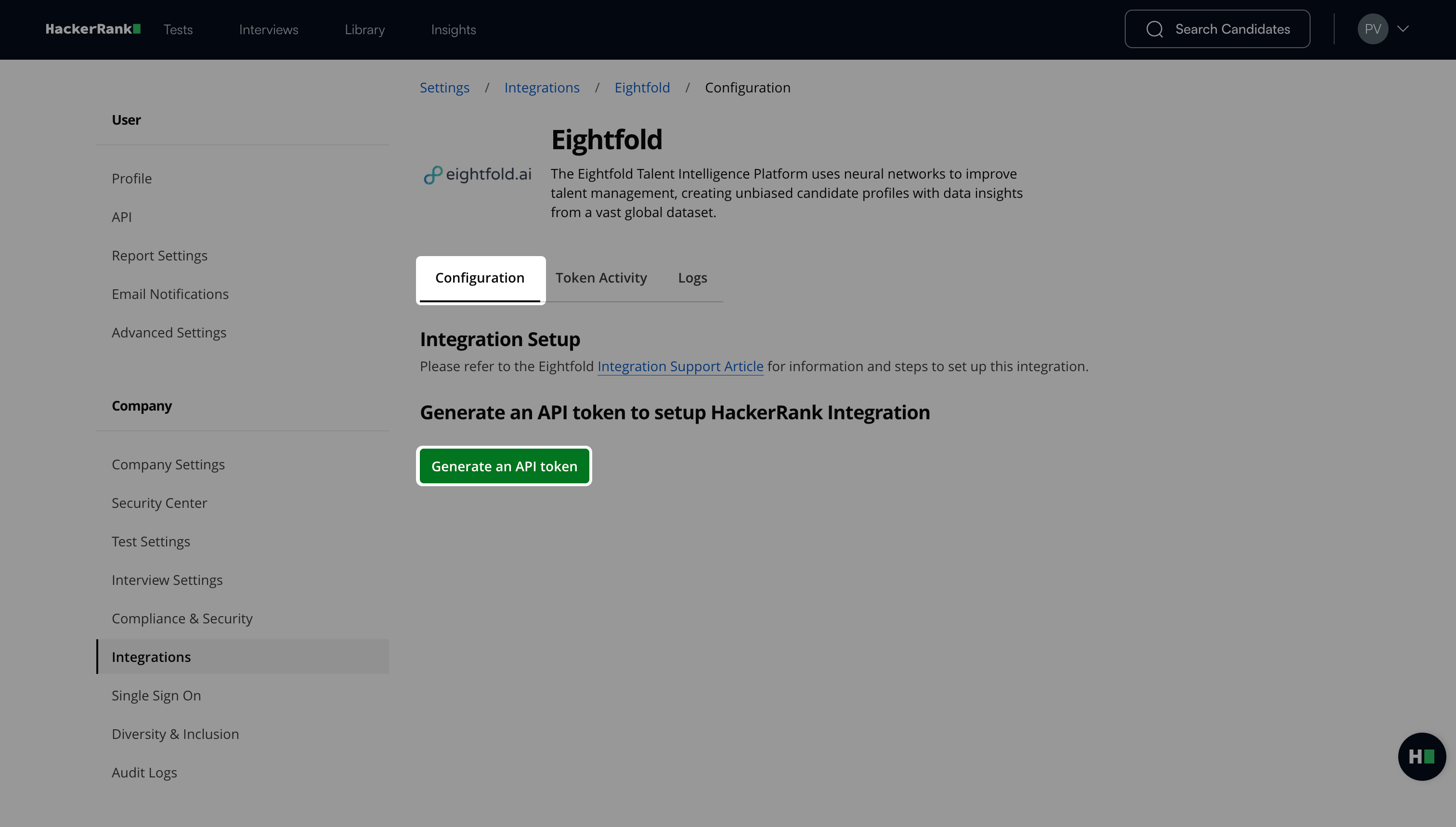
Click Copy and close to copy your token.
Note: You need this token in Step 2: Add the HackerRank API token in Eightfold.
Step 2: Add the HackerRank API token in Eightfold
This step authorizes Eightfold to connect with your HackerRank account.
Log in to your Eightfold account using your credentials.
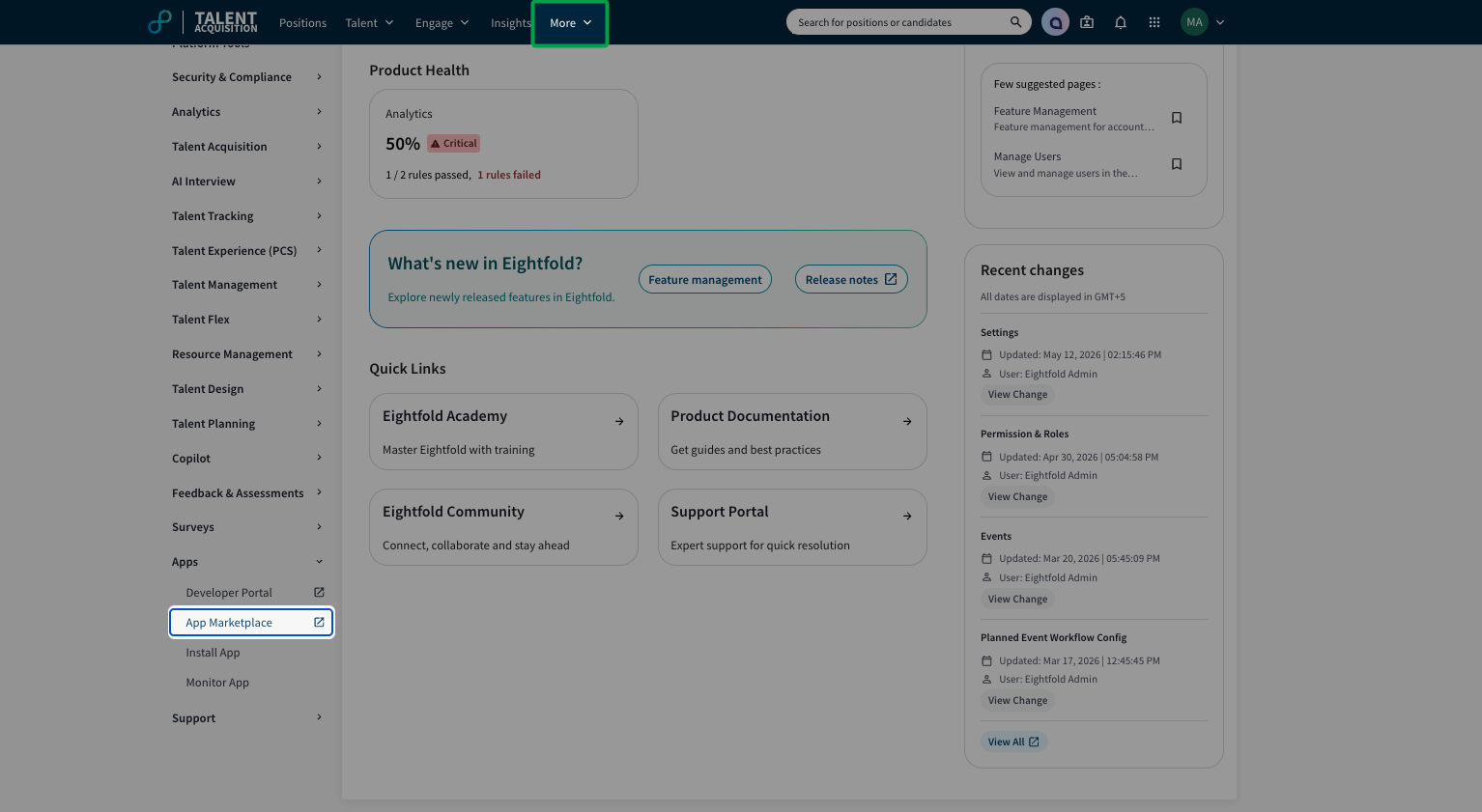
Go to More > Admin Console > Apps > App Marketplace.
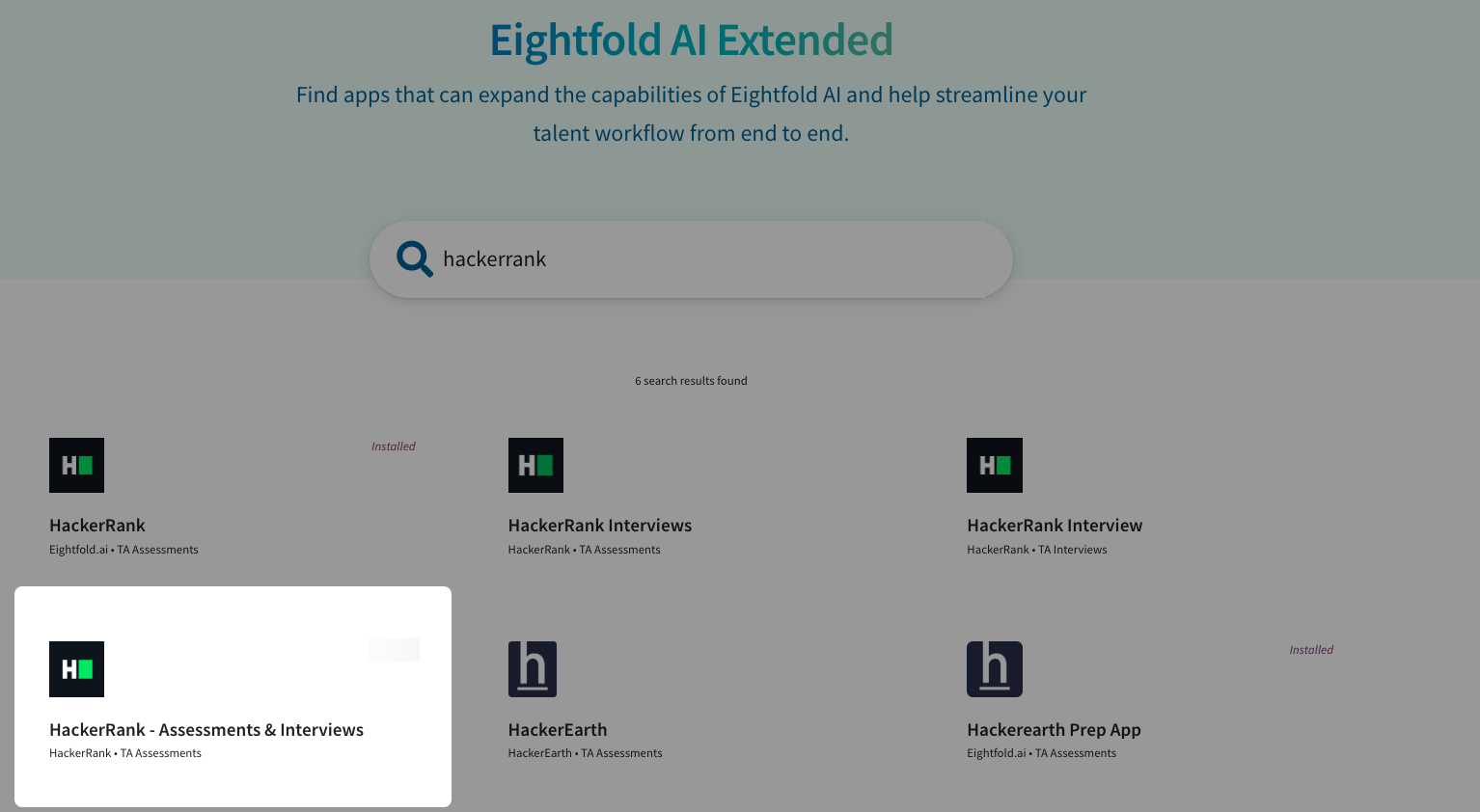
Select HackerRank - Assessments & Interviews.
Click Install.
In Configure Settings to Install App dialog:
Paste the HackerRank API token generated from Step 1 into Authorization under App Settings.
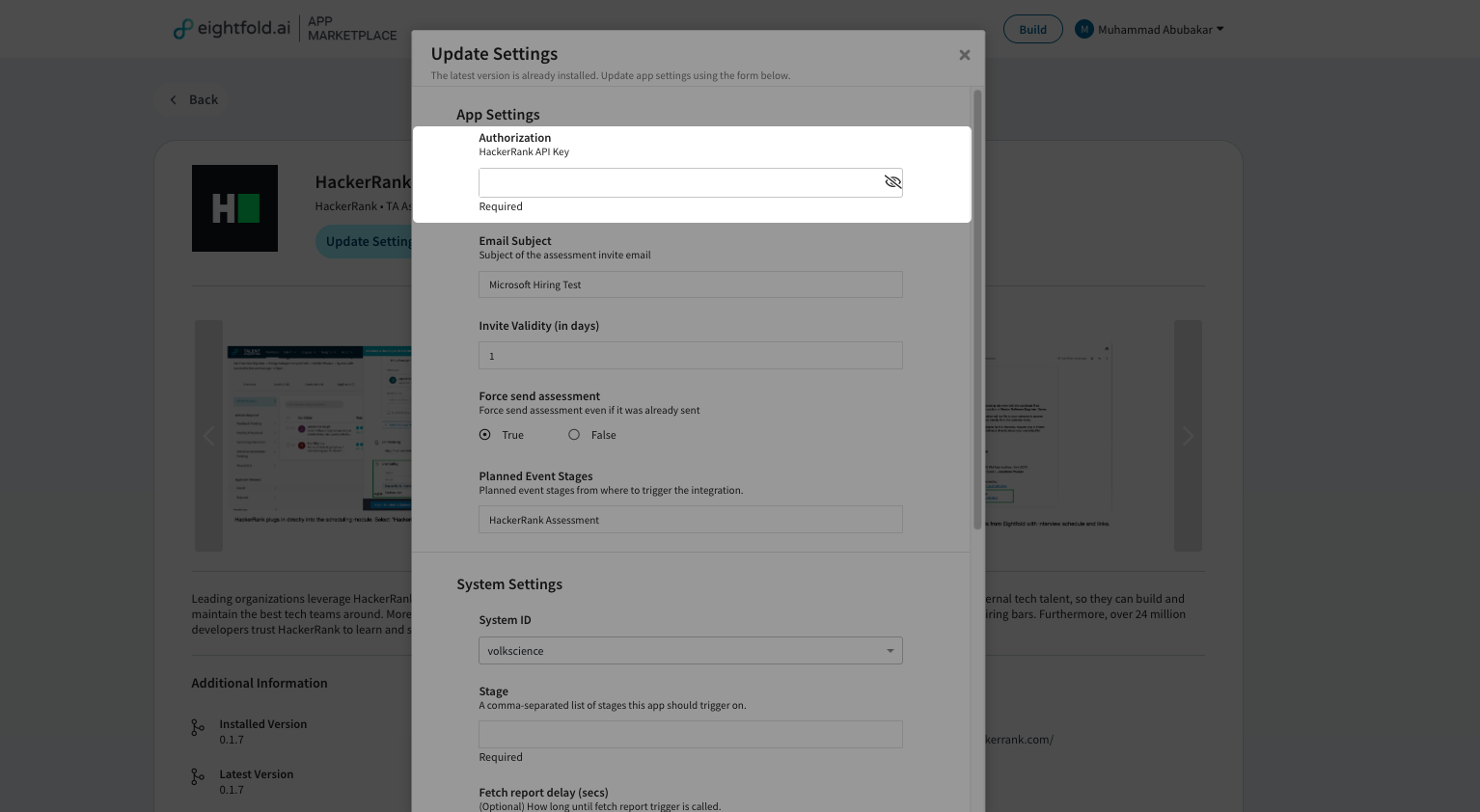
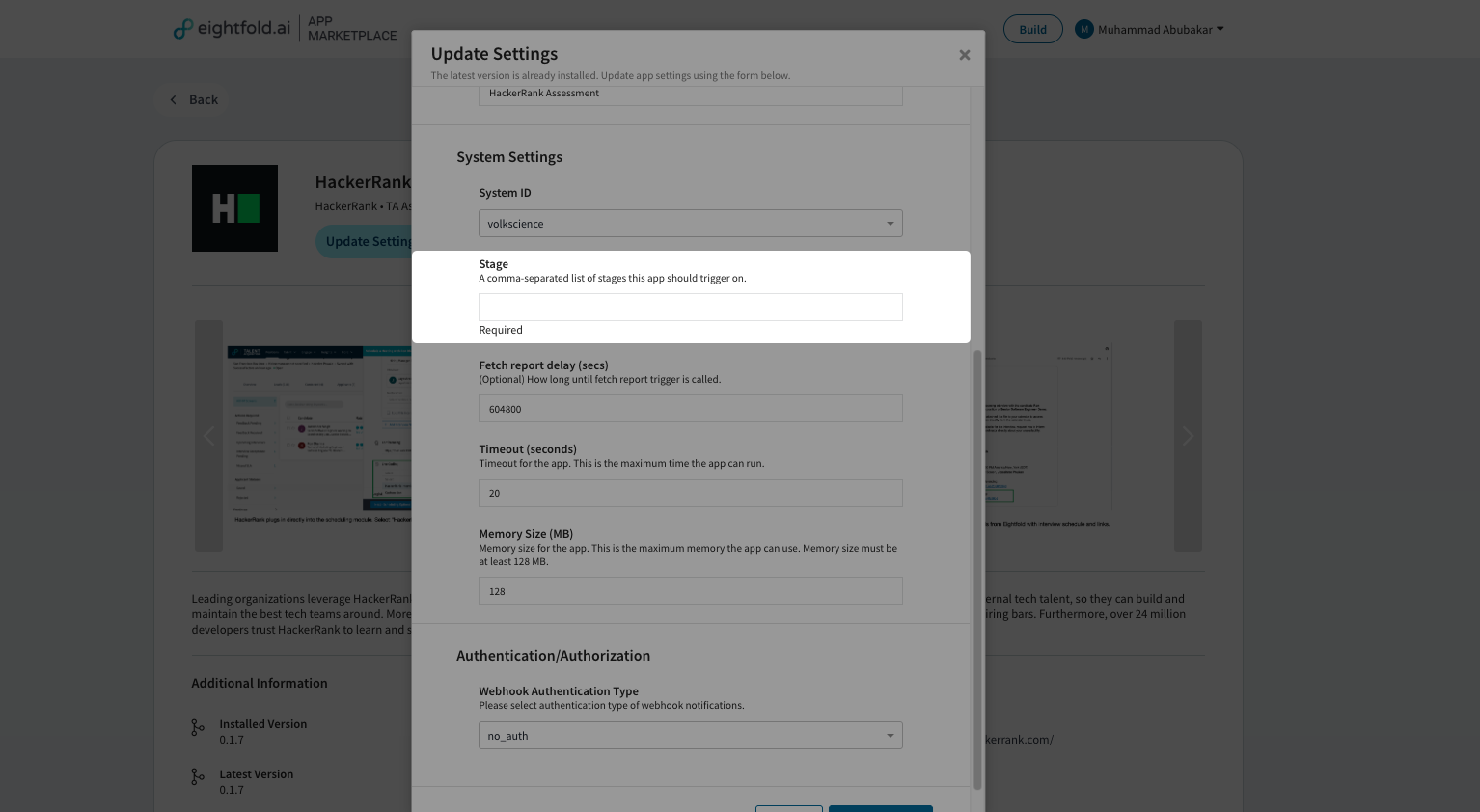
Enter the stage where the app triggers in Stage under System Settings (for example, Recruiter Screen).
Set Webhook Authentication Type to no_auth under Authentication/Authorization.
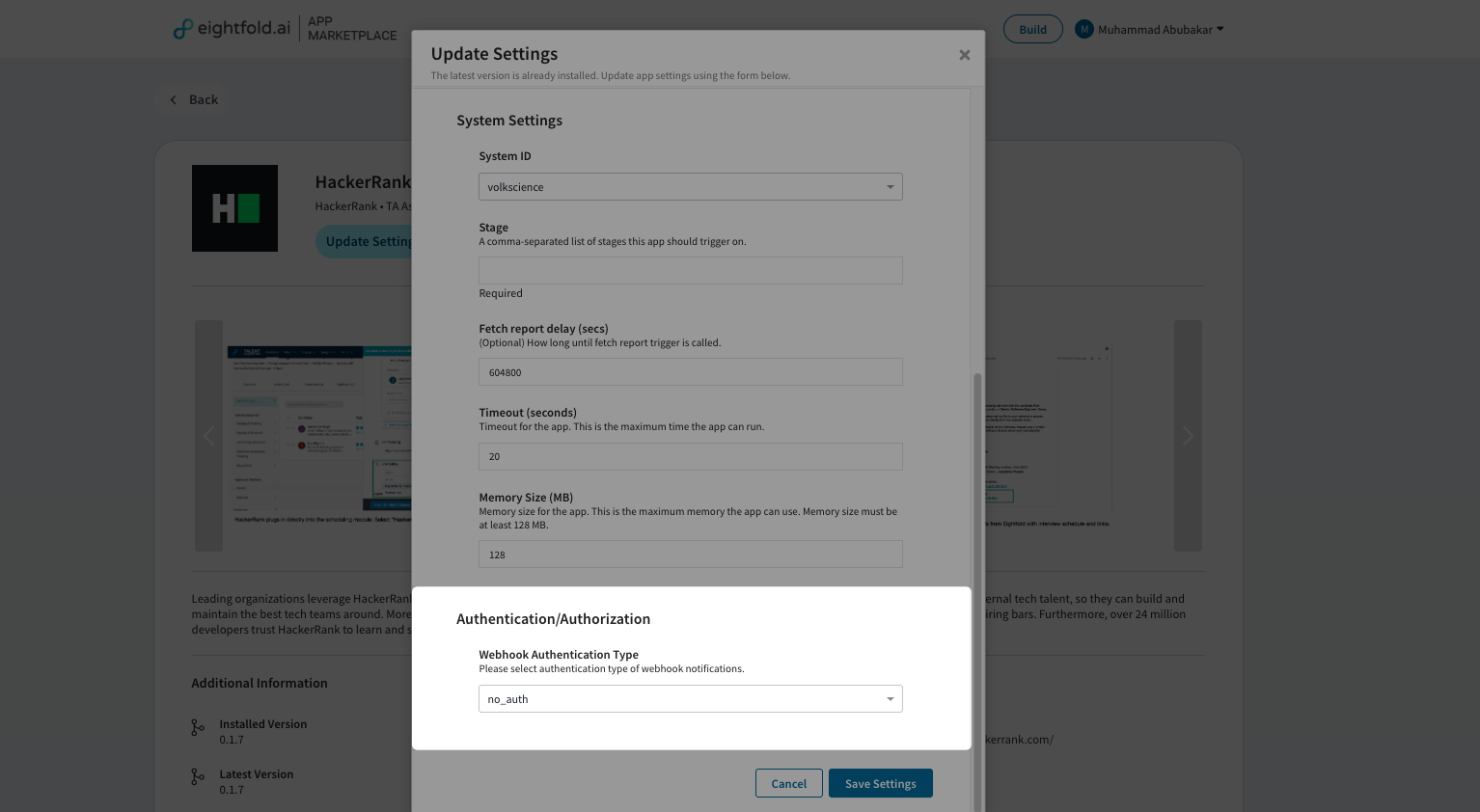
Click Save Settings & Install.
To verify the integration, go to More > Admin Console > Apps > Install Apps and confirm that HackerRank – Assessments & Interviews appears in the list.
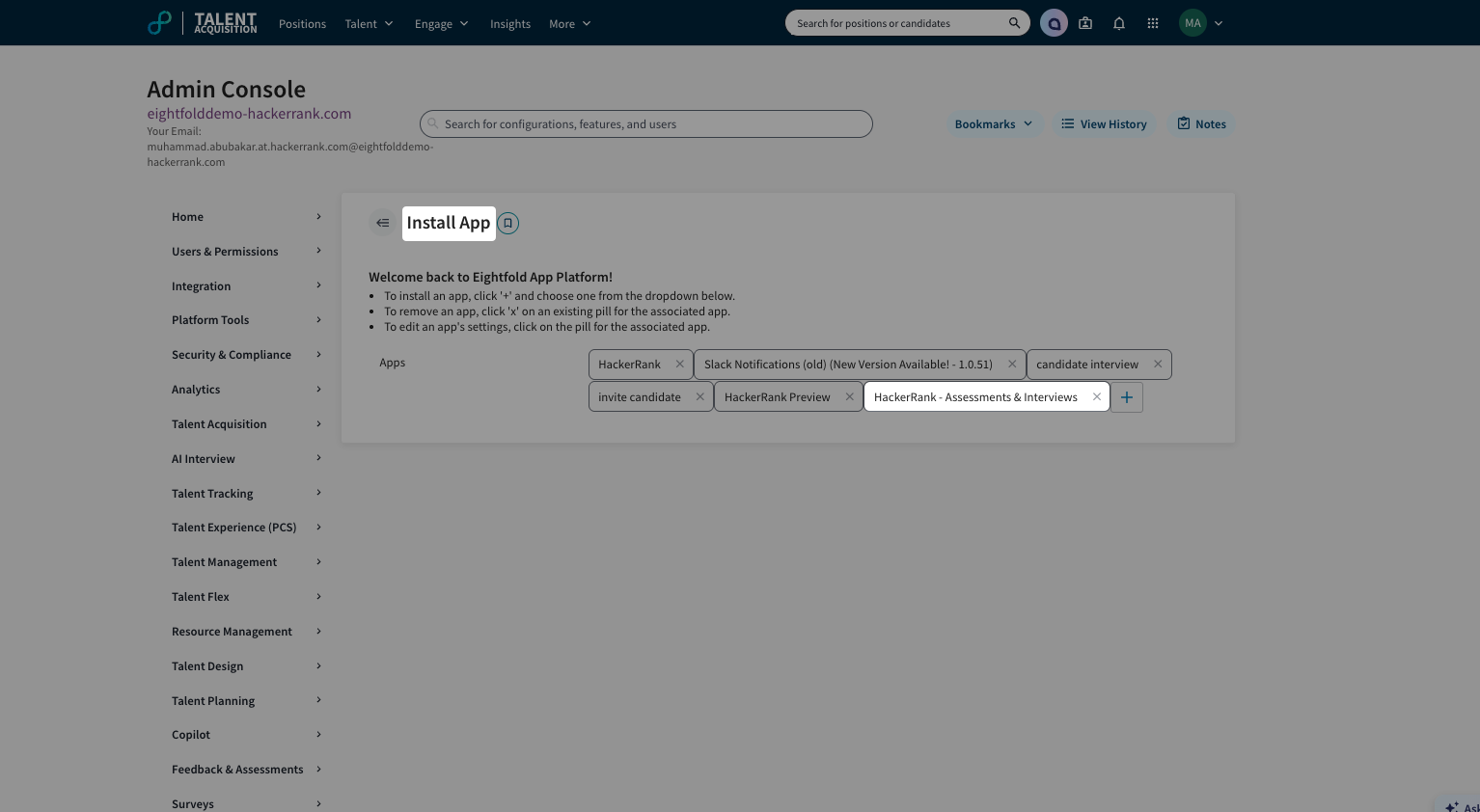
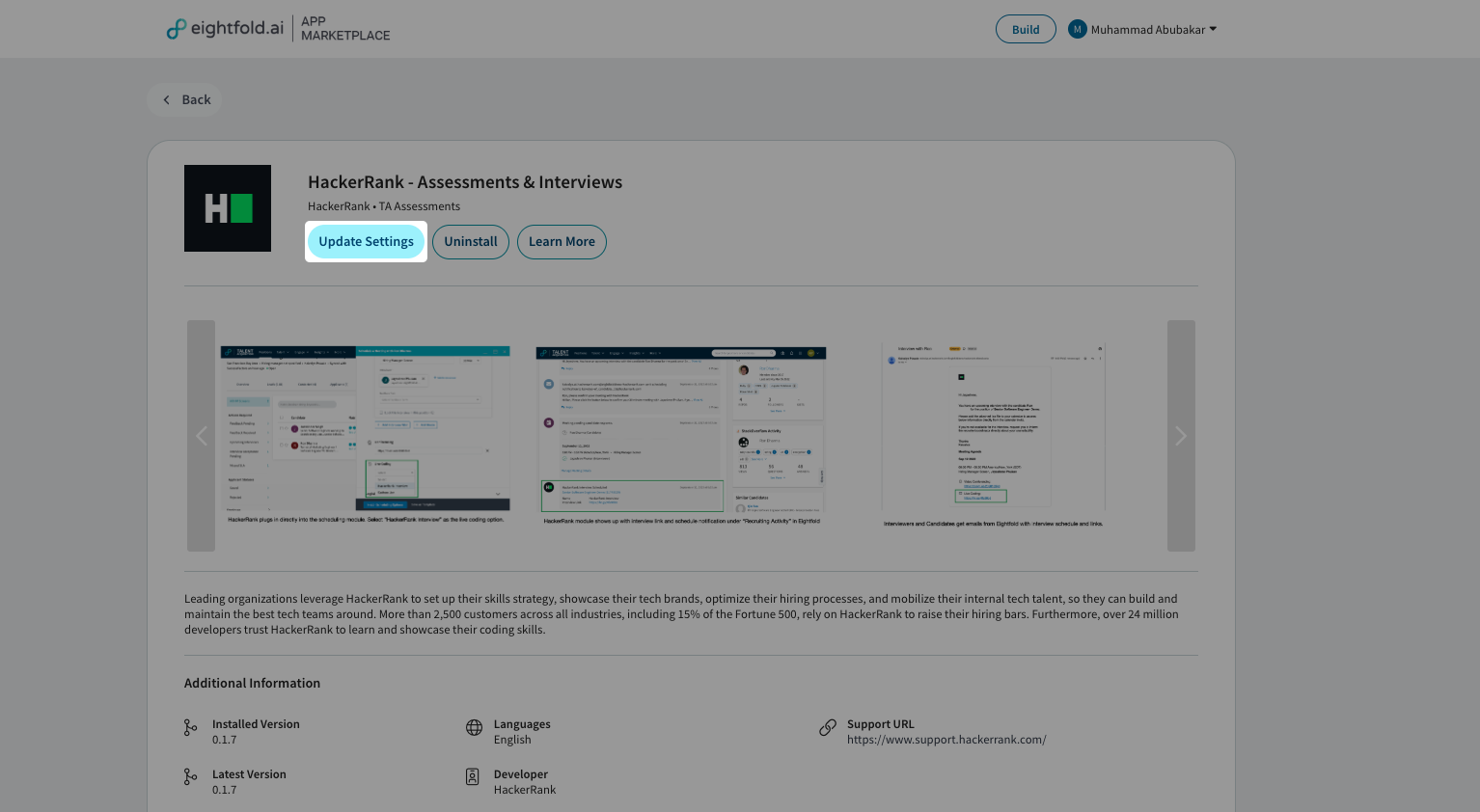
Tip: To update the app configuration settings:
Go to More > Admin Console > Apps > Install Apps.
Select HackerRank - Assessments & Interviews.
Click Update Settings.