Front-End, Back-End and Full-Stack Test Reports
Last updated: January 20, 2025
You can view the Test report of a candidate after the candidate has taken a test. For Front-end, Back-end, and Full-stack project-type questions, the report displays a Candidate's performance score based on the scoring mechanism specified. You can conduct further review and evaluation by downloading or launching the Candidate's project directly in an IDE.
Prerequisites
You must be logged in to your Hackerrank for Work account.
The candidate must have attempted the test, and a report must have been generated.
Steps
Click the Tests tab and click the required test name from the list.
Click on the Candidates option below the test name, and then click the required button from the left-hand pane that shows various candidate status options.
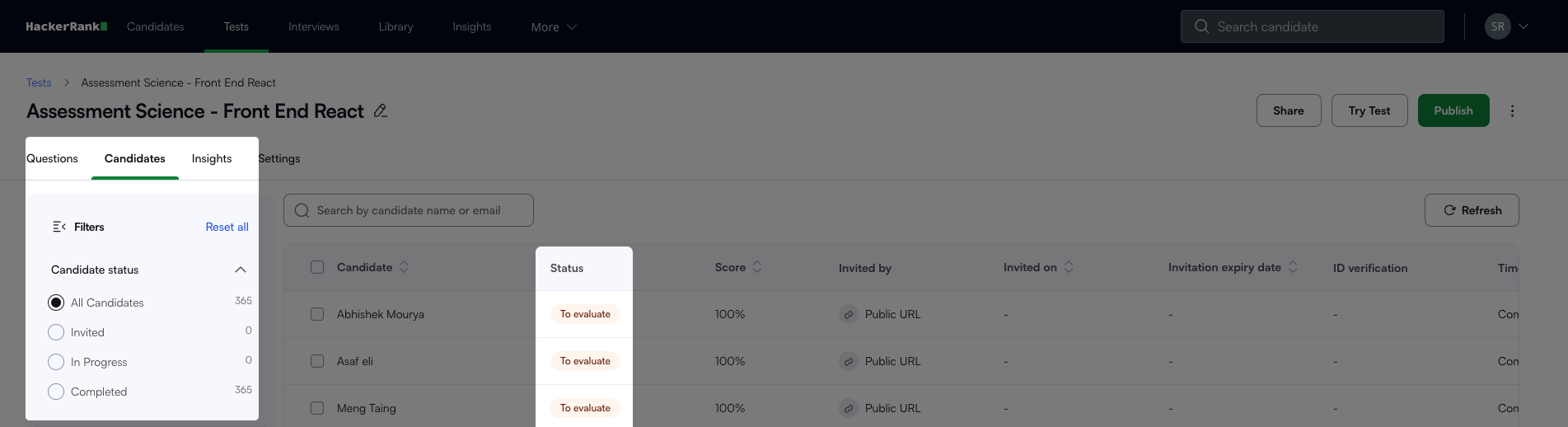
Click on the candidate's name to view the report for the required candidate.
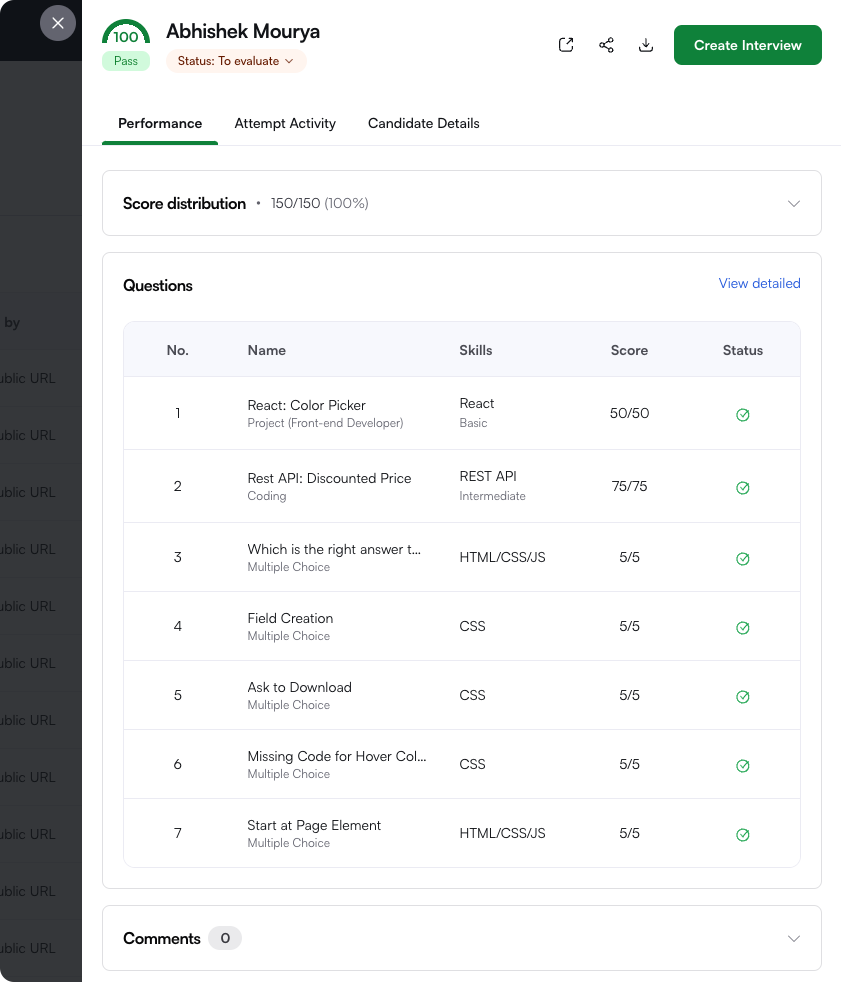
You can view the Summary and Timeline tabs. Click each tab to view different details.
Upon clicking the View Report, you can see the test case-wise split-up of scores and download or review the Candidate's submitted code in an IDE. The report provides two options for evaluating the candidate's solution in the submitted project files.

Select the IDE view to automatically open the Candidate's project in an IDE and review the submitted solution. You can directly change the candidate's code and run and test it to determine where the candidate made a mistake. This approach does not require downloading the project locally.
Note: The IDE session is active only for 30 minutes, and any changes made during the session are not saved.

A new browser window displays the updated project files, commits, and comparison of the files. You can download the project files and test the solution locally.
