Zapier - HackerRank Integration Interview User Guide
Last updated: March 5, 2026
You can use Zapier to automate HackerRank interview workflows. This guide explains how to configure Zapier Tables and Zaps to:
Send HackerRank interview invites to candidates.
Receive and store interview results.
Prerequisites
Before you begin, ensure you meet the following requirements:
You have active HackerRank and Zapier accounts.
The HackerRank integration with Zapier is complete. For more information, see 📄 Zapier - HackerRank Integration Guide.
Configuring Zaps for HackerRank interviews
A Zap is an automated workflow that connects two or more applications to perform tasks without manual intervention.
You must configure Zaps to automate the following HackerRank interview workflows:
Send interview invites to candidates
Receive and store interview results
Important Note: This guide uses Zapier Tables to demonstrate how to configure and test Zap workflows. Zapier also supports many other apps as data sources or destinations, including spreadsheets and collaboration tools. You can replace Zapier Tables with any compatible Zapier-supported app based on your integration needs.
Step 1: Generate a webhook URL to receive assessment results
This step is used only to generate a webhook URL that HackerRank uses to send assessment results.
Log in to your Zapier account using your credentials.
Select Create > Zap.
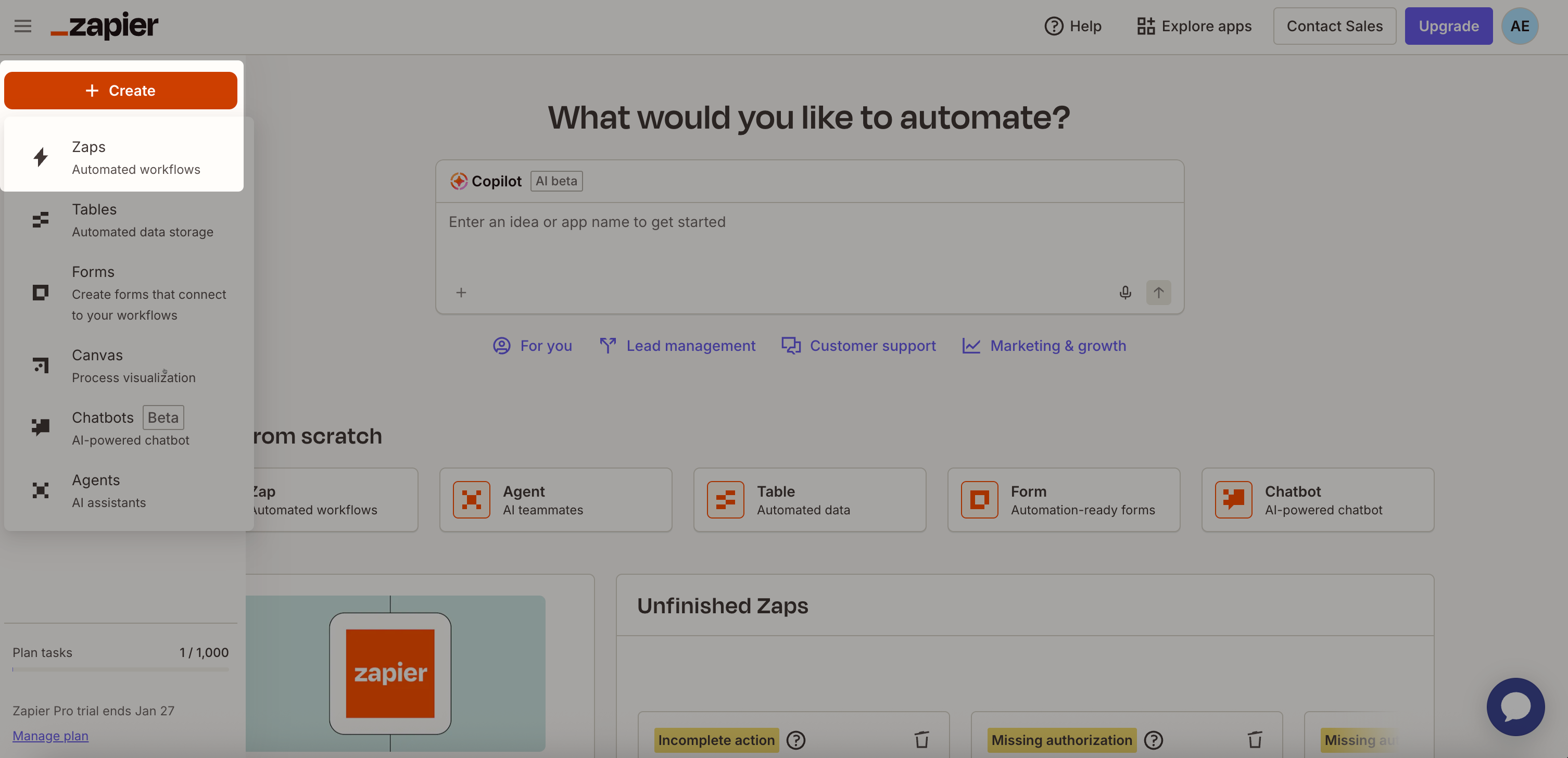
Rename the Zap:
Select Untitled Zap at the top.
Select Rename.
Enter Interview results.
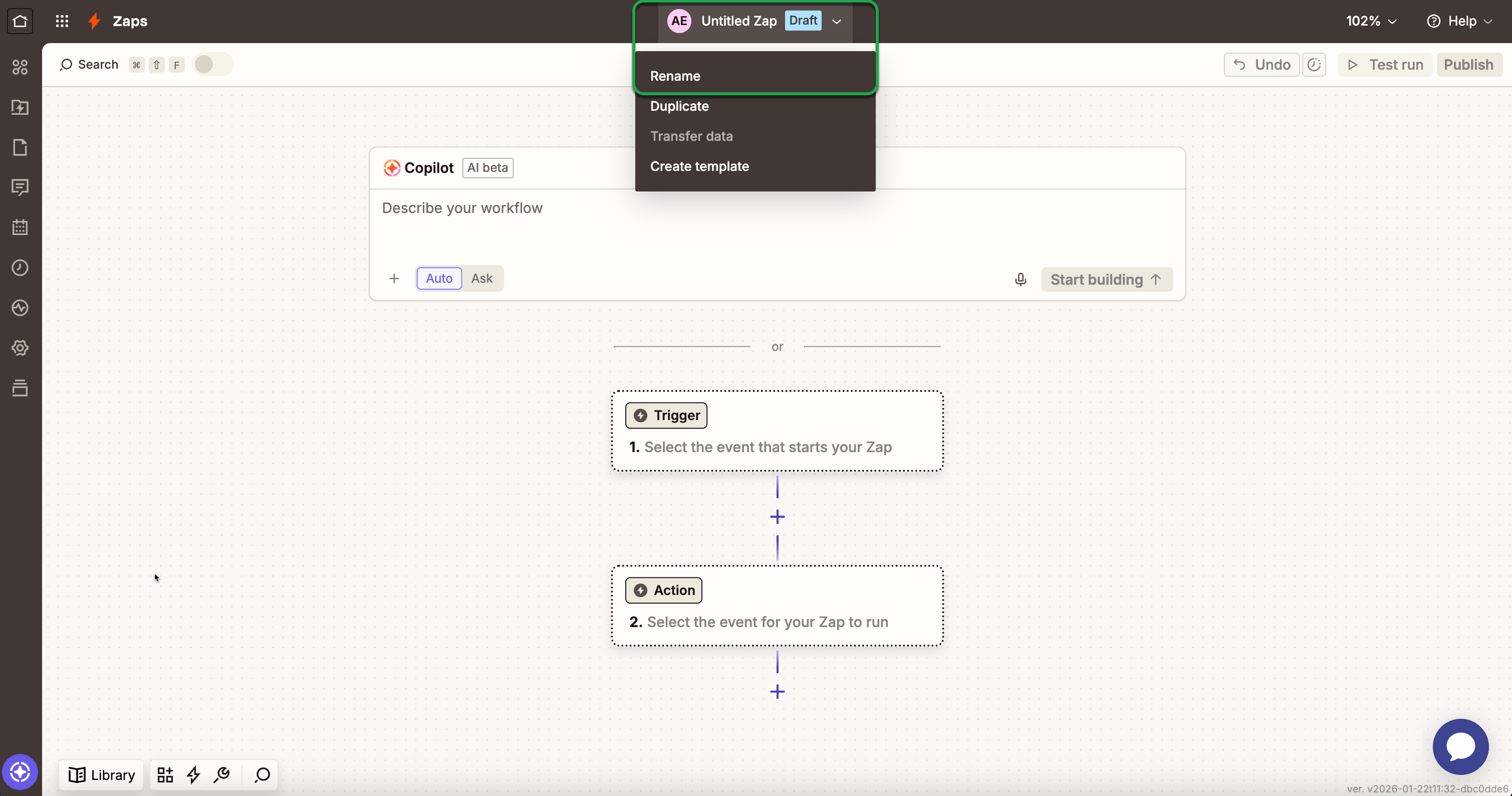
In the Trigger step, select Custom > Webhooks.
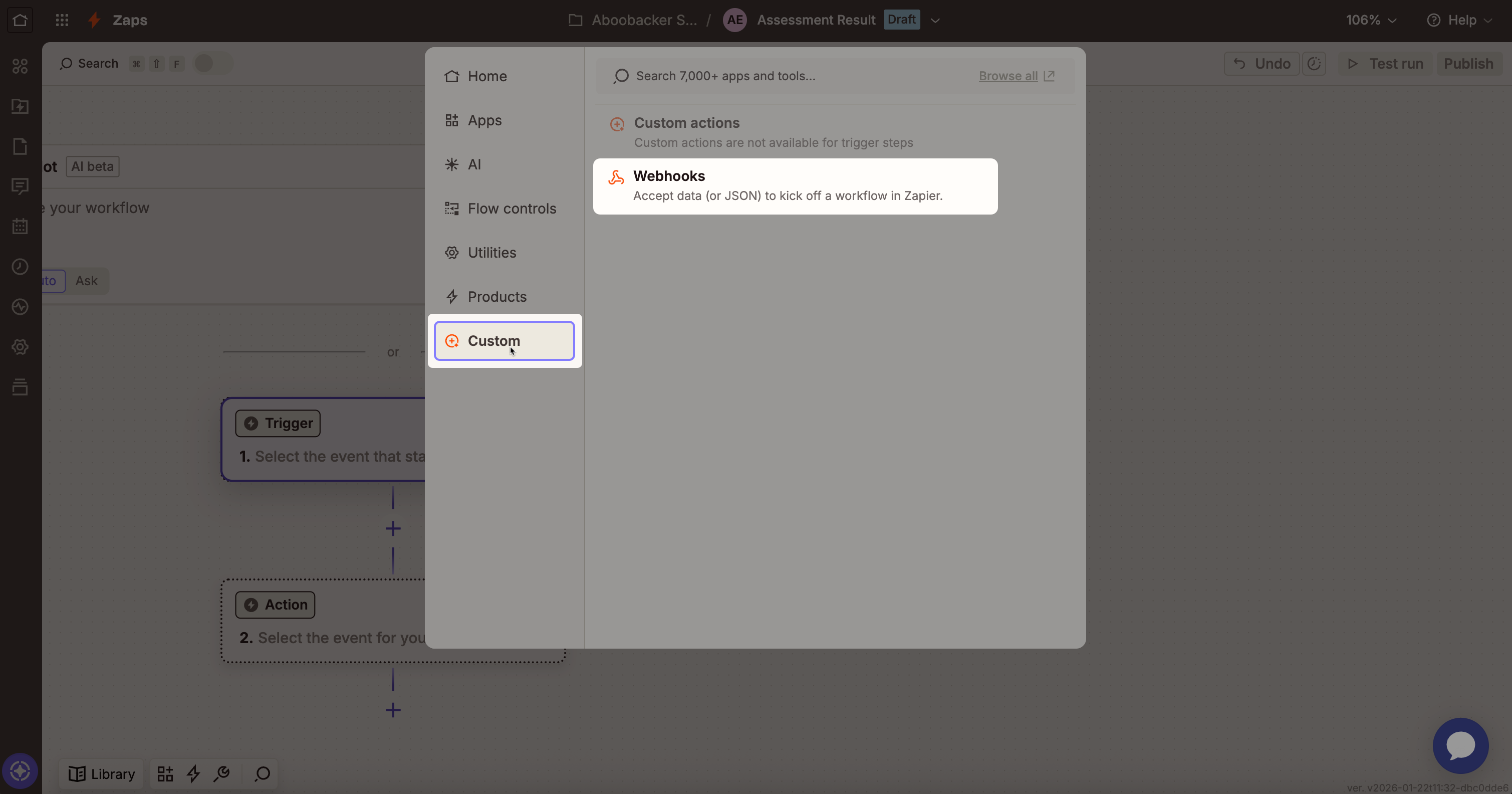
Select Catch Hook as the Trigger event.
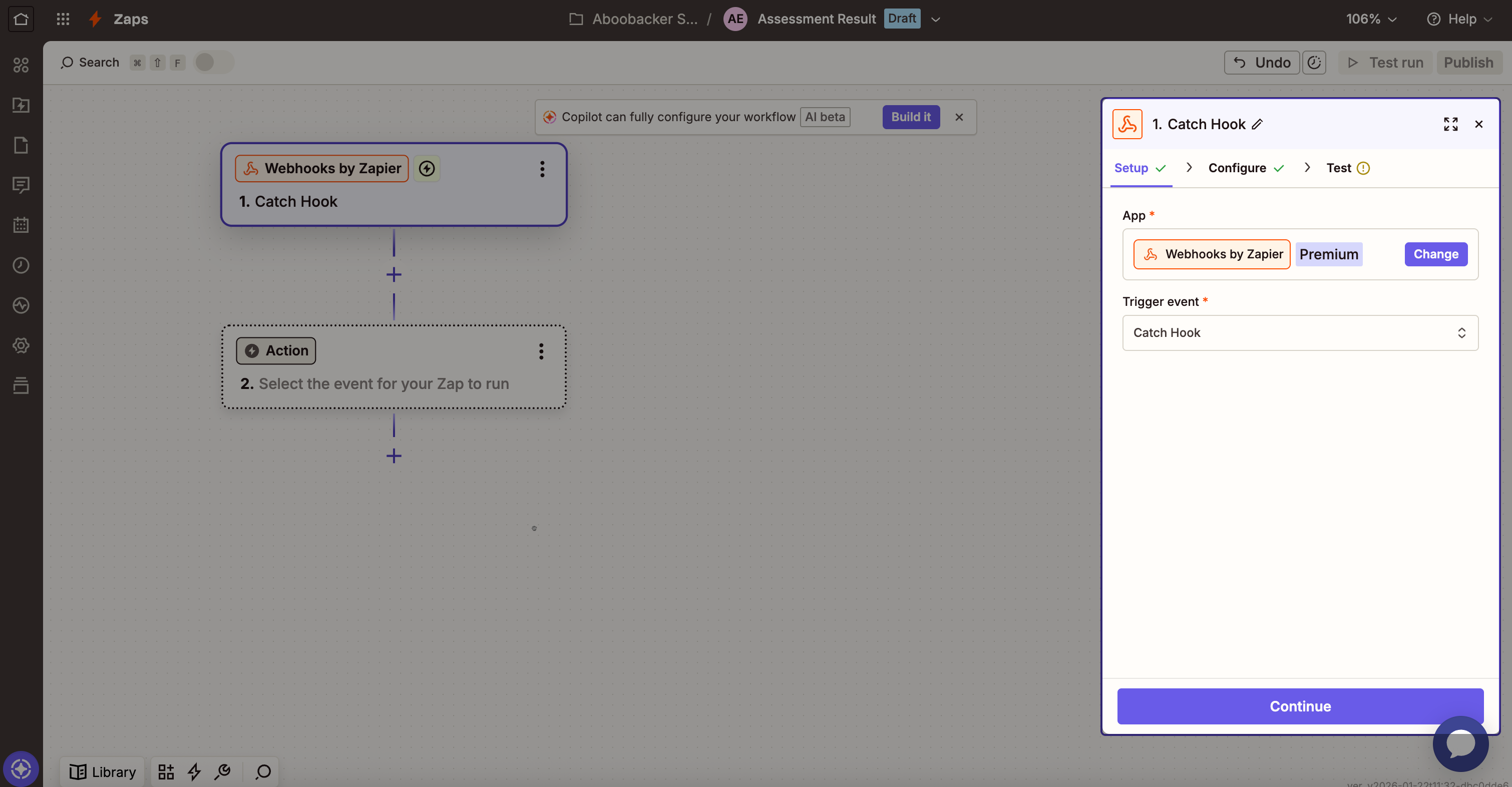
Click Continue.
In the Configure section:
(Optional) Enter Pick off a Child Key if you want to capture a specific line item.
Click Continue.
In the Test section, click Copy to copy the webhook URL to your clipboard.
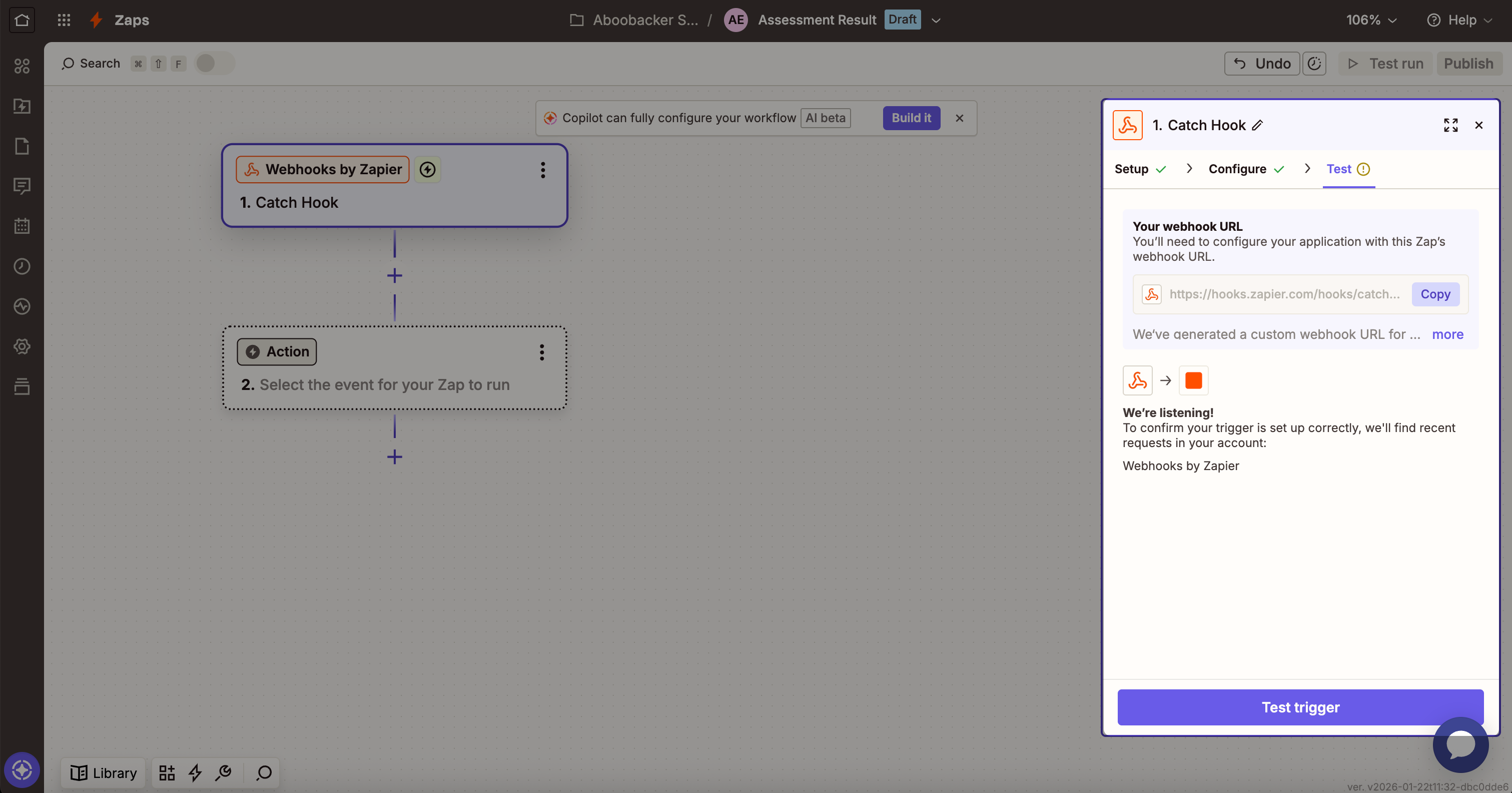
Note: You need this Webhook URL in Step 2: Create a table to trigger interview invites.
Step 2: Create a table to trigger interview invites
Create a table that Zapier uses to send HackerRank interview invites.
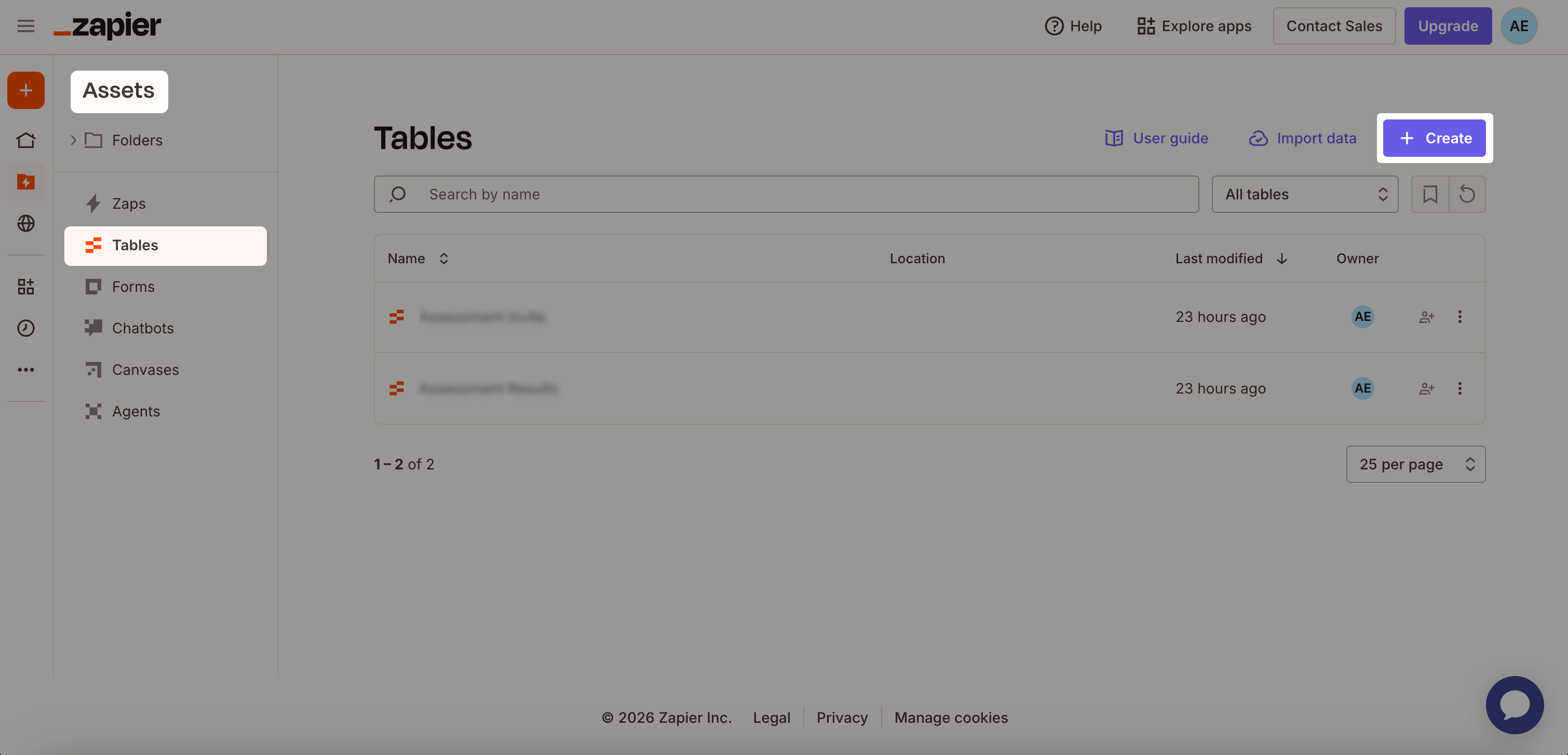
Go to Assets > Tables.
Click Create.
Select Blank table.
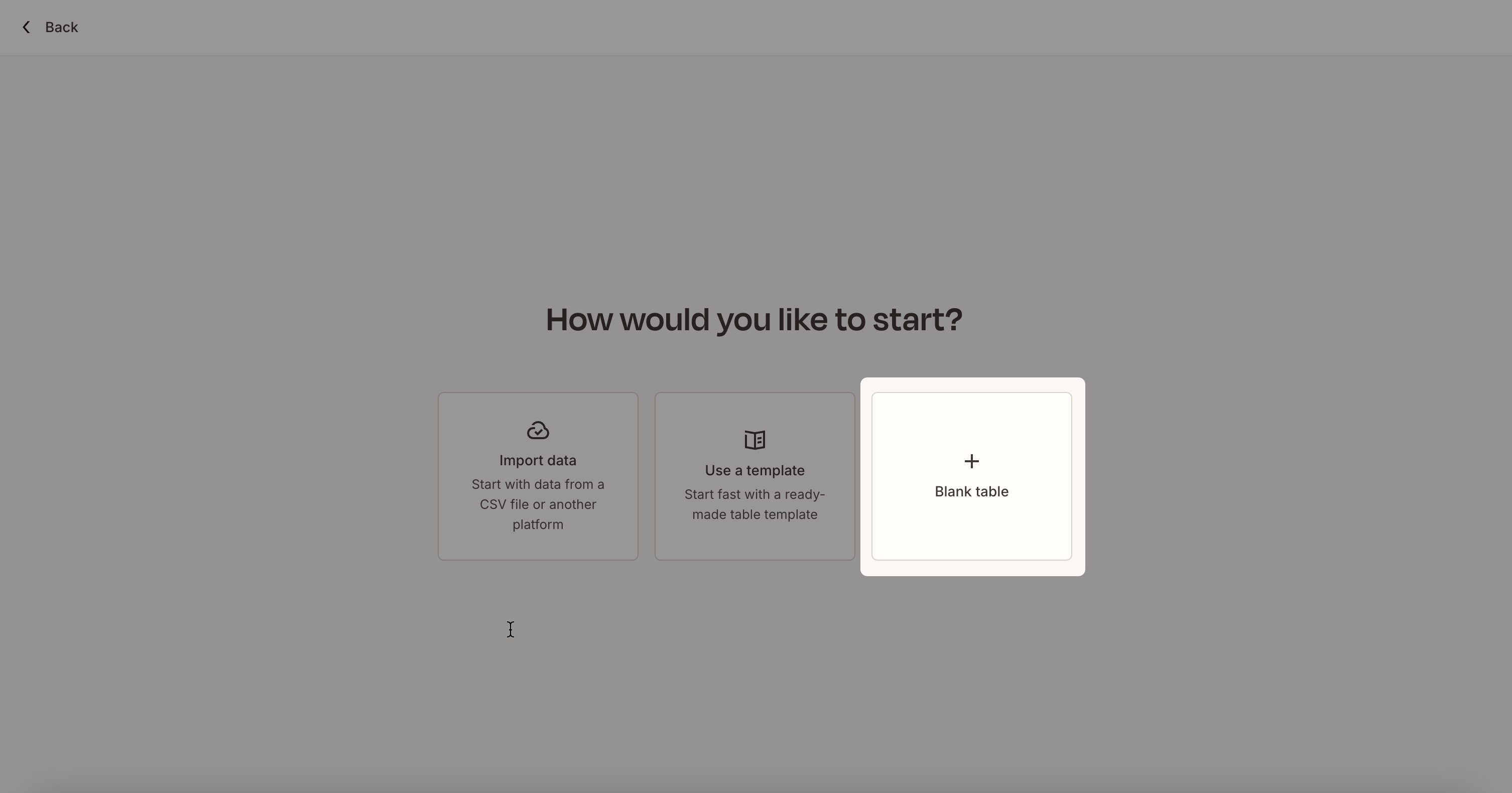
Note: If you already have data, select Import data to upload a CSV file or import data from another platform, or select Use a template to start from an existing template.
In the Create a new table dialog:
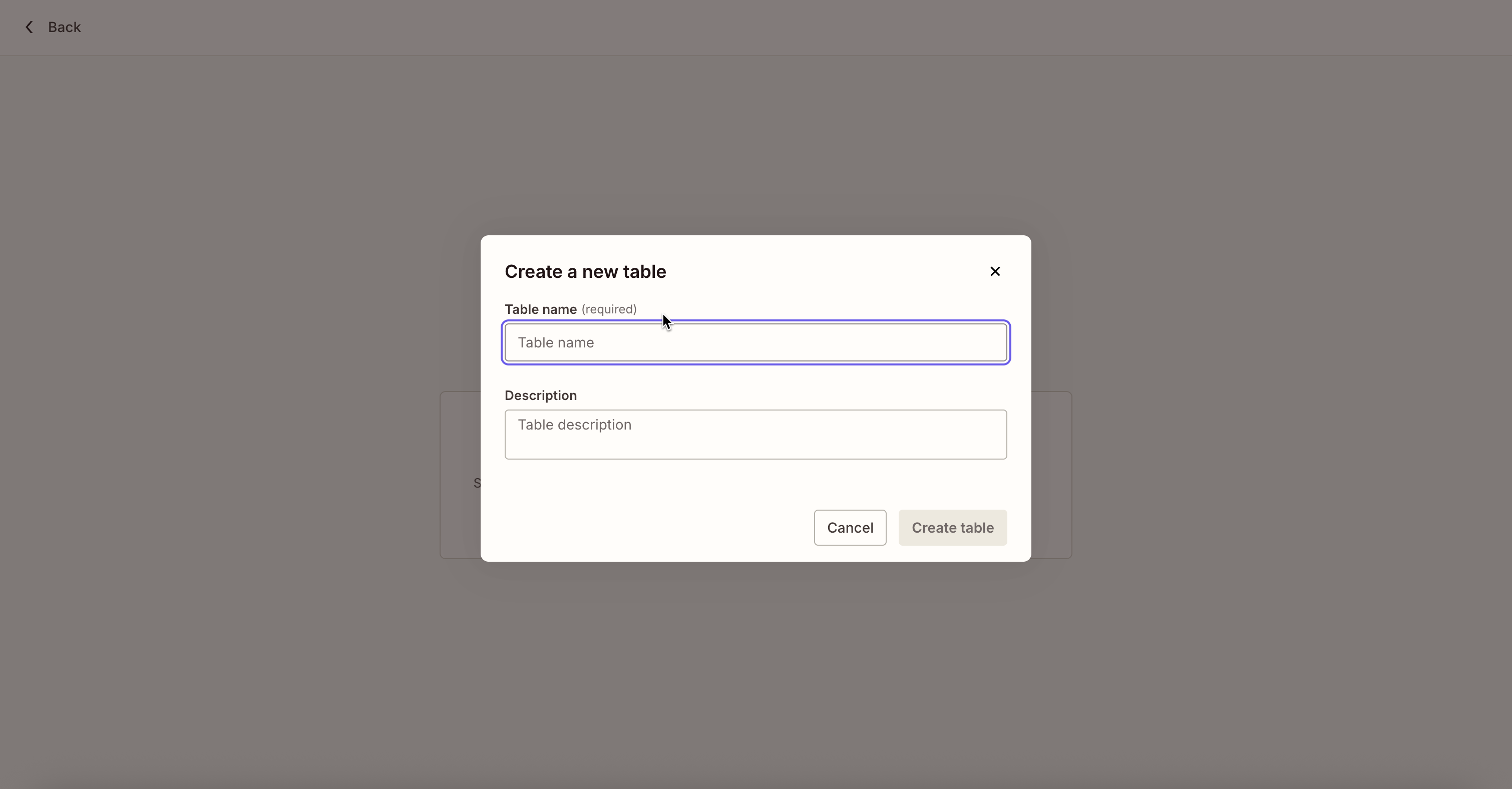
Enter Interview invite as the table name.
(Optional) Add a description.
Click Create table.
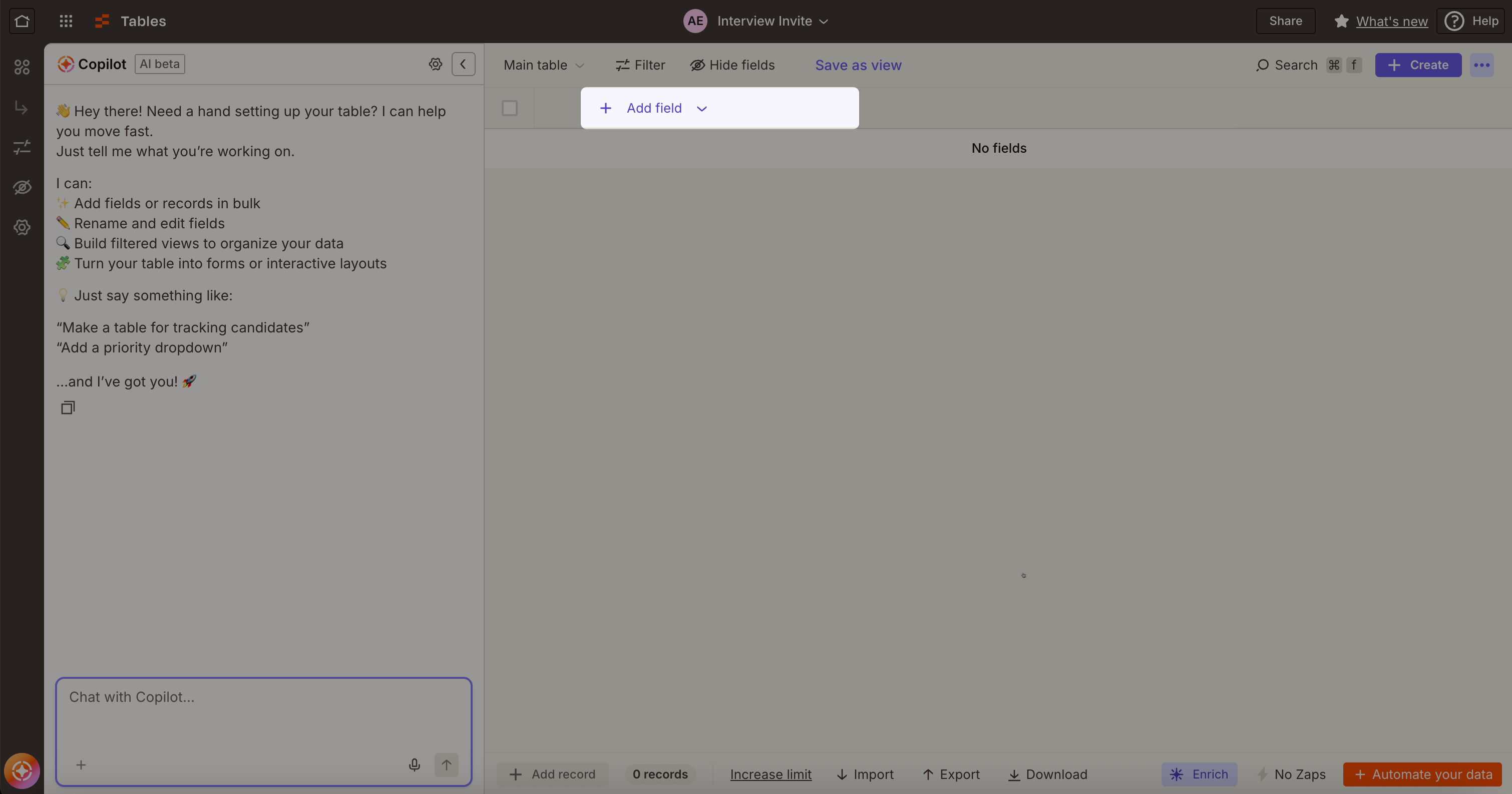
Click Add fields and add the required and optional fields listed in the following table. Select the appropriate field type for each field.
Field name
Type
Description
Required/Optional
Title
Text
Title of the interview invite email.
Required
Requisition ID
Text
Job or requisition identifier from your ATS. This value helps you associate the interview with a specific role.
Required
Candidate ID
Text
Unique candidate identifier from your ATS. This value helps you track results back to the correct candidate record.
Required
Candidate email
Text
Email address of the candidate who receives the interview invite.
Required
Send email
Checkbox
Determines whether HackerRank sends the interview invite email to the candidate. Select this checkbox to send the invite.
Optional
Result URL
Text
Webhook URL that HackerRank uses to send interview results to Zapier. Paste the webhook URL generated in Step 1.
Required
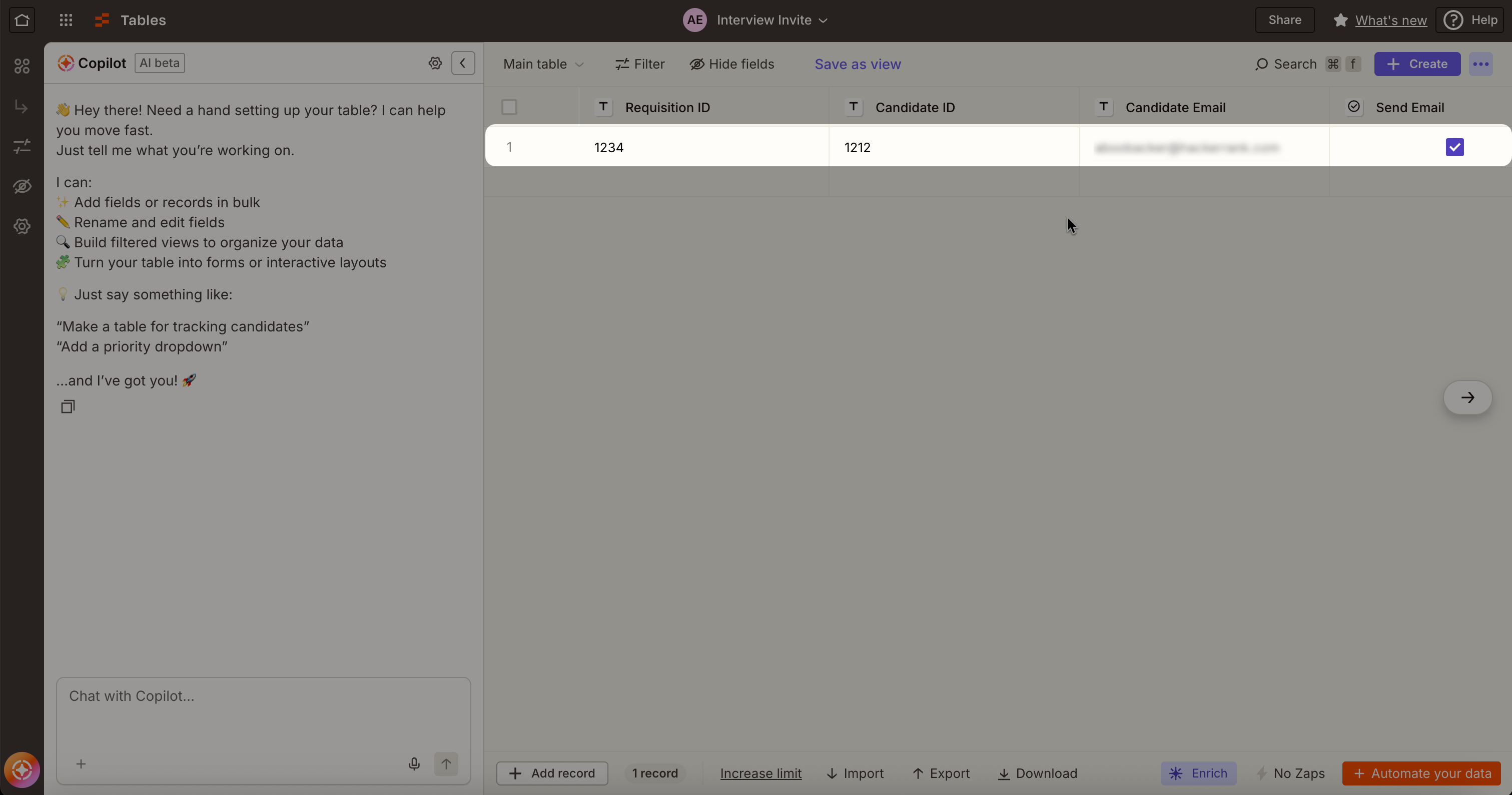
Enter sample values in all required fields. You will be using these values to test the configuration in the next steps.
Step 3: Create a Zap to send interview invites
This Zap connects the interview invite table to HackerRank.
Select Create > Zap.
Rename the Zap:
Select Untitled Zap at the top.
Select Rename.
Enter Interview invites.
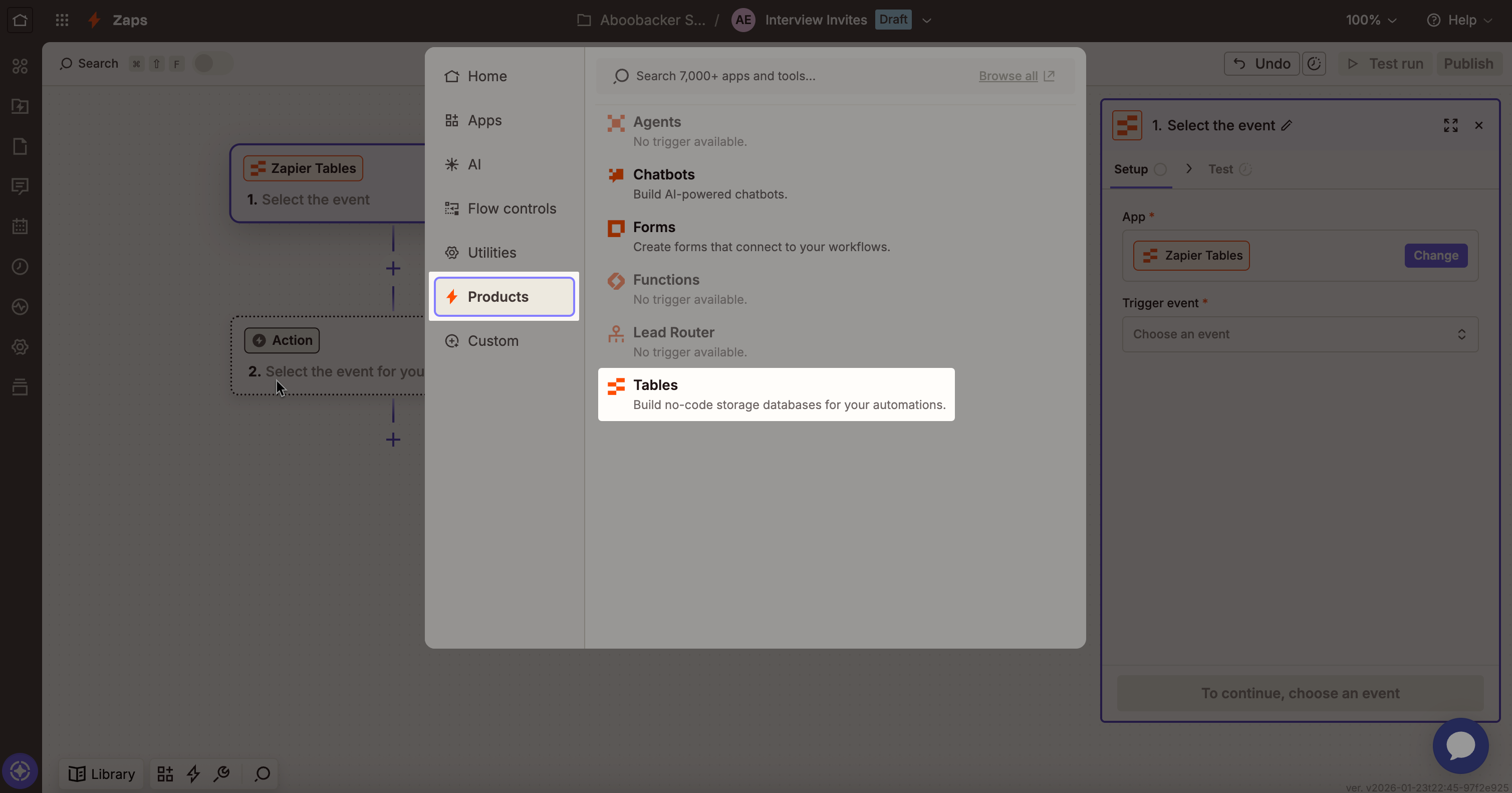
In the Trigger step, select Products > Tables.
Select New or Updated Record as the Trigger event.
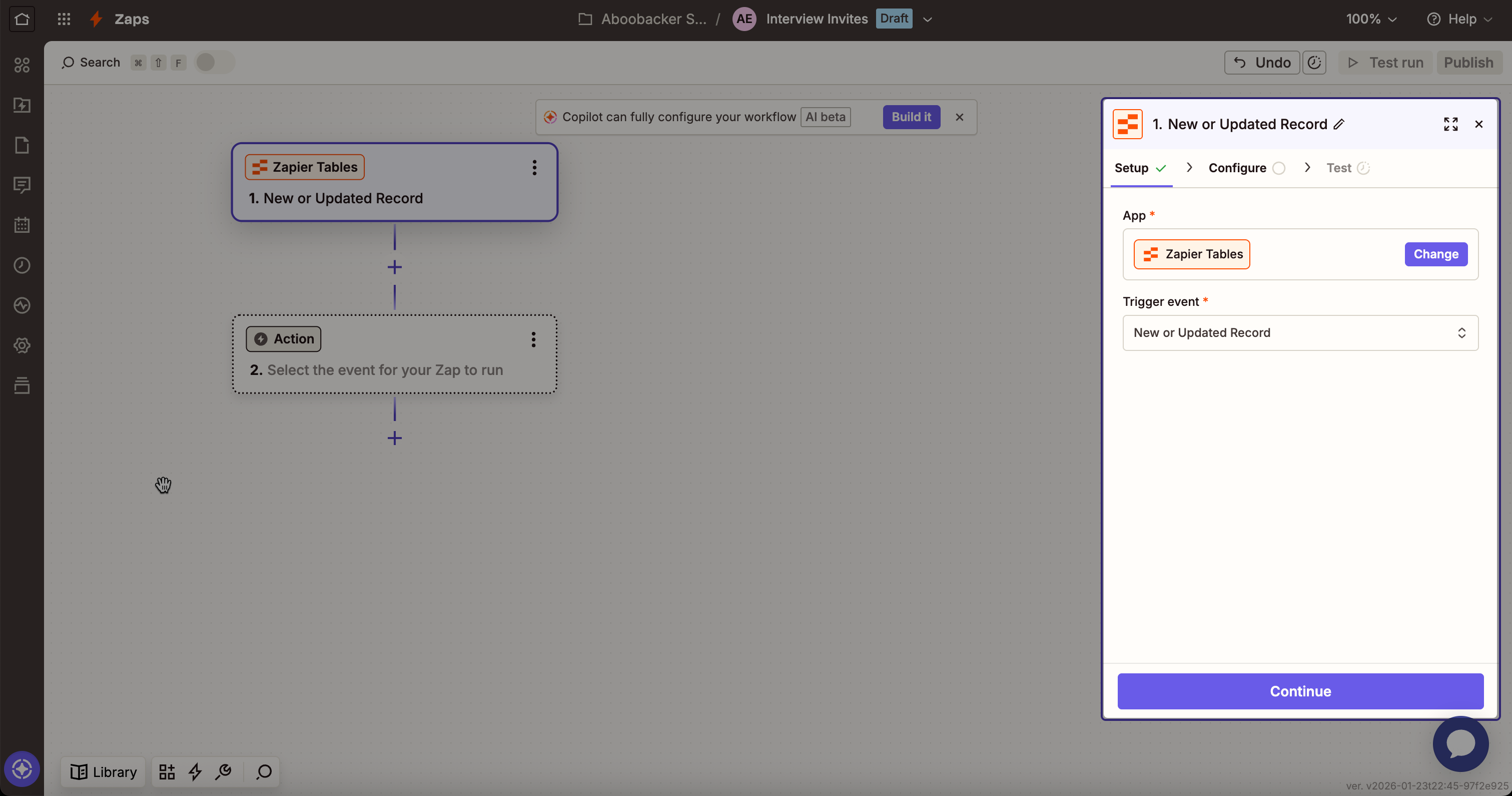
Click Continue.
In the Configure section:
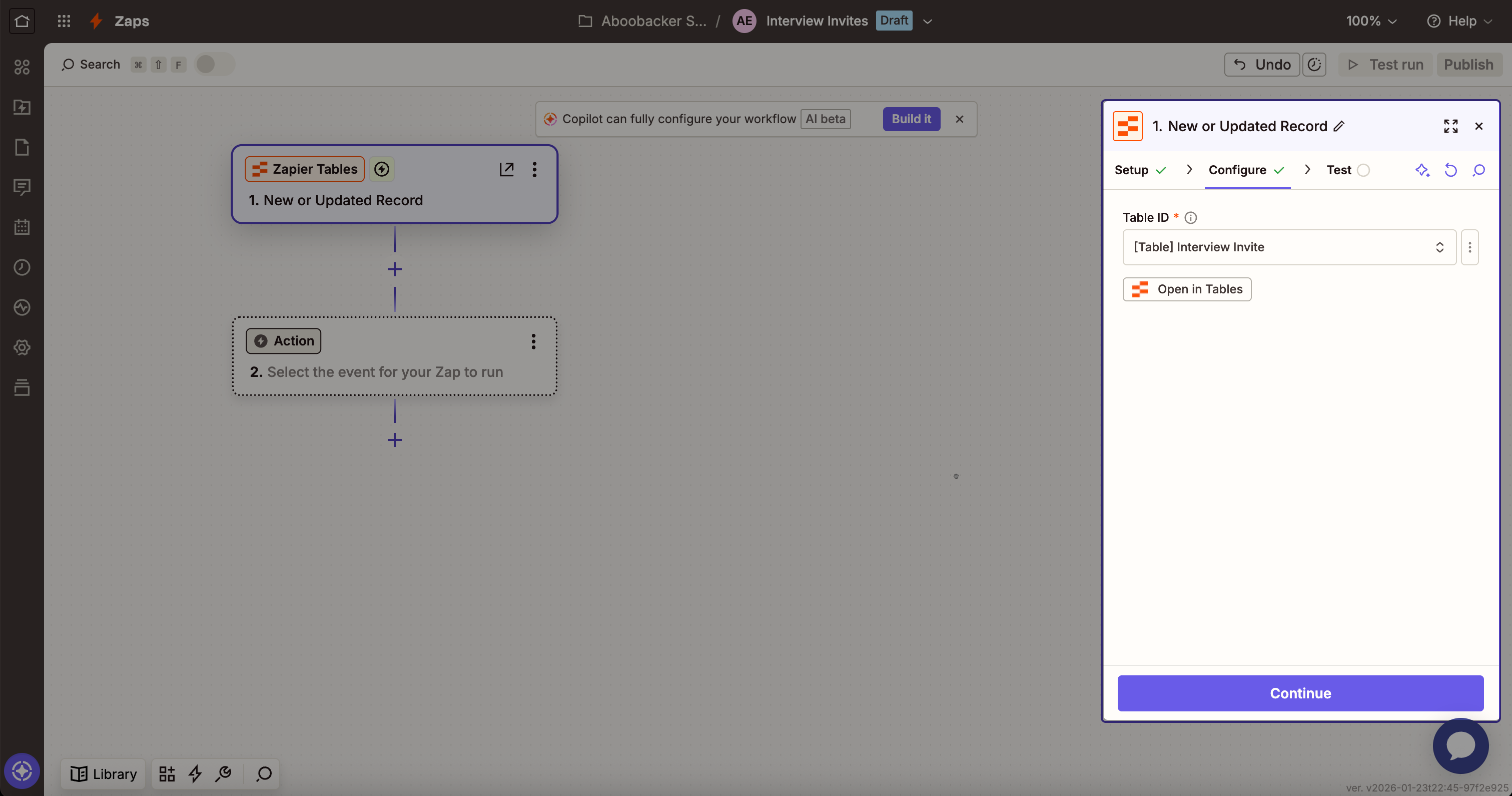
Select the Interview invite table created in Step 2 from the Table ID drop-down.
Click Continue.
In the Test section, click Test Trigger.
Select a record that contains interview data.
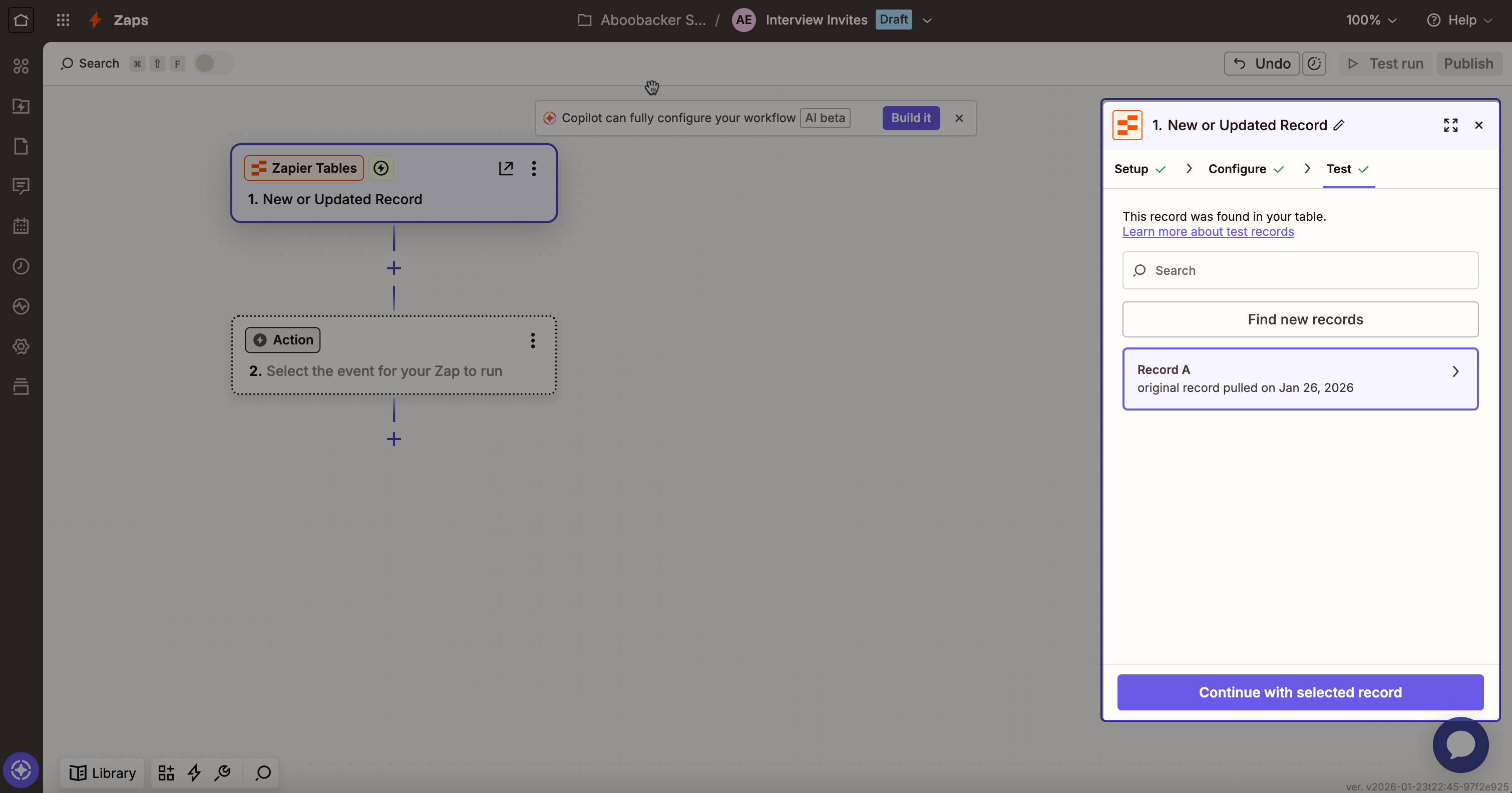
Click Continue with selected record.
In the Action step:
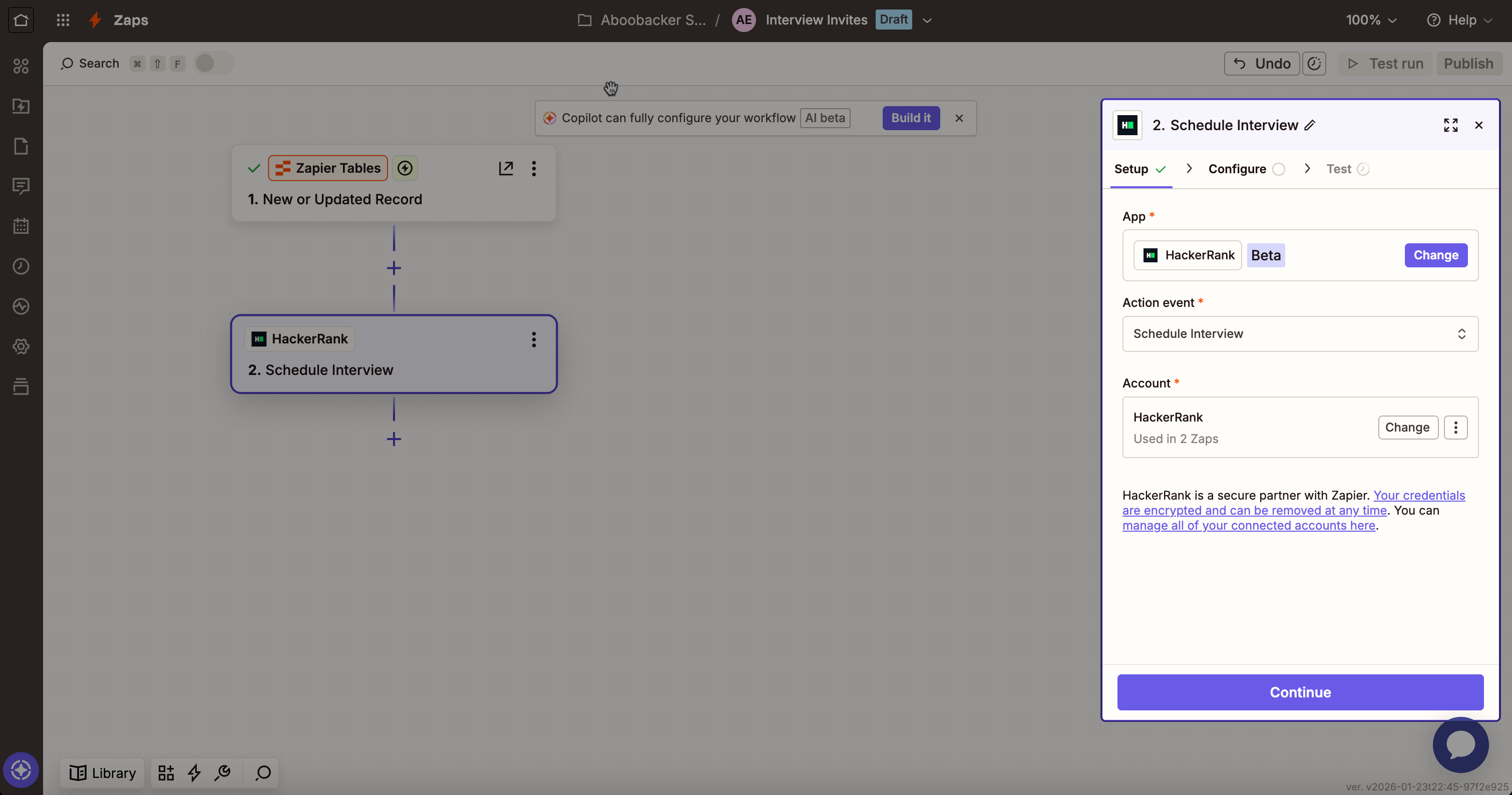
Select HackerRank.
Select Schedule Interview as the Action event.
Click Continue.
In the Configure section:
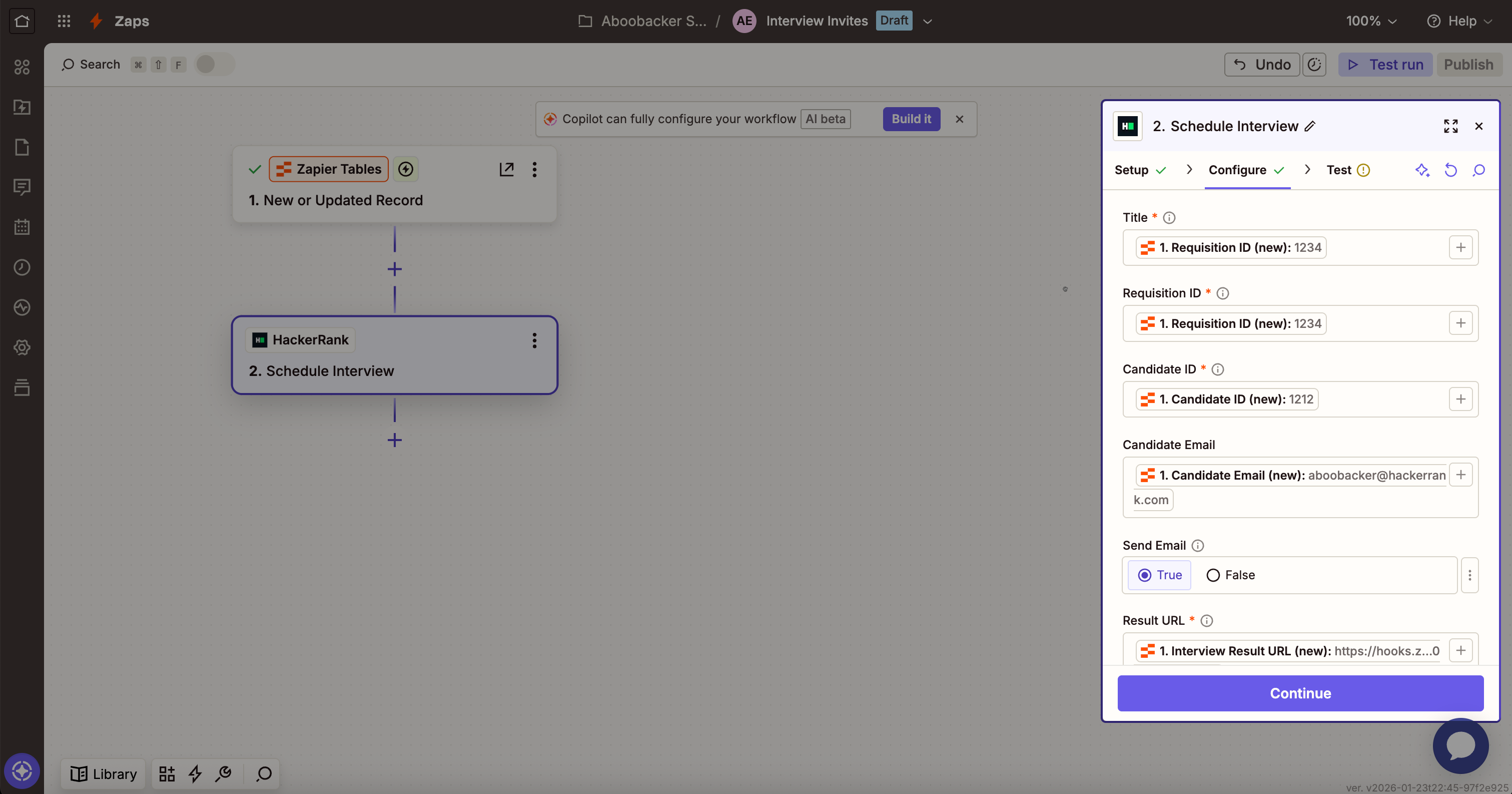
Map each table field to the corresponding Zapier field. Use the forward slash (/) to select values from the table columns. For example,
Map Title to the Title column from the table.
For checkbox fields (for example, Send email), select Yes or No.
Click Continue.
In the Test section, click Test step to send a HackerRank interview invite using the sample data you added in the Interview invite table in Step 2. Verify that the candidate email address receives the email.
Click Publish.
Step 4: Create a table to store interview results
Create a table to store candidate interview results sent from HackerRank.
Go to Assets > Tables.
Click Create.
Select Blank table.
Note: If you already have data, select Import data to upload a CSV file or import data from another platform, or select Use a template to start from an existing template.
In the Create a new table dialog:
Enter Interview results as the table name.
(Optional) Add a description.
Click Create table.
Click Add fields and add the fields you want to store from the HackerRank interview report (for example, candidate name, score, or test status). Refer to the HackerRank sample interview report to identify the available result fields. Select the appropriate field type for each field (for example, Text, Number, or Checkbox).
Note: Zapier Tables is one option to store interview results from HackerRank. You can also store results in apps such as Google Sheets or Slack, depending on your workflow needs.
Step 5: Complete a sample HackerRank interview
Complete a sample interview to test the Zap configuration.
Open the interview invite email sent to the email address you entered as sample data in the Interview invite table.
Complete the interview.
After you complete the interview, HackerRank sends the interview results to Zapier for testing.
Step 6: Complete Zap configuration to receive interview results
Complete the Zap created in Step 1 to store interview results from HackerRank.
Open the Interview results Zap created in Step 1.
In the Trigger step, go to the Test section and click Test trigger.
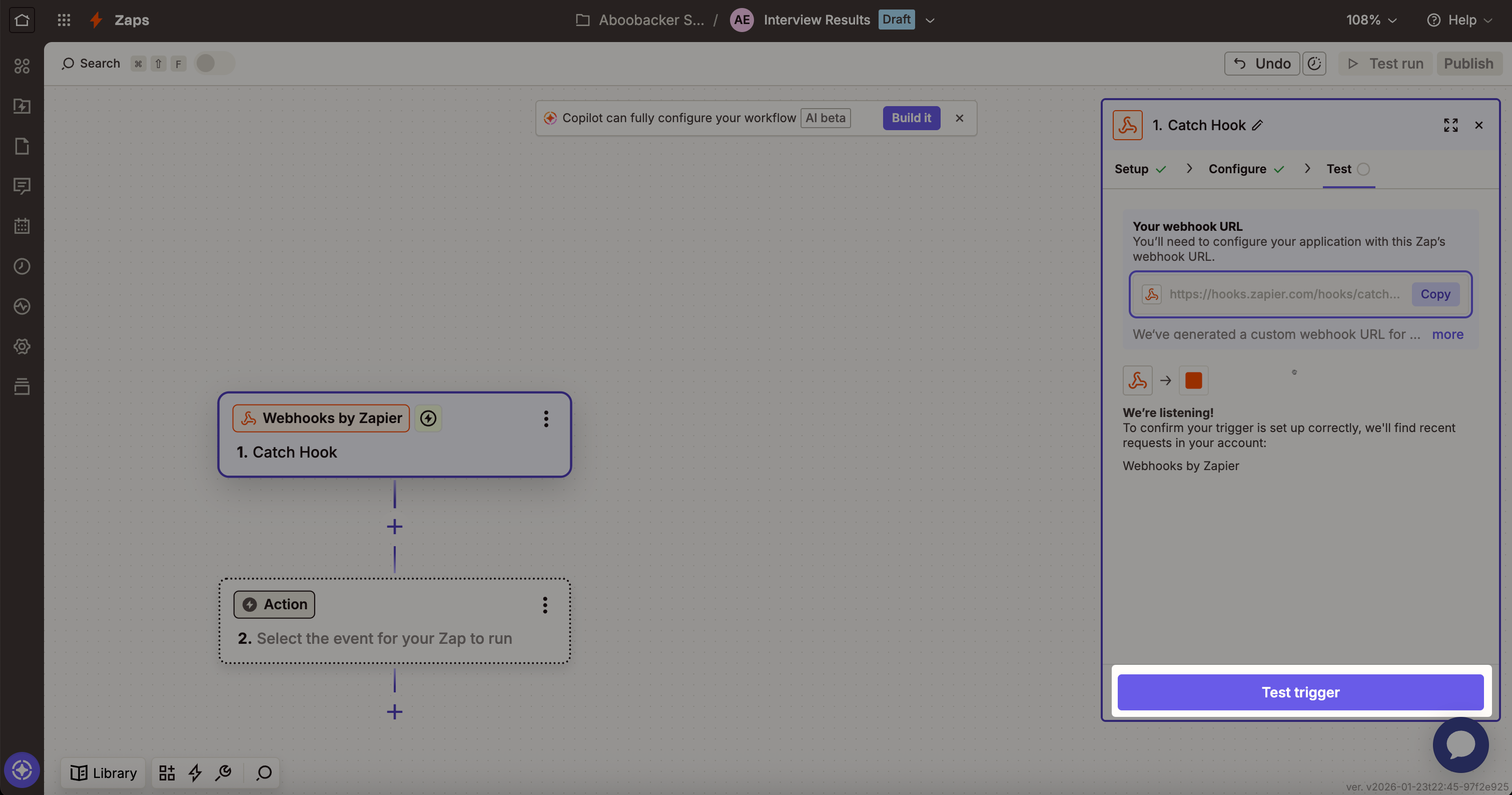
Select a record that contains interview results of your sample data.
Click Continue with selected record.
In the Action step:
Select Products > Tables.
Select Create Record as the Action event.
Click Continue.
In the Configure section:
Select the Interview results table created in Step 2 from the Table ID drop-down.
Map each table field to the corresponding Zapier field. Use the forward slash (/) to select values from the table columns.
For example, map Test ID to the Test ID column from the table.
Click Continue.
In the Test section, click Test step to verify that HackerRank sends the interview results to the Interview results table created in Step 4.
Click Publish.
Your HackerRank interview Zap automation is now complete.
Sending interview invites
After you have configured the Zaps for HackerRank interview, you can send interview invites to candidates.
To send interview invites to candidates:
Log in to your Zapier account using your credentials.
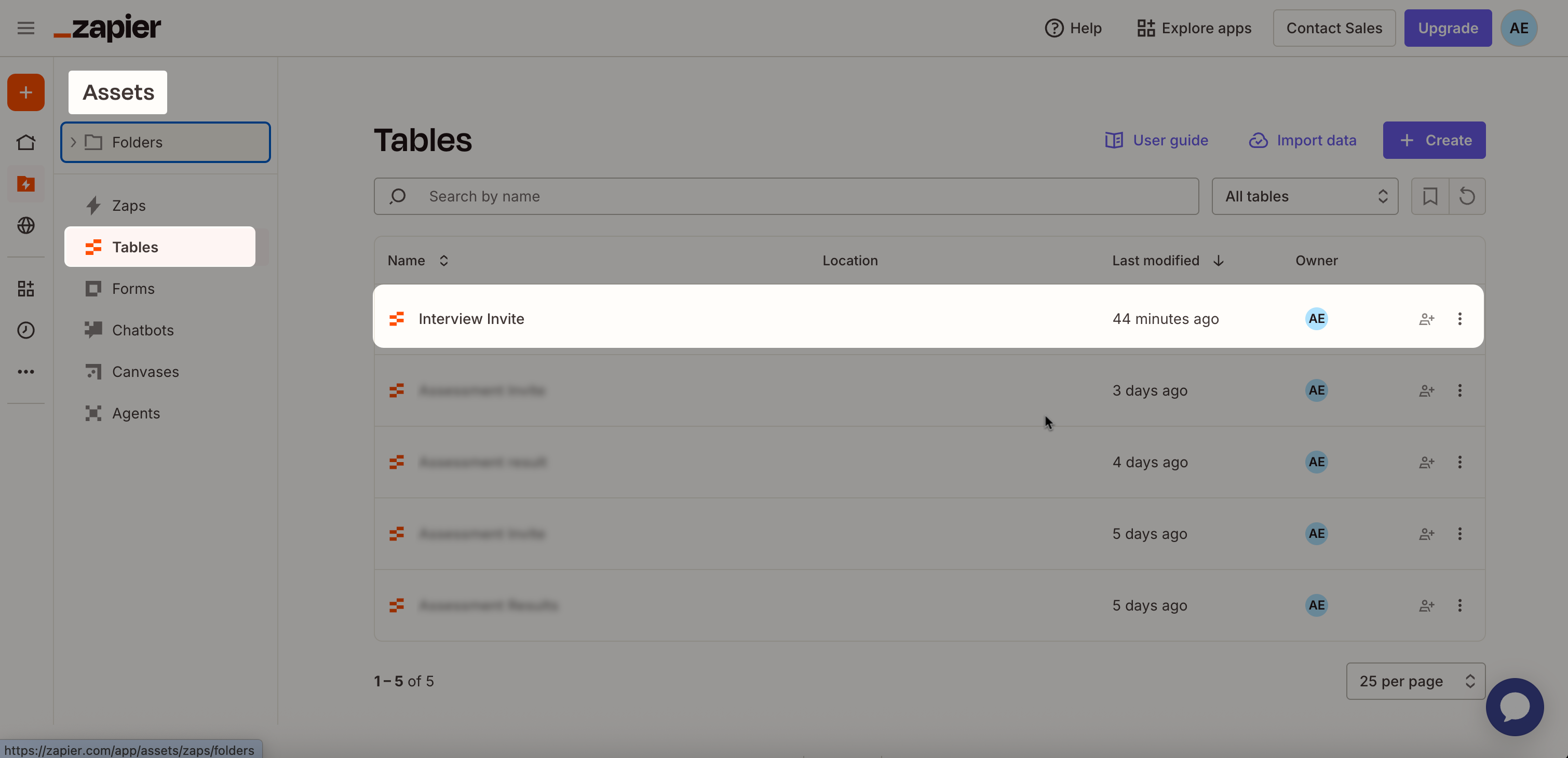
Go to Assets > Tables.
Open the Interview invite table.
Add a new row for each candidate.
Enter values for the required and optional fields listed below.
Field name
Description
Required/Optional
Title
Title of the interview invite email.
Required
Requisition ID
Job or requisition identifier from your ATS. This value helps you associate the interview with a specific role.
Required
Candidate ID
Unique candidate identifier from your ATS. This value helps you track results back to the correct candidate record.
Required
Candidate email
Email address of the candidate who receives the interview invite.
Required
Send email
Determines whether HackerRank sends the interview invite email to the candidate. Select this checkbox to send the invite.
Optional
Test Result URL
Webhook URL that HackerRank uses to send interview results to Zapier. Paste the webhook URL generated in Step 1.
Required
Click Send pending records.
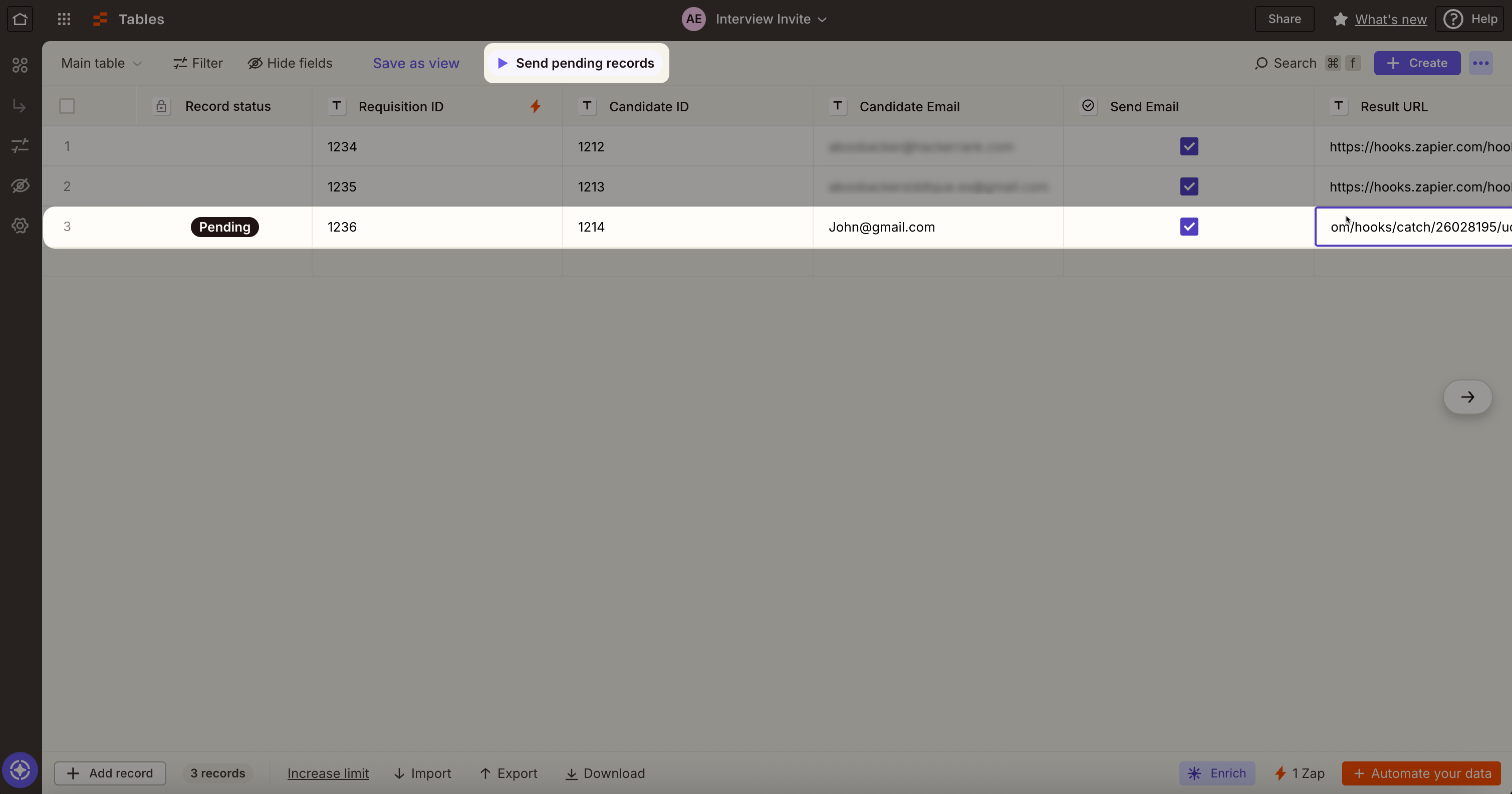
Zapier sends HackerRank interview invites to candidates based on the data you enter.
Viewing interview results
When a candidate completes an interview, the results are automatically added to the Interview results table.
To view results:
Go to Assets > Tables.
Open the Interview results table.
You can now review all candidate submissions from this centralized location.