Configure Onboarding Settings for Tests
Last updated: April 22, 2026
HackerRank allows you to configure the onboarding settings for a test to collect candidate details and display test instructions before the test begins. Most settings are optional and customizable to fit your hiring needs.
Prerequisites
You must have already created a test.
Configuring onboarding settings
To configure onboarding settings:
Log in to your HackerRank for Work account using your credentials.
Go to the Tests tab.
Open the test you want to configure.
Go to Settings > Onboarding.
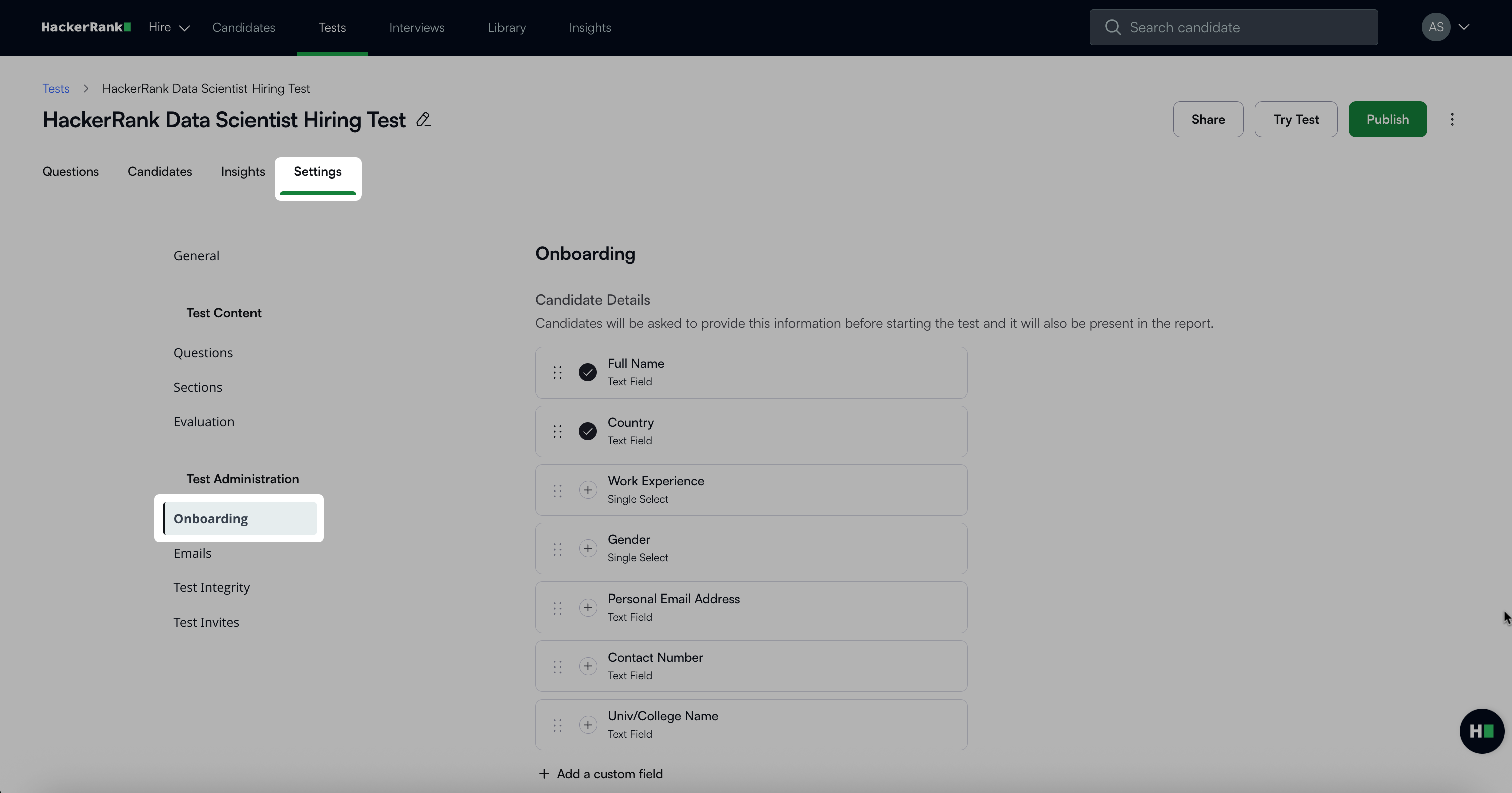
In the Onboarding section, you can:
Click Save Changes to apply your changes.
Configure Candidate Details
You can choose the candidate information fields you want to collect before the test begins. This helps you capture relevant data such as full name, work experience, gender, and more. By default, only essential fields are enabled.
To configure candidate details:
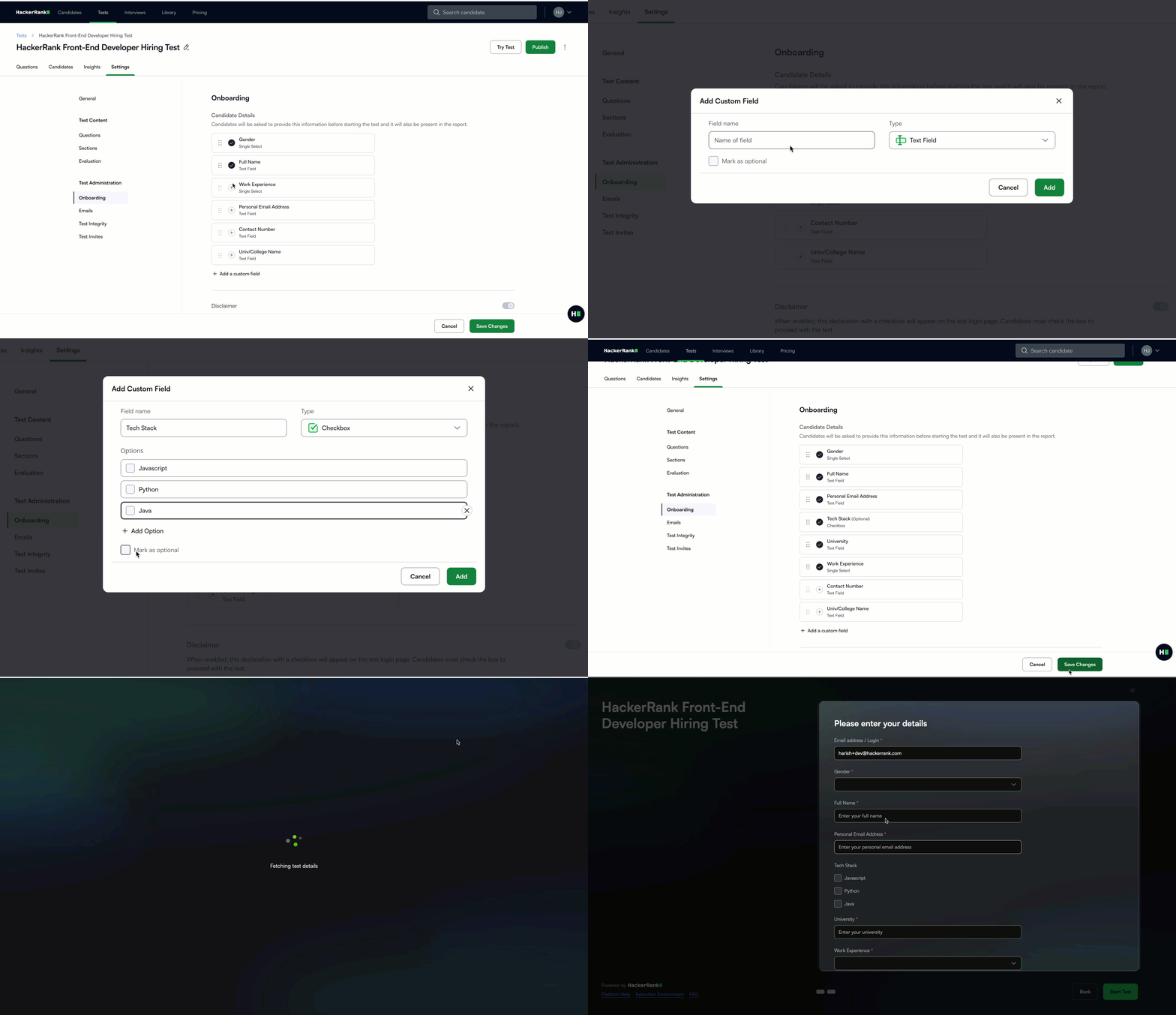
In the Candidate Details section, select the default fields you want to collect.
Click Add a custom field to include custom fields.
In the Add Custom Field dialog box:
Enter the Field name.
Select a Type from the dropdown list. Available types include Text Field, Radio Button, Checkbox, Dropdown, and File.
If you select Radio Button, Checkbox, or Dropdown, define the options. Click Add Option to include more choices.
Select Mark as optional if the field is not required.
Click Add to save the field.
Note: If the field you are adding is predefined in your company’s central test settings, it appears in the field drop-down as you type the field name. Select the existing field to avoid duplication. You cannot change the field type for a predefined field.
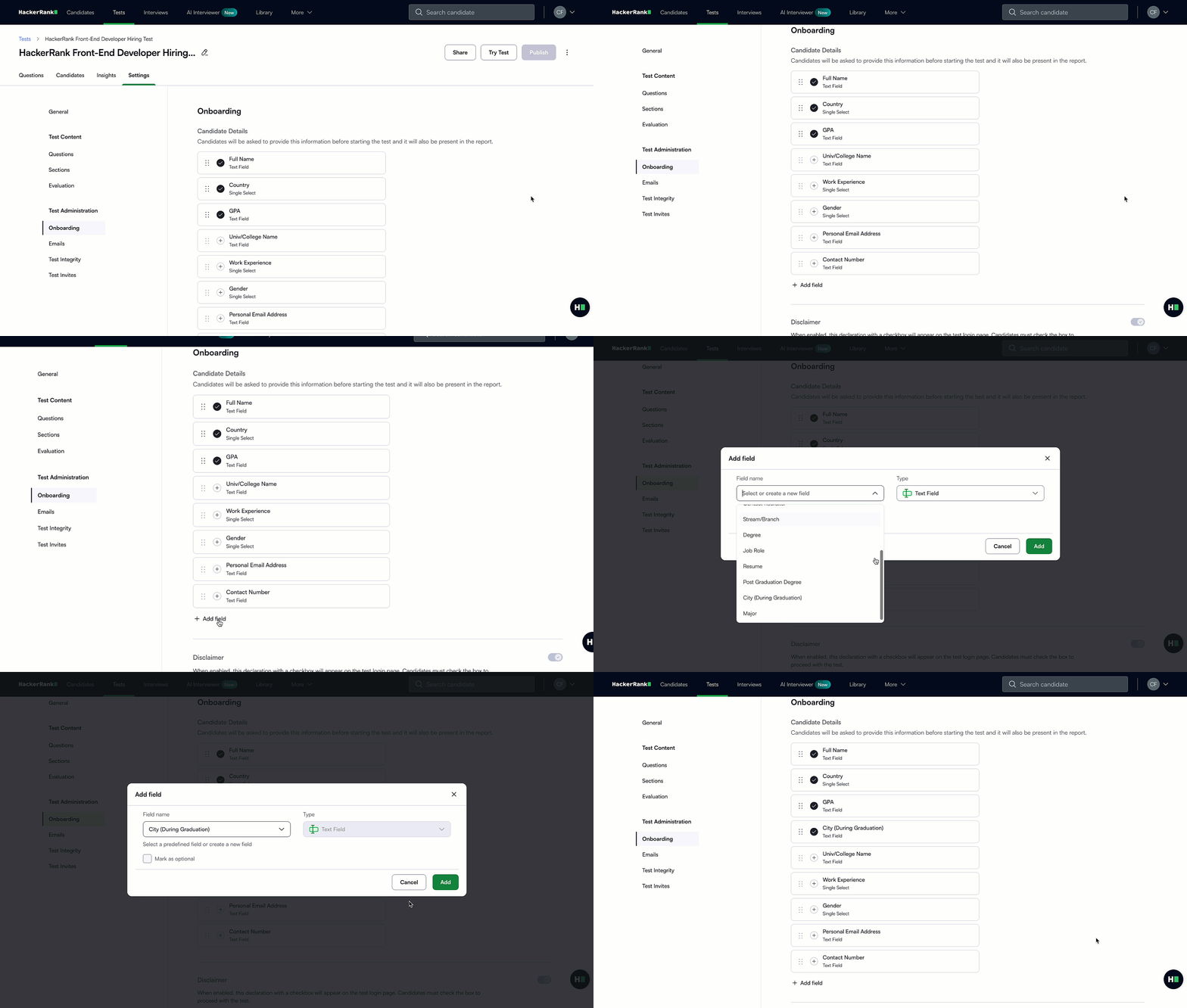
Drag and drop fields to change the order in which they appear to candidates.
Click Try Test to see how the onboarding form appears to candidates.
Enable Disclaimer
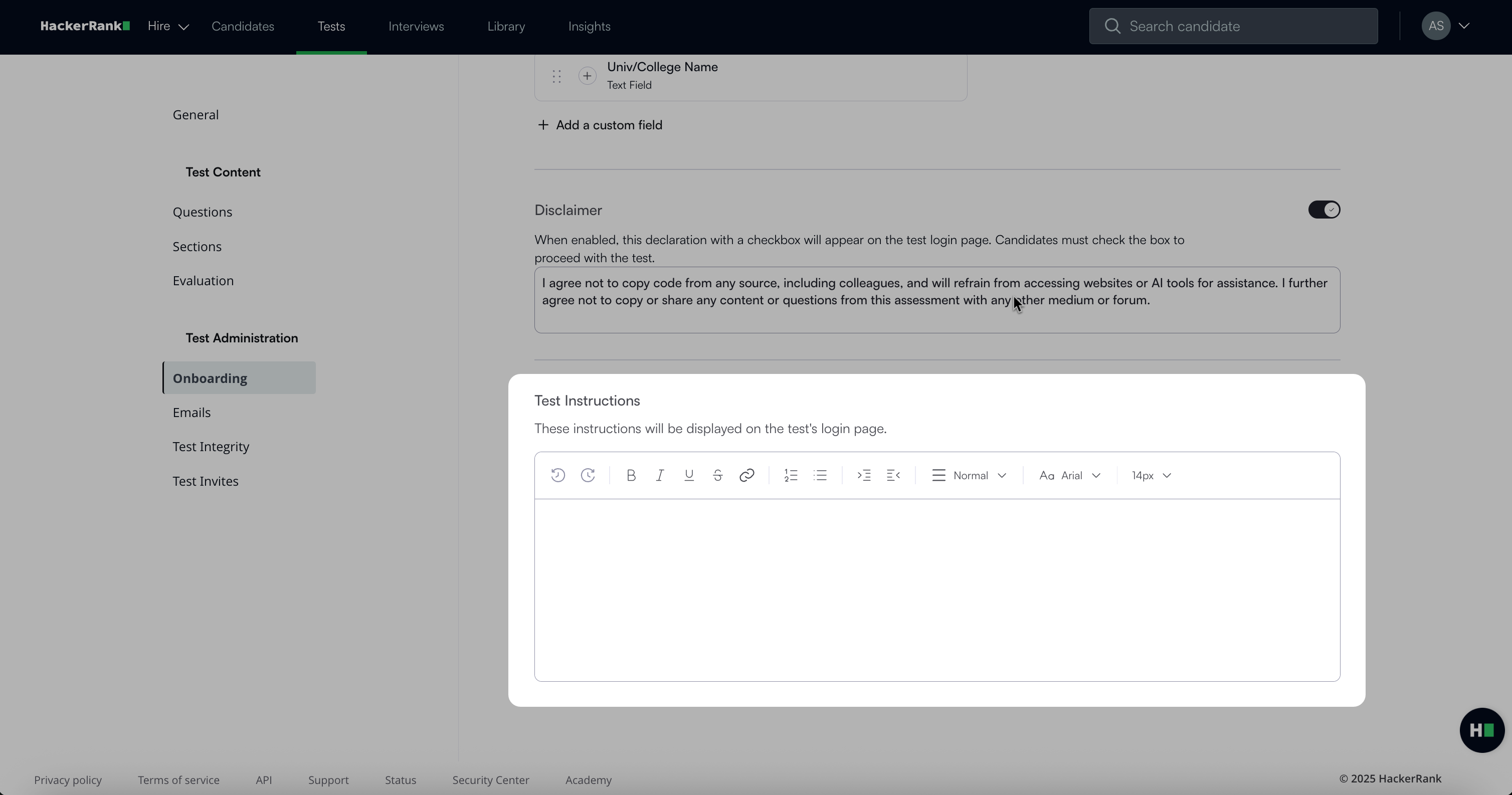
You can enable a disclaimer to ensure candidates acknowledge test integrity requirements before starting a test. When enabled, a declaration with a checkbox appears on the test login page. Candidates must select the checkbox to proceed.
The editor supports rich text formatting such as bold, italic, underline, and hyperlinks.
To enable the disclaimer:
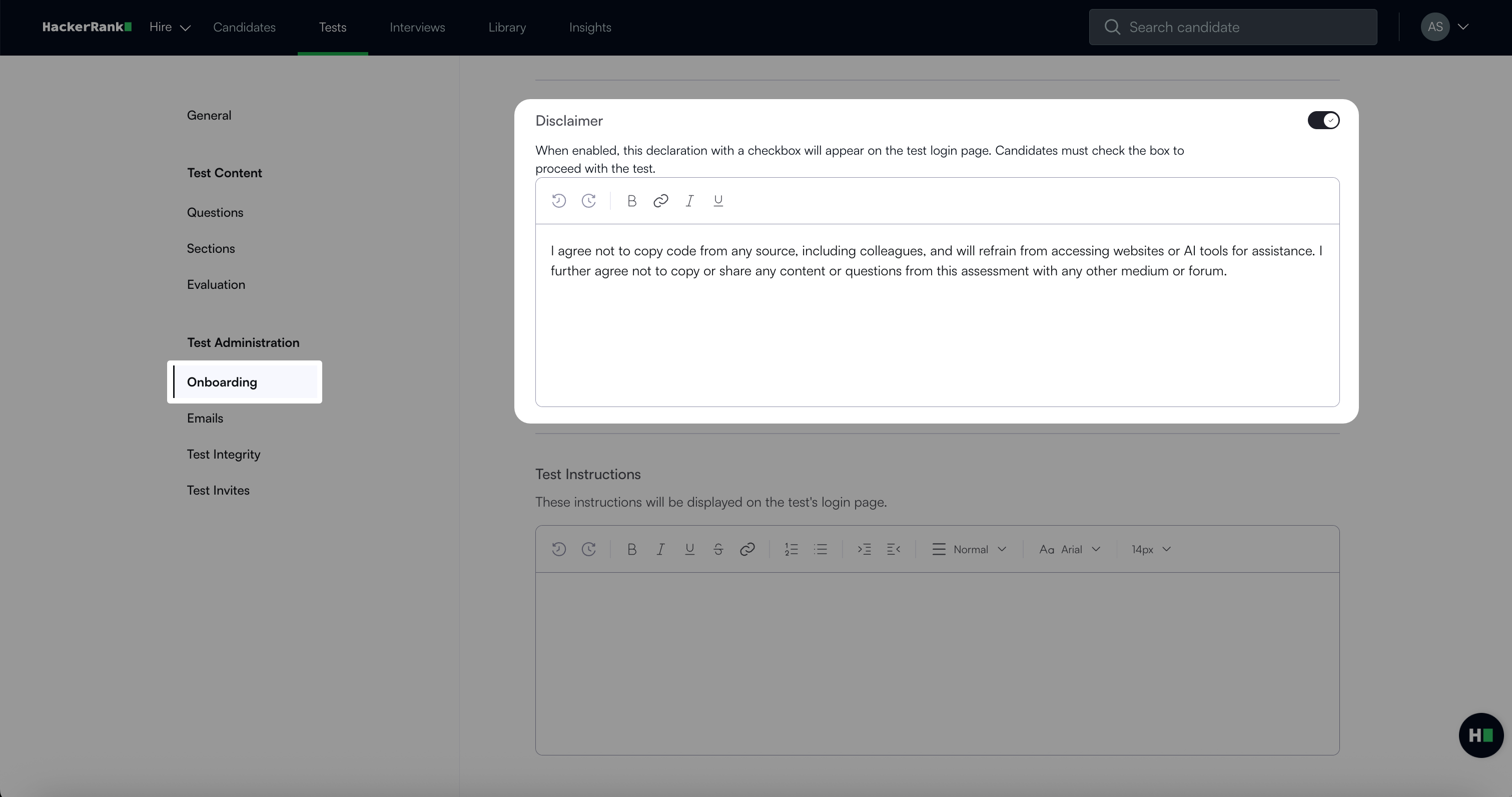
Turn on the Disclaimer toggle.
Edit the disclaimer text in the text box.
Configure Test Instructions
You can add custom instructions to guide candidates before they begin the test. This helps set expectations and ensures a smooth test experience.
You can either add test-specific instructions or use global templates. Include details such as test expectations, platform tips, and best practices.