Lever V2 - HackerRank Integration Test User Guide
Last updated: June 17, 2026
This guide outlines how to use the Lever V2 - HackerRank integration to send HackerRank test invitations and review test results directly in Lever V2.
Prerequisites
Before you begin, ensure you meet the following requirements:
You have admin access to your HackerRank for Work account.
You have admin access to your Lever account.
The HackerRank integration with Lever V2 is complete. For more information, see 📄 Lever V2 - HackerRank Integration Guide.
Inviting candidates to a HackerRank test
To invite candidates to a HackerRank test:
Log in to your Lever V2 admin account using your credentials.
Go to the Candidates tab.
Select an existing candidate or click Add Candidate to add a new candidate
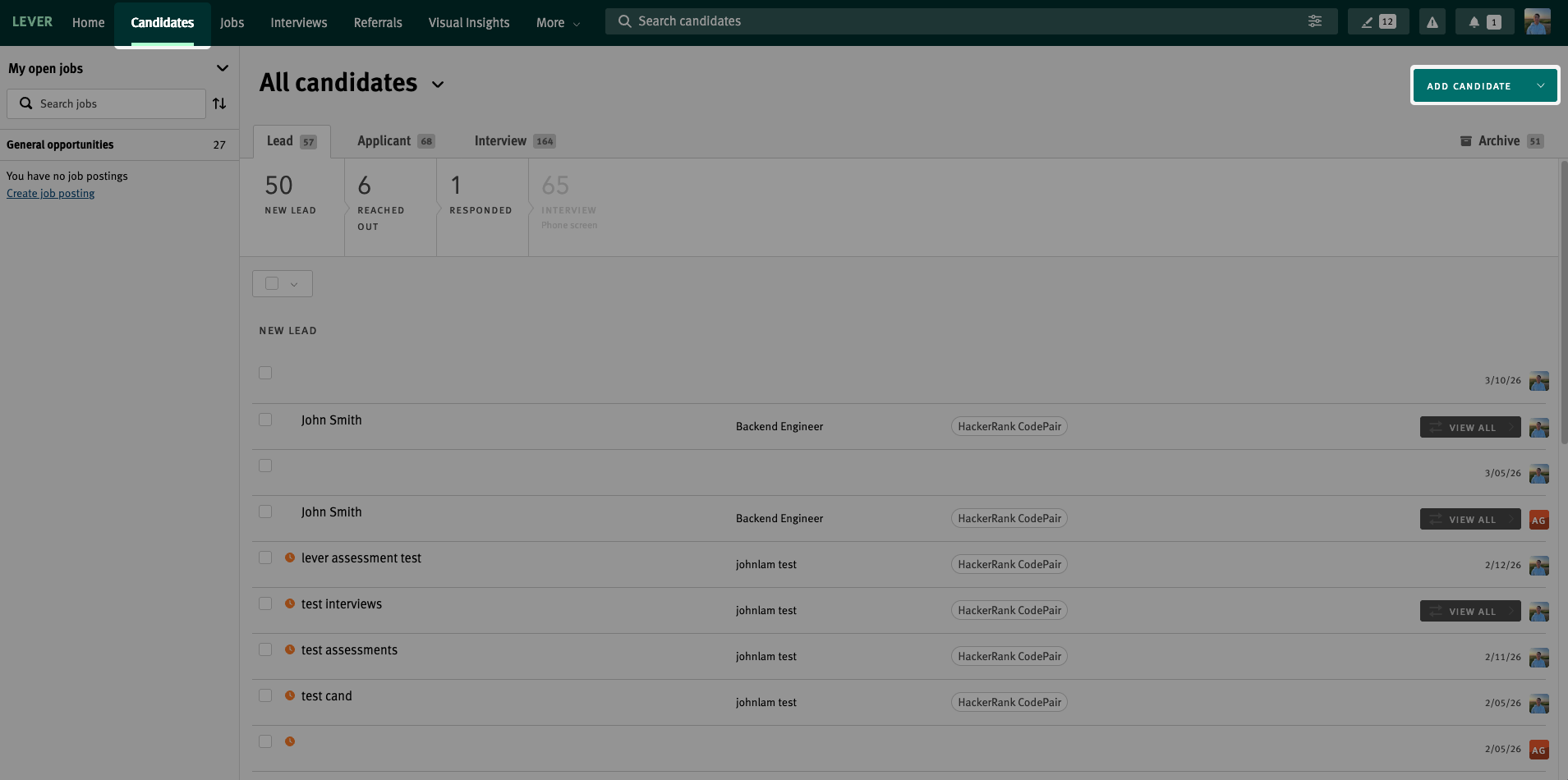
If you select an existing candidate:
Verify that the correct Job is selected.
Verify that the candidate email ID appears. If the email ID does not appear, click Add email and enter the candidate email ID.
If you add a new candidate:
Enter the name of the candidate.
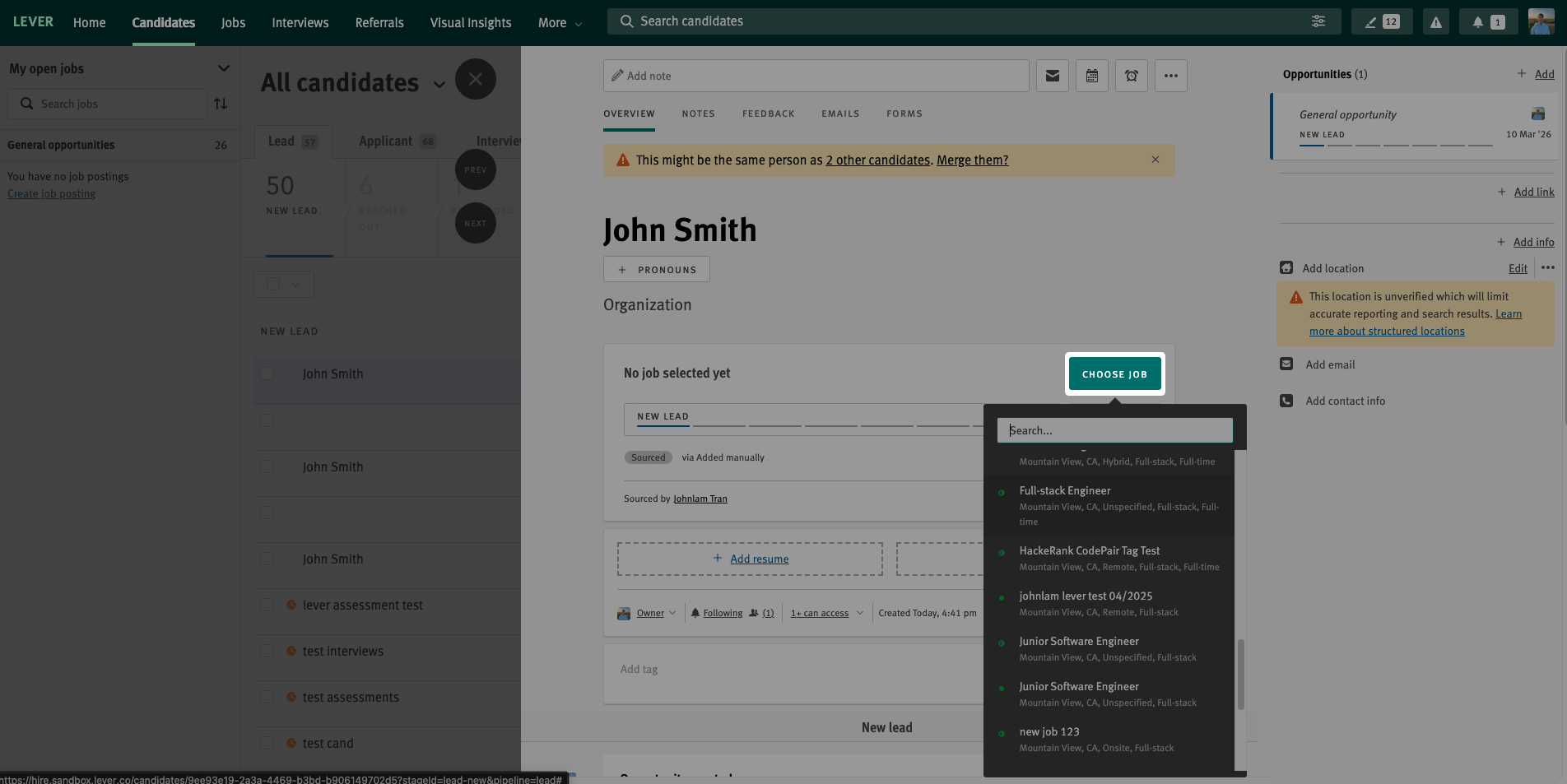
Click Choose Job and select the appropriate job from the drop-down menu.
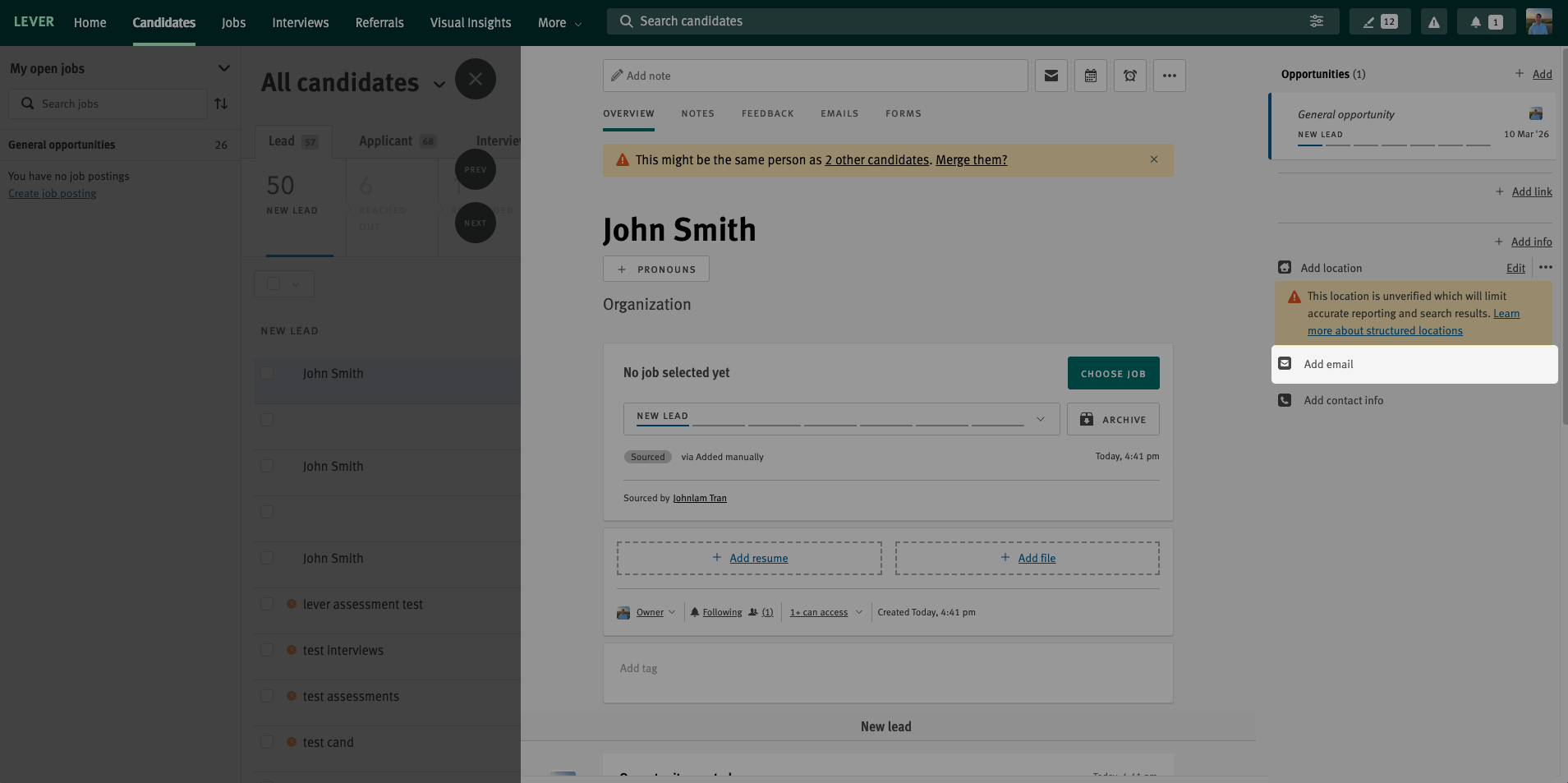
Click Add email and enter the candidate email ID.
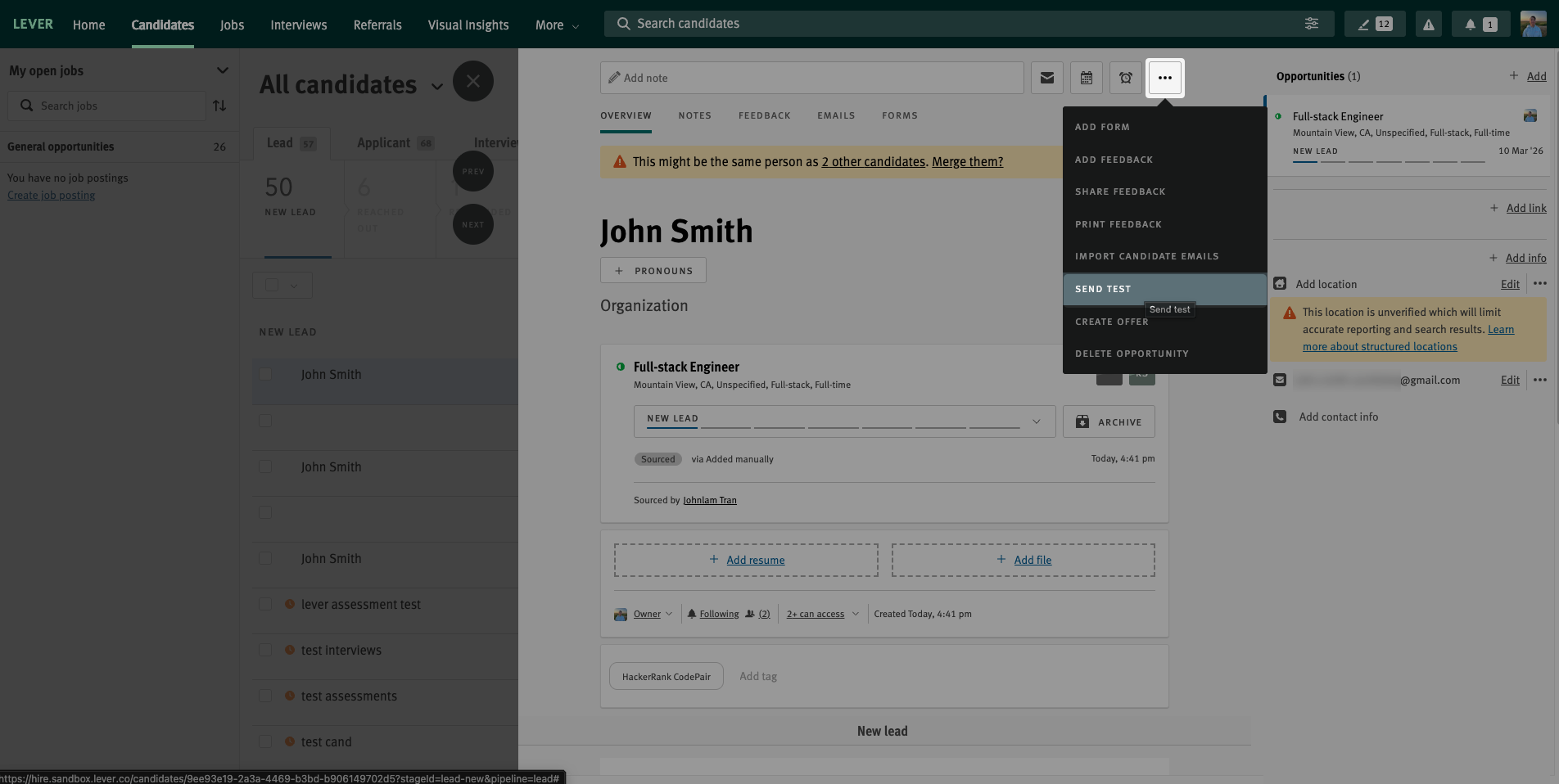
Click the more option menu and select Send Test.
In the Send test dialog:
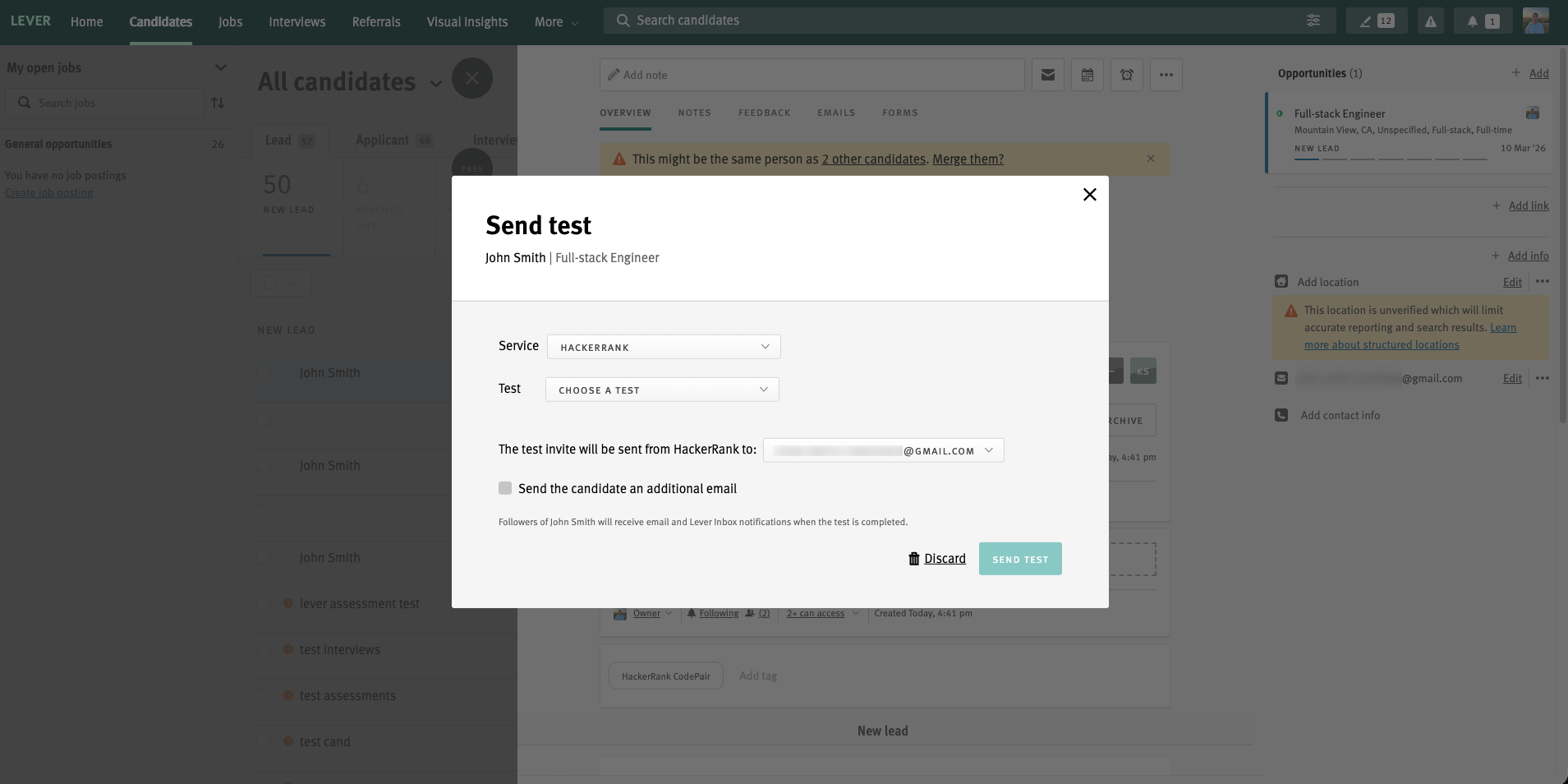
Select the required test from the Test dropdown.
(Optional) Select the checkbox to send an additional email to the candidate.
Click Send Test.
Lever sends test invitations to the candidate. Lever displays the test invite status on the candidate profile and provides an option to send a reminder email.
Viewing test results in Lever
After a candidate completes a HackerRank test, Lever displays the results on the candidate profile.
To view the test results in Lever:
Log in to your Lever V2 account using your credentials.
Go to the Candidates tab.
Select the candidate whose test feedback you want to view.
Scroll to the Feedback summary section on the Overview tab to view the test feedback and download the PDF report.
Note: You can also review the test feedback from the Feedback tab.
Test feedback
The test feedback includes:
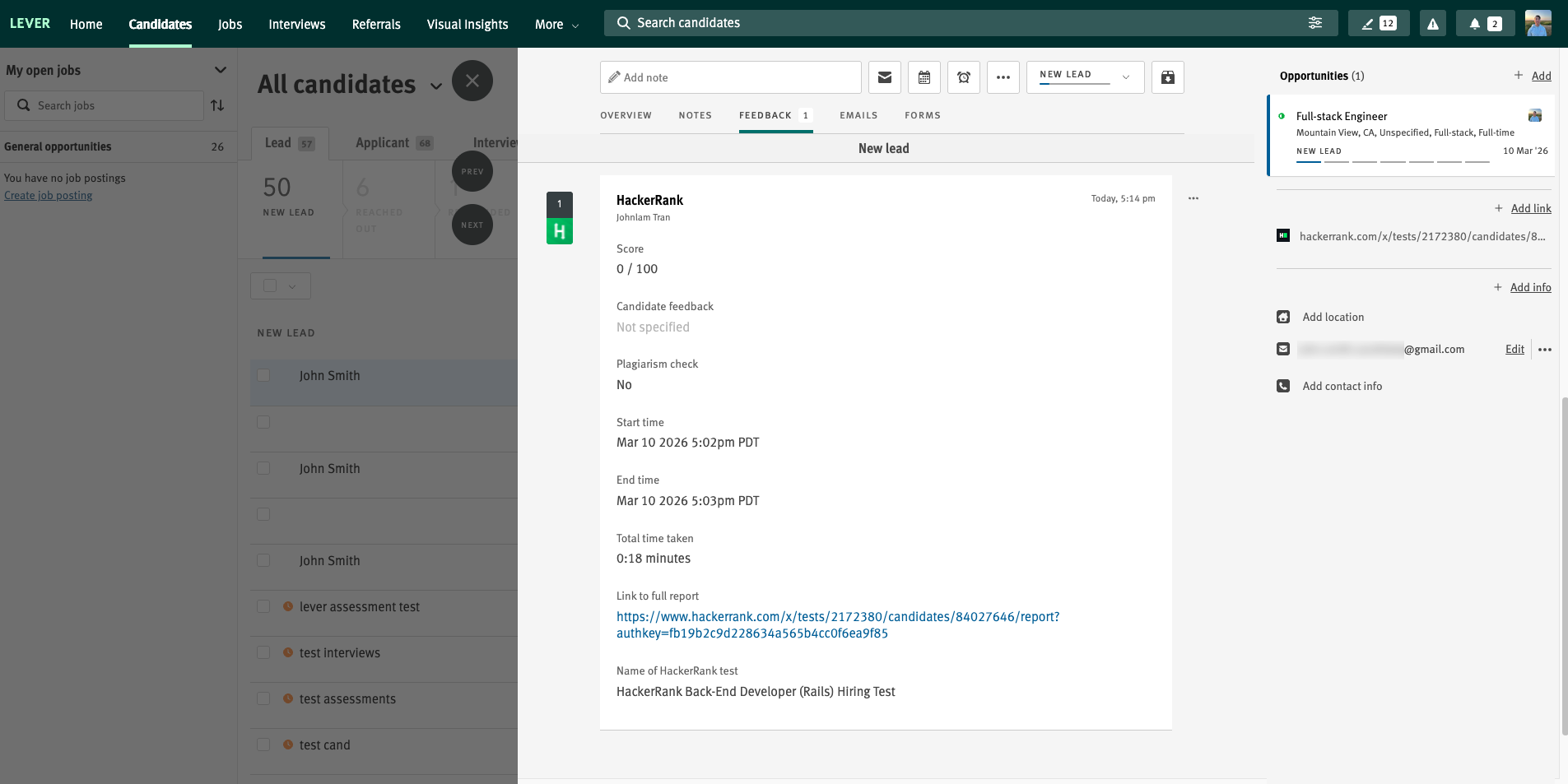
Score: Candidate’s final test score.
Candidate feedback: Comments submitted by the candidate, if available.
Plagiarism check: Indicates whether potential plagiarism is detected.
Start time: Time the candidate starts the test.
End time: Time the candidate completes the test.
Total time taken: Total duration of the test attempt.
Link to full report: Opens the Detailed Report in HackerRank.
Test name: Name of the assigned HackerRank test.
PDF test report
The PDF report replicates the Detailed Test Report and includes the following information:
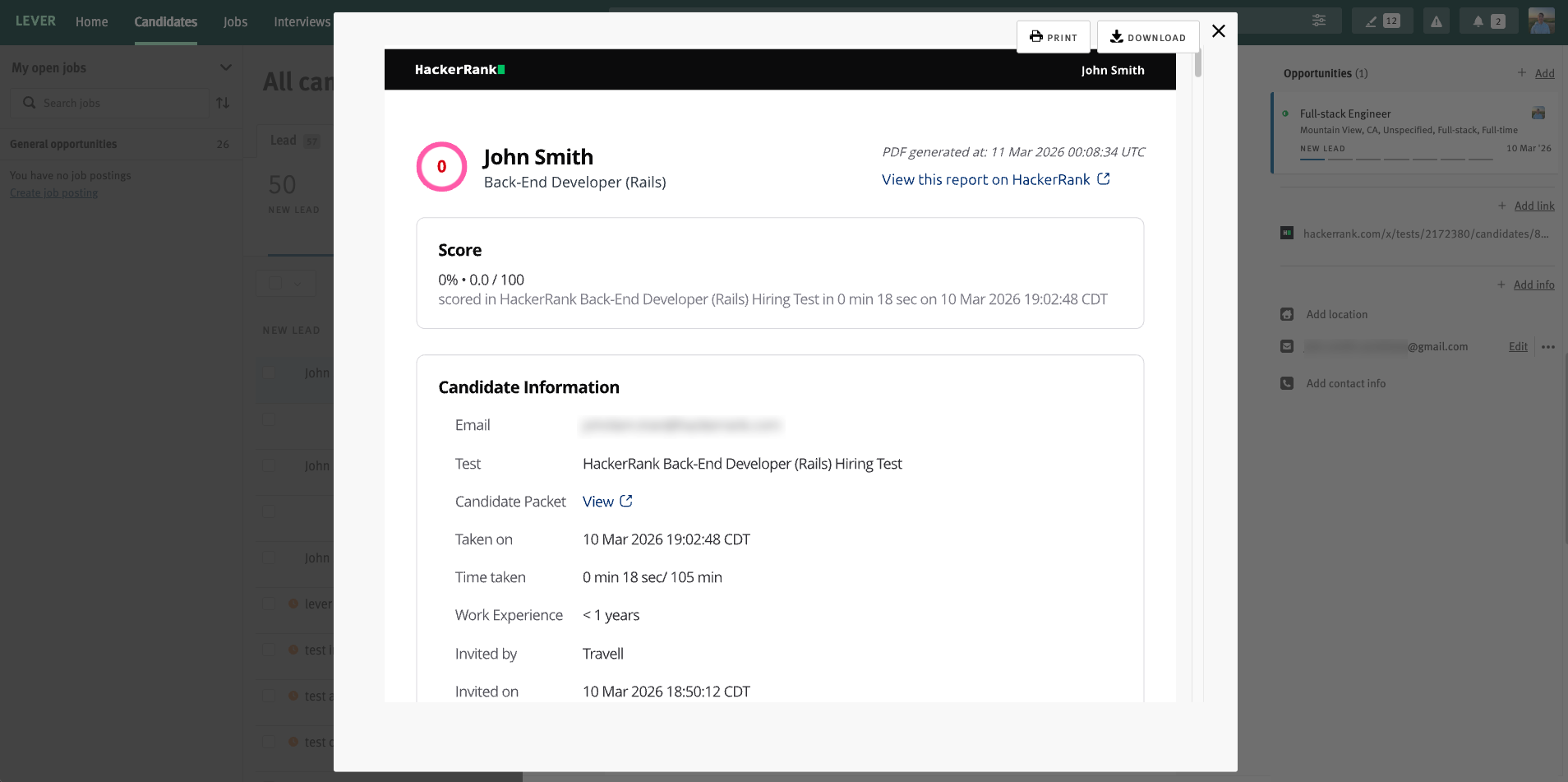
Score
Candidate information
Skill distribution
Tag distribution
Questions and candidate answers
You can also access the PDF report from the report link on the right side of the candidate profile.