Configure Interview Settings
Last updated: August 31, 2026
This article applies to the legacy Interview experience. If your interview interface looks different, see 📄 Navigate the Interview Interface and Controlsfor the new Interview experience.
You can customize the HackerRank Interview environment to suit your workflow during a live interview.
Prerequisite
You must be in an active interview session.
Configuring interview settings
To configure Interview settings:
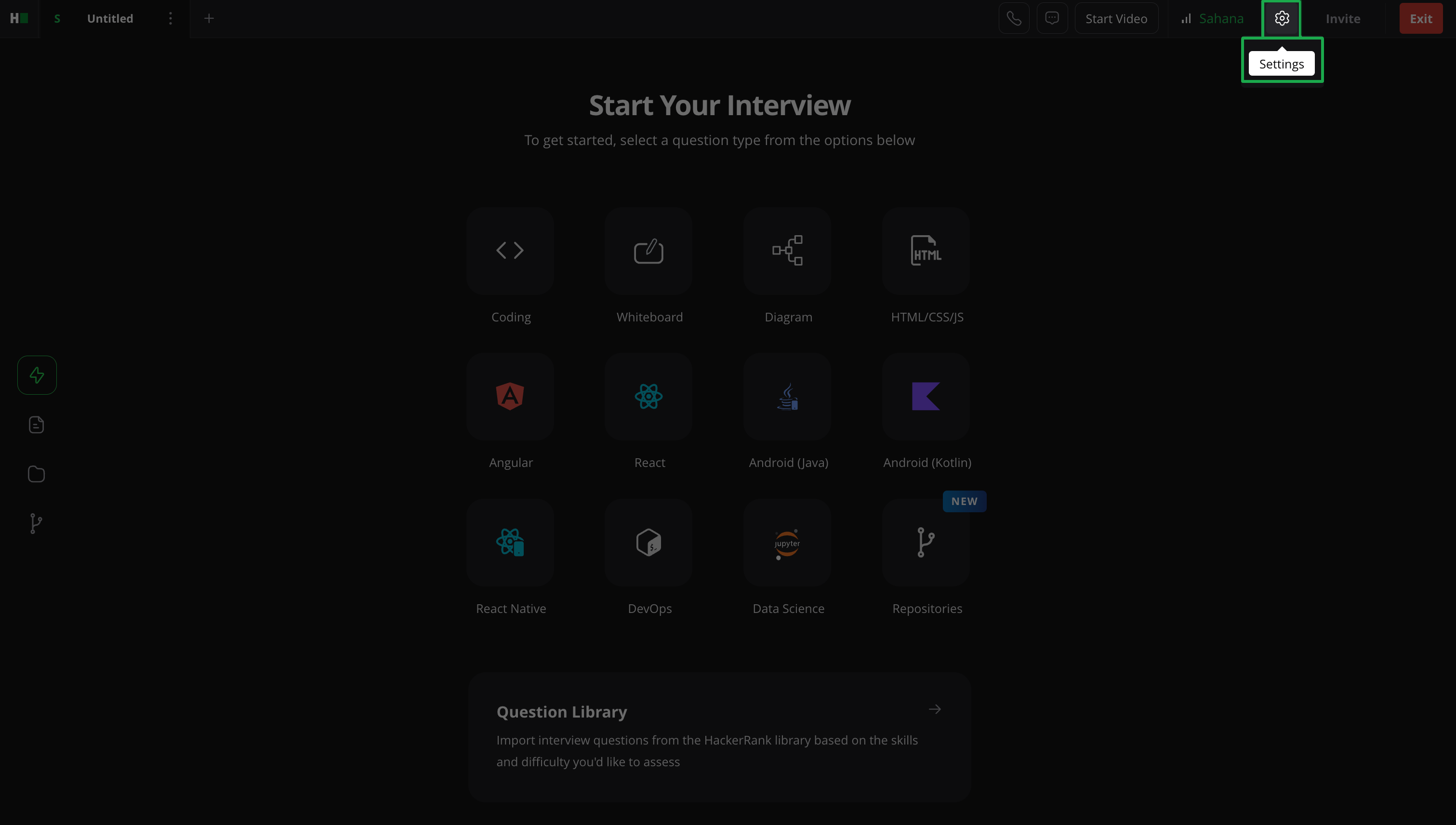
Click the Settings icon in the upper-right corner.
Customize your interview setup using the following options:
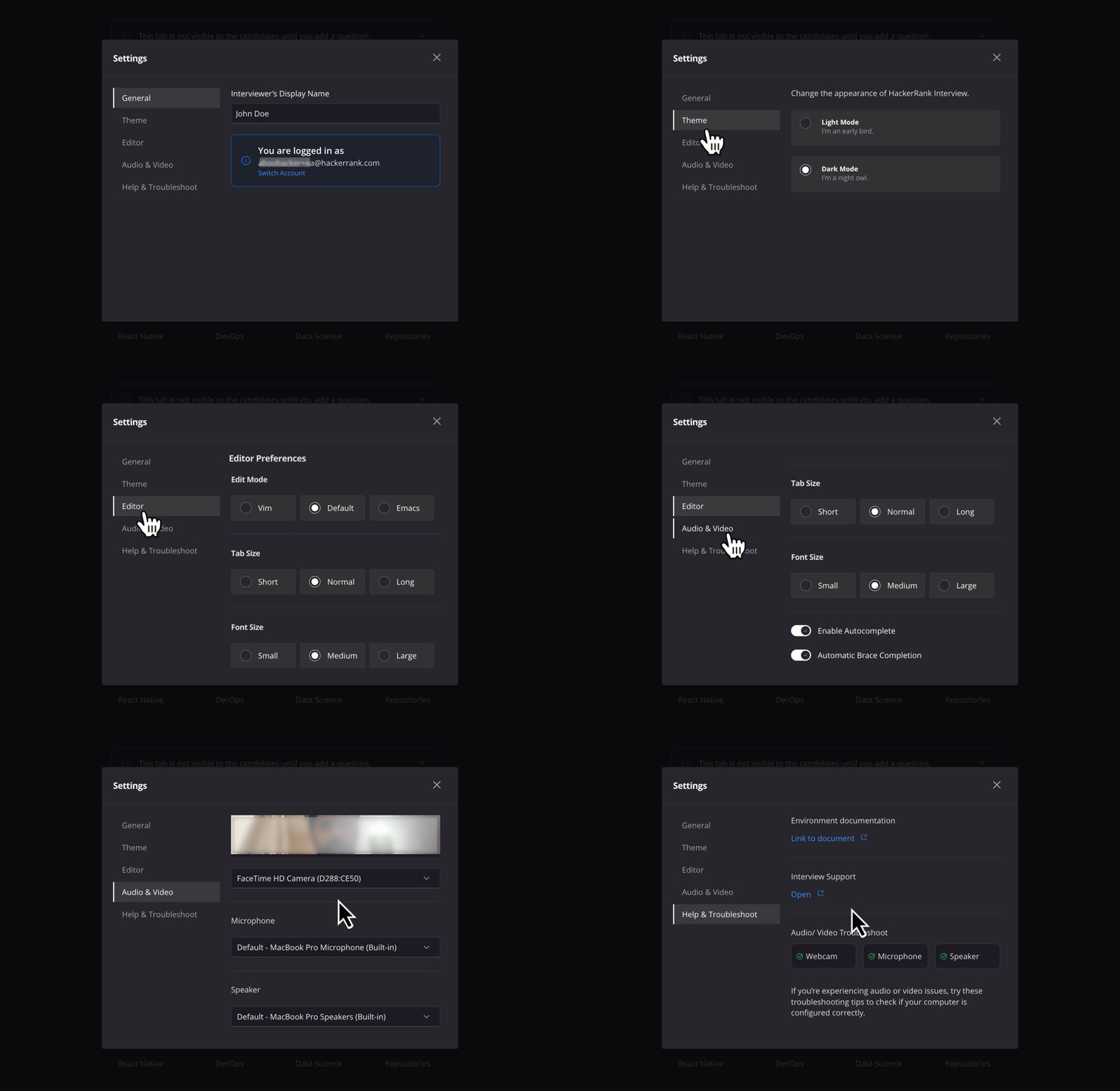
General: Update your name or switch accounts if needed.
Theme: Choose Light or Dark mode.
Editor: Adjust the following Editor Preferences to personalize your coding experience:
Edit mode: Choose Vim, Default, or Emacs.
Tab size: Select Short, Normal, or Long.
Font size: Choose Small, Medium, or Large.
Autocomplete: Toggle to enable or disable Autocomplete.
Automatic Brace Completion: Toggle to enable or disable Automatic Brace Completion.
Audio and Video: Configure your input and output devices:
Webcam: Select your preferred webcam.
Microphone: Select your preferred microphone.
Speaker: Select your preferred speaker.
Note: If you experience issues with your webcam, microphone, or speaker:
1. Select Help and Troubleshoot from the interview Settings menu.
2. Check the status of your devices. A green check mark next to each device indicates it works correctly. If a device does not show a green check mark, follow the troubleshooting tips provided.