Navigate the Interview Interface and Controls
Last updated: August 27, 2026
This article applies to the new Interview experience.
After you join an interview, you can use the interview interface to share the interview link, manage the built-in video call, chat with participants, view interviewer guidelines, add notes, observe the candidate’s screen, and configure interview settings.
View interview participants
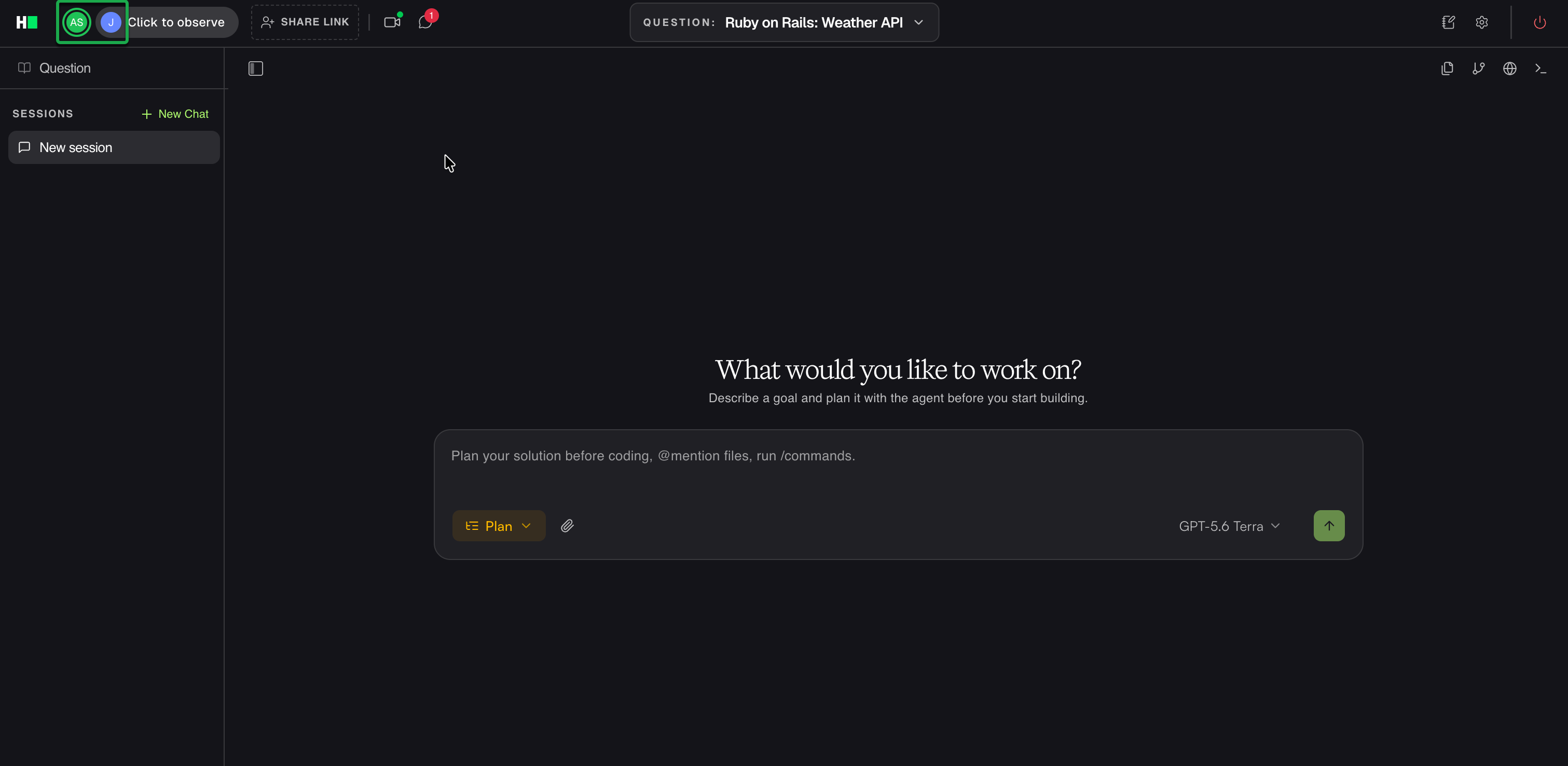
The upper-left corner displays the profile icons of participants who have joined the interview.
Share the interview link
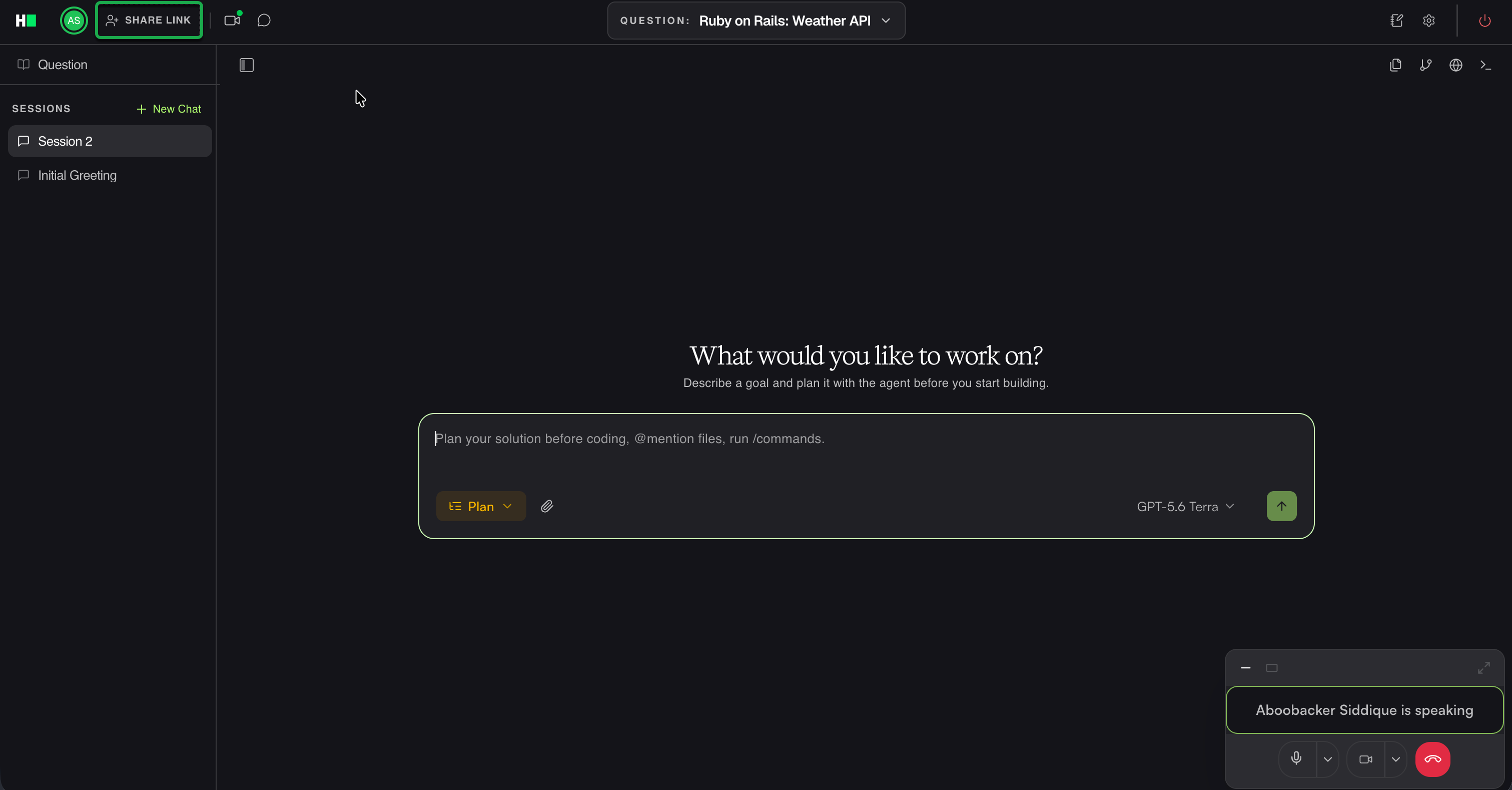
Click Share Link in the upper-left corner to copy the interview link to your clipboard. You can send the link to other interviewers who need to join the session or the candidate.
Start and manage the video call
Note: The video-call controls are available only when your organization enables HackerRank Built-in A/V.
Click the Start video call icon in the upper-left corner. A green status indicator appears on the icon while the call is active.
You can use the following controls in the video window:
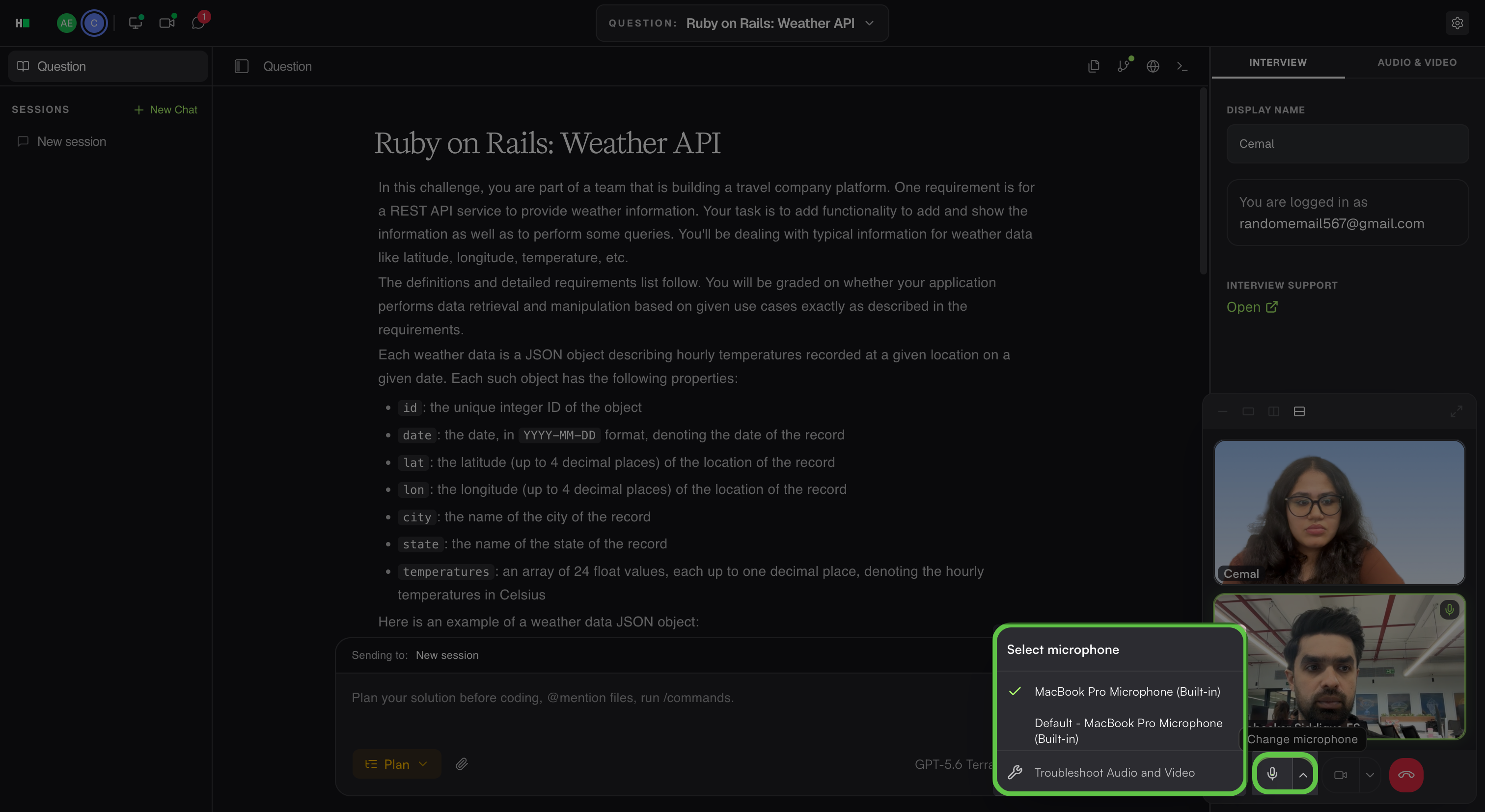
Microphone: Select the microphone icon to mute or unmute your microphone. Select the arrow next to the icon to choose a microphone.
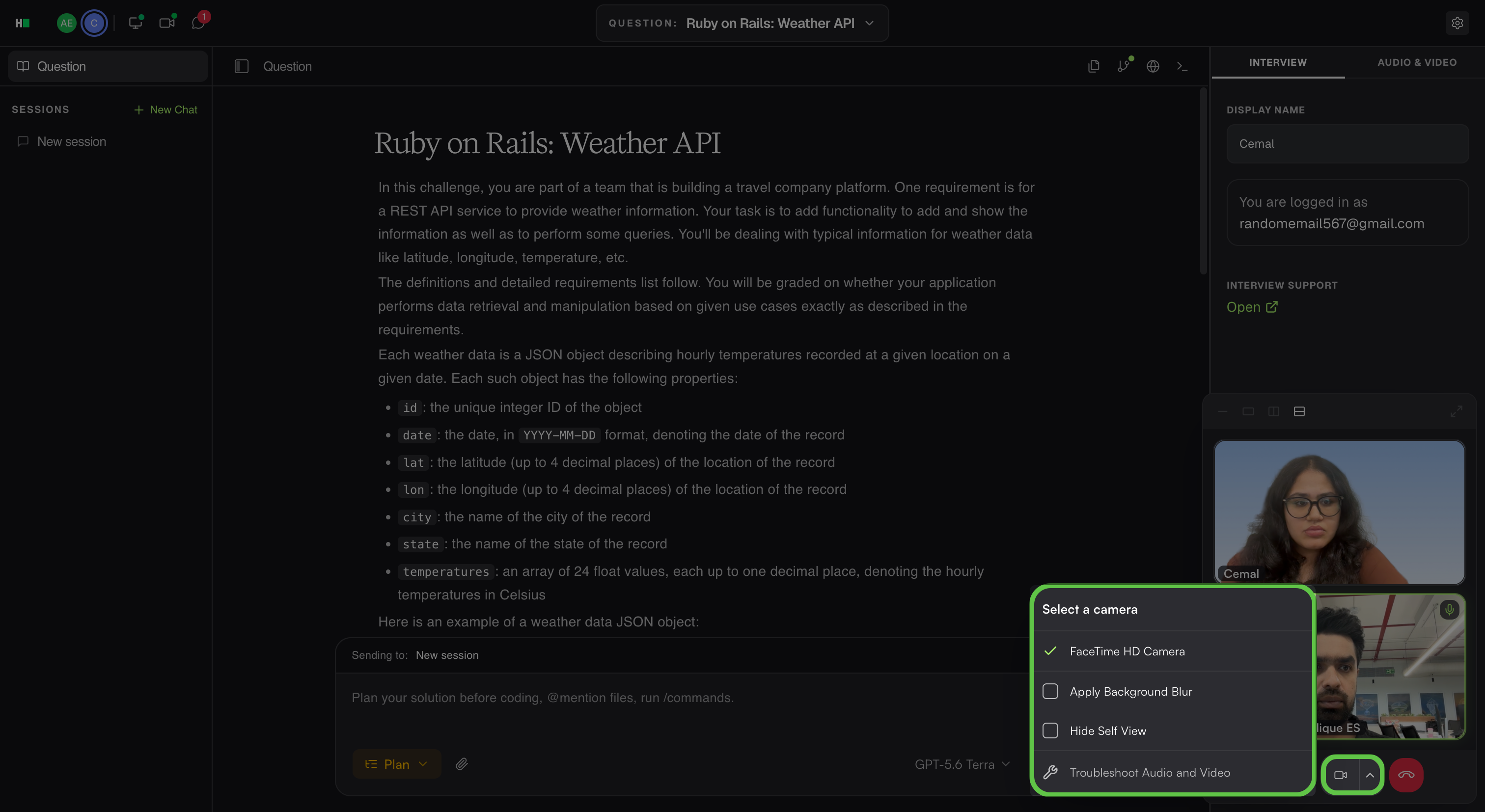
Camera: Select the camera icon to turn your camera on or off. Select the arrow next to the icon to choose a camera, apply background blur, or hide your self-view.
Video layout: Use the controls at the top of the video window to change how videos appear:
Select Hide video to hide the video feed and display the active speaker’s name.
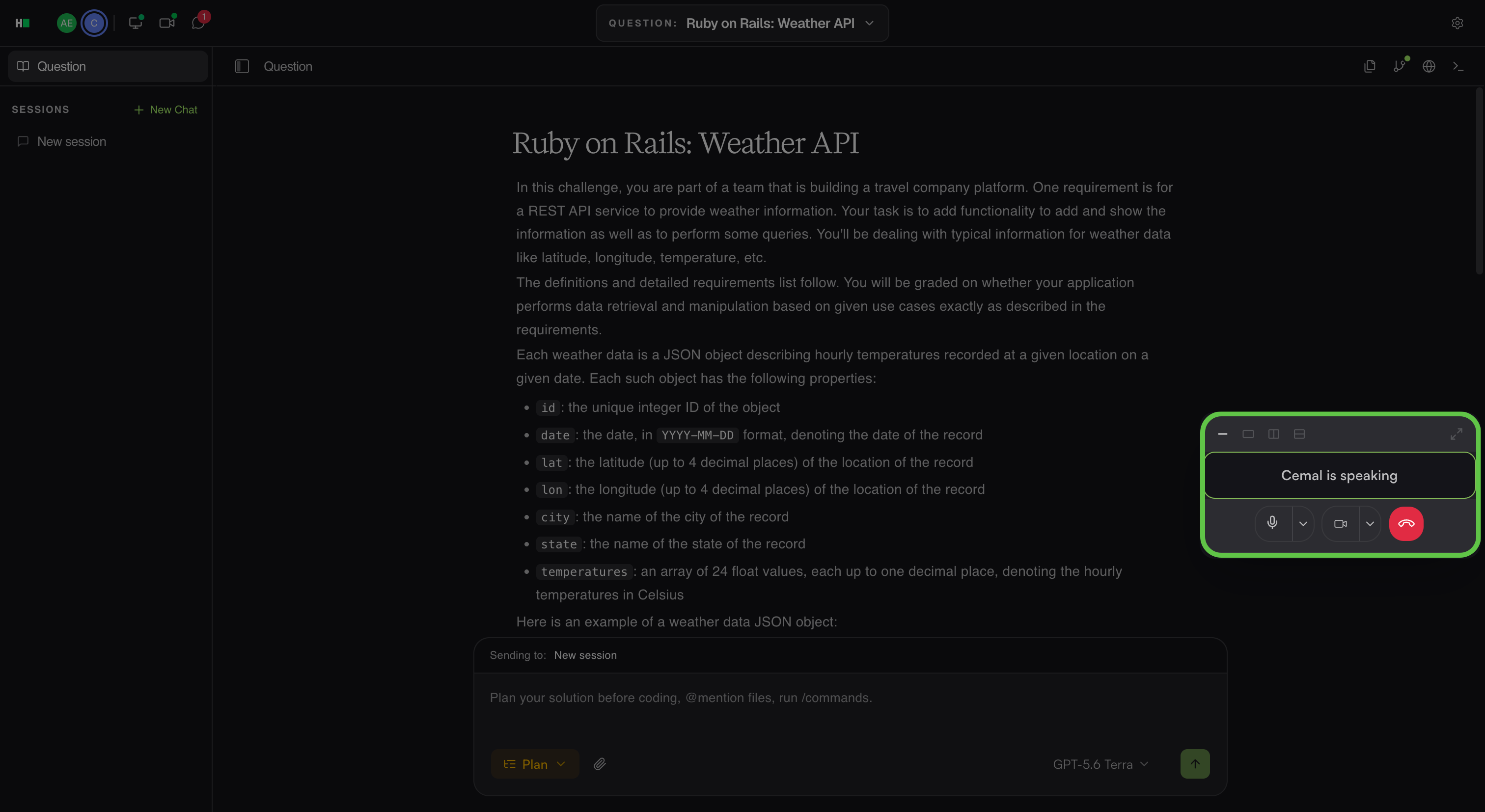
Select Single video to display one video feed. Use the left and right arrows to switch between video feeds.
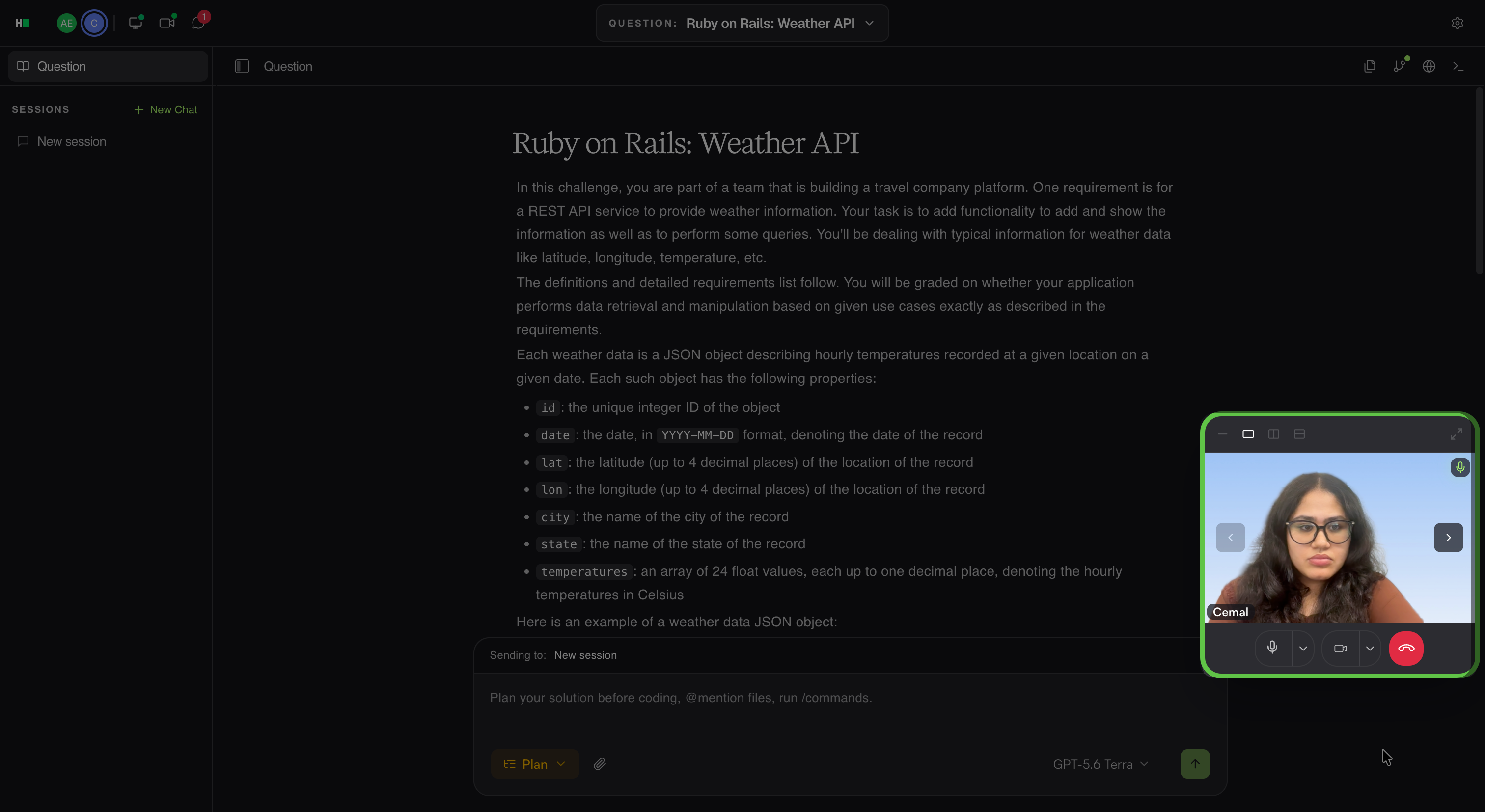
Select Horizontal participant row to display the video feeds in a horizontal row.
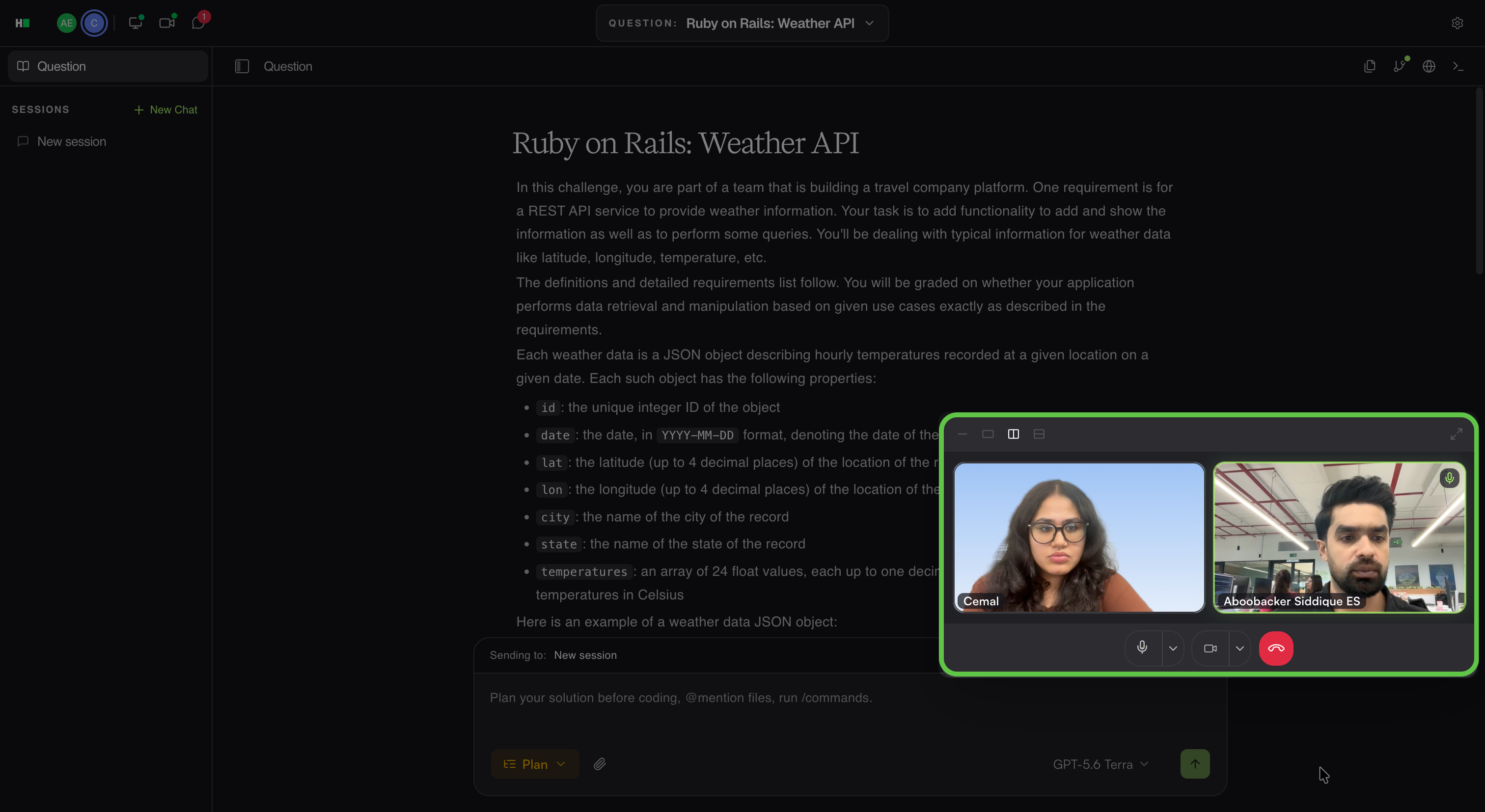
Select Vertical participant list to display the video feeds in a vertical list.
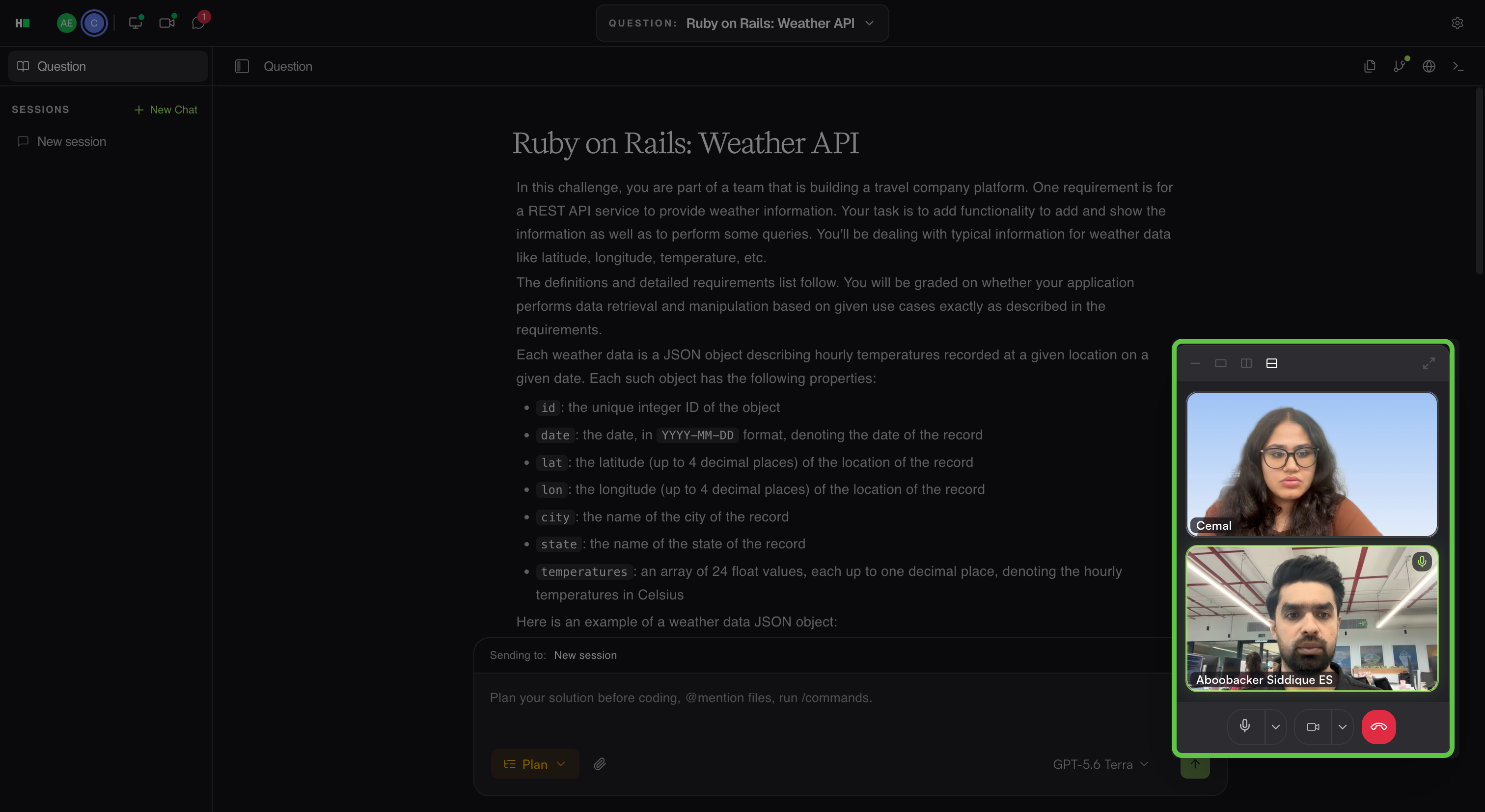
Select Expand window to expand the video window.
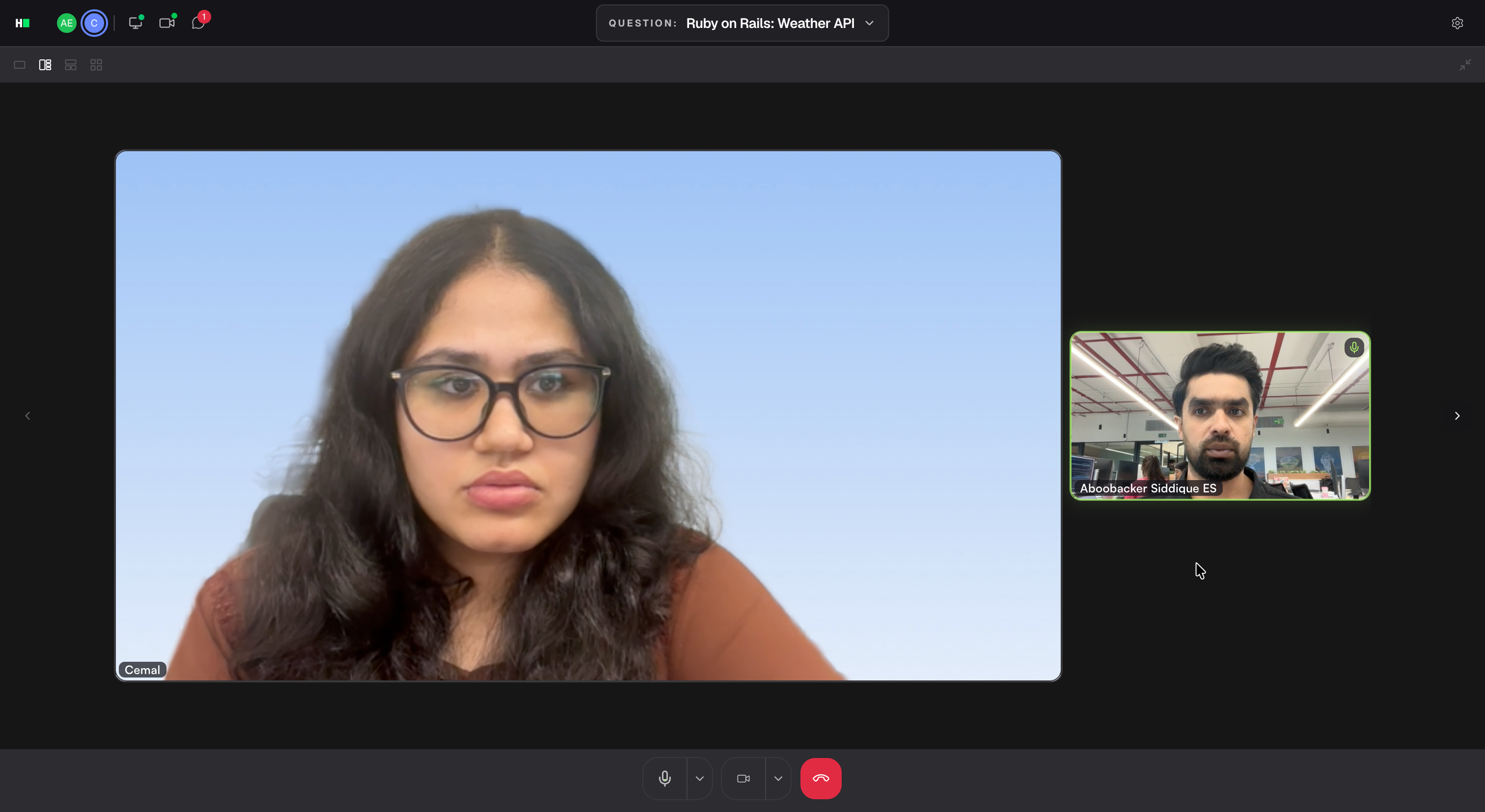
End call: Leave the built-in video call.
Note: Ending the video call does not end the interview. For information about leaving or ending the interview, see 📄 End an Interview.
Chat with participants
Click the Chat icon in the upper-left corner. Enter a message in the Message box and send it to the interview participants.
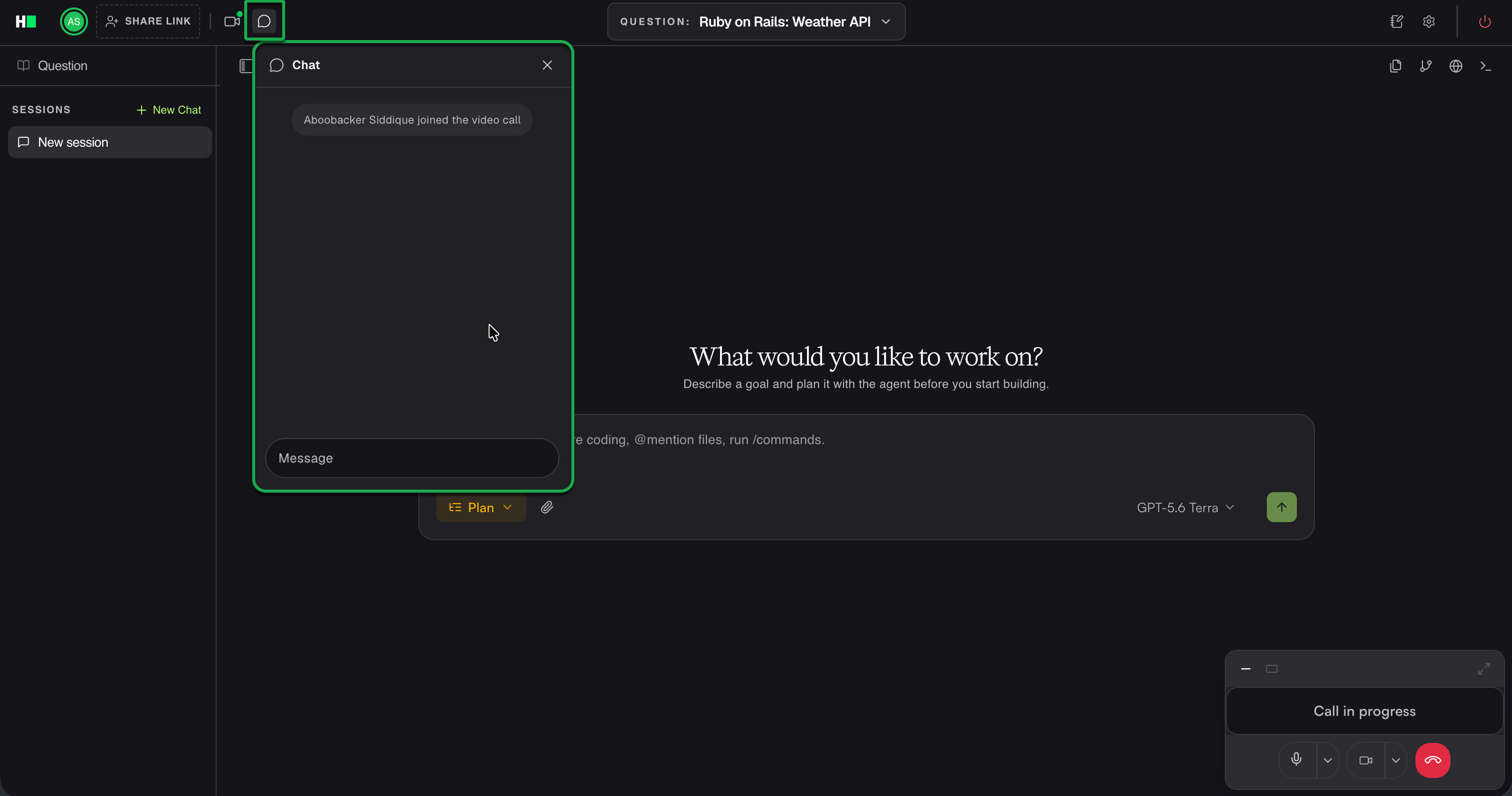
The chat panel also displays notifications when participants join or leave the video call.
View interviewer guidelines
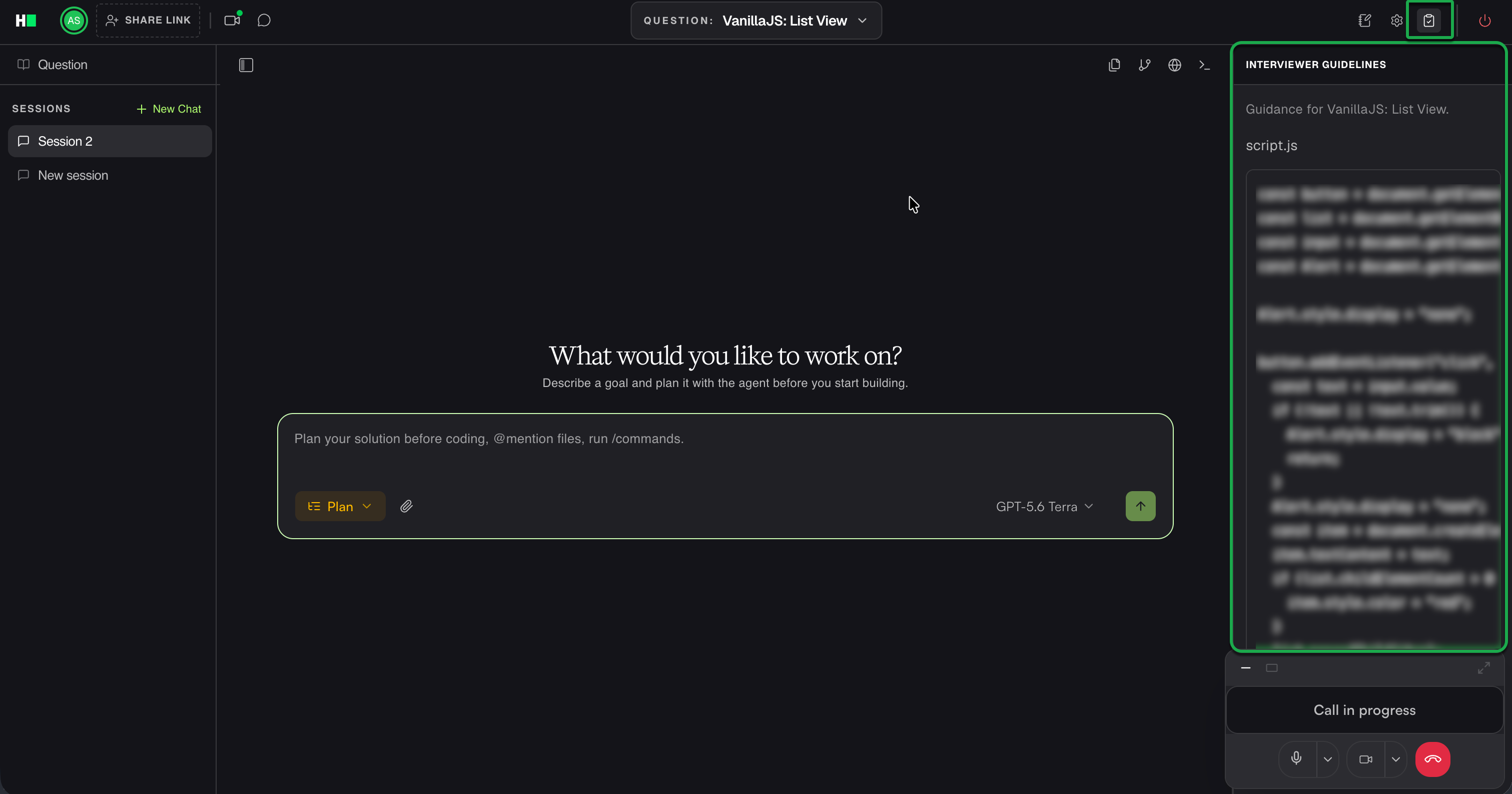
Click the Interviewer Guidelines icon in the upper-right corner to view the guidelines for the current question.
Observe the candidate’s screen
After you and the candidate join the interview, you can use observation mode to view the candidate's screen at any time during the interview.
To enable observation mode, click Click to observe.
To disable observation mode, click Observing.
Add interviewer notes
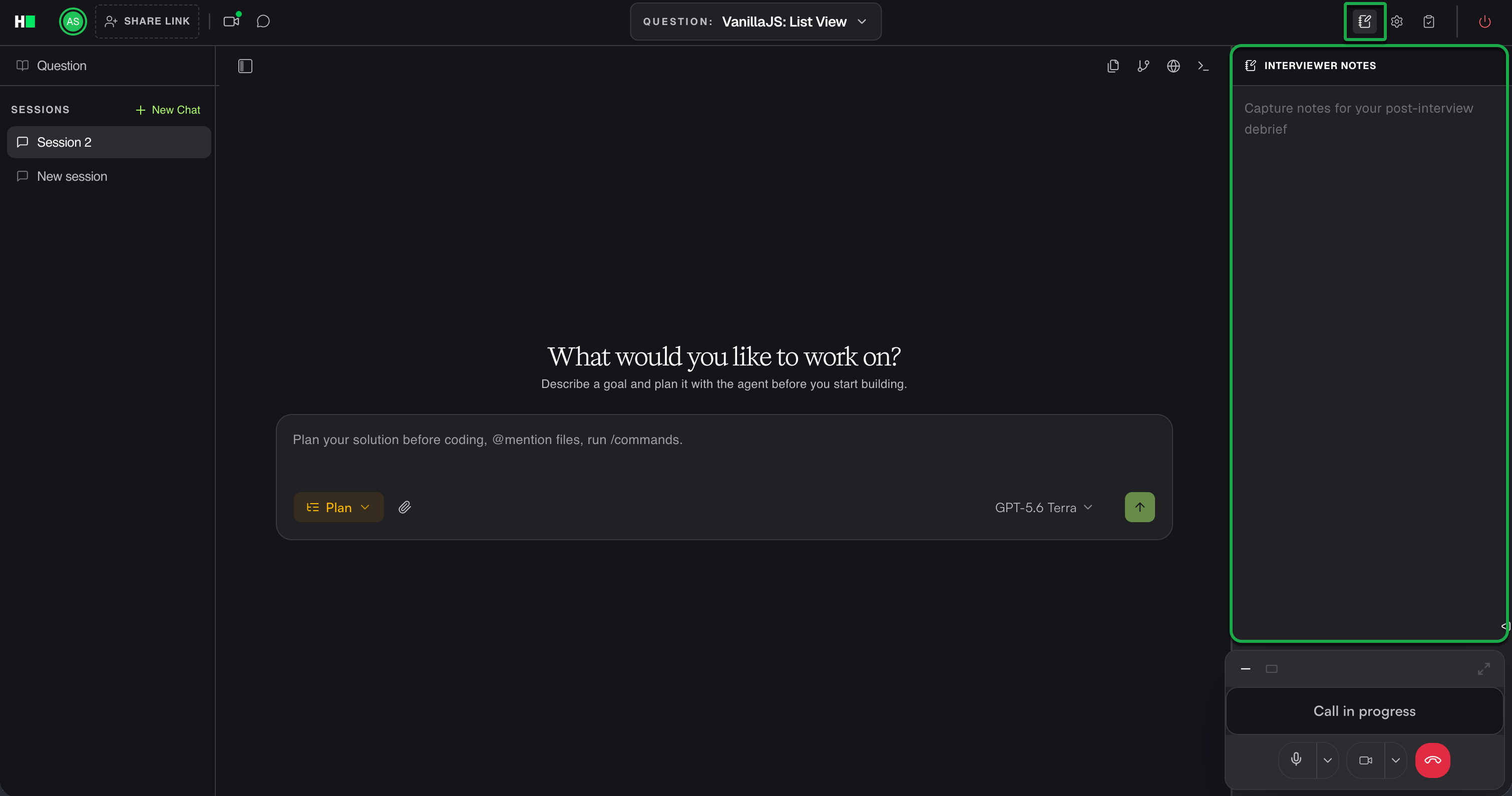
Click the Interviewer Notes icon in the upper-right corner to add notes for the post-interview review. The Interview Report includes these notes.
Configure interview settings
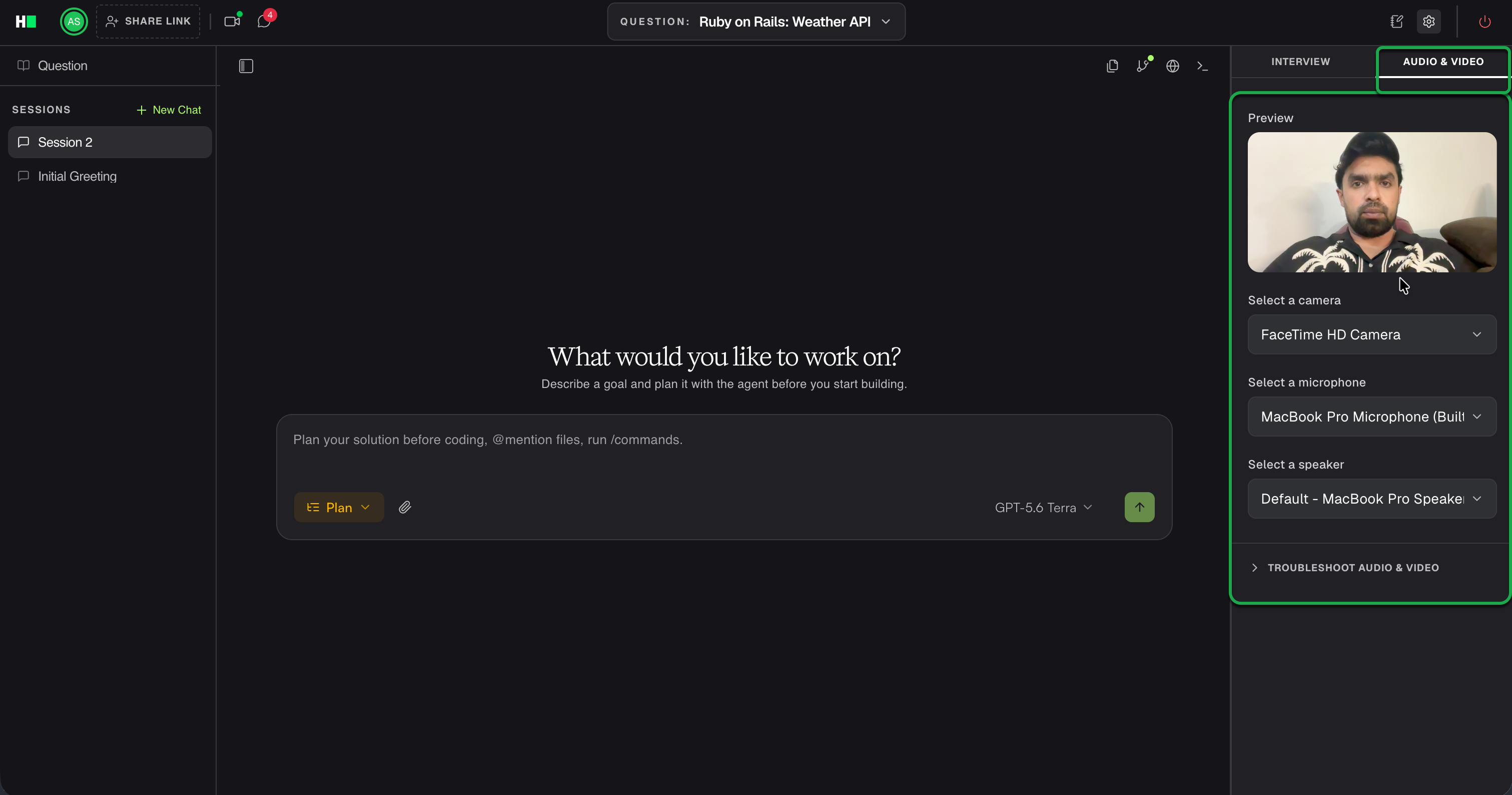
Click the Settings icon in the upper-right corner. You can use the following tabs to configure your settings:
Interview: Update your Display Name.
Audio & Video: Review the video preview and select your camera, microphone, and speaker. If you experience device issues, expand Troubleshoot Audio & Video and follow the instructions.
Editor: Select the font size, tab size, and editor mode.
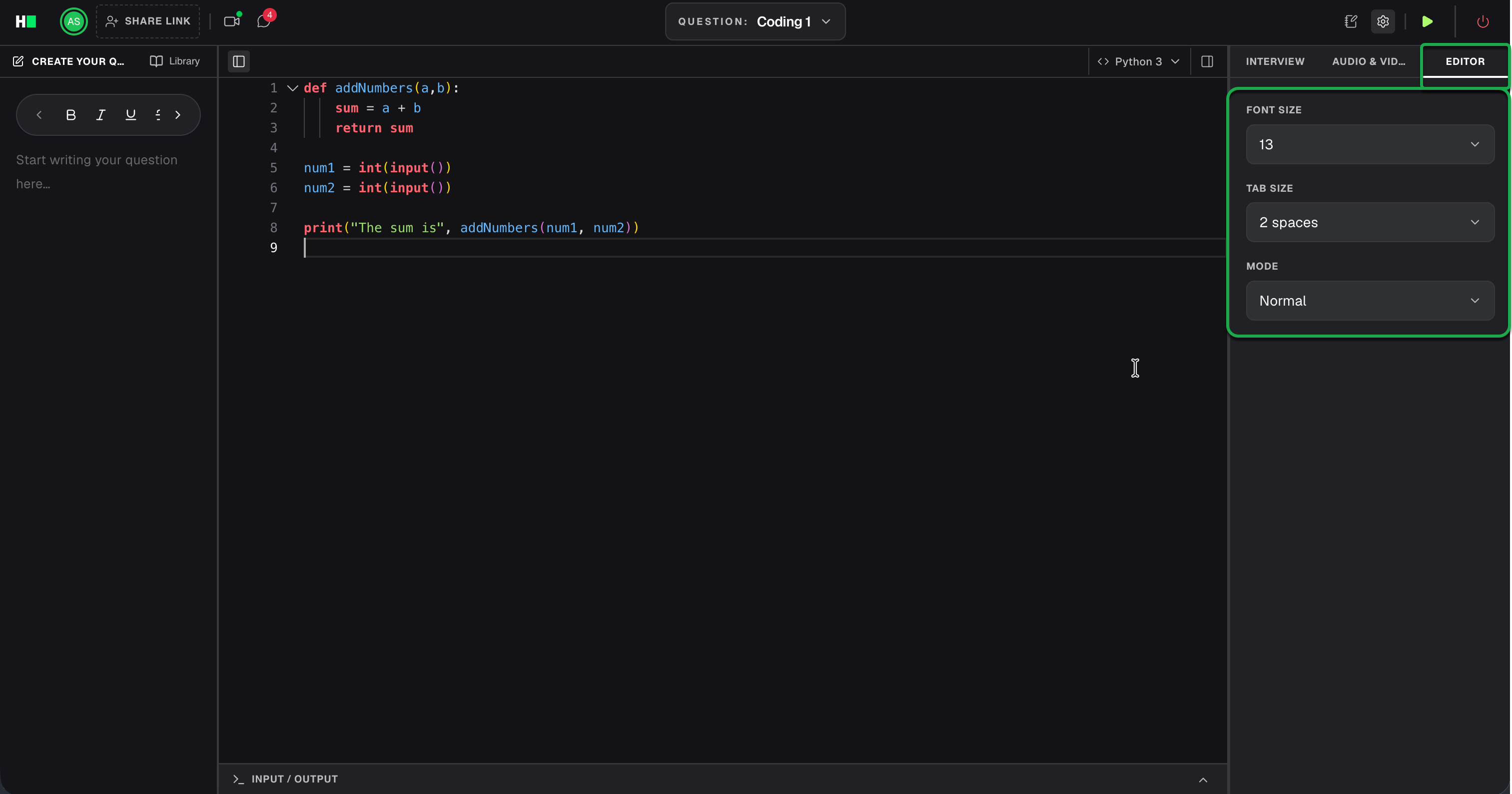
Note: The Editor tab is available only for Coding and Database questions.