Front-End Questions in HackerRank Interviews
Last updated: December 12, 2024
Overview
HackerRank Interviews contains Front-end frameworks, Angular and React.
Candidates can work on a highly responsive, stable, and familiar editor to solve the Front-end questions, without worrying about getting familiar with a new editor or platform disruptions during the interview session.
Initiating Interviews with the Front-end Frameworks
- After you are logged into an interview as an interviewer, you can start the Front-end interview from the Interview landing page by clicking on the Front-end framework.
You can refer to this video to get started with the Front-End Interviews.
- Select Angular or React frameworks to start an interview based on that framework.
- The screen navigates to display three options to start a Front-end interview.
- Select one of these three options:


Start from Scratch
HackerRank Interviews provides a simple project for you as a starting point in this option. You can modify the project before or during the interview to suit your needs.
Experience the new containerless VS Code IDE results in a faster loading and stable IDE that works with seamless unstable network connections. Developers can have faster and more accurate autocomplete when coding.

Enhanced IDE Features
-
Built-In Real-time Preview
-
The IDE opens with a built-in preview window on the right pane. Any changes made by you or the candidate can be seen on the Preview tab.
- As the IDE is containerless, you can view the preview in a browser. Click the browser icon
to view the preview in a browser.
- You can also select a responsive view (tablet, mobile, desktop, and so on) for the preview. Click the icon
to view the responsive view.
-
The IDE opens with a built-in preview window on the right pane. Any changes made by you or the candidate can be seen on the Preview tab.
-
Test Execution
- You can run the test cases by clicking the Test tab. Click the Run Tests option. The output is displayed.
- You can run the test cases by clicking the Test tab. Click the Run Tests option. The output is displayed.
-
Built-in Dev Tools
- The Dev Tools are available in the lower part of the Preview pane. You can click on the Dev Tools option for the respective framework and launch the console.
- The console works as a collaborative tool. The interviewer and the candidate can see their changes in real time.
-
Dependency Manager
-
On the left pane of the IDE, you can find the Dependencies search bar by clicking the cube icon.
You can search for your desired dependencies and add them by clicking on add. Dependencies added are updated in the package.json file.
-
On the left pane of the IDE, you can find the Dependencies search bar by clicking the cube icon.
-
External CSS and Javascript Support
- The External Resources is present on the left pane. Enter the URL of the external CSS and JavaScript resources in the External Resources address to format and style the UI.
- The External Resources is present on the left pane. Enter the URL of the external CSS and JavaScript resources in the External Resources address to format and style the UI.


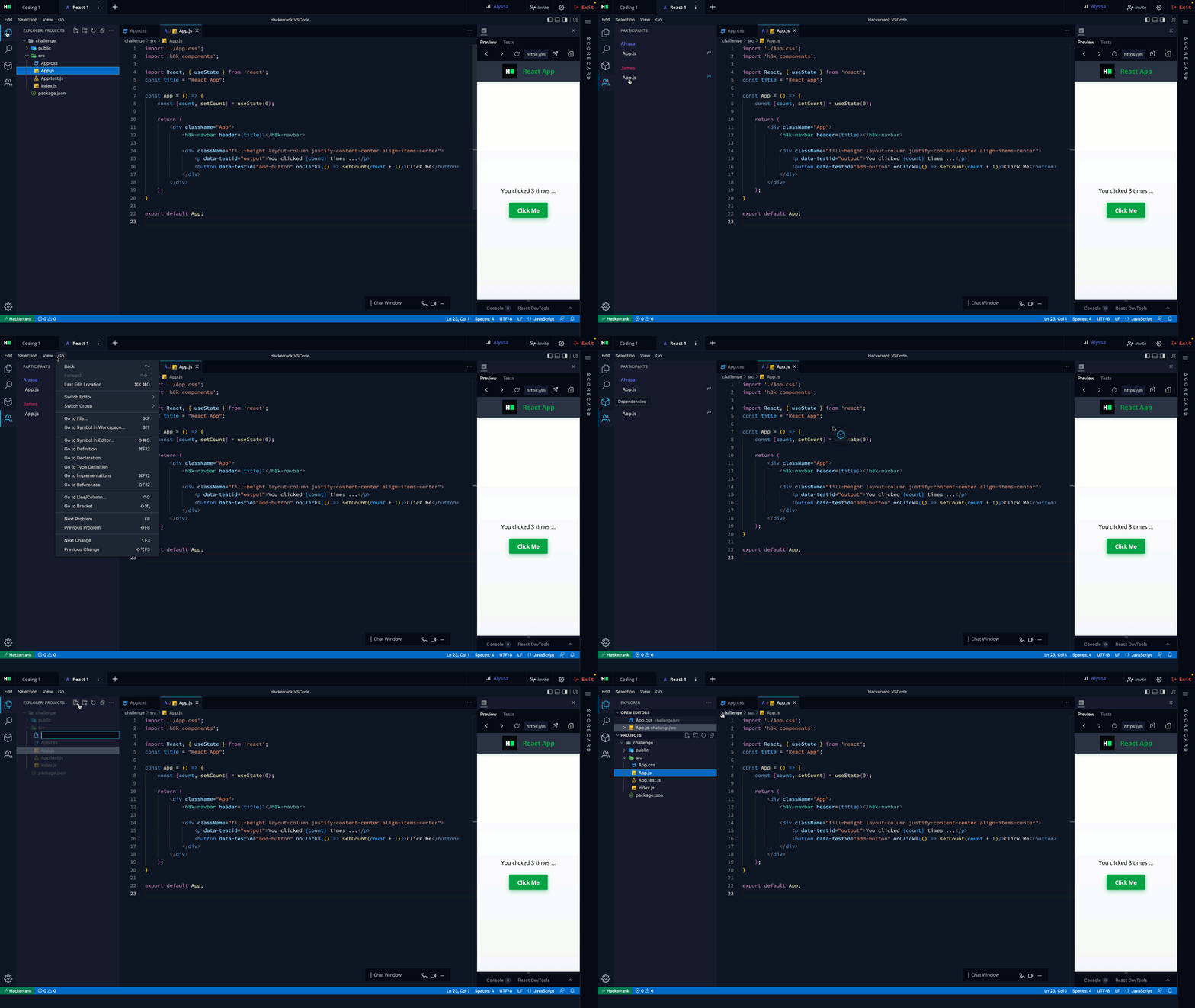
- Other UI Enhancements
Import From Question Library
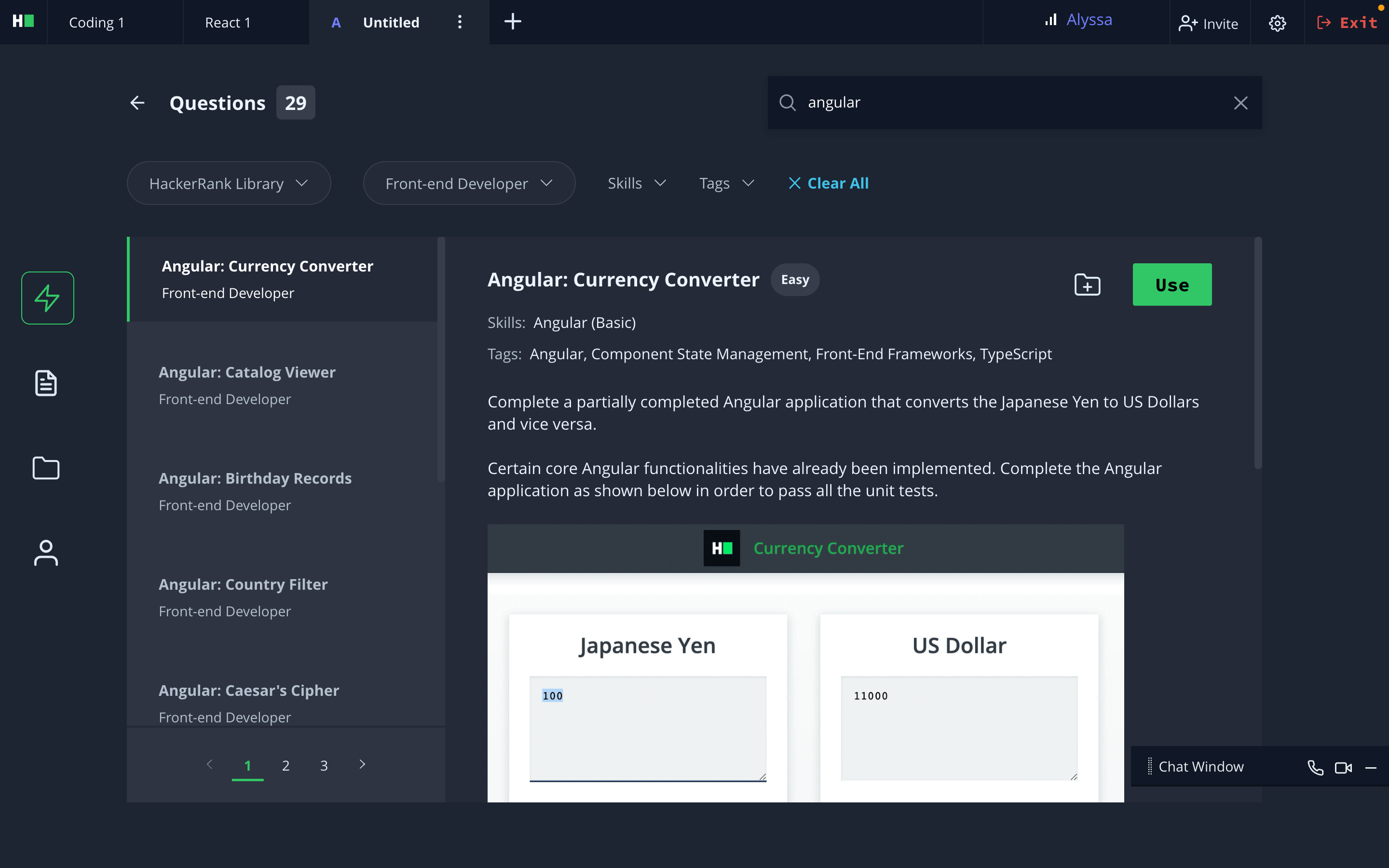
Click Use to launch the question along with the IDE. The IDE launches.

Import Your Project
This option allows you to select your own starter code for interviews by uploading your own project zip file or adding it from a public Git URL. Save the project with an appropriate name to retrieve it in the subsequent interviews. After you import, the projects load in HackerRank’s Projects IDE.

Note: The maximum file size allowed for the project is 5MB. This flow does not get the new IDE features. This flow is currently in beta.

Once you have uploaded a project, you can find it in the Recently Used section on the landing page whenever you start a new interview.