Create an Interview
Last updated: August 31, 2026
This article applies to the legacy Interview experience. If your interview interface looks different, see 📄 Create an Interviewfor the new Interview experience.
As a recruiter, you can schedule an interview between candidates and interviewers. You can start an interview immediately or schedule an interview at a convenient time.
Starting an interview immediately
to start an interview immediately:
Log in to your HackerRank for Work account using your credentials.
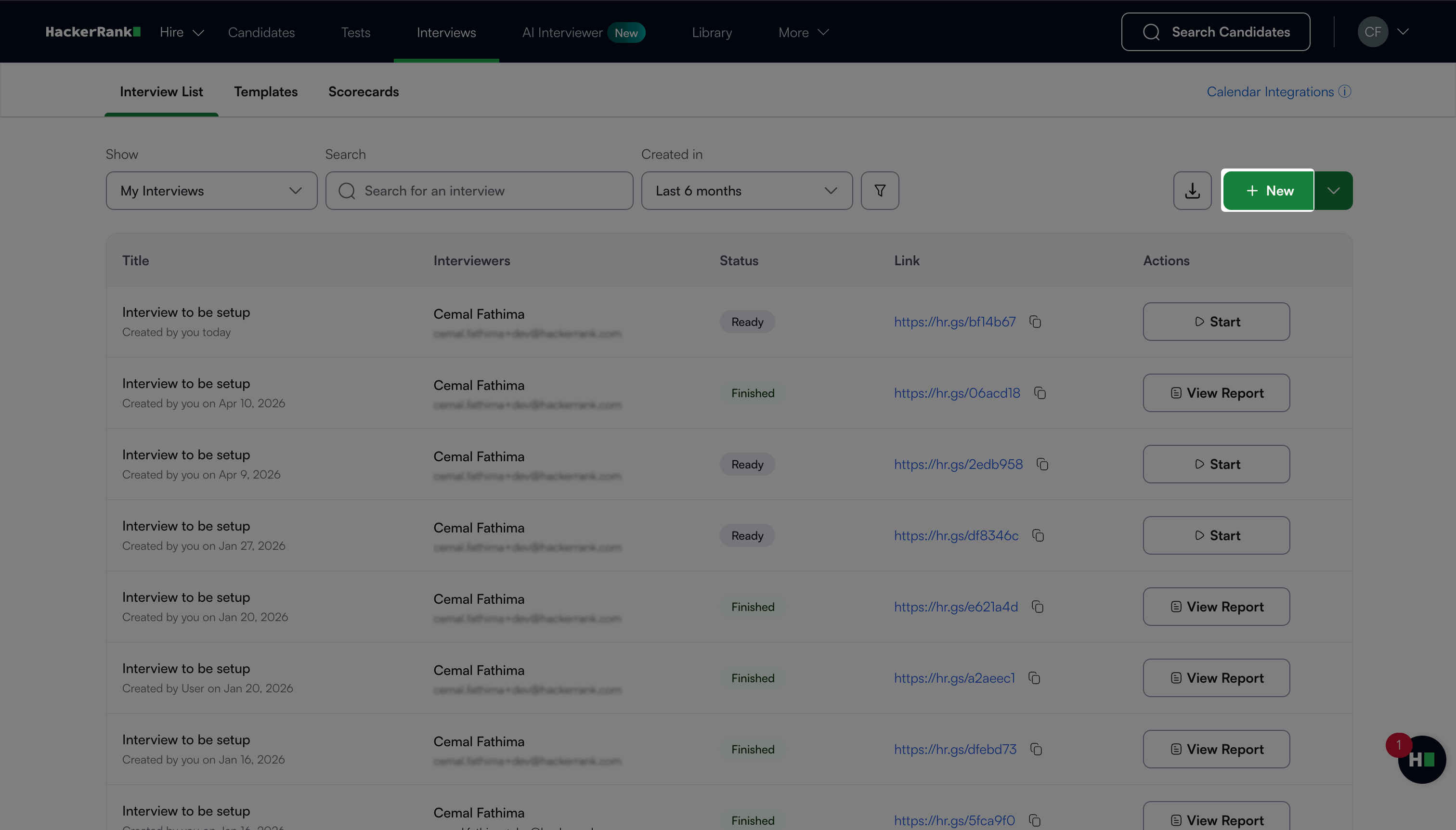
Go to Interviews > Interview List.
Click New.
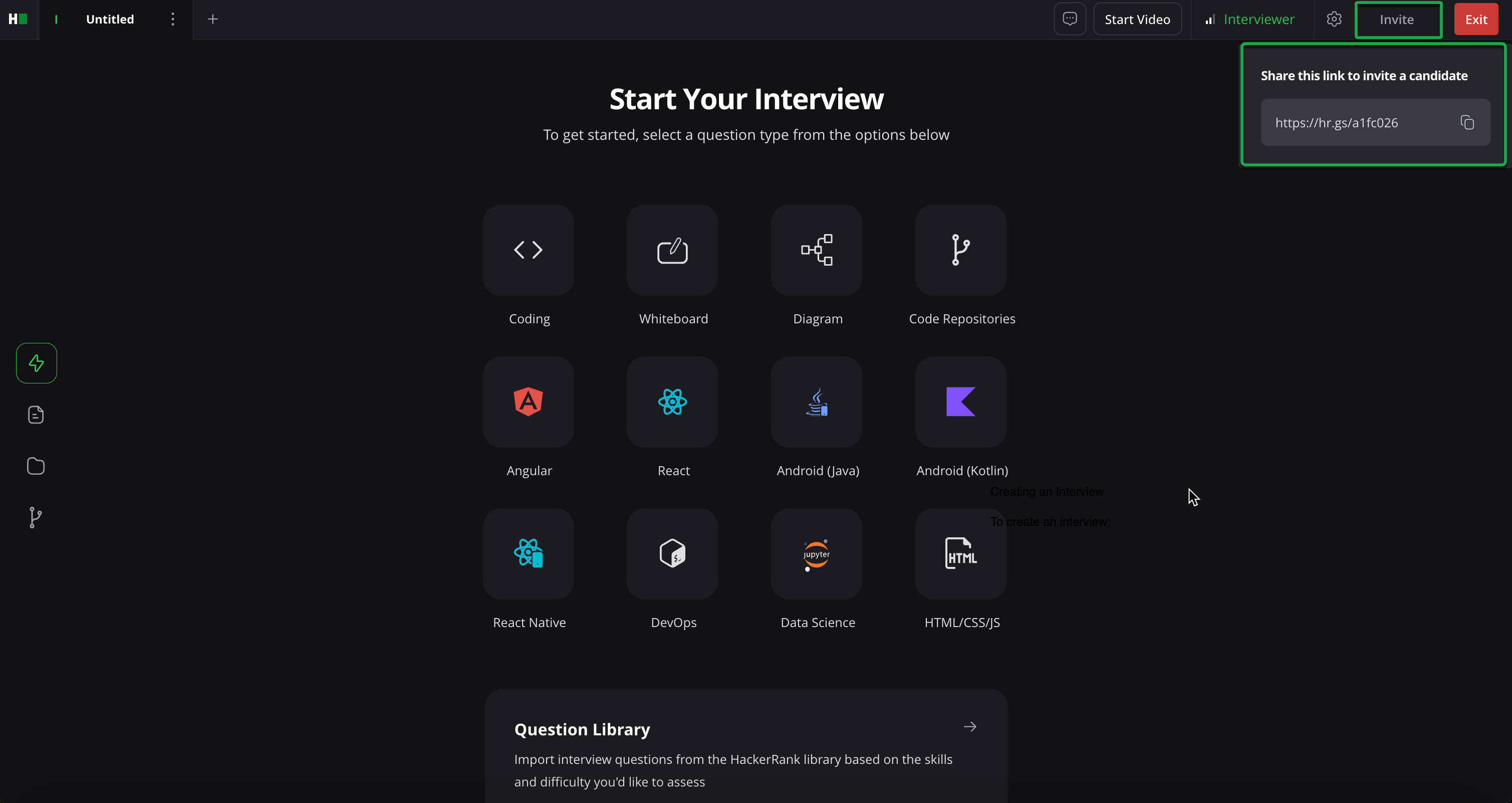
The system opens the interview interface.
Click Invite.
Copy the interview link and share it with the candidate.
The candidate can use the link to join the interview immediately.
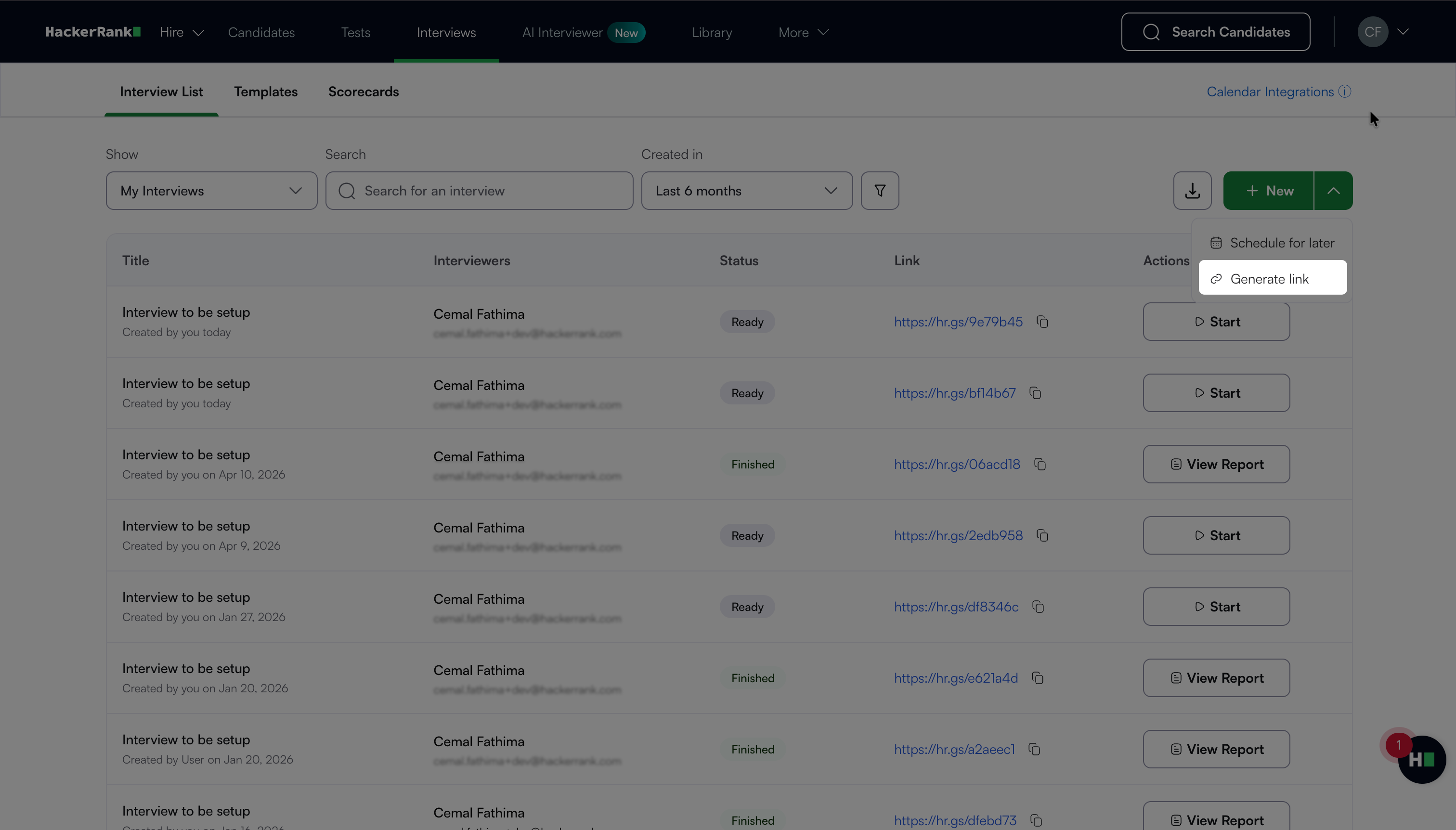
Note: You can also generate a new interview link by selecting the dropdown next to New, then selecting Generate link. The system copies the link to your clipboard.
Scheduling an interview
To schedule an interview:
Log in to your HackerRank for Work account using your credentials.
Go to Interviews > Interview List.
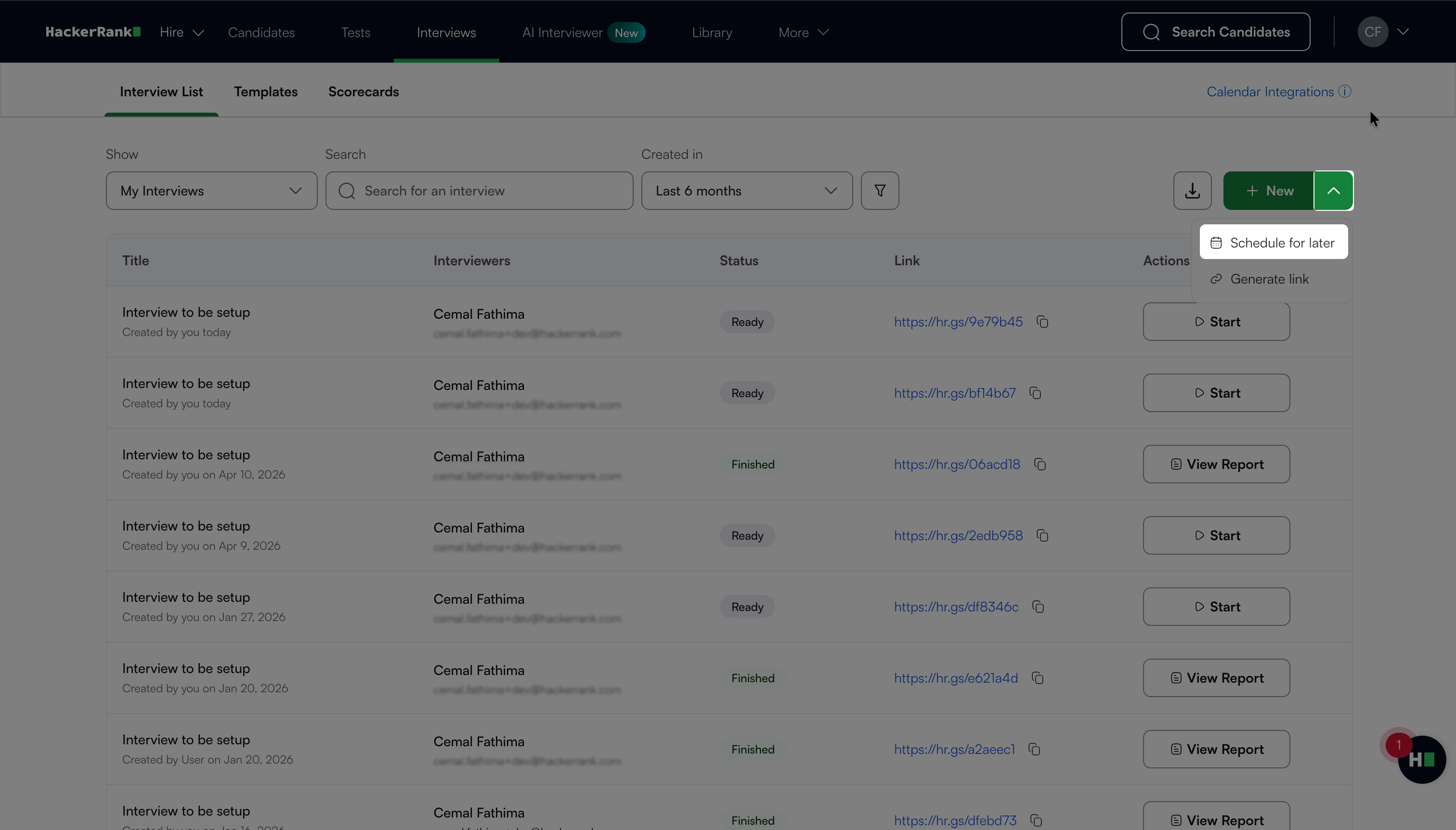
Click the drop-down next to New and select Schedule for later.
In the Interview Details panel:
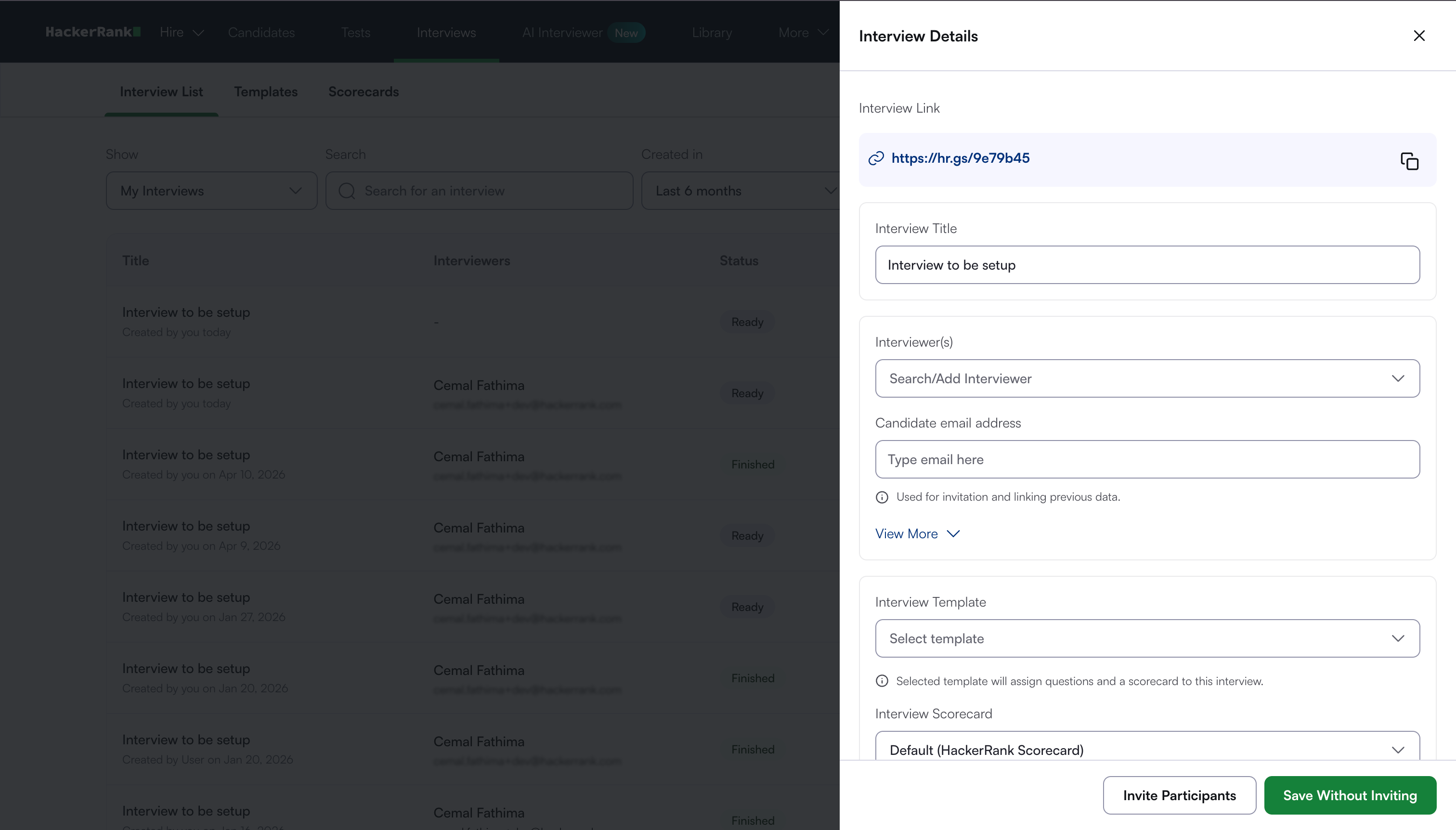
(Optional) Update the Interview Title.
Add Interviewer(s) and Candidate email address.
Note: You can use the Interviewer(s) field to invite new interviewers to a scheduled or ongoing interview later.
(Optional) Click View More to expand additional fields.
Provide the candidate’s Name and Phone Number.
Attach the Candidate's Resume.
Note:
To view the candidate’s resume, open the attached file.
To delete the resume, select ✕ icon next to the file.
(Optional) Select an Interview Template.
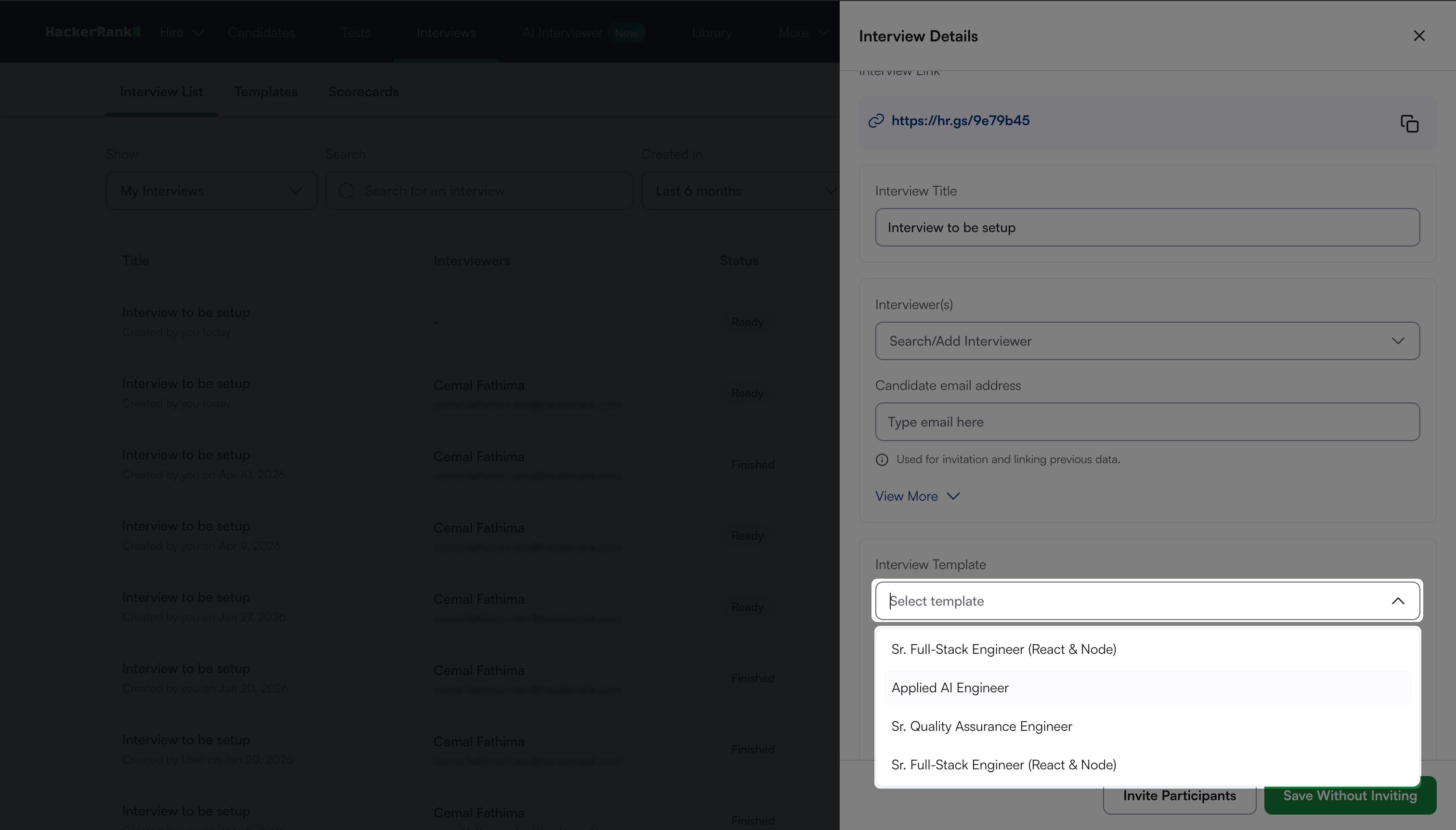
The template adds predefined questions and a scorecard to the interview. For more information, see 📄 Standardizing Interviews Using Templates.
Note:
If you do not select a template, select an Interview Scorecard. If you do not select a scorecard, HackerRank uses the default scorecard.
When you log in as an interviewer, the selected template will appear on the Interview screen.
(Optional) Click More Details.
Add Interview Tags and select Interview Roles.
Note: If you schedule the interview for a candidate who has already taken tests, the Role field will auto-populate with the role for which the candidate attempted the tests.
Enable the Show candidate timeline to the interviewer toggle to allow interviewers to access the candidate's report from previous x interviews
Note: Click Save Without Inviting to save the Interview details and invite candidates later.
Click Invite Participants to schedule an Interview.
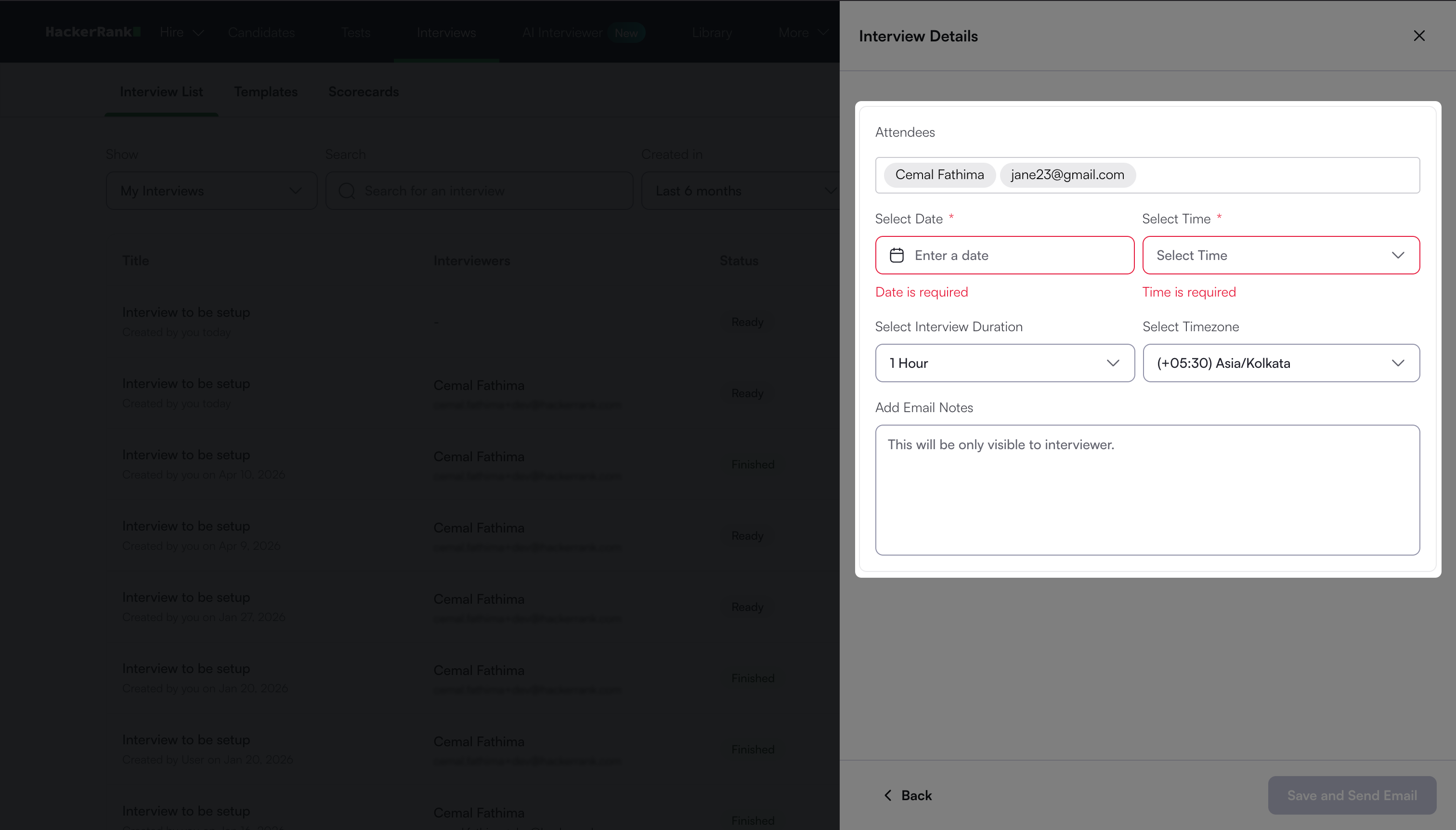
Select the interview date, time, duration, and time zone.
(Optional) Add email notes. Only the interviewer can view these notes.
Click Save and Send Email to send the invitations.
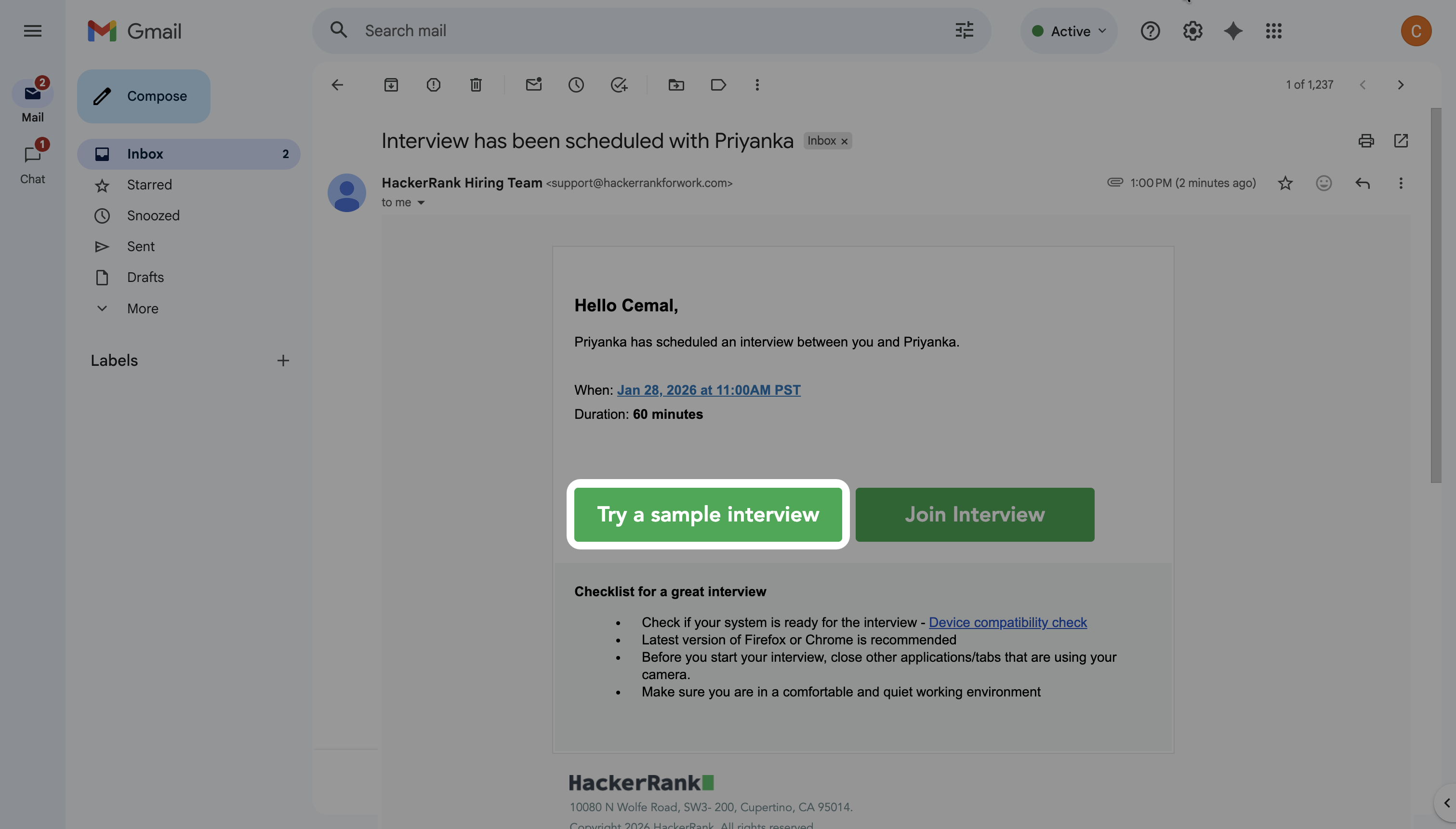
HackerRank sends email notifications to candidates and interviewers. The notifications include the date, time, and a link to join the interview.
Note: The email includes a sample interview link for Coding, Whiteboard, and Code Repository questions to help candidates become familiar with the platform before the interview.
Search and filter Interviews
To search and filter Interviews:
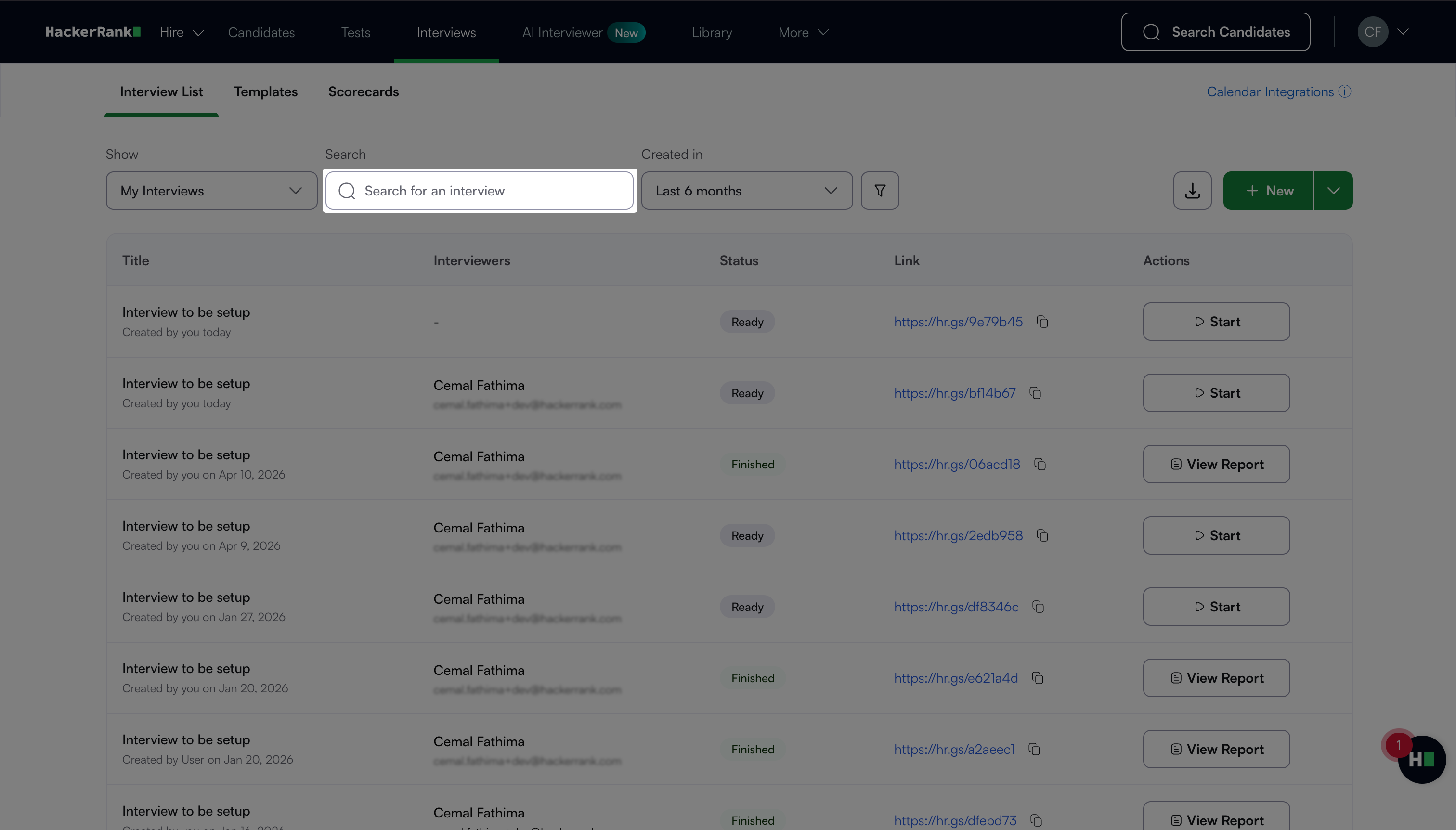
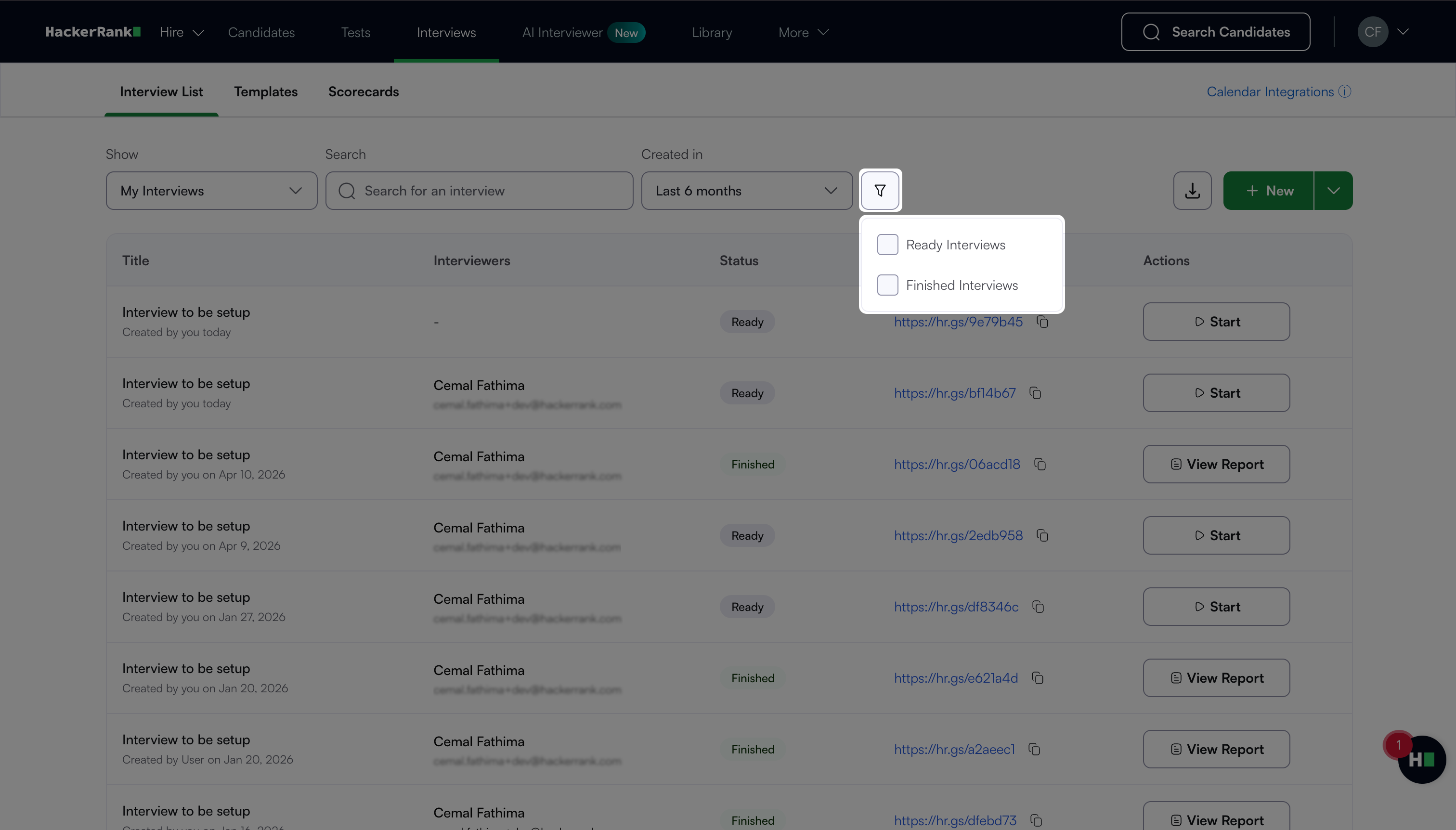
Go to Interviews > Interview List. The page displays a list of all interviews you have created.
Use the search bar or filters to find specific interviews.
Search options: Enter a candidate email address, interview title, or associated tags.
Filter options:
Show:
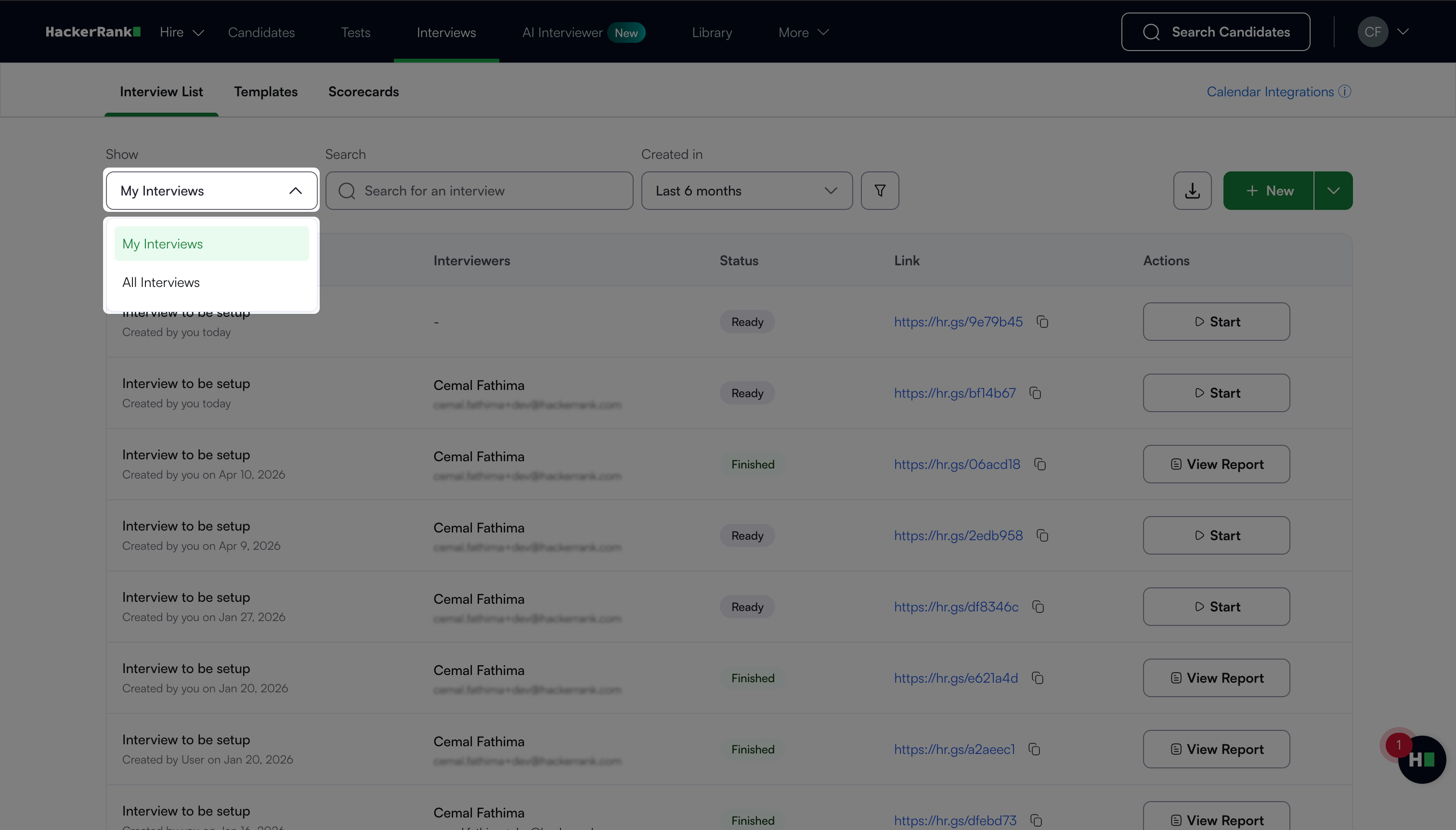
My Interviews: Displays interviews you created or participated in.
All Interviews: Displays your interviews and interviews shared with you by your teammates.
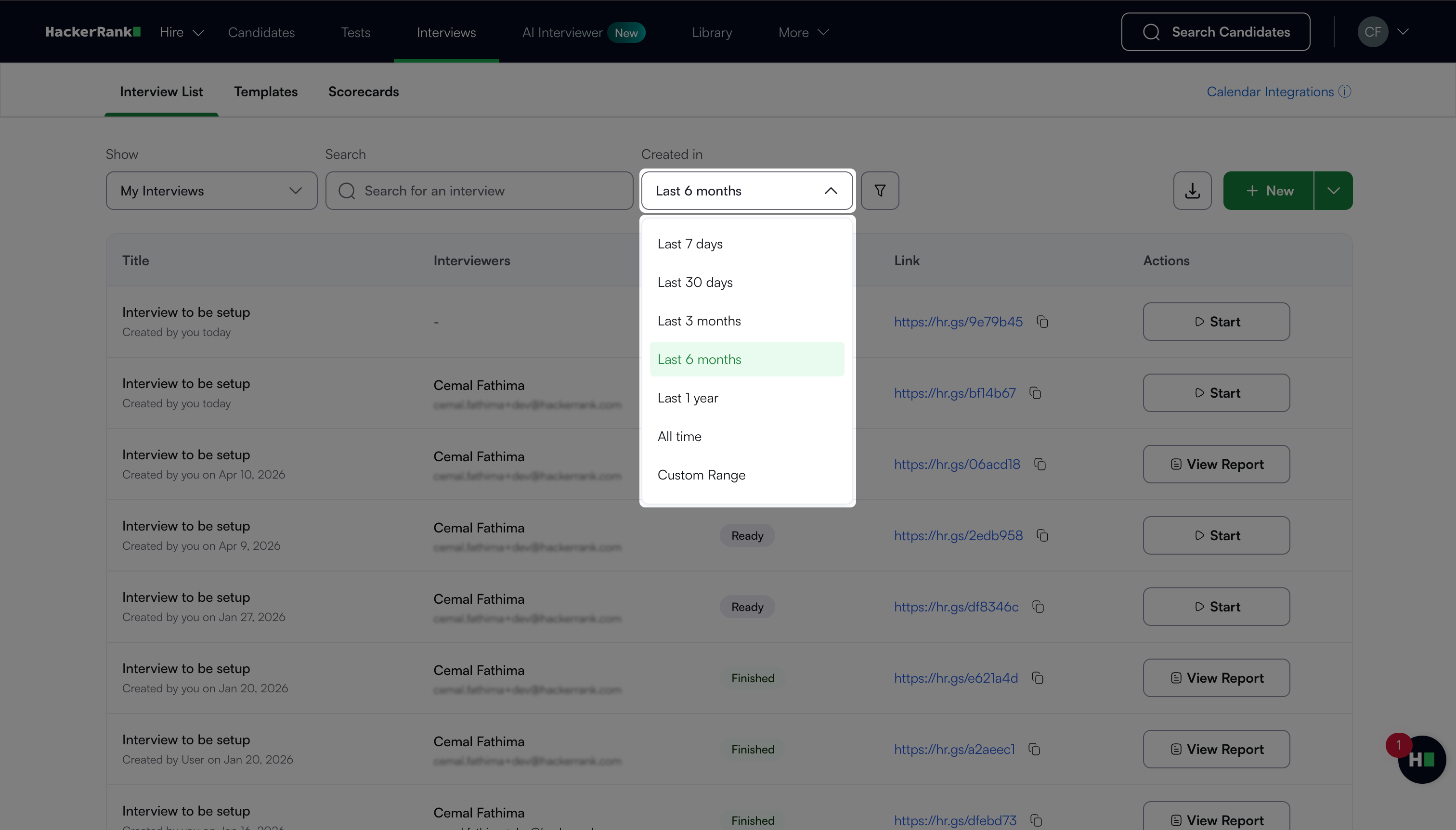
Created in: Select a time range from the dropdown to filter interviews by creation date.
Status: Select Ready Interviews or Finished Interviews to filter interviews by status.
Join as an Interviewer
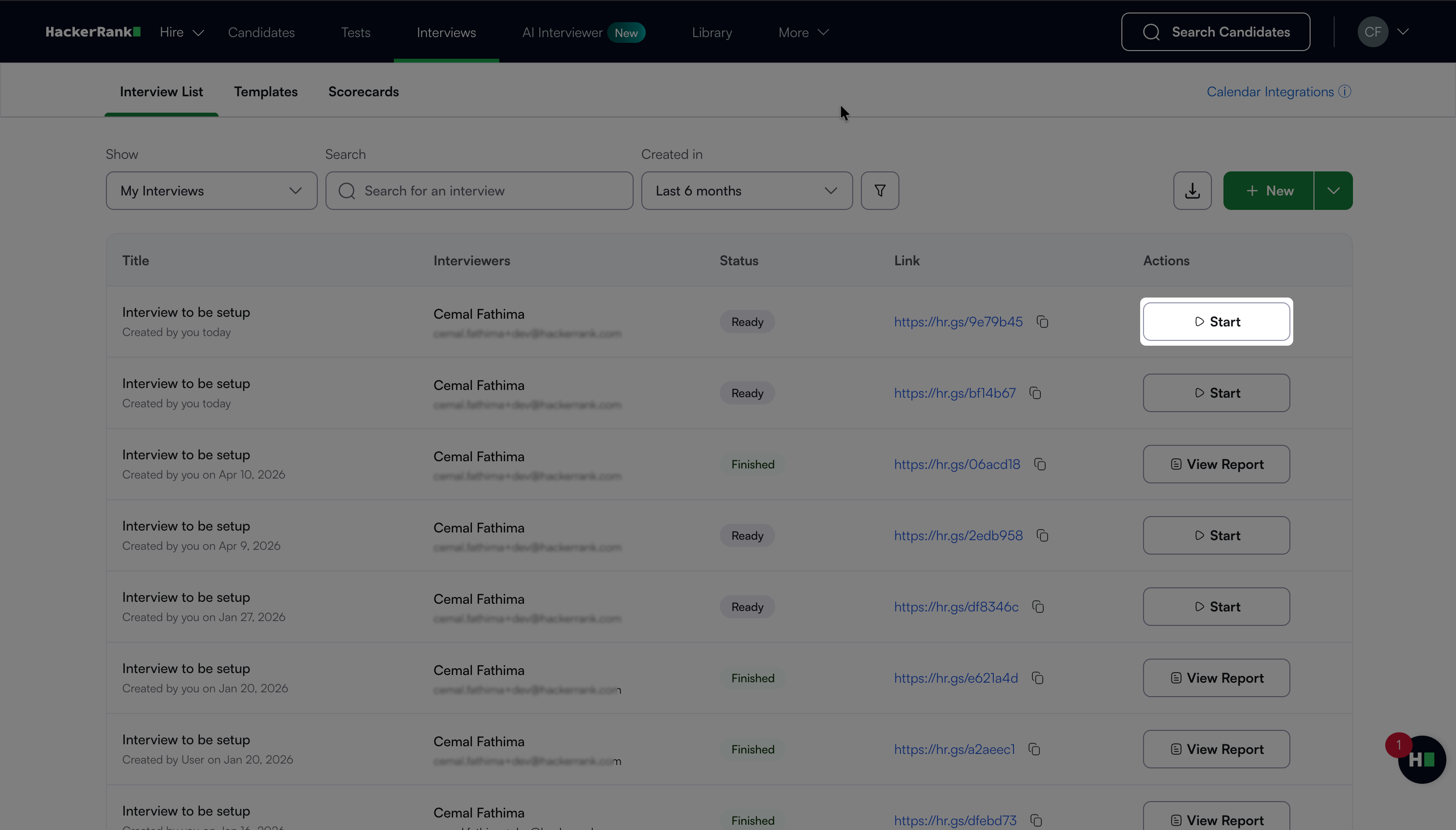
Click the interview link or click Start next to the interview to open the interview platform.
Note:
A maximum of four interviewers can join the same interview session at a time.
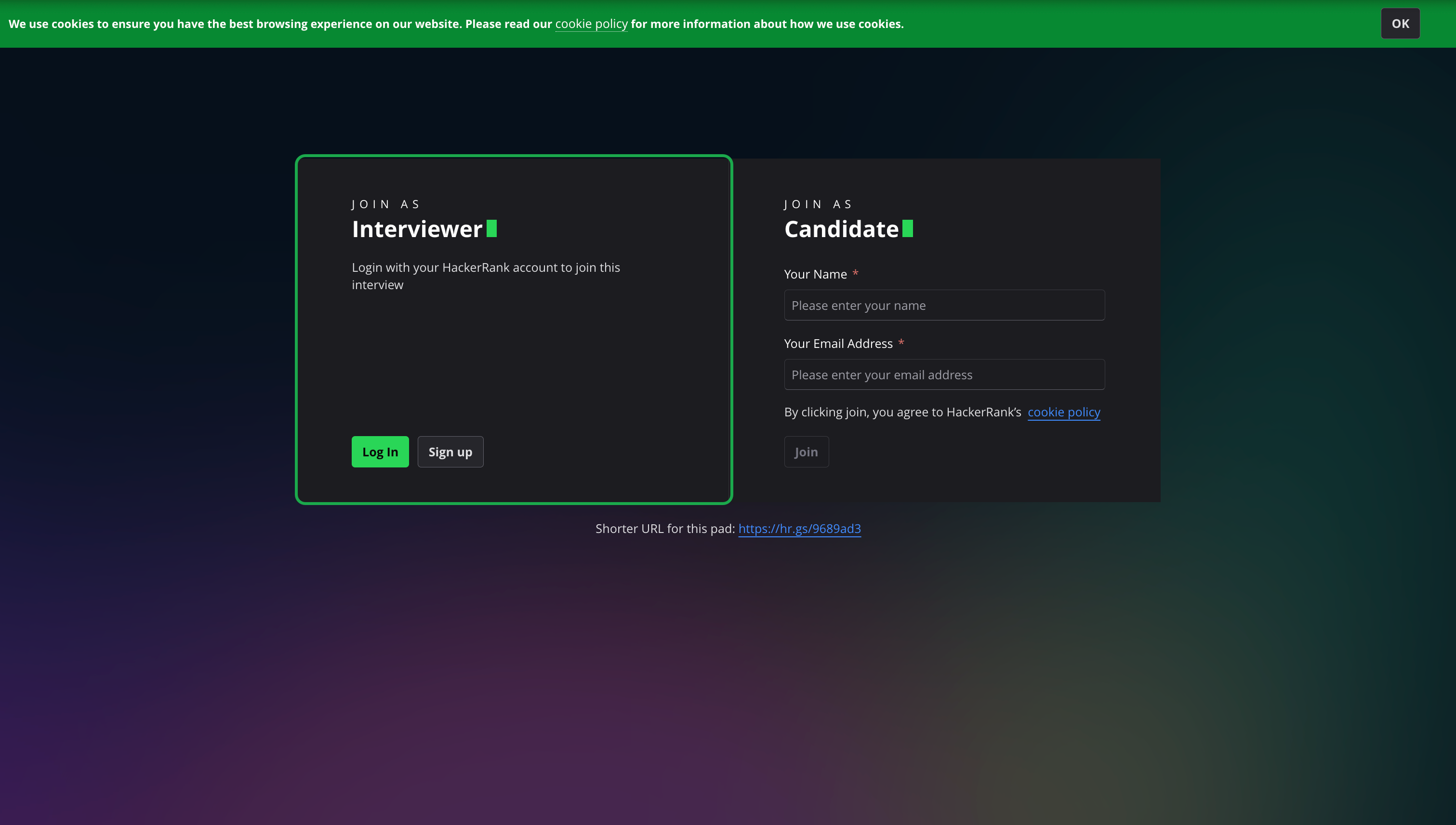
If you are not logged in to HackerRank for Work, the login page appears. Log in with your HackerRank for Work credentials.
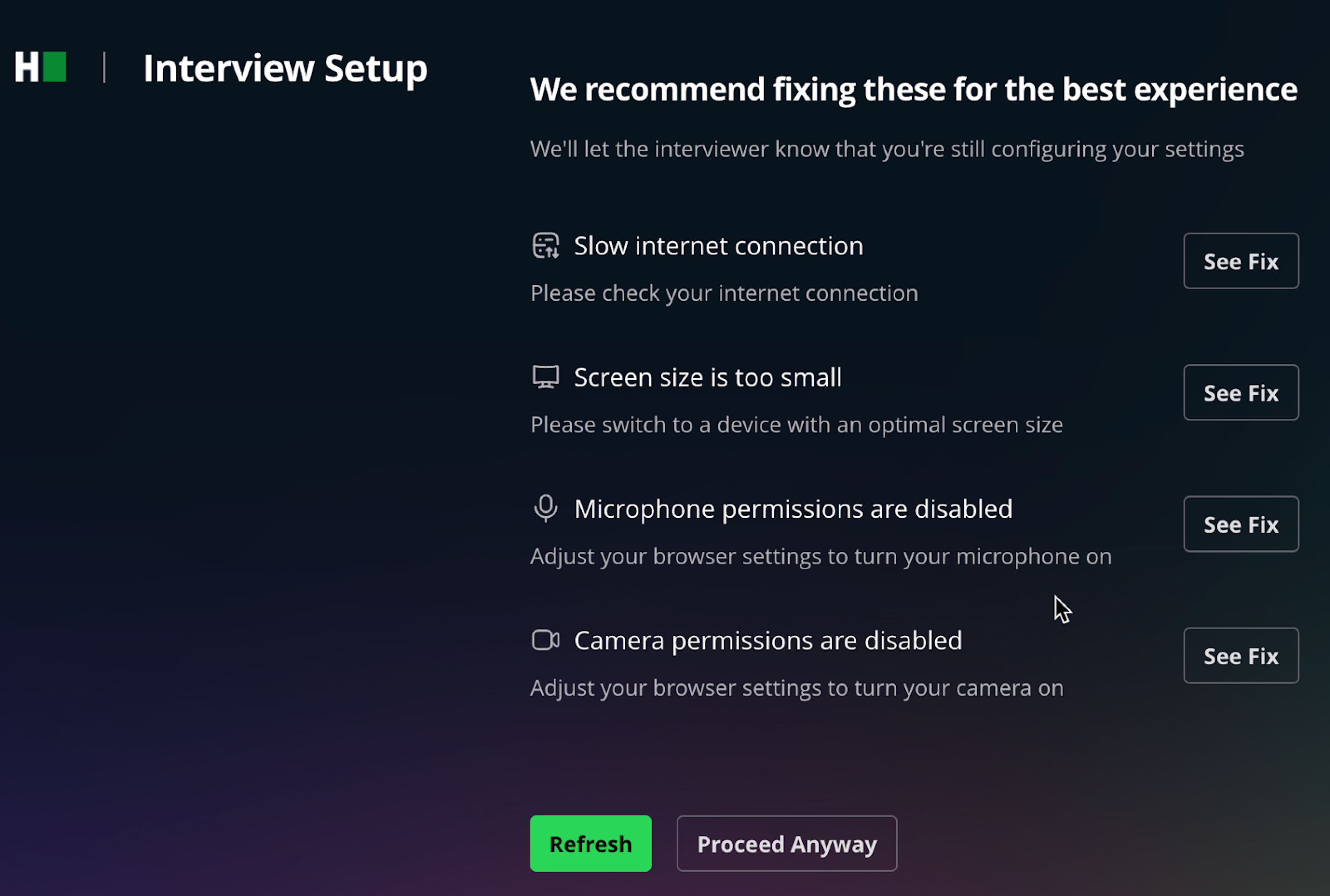
The platform checks your system compatibility. On the setup screen, review any detected issues and select See Fix to resolve them.
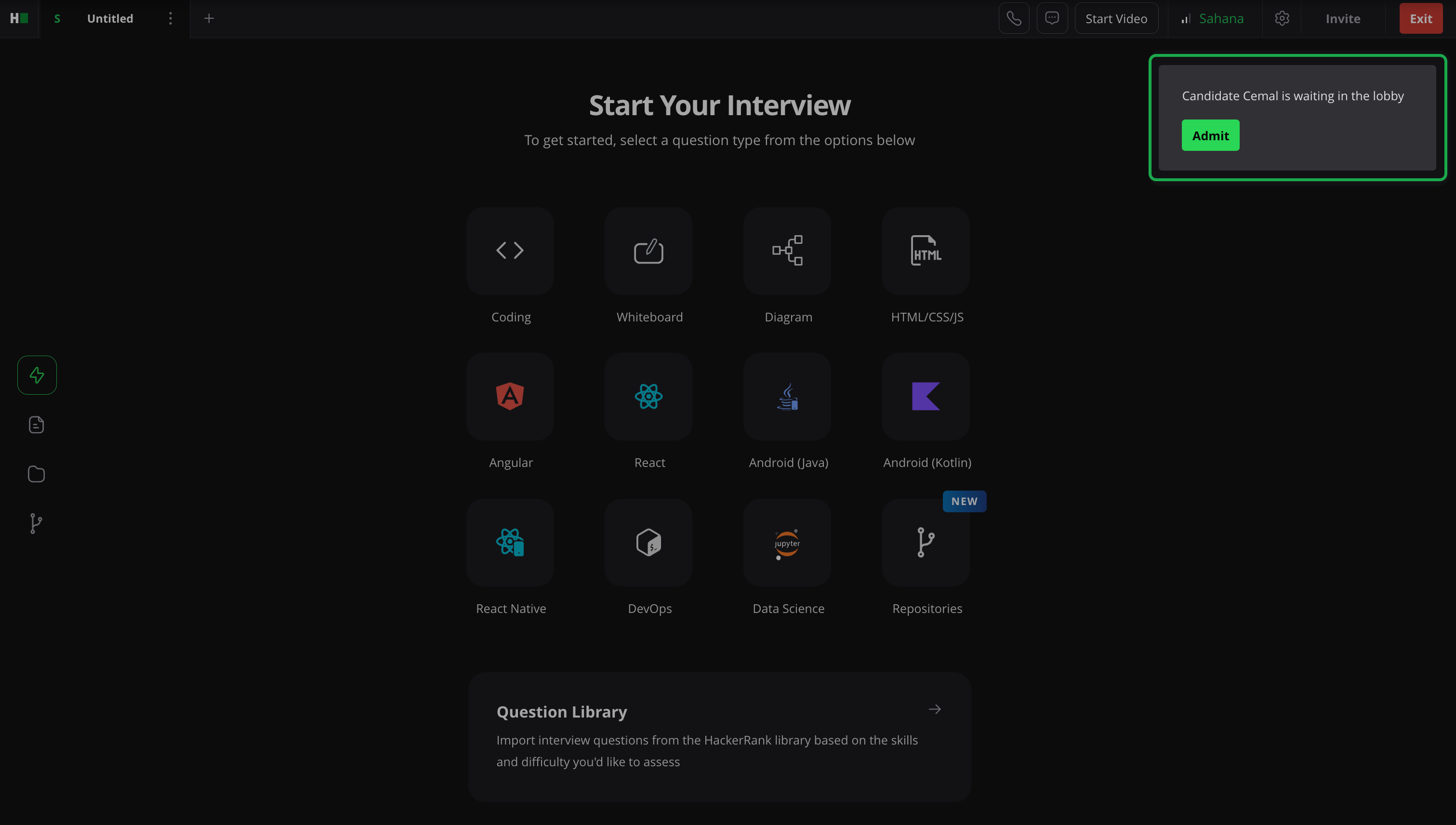
After setup, when the candidate enters the interview lobby, you hear a notification sound. Select Admit to allow the candidate into the interview.
Candidate experience
When candidates join an interview, HackerRank guides them through the same setup process as interviewers. The setup verifies their system compatibility.
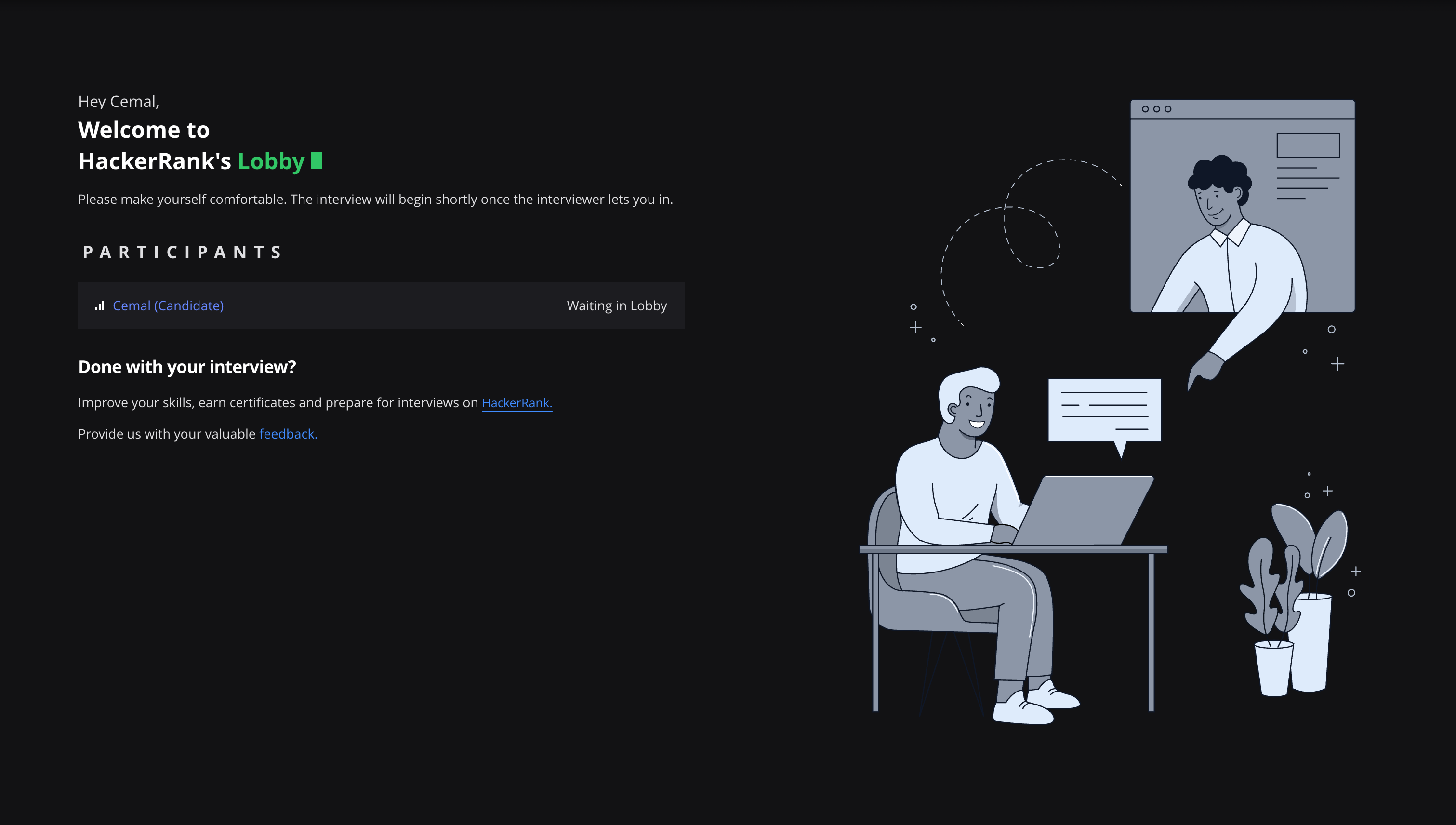
After setup, the candidate enters the interview lobby.