Manage Interviews Templates
Last updated: August 31, 2026
This article applies to the legacy Interview experience. If your interview interface looks different, see 📄 Manage Interview Templatesfor the new Interview experience.
Interview templates help hiring managers and interviewers maintain consistency across interviews. A template ensures that every candidate for a specific role receives the same set of questions and is evaluated using the same criteria.
Creating an interview template
To create an interview template:
Log in to your HackerRank for Work account using your credentials.
Go to Interviews > Templates.
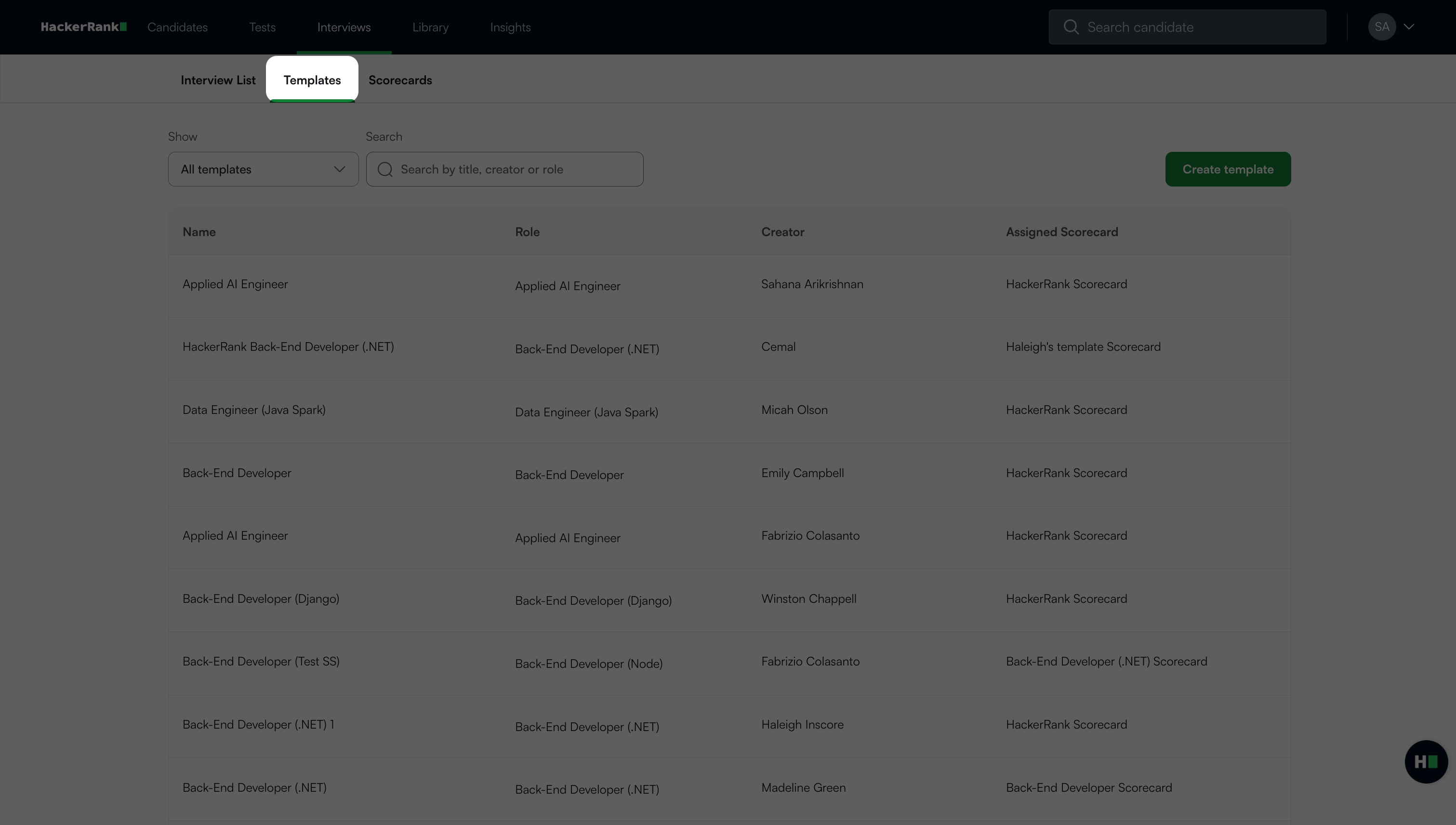
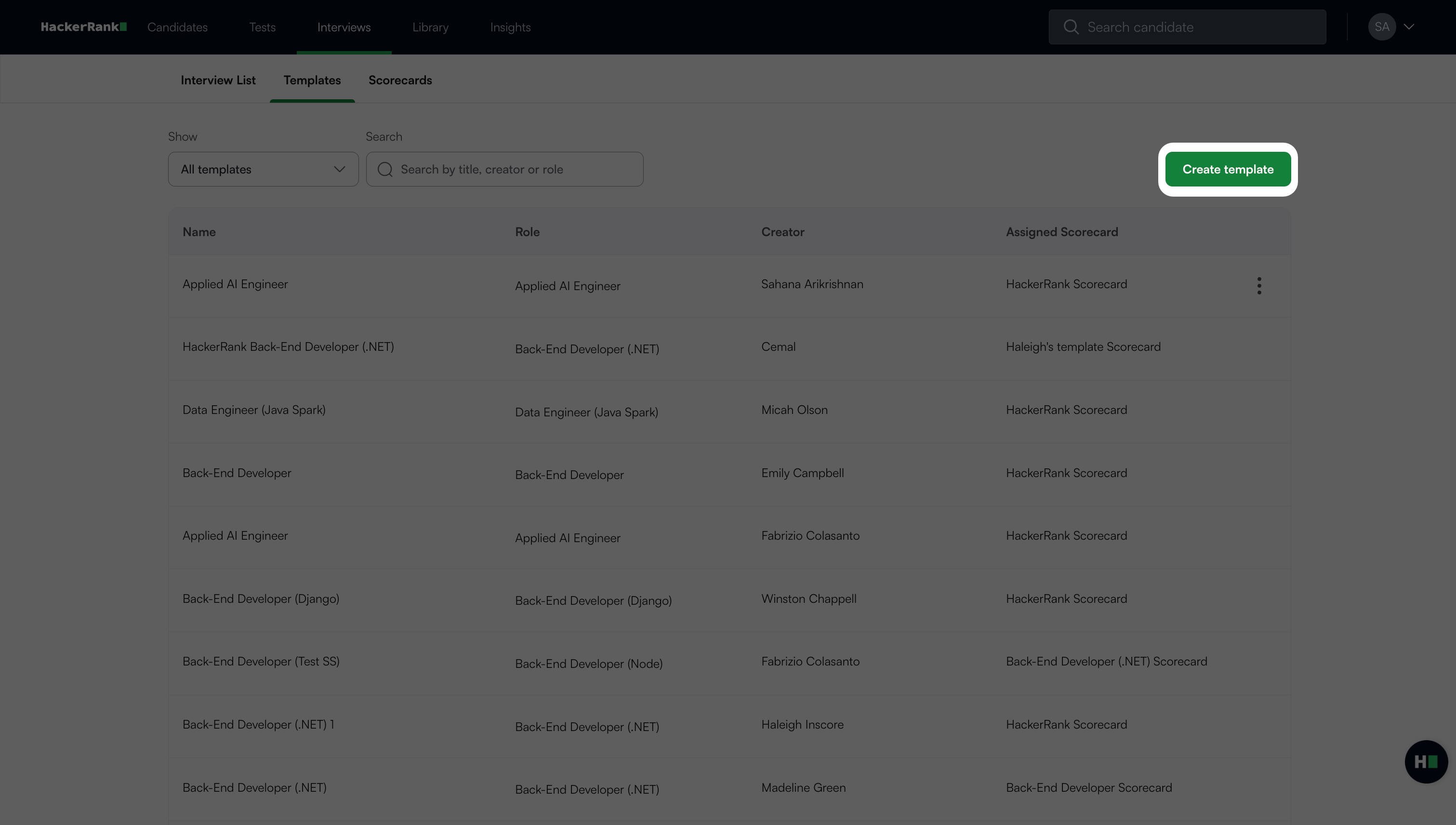
Click Create Template in the upper-right corner.
Choose a role and enter a template name.
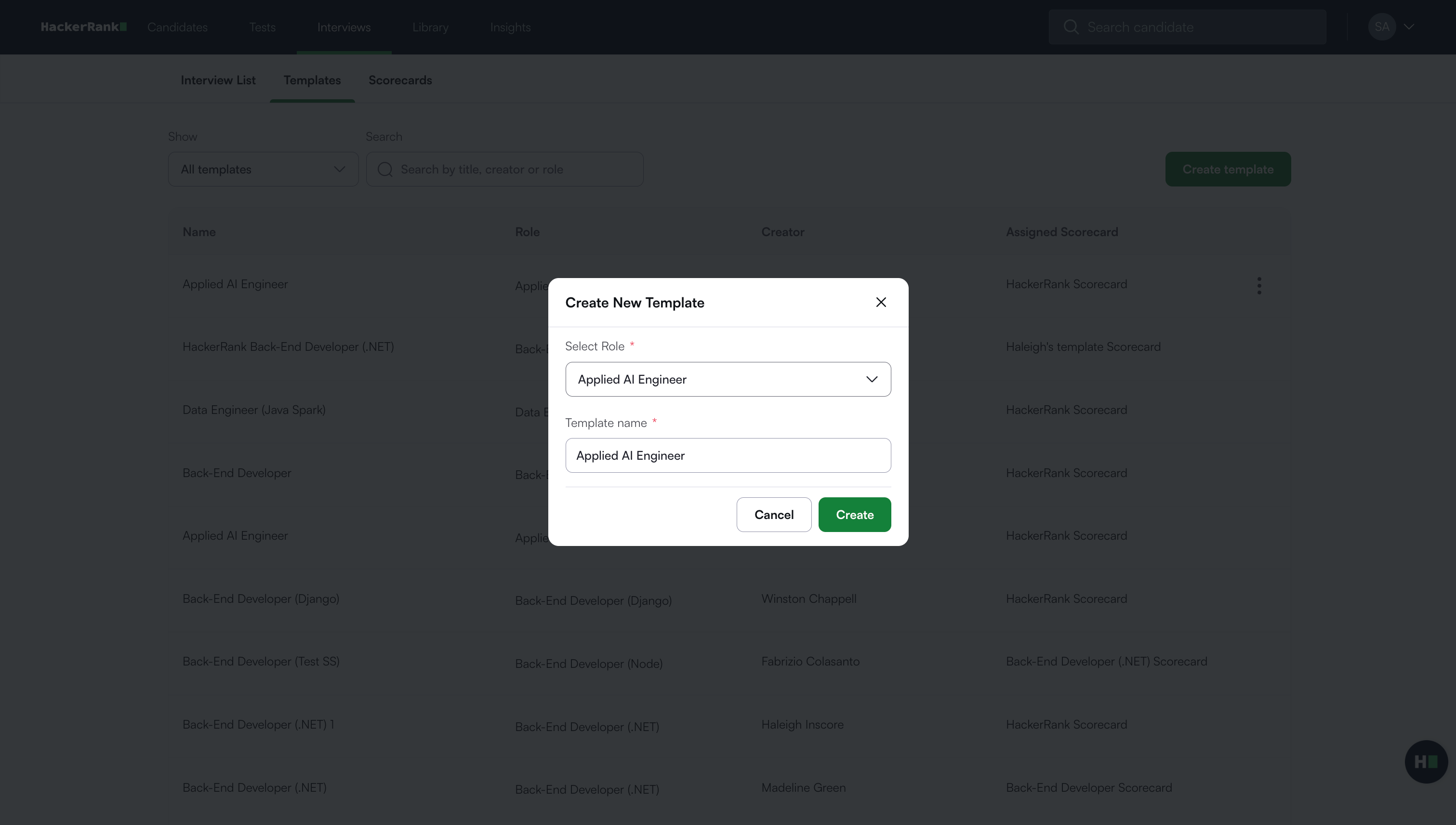
Click Create.
After you create the template, the Questions tab opens automatically.
Adding questions to an interview template
To add questions to the template:
In the Questions tab, click Add question to open the question library.
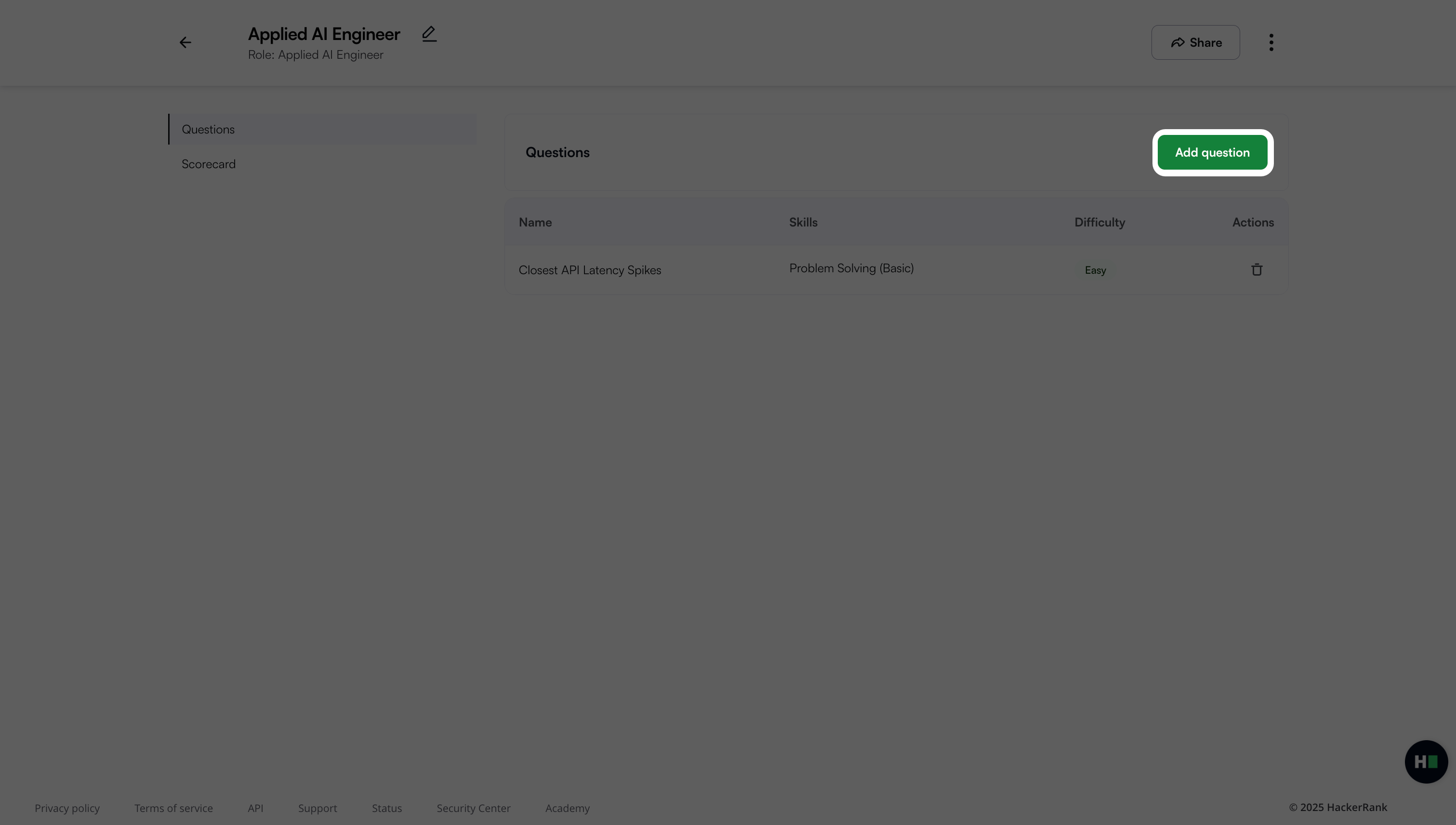
Use the search bar or filters to quickly find the questions. For more information, see Searching, sorting, and filtering questions.
Click + Add next to a question to add it to the template. The Template Preview panel displays all selected questions.
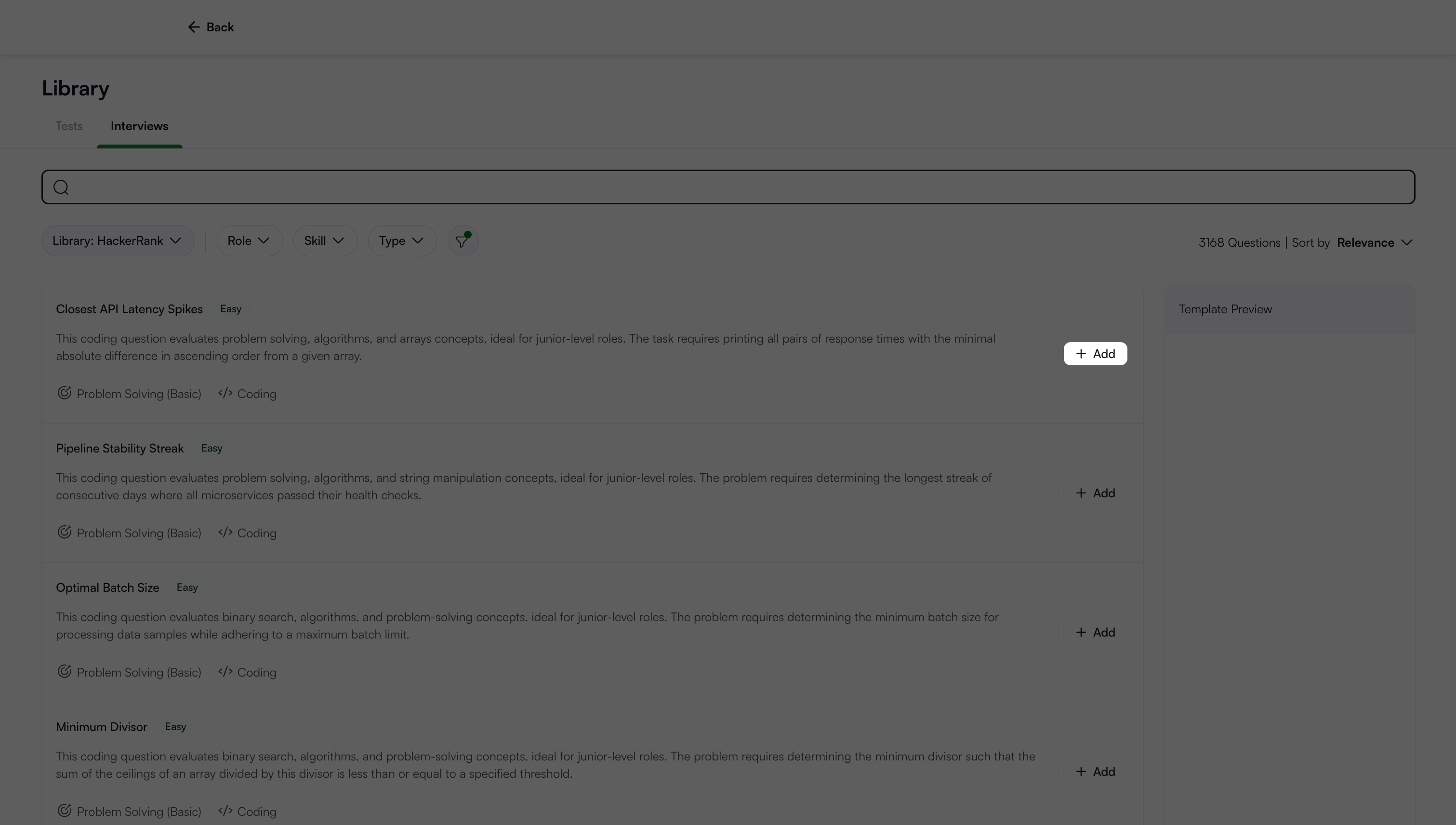
Note: To remove a question from the Template Preview panel, click the Delete icon.
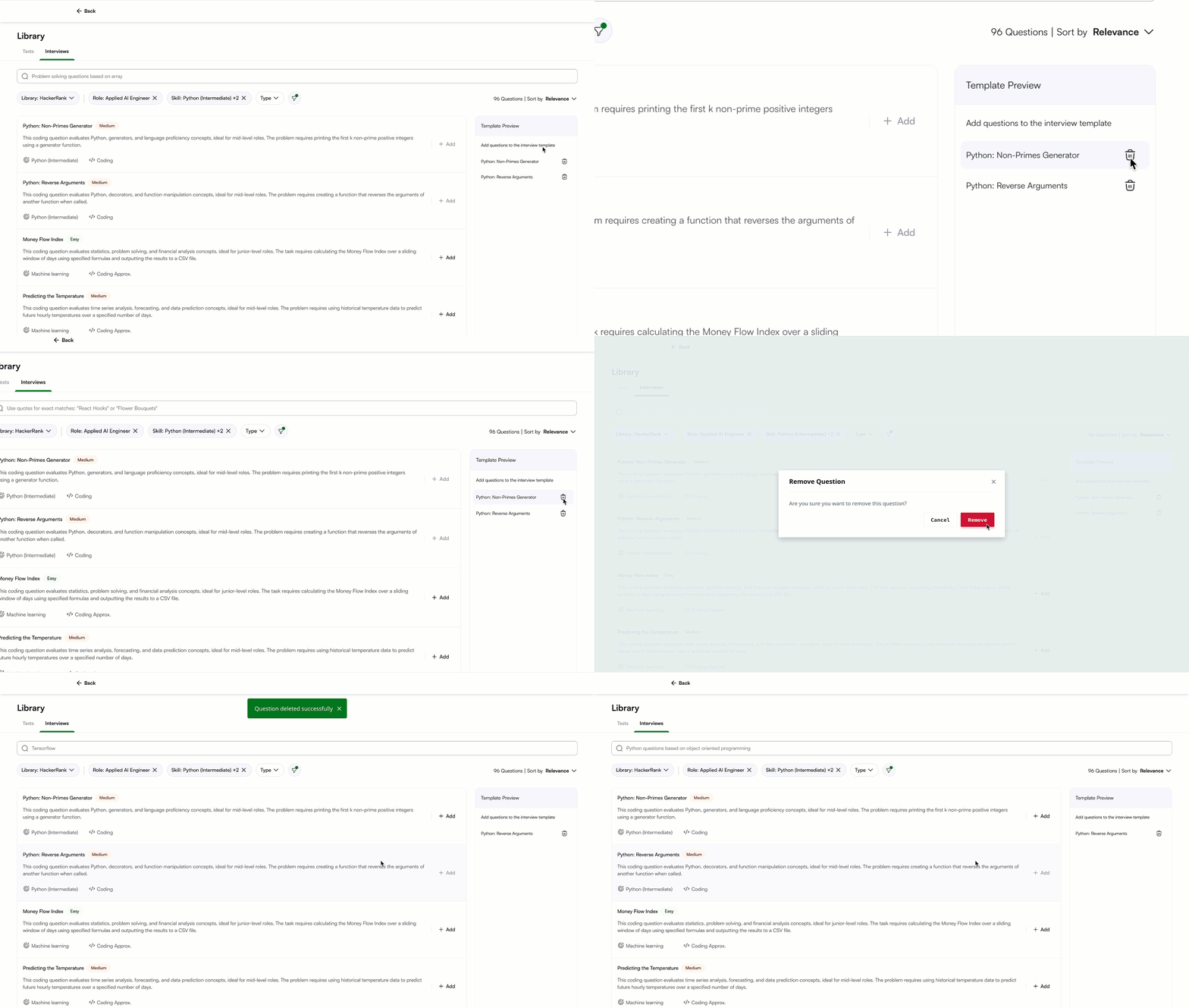
Select the Back icon to return to the Questions tab. The tab displays the full list of questions you have added to the template.
Note: To remove a question in the Questions tab, click the Delete icon in the Action column.
Setting a Scorecard for an interview template
You can assign a scorecard to the template by selecting an existing scorecard or creating a new one.
Selecting an existing scorecard
To select an existing scorecard:
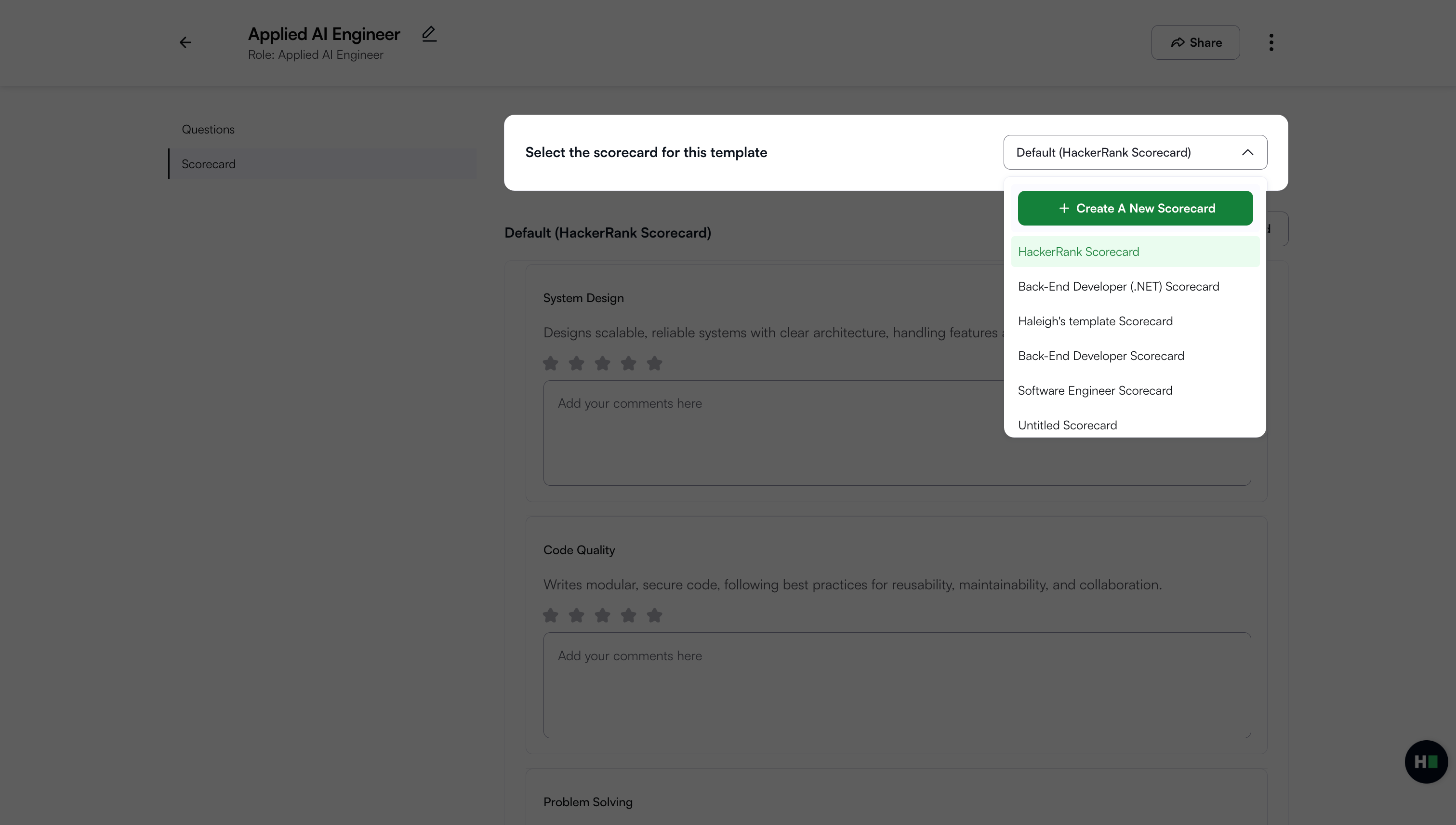
Open the Scorecard tab. A default scorecard appears.
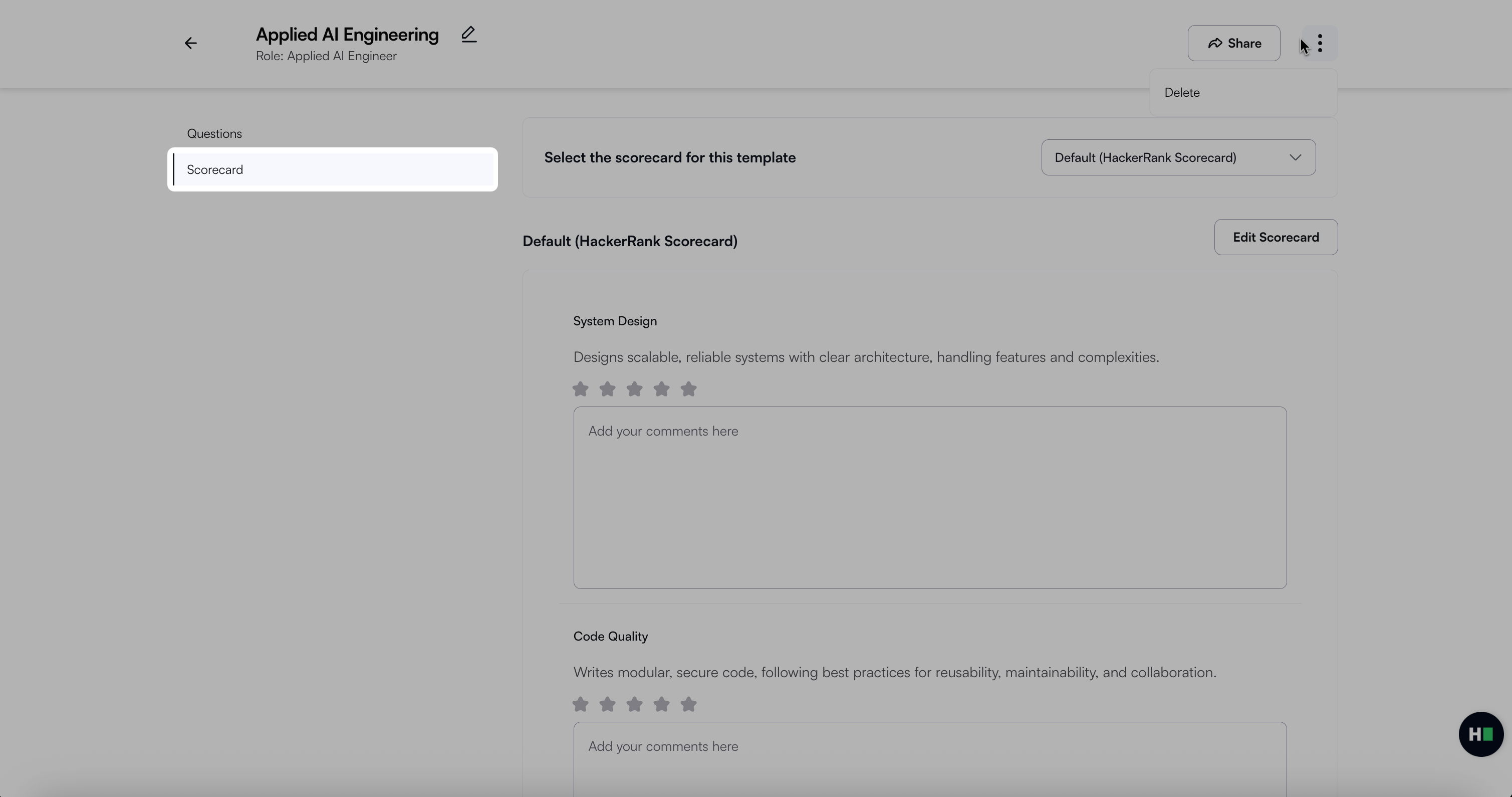
Select a scorecard from the drop-down list.
You can modify any scorecard created by your company, and your changes apply everywhere that scorecard is used.
Select Edit Scorecard to modify it.
Select Preview to view how the scorecard appears during an interview.
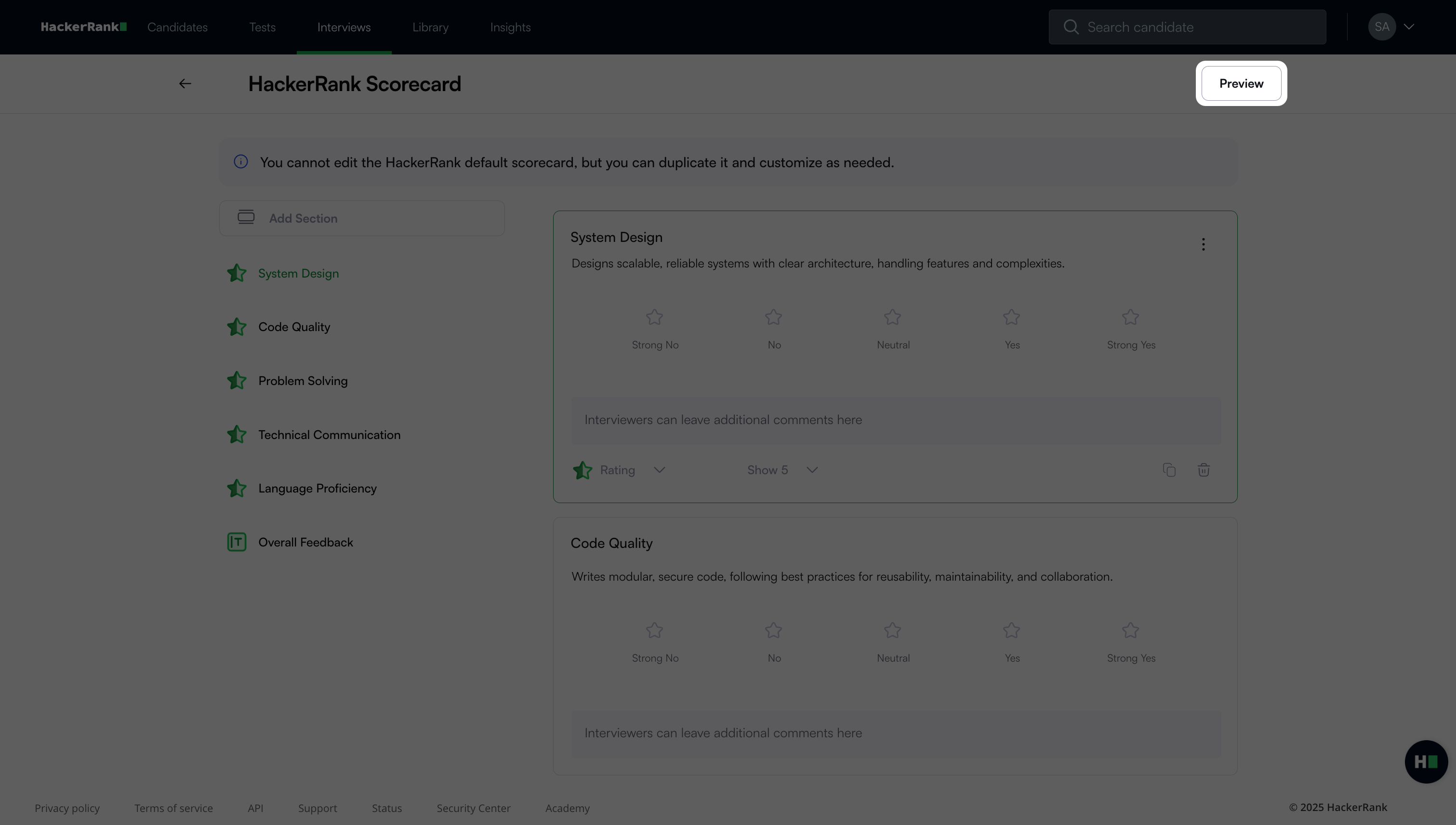
Note: You cannot edit the default HackerRank scorecard.
Creating a custom scorecard for the template
To create a new scorecard for the template:
Open the Scorecard tab.
Click Create a New Scorecard from the drop-down list. For detailed steps, see Creating a custom scorecard.
Sharing an interview template
You can share a template with all users, specific teams, or individual users.
To share a template:
Go to Interviews > Templates.
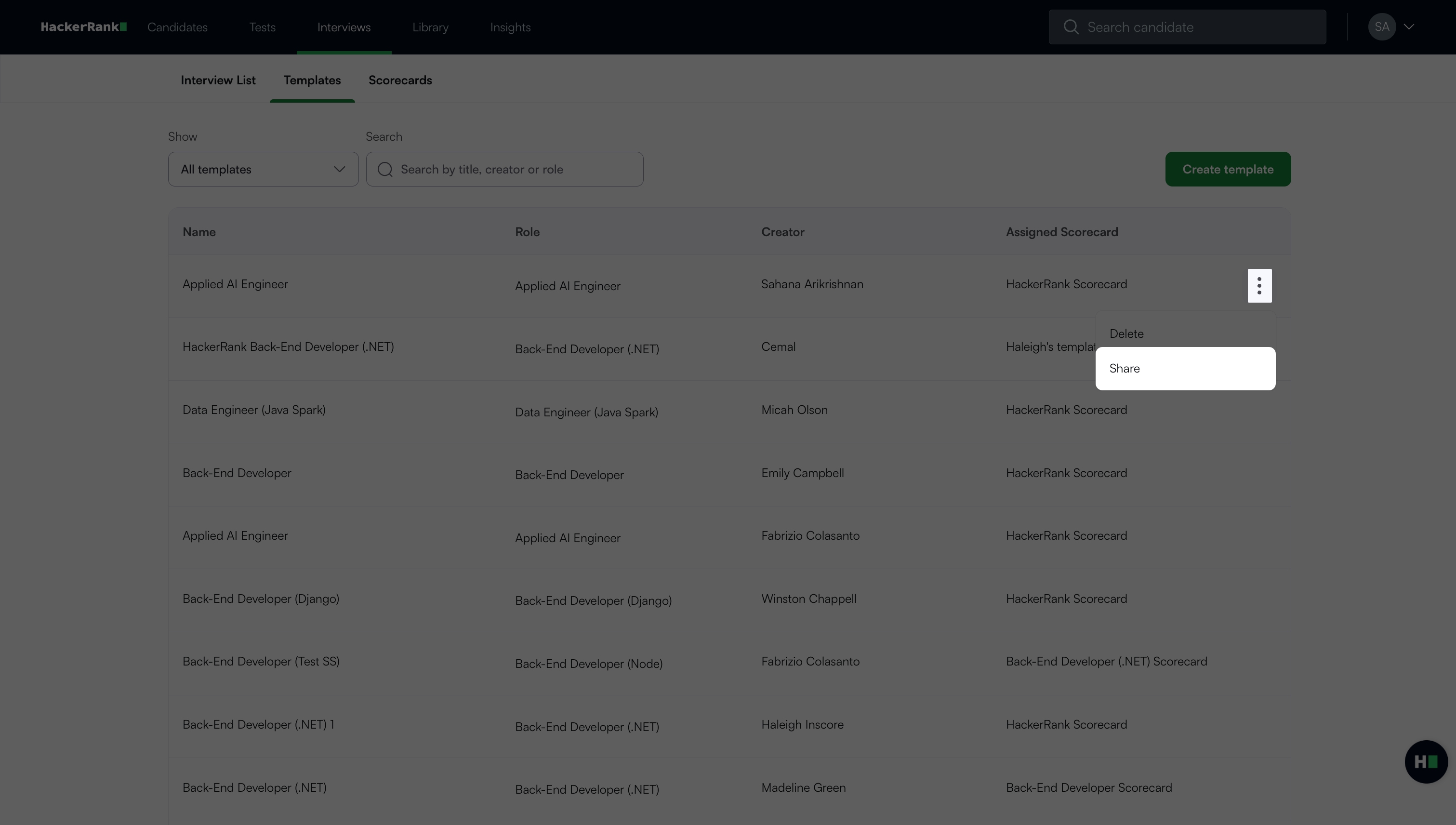
Click the more options menu (⋮) next to the template and select Share.
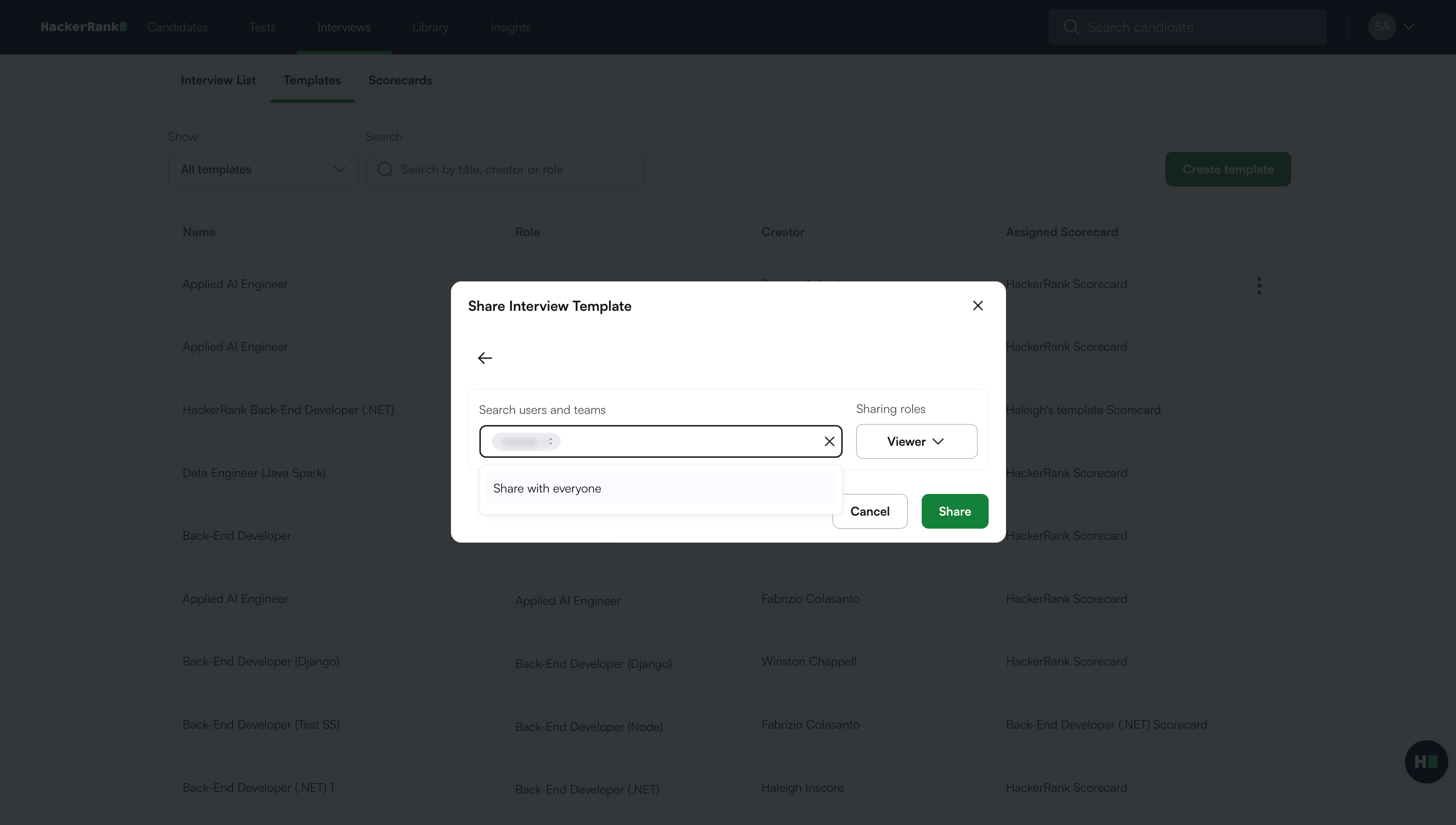
In the Share Interview Template dialog box, enter a user or team name in the Search users and teams field.
Choose a sharing role from the drop-down list:
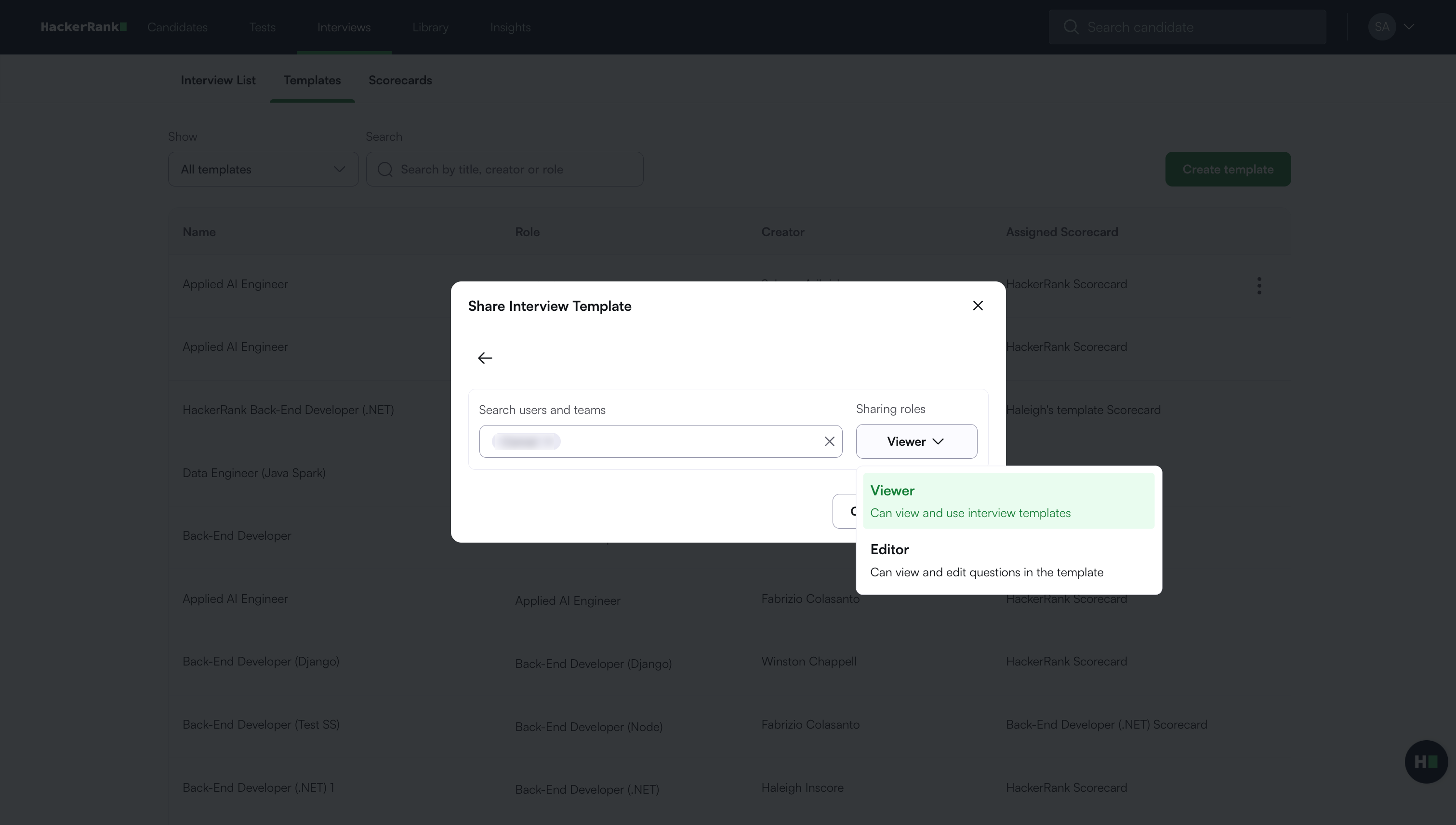
Viewer: Can view and use interview templates.
Editor: Can view, use, and edit interview templates.
Click Save.
Note:
You can also open the template and click Share in the upper-right corner.
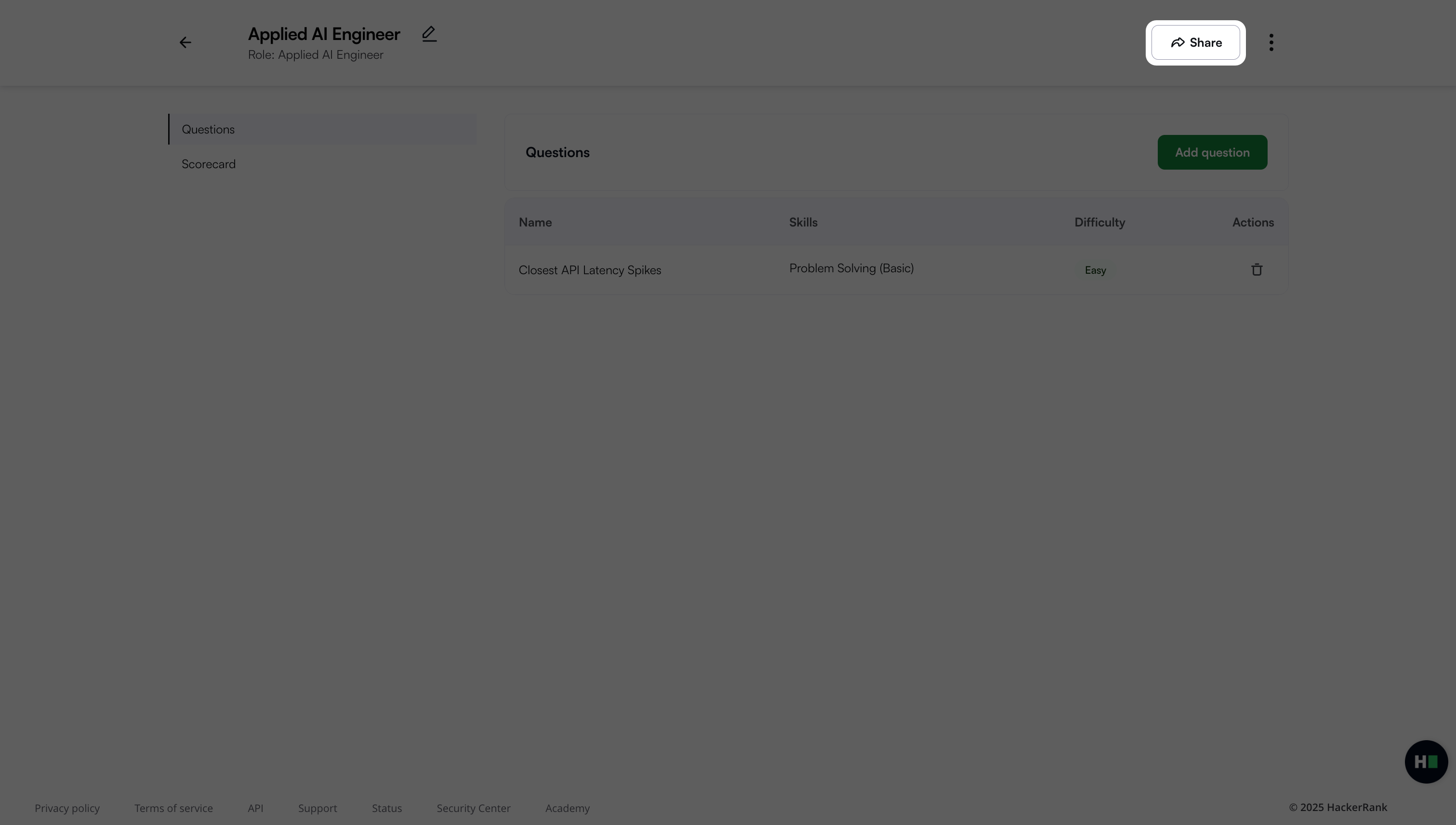
Template owners and company admins can change the owner or delete the template.
Removing user access from an interview template
You can remove access for any user or team from an interview template.
To remove access:
Go to Interviews > Templates.
Click the More options (⋮) menu next to the template and select Share.
In the Share Interview Template dialog box, select the user or team you want to remove.
Select Remove User from the drop-down menu.
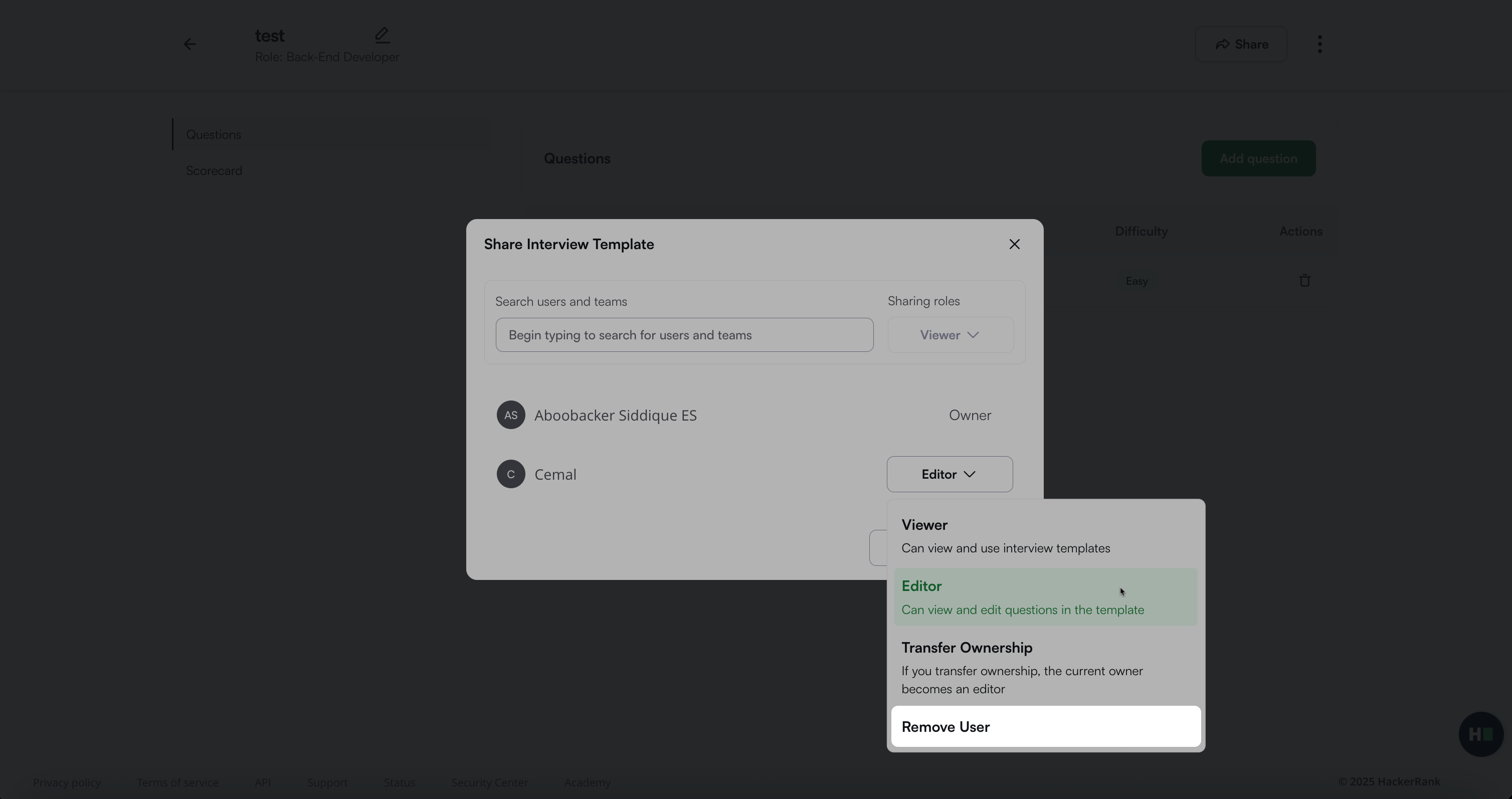
Click Confirm in the confirmation dialog box.
Renaming an interview template
To rename a template:
Go to Interviews > Templates.
Select the template you want to rename.
Select the edit icon next to the template name.
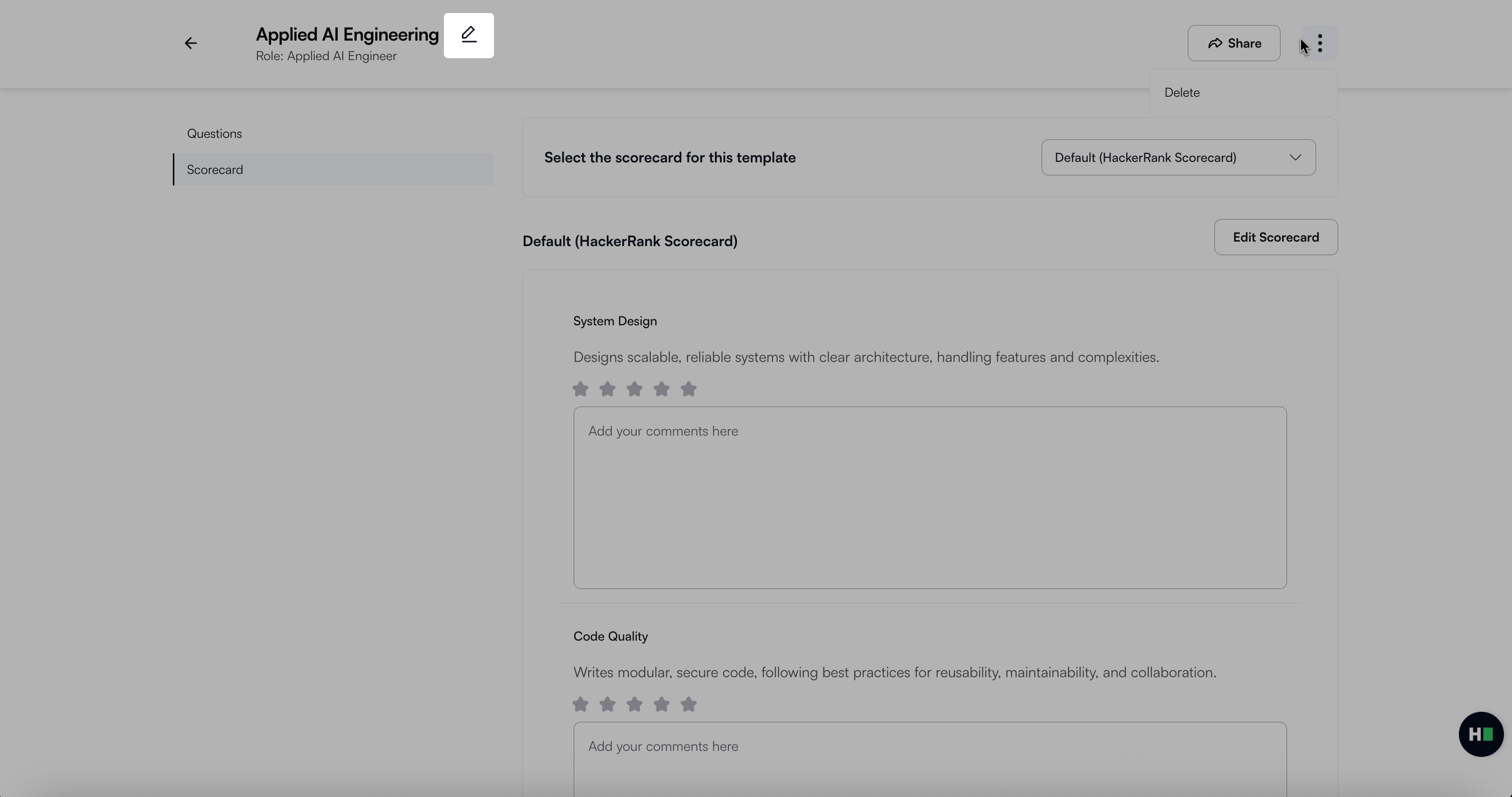
Enter the new name and press Enter. A success message appears.
Deleting an interview template
To delete a template:
Go to Interviews > Templates.
Click the more options menu (⋮) next to the template and select Delete.
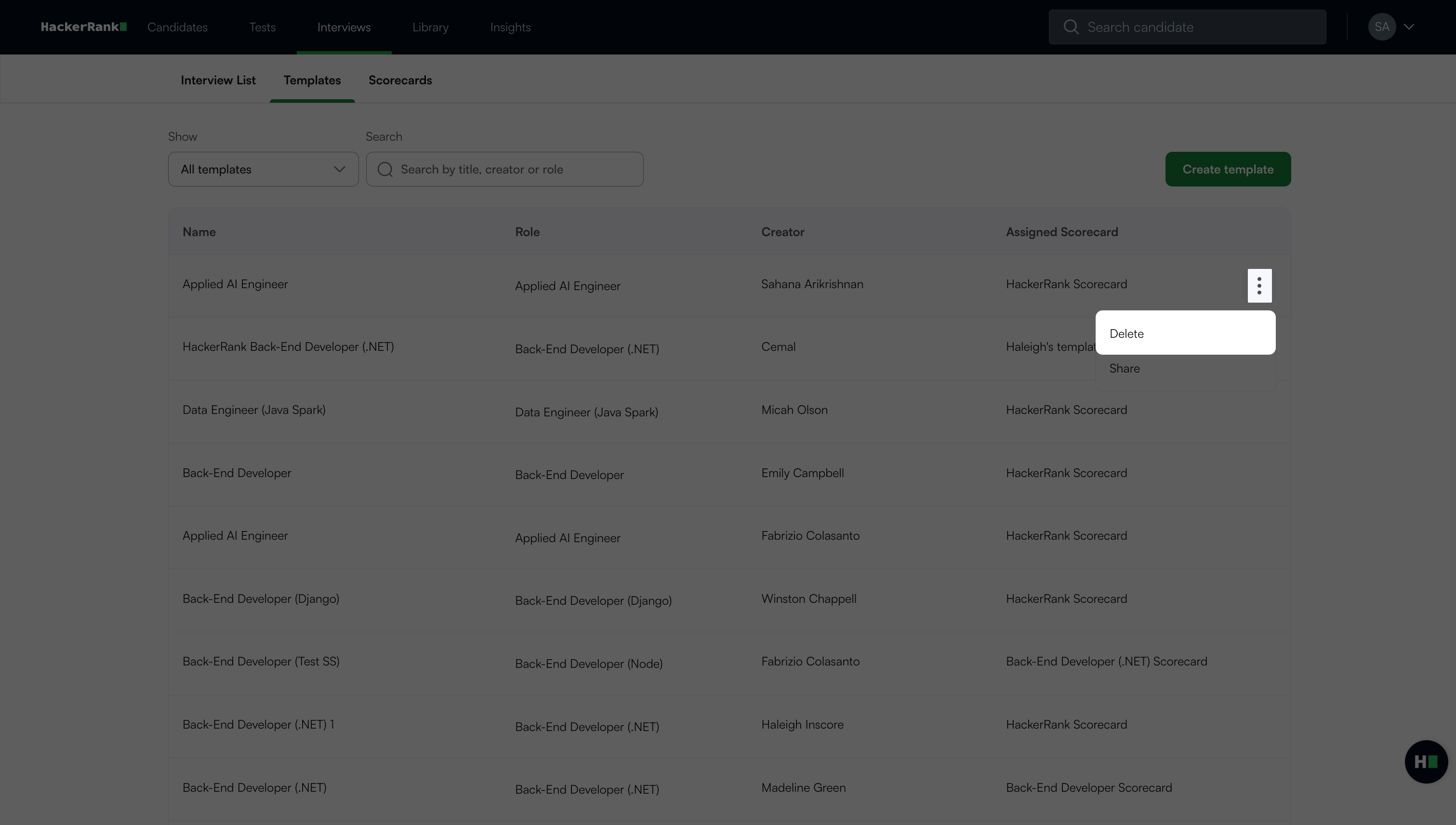
Click Delete in the confirmation dialog.
Frequently Asked Questions (FAQ)
Who can share an interview template?
The owner, company admins, and any users or teams with editor access can share an interview template.
What happens when I transfer ownership?
When you transfer ownership to another user, the original owner becomes an editor and the new owner gains full control of the interview template.