Interview Scorecards
Last updated: December 30, 2025
The interviewer scorecard is a private scorecard for interviewers to manually evaluate candidate skills during an interview. Each scorecard lists predefined skills based on the candidate’s role and provides structured input fields for feedback.
Accessing interview scorecards
To access the interview scorecards:
Log in to your HackerRank for Work account using your credentials.
Go to Interviews > Scorecards.
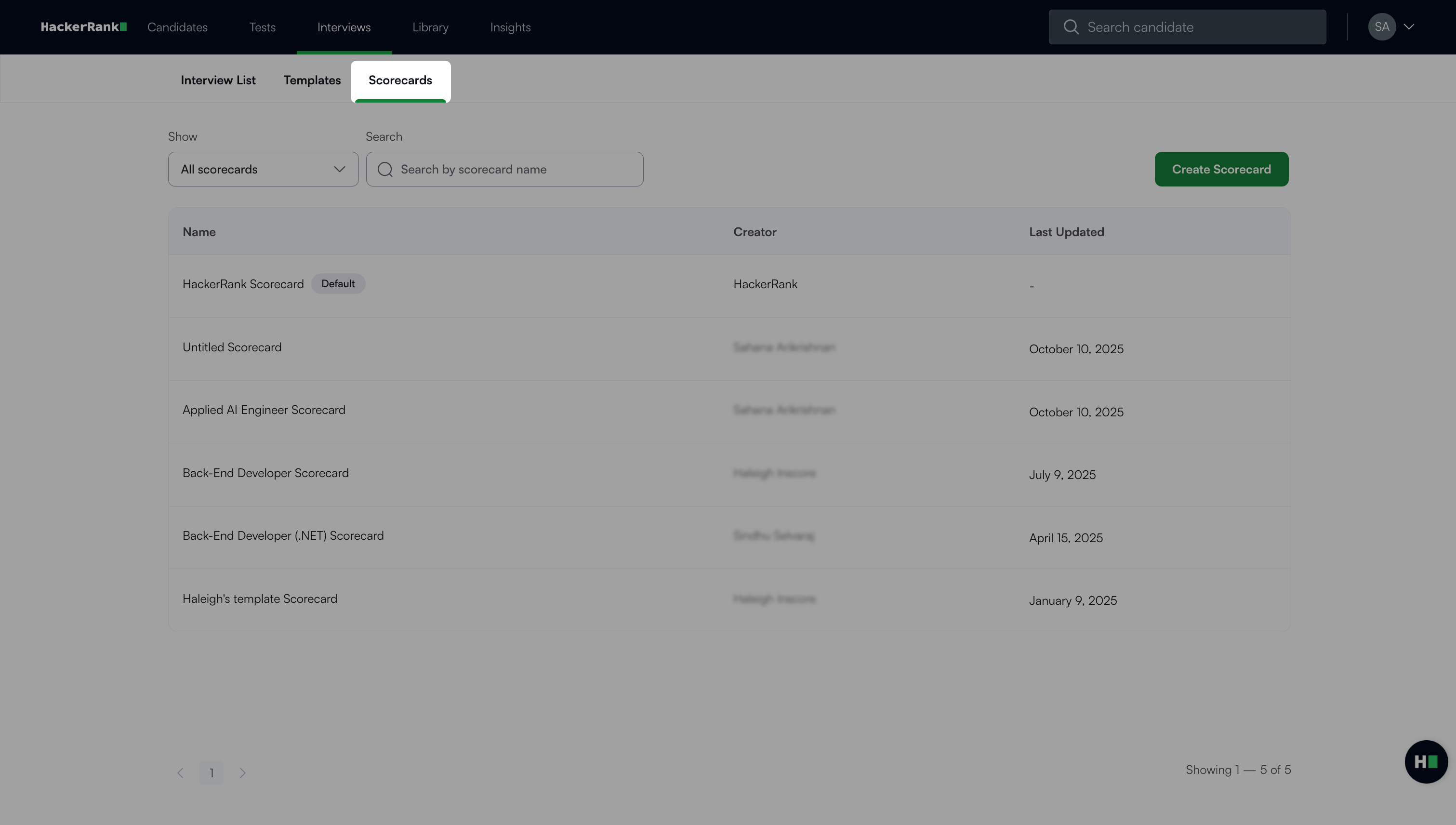
Use the search bar or filters to find scorecards easily:
Search: Enter the scorecard name.
Filter options:
All Scorecards: View all scorecards created by your company.
My Scorecards: View only the scorecards you created.
Note: Use the More Options (⋮) menu to:
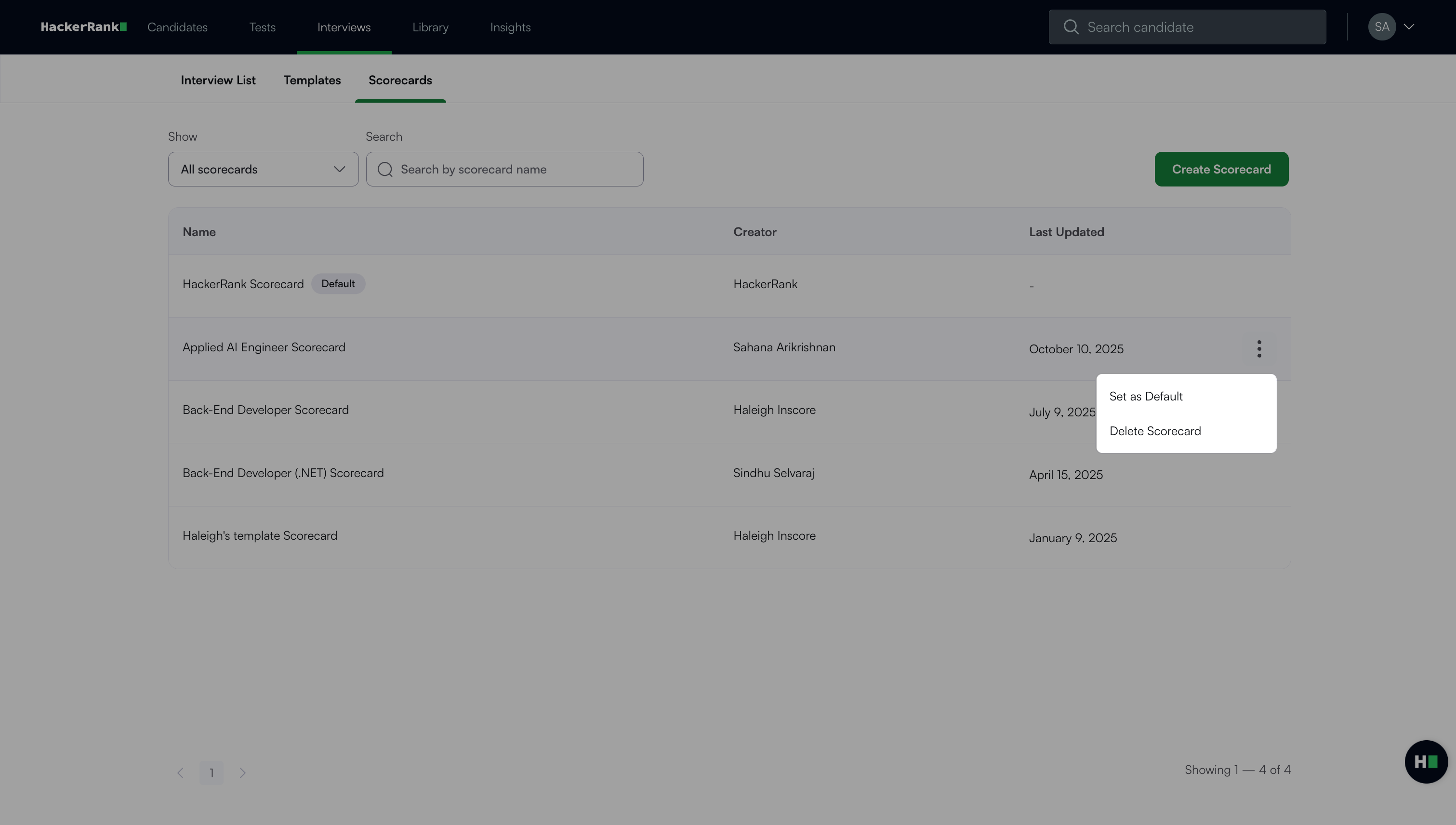
Click Set as Default to make a scorecard make the scorecard your default.
Click Delete Scorecard to remove the scorecard permanently.
Custom scorecards
Custom scorecards provide a structured approach to candidate evaluation, reducing subjectivity and improving hiring consistency. It helps interviewers assess candidates using clear, role-specific criteria.
Key capabilities
Custom Scorecards offers the following capabilities:
Tailored evaluations: Create role-specific scorecards using six input types: Text, Single Select, Multiple Select, Rating, Dropdowns, and Yes/No.
Enhanced collaboration: Add section-level descriptions and question hints to guide interviewers and standardize evaluations.
Company default scorecard: Set any scorecard as the company default to streamline interview setup.
Flexible assignment: Assign scorecards during interview setup or through templates for consistent use across interviews.
Creating a custom scorecard
To create a custom scorecard:
Log in to your HackerRank for Work account using your credentials.
Go to Interviews > Scorecards.
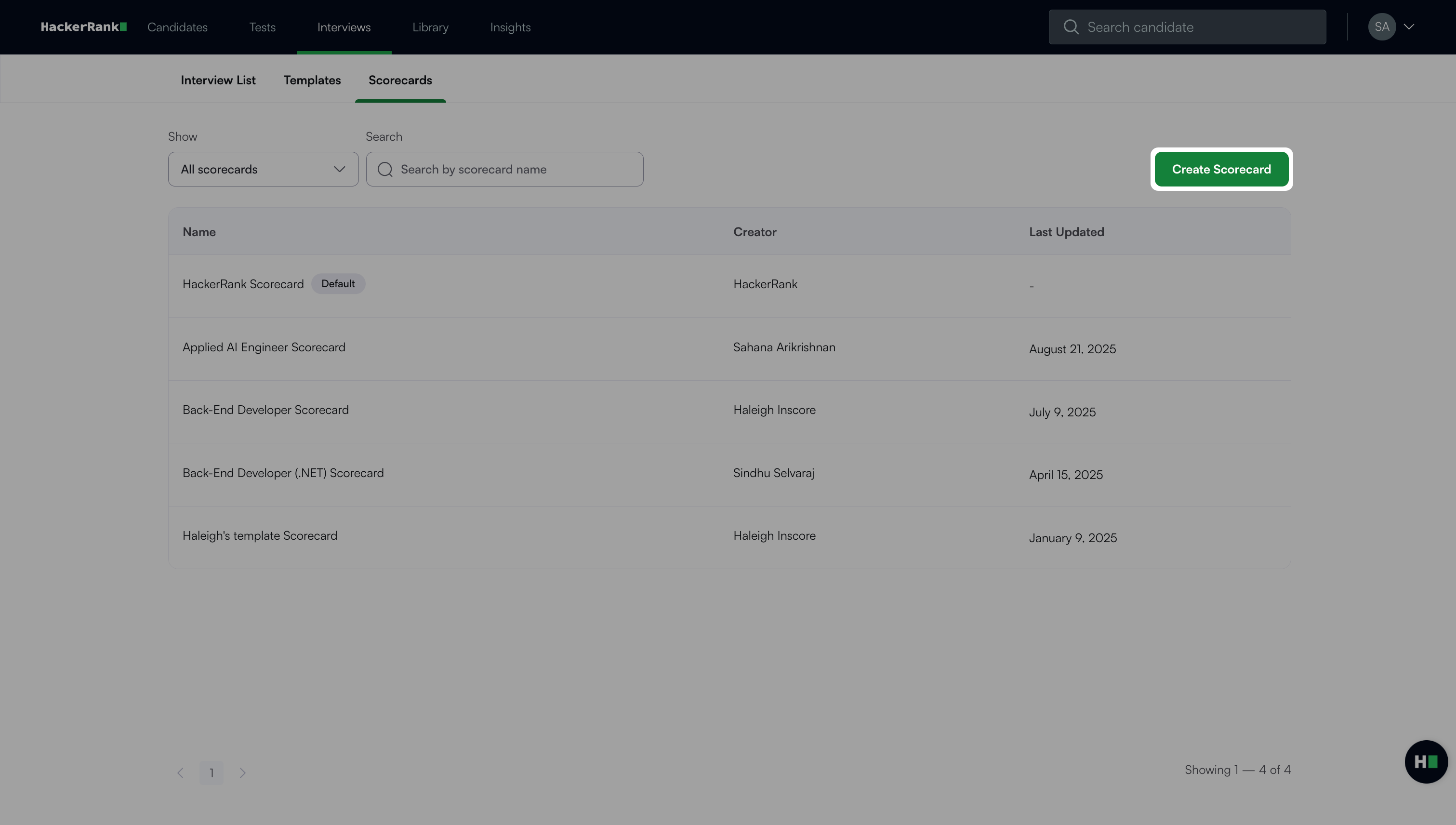
Click Create Scorecard. A new scorecard appears with one section and one question by default.
Click the edit icon next to the scorecard title to rename the scorecard.
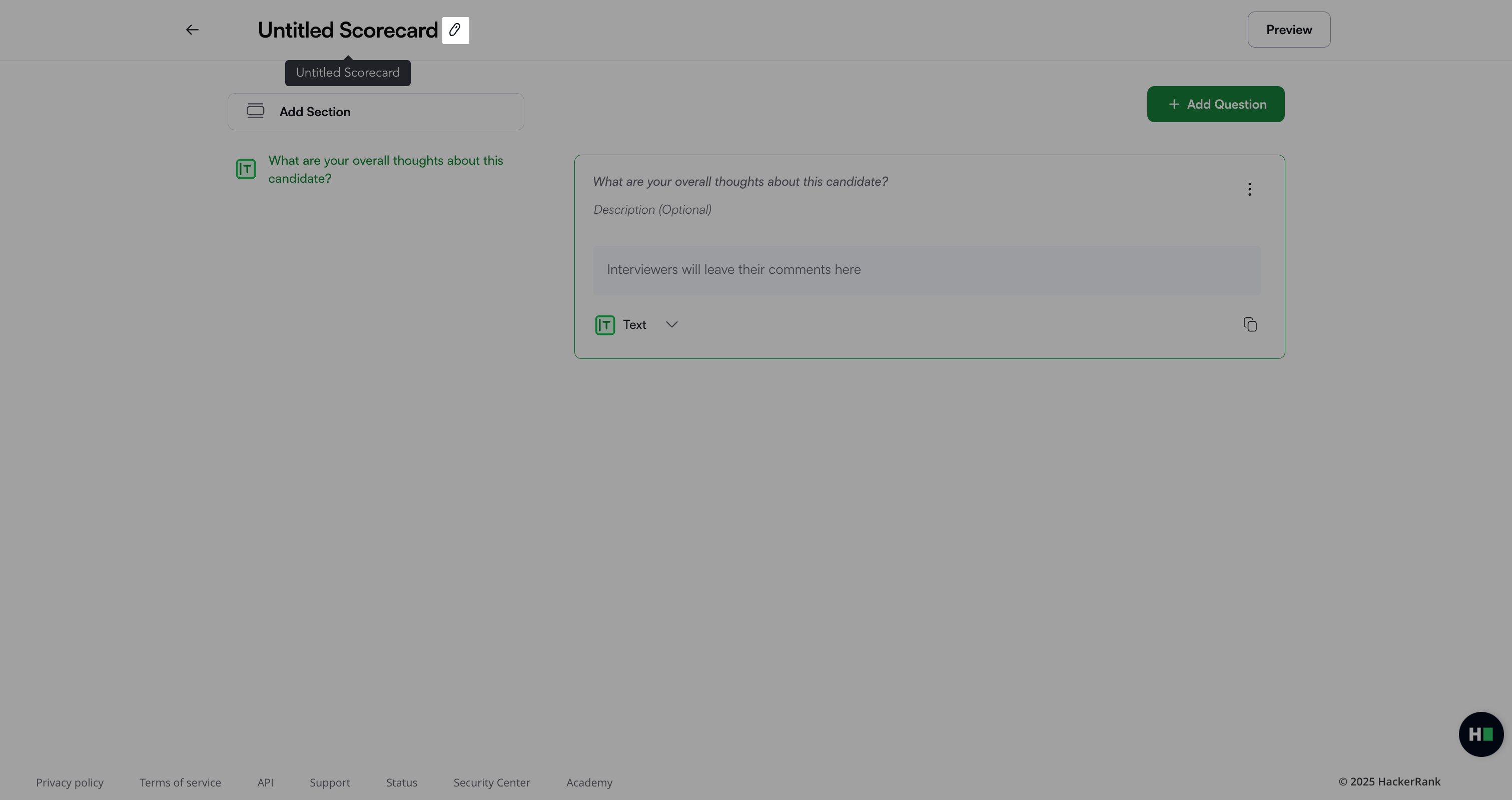
Edit the default question
To edit the default question:
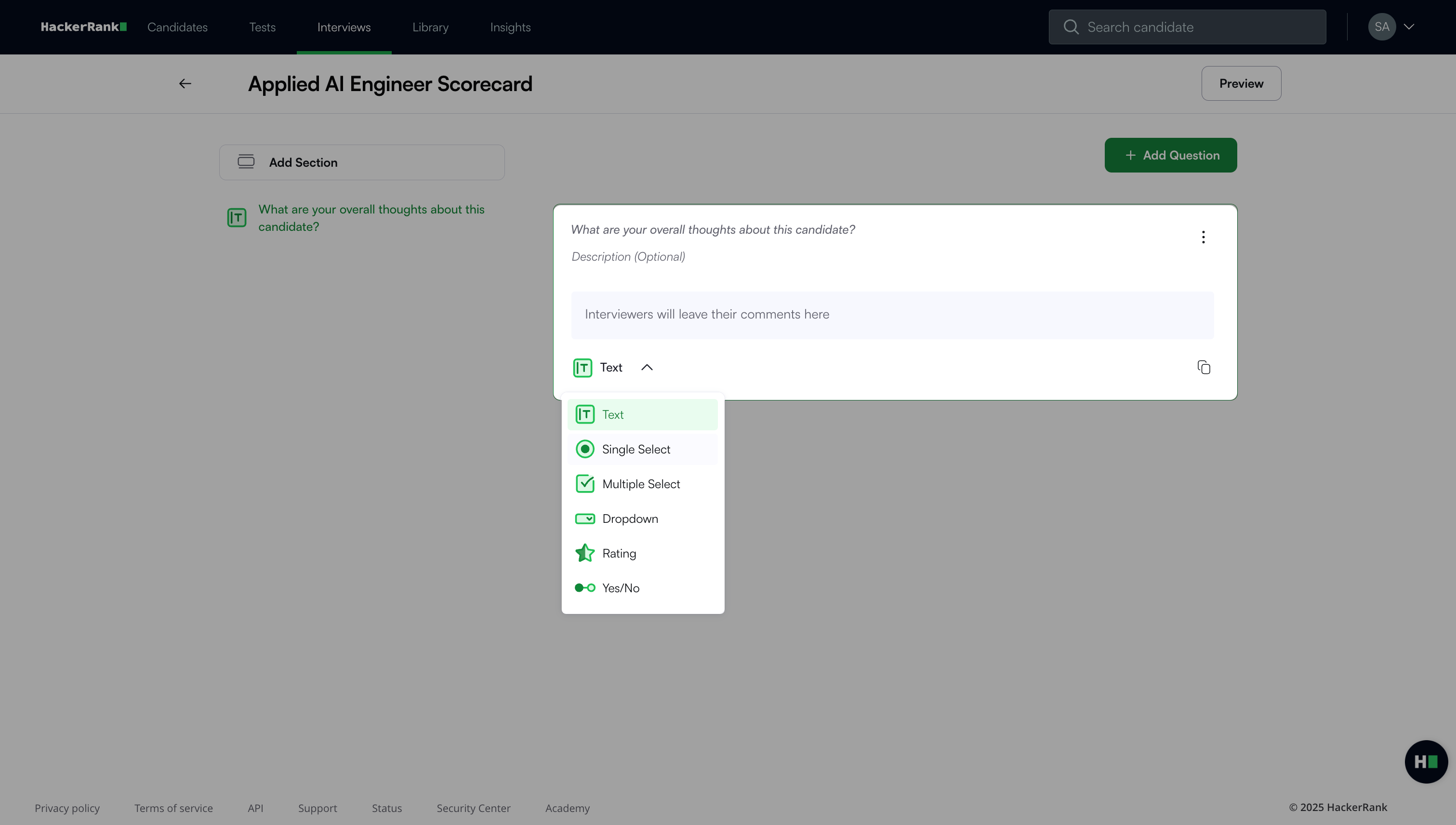
Update the question text.
(Optional) Add a description to provide context for interviewers.
Choose an input type:
Text: Enter free-form feedback.
Single Select: Choose one option.
Multiple Select: Choose multiple options.
Dropdown: Select one option from a dropdown menu.
Rating: Rate on a 3-, 4-, or 5-star scale.
Yes/No: Select either Yes or No.
Note:
For Single Select, Multiple Select, or Dropdown types, select Add Option to add choices.
For Rating questions, select Show 3, Show 4, or Show 5 to adjust the star scale.
Use the More Options (⋮) menu to:
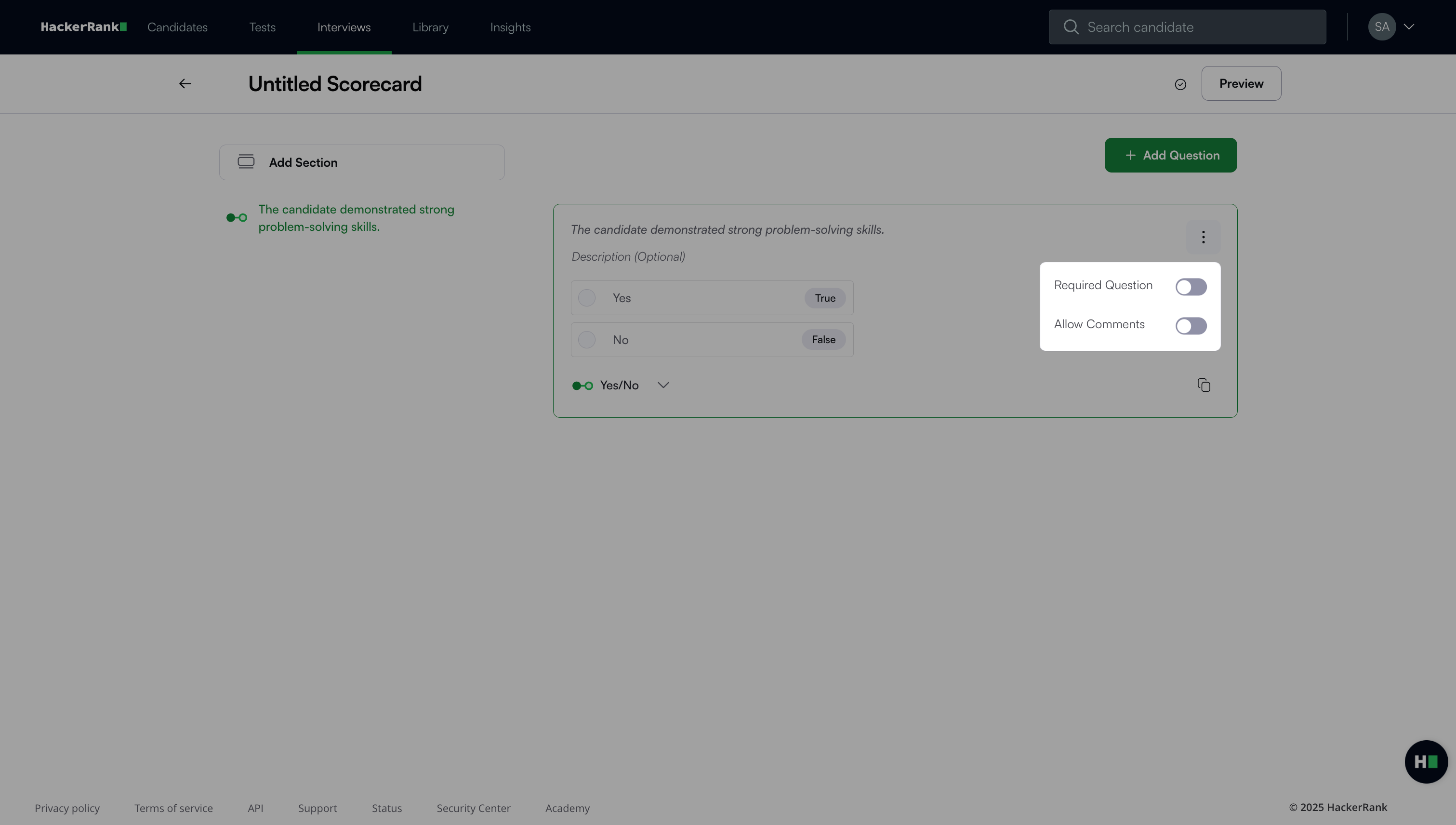
Toggle Required Question to make the question mandatory.
Toggle Allow Comments (available for all input types except Text) to let interviewers add comments.
Click Preview to review the scorecard.
Note: Scorecards save automatically.
Add a section to the scorecard
To add a section to the Scorecard:
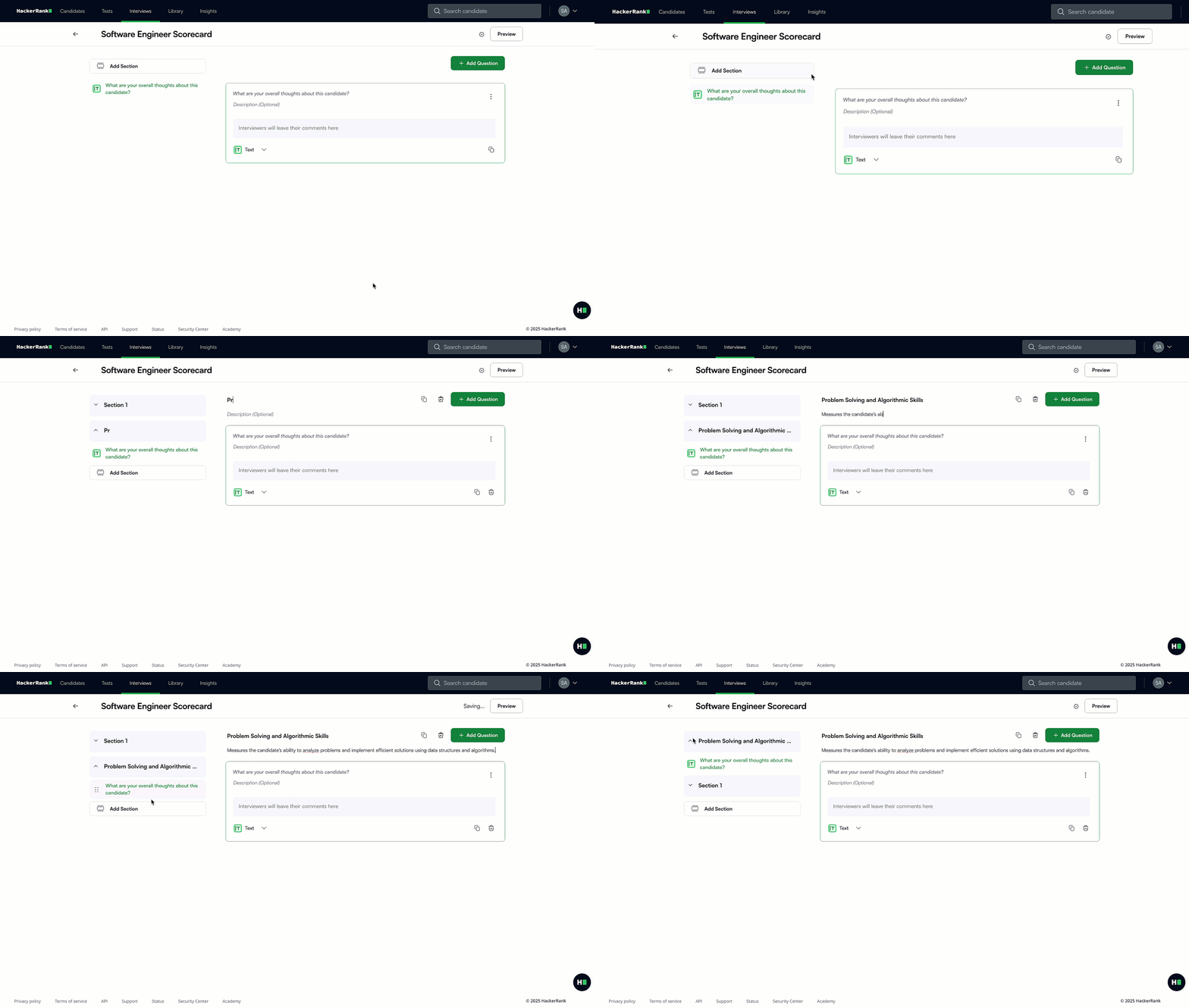
Click Add Section to create a new section.
(Optional) Enter a Section Title and Description to describe its purpose.
Drag and drop the section to change its order.
Note: To manage sections:
Select the duplicate icon to copy a section.
Select the delete icon to remove a section.
Add a question to a section
To add a question to a section:
Go to the section where you want to add a question.
Click + Add Question.
Select an input type.
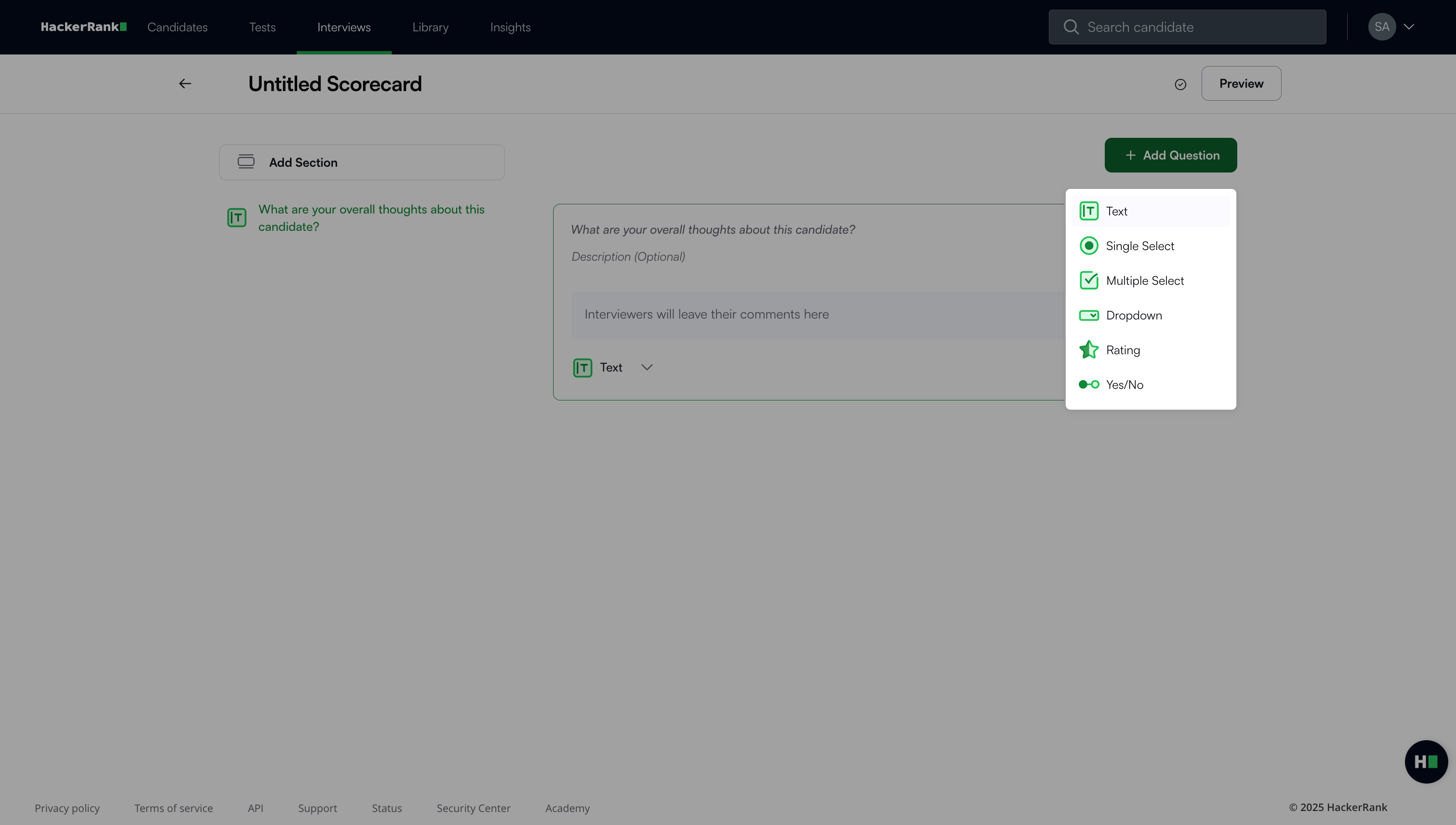
Enter the question text.
(Optional) Add a description to provide context for interviewers.
Use the More Options (⋮) menu to:
Toggle Required Question to make the question mandatory.
Toggle Allow Comments (available for all input types except Text) to let interviewers add comments.
Drag and drop questions within a section to reorder them.
Click Preview to review the scorecard.
Note: To manage the question:
Select the duplicate icon to copy a question.
Select the delete icon to remove a question.
Assign a scorecard
You can assign a scorecard in two ways:
Through templates
During the interview setup
Assign scorecard through templates
To assign a scorecard through templates:
Go to Interviews > Templates.
Select the template you want to update.
In the left pane, select Scorecard.
Choose an existing scorecard or click Create a New Scorecard.
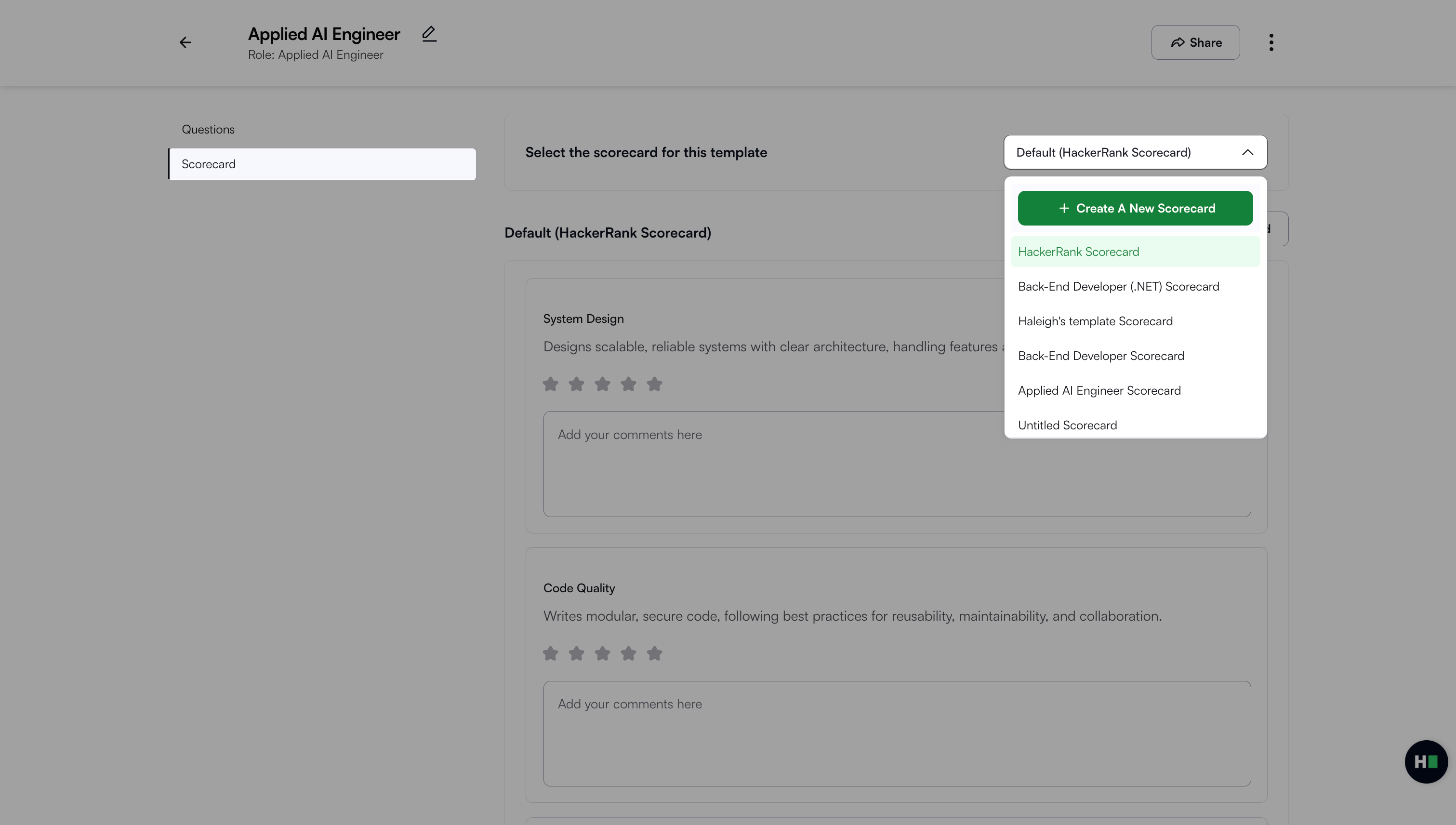
Note: If you do not select a scorecard, HackerRank uses the default scorecard.
Assign Scorecard during interview setup
To assign Scorecard during interview setup:
Go to Interviews > Interview List.
Select the interview you want to update.
In the Interview Details panel, scroll to Interview Scorecard.
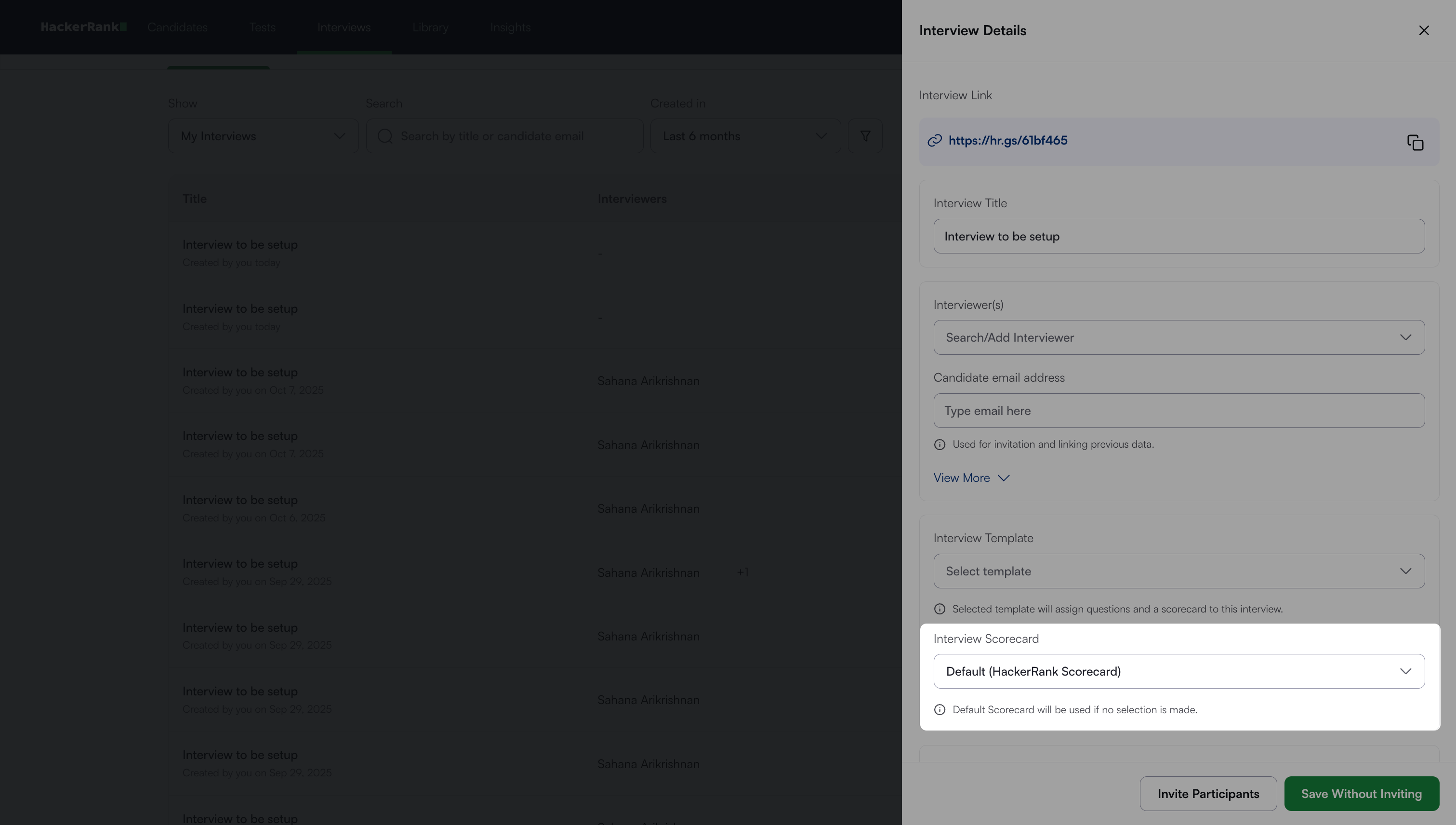
Select a scorecard from the dropdown.
Click Save Without Inviting.
Note: If you select a template during interview setup, HackerRank automatically adds the scorecard from that template. If you do not select a template, the interview uses the scorecard you select manually. If you do not select any scorecard, HackerRank uses the default scorecard.
Using the scorecard during an interview
To access and complete the scorecard during an interview:
Log in to the interview as an interviewer.
Click the Scorecard icon in the upper-right corner. The scorecard panel appears.
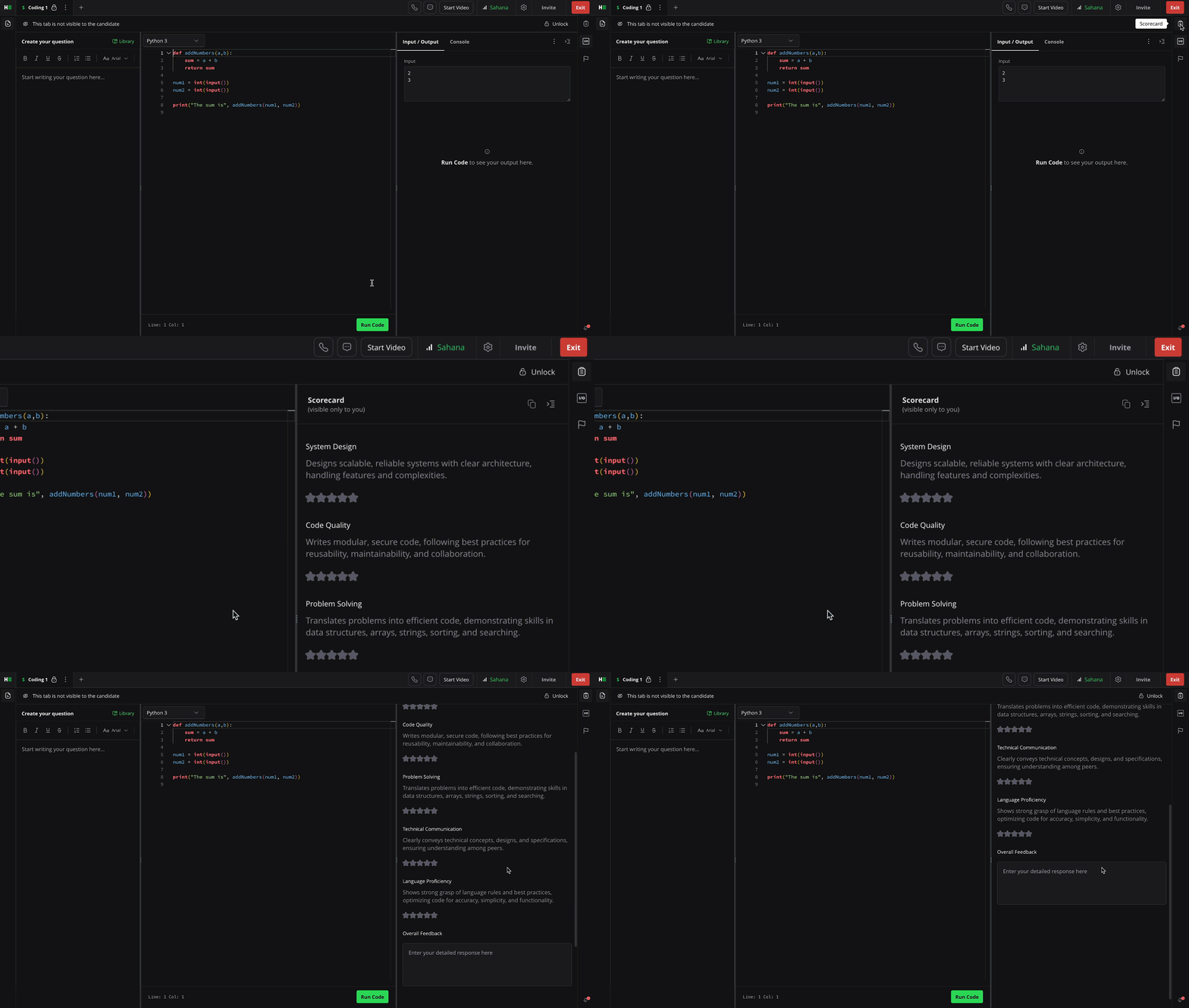
Review the skills associated with the candidate’s role:
If the interview started from a test report, the system maps the test role automatically.
If no role is selected, the default skills appear, such as Problem-Solving, Technical Communication, Code Quality, Language Proficiency, and System Design.
Complete the scorecard:
For Rating questions, select from Strong Yes to Strong No.
For Text or Dropdown fields, enter written feedback or choose the appropriate option.
Note: All feedback is autosaved. The scorecard is private to each interviewer and is not visible to other interviewers or to the candidate.
After the interview, the scorecard appears in the candidate’s Interview Report.
View scorecard in Interview Report
To view the scorecard in the Interview Report:
Go to Interviews > Interview List.
Select the interview you want to review.
In the Interview Details panel, click View Report.
Click the menu icon (☰) on the right to open the Scorecard section.
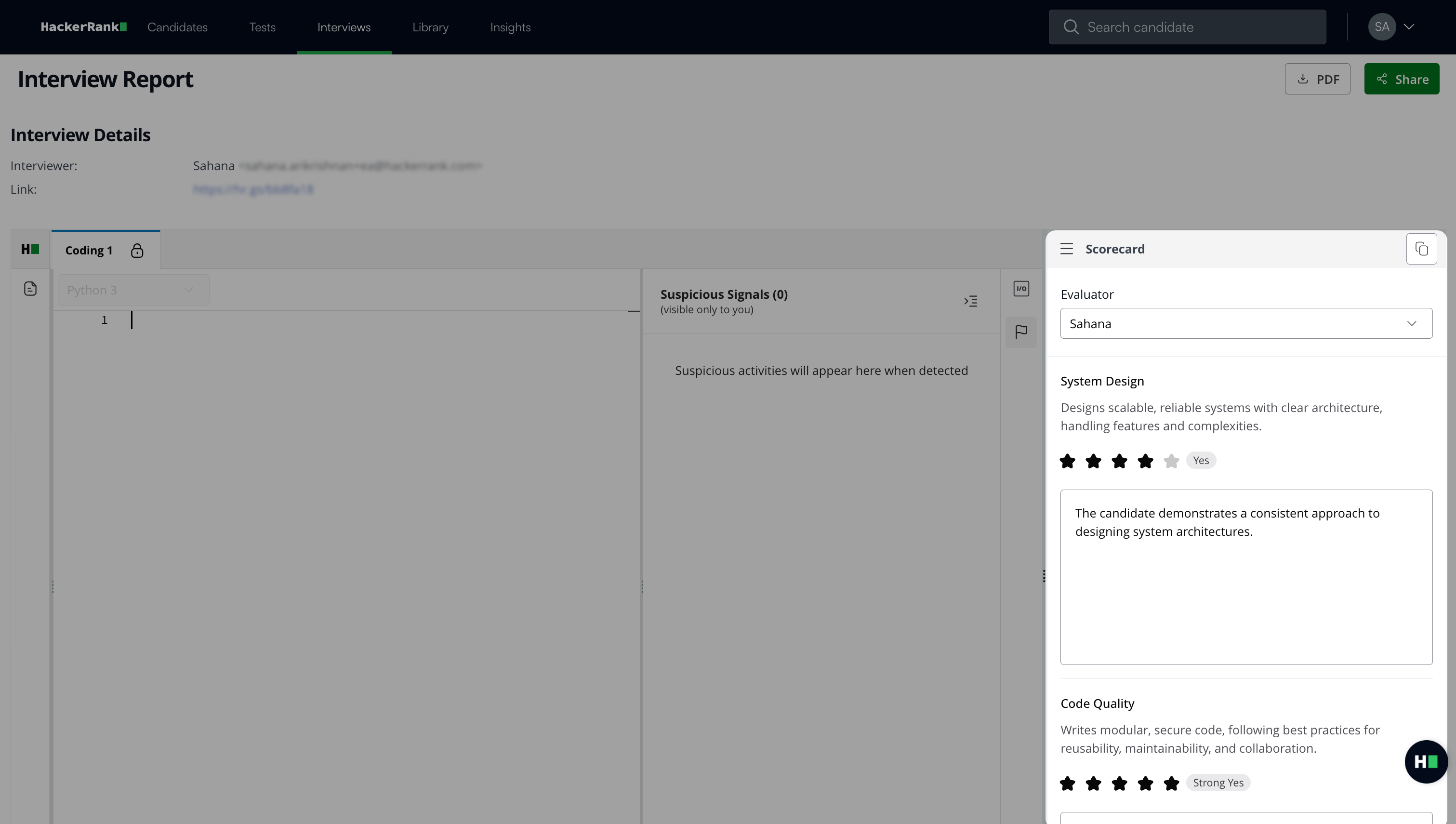
Select an evaluator’s name to view their scorecard and comments for the candidate.
Note:
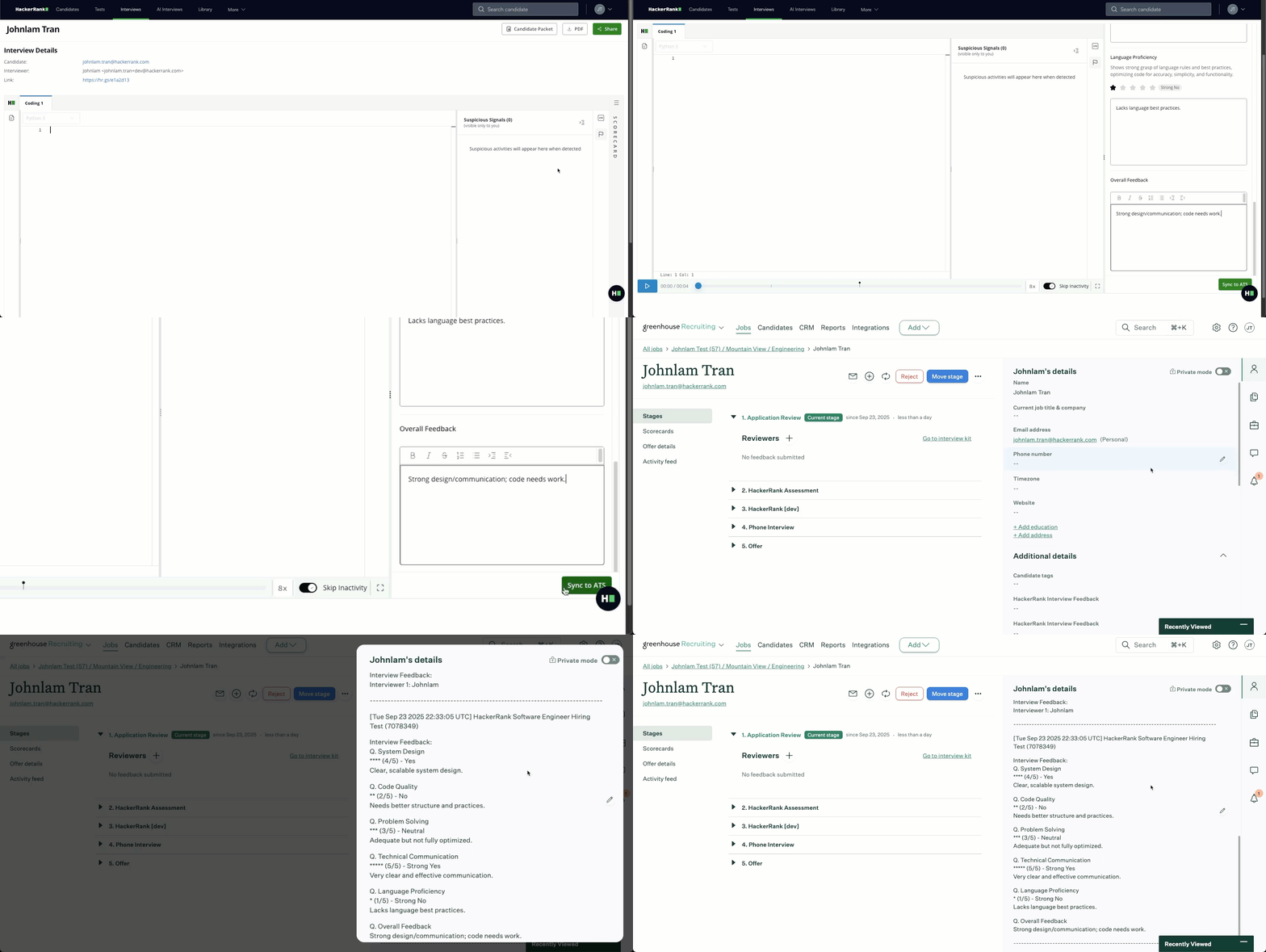
If your organization integrates with an ATS, click Sync to ATS to sync the scorecard. Scorecard sync is currently available for Greenhouse, Workday, Lever V2, and Oracle.
You can access to scorecards depends on your license type.
Recruiter and Developer license holders can view scorecards of all team members.
Interviewer license holders can view only their own scorecards and do not see the Evaluator drop-dow. If they did not participate in the interview, the following message appears:
You do not have access to view the scorecard.