Screen-to-Interview Identity Match
Last updated: June 2, 2026
This feature is part of the AI Add-on. For more information, see 📄 HackerRank AI Add-on.
The Screen-to-Interview Identity Match verifies that the candidate who completed the screening test is the same individual attending the interview. It uses facial recognition technology to automatically compare images from the test and interview to detect potential identity mismatches.
This feature helps maintain hiring integrity, reduces manual verification, and eliminates the need for sensitive candidate interactions.
Key benefits
The Screen-to-Interview Identity Match offers the following benefits:
Automatically verify candidate identity during interviews.
Receive real-time alerts for potential identity mismatches and seamlessly review and update verification status.
Prerequisites
To use this feature, ensure that the following conditions are met:
The candidate has completed a screen test with image proctoring enabled within the last 6 months.
The candidate uses the same email address for the interview as in the screening test.
The candidate joins the interview using HackerRank’s built-in video calling feature.
Enable Screen to Interview Identity Match
To enable Screen to Interview Identity Match:
Log in to your HackerRank for Work account using your credentials.
Go to Settings.
Select Interview Settings from the left panel under the Company section.
Scroll to the Interview Integrity Signals section.
Select the Enable Screen to interview identity match checkbox.
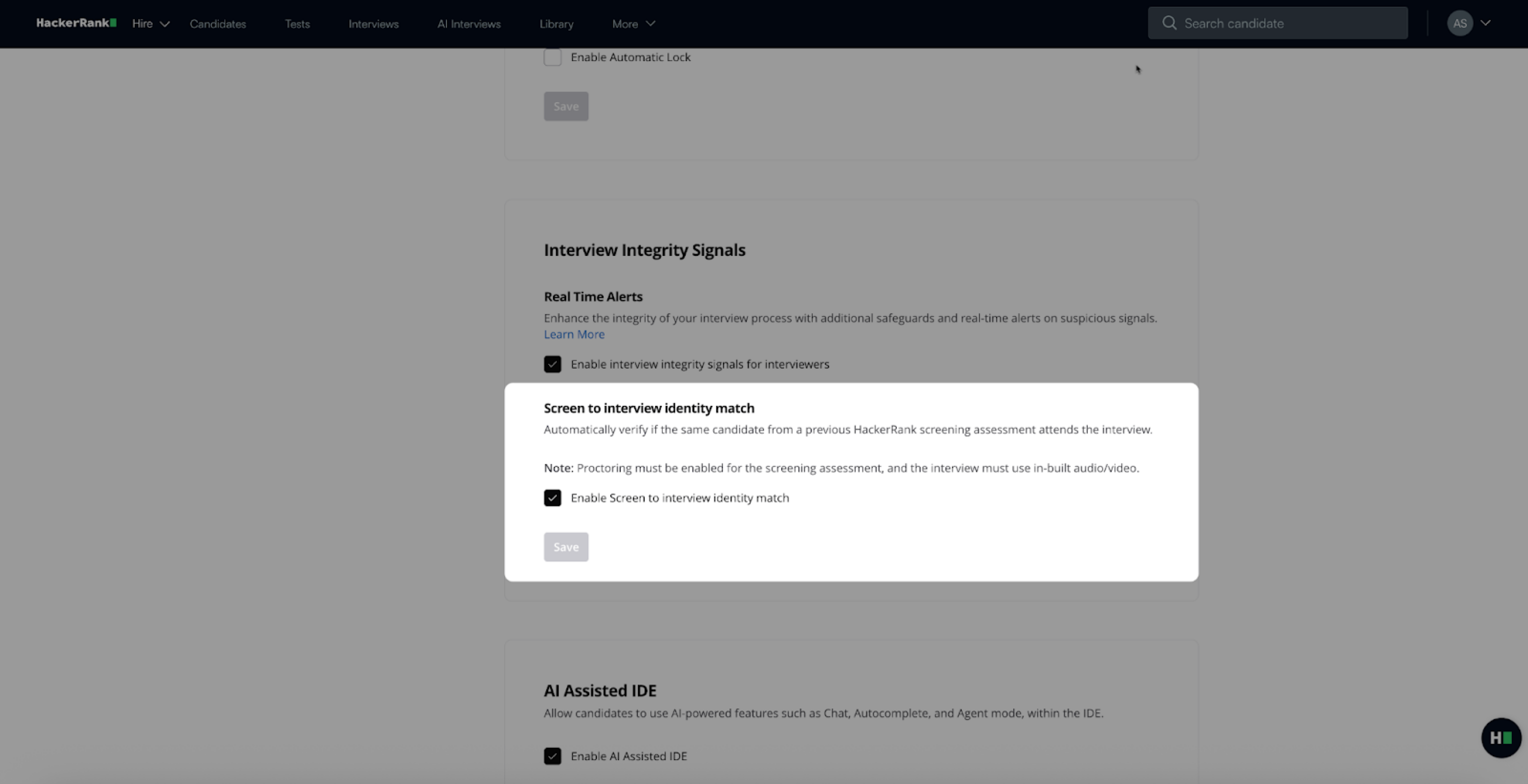
Click Save.
How it works
The following sections describe how the Screen-to-Interview Identity Match operates during an interview.
Real-time alerts
When the candidate turns on their video during the interview, the system automatically initiates an identity verification check. If a potential mismatch is detected, an immediate alert is displayed to the interviewer.
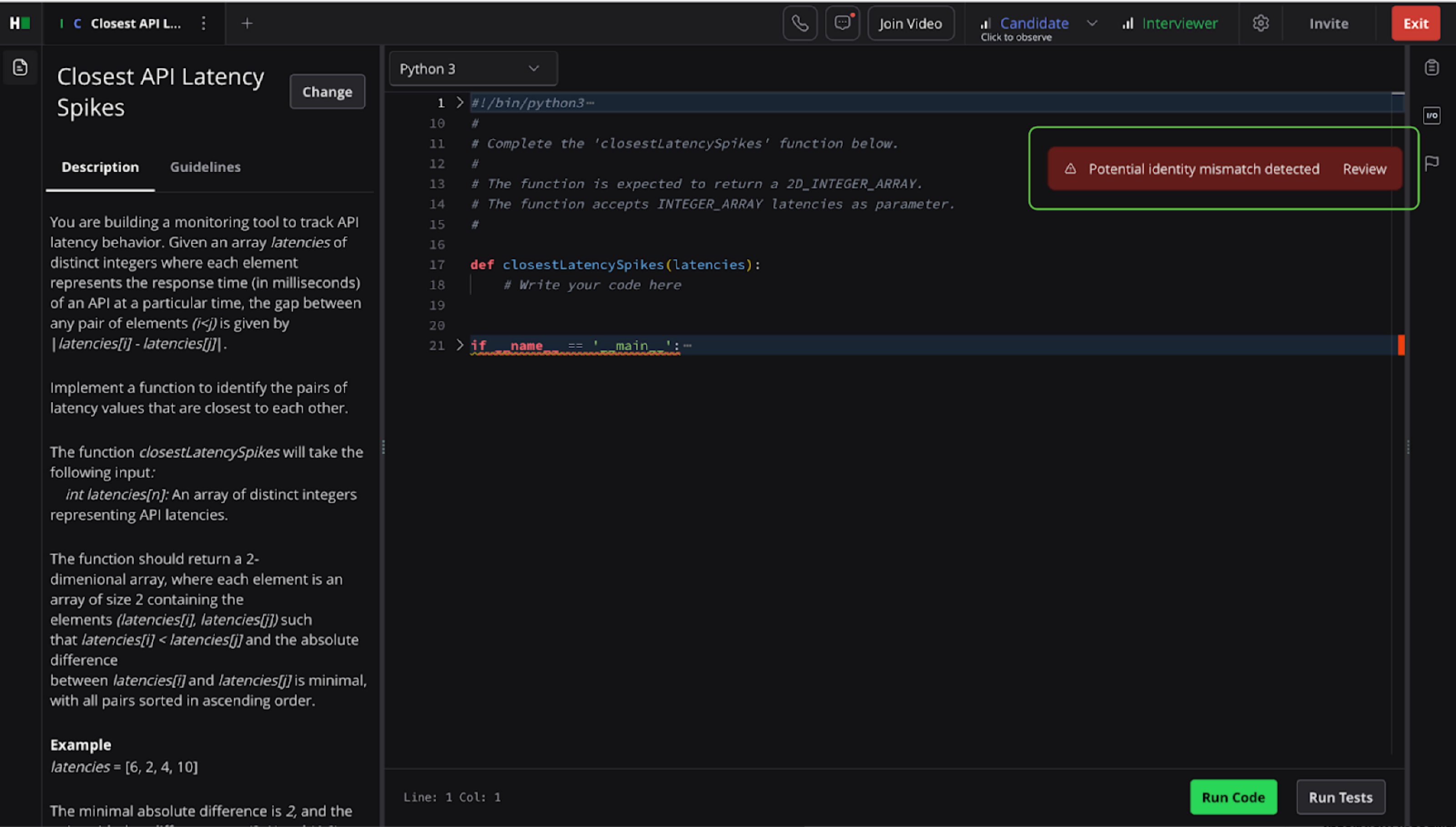
On clicking the Review button, the interviewer can view images from the screening test and the live interview side by side.
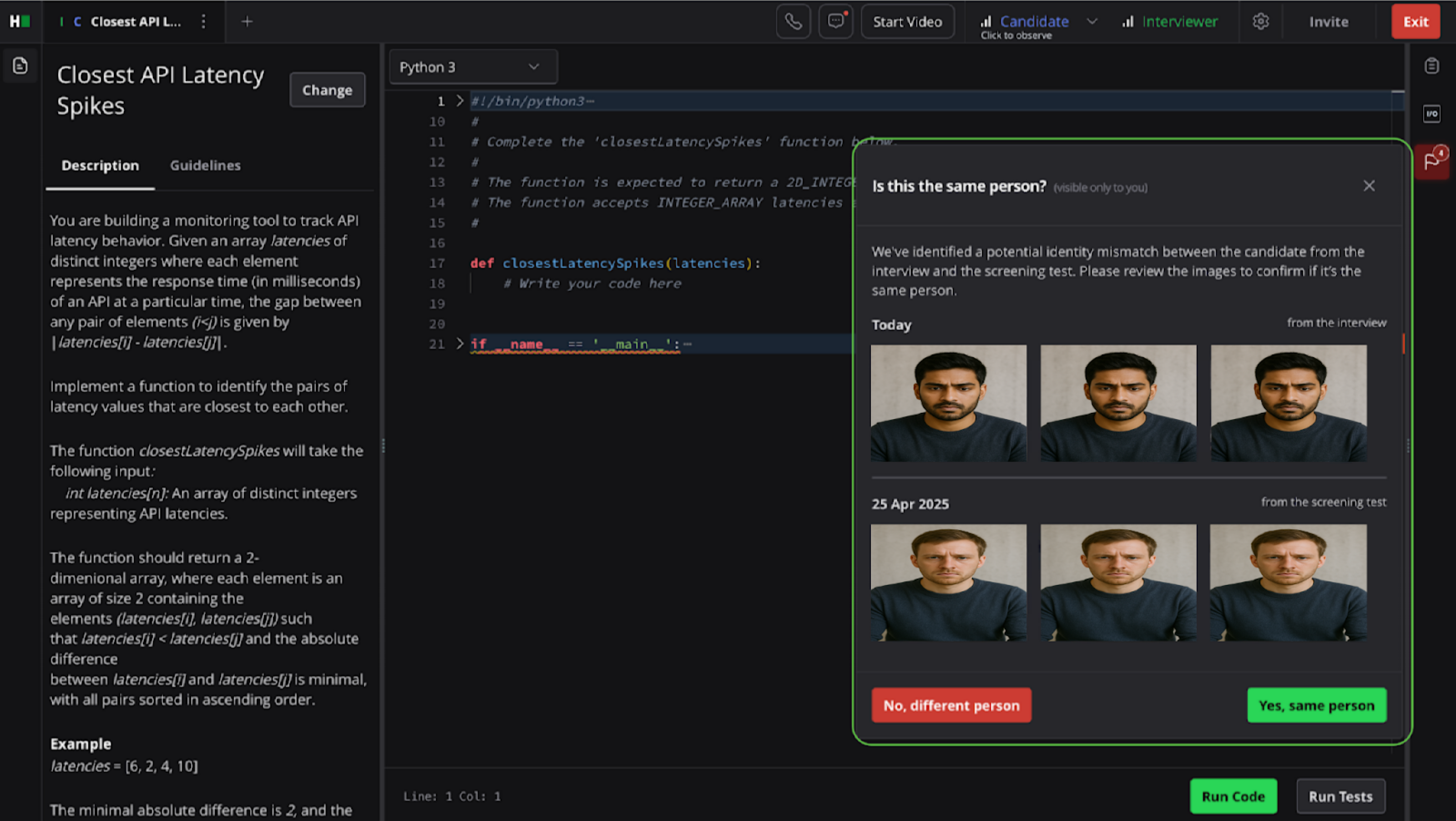
The interviewer can then respond to the alert by selecting one of the following options:
Yes, Same person: Confirms that the candidate is the same individual.
No, Different person: Flags a mismatch. This status is displayed in the Suspicious Signals panel and the interview report.
Note: It is recommended to establish an internal process to address flagged identity mismatches. This process may include notifying your HR or recruitment operations team and documenting the outcome as part of the interview feedback workflow
Reviewing and updating verification status
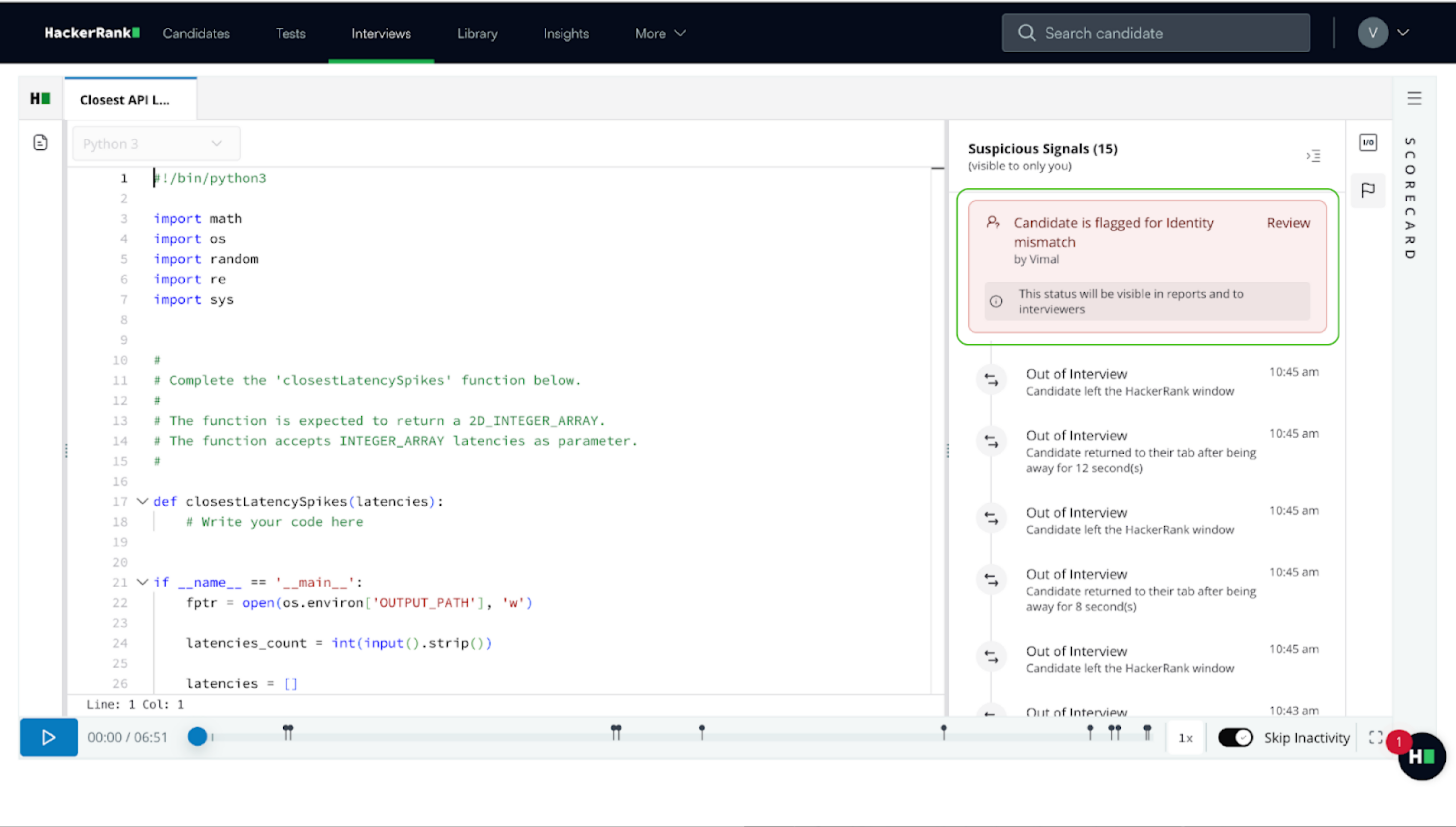
After the interviewer confirms or flags the candidate’s identity, the verification status appears in the Suspicious Signals timeline panel. The status may display one of the following messages:
Candidate identity verified
Candidate is flagged for identity mismatch
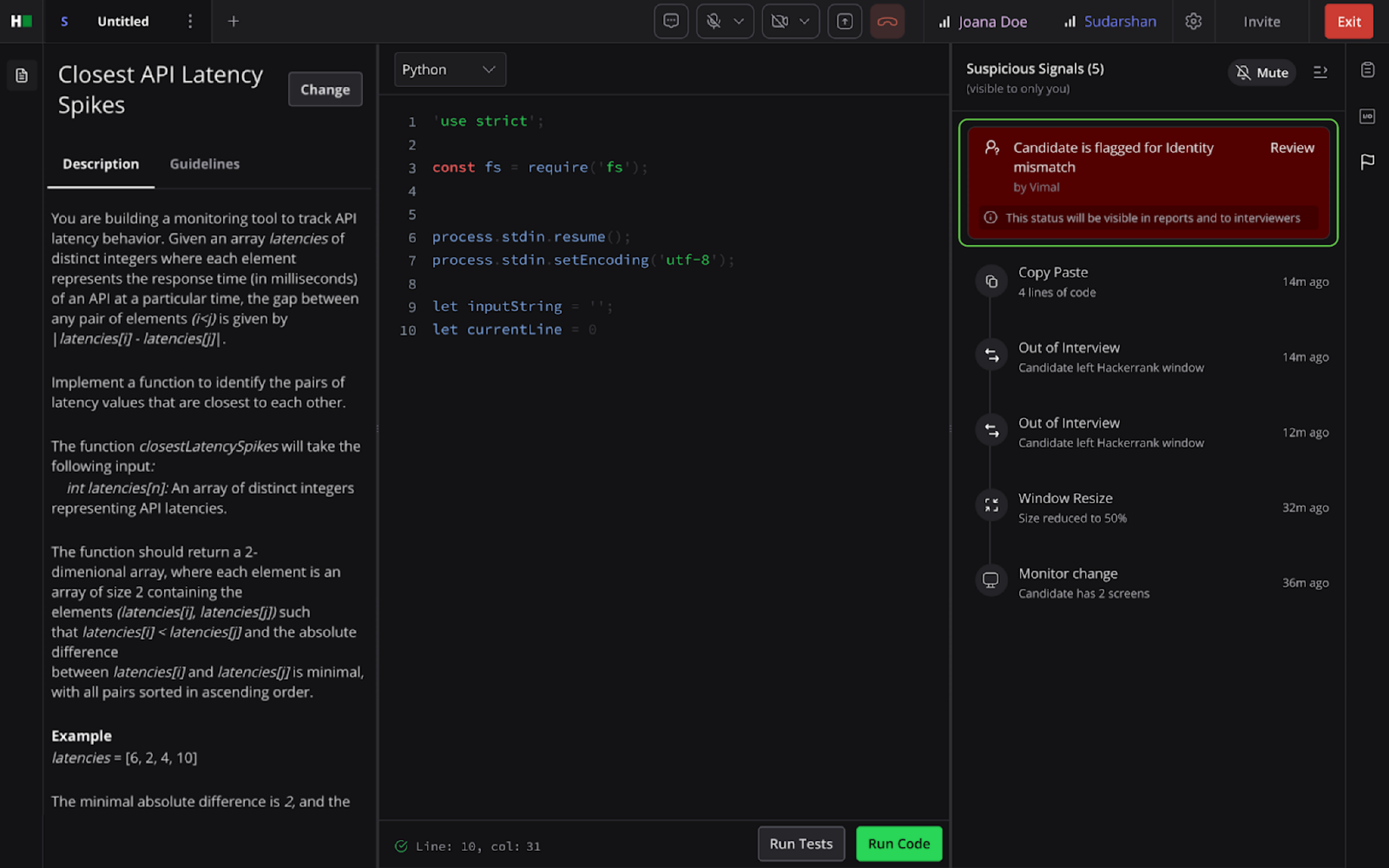
Interviewers can click Review at any time during the interview or from the Interview Report page to revisit the identity verification decision and update the status.
Interview report page
If a candidate is flagged for an identity mismatch, the interview report includes the following:
Notification: Candidate flagged for identity mismatch.
Action: Click Review to view the verification images and update the status, if necessary.
Limitations
The Screen-to-Interview Identity Match has the following limitations:
Identity verification must occur during the live interview session. It cannot be performed after the interview ends.
The feature is unavailable if the candidate’s camera is disabled.