Schedule a Custom Report
Last updated: April 22, 2026
HackerRank allows you to schedule custom reports to run automatically at defined intervals. The system generates the report and sends it to selected recipients by email.
Prerequisite
A custom report is created in HackerRank for Work.
You have access to the report (created by you or shared within your company).
Scheduling a custom report
To schedule a custom report:
Log in to your HackerRank for Work account using your credentials.
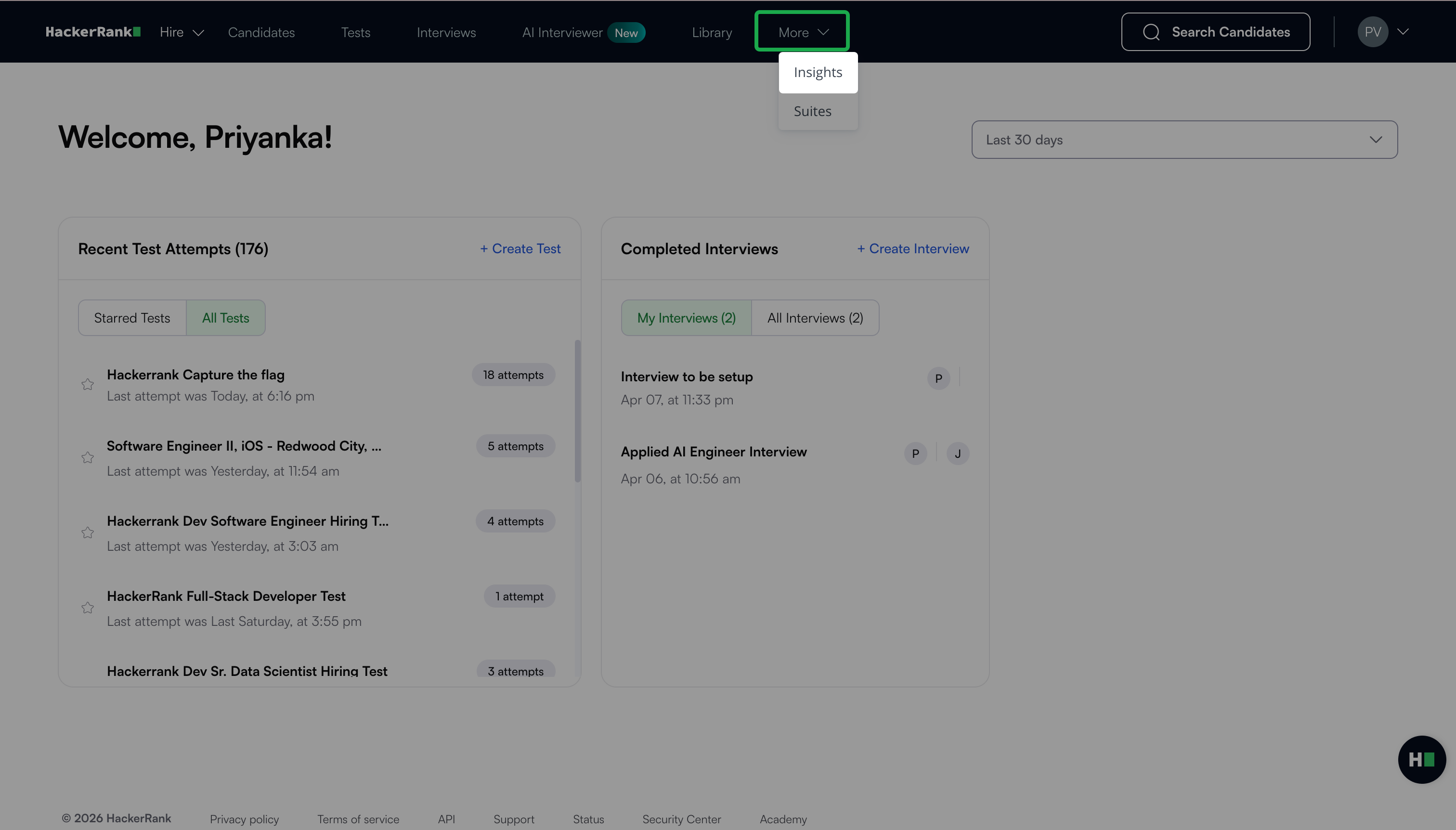
Go to More > Insights.
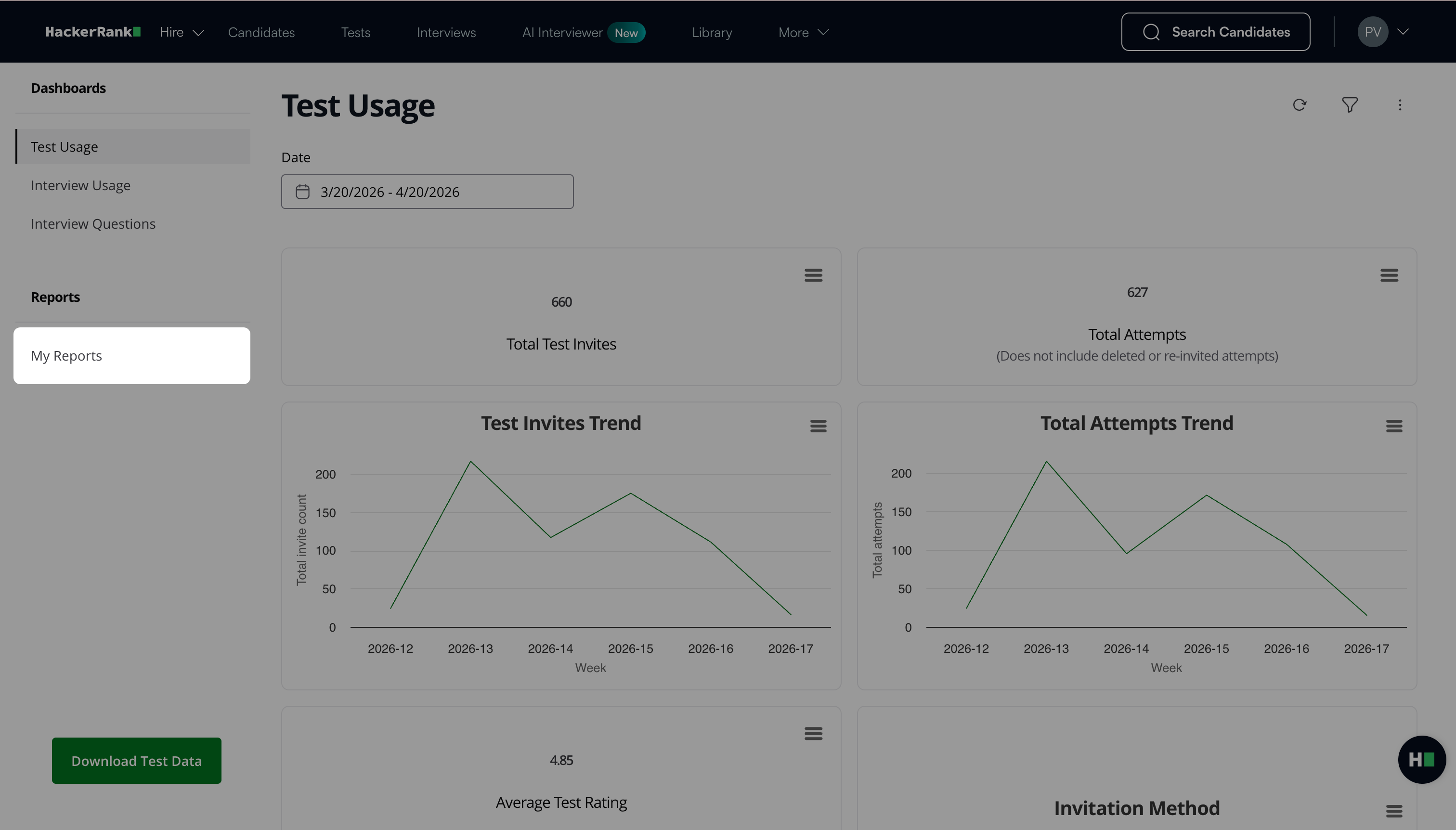
Select My Reports under the Reports section.
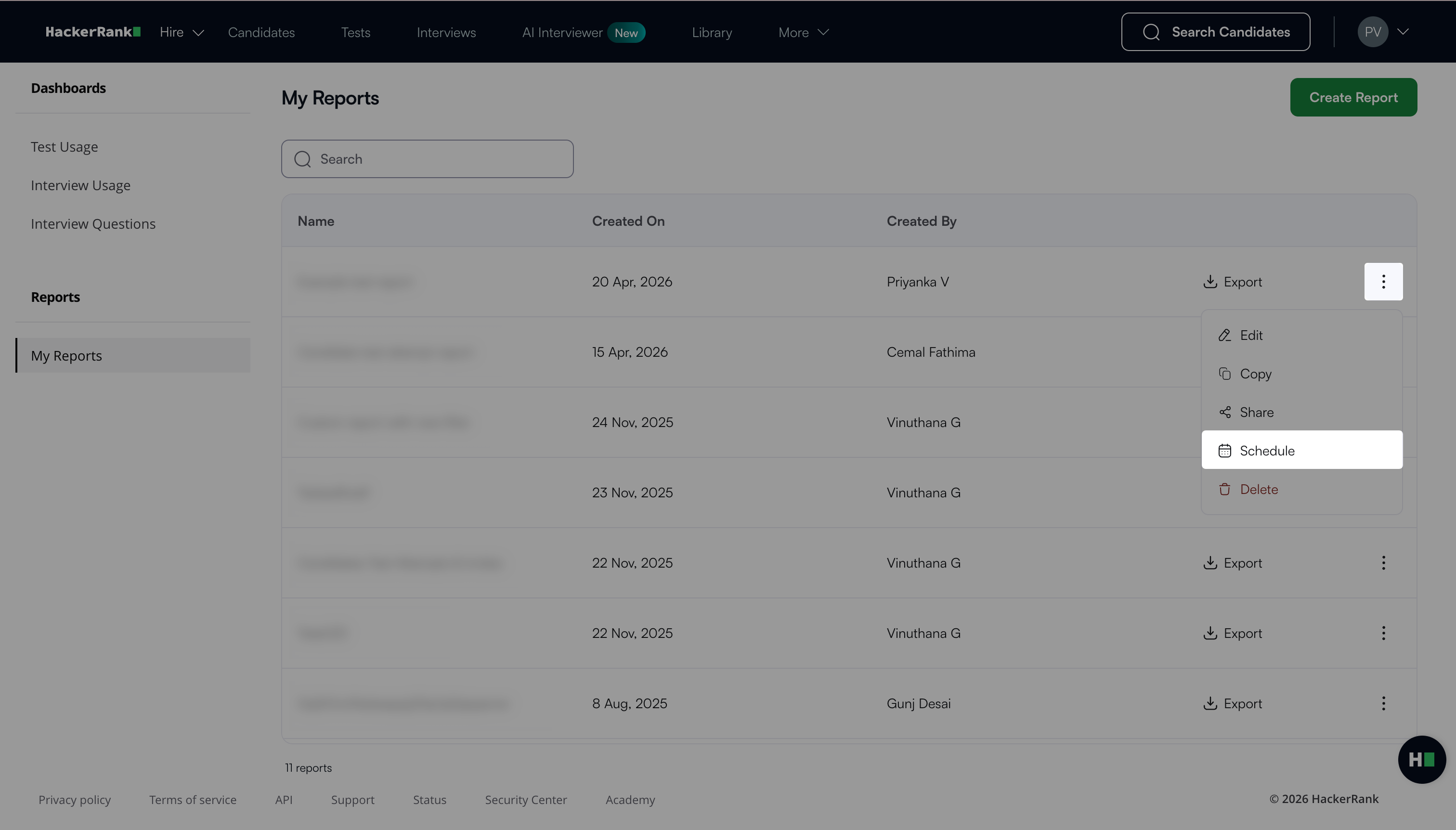
Locate the report you want to schedule.
Click the more option menu next to the report.
Select Schedule.
In the Schedule Insights dialog:
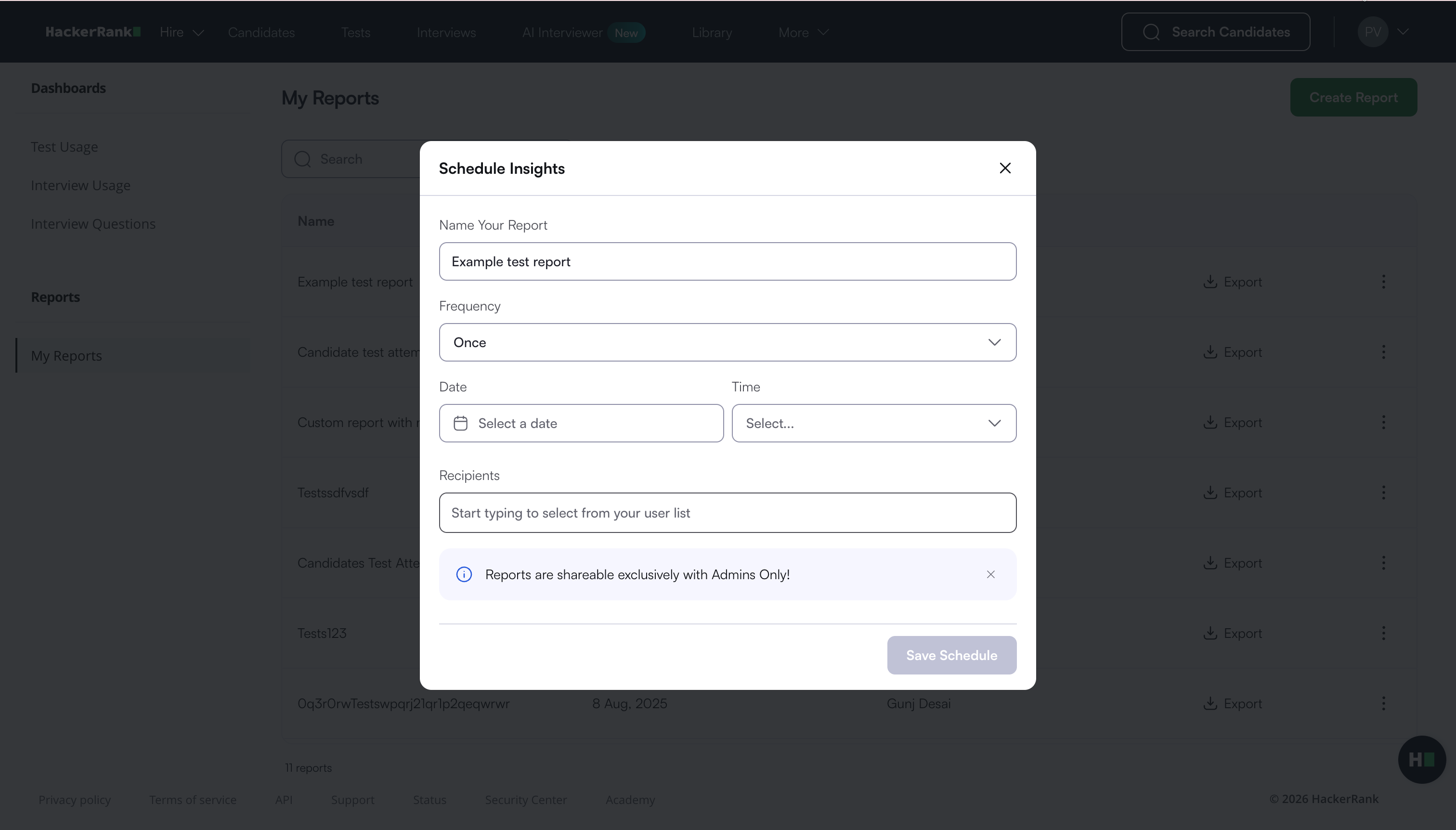
Enter a name for the report.
Select the frequency (Once, Hourly, Daily, Weekly, Monthly, or Yearly), and set the schedule accordingly.
Enter the recipients who will receive the report.
Note: You can add only admin users (including yourself) as recipients.
Click Save Schedule.
The platform saves the schedule and sends the report to the selected recipients based on the defined frequency.
Note: You can create only one schedule per report.
Editing a custom report schedule
To edit a custom report schedule:
Go to My Reports.
Locate the report you want to edit.
Click the more option menu next to the report.
Select Edit Schedule.
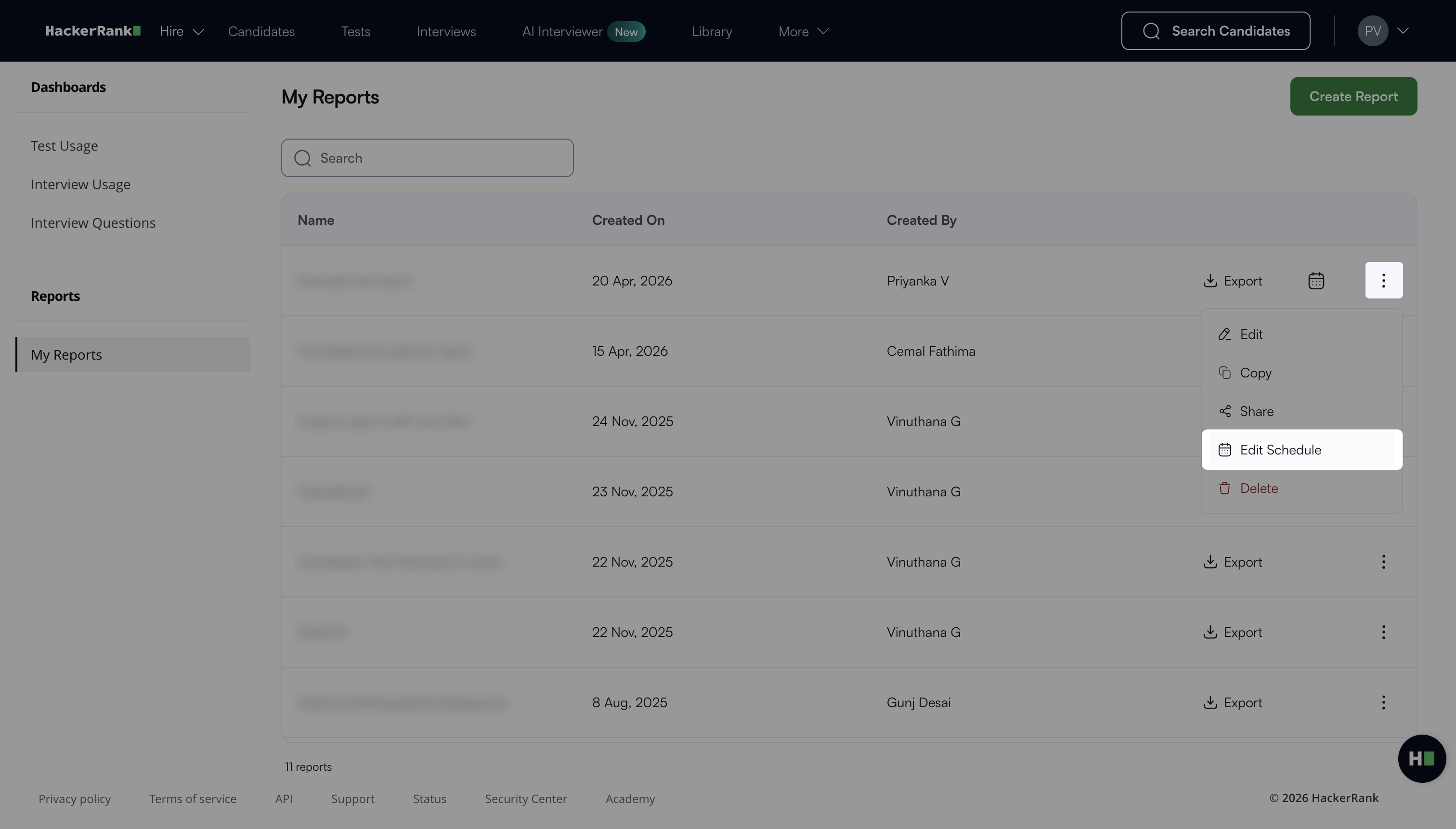
In the Edit Schedule dialog, make the required changes.
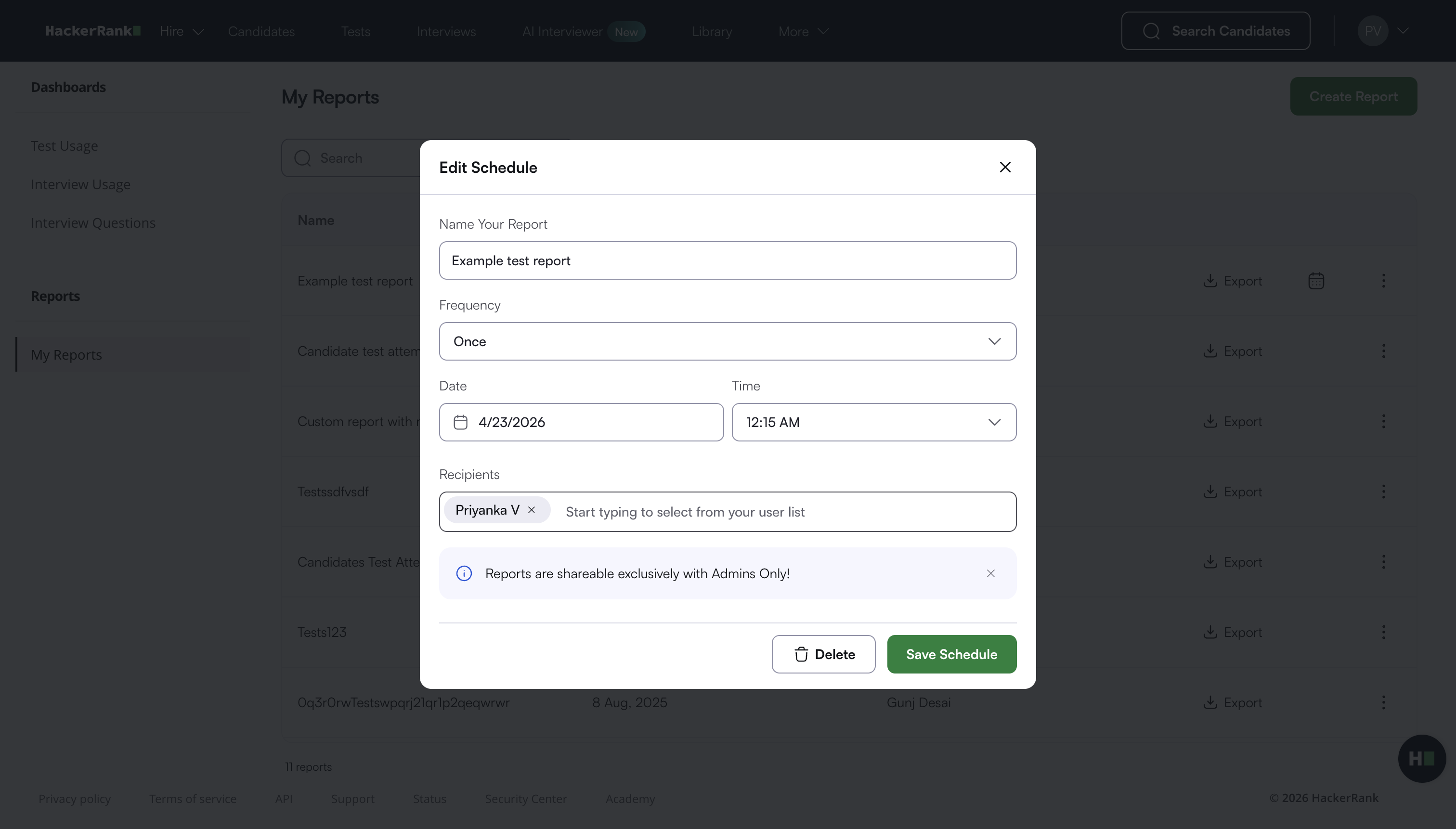
Click Save Schedule.
Deleting a custom report schedule
To delete a custom report schedule:
Go to My Reports.
Locate the report you want to delete.
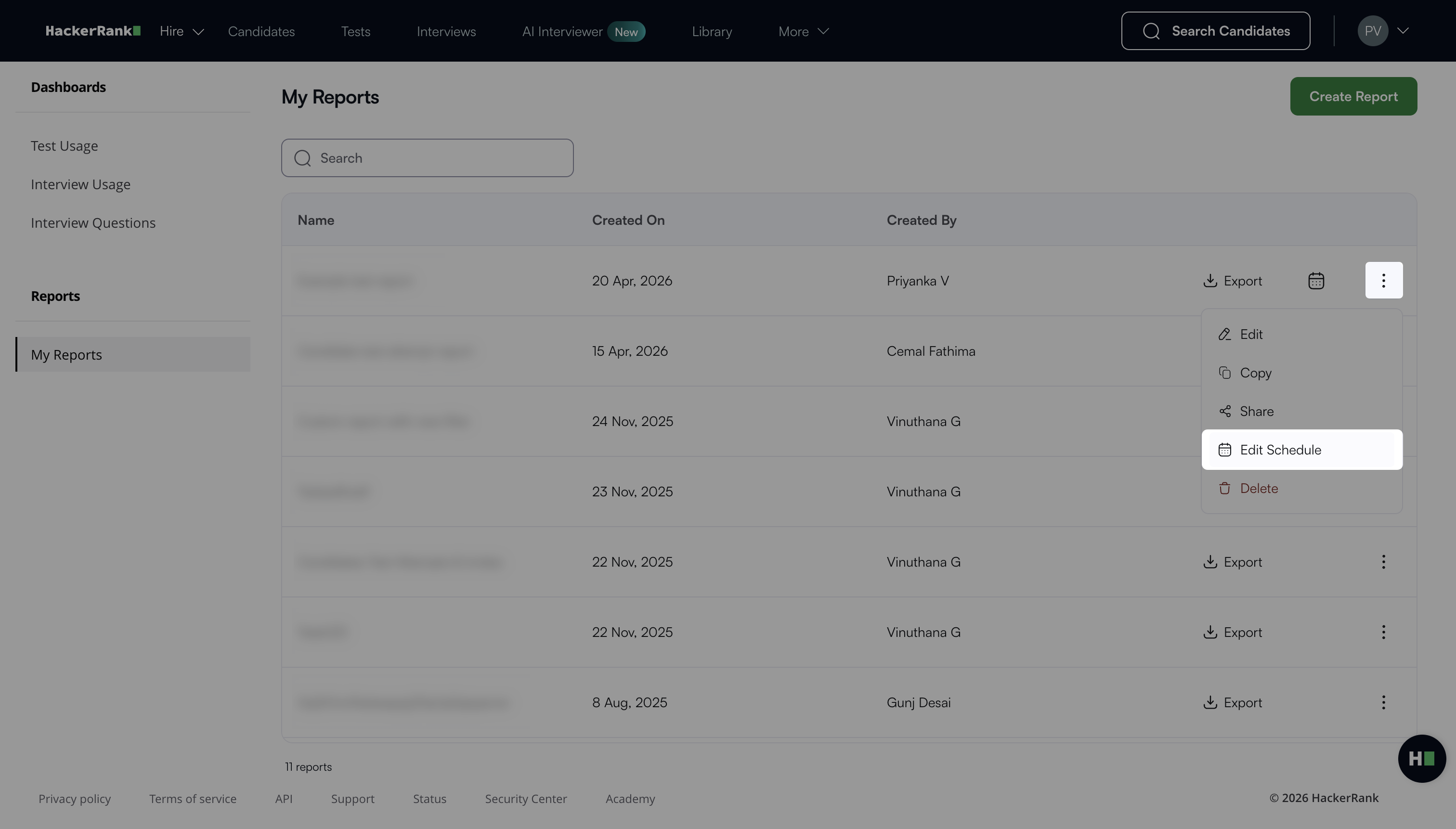
Click the more option menu next to the report.
Select Edit Schedule.
In the Edit Schedule dialog, click Delete.
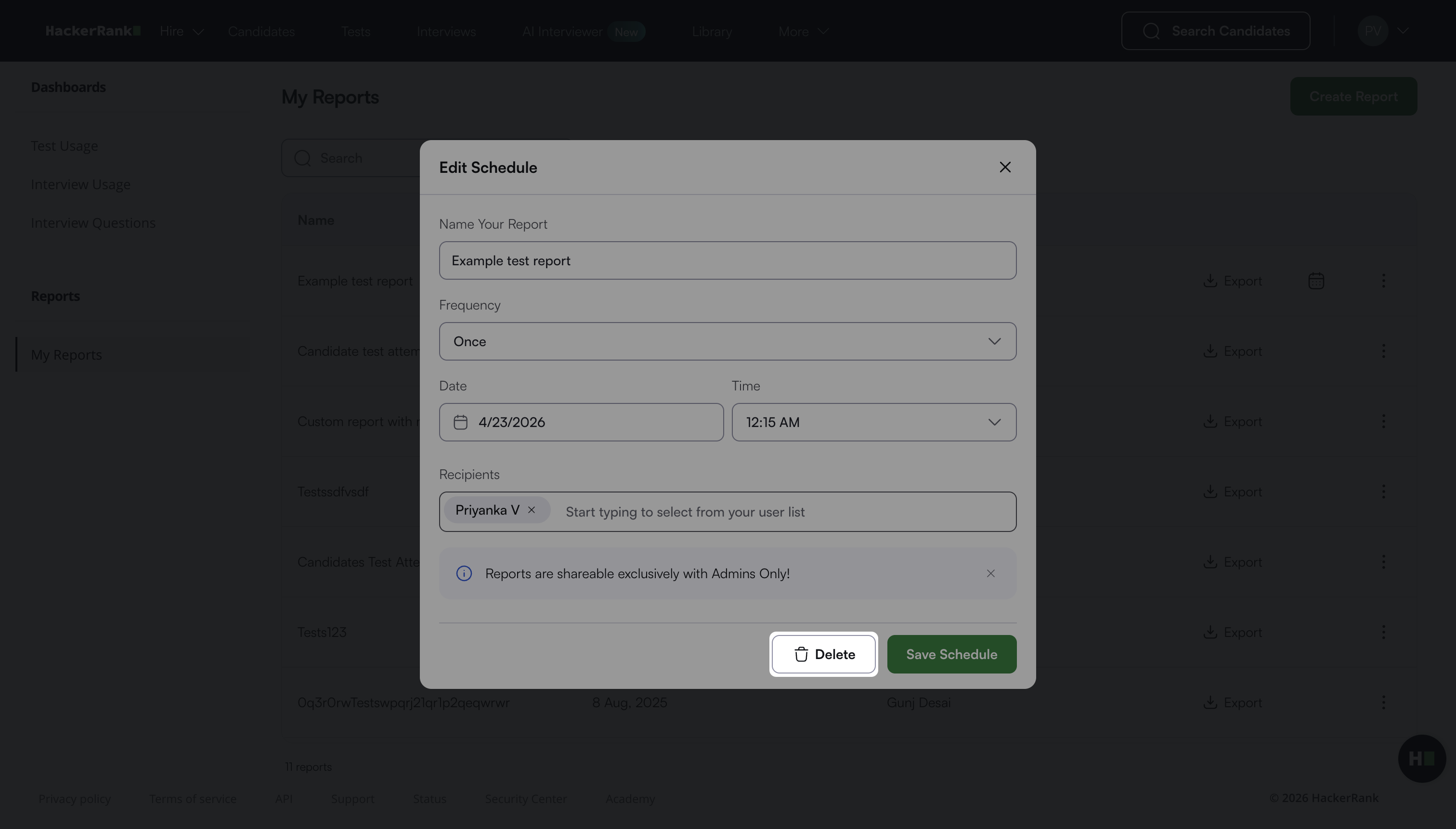
The platform deletes the schedule and displays a success message.