Use ADE in Chakra
Last updated: October 28, 2026
The Agentic Development Environment (ADE) is a development workspace for Code Repository questions in Chakra. It provides a preconfigured codebase and the tools that candidates need to navigate files, use a terminal, modify code, and build, run, test, inspect, and debug an application during an interview in Chakra.
Note: The ADE is available only for Code Repository questions.
ADE components
The ADE contains a collapsible navigation panel on the left, the agent workspace in the center, and a collapsible development panel on the right.
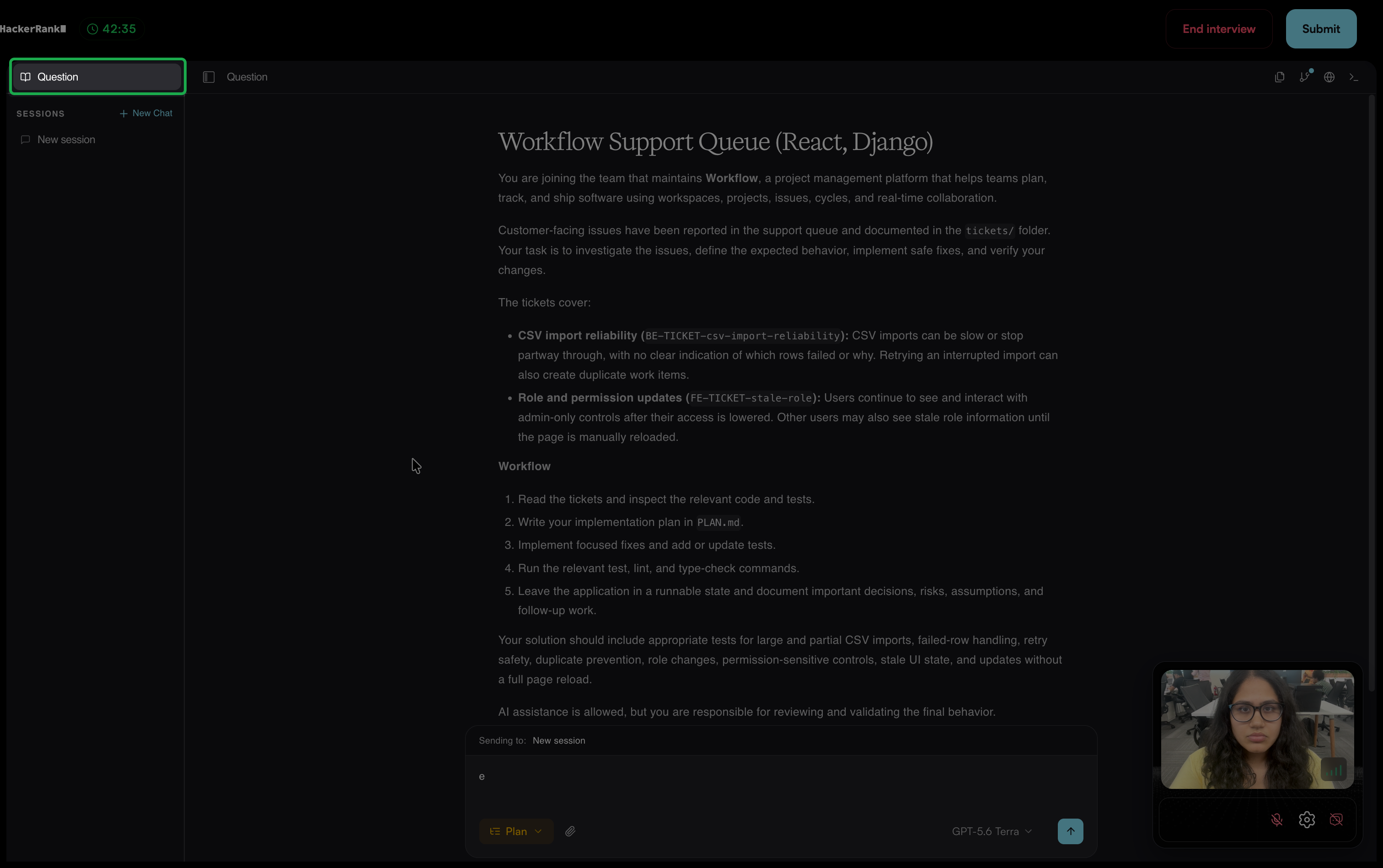
Question: Select Question in the left panel to display the problem statement, requirements, constraints, and repository context.
Agent Sessions: The Sessions panel lists the agent sessions in Chakra. Candidates can create separate sessions for different tasks.
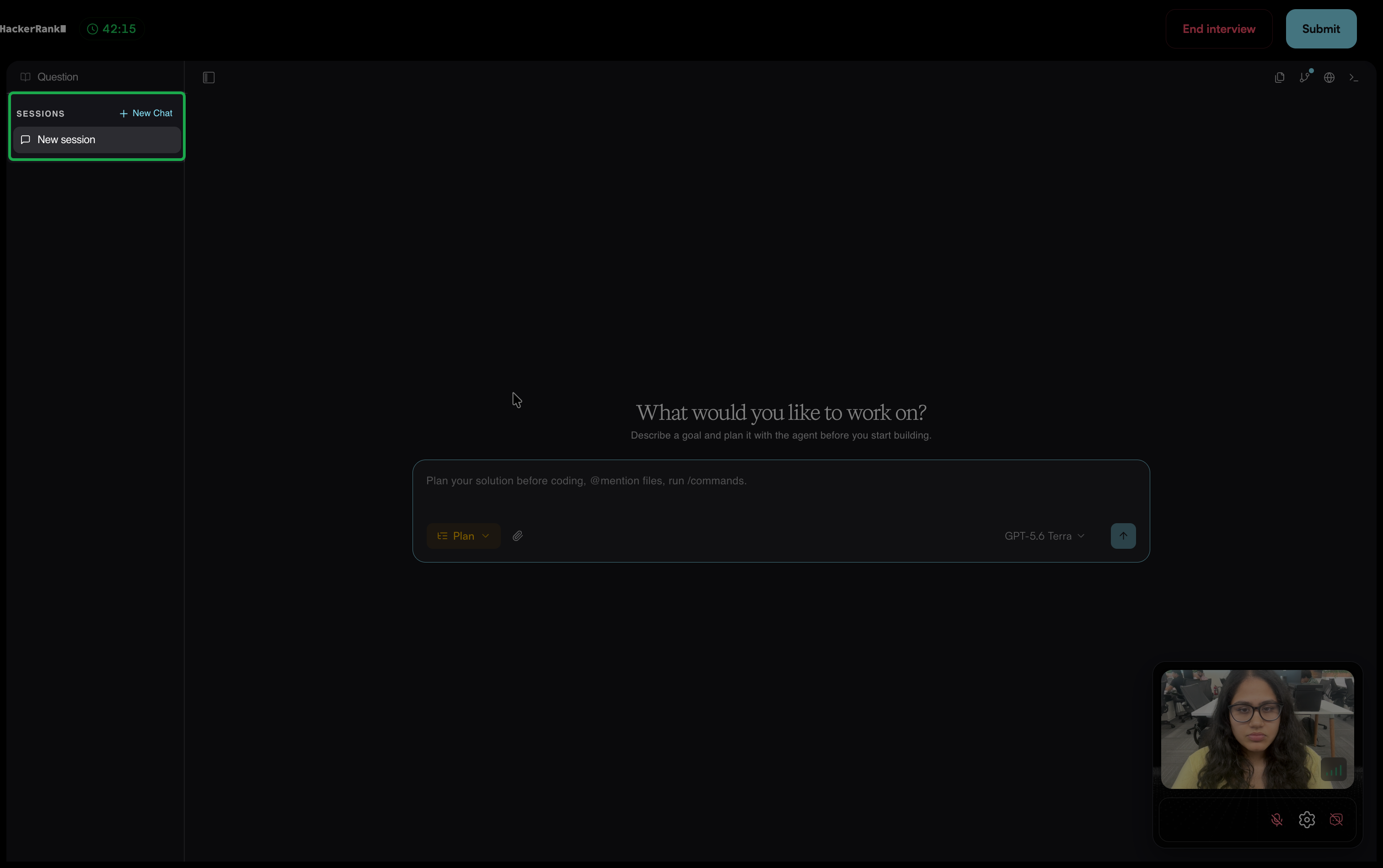
Select New Chat to start another session. To remove a session from the list, select its archive icon.
AI Assistant: Use the prompt field at the bottom of the workspace to enter prompts, reference files with
@mentions, run/commands, select an AI Assistant mode and model, attach files, and submit prompts.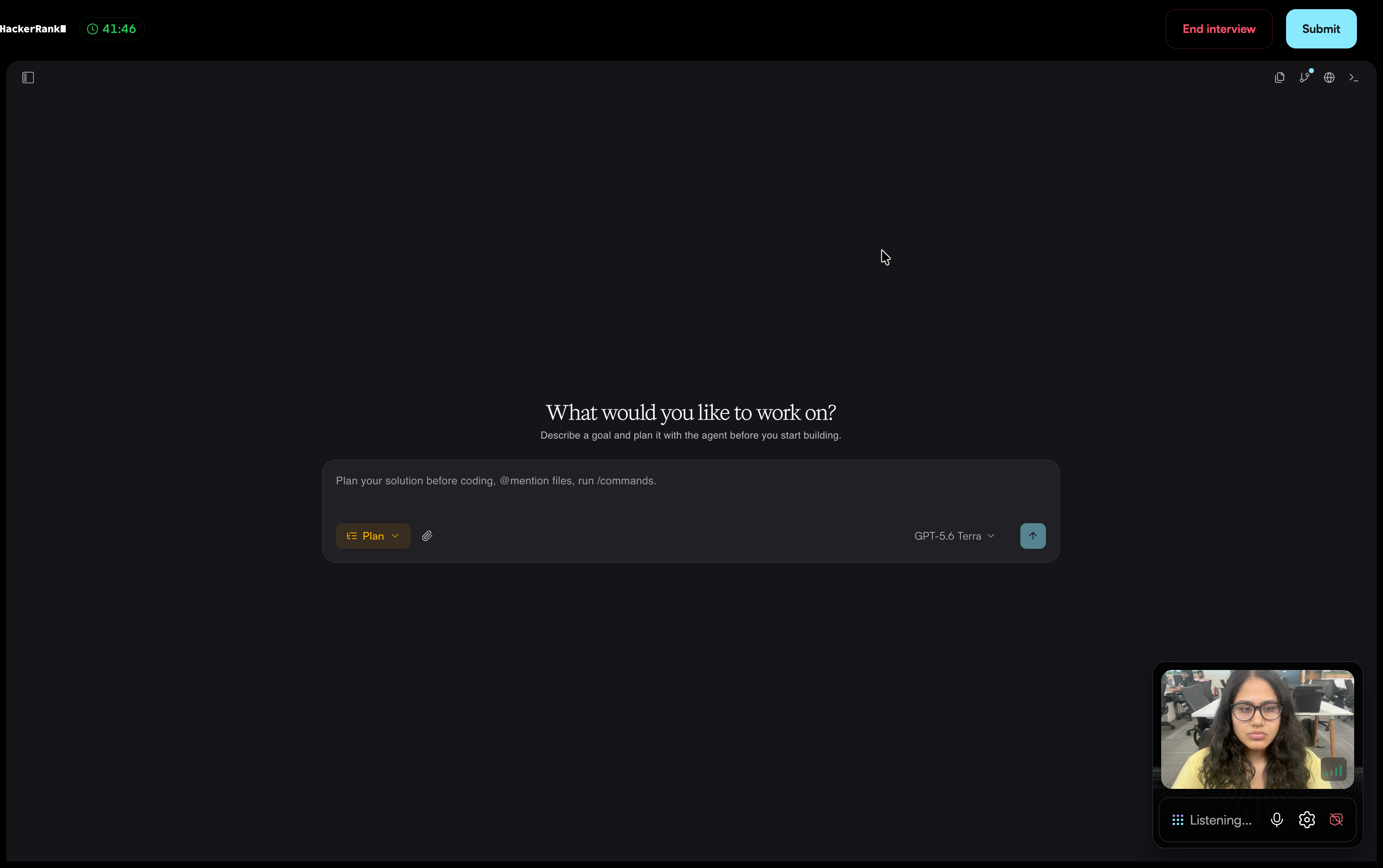
AI Assistant Mode: The AI Assistant provides the following modes:
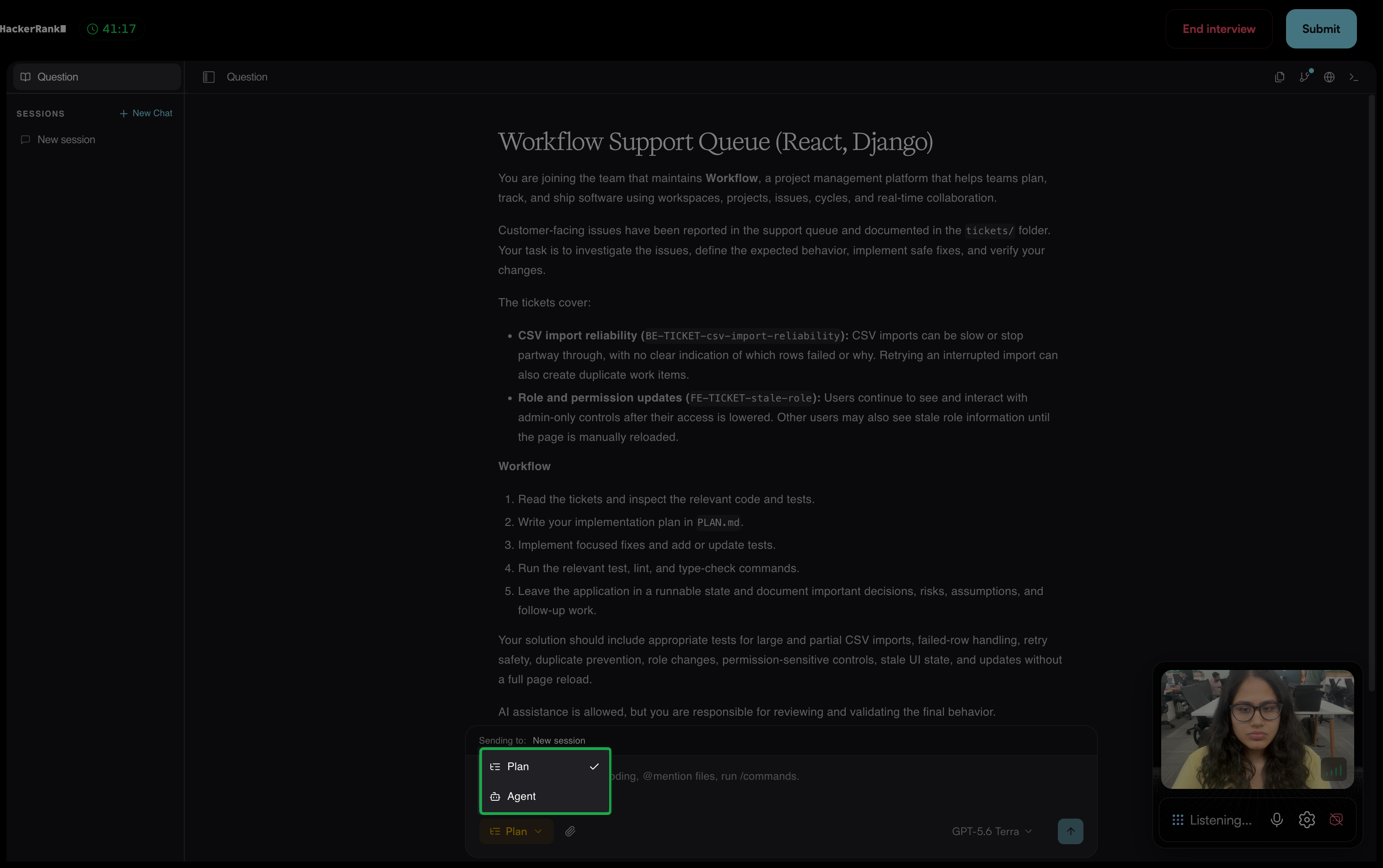
Plan Mode: The candidate uses the AI Assistant to analyze the problem and create an implementation plan before writing code. The assistant reads the problem statement and existing code, asks clarifying questions when requirements are ambiguous, and generates a proposed implementation plan in Markdown for review. Plan Mode does not modify code.
Agent Mode: The candidate uses the AI Assistant to implement the solution. The AI Assistant can write code, edit files, and run actions based on the candidate’s prompts.
Candidates can switch between these modes from the mode selector in the prompt field.
Model Switching: Candidates can toggle between available models based on the task or their preference. The AI Assistant currently supports the following models:
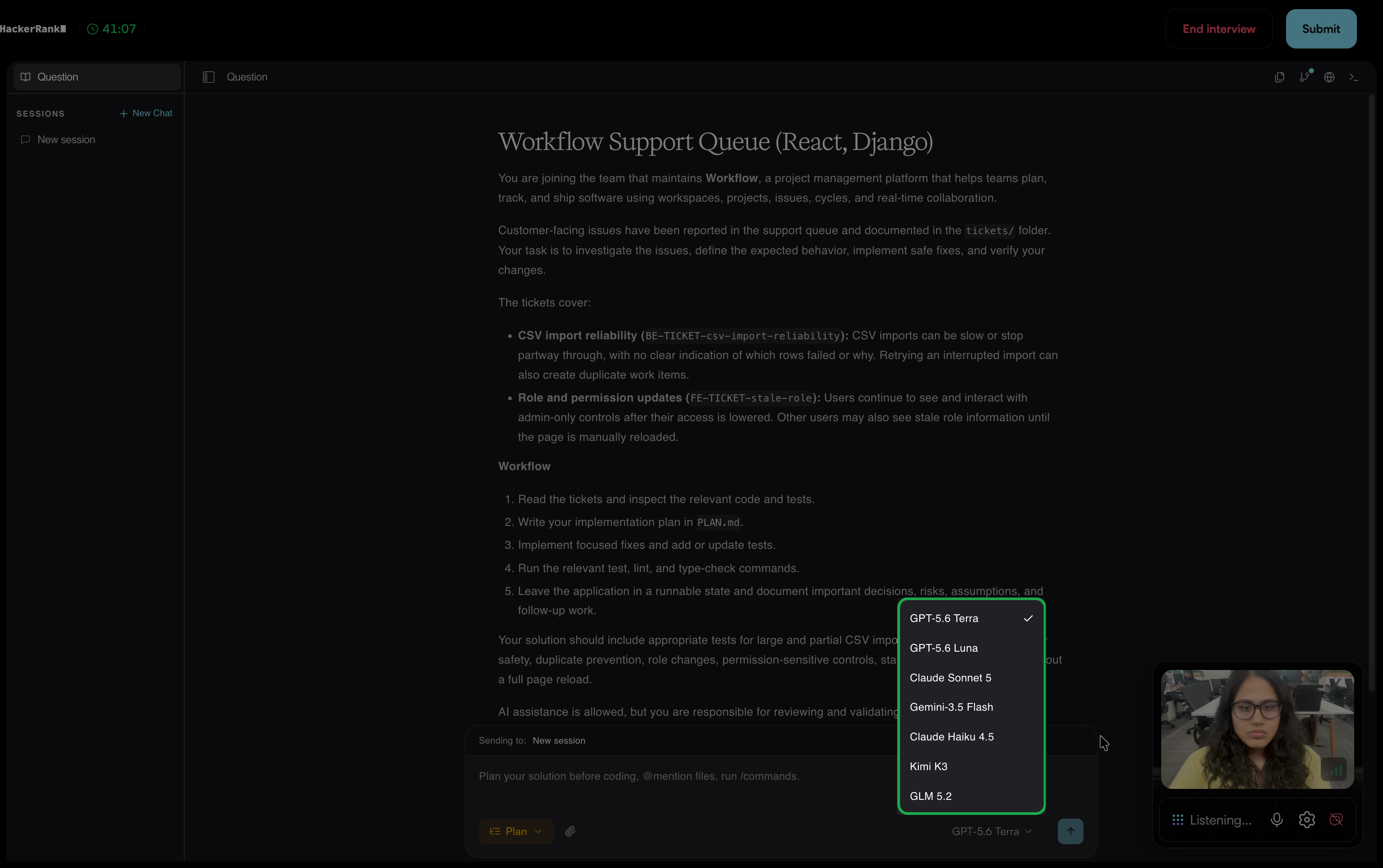
GPT-5.6 Terra
GPT-5.6 Luna
Claude Sonnet 5
Gemini-3.5 Flash
Claude Haiku 4.5
Kimi K3
GLM 5.2
The AI Assistant uses GPT-5.6 Terra by default.
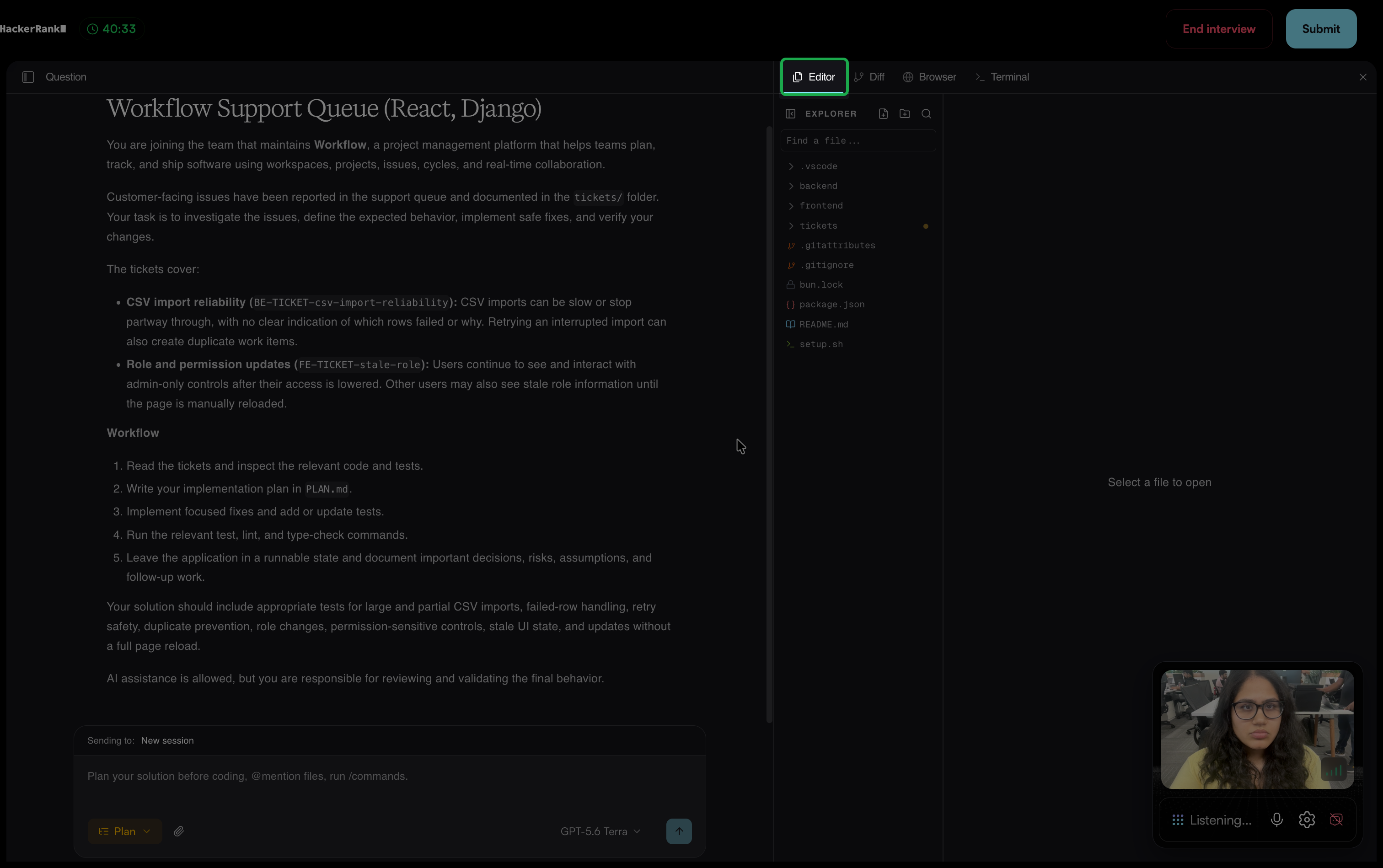
Editor: Click the Open editor pane icon in the upper-right corner. The Editor tab displays the repository files and folders in Explorer. You can create files and folders, search the repository, and select a file to open it. Use Find a file to search for a file by name.
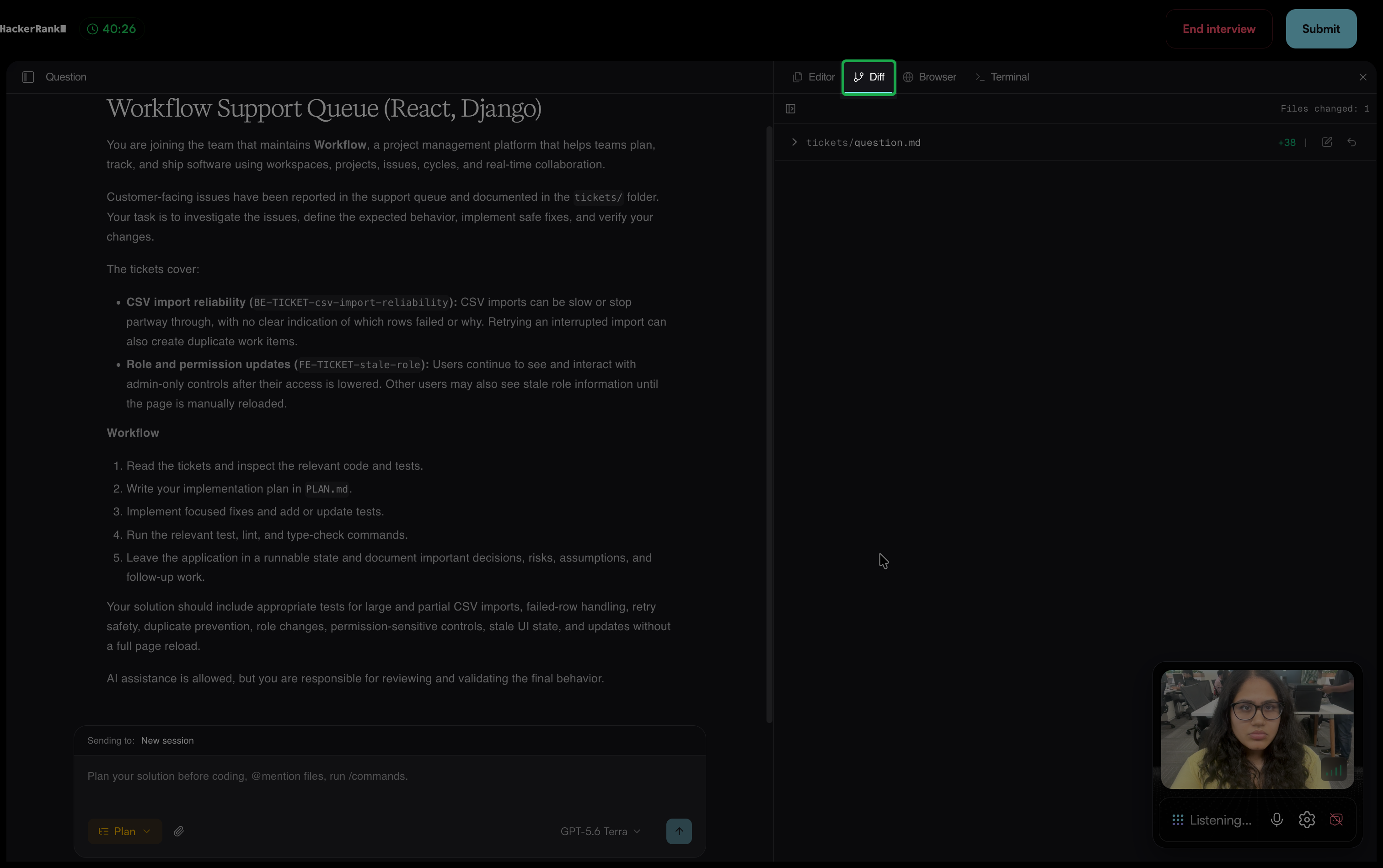
Diff view: Click the Open diff pane icon in the upper-right corner. The Diff tab displays files that change during the interview and compares them with the repository’s starting state. If no files have changed, the tab displays No changed files yet.
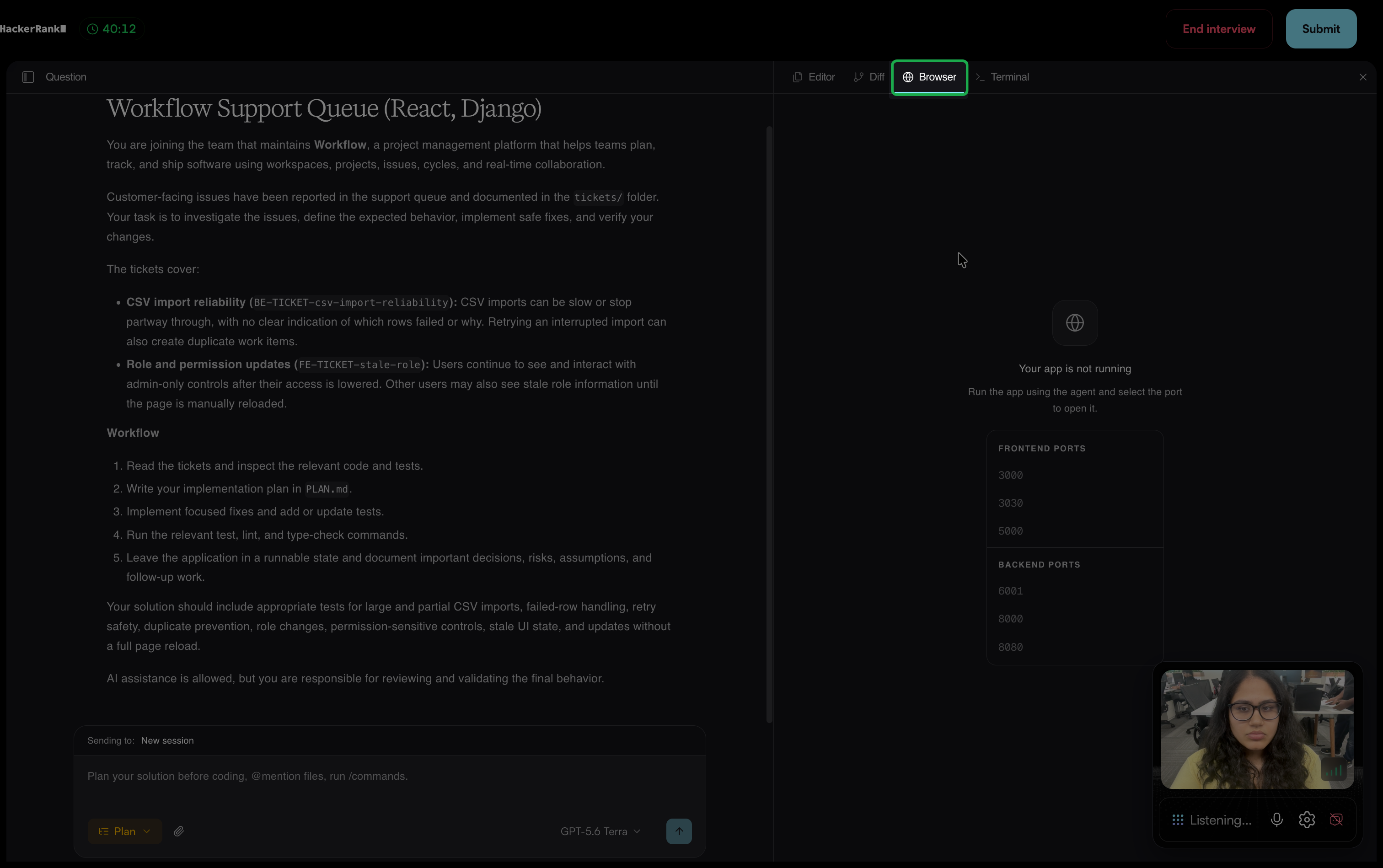
Browser: Click the Open browser pane icon in the upper-right corner. The Browser tab runs the application inside the environment. The agent starts the application, and you select a port from the available frontend and backend ports to open it. Until the application is running, the tab prompts you to run it using the agent.
Terminal: Click the Open terminal pane icon in the upper-right corner. The Terminal tab provides command-line access to the ADE workspace. You can inspect the repository, start services, run tests, and verify application behavior. Select the plus (+) icon to open another terminal tab.
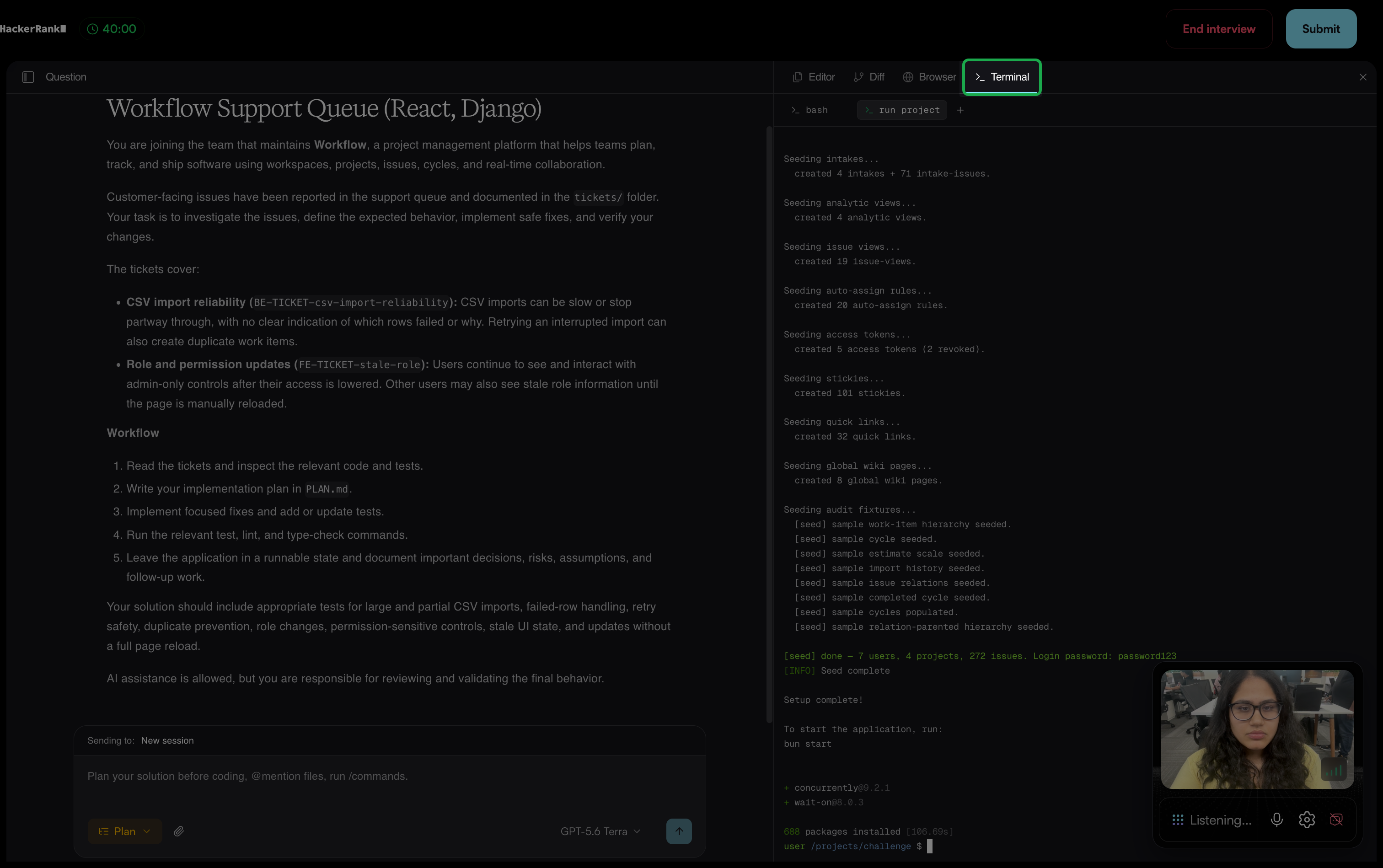
After you open any of the right-side development panes, you can switch between the Editor, Diff, Browser, and Terminal tabs. Select the close (×) icon in the upper-right corner to close the pane.