Set up HackerRank Single Sign-On with Okta
Last updated: April 10, 2026
HackerRank for Work supports single sign-on (SSO) using Okta as the identity provider. Okta lets users sign in once and access HackerRank without entering credentials again.
This article explains how to configure and enable SSO between HackerRank and Okta.
For more information about SSO, see 📄 Getting Started with Single Sign-On.
Note: HackerRank accepts only the user’s email address for SSO. During setup, define the SAML assertion to send the email address. SSO fails if HackerRank receives any value other than an email address.
Prerequisites
Before you begin, ensure you meet the following requirements:
Your organization has an active Enterprise plan with HackerRank.
You have access to the Okta Admin Console.
Setting up HackerRank Single Sign-On with Okta
To set up HackerRank single sign-On with Okta:
Step 1: Copy the SSO unique ID from HackerRank
Log in to your HackerRank for Work account using your credentials.
Go to Settings > Company > Single Sign On.
Copy the SSO unique ID under the Configure SSO section.
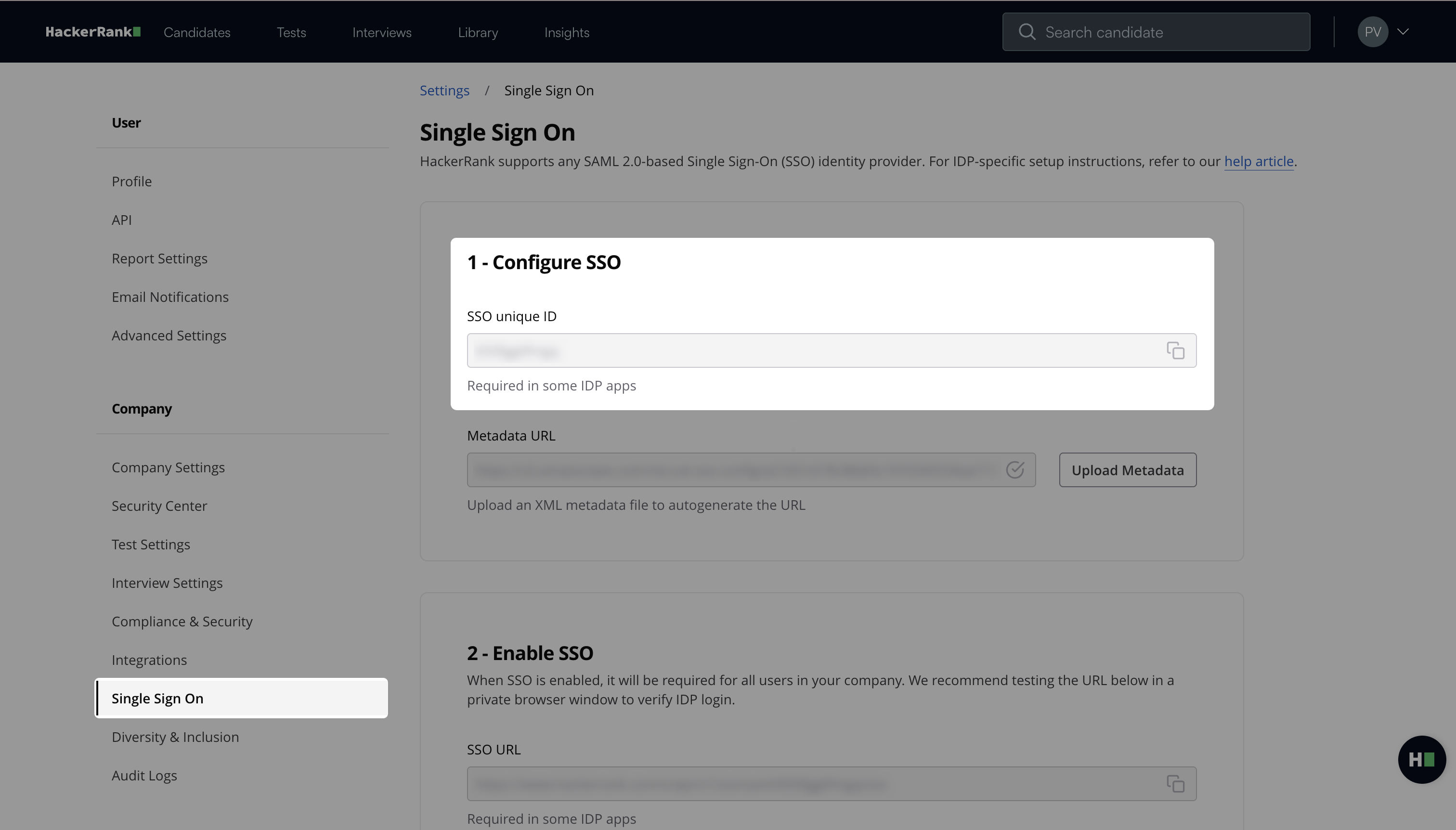
Note: You need this SSO unique ID in Step 2: Add HackerRank for Work app in Okta.
Step 2: Add HackerRank for Work app in Okta
Log in to your Okta account using your credentials.
Go to Admin Console > Applications > Applications.
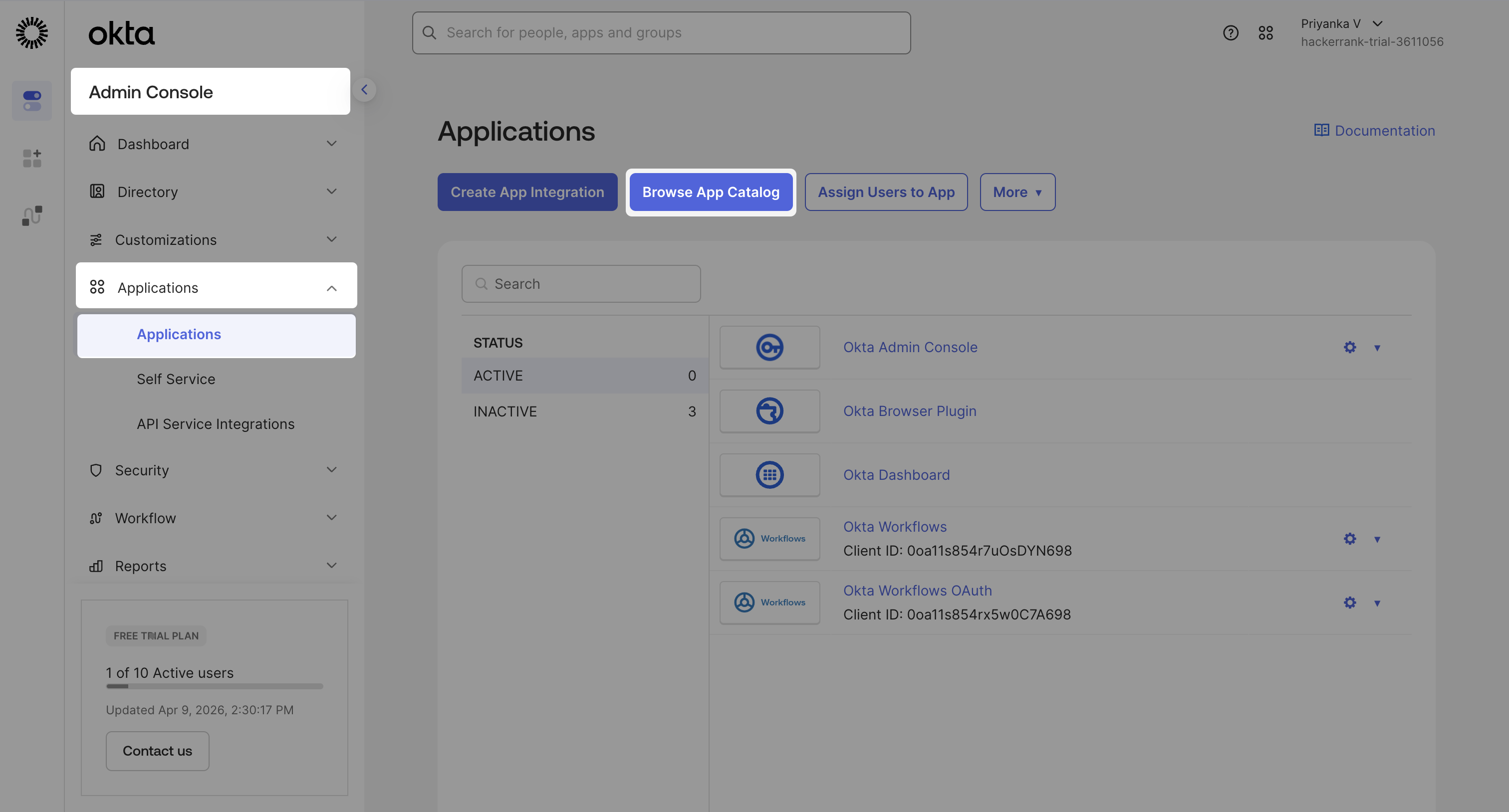
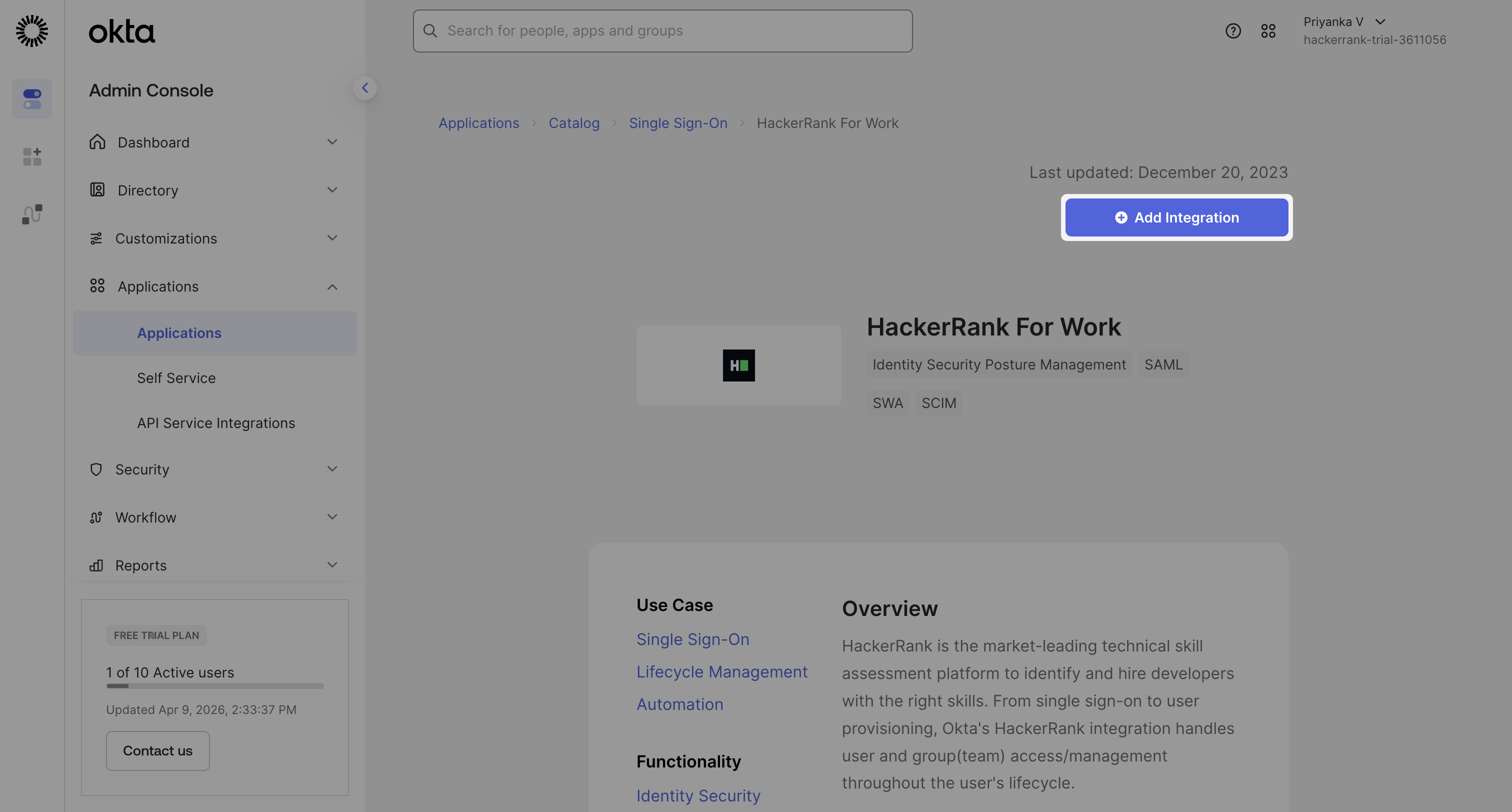
Click Browse App Catalog.
Search for HackerRank for Work and select it.
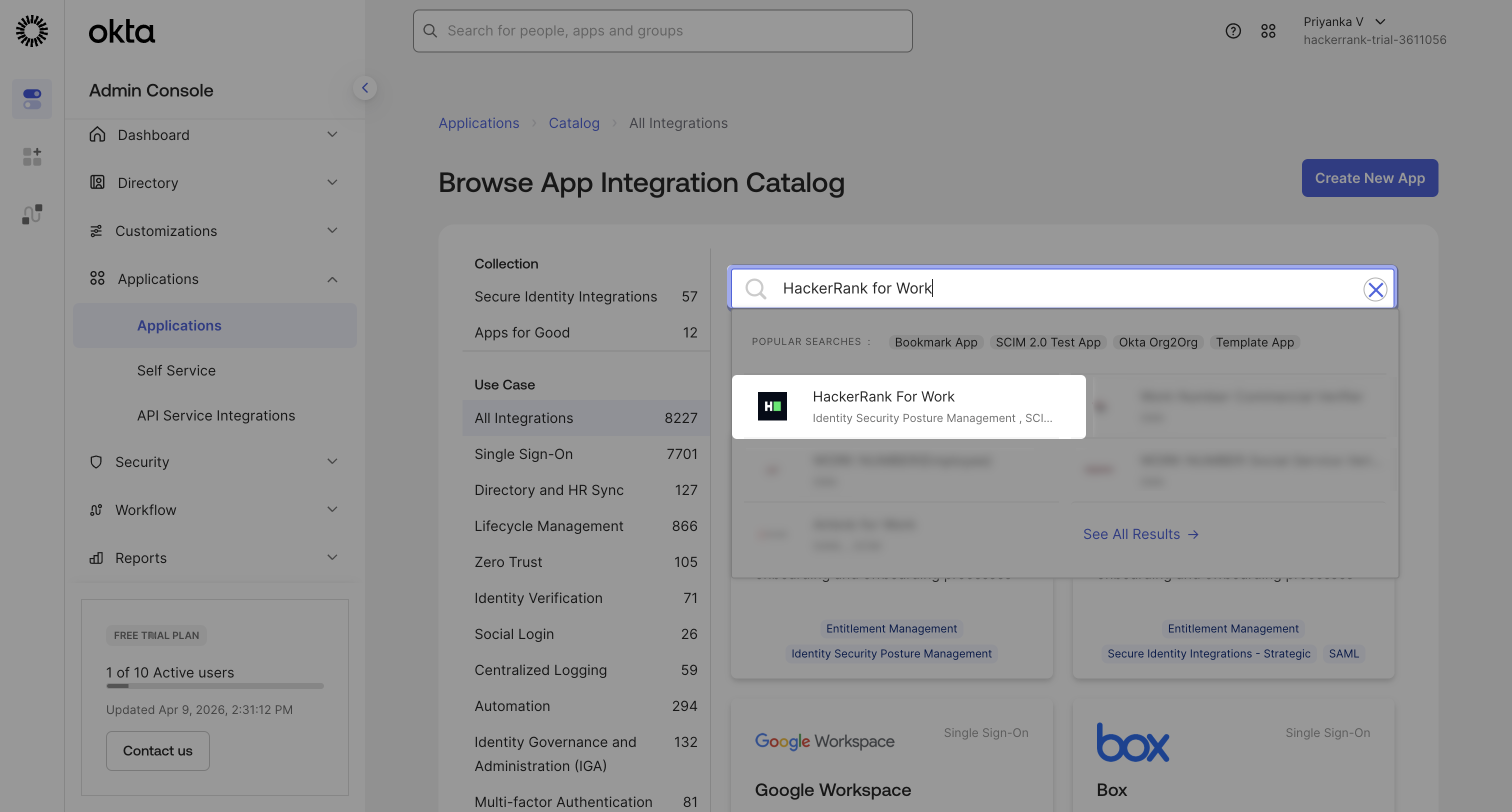
Click Add Integration.
In the General Settings tab:
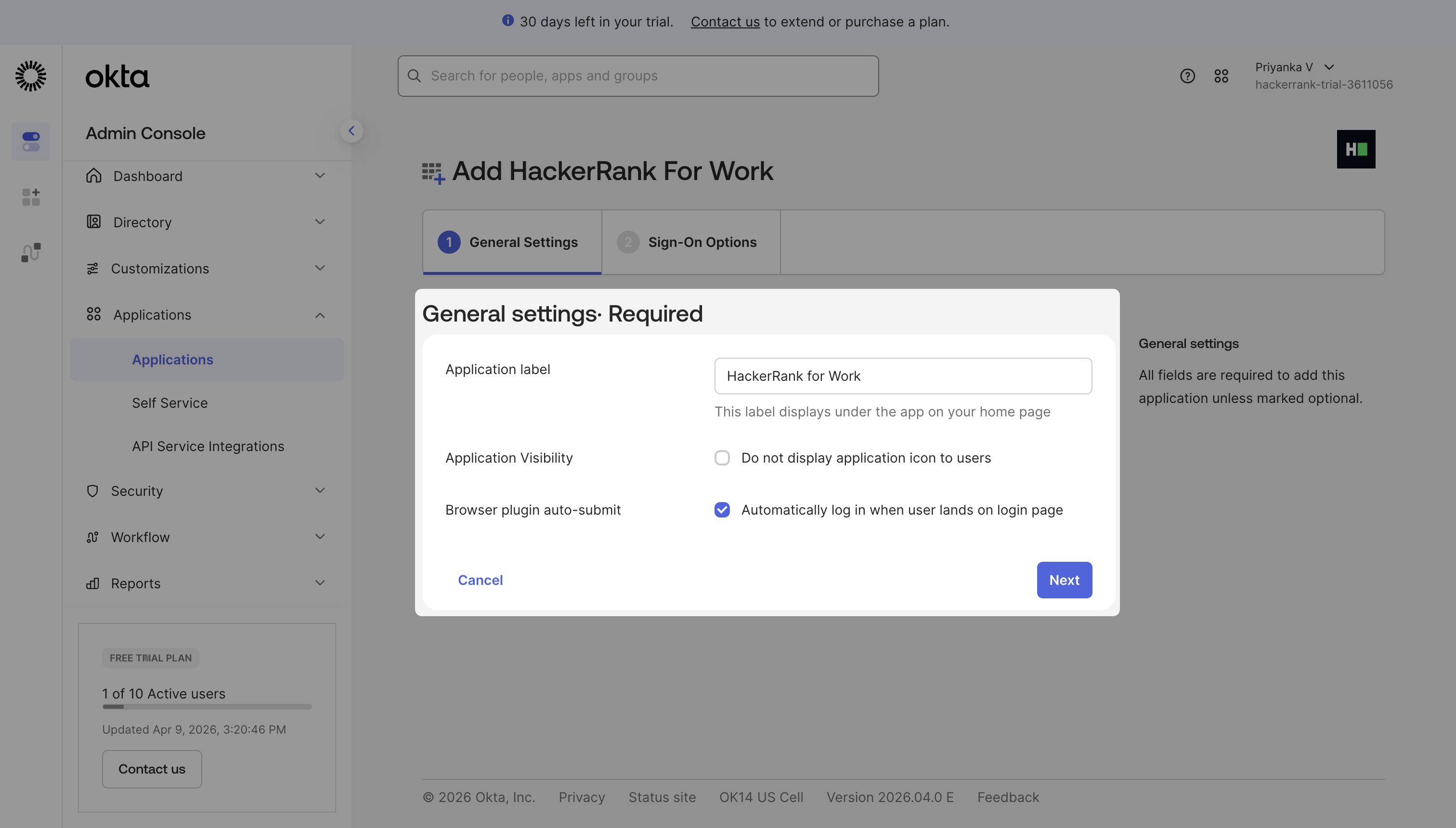
Enter an Application label.
(Optional) Select Do not display application icon to users to hide the app.
Select Automatically log in when user lands on login page to enable auto-login.
Click Next.
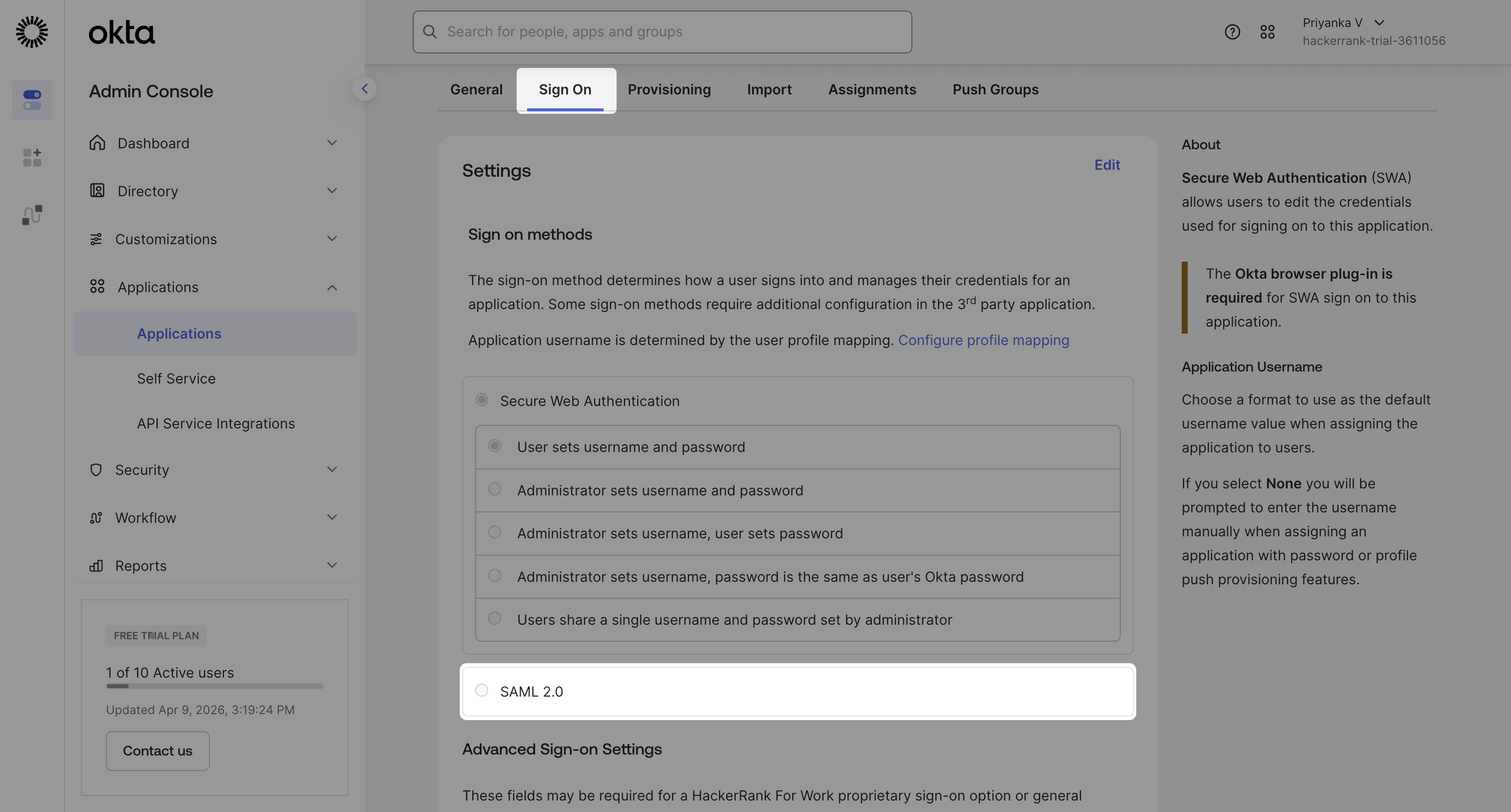
In the Sign-On tab:
Select SAML 2.0 under the Sign on methods section.
Scroll to Advanced Sign-on Settings.
In the SSO unique ID field, paste the SSO unique ID you copied from HackerRank for Work in Step 1.
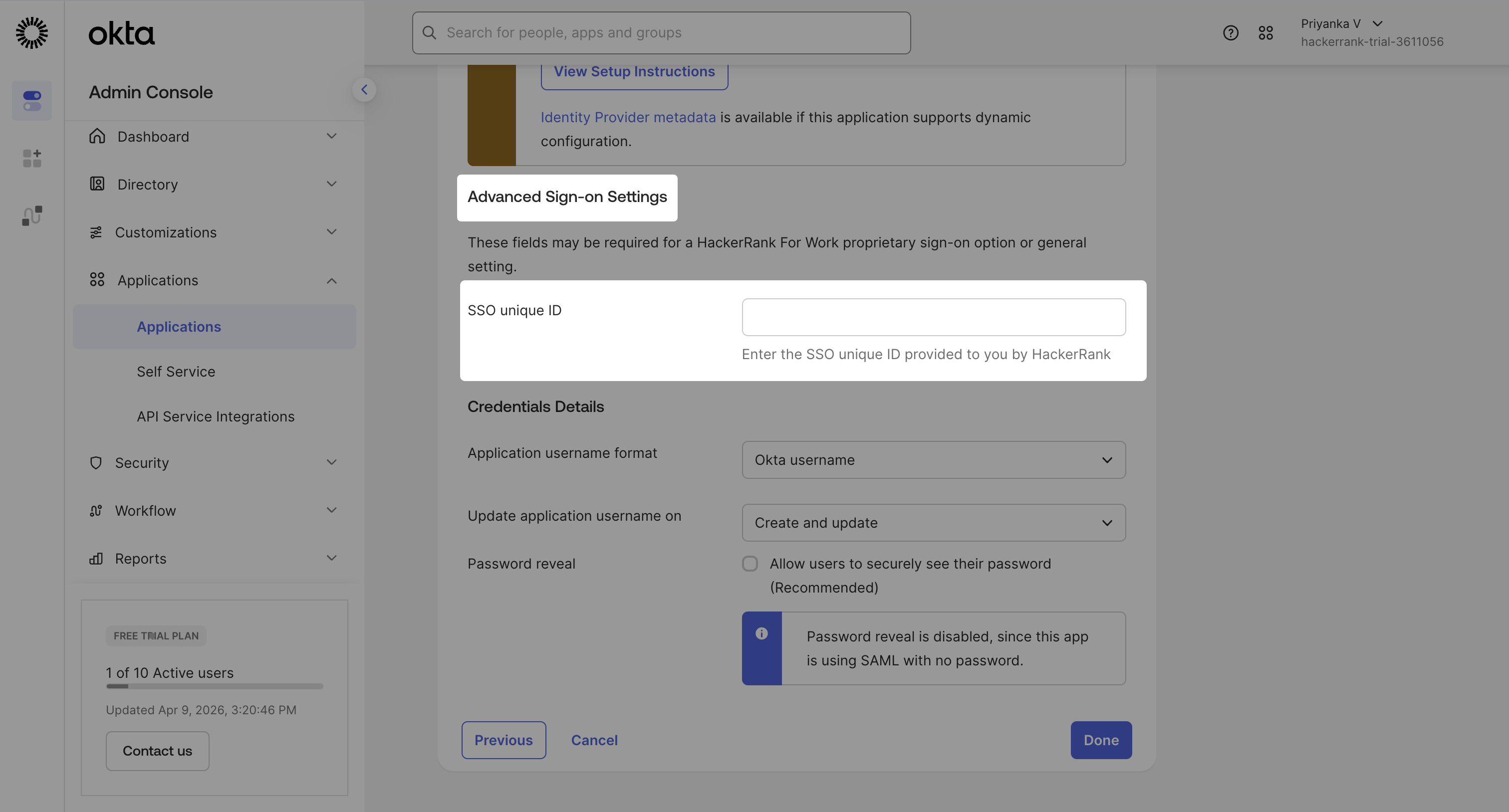
Click Done. Okta generates a Metadata URL.
Copy the metadata URL from the Sign-On tab and open it in your browser to download the XML file.
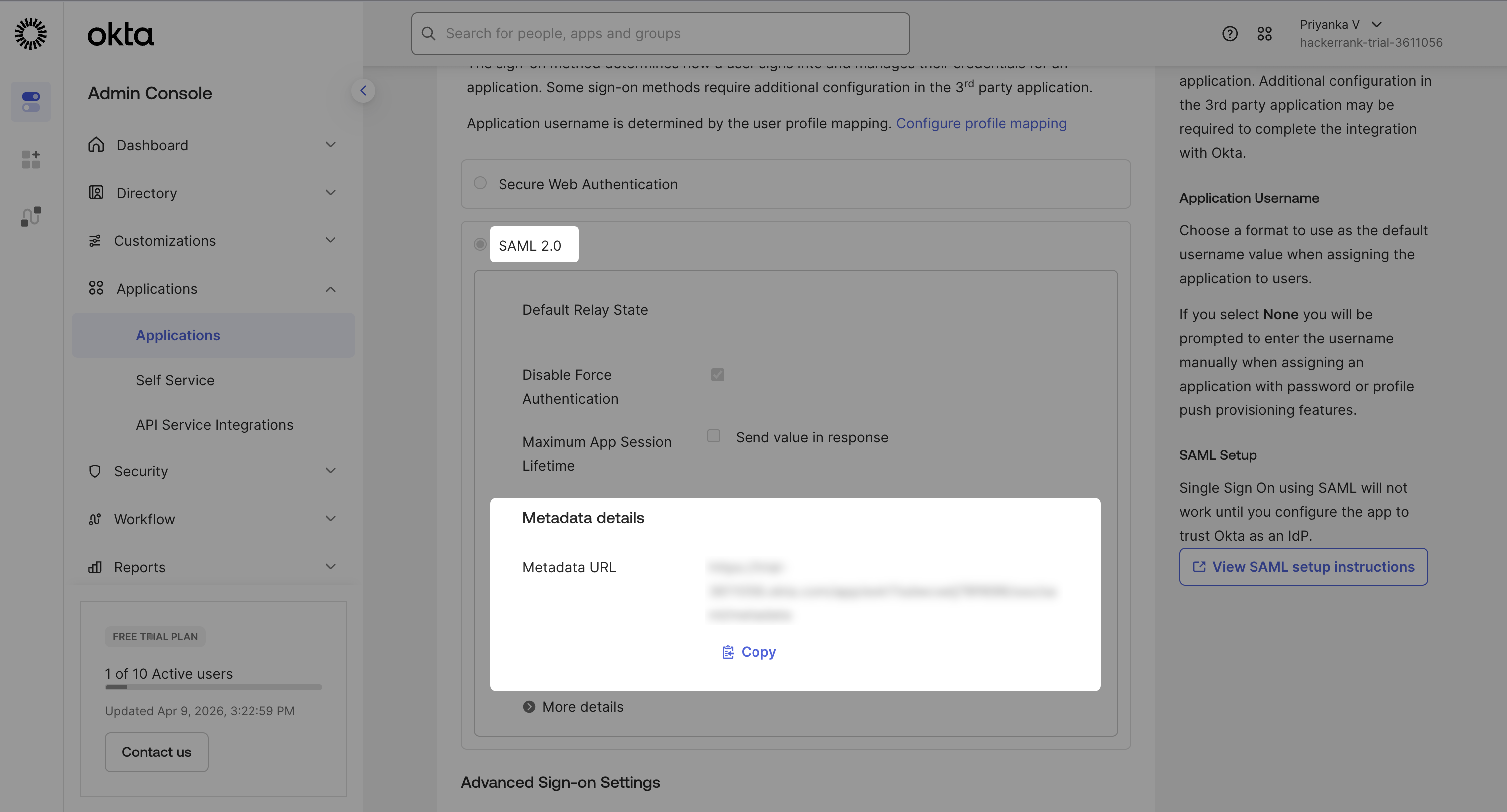
Note: You need this XML file in Step 3: Upload metadata in HackerRank.
Step 3: Upload metadata in HackerRank
Open your HackerRank for Work account.
Go to Settings > Company > Single Sign On.
Click Upload Metadata under the Configure SSO section.
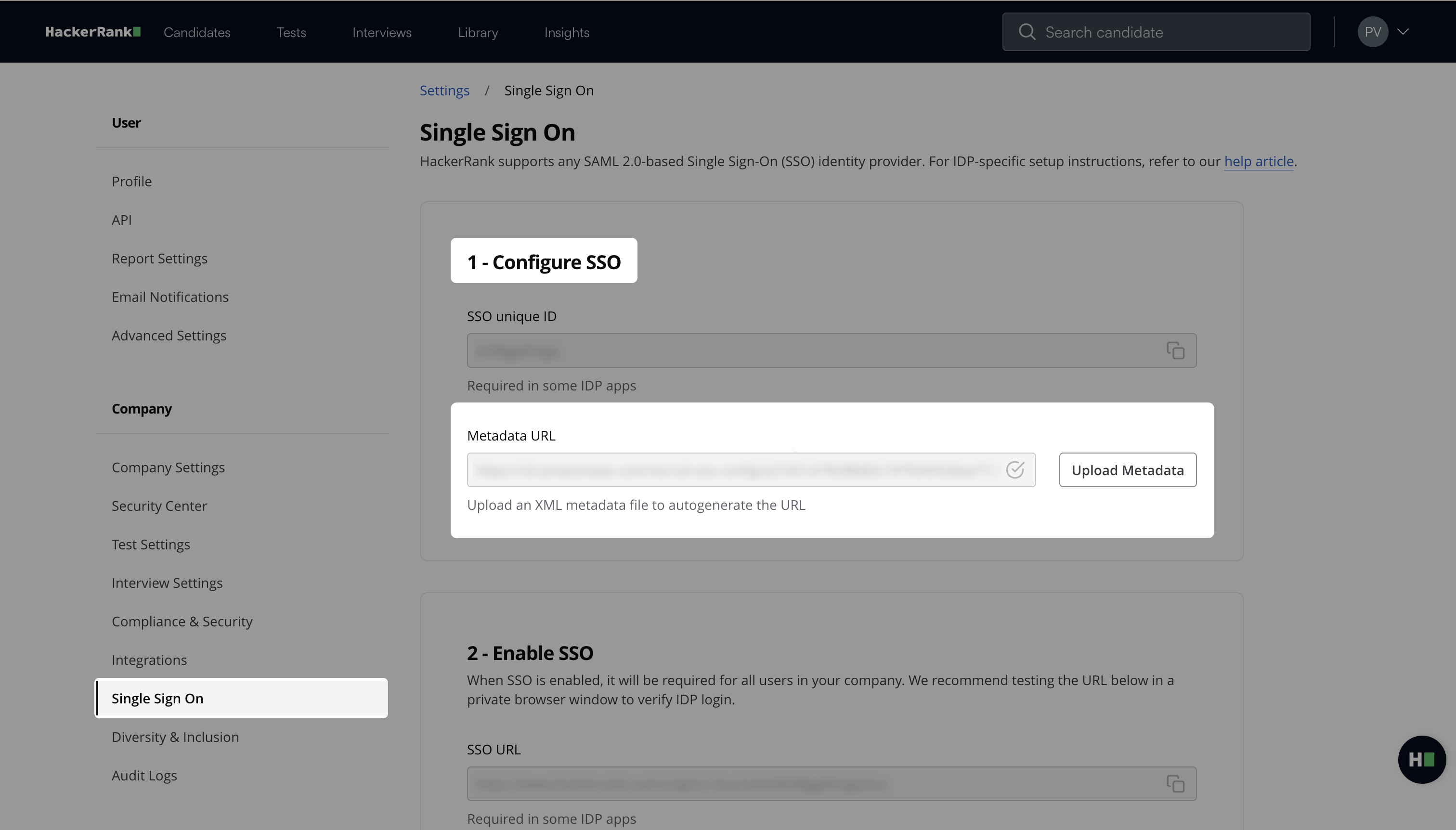
Upload the XML file that you downloaded from Okta in Step 2.
After the upload completes, HackerRank displays the autogenerated metadata URL.
Step 4: Enable SSO
Go to Settings > Company > Single Sign On.
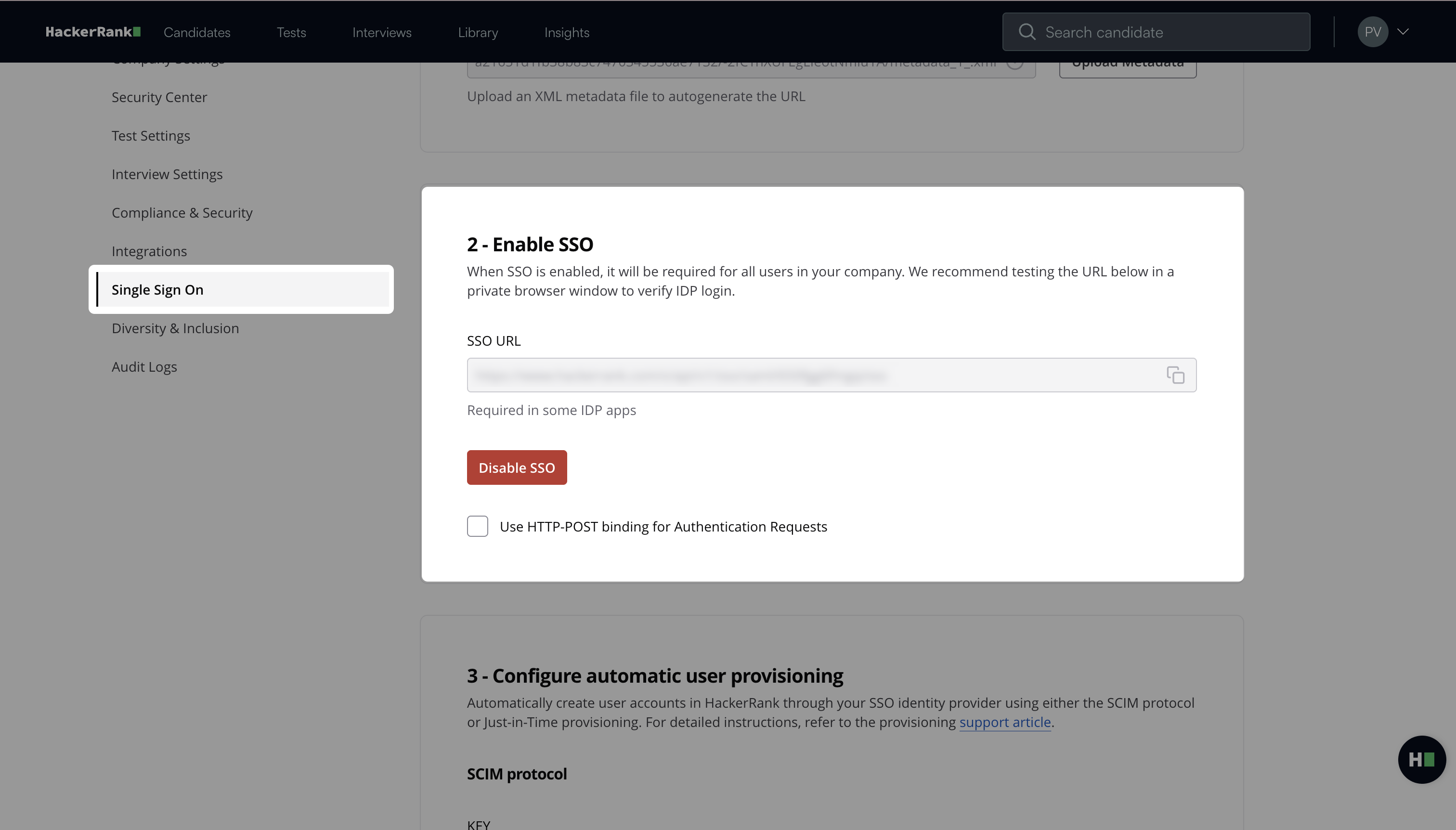
In the Enable SSO section, click Enable SSO.
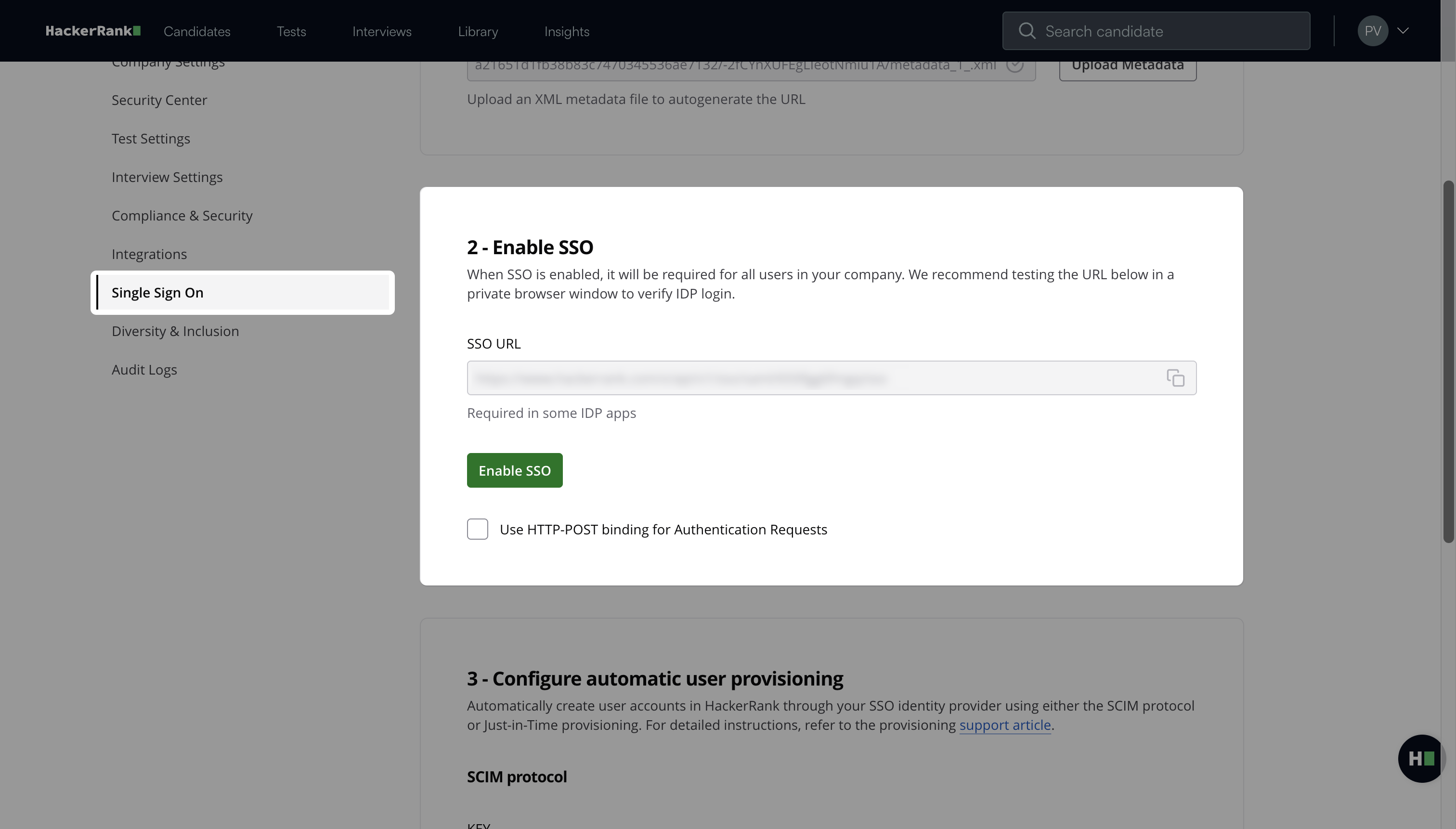
After you enable SSO:
Users can sign in to HackerRank through Okta.
When users enter their email address, HackerRank redirects them to the Okta sign-in page.
Note: To disable SSO, click Disable SSO.