Set up SCIM Provisioning with Microsoft Entra ID
Last updated: May 27, 2026
HackerRank supports SCIM provisioning to automatically manage users and teams from Microsoft Entra ID.
Key features
SCIM provisioning with Microsoft Entra ID supports the following:
Create users: Creates users in HackerRank when you assign them to the application in Entra.
Update profiles: Updates user profile attributes in HackerRank when profile changes occur in Entra.
Deactivate users: Deactivates users in HackerRank when you remove user access in Entra.
Sync groups (teams): Syncs Entra groups as teams in HackerRank and maps group membership to the corresponding team.
Silent provisioning: Provisions users without sending welcome or activation emails.
Prerequisites
Before you begin, ensure you meet the following requirements:
You have Company Admin access in HackerRank.
You have admin access in Microsoft Entra ID.
You have configured SAML-based SSO for your organization.
Setting up SCIM provisioning with Microsoft Entra ID
To set up SCIM provisioning with Microsoft Entra ID:
Step 1: Generate an API key in HackerRank
Log in to your HackerRank for Work account using your credentials.
Click your profile icon in the upper-right corner and select Settings.
Go to Company > Single Sign On.
Scroll to Configure automatic user provisioning.
Click Generate Key under SCIM protocol.
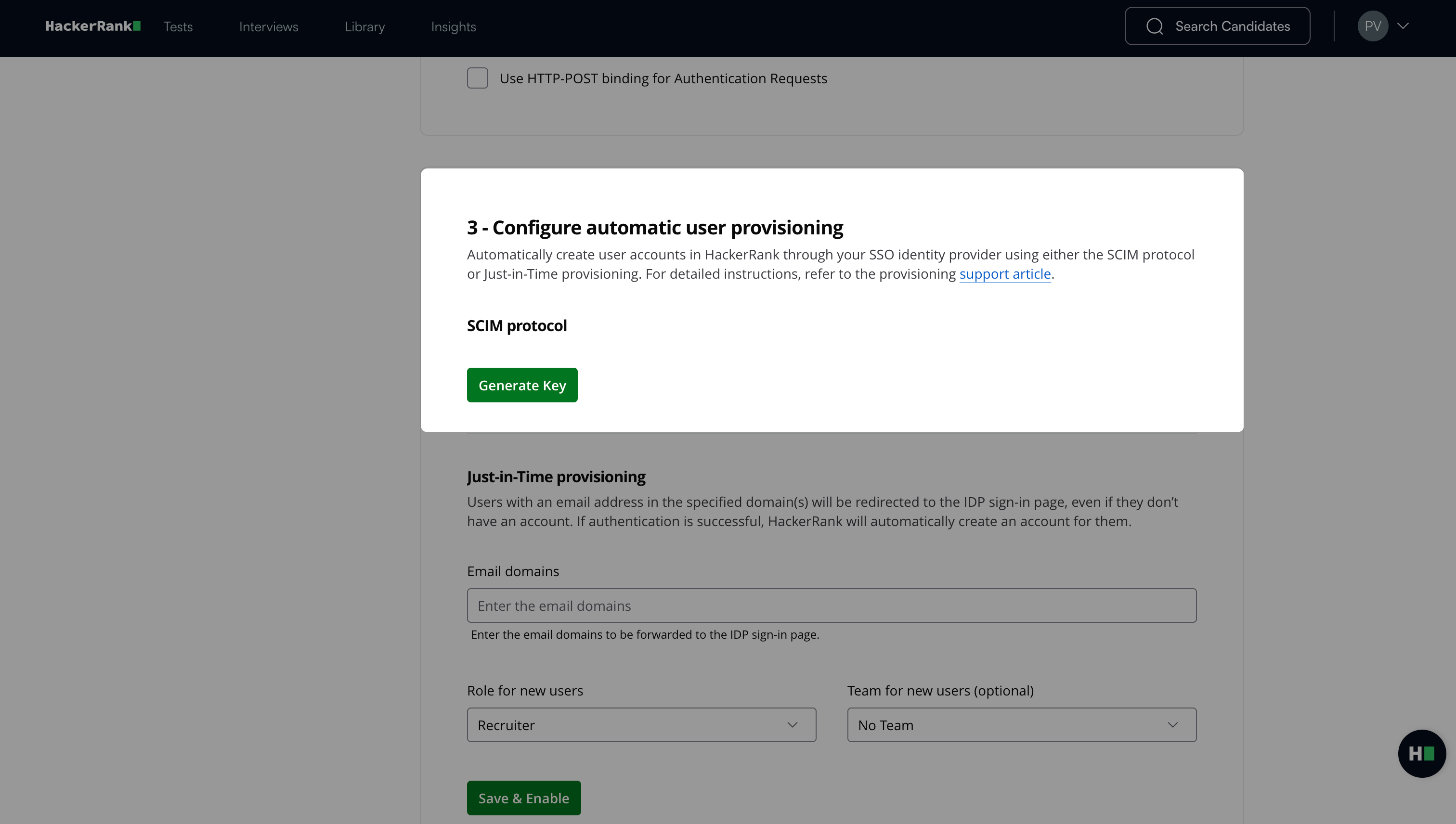
Copy the generated API key.
Note: You need this API Key in Step 3: Configure automatic provisioning in Entra.
Step 2: Create a HackerRank enterprise application in Microsoft Entra ID
Follow the steps outlined in 📄 Setting up HackerRank Single Sign-On with Azure ADto create and configure the HackerRank enterprise application.
Step 3: Configure SCIM provisioning in Microsoft Entra ID
Log in to your Microsoft Entra ID account using your credentials.
Go to Entra ID > App registrations.
Select the HackerRank enterprise application created in Step 2.
Click Go to Enterprise Application.
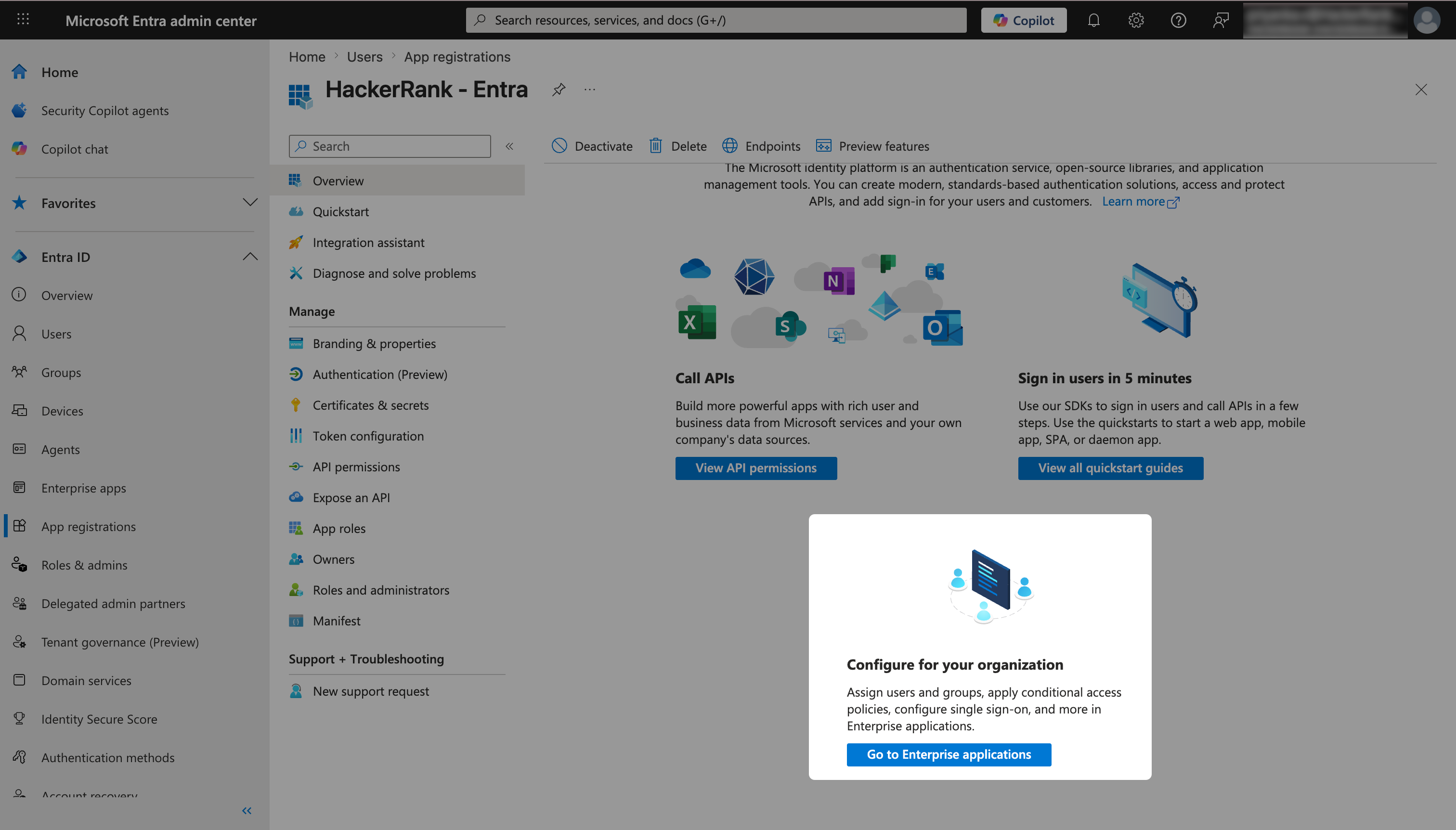
Select Provisioning.
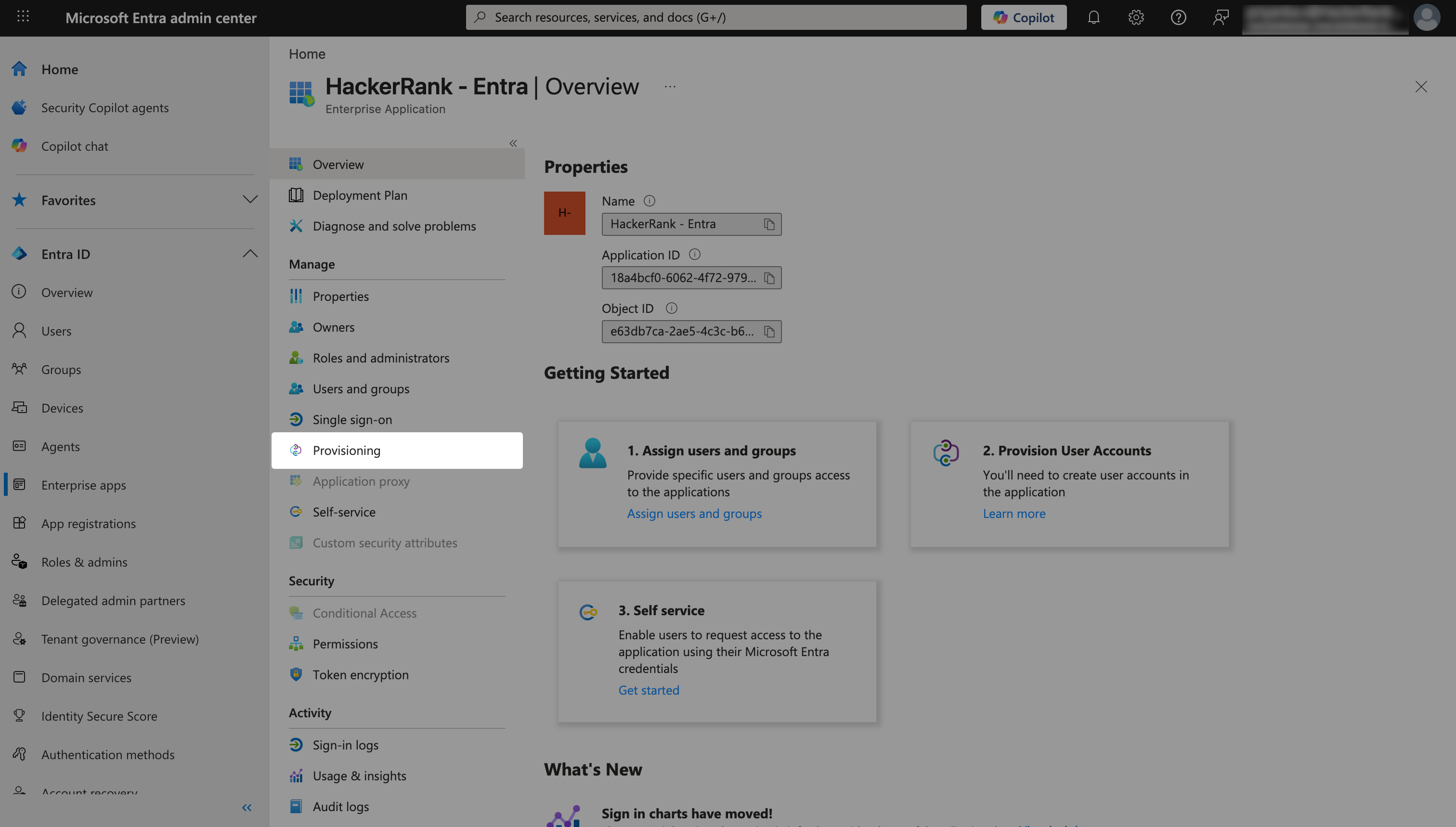
Click Connect your application under Create configuration.
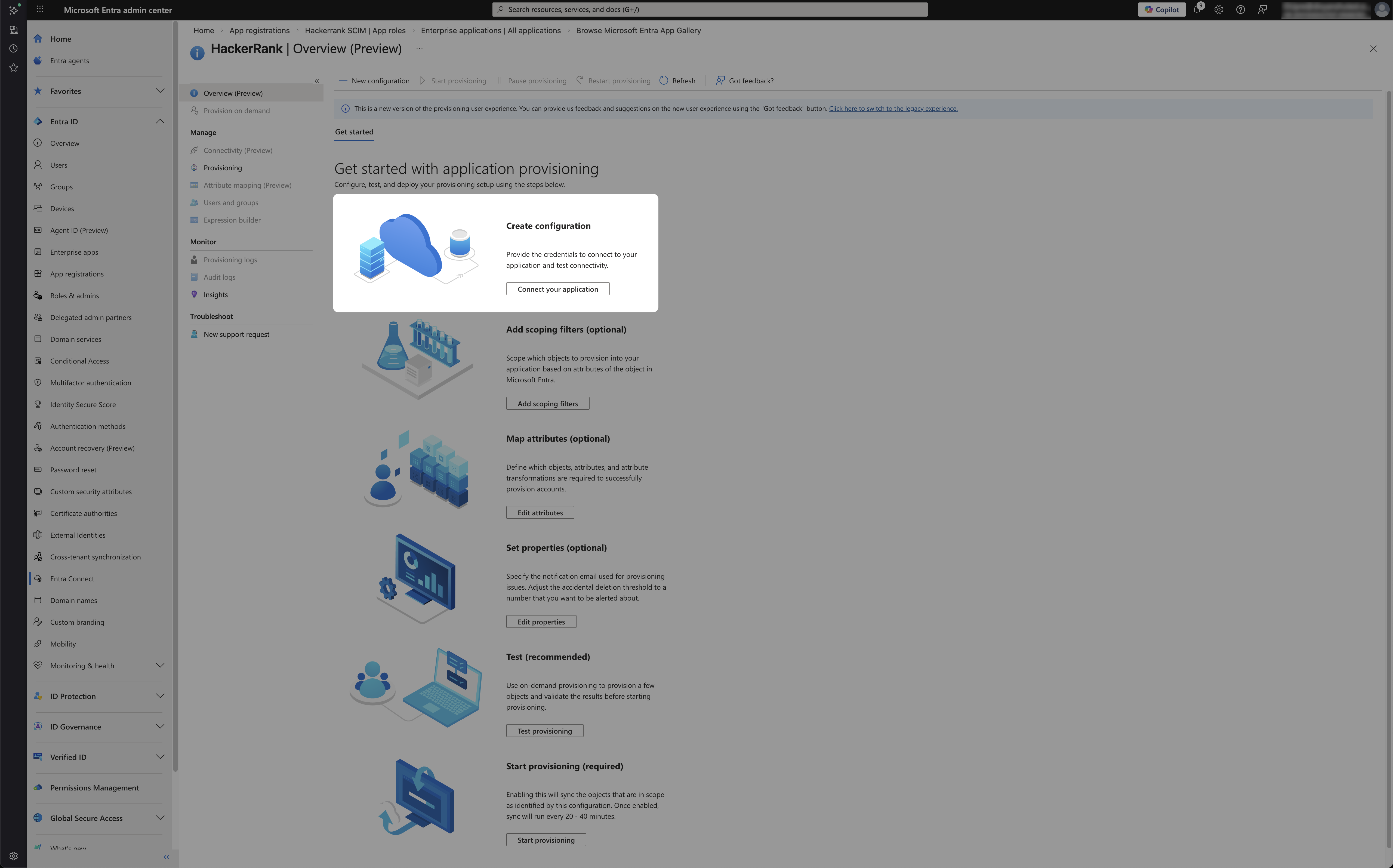
In the New provisioning configuration page:
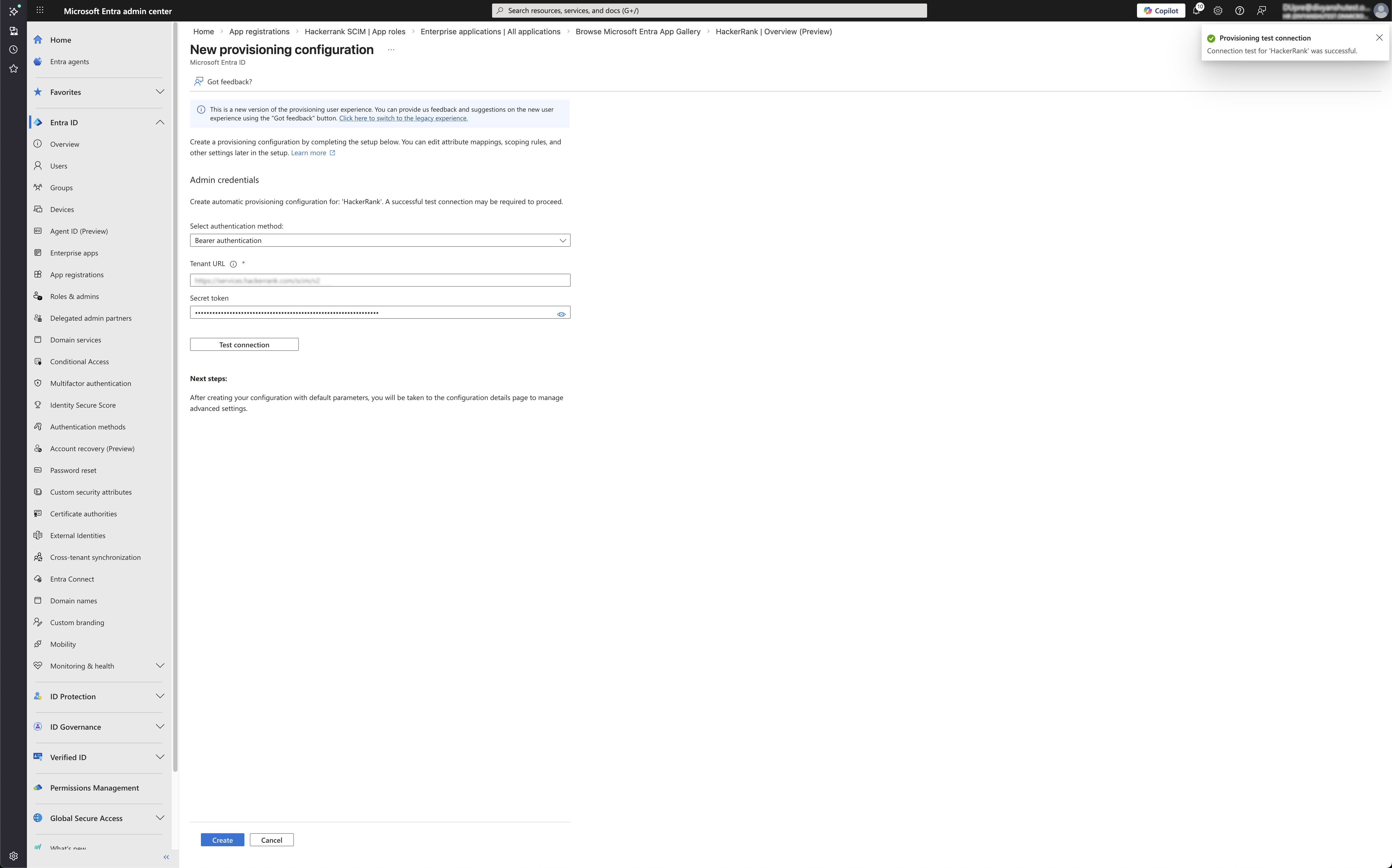
Select Bearer authentication as the authentication method.
Enter https://services.hackerrank.com/scim/v2 in the Tenant URL filed.
Paste the HackerRank API key from Step 1 into the Secret token field.
Click Test connection. A success message appears confirming that the connection to HackerRank is successful.
Click Create.
Step 4: Create Microsoft Entra app roles
Create app roles in Microsoft Entra ID to map users and groups to corresponding roles in HackerRank.
Note: Ensure that you create app roles for Company Admin, Recruiter, and Developer.
Go to Entra ID > App registrations.
Open your HackerRank enterprise application.
Select App roles.
Click Create app role.
In the Create app role dialog:
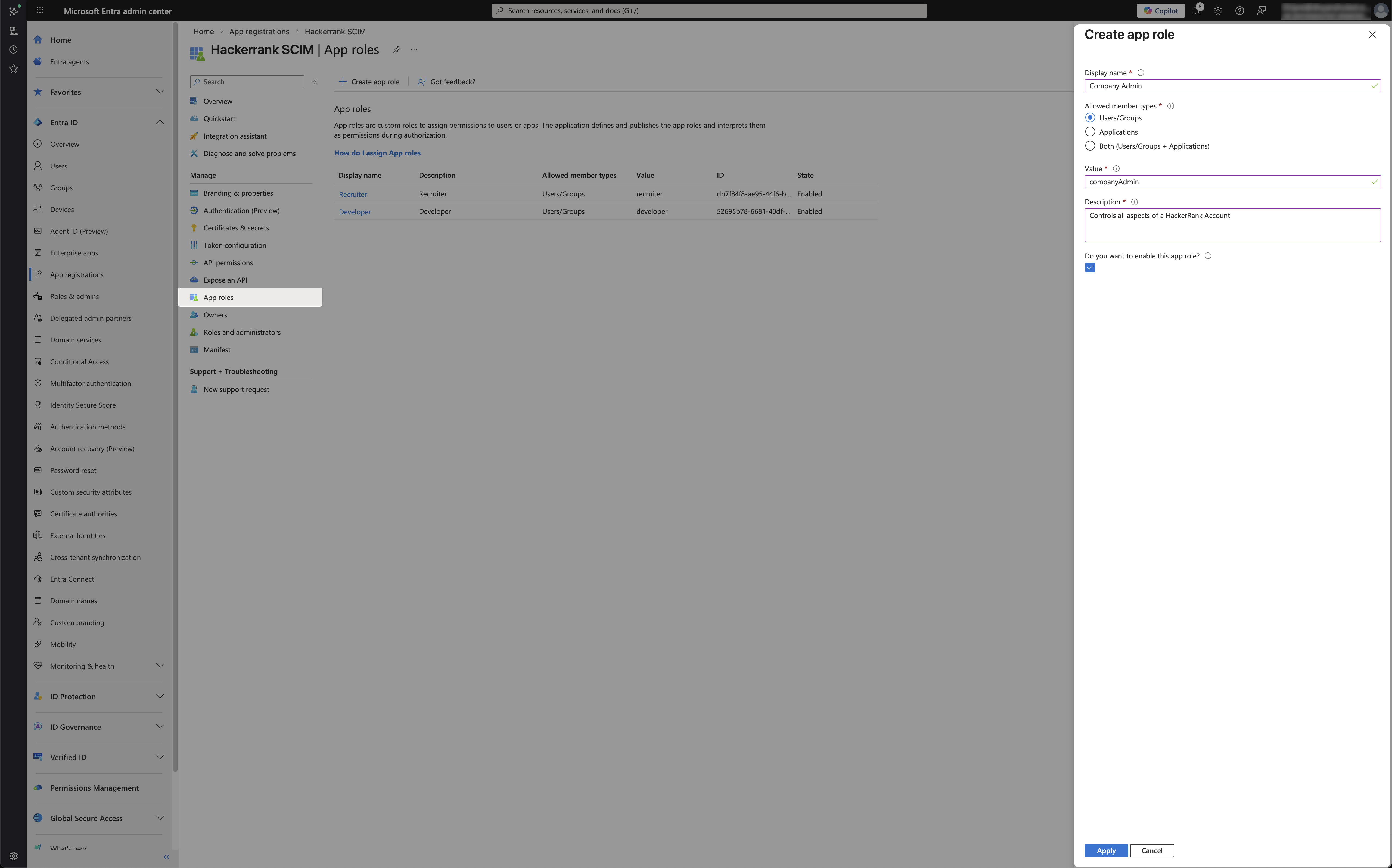
Enter one of the following in Display name:
Company Admin
Recruiter
Developer
Select Users/Groups for Allowed member types.
Enter one of the following in Value:
CompanyAdminRecruiterDeveloper
Enter a short description in Description.
Select the check box to enable the app role.
Click Apply.
Note: When you create Entra app roles for custom roles, use the customer-facing role name.
Step 5: Configure attribute mappings
Configure attribute mappings to control how Microsoft Entra ID provisions users and groups in HackerRank.
Open your HackerRank enterprise application in Microsoft Entra ID.
Go to Provisioning > Attribute mappings.
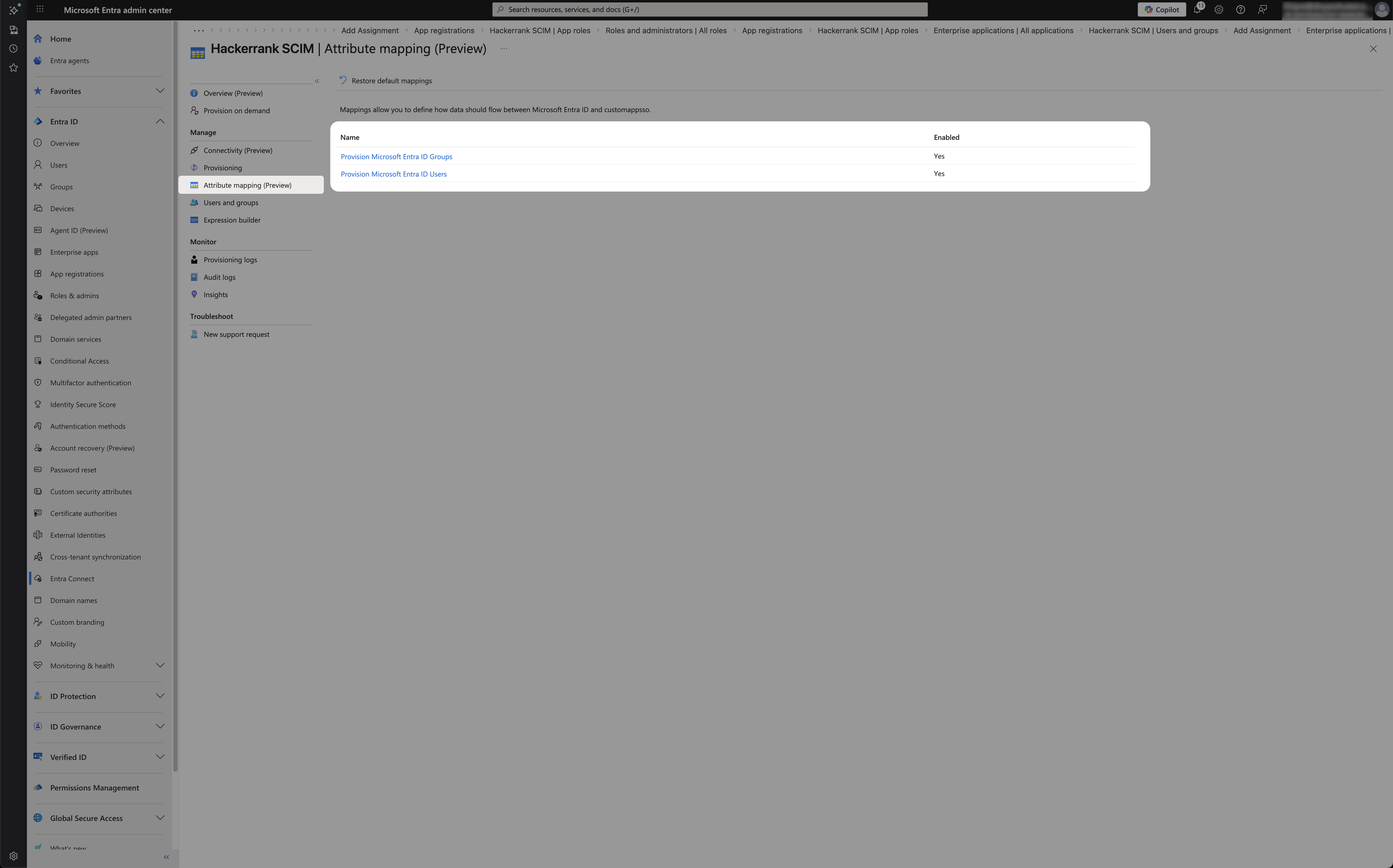
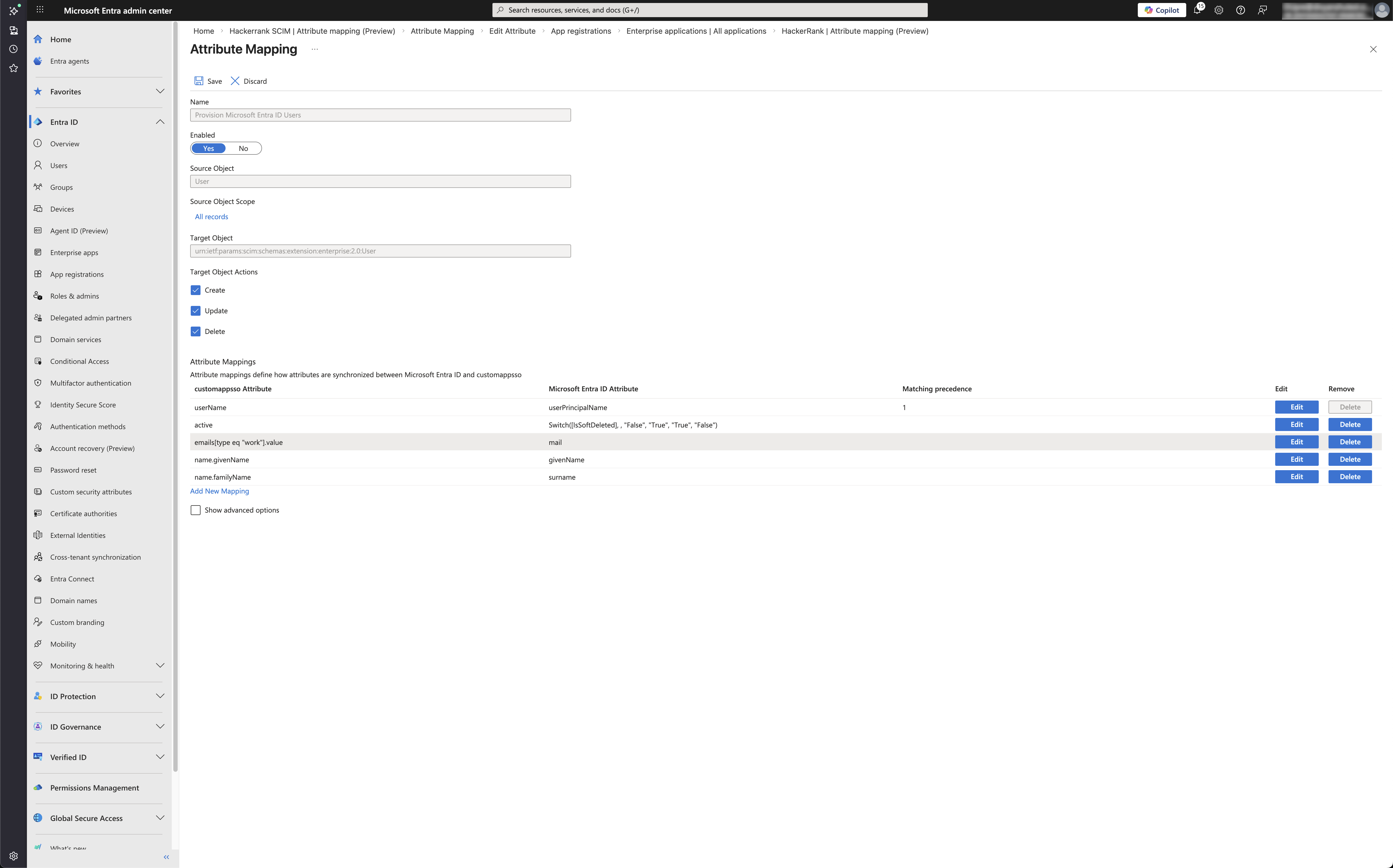
Configure user attribute mappings
Select Provision Microsoft Entra ID Users.
Configure the following mappings:
Configure group attribute mappings
Select Provision Microsoft Entra ID Groups.
Configure the following mappings:
Map group displayName to the HackerRank team name.
Map group member to HackerRank team membership.
Note: Keep only these two attributes. Remove any additional attributes such as externalId.
Step 6: Assign users/groups to the application
Open your HackerRank enterprise application in Microsoft Entra ID.
Go to Users and groups.
Click Add user/group.
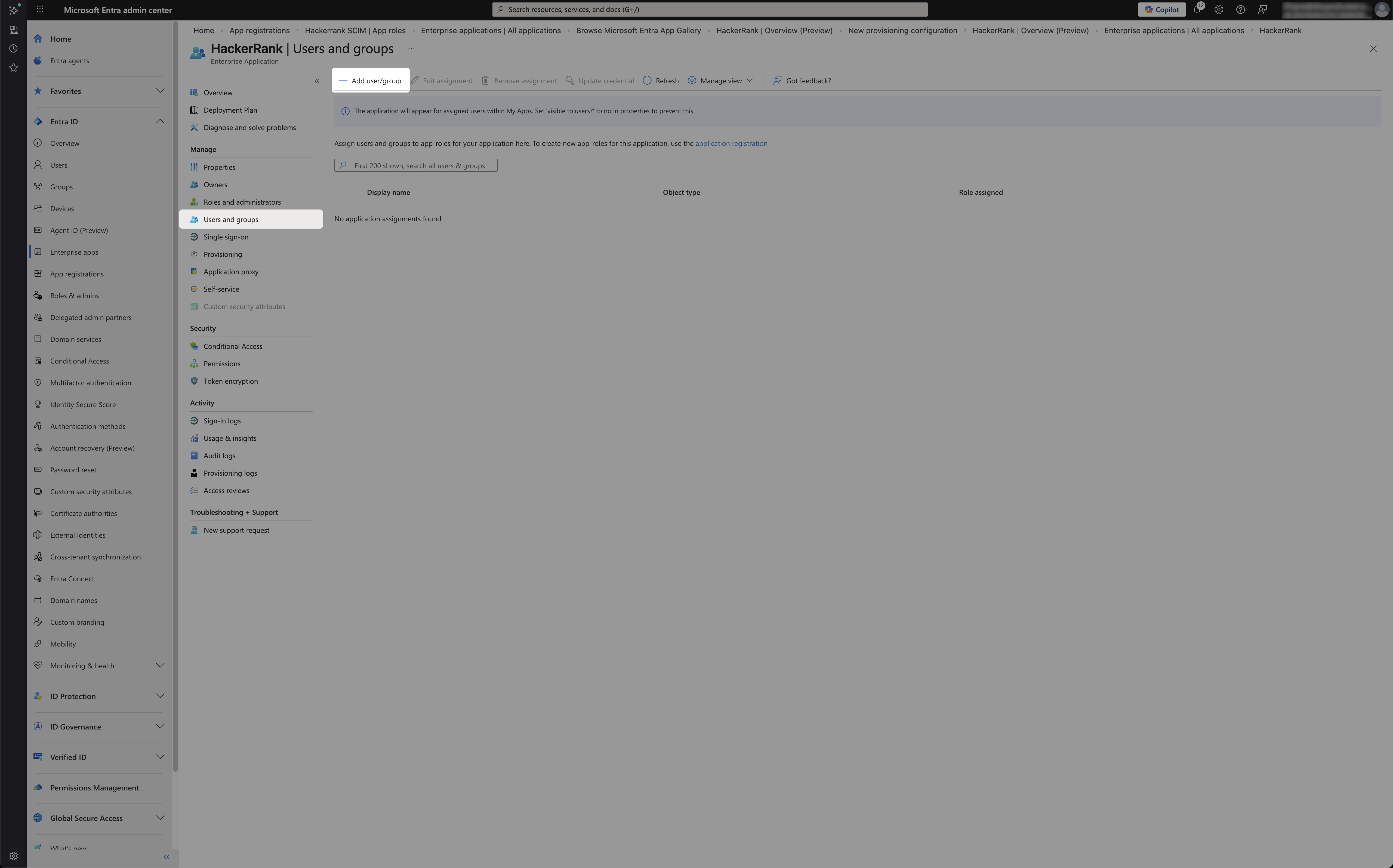
Select the users or groups that you want to assign under Users and groups.
Select one of the following roles under Select a role:
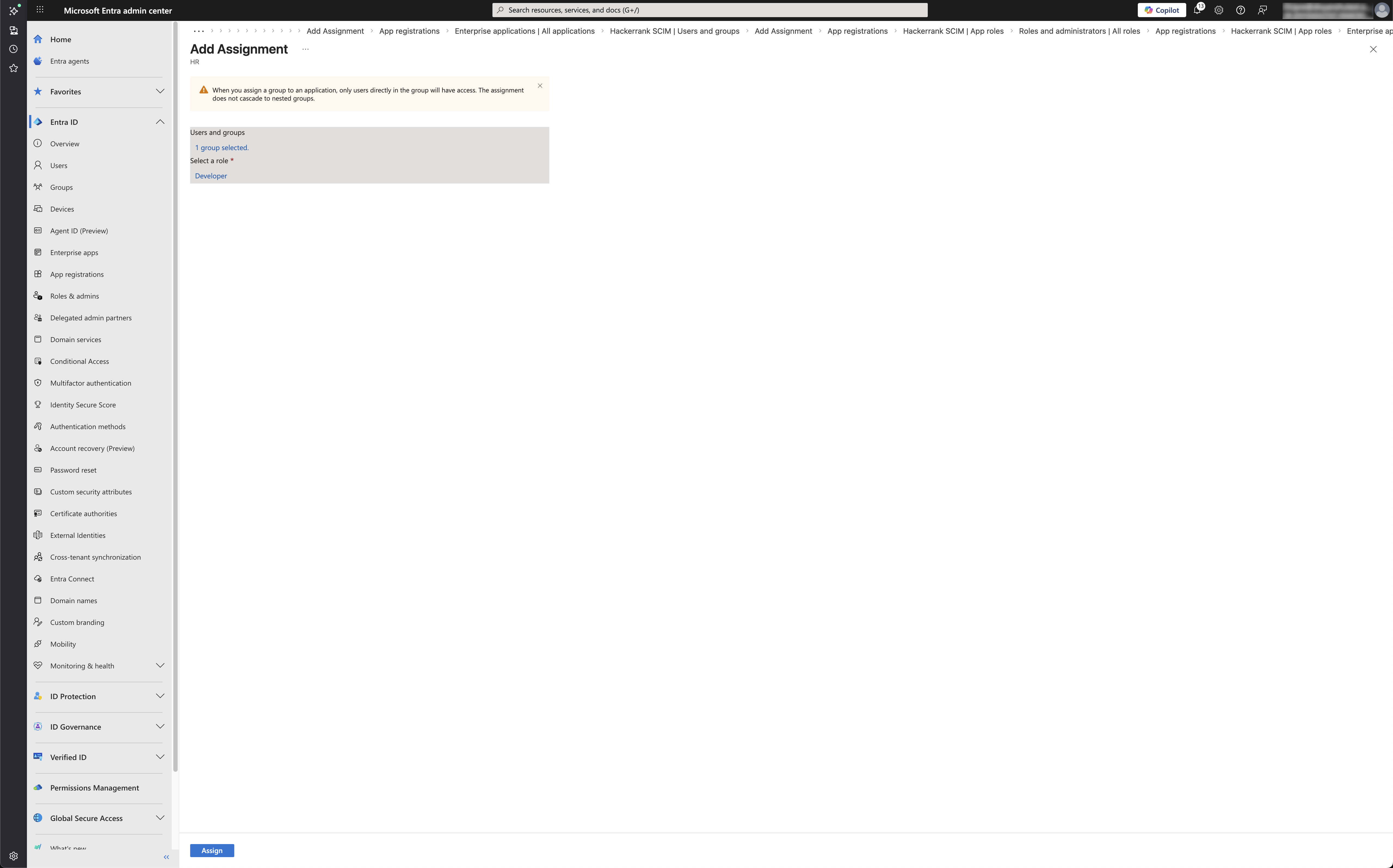
Company Admin
Recruiter
Developer
Click Assign.
Note: Create Microsoft Entra ID groups such as HackerRank Recruiters or HackerRank Developers, and assign each group to the application with the corresponding role.
Step 7: Enable provisioning
Open your HackerRank enterprise application in Microsoft Entra ID.
Select Provisioning.
Set Provisioning Status to On.
Click Save.
Step 8: Verify provisioning in HackerRank
Verify that users and teams are created and active in HackerRank.
Log in to your HackerRank for Work account using your credentials.
Click your profile icon in the upper-right corner and select Teams Management.
Note: Use Provision on demand to quickly test provisioning for a single user.
Verify users
Go to the Users tab.
Verify that:
Users appear in the list.
Status shows Activated.
The correct User Role is assigned.
Verify teams
Go to the Teams tab.
Verify that:
Teams appear in the list.
Team names match the group displayName from Microsoft Entra ID.
Users are assigned as team members.
Troubleshooting
Use the following guidance to resolve common provisioning issues.
Authentication errors (401/403)
Confirm that the secret token is the HackerRank SCIM API key.
Ensure that you paste the token exactly, without extra spaces.
No users are provisioned
Confirm that you assign users or groups to the enterprise application.
Ensure that Provisioning Status is set to On.
Name or email is not populated
Confirm that you configure attribute mappings for:
name.givenNamename.familyNameemails
Group membership does not sync
Confirm that group provisioning is enabled under Mappings.
Ensure that the required groups and their members are in scope for provisioning.
Role does not sync
Confirm that users have an app role assigned in Microsoft Entra ID.
Ensure that role mapping uses:
SingleAppRoleAssignment([appRoleAssignments])or
AppRoleAssignmentsComplex(...)for multi-role scenarios