Data Science Projects in HackerRank Interviews
Last updated: June 5, 2025
You can now import Data Science questions into the HackerRank interviews. With this feature, interviewers can assess candidates on skills during live interviews, view their code inside the Interview report, and rerun the same inside the IDE. This article will walk you through the steps to import Data Science project questions in HackerRank Interview.
Note: For importing Front-end, Back-end, and Full-Stack in the HackerRank interview, click here.
Starting a Data Science Interview
Prerequisites
You must have scheduled a HackerRank interview, either by Quick pad or Scheduled Interview. Refer to the article, Methods to setup an Interview, to know more. You can also see here to understand how to schedule an Interview.
To start a Data Science interview session, click on the Data Sciencetile.

As of now, you can conduct the Data Science interviews using two methods:
Start from scratch: This starts a newPythoninterview with a boilerplate code.
Importing Data Science Projects from the library

Start from scratch
Select Start from Scratch on the next page.
This will launch the IDE with a basic code. You can further build on it based on your requirement.


Import Questions from Library
Click on the Import Questions from Library option.
This will open a list of data science questions. Select the desired question from the list and click on the Use button beside it to launch it into the interview screen.


Once the question is selected, it gets imported into the left-hand panel of the screen. You will see the IDE once it loads in the middle section of the screen.
Once the question is ready, you can Invite the candidate to join the Interview. Or admit the candidate who has already logged in to the interview. In any case, you will be prompted to admit the candidate to the interview once they log in. Click on “Admit” to allow the candidate to join the interview.


Import from Tests to Interview
You can also import Data Science questions from a previous CodeScreen test.
To import a question from the Candidates test, click on the plus (+) icon on the top.
On the landing page, hover your mouse on the left pane.
Here you can see the Candidate’s Test option. Here you can find the questions used in the candidate’s test. Click on Use to launch that question.
Once the IDE loads, you will be able to collaborate with the candidate in real time. You can identify the candidate's work by following the indicator.
You can also expand the Scorecard panel to evaluate the candidate based on their solution.


Candidate experience during the interview
Once the interviewer imports a Data Science question during an interview, the candidate can see the question and start solving it when the Jupyter Notebook IDE is loaded successfully.
The candidate can also see any input from the interviewer in the collaborative experience.
Reviewing Submissions in the Interview Report
The HackerRank platform offers multiple ways to review and verify a candidate's final work when evaluating their submission.
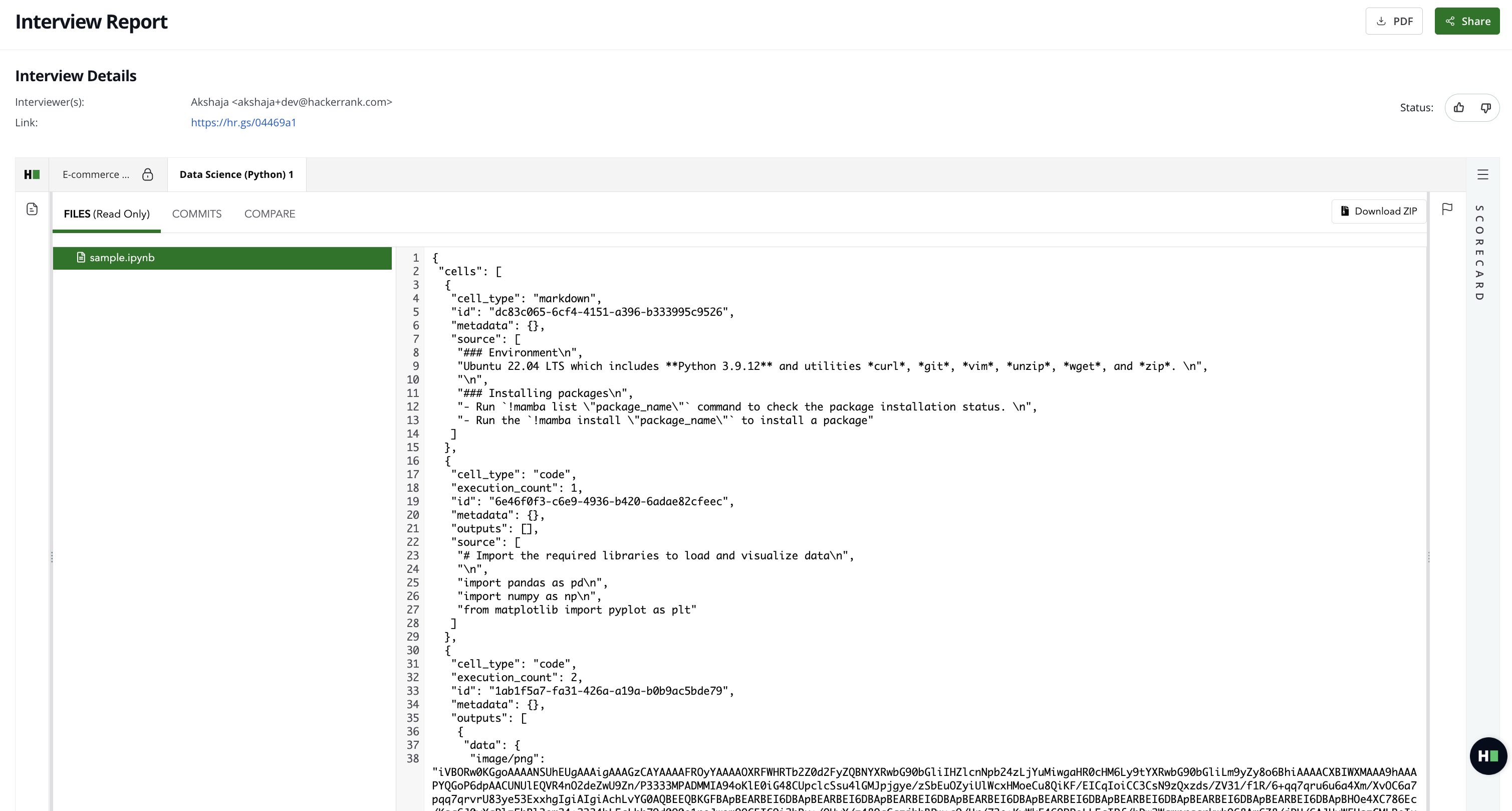
View code changes using the Git view: By default, the candidate’s code appears in a repository-style view. Go to the Compare tab to view changes made during the interview or test. This displays a side-by-side comparison of the original and final versions of the code.
Reopen the interview in Jupyter IDE mode: To view the submission in JupyterLab IDE, reopen the interview and navigate to the relevant question. This allows you to view the final notebook in the same interactive format used by the candidate.
Download the candidate’s submission: To review the submission offline or in your local environment, click Download ZIP. This downloads a copy of the candidate’s final code, including any associated files or notebooks.
These options provide full visibility into the candidate’s coding process and final output, even when the changes are too large to display in the default view.