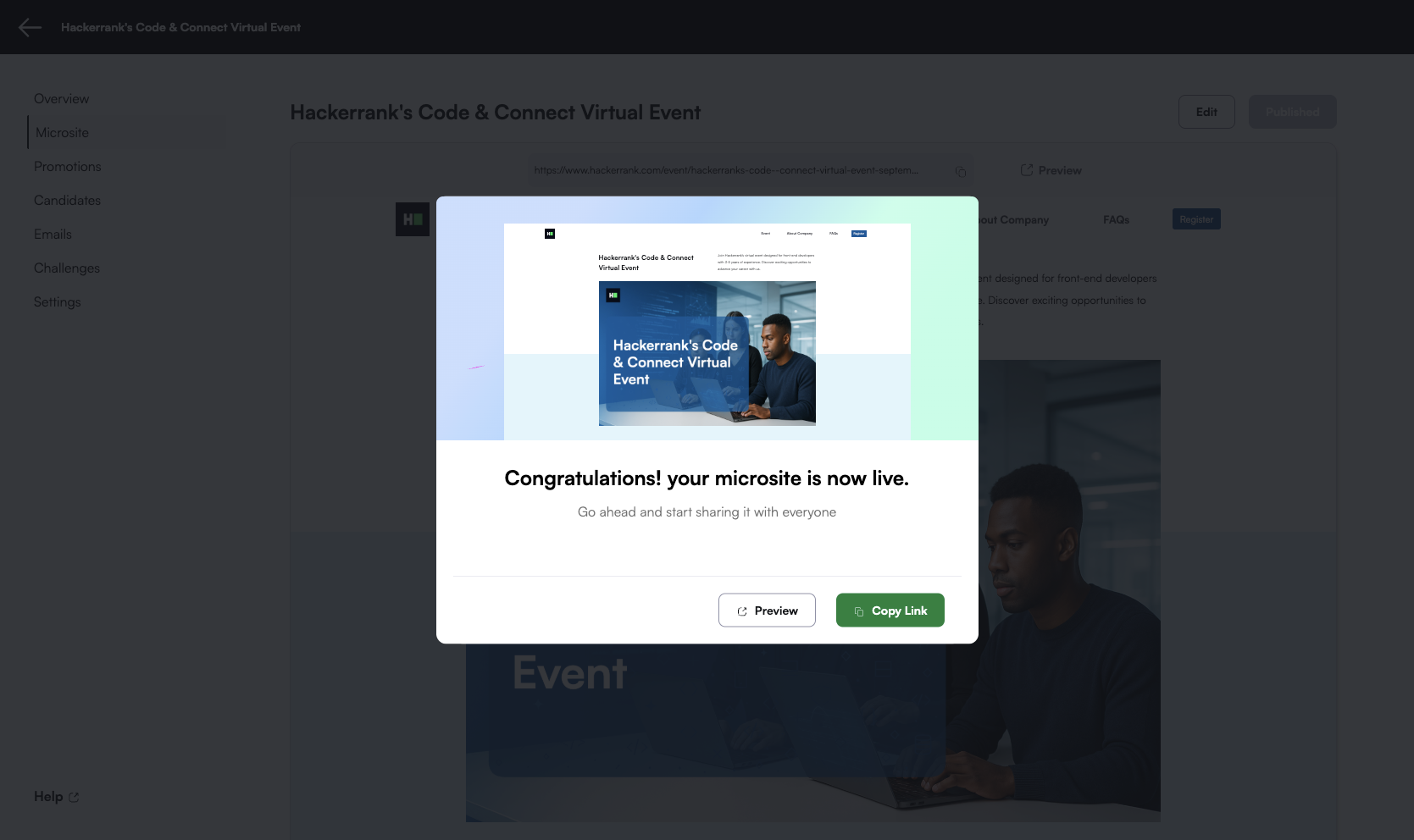
Set Up a Microsite
Last updated: October 15, 2025
You can set up a microsite to present your event details, customize the candidate experience, and promote your employer brand.
Setting up a microsite for coding challenges
To configure a microsite for a coding challenge event:
Steps 1: Access microsite editor
To access microsite editor:
Log in to Engage using your credentials.
Select the event you want to edit.
In the left panel, select Microsite.
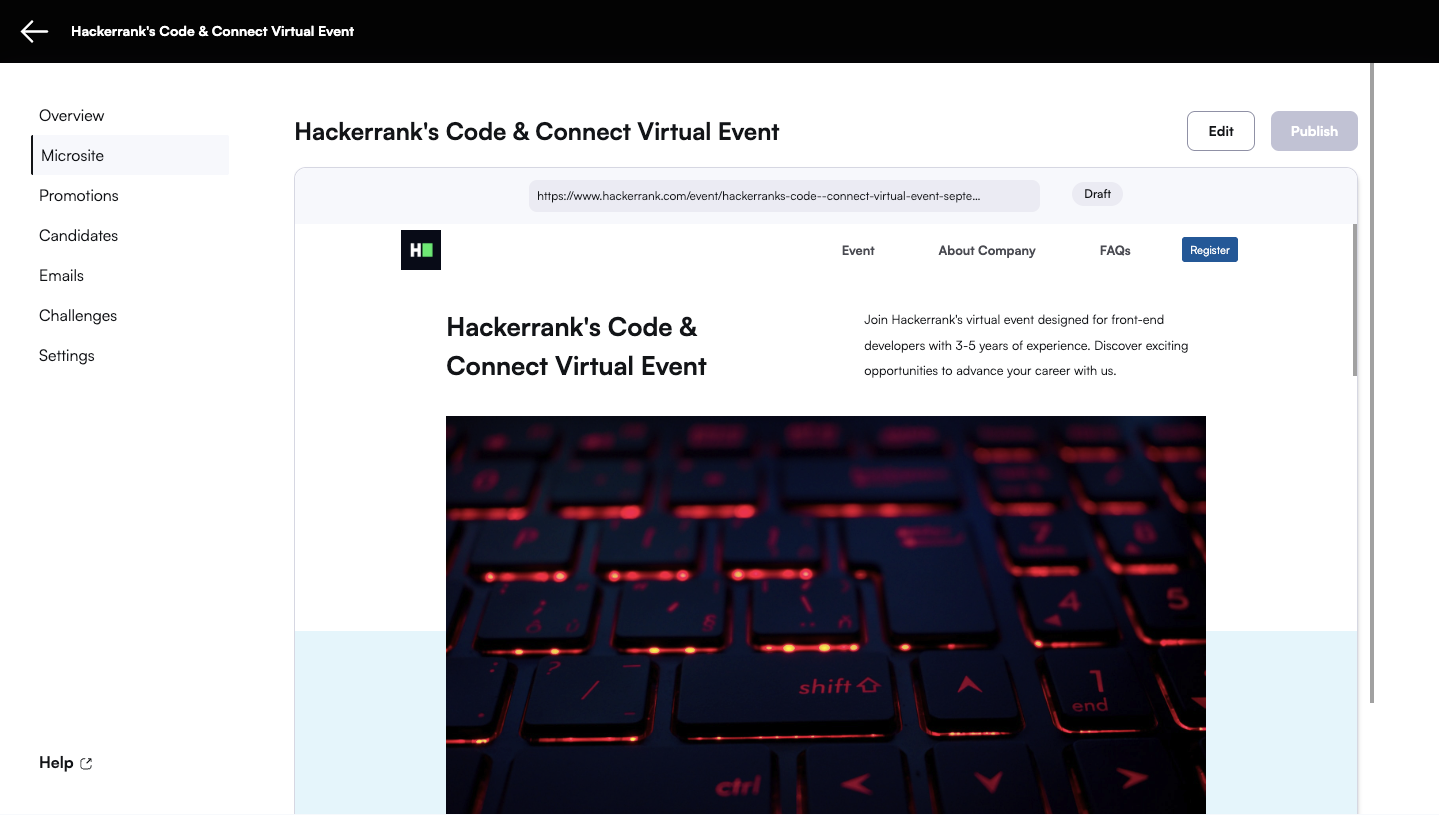
Click Edit.
Steps 2: Update content layout
Use the Content tab to add or modify microsite sections:
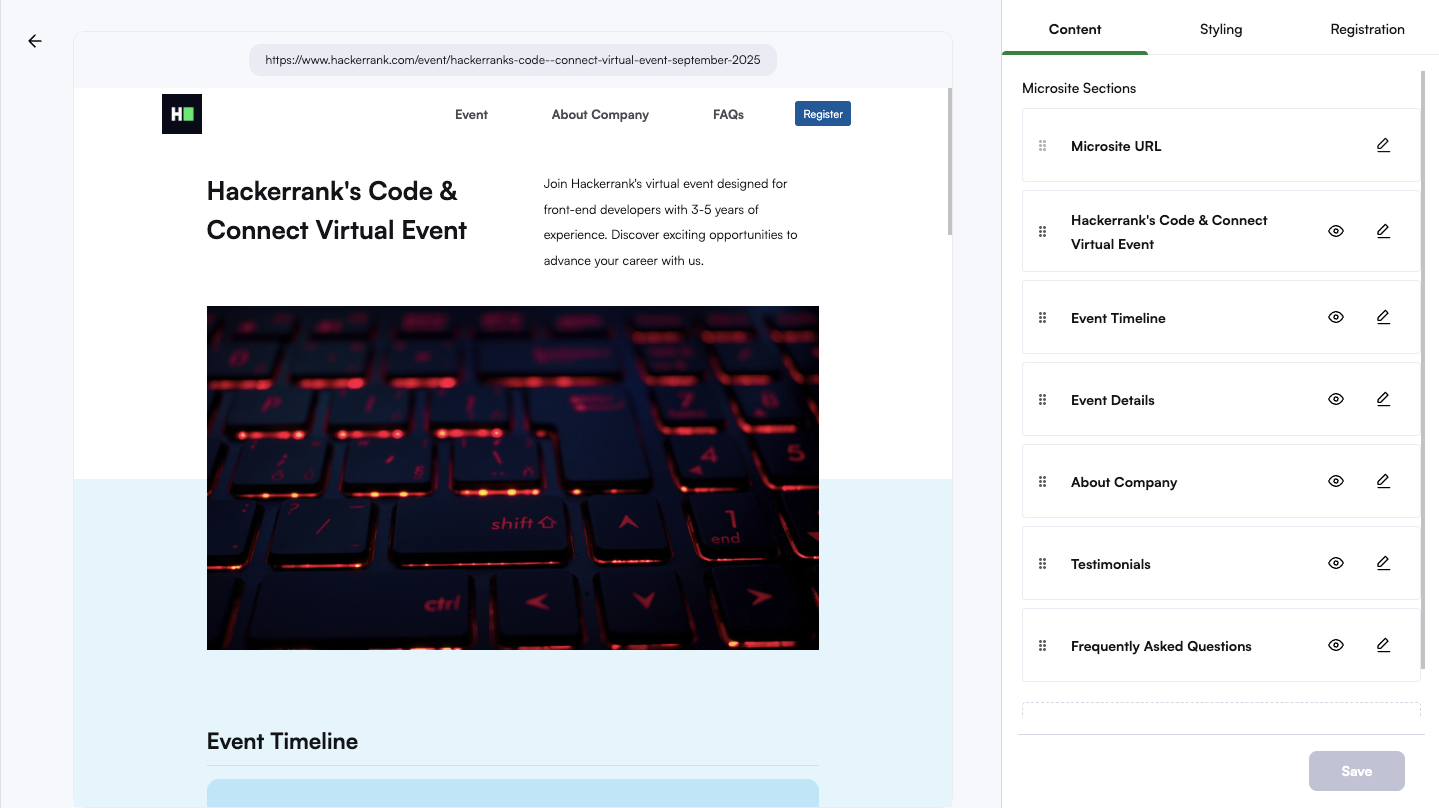
Edit default sections such as Event Details, About Company, Testimonials, and FAQs.
Generate a banner image using AI.
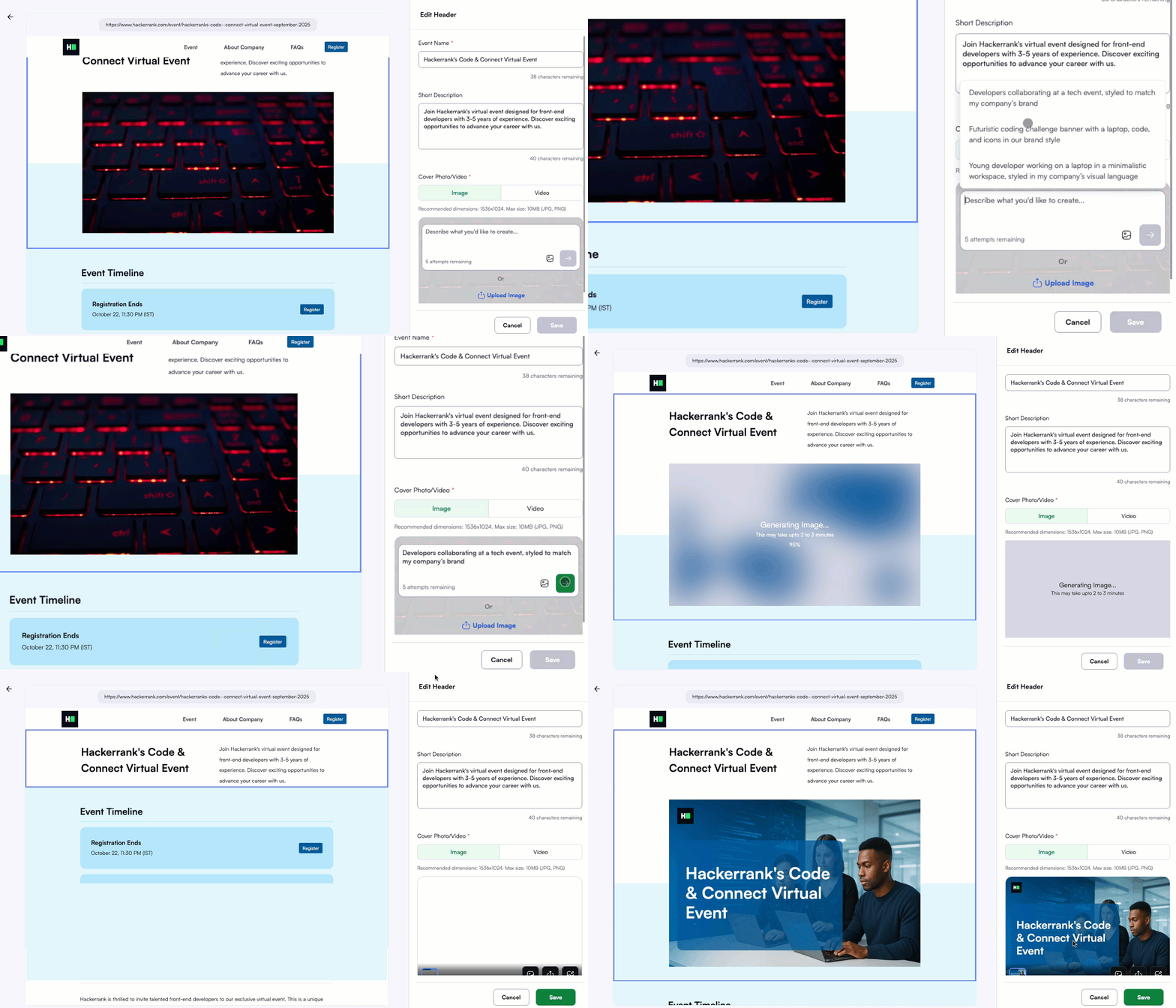
Edit the section that includes your event name.
In the Cover Photo/Video section, select the Image tab.
Describe the image you want in the provided textbox.
You can use the suggested prompts as inspiration, if needed.
(Optional) Click the picture icon to import your logo into the image prompt.
Click the green submit arrow button to generate the banner. The AI generates a customized banner that includes your event name.
Note:
You can regenerate the banner image up to five times to explore alternate versions.
If you prefer to use your own banner image, select Upload Image to add a banner image.
Reorder or hide sections to match your event flow.
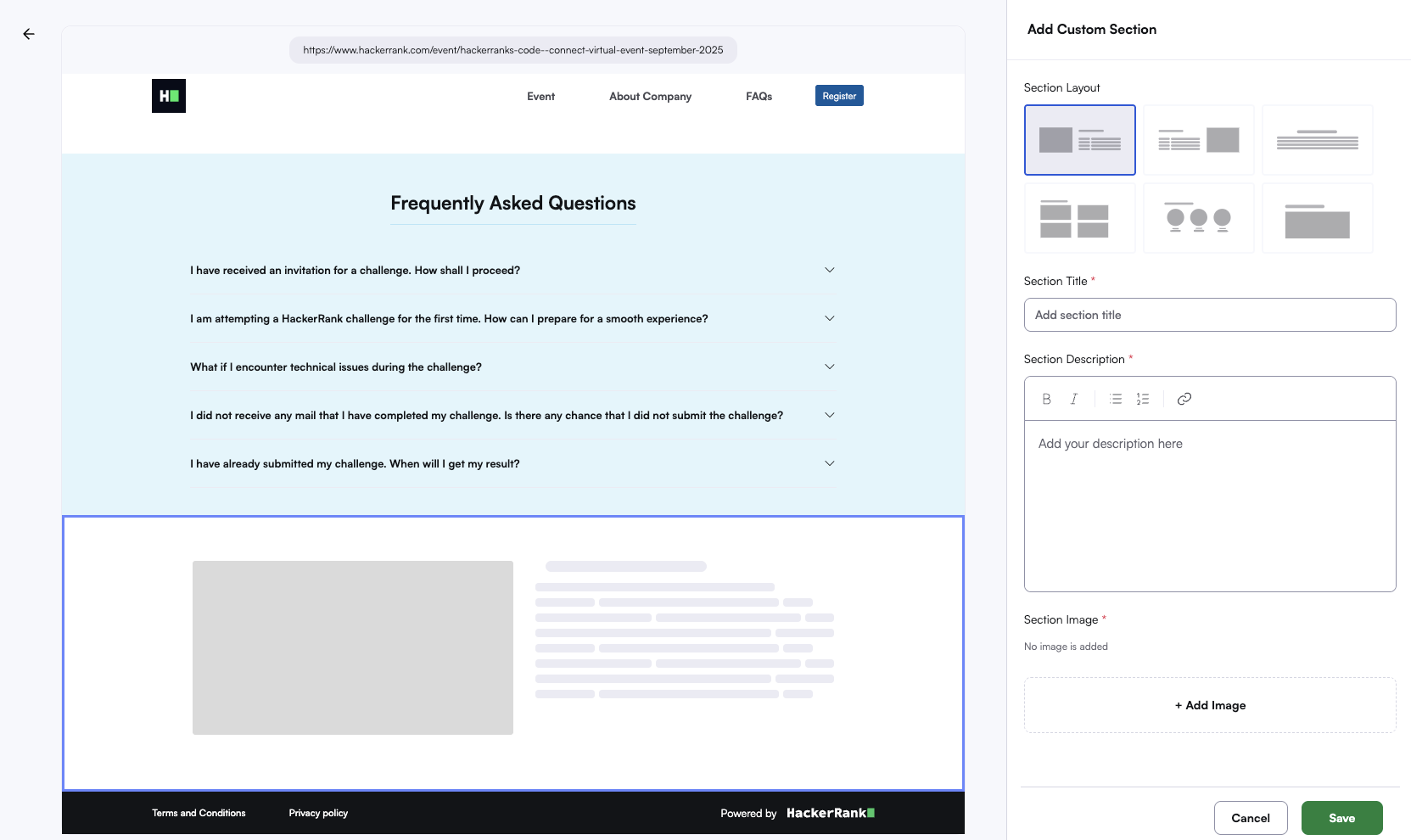
Click + Add new section to include new section and choose a layout to present text, images, or videos based on your event needs.
In the Event Timeline section:
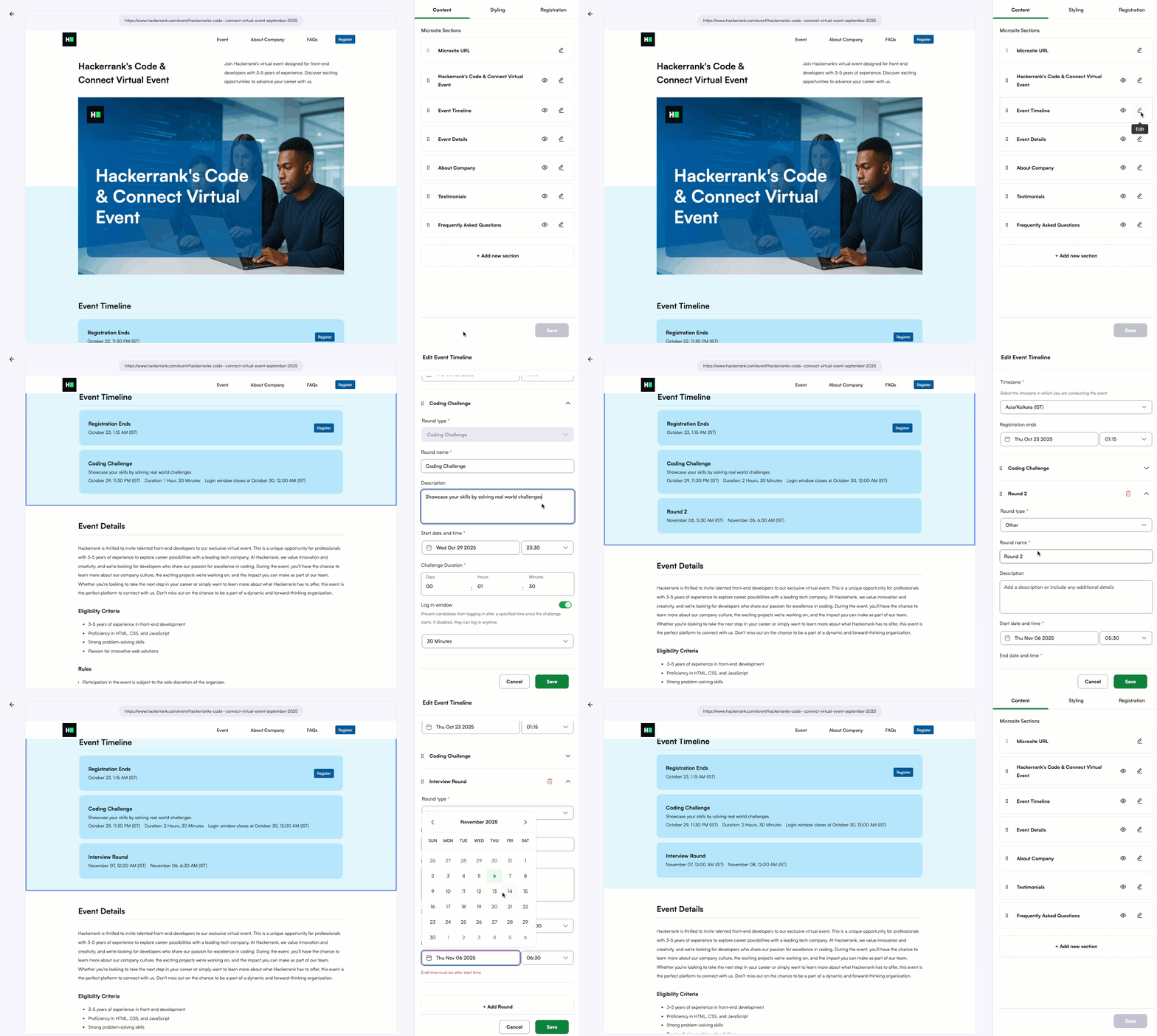
Display key dates, such as the registration deadline and coding challenge round.
Select + Add Round to include other events, such as webinars or interview stages.
Steps 3: Customize styling
Under the Styling tab:
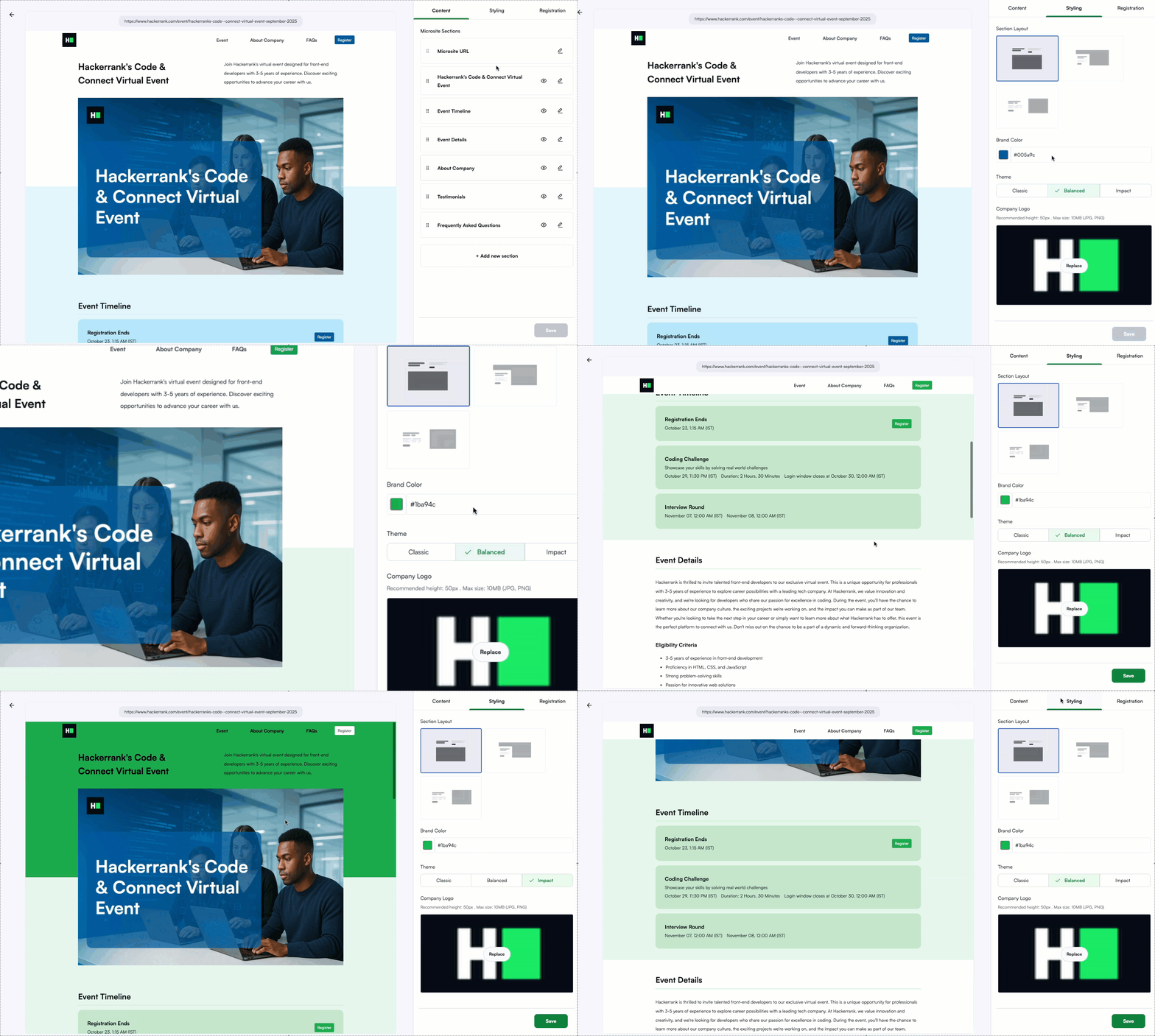
Choose a section layout and select a theme: Classic, Balanced, or Impact.
Enter a hex code for your brand color (for example, #007bff).
Upload your company logo (JPG or PNG format, maximum 50px height, up to 10MB).
Steps 4: Define registration fields and eligibility criteria
In the Registration tab:
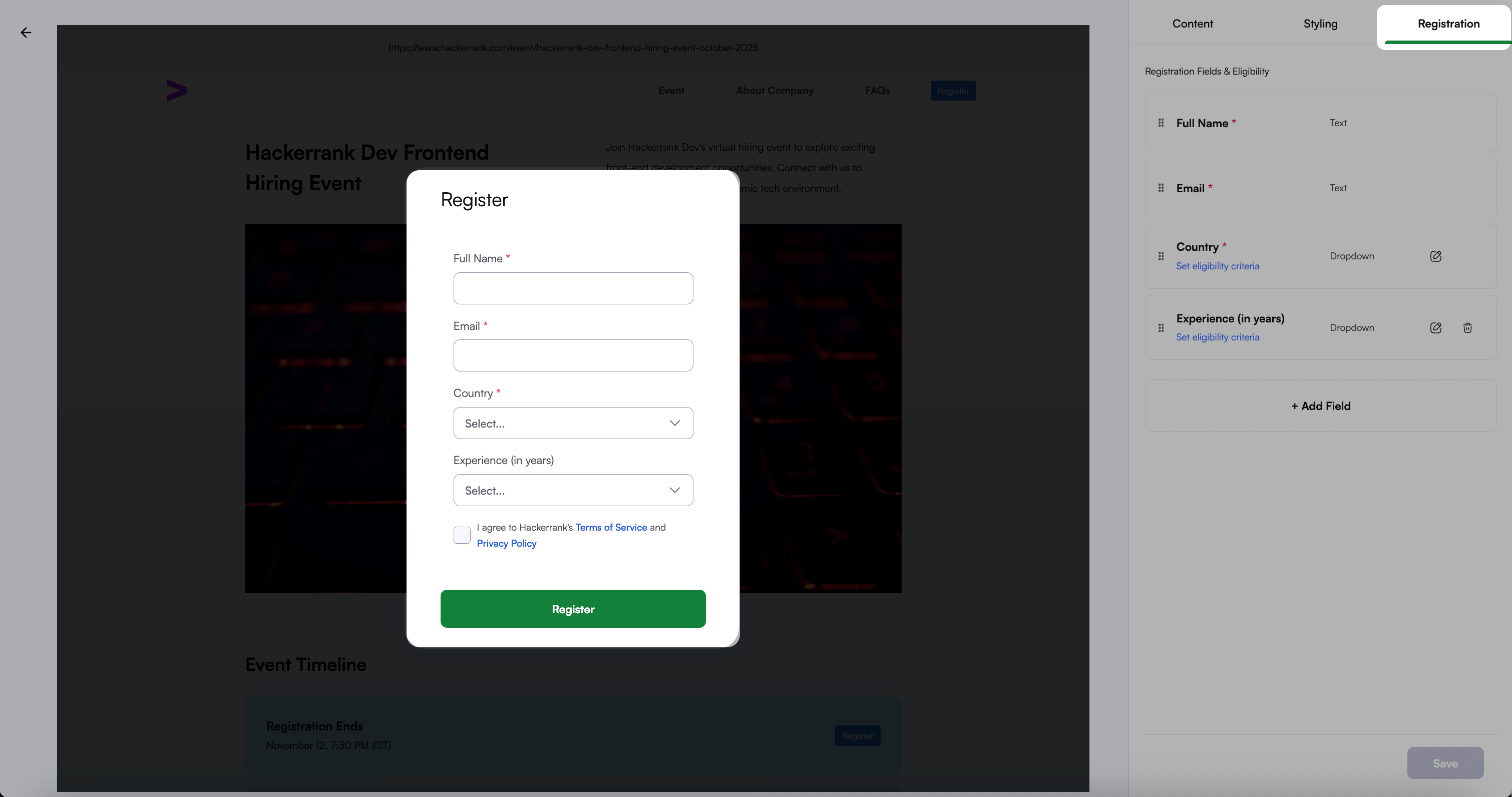
Use the default fields: Full Name, Email, and Country.
Select + Add Field to include custom fields.
Use the Set eligibility criteria option to filter candidates for default and custom fields.
Remove fields that are not relevant to your event.
Automatically categorize candidates into eligible and non-eligible groups based on the criteria you set.
Note: After you publish the microsite, you cannot edit the Eligibility Criteria, Participation Type, or Registration Form Fields.
Steps 5: Publish microsite
To publish:
Click Publish to make the microsite live.
Preview your microsite using the link at the top of the page and share it with your marketing team to begin promoting the event.