Create an Event
Last updated: October 16, 2025
Engage streamlines the process of creating events by using AI to generate key assets such as microsites, email events, and coding challenges tailored to your hiring goals.
Creating an event
To create an event:
Log in to your Engage account using your credentials.
Note: If you are a new user, complete the onboarding flow to learn how Engage supports your hiring goals. On the final onboarding screen, click Create Event, or click Skip for now to proceed directly.
Go to the Events tab.
Click New Event.
Enter details about your target audience, such as experience level, location, and skill set.
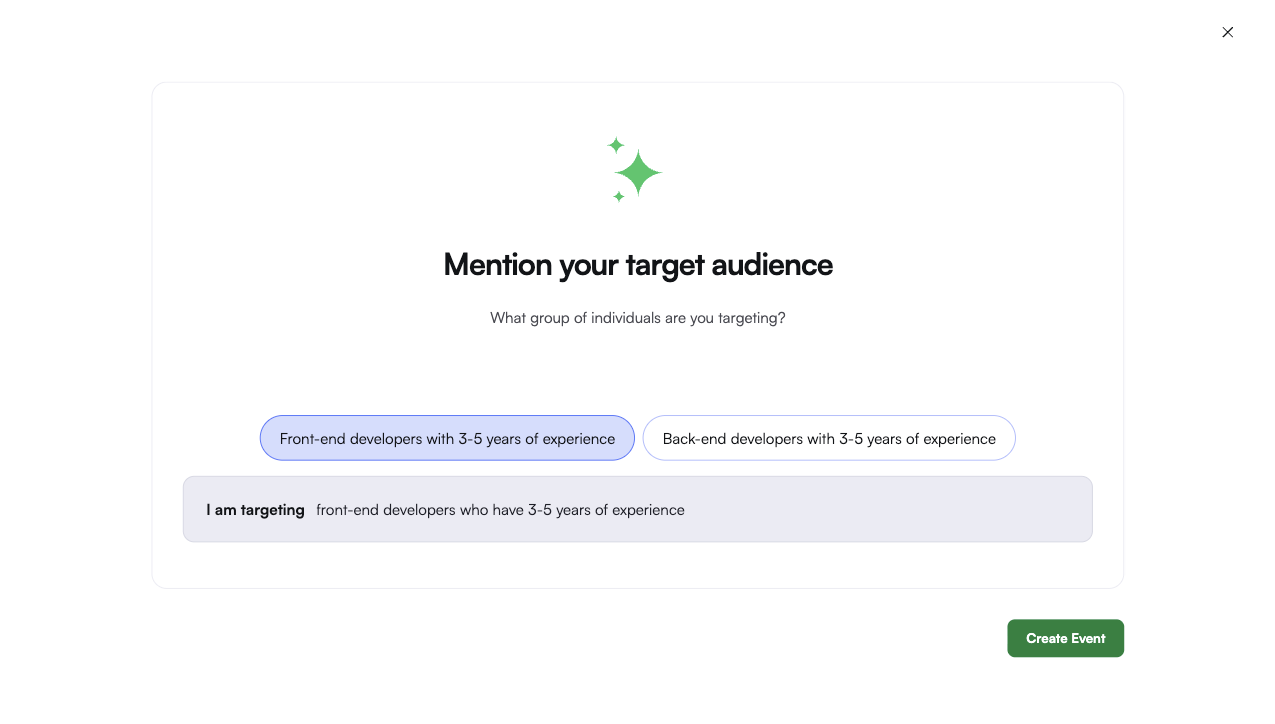
Click Create Event. Engage uses AI to generate assets such as a microsite, email event, and coding challenge based on your inputs.
Click Customize the Event. You will be redirected to the event homepage.
Review the task cards on the homepage. You can edit inputs and regenerate content at any time. Use the tips below each card for best practices and recommendations.

Configure event settings
After creating an event, configure the settings to ensure that participation types accurate. On the event homepage, click Settings.
Set participation type
Select the appropriate participation type based on your event goal:
Individual: Use for hiring challenges where candidates are evaluated independently.
Team: Use for branding initiatives or internal engagement events that prioritize team collaboration.
Customize email communications
Tailor the invitation and reminder emails to match your brand voice and tone.

Reply-to address: Set a custom email address (for example, support@example.com) to receive candidate replies. You can add multiple addresses if needed.
Invitation email: Sent to eligible and shortlisted candidates. It includes key event details and serves as the initial communication with the candidate.
Reminder email: Sent one day before the event starts to remind candidates of their participation. It reinforces the content of the invitation email.
Use the built-in editor to personalize emails with dynamic placeholders such as candidate name or company name.
Tip: Use the Send Preview Email to verify how the email appears to recipients. The preview is sent to the email address associated with your Engage account.
After finalizing your edits, click Save to apply changes.