AI Assistant in Interviews
Last updated: September 18, 2026
This article applies to the new Interview experience. If your interview interface looks different, see 📄 AI-Assisted Interviews for the legacy Interview experience.
This feature is part of the AI Add-on. For more information, see 📄 HackerRank AI Add-on.
The AI Assistant lets candidates use AI during live interviews and lets you observe their interactions in real time. You can evaluate how candidates request assistance, review AI-generated output, and apply suggestions to their solutions.
Supported question types
The AI Assistant supports the following question types:
Question type | Workspace | Capabilities |
|---|---|---|
Coding | Single-file code editor | The AI Assistant operates in guarded mode. Candidates can request help with syntax, platform navigation, and programming concepts. The AI Assistant does not provide complete solutions. |
Code Repos | Agentic Development Environment (ADE) | The AI Assistant operates in unguarded mode. Candidates can use Plan mode and Agent mode to investigate the codebase, plan their approach, generate code, modify files, and resolve issues. |
Supported AI models
The AI Assistant currently supports the following models:
Anthropic
Claude Haiku 4.5
Claude Opus 5
Claude Sonnet 4.6
Claude Sonnet 5
Gemini-3.5 Flash
Moonshot AI
Kimi K3
OpenAI
GPT-5.6 Luna
GPT-5.6 Sol
GPT-5.6 Terra
Zhipu AI
GLM 5.2
The AI Assistant uses GPT-5.6 Terra by default.
Enabling AI Assistant for interviews
You can enable the AI Assistant for candidates at the company level and control how it applies to interviews.
Enable AI Assistant in Company Settings
To enable AI Assistant:
Log in to your HackerRank for Work account using your credentials.
Go to Settings.
Select Interview Settings from the left panel under the Company section.
Scroll to AI Assistant for Candidates, and then turn on the toggle.
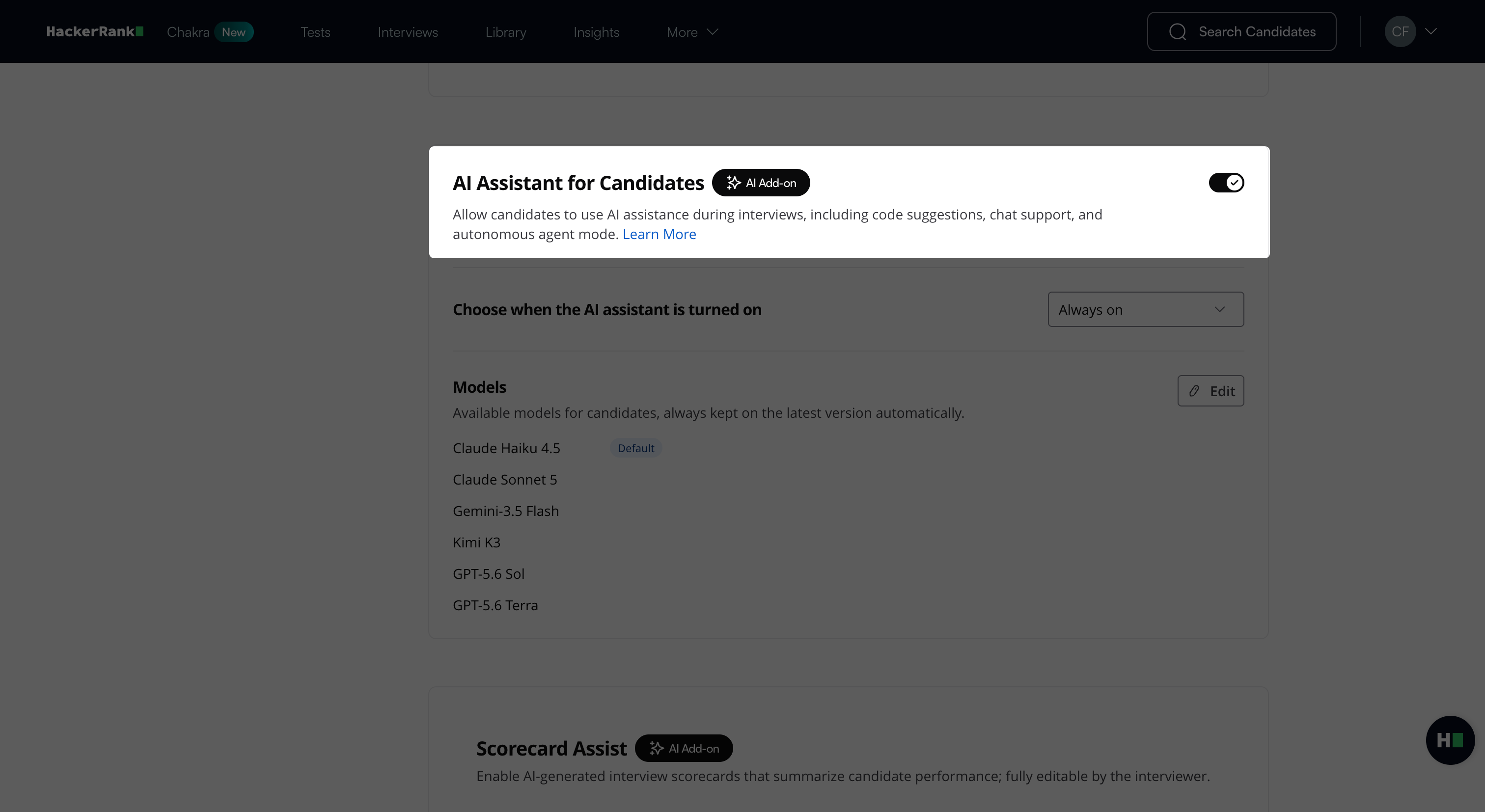
From the Choose how you want to enable the AI Assistant drop-down:
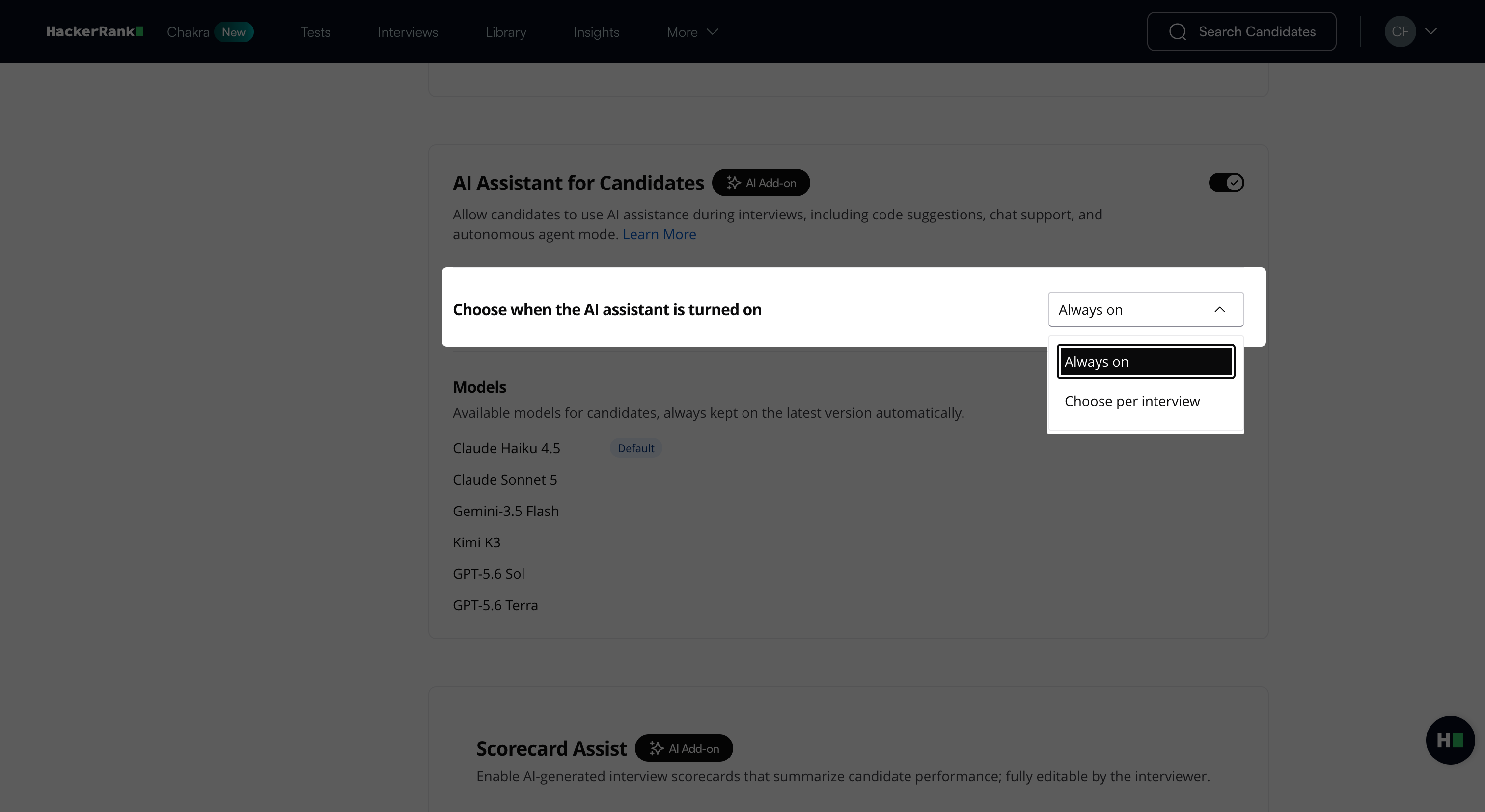
Select Always on to enable it by default for all new interviews.
Select Choose per interview to enable it individually for each interview.
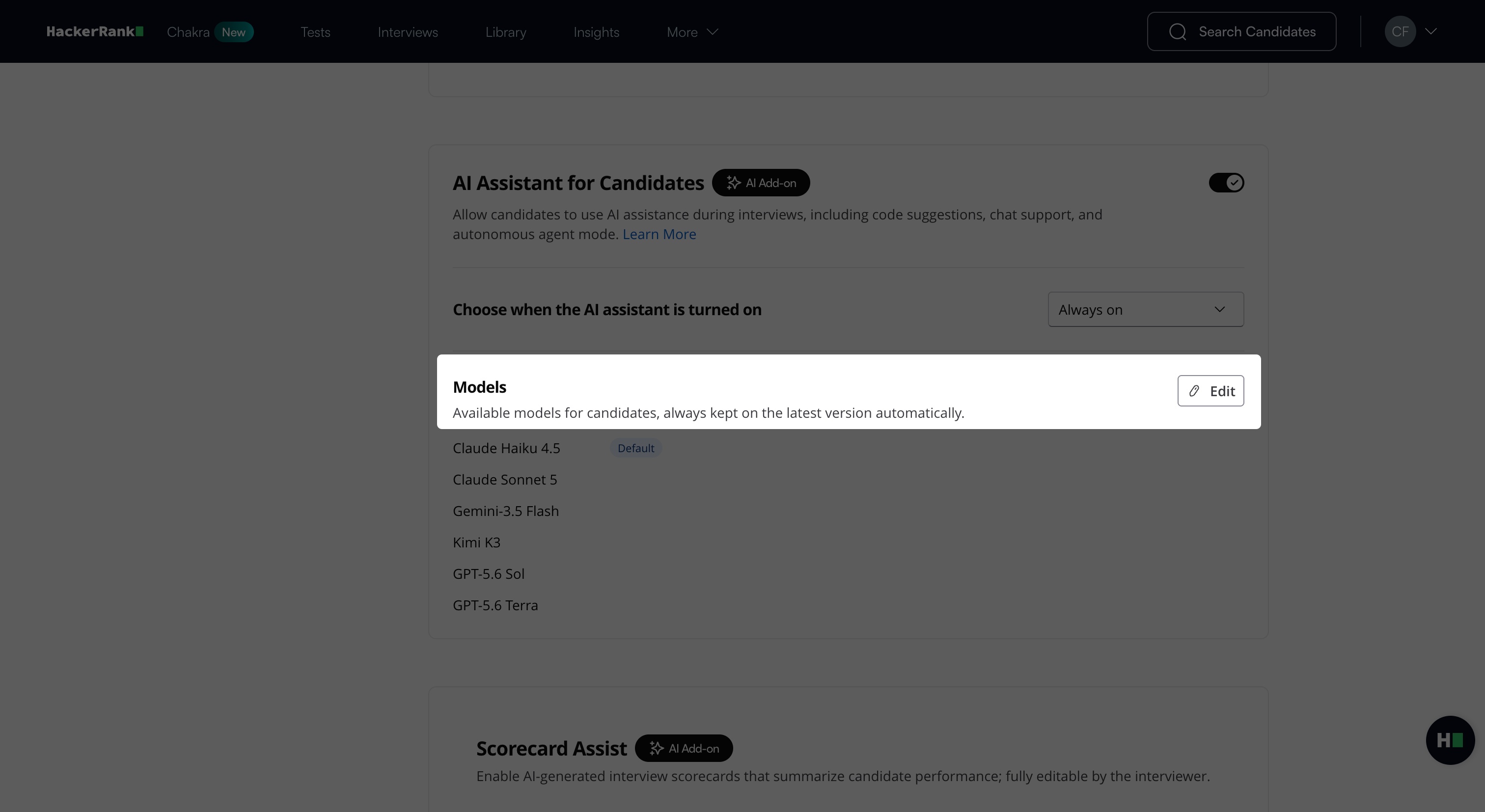
Under Models, select the AI models that candidates can use during the interview.
Click Edit.
In the Edit models dialog box, select the checkbox next to each model that candidates can use.
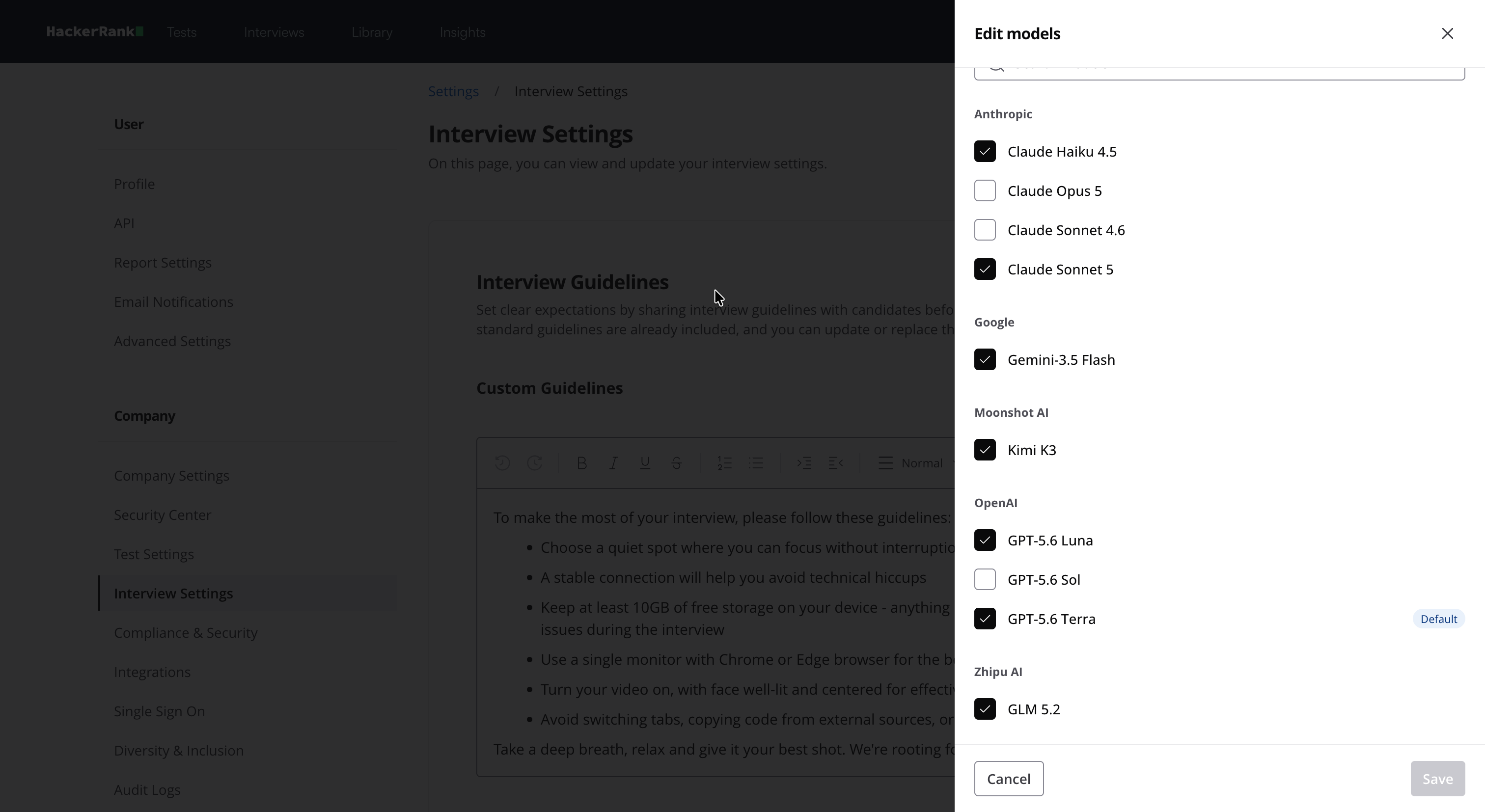
(Optional) Hover over a model and click Set as Default to set it as the default model for interviews.
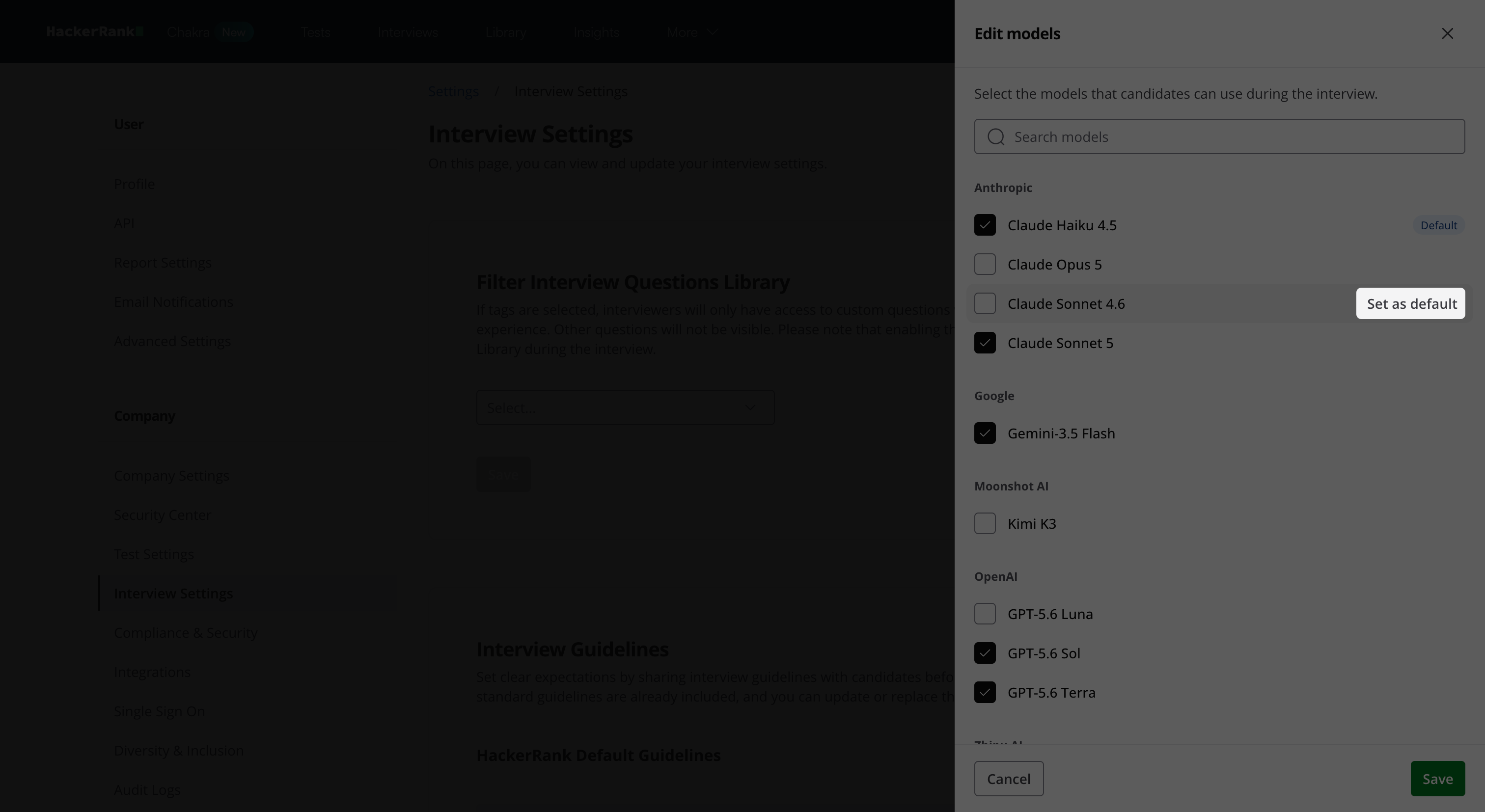
Click Save.
Note: Select at least two AI models so the AI Assistant can automatically switch models if one becomes unavailable.
Enable AI Assistant for a specific interview
Note: You can manually enable the AI Assistant for individual interviews only when Choose per interview is selected under AI Assistant for Candidates in company settings.
To enable the AI Assistant for a specific interview:
Go to Interviews > Interview List.
Select the interview you want to update.
In the Interview Details panel, turn on Enable AI Assistant under AI Assistant for Candidate.
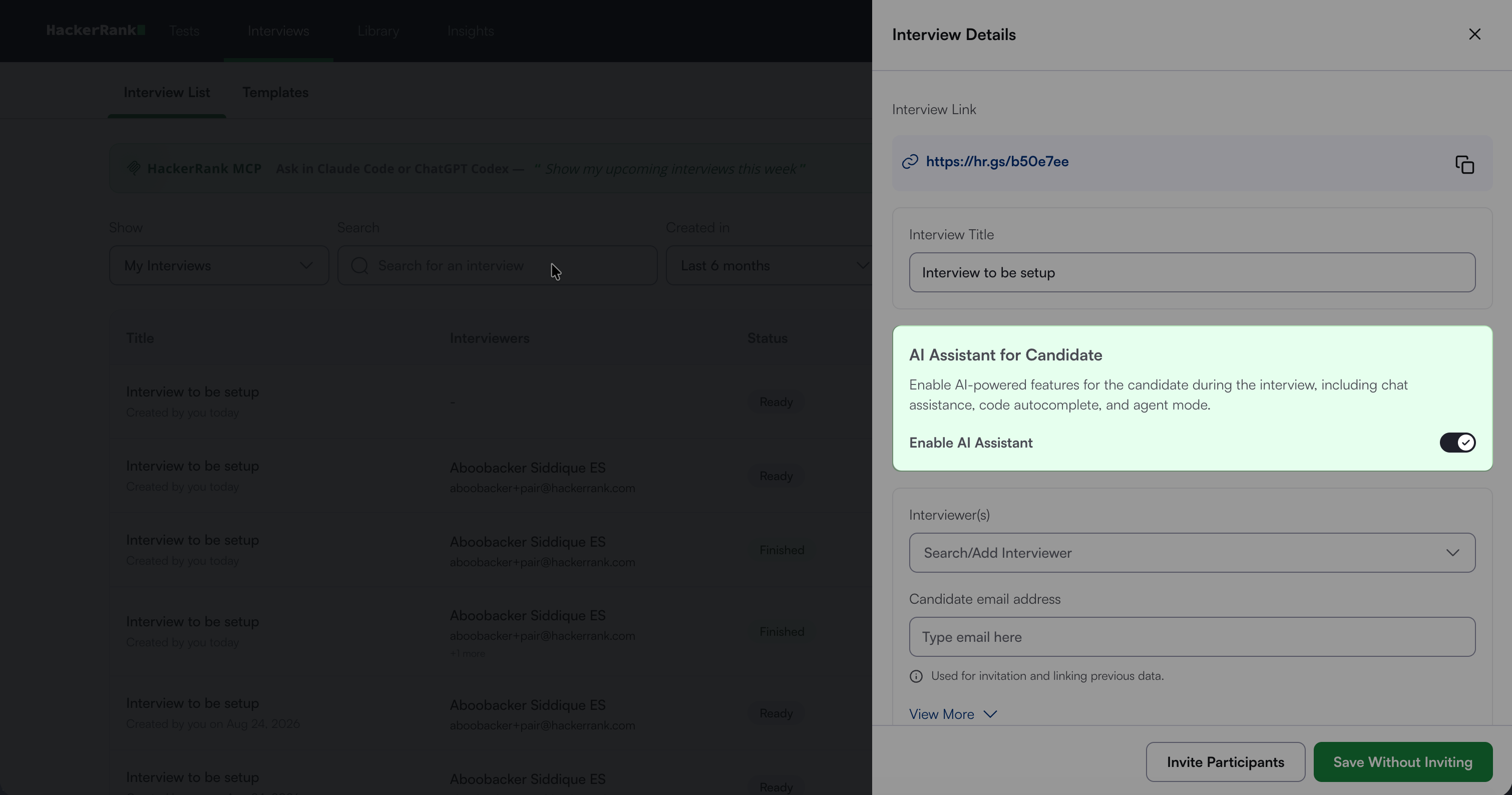
Click Save Without Inviting or Invite Participants.
For more information, see 📄 Create an Interview.
Reviewing AI Assistant conversations
After the interview, the Interview Report includes the complete conversation between the candidate and the AI Assistant. Click the AI Assistant icon to review the conversation.