Data Science Questions
Last updated: September 11, 2026
Data Science questions help you evaluate candidates on real-world data science skills using hands-on, practical challenges.
These questions assess a candidate’s ability to:
Perform data wrangling and preprocessing
Build statistical and predictive models
Create meaningful data visualizations
Implement machine learning algorithms
The platform includes challenge-specific scoring rubrics to ensure consistent and efficient evaluations.
Creating a Data Science question
To create a Data Science question:
Log in to your HackerRank for Work account using your credentials.
Go to the Library tab.
Click Create Question.
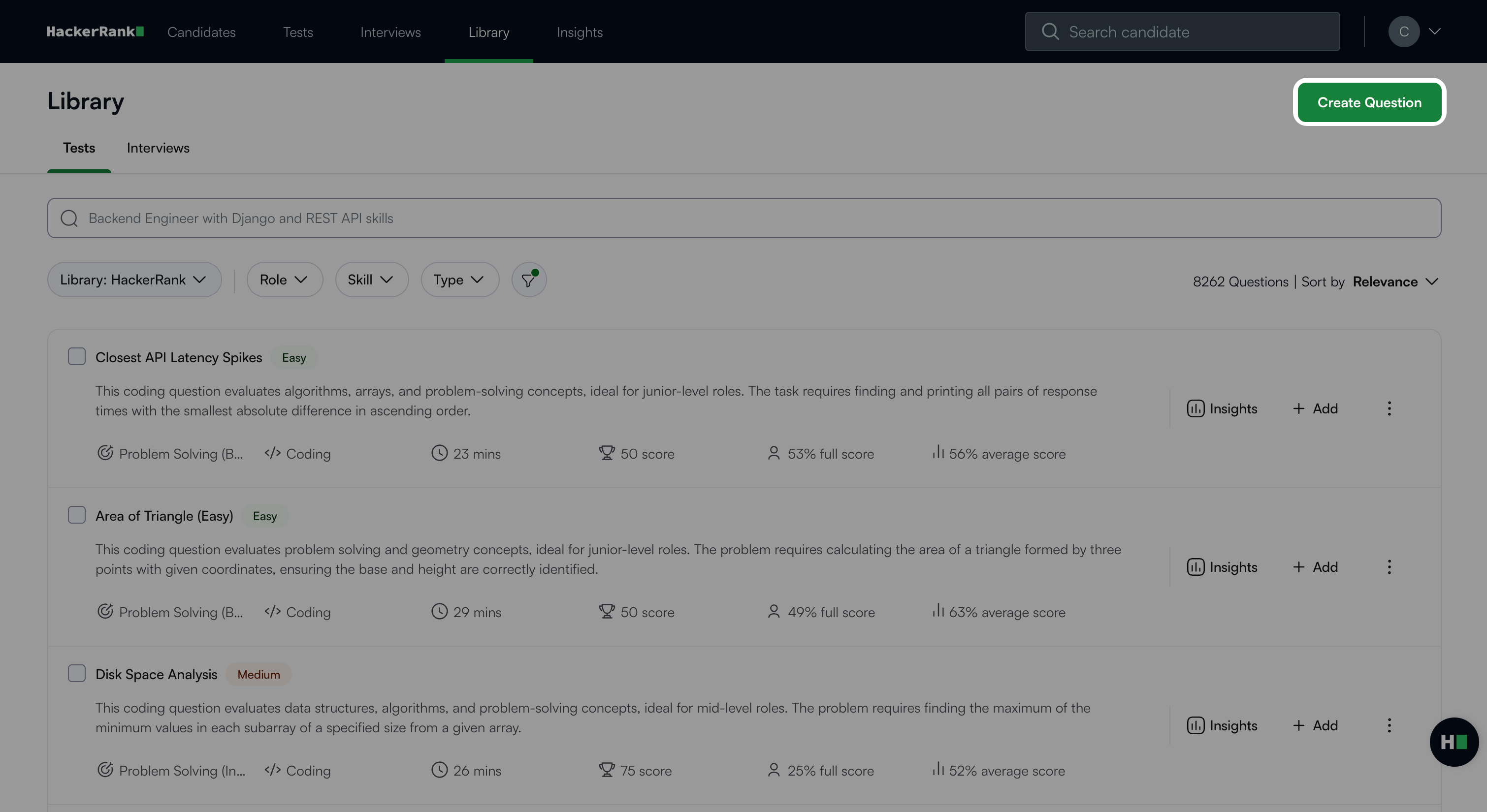
Select Data Science under Projects.
The Data Science question creation workflow begins with the following three steps.
Step 1: Environment
In the Environment Settings section, choose one of the following kernels:
Python
R
Julia
Note:
The default environment is VS Code. You cannot change this setting.
Click Package Info to view the list of supported packages. For more details, see 📄 Package Information for Data Science Questions.
Click Next.
Step 2: Project Setup
Set up the project using one of the following methods:
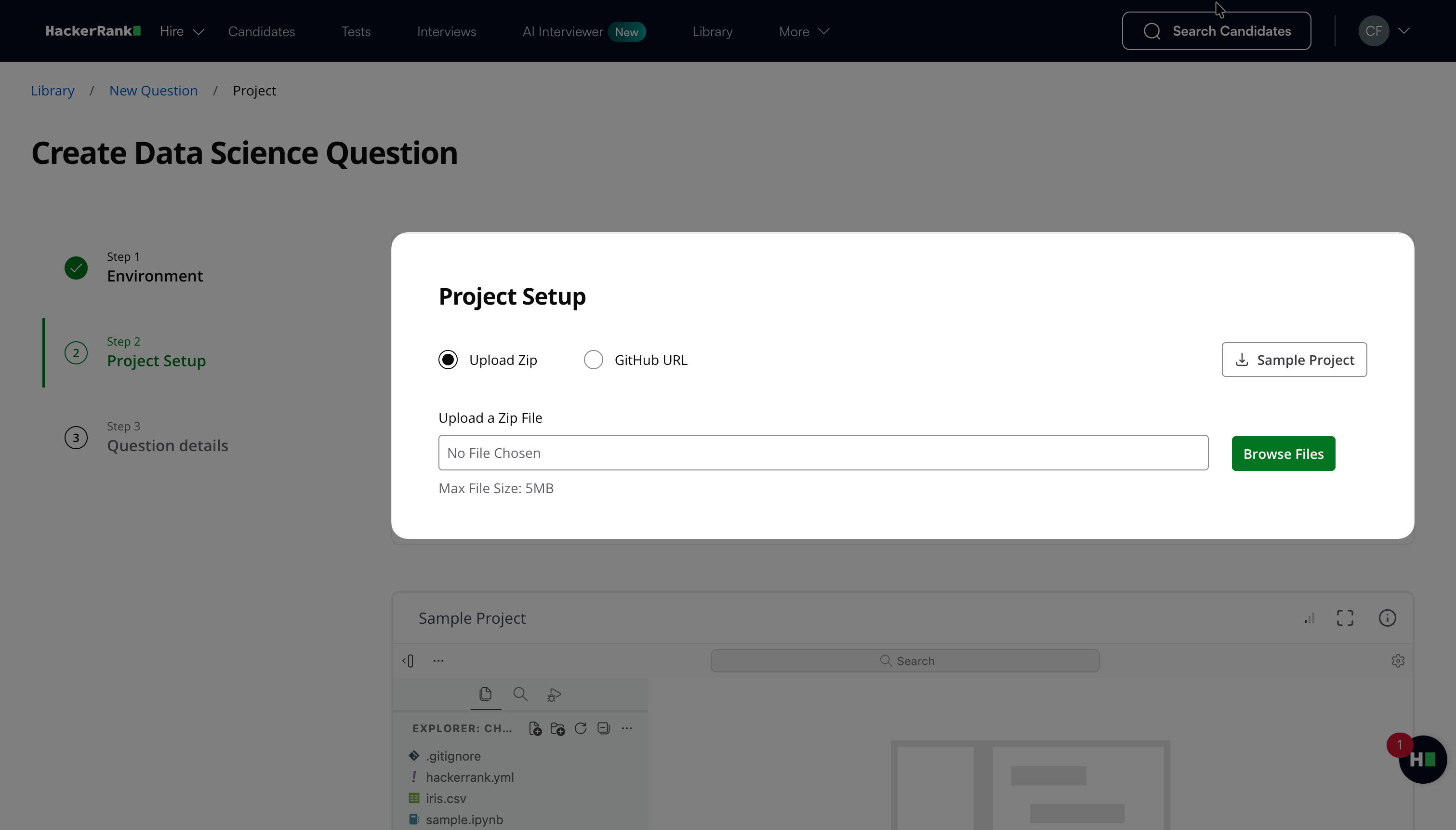
Upload Zip: Upload the project file in ZIP format. The file size should be within 5MB.
GitHub URL: Enter the repository URL and click Clone Project. If the repository is private, the IDE requests permission to connect using a one-time access token.
Note: HackerRank does not store your GitHub credentials.
The Project Setup section also includes a preconfigured sample project for the VS Code framework.
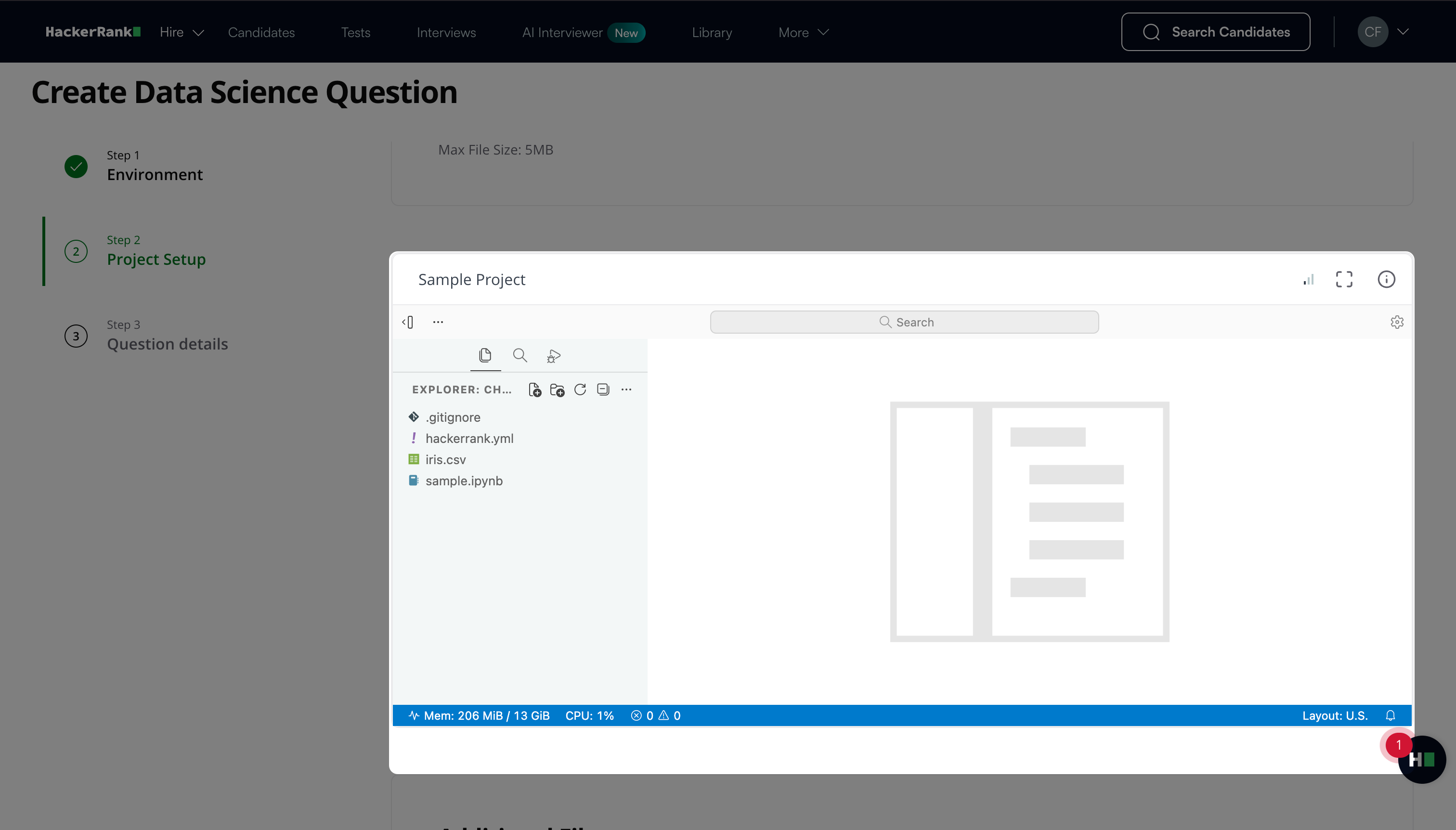
Note: To specify which files open by default when the project loads, configure the
default_open_pathsfield in thehackerrank.ymlfile in the following format:configuration: default_open_paths: - <file_name>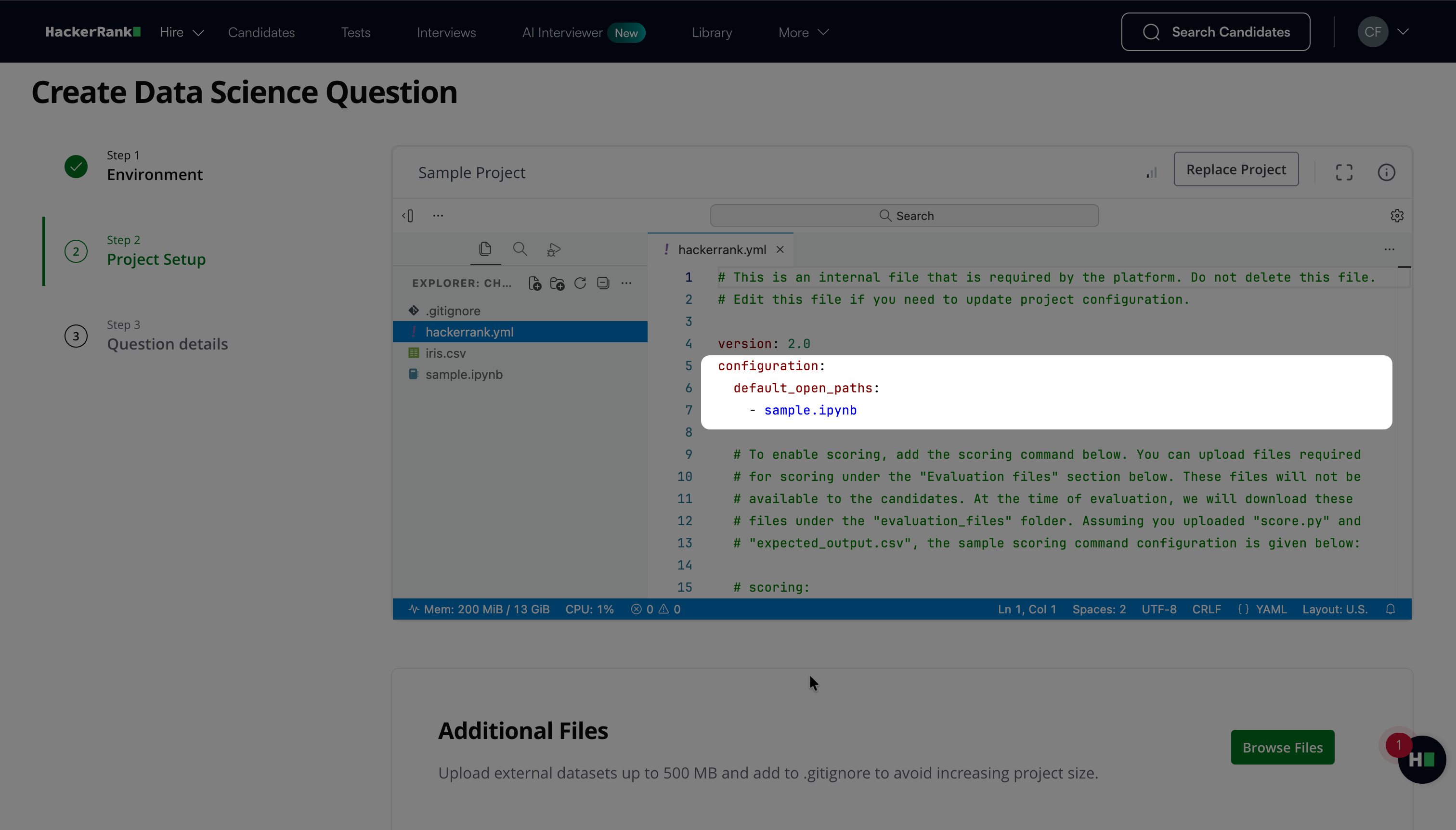
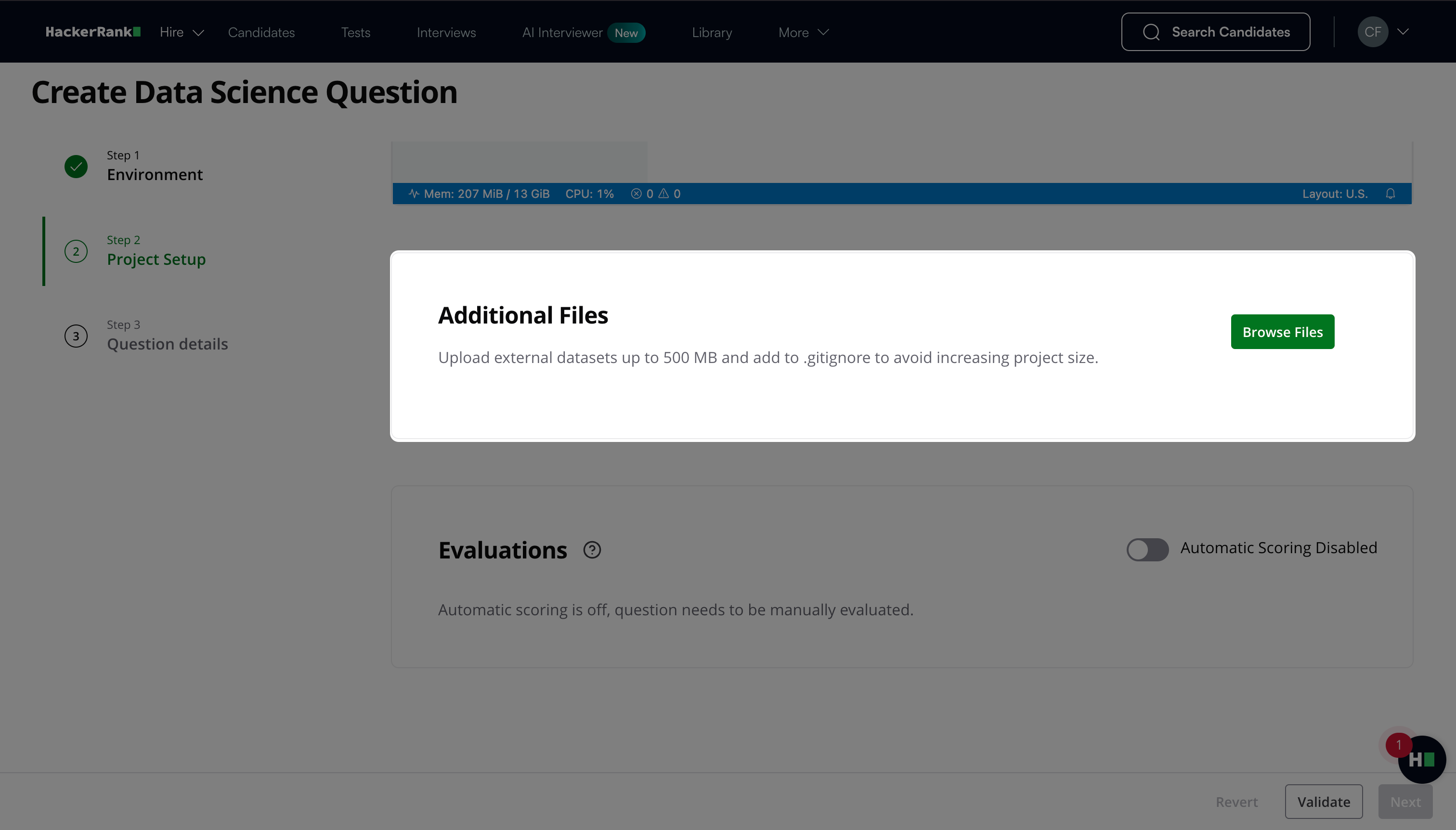
(Optional) Click Browse Files under Additional Files to upload supporting resources, such as datasets, scoring scripts, or other required files.
If you enable automatic evaluation with a custom metric, upload the scoring script and the expected output file in this section.
To manage an uploaded file:
Click the ellipsis (...) icon next to the file.
Select one of the following options:
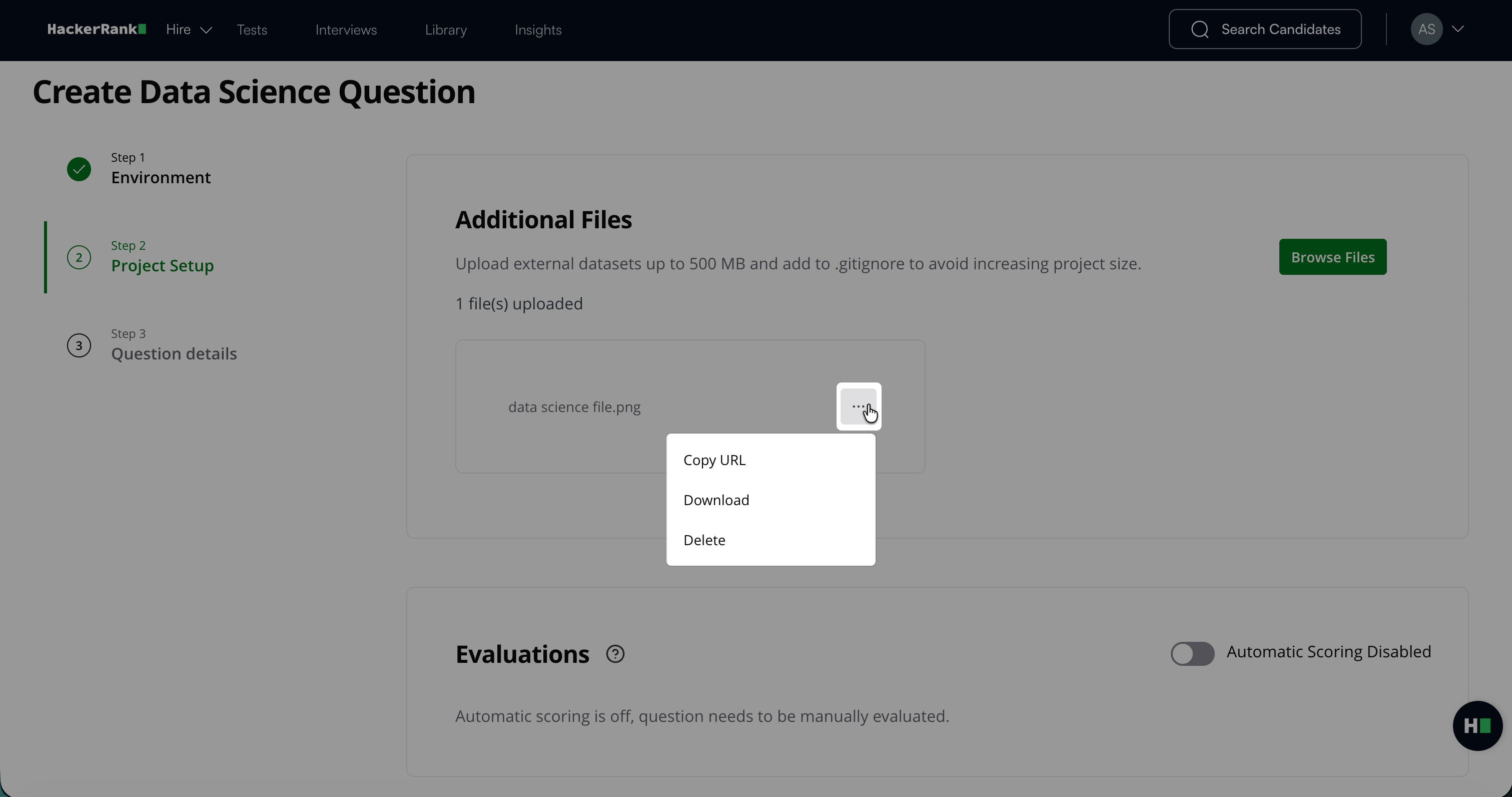
Copy URL: Copies the file URL.
Download: Downloads the file to your computer.
Delete: Removes the uploaded file.
Note:
Uploaded files do not appear automatically in the file tree during an interview. To access the file during an interview, run a command such as
wget <file-URL>in the interview environment.The total size of uploaded files must not exceed 500 MB.
Each individual file must not exceed 100 MB.
Add large files to
.gitignoreto prevent increasing the project size.HackerRank supports externally hosted datasets with a maximum total size of 5 GB. When you use external datasets, ensure that your solution runs within the platform’s machine specifications:
CPU: 2 vCPUs
Memory: 16 GB RAM
Storage: 20 GB disk
Toggle Automatic Scoring to choose the evaluation mode.
Manual evaluation: Disable Automatic Scoring to require manual evaluation.
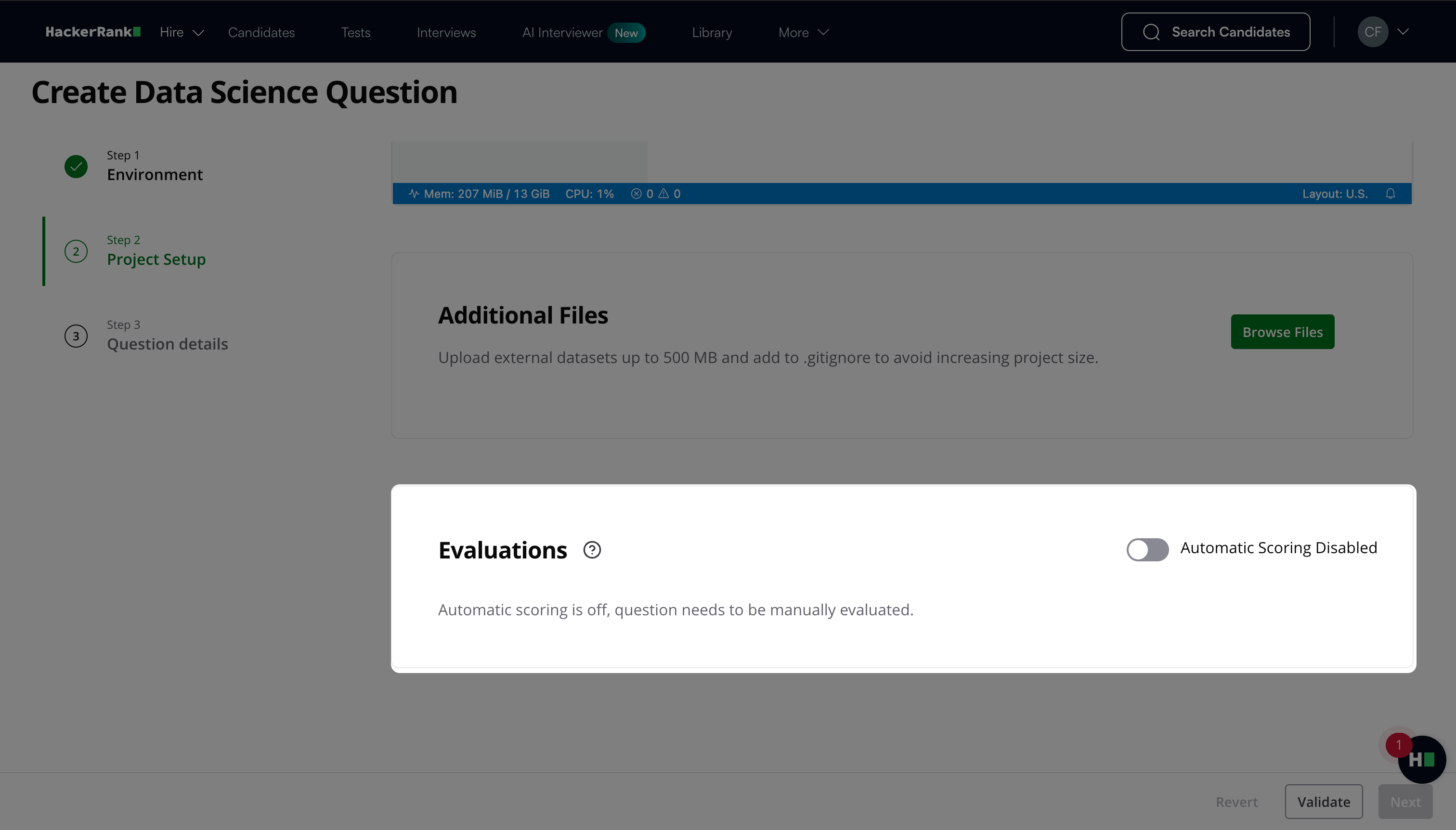
Add evaluation materials in Step 3: Question Details under Interviewer Guidelines, such as scoring rubric, solution notebook, actual output, evaluation script, and evaluation criteria.
Reviewers can use these materials to assign scores manually. For more information about manual scoring, see Manual scoring.Automatic evaluation: Enable Automatic Scoring to allow the platform to evaluate submissions automatically.
When you enable Automatic Scoring:
Select a Scoring Metric. Choose a standard metric from the dropdown, or select Custom to define your own evaluation logic.
If you select a standard metric (For example, Categorization Accuracy, Mean F-Score, Log Loss, AUC-ROC Curve, Root Mean Squared Logarithmic Error, Average Precision):
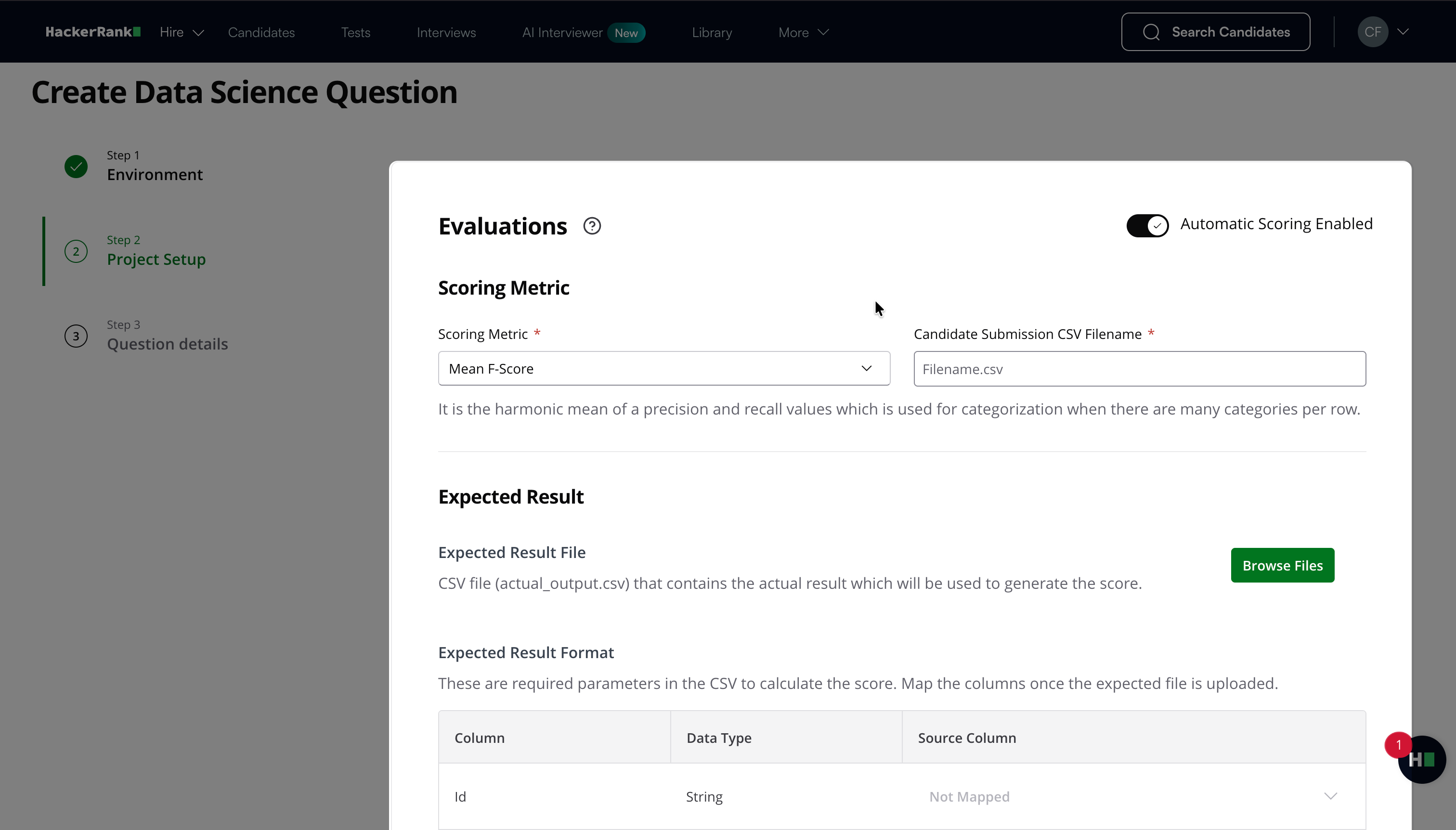
Enter the filename that candidates must use for their final submission in the Candidate Submission CSV Filename field.
Click Browse Files under Expected Result to upload the CSV file (for example, actual_output.csv) that contains the actual results used to generate the score. After uploading the file, map the required columns under Expected Result Format.
Click Browse Files under Sample Submission to upload the CSV file (for example, sample_submission.csv) that you expect candidates to submit. After uploading the file, map the required columns under Sample Submission Format.
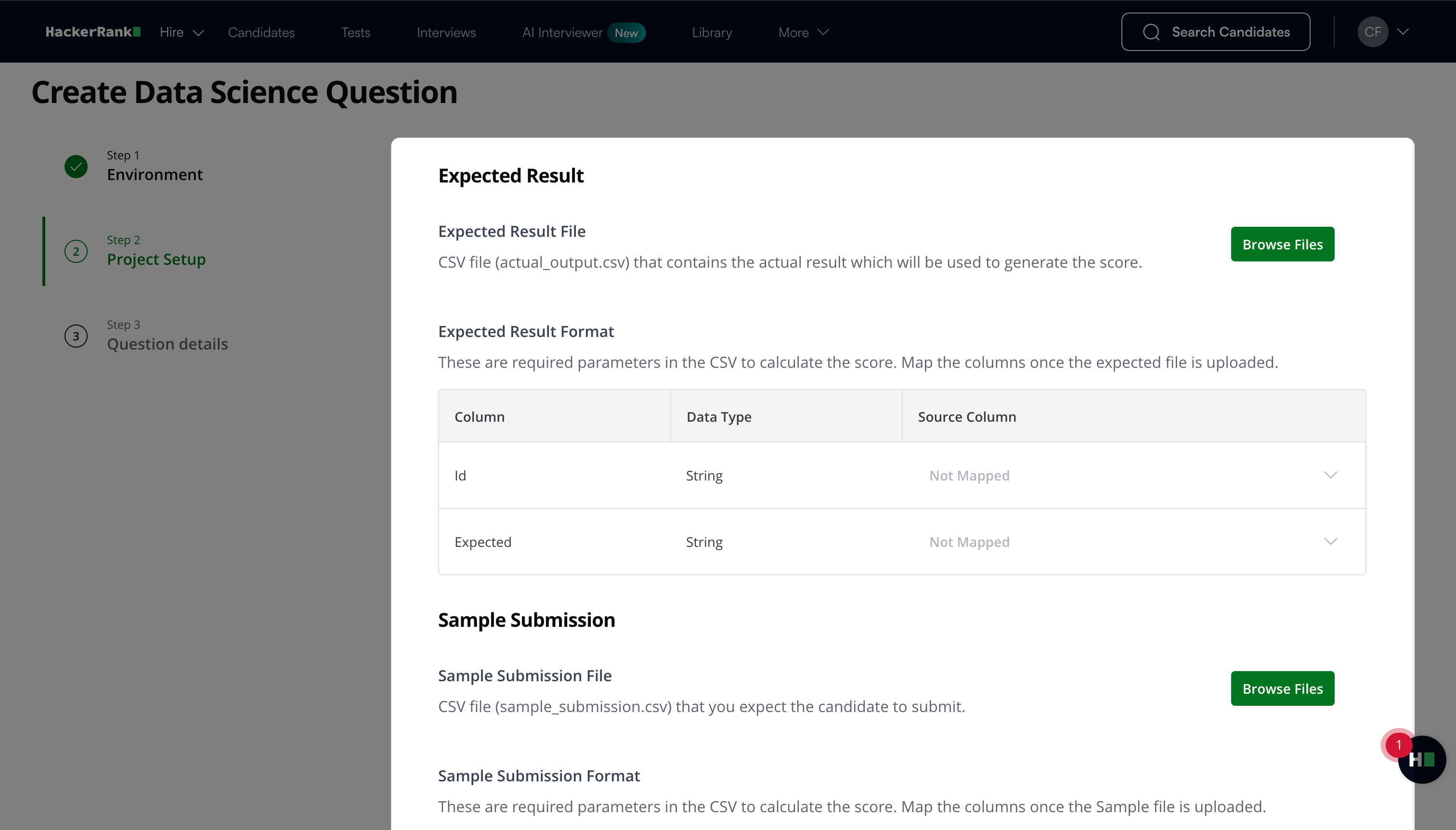
If you select Custom:
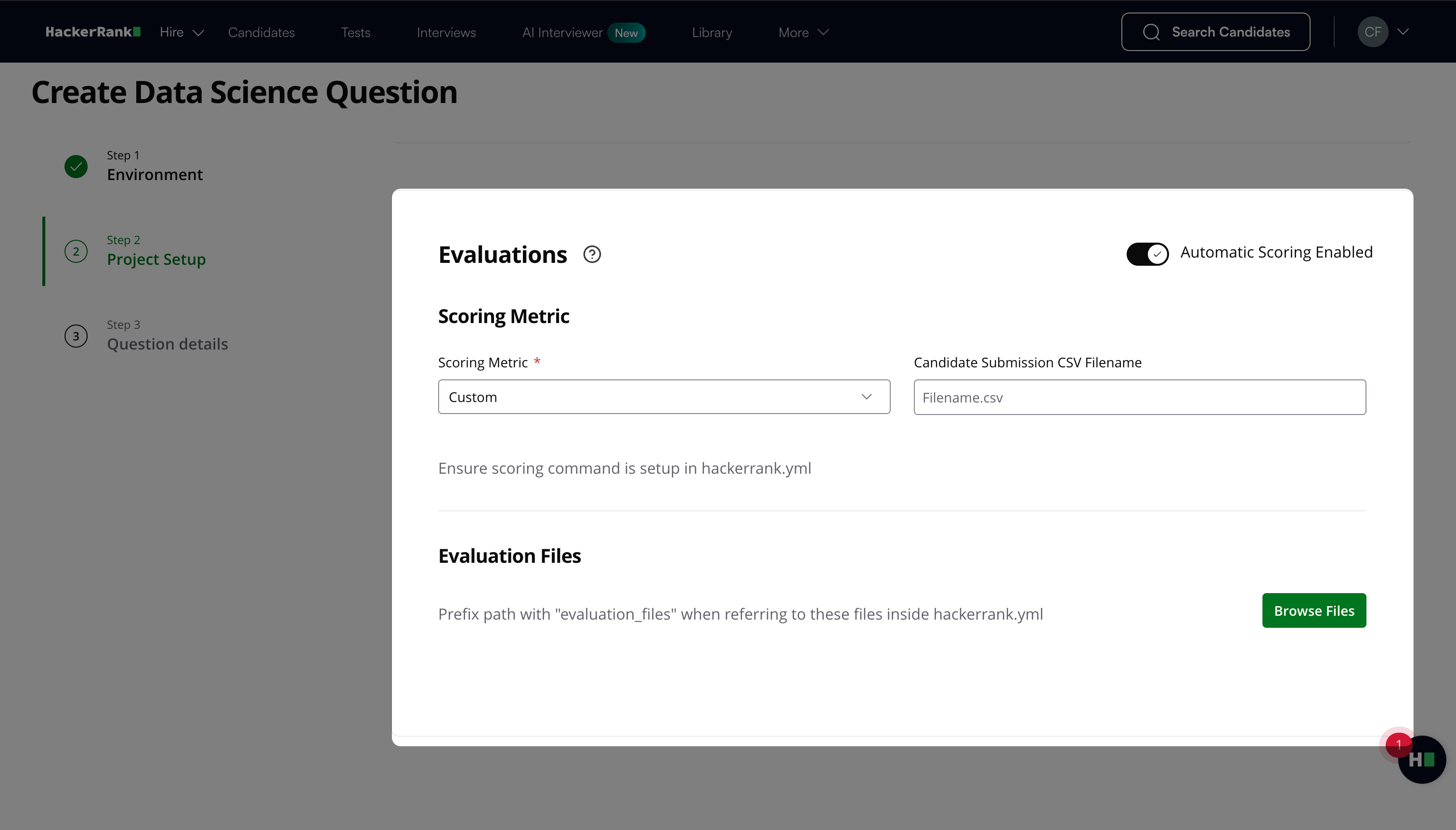
Create a scoring script that:
Evaluates the candidate’s submission (For example,
submission.csv)Compares it with the expected output file (For example,
actual_output.csv)Calculates relevant metrics such as accuracy, precision, recall, and F-score
The scoring script must return the final score in the following format:
FS_SCORE: X%#!/usr/bin/env python
# coding: utf-8 import pandas as pd
from sklearn.metrics import accuracy_score
import sys def score(actual_data, sub_data):
if actual_data.shape != sub_data.shape:
print('Shape Mismatch')
return 0
if actual_data.columns.tolist() != sub_data.columns.tolist():
print('Columns Mismatch')
return 0
actuals = actual_data['popularity'].tolist()
preds = sub_data['popularity'].tolist() try:
return accuracy_score(actuals, preds)
except:
print('Error in Evaluation')
return 0 def read_data(actual_file, submission_file):
try:
actual_data = pd.read_csv(actual_file)
sub_data = pd.read_csv(submission_file)
return actual_data, sub_data
except:
print('File Not Found')
print("FS_SCORE:0 %")
try:
actual_data, submission_data = read_data(sys.argv[1], sys.argv[2])
score = score(actual_data, submission_data)
print("FS_SCORE:" + str(score * 100) + " %")
except Exception as e:
print(e)
print('Score could not be calculated')
print("FS_SCORE:0 %")Ensure the script handles edge cases, always returns a score, and runs without errors.
If the script fails or does not return a valid score, the platform assigns no score and requires manual review.
Upload the following files under Additional Files:
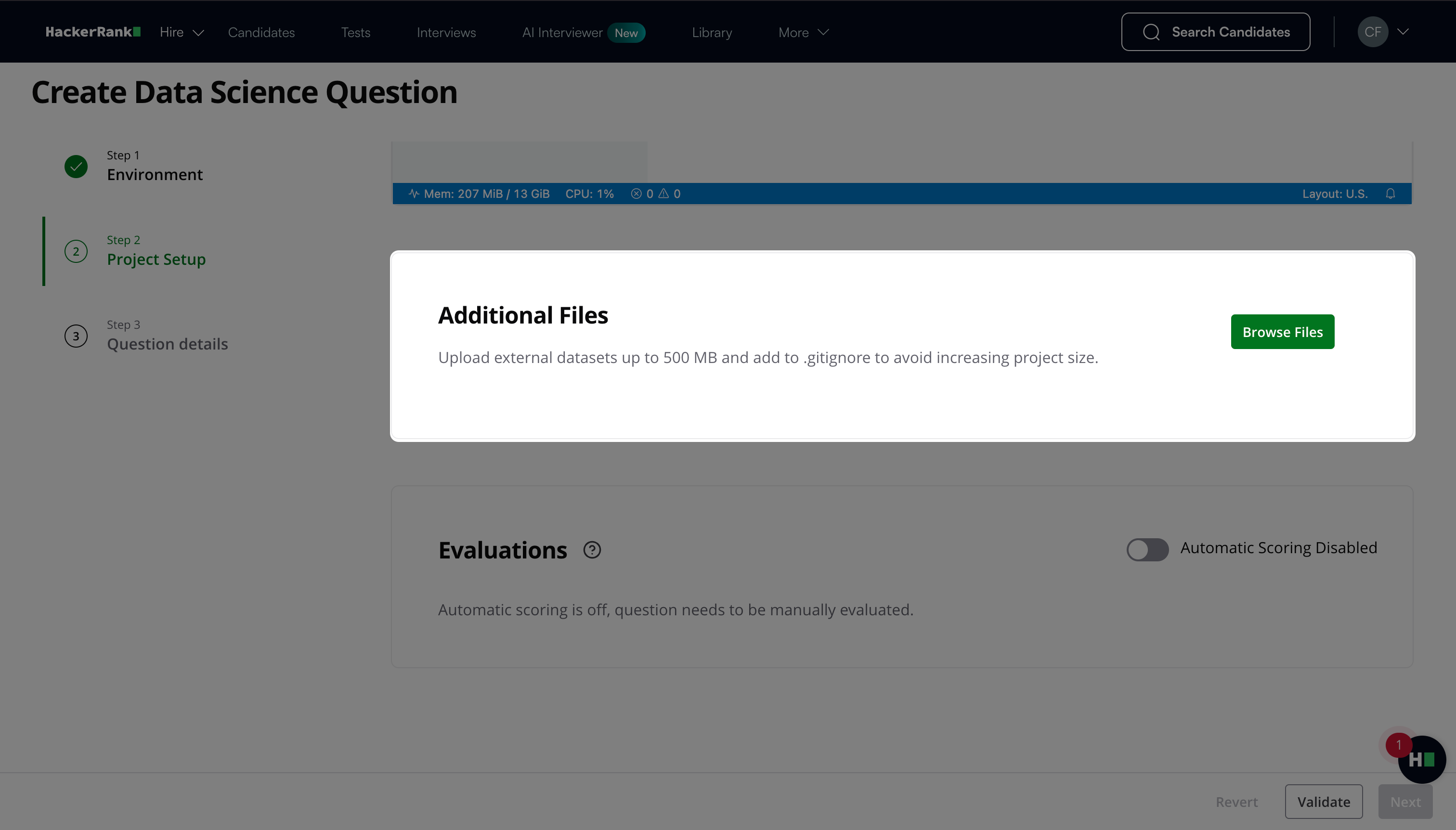
Scoring script (For example,
score.pyorscore.sh)Expected output file (For example,
actual_output.csv)
Enter the expected submission filename in the Candidate Submission CSV Filename field.
Upload the expected result file under Expected Result, if required.
Define the scoring command inside
hackerrank.yml.
Example:scoring: command: python evaluation_files/score.py evaluation_files/actual_output.csv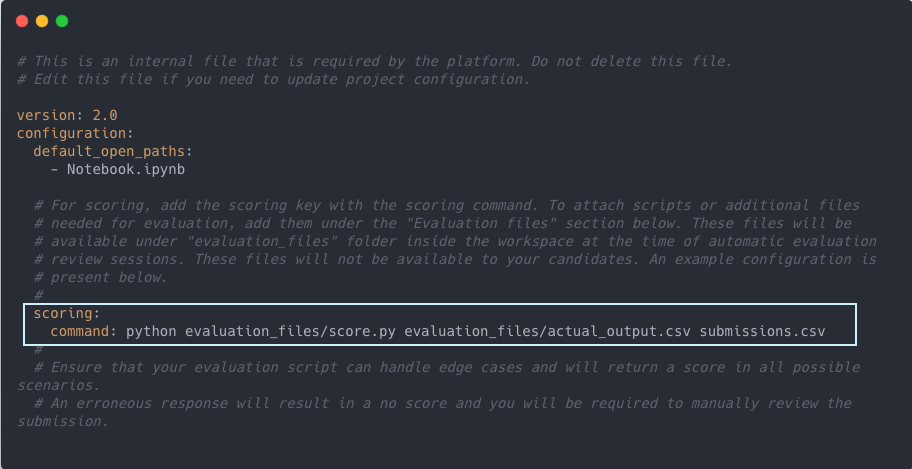
The scoring command must execute successfully, produce valid output, and return a valid score.
Click Validate.
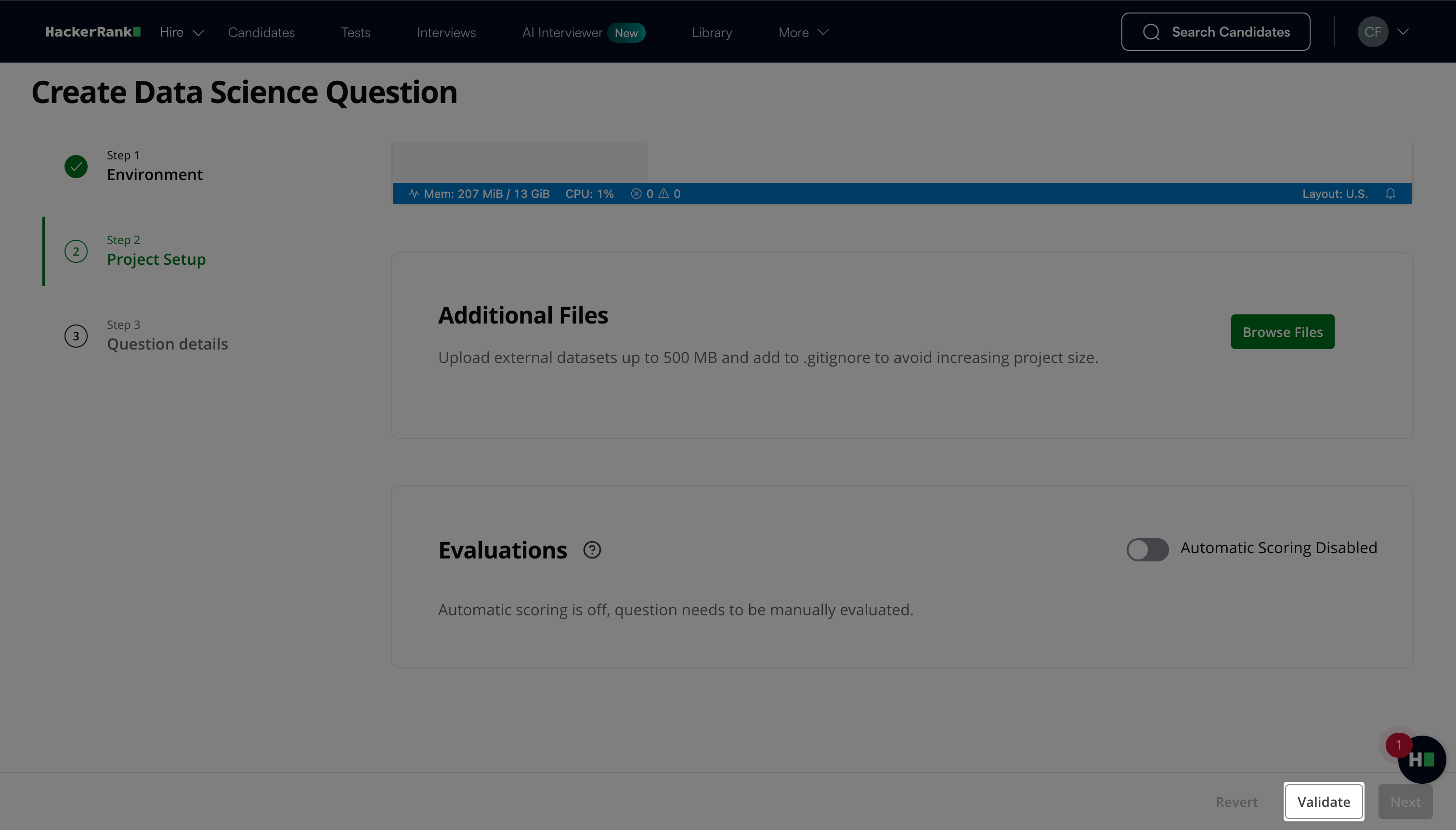
Note: Click Revert to restore the project to the last successful validation state.
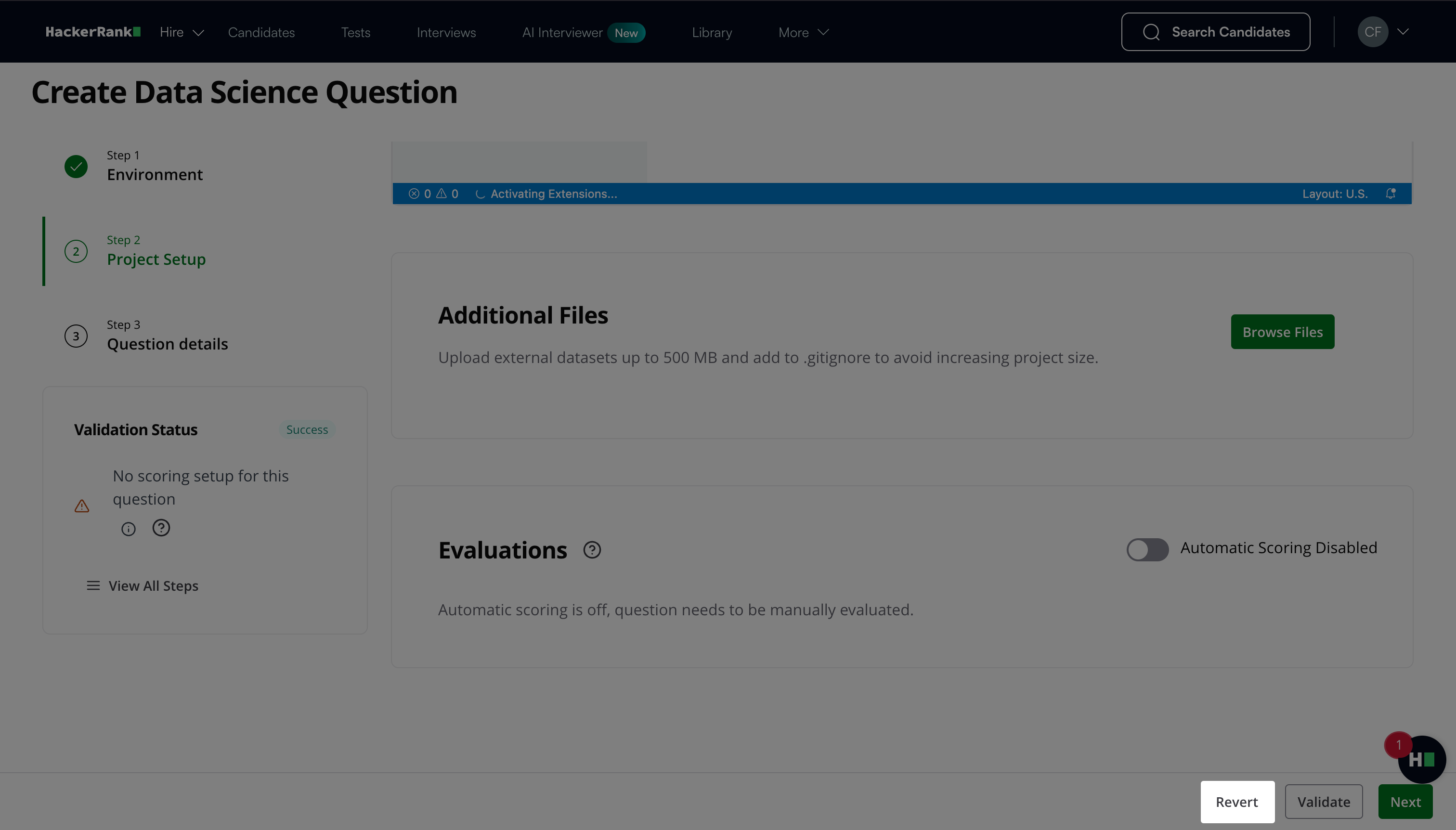
Click Next.
Step 3: Question details
In the Question details section:
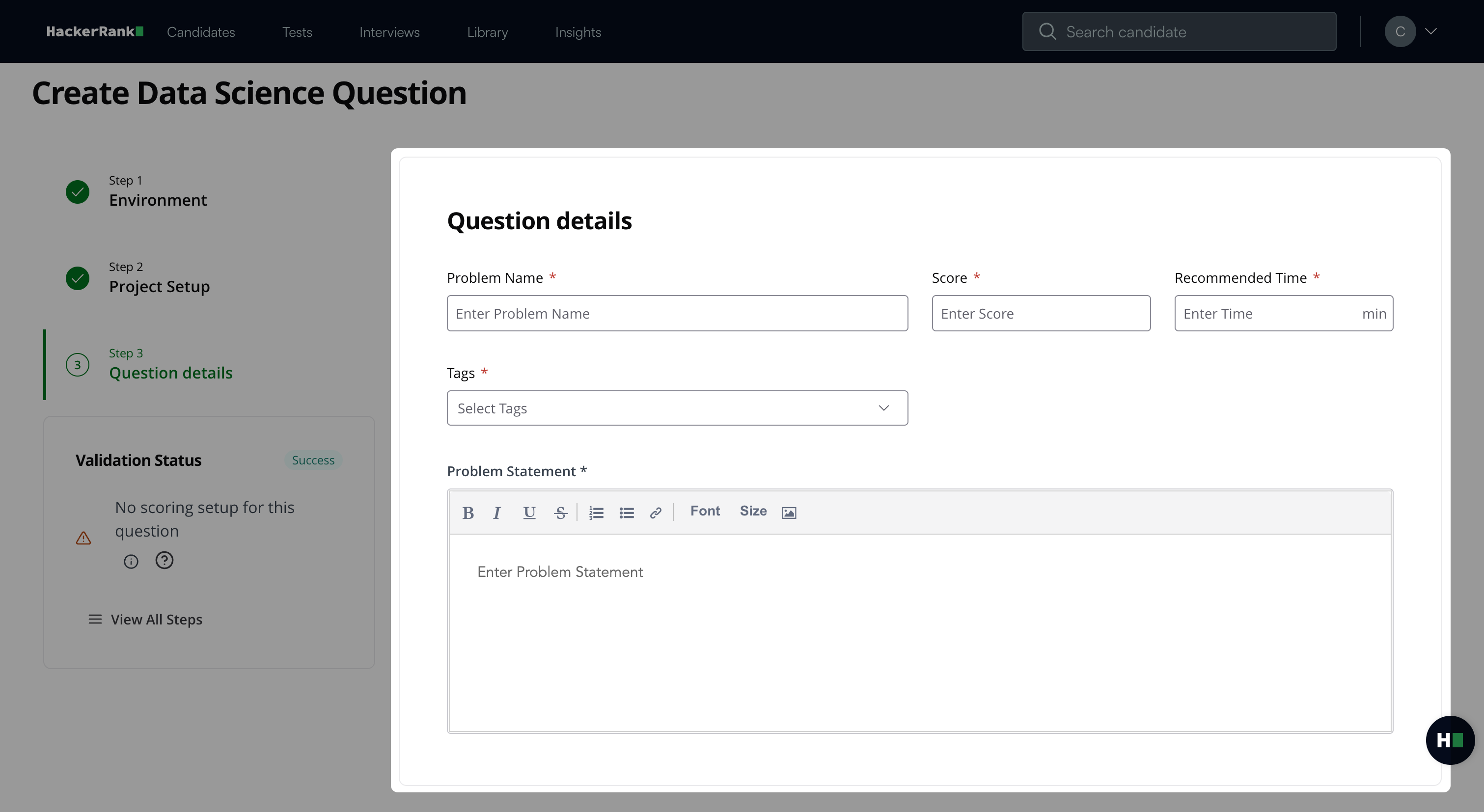
Enter the Question name.
Enter the Score based on difficulty.
Add Recommended time in minutes.
Add Tags from the drop-down list or create new ones.
Describe the problem in the Problem description field. You can use the formatting menu to format the text or to include elements such as tables or images.
Add Interviewer guidelines for internal use, such as evaluation criteria, hints, or reference solutions.
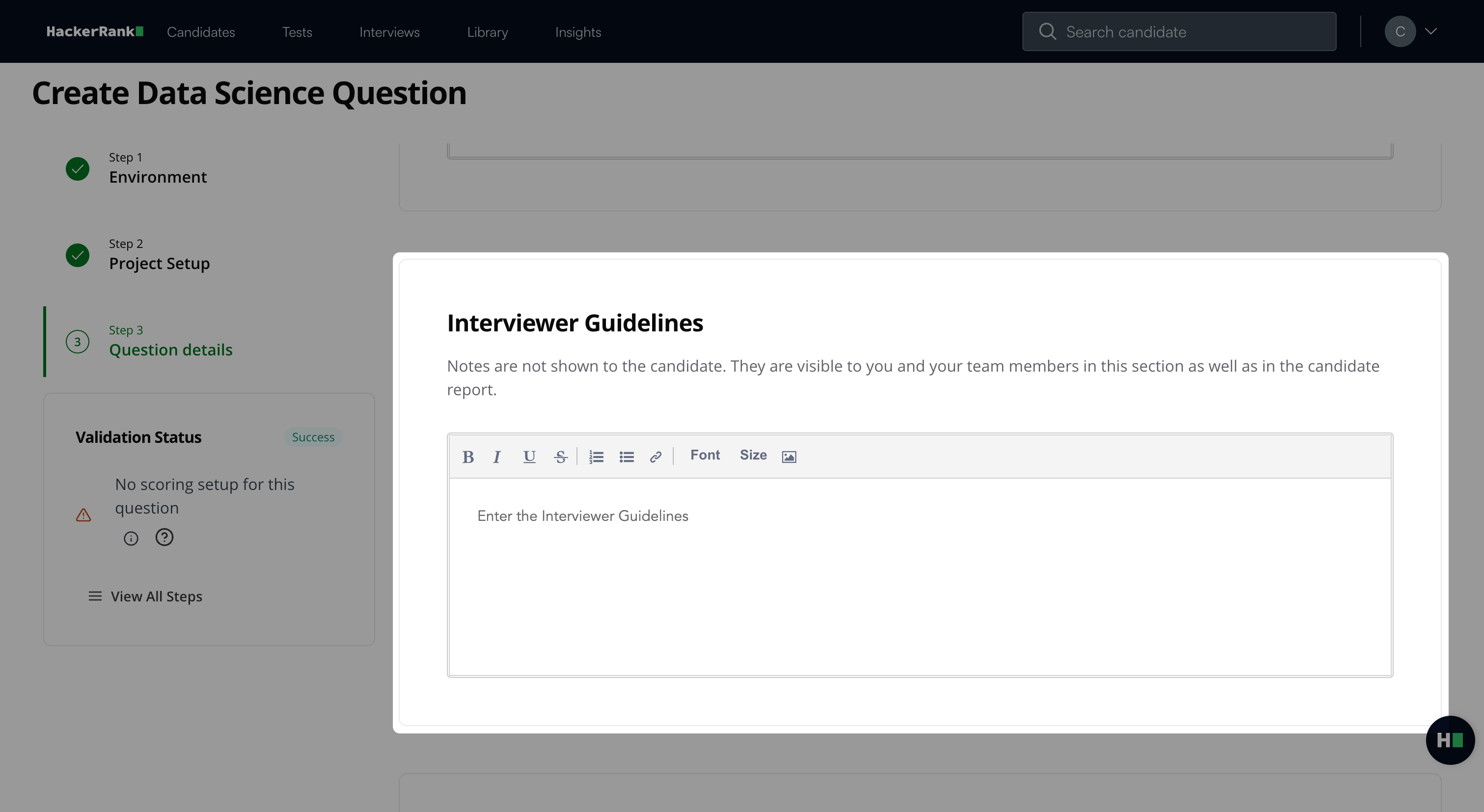
Note: If you selected manual evaluation, add the evaluation criteria in Interviewer Guidelines.
(Optional) Add Software Instructions to specify required packages or software versions. If you leave this field empty, the platform uses the default instructions.
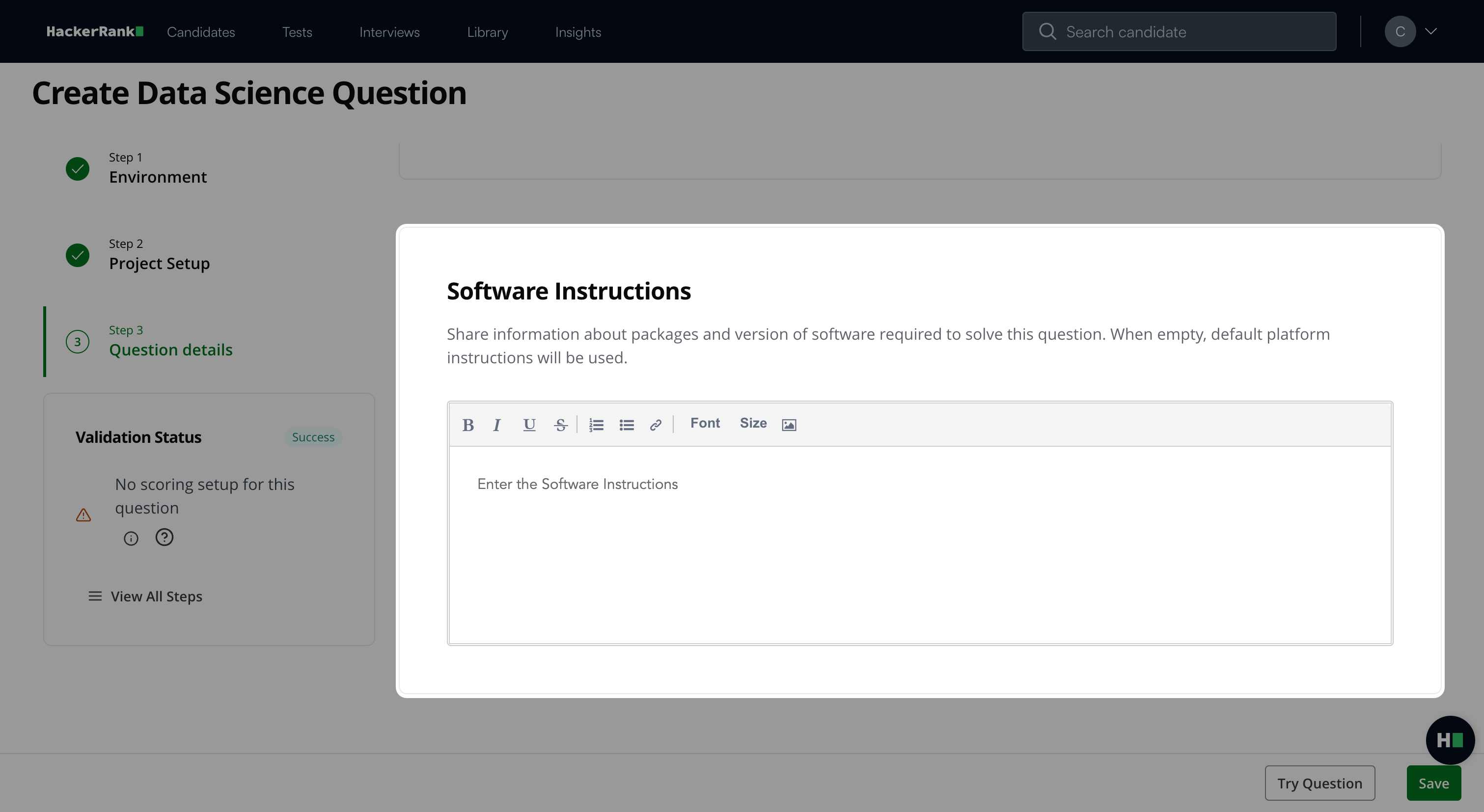
Note: Click Try question to view how the question appears to candidates.
Click Save.
The question appears under My Company questions in the HackerRank Library.
Candidate experience
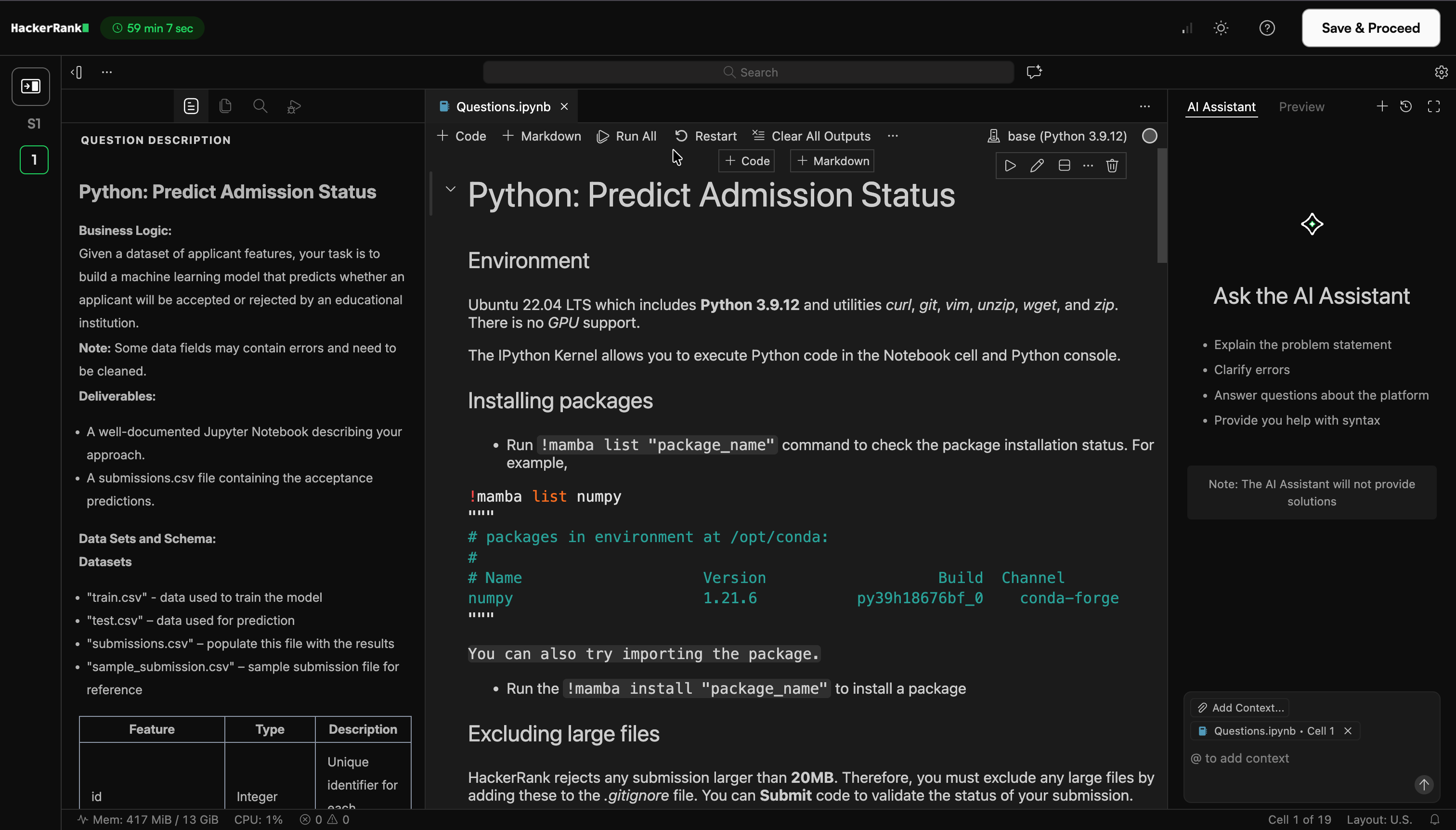
Candidates solve these challenges in an embedded VS Code IDE within HackerRank Projects.
Scoring a Data Science question in tests
You can evaluate a Data Science question using Automatic or Manual scoring.
Automatic scoring
When you enable Automatic Scoring, the platform evaluates the question based on the selected scoring metric and configuration.
The system generates the score automatically and displays it in the candidate report.
Manual scoring
You can use manual scoring when Automatic Scoring is disabled or when a submission requires manual review.
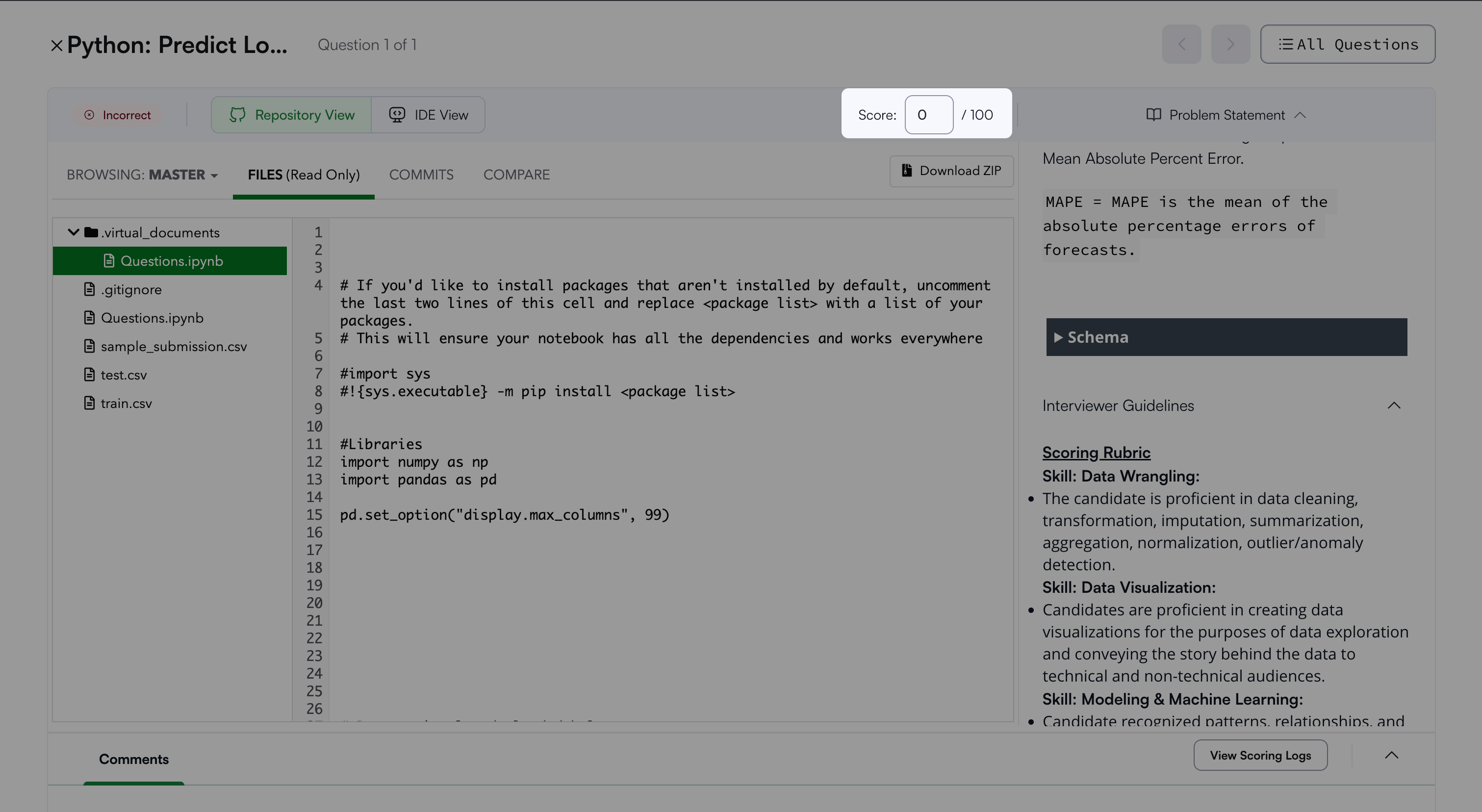
To manually score a question:
Open the candidate’s Detailed Test Report. For more information, see 📄 Viewing a Candidate's Detailed Test Report.
Expand Problem Statement.
Scroll to Interviewer Guidelines. This section may include the solution notebook and evaluation criteria.
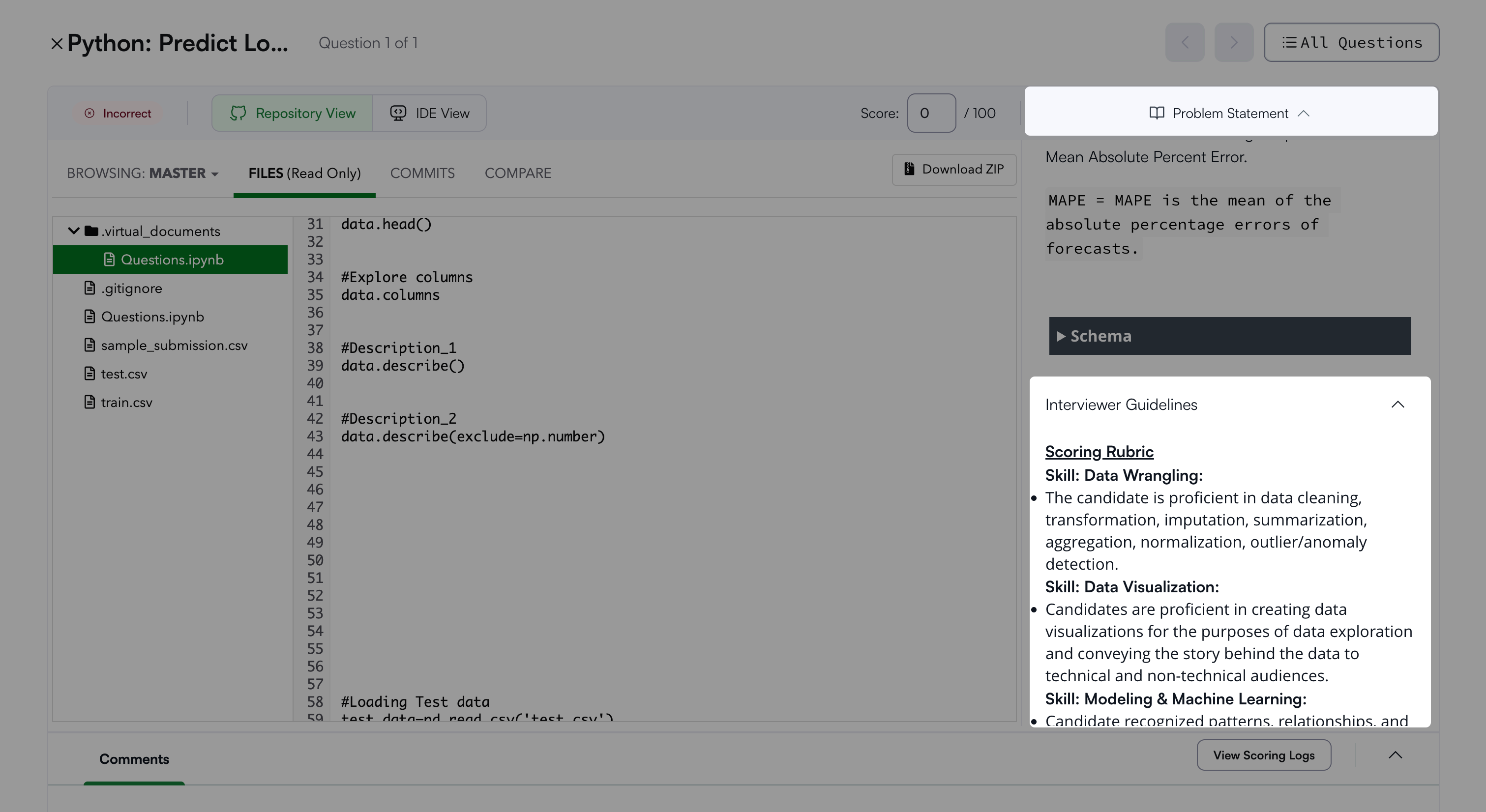
Review the candidate’s submitted solution using one of the following options:
Download the submission as a ZIP file.
Launch a temporary VS Code session.
Launching a VS Code session allows you to:
Review all submitted files
Run data cells and scripts
Explore the submission environment
Enter the score in the Score field after you complete your review.