データサイエンスの質問
Last updated: September 11, 2026
データ Science の質問は、ハンズオンで実践的な課題を使用して、実際のデータ Science スキルに基づき、候補者を評価するのに役立ちます。
これらの質問は、候補者の能力を評価します:
データのラングリングと前処理を実行する
統計的および予測モデルを構築する
意味のあるデータ可視化を作成する
機械学習アルゴリズムを実装する
プラットフォームは、課題固有のスコアリングルーブリックを含んでおり、一貫性と効率的な評価を保証します。
データ Science の質問を作成する
データ Science の質問を作成するには:
あなたの HackerRank for Work アカウントに資格情報を使用してログインしてください。
次に Library タブへ移動してください。
クリックしてCreate Questionをクリックしてください。
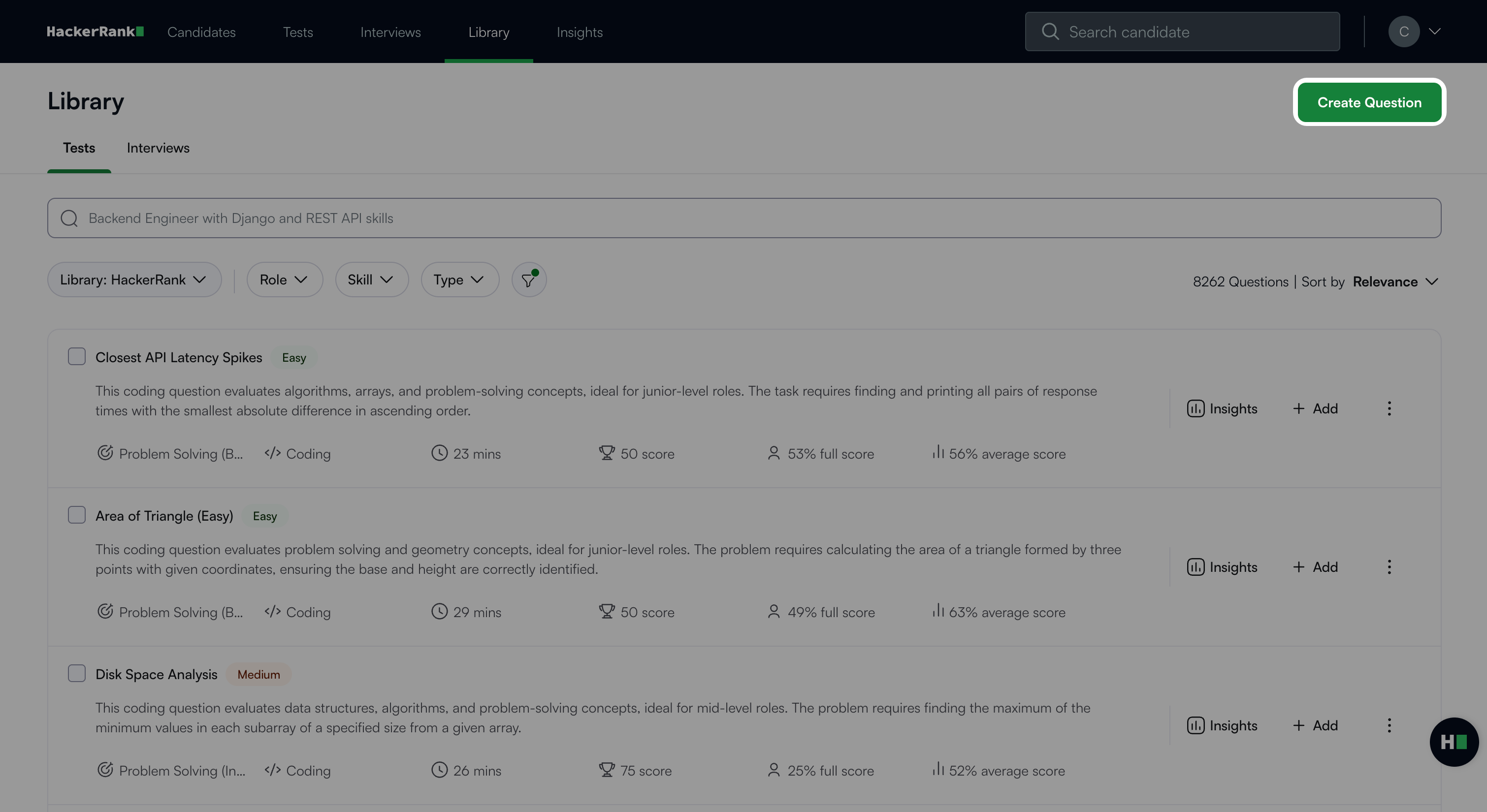
選択してください データ Science の下で プロジェクト。
データサイエンスの質問作成ワークフローは、以下の3つのステップで始まります。
ステップ1:環境
「環境設定」セクションで、次のカーネルのいずれかを選択してください。
Python
R
Julia
注:
デフォルトの環境は VS Code です。この設定は変更できません。
クリック Package Info をクリックして、サポートされているパッケージのリストを表示してください。詳細については、📄 データサイエンスの質問に関するパッケージ情報。
クリック 次へ。
ステップ 2: プロジェクト設定
Set up the project using one of the following methods:
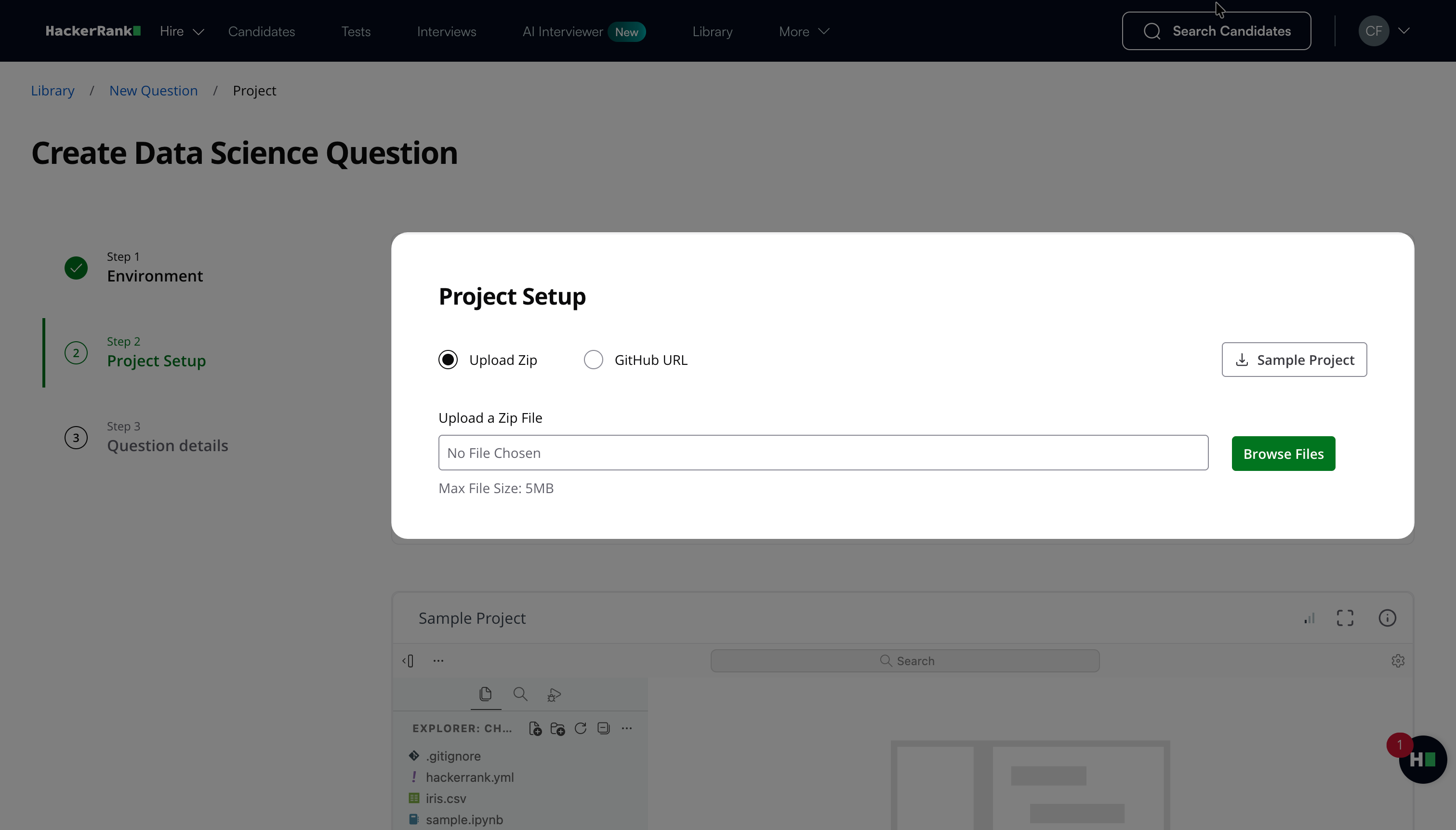
Upload Zip: Upload the project file in ZIP format. The file size should be within 5MB.
GitHub URL: Enter the repository URL and click Clone Project. If the repository is private, the IDE requests permission to connect using a one-time access token.
Note: HackerRank does not store your GitHub credentials.
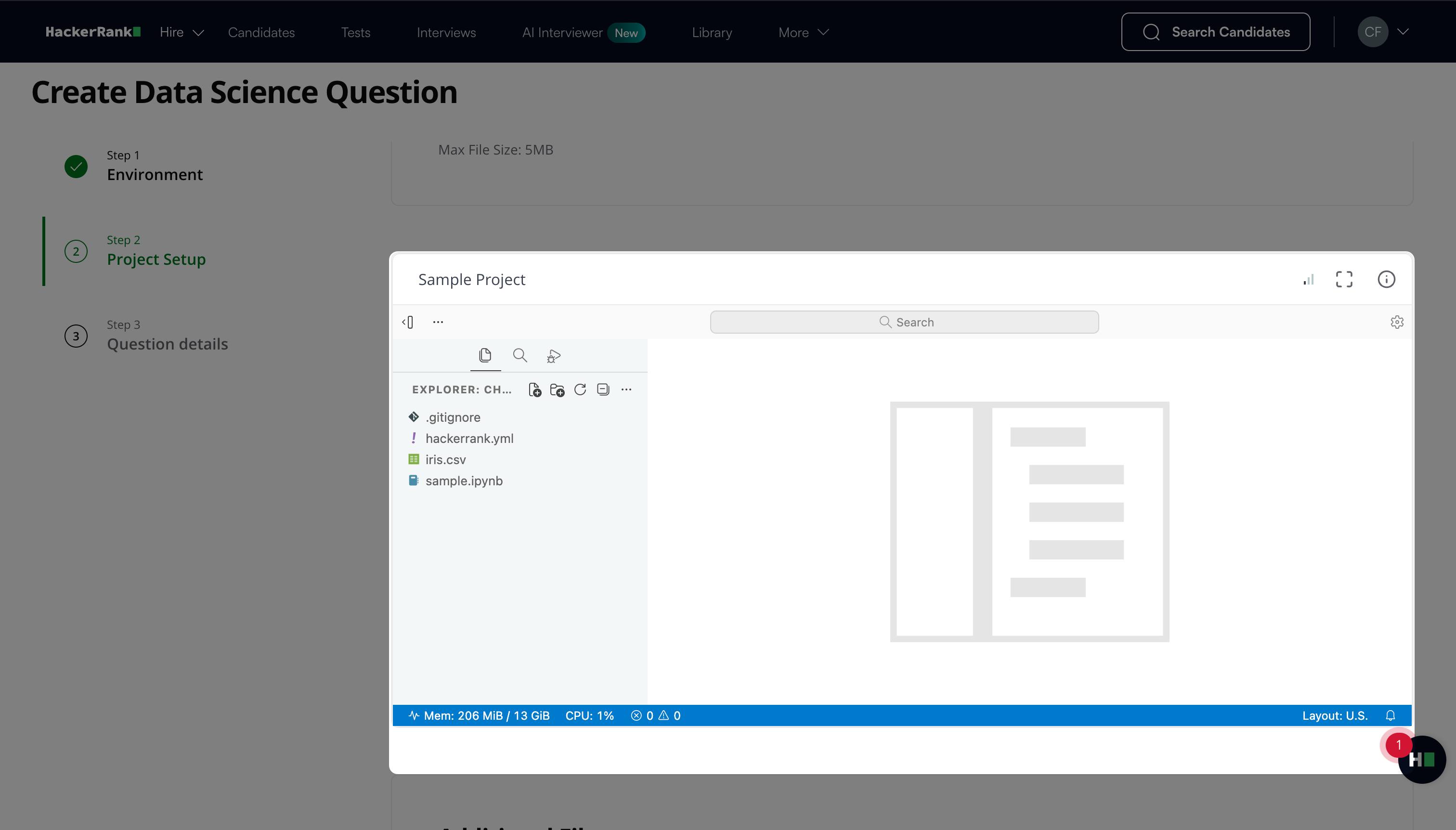
The Project Setup section also includes a preconfigured sample project for the VS Code framework.
Note: To specify which files open by default when the project loads, configure the
default_open_pathsfield in thehackerrank.ymlfile in the following format:configuration: default_open_paths: - <file_name>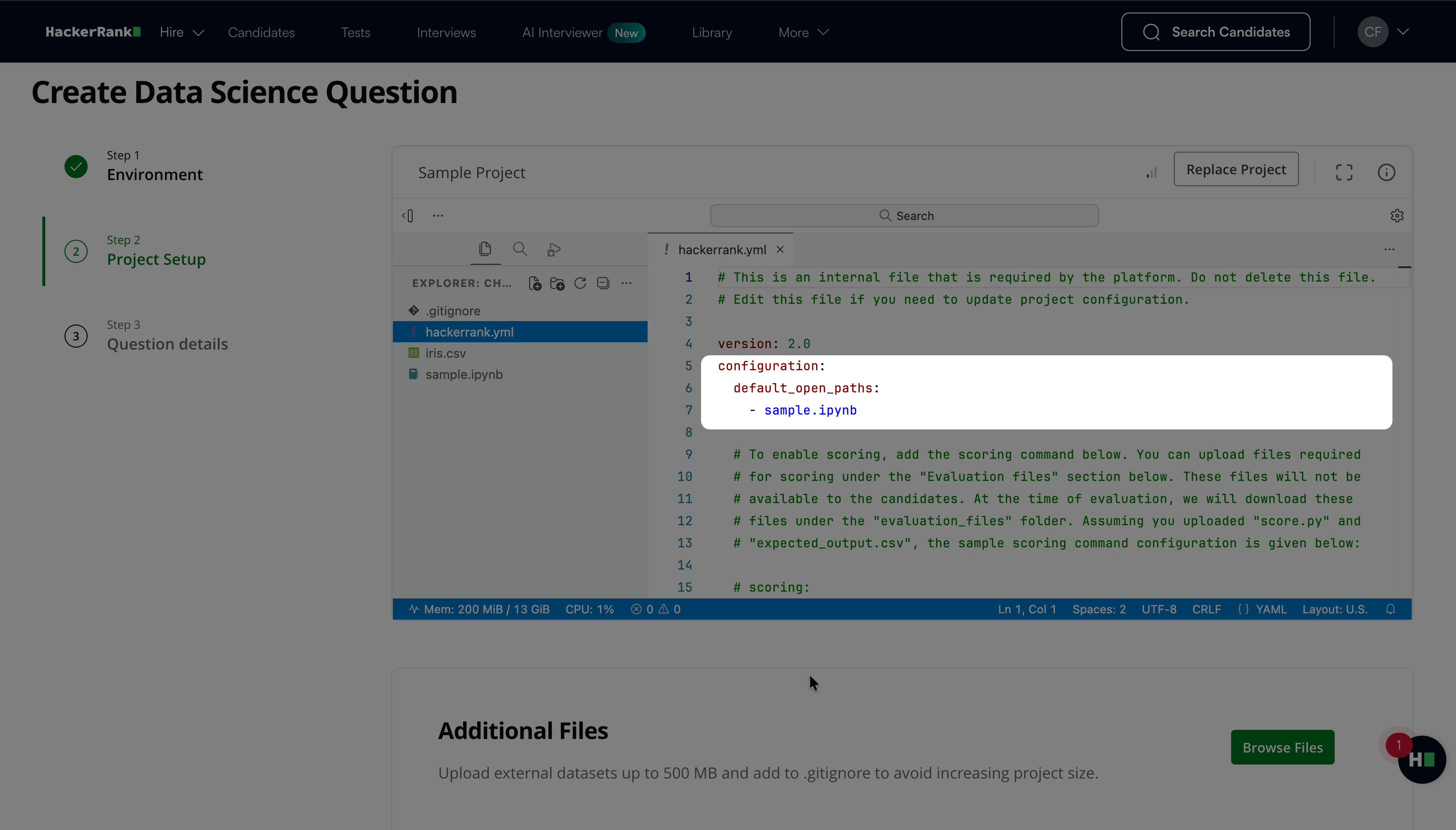
(Optional) Click Browse Files under Additional Files to upload supporting resources, such as datasets, scoring scripts, or other required files.
Note: If you enable automatic evaluation with a custom metric, upload the scoring script and the expected output file in this section.
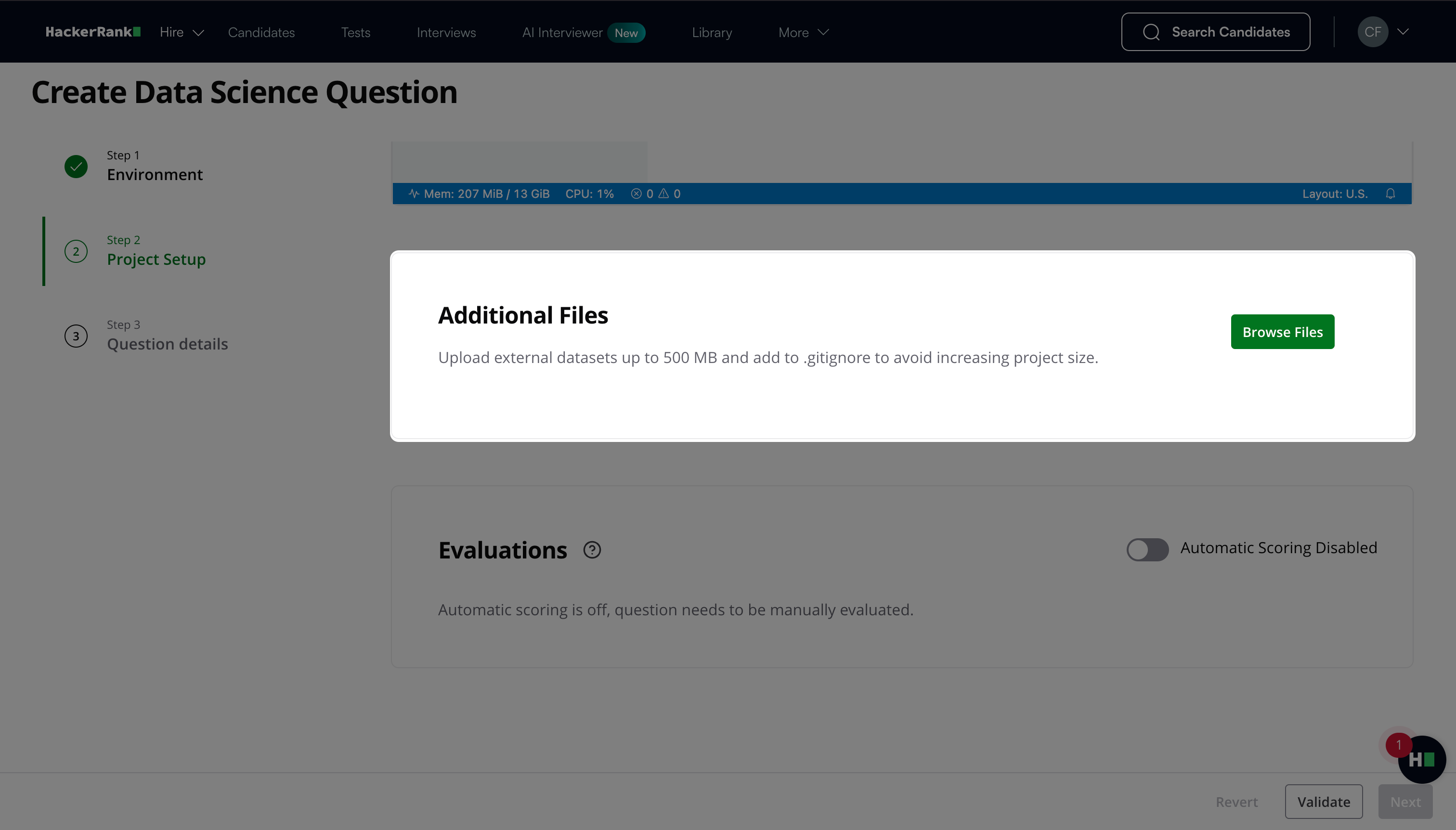
The total size of uploaded files must not exceed 500 MB.
Each individual file must not exceed 100 MB.
Add large files to
.gitignoreto prevent increasing the project size.HackerRank supports externally hosted datasets with a maximum total size of 5 GB. When you use external datasets, ensure that your solution runs within the platform’s machine specifications:
CPU: 2 vCPUs
Memory: 16 GB RAM
Storage: 20 GB disk
Toggle Automatic Scoring to choose the evaluation mode.
Manual evaluation: Disable Automatic Scoring to require manual evaluation.
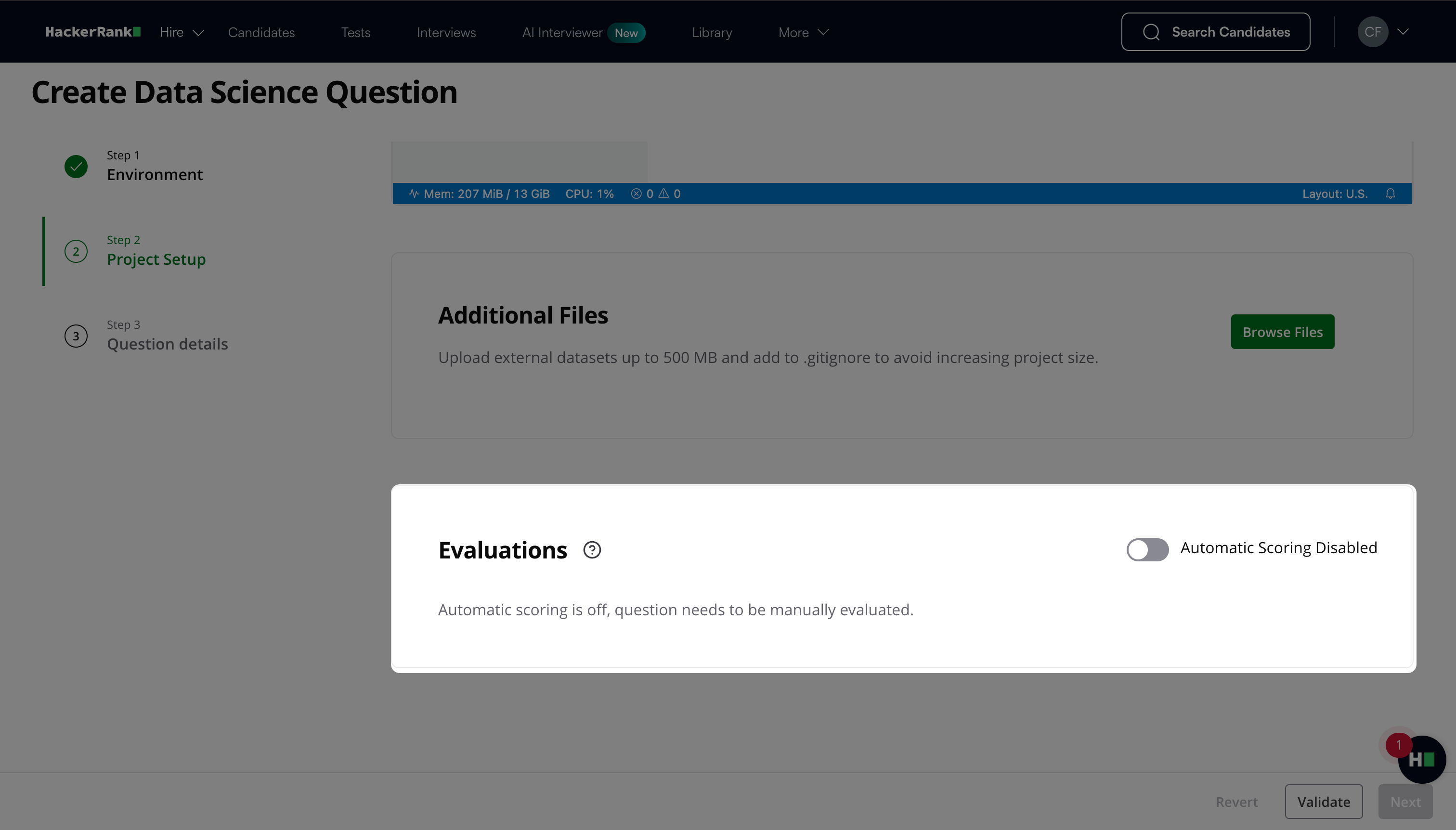
Add evaluation materials in Step 3: Question Details under Interviewer Guidelines, such as scoring rubric, solution notebook, actual output, evaluation script, and evaluation criteria.
Reviewers can use these materials to assign scores manually. For more information about manual scoring, see Manual scoring.Automatic evaluation: Enable Automatic Scoring to allow the platform to evaluate submissions automatically.
When you enable Automatic Scoring:
Select a Scoring Metric. Choose a standard metric from the dropdown, or select Custom to define your own evaluation logic.
If you select a standard metric (For example, Categorization Accuracy, Mean F-Score, Log Loss, AUC-ROC Curve, Root Mean Squared Logarithmic Error, Average Precision):
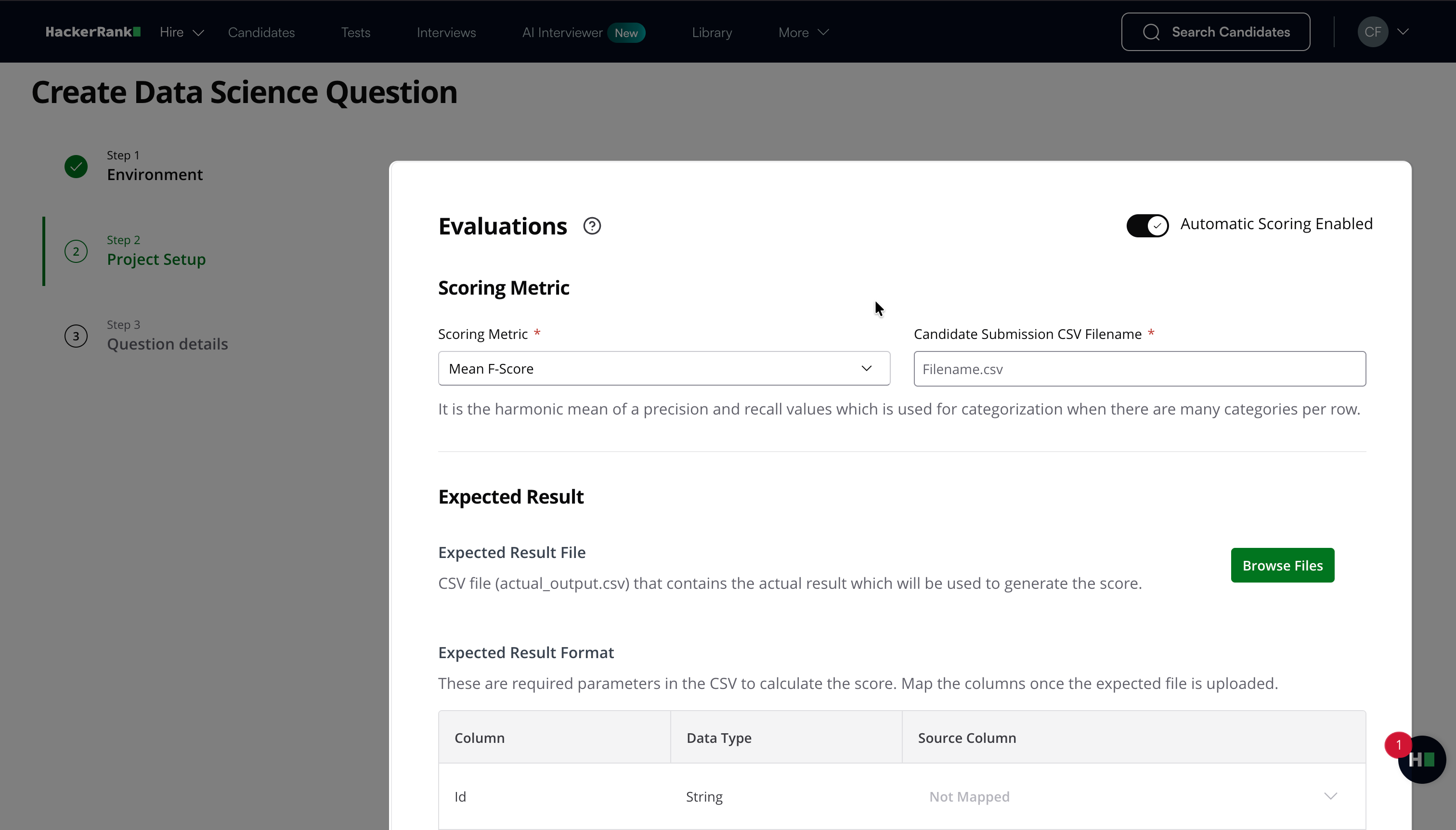
Enter the filename that candidates must use for their final submission in the Candidate Submission CSV Filename field.
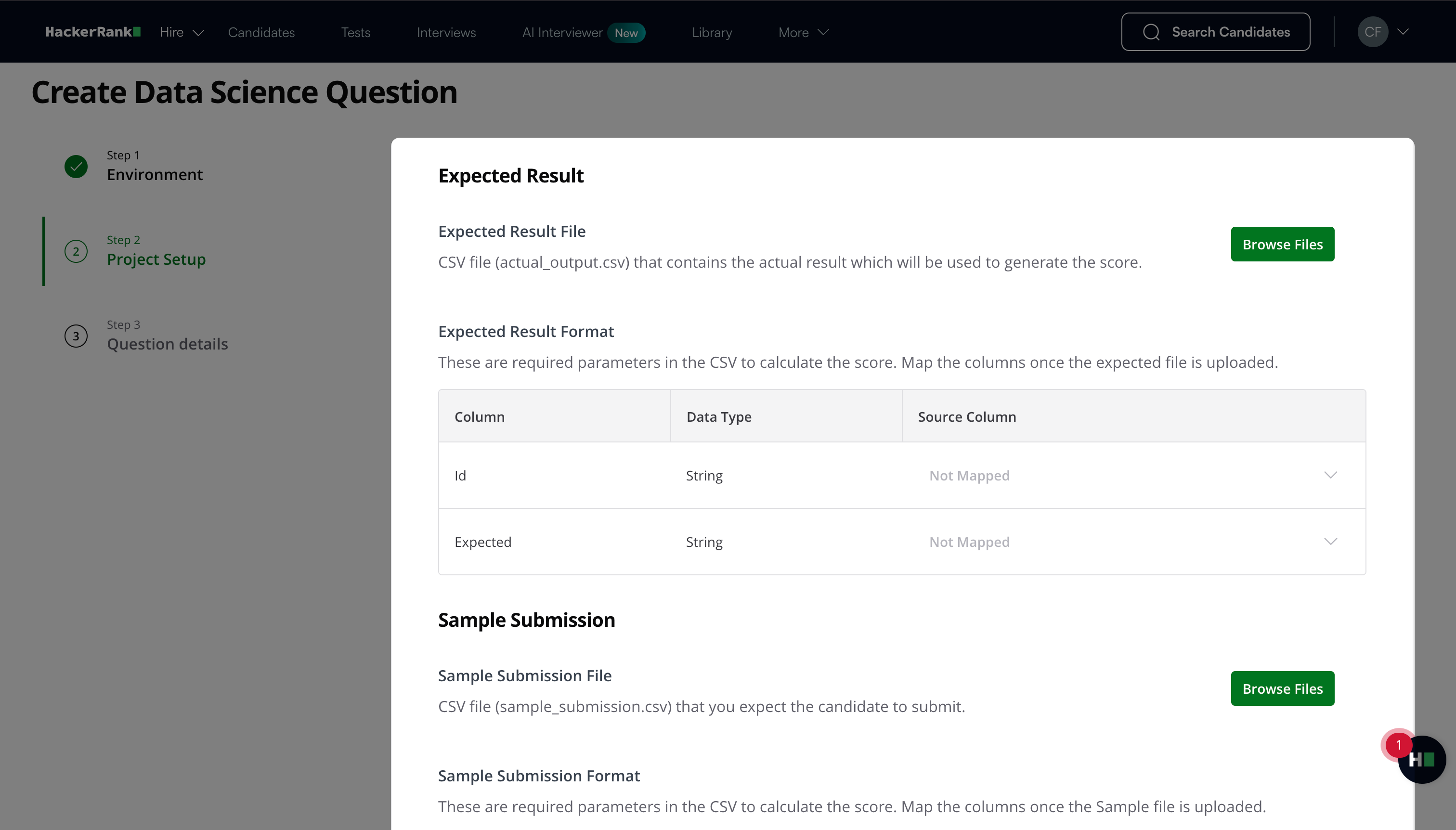
Click Browse Files under Expected Result to upload the CSV file (for example, actual_output.csv) that contains the actual results used to generate the score. After uploading the file, map the required columns under Expected Result Format.
Click Browse Files under Sample Submission to upload the CSV file (for example, sample_submission.csv) that you expect candidates to submit. After uploading the file, map the required columns under Sample Submission Format.
If you select Custom:
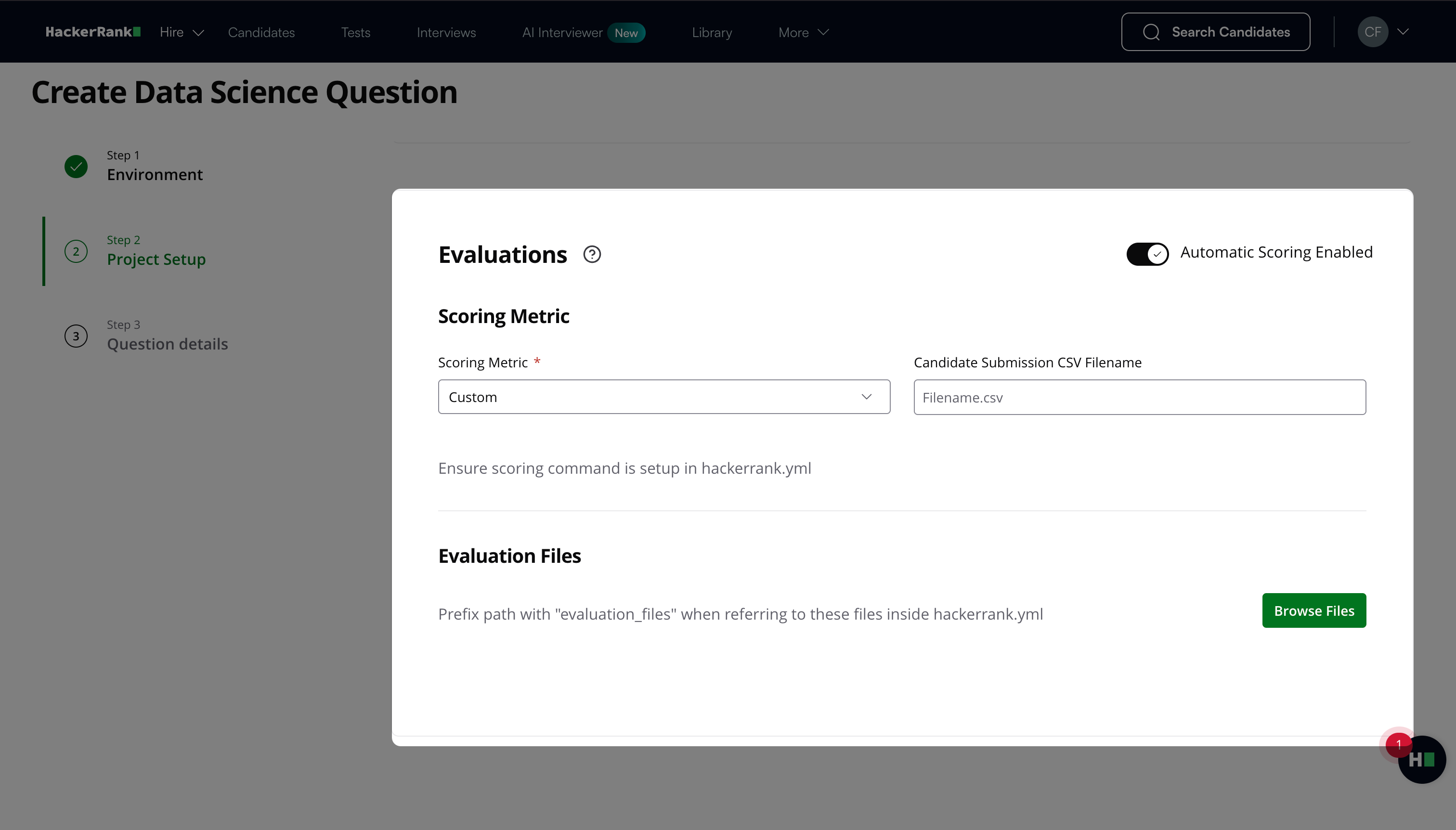
Create a scoring script that:
Evaluates the candidate’s submission (For example,
submission.csv)Compares it with the expected output file (For example,
actual_output.csv)Calculates relevant metrics such as accuracy, precision, recall, and F-score
The scoring script must return the final score in the following format:
FS_SCORE: X%#!/usr/bin/env python # coding: utf-8 import pandas as pd from sklearn.metrics import accuracy_score import sys def score(actual_data, sub_data): if actual_data.shape != sub_data.shape: print('Shape Mismatch') return 0 if actual_data.columns.tolist() != sub_data.columns.tolist(): print('Columns Mismatch') return 0 actuals = actual_data['popularity'].tolist() preds = sub_data['popularity'].tolist() try: return accuracy_score(actuals, preds) except: print('Error in Evaluation') return 0 def read_data(actual_file, submission_file): try: actual_data = pd.read_csv(actual_file) sub_data = pd.read_csv(submission_file) return actual_data, sub_data except: print('File Not Found') print("FS_SCORE:0 %") try: actual_data, submission_data = read_data(sys.argv[1], sys.argv[2]) score = score(actual_data, submission_data) print("FS_SCORE:" + str(score * 100) + " %") except Exception as e: print(e) print('Score could not be calculated') print("FS_SCORE:0 %")Ensure the script handles edge cases, always returns a score, and runs without errors.
If the script fails or does not return a valid score, the platform assigns no score and requires manual review.
Upload the following files under Additional Files:
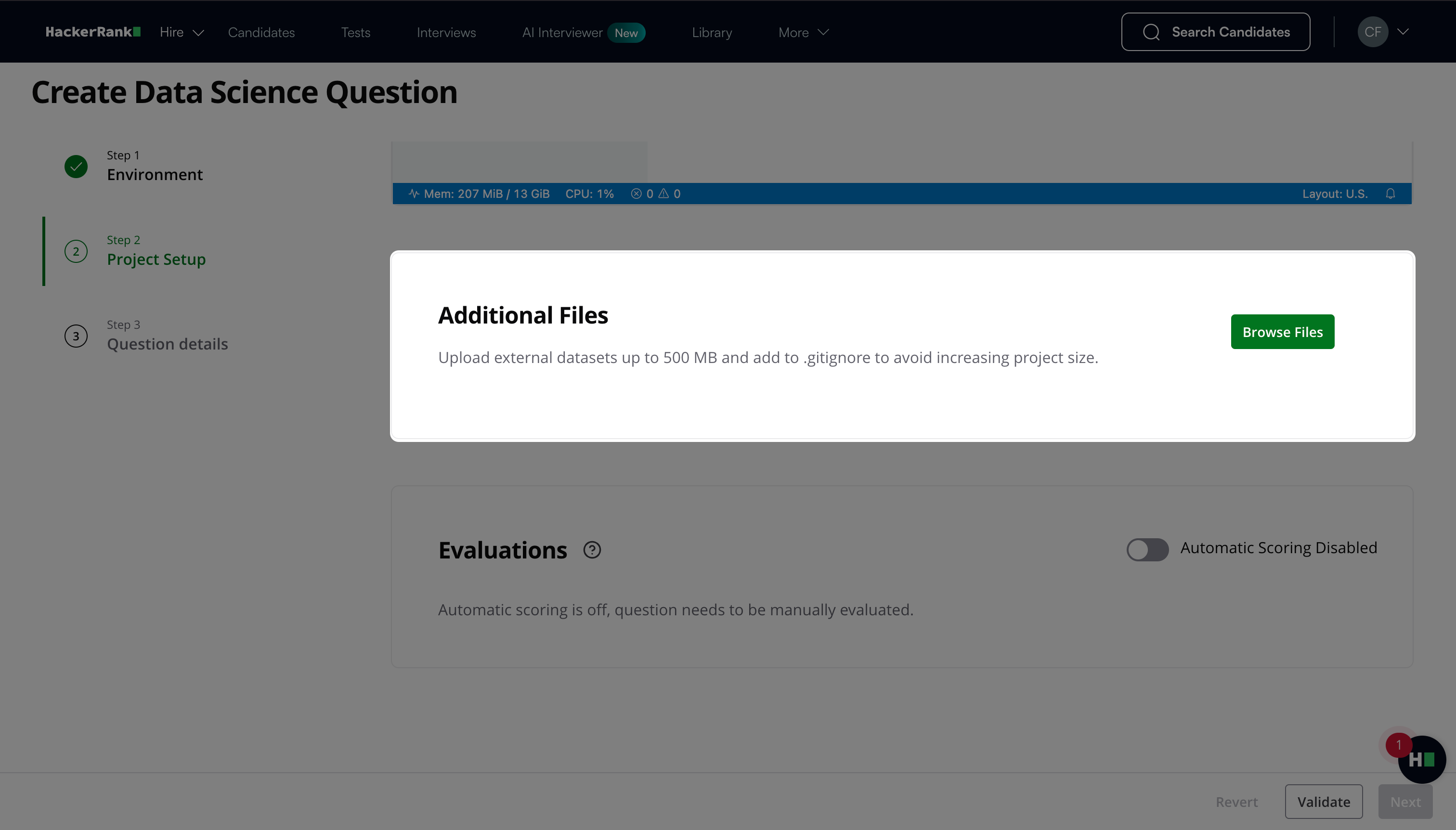
Scoring script (For example,
score.pyorscore.sh)Expected output file (For example,
actual_output.csv)
Enter the expected submission filename in the Candidate Submission CSV Filename field.
Upload the expected result file under Expected Result, if required.
Define the scoring command inside
hackerrank.yml.
Example:scoring: command: python evaluation_files/score.py evaluation_files/actual_output.csv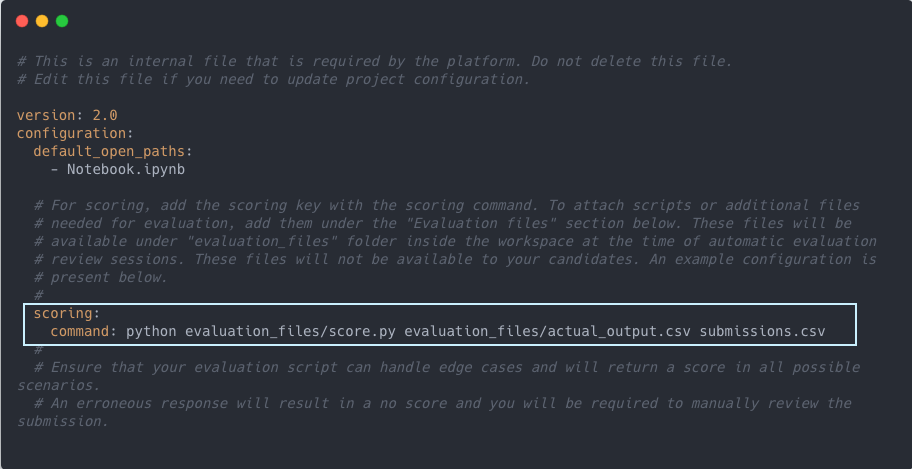
The scoring command must execute successfully, produce valid output, and return a valid score.
Click Validate.
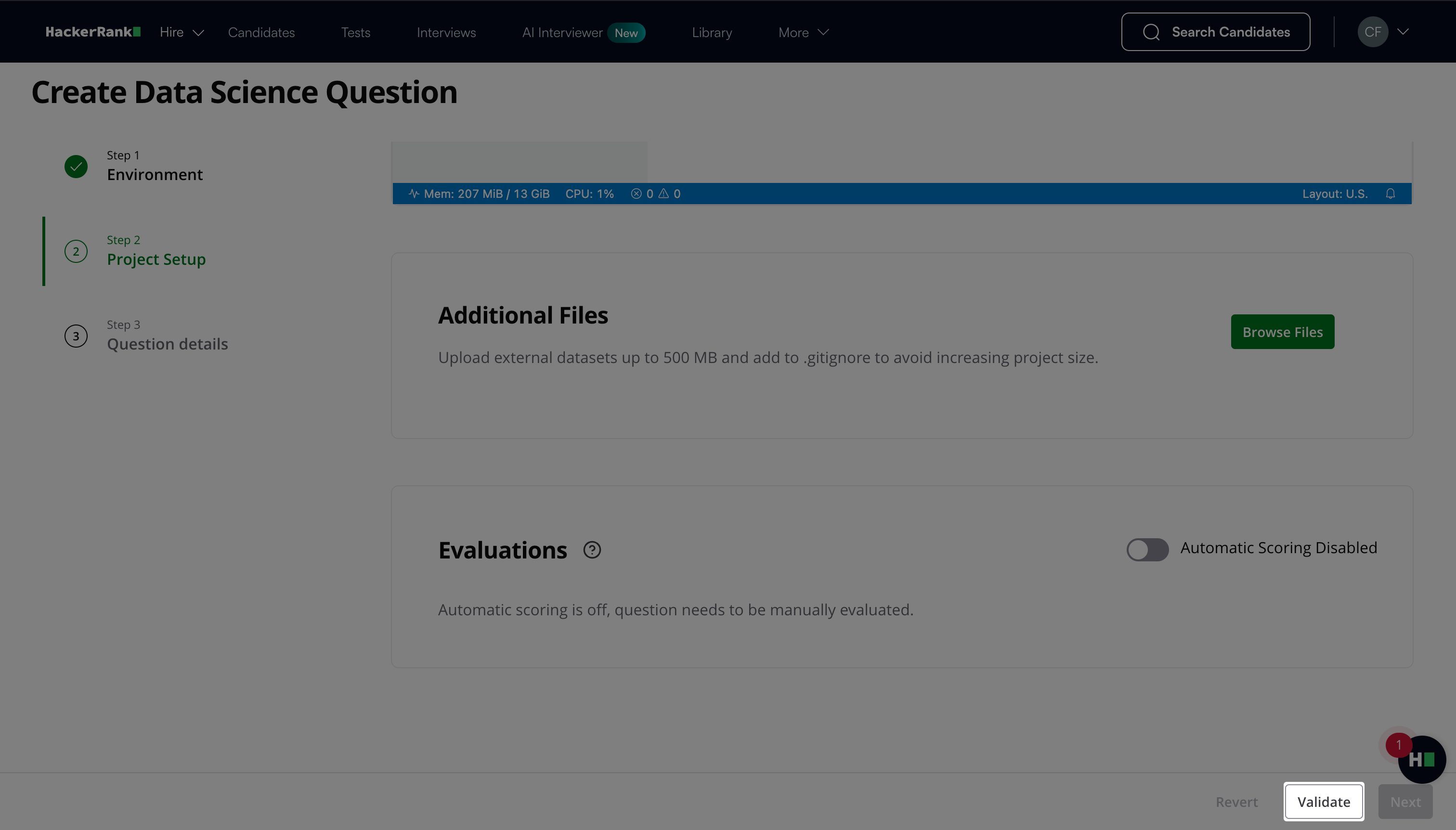
Note: Click Revert to restore the project to the last successful validation state.
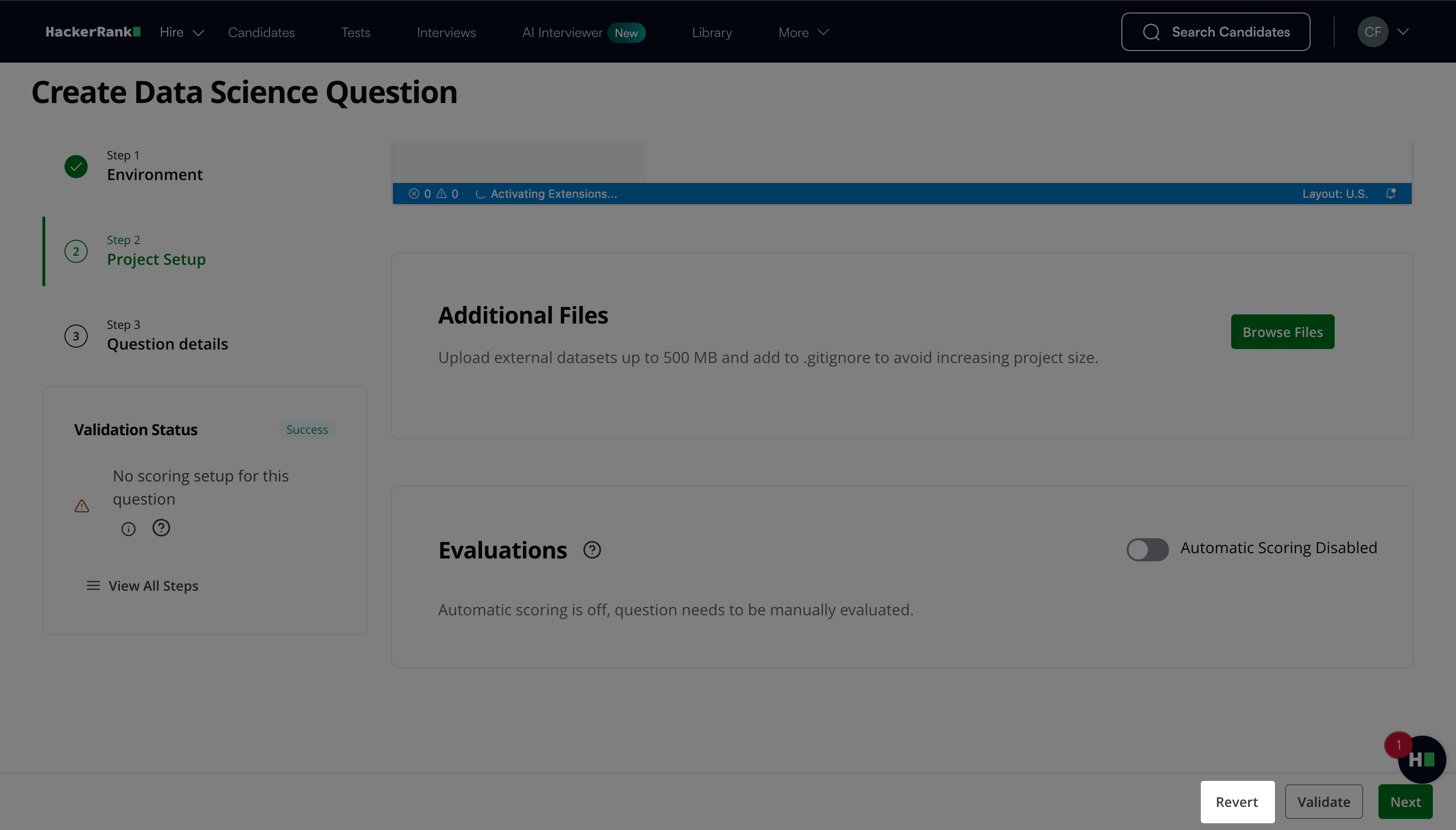
Click Next.
ステップ 3: 質問の詳細
質問の質問の詳細 セクション:
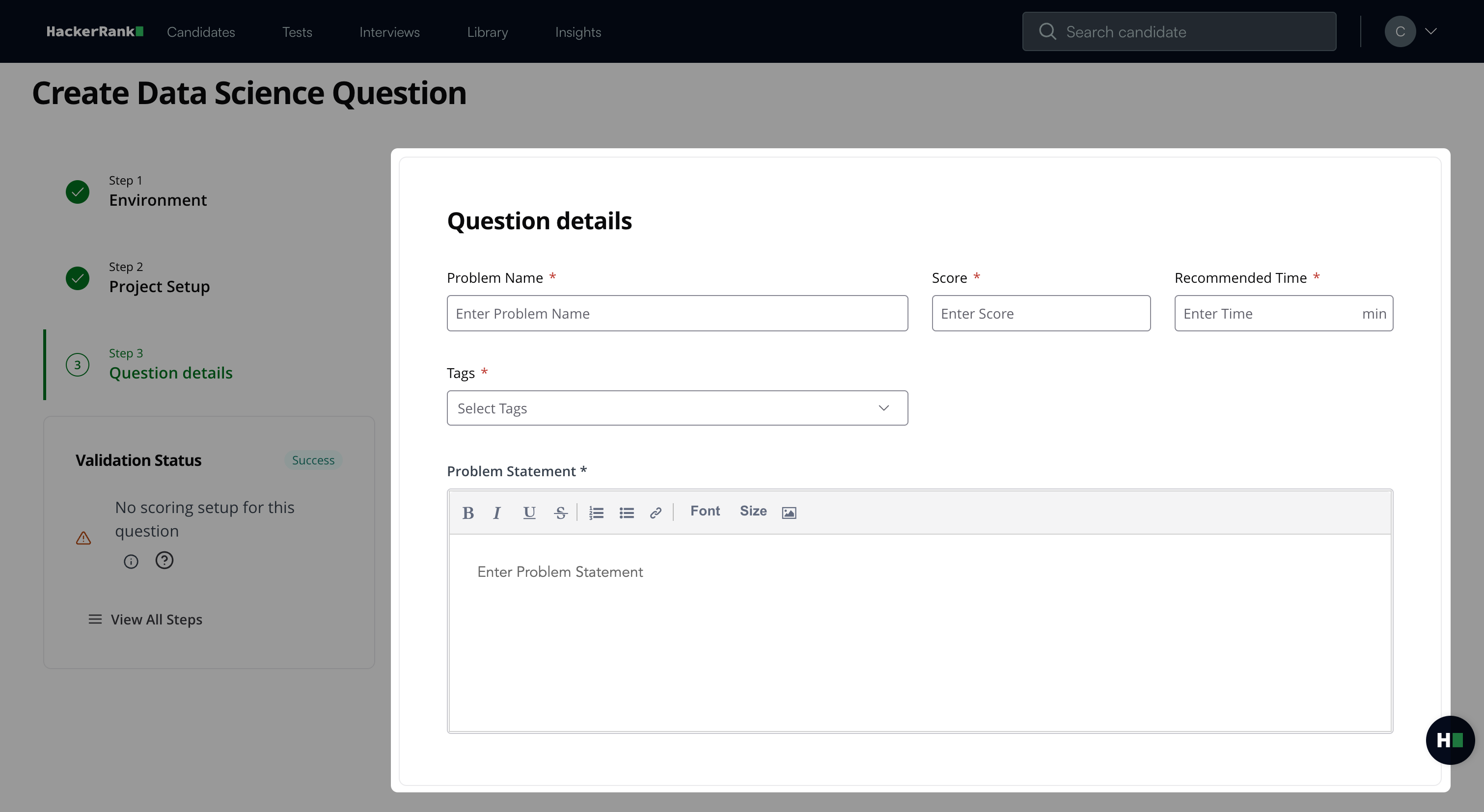
入力してください 質問名。
入力してください スコア 難易度に基づいて。
追加してください 推奨時間(分)で。
追加してください タグ ドロップダウンリストから、または新規作成してください。
問題を以下に記述してください 問題説明 フィールド。書式メニューを使用してテキストをフォーマットしたり、表や画像などの要素を含めることができます。
追加してください インタビュアーガイドライン 内部使用のために、評価基準、ヒント、または参考解答など。
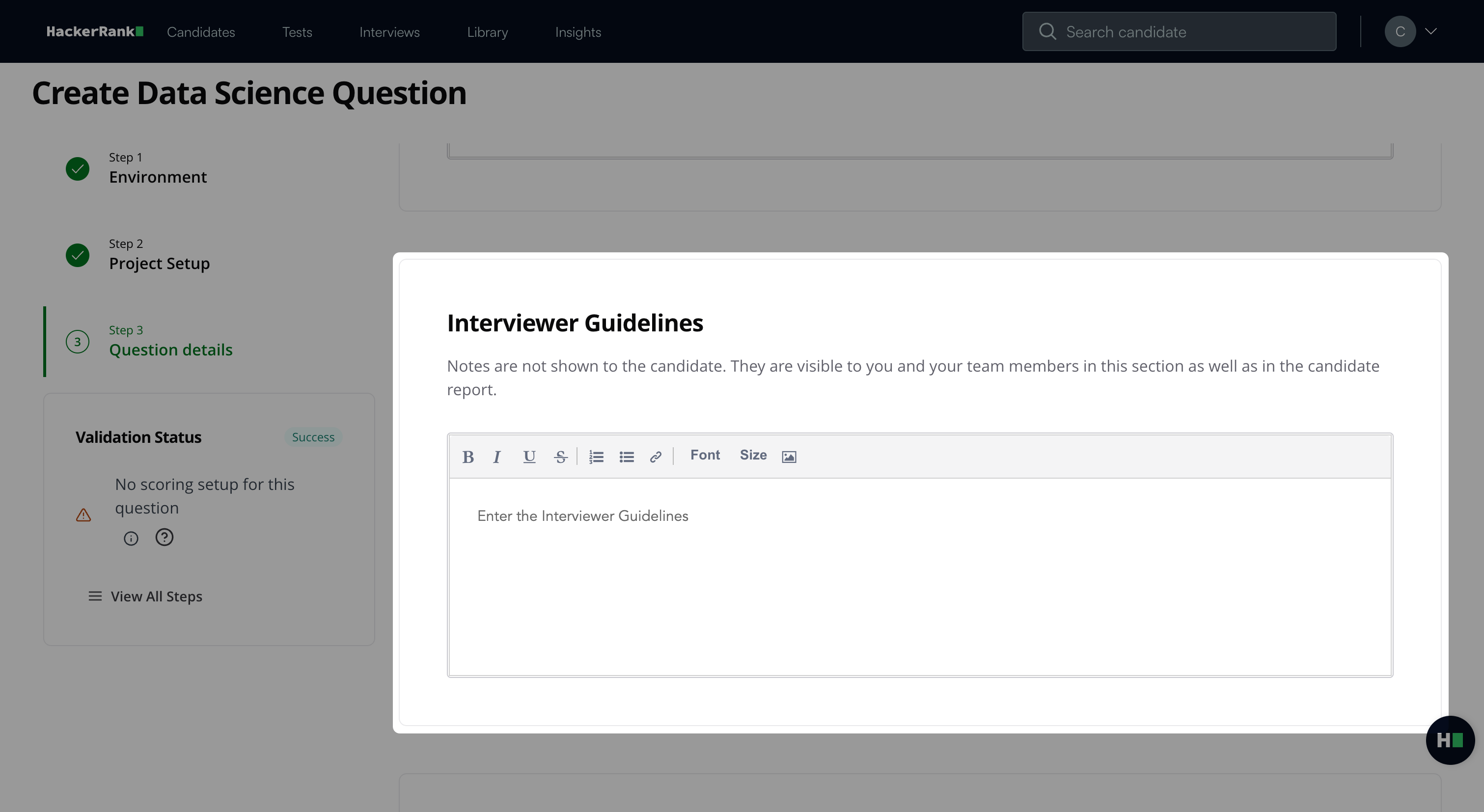
注: 手動評価を選択した場合は、評価基準を インタビュアーガイドライン。
(オプション) 追加してください ソフトウェア手順 必要なパッケージやソフトウェアバージョンを指定するために。 このフィールドを空欄のままにすると、プラットフォームはデフォルトの手順を使用します。
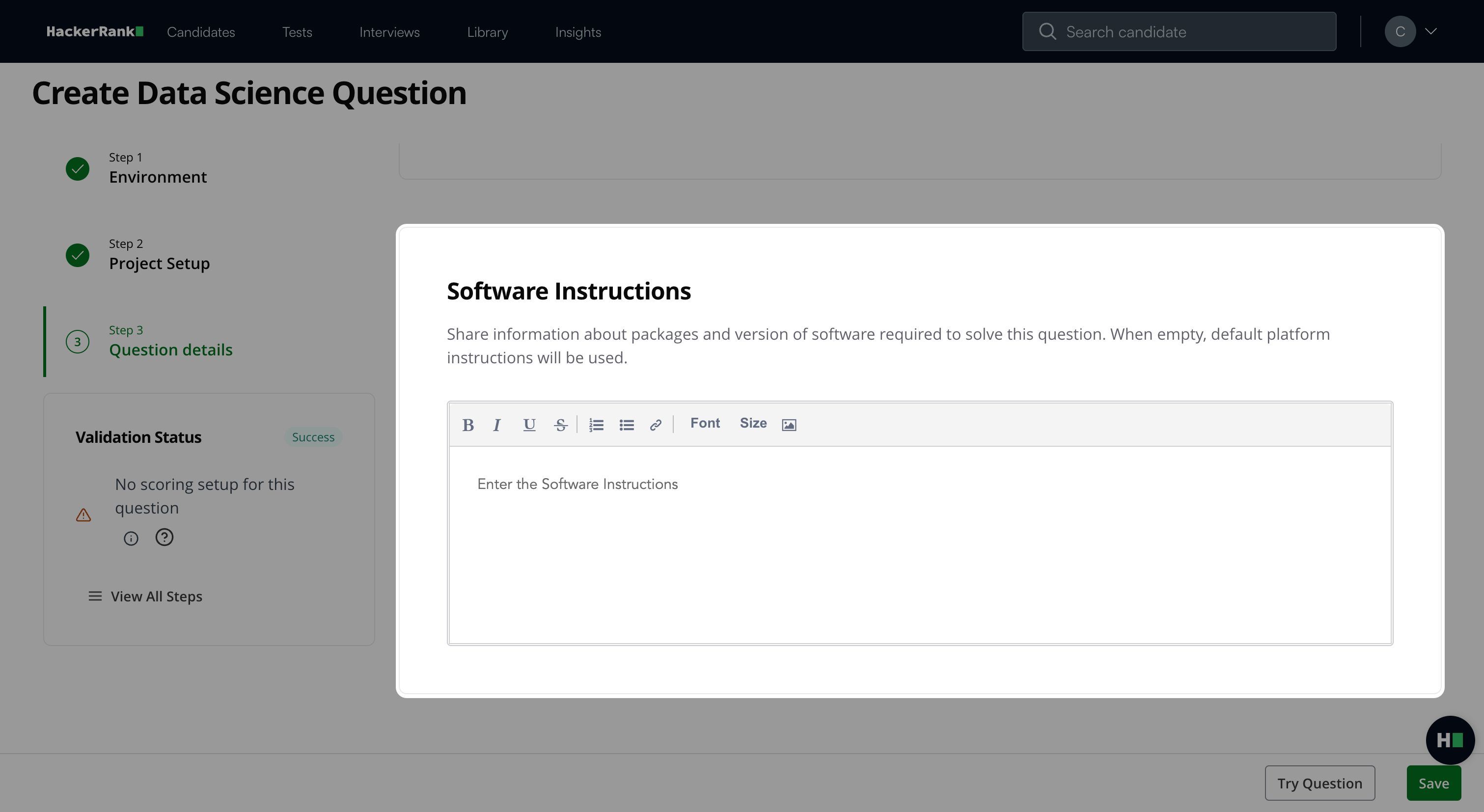
注: クリック 質問を試す 候補者に質問がどのように表示されるかを見るため。
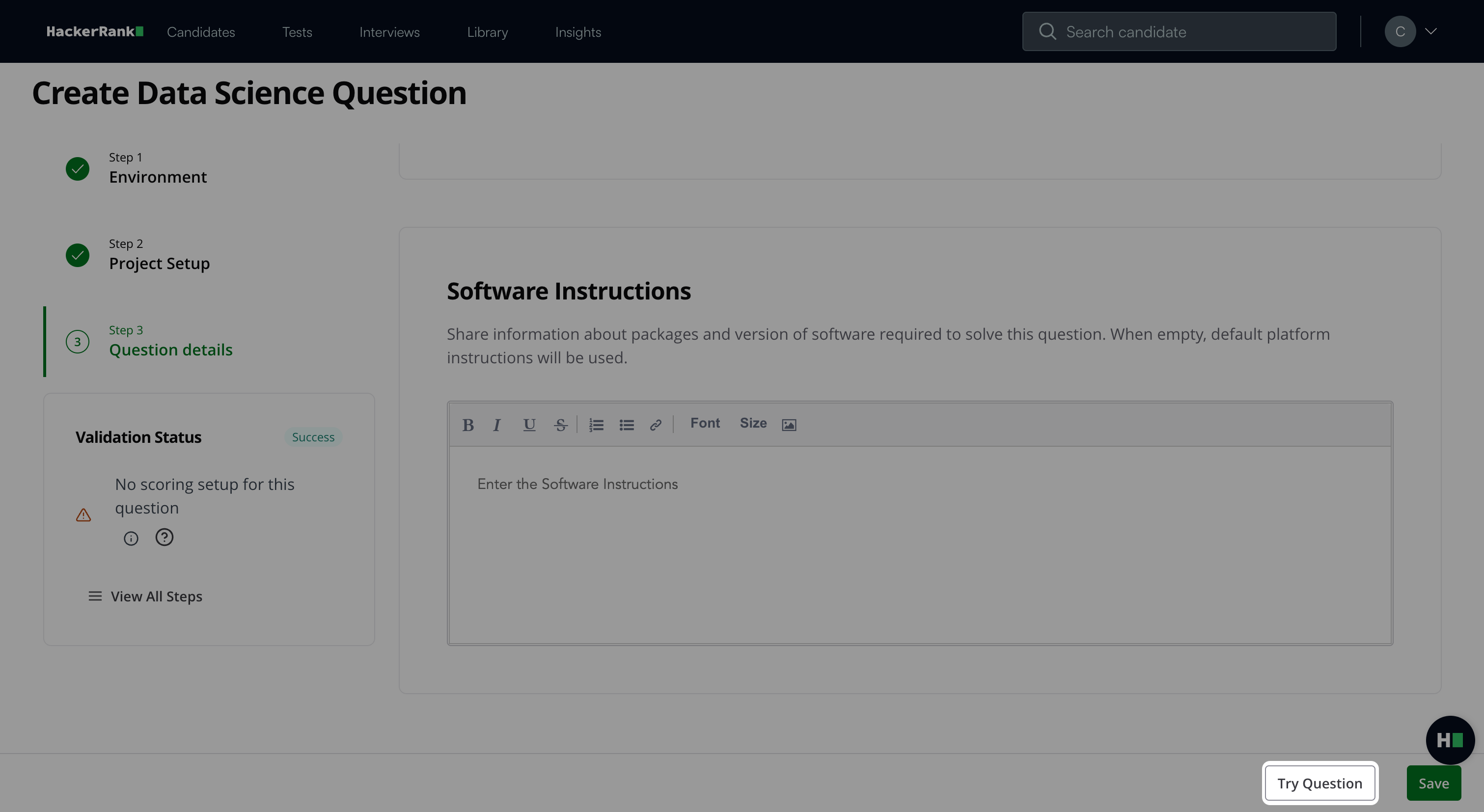
クリック 保存。
質問は My Company HackerRank ライブラリの質問の下に表示されます。
候補者体験
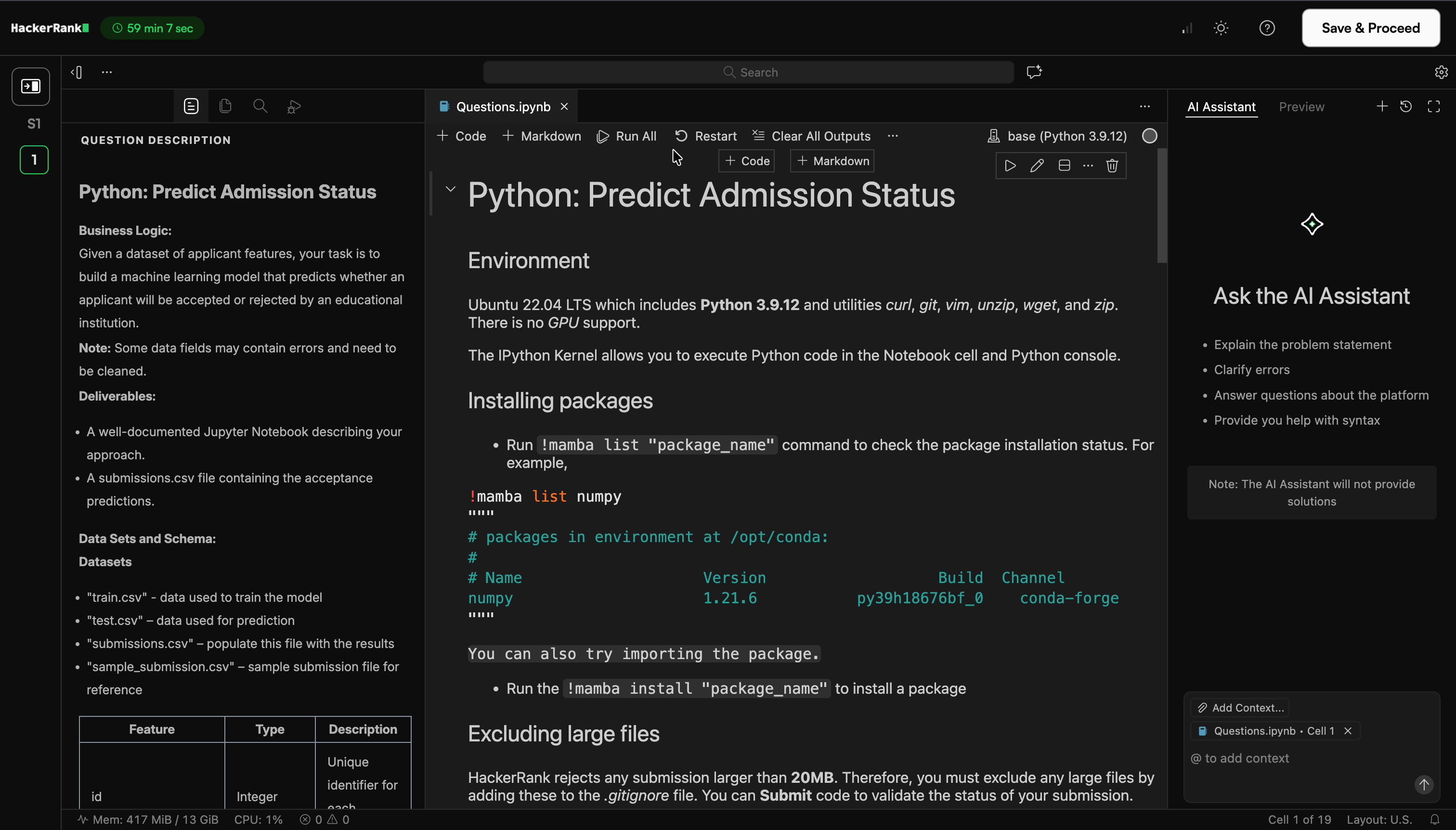
候補者は HackerRank プロジェクト内の組み込み VS Code IDE でこれらの課題を解決します。
テストでデータ Science の質問の採点
データサイエンスの質問は、自動または手動スコアリングで評価できます。
自動スコアリング
有効にすると、自動スコアリング、プラットフォームは、選択されたスコアリング指標と設定に基づいて質問を評価します。
システムはスコアを自動的に生成し、候補者レポートに表示します。
手動採点
手動採点は次の場合に使用できます:自動採点が無効になっているか、提出物が手動レビューを必要とする場合。
質問を手動で採点するには:
候補者の 詳細テストレポート。 詳細情報については、📄 候補者の詳細テストレポートを見る。
展開 問題文。
スクロールして 面接官ガイドライン。 このセクションには、解決ノートブックや評価基準が含まれる場合があります。
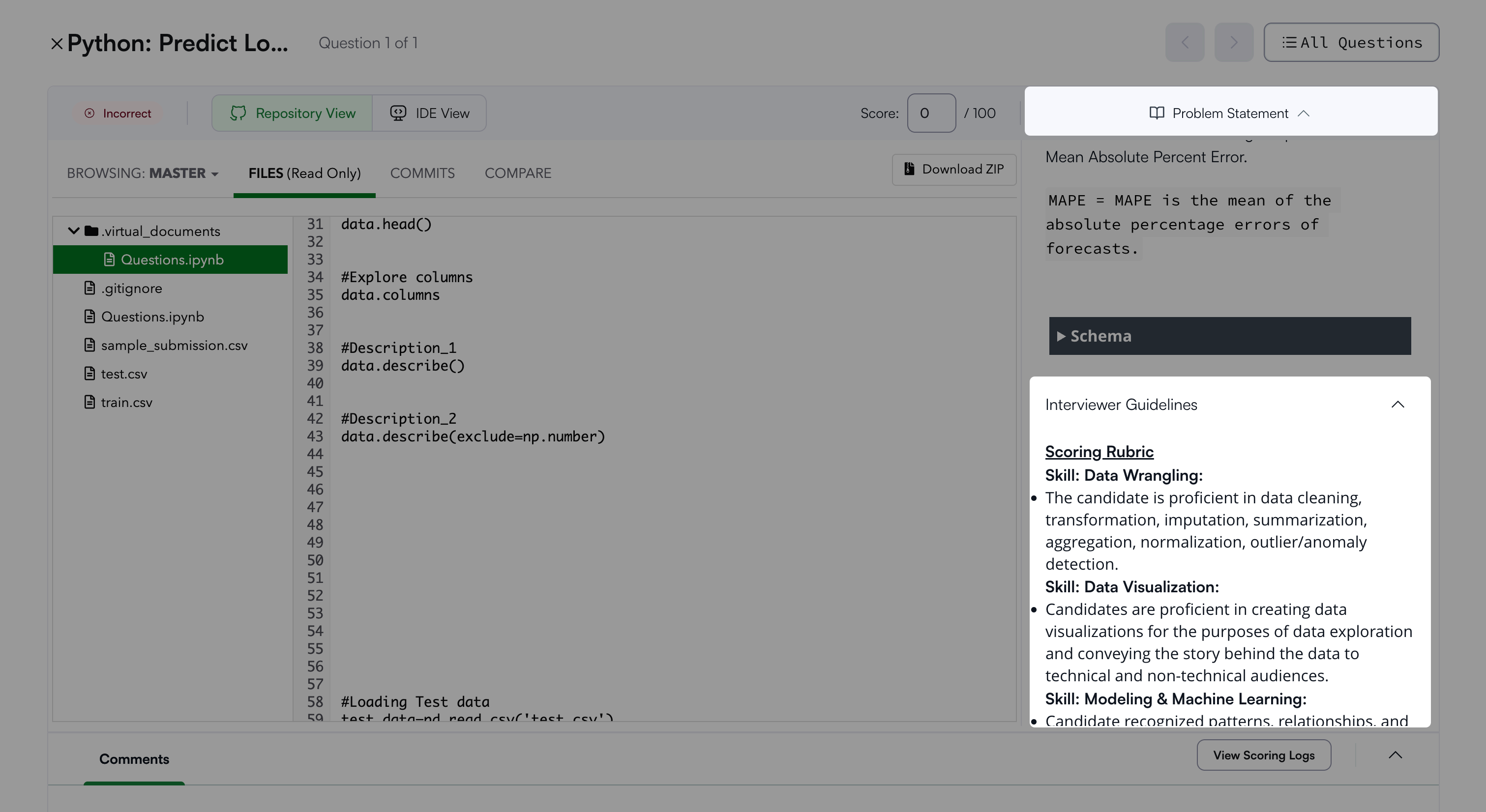
以下のオプションのいずれかを使用して、候補者が提出したソリューションをレビューしてください:
提出物をZIPファイルとしてダウンロードします。
一時的なVS Codeセッションを起動します。
VS Codeセッションを起動すると、次のことが可能です:
すべての提出ファイルをレビューする
データセルとスクリプトを実行する
提出環境を探索する
スコアを Score フィールドに、レビューを完了した後に入力してください。
