Add Questions to Interview
Last updated: August 31, 2026
This article applies to the legacy Interview experience. If your interview interface looks different, see 📄 Manage Questions in an Interviewfor the new Interview experience.
You can add existing questions from the HackerRank Library, your company library, or by creating custom questions during an interview session.
Prerequisite
You must have joined an interview session.
Adding questions to an interview
You can add questions to an interview using any of the following methods:
Using Question Tiles
When you start an interview, the Start Your Interview page displays tiles for different question types.
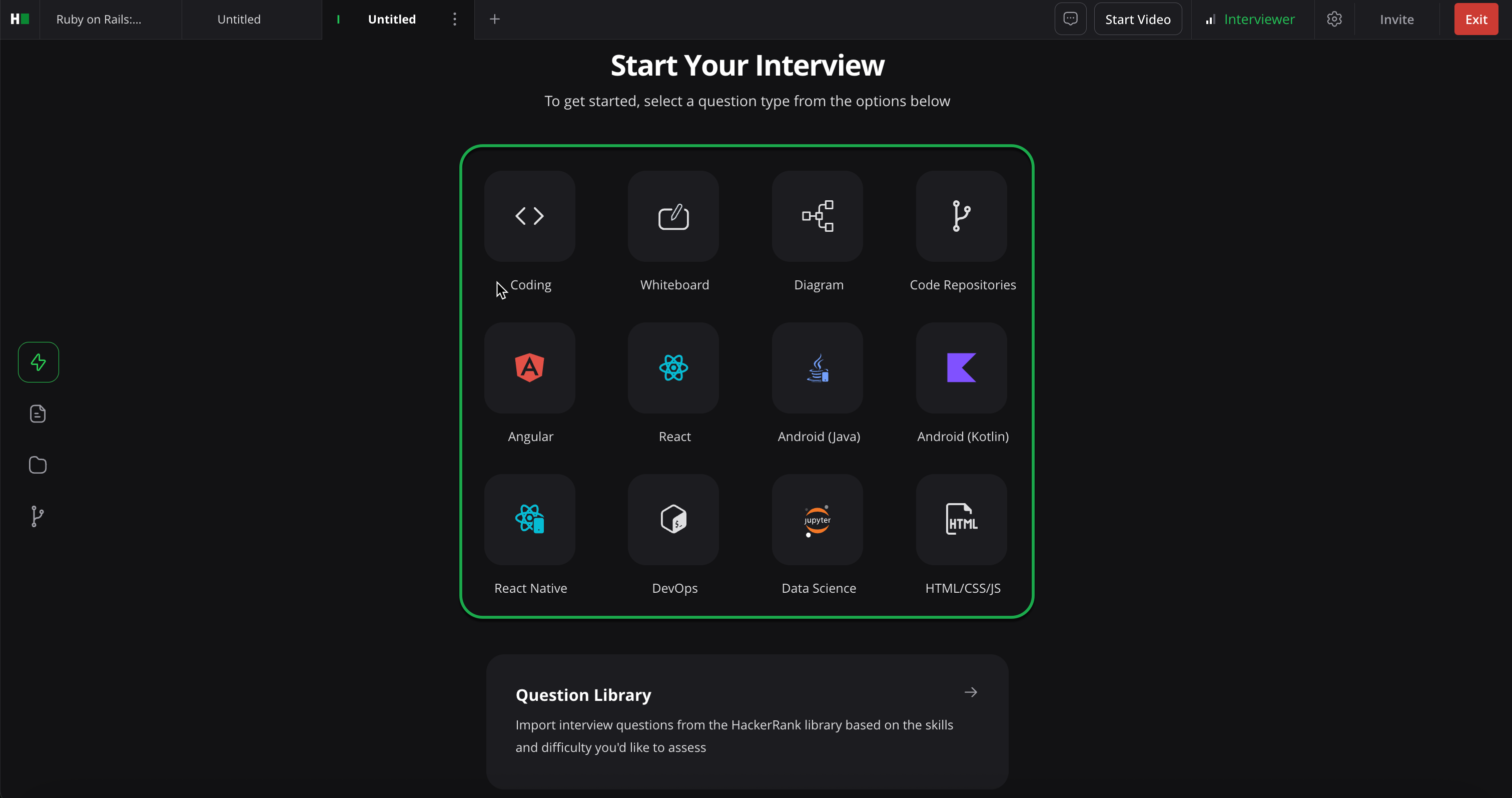
To add a question:
Select a question type tile from the Start Your Interview page.
Follow the instructions for the selected question type.
Coding or Whiteboard Question: Create a custom question or import a question from the library.
Create a custom question:
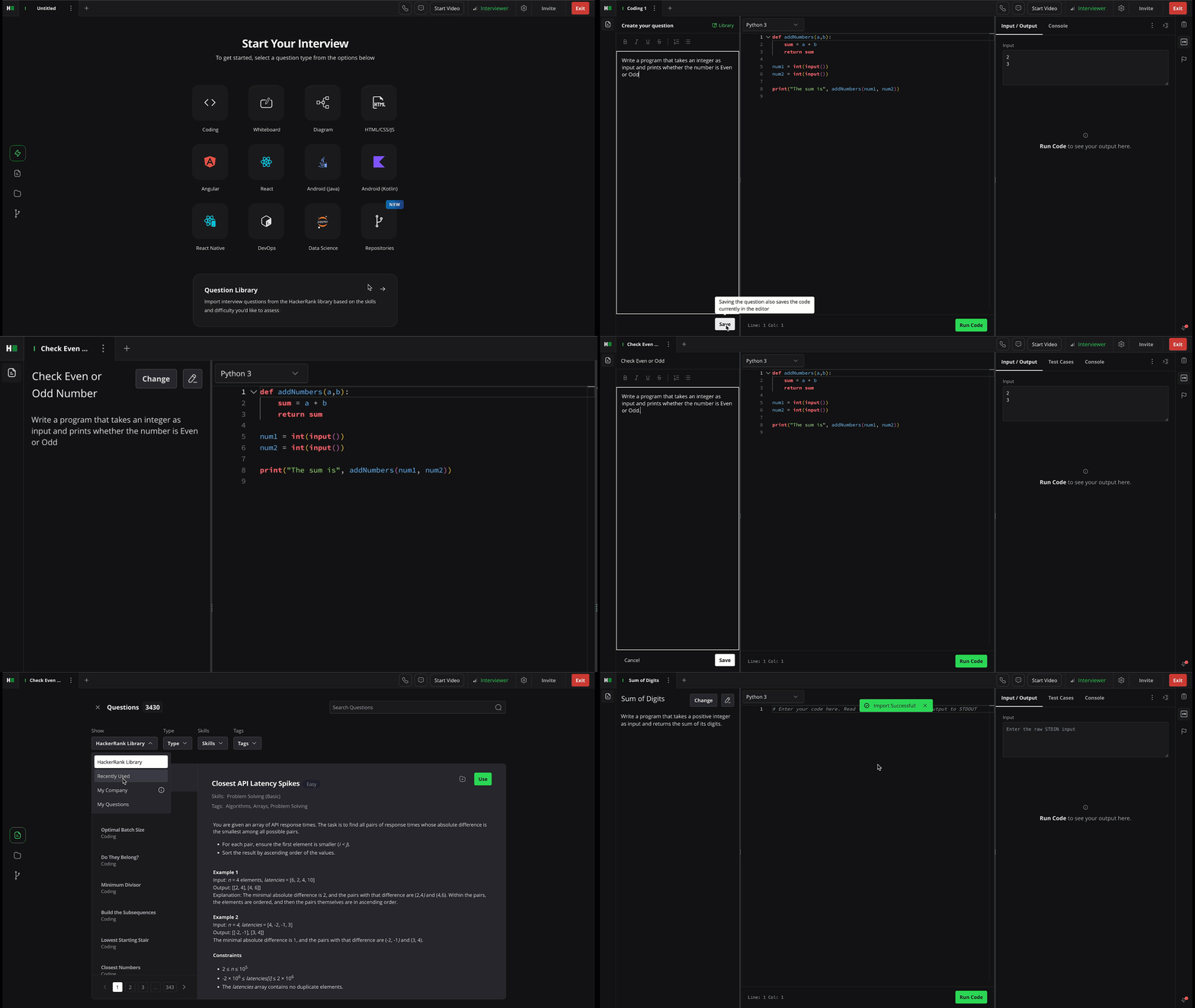
In the Create your question panel, enter the question name and description.
Format the content using the available formatting options such as bold, italics, bullet or numbered lists, and code snippets.
Click Save. The system automatically generates the question title.
(Optional) Click the pencil icon next to the question title to change the title.
Select Library to browse and import questions from the Library. To access your custom-created questions, select My Questions from the Show dropdown. For more information, see Using Question Library.
Code Repository Question: Assess candidates using real-world tasks.
Select the Code Repositories tile.
Select a repository to view its details and tasks.
Select one or more tasks from the repository.
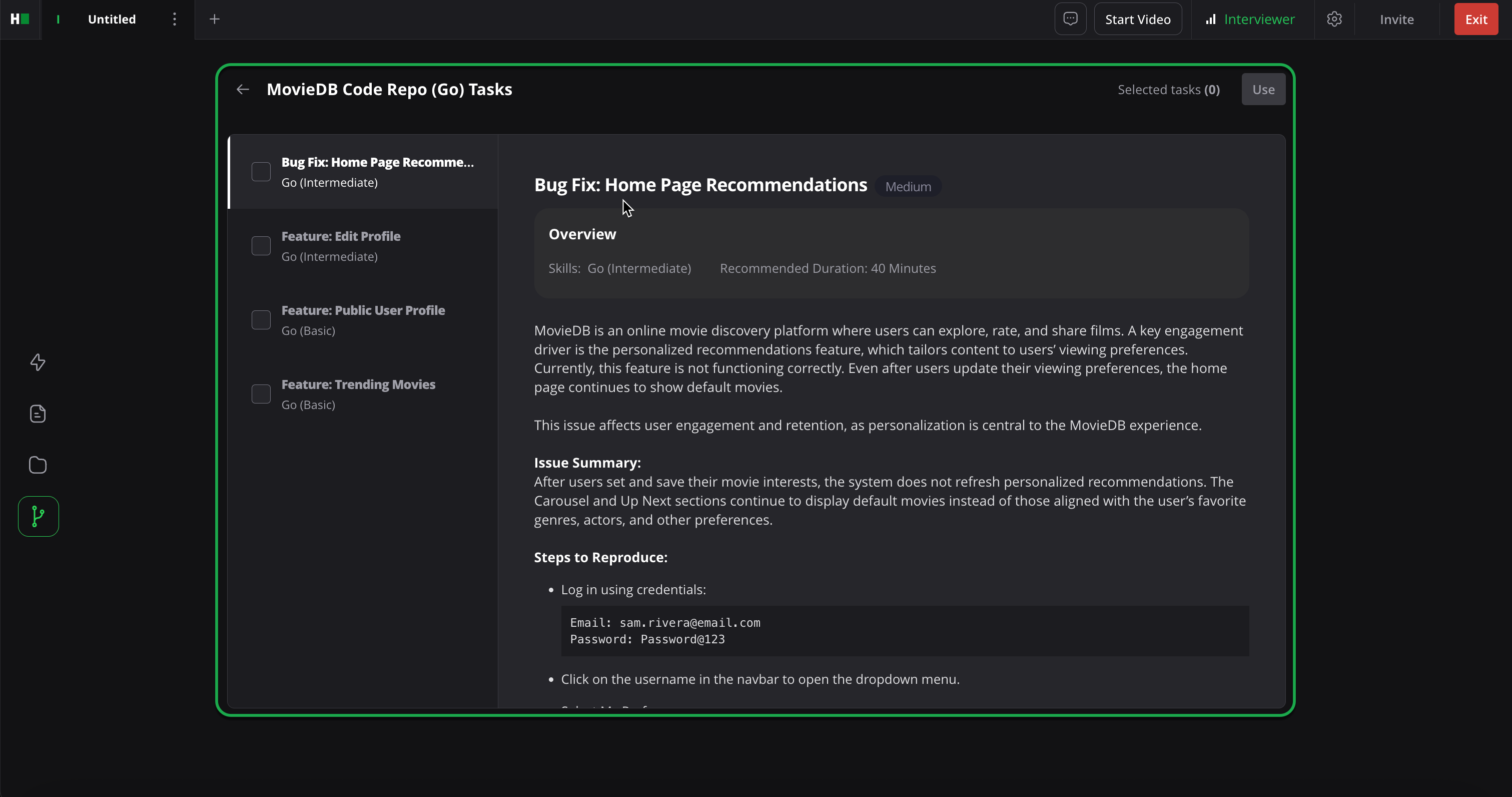
Click Use.
Project Question: Choose one of the following options:
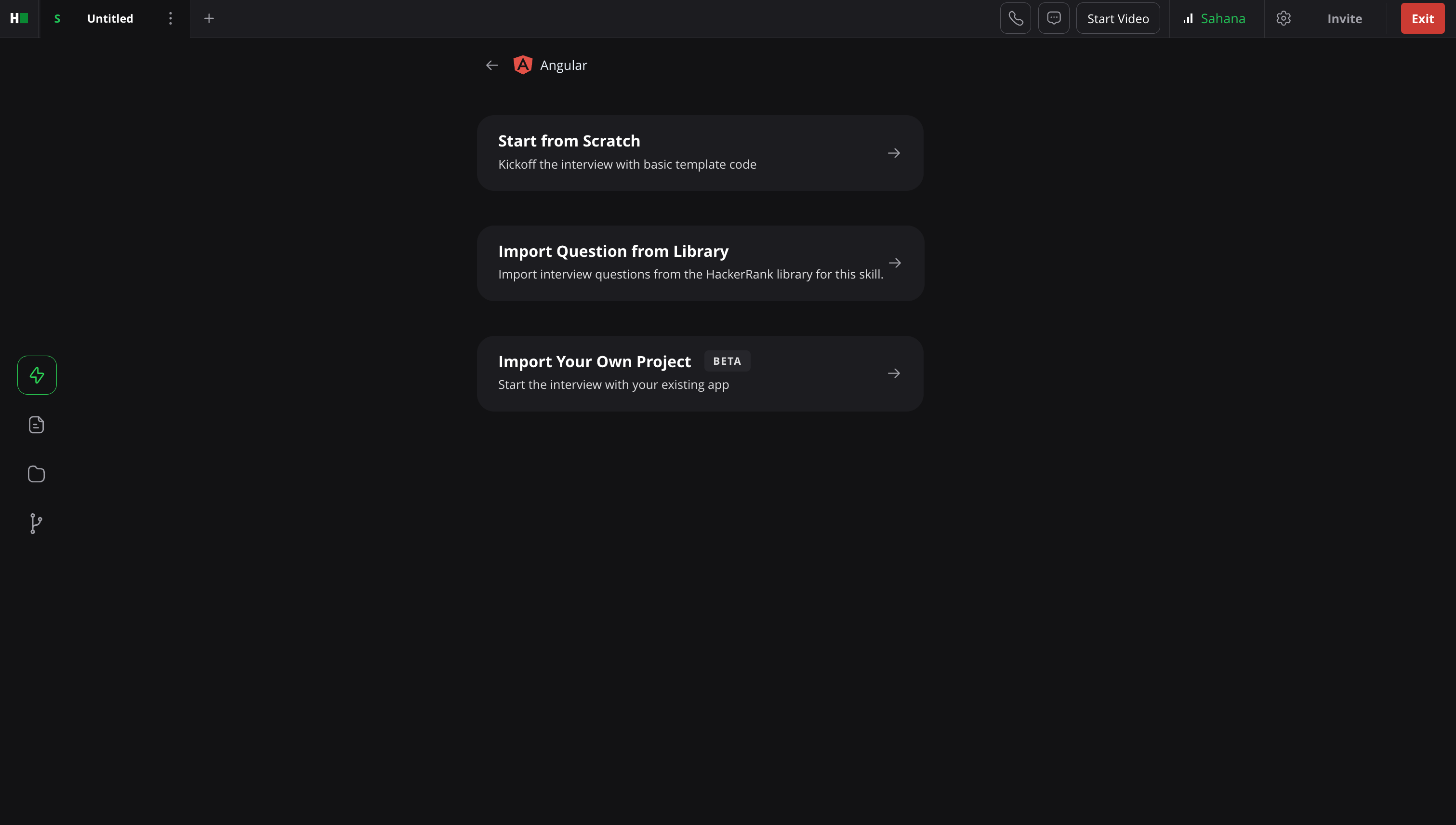
Start from Scratch: Start the interview with a basic project template. You can customize it as needed.
Import from Library: Open the HackerRank Library filtered by the selected question type. For more information, see Using Question Library.
Import Your Own Project: Use your existing application as the project base.
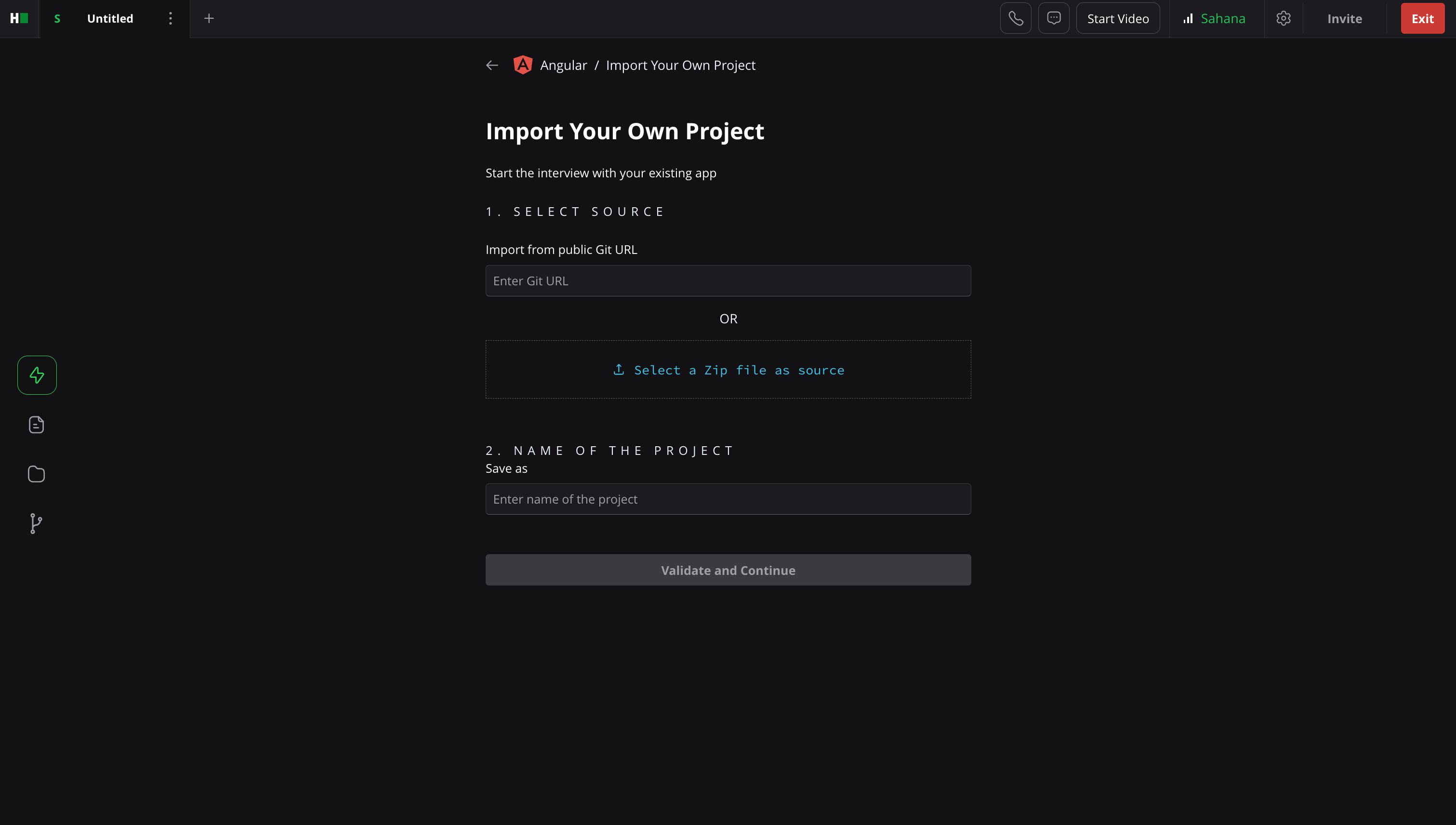
Enter a public Git URL or upload a Zip file as a source.
Enter the name of the Project.
Click Validate and Continue.
Using Question Library
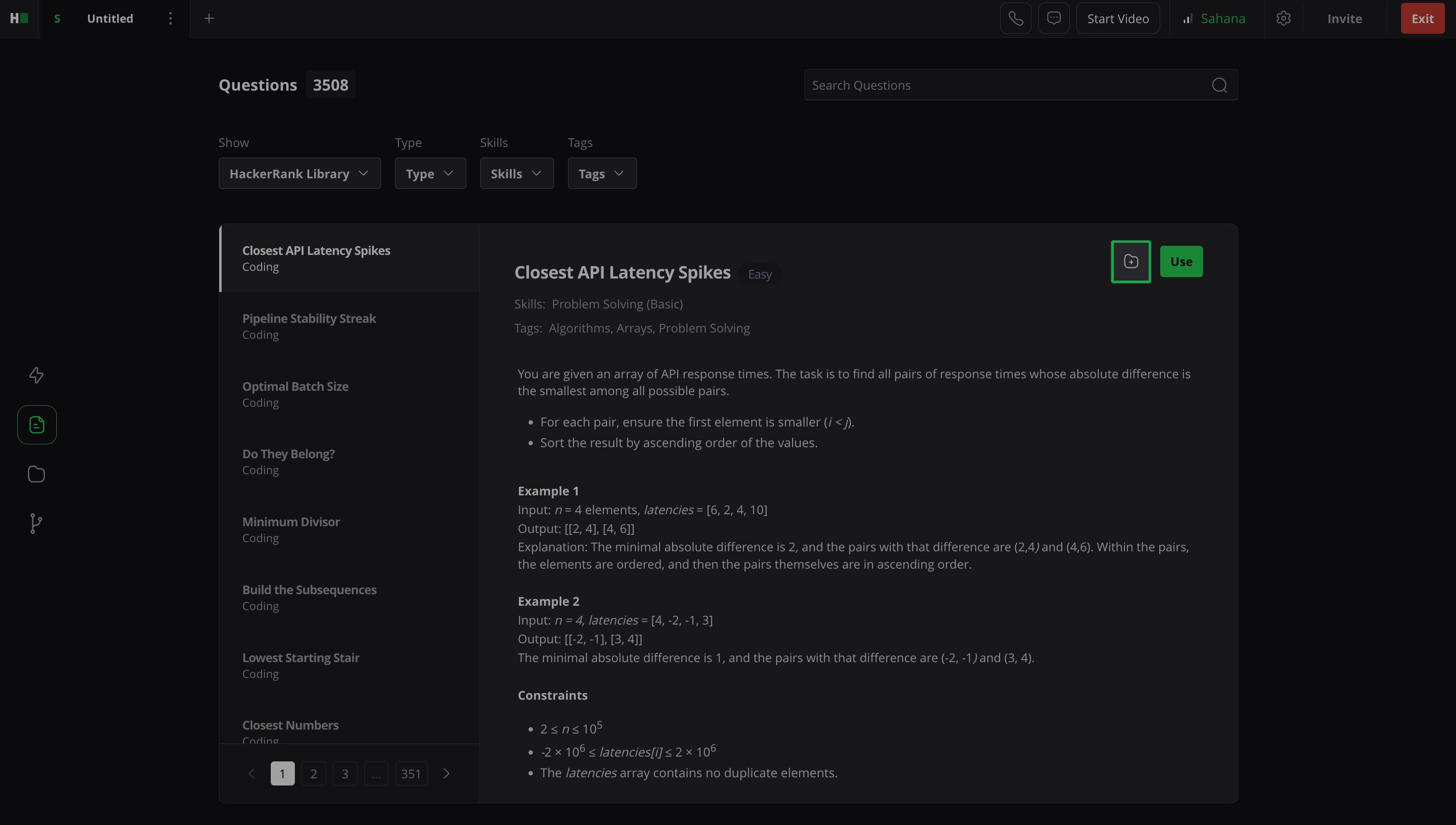
To import questions from the Question Library:
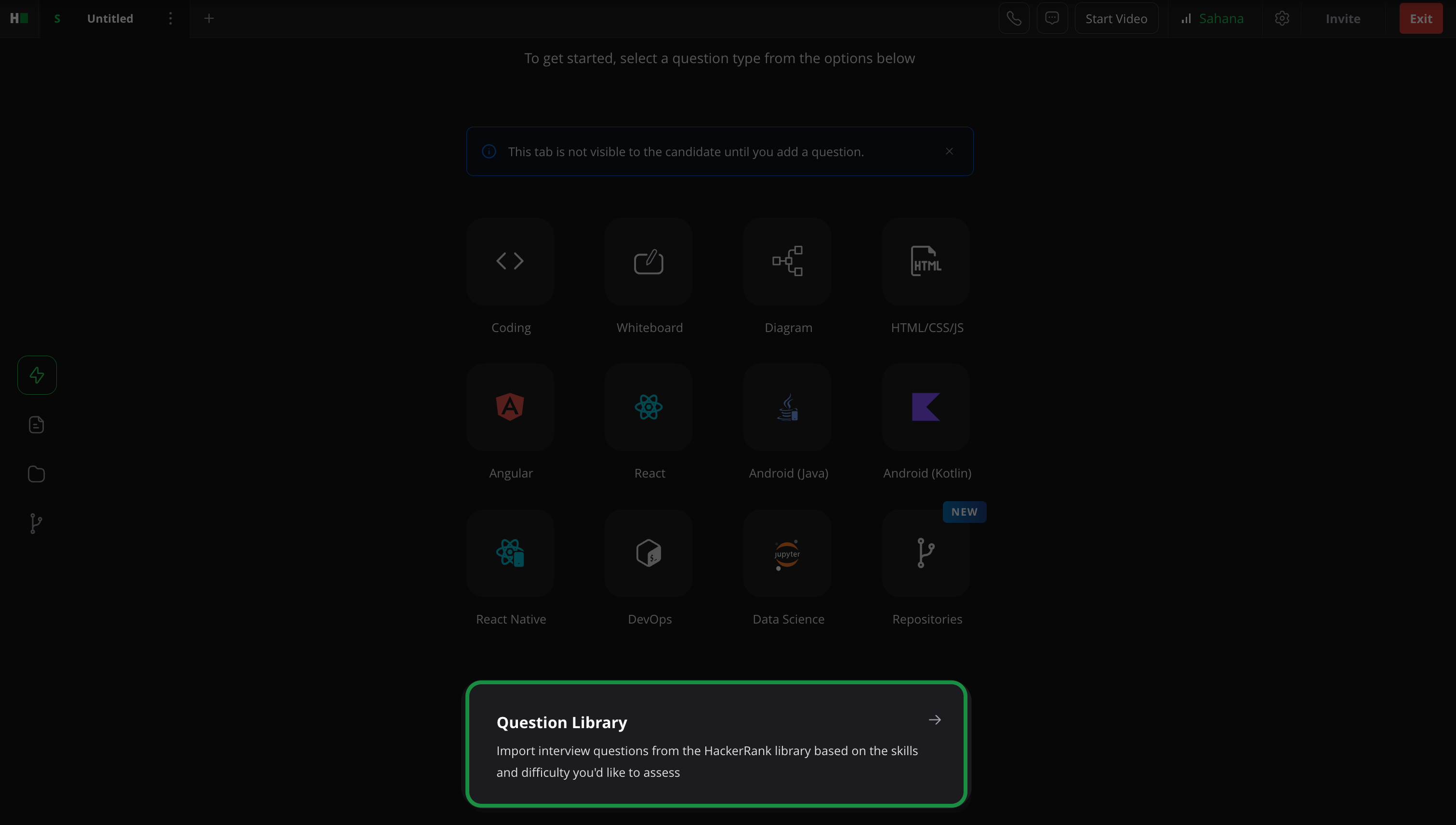
Open the Question Library using one of the following ways:
Select Question Library in the Explore section.
In the left panel, select the Questions section.
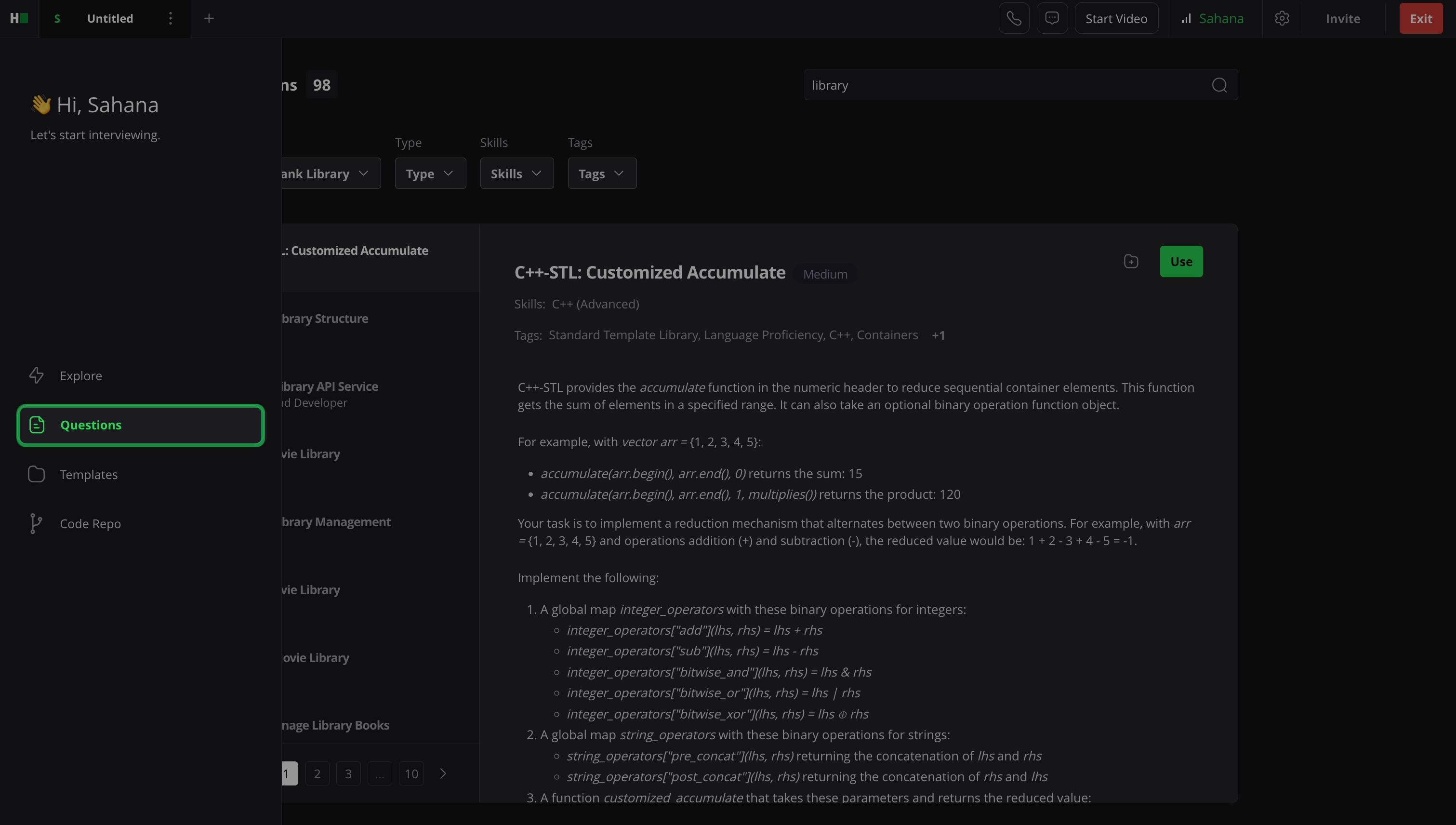
Use the search bar or filters to quickly find the questions.
Search: Enter a keyword in the search bar to find specific questions. You can enclose a search term in quotation marks ( " " ) to perform an exact match search. For example, “Questions".
Filter: You can filter questions by the following attributes:
Show:
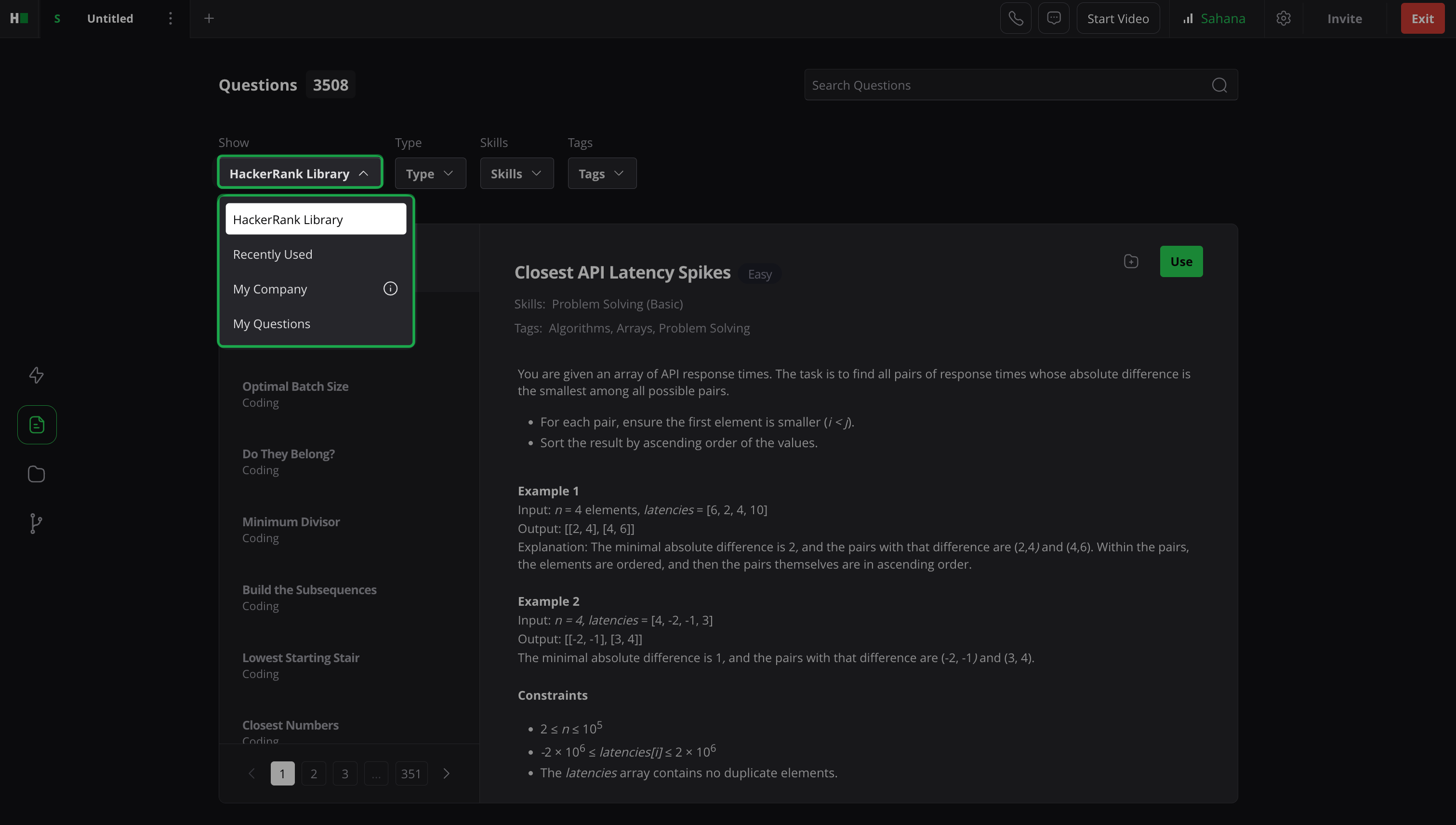
HackerRank Library: Displays questions from the HackerRank Library.
Recently Used: Displays questions you recently used.
My Company: Displays questions that your company shared with you or created.
My Questions: Displays custom questions you created.
Type: Filter by question type. For example, Coding, Bug Fix, Database Engineer.
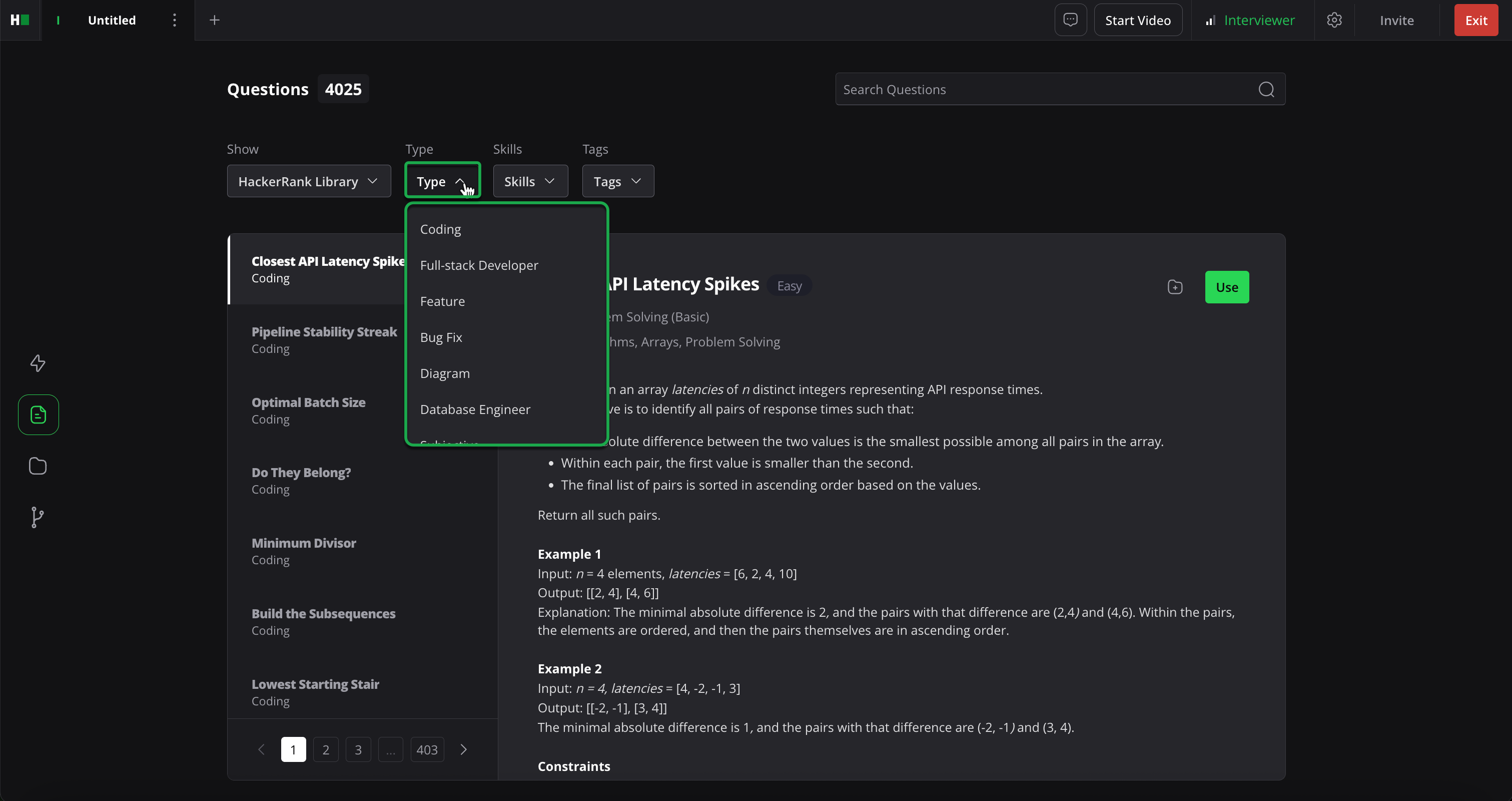
Skills: Select Skills using checkboxes or search for specific skills, then click Apply.
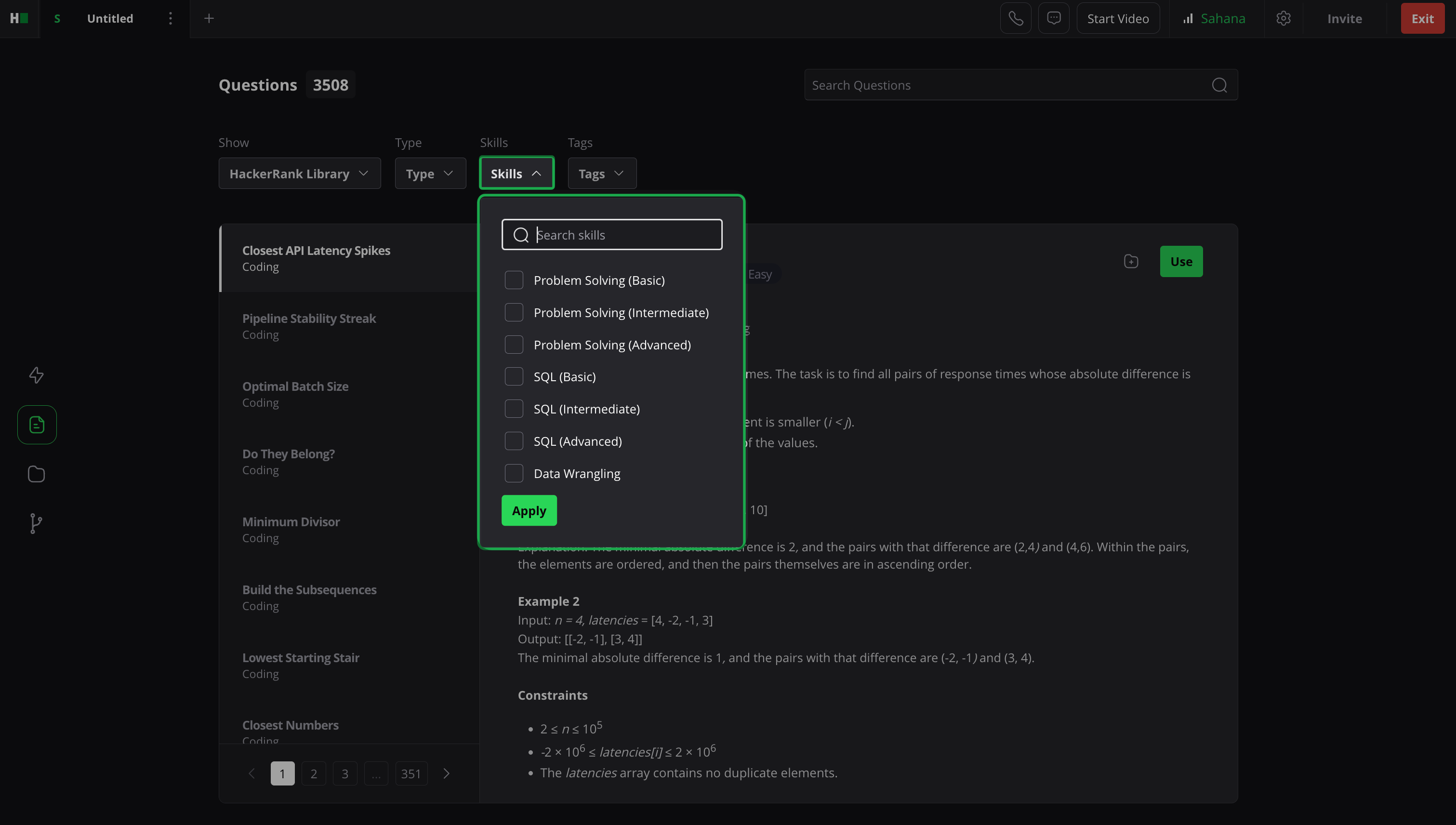
Tags: Select Tags using checkboxes or search for specific tags, then click Apply.
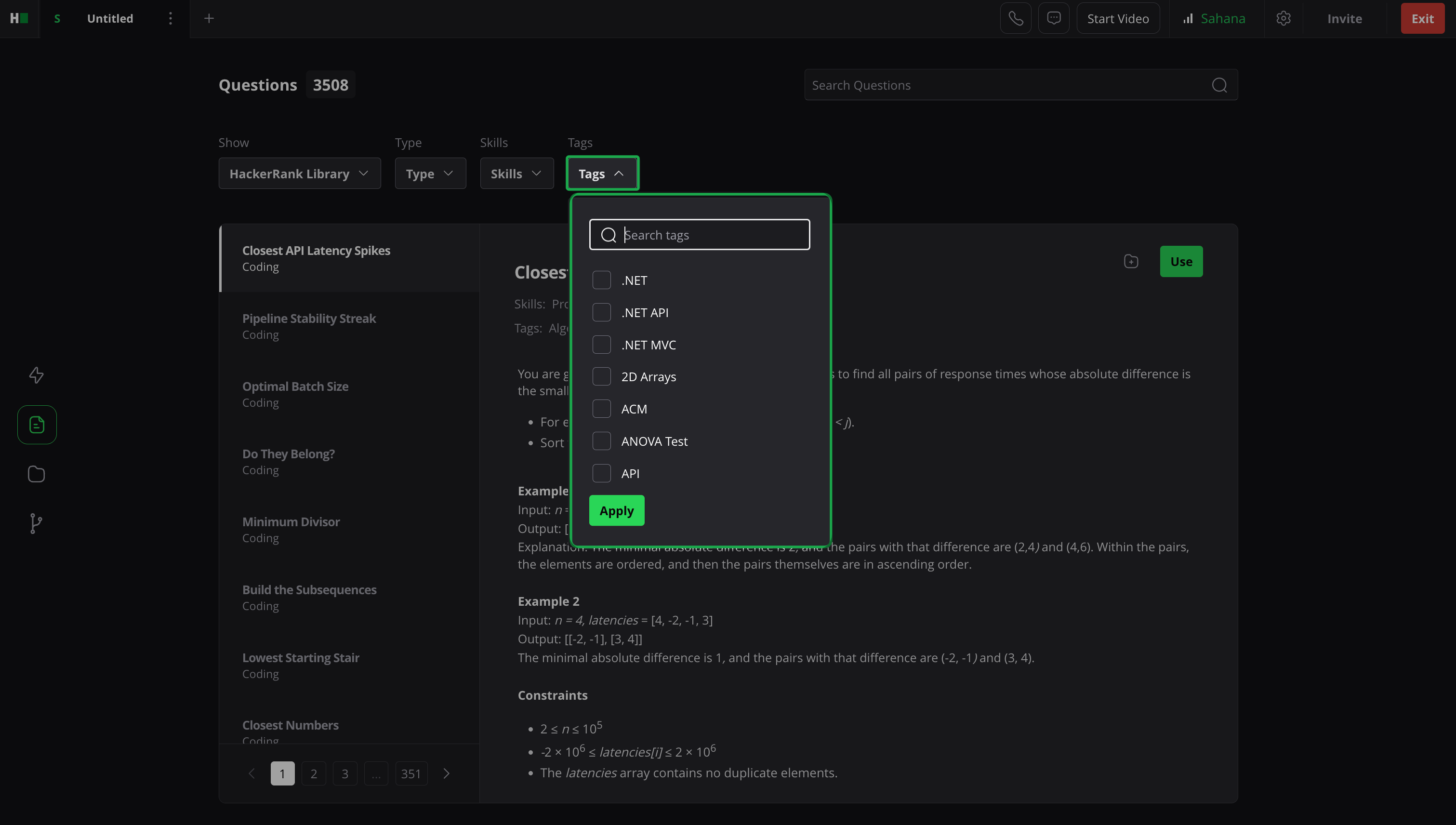
Click Use for the question you want to add.
Note: You can add questions to a template by clicking the + icon next to Use.
Using Templates
You can access the pre-built template directory shared by your team.
To import a question from templates:
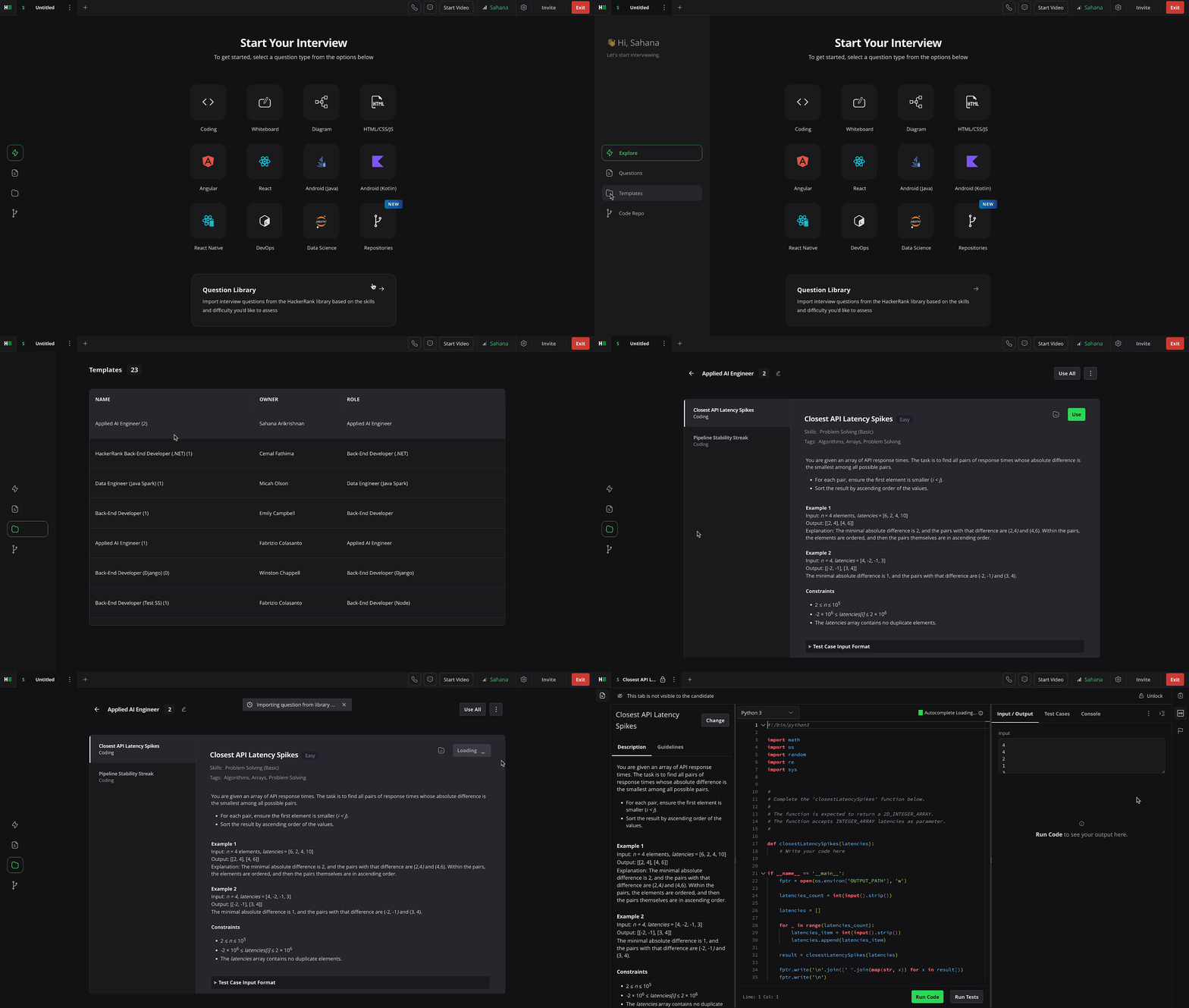
Select Templates from the left panel.
Select the template you want to use.
Click Use.
Note: If you select a template while creating an interview, the template interface appears first. From there, you can import questions.
For more information, see📄 Standardizing Interviews Using Templates.
Using Code Repositories
Use Code Repositories to access real-world repositories that allow you to assess candidates’ skills in feature building, bug fixing, and other development tasks.
To import a Code Repository:
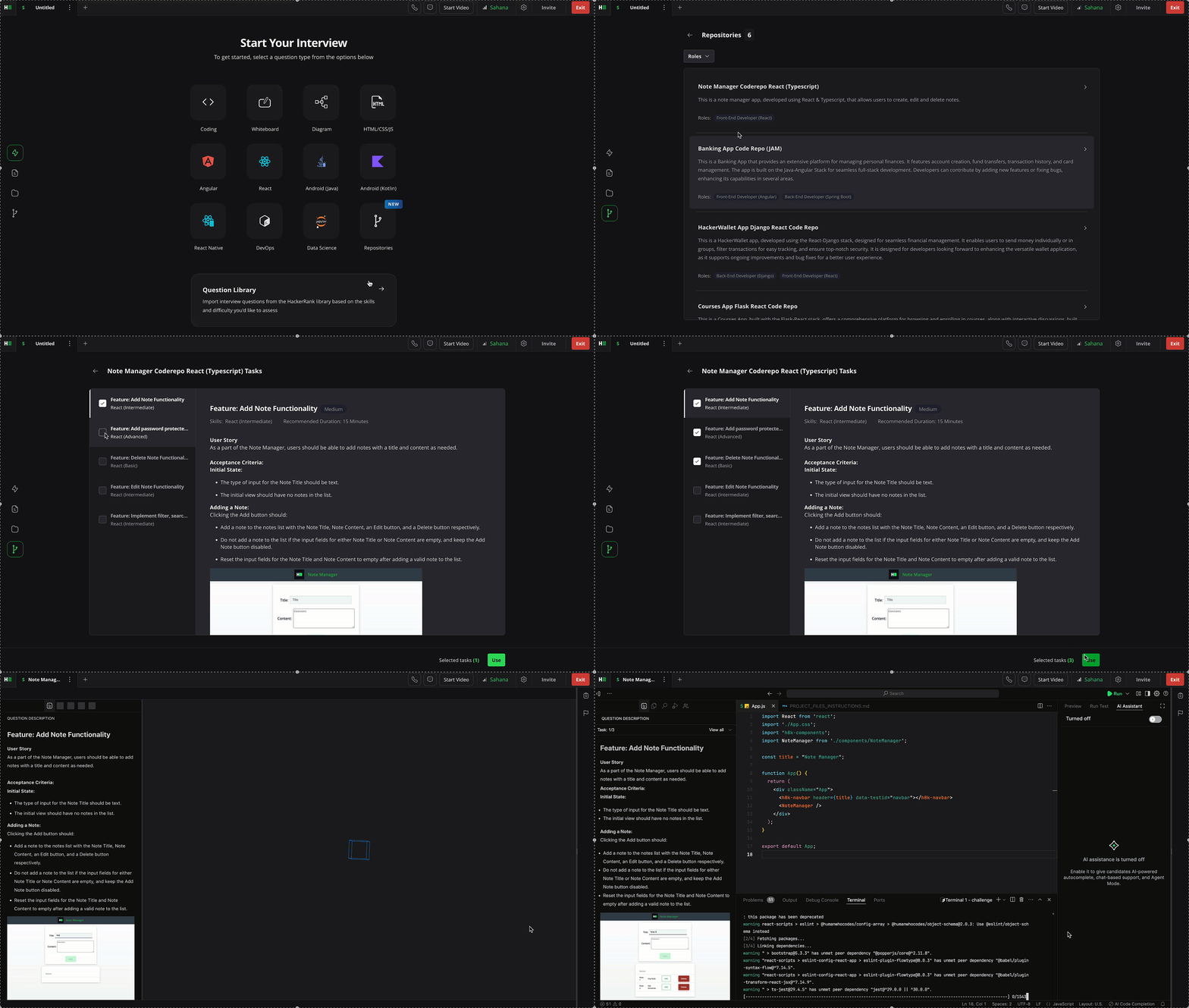
Select Code Repositories from the left panel.
Select a repository to view its details and tasks.
Select one or more tasks from the repository.
Click Use.
For more information, see 📄 The Next-Generation of Hiring: Interview Features.
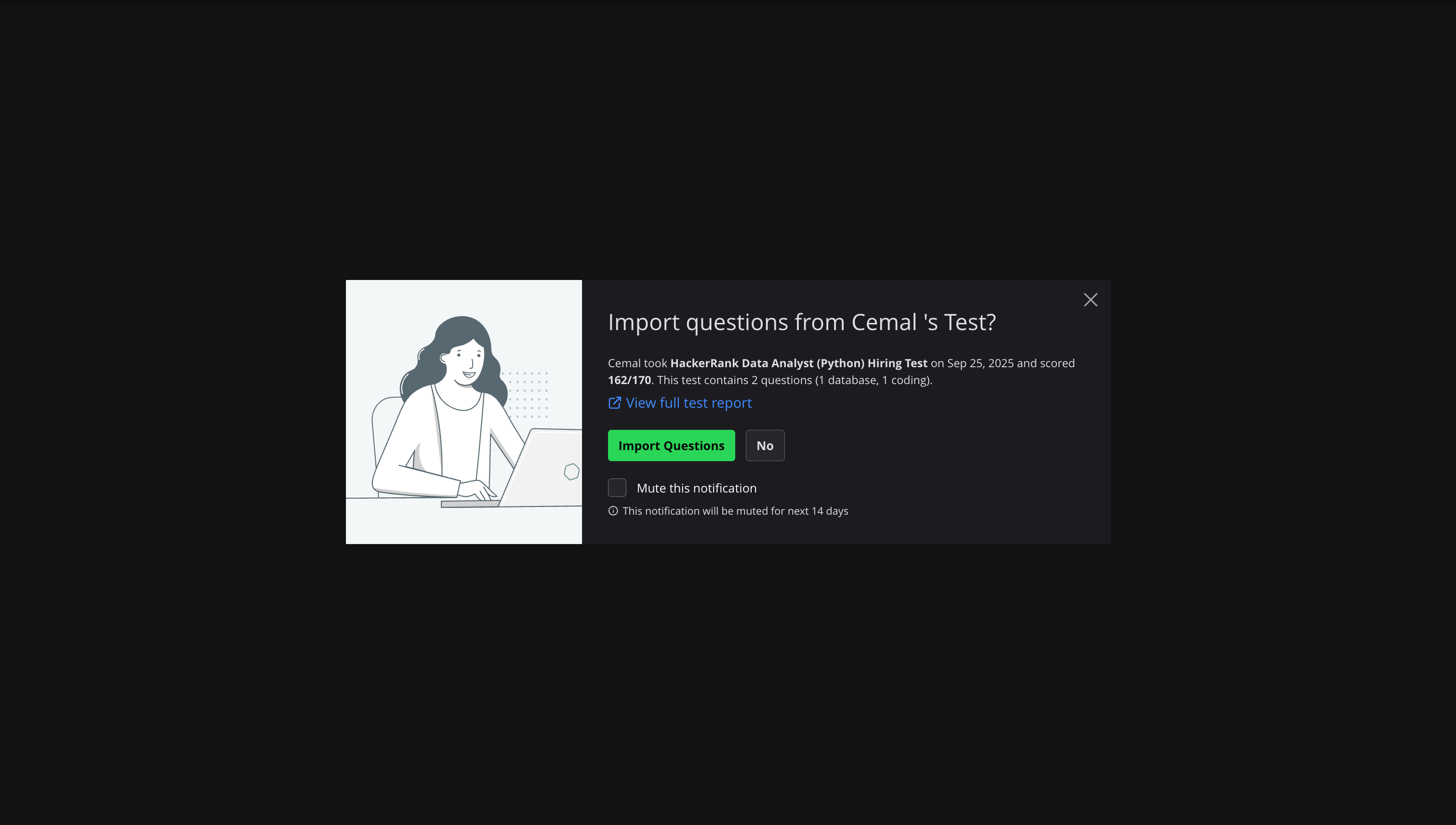
Import Questions from Screen Test
With the Tests integration, interviewers can import a candidate’s screening test, including questions and submitted code, directly into an interview session. For more information, see 📄 Import Questions from Screen Test.