Interview Report
Last updated: April 22, 2026
The interview report provides a detailed view of candidate performance. It helps interviewers and hiring managers to review responses and make informed hiring decisions.
Accessing interview report
To access an interview report:
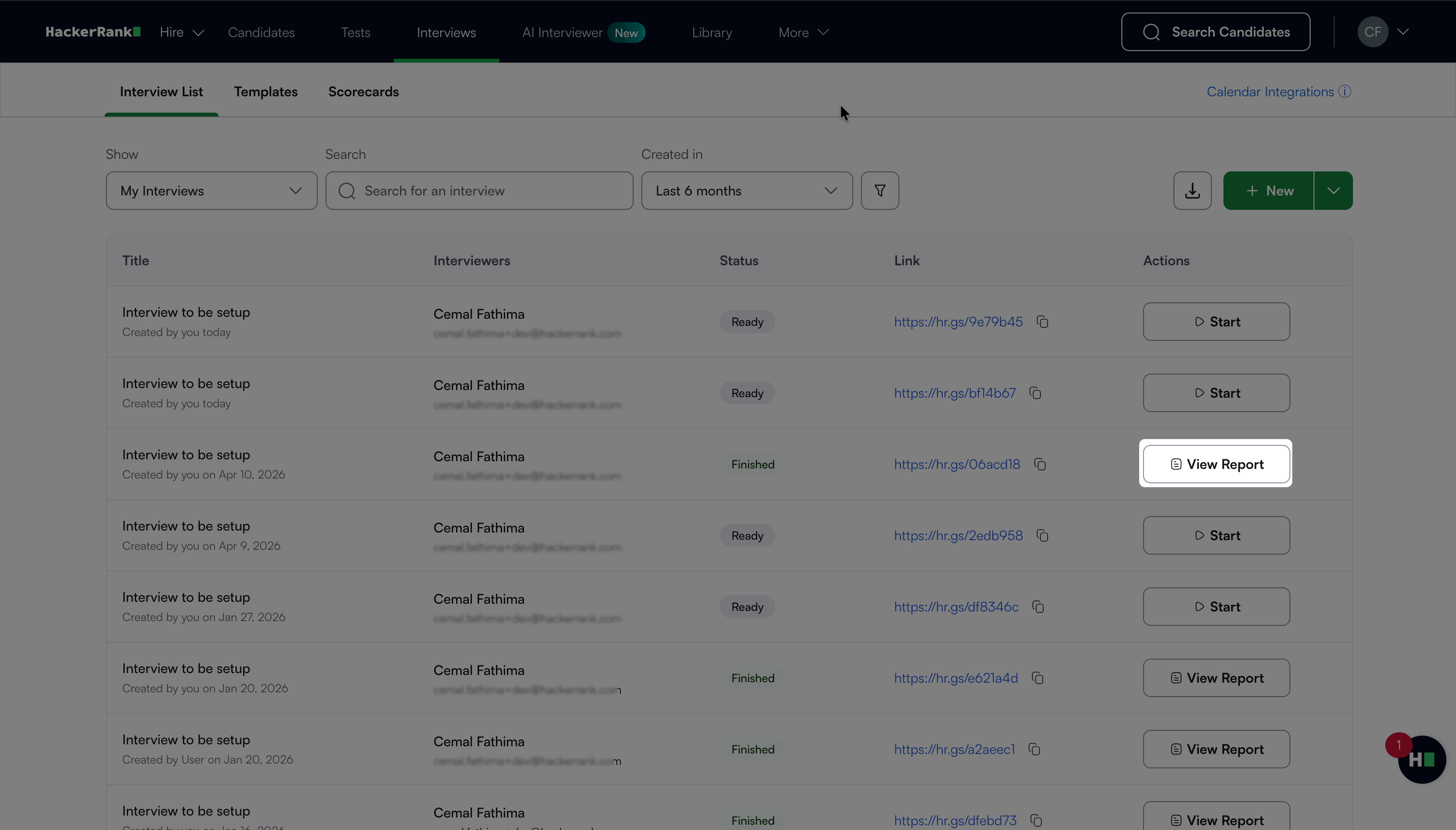
Log in to your HackerRank for Work account using your credentials.
Go to Interviews > Interview List.
Click View Report next to the interview.
Interview report components
The interview report includes the following components:
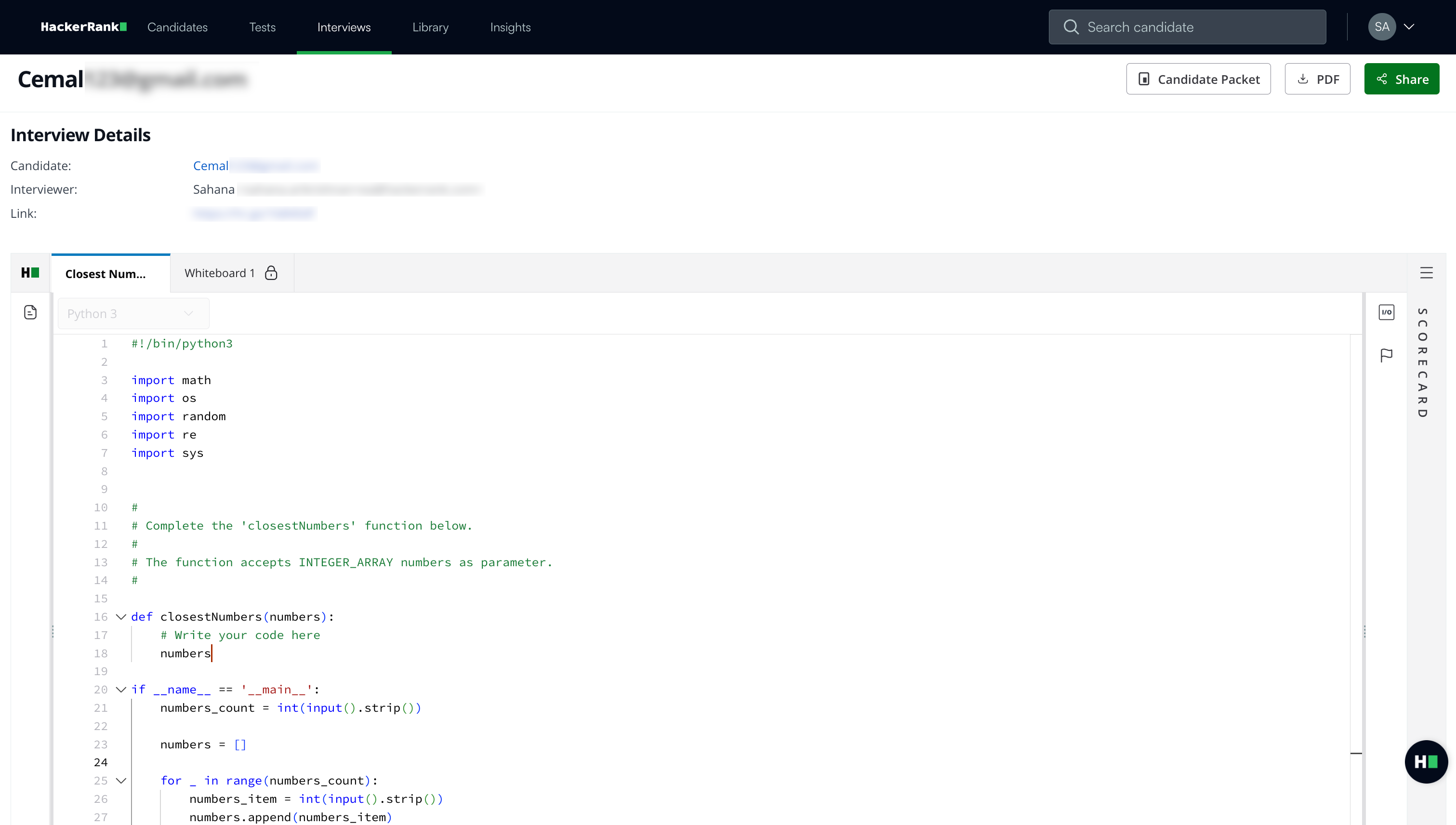
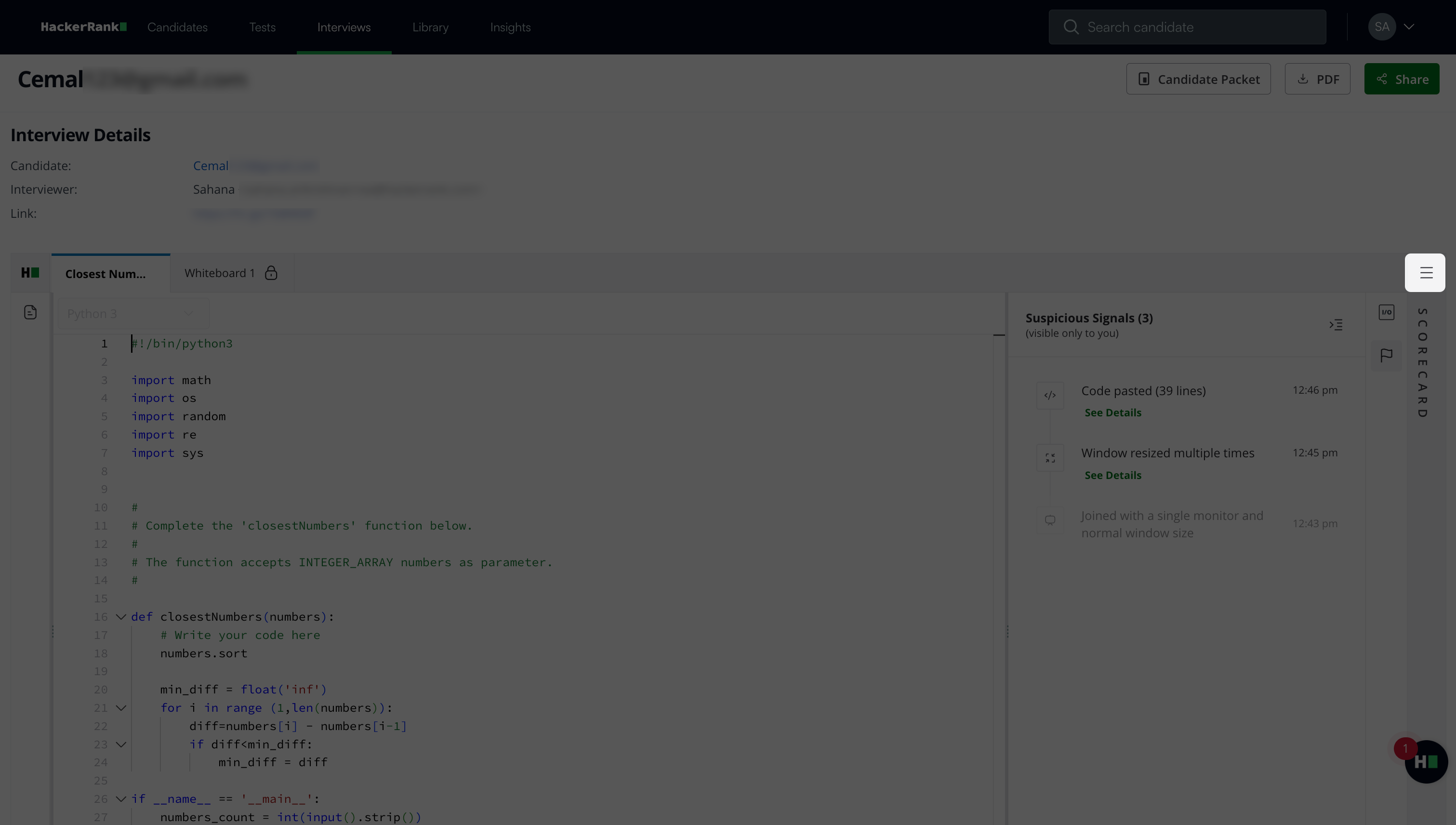
Question tabs
Each interview question appears in a separate tab.
Select a tab to switch between questions.
Click the question description icon to view the full problem statement.
Playback: Displays participant activity in video format.
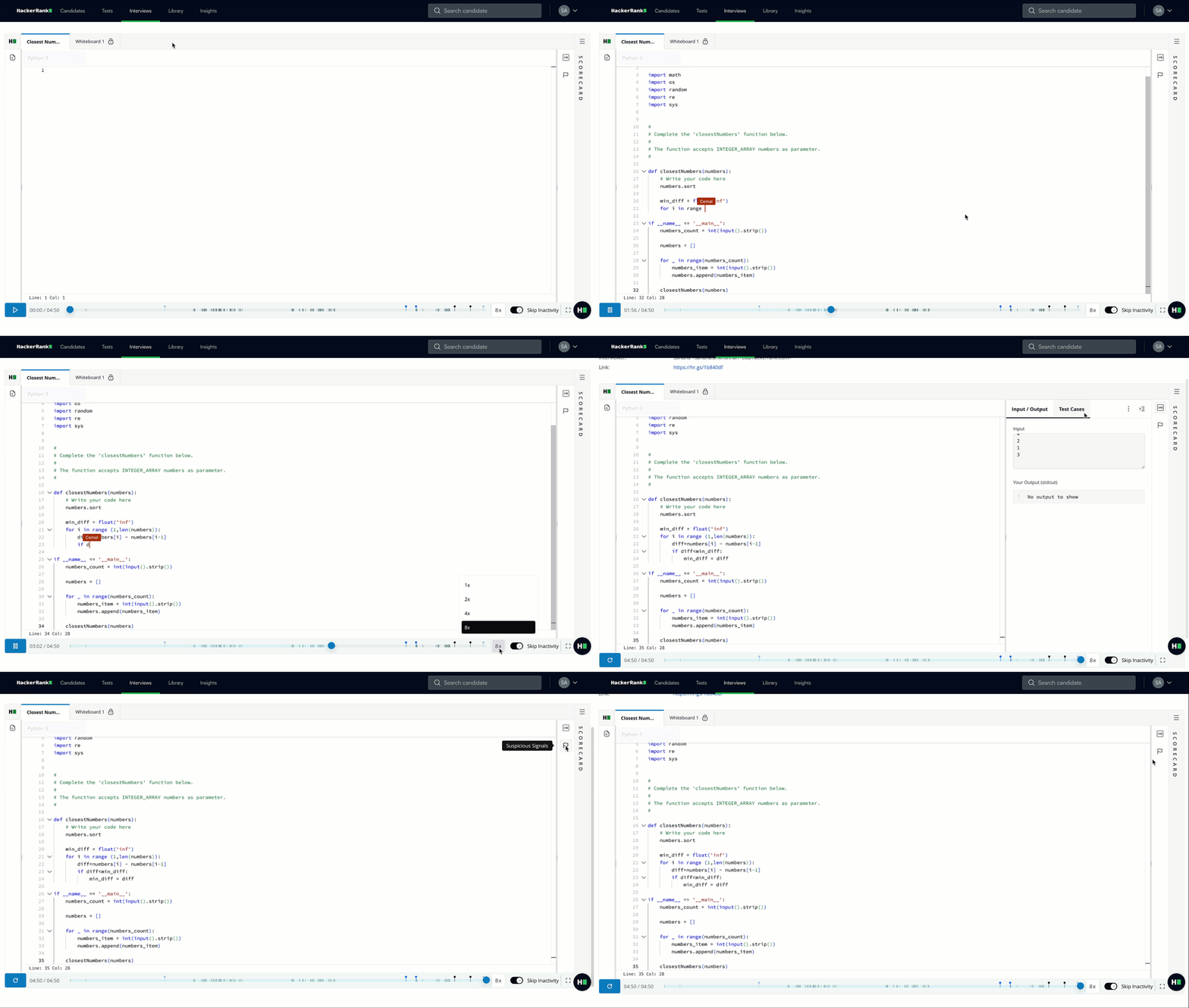
Click the Play button on the timeline to start playback
Toggle Skip Inactivity to automatically skip periods with no candidate activity. This option is enabled by default.
Click the expand icon in the bottom-right corner to view playback in full screen.
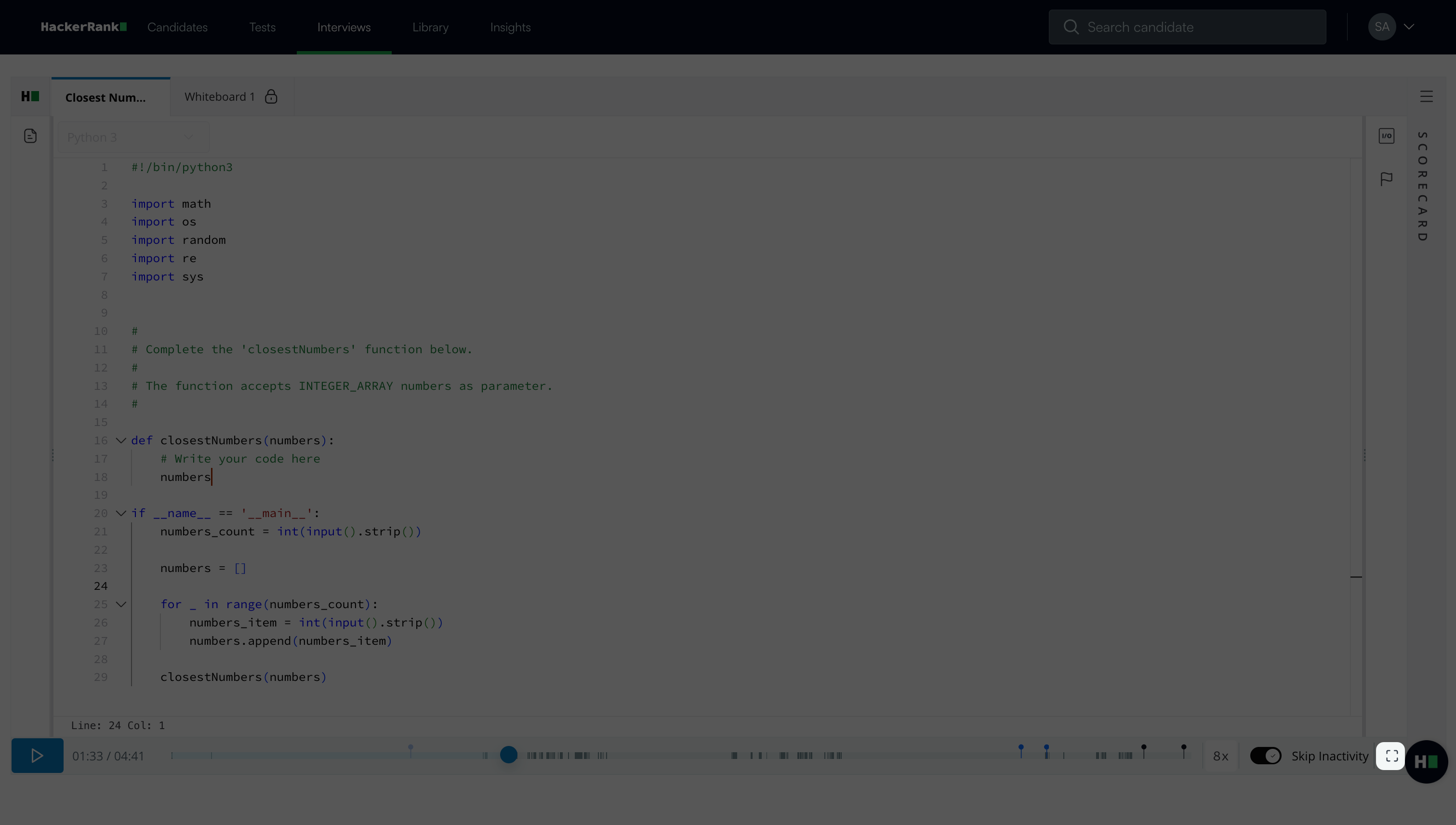
Active time periods appear as dark segments on the timeline for quick navigation.
Displays a cursor with the participant’s name to indicate who is typing.
Shows all code executions with input and output, highlighted on the timeline
Click Suspicious Signals to view detected suspicious activity.
Scorecard: Click the menu icon to view the scorecard. For more information, see 📄 Interview Scorecards.
Note:
If you have access to the Recruiter or Developer role, you can view all team scorecards.
If you have Interviewer role access, you can view only your own scorecard.
Candidate Packet: Click Candidate Packet to view the complete activity timeline of the candidate.
Download PDF: Click PDF to download the report.
Share report: Click Share to generate a link. Recipients must log in to access the report.