Interview Report
Last updated: August 27, 2026
This article applies to the new Interview experience. If your interview interface looks different, see 📄 Interview Report for the legacy Interview experience.
The interview report provides a detailed view of candidate performance. It helps interviewers and hiring managers to review responses and make informed hiring decisions.
Accessing an interview report
To access an interview report:
Log in to your HackerRank for Work account using your credentials.
Go to Interviews > Interview List.
Click View Report next to the interview.
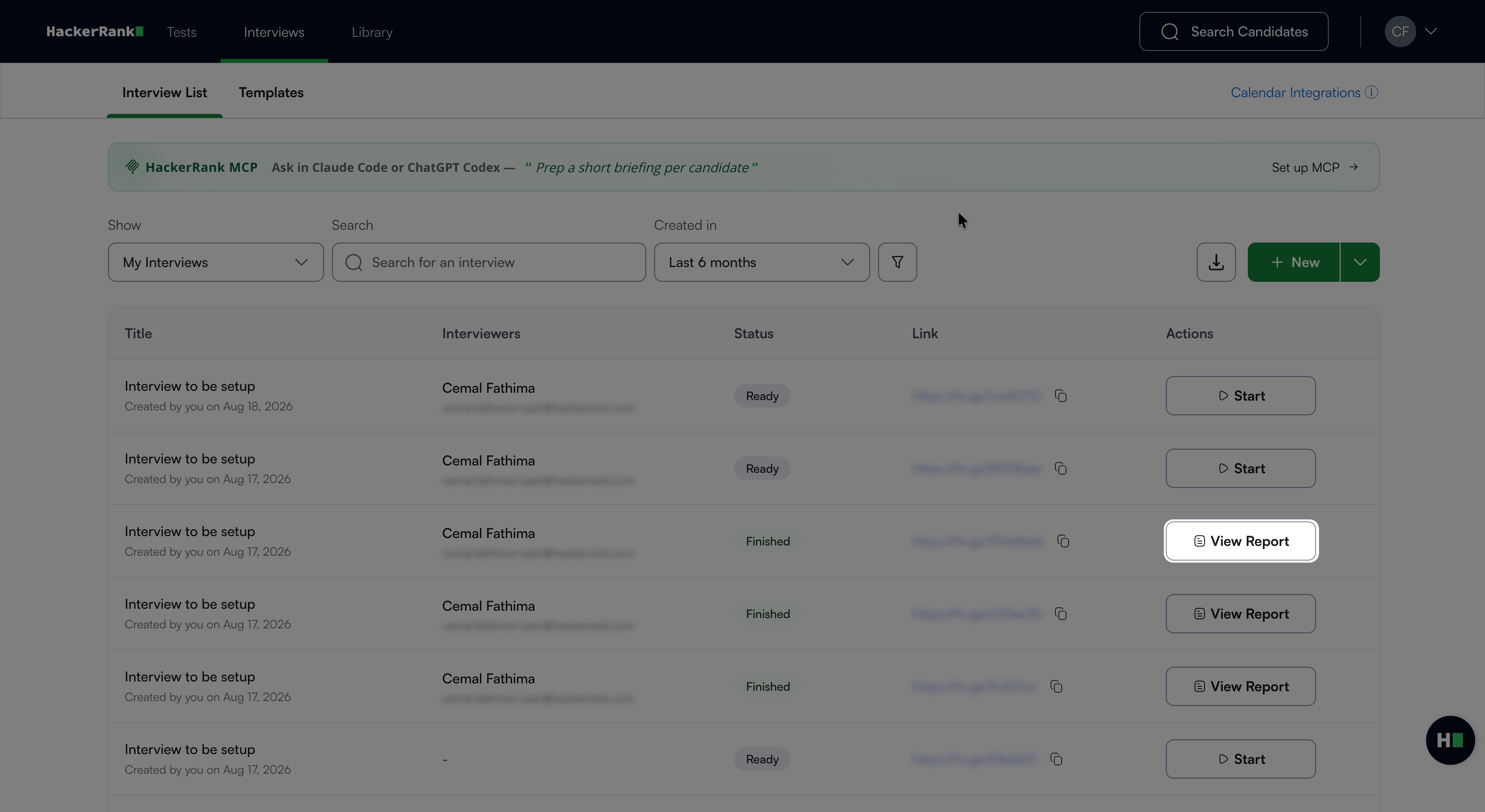
The interview report opens.
Interview report components
The interview report includes the following components:
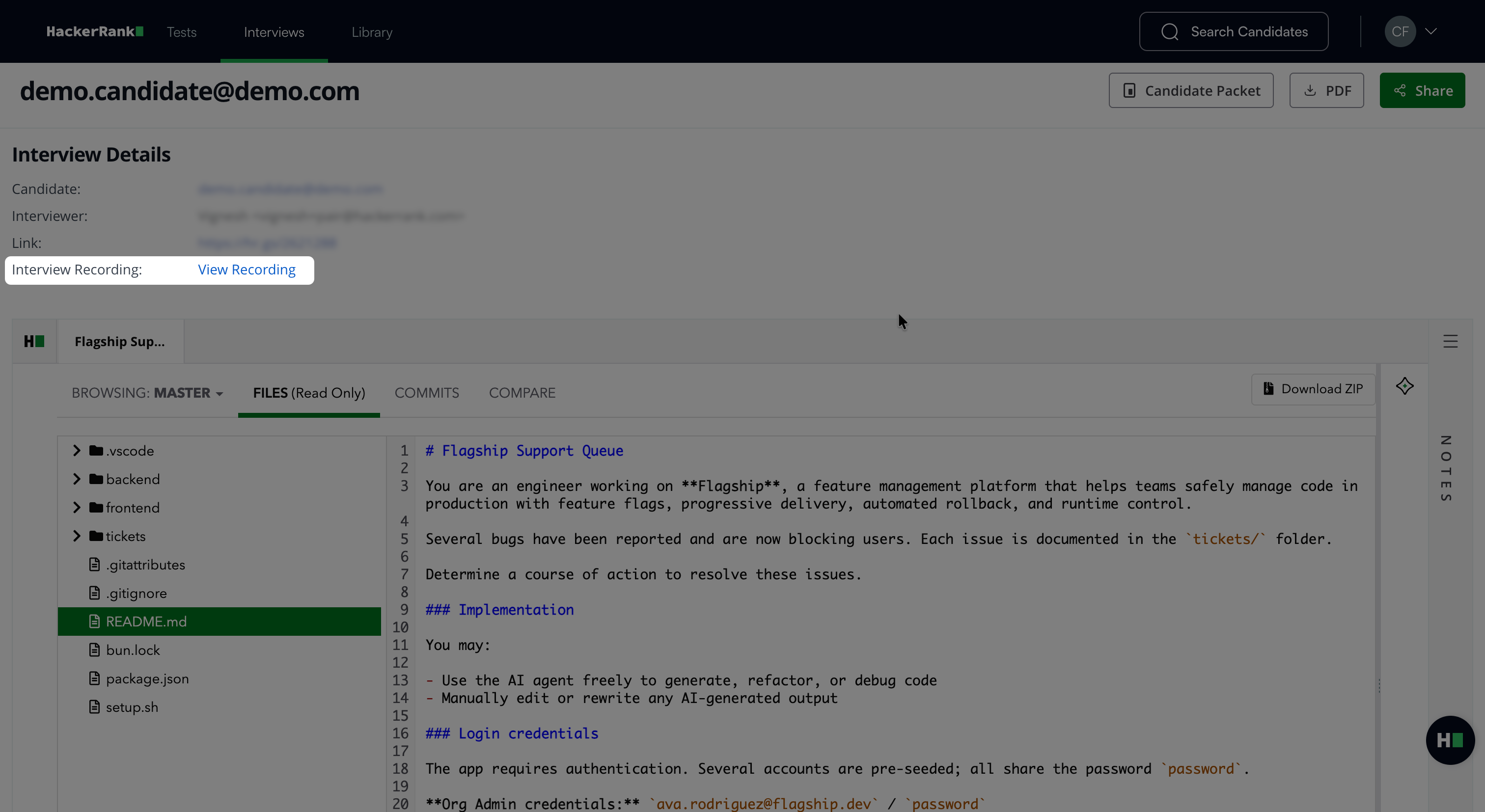
Interview recording
Click View Recording to view the entire interview recording.
Question responses
Each interview question appears in a separate tab. Click a tab to review the candidate’s response to that question.
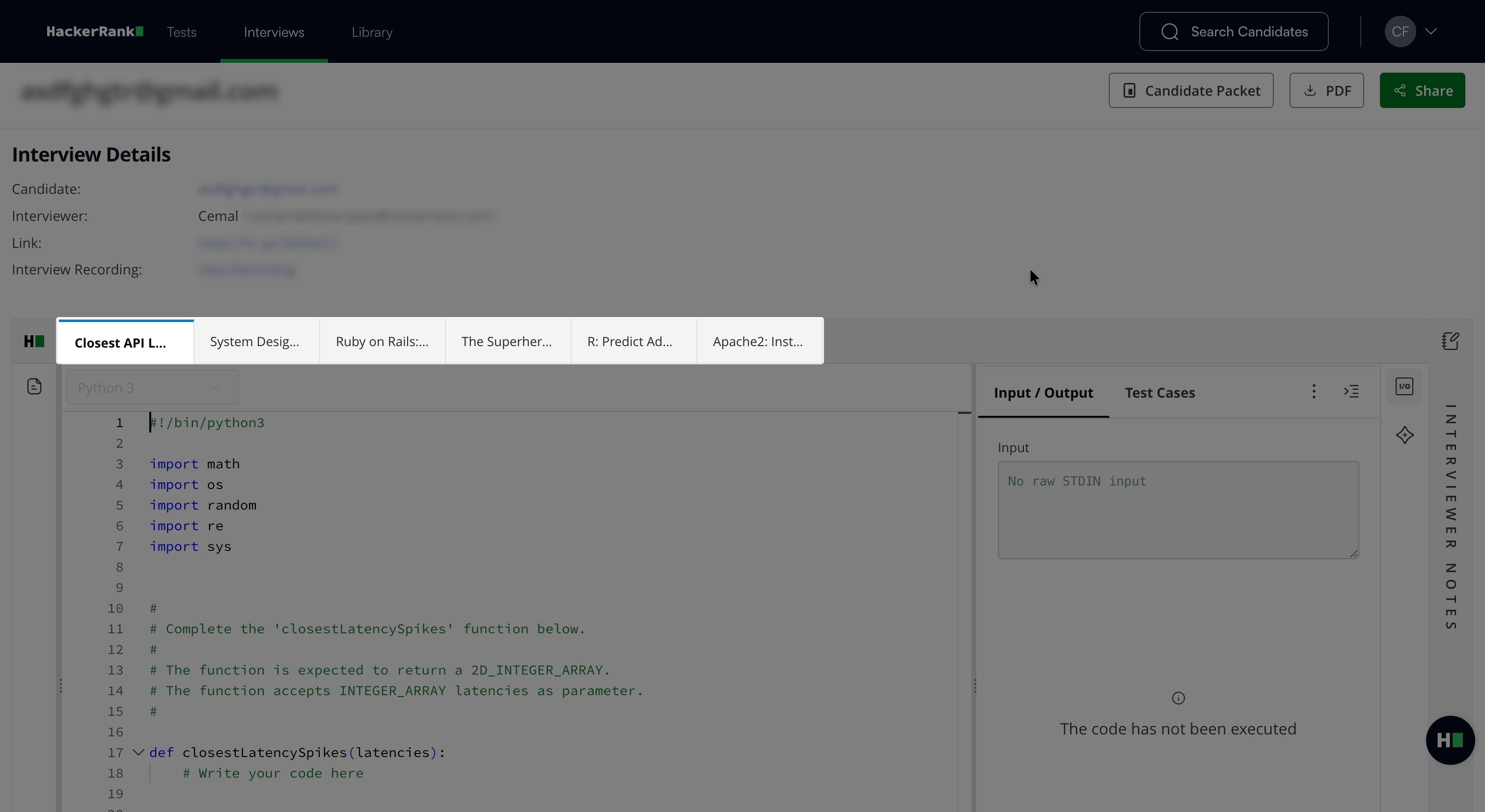
The response view and available controls depend on the question type.
Code Repos
The Code Repos response view lets you review the candidate’s files, branches, commits, repository changes, and AI Assistant conversations.
Repository View:
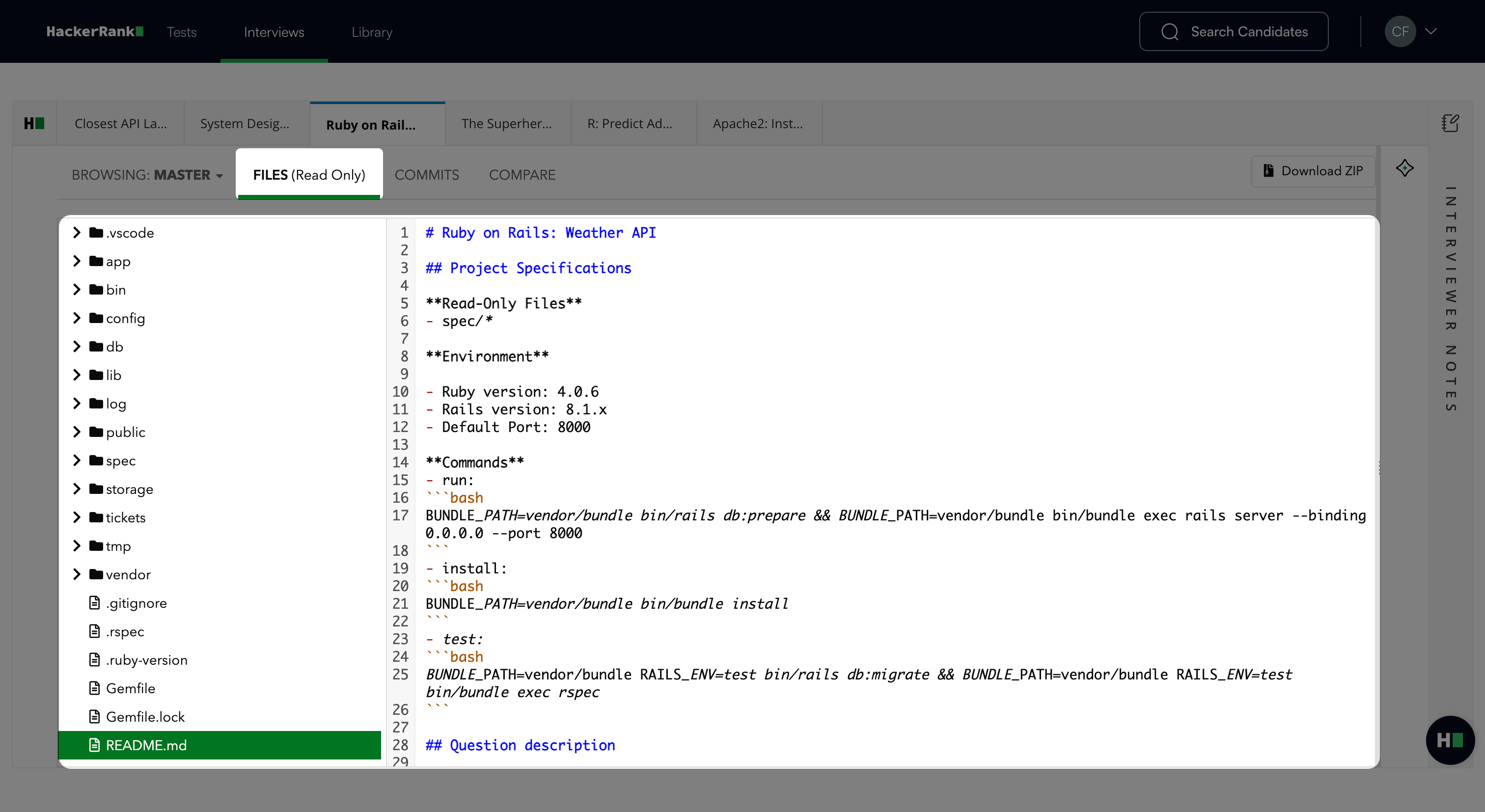
Click FILES (Read Only) to inspect the repository files and the candidate’s changes. This tab opens by default.
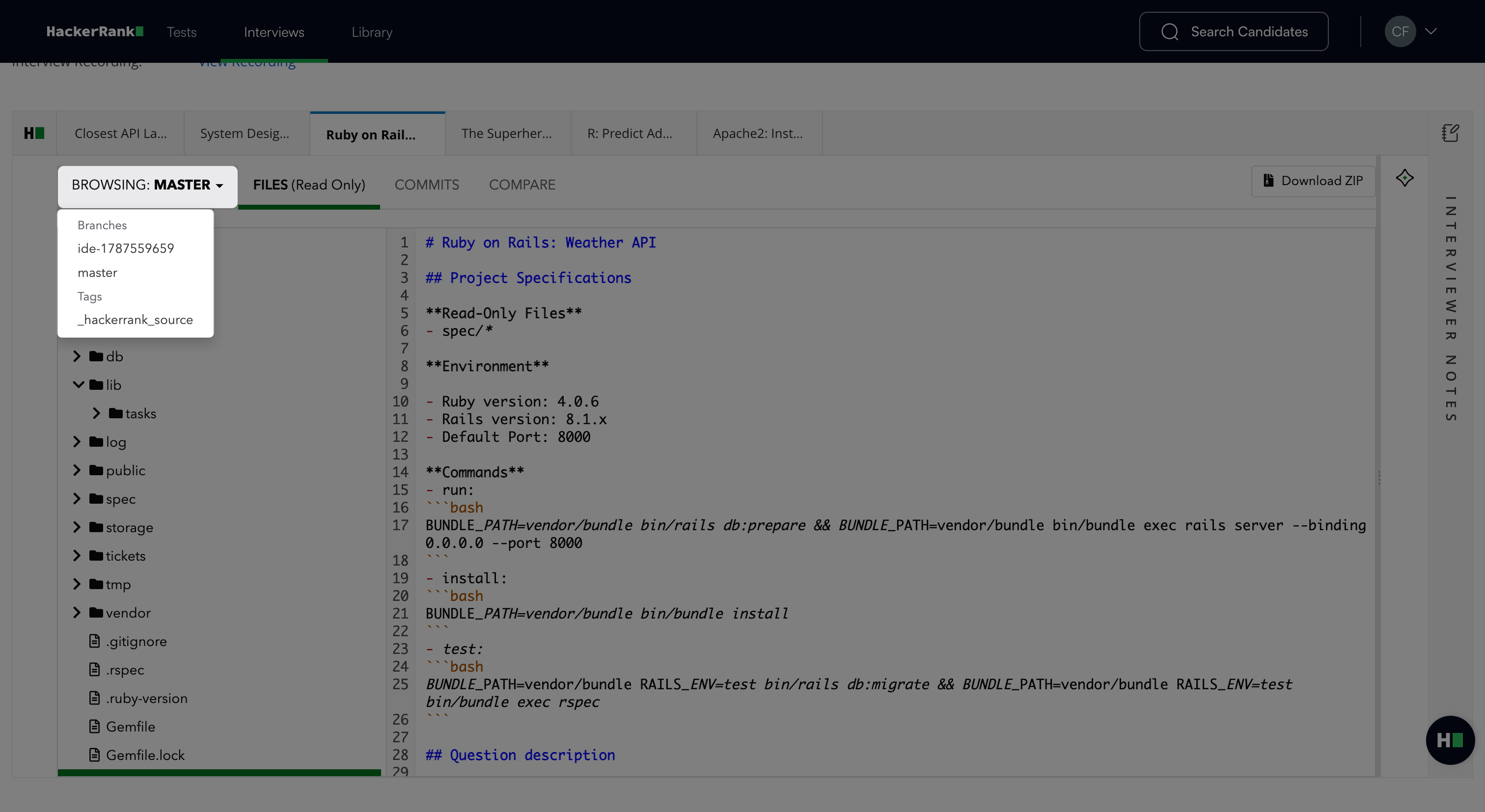
Use the BROWSING drop-down menu to select a repository branch or tag.
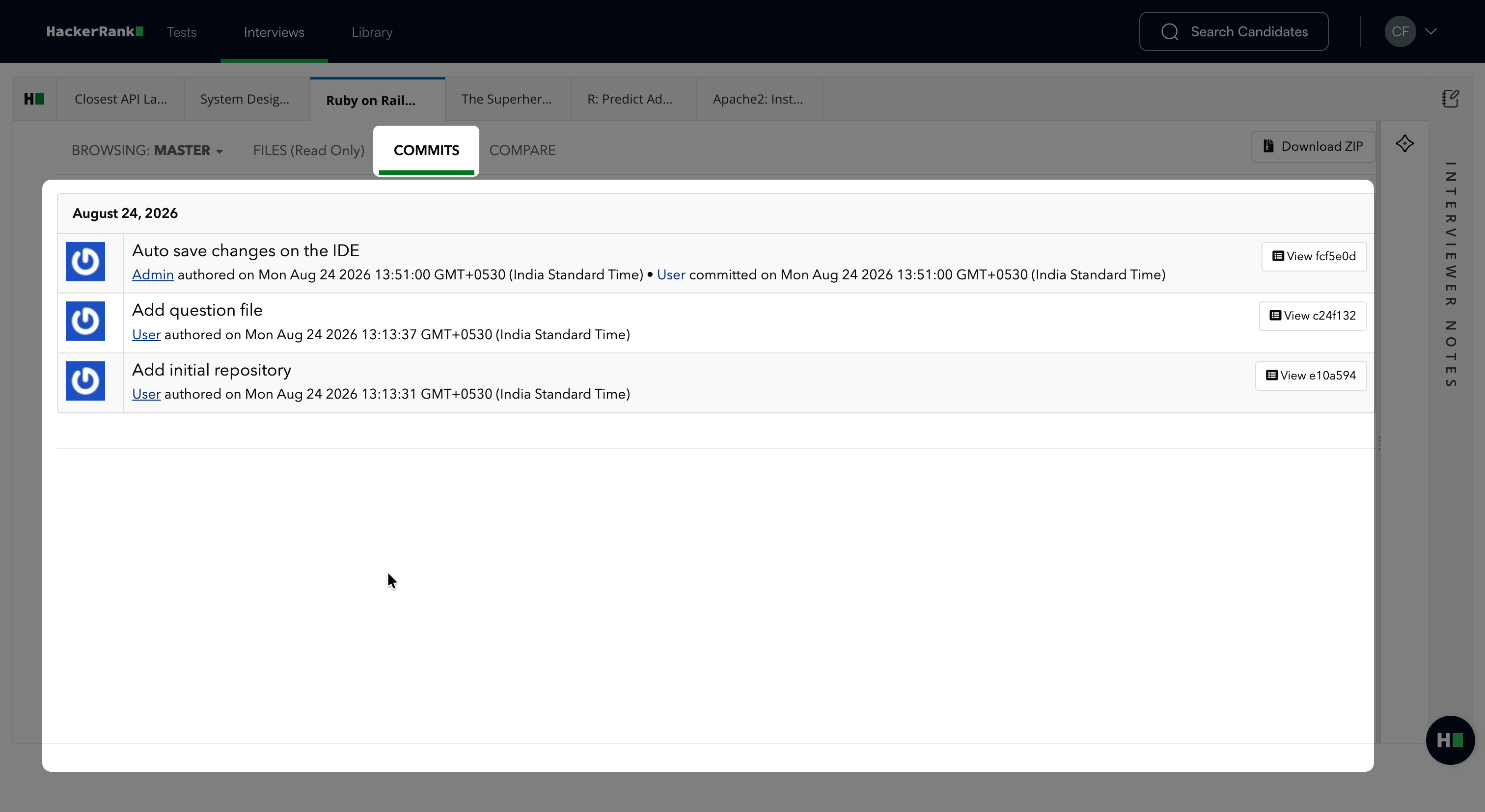
Click COMMITS to view commits made during the interview.
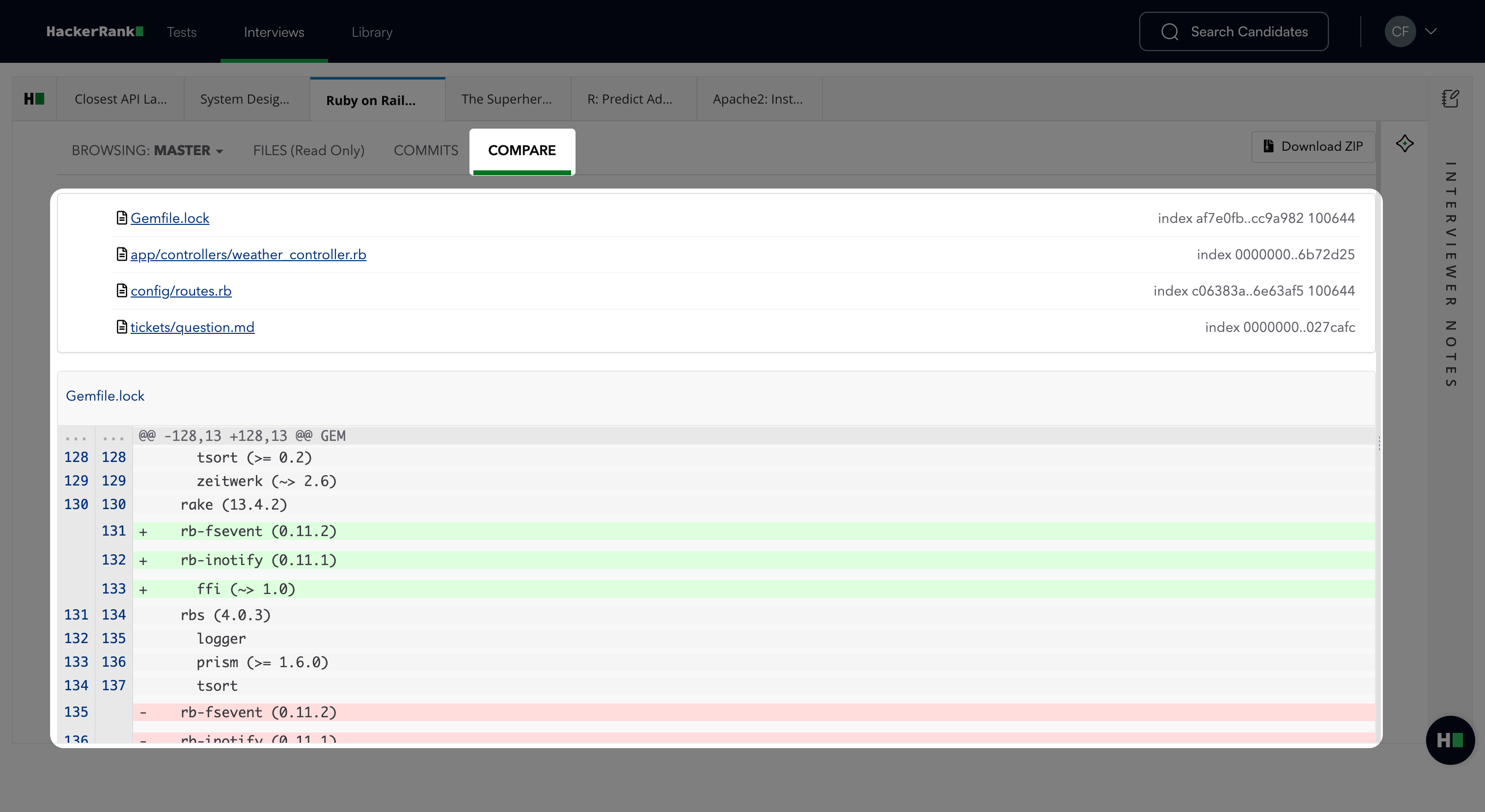
Click COMPARE to review the files and lines that the candidate adds, modifies, or deletes.
Click Download ZIP to download the candidate’s attempt as a ZIP file.
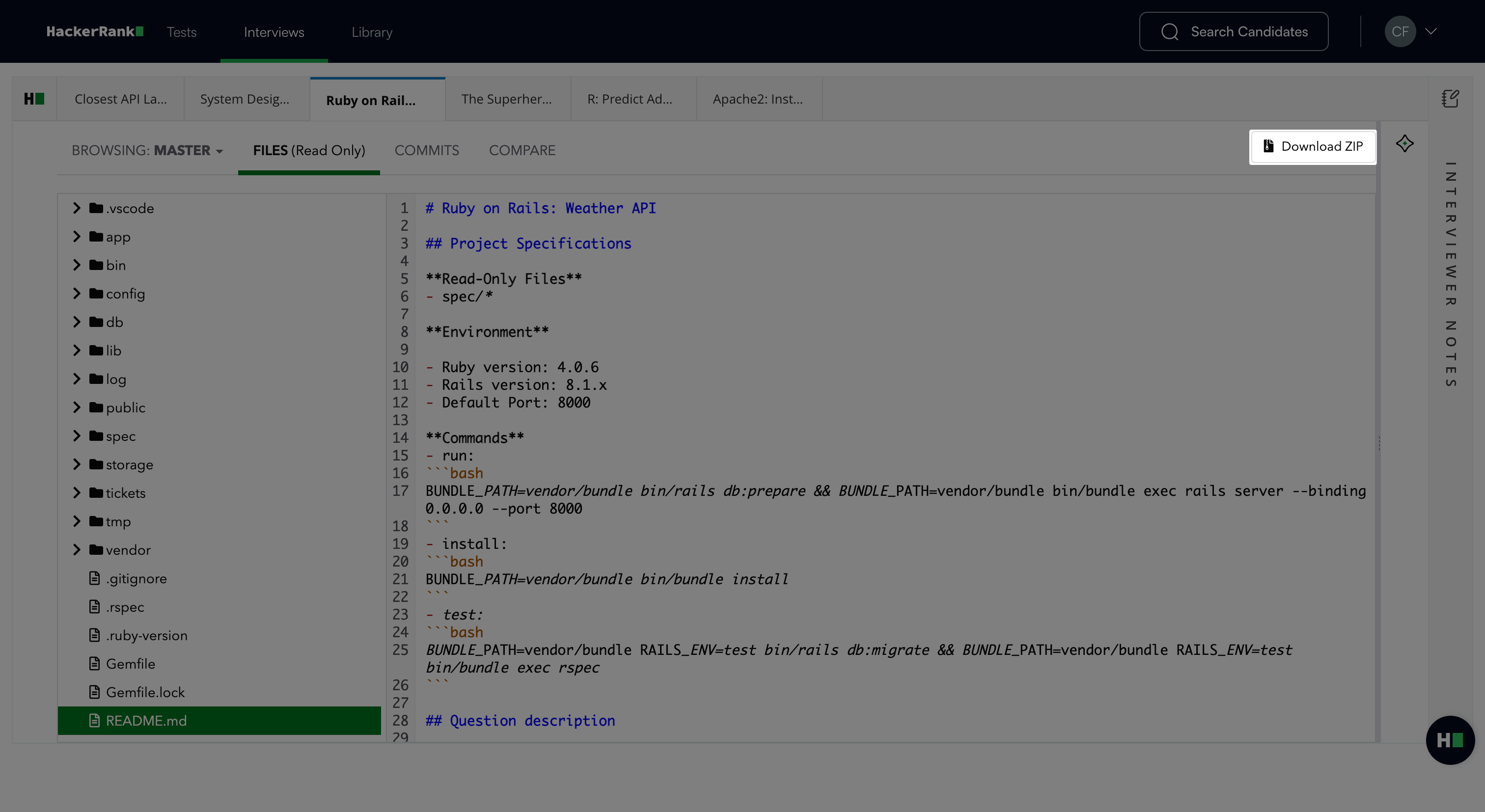
AI Assistant Chat: Click the AI Assistant icon to review the candidate’s conversations with the AI Assistant. For more information, see 📄 AI Assistant in Interviews.
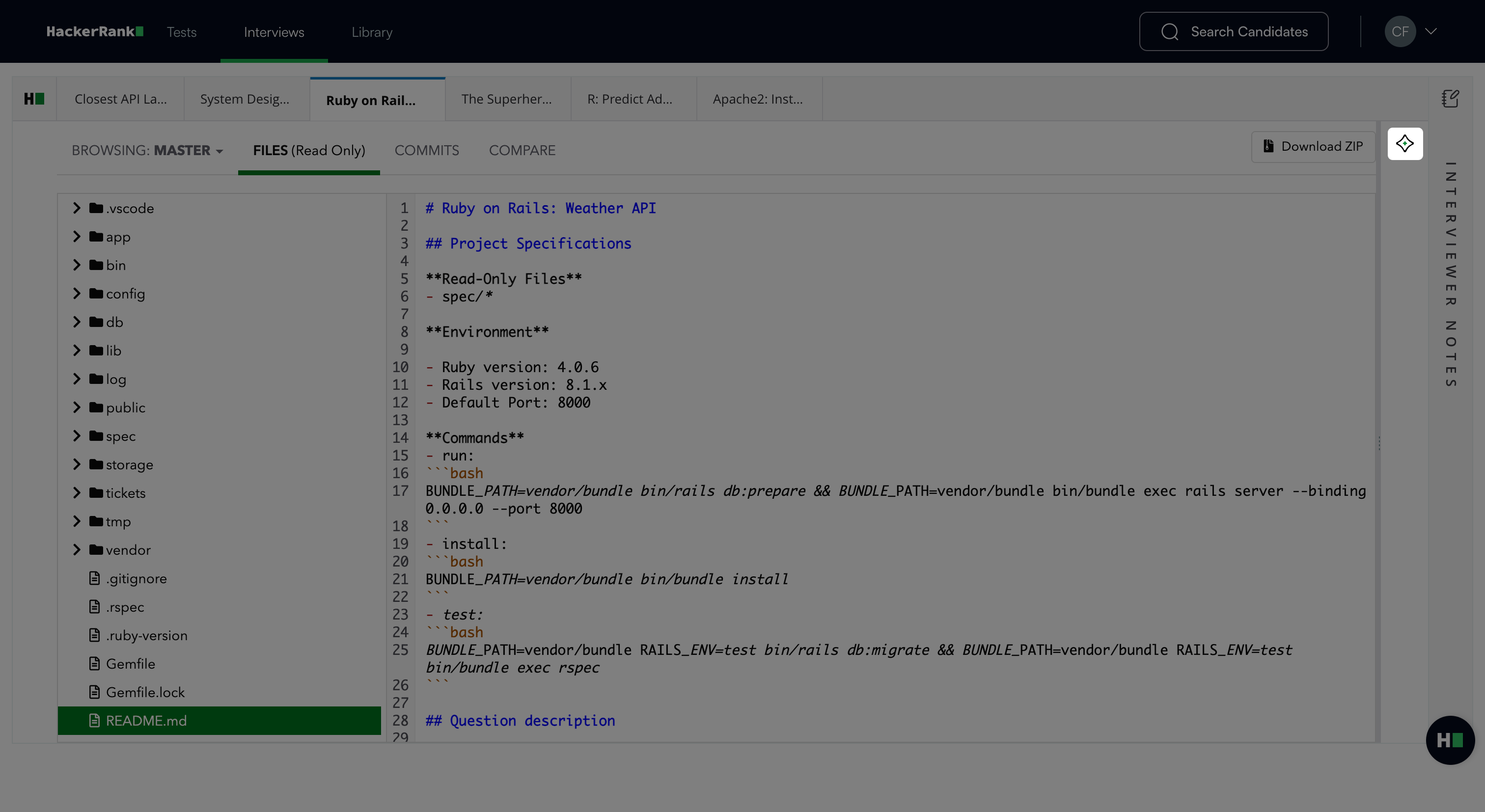
Coding
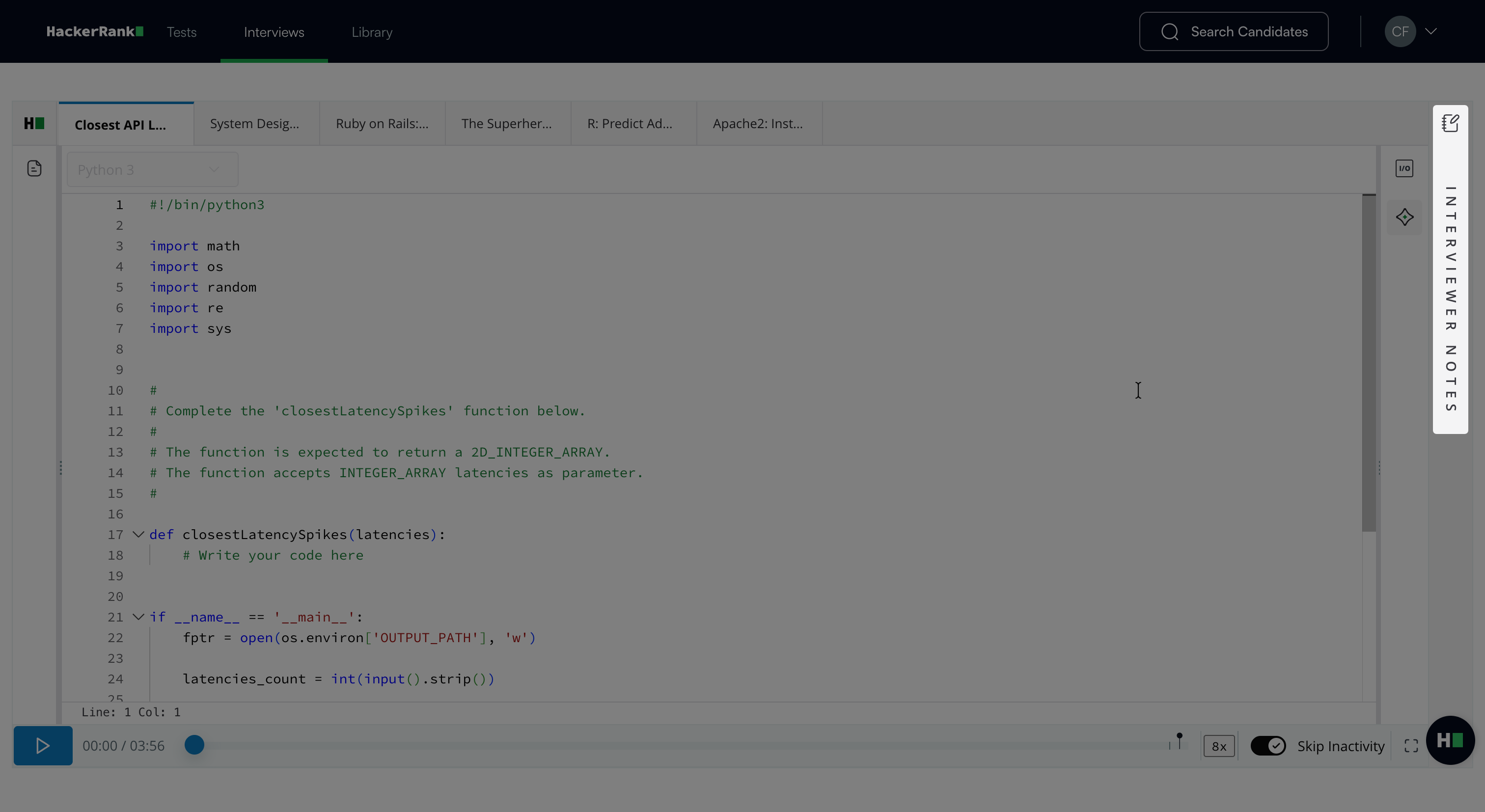
The Coding response view displays the candidate’s code and provides controls for reviewing their activity.
Question Description: Click the question description icon to view the question presented to the candidate.
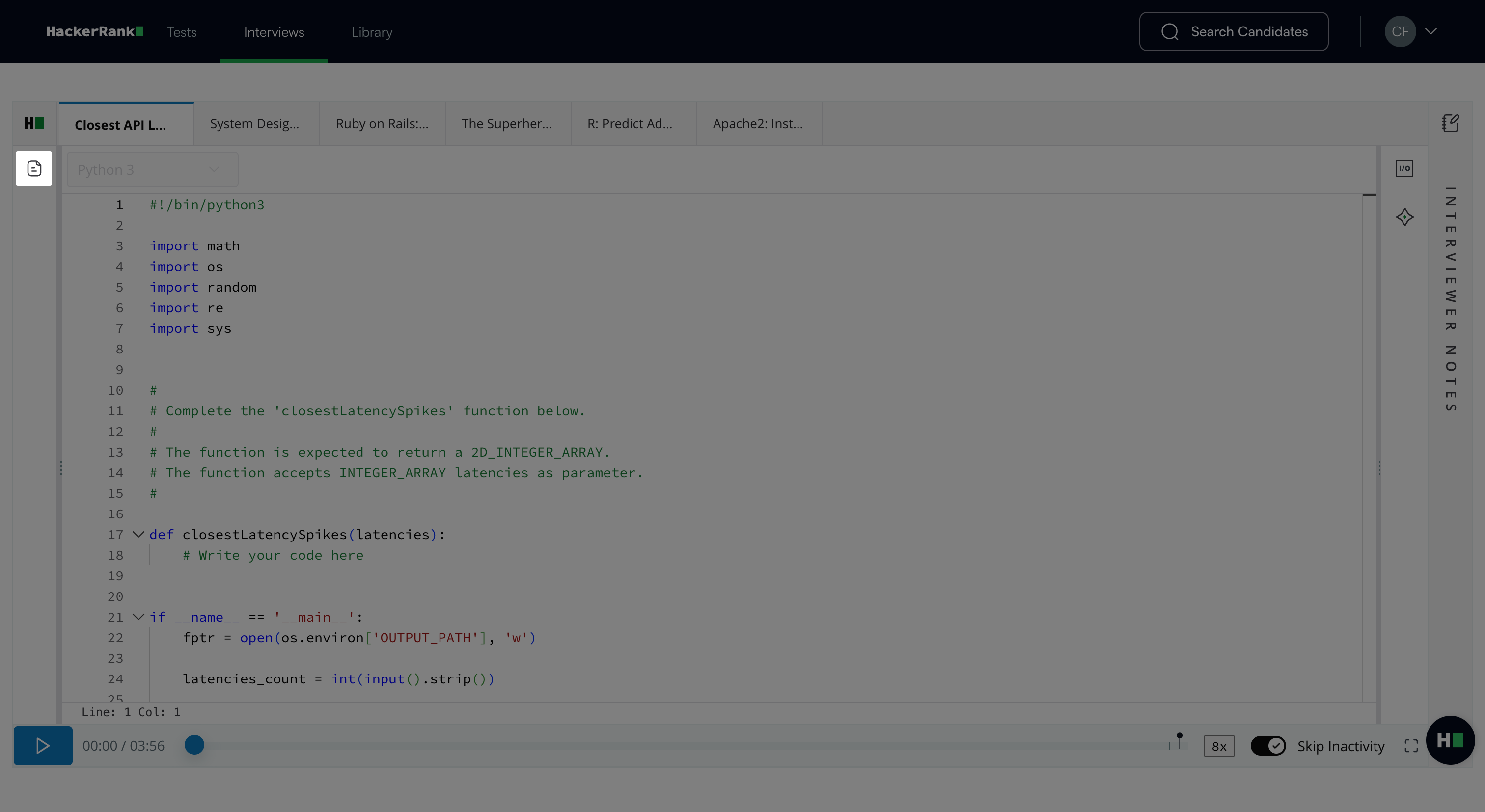
Language Used: Displays the programming language that the candidate uses.
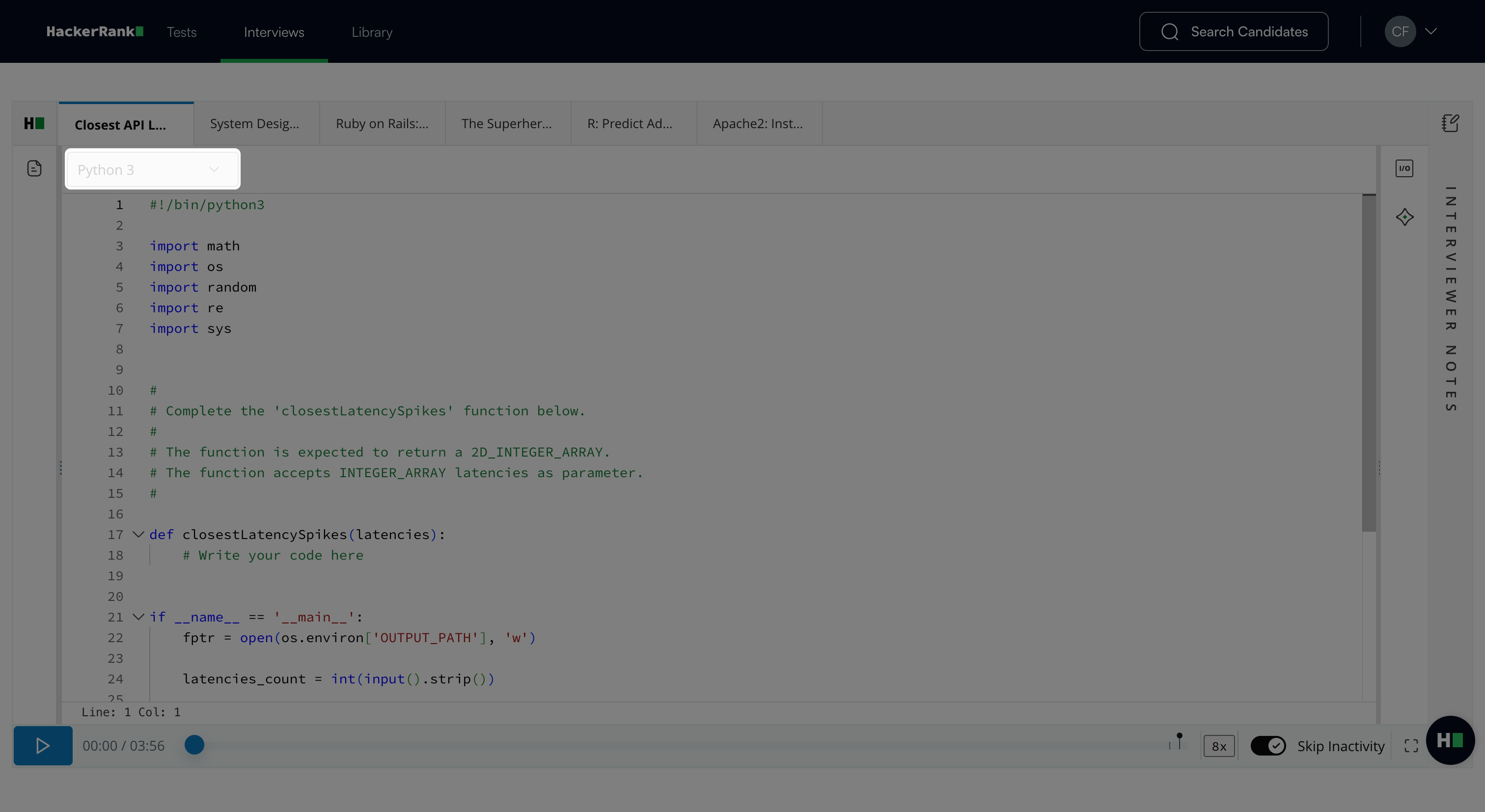
Code Playback: A full recording of the candidate’s activity. You can:
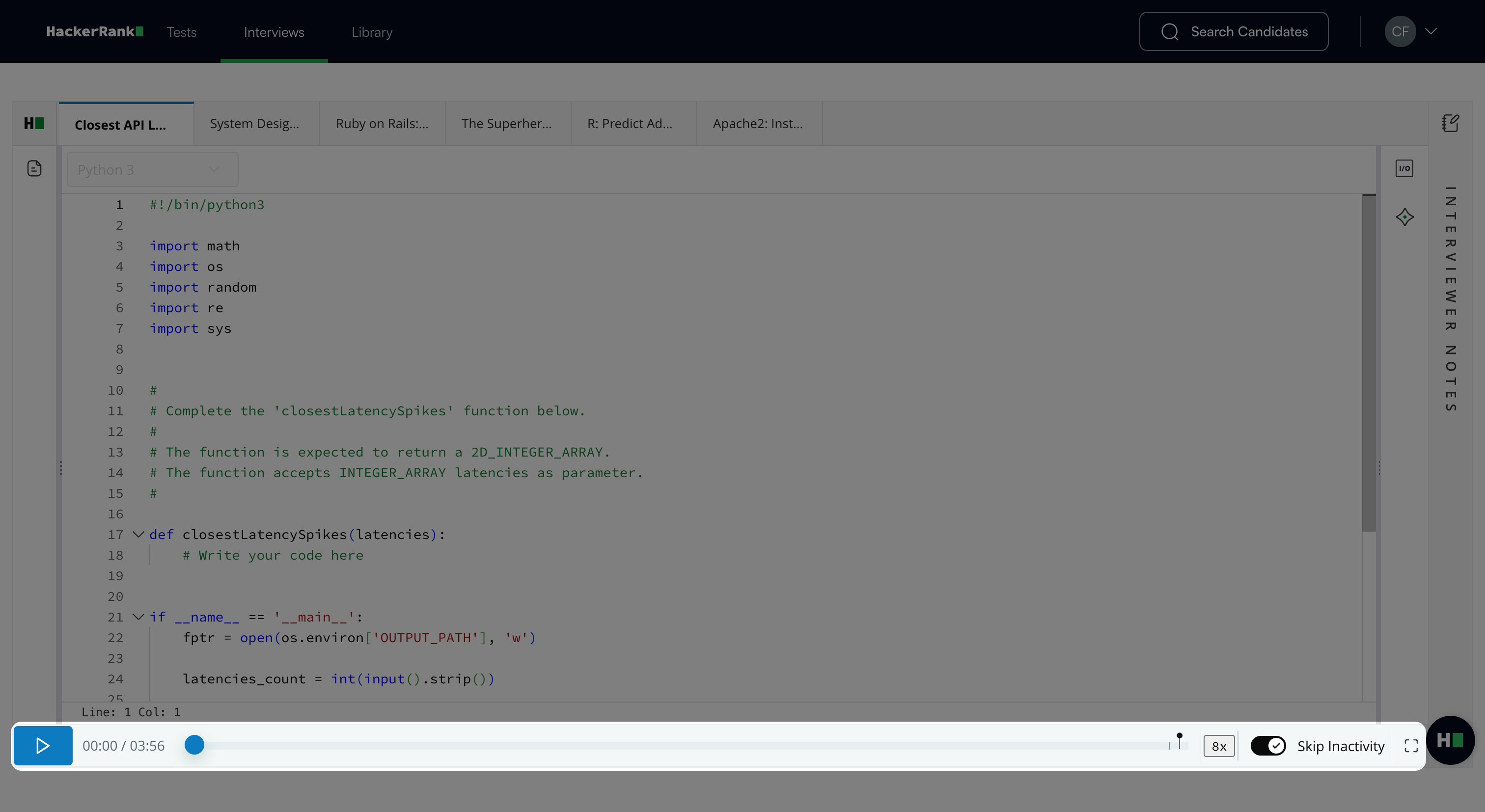
Click the play button to start the playback.
Use the timeline and playback controls to review the candidate’s activity.
Change the playback speed.
Use Skip Inactivity (enabled by default) to skip idle periods.
Click the full-screen icon to view the code in full-screen mode.
I/O Console: Click the I/O Console icon to view Input/Output and Test Cases.
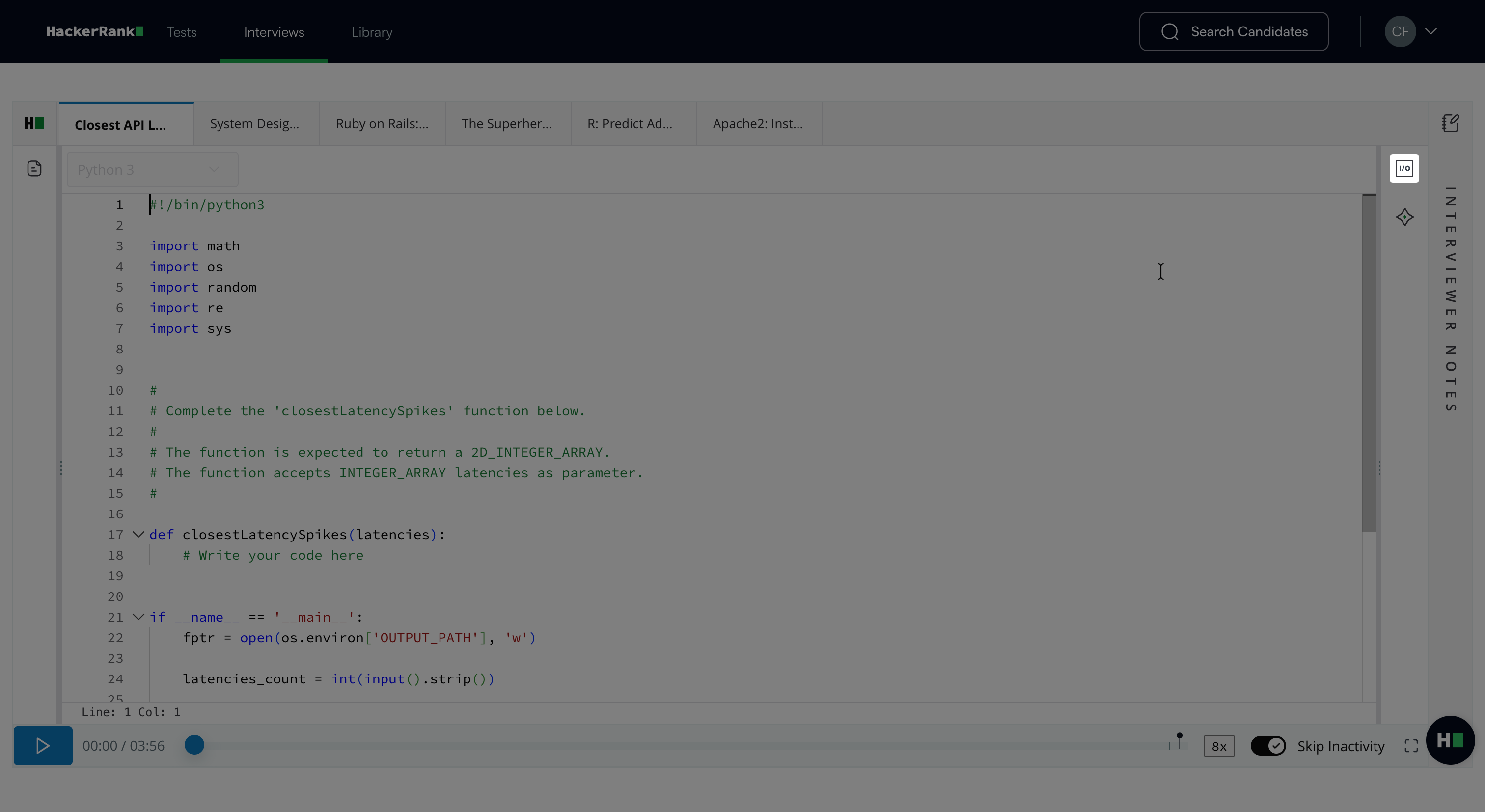
AI Assistant Chat: Click the AI Assistant icon to review the candidate’s conversations with the AI Assistant. For more information, see 📄 AI Assistant in Interviews.
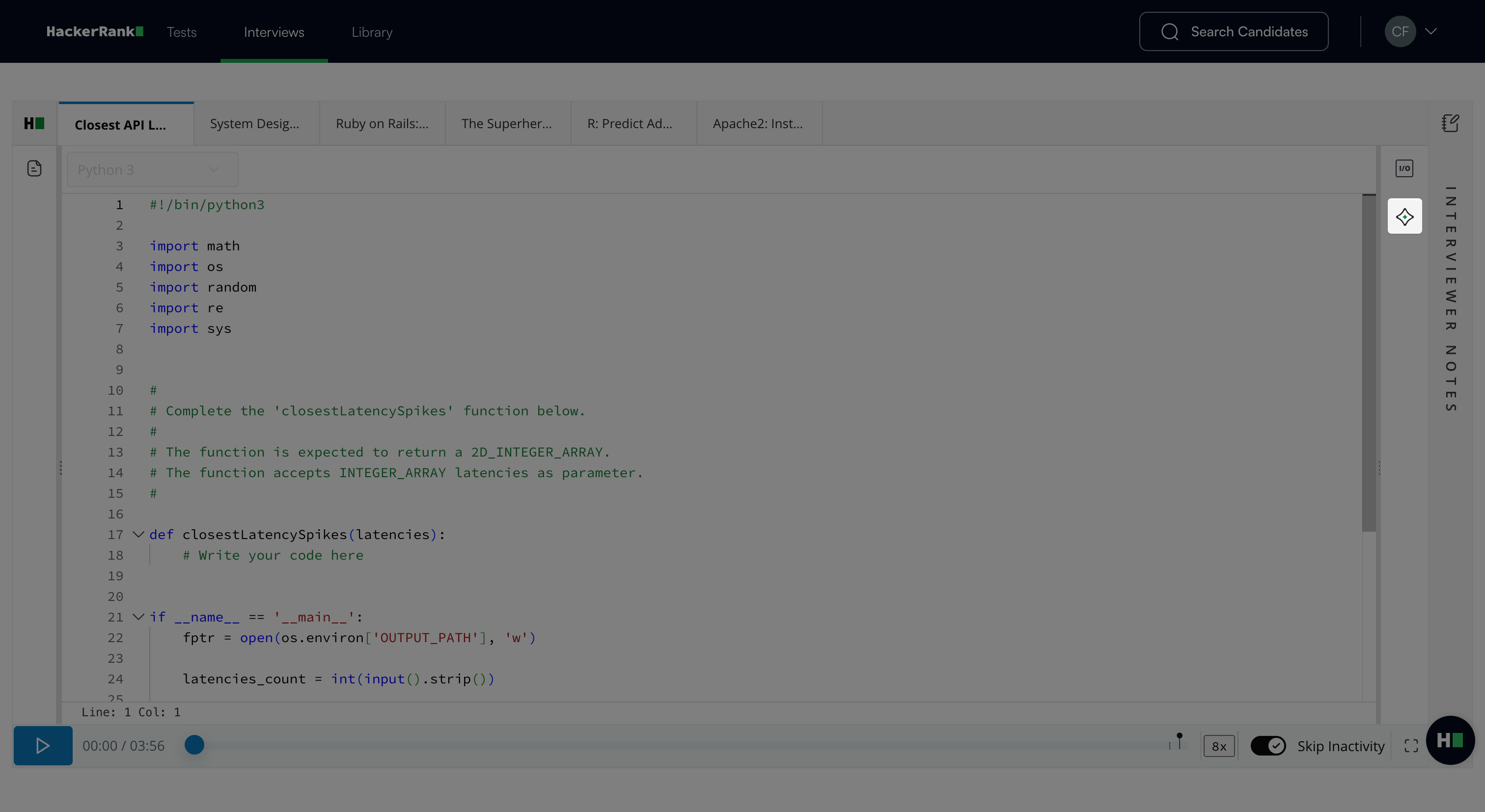
Whiteboard
The Whiteboard response view displays the candidate’s diagrams and text added during the interview. Click the question description icon to view the question presented to the candidate.
Database
The Database question report displays the candidate’s query, the database language used, and a playback of the candidate’s activity.
Question Description: Click the question description icon to view the question presented to the candidate.
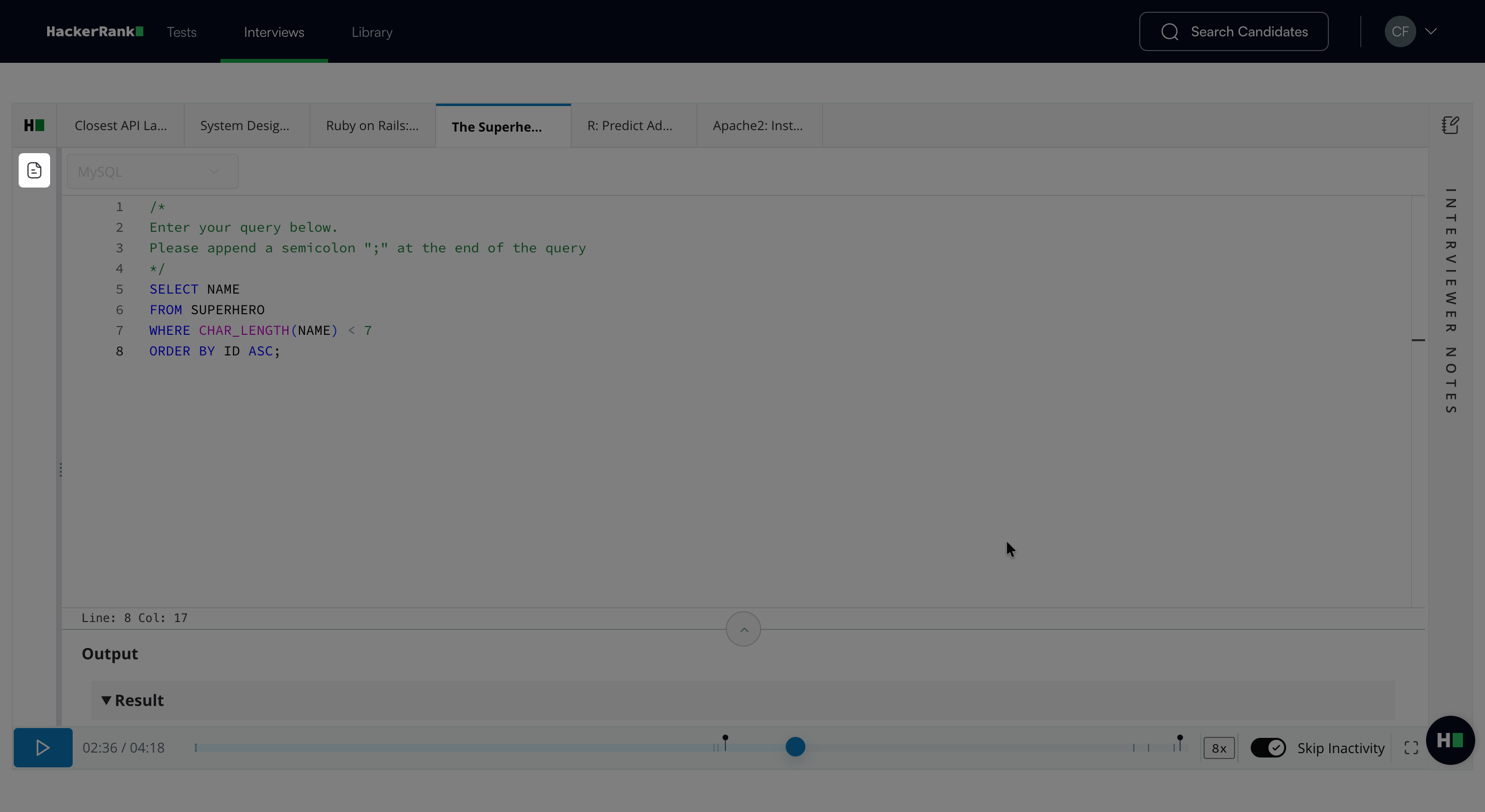
Language Used: Displays the programming language that the candidate uses.
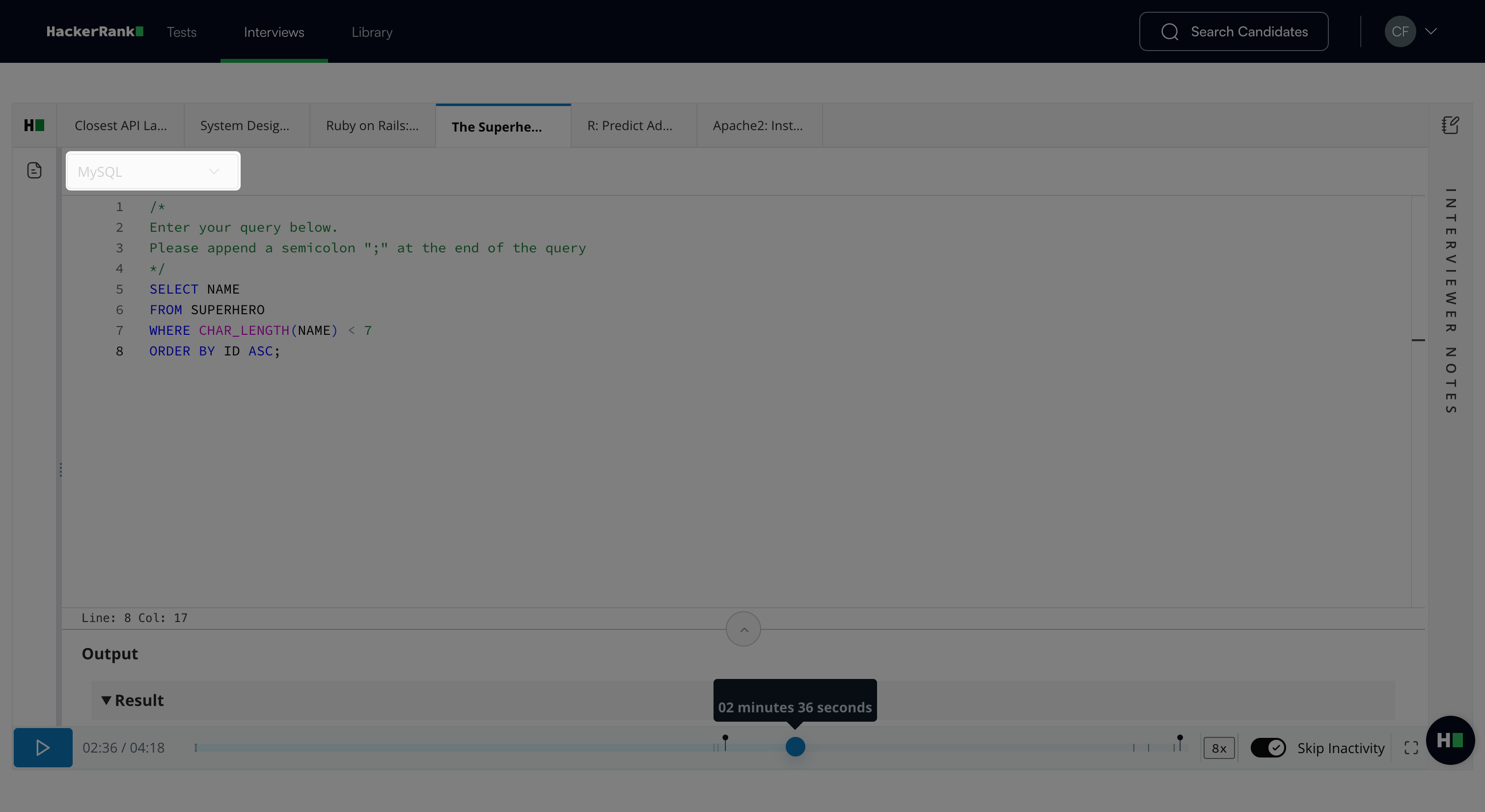
Code Playback: A full recording of the candidate’s activity. You can:
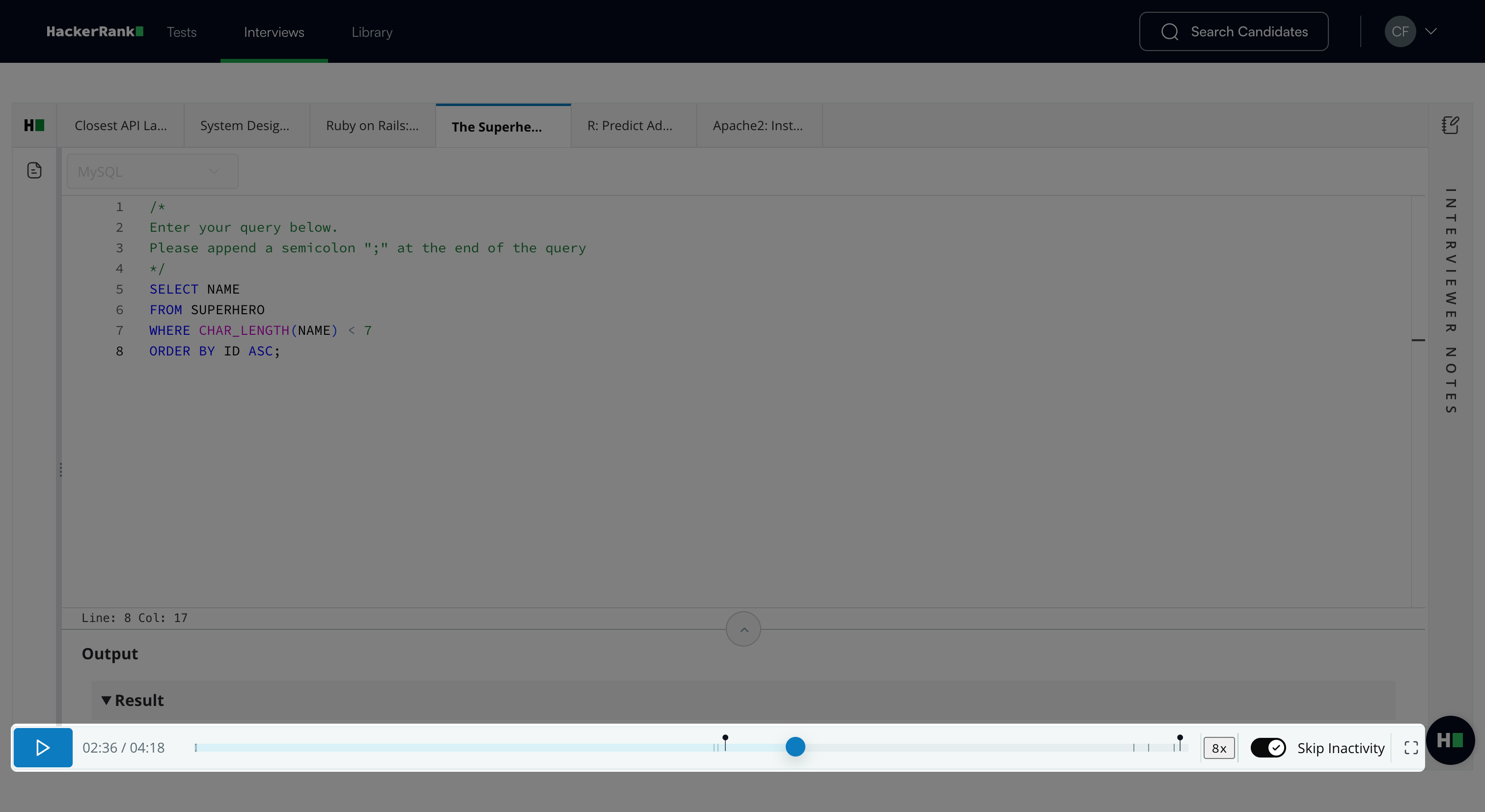
Click the play button to start the playback.
Use the timeline and playback controls to review the candidate’s activity.
Change the playback speed.
Use Skip Inactivity (enabled by default) to skip idle periods.
Click the full-screen icon to view the code in full-screen mode.
Data Science
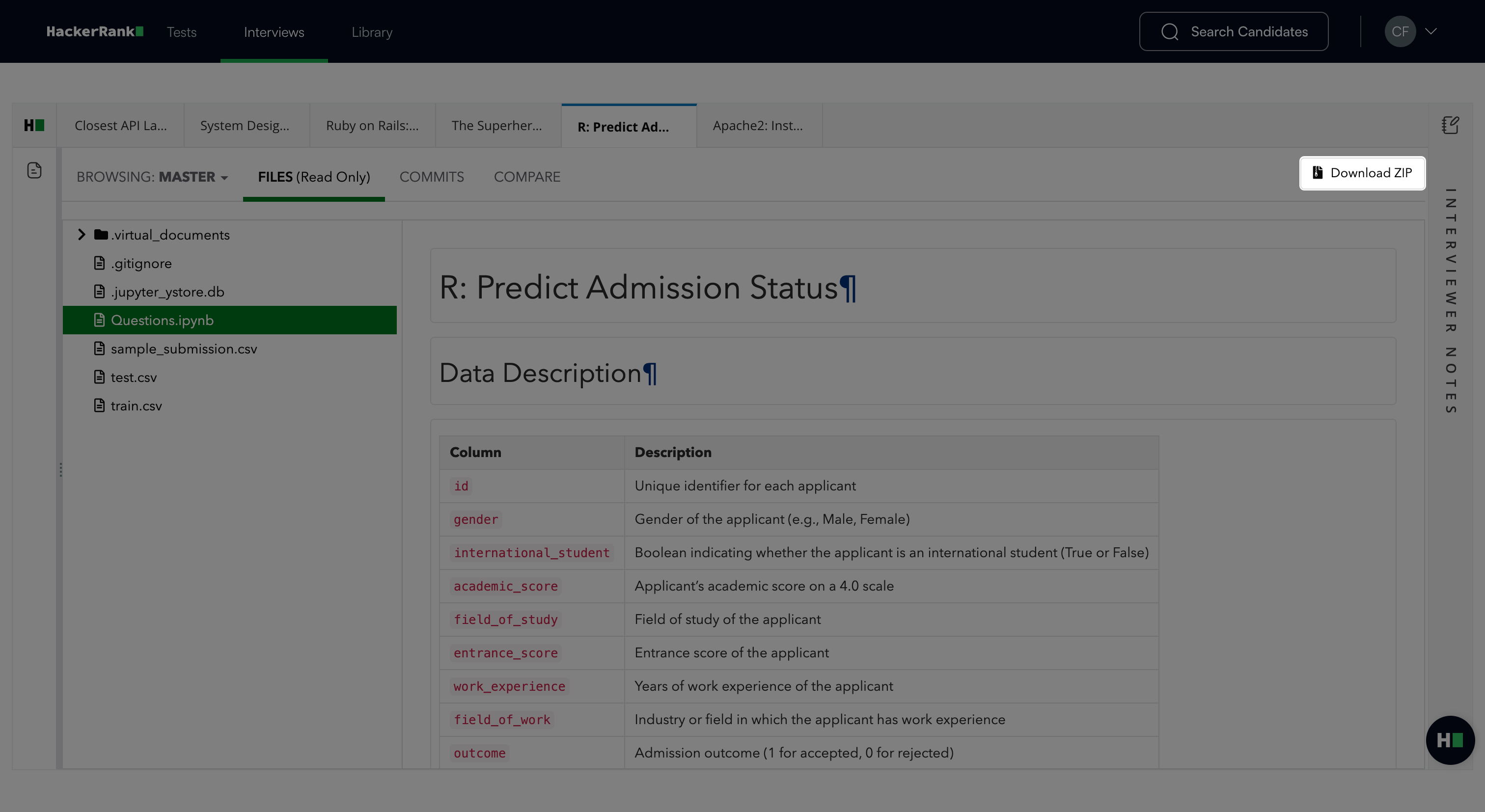
The Data Science response view displays the candidate’s project files, notebook content, commits, and repository changes.
Question Description: Click the question description icon to view the question presented to the candidate.
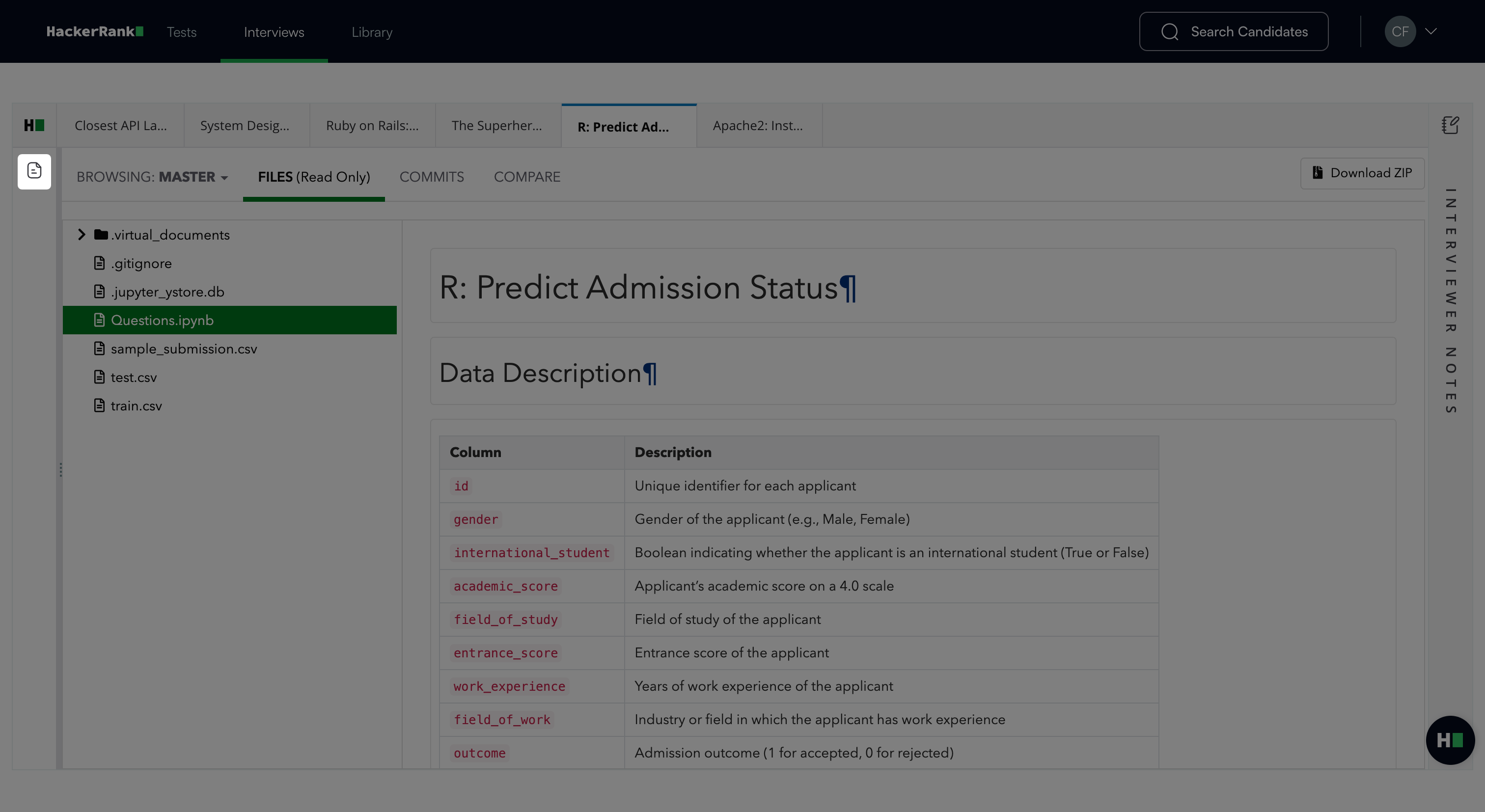
Repository view:
Click FILES (Read Only) to inspect the repository files and the candidate’s changes. This tab opens by default.
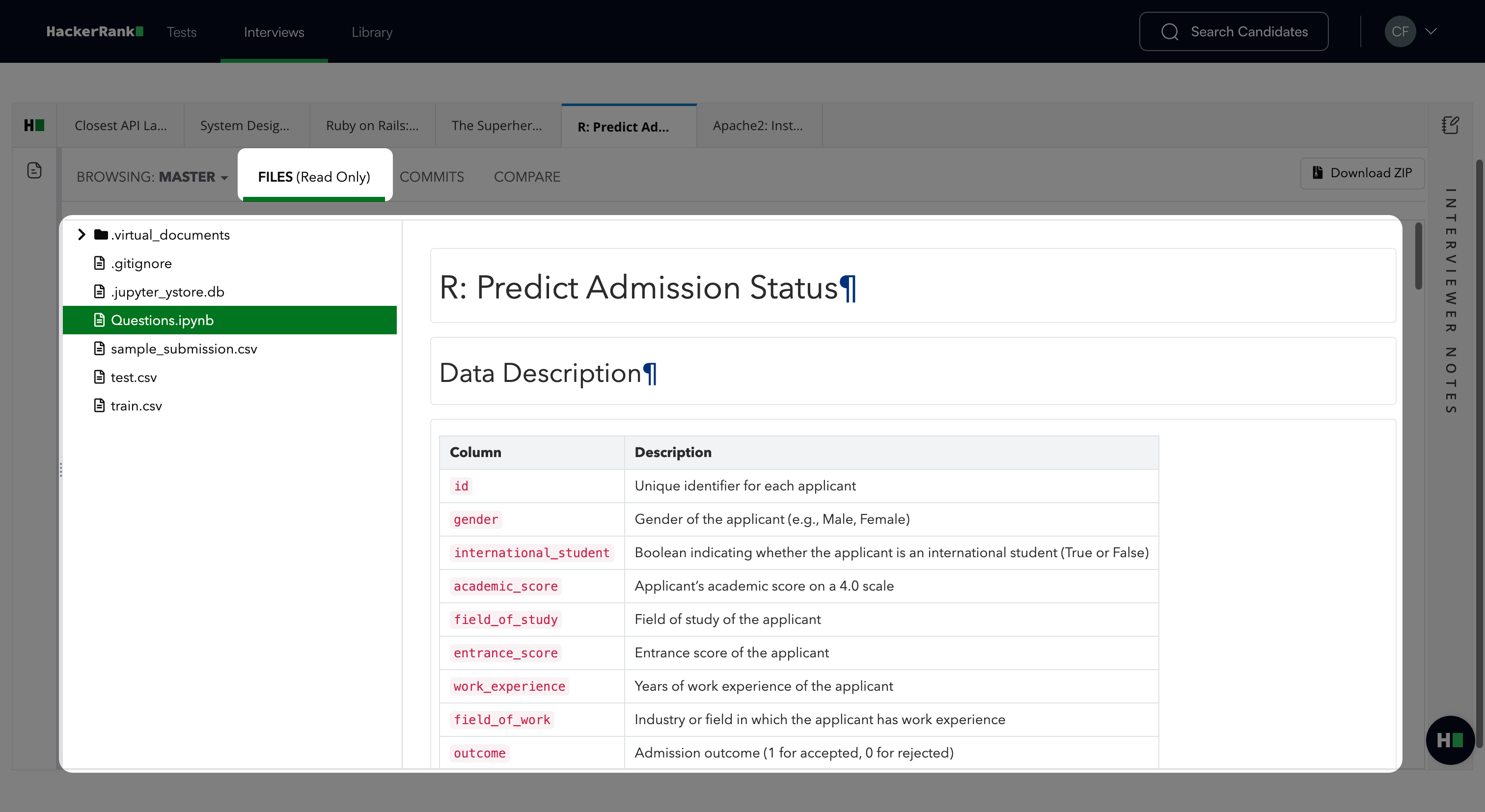
Use the BROWSING drop-down menu to select a repository branch or tag.
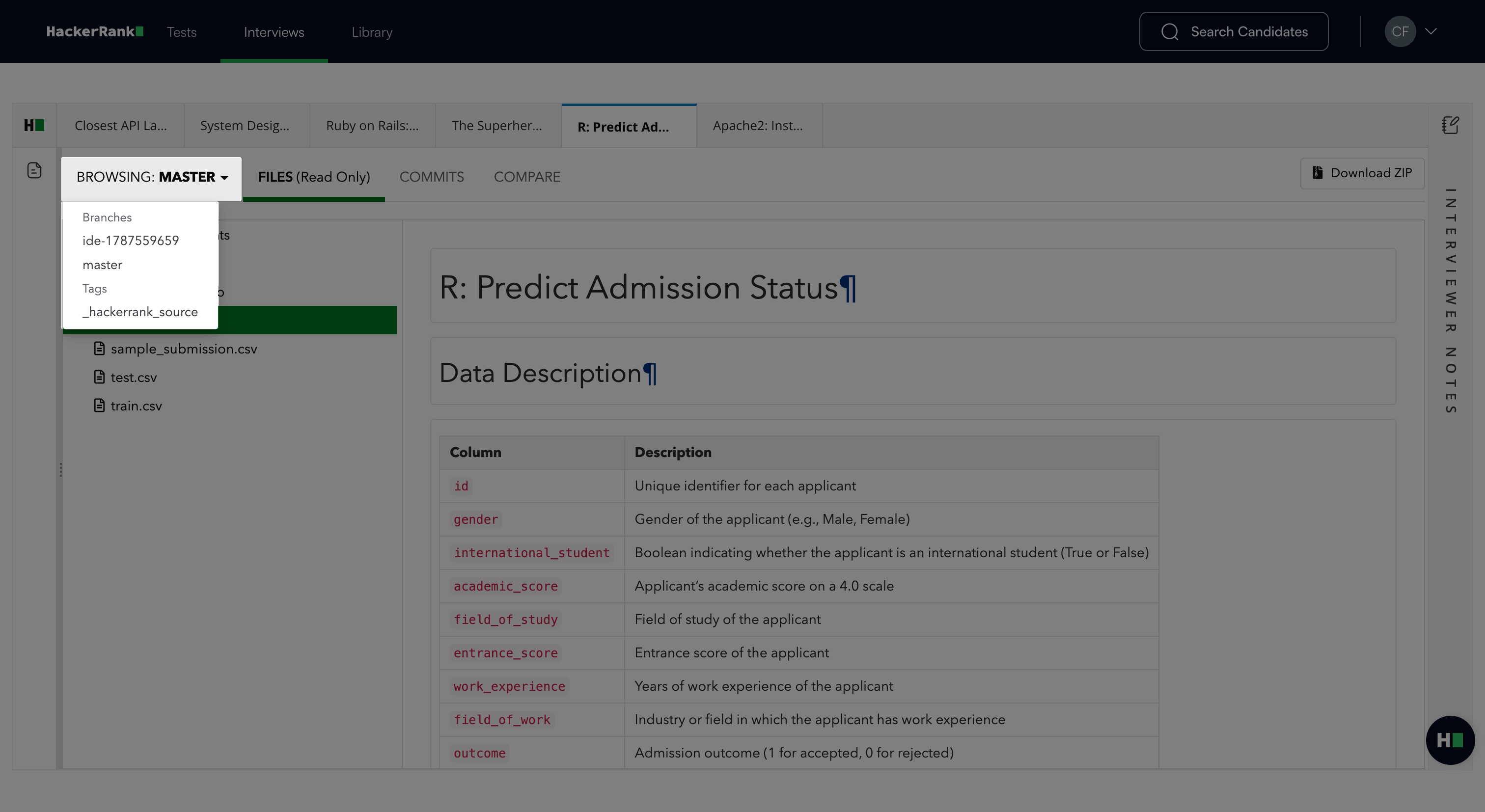
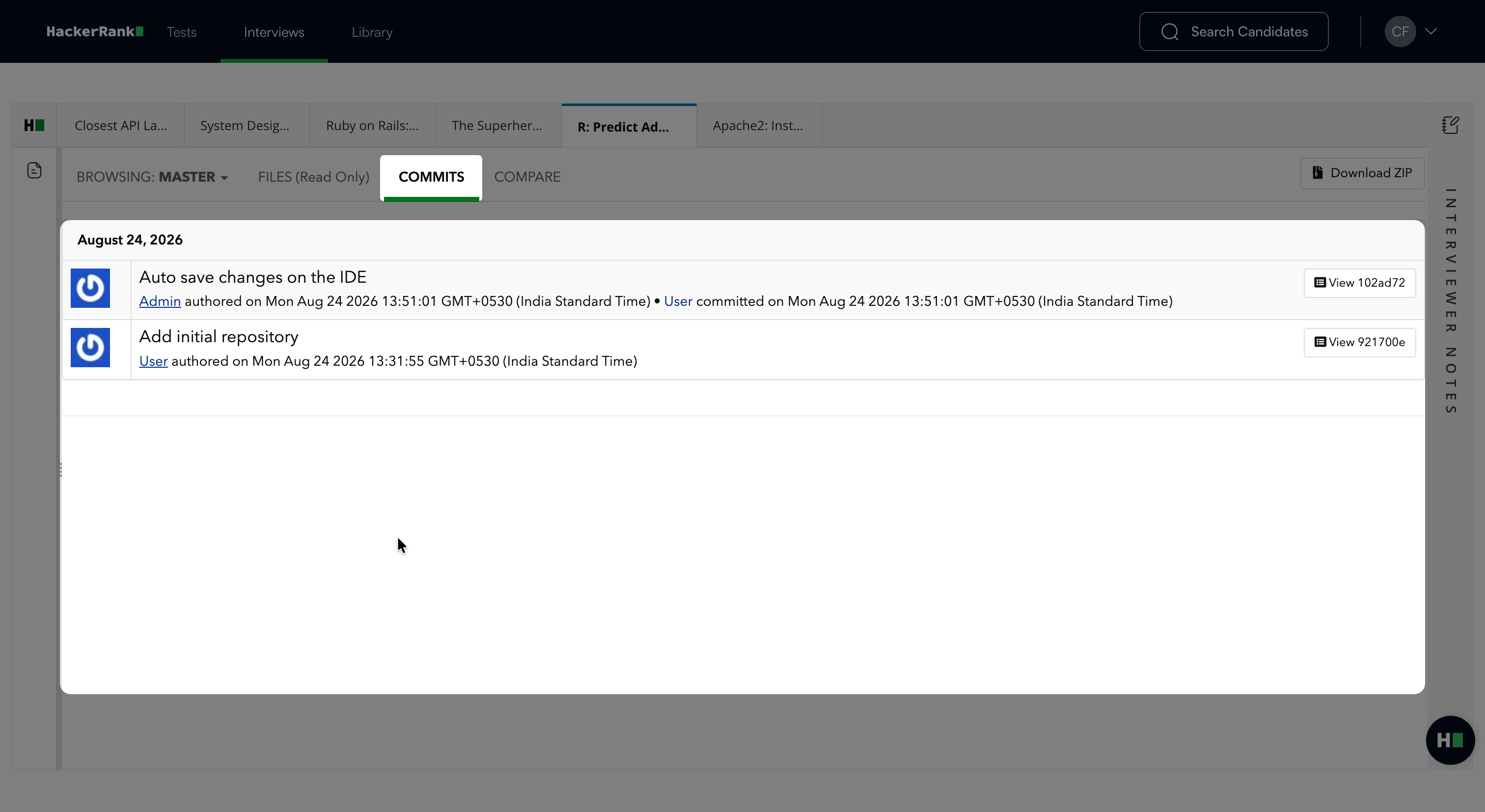
Click COMMITS to view commits made during the interview.
Click COMPARE to review the files and lines that the candidate adds, modifies, or deletes.
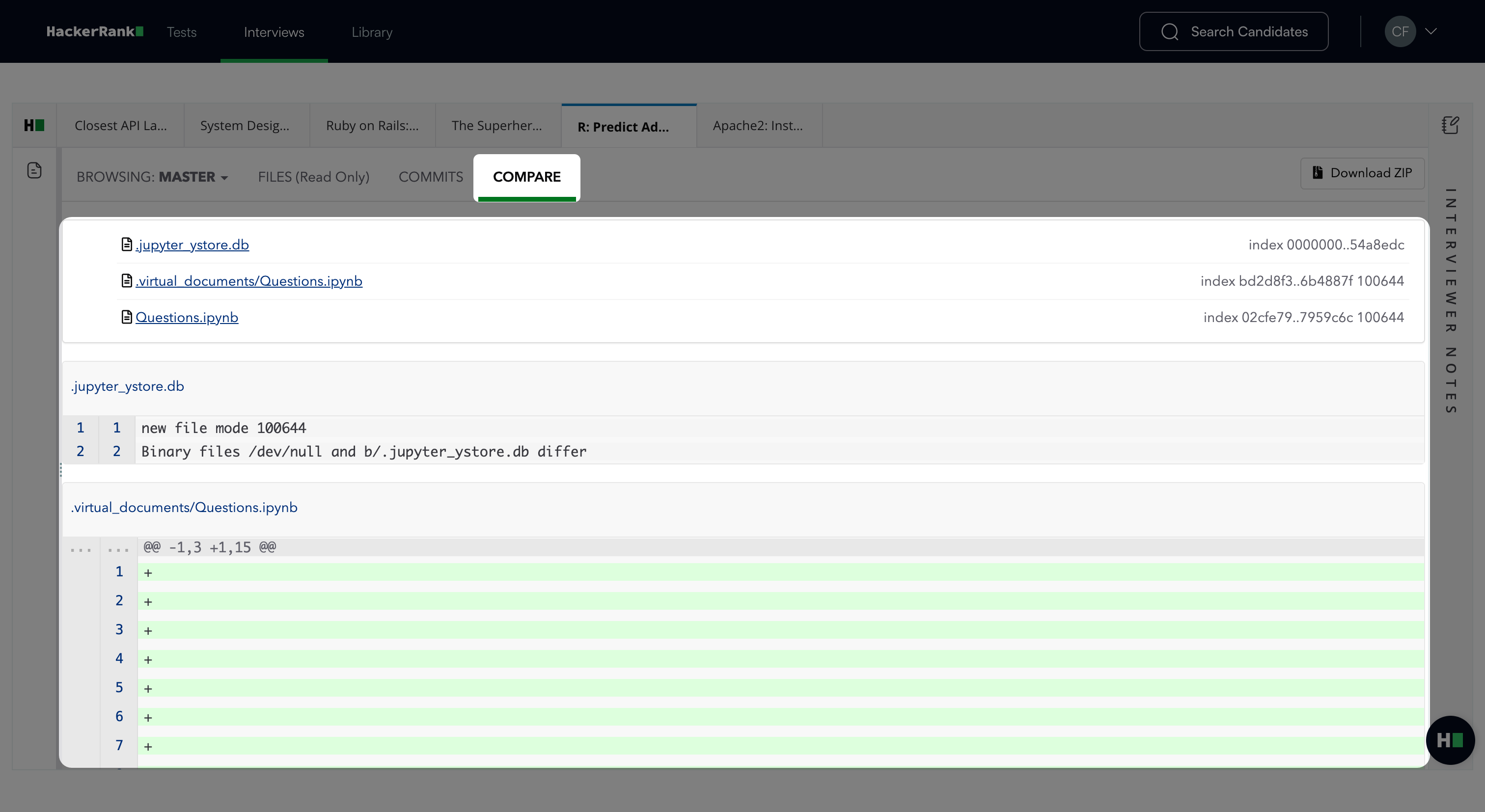
Click Download ZIP to download the candidate’s attempt as a ZIP file.
DevOps
The DevOps response view includes a screen recording of the candidate’s terminal activity.
Question Description: Click the question description icon to view the question presented to the candidate.
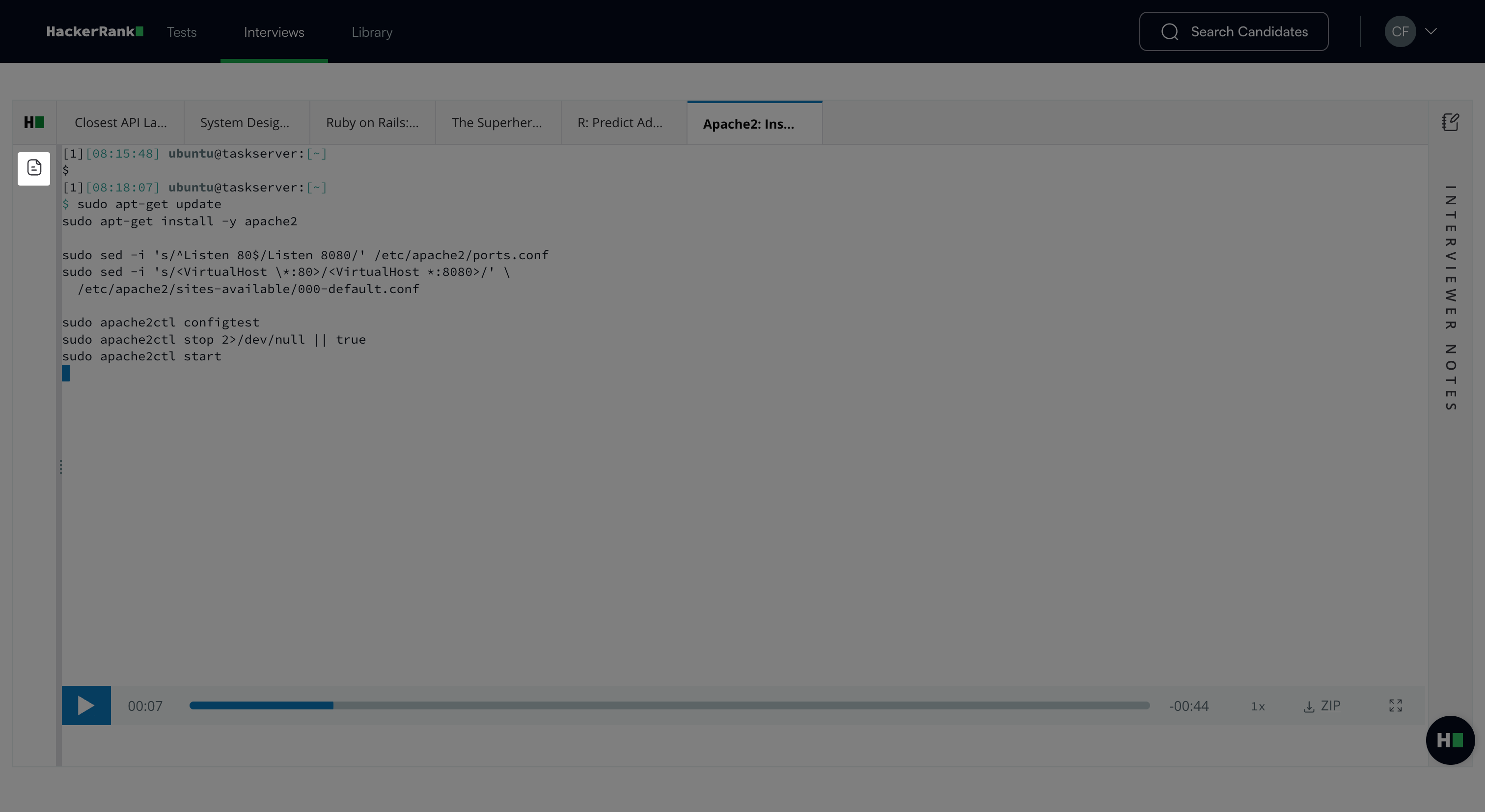
Screen Recording: The candidate answering a question will be recorded on screen and presented to you as a video, enabling you to evaluate the candidate more effectively.
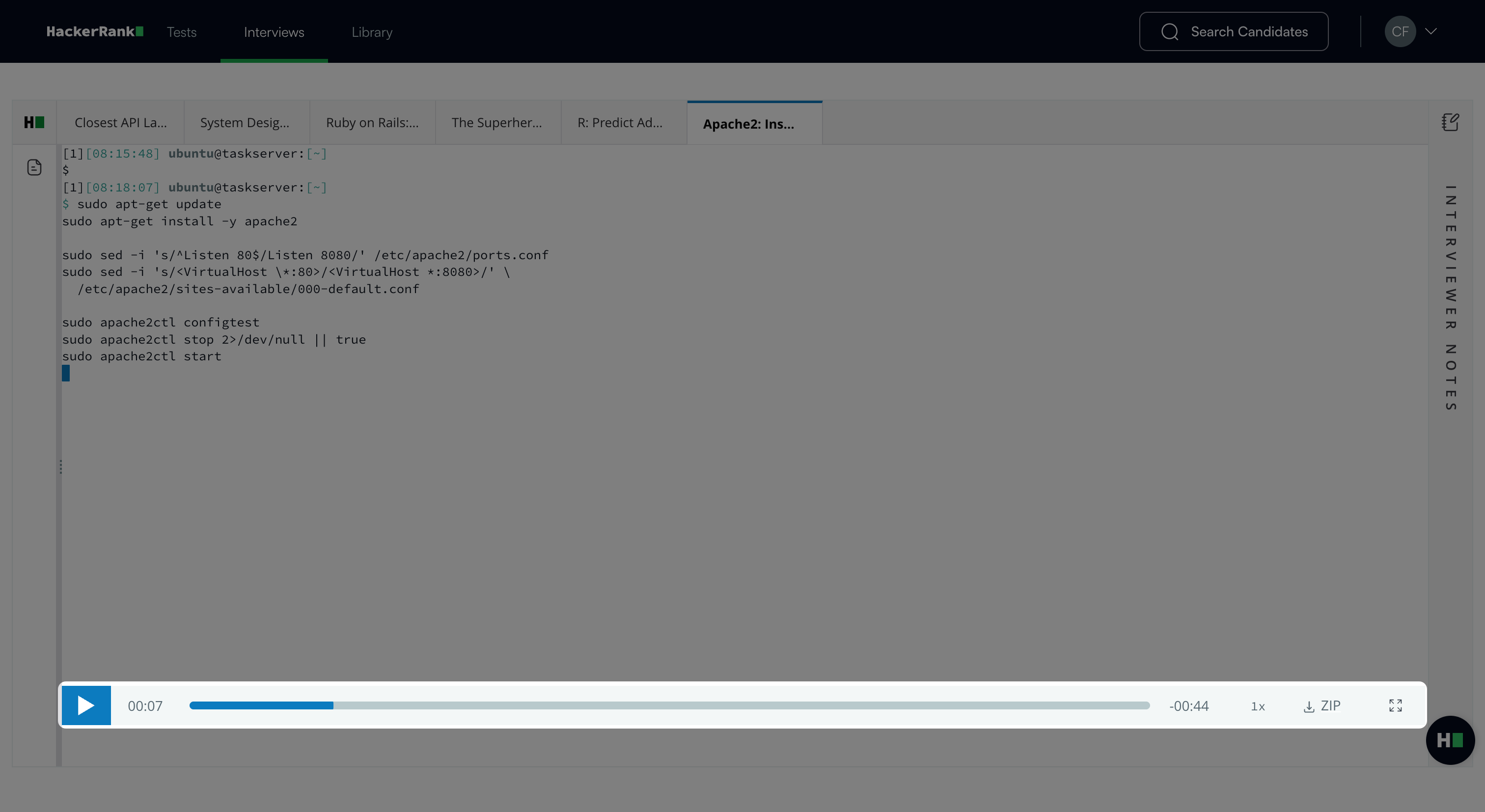
You can view the timeline bar and the playback controls.
You can also control the playback speed by clicking the speed button.
Click the download ZIP icon to download a ZIP file of the attempt.
Interviewer notes
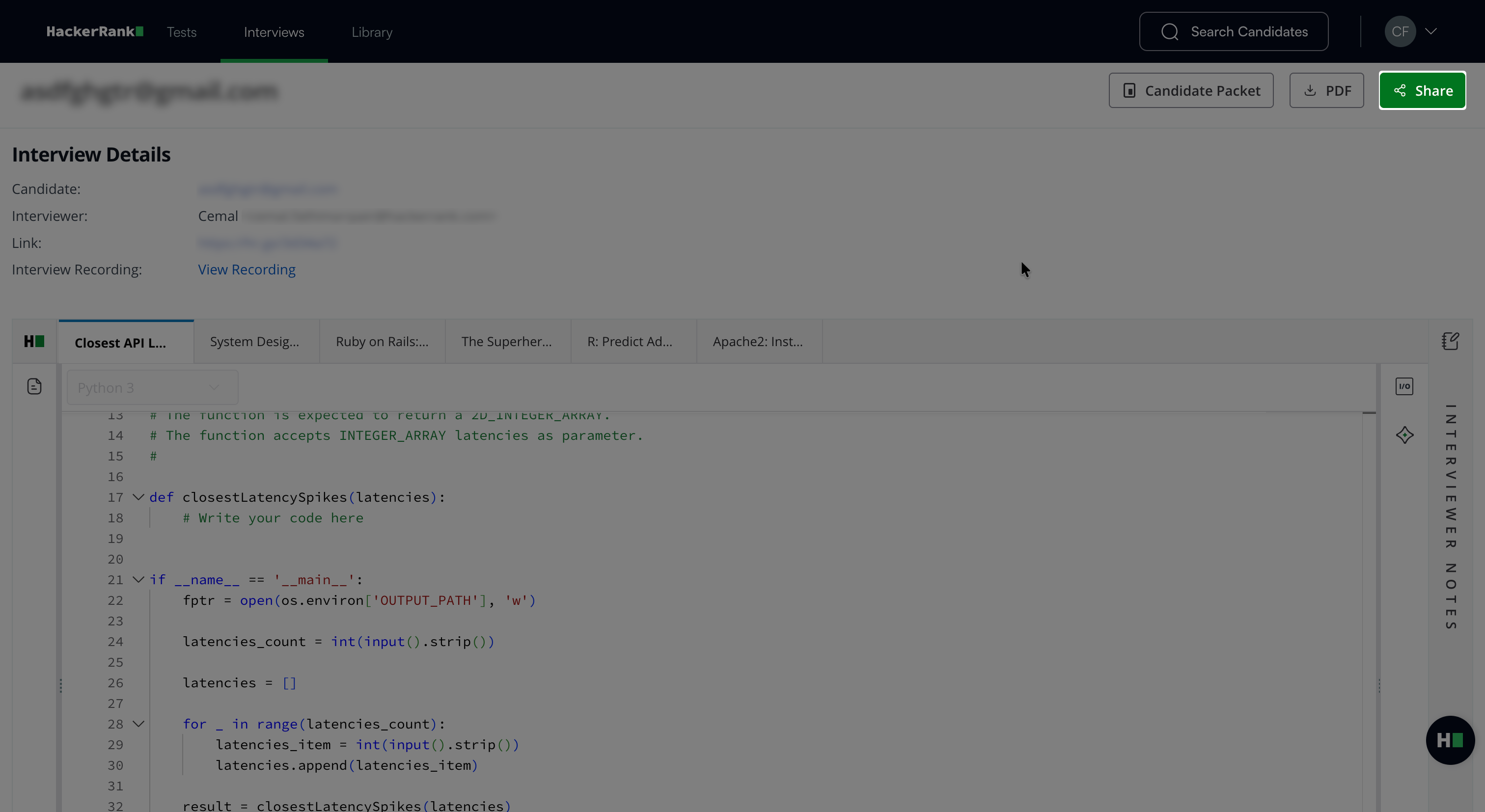
Click Interviewer Notes on the right side of the response view to review notes added during the interview. You can also add notes after the interview ends.
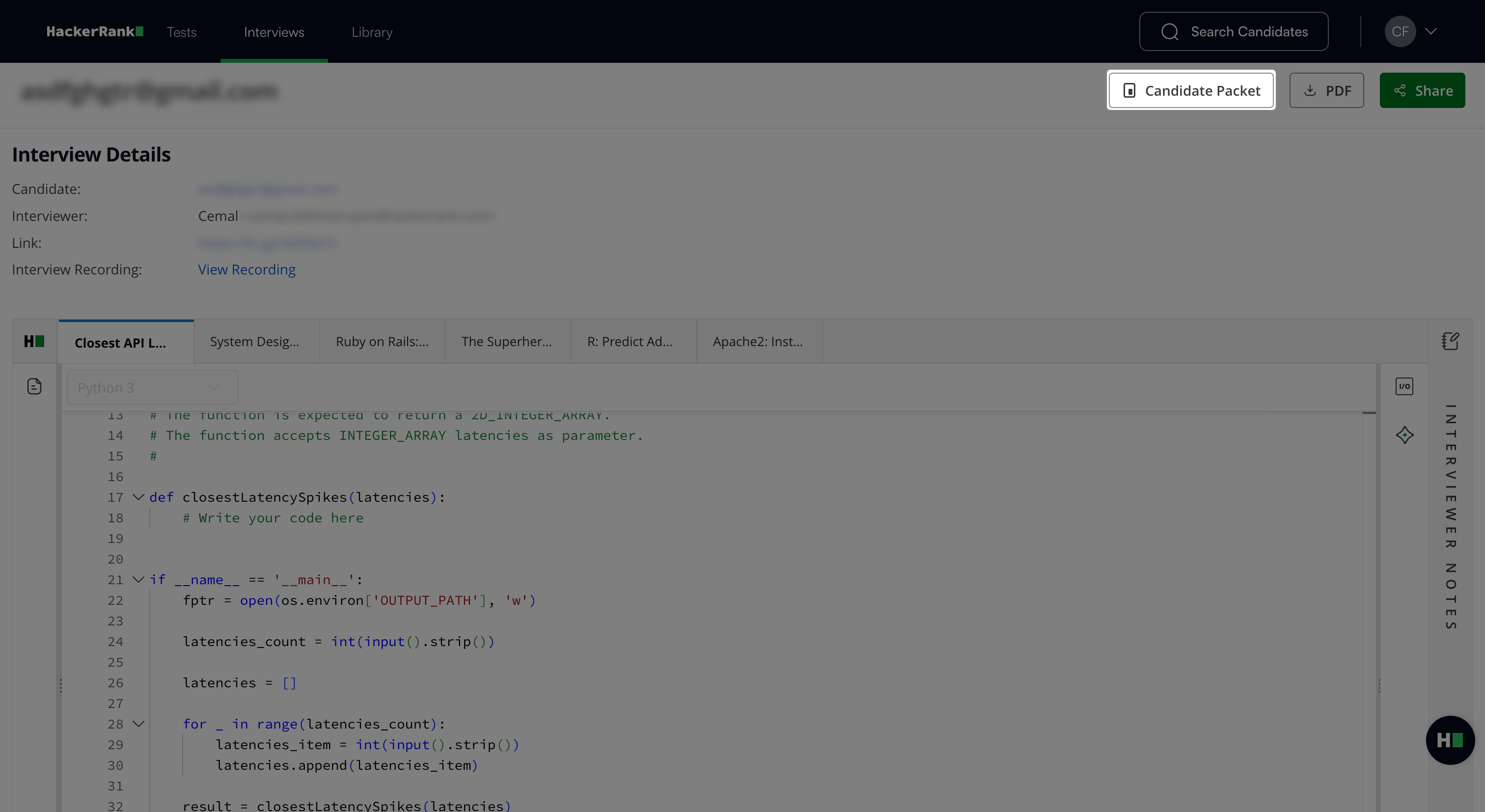
Candidate packet
Click Candidate Packet to view the complete activity timeline of the candidate. For more information, see 📄 Access Candidate Timeline.
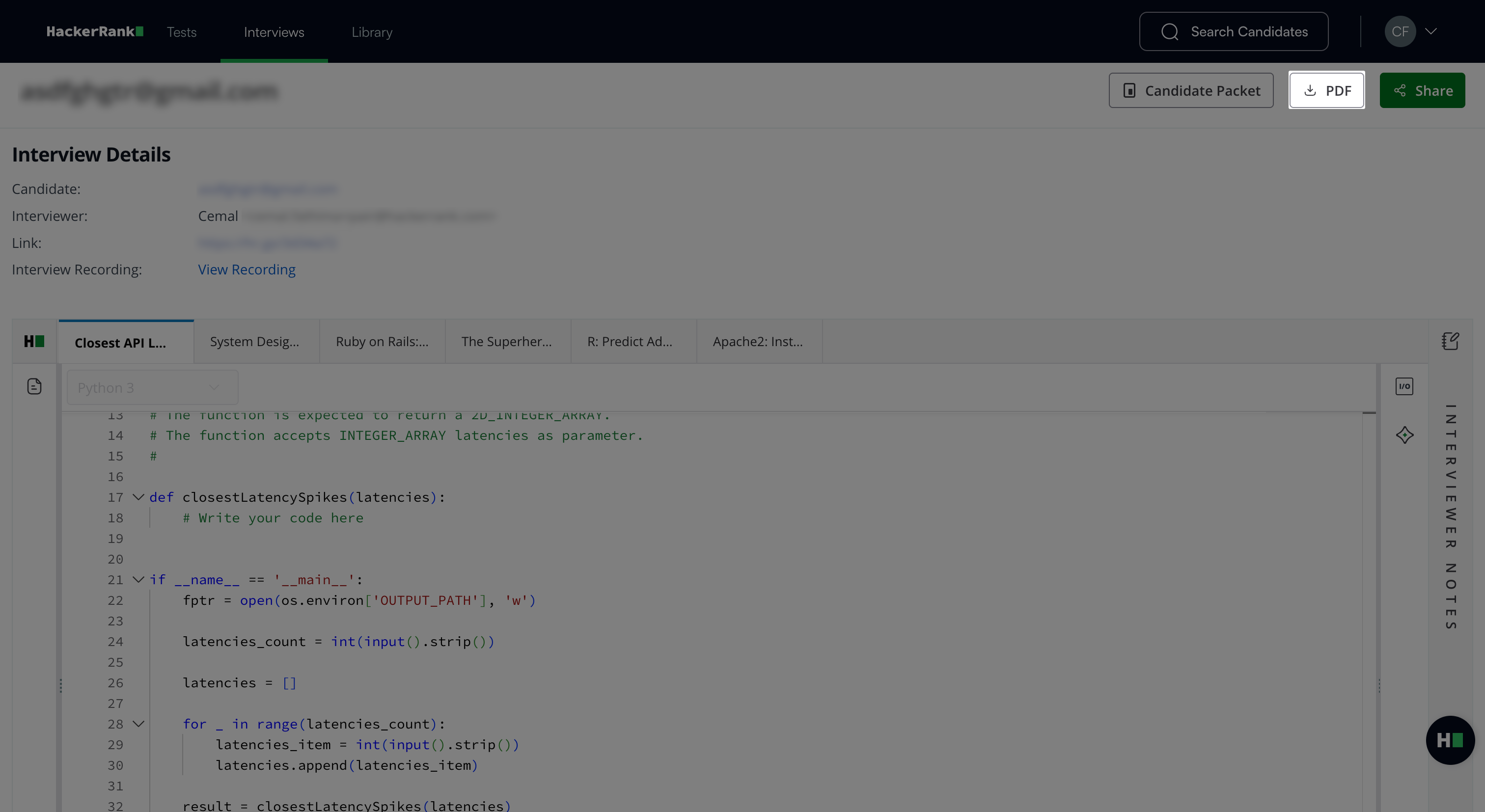
Download PDF
Click PDF to download the interview report as a PDF file.
Share report
Click Share to generate a link to the interview report. Recipients must log in to HackerRank for Work to access the report.