Just-in-Time (JIT) Provisioning for HackerRank SSO
Last updated: March 25, 2026
Just-in-Time (JIT) provisioning allows organizations that use Single Sign-On (SSO) to automatically create and manage user accounts in HackerRank. This feature removes the need to manually preconfigure accounts. When JIT provisioning is enabled, users who sign in with SSO for the first time will automatically have a HackerRank account created and ensures secure access management and a smooth onboarding experience. JIT provisioning does not trigger for non-SSO logins.
Key benefits
JIT provisioning for HackerRank SSO provides the following benefits:
Automated account creation: Users are granted immediate access to HackerRank upon authenticating via SSO, eliminating the need for IT administrators to manually create user accounts.
Improved security and compliance: User access is managed by the organization’s Identity Provider (IdP), ensuring compliance with access control policies.
Seamless user experience: Employees can use their existing corporate credentials to log in without requiring additional usernames and passwords.
How JIT provisioning works
The following steps describe how JIT provisioning functions in HackerRank:
User initiates login: The user navigates to HackerRank and selects the SSO login option.
Note: JIT provisioning runs only during SSO login. If users log in without SSO, HackerRank does not create user accounts automatically.
Identity verification: The login request is redirected to the organization’s Identity Provider (IdP), where the user enters their corporate credentials.
SSO authentication: After successful verification, the IdP sends a SAML assertion with user attributes to HackerRank.
Automatic account creation: If JIT provisioning is enabled and the user does not already have an account, HackerRank creates one automatically using the attributes provided by the IdP.
Access granted: The user is logged in to HackerRank and can begin using the platform immediately.
Prerequisites
Your organization has an Enterprise plan with HackerRank.
You must have an active HackerRank for Work account with Company admin access.
You must configure SSO using SAML before you use JIT provisioning.
Enabling JIT provisioning in HackerRank
To enable JIT provisioning:
Log in to HackerRank using a Company Admin account.
Go to the Settings > Single Sign On.
In the Just-in-Time provisioning section, enter the email domain(s) that should be routed through SSO. For example, hackerrank.com.
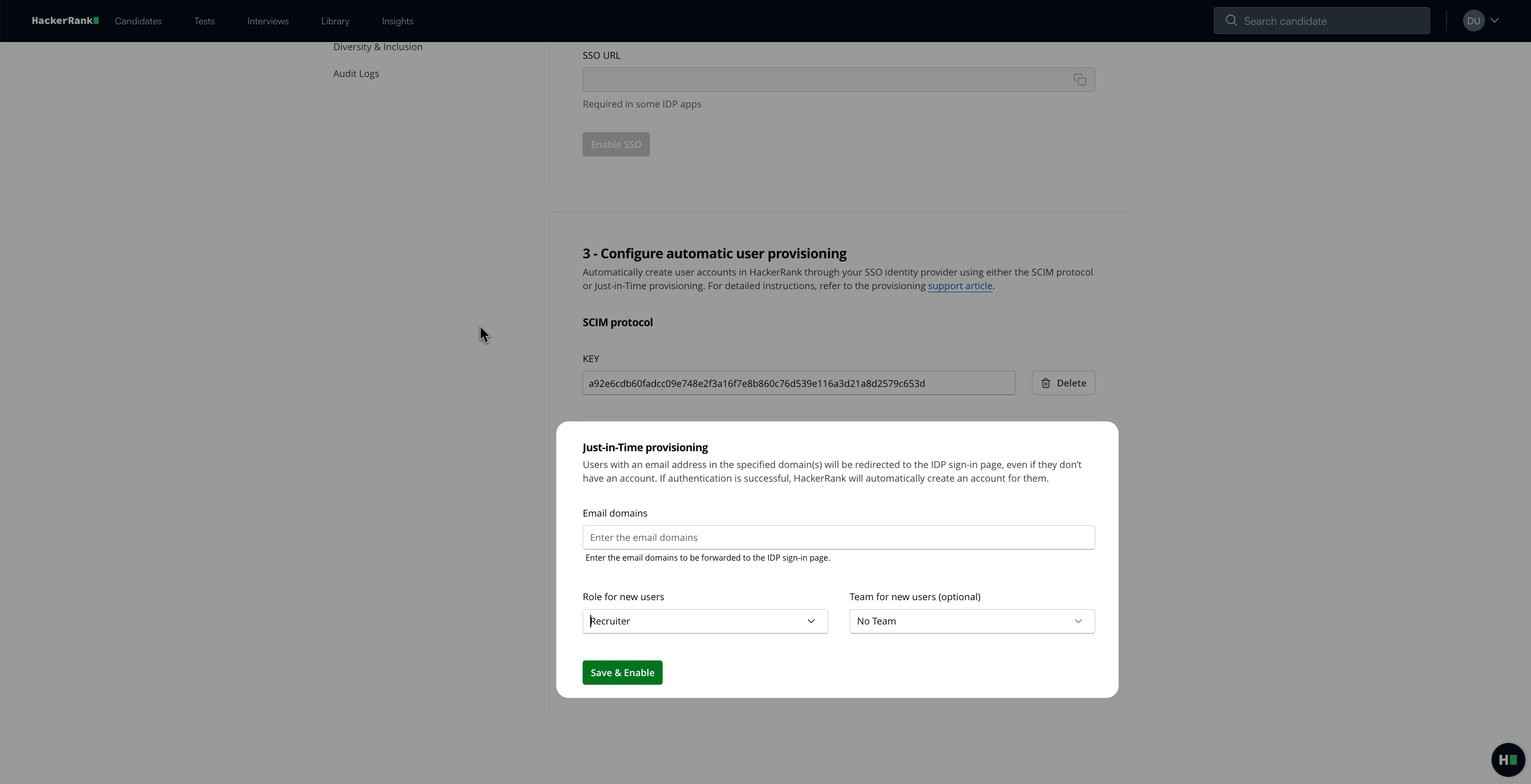
Select a default role and team (optional) for new users.
Click Save & Enable
Note: Ensure that your IdP sends the following attributes in the SAML assertion:
emailfirst_namelast_name
User attributes for JIT provisioning
For JIT provisioning to work correctly, the IdP must include the following user attributes in the SAML response:
Email: The user’s work email address. This must be unique for each user.
First name: The user’s first name
Last name: The user’s last name
Groups (optional): Details such as user roles or departments. Used for organizing or assigning roles.
Configuring JIT provisioning with common IdPs
The following sections describe how to configure JIT provisioning for commonly used IdPs.
AWS IAM Identity Center (AWS SSO)
To configure:
Log in to the AWS IAM Identity Center.
Create or configure a SAML 2.0 application for HackerRank, and set up the service provider (SP) details.
Map user attributes as follows:
email→ EmailgivenName→ First Namesurname→ Last Name
Enable JIT provisioning in HackerRank and verify that AWS IAM Identity Center is sending the correct attributes.
Microsoft Entra ID (Azure AD)
To configure:
Log in to the Azure Portal.
Go to the Azure Active Directory.
Create a new Enterprise Application and select Non-Gallery Application.
Configure SSO using the SAML protocol.
Map user attributes as follows:
user.mail→ Emailuser.givenname→ First Nameuser.surname→ Last Nameuser.groups(optional) → Groups
Enable JIT provisioning in HackerRank and verify that Azure AD is sending the correct attributes.
Google Cloud Identity/Google Workspace
To configure:
Log in to the Google Admin console.
Go to Apps > SAML Apps and add HackerRank as a new SAML application.
Configure SSO URLs and the service provider entity ID.
Map user attributes as follows:
Basic Information > Primary Email → Email
Basic Information > First Name → First Name
Basic Information > Last Name → Last Name
Enable JIT provisioning in HackerRank and verify successful sign-in using the mapped attributes.
Troubleshoot JIT provisioning issues
If users experience problems with JIT provisioning, try the following troubleshooting steps:
User Not Created?
Ensure that the IdP is correctly configured to send the required attributes.Incorrect Role Assignments?
Confirm that the IdP is sending the correct group or role information.Login Failure?
Review the SAML assertion logs in your IdP to verify that the authentication was successful.
If you need further assistance, contact us at support@hackerrank.com.