Use Templates in Interviews
Last updated: June 5, 2026
You can use and manage templates during an interview.
Note: If you selected a template when creating the interview, it loads automatically when the interview opens. If you did not select a template, the default interview screen appears. For more information, see 📄 Create an Interview.
Opening a template during an interview
To open a template during an Interview:
Open the interview and go to the Templates section in the left pane.
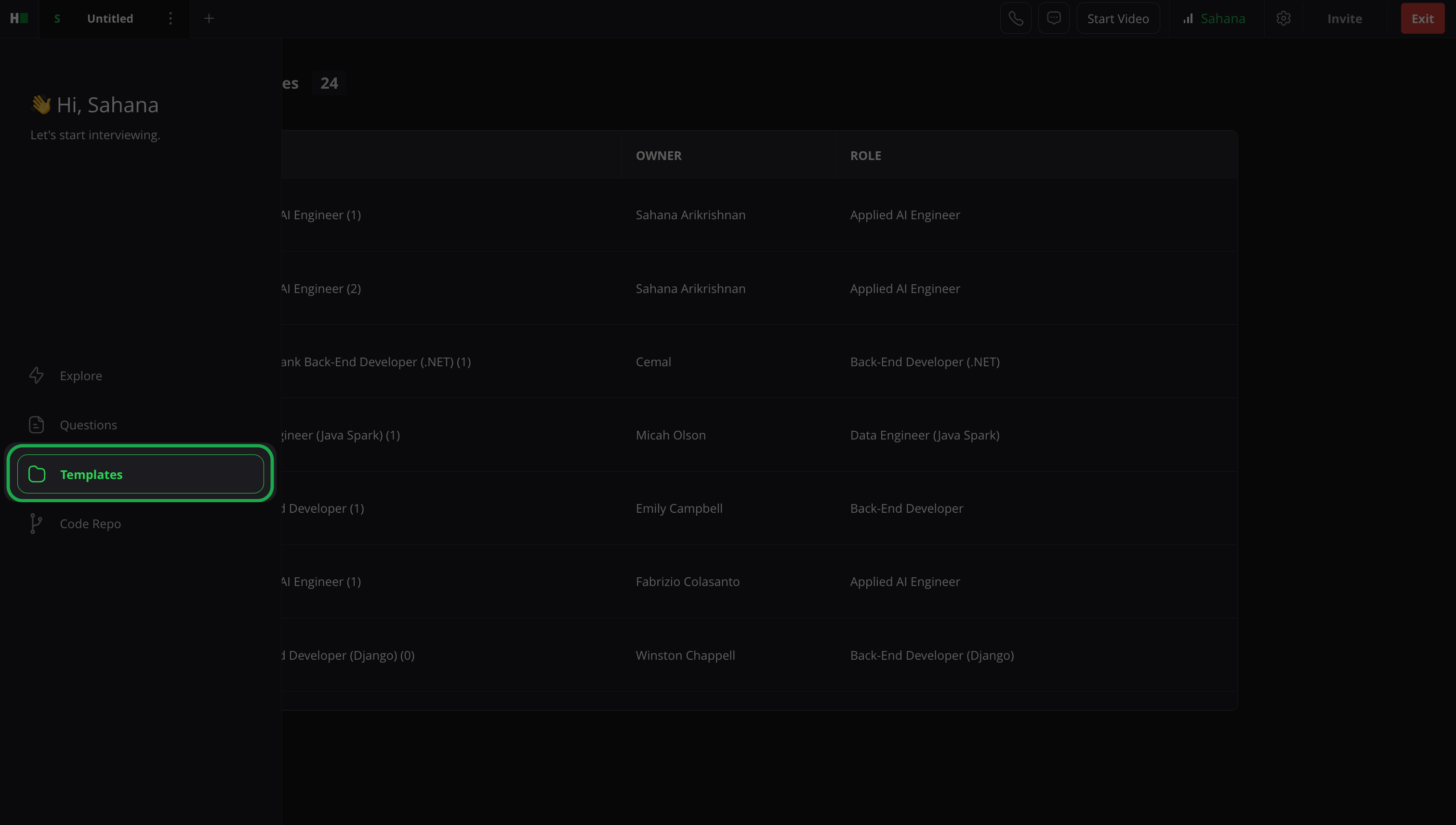
Select the template you want to use. Each template displays its associated questions.
Add questions to the interview by doing one of the following:
Select Use All to add every question in the template. You can use this option only for templates that contain five or fewer questions.
Select Use for the specific question to add only that question.
Opening a template using custom interview link
For a custom interview link, you can add a template by replacing the question parameter, questions&r_id=*question id*, with the interview template parameter, interview_template&r_id=*template id*.
Manage templates during an interview
You can update templates directly from the interview interface.
Add questions to a template
You can update templates during an interview by adding new questions from the Question Library.
To add a question to a template:
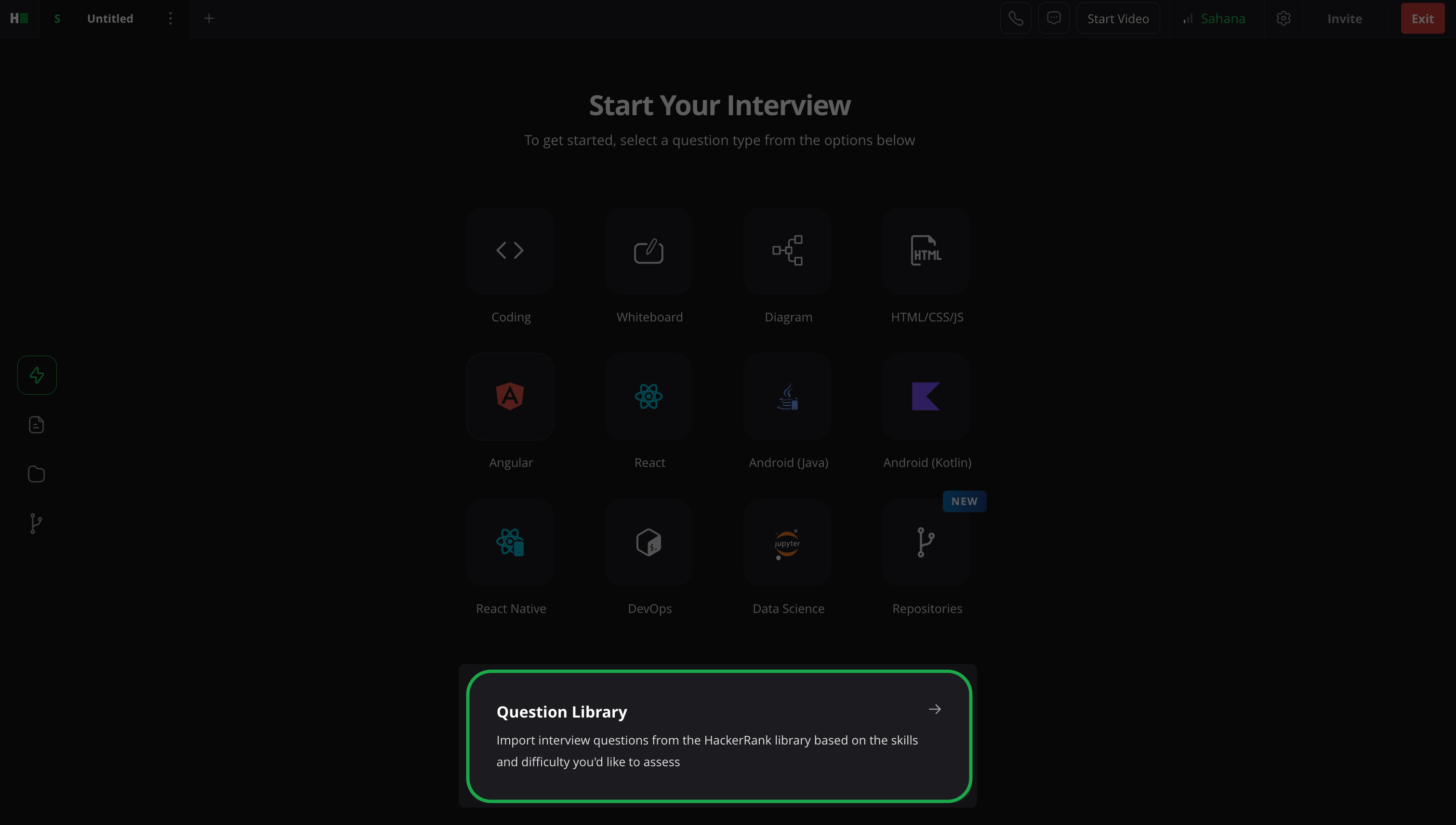
Open the Question Library from the Interview start page, or select Questions in the left pane.
Select a question and click the (+) icon.
Select the checkbox for the template you want to update. The question is added to the selected template.
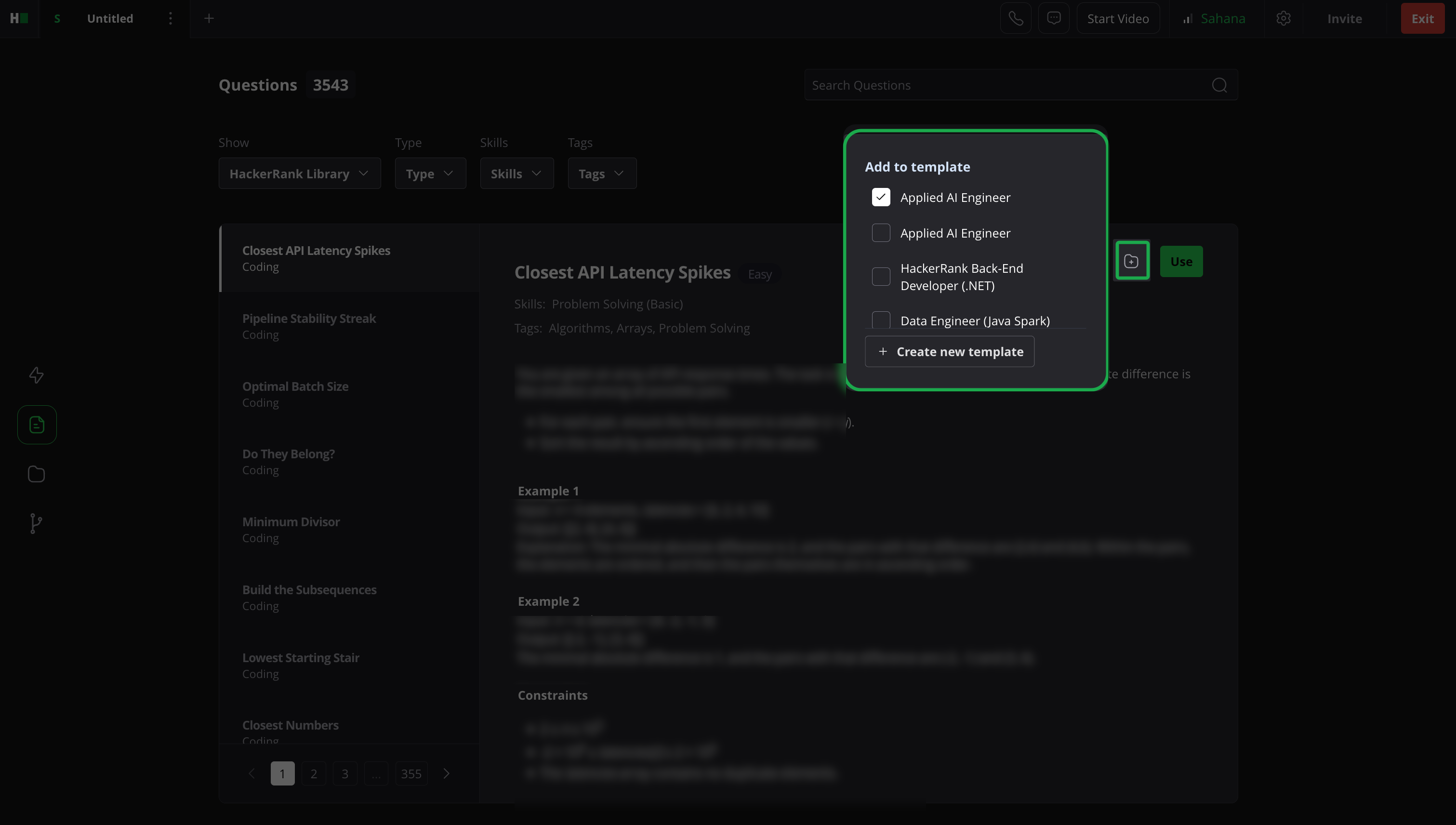
Note: You can also select Create new template to create a new template from the interview interface. Enter a template name and choose a role. After you create the template, add the question to it using the same (+) icon workflow.
Renaming a template
To rename a template during an interview:
Open the interview and go to the Templates section in the left pane.
Select the template you want to rename.
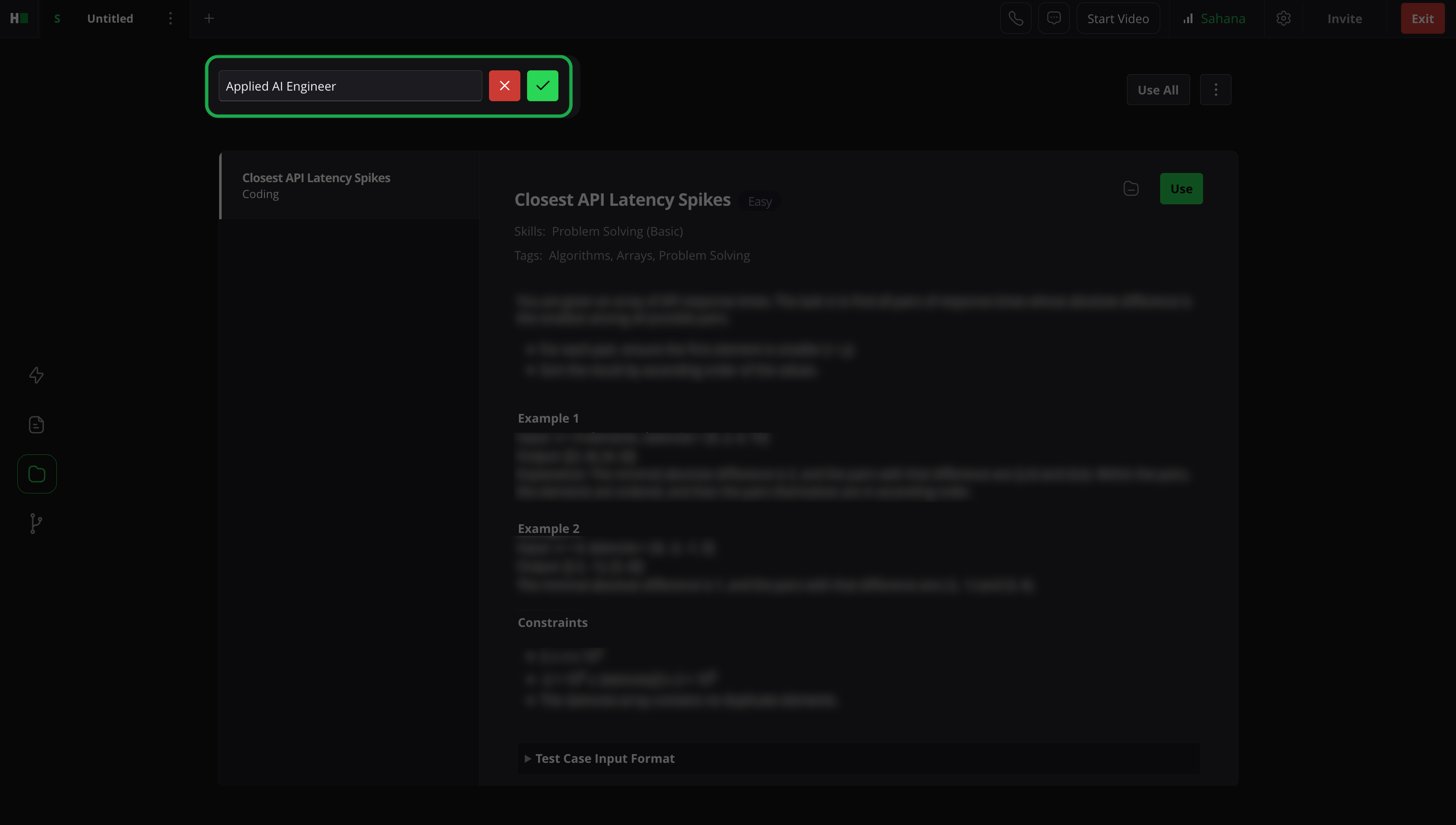
Select the edit icon next to the template name.
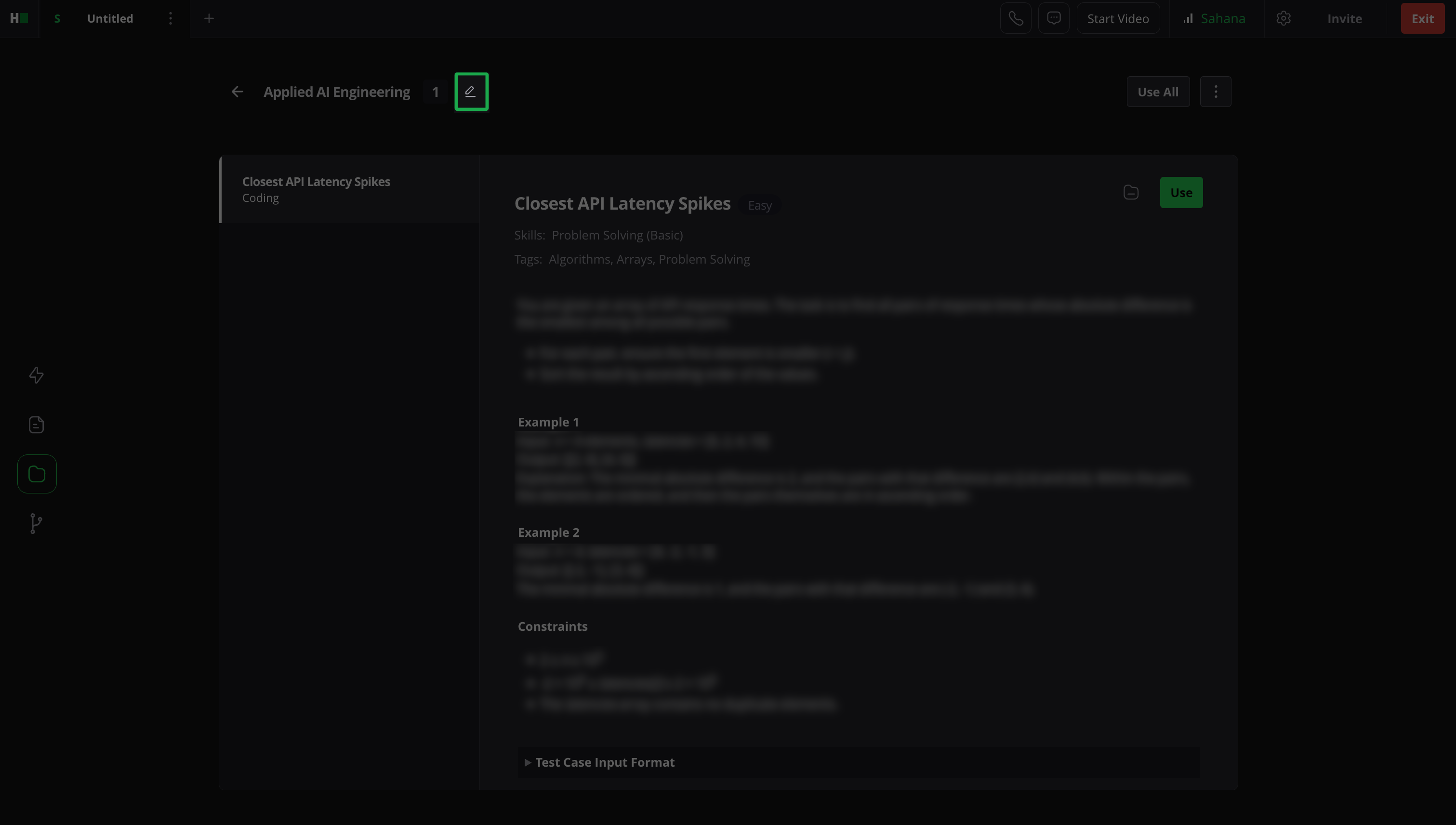
Enter the new name and click the checkmark icon to save it. A success message appears.
Removing a question from a template
To remove a question from template during an interview:
Open the interview and go to the Templates section in the left pane.
Select the template you want to update.
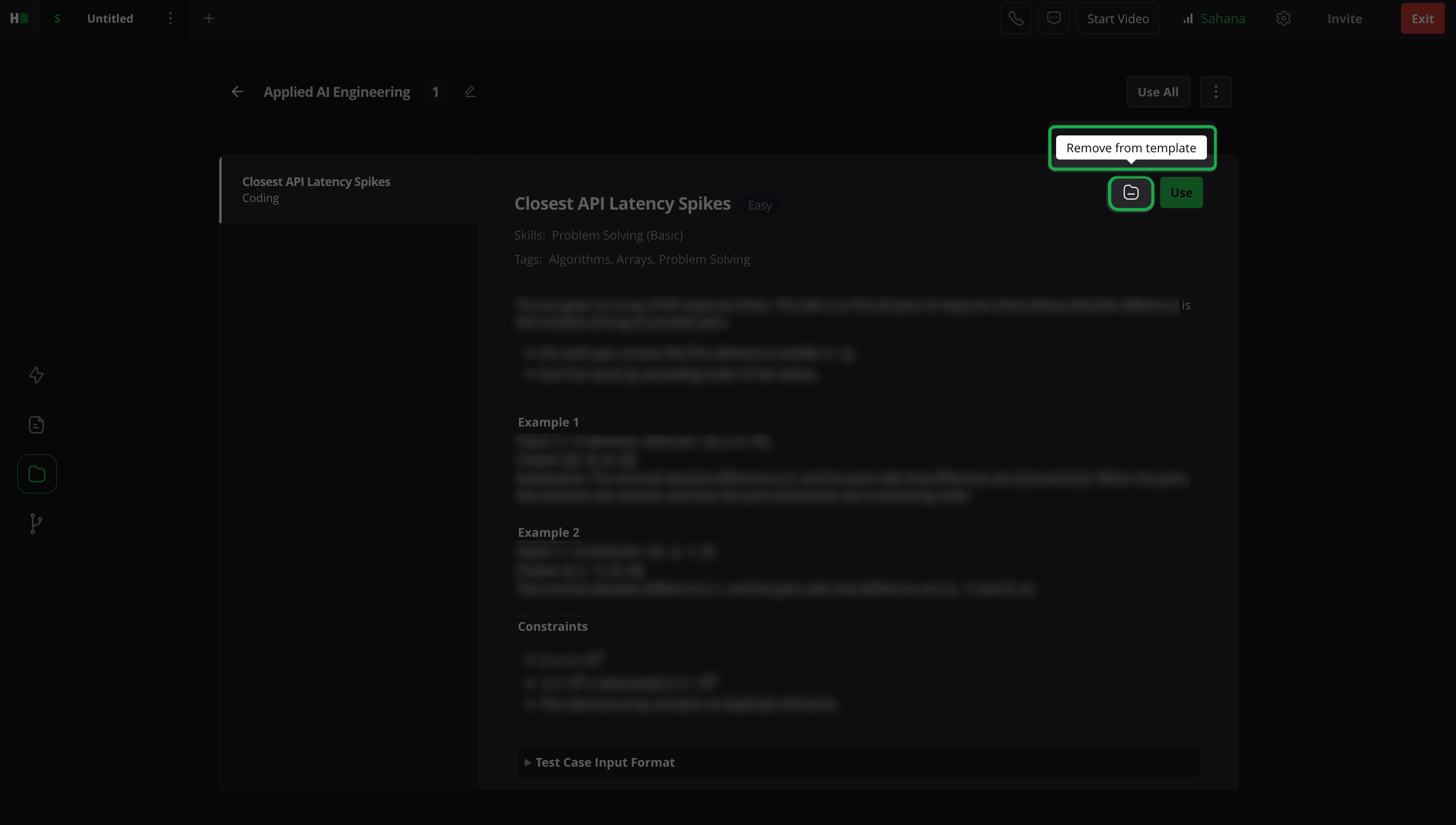
Select the (-) icon for the question you want to remove.
Deleting a template
To delete a template during an interview:
Open the interview and go to the Templates section in the left pane.
Select the template you want to delete.
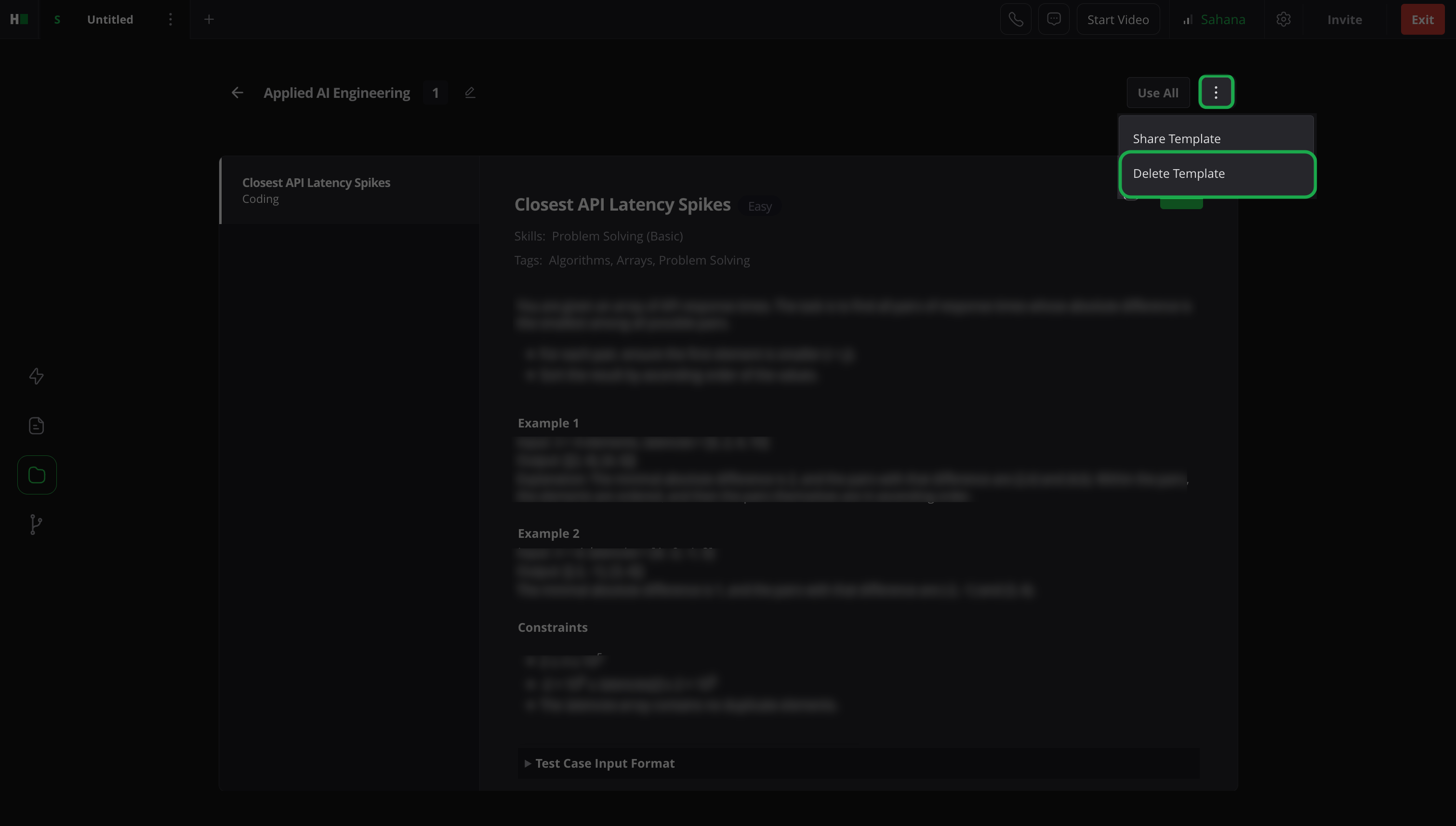
Click the More options menu (⋮) in the upper-right corner and select Delete Template.
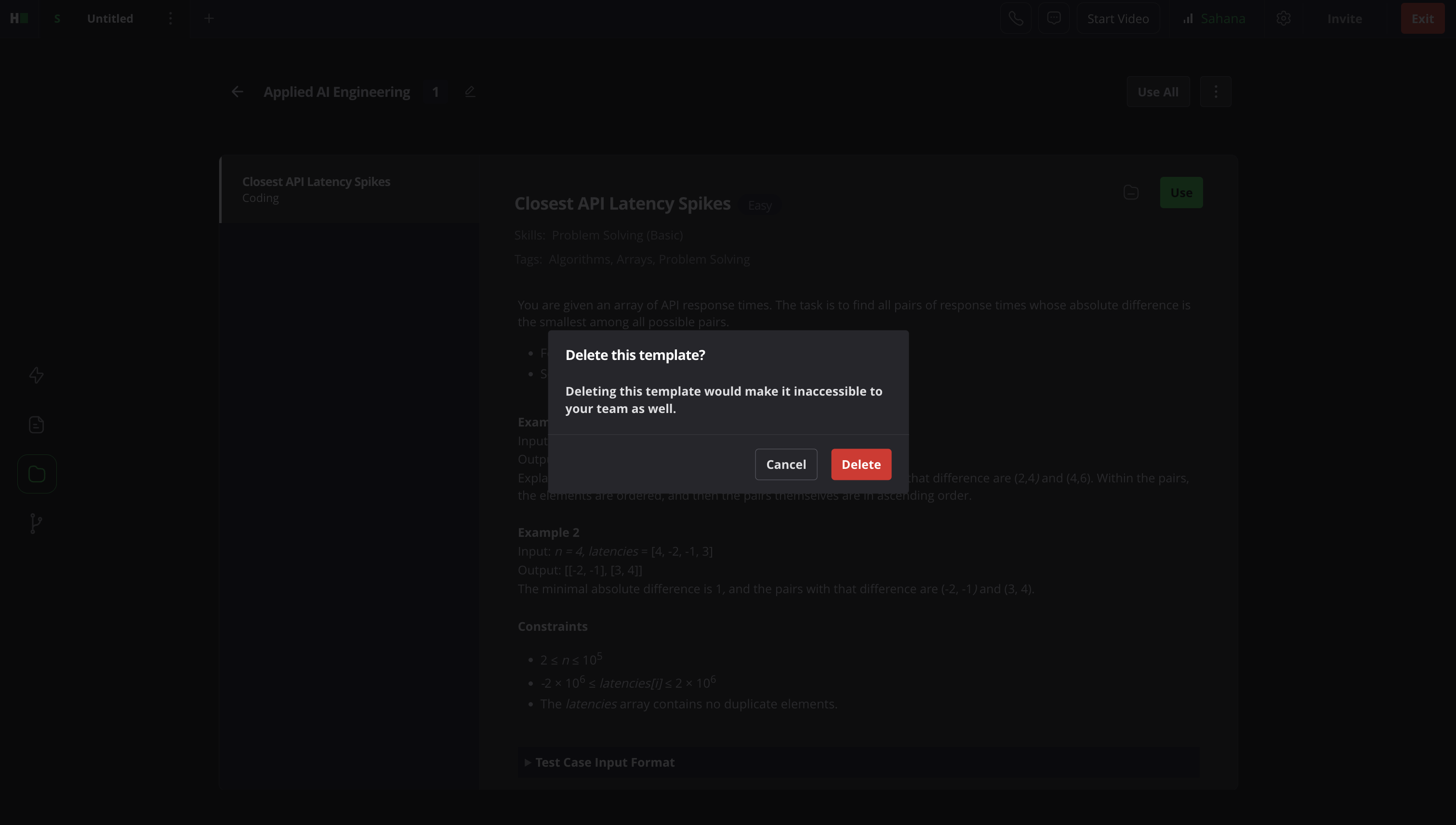
Click Delete in the confirmation dialog.
Note: For more information about managing templates, see 📄 Manage Interviews Templates