View Candidate Test Summary Report
Last updated: January 28, 2026
HackerRank provides two versions of the candidate Summary Report:
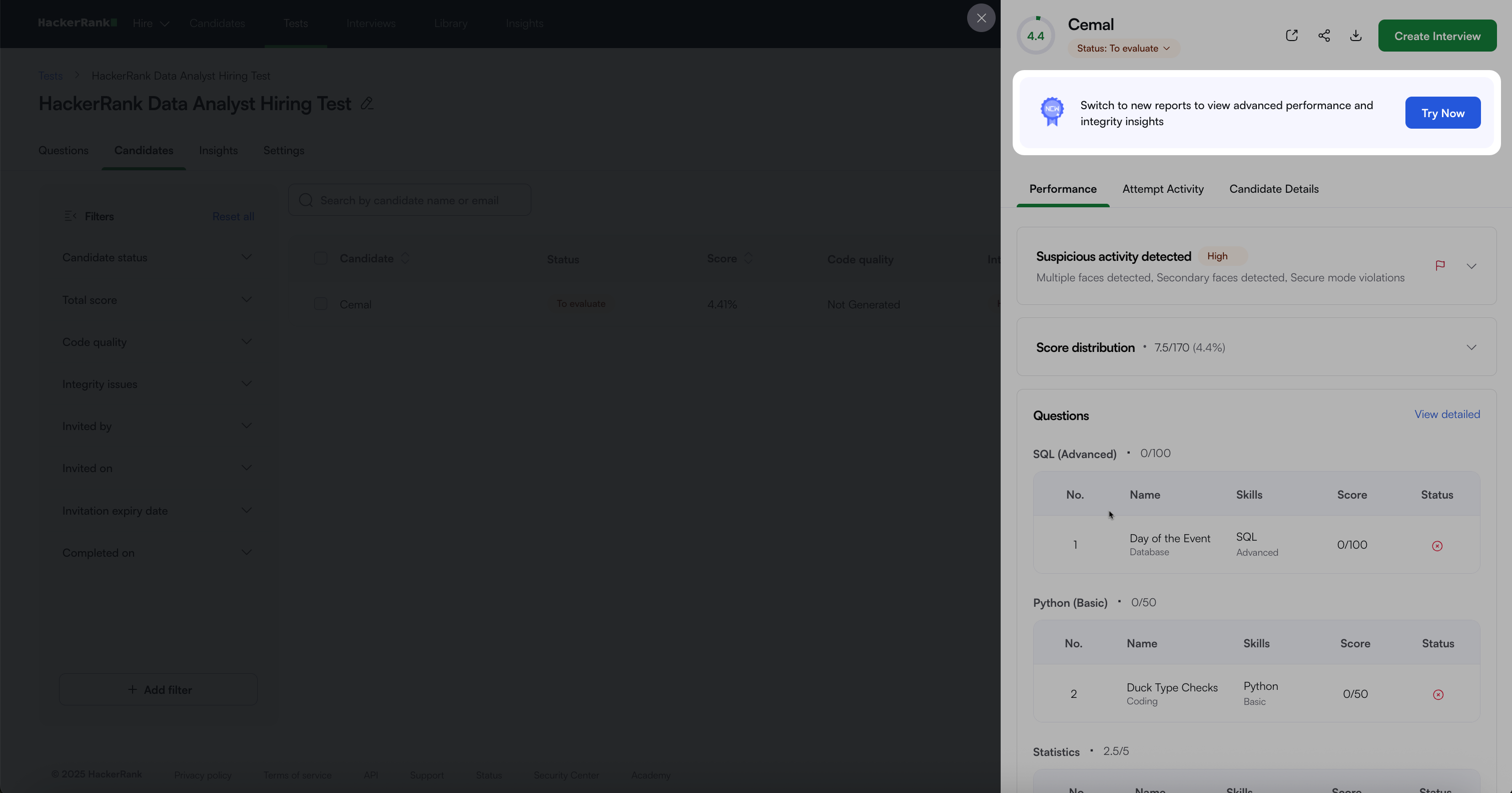
Old Summary Report
New Summary Report
HackerRank displays the default report version based on your company level settings.
Customer Cohort | Default Experience |
Companies with the AI Add-on and any central Screen AI features enabled (AI Assistant, AI Evaluation, or Proctor Mode) | New Summary Report experience with an option to switch to the old Summary Report |
Companies with the AI Add-on but without any central Screen AI features enabled (AI Assistant, AI Evaluation, or Proctor Mode) | Old Summary Report experience with an option to switch to the new Summary Report |
Companies without the AI Add-on | Old Summary Report experience with an option to switch to the new Summary Report |
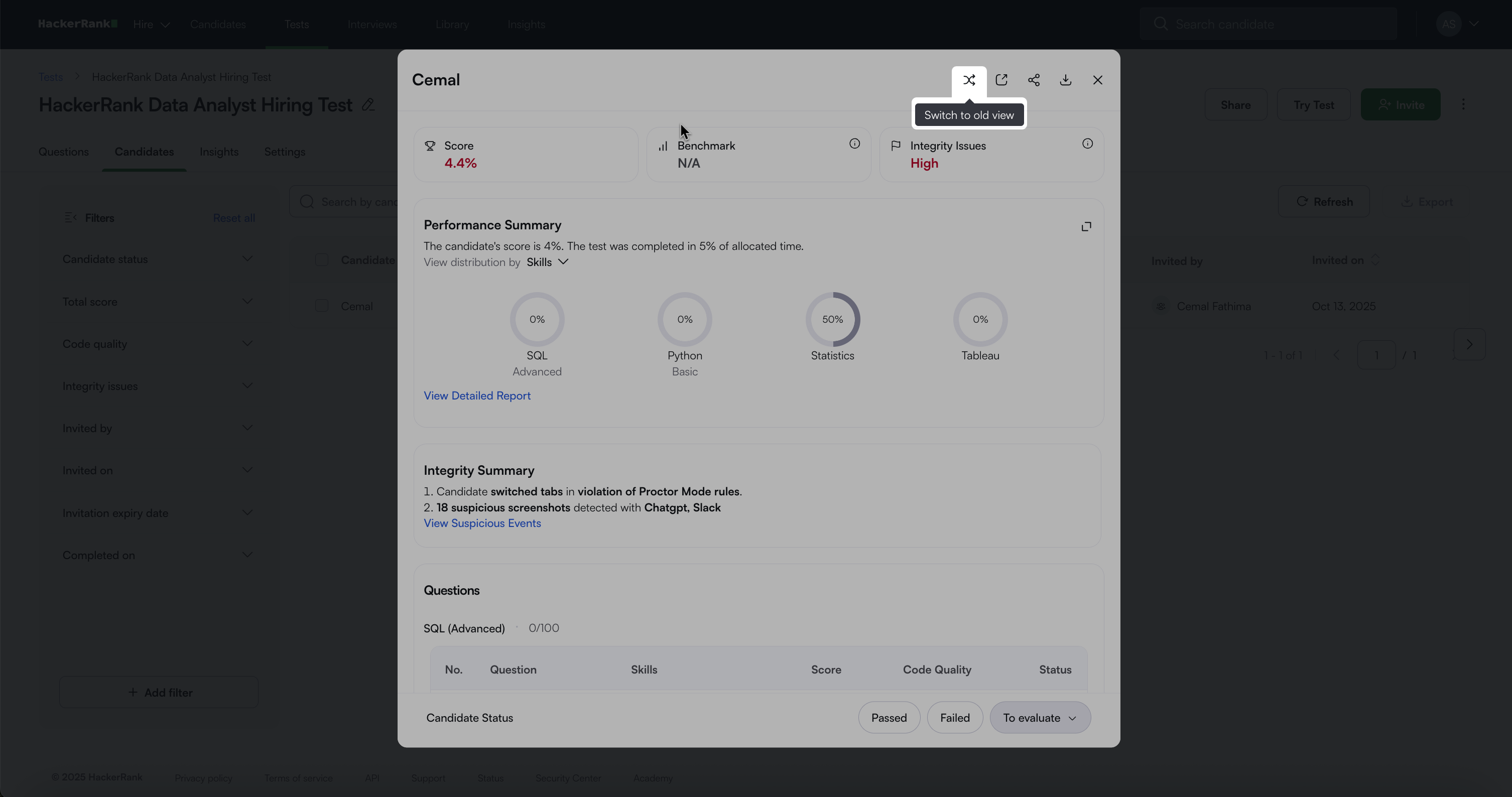
Click Try Now to switch from the old Summary Report to the new Summary Report.
To return to the old Summary Report, click the Switch to old view icon.
Summary Report comparison
The table below provides a comparison of the old Summary Report and the new Summary Report.
Feature | Old Summary Report | New Summary Report |
Performance Summary | ❌ | ✅ |
AI Usage Summary | ❌ | ✅ |
Code Quality | ❌ | ✅ |
Optimality | ❌ | ✅ |
Benchmark Information | ❌ | ✅ |
Integrity Status / Suspicious Activity | ✅ | ✅ |
Integrity Summary | ✅ | ✅ |
Session Replay (When Proctor Mode is enabled) | ❌ | ✅ |
Attempt Activity (For tests without Proctor Mode) | ✅ | ✅ |
Assessment and Candidate Details | ✅ | ✅ |
Accessing the Summary Report
Log in to your HackerRank for Work account using your credentials.
Go to the Tests tab.
Open the test you want to review.
Go to the Candidates tab.
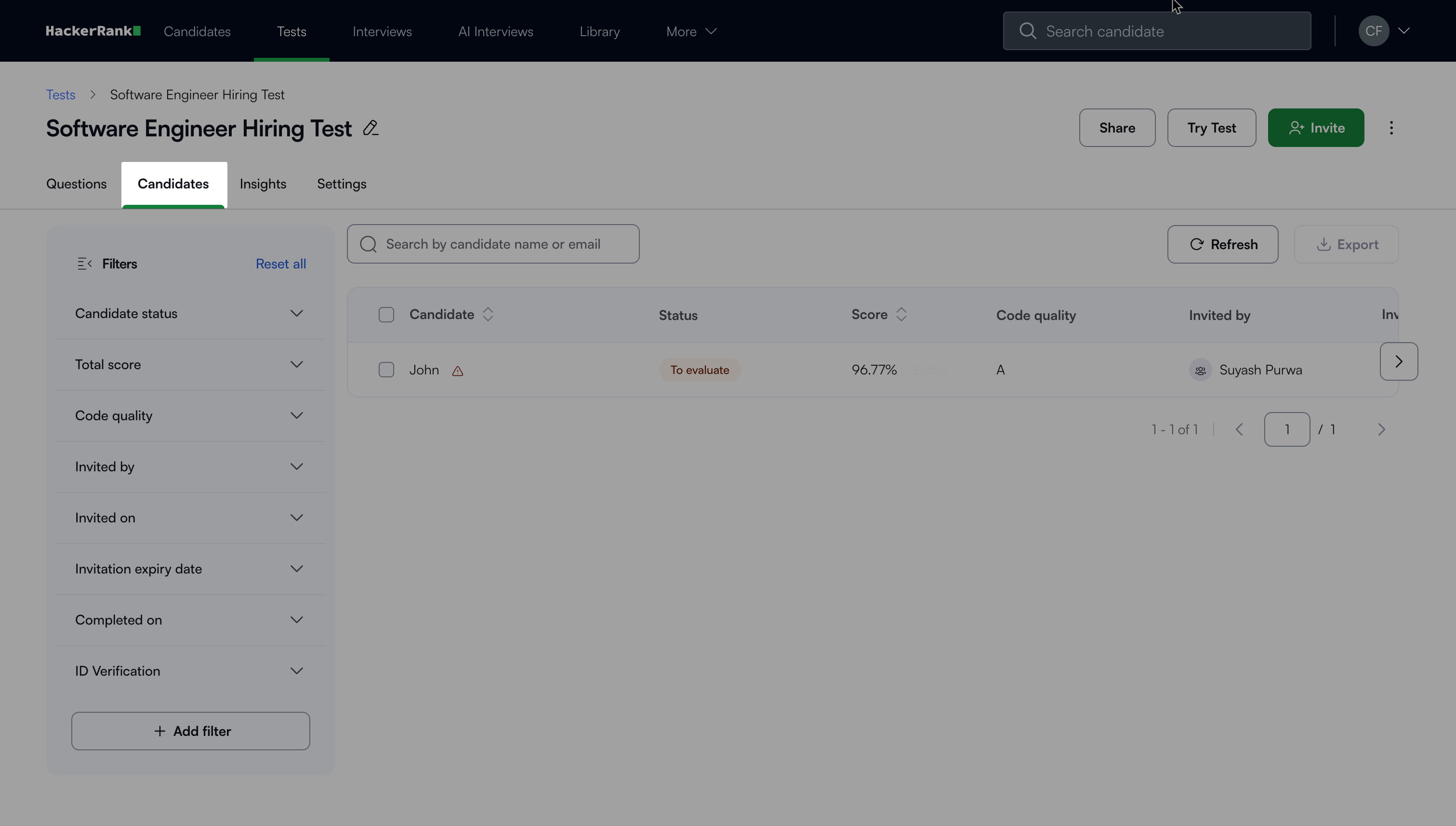
Select a candidate’s name to view the Summary Report.
Old Summary Report
The old Summary Report provides detailed insights into candidate performance and test efficiency. It helps you to assess a candidate's suitability for a role.
Key components
The old Summary Report includes the following components:
Performance: Provides a detailed overview of a candidate’s test results and integrity signals.
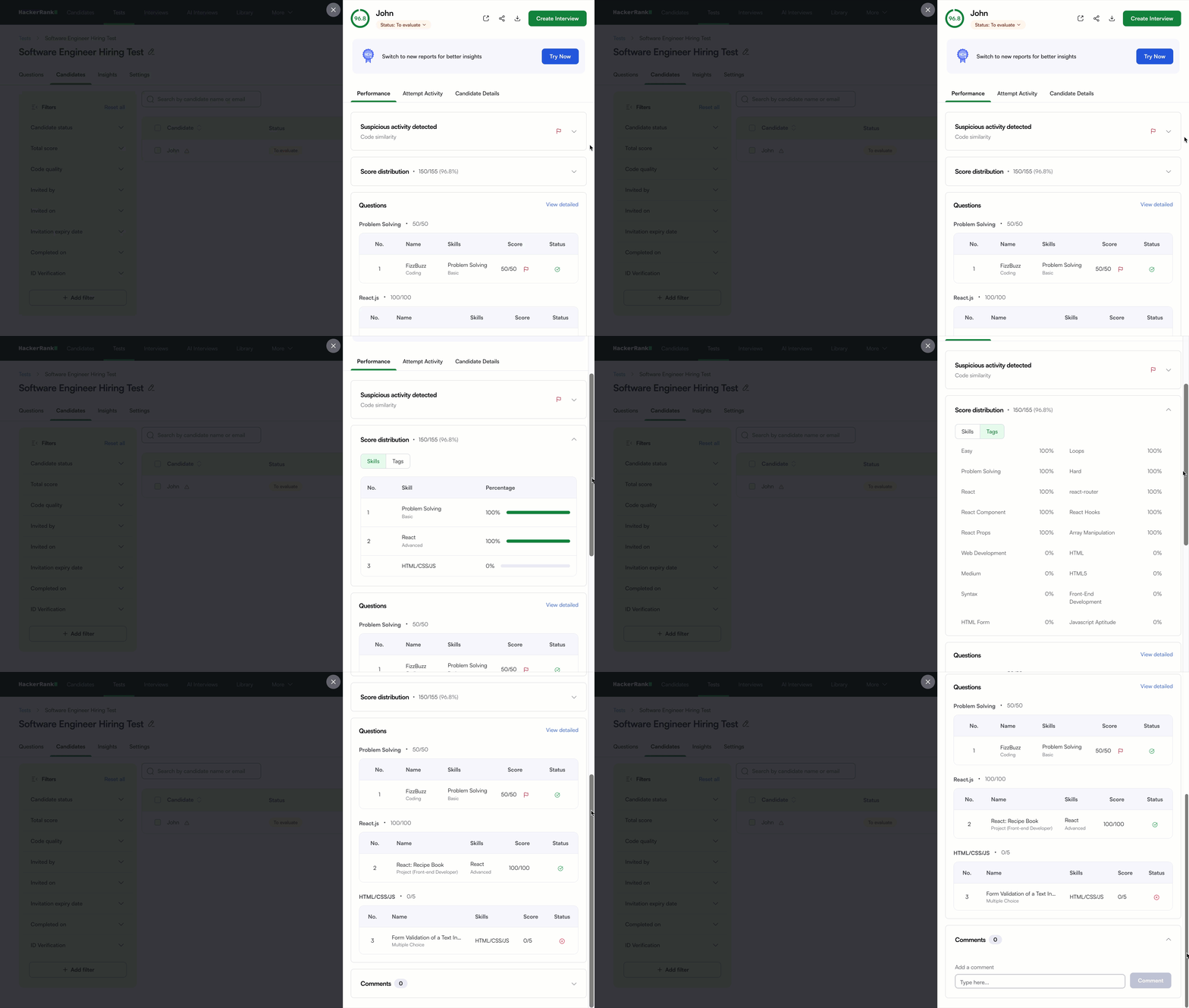
Suspicious Activity Detected: Displays the integrity level of the candidate’s test attempt. The severity level (High or Medium) indicates the extent of suspicious behavior, such as multiple faces detected or secure mode violations.
Score Distribution: Displays the candidate’s total score and the percentage out of the total available marks.
Skill Scores: Shows the candidate’s score and percentage for each skill assessed in the test. The system calculates these scores by summing the points earned for all questions linked to each skill.
Tag Scores: Displays the candidate’s score and percentage for each tag associated with the test. The system calculates these scores by summing the points earned for all questions linked to each tag.
Questions: Displays each question in a table format with the following details:
Question type
Associated skills
Candidate score
Status symbol
Each status appears with a distinct symbol that indicates the candidate’s response.
Situation
Symbol
The candidate’s answer is correct.

The candidate’s answer is incorrect.

The candidate’s answer is partially correct.

The candidate did not attempt the question.

The question requires manual evaluation.

Comments: Provide feedback on the candidate’s attempt. Type your comment in the text box and click Comment to save it.
Note: Select a question name or click View detailed to open the Detailed Report.
Attempt Activity: Tracks a candidate’s actions during the test, including time spent on each question, recorded events, and integrity-related activity.
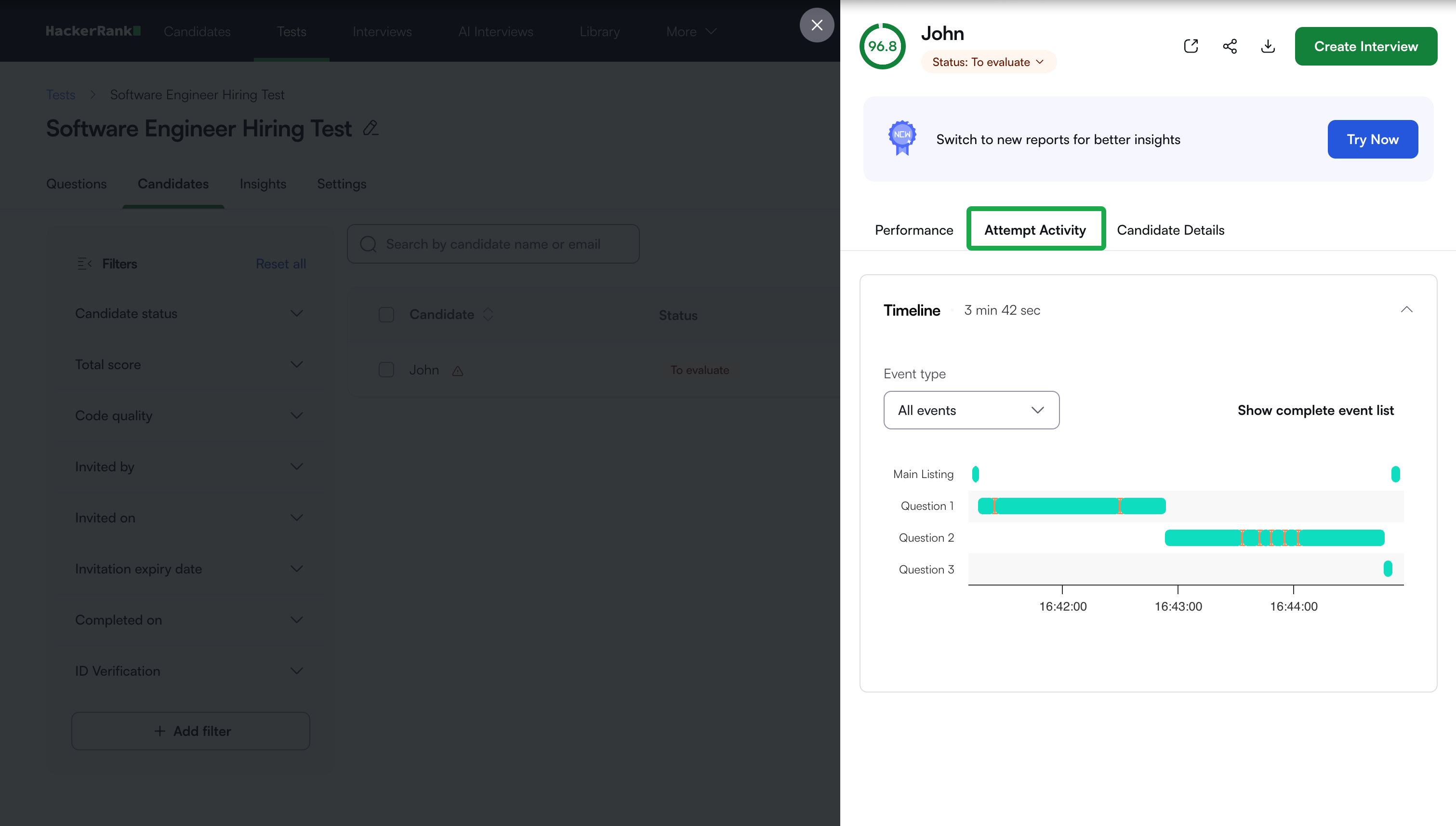
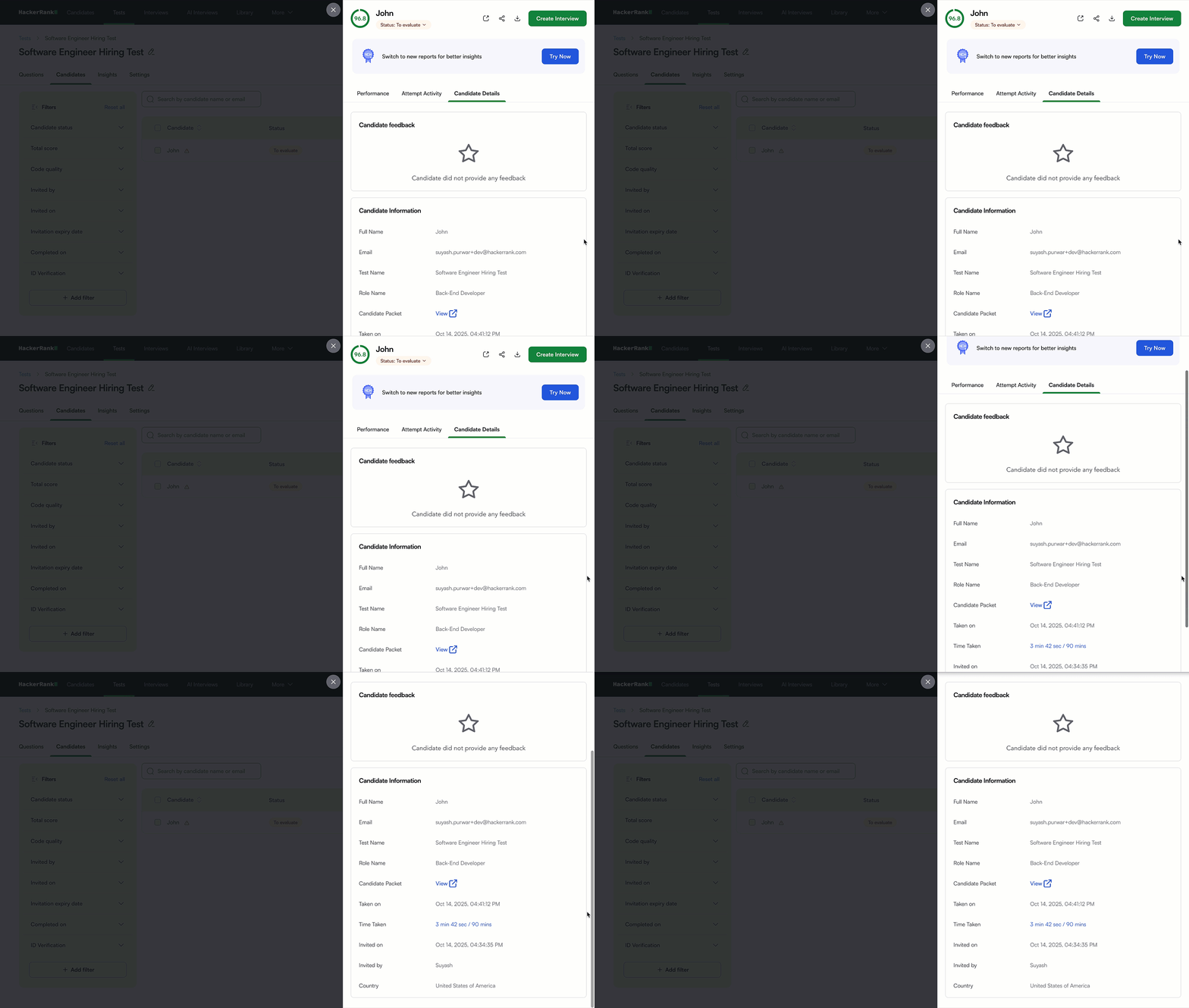
Candidate Details: Displays the candidate’s feedback and test information, including name, email, test name, test duration, invited by, and country.
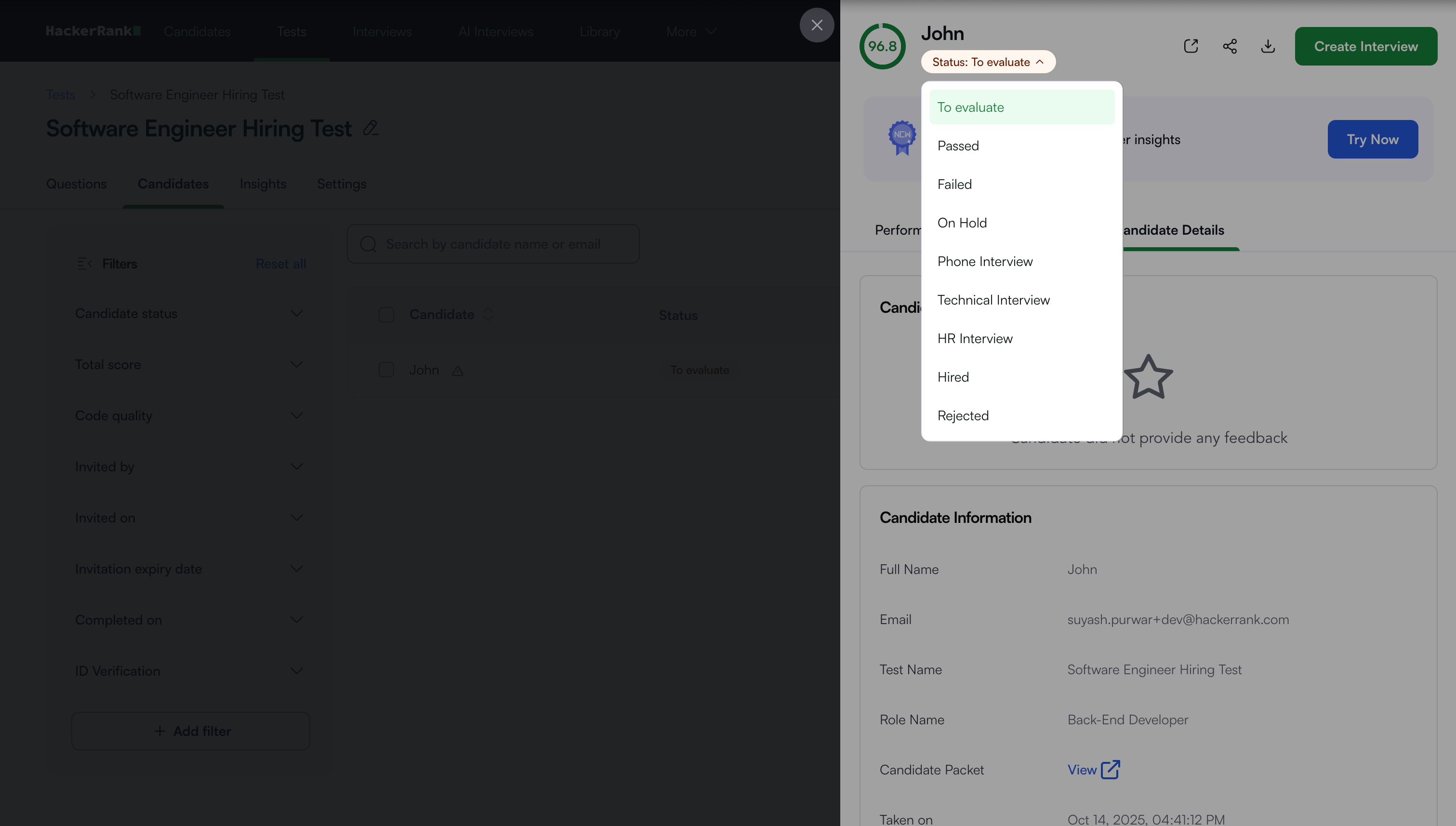
Candidate Status: After reviewing the report, select a status to move the candidate’s attempt to the next stage.
Note: You can:
Download the report as a PDF.
Share the report link with teammates.
Open it in a new tab using the New Tab icon.
New Summary Report
The New Summary Report provides enhanced performance analytics, AI insights, and improved integrity tracking. It offers deeper visibility into candidate behavior, performance, and code quality, helping you make informed, data-driven hiring decisions.
Key components
The new Summary Report includes the following components:
Performance overview
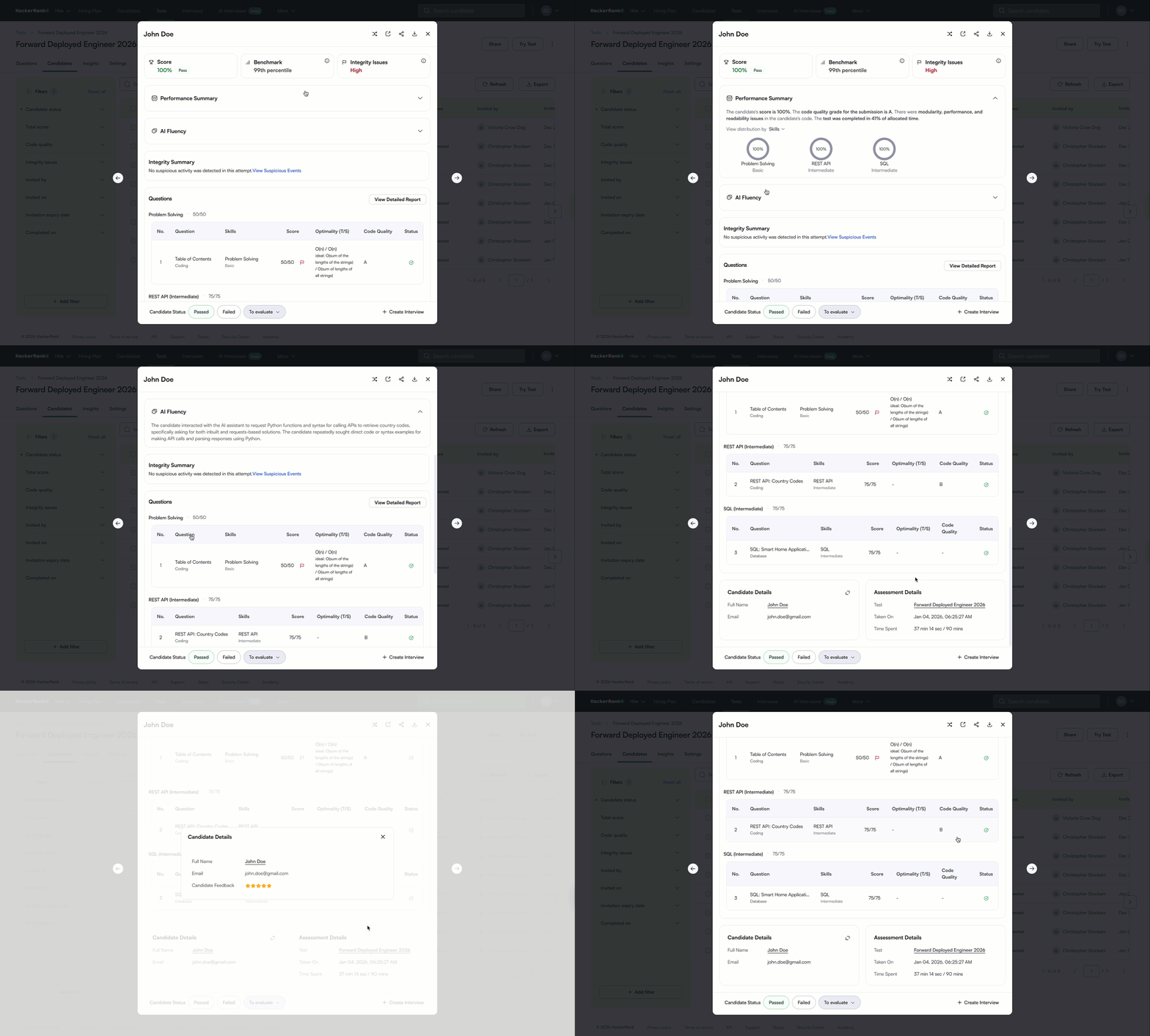
Score: Displays the candidate’s overall score for the assessment.
Benchmark: Shows how the candidate’s performance compares with others who attempted the same questions. This comparison enables data-driven and objective evaluation of candidate performance.
Integrity Issues: Displays the severity of integrity issues detected during the assessment. Detailed information appears in the Integrity Summary section
Performance Summary: Displays an overview of the candidate’s test performance, including:
Overall score
Code quality
Completion time
AI usage summary (how the candidate interacted with the AI assistant)
Note: Click View detailed to open the Detailed Report.
AI Fluency: Provides recruiters with a holistic view of how candidates interact with the AI assistant during a test. For more information, see 📄 AI Fluency.
Integrity Summary: Provides a consolidated view of all detected integrity signals for a candidate. It lets you preview issues and drill down into supporting evidence within the same section.
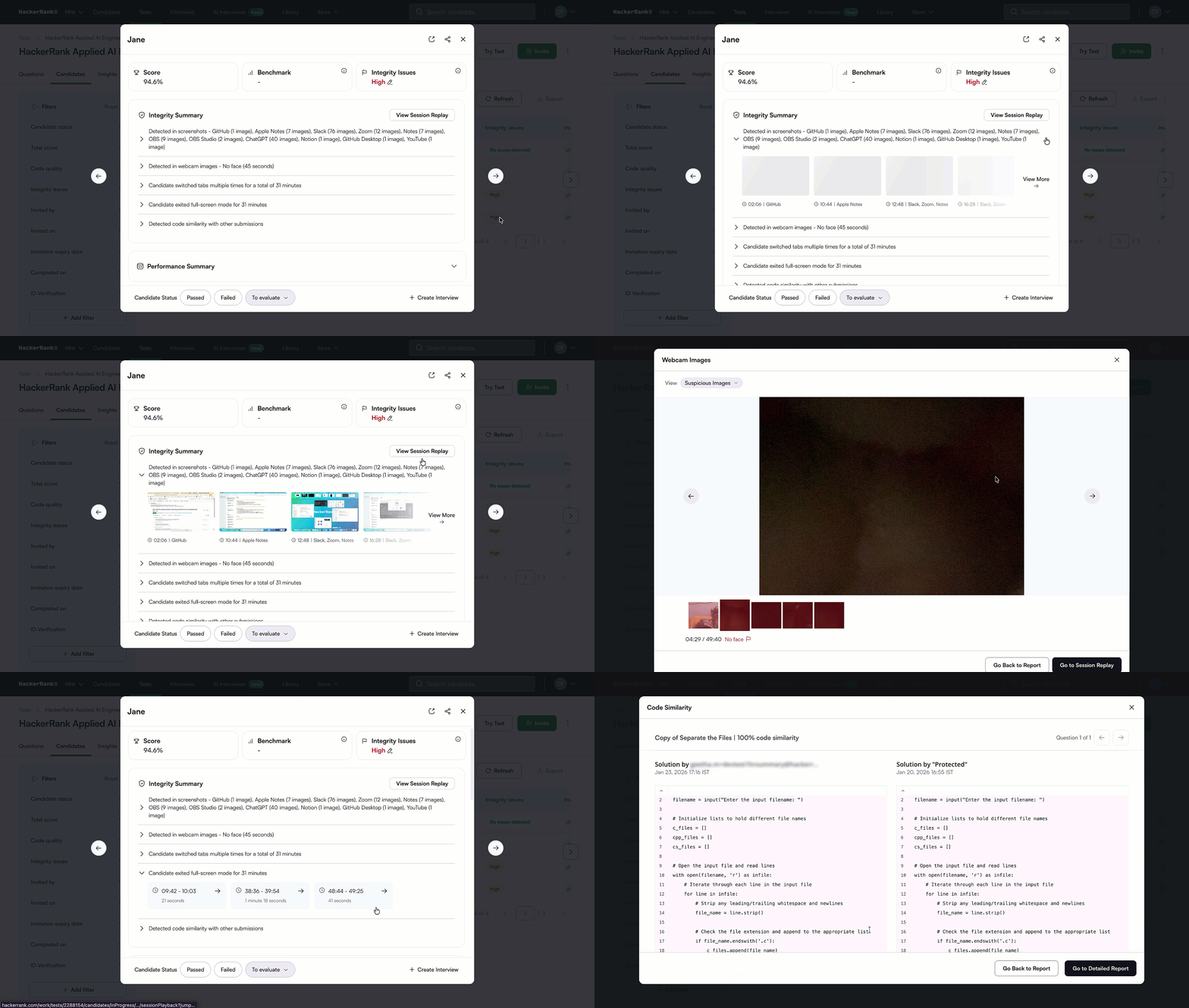
The Integrity summary shows previews of detected integrity signals, such as:
Screenshot and image analysis: View previews of flagged screenshots and images, with the option to open full set for detailed review.
Tab switches and fullscreen exits: View exact timestamps and durations that show when a candidate leaves the active tab or window.
Code similarity: Preview and compare the most similar code instance for each question.
Click View Session Replay to review the full test session and investigate any integrity signal in detail.
Questions: Displays each question in a table format with the following details:
Question type
Associated skills
Candidate score
Code quality
Optimality
Status symbol
Each status appears with a distinct symbol that indicates the candidate’s response.
Situation
Symbol
The candidate’s answer is correct.

The candidate’s answer is incorrect.

The candidate’s answer is partially correct.

The candidate did not attempt the question.

The question requires manual evaluation.

Candidate Details: Displays candidate information, including full name, email address, city. Click the expand icon to view candidate ratings and feedback.
Assessment Details: Displays details of the assessment, including test name, test date, total time spent
Candidate Status: After reviewing the report, select the candidate’s status as Passed or Failed. Select To Evaluate to move the attempt to the next stage.
Note: You can also create an interview directly from the Summary Report by clicking Create Interview in the lower-right corner.
Attempt Activity: Tracks a candidate’s actions during the test, including time spent on each question, recorded events, and integrity-related activity.
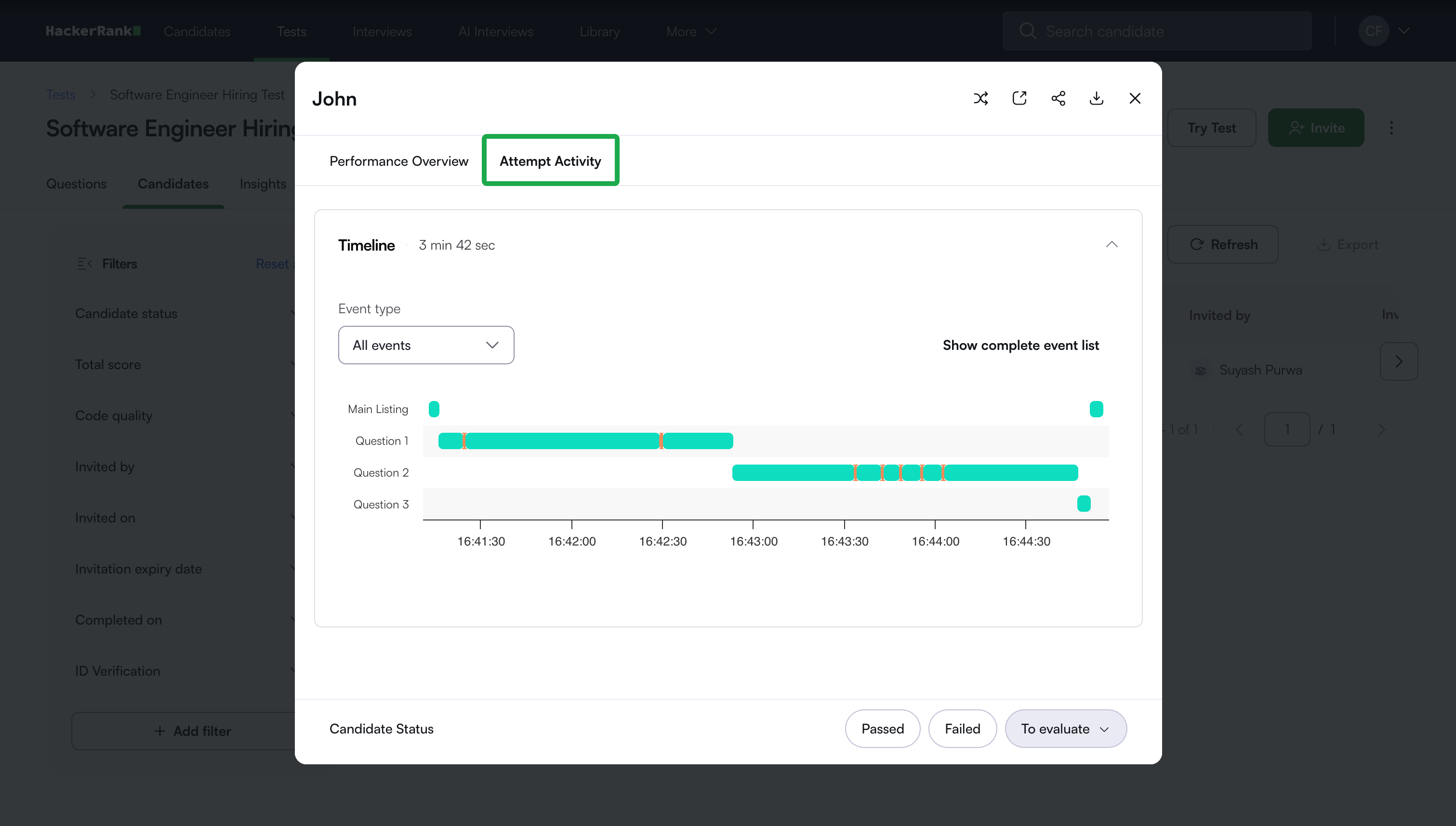
Note: You can:
Download the report as a PDF.
Share the report link with teammates.
Open it in a new tab using the New Tab icon.
Override integrity flags in summary reports
You can manually override integrity flags in a candidate’s Summary Report if you determine that the flagged activity is not valid.
To override the integrity flags in summary report:
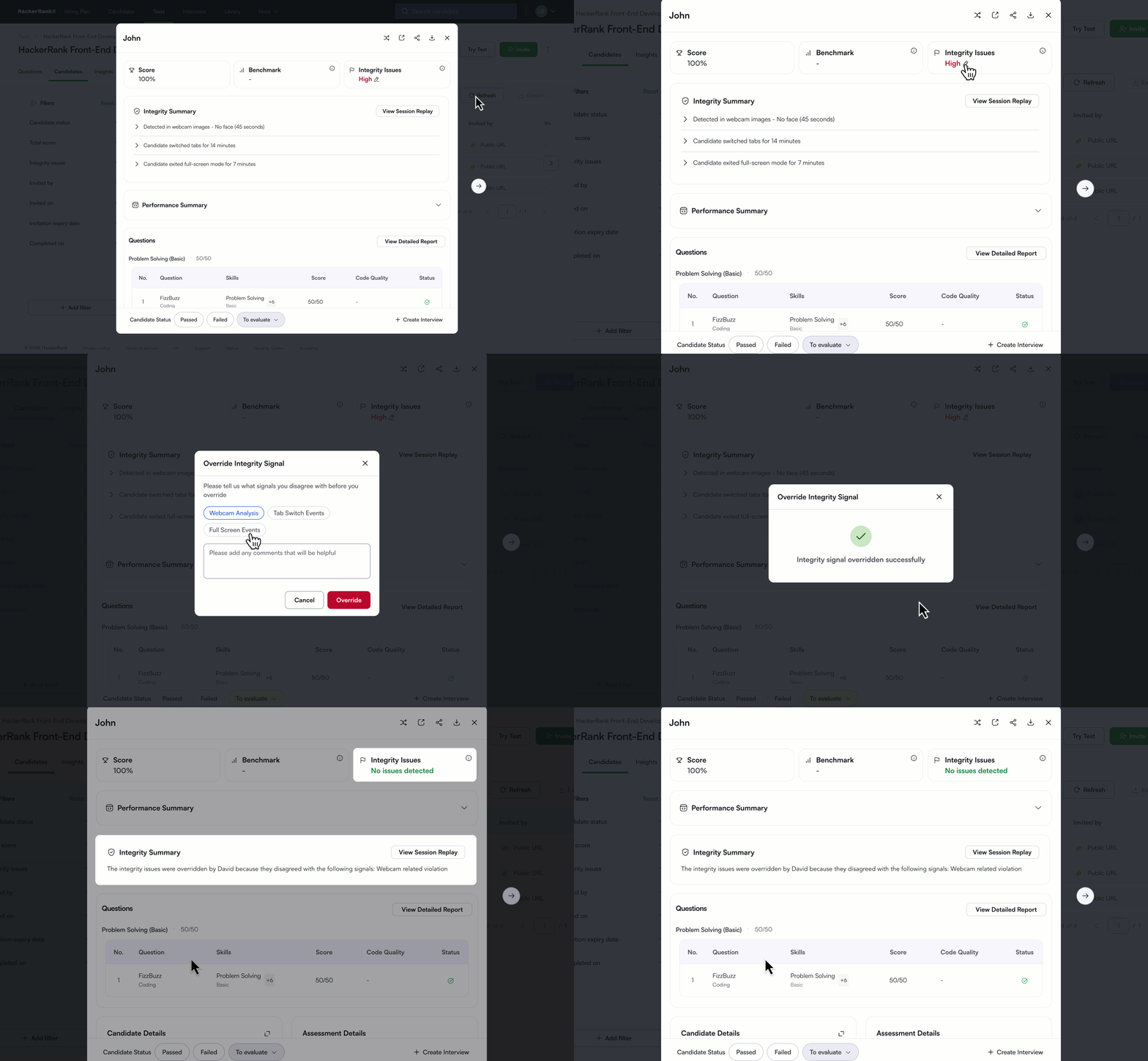
Open the candidate's Summary Report.
Select the edit icon next to Integrity Issues.
In the Override Integrity Signal dialog:
Select the integrity signal you disagree with.
Enter the reason in the comments field.
Click Override.
After you override the integrity flag:
The Integrity Issues status updates to No issues detected.
The Integrity Summary shows that the integrity issues were overridden, including who performed the override and the reason provided.