Modify General Settings for Tests
Last updated: July 30, 2025
HackerRank allows you to modify the general settings of a test such as key metadata and scheduling options. Most of these settings are defined when you initially create the test.
Prerequisites
You must have already created a test.
Modifying general settings
To modify the general settings of a test:
Log in to your HackerRank for Work account using your credentials.
Go to the Tests tab.
Open the test you want to update.
Go to Settings > General.
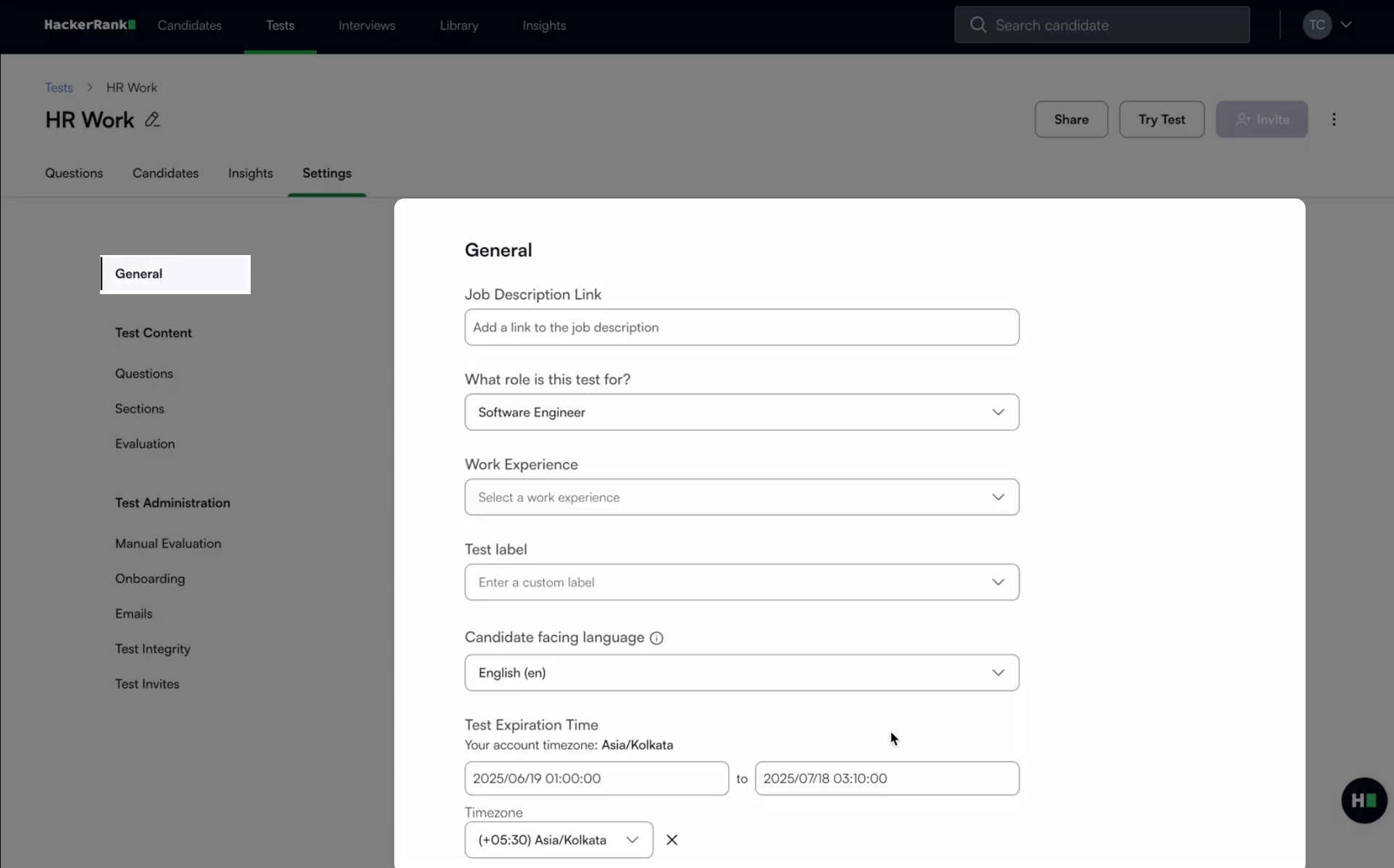
In the General section, you can update the following:Job description link: Add a link to the job description. This helps hiring stakeholders and reviewers contextualize the test.
Role association: Select the role associated with the test (for example, Software Engineer). This helps categorize tests by job function.
Work experience: Tag the test to an experience level (for example, 0–2 years). This helps align the test with candidate seniority.
Test label: Enter a custom label. This label appears in the test listing view and helps you identify tests easily.
Candidate-facing language: Select the language in which the test interface appears to candidates. The available options are English and Canadian French. For more information on changing to Canadian French, see 📄 Assess Candidates in Canadian French Language.
Test expiration time: Define a start and end time (including time zone) for when the test remains active. Candidates can only take the test during this window.
Click Save Changes to apply your changes.