שאלות במדעי הנתונים
Last updated: September 11, 2026
שאלות נתונים Science עוזרות לך להעריך מועמדים על כישורי נתונים Science בעולם האמיתי באמצעות אתגרים מעשיים.
שאלות אלה מעריכות את היכולת של מועמד:
בצע עיבוד נתונים וקדם-עיבוד
בנה מודלים סטטיסטיים ותחזיתיים
צור ויזואליזציות נתונים משמעותיות
יישם אלגוריתמים של למידת מכונה
הפלטפורמה כוללת רובריקות דירוג ייחודיות לאתגרים כדי להבטיח הערכות עקביות ויעילות.
יצירת שאלה של מדעי הנתונים
כדי ליצור שאלה של מדעי הנתונים:
היכנס לHackerRank for Work חשבון באמצעות האישורים שלך.
עבור אל ספרייה כרטיסייה.
לחץ על צור שאלה.
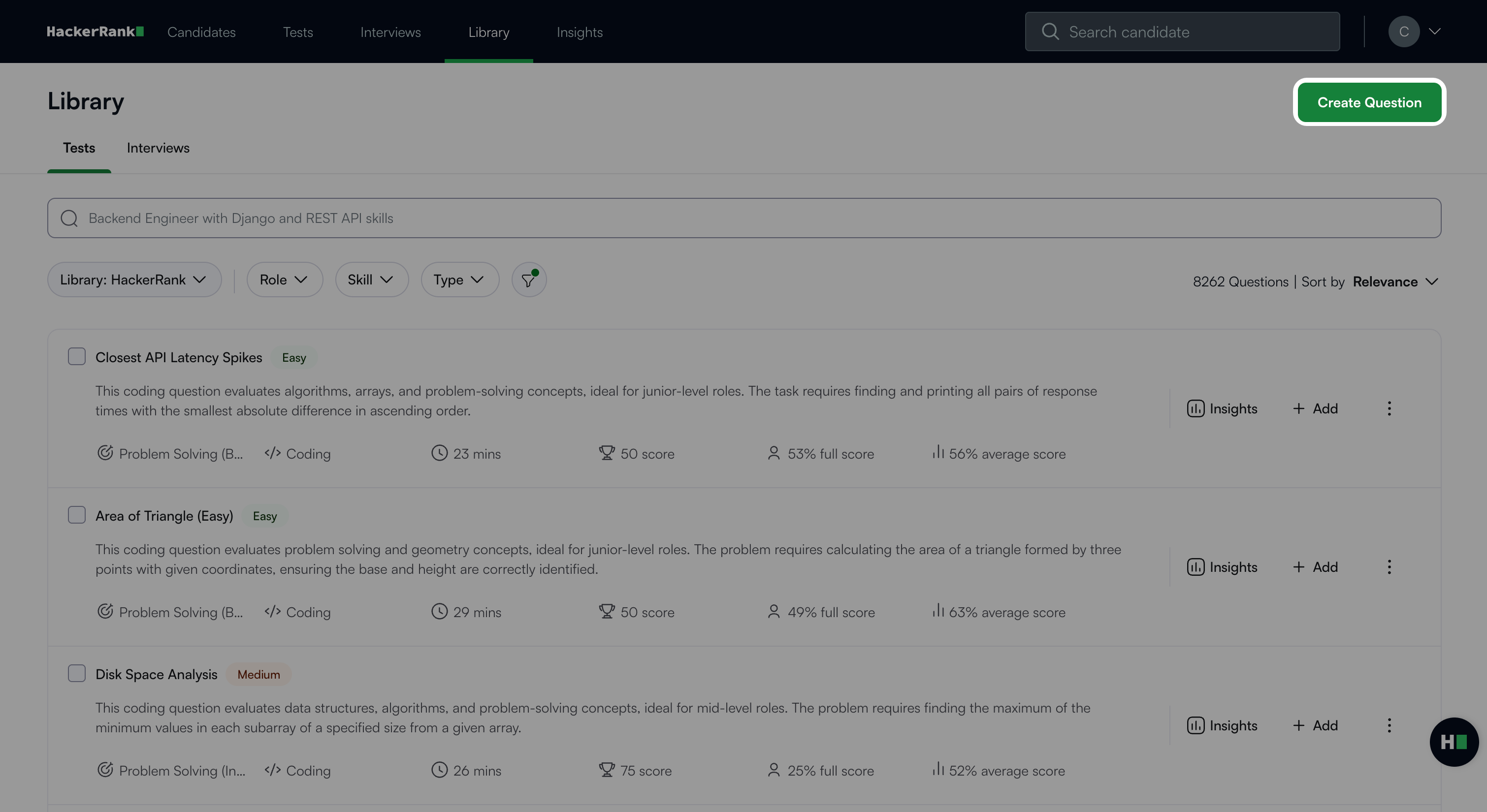
בחר במדעי נתונים תחת פרויקטים.
זרימת עבודה של יצירת שאלות מדעי הנתונים מתחילה עם שלושת השלבים הבאים.
שלב 1: סביבה
בהגדרות סביבת העבודה חלק, בחרו באחד מהקינלים הבאים:
Python
R
Julia
הערה:
הסביבה המוגדרת כברירת המחדל היא VS Code. אינך יכול לשנות הגדרה זו.
לחץ על מידע חבילה להצגת רשימת החבילות הנתמכות. לפרטים נוספים, ראה 📄 Package Information for Data Science Questions.
לחץ על הבא.
שלב 2: הקמת פרויקט
Set up the project using one of the following methods:
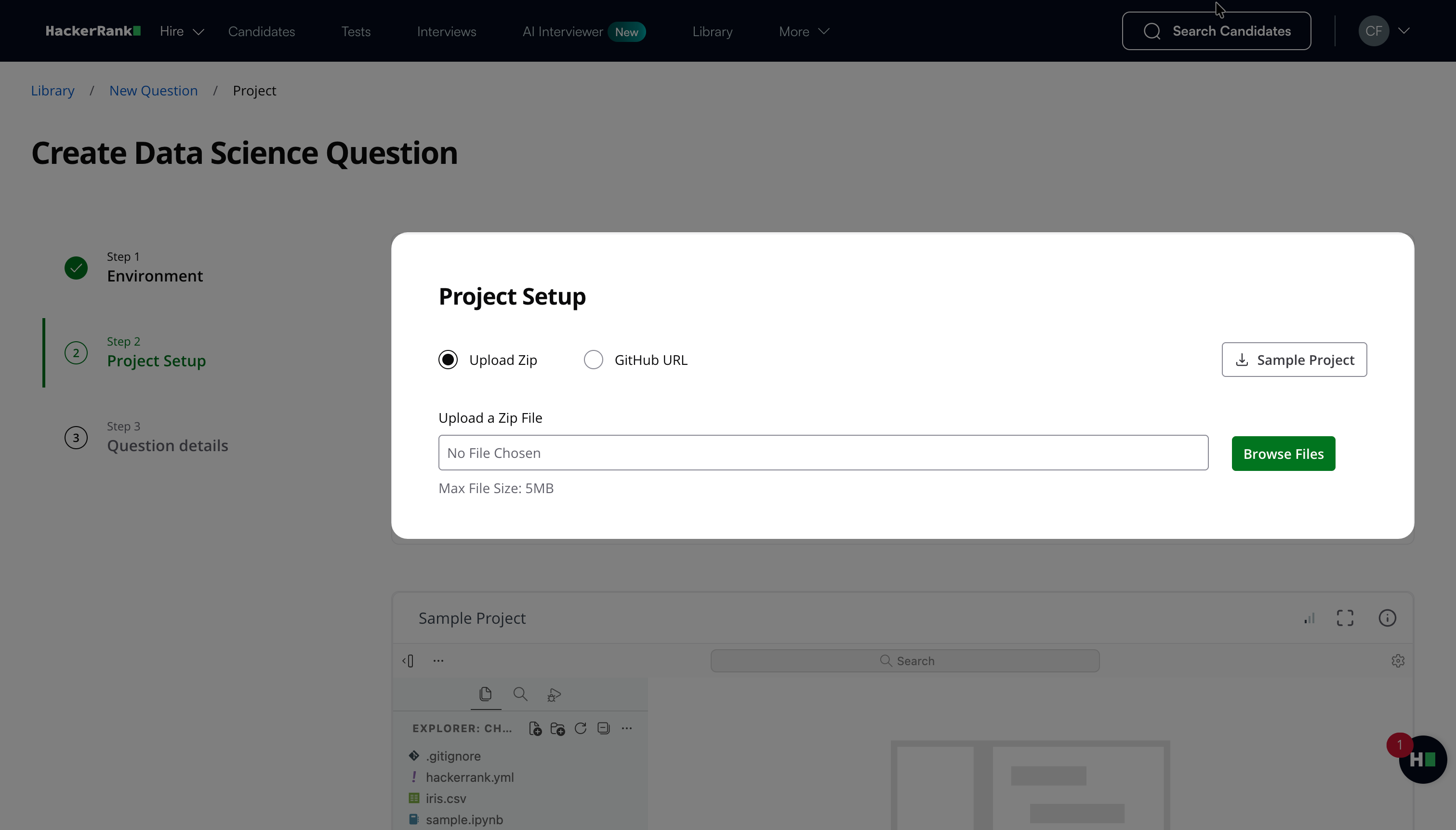
Upload Zip: Upload the project file in ZIP format. The file size should be within 5MB.
GitHub URL: Enter the repository URL and click Clone Project. If the repository is private, the IDE requests permission to connect using a one-time access token.
Note: HackerRank does not store your GitHub credentials.
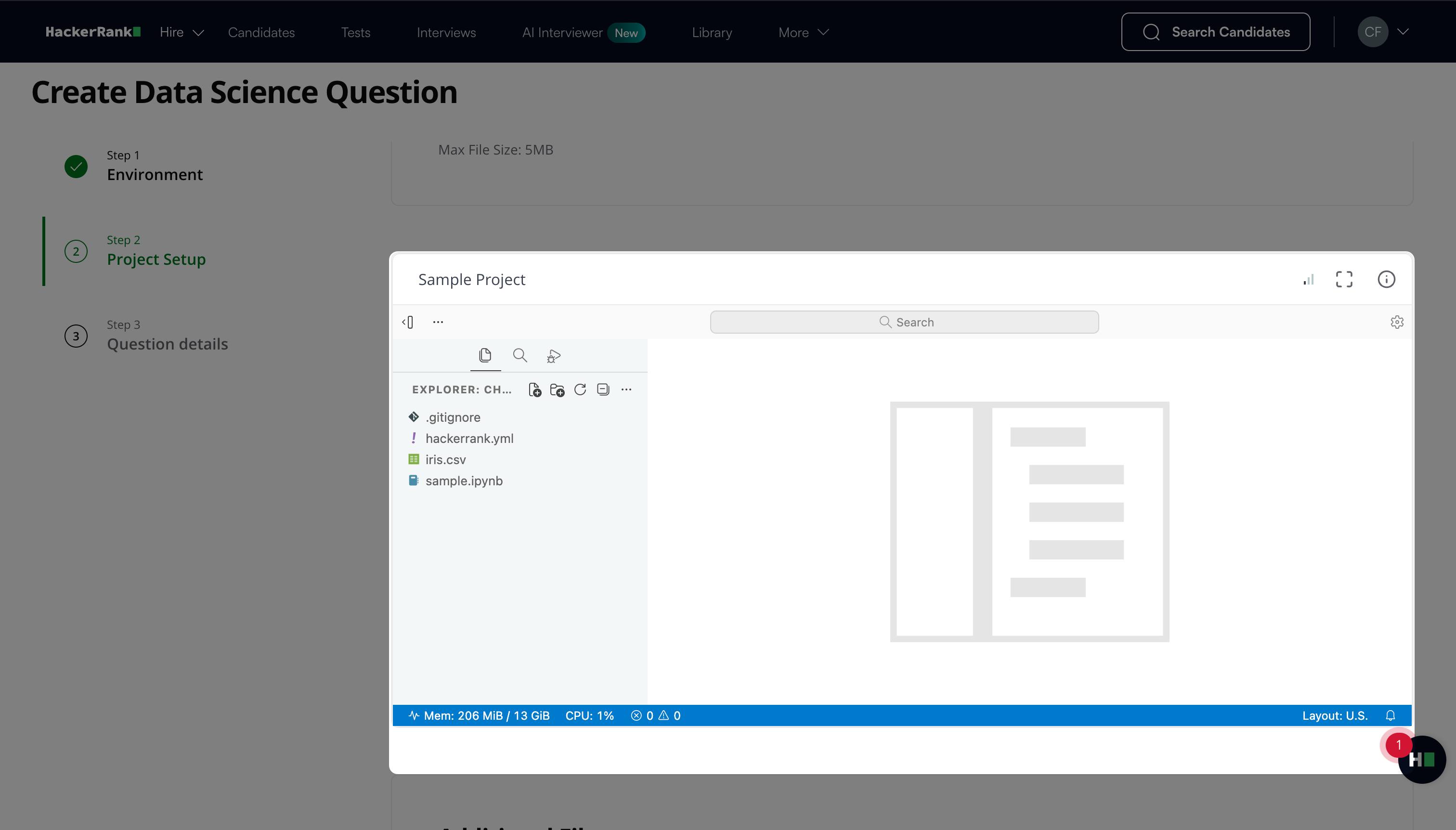
The Project Setup section also includes a preconfigured sample project for the VS Code framework.
Note: To specify which files open by default when the project loads, configure the
default_open_pathsfield in thehackerrank.ymlfile in the following format:configuration: default_open_paths: - <file_name>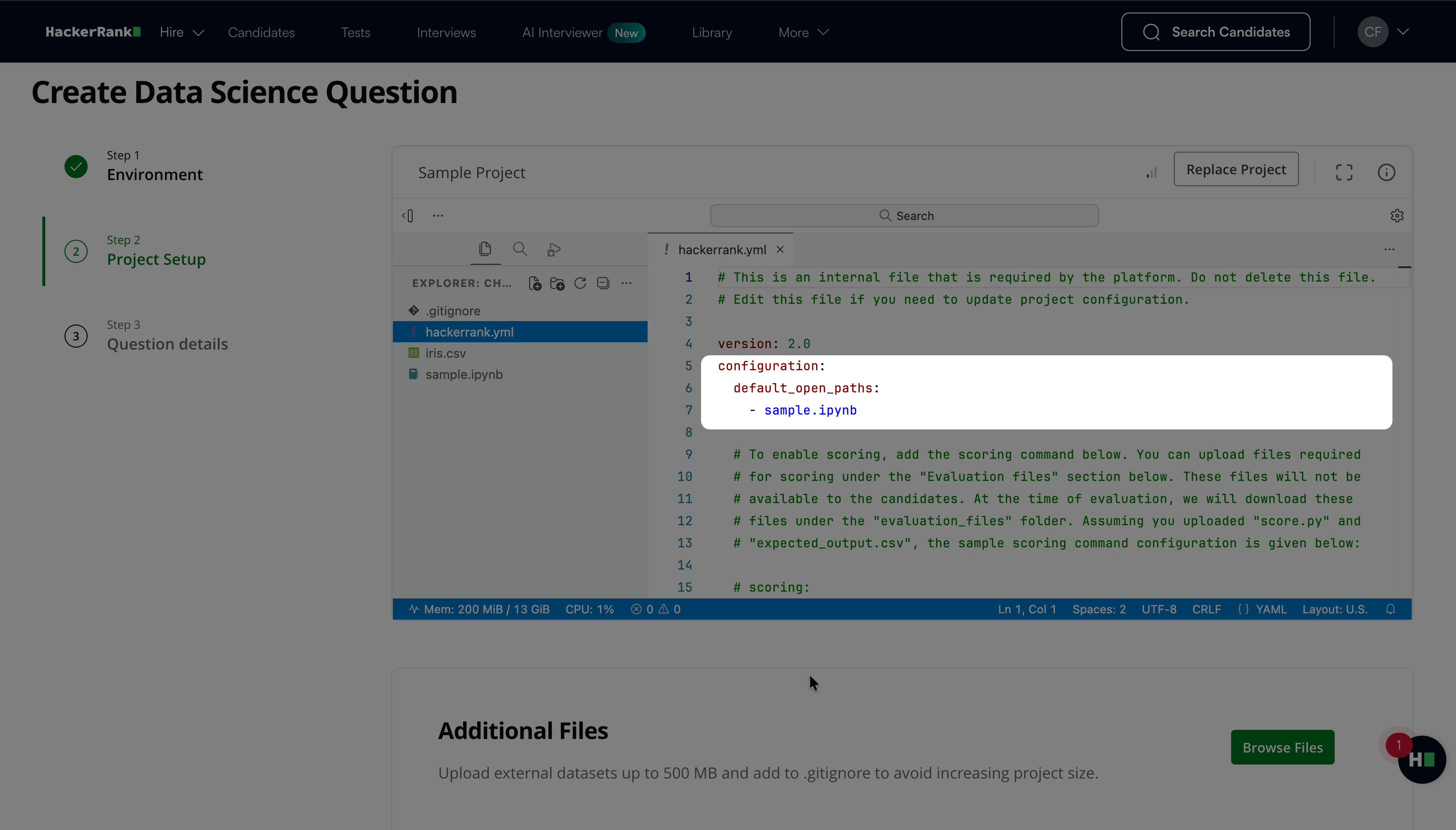
(Optional) Click Browse Files under Additional Files to upload supporting resources, such as datasets, scoring scripts, or other required files.
Note: If you enable automatic evaluation with a custom metric, upload the scoring script and the expected output file in this section.
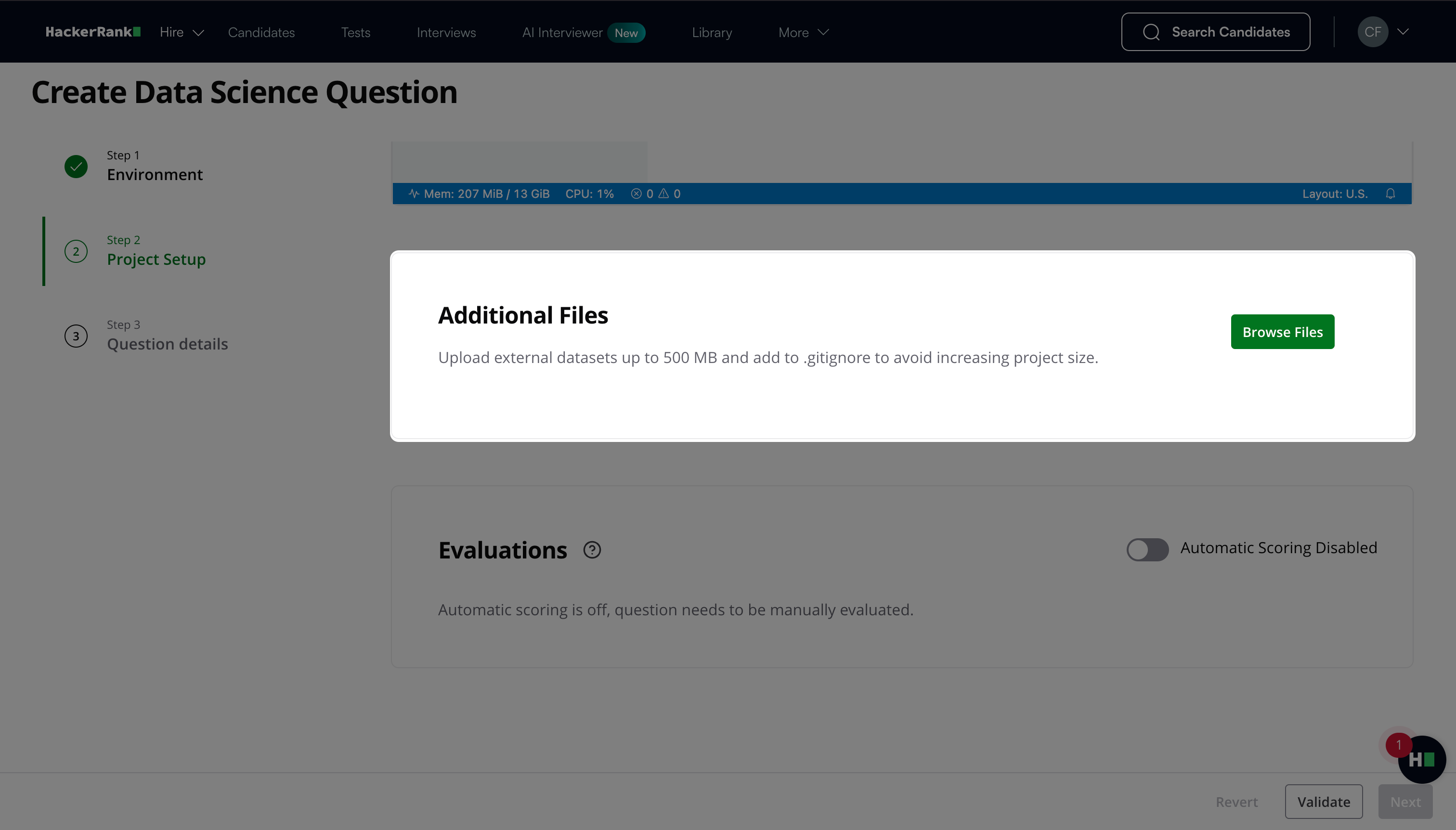
The total size of uploaded files must not exceed 500 MB.
Each individual file must not exceed 100 MB.
Add large files to
.gitignoreto prevent increasing the project size.HackerRank supports externally hosted datasets with a maximum total size of 5 GB. When you use external datasets, ensure that your solution runs within the platform’s machine specifications:
CPU: 2 vCPUs
Memory: 16 GB RAM
Storage: 20 GB disk
Toggle Automatic Scoring to choose the evaluation mode.
Manual evaluation: Disable Automatic Scoring to require manual evaluation.
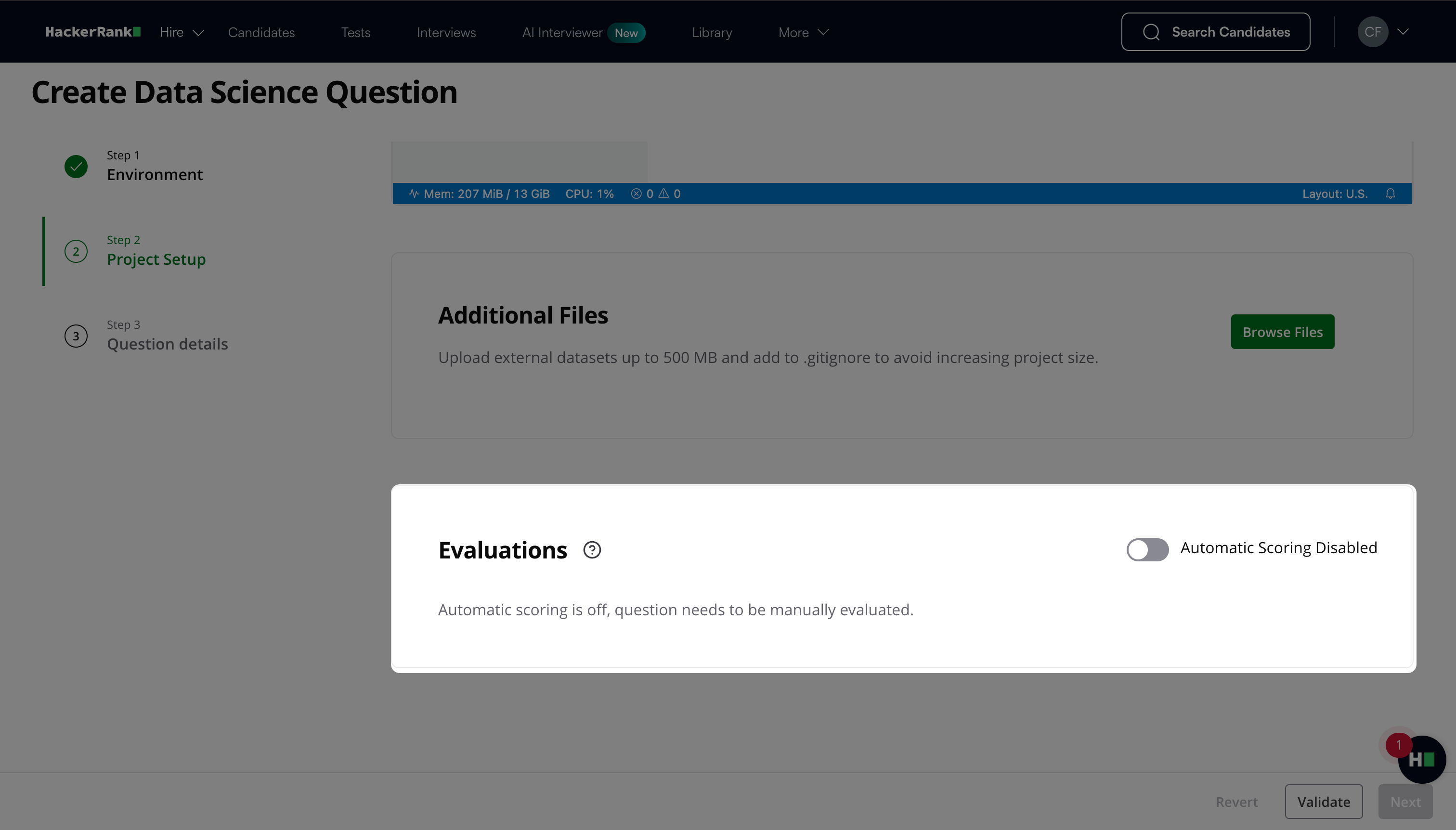
Add evaluation materials in Step 3: Question Details under Interviewer Guidelines, such as scoring rubric, solution notebook, actual output, evaluation script, and evaluation criteria.
Reviewers can use these materials to assign scores manually. For more information about manual scoring, see Manual scoring.Automatic evaluation: Enable Automatic Scoring to allow the platform to evaluate submissions automatically.
When you enable Automatic Scoring:
Select a Scoring Metric. Choose a standard metric from the dropdown, or select Custom to define your own evaluation logic.
If you select a standard metric (For example, Categorization Accuracy, Mean F-Score, Log Loss, AUC-ROC Curve, Root Mean Squared Logarithmic Error, Average Precision):
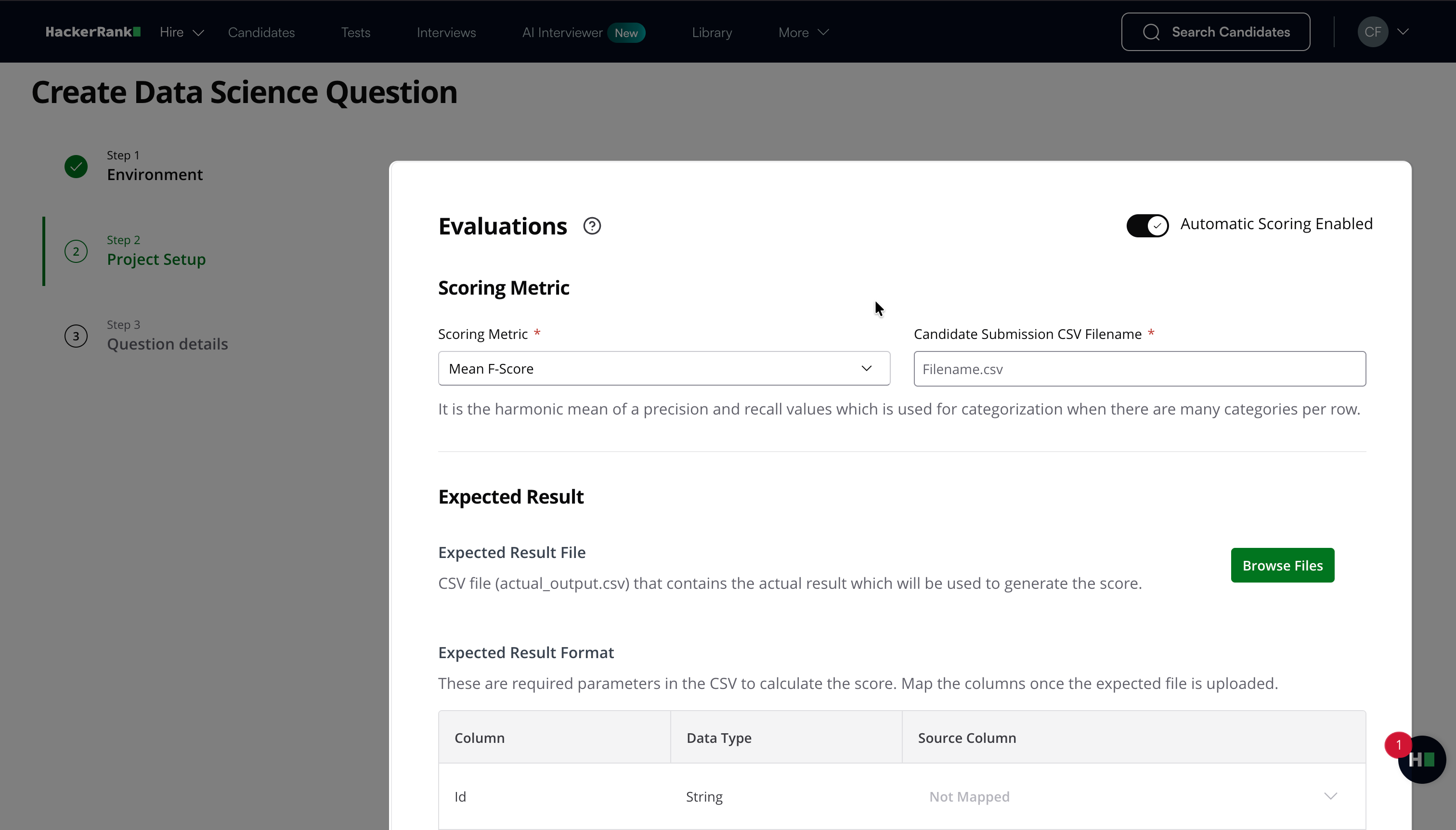
Enter the filename that candidates must use for their final submission in the Candidate Submission CSV Filename field.
Click Browse Files under Expected Result to upload the CSV file (for example, actual_output.csv) that contains the actual results used to generate the score. After uploading the file, map the required columns under Expected Result Format.
Click Browse Files under Sample Submission to upload the CSV file (for example, sample_submission.csv) that you expect candidates to submit. After uploading the file, map the required columns under Sample Submission Format.
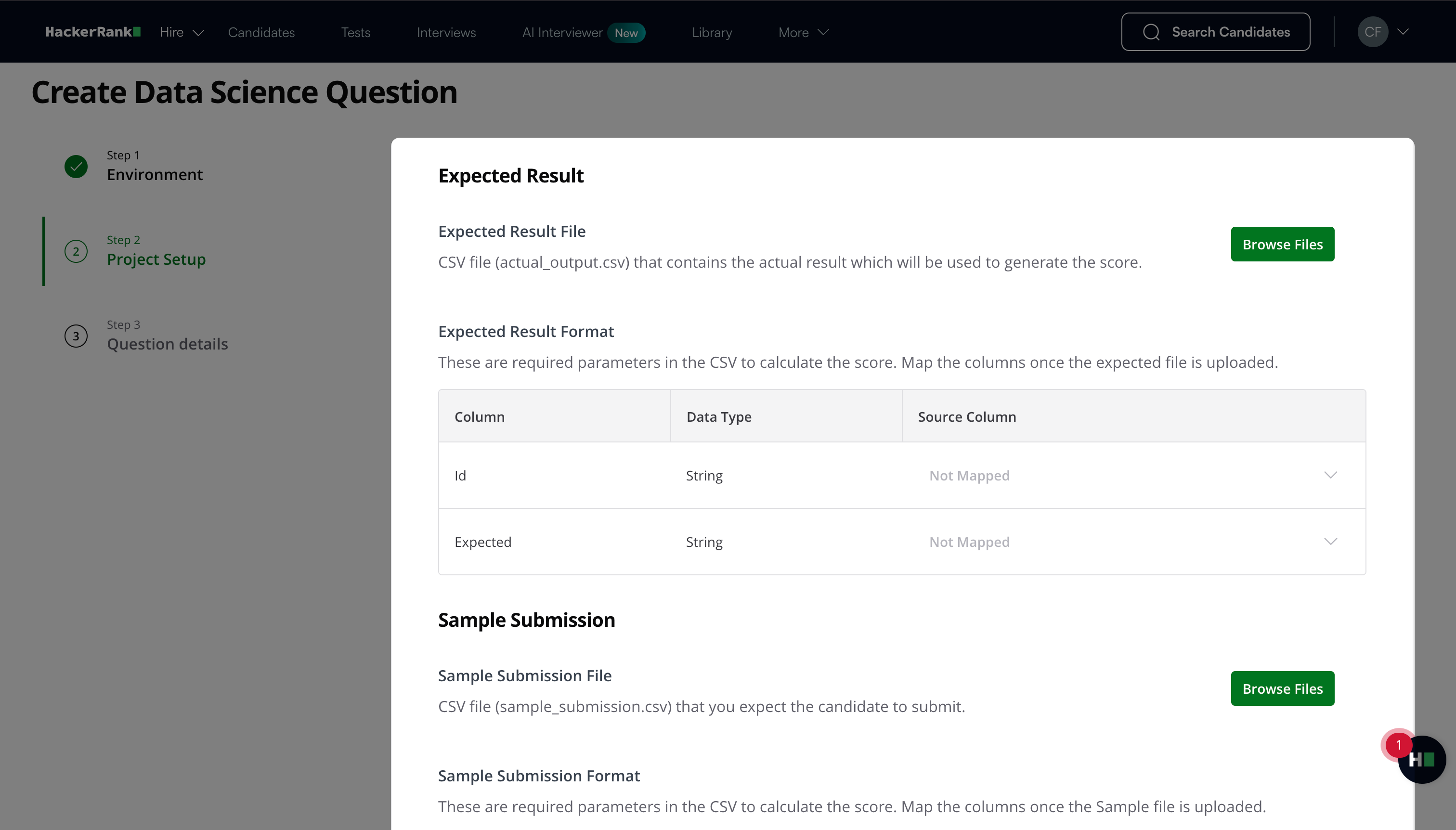
If you select Custom:
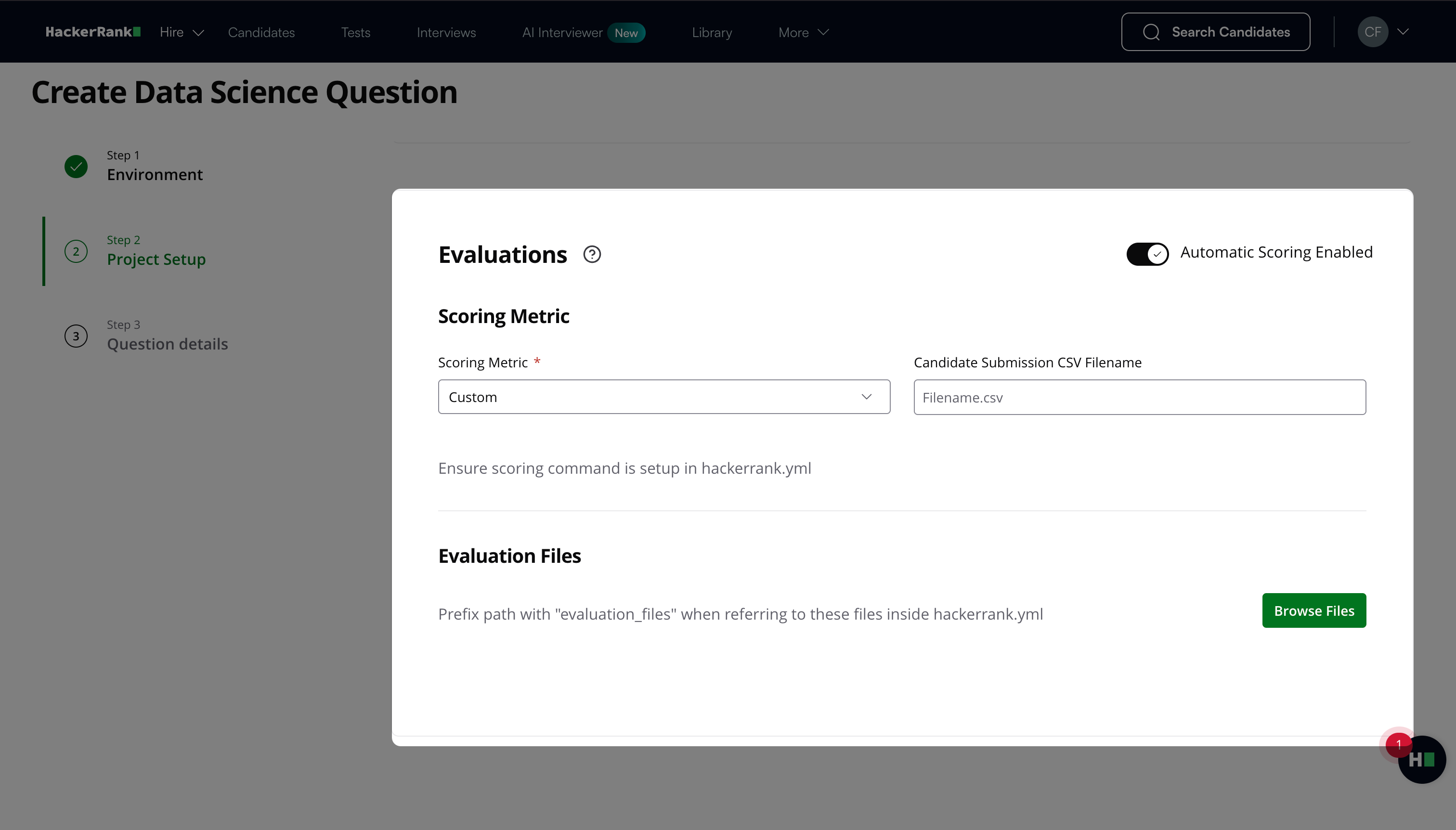
Create a scoring script that:
Evaluates the candidate’s submission (For example,
submission.csv)Compares it with the expected output file (For example,
actual_output.csv)Calculates relevant metrics such as accuracy, precision, recall, and F-score
The scoring script must return the final score in the following format:
FS_SCORE: X%#!/usr/bin/env python # coding: utf-8 import pandas as pd from sklearn.metrics import accuracy_score import sys def score(actual_data, sub_data): if actual_data.shape != sub_data.shape: print('Shape Mismatch') return 0 if actual_data.columns.tolist() != sub_data.columns.tolist(): print('Columns Mismatch') return 0 actuals = actual_data['popularity'].tolist() preds = sub_data['popularity'].tolist() try: return accuracy_score(actuals, preds) except: print('Error in Evaluation') return 0 def read_data(actual_file, submission_file): try: actual_data = pd.read_csv(actual_file) sub_data = pd.read_csv(submission_file) return actual_data, sub_data except: print('File Not Found') print("FS_SCORE:0 %") try: actual_data, submission_data = read_data(sys.argv[1], sys.argv[2]) score = score(actual_data, submission_data) print("FS_SCORE:" + str(score * 100) + " %") except Exception as e: print(e) print('Score could not be calculated') print("FS_SCORE:0 %")Ensure the script handles edge cases, always returns a score, and runs without errors.
If the script fails or does not return a valid score, the platform assigns no score and requires manual review.
Upload the following files under Additional Files:
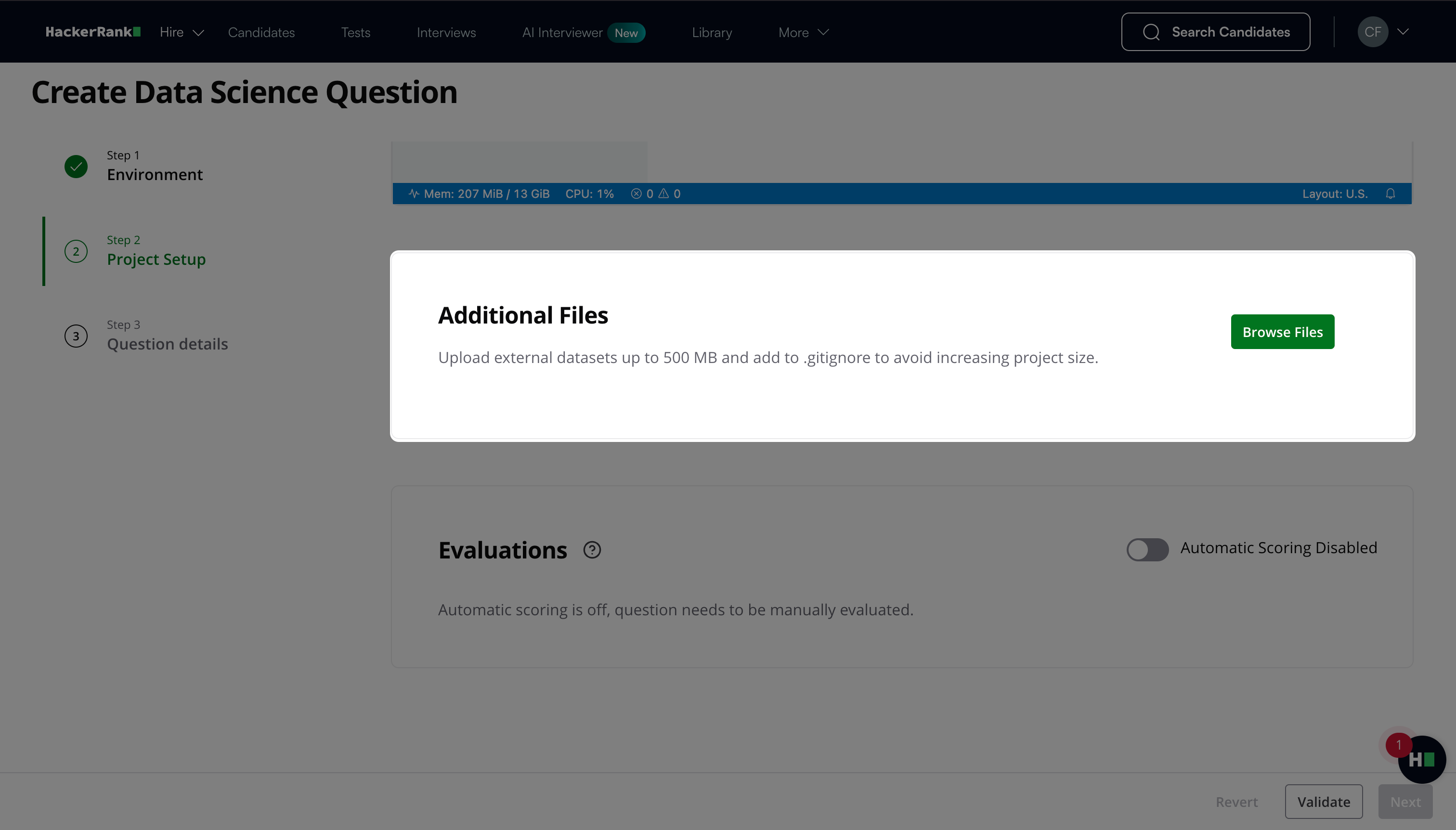
Scoring script (For example,
score.pyorscore.sh)Expected output file (For example,
actual_output.csv)
Enter the expected submission filename in the Candidate Submission CSV Filename field.
Upload the expected result file under Expected Result, if required.
Define the scoring command inside
hackerrank.yml.
Example:scoring: command: python evaluation_files/score.py evaluation_files/actual_output.csv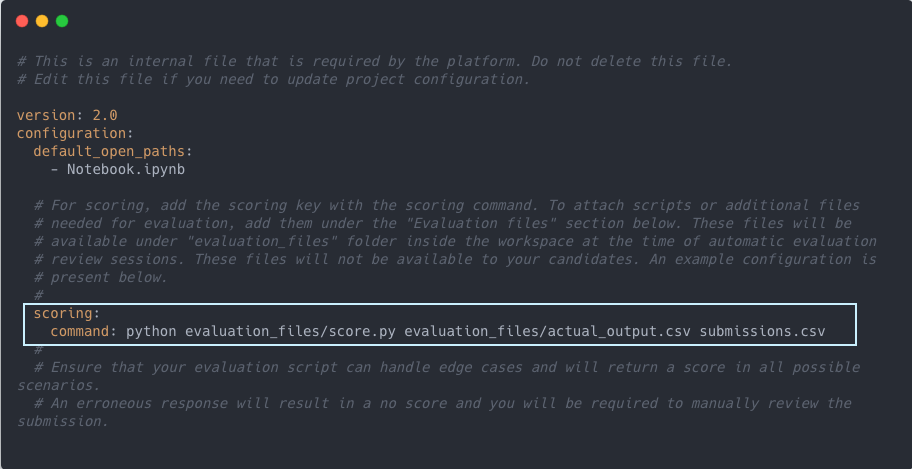
The scoring command must execute successfully, produce valid output, and return a valid score.
Click Validate.
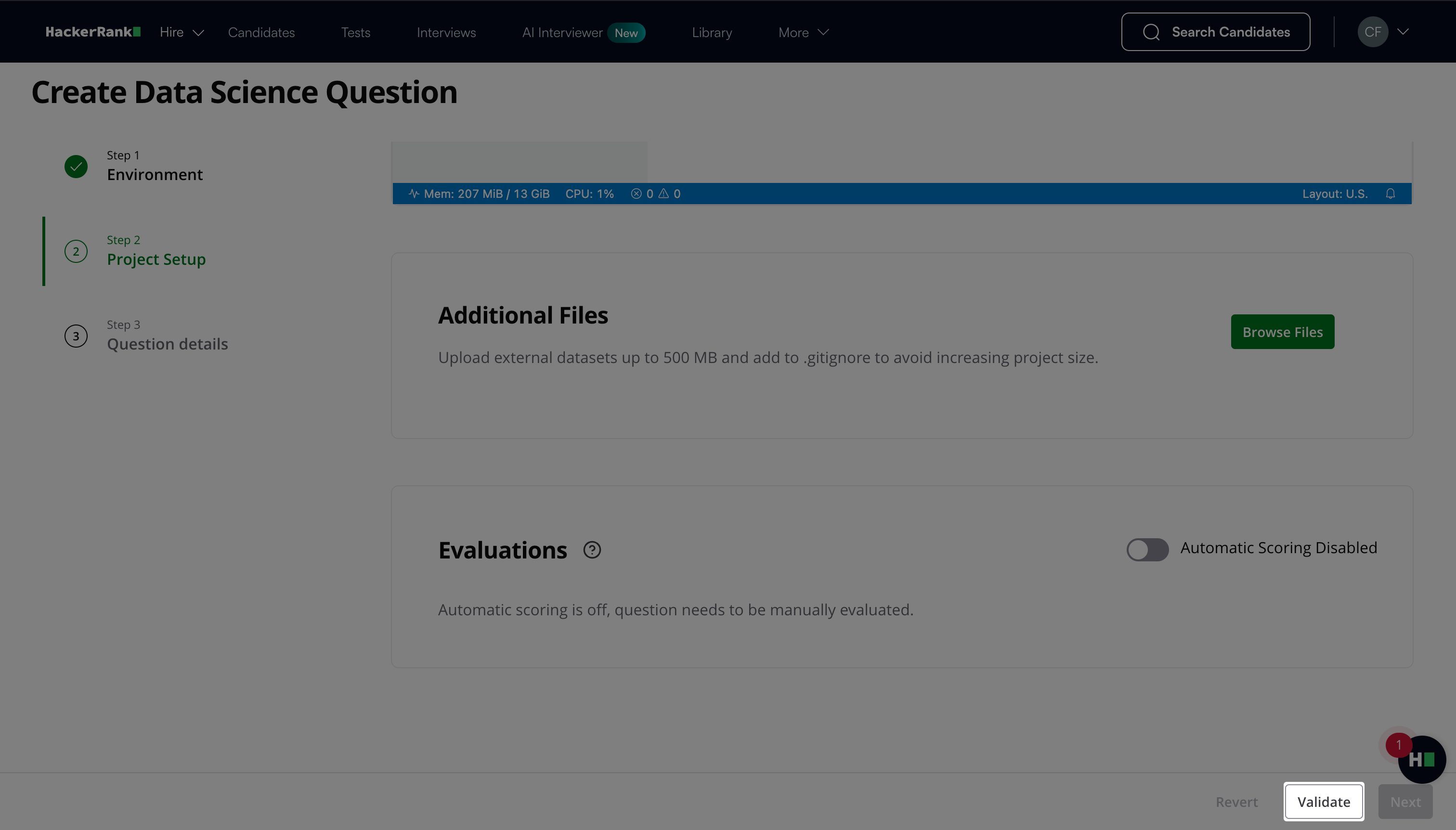
Note: Click Revert to restore the project to the last successful validation state.
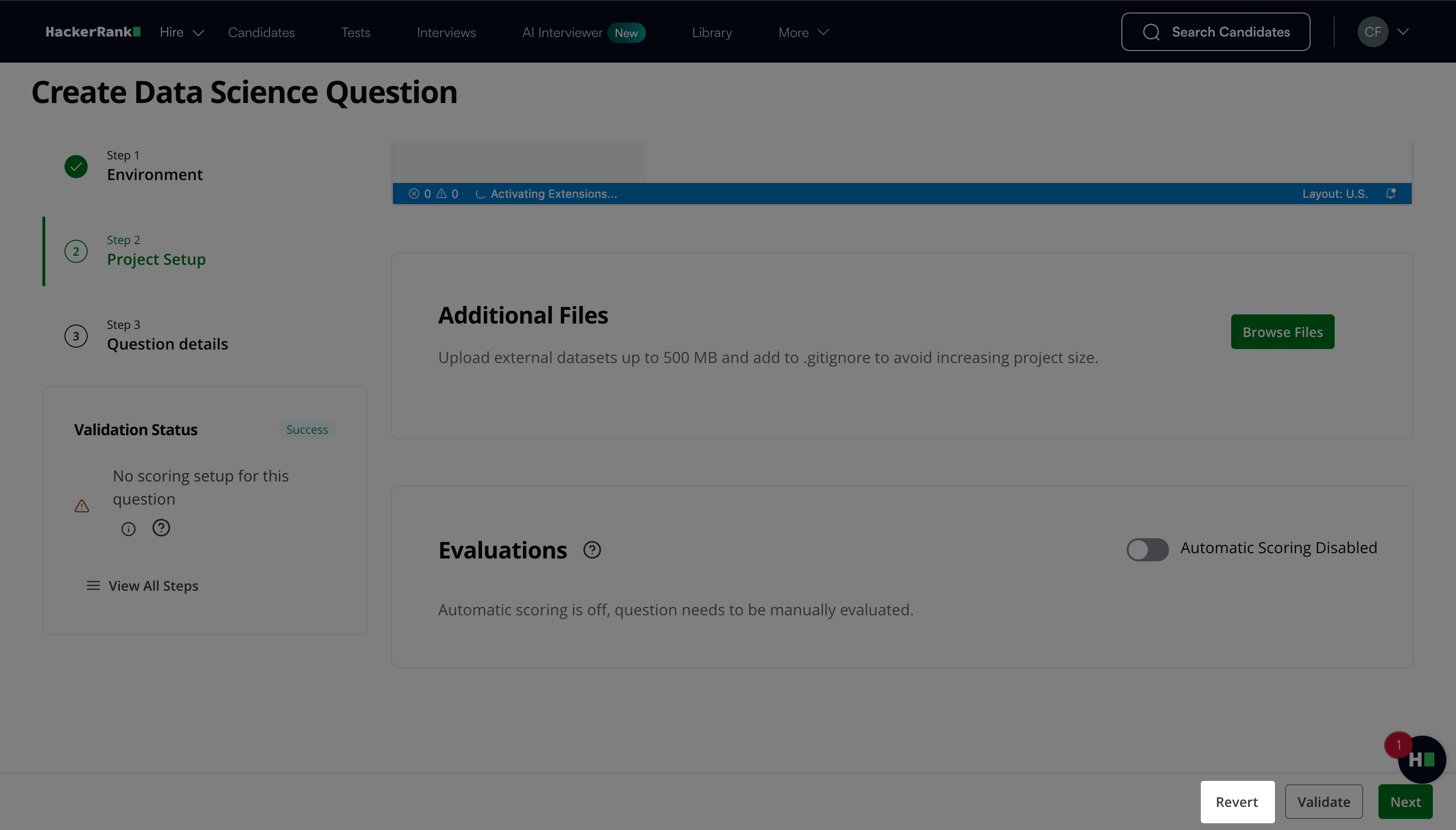
Click Next.
שלב 3: פרטי השאלה
בפרטי השאלה סעיף:
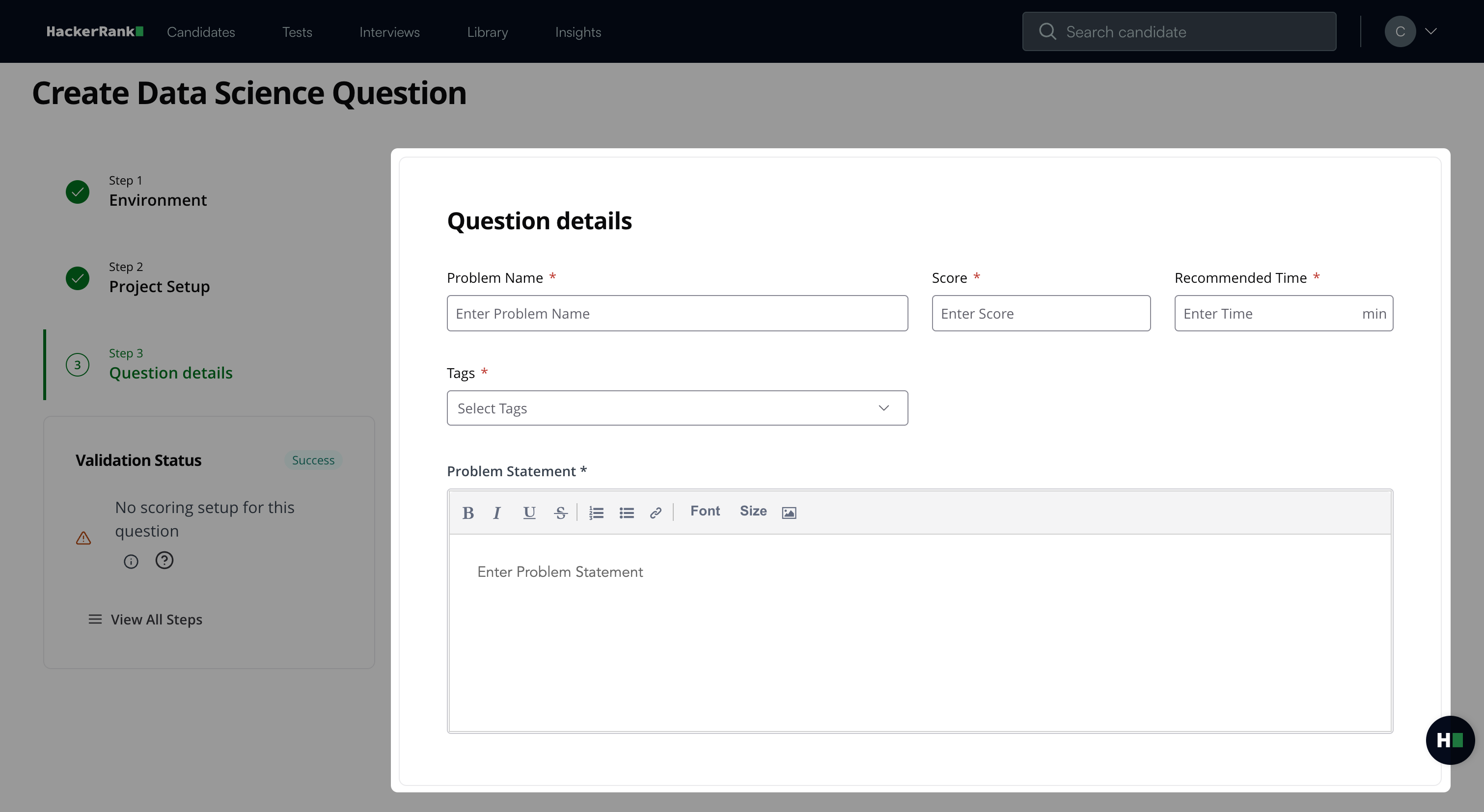
הכנס את שם השאלה.
הכנס את ניקוד בהתאם לקושי.
הוסף זמן מומלץ בדקות.
הוסף תגיות מהתפריט הנפתח או צור חדשים.
תאר את הבעיה בתיאור הבעיה שדה. ניתן להשתמש בתפריט העיצוב לעיצוב הטקסט או להוספת אלמנטים כגון טבלאות או תמונות.
הוסף הנחיות למראיין לשימוש פנימי, כגון קריטריוני הערכה, רמזים, או פתרונות רפרנס.
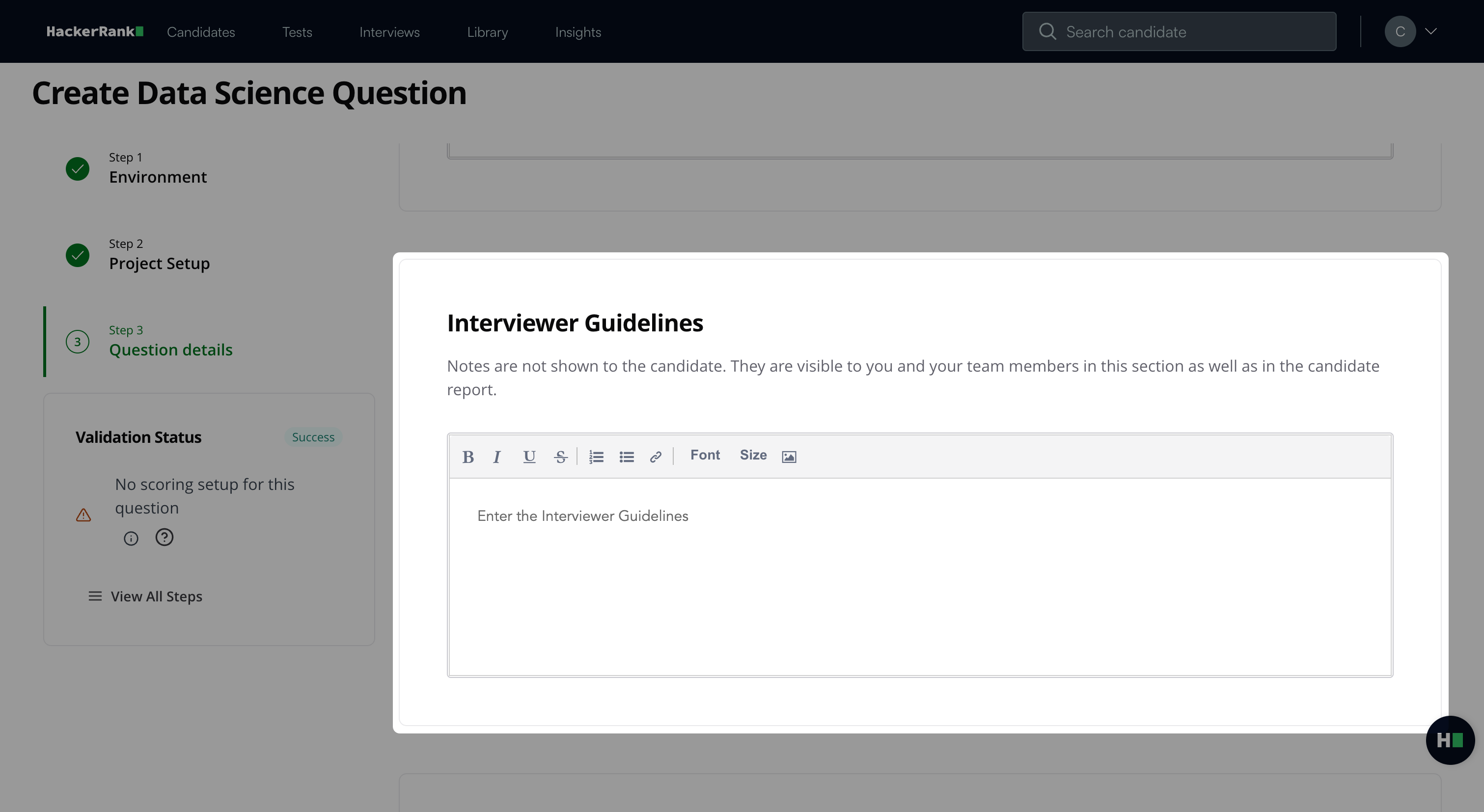
הערה: אם בחרת הערכה ידנית, הוסף את קריטריוני ההערכה בהנחיות למראיין.
(אופציונלי) הוסף הוראות תוכנה לציון חבילות נדרשות או גרסאות תוכנה. אם תשאיר שדה זה ריק, הפלטפורמה תשתמש בהוראות ברירת המחדל.
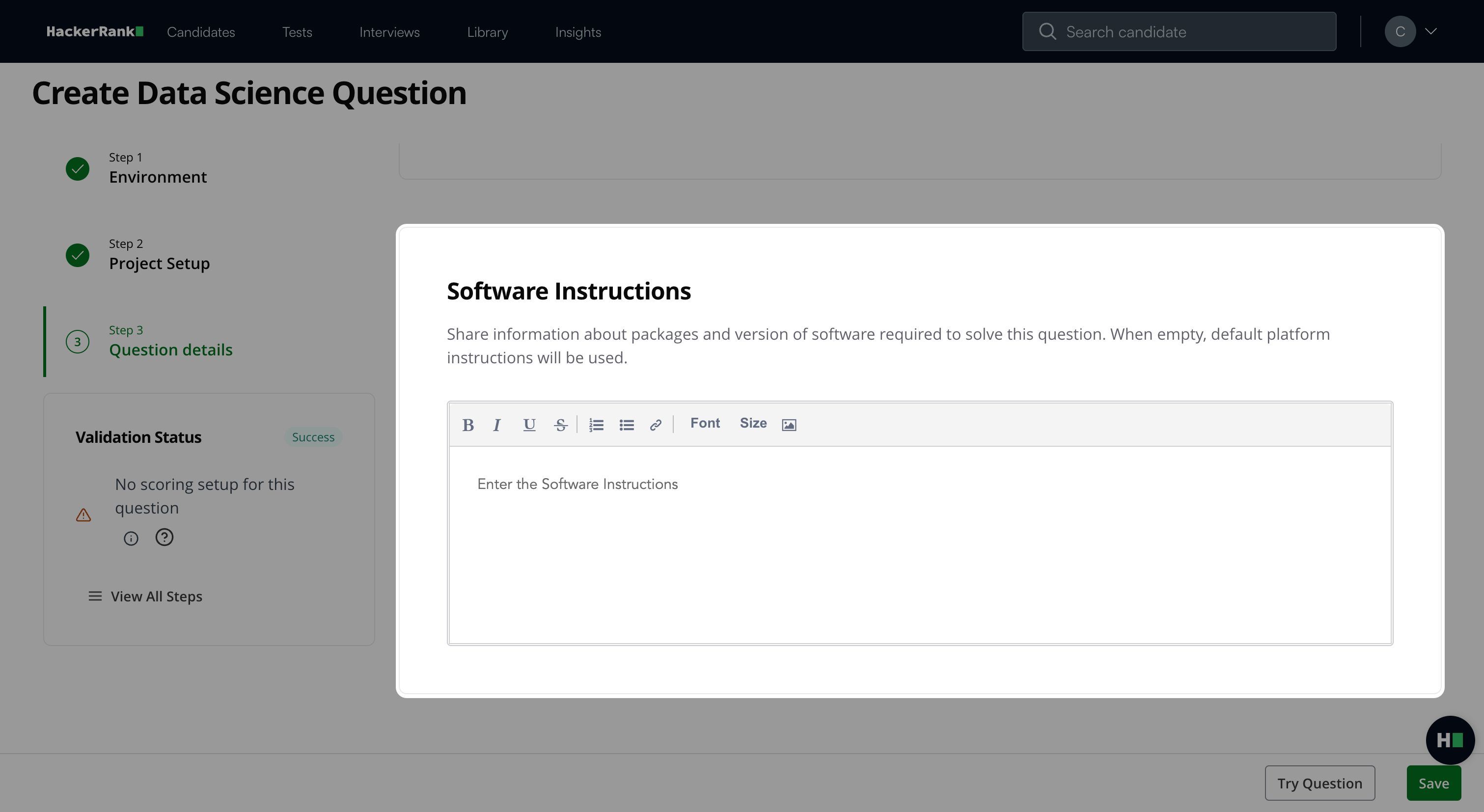
הערה: לחץ נסה שאלה כדי לראות כיצד השאלה מוצגת למועמדים.
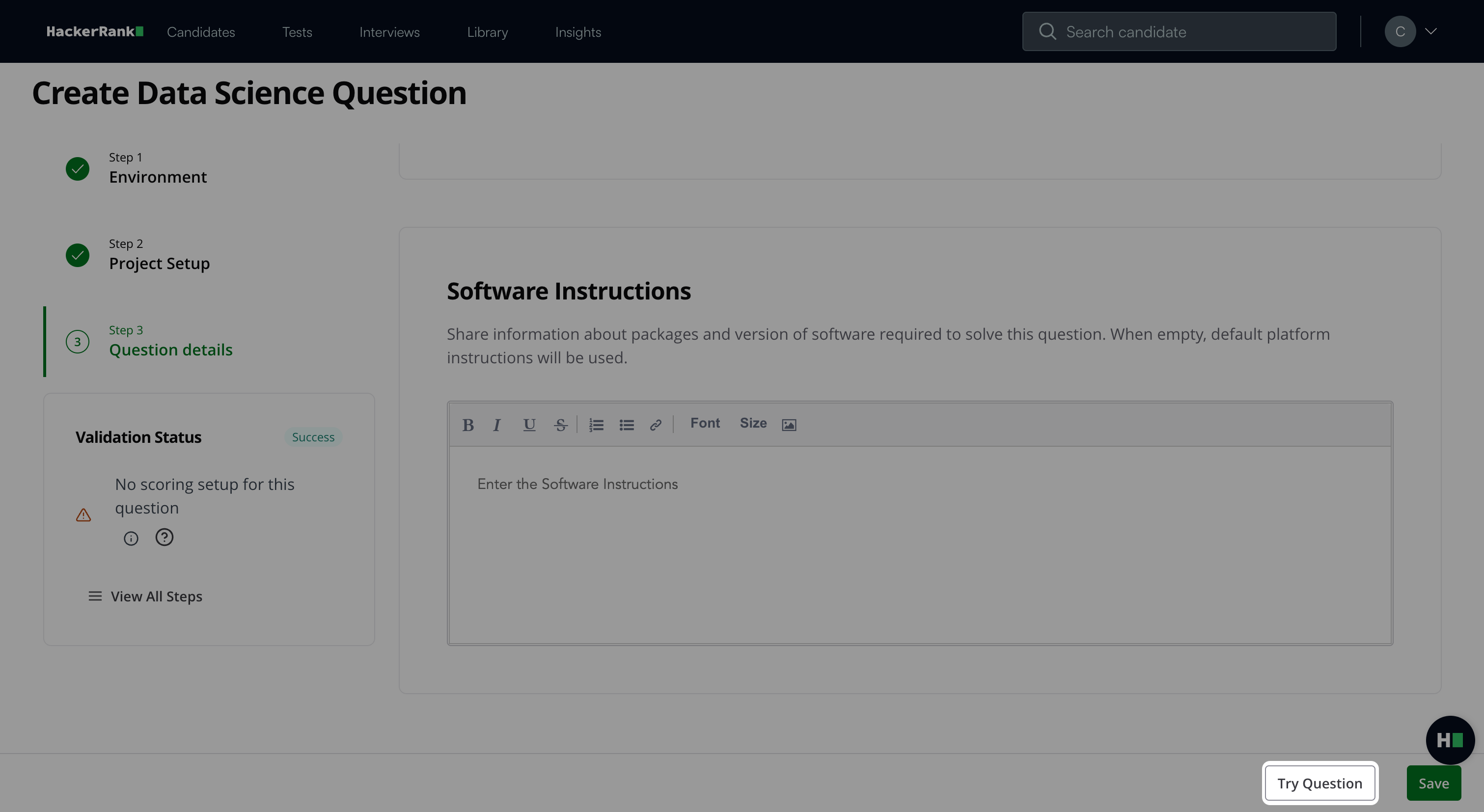
לחץ שמור.
השאלה מופיעה תחת My Company שאלות בספרייה של HackerRank.
חוויית המועמד
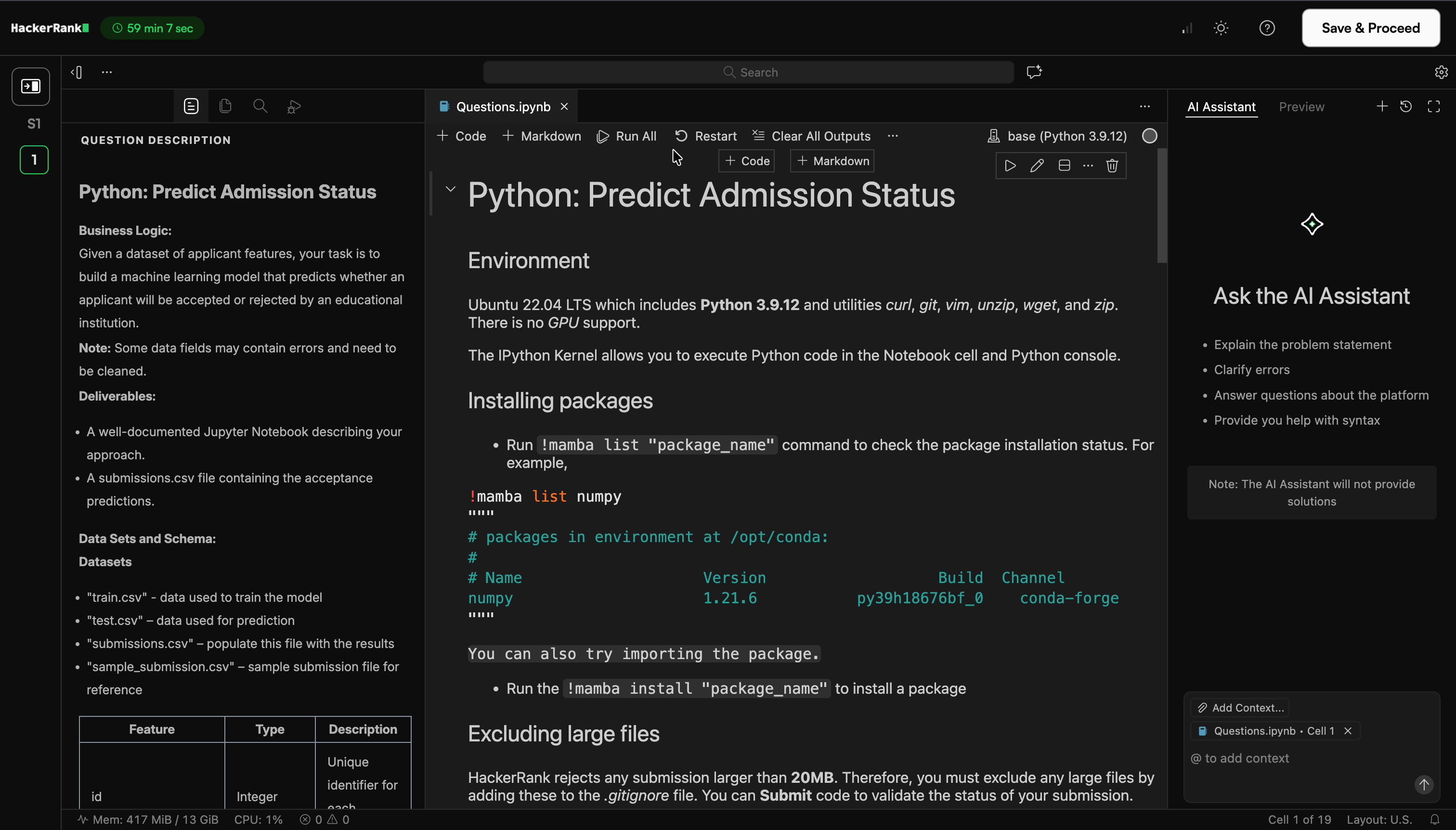
המועמדים פותרים את האתגרים האלה ב-IDE משולב של VS Code בתוך פרויקטים של HackerRank.
דירוג שאלה במדעי הנתונים במבחנים
אתה יכול להעריך שאלה במדעי הנתונים באמצעות אוטומטי או ידני דירוג.
דירוג אוטומטי
כאשר אתה מאפשר דירוג אוטומטי, הפלטפורמה מעריכה את השאלה בהתבסס על מדד הדירוג שנבחר וההגדרות.
המערכת מייצרת את הציון באופן אוטומטי ומציגה אותו בדוח המועמד.
דירוג ידני
ניתן להשתמש בדירוג ידני כאשר דירוג אוטומטי מושבת או כאשר שליחה דורשת ביקורת ידנית.
כדי לדרג שאלה ידנית:
פתח את המועמד דוח מבחן מפורט. למידע נוסף, ראה 📄 צפייה בדוח מבחן מפורט של המועמד.
הרחב הצהרת הבעיה.
גלול אל הנחיות המראיין. יתכן שקטע זה כולל את פנקס הפתרון וקריטריוני ההערכה.
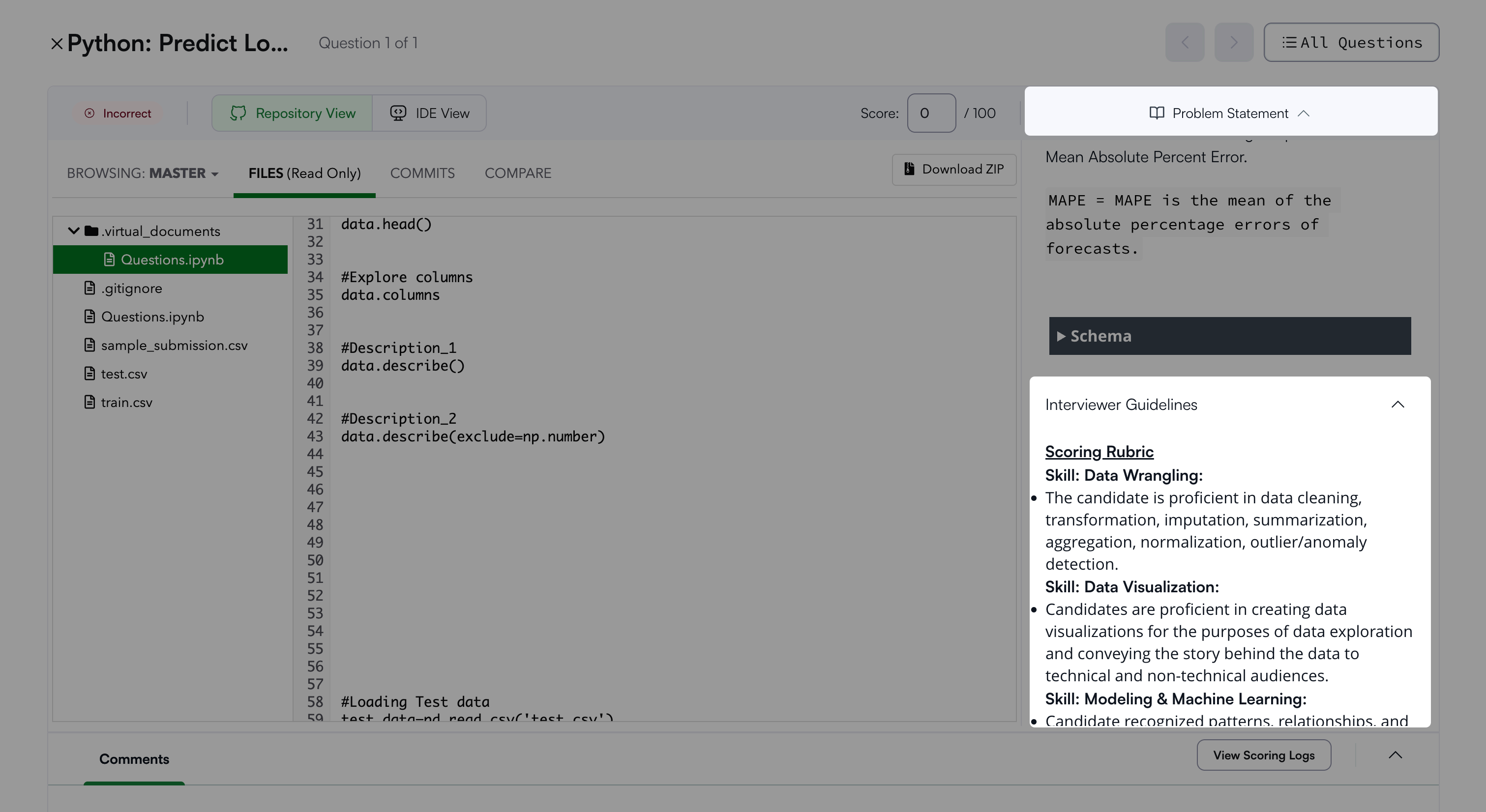
ביקורת על הפתרון שהגיש המועמד באמצעות אחת מהאפשרויות הבאות:
הורד את ההגשה כקובץ ZIP.
הפעל סשן זמני של VS Code.
הפעלת סשן VS Code מאפשרת לך:
ביקורת על כל הקבצים המוגשים
הפעל תאים של נתונים ותסריטים
חקור את סביבת ההגשה
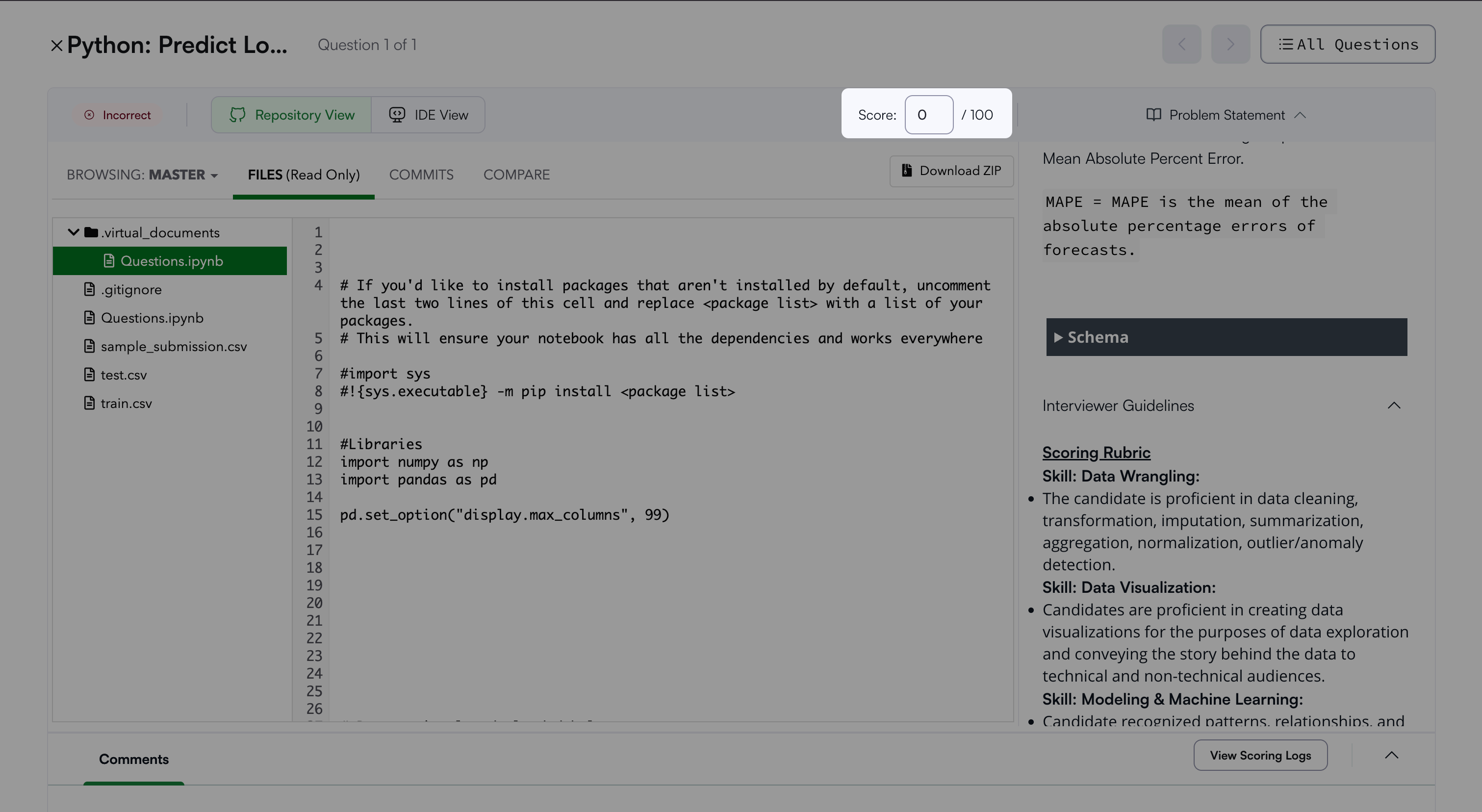
הזן את הציון ב ציון השדה לאחר שתסיים את הביקורת שלך.