Manage Interview Templates
Last updated: August 27, 2026
This article applies to the new Interview experience. If your interview interface looks different, see 📄 Manage Interviews Templates for the legacy Interview experience.
Interview templates help you maintain consistency across interviews. A template ensures that every candidate for a specific role receives the same set of questions and is evaluated using the same criteria.
Creating an interview template
To create an interview template:
Log in to your HackerRank for Work account using your credentials.
Go to Interviews > Templates.
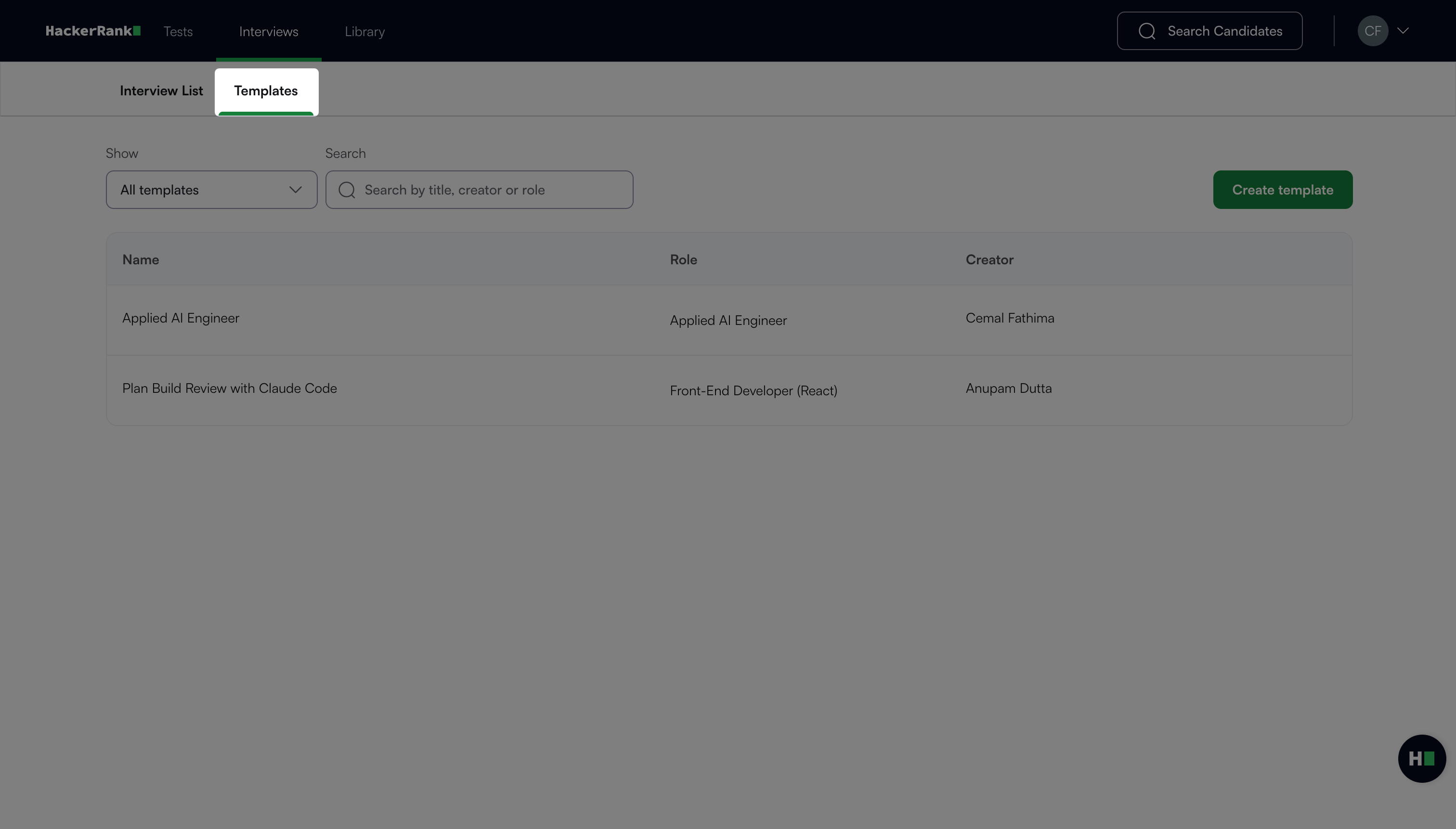
Click Create template.
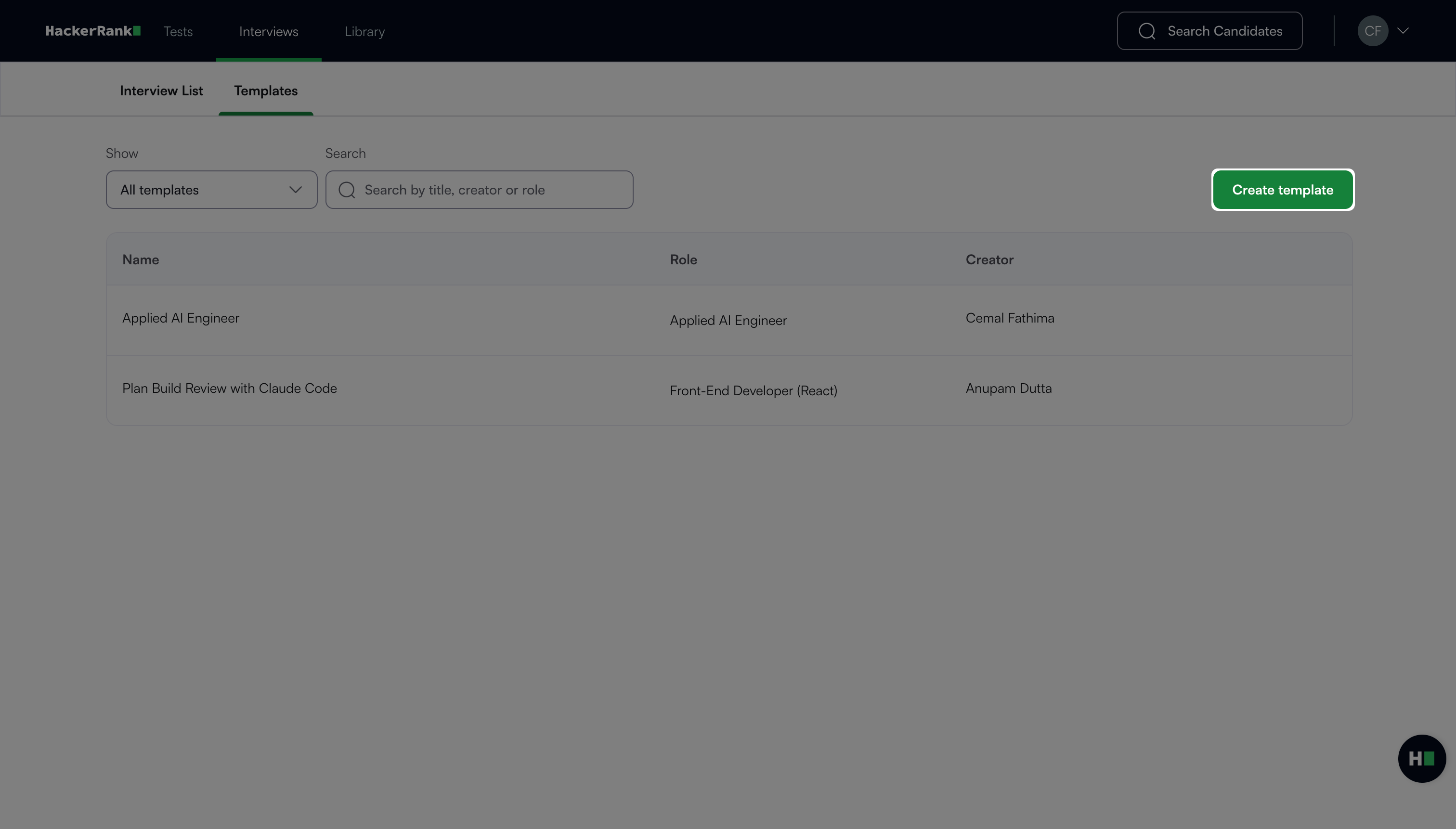
In the Create New Template dialog box, select a role and enter a template name.
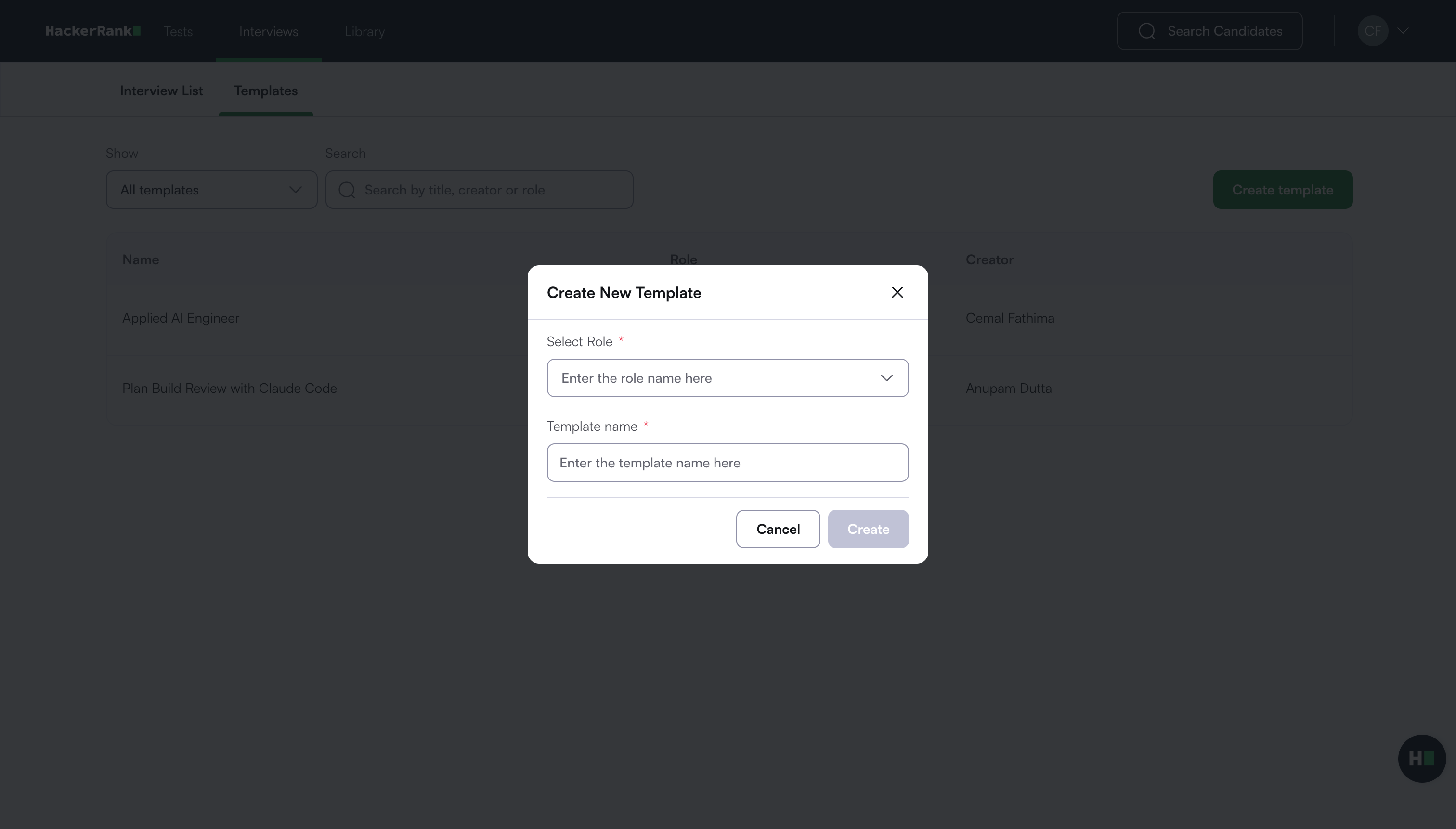
Note: To create a template for a custom role, select Other under Select Role.
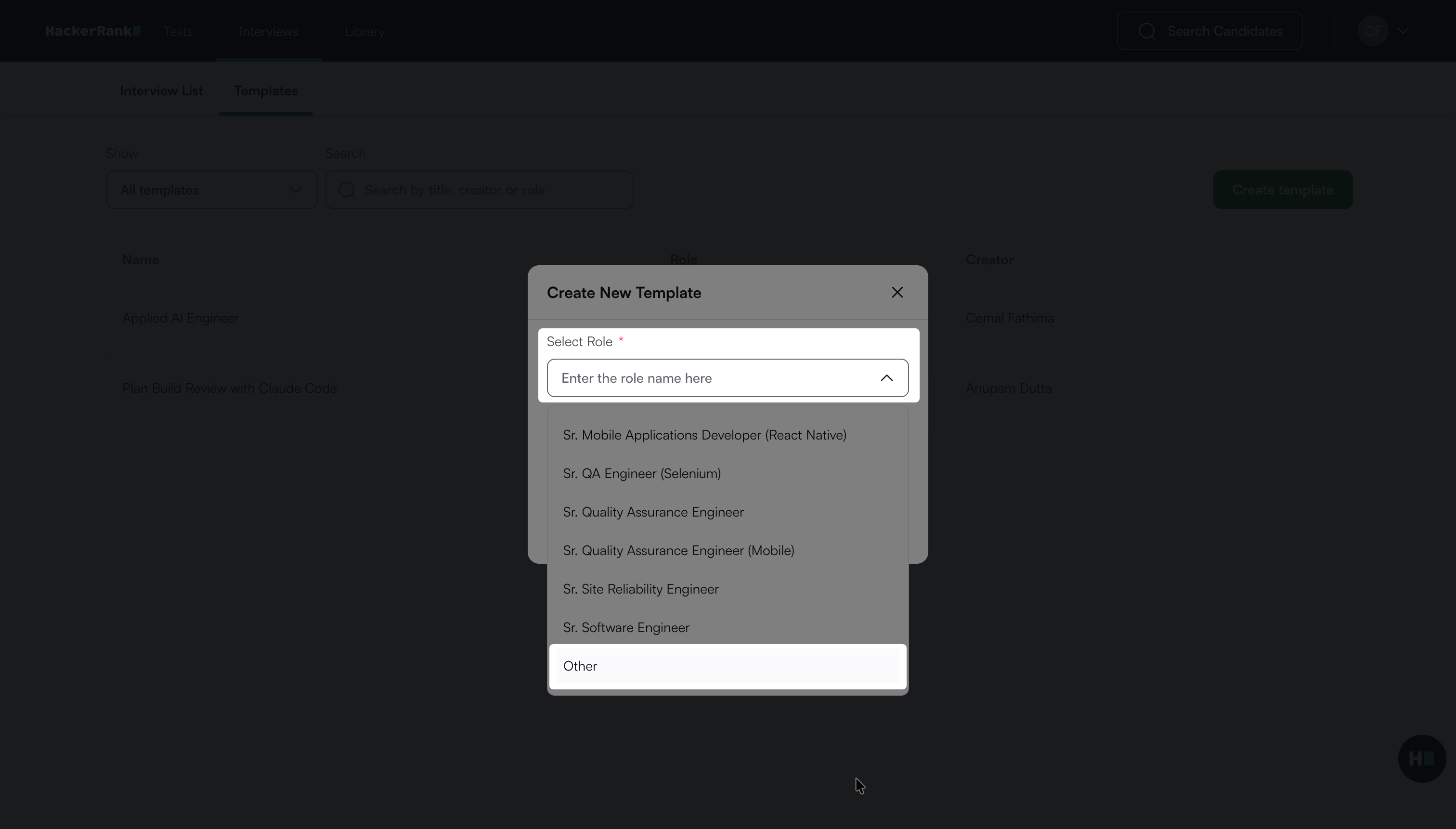
Click Create.
HackerRank creates the template and opens the Questions tab, where you can add questions to the template.
Adding questions to an interview template
To add questions to an interview template:
Go to Interviews > Templates.
Select the template you want to add questions.
Click Add question under the Questions tab.
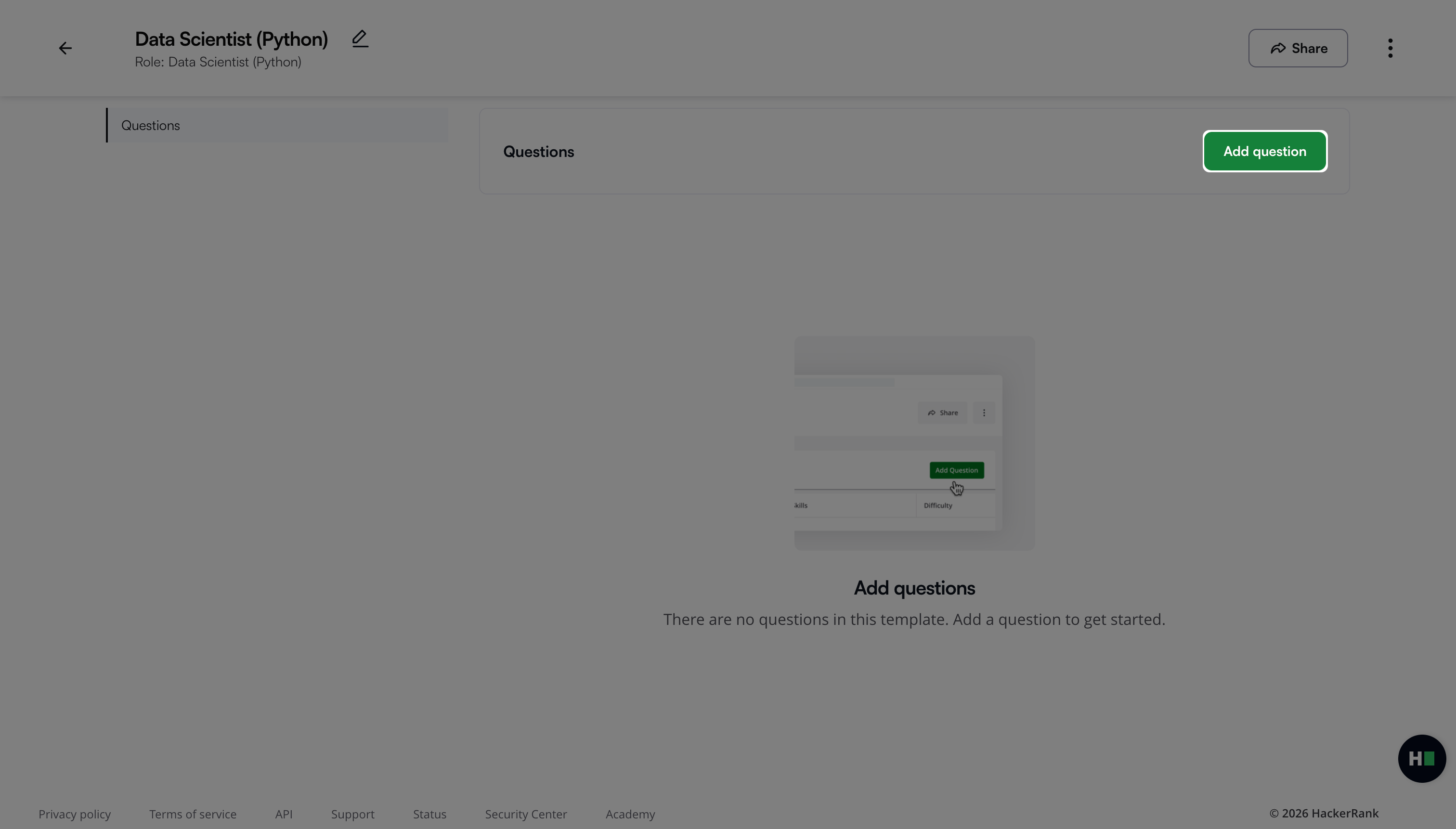
(Optional) Use the search bar or filters to quickly find the questions.
Click + Add next to each question that you want to add. The Template Preview panel displays all selected questions.
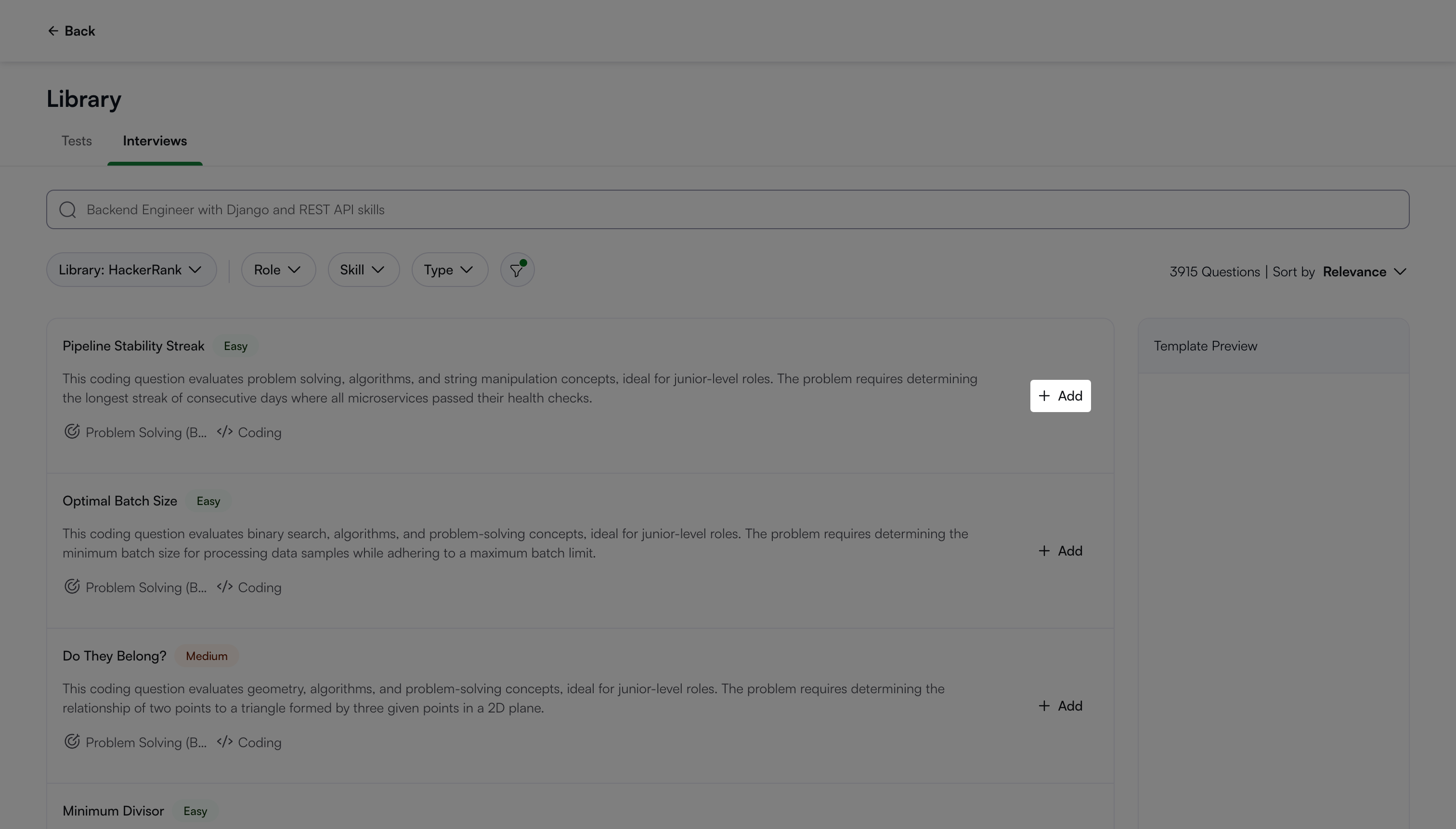
Note: To remove a question from the Template Preview panel, click the Delete icon, and then click Remove.
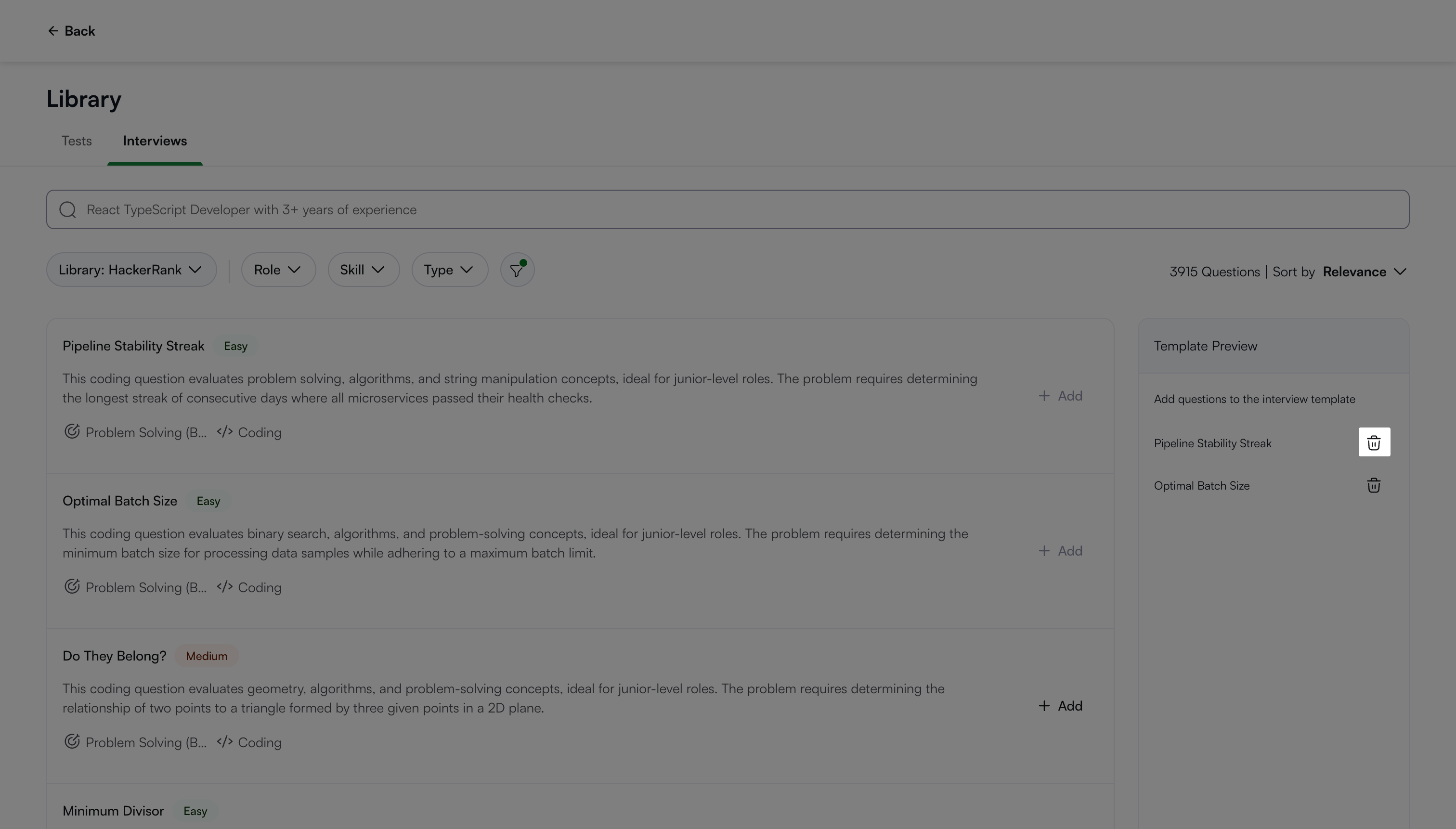
Click the Back icon to return to the Questions tab.
The Questions tab displays all questions added to the template.
Note: To remove a question from the Questions tab, click the Delete icon in the Action column.
Sharing an interview template
You can share an interview template with all users, specific teams, or individual users.
To share an interview template:
Go to Interviews > Templates.
Click the more options menu (⋮) next to the template and select Share.
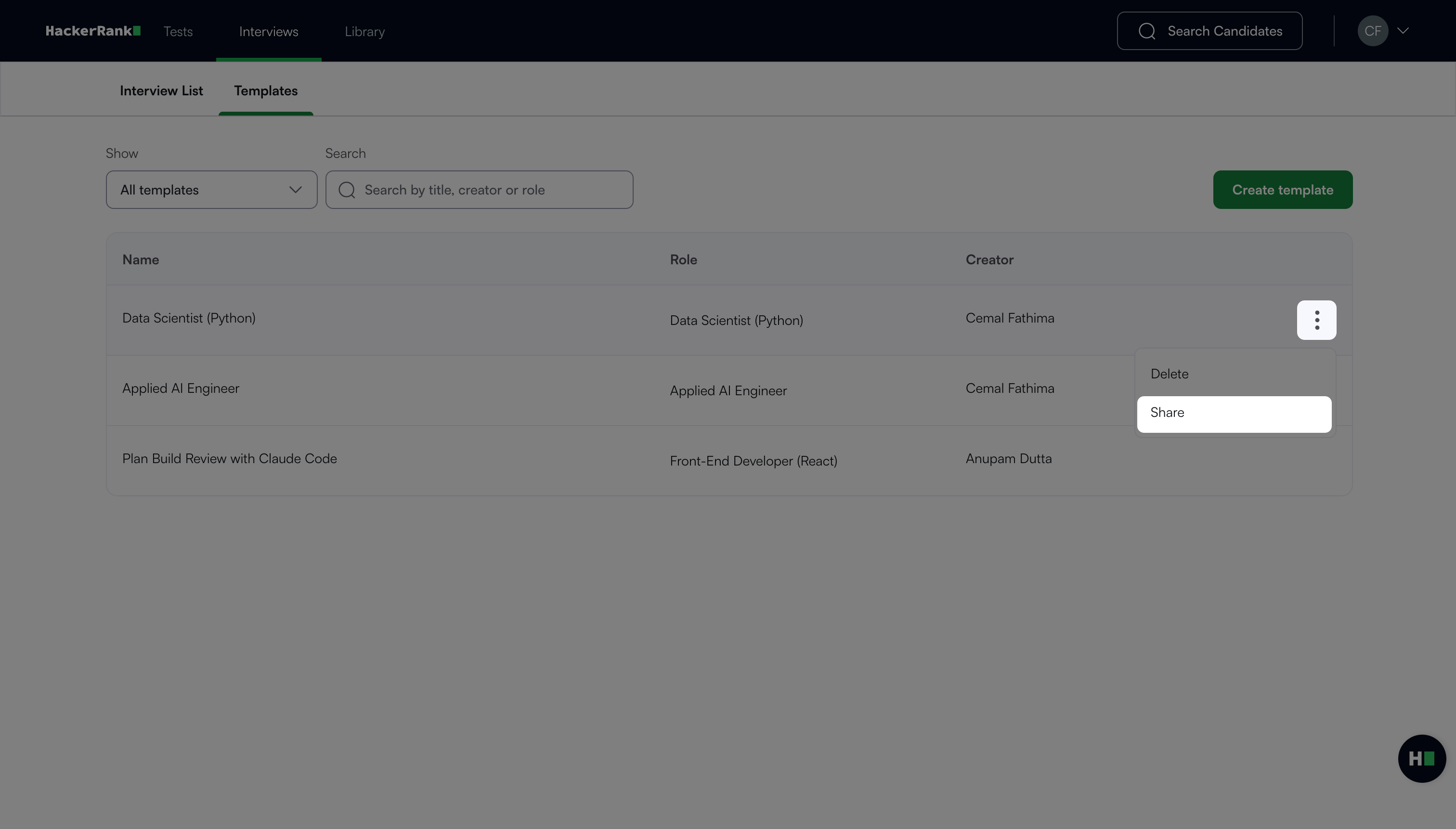
In the Share Interview Template dialog box:
Enter a user or team name in the Search users and teams field.
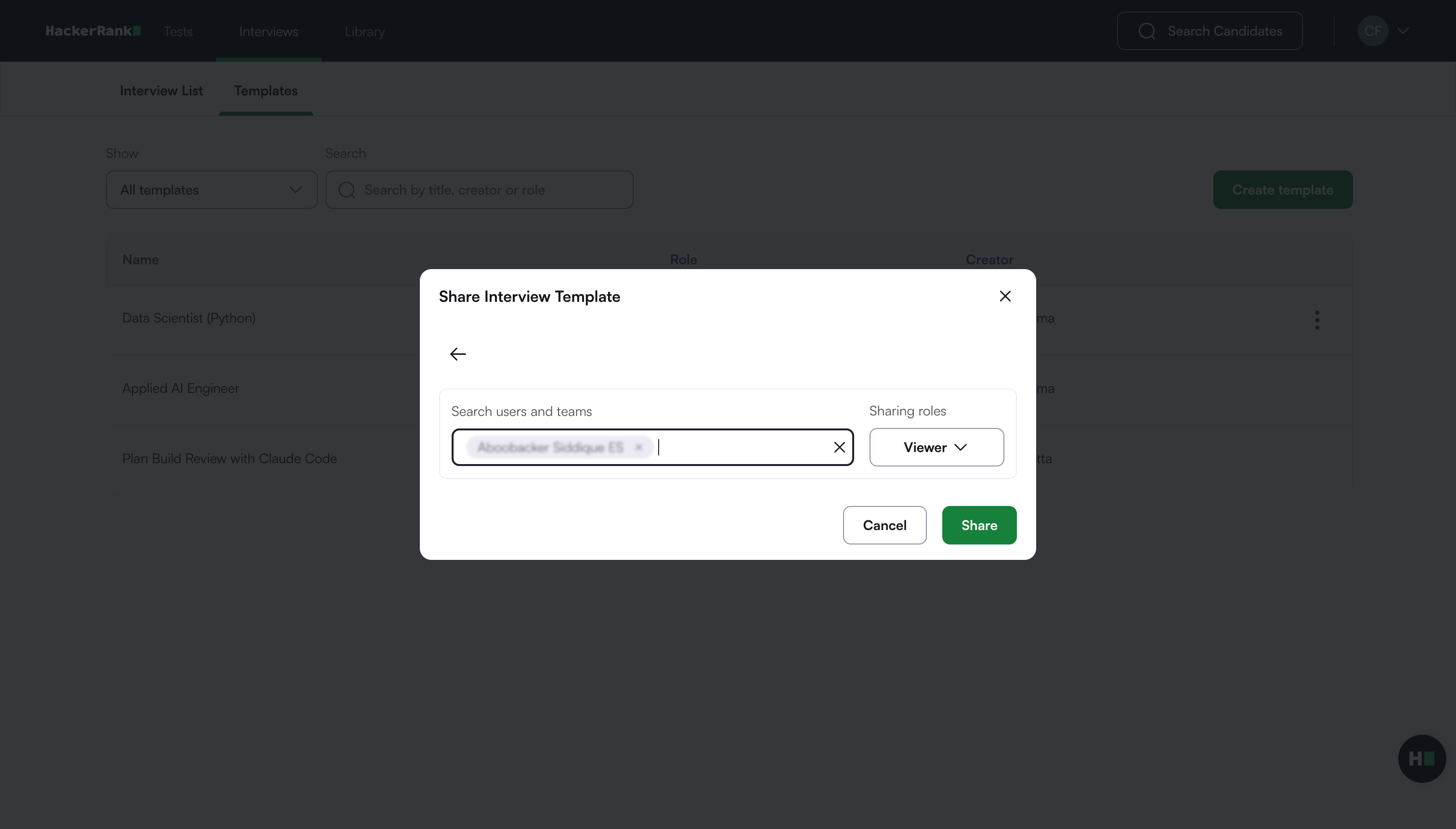
Choose a sharing role from the drop-down list:
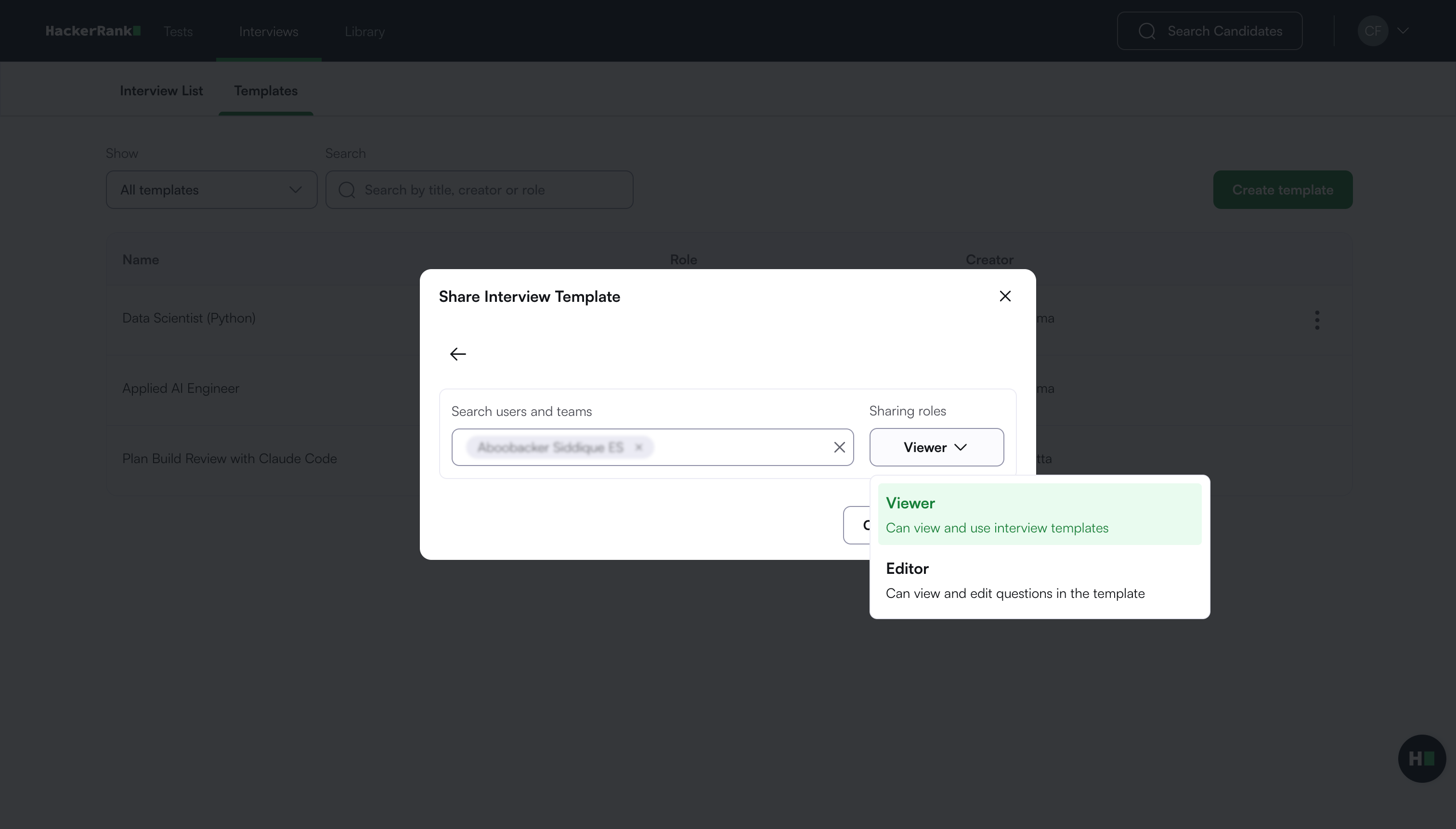
Viewer: Can view and use interview templates.
Editor: Can view, use, and edit interview templates.
Click Save.
HackerRank shares the template with the selected users or teams.
Note:
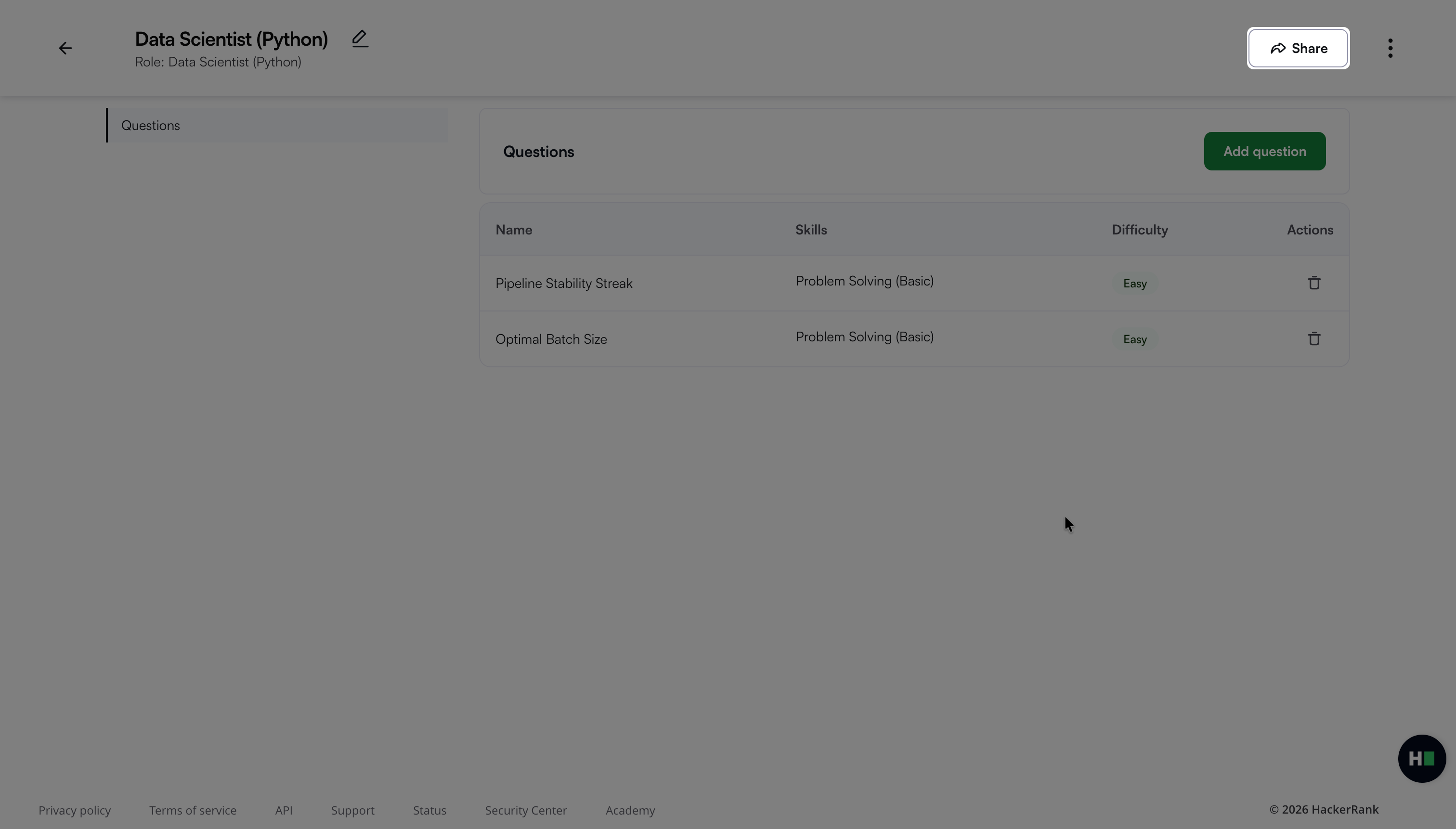
You can also open the template and click Share in the upper-right corner.
Template owners and company admins can change the template owner or delete the template.
Removing user access from an interview template
You can remove access for any user or team from an interview template.
To remove access:
Go to Interviews > Templates.
Click the More options (⋮) menu next to the template and select Share.
In the Share Interview Template dialog box, select the user or team you want to remove.
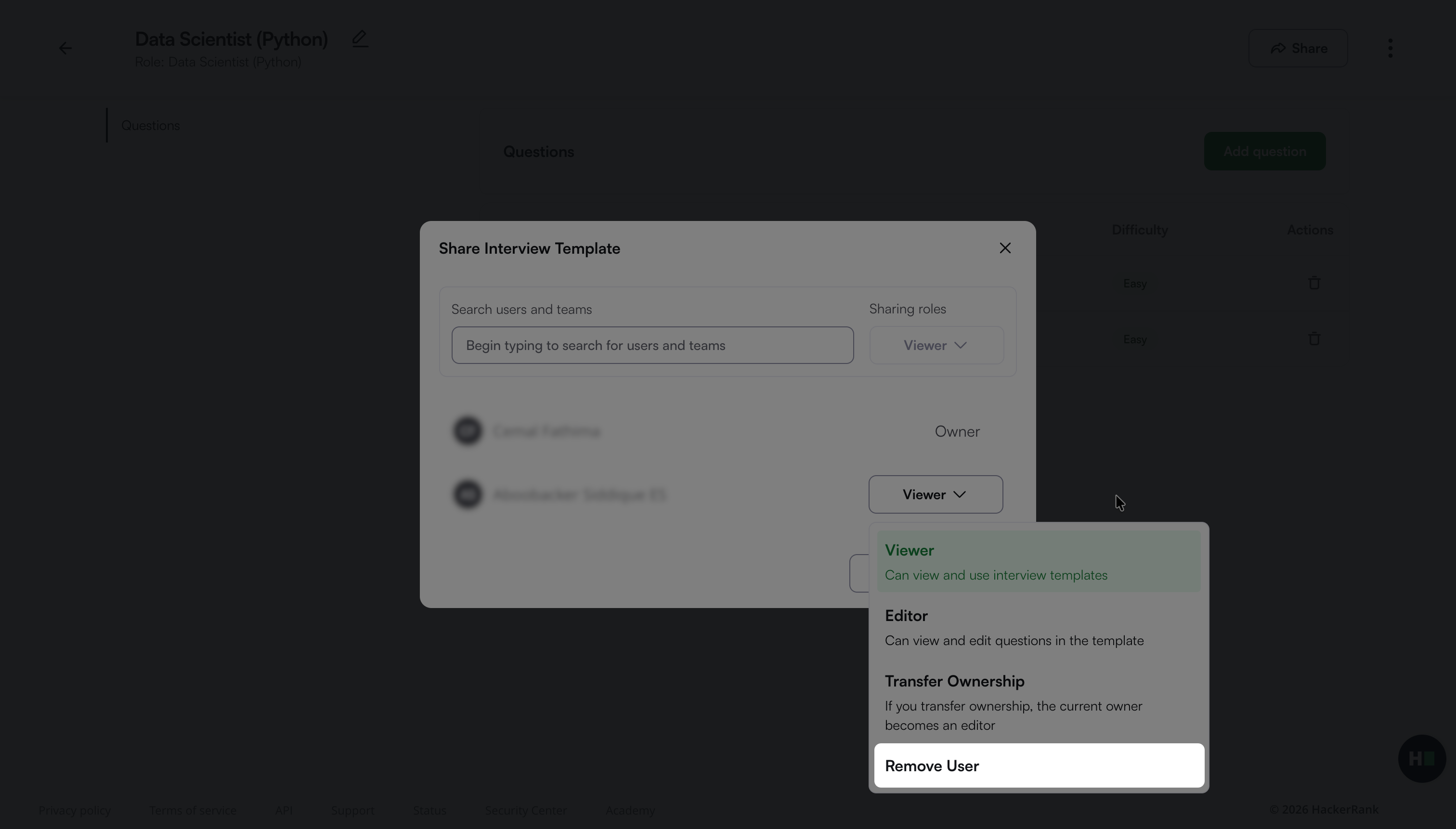
Select Remove User from the drop-down menu.
Click Confirm in the confirmation dialog box.
HackerRank removes the user’s or team’s access to the template.
Renaming an interview template
To rename an interview template:
Go to Interviews > Templates.
Select the template you want to rename.
Click the edit icon next to the template name.
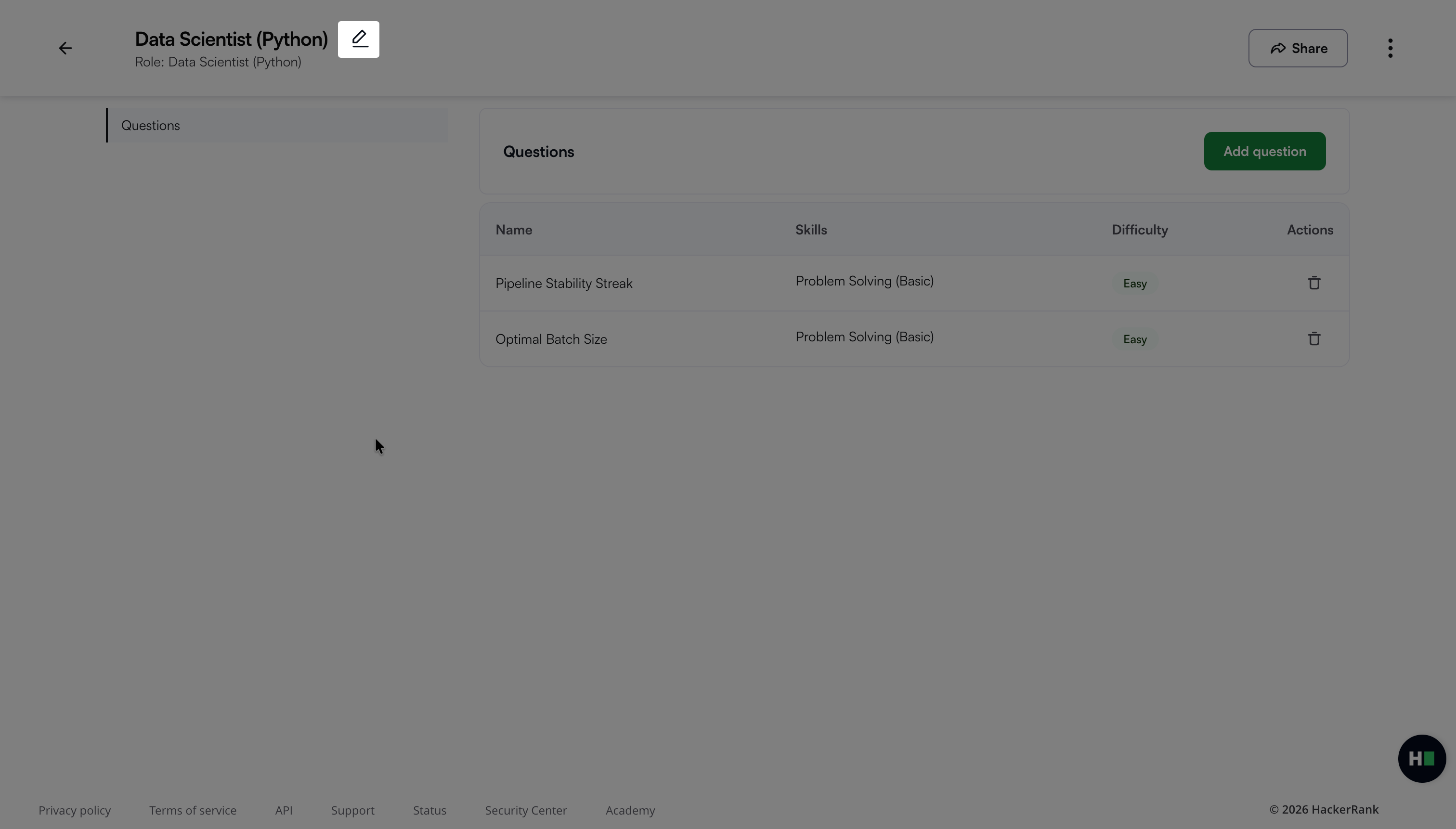
Enter a new name and press Enter. A success message appears.
Deleting an interview template
To delete an interview template:
Go to Interviews > Templates.
Click the more options menu (⋮) next to the template and select Delete.
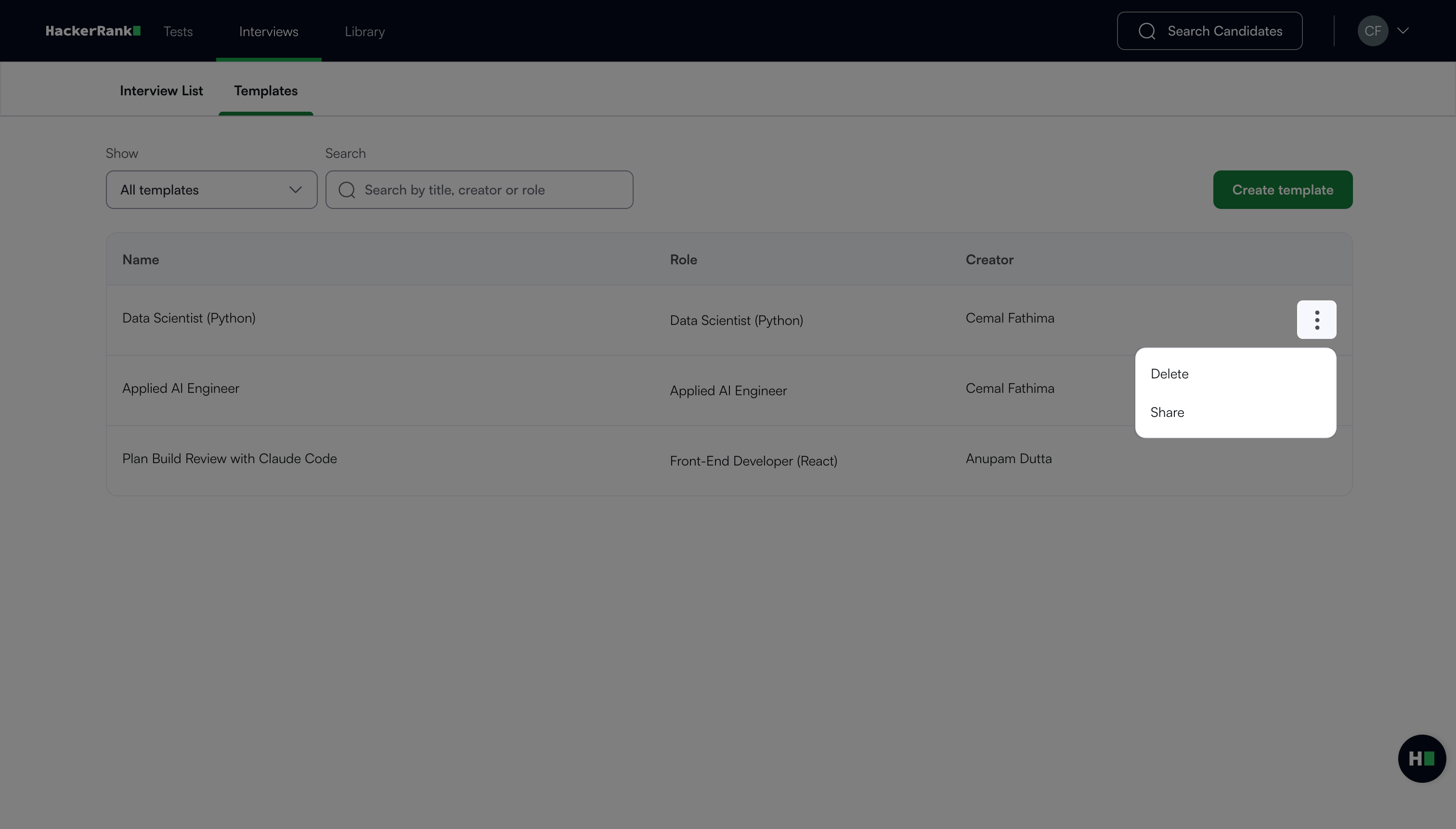
Click Delete in the confirmation dialog box. A success message appears.
FAQs
Who can share an interview template?
The template owner, company admins, and any users or teams with editor access can share an interview template.
What happens when I transfer template ownership?
When you transfer template ownership to another user, the original owner becomes an editor, and the new owner gains full control of the interview template.