Lock a Test
Last updated: February 19, 2026
Locking a test prevents changes to its questions and settings. Only test owners and company administrators can lock or unlock a test.
When a test is locked, you cannot:
Edit test settings
Change the order of questions
Add new questions
Modify existing questions
Note: You cannot delete a locked test, but you can archive it.
Prerequisites
You must have an existing test in your HackerRank account.
Locking a test
To lock a test:
Log in to your HackerRank for Work account using your credentials.
Go to the Tests tab.
Open the test you want to lock.
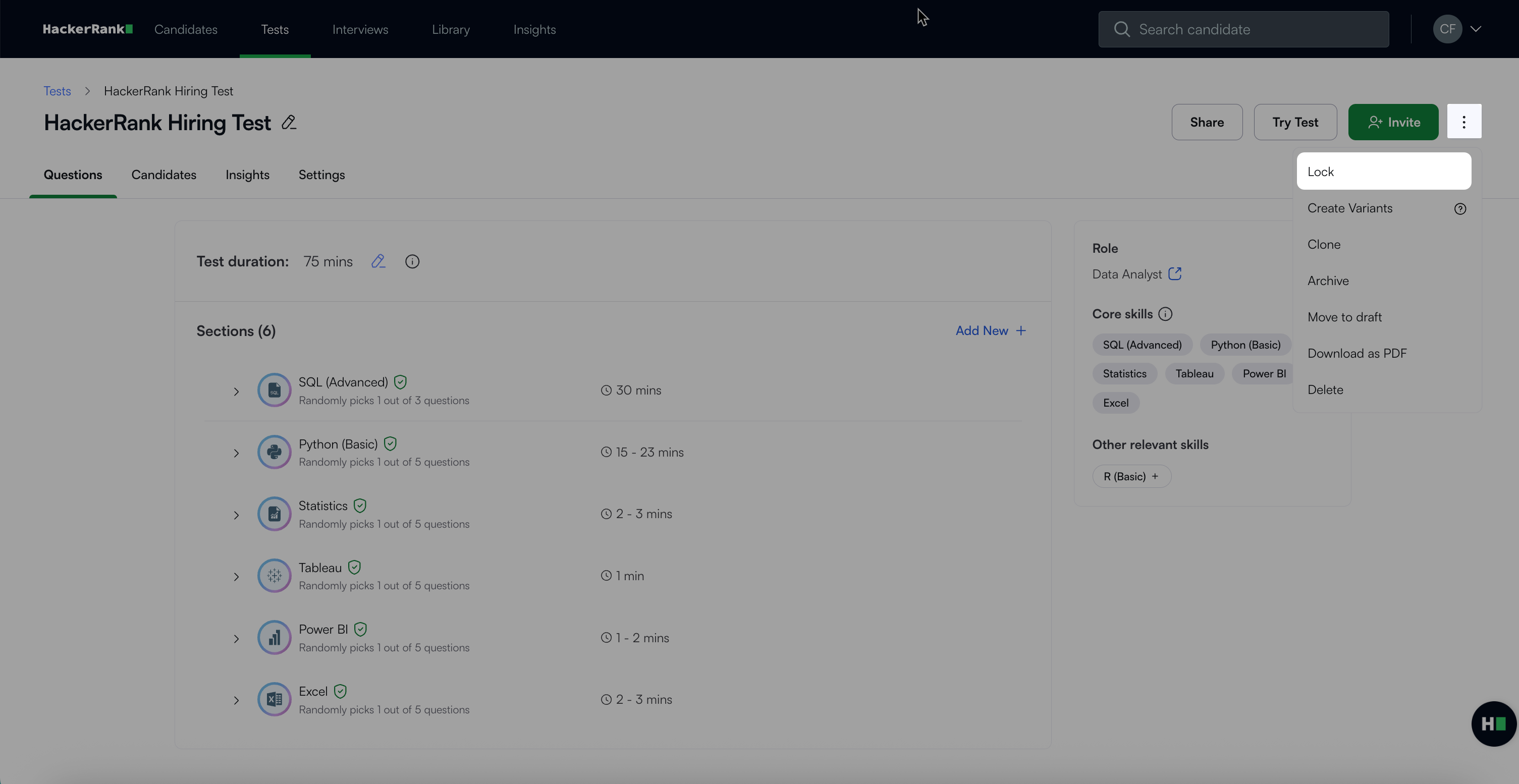
Click the more options menu (⋮) in the top right corner
Select Lock.
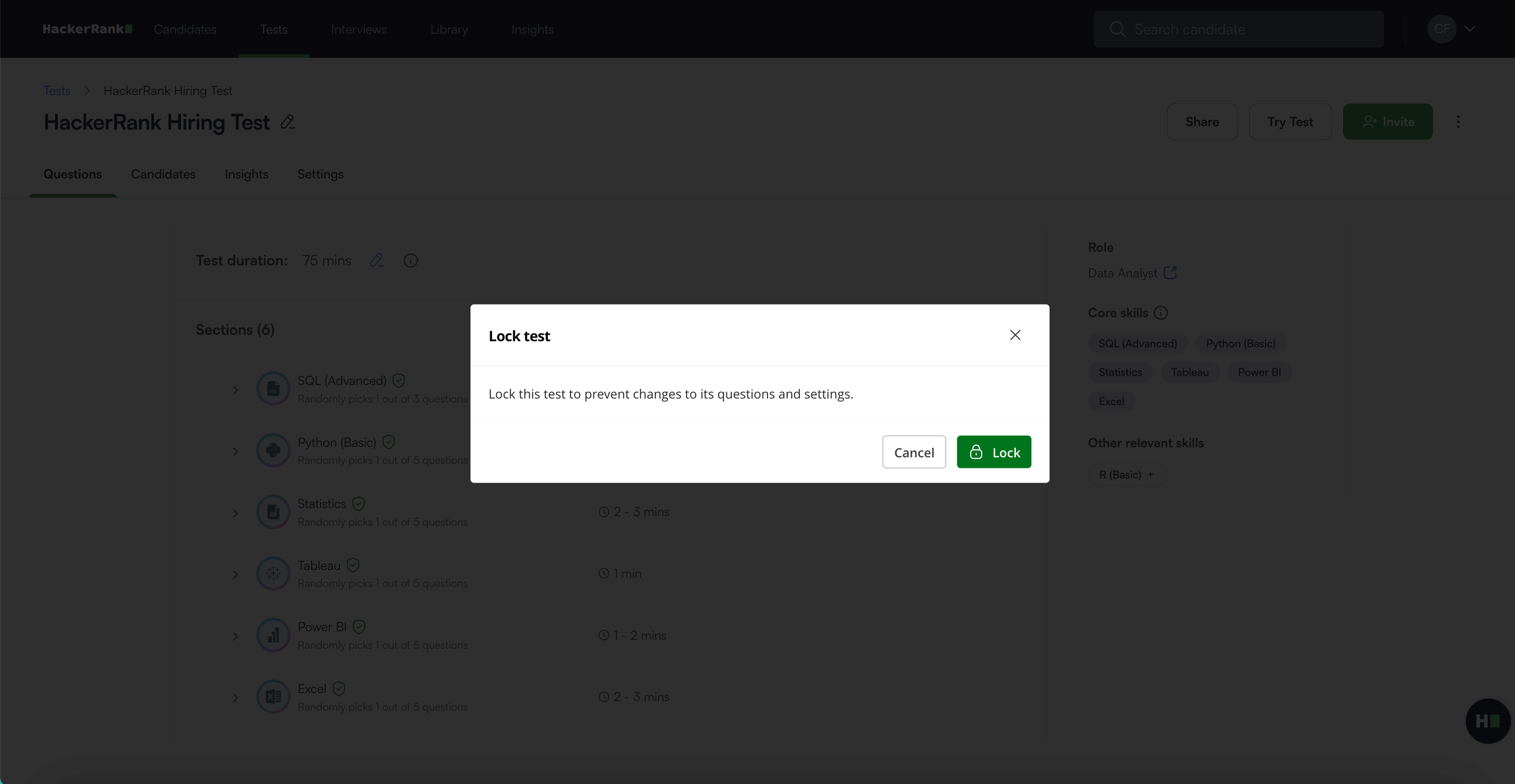
In the confirmation dialog, click Lock to confirm. A success message appears.
Unlocking a test
Note: To make changes to a locked test, you must first unlock it.
To unlock a test:
Open the test you want to unlock.
Click the more options menu (⋮) in the top right corner.
Select Unlock.
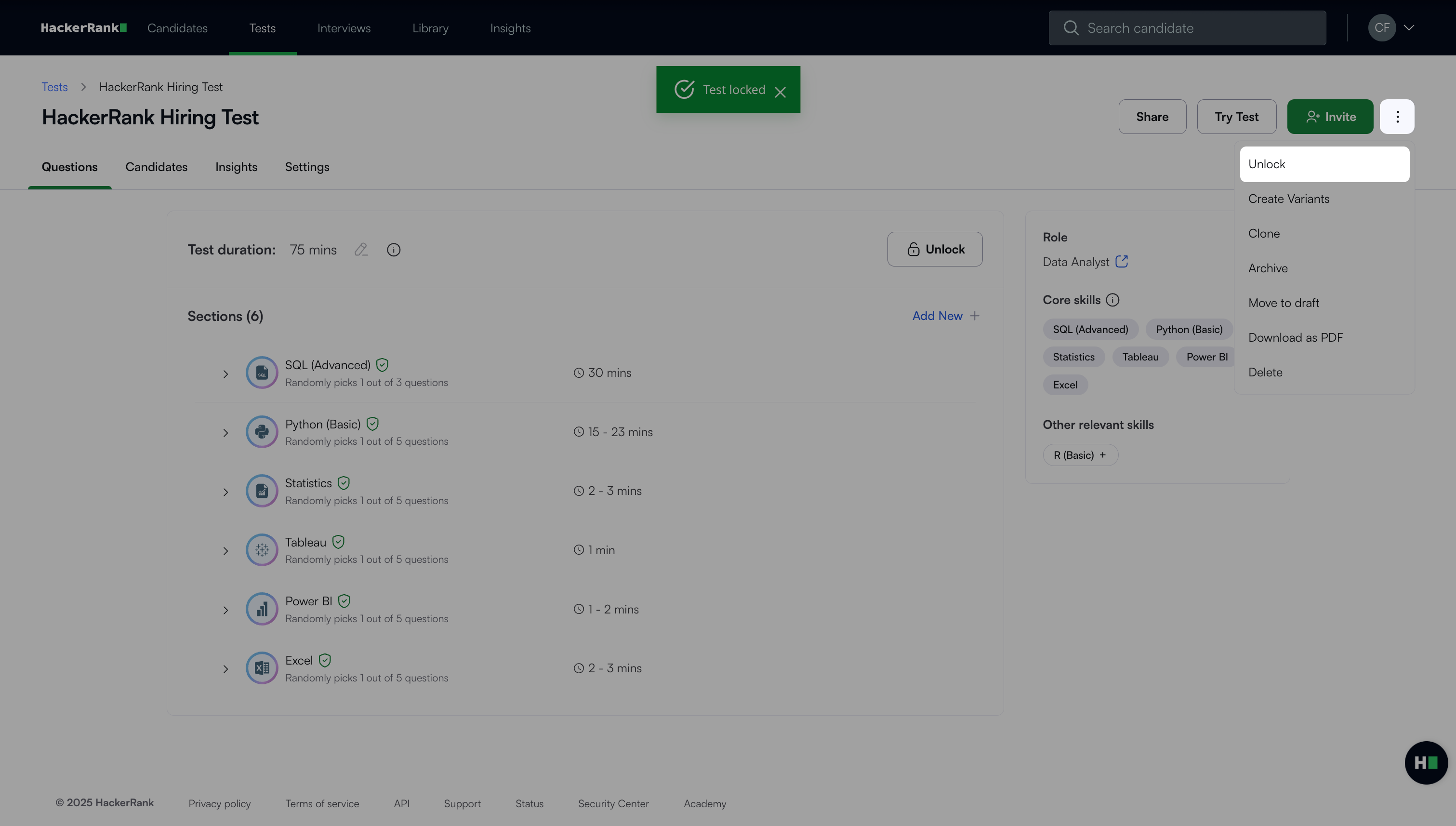
In the confirmation dialog, click Unlock to confirm. A success message appears.
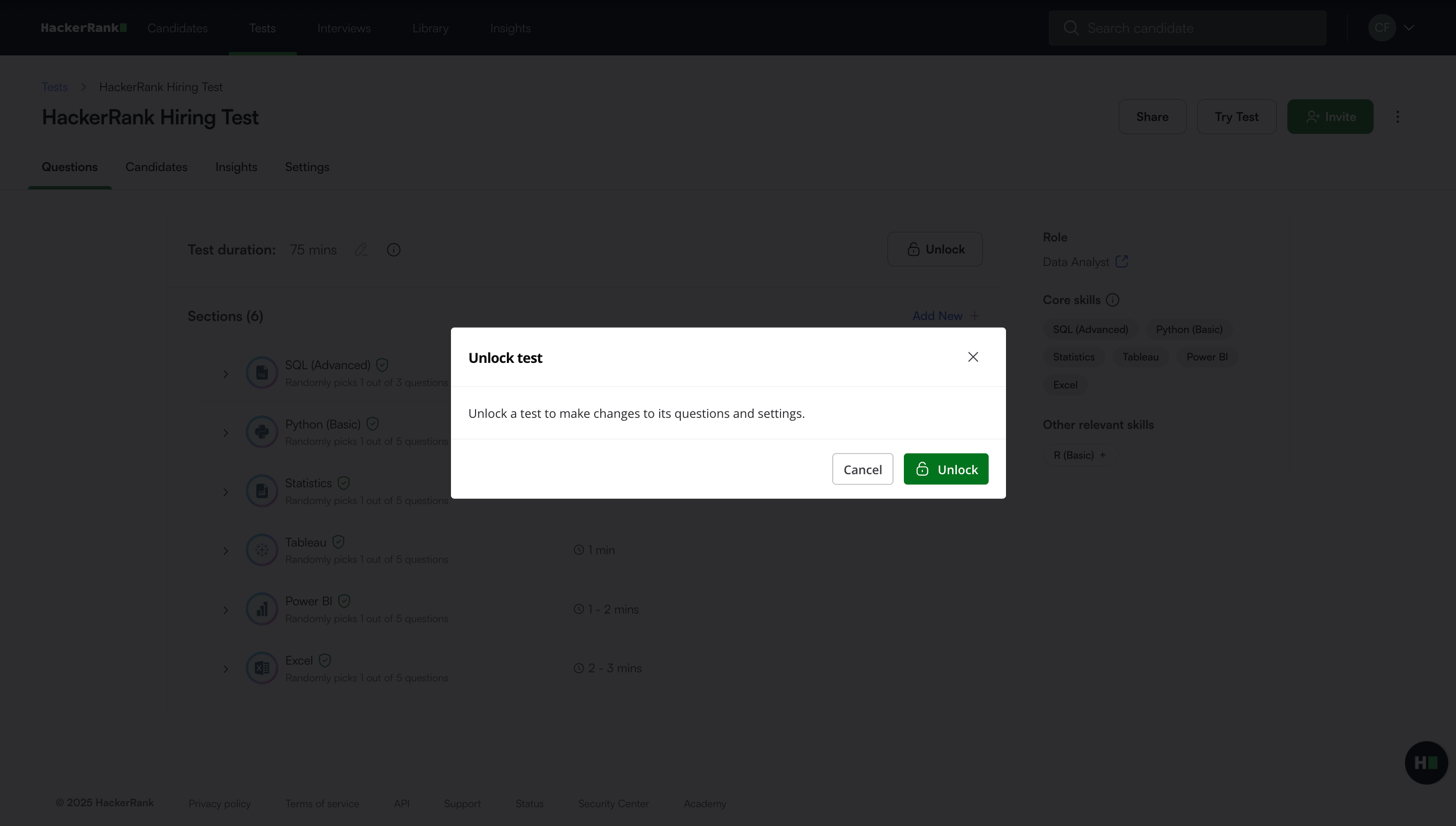
Note:
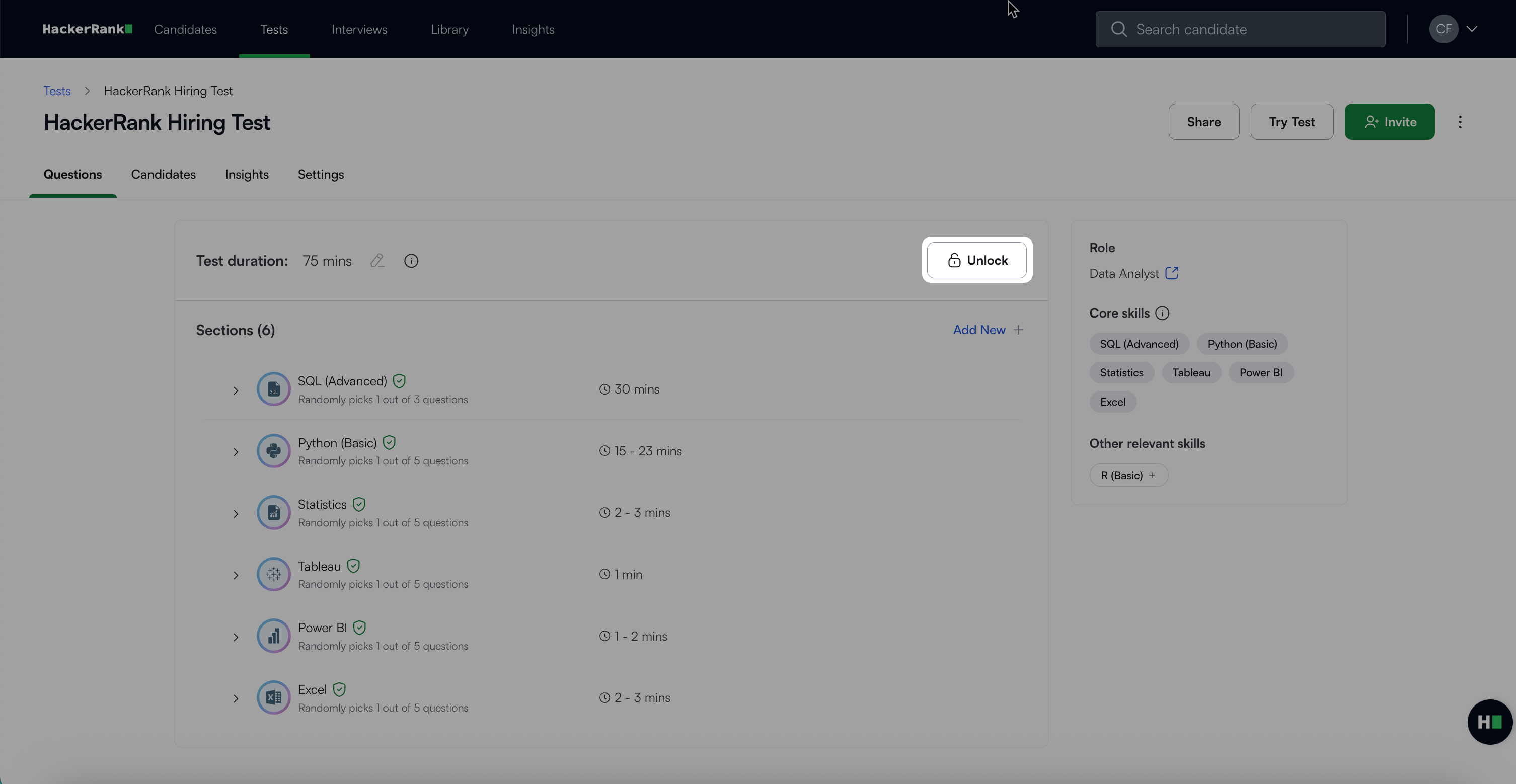
You can also unlock a test from the Questions tab.
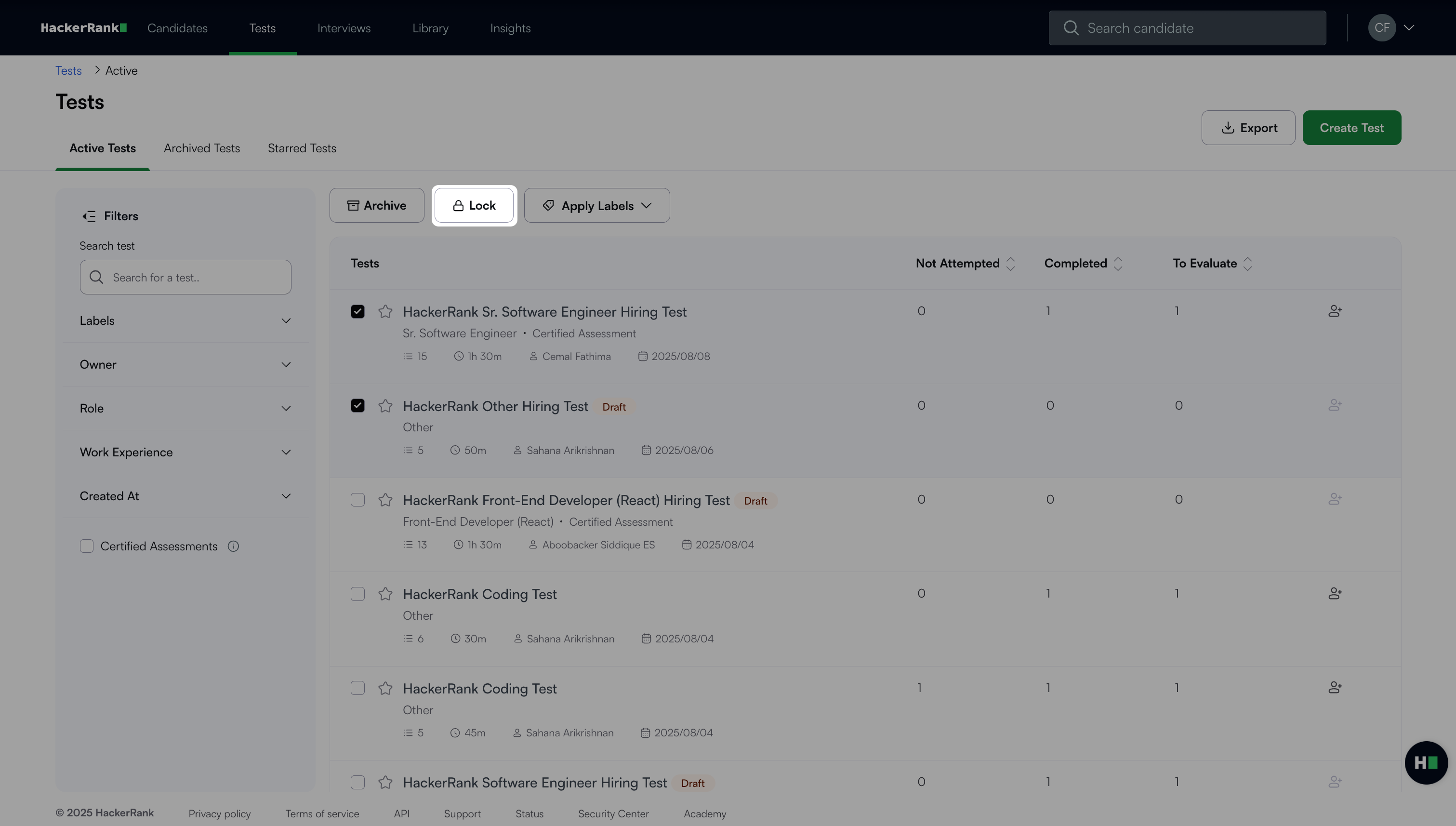
You can lock or unlock multiple tests at once. From the Tests tab, select the checkboxes next to the tests and choose the Lock or Unlock action.