Grant Test Access
Last updated: September 1, 2025
HackerRank for Work allows admins to grant access to a test for specific users or teams.
Prerequisites
You must be the test owner or have Editor access.
Granting test access
To grant test access to users or teams:
Log in to your HackerRank for Work account using your credentials.
Go to the Tests tab.
Open the test you want to share.
Click Share.
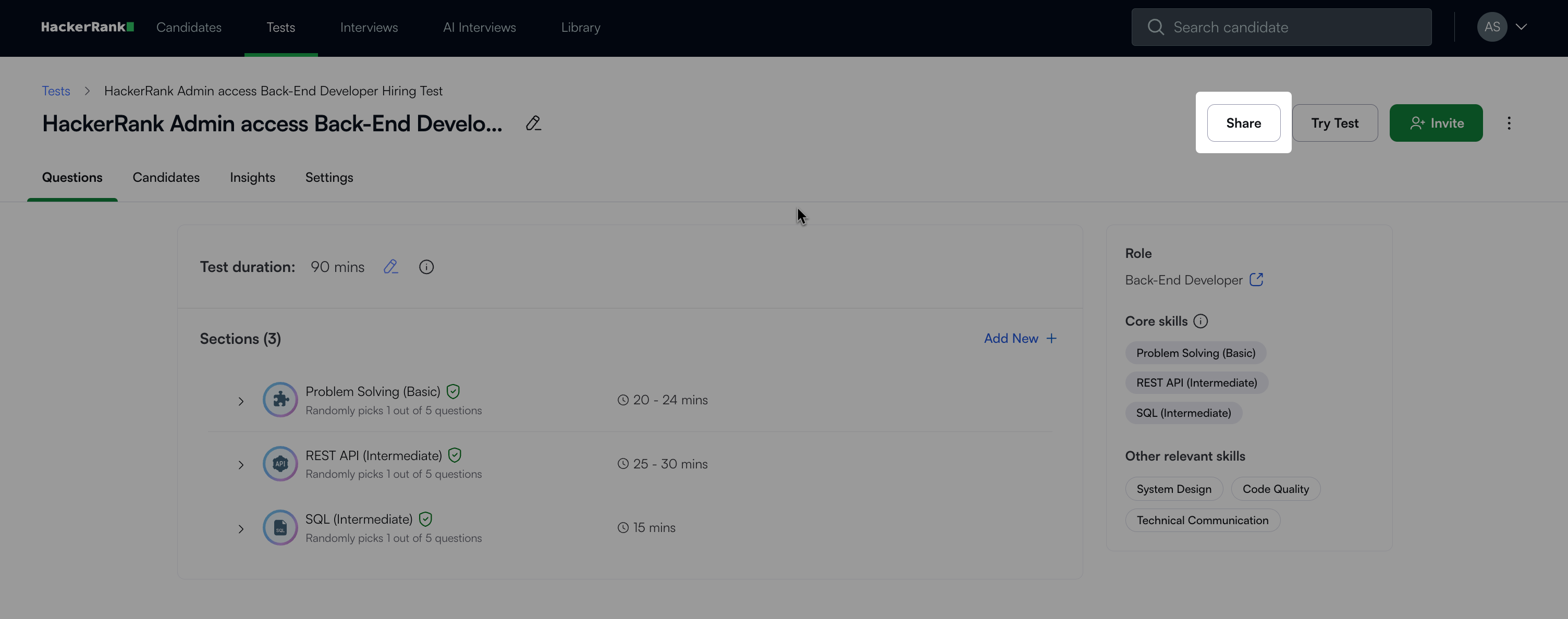
In the Share Test dialog box, enter a user or team name in the Search users and teams field.
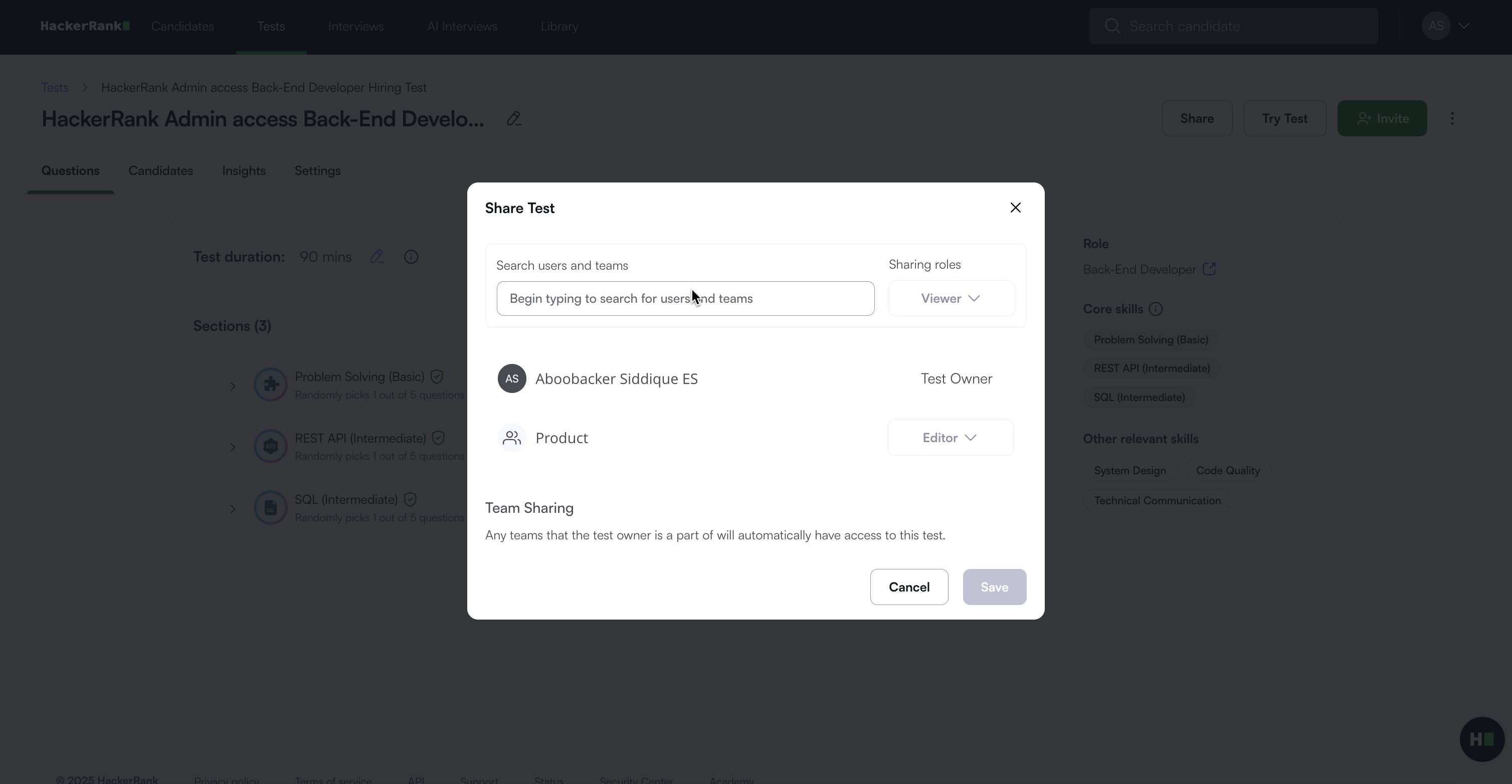
Choose a sharing role from the drop-down list:
Viewer: Can view the test and send invites.
Evaluator: Can view the test, send invites, and review candidates.
Editor: Can view and edit the test, send invites, review candidates, and share the test.
Click Save.
After you save the changes, the users or teams and their assigned roles appear below the search field.
Note: Any teams the test owner is a part of automatically have access to the test.
Frequently Asked Questions (FAQs)
Can I disable automated team-based sharing?
No. You cannot disable automated team-based sharing.
Who can share a test?
The following users can share a test:
The test owner
Company administrators
Users or teams with Editor access
What does transferring ownership do?
When you transfer test ownership to another user:
You become an Editor.
The new owner gains full control of the test.
Team-based sharing continues to determine which teams have default access. You cannot remove access from teams that have access by default.