Grant HackerRank Support Access
Last updated: June 11, 2026
HackerRank allows you to grant temporary access to your account so that HackerRank Support can investigate and troubleshoot issues.
Prerequisite
You have an active HackerRank for Work account.
Granting support access
You can grant support access at either the user level or the company level.
Granting user-level support access
User-level support access allows HackerRank Support to access only your account.
To grant user-level support access:
Log in to your HackerRank for Work account using your credentials.
Select your profile icon in the upper-right corner.
Select Settings from the drop-down menu.
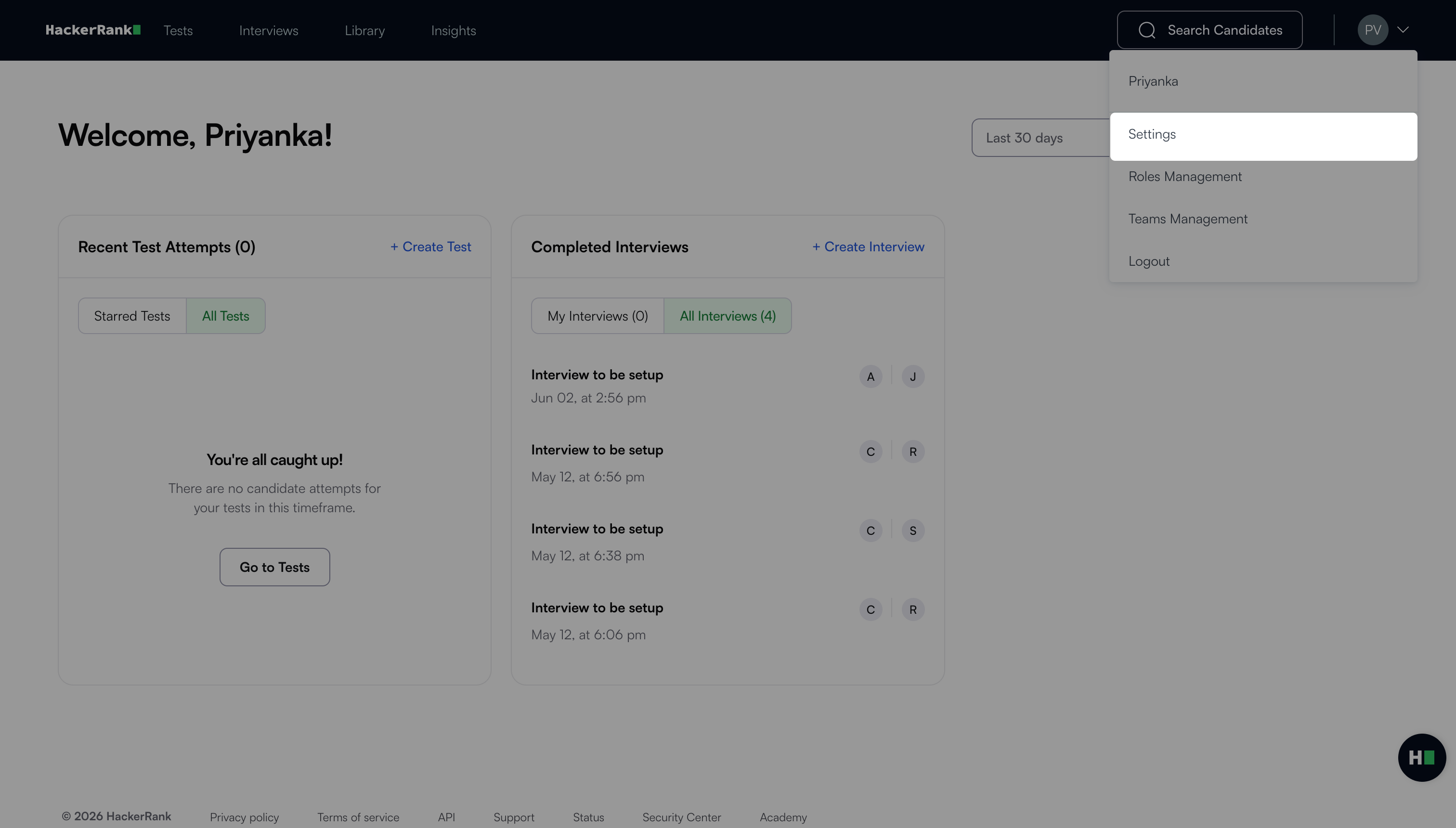
Go to User > Compliance & Security.
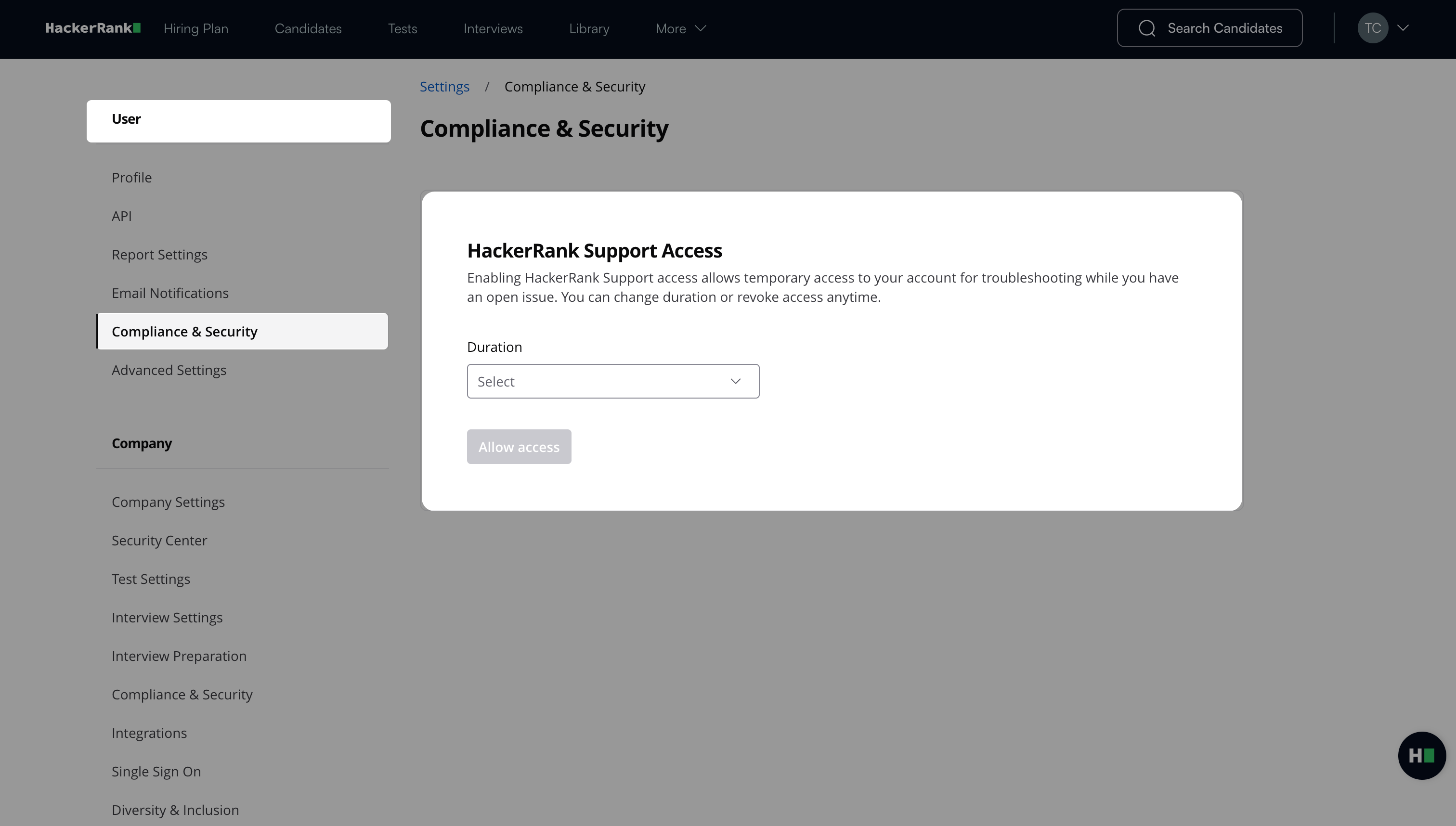
In the HackerRank Support Access section, select how long HackerRank Support can access your account:
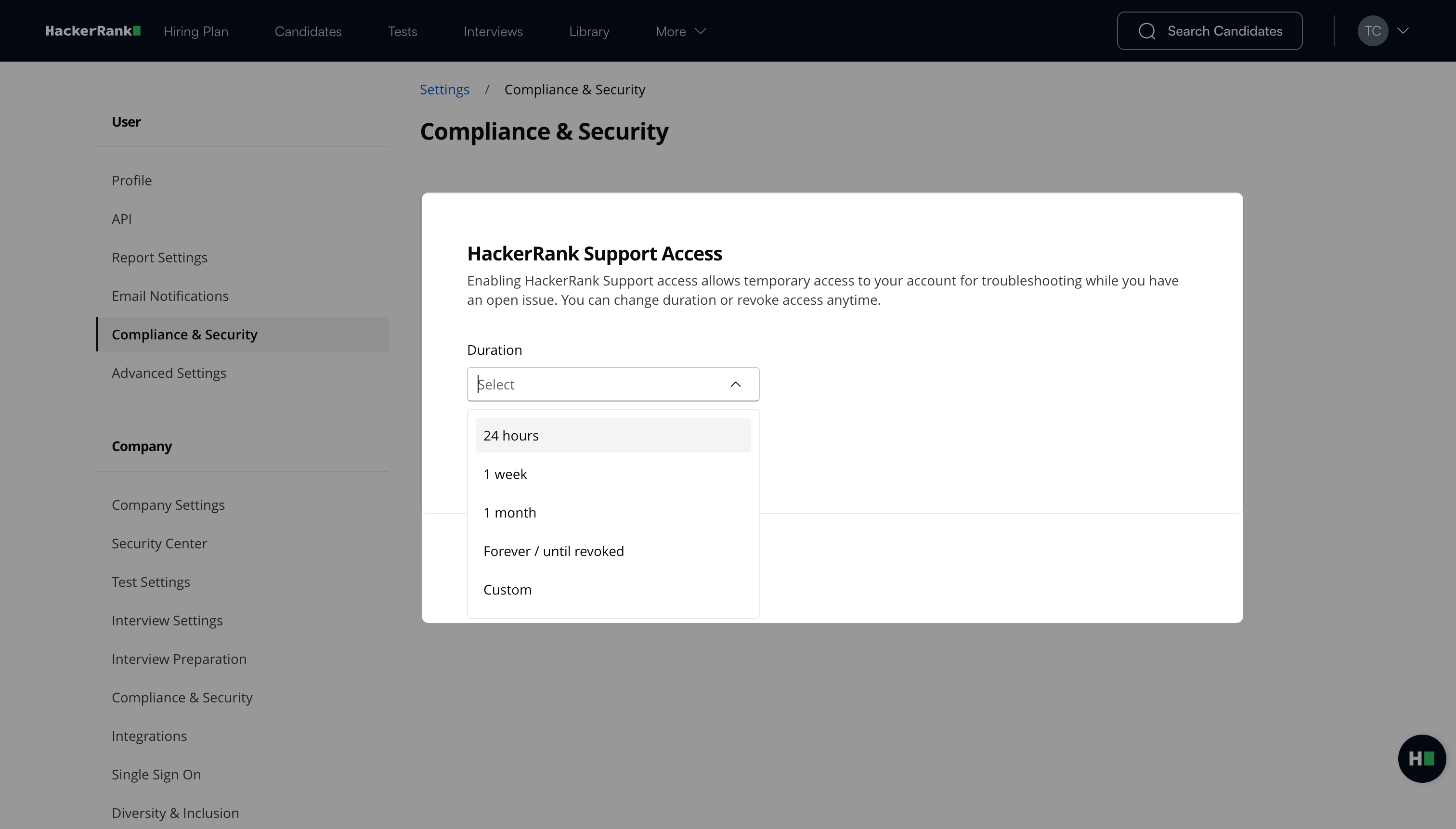
24 hours: Access expires after 24 hours
1 week: Access expires after 1 week
1 month: Access expires after 1 month
Forever/until revoked: Access remains active until you revoke it
Custom: Specify a custom access duration:
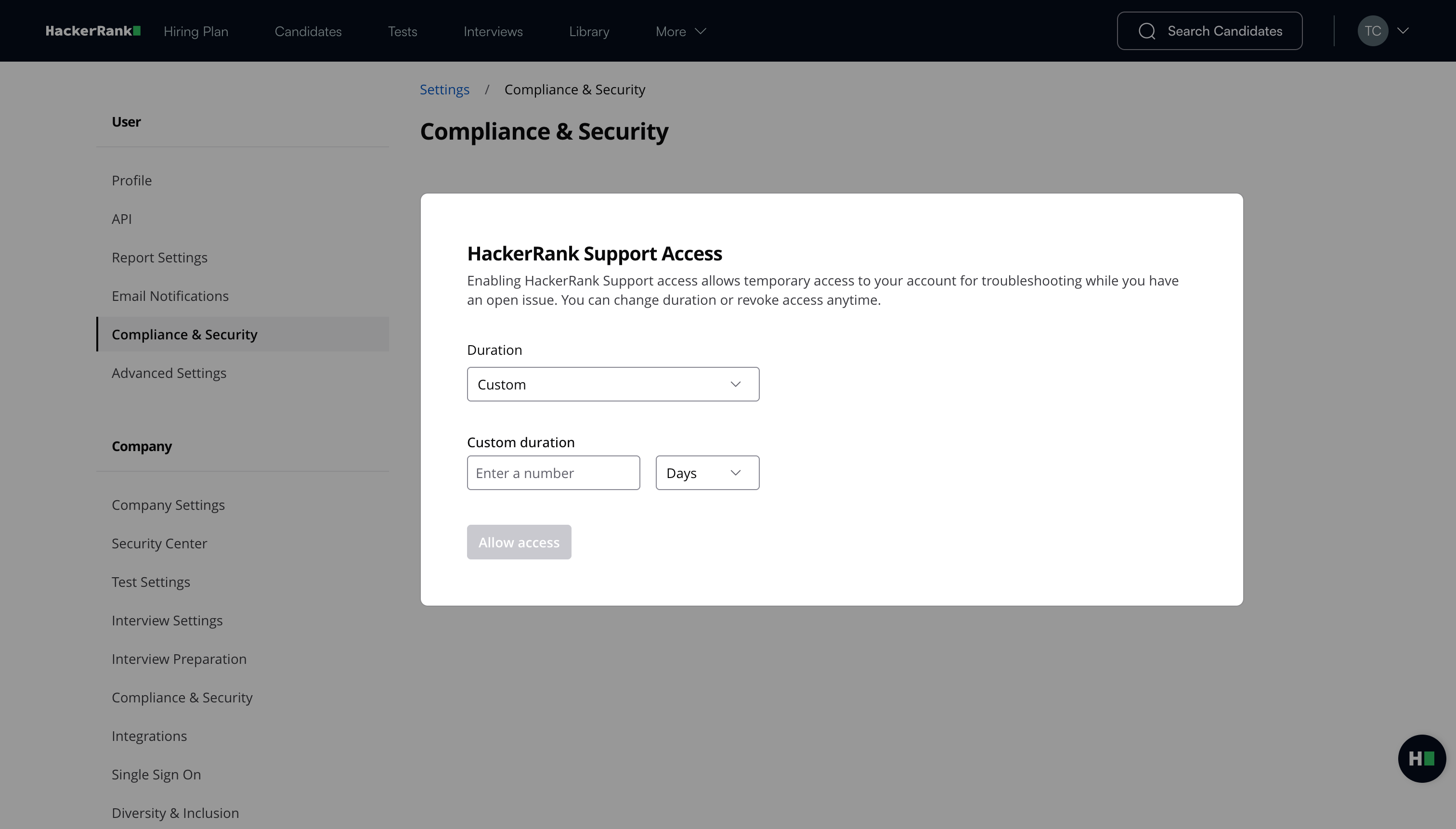
Enter a value in the Custom duration field.
Select Hours, Days, Weeks or Months from the drop-down menu.
Click Allow access.
A success message appears. HackerRank Support can access your account for the selected duration.
Granting company-level support access
Company-level support access allows HackerRank Support to access all user accounts in your company.
To grant company-level support access:
Select your profile icon in the upper-right corner.
Select Settings from the drop-down menu.
Go to Company > Compliance & Security.
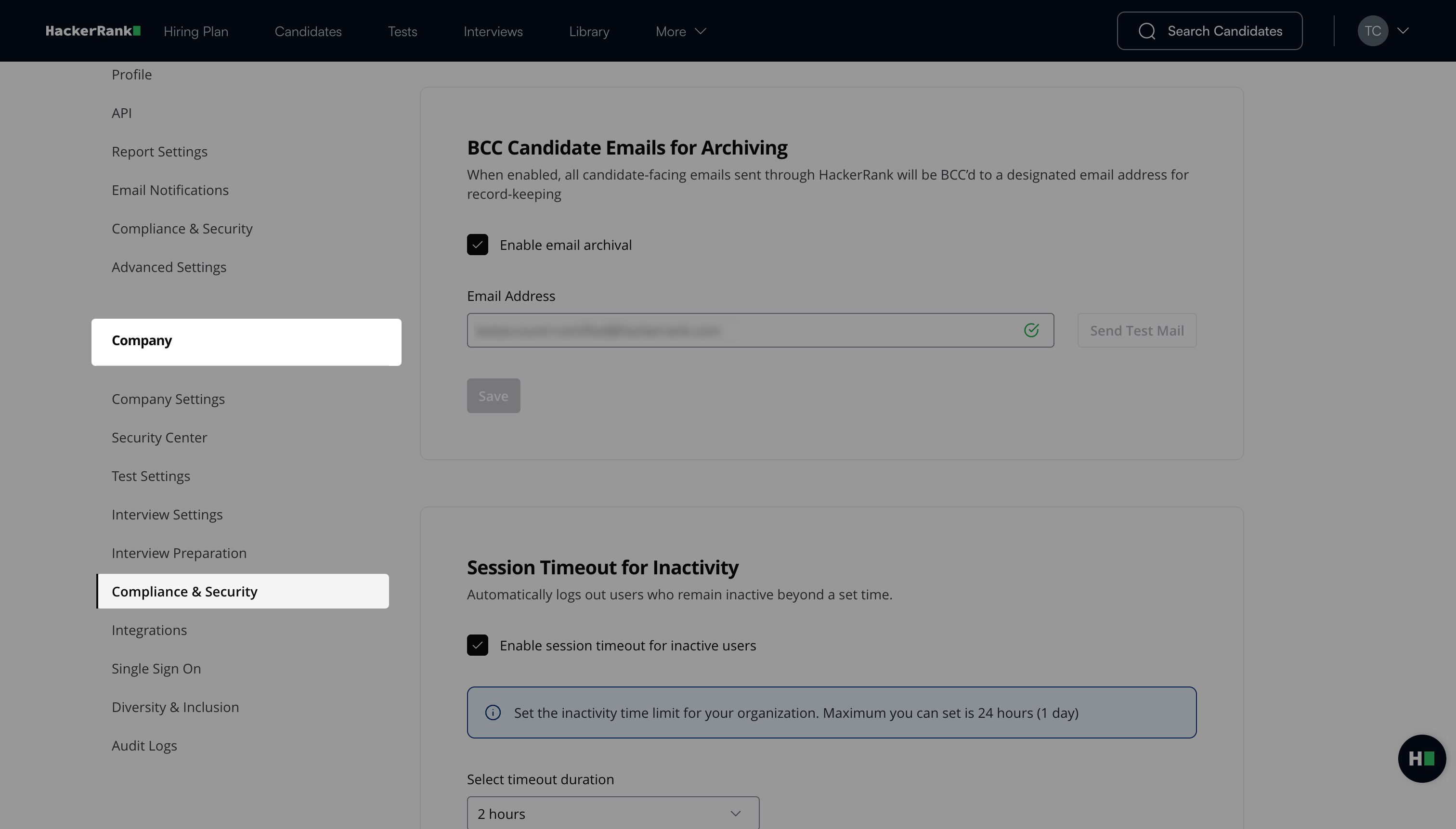
Scroll to the HackerRank Support Access section.
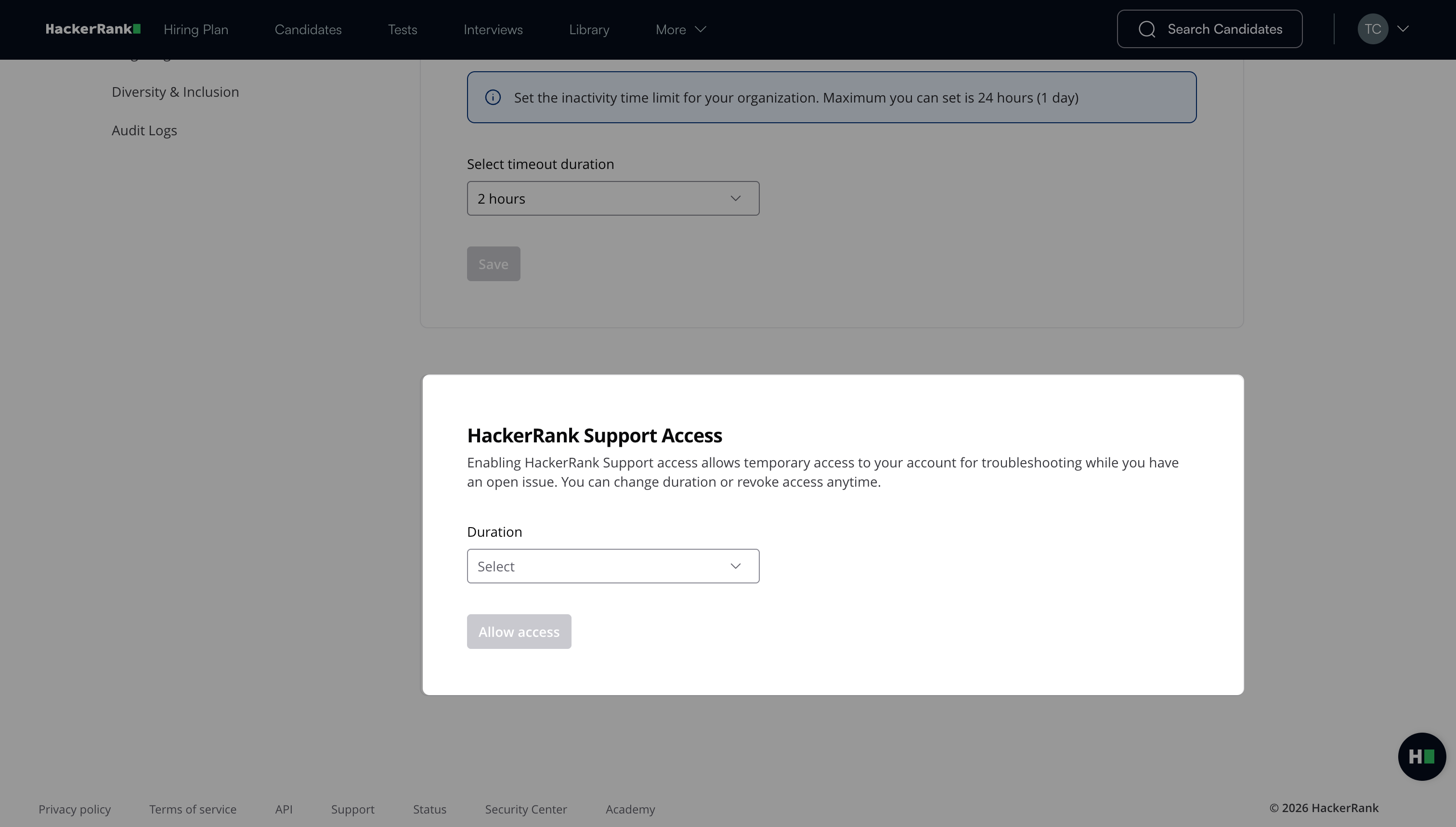
In the HackerRank Support Access section, select how long HackerRank Support can access your account:
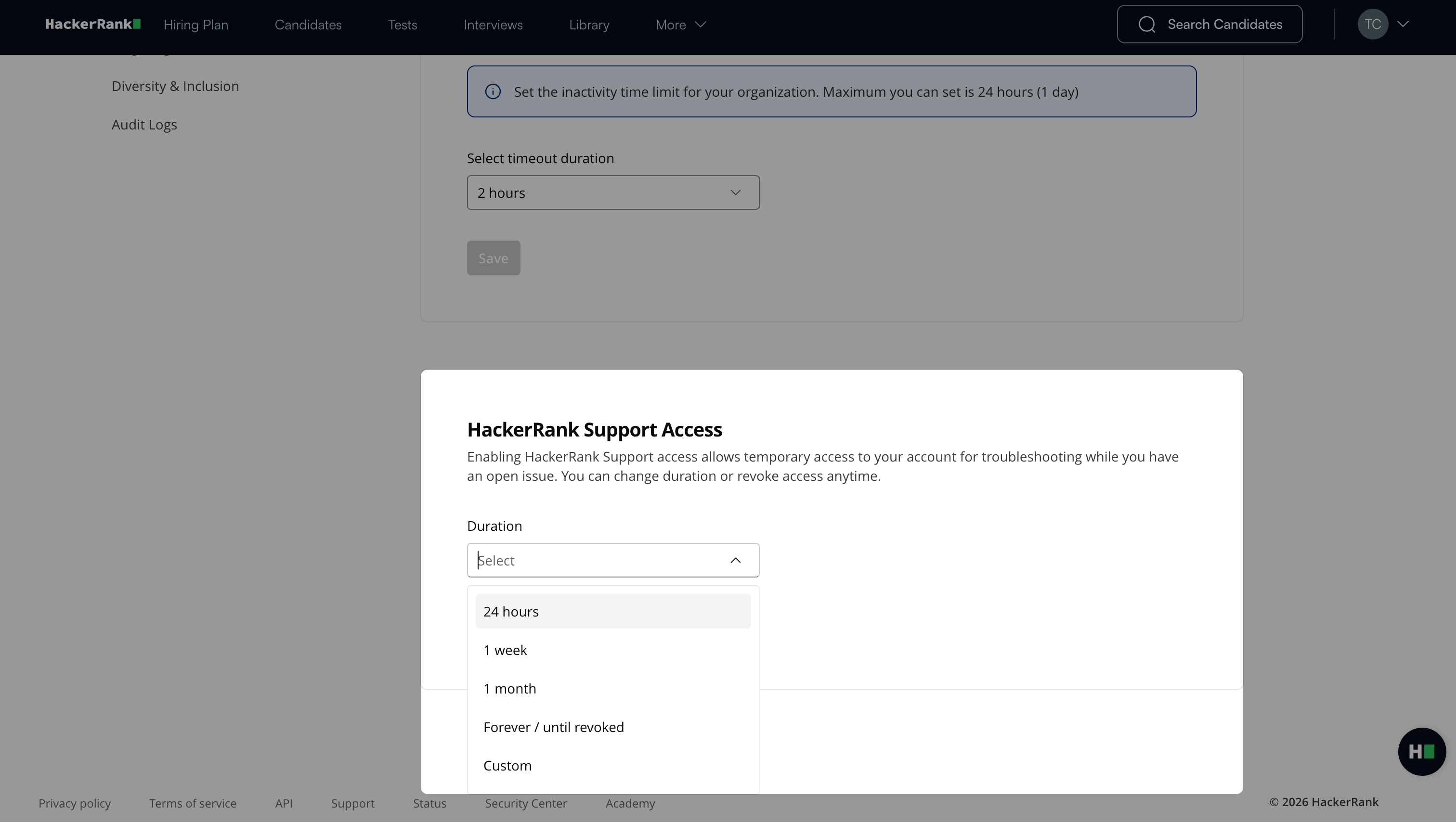
24 hours: Access expires after 24 hours
1 week: Access expires after 1 week
1 month: Access expires after 1 month
Forever/until revoked: Access remains active until you revoke it
Custom: Specify a custom access duration:
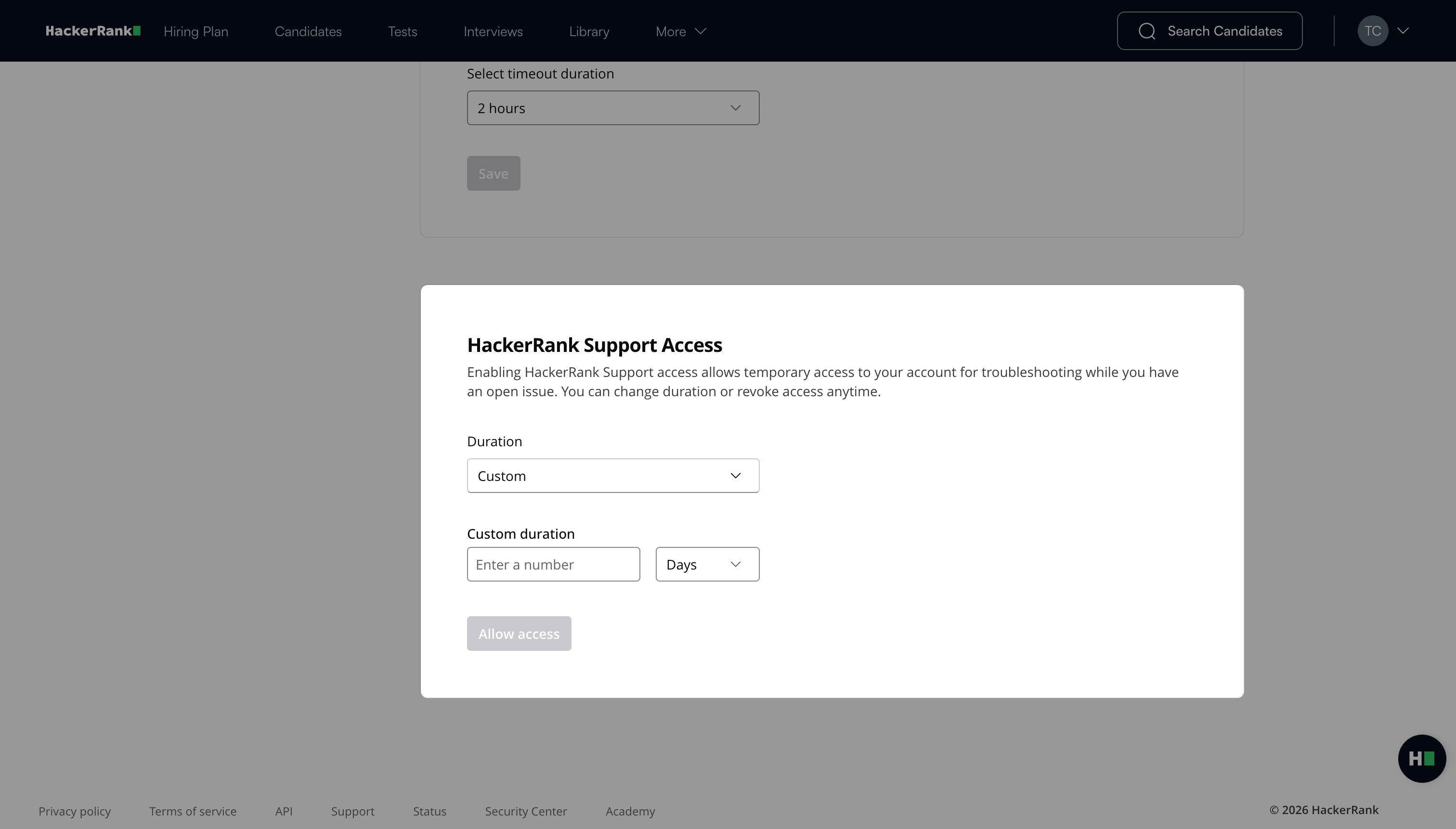
Enter a value in the Custom duration field.
Select Hours, Days, Weeks or Months from the drop-down menu.
Click Allow access.
A success message appears. HackerRank Support can access all user accounts in your company for the selected duration.
Revoking support access
You can revoke support access at any time. After you revoke access, HackerRank Support can no longer access the affected accounts.
Revoking user-level support access
To revoke user-level support access:
Select your profile icon in the upper-right corner.
Select Settings from the drop-down menu.
Go to User > Compliance & Security.
In the HackerRank Support Access section, click Revoke access.
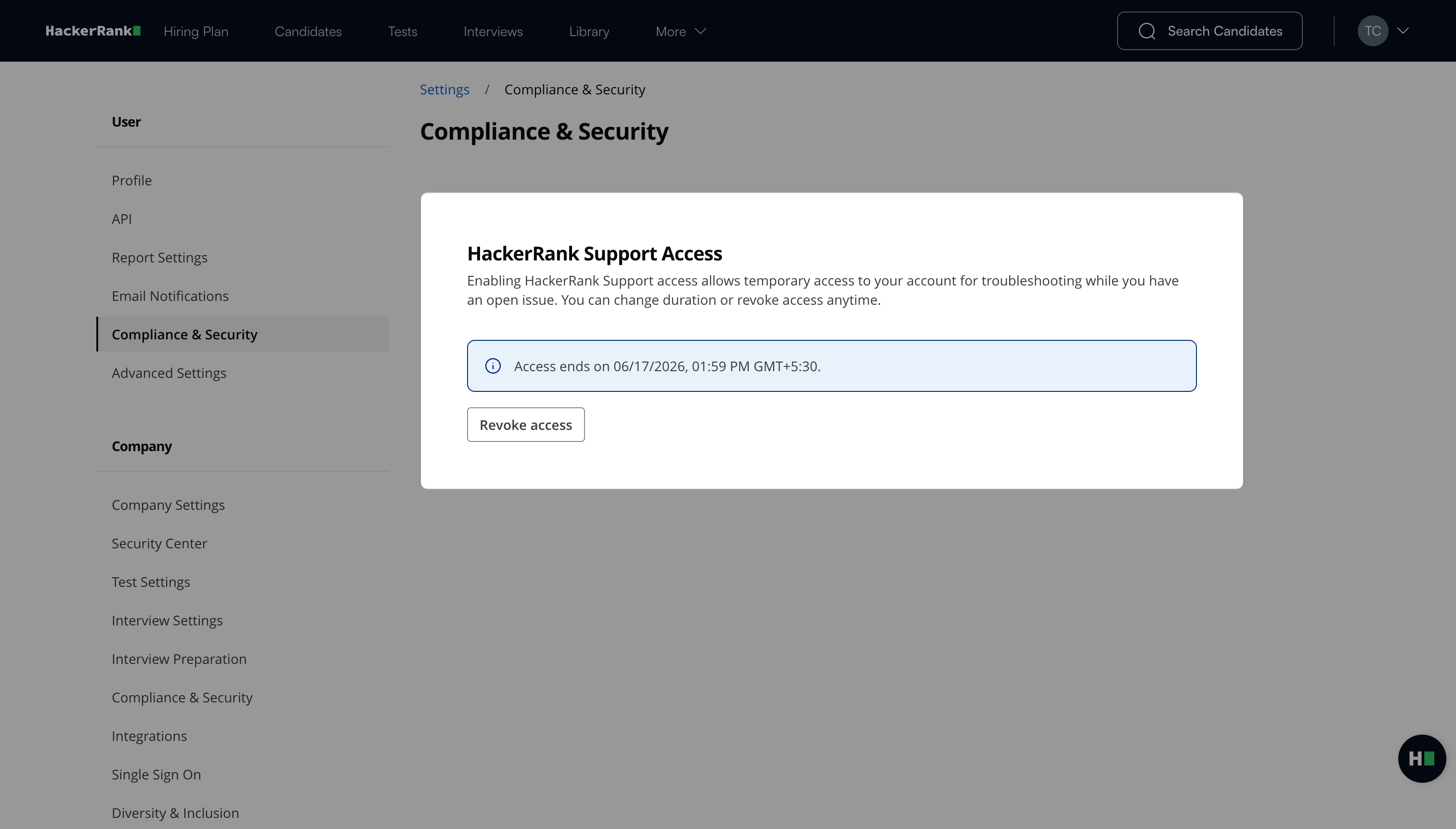
In the Revoke support access dialog, click Revoke access.
A success message appears.
Note: Company-level access overrides user-level access. When company-level access is active, HackerRank Support can access all user accounts in the company, and users cannot revoke support access for their individual accounts.
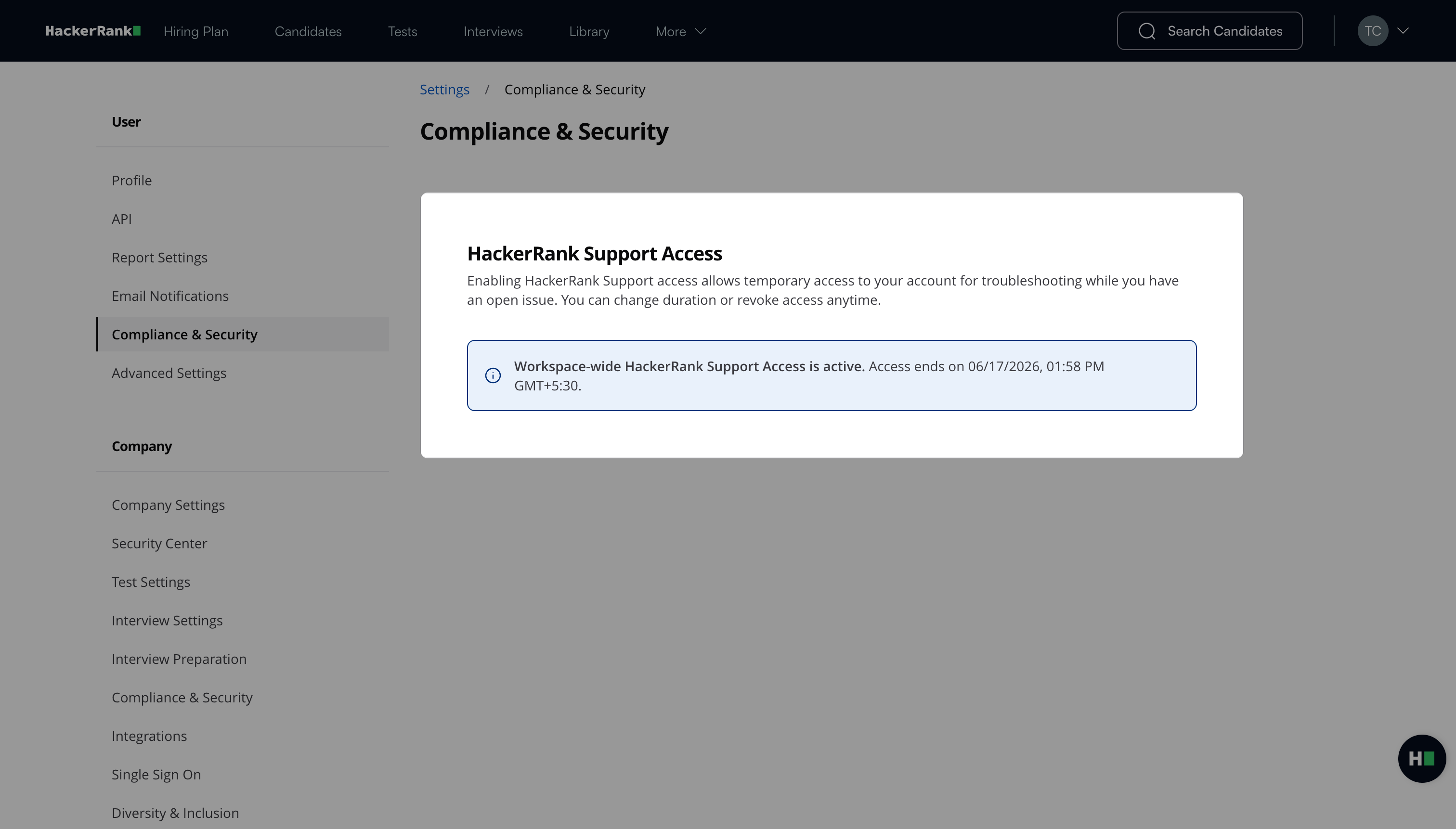
Revoking company-level support access
To revoke company-level support access:
Select your profile icon in the upper-right corner.
Select Settings from the drop-down menu.
Go to Company > Compliance & Security.
Scroll to the HackerRank Support Access section.
Click Revoke access.
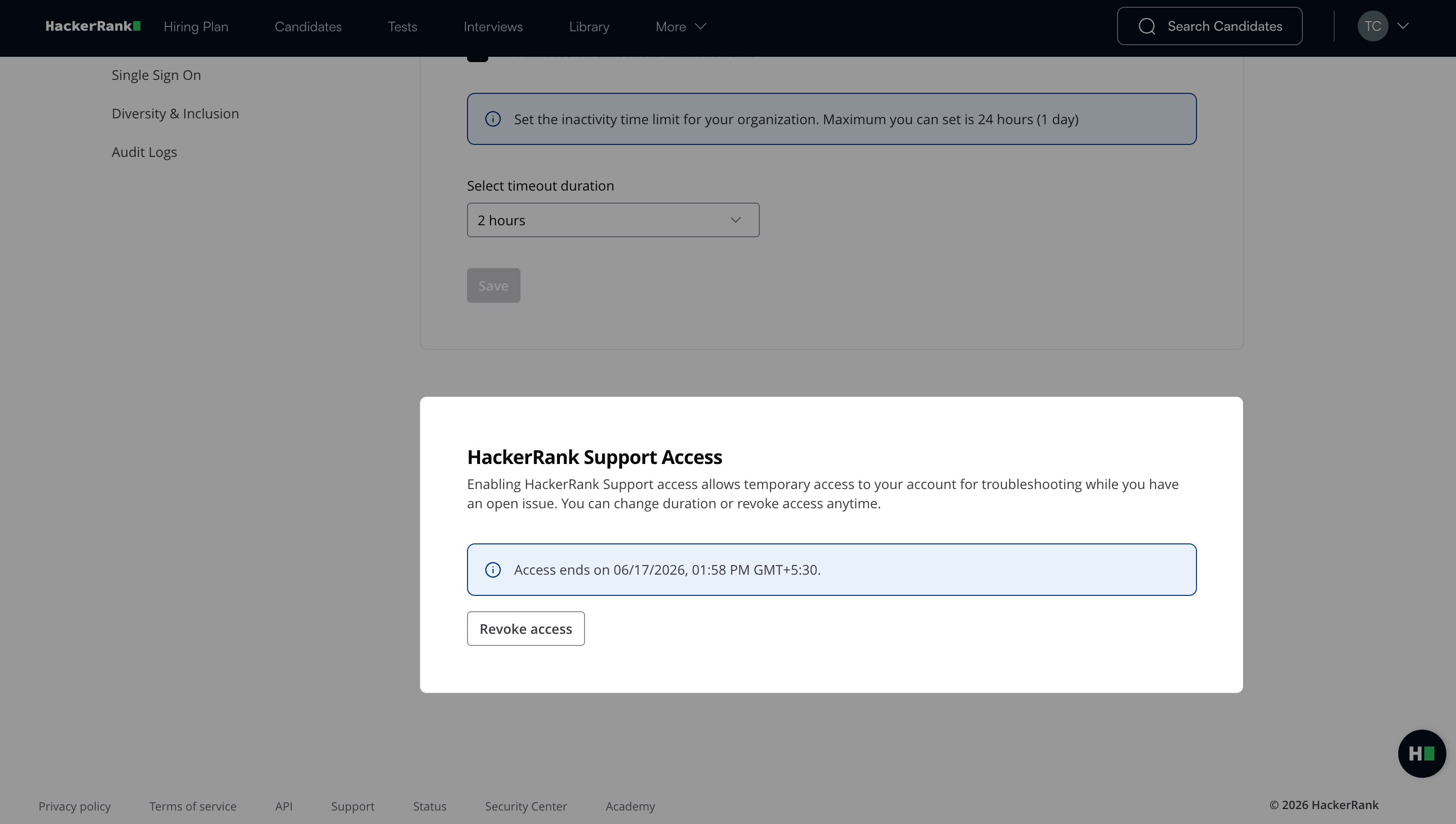
In the Revoke support access dialog, click Revoke access.
A success message appears.