Create an Interview
Last updated: August 27, 2026
This article applies to the new Interview experience. If your interview interface looks different, see 📄 Create an Interview for the legacy Interview experience.
HackerRank allows you to create an interview between a candidate and interviewers. You can start an interview immediately or schedule an interview at a convenient time.
Starting an interview immediately
To start an interview immediately:
Log in to your HackerRank for Work account using your credentials.
Go to Interviews > Interview List.
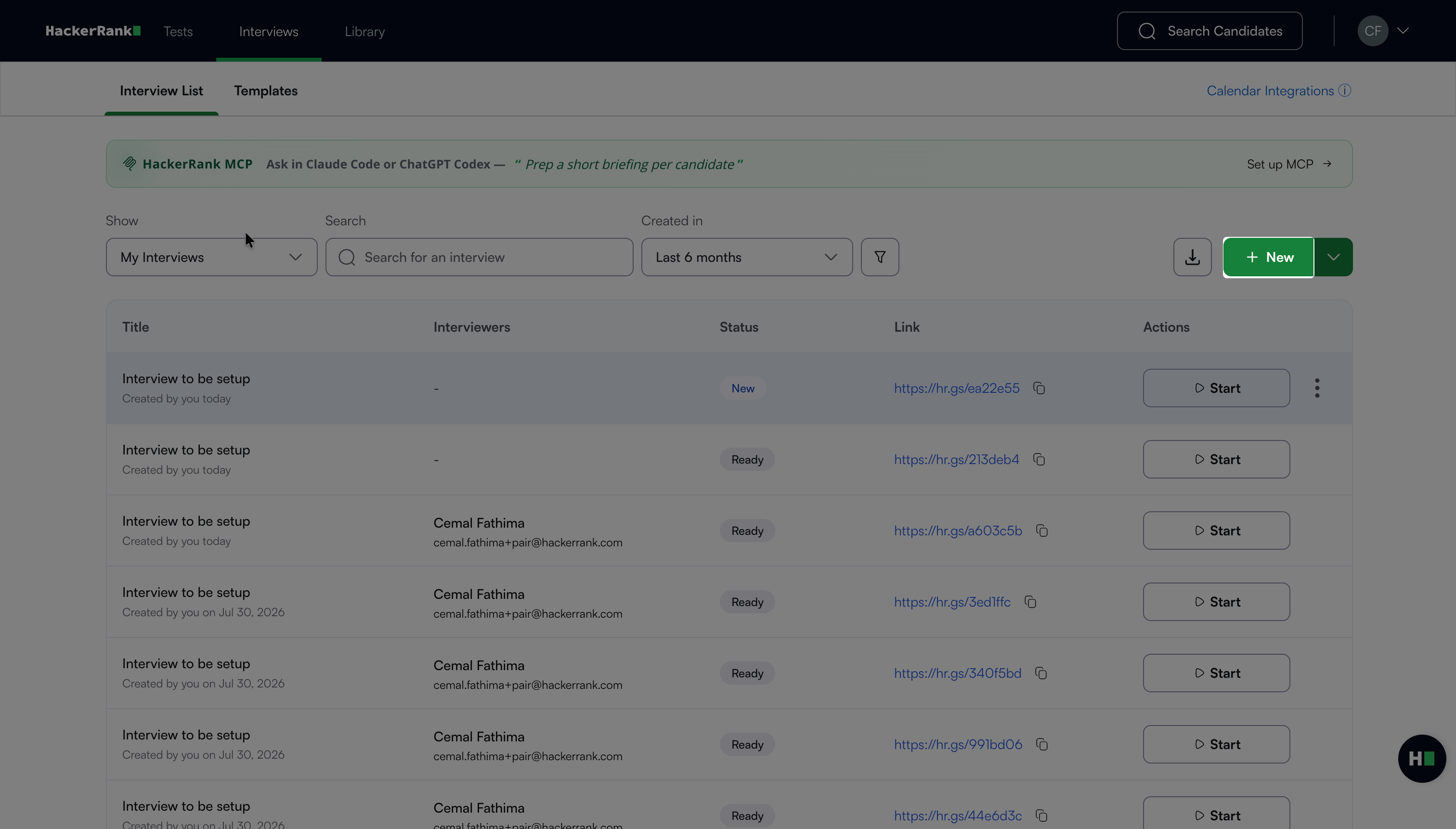
Click New.
The interview setup page opens.
Under Permissions, verify the selected camera and microphone. If multiple devices are available, use the corresponding dropdown to select a different device.
Check the camera preview to confirm that your camera works correctly.
Click Join Now.
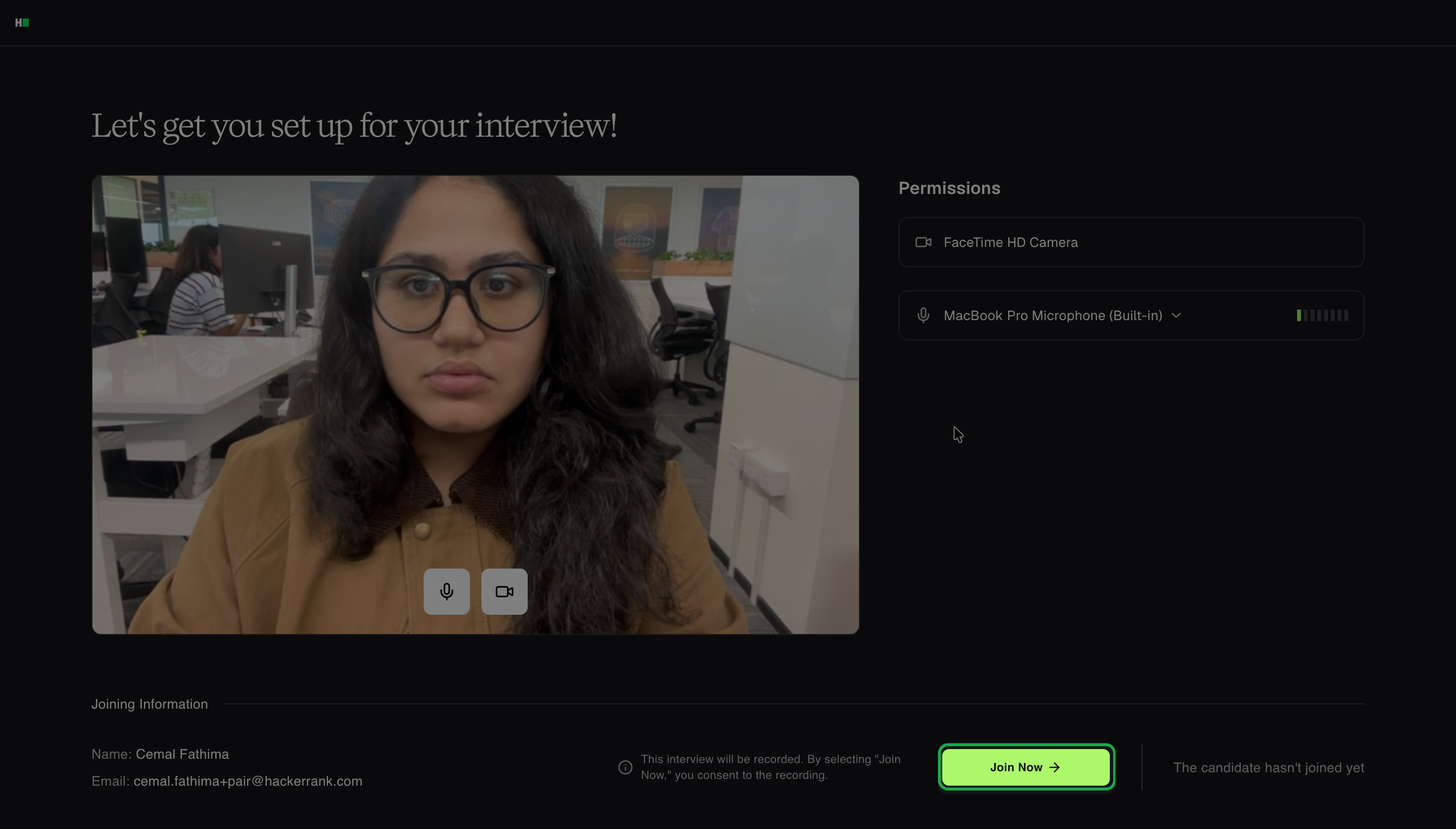
Note: HackerRank records the interview. By clicking Join Now, you consent to the recording.
In the interview interface, click Share Link to copy the interview link to your clipboard.
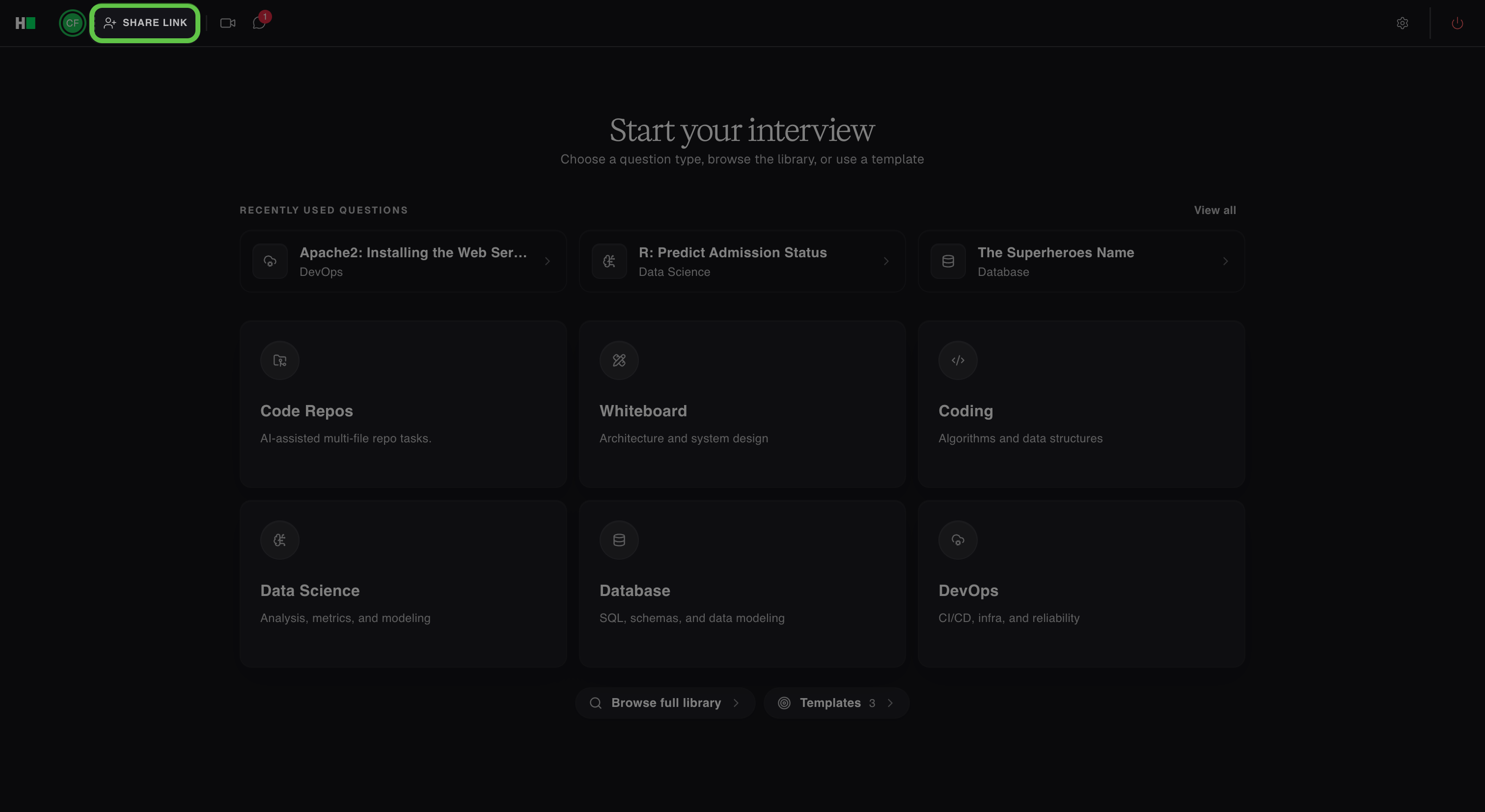
Share the interview link with the candidate or other interviewers. They can use the link to join the interview immediately.
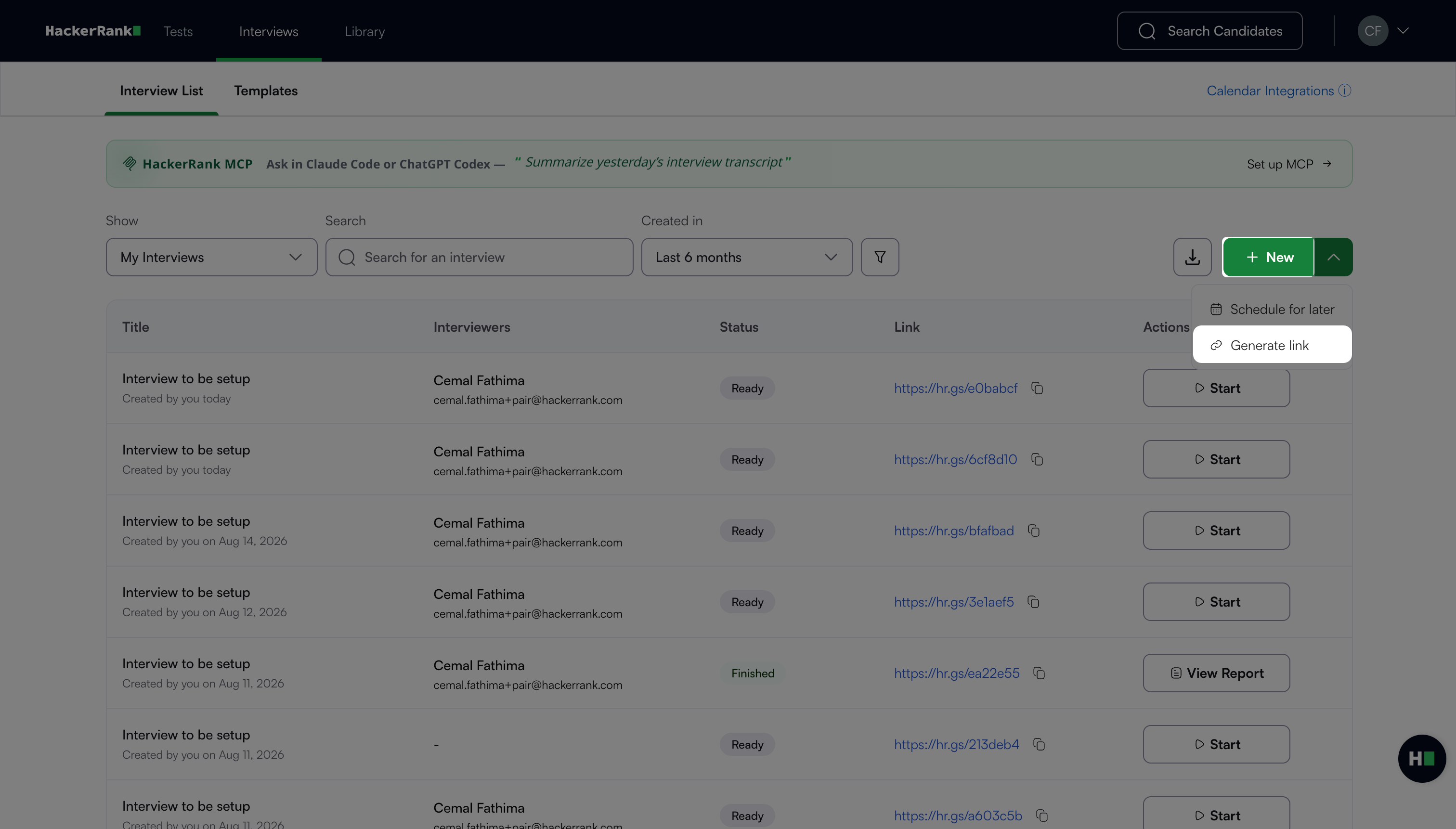
Note: You can also generate an interview link without joining the interview. In the Interview List page, click the dropdown next to New, and select Generate link. HackerRank copies the link to your clipboard.
Scheduling an interview
To schedule an interview:
Log in to your HackerRank for Work account using your credentials.
Go to Interviews > Interview List.
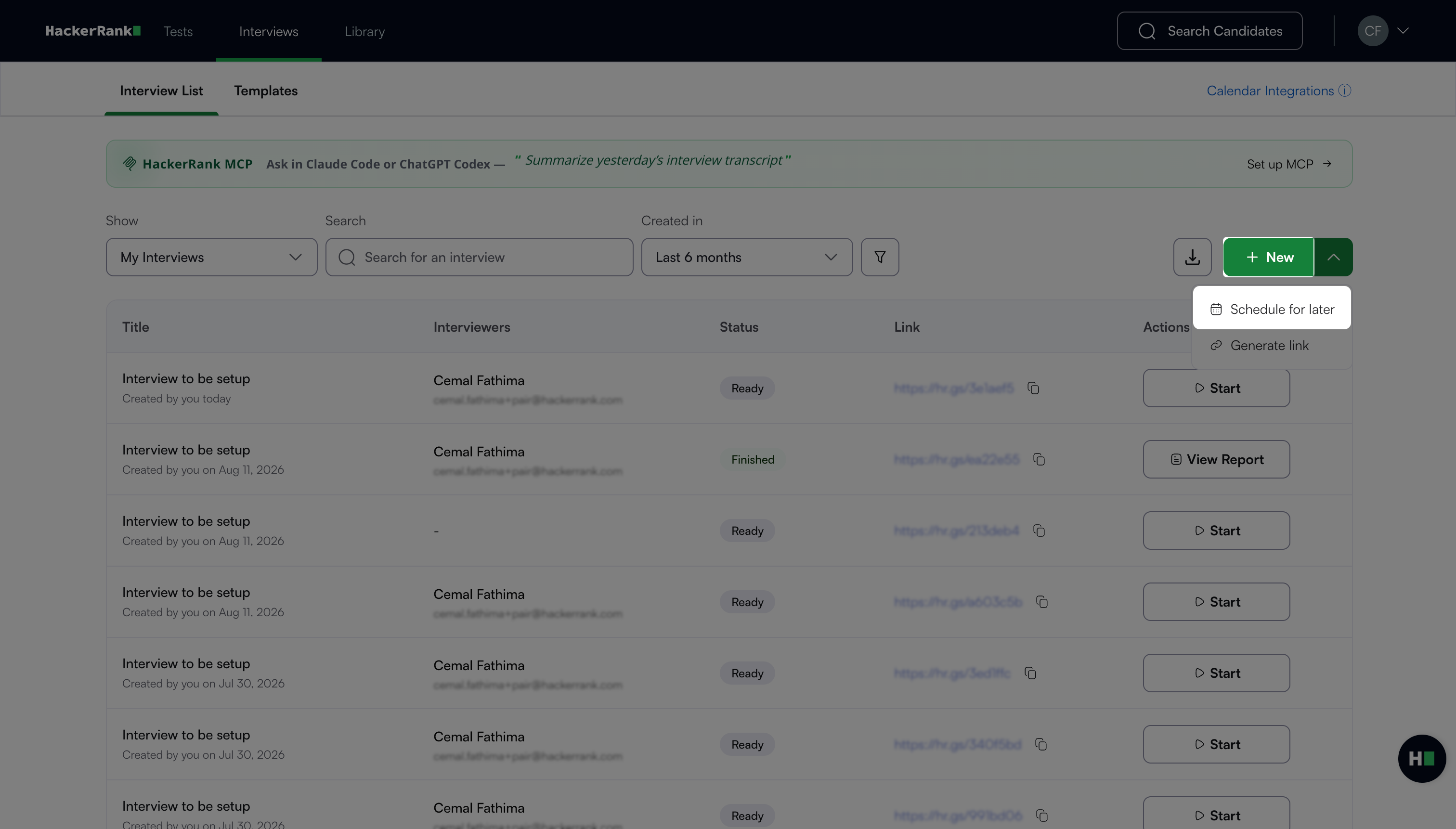
Click the drop-down next to New and select Schedule for later.
In the Interview Details panel:
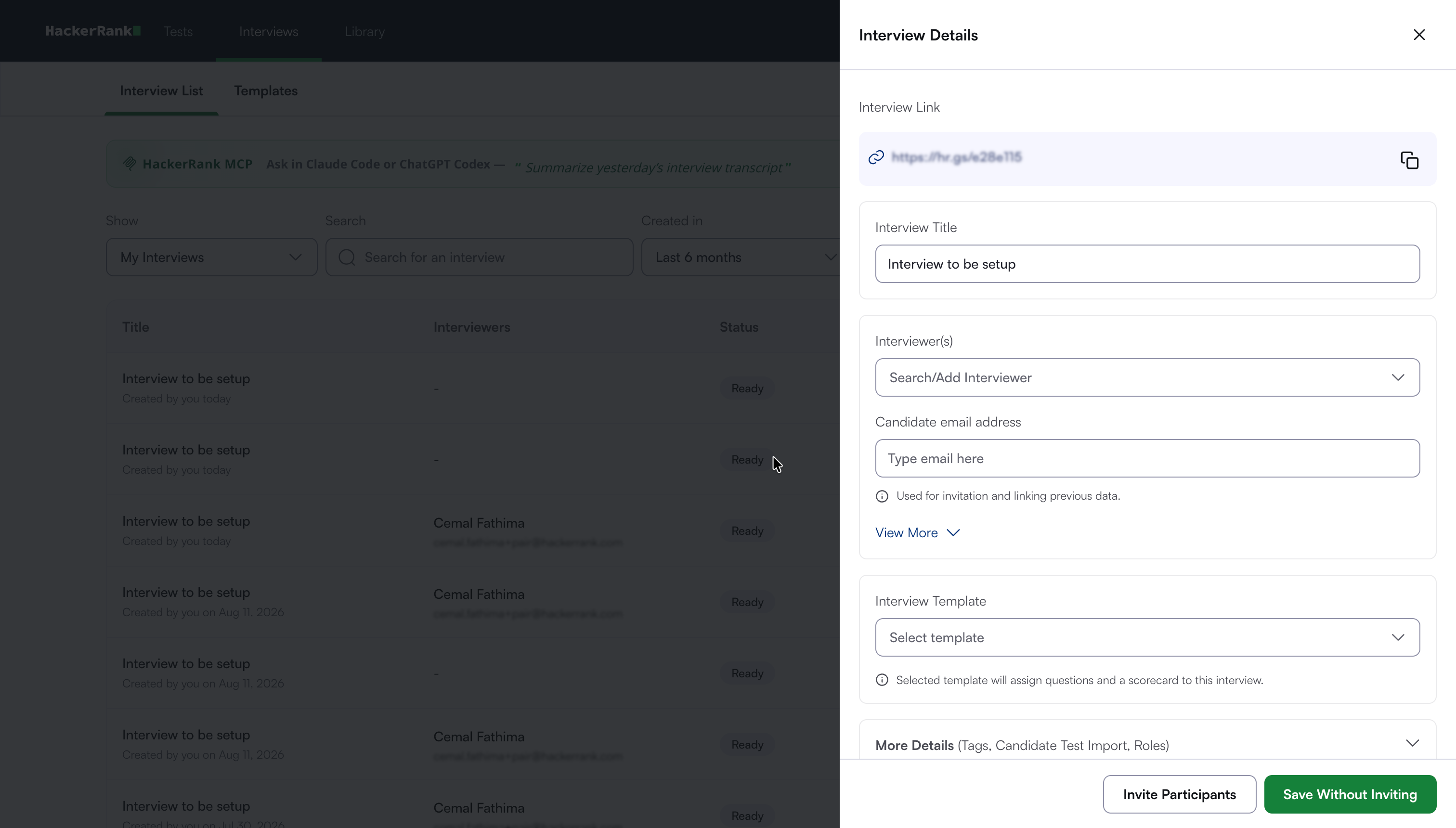
(Optional) Update the Interview Title.
Add Interviewer(s) and Candidate email address.
Note: You can use the Interviewer(s) field to invite new interviewers to a scheduled or ongoing interview later.
(Optional) Click View More to expand additional fields.
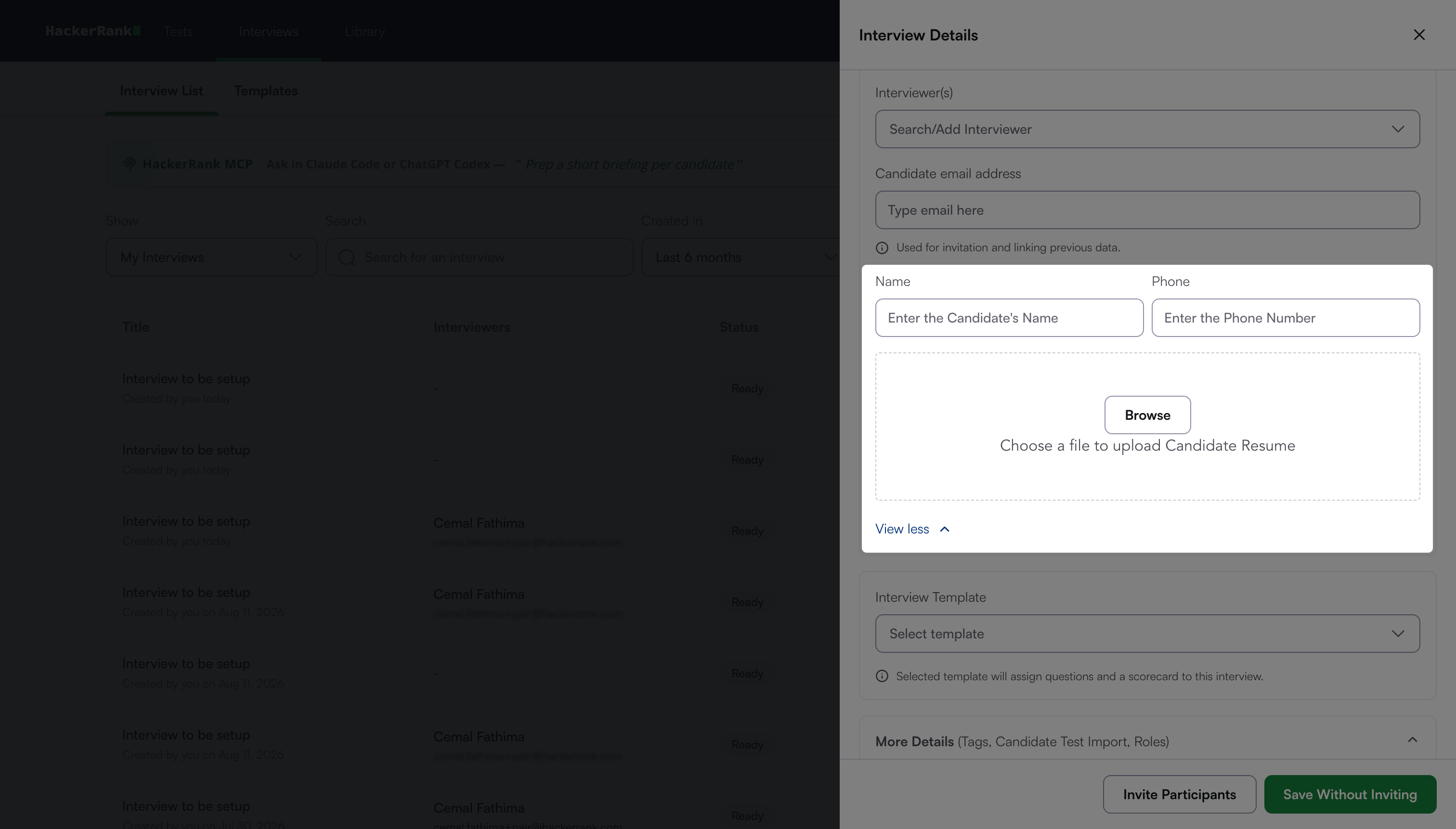
Enter the candidate’s Name and Phone Number.
Attach the Candidate's Resume.
Note:
To view the candidate’s resume, open the attached file.
To delete the resume, select ✕ icon next to the file.
</aside>
(Optional) Select an Interview Template.
(Optional) Click More Details.
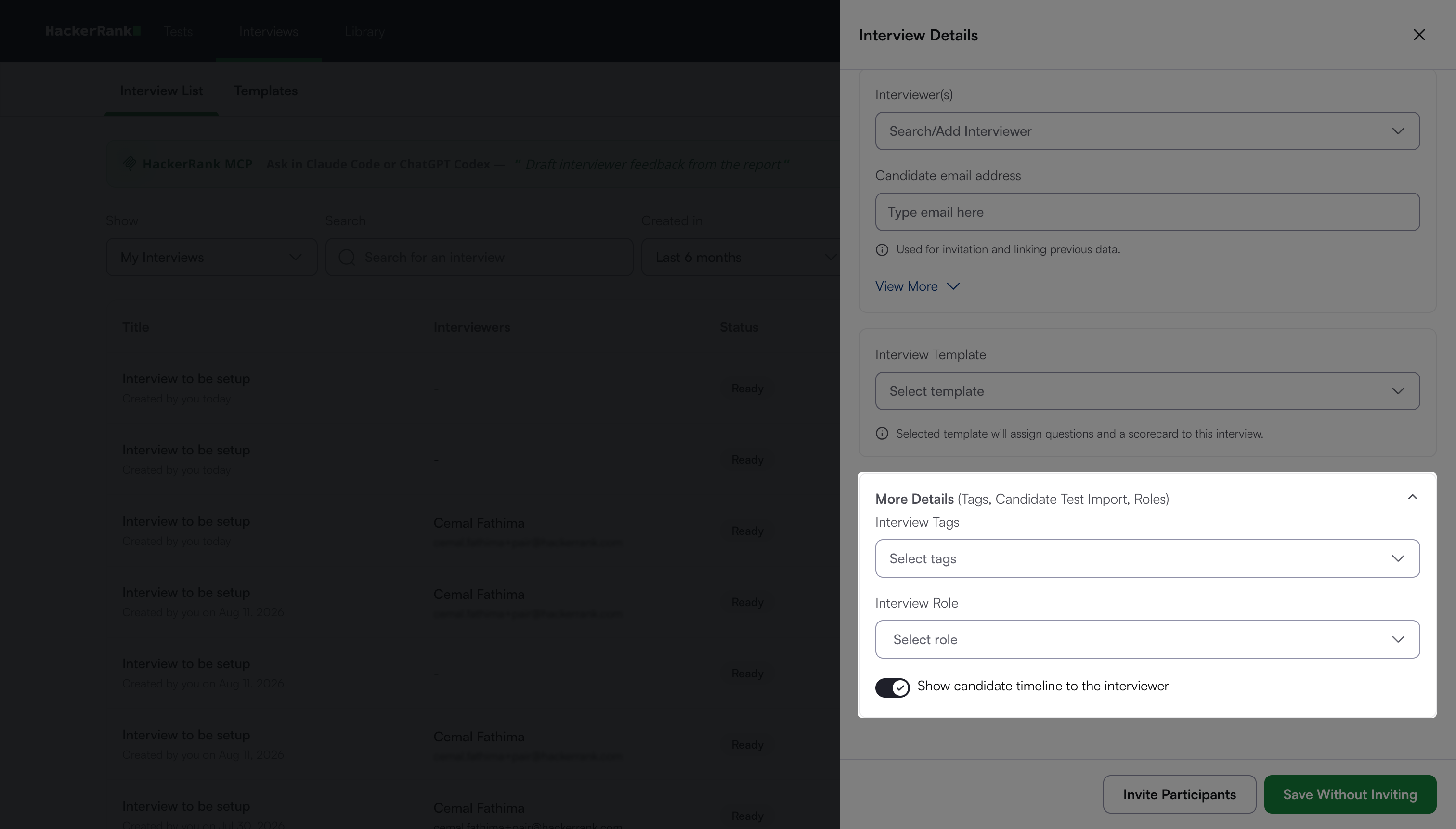
Add Interview Tags and select Interview Role.
Enable the Show candidate timeline to the interviewer toggle to allow interviewers to view the candidate’s reports from previous interviews.
Note: Click Save Without Inviting to save the Interview details and invite candidates later.
Click Invite Participants to schedule an Interview.
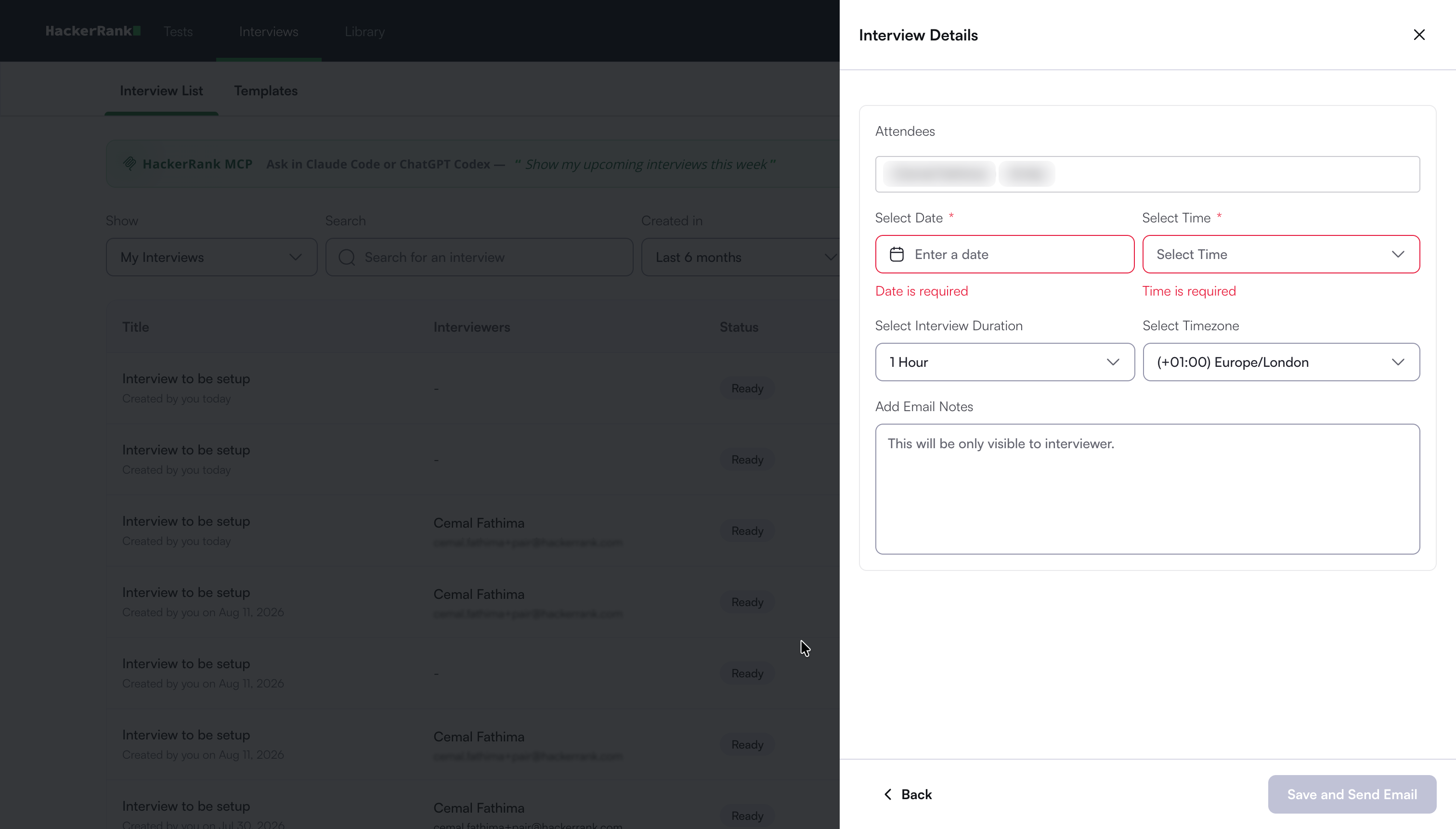
Select the interview date, time, duration, and time zone.
(Optional) Add email notes. Only the interviewer can view these notes.
Click Save and Send Email to send the invitations.
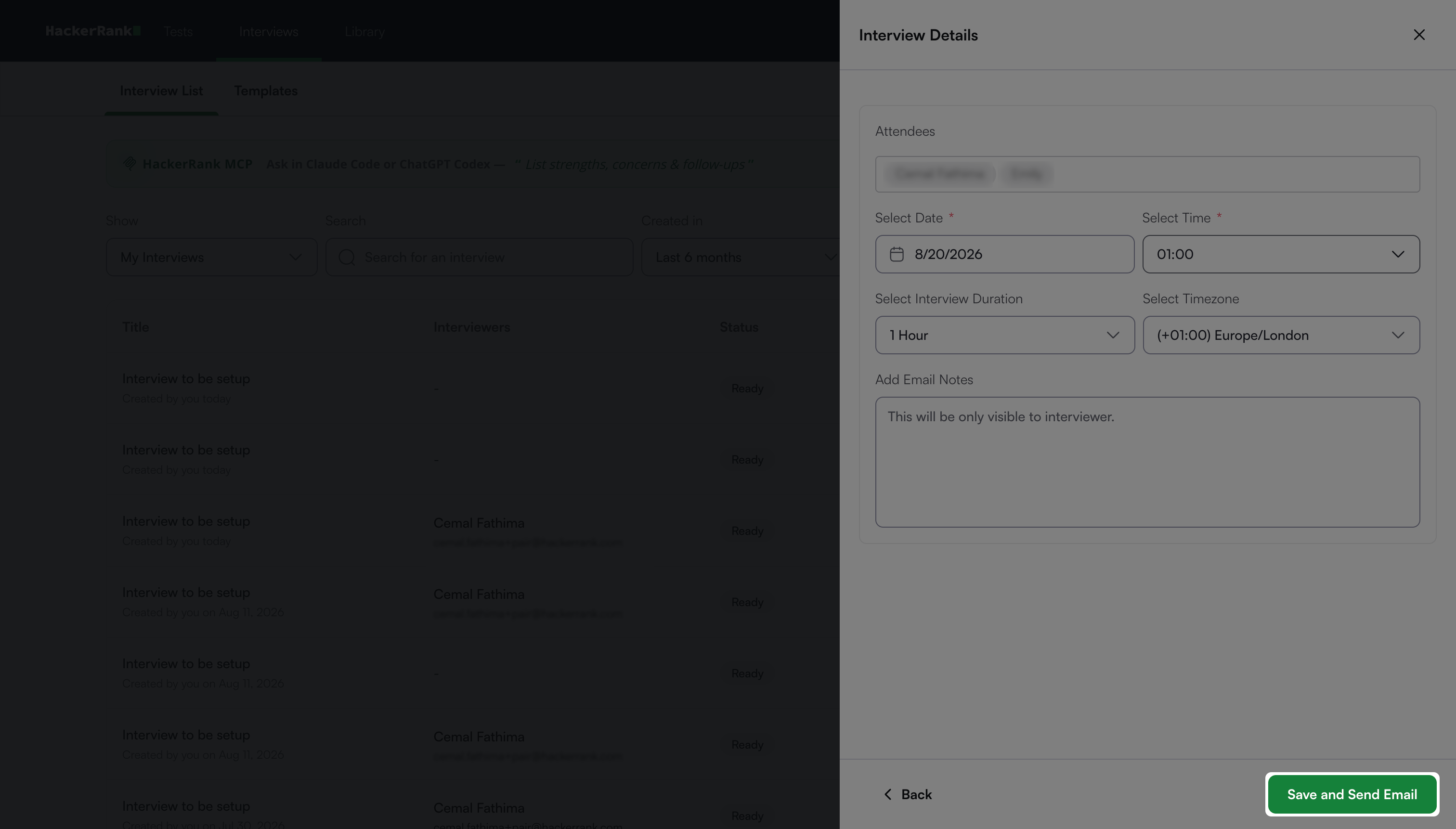
HackerRank sends email invitations to the candidates and interviewers. The invitations include the date, time, and a link to join the interview.
Search and filter Interviews
To search and filter Interviews:
Go to Interviews > Interview List. The page displays a list of all interviews you have created.
Use the search bar or filters to find specific interviews.
Search options: Enter a candidate email address, interview title, or associated tags.
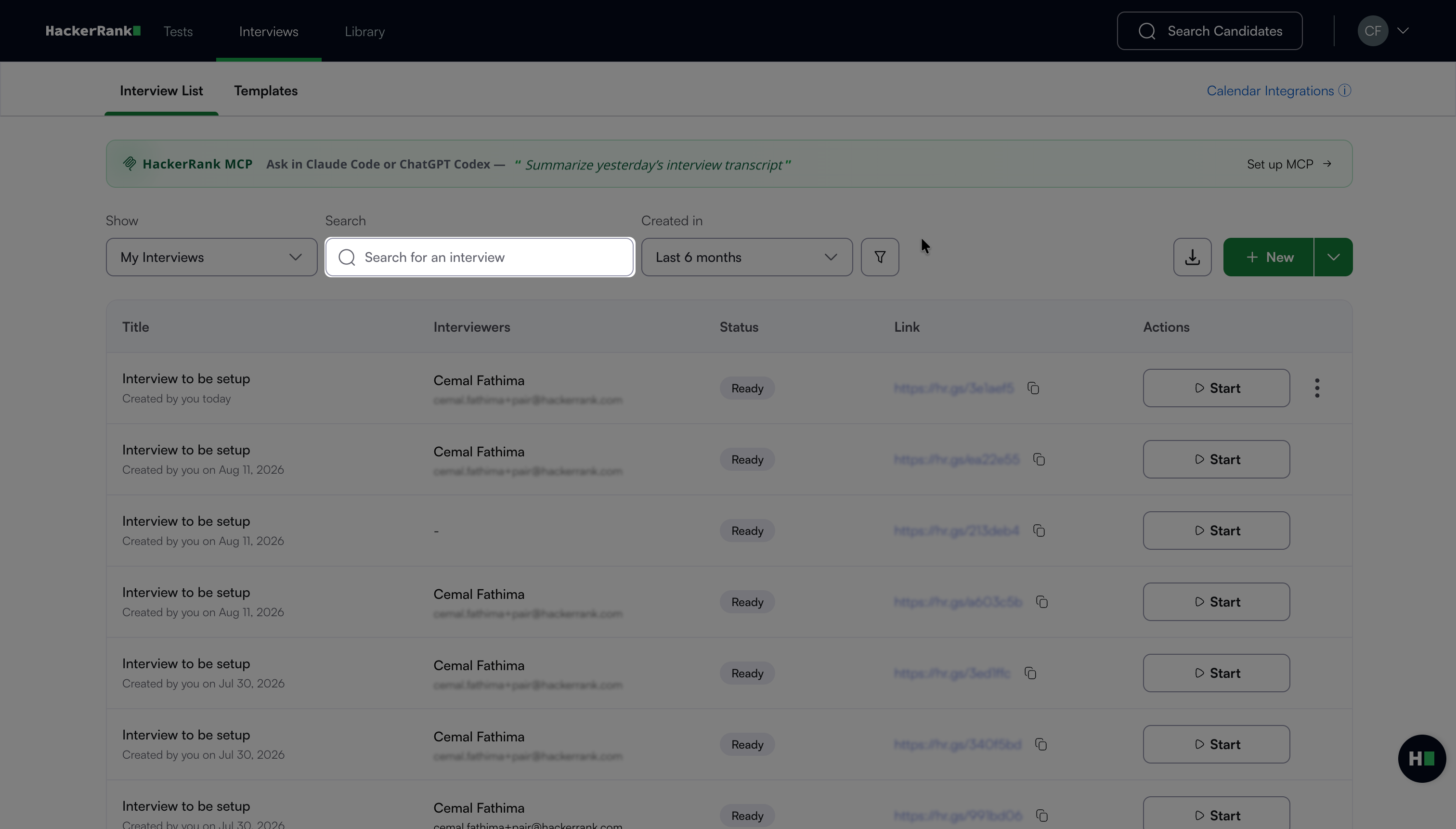
Filter options:
Show:
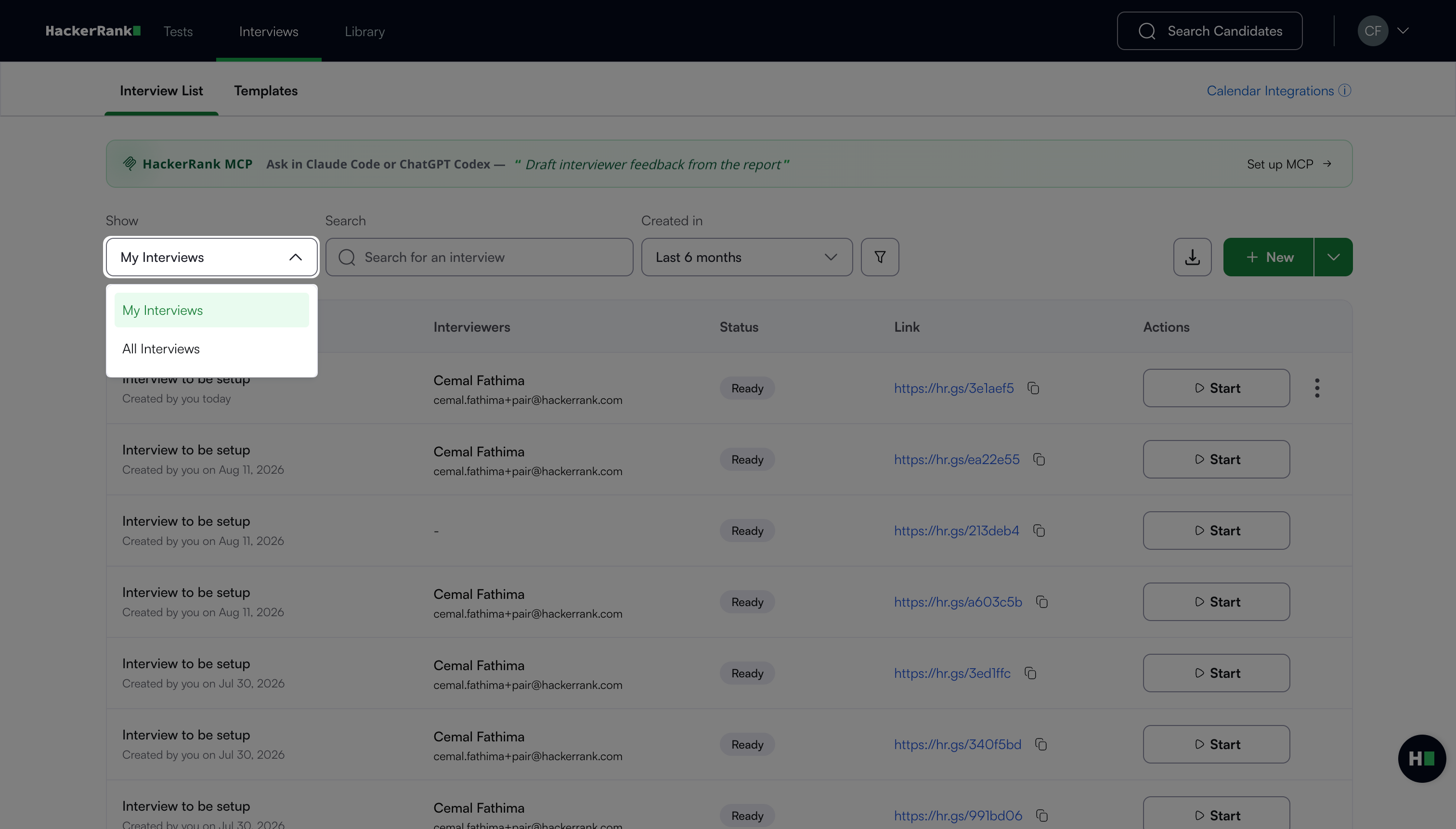
My Interviews: Displays interviews you created or participated in.
All Interviews: Displays your interviews and interviews shared with you by your teammates.
Created in: Select a time range from the dropdown to filter interviews by creation date.
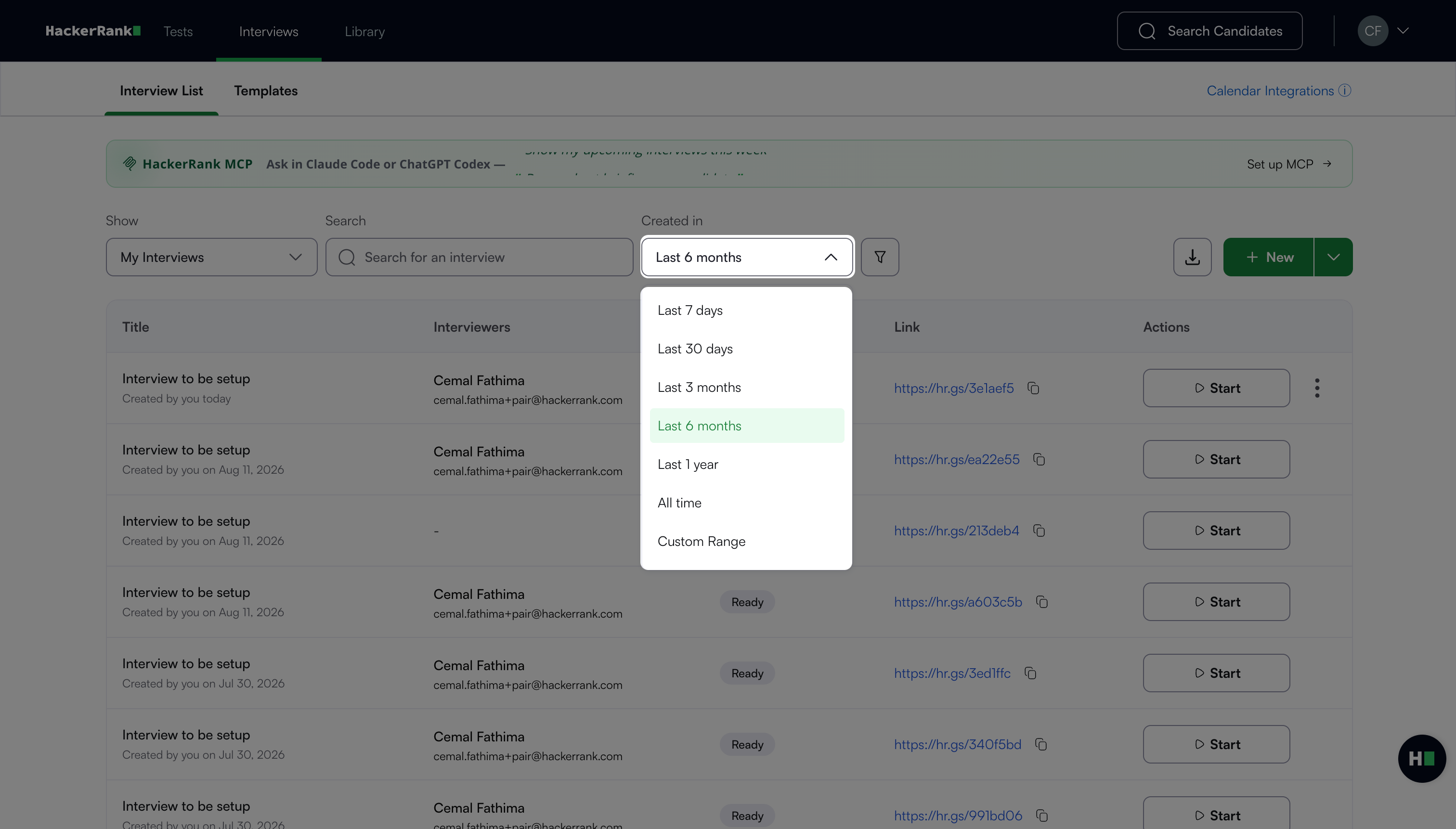
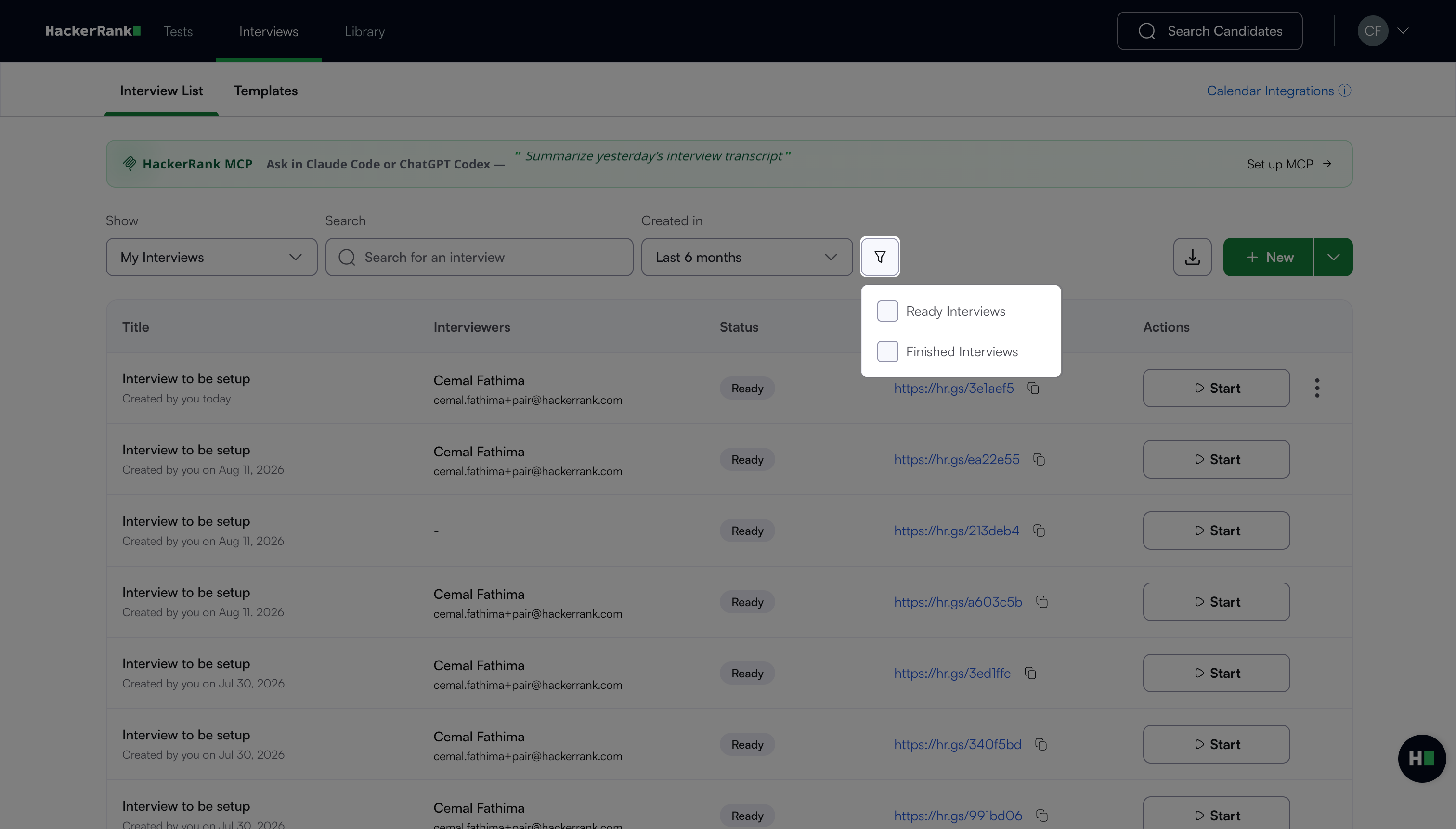
Status: Select Ready Interviews or Finished Interviews to filter interviews by status.