View Candidate Report in Chakra
Last updated: July 22, 2026
The candidate report summarizes a completed AI interview. It organizes evidence and feedback so you can quickly evaluate a candidate's performance and integrity.
You can use the report to review recommendations, interview responses, integrity signals, and section-level feedback in one place.
Note: You can view AI Interview reports only for candidates who complete the interview.
Viewing candidate report
To access candidate reports:
Log in to Chakra using your credentials.
Click the sidebar icon and select My Interviewers.
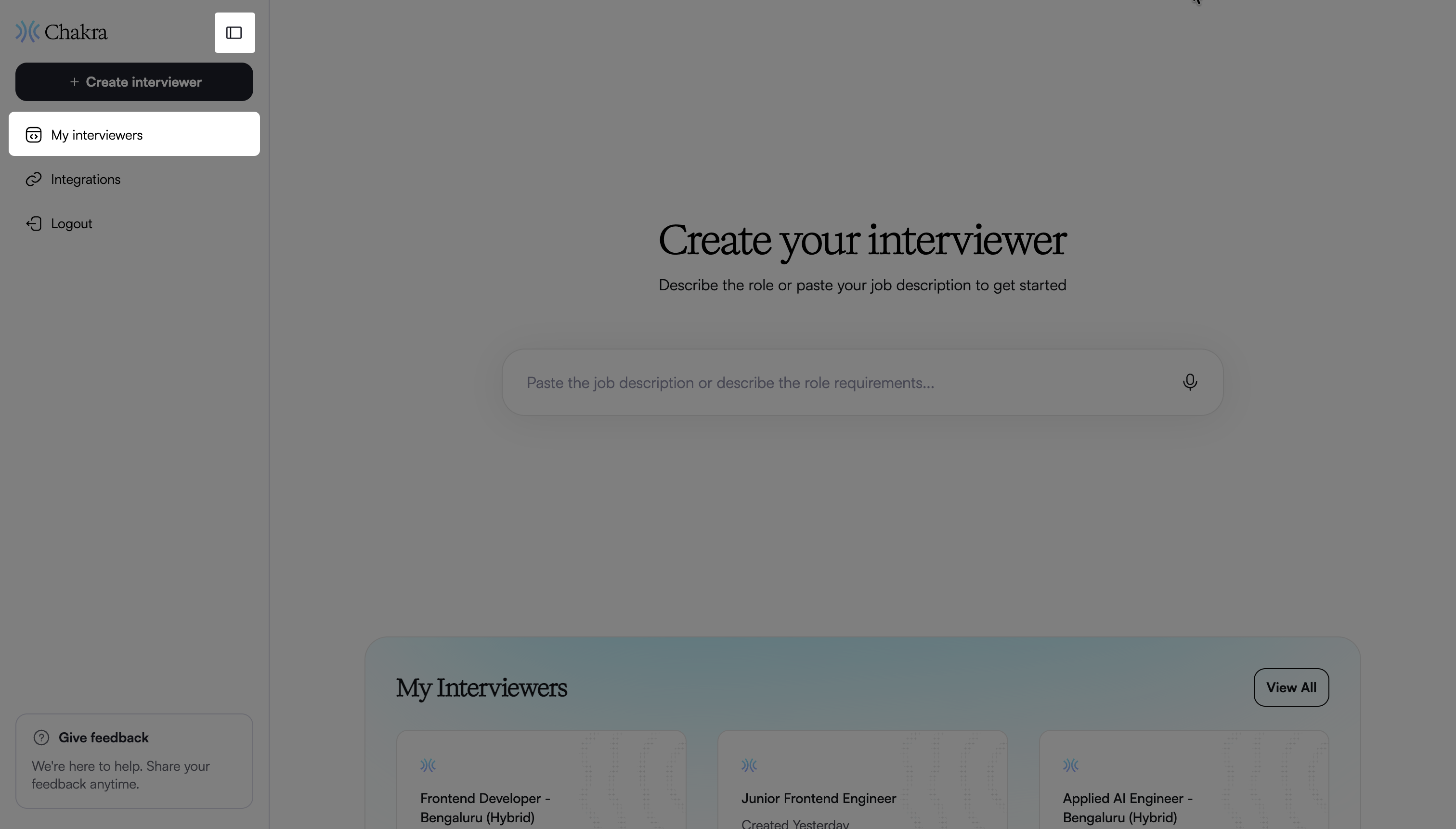
Select the interview for which you want to view candidate reports.
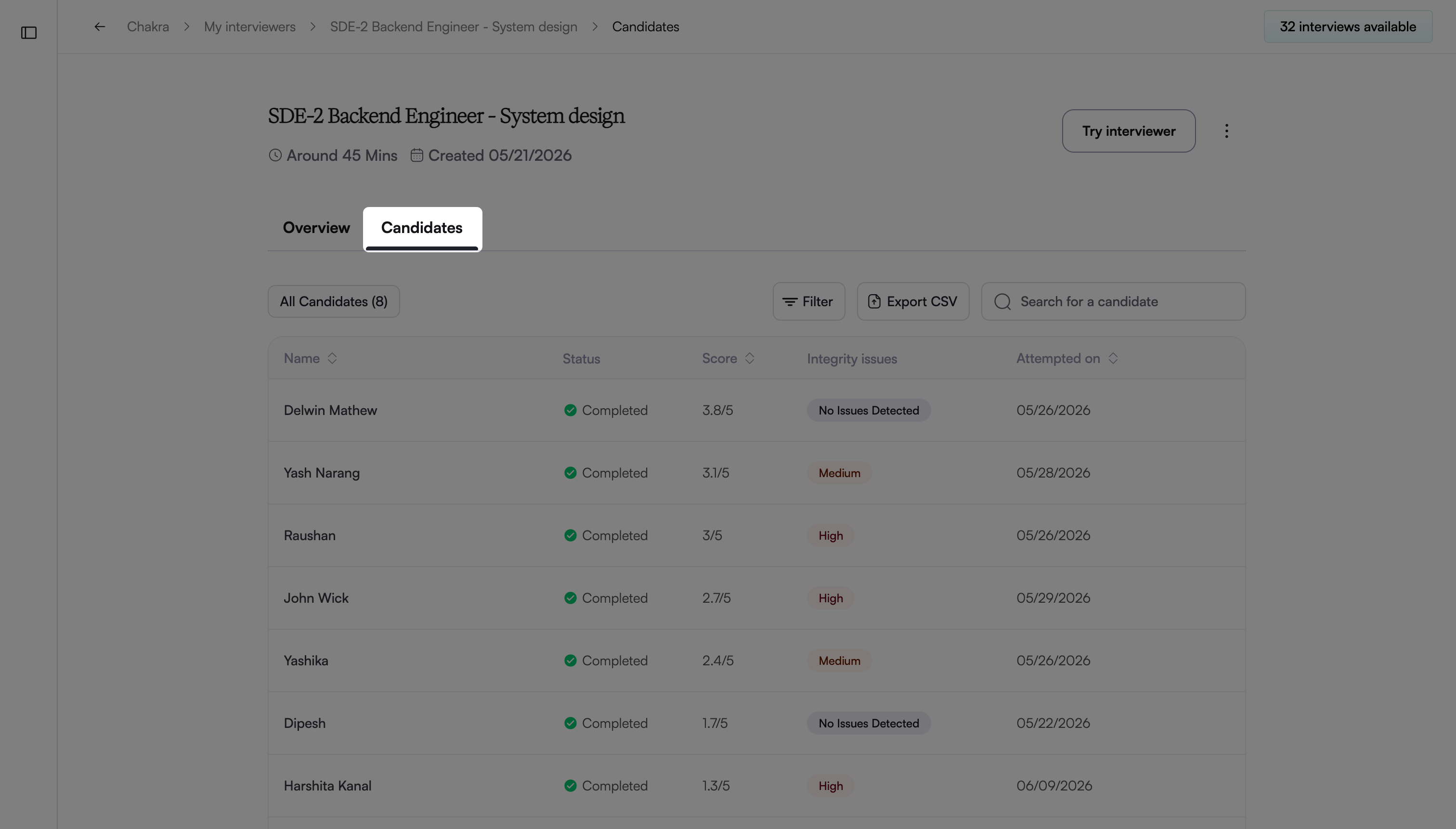
Go to the Candidates tab.
Note:
Use the search bar to find a specific candidate.
Use the following filters to refine results:
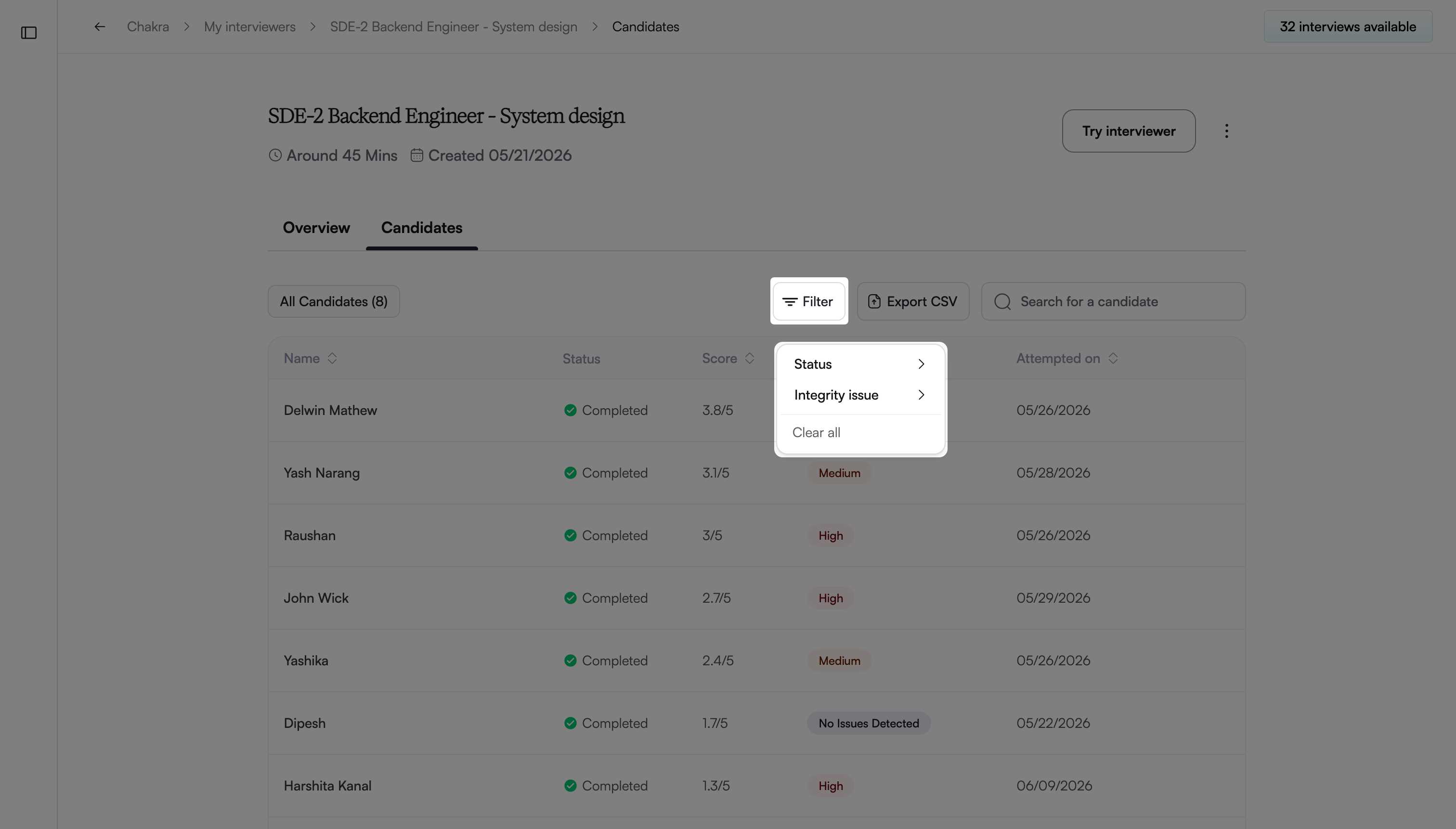
Status: Filter by Invited, In Progress, Completed
Integrity Issue: Filter by No issues detected, Medium, High
Click Export CSV to export the report as a CSV file. For more information, see Export Candidate Reports
Select a candidate's name to open the candidate report.
Candidate report components
The candidate report includes the following components:
Overall recommendation: The report displays an overall score on a 5-point scale to summarize the candidate’s performance across all interview sections.
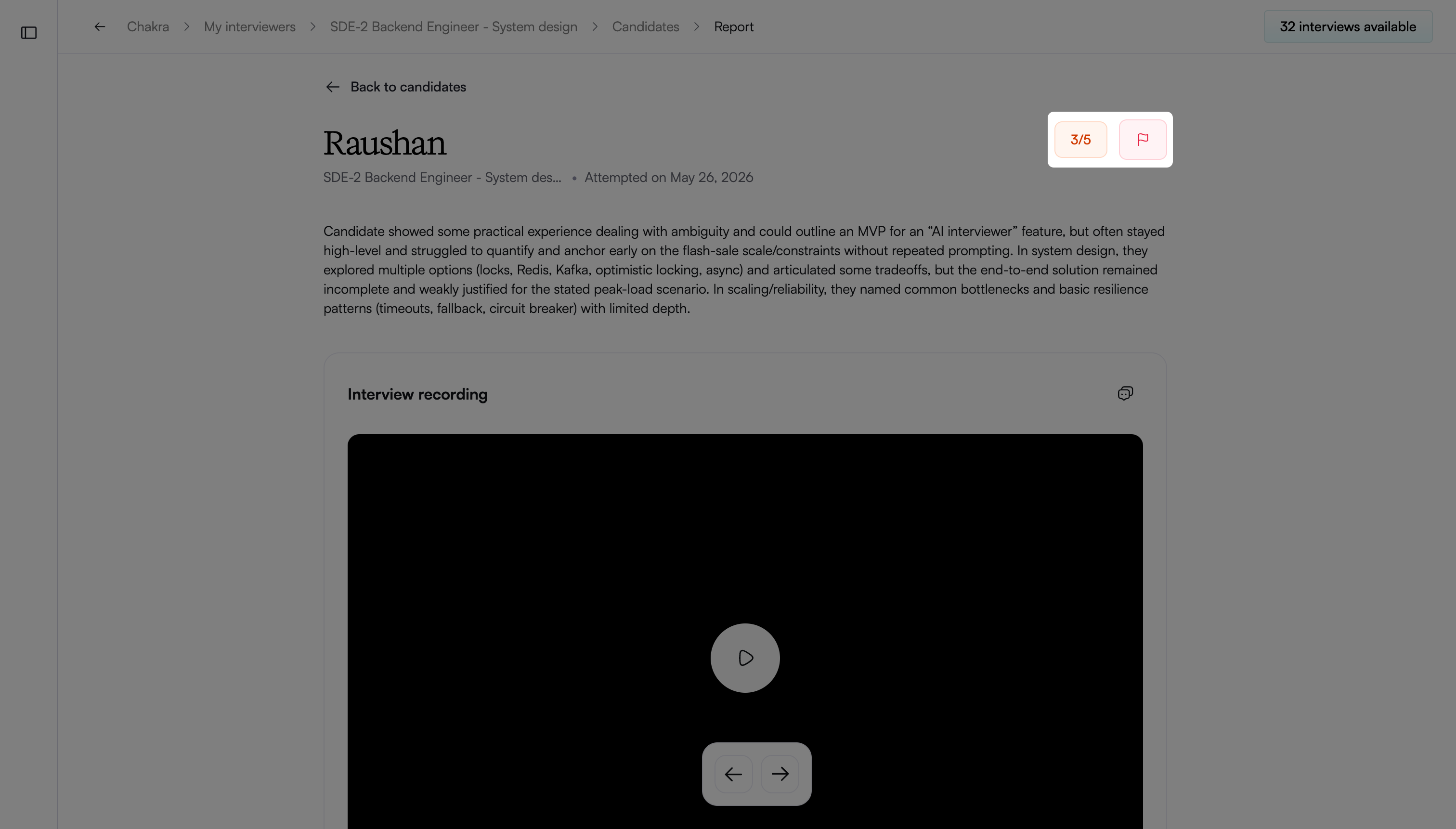
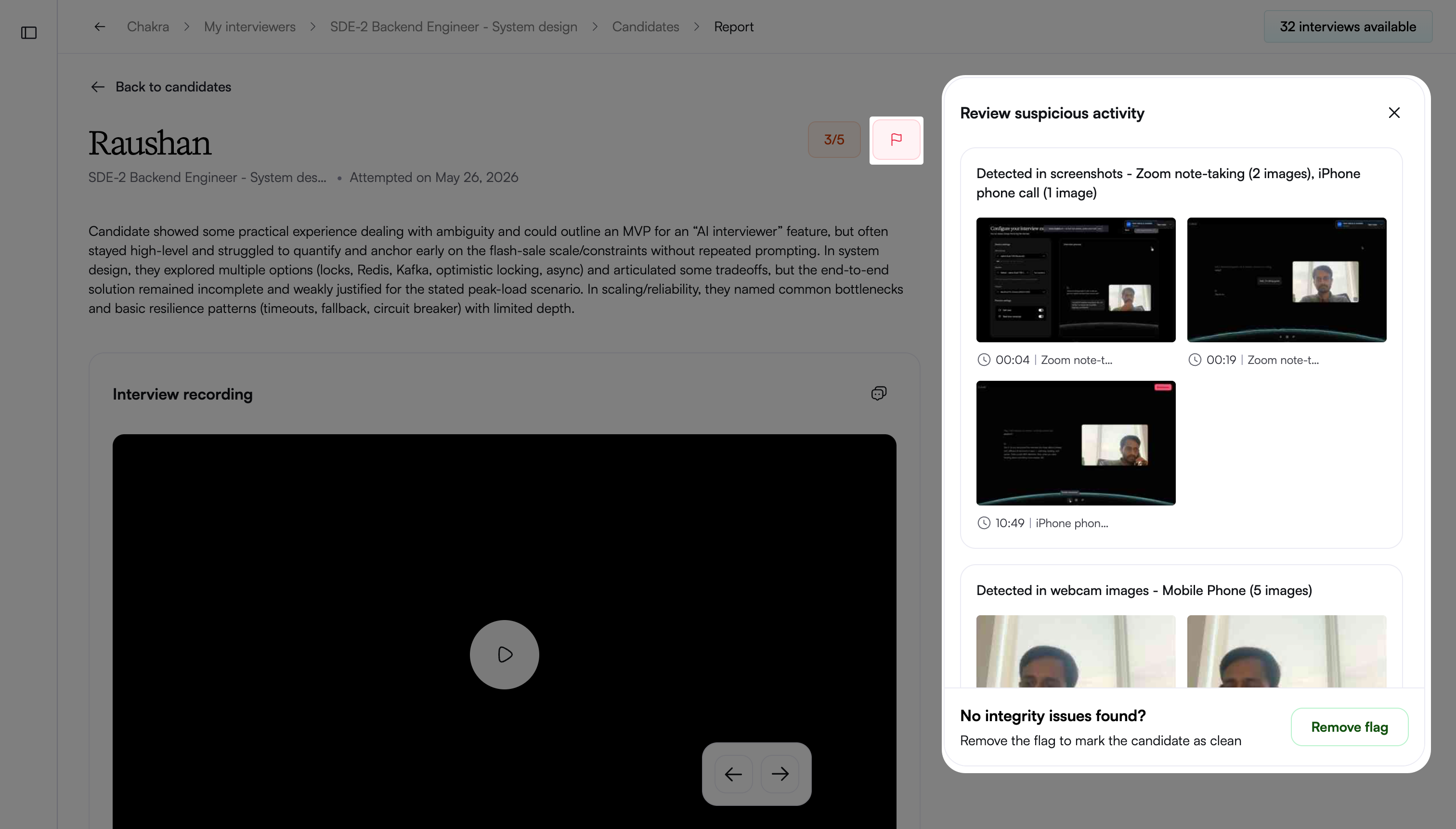
If the system detects a candidate for suspicious activity, a flag icon appears next to the recommendation. Click the flag icon to open the Review Suspicious Activity panel on the right. The panel displays integrity-related evidence from the interview, including screenshots, webcam images, and timestamps.
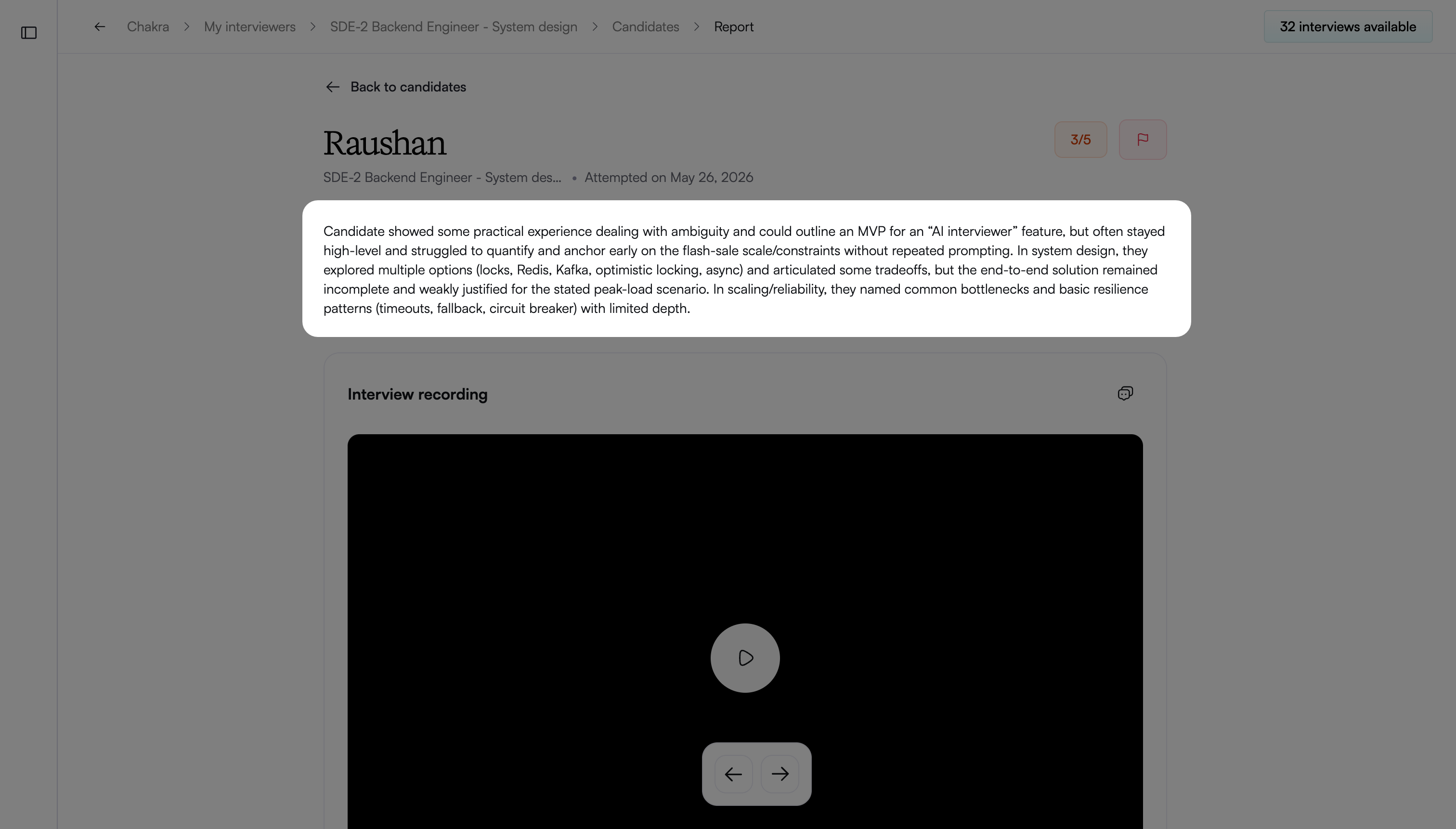
Overall summary: A short summary explains the hiring recommendation. It highlights the candidate’s key strengths and areas for improvement.
Interview Video Recording and Transcript: The report includes a full interview video recording with a synchronized transcript.
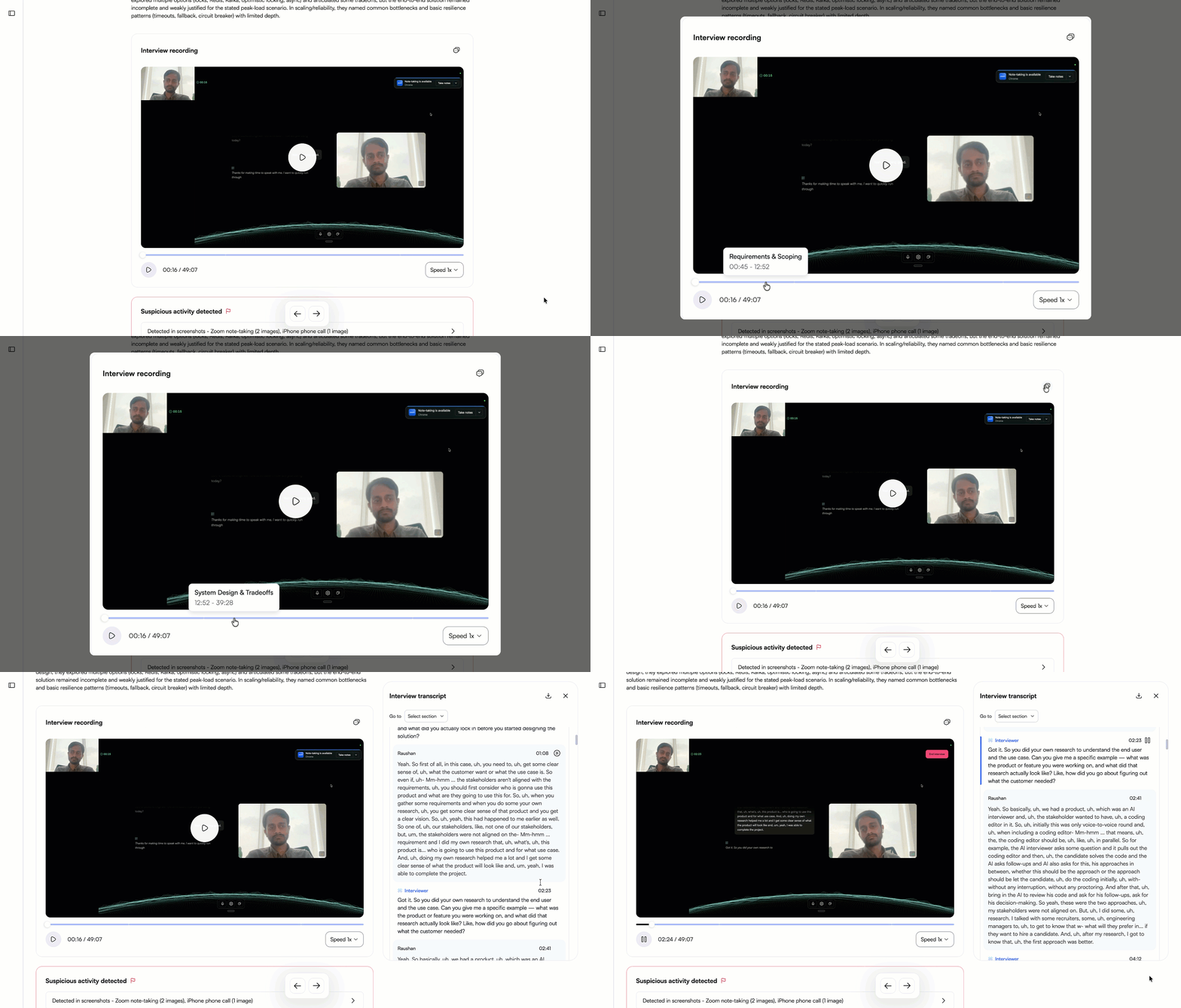
You can:
Play or pause the recording
Scrub the timeline to navigate to specific points
Adjust playback speed
The timeline aligns with interview sections. Hover over the timeline to view section names and timestamps.
The transcript appears in a side panel and stays synchronized with the recording. It highlights the current segment during playback.
Use Go to menu to navigate to a specific section in the transcript. Select Download to save the recording and transcript for offline review or sharing.
Suspicious Activity Detected: Highlights integrity-related signals captured during the interview. Common signals include:
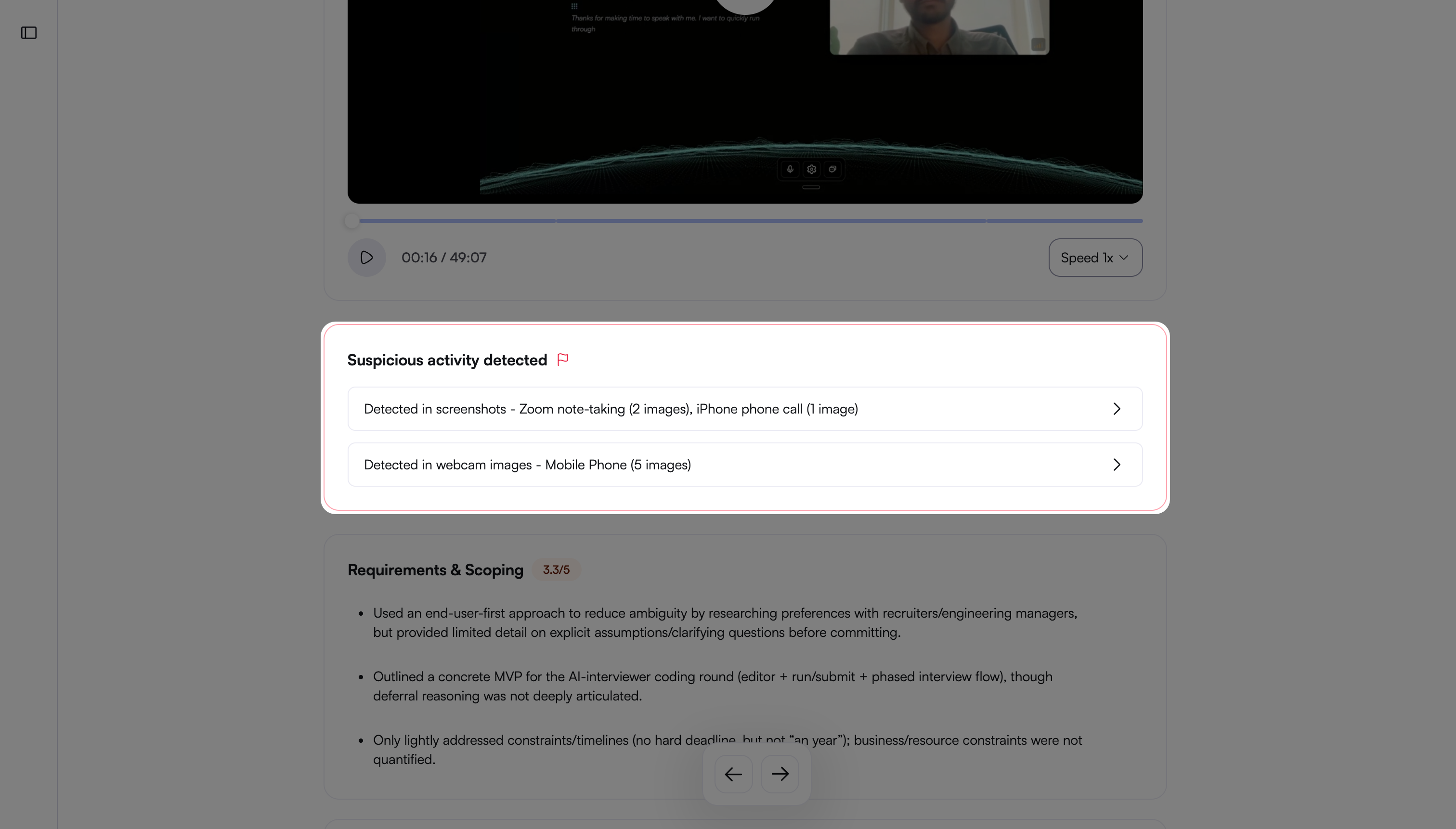
Tab switch or full-screen exits: Attempts to exit full-screen mode or switch browser tabs are automatically flagged and logged.
Webcam integrity issues: Analyzes webcam images for potential violations, such as the candidate’s face missing for an extended period, multiple faces visible, or secondary faces detected.
Screenshot analysis: Reviews periodic screen captures for suspicious activity during the candidate session.
Click each signal to open the Review Suspicious Activity panel on the right. The panel displays supporting evidence, such as screenshots, webcam images, or timestamps.
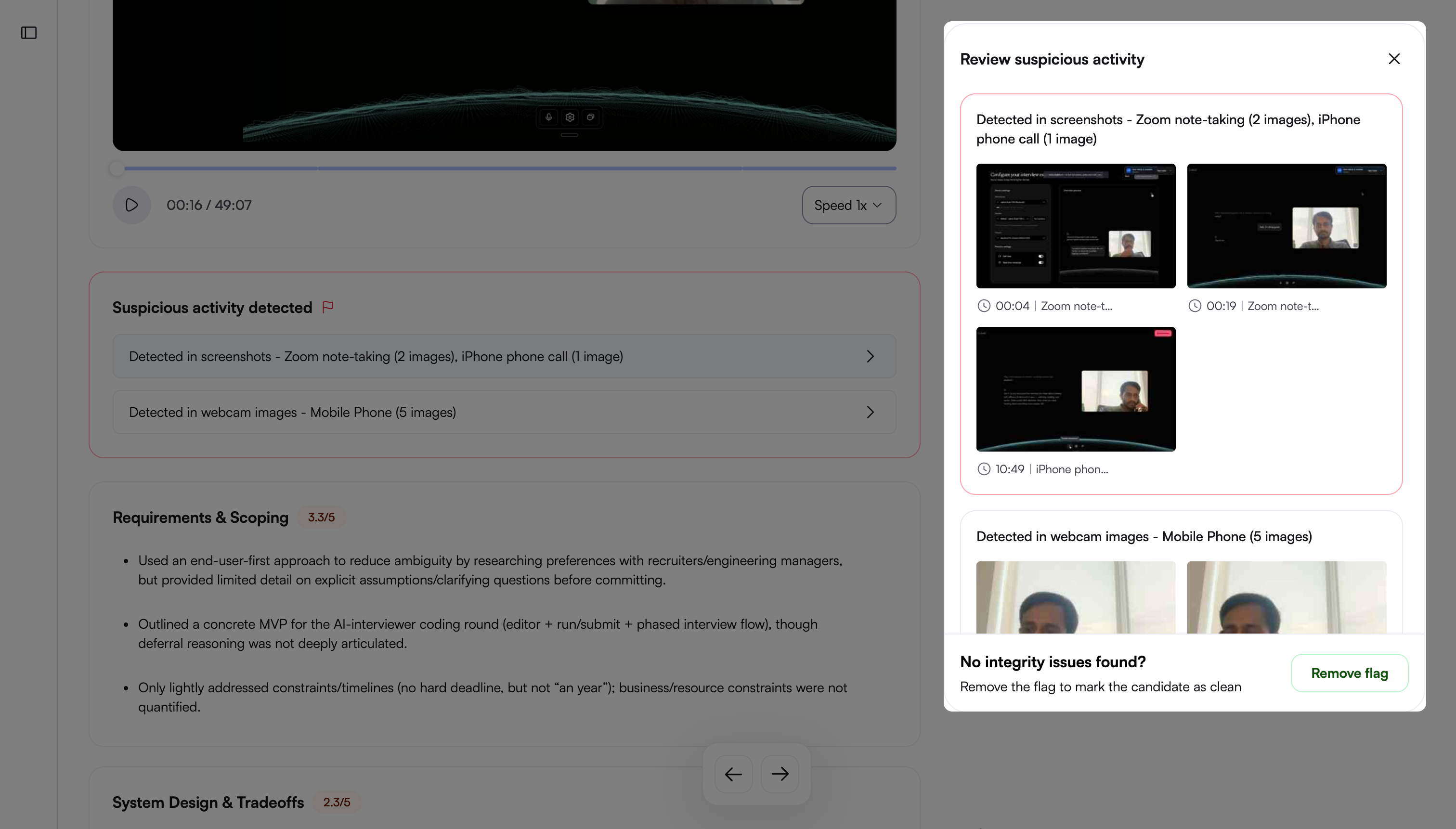
Review the supporting evidence for each signal before drawing conclusions.
Object Detection: Review captured images of detected mobile phones and tablets in the candidate’s webcam feed.
Section-based feedback: The report organizes feedback by interview section.
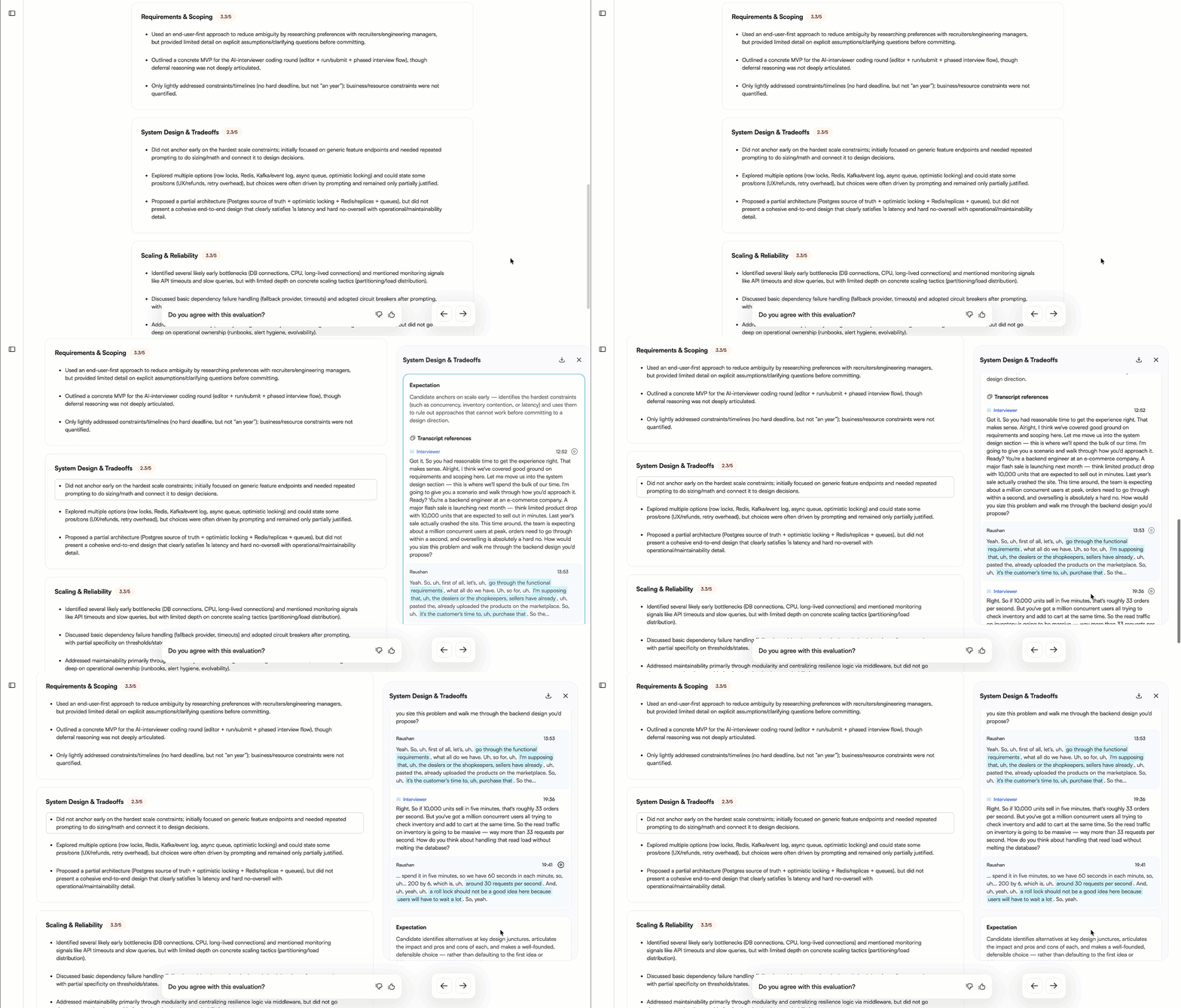
Each section includes:
A score on a 5-point scale
Bullet points that summarize key aspects of the candidate’s performance
Select a bullet point to view detailed insights that support the AI evaluation, including:
Expected response or evaluation criteria
Transcript references with timestamps
Highlighted candidate responses
Use section-based feedback to understand the candidate’s strengths and gaps at a granular level.