Create an AI Interviewer
Last updated: July 22, 2026
You can use Chakra to create an AI interviewer based on a job role or job description. Chakra analyzes your input and generates a structured interview plan that you can review and refine.
Creating an AI interviewer
To create an AI interviewer:
Log in to Chakra using your credentials.
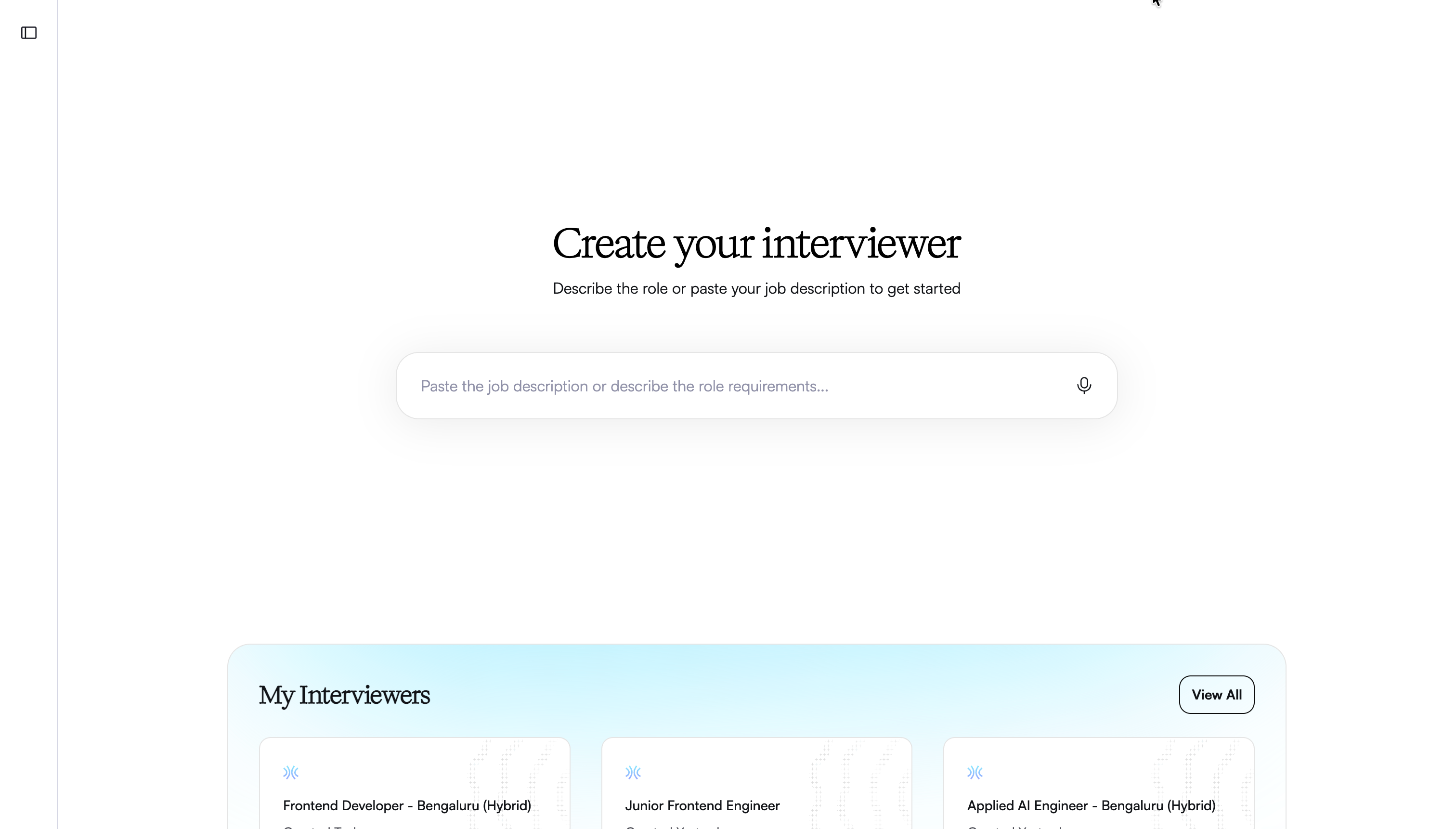
On the Create your interviewer page, describe the job role using one of the following input methods:
Text input:
Type or paste the job description in the input field.
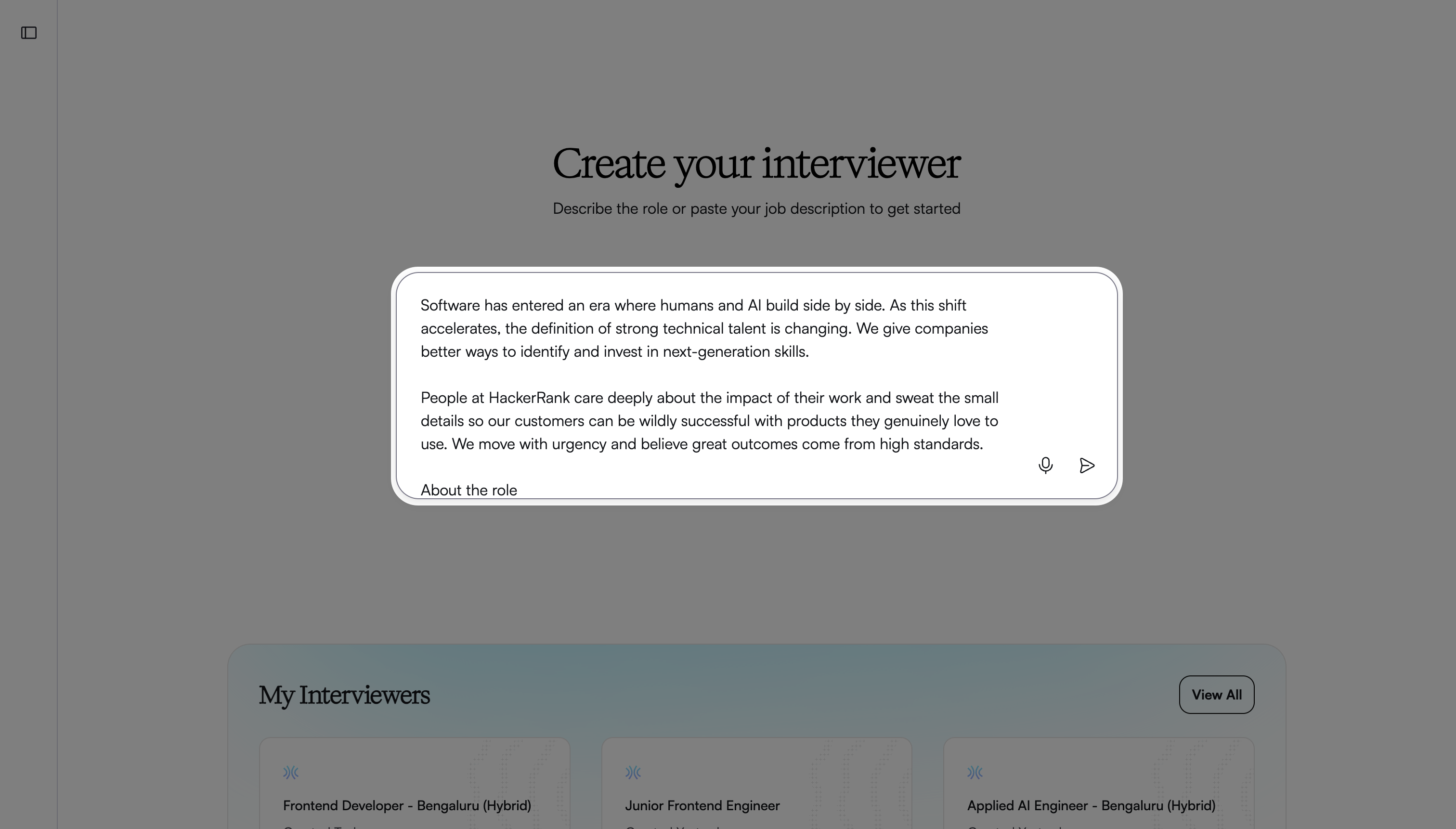
Click the send icon.
Speech input:
Click the microphone icon to start recording.
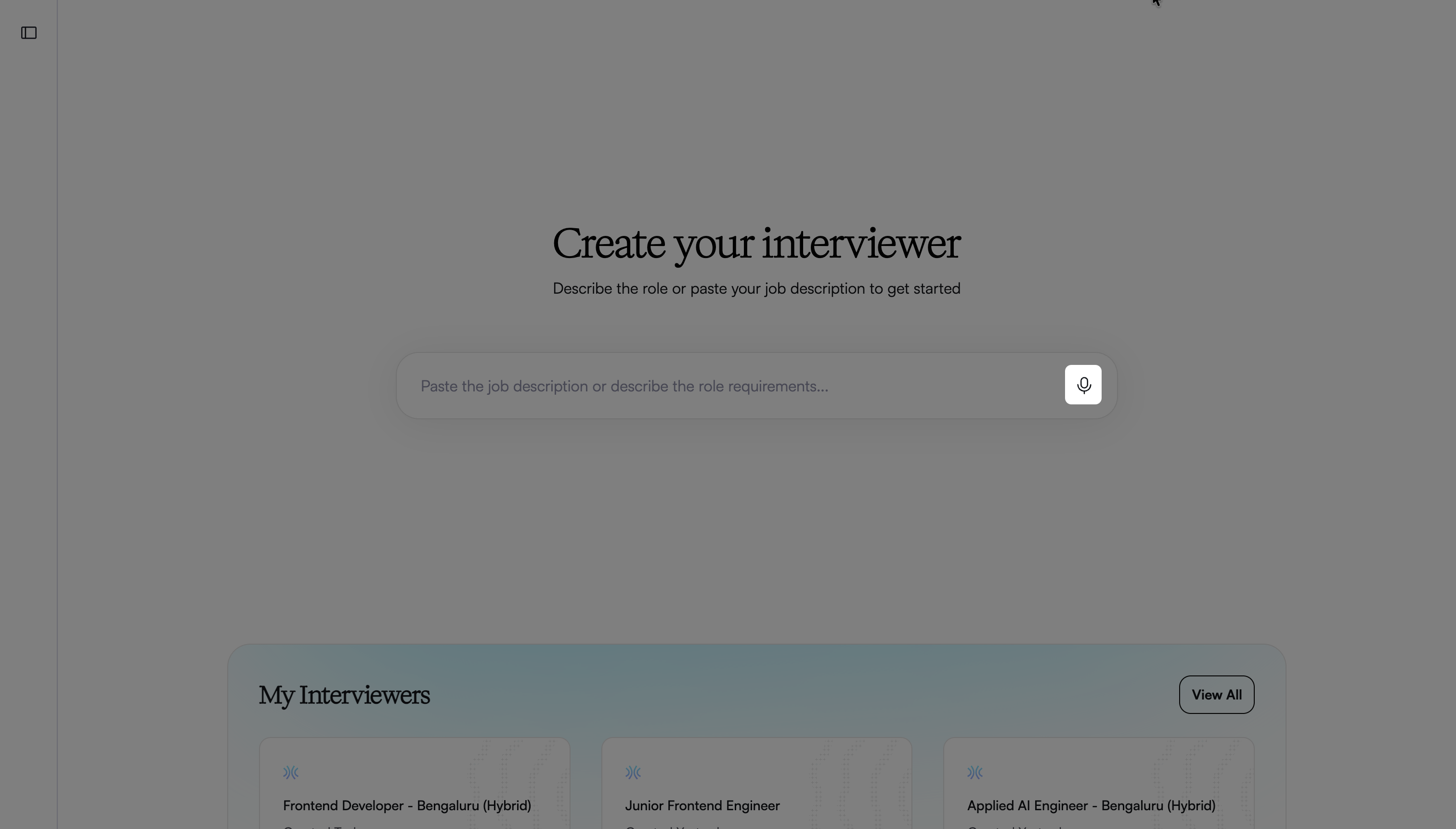
Click the confirm icon to stop recording.
Review the transcript and click the send icon.
Provide additional details when prompted to refine the interview, such as:
Candidate experience level
Work location and schedule expectations
Must-have and nice-to-have skills
Enter your responses and click the send icon.
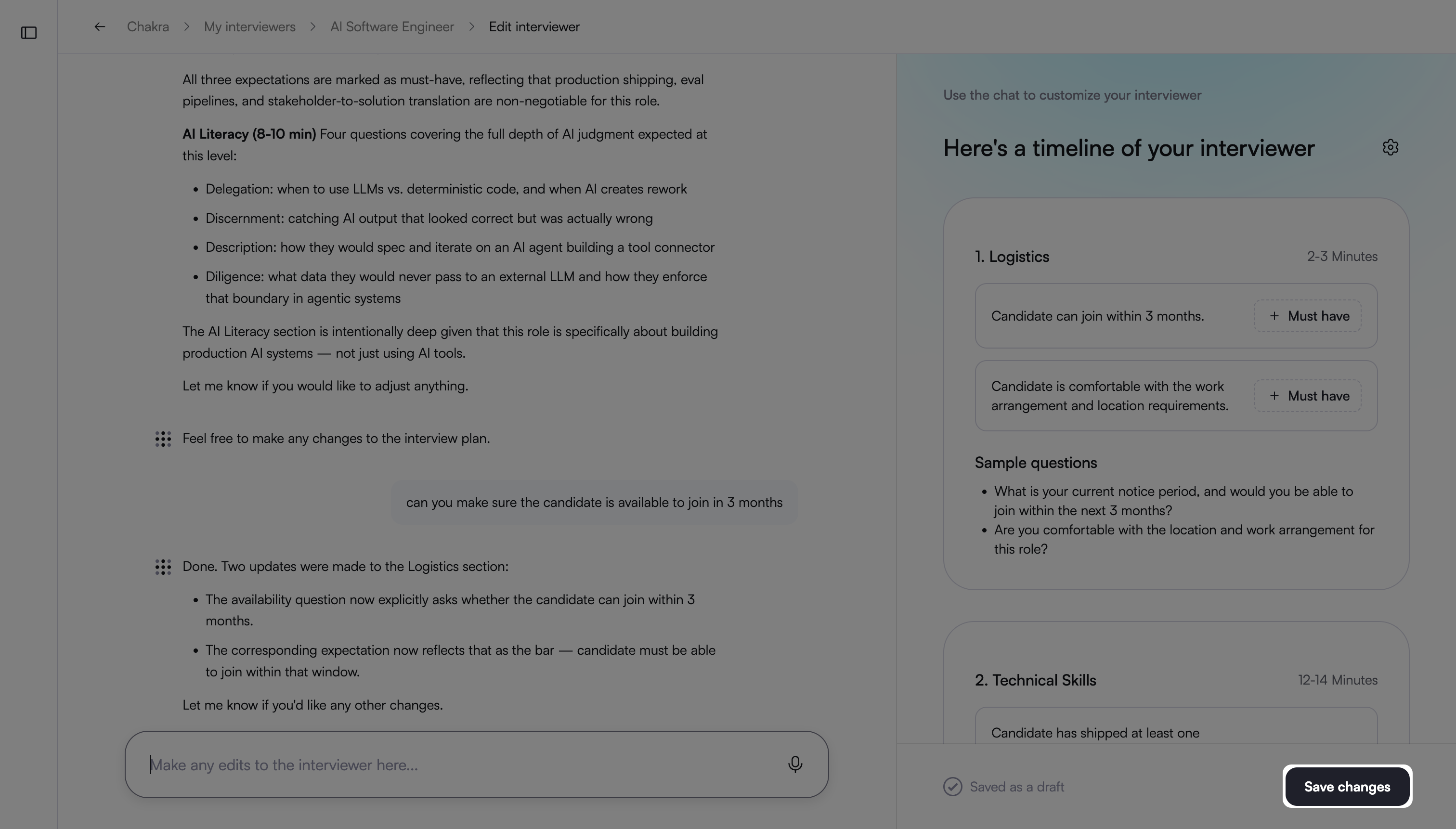
Chakra analyzes the role and displays the Timeline of the interviewer pane, which includes: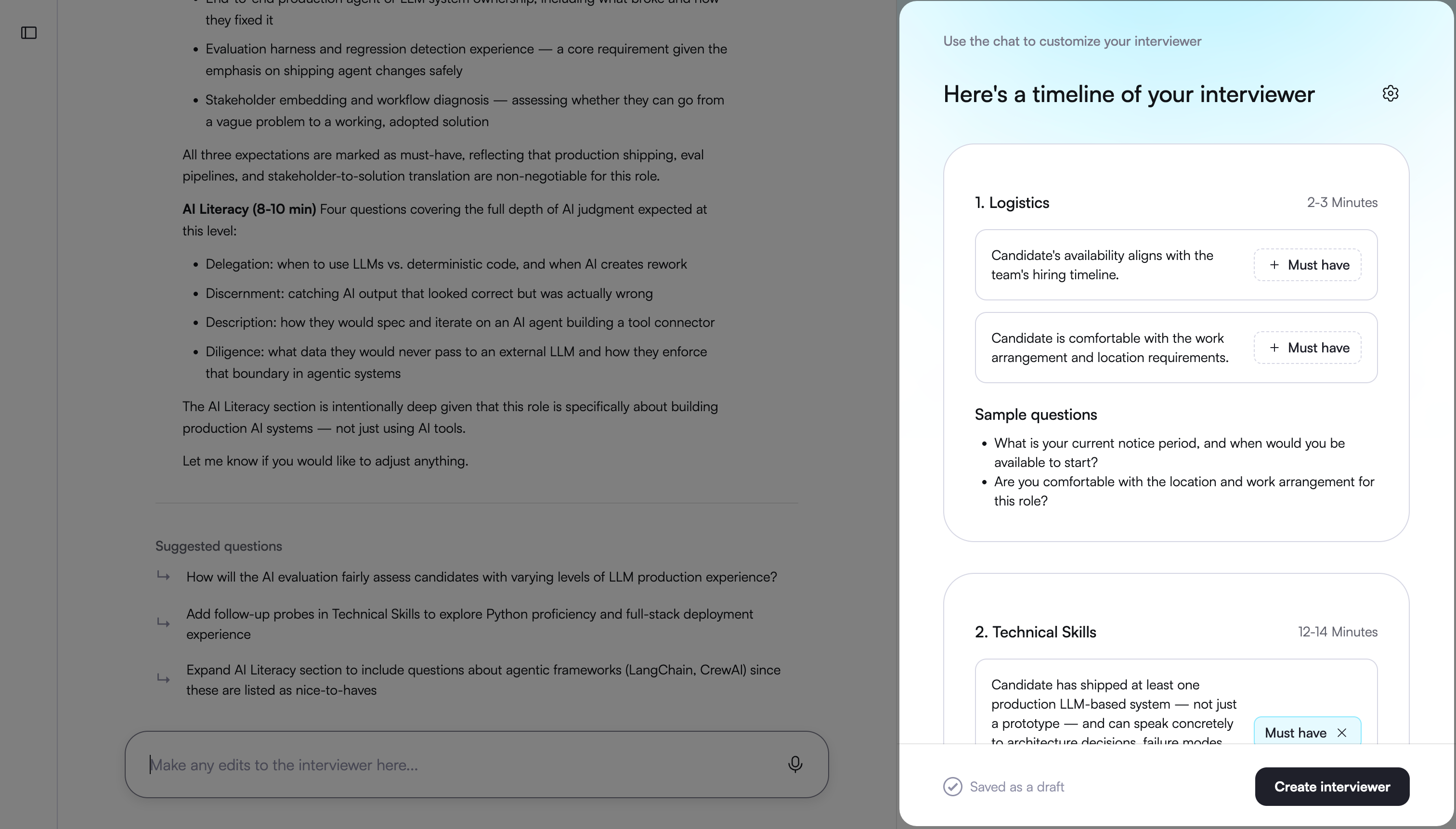
Interview sections
Estimated duration for each section
Evaluation goals for each section
Sample questions for each section
Review the generated interview plan.
(Optional) Enter prompts to refine the structure or content of the interview. For example,
Reorder interview sections
Modify the focus of a section
Change the question types in a section
The Timeline of the interviewer pane updates in real time as you provide input. You can continue refining the structure or content of the interview until you are satisfied with the output.
(Optional) Select Must have for requirements that are mandatory for the role. Clear Must have if a requirement is not mandatory.
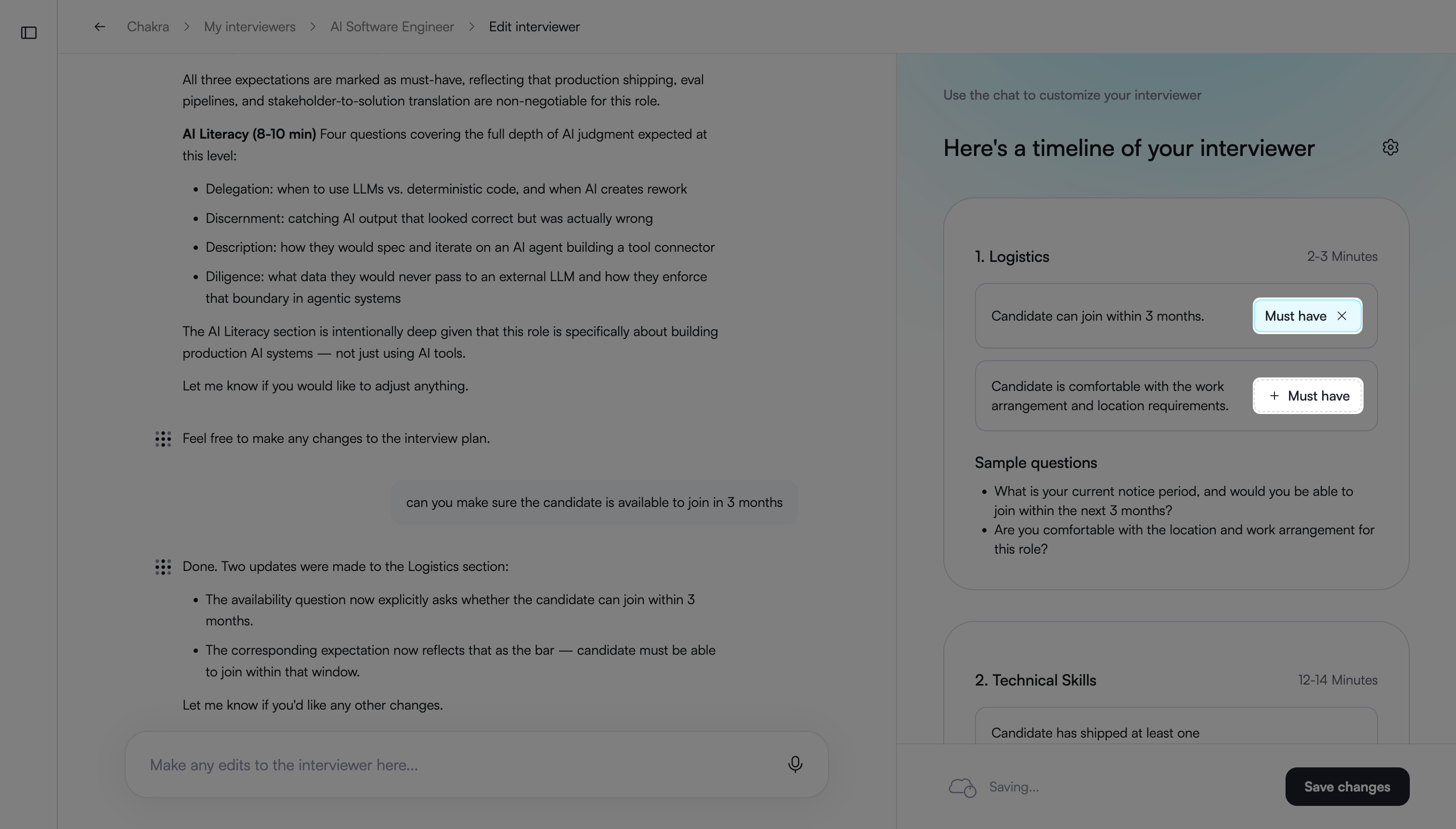
Note: Requirements marked as Must have receive greater weight during candidate evaluation.
Click Create Interviewer to finalize the setup.
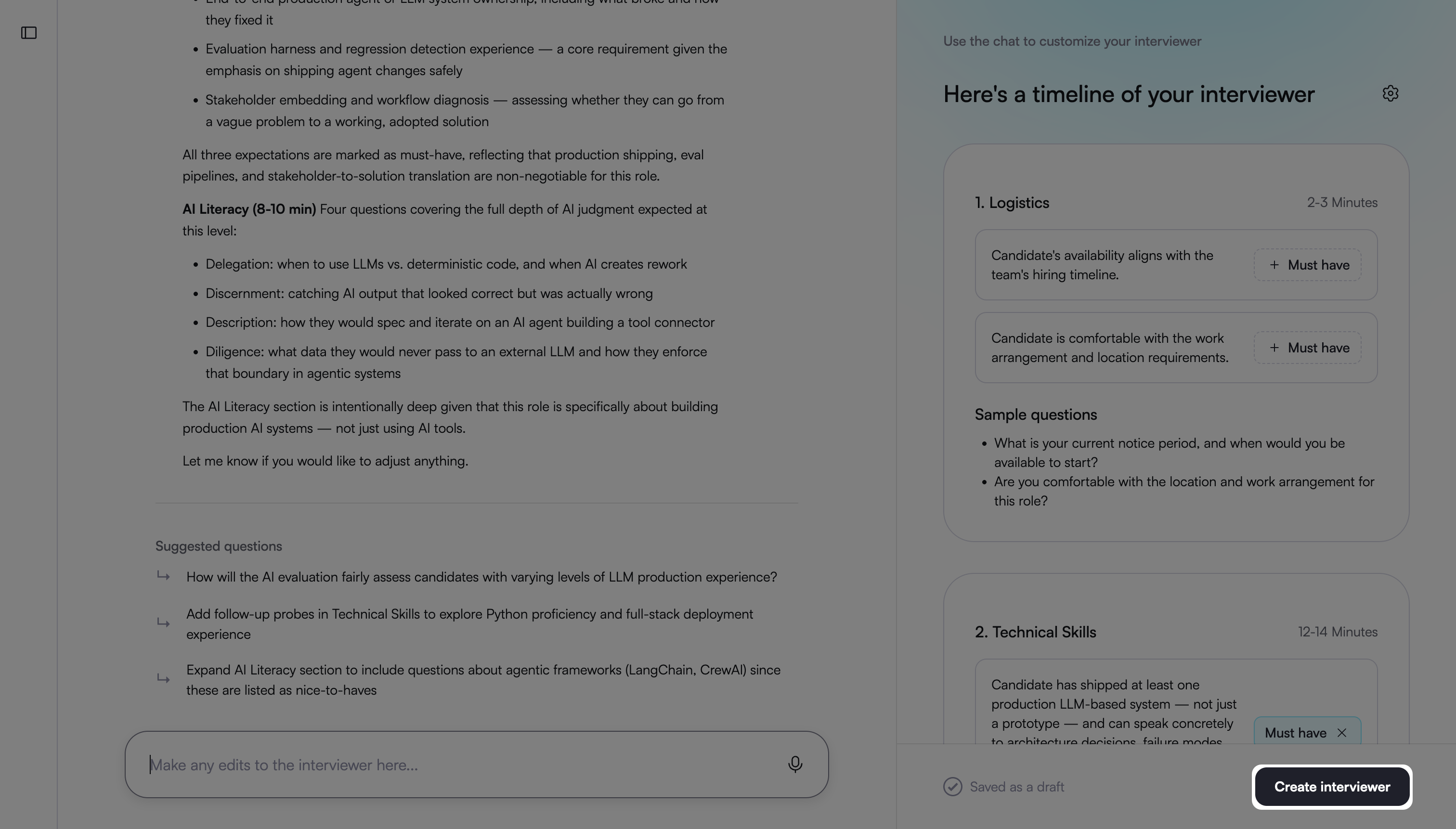
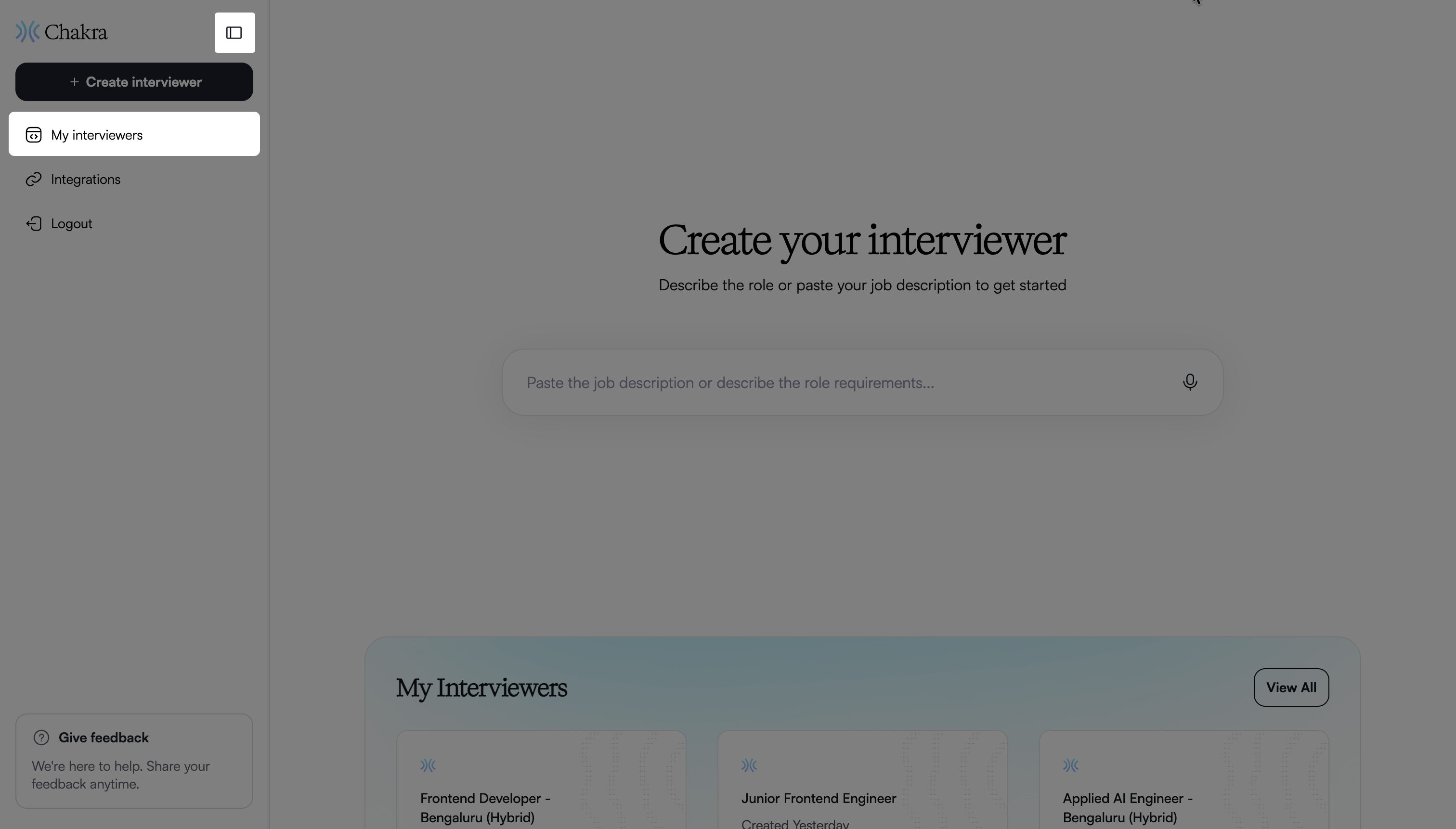
Chakra creates the AI interview and displays it under the My Interviewers tab.
To invite candidates to the Interview, see 📄 Invite Candidates to an AI Interview.
Note:
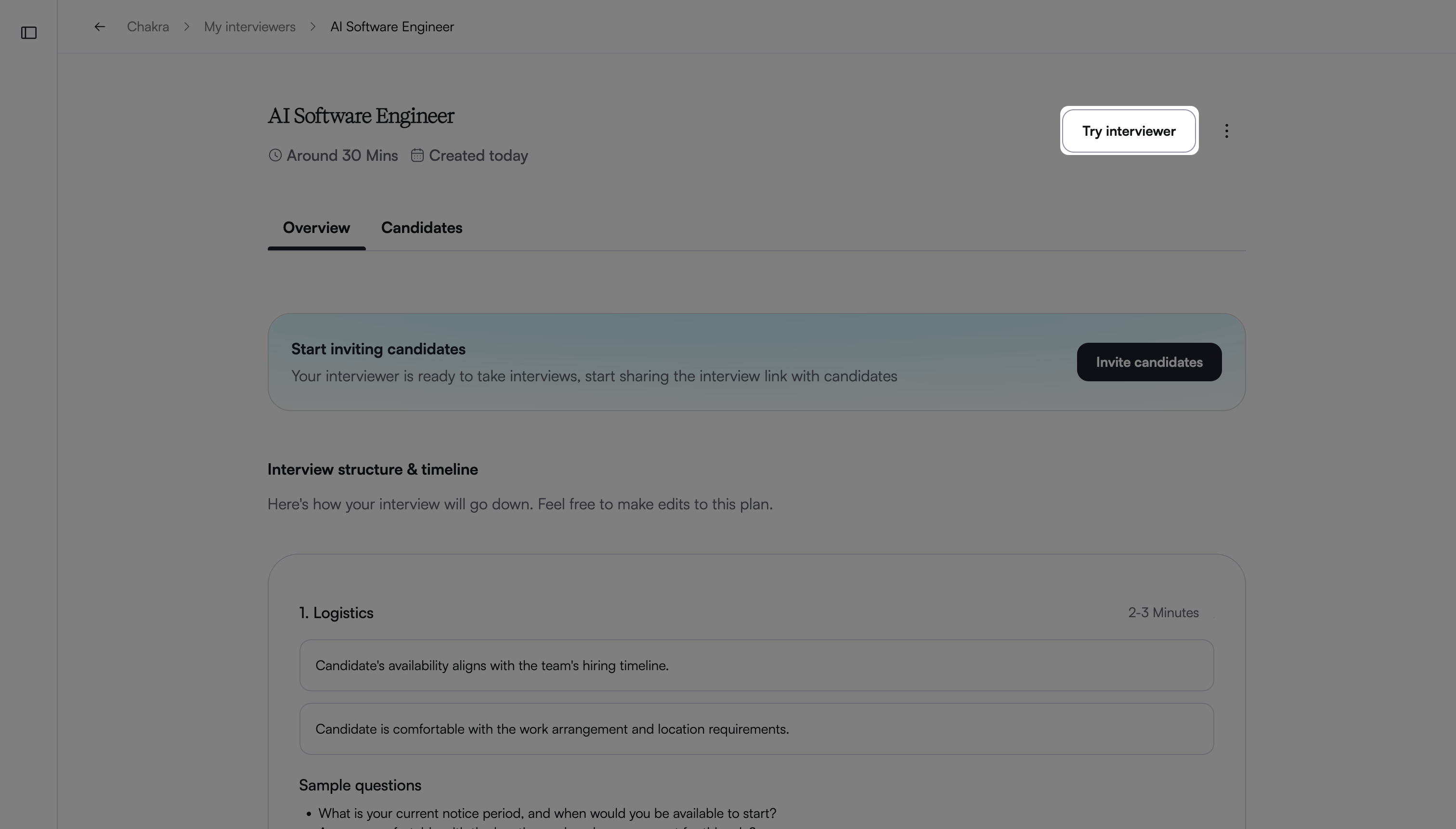
Click Try Interviewer to experience the interview flow as a candidate.
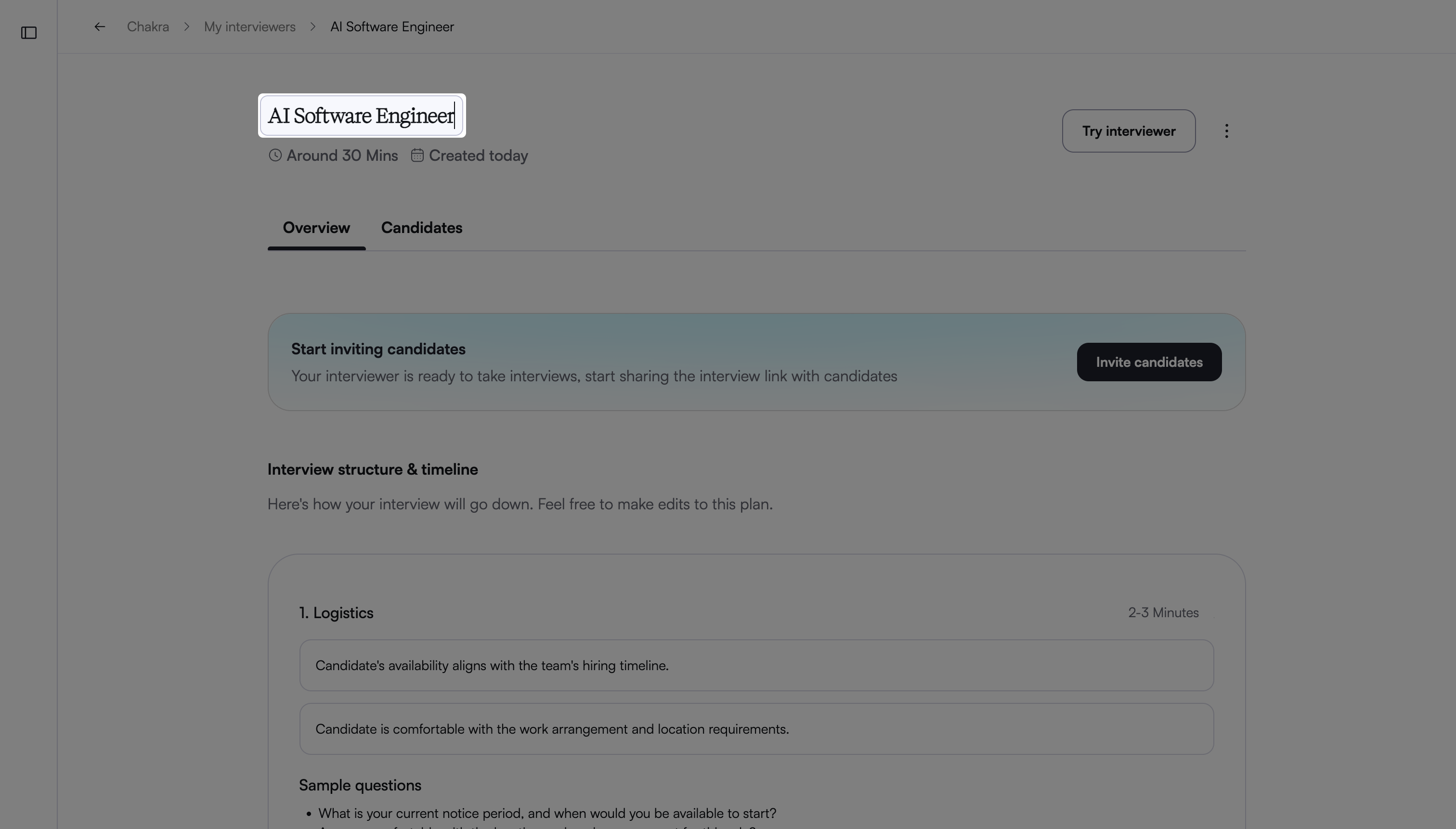
To rename the interview, click the interview name and enter a new name.
Editing an AI Interviewer
To edit an AI Interviewer:
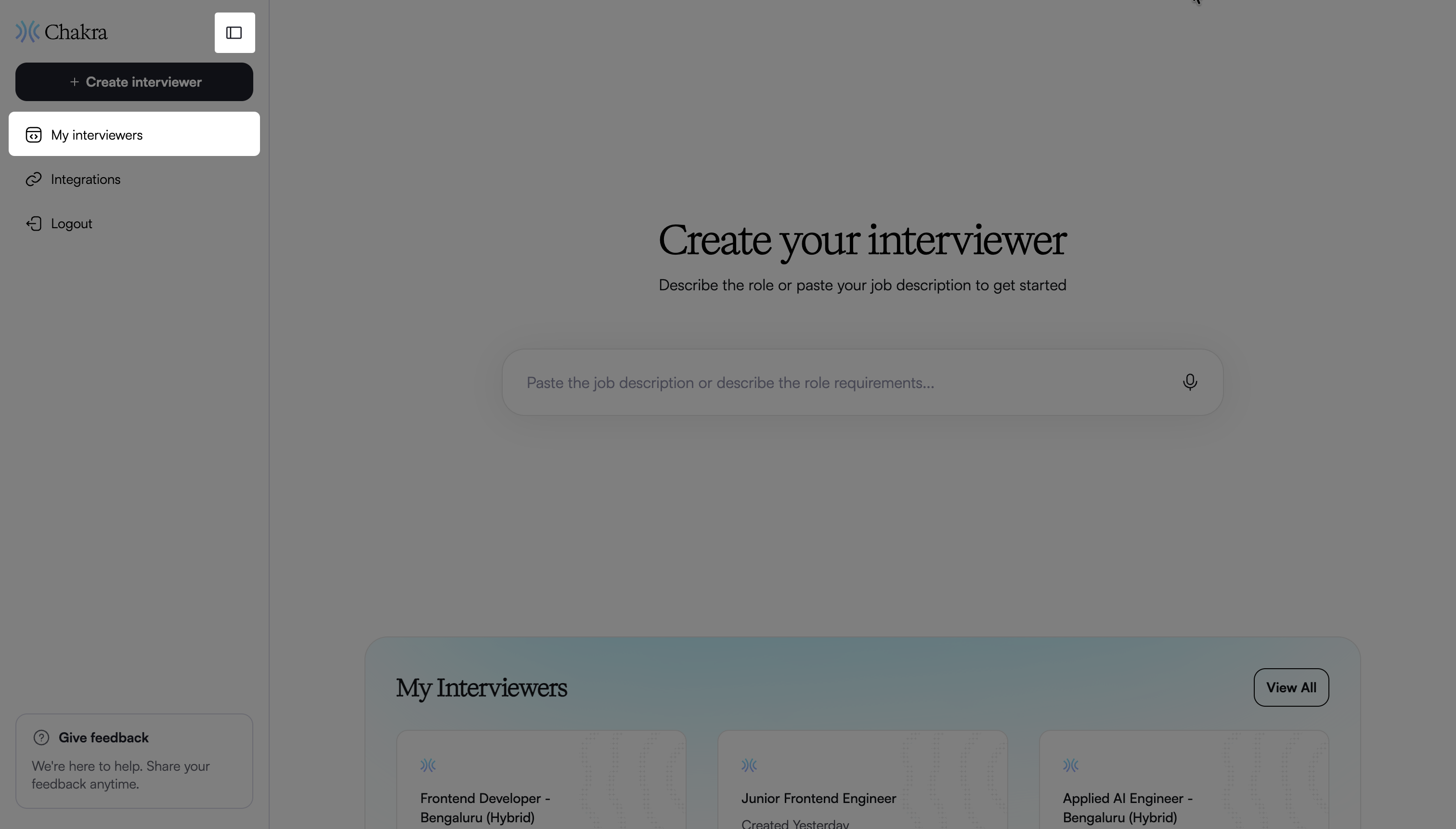
Click the sidebar icon and select My Interviewers.
Select the AI Interviewer you want to update.
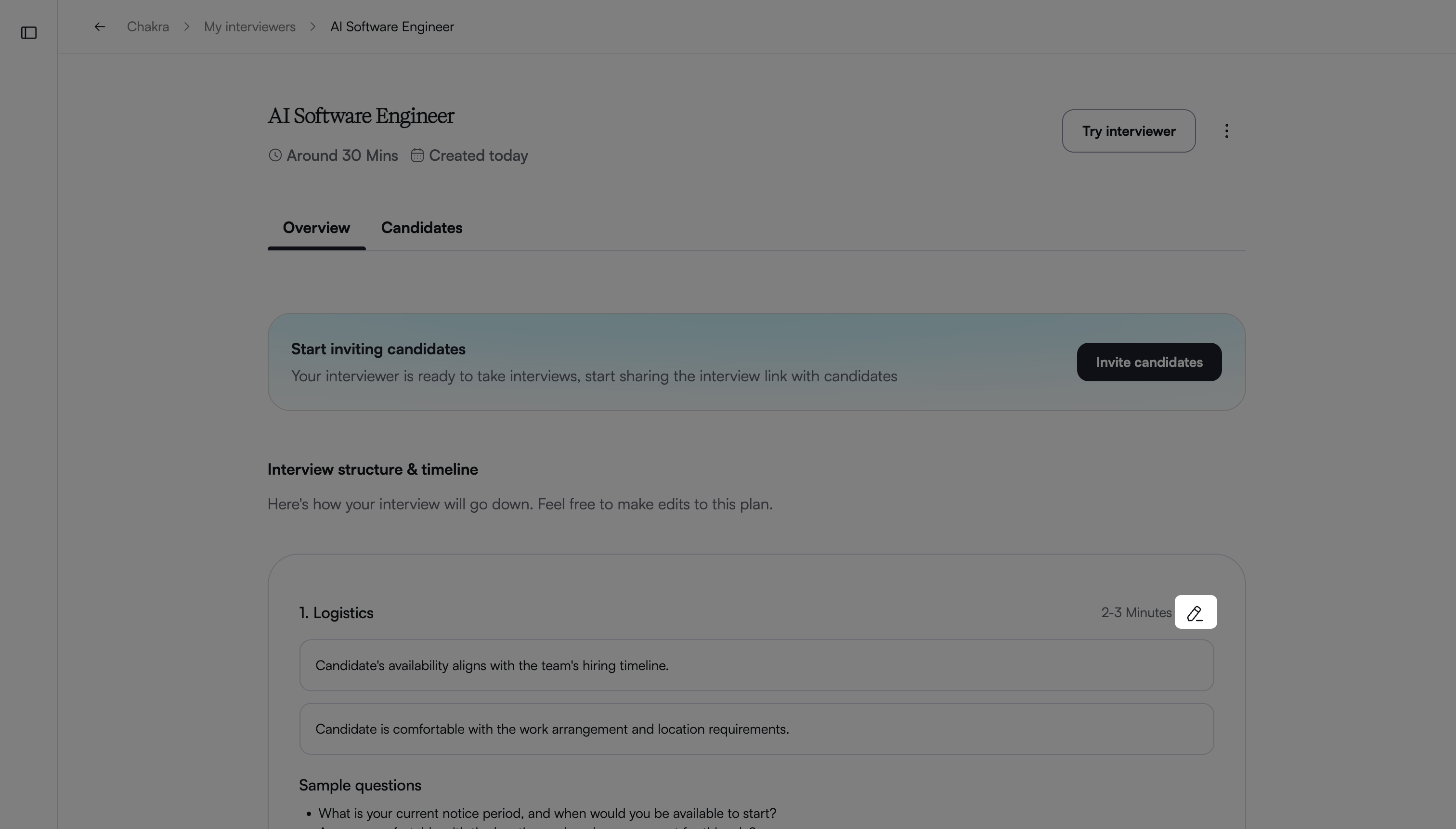
In the Overview tab, hover over a section under Interview Structure & Timeline.
Click the edit icon to open the Edit Interviewer page.
Enter prompts to make the required changes.
Click Save Changes to apply the updates.