Send Bulk Email Invites
Last updated: September 17, 2025
The Bulk Invite feature allows you to send test invitations to many candidates at once using a CSV file.
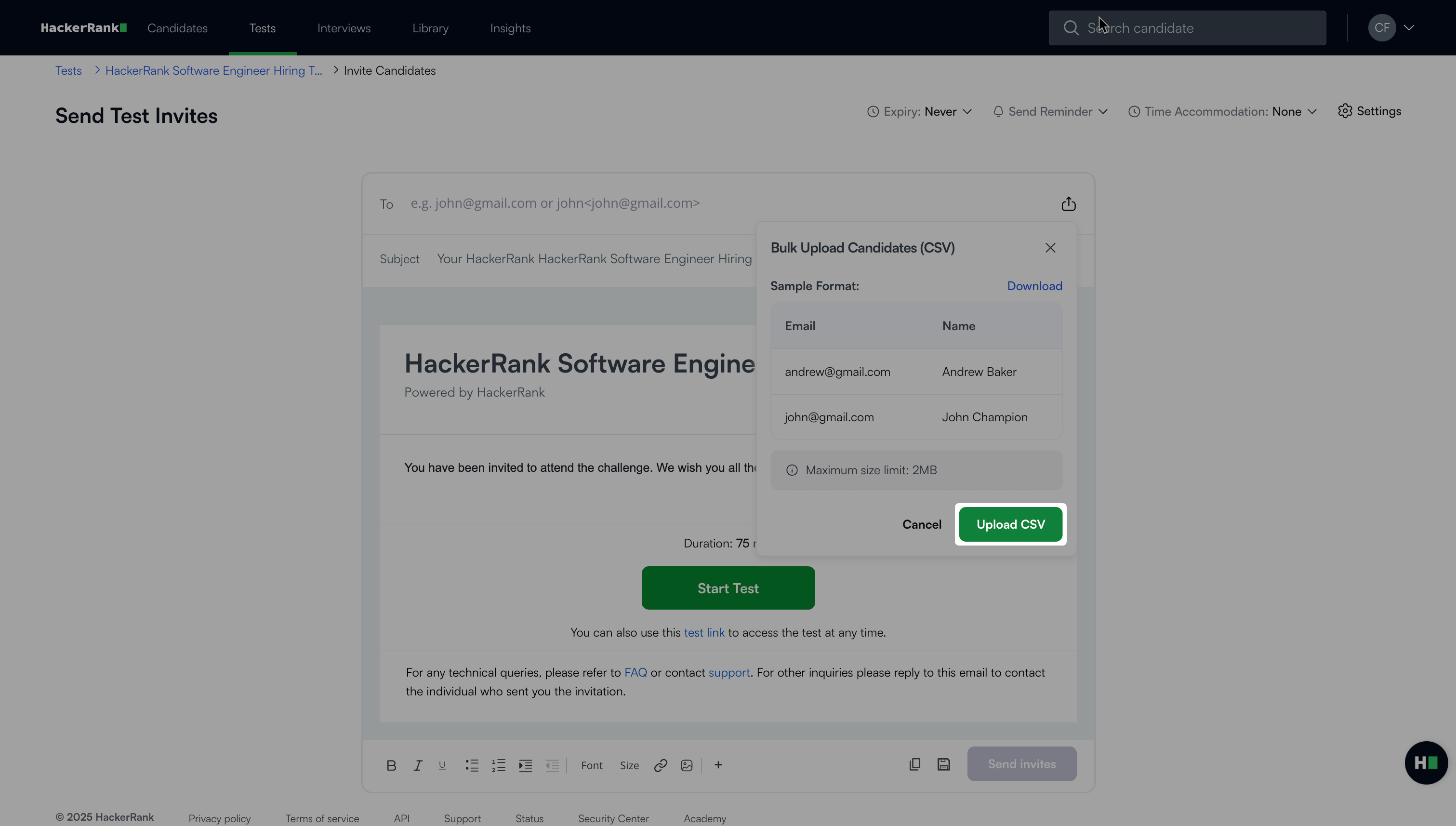
CSV file requirements: Before you upload the CSV file, ensure that it meets the following requirements:
The file must be in
.csvformat.The maximum file size is 2 MB.
The file can contain up to 35,000 rows.
CSV content formats: You can include only email addresses or both names and email addresses in your CSV file.
Email addresses only: List candidate email addresses in a single column.
For example,evanbrown@gmail.com,nancysmith@gmail.com.Names and email addresses: You can include names with email addresses in one of the following ways:
Inline format: Enter names with email addresses in the format
Name<email>.
For example,Evan Brown<evanbrown@gmail.com>,Nancy Smith<nancysmith@gmail.com>.Separate columns: Enter names in one column and email addresses in another.
Note: If you include candidate names in the CSV file, you can personalize invitations by using the Candidate Name placeholder. The system automatically replaces the placeholder with the candidate’s name from your file.
Sending bulk email invites
To send bulk email invites:
Log in to your HackerRank for Work account using your credentials.
Go to the Tests tab.
Open the test from which you want to invite candidates.
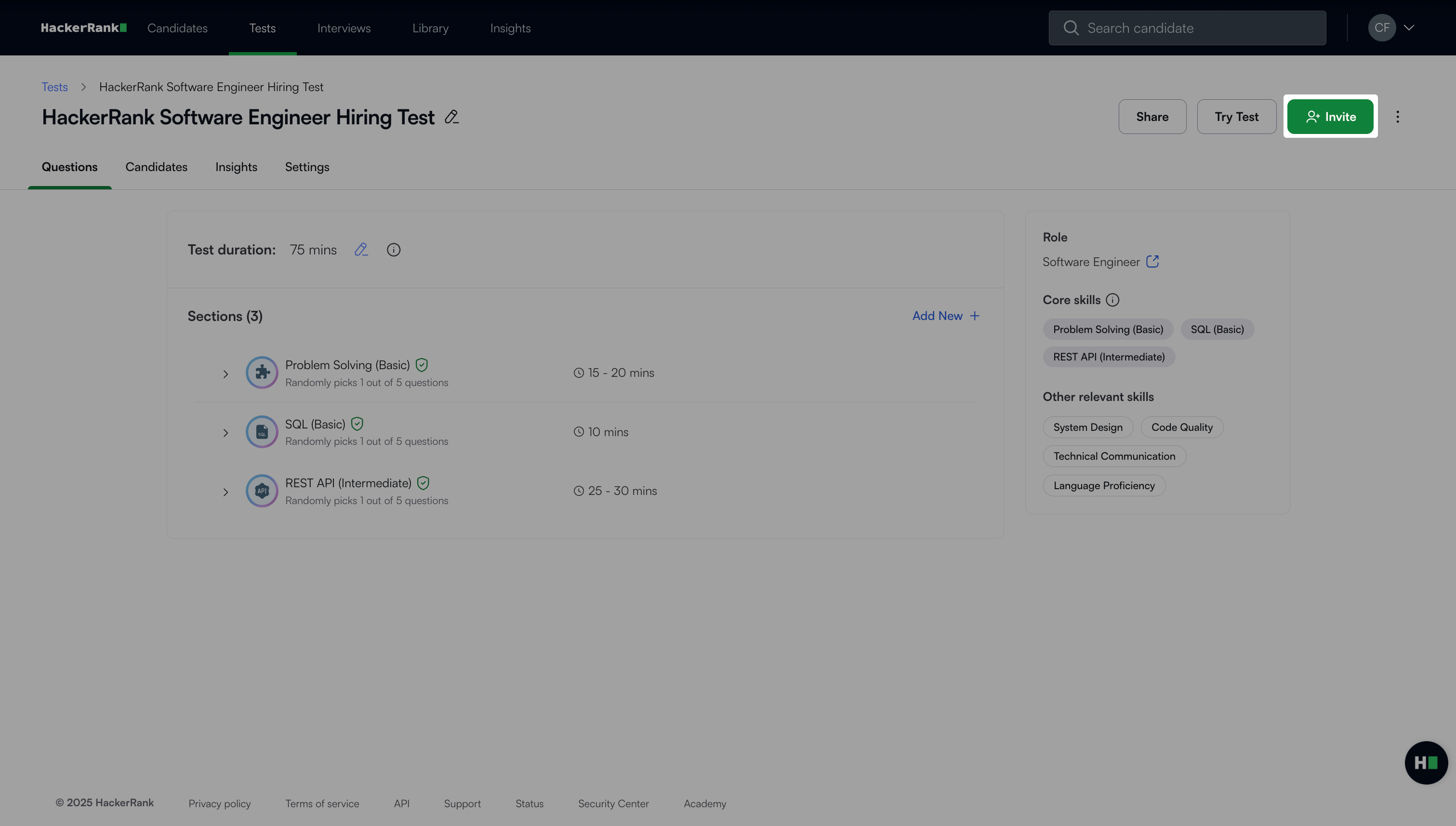
Click Invite in the upper-right corner.
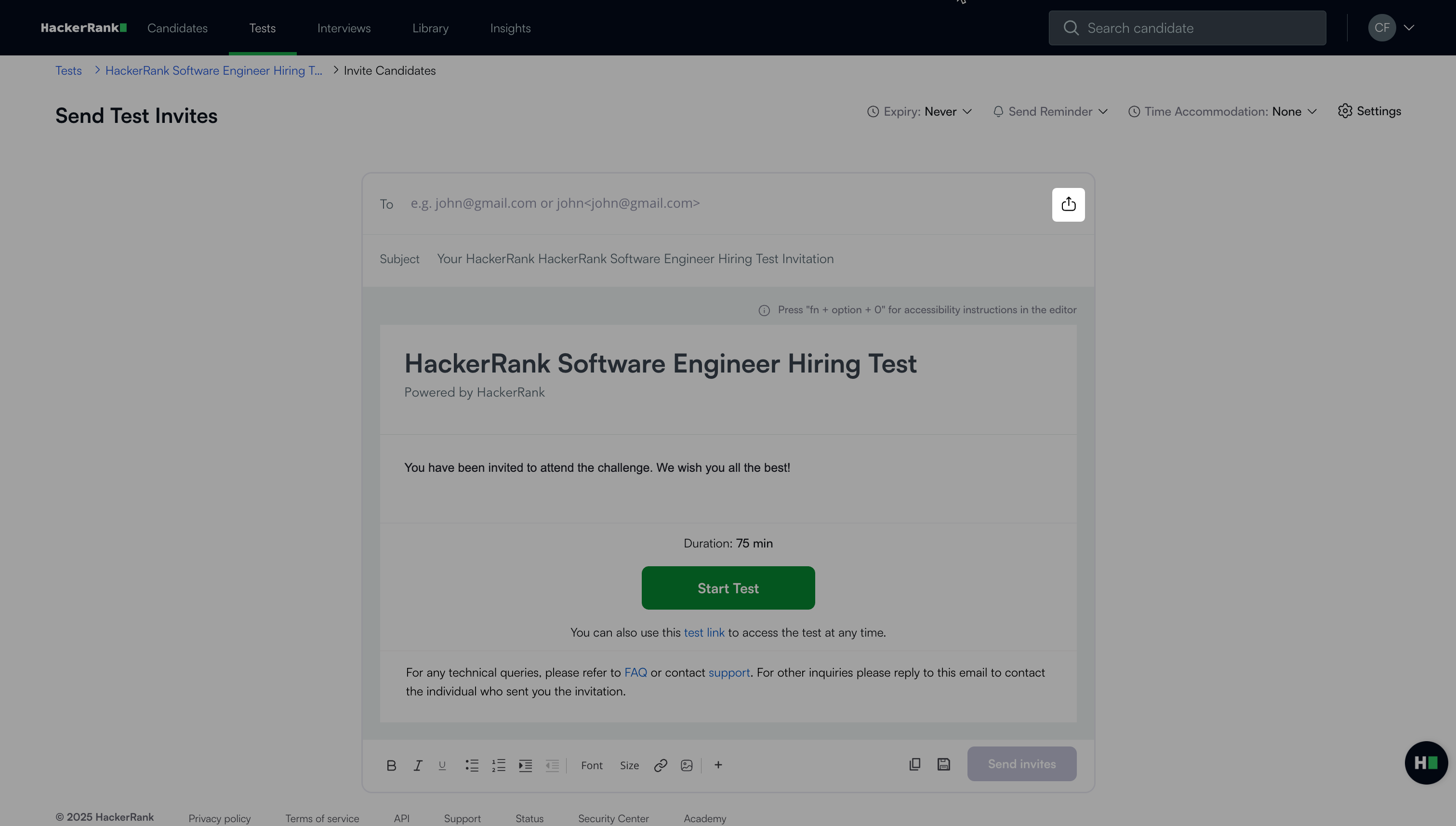
In the Send Test Invites page, click the upload button next to the To field.
Click Upload CSV.
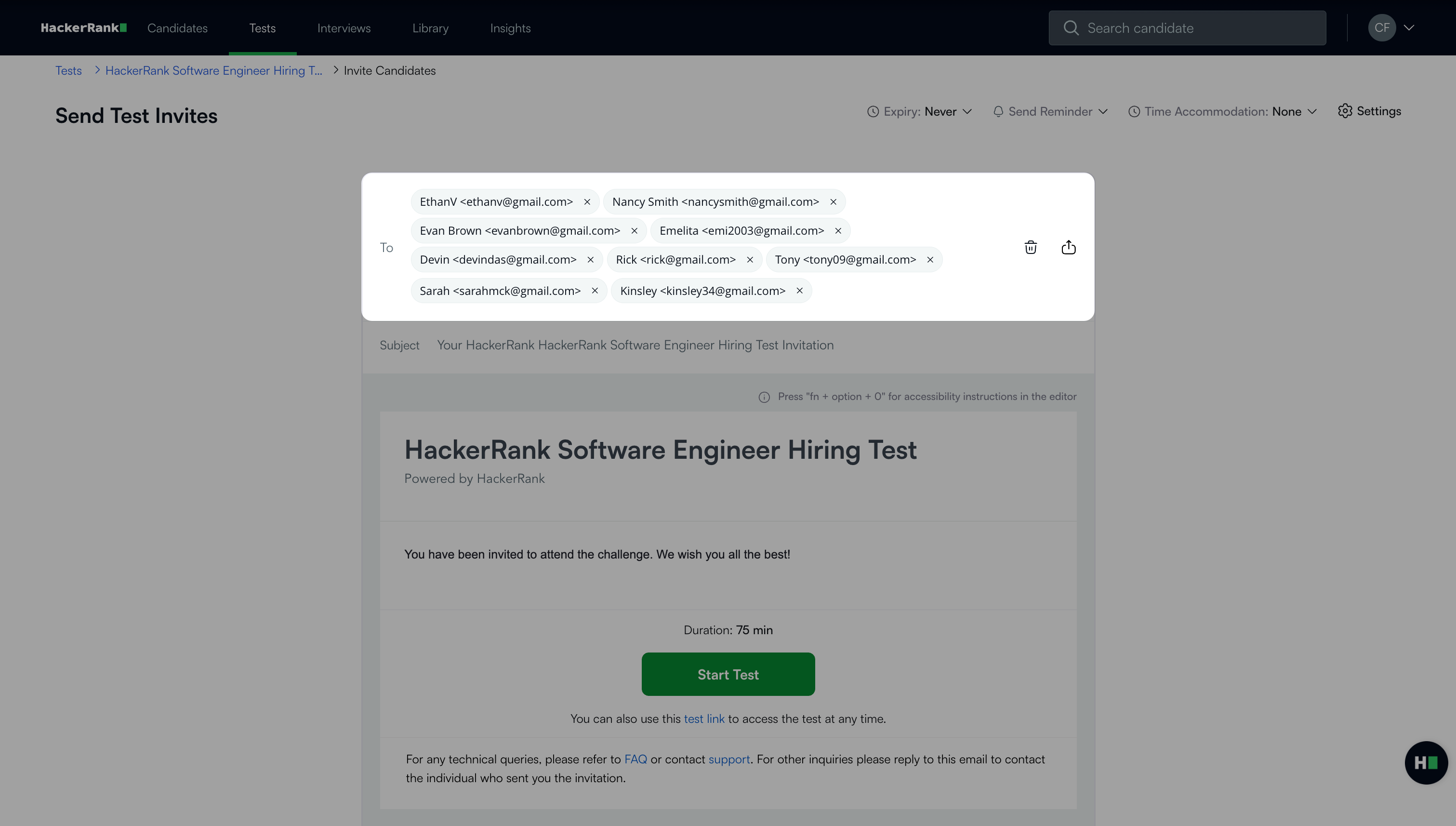
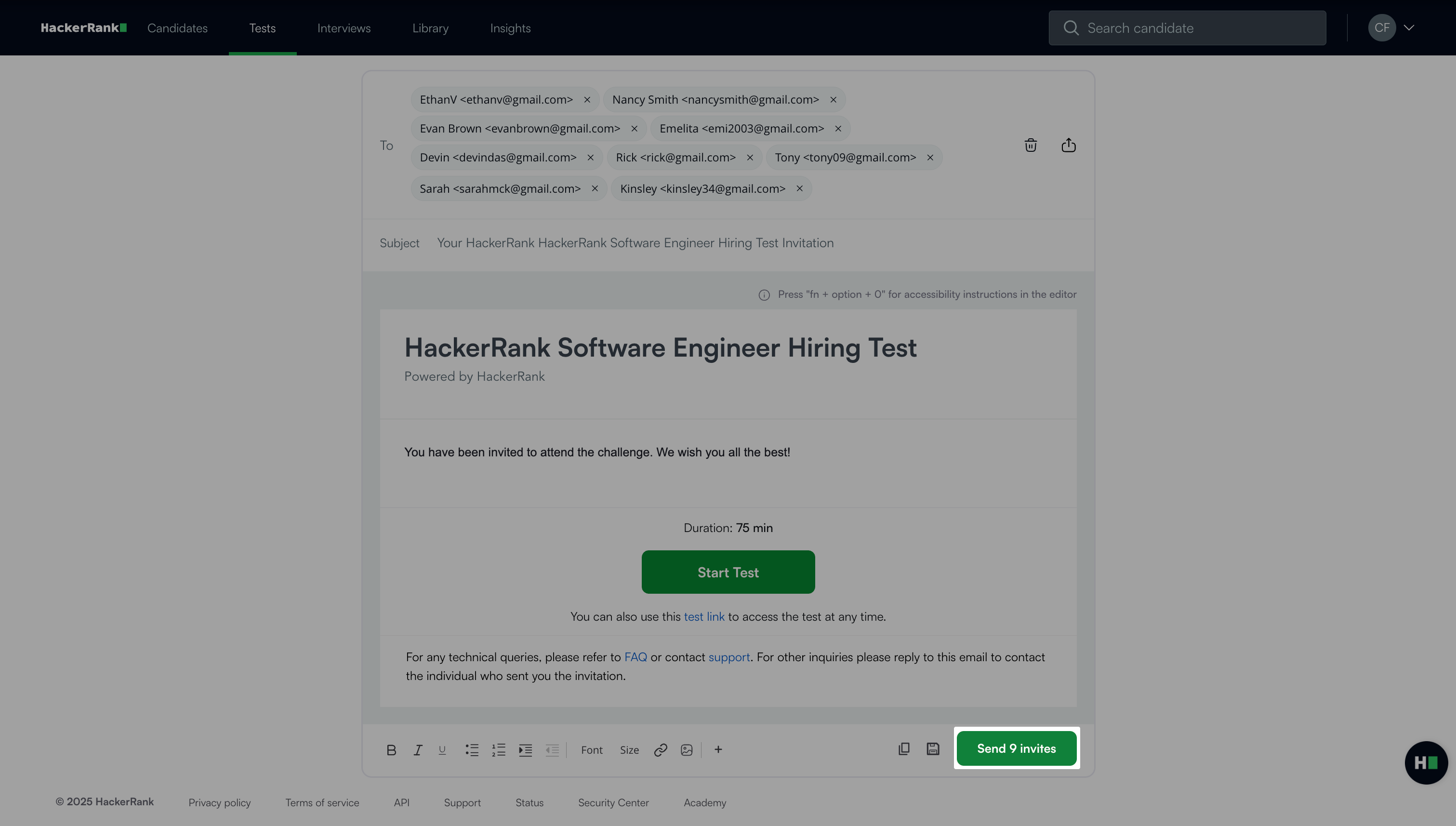
Select and upload the CSV file. The email addresses from the file appear in the To field.
Click Send Invites.
Note:
Each candidate receives an individual invite. Candidates cannot see the details of other recipients.
Do not use emojis in the subject line of your email invitations.
Troubleshooting bulk invite errors
When you upload a CSV file, the system automatically validates the entries. If the file contains invalid invitations, an error message appears.
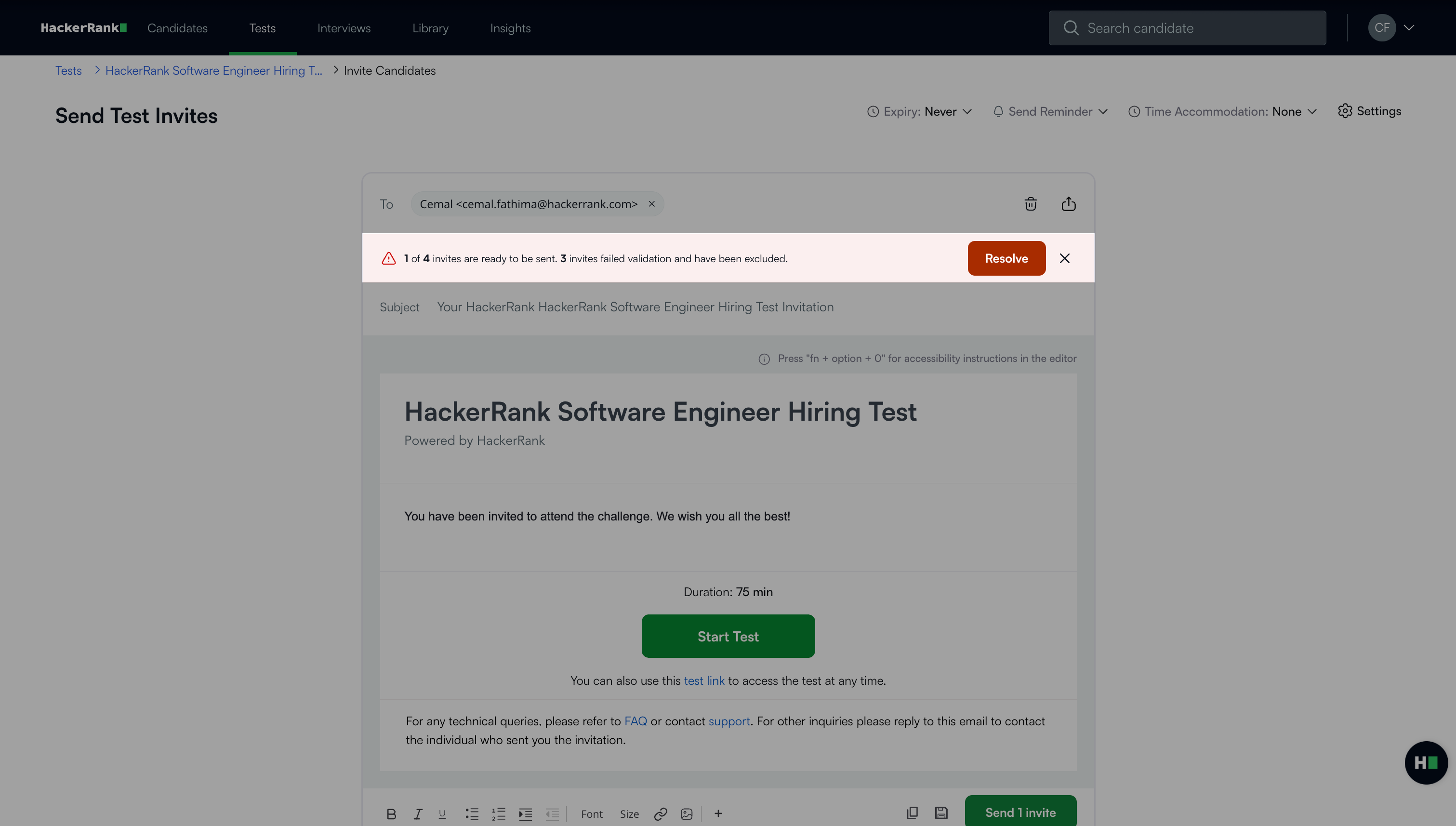
Select Resolve to view a list of all invalid invites with details such as the number of invalid invites and reasons for invalid email invites.
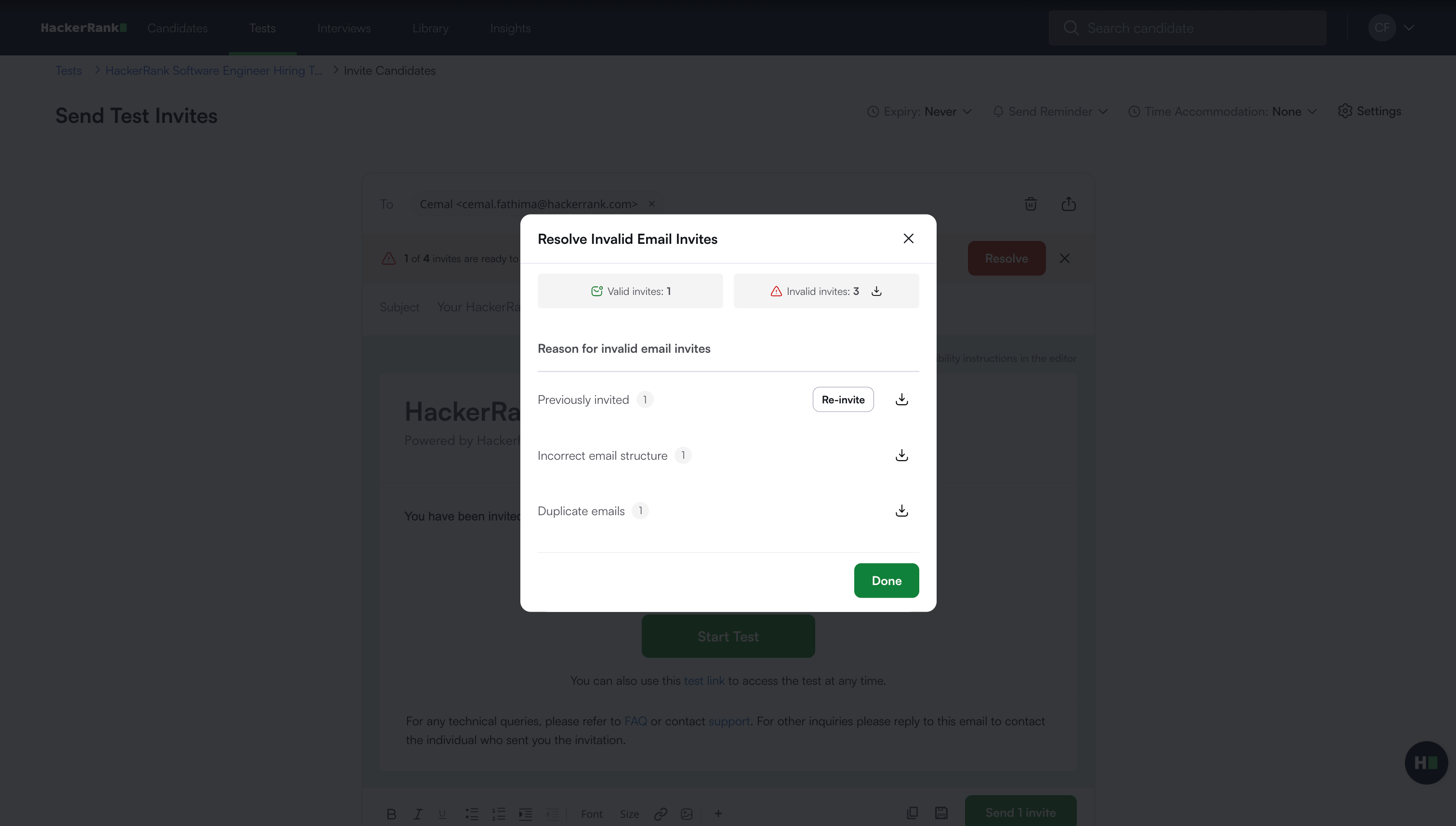
You may encounter the following errors:
Previously invited: Candidates who already received an invitation cannot be included in the CSV upload.
To troubleshoot, click Re-invite candidates to send another invite, or remove these candidates from the CSV file.Incorrect email structure: An email address does not follow the correct format.
To troubleshoot, correct the email address using a valid format, such asname@example.comorName<name@example.com>.Duplicate emails: The same email address appears more than once in the CSV.
To troubleshoot, remove duplicate email addresses from the CSV file before uploading it again.