Invite Candidates to a Test
Last updated: January 28, 2026
HackerRank for Work allows recruiters to invite candidates to take a test. Test invitations are sent via email, including a link to the test and other necessary details. You can customize your email invitations and save them as templates.
Note: You must have a Recruiter license to invite candidates. Hiring managers must request their recruiters to send invitations to the candidates.
Prerequisites
You must have created and published the test for which you want to invite candidates.
Inviting candidates to a test
To invite candidates to a test:
Log in to your HackerRank for Work account using your credentials.
Go to the Tests tab.
Open the test from which you want to invite candidates.
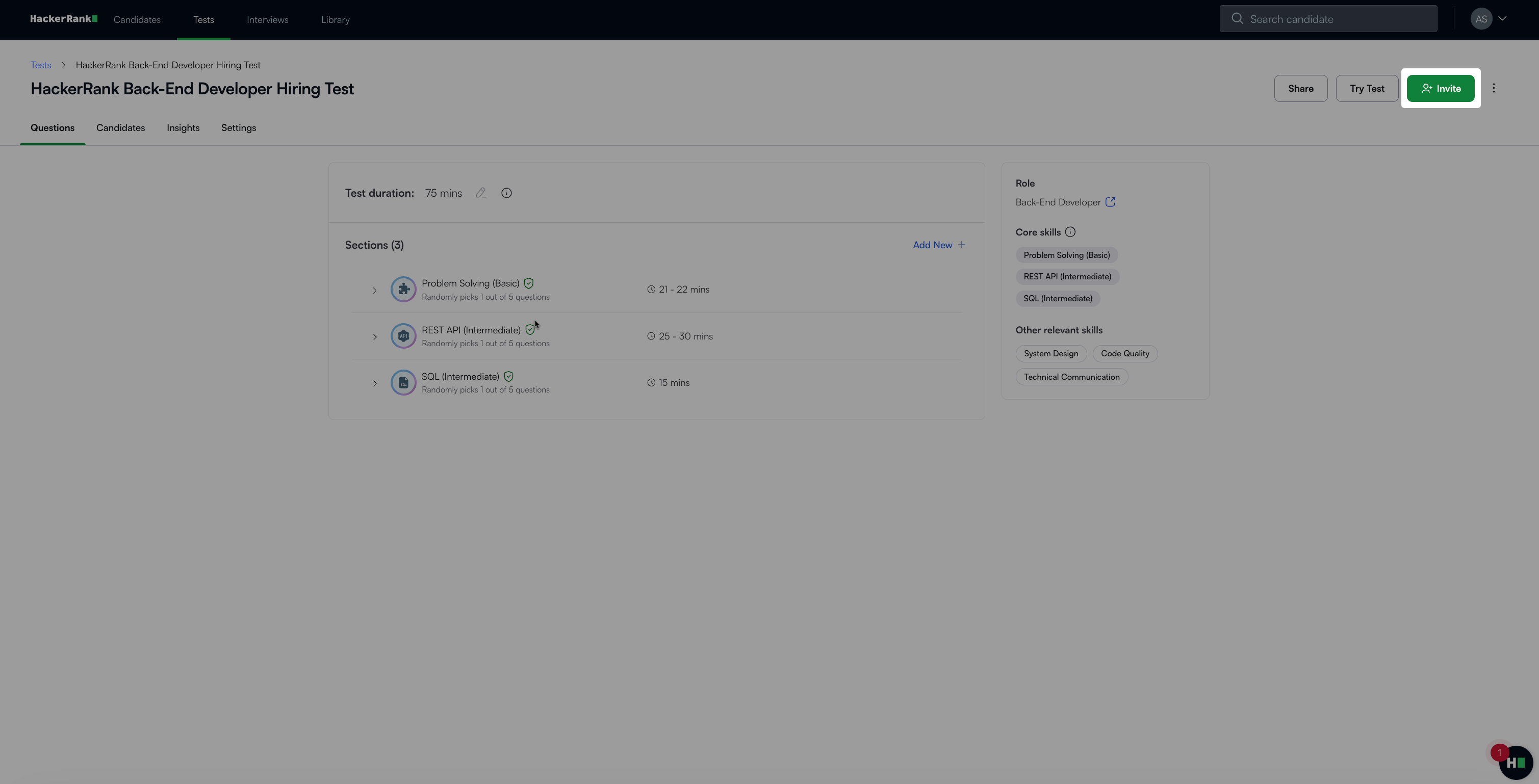
Click Invite in the upper-right corner to open the Send Test Invites page.
Enter the candidates’ email addresses in the To field. Use either of the following formats:
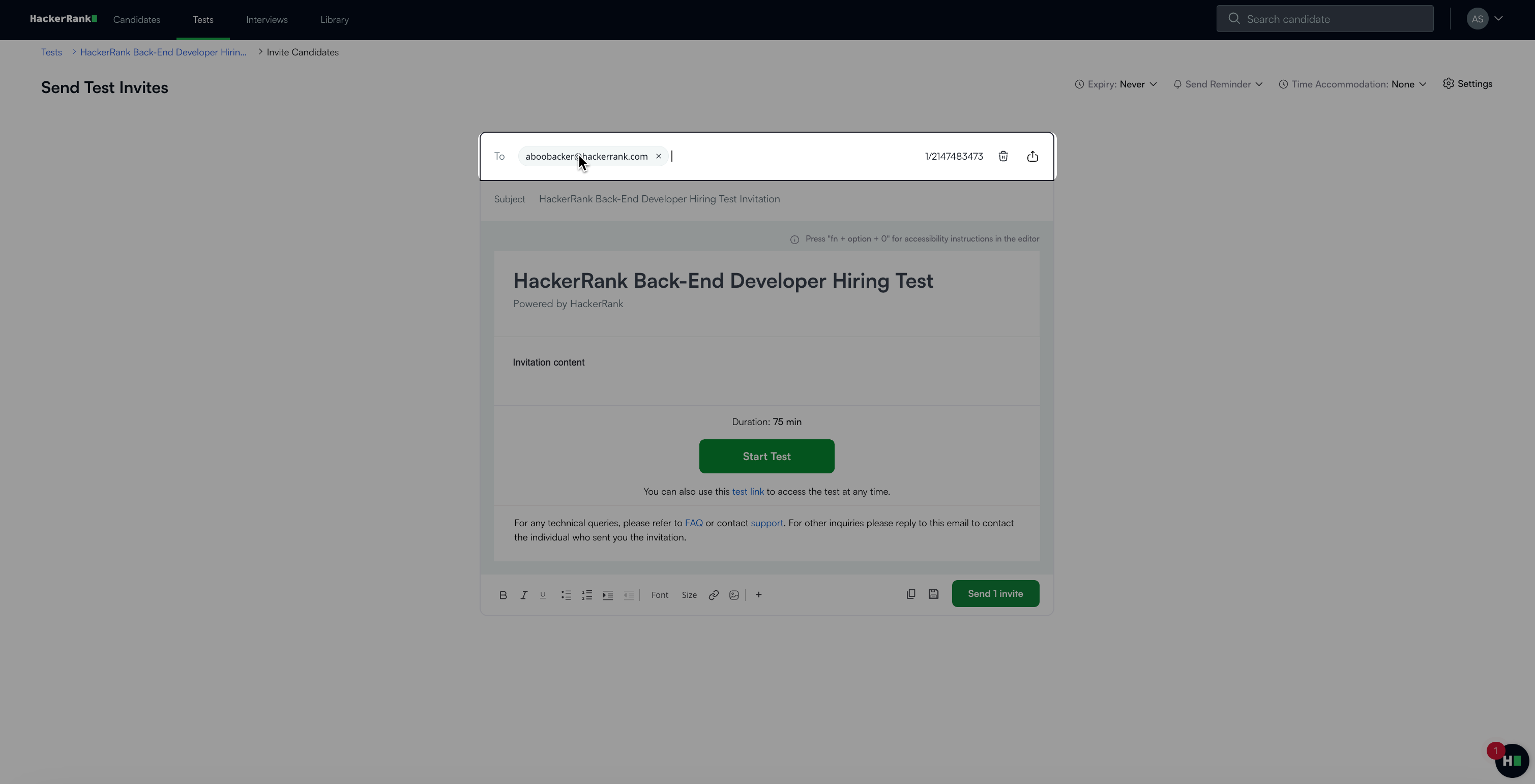
Only email addresses: evanbrown@gmail.com, ethanv@gmail.com, nancysmith@outlook.com
Names and email addresses: Evan Brown <evanbrown@gmail.com>, Ethan <ethanv@gmail.com>, Nancy Smith <nancysmith@outlook.com>
Note: Refer to📄 Send Bulk Email Invitesto invite many candidates to a test at once using a CSV file
Edit the subject line if necessary. By default, the test name appears as the subject.
Note: You can also include emojis in the subject line.
Customize the email body as needed. Use the formatting options to add bullet points, numbered lists, or other elements.
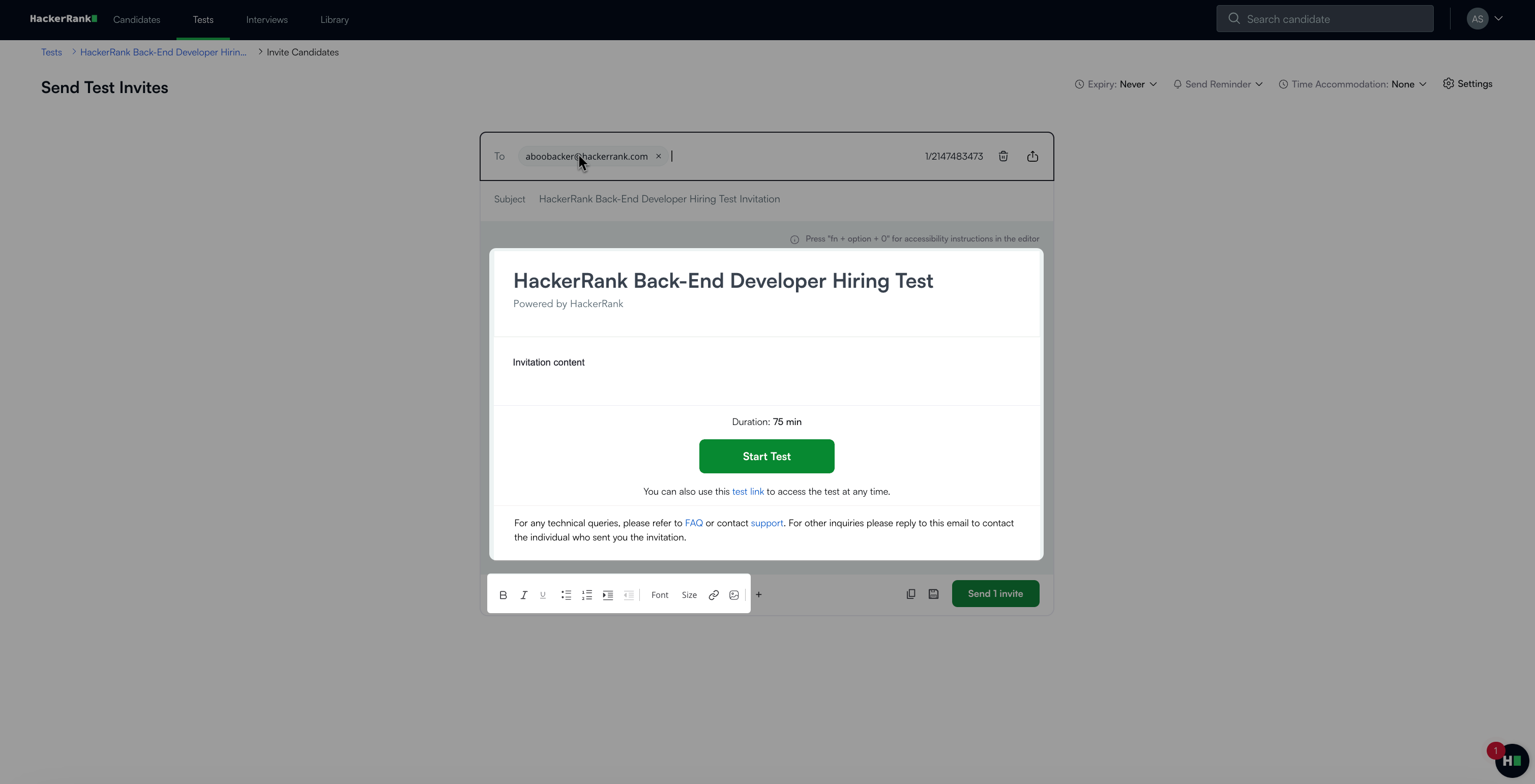
Note: You can save the email as a template or use an existing template. For more information, see 📄 Using a Custom Email Template.
Click the + icon to insert placeholders for the Candidate Name and Recruiter Name.
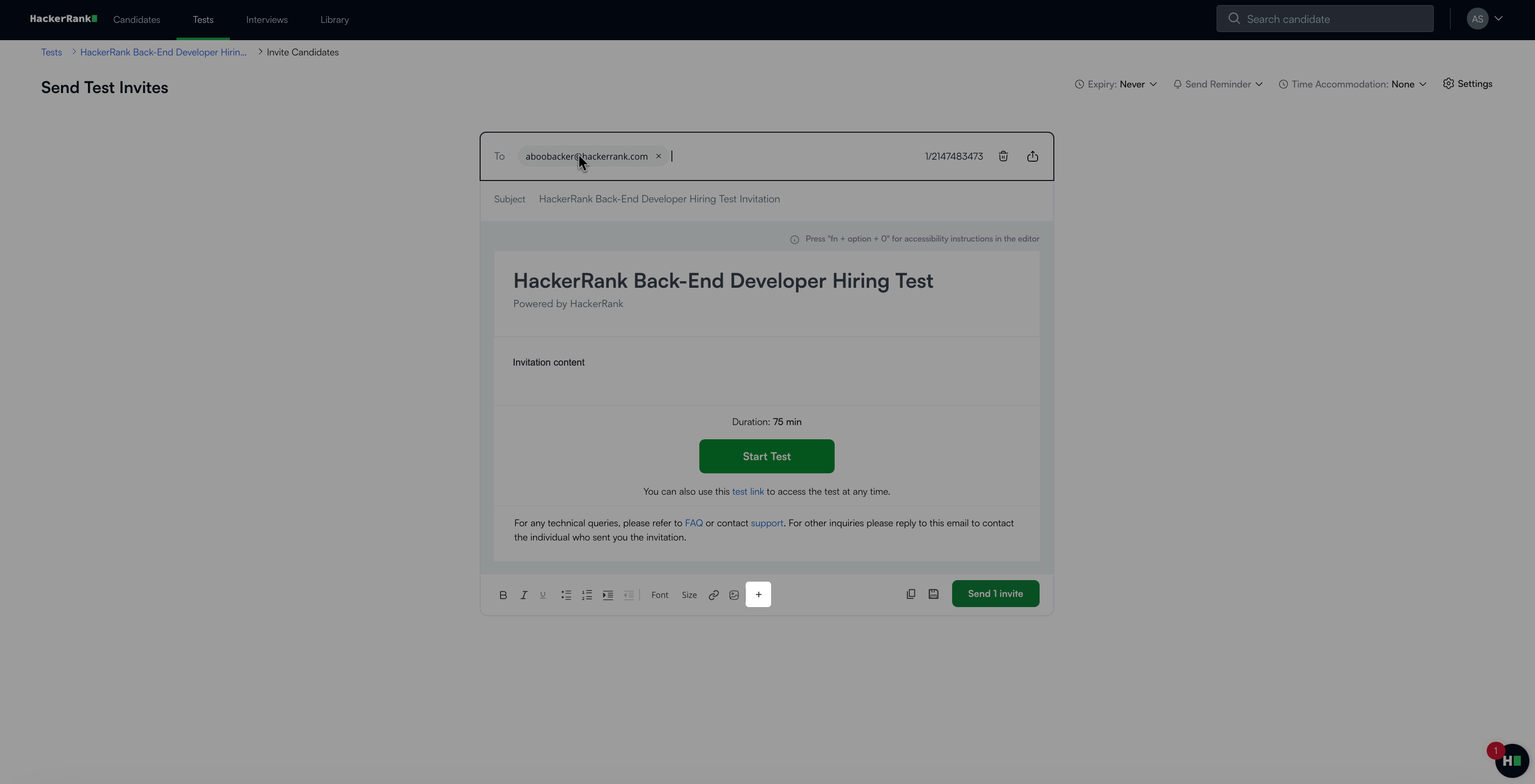
If the candidate’s name is available, the Candidate Name placeholder will display the name from the To field or the bulk upload CSV file.
Example: If the To field contains Evan Brown <evanbrown@gmail.com>, the placeholder will display Evan Brown when the invite is sent.
The Recruiter Name placeholder will display your full name as registered in your HackerRank account.
Add a hyperlink or upload a document:
Click the link icon.
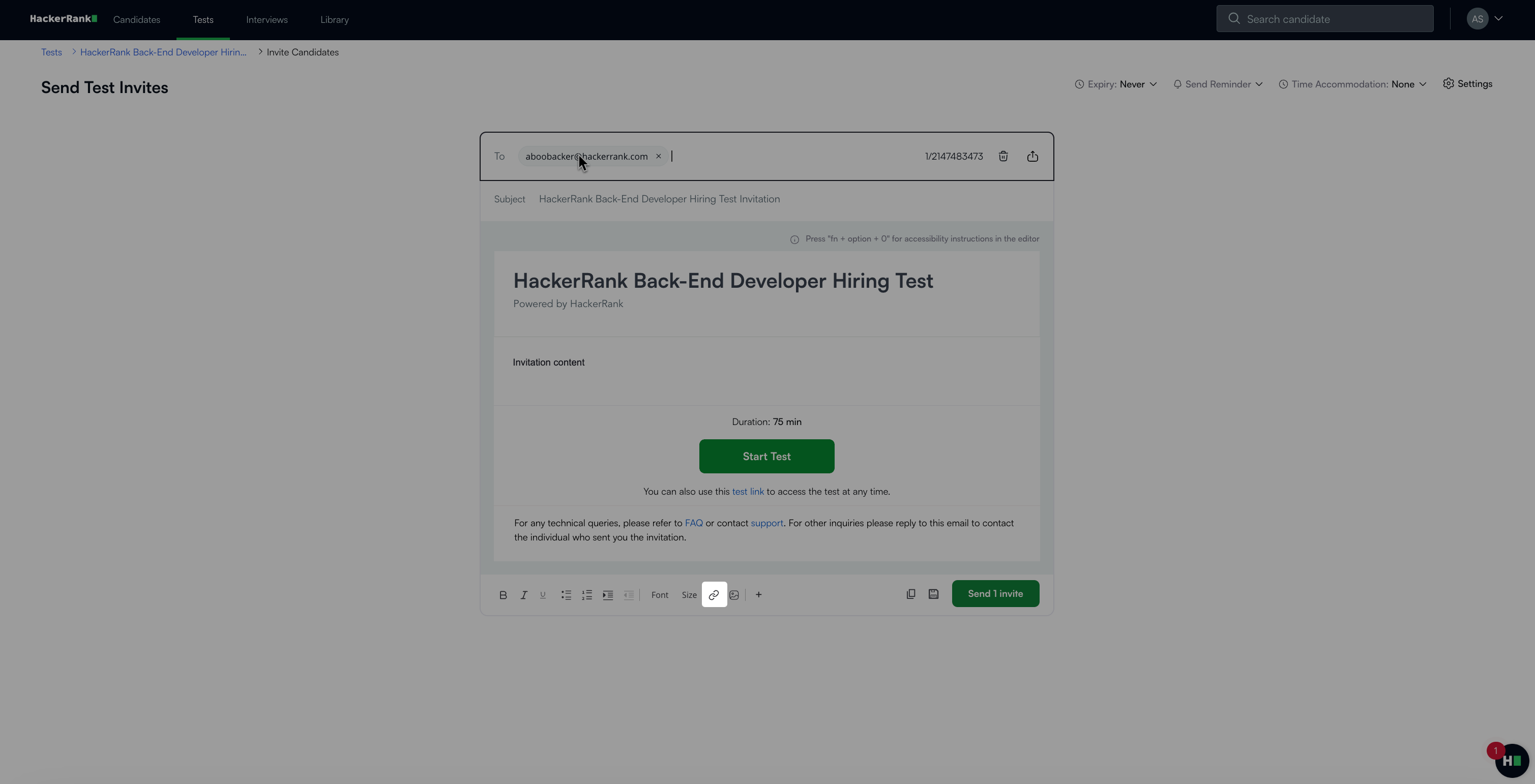
In the Add Link dialog box, enter the display text and URL, or upload a document.
(Optional) Customize the test invite with additional options:
Click Send Invites.
Note:
For more information about email invitation best practices, see 📄 Best Practices for Email Delivery and Bounce Management.
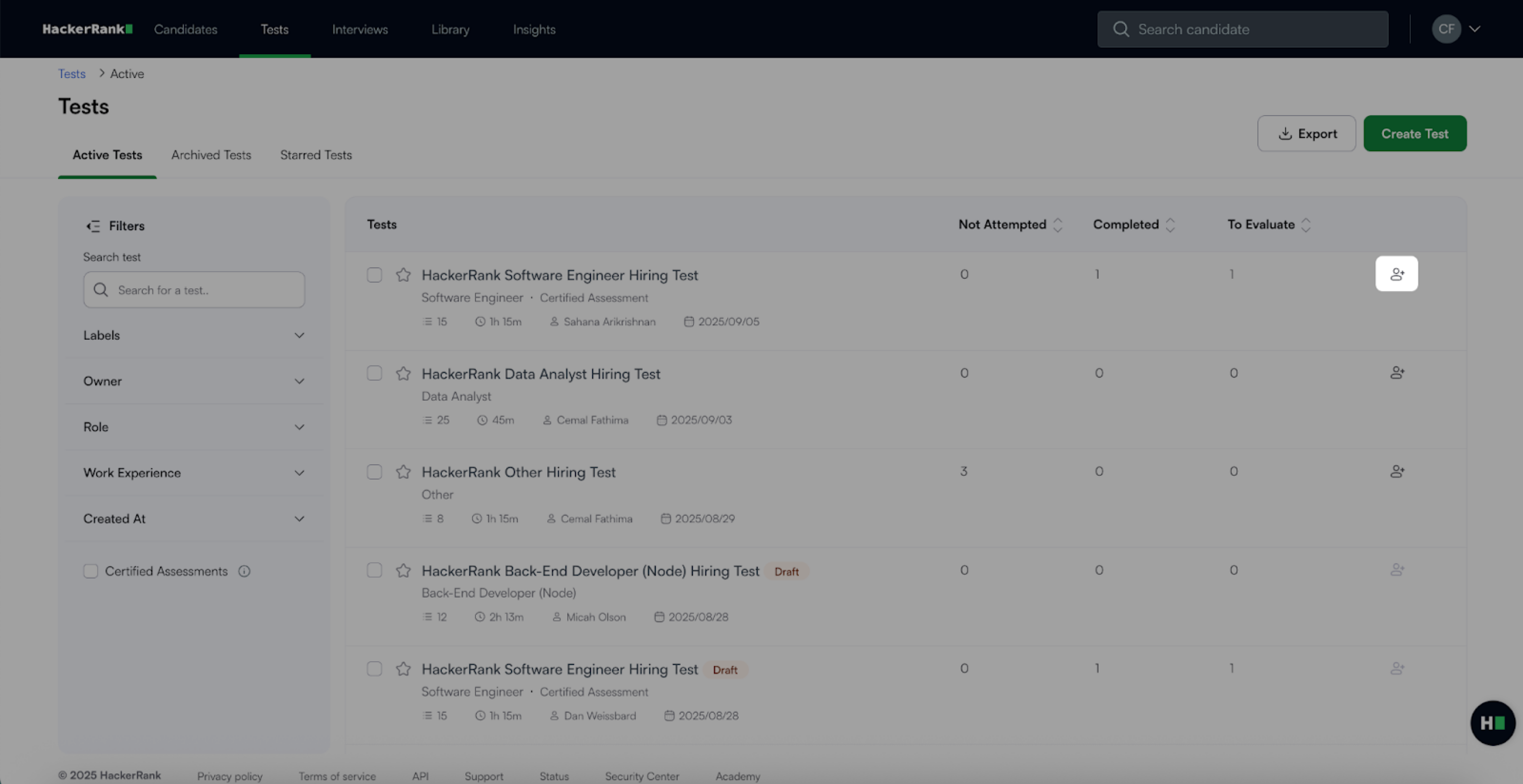
You can invite a candidate to a test from the Active Tests tab by clicking the invite icon next to the test title.
Set an expiry date
You can define how long a test invitation remains active. After the expiry time, the test invitation expires, and candidate(s) can no longer take the Test.
To set the expiration date:
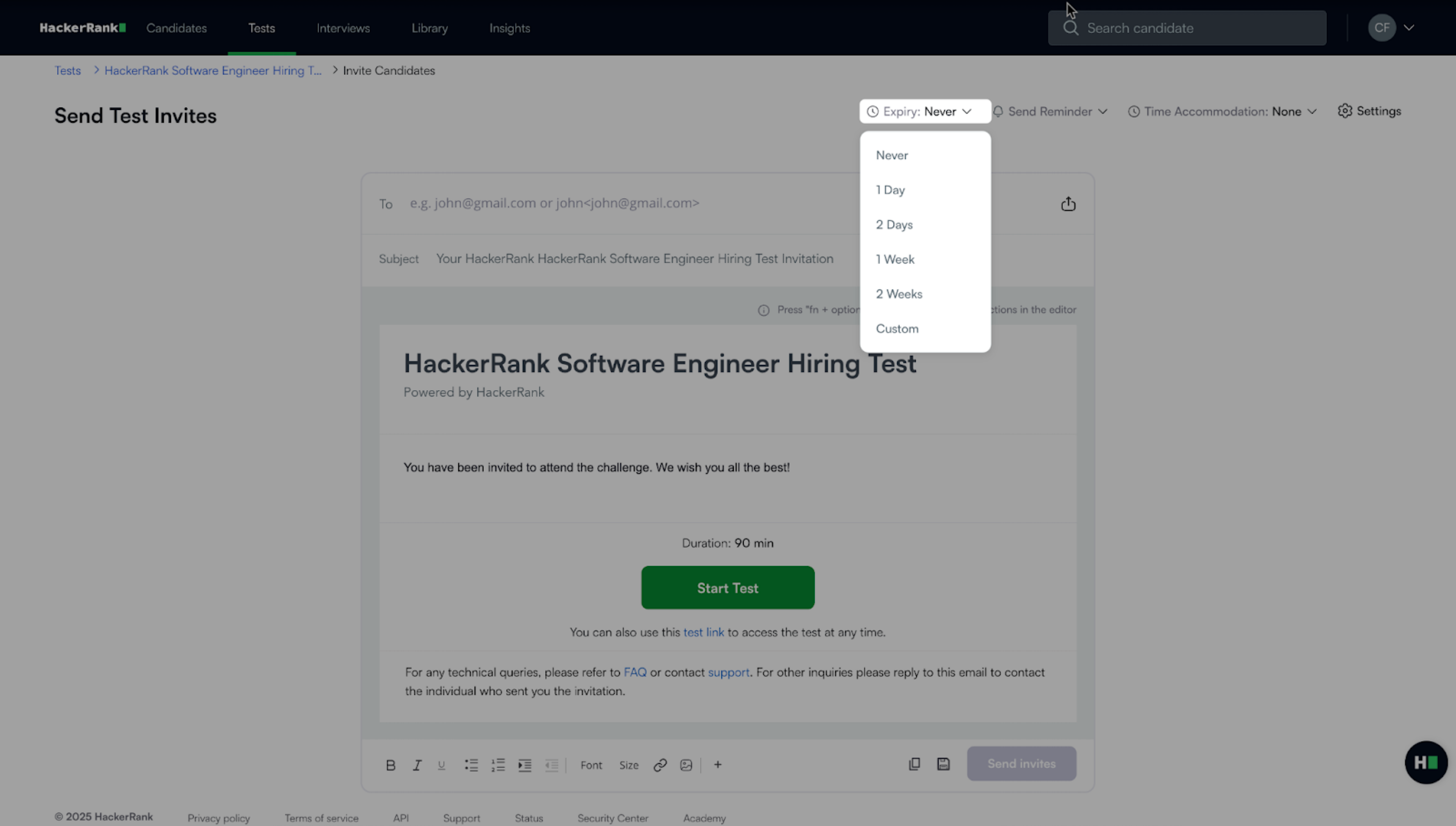
Click the Expiry dropdown.
Select an expiry option from the list.
If you choose Custom, select the expiry date, time, and time zone, and then click Save.
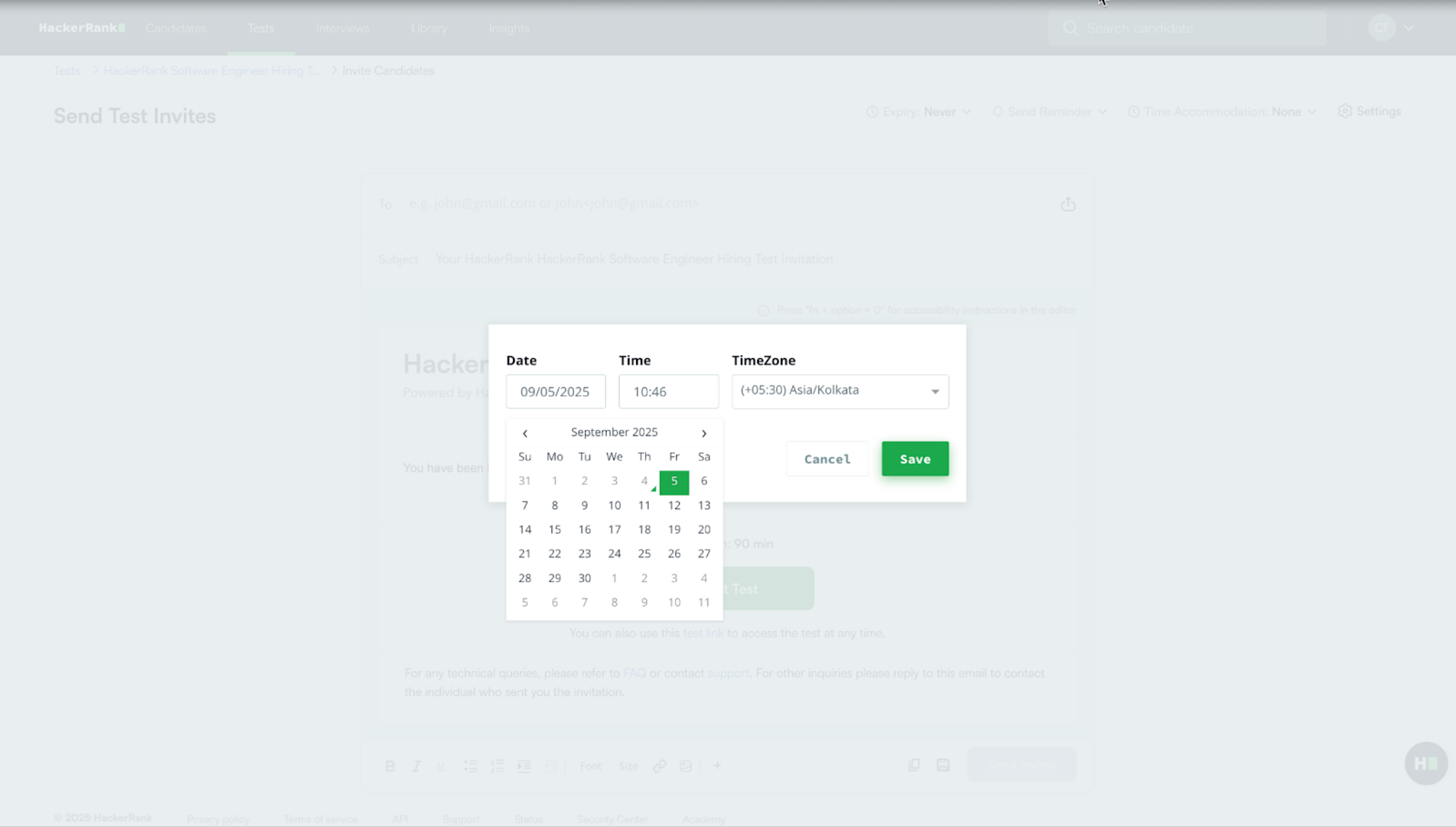
The selected expiry date appears.
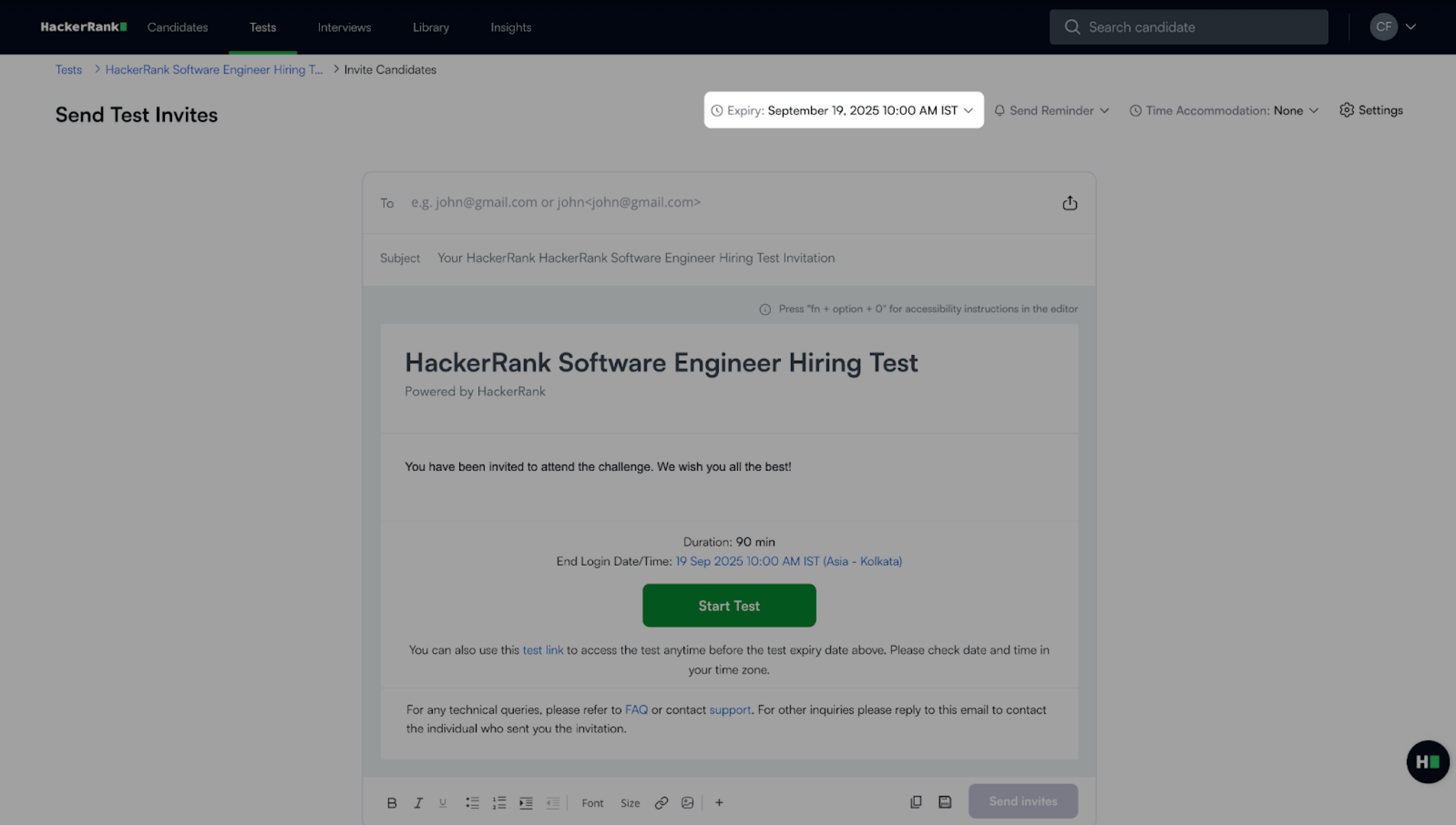
Note: By default, the Expiry option is set to Never, and the invitation does not expire.
Send reminders
You can schedule reminder emails for candidates who have not started the test. The steps vary depending on whether the invitation has an expiry date.
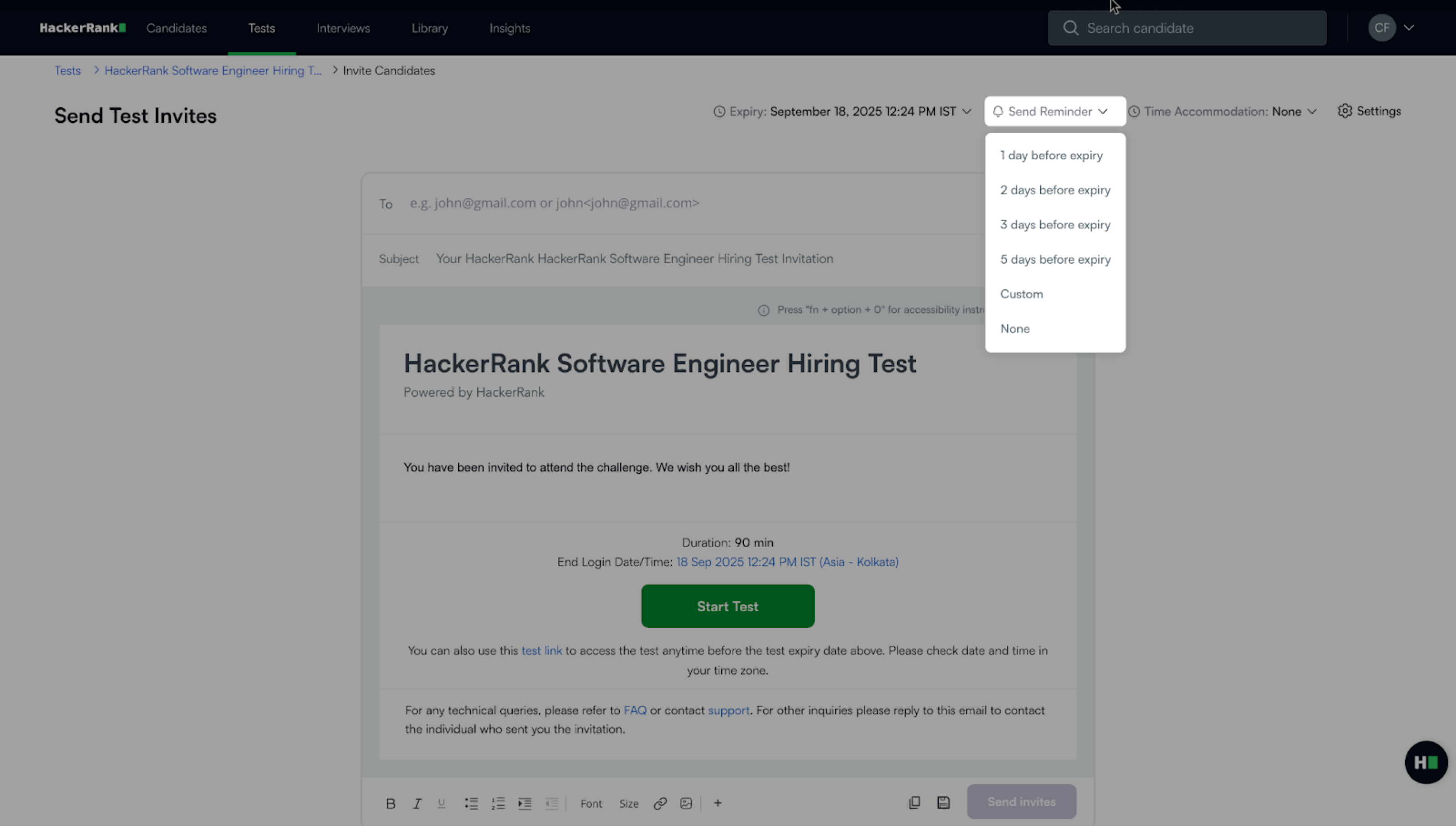
Expiry is set to Never:
To set a reminder:Click the Send Reminder dropdown.
Select a reminder duration from the list.
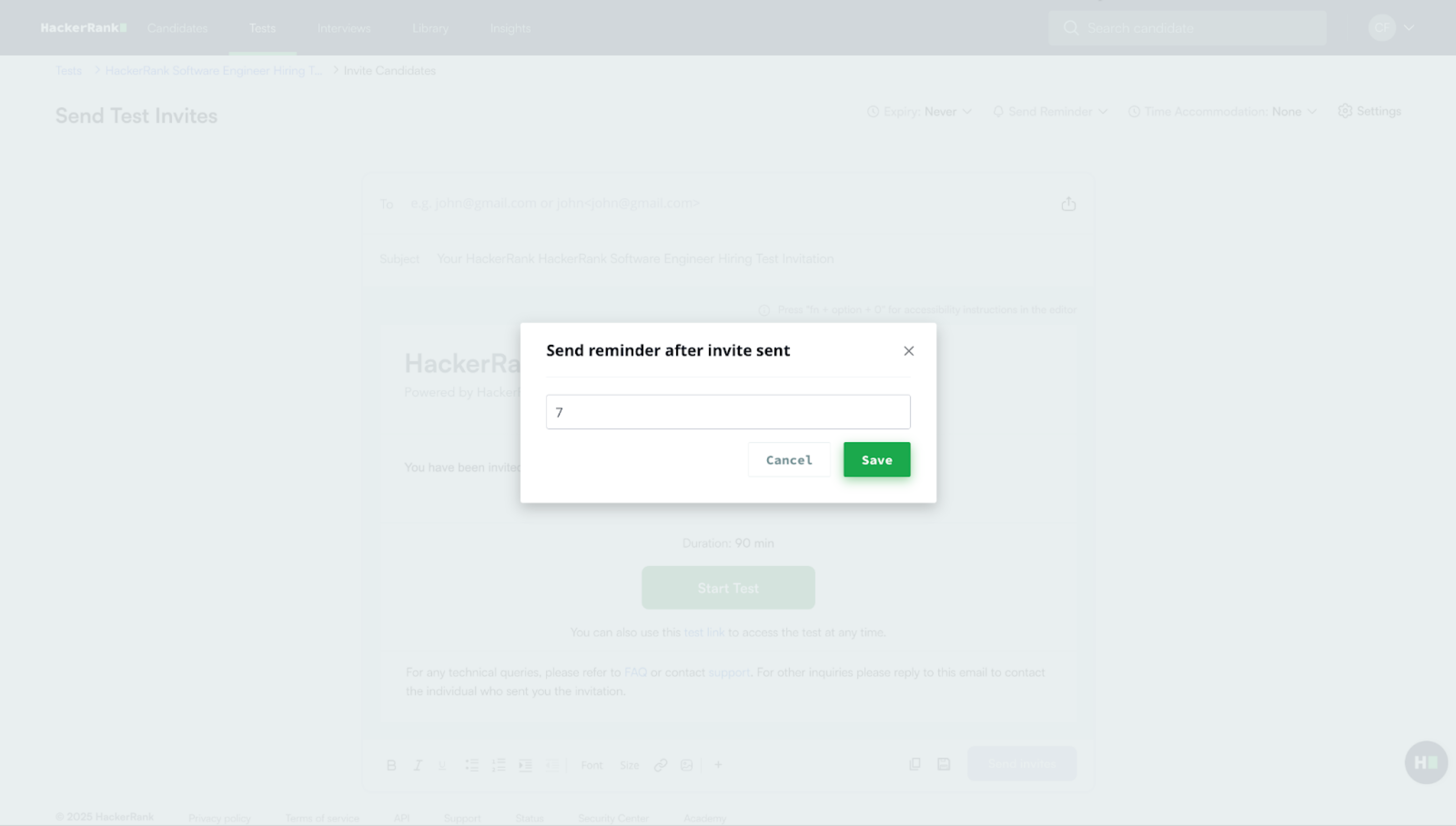
If you choose Custom, enter the number of days after the invitation is sent and then click Save.
Expiry is set to a specific date:
To set a reminder:Click the Send Reminder dropdown.
Select a reminder duration from the list.
If you choose Custom, enter the number of days before the invitation expires and then click Save.
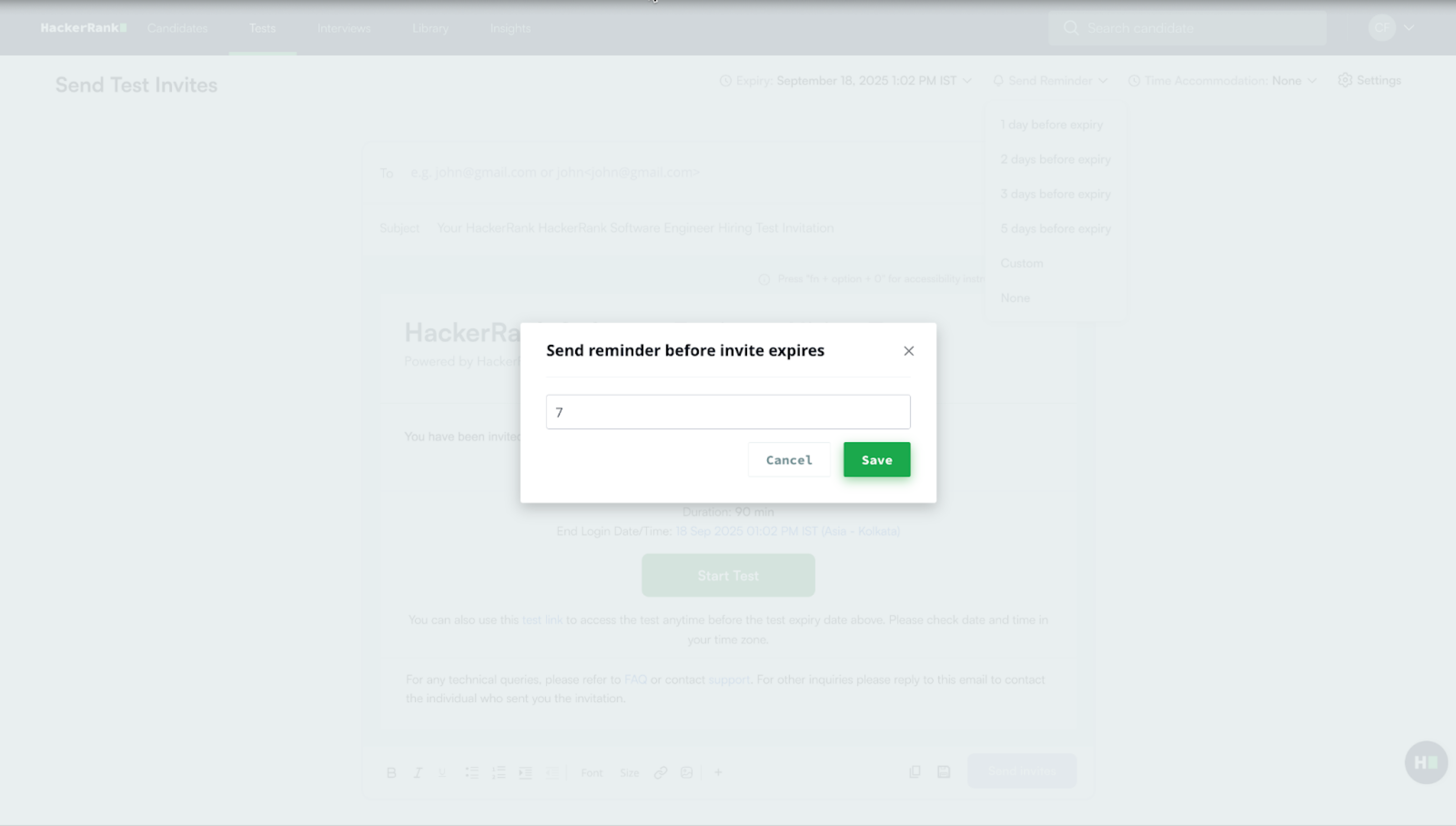
Note: Reminder emails are only sent to candidates who have not started the Test. Reminders can be scheduled only if the invitation expires more than one day from today.
Add time accommodation
You can extend the test duration if needed. For more information, see 📄 Extend Test Duration for Candidates.
Configure invite settings
You can configure additional email options for test invitation, such as sending a copy to yourself, including the test link, displaying start and end dates, and adding candidate tags.
To configure the settings:
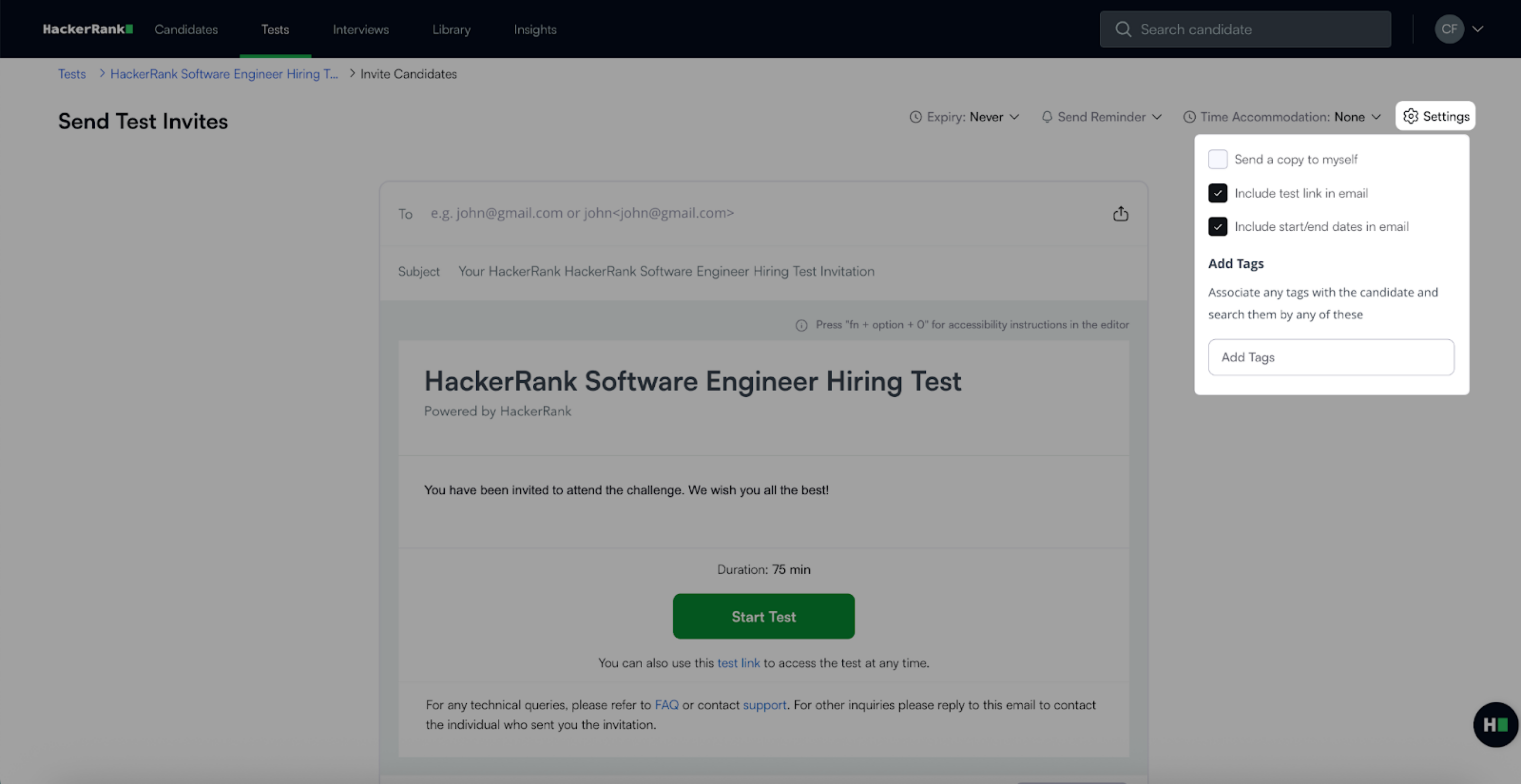
Click Settings in the upper-right corner.
Select the checkboxes for the options you want:
Send a copy to myself: Receive the same invite email.
Include test link in email: Add a test link in the candidate’s email.
Include start/end dates in email: Display the test start and expiry details in the email.
Note: Include test link in email, and include start/end dates in email are selected by default.
Enter tags to associate with the candidate under Add Tags. Tags help to search and filter candidates.