Manage Email Templates
Last updated: January 28, 2026
Email templates in HackerRank allow you to standardize and streamline candidate communications. You can create, edit, reuse, and share customized email invitation templates with your team to ensure consistent messaging across hiring scenarios.
For example, create one email template for campus hiring and another for lateral hiring. Save each template separately and select the appropriate one when you send invitations.
Prerequisite
You must have a published test in your HackerRank for Work account.
Creating a custom email template
To create a custom email template:
Log in to your HackerRank for Work account using your credentials.
Go to the Tests tab.
Open a test.
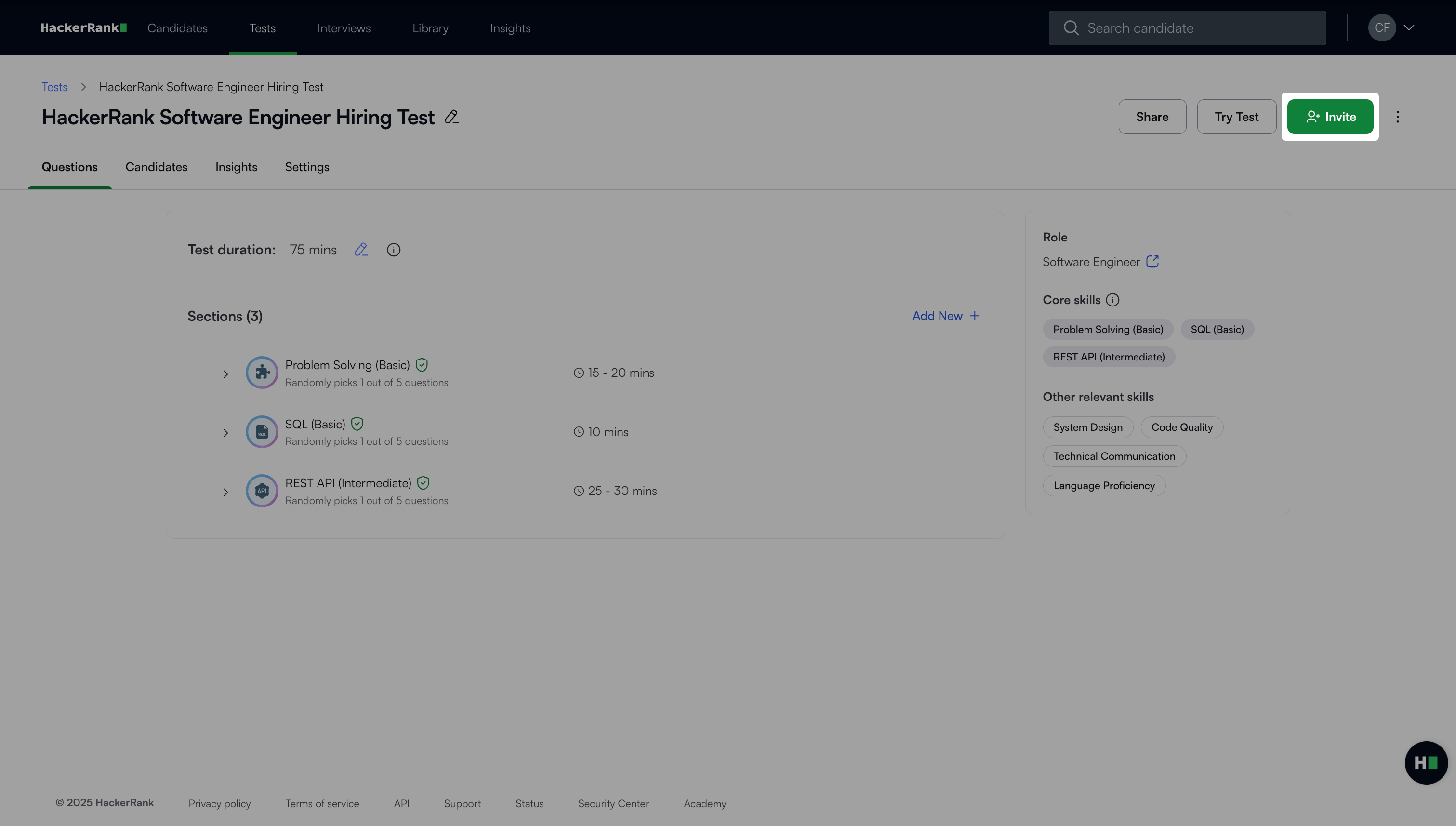
Click Invite in the upper-right corner to open the Send Test Invites page.
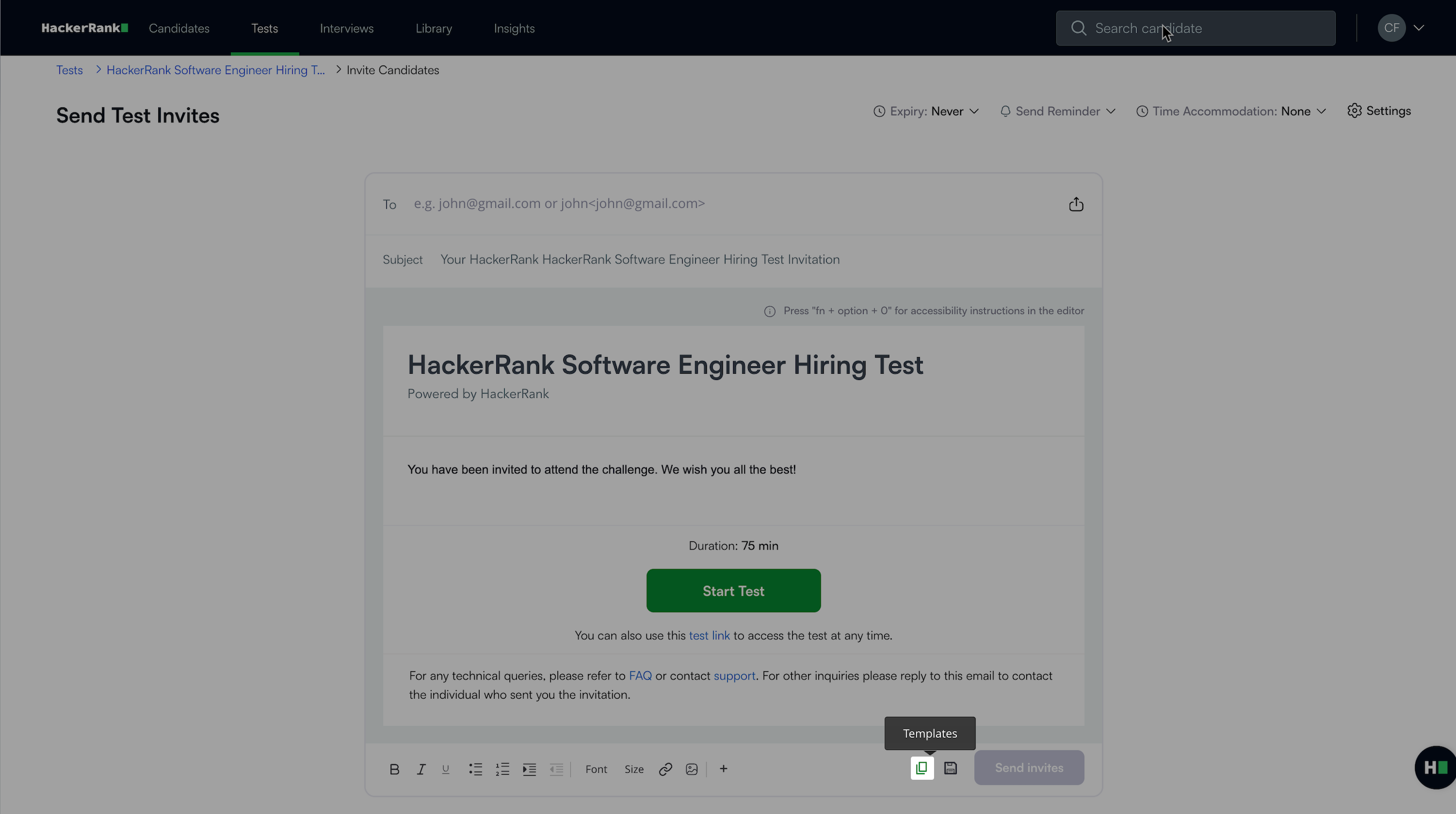
Click the Templates icon.
Click +Create New.
Enter a template name and add content in the right pane. Use the formatting options to customize the content.
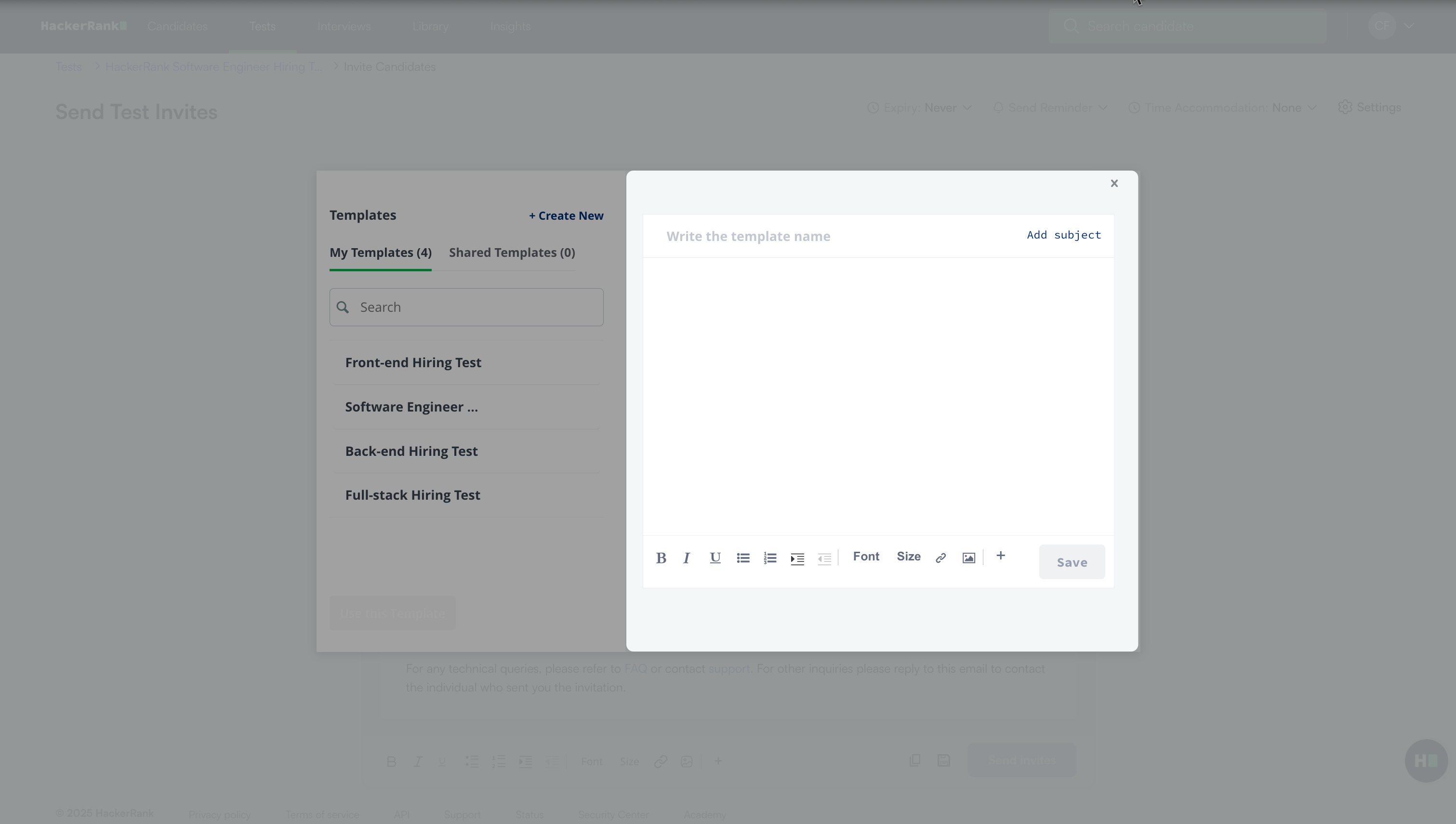
(Optional) Click Add subject to add a subject line for the template. The subject appears in all email invites that use this template. You can also include emojis in the subject line, if needed.
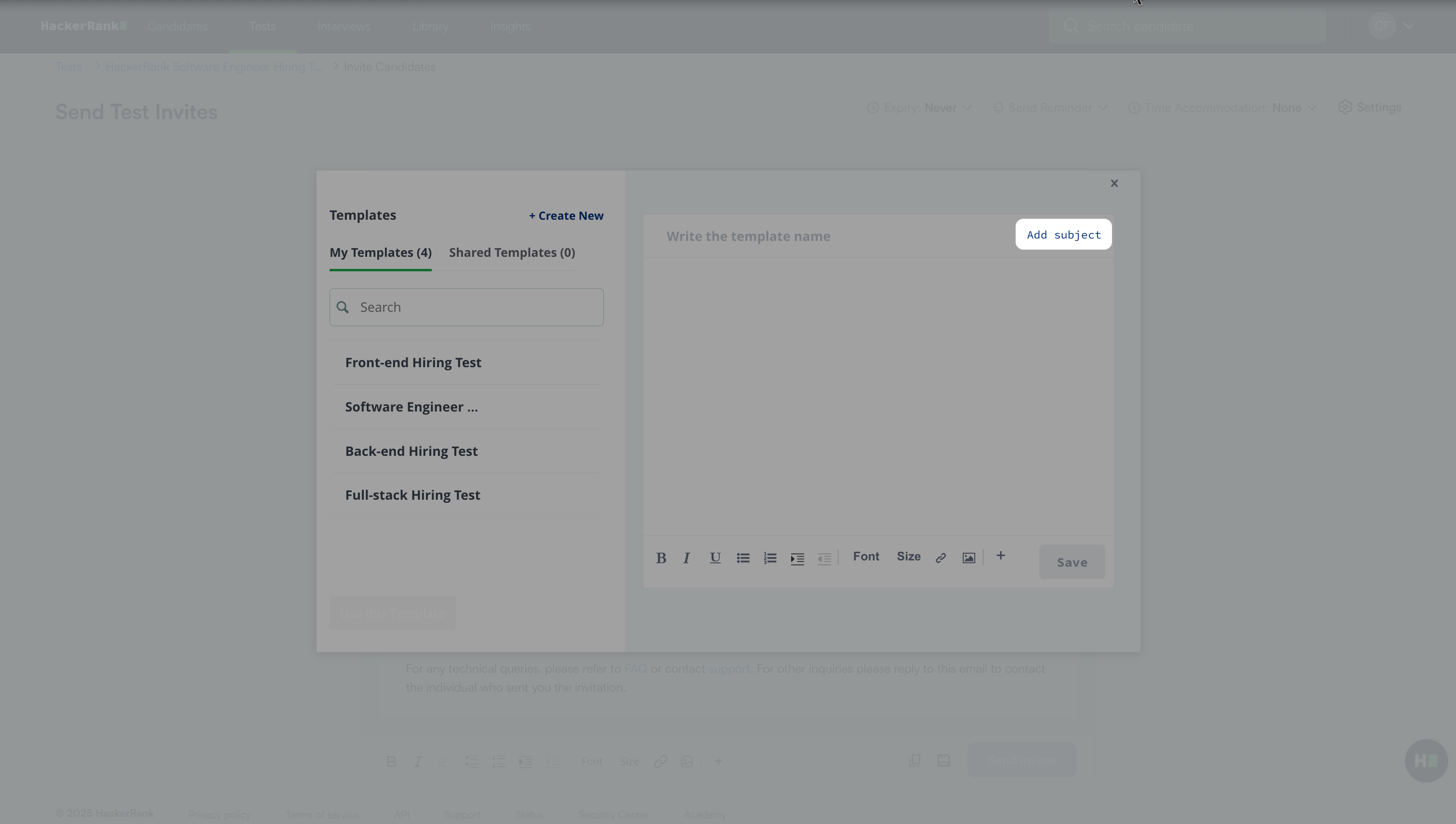
Click Save. The system saves your templates under My Templates.
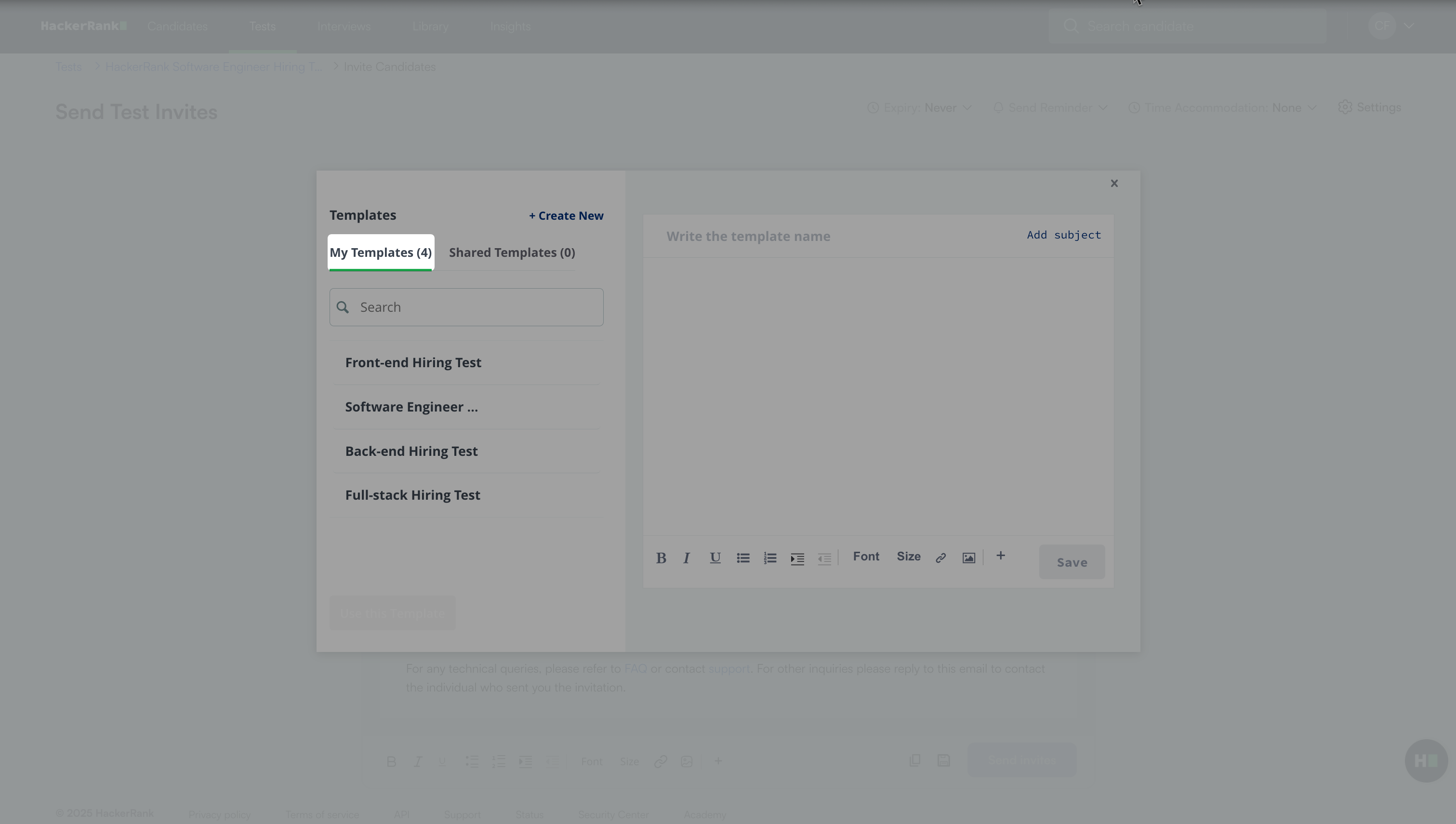
Sample email templates
The following are sample email templates:
Invitation template 1
Subject: <Company Name> < Test Name > Assessment Invitation Email Body: Hi <Candidate Name>, Thank you for your interest in <Company Name>. We have reviewed your application and would like you to proceed to the next step of the interview process! Your next step is to complete the coding challenge administered by HackerRank. We use this coding challenge to assess <list skills here> needed for the job. Once complete, we’ll review your results <include optional timeframe> alongside the rest of your application and let you know if we want to set up a phone call to discuss the role further. To begin, please click on the "Start Challenge" button below. Test Expiration Date: The challenge consists of <list # of questions with question type>. You are free to choose any coding language from this list and can even take this <insert sample test URL> to familiarize yourself with the HackerRank system before you get started. Here are a few other helpful things to know:
We hope you enjoy the challenge and look forward to receiving your results! |
Invitation template 2
Subject: <Company> <Test Name> Assessment Invitation Email Body: Hi <Candidate>, Thanks so much for your interest in joining the <Company> team! We’re excited to move you forward in our interview process. For your next step, please complete our online coding challenge, administered by HackerRank. This exercise evaluates your technical skillset, and the correctness and completeness of your solution will be evaluated based on the number of passed test cases. Once complete, we’ll review your results and get back to you within <days/weeks> about the next steps. A few helpful things to note before you begin the challenge:
Test Expiration Date: To begin, please click the “Start Challenge” button below. We wish you the best and hope you enjoy completing our challenge! |
Editing a custom email template
To edit a custom email template:
Open a test.
Click Invite in the upper-right corner to open the Send Test Invites page.
Click the Templates icon.
Go to My Templates. This section lists templates you created.
Select the template you want to edit.
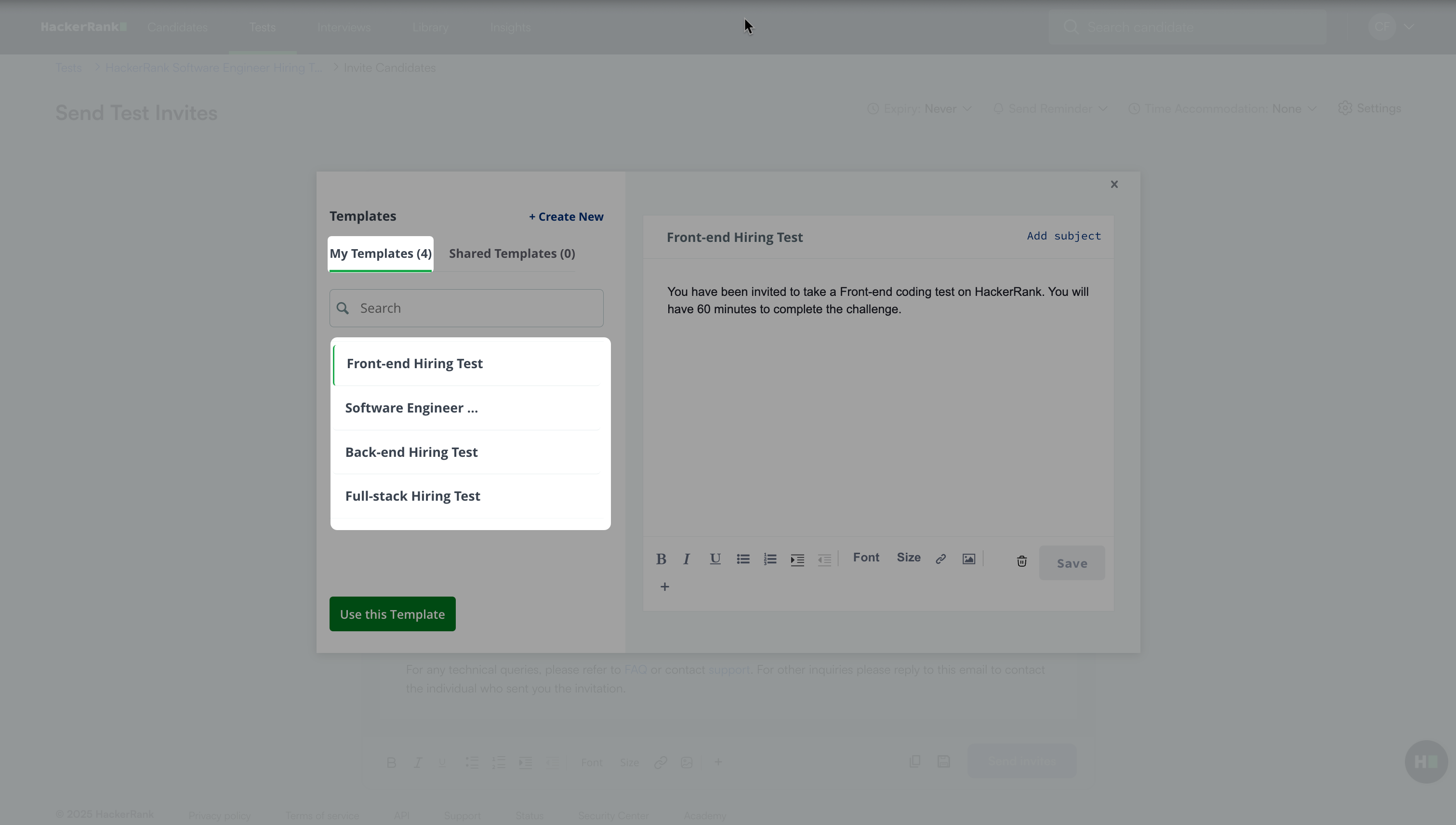
Make the necessary changes.
Click Save.
Using a custom email template
To use a custom email template that you have created:
Open the test for which you want to use the template.
Click Invite in the upper-right corner to open the Send Test Invites page.
Click the Templates icon.
Go to My Templates. This section lists templates you created.
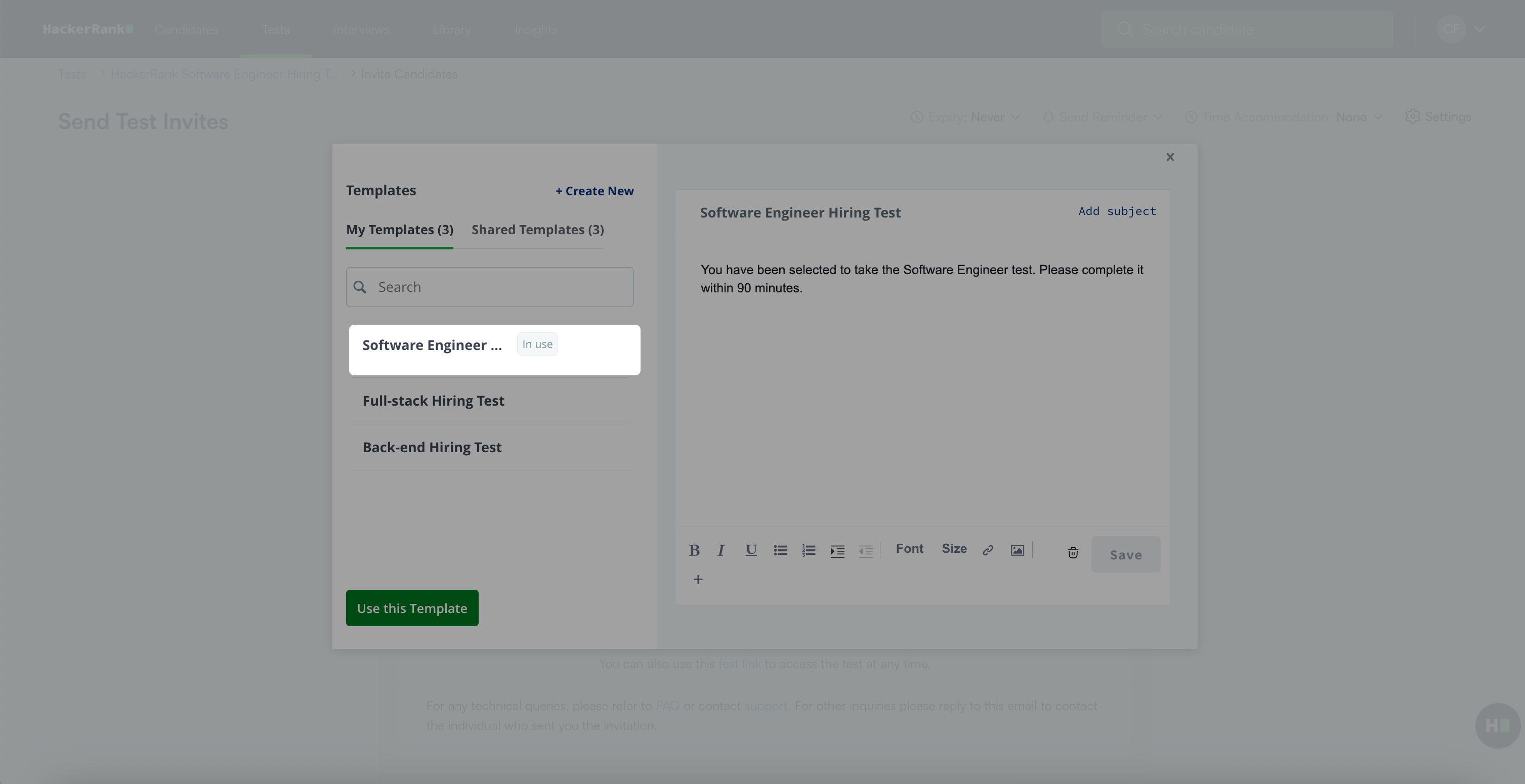
Select the template you want to use.
Click Use this Template.
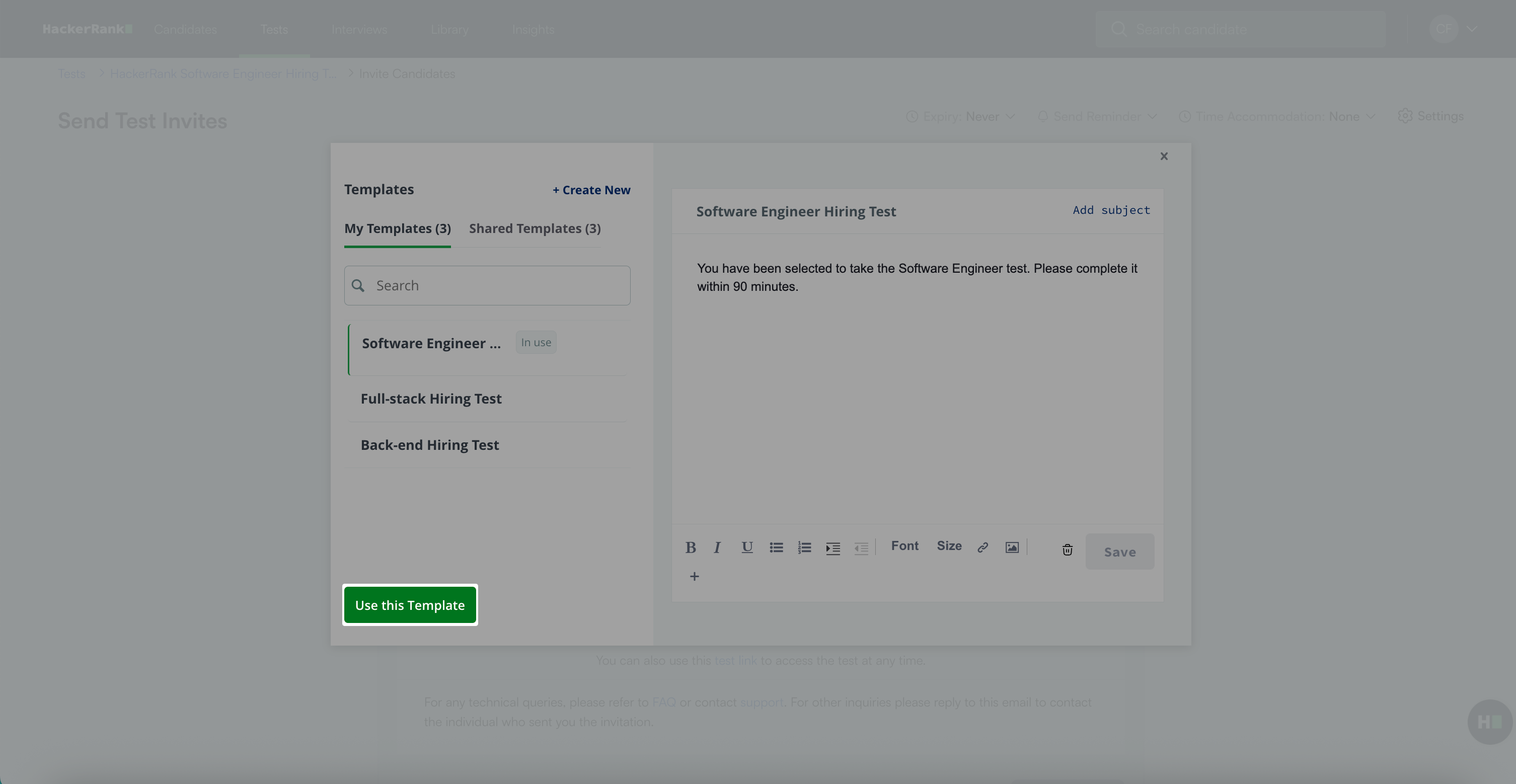
The label In use appears next to the template currently applied to the invite.
Note: To configure an invite email at the test level, see 📄 Configure Email Settings for Tests.
Using a shared email template
To use a shared email template:
Open the test for which you want to use the template.
Click Invite in the upper-right corner to open the Send Test Invites page.
Click the Templates icon.
Go to Shared Templates. This section lists templates created by other recruiters in your company.
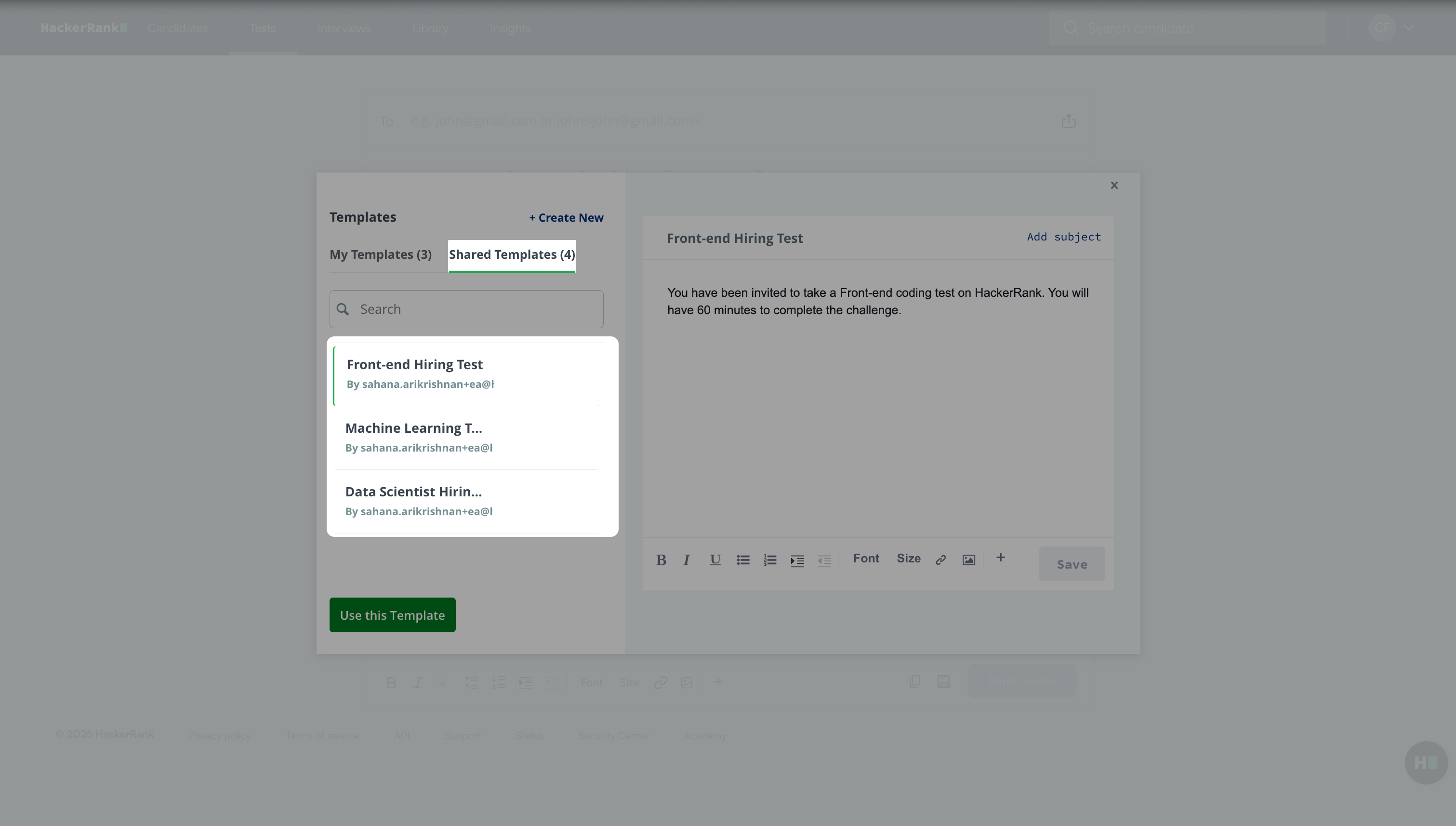
Select the template you want to use.
Click Use this Template. The selected template appears in the test invite.
Setting a default email template
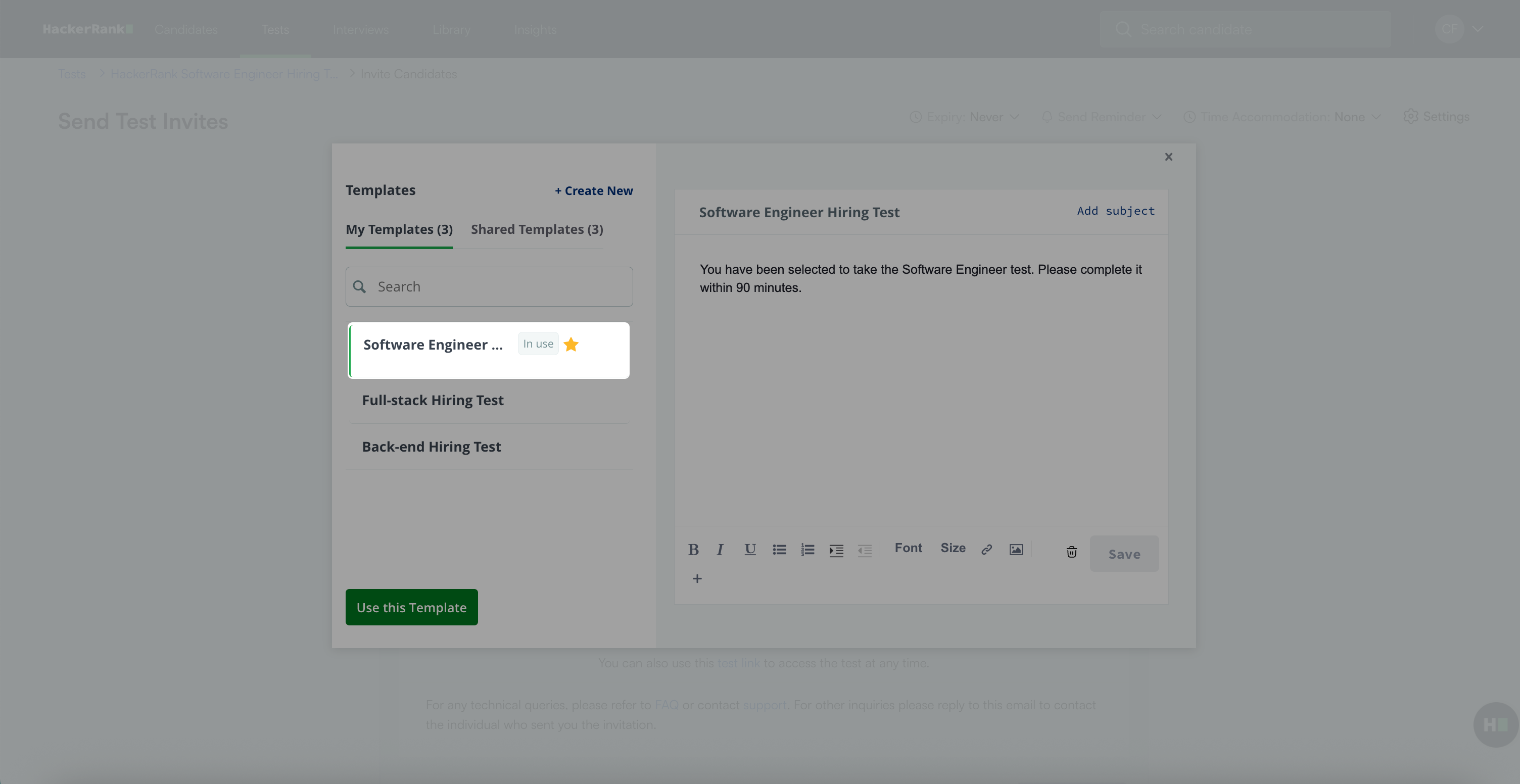
You can set one of your templates as the default for all email invites. When you set a default template, the email editor on the Send Test Invites page automatically loads it when you click Invite for a test
Note: You can only set the templates you created as default templates.
To set a default template:
Open a test.
Click Invite in the upper-right corner to open the Send Test Invites page.
Click the Templates icon.
Go to My Templates.
Click the star icon next to the template name. A success message appears.
Deleting a custom email template
You can delete an email template if it is no longer in use.
Note: You can only delete templates you created.
To delete a custom email template:
Open a test.
Click Invite in the upper-right corner to open the Send Test Invites page.
Click the Templates icon.
Go to My Templates.
Select the template you want to delete.
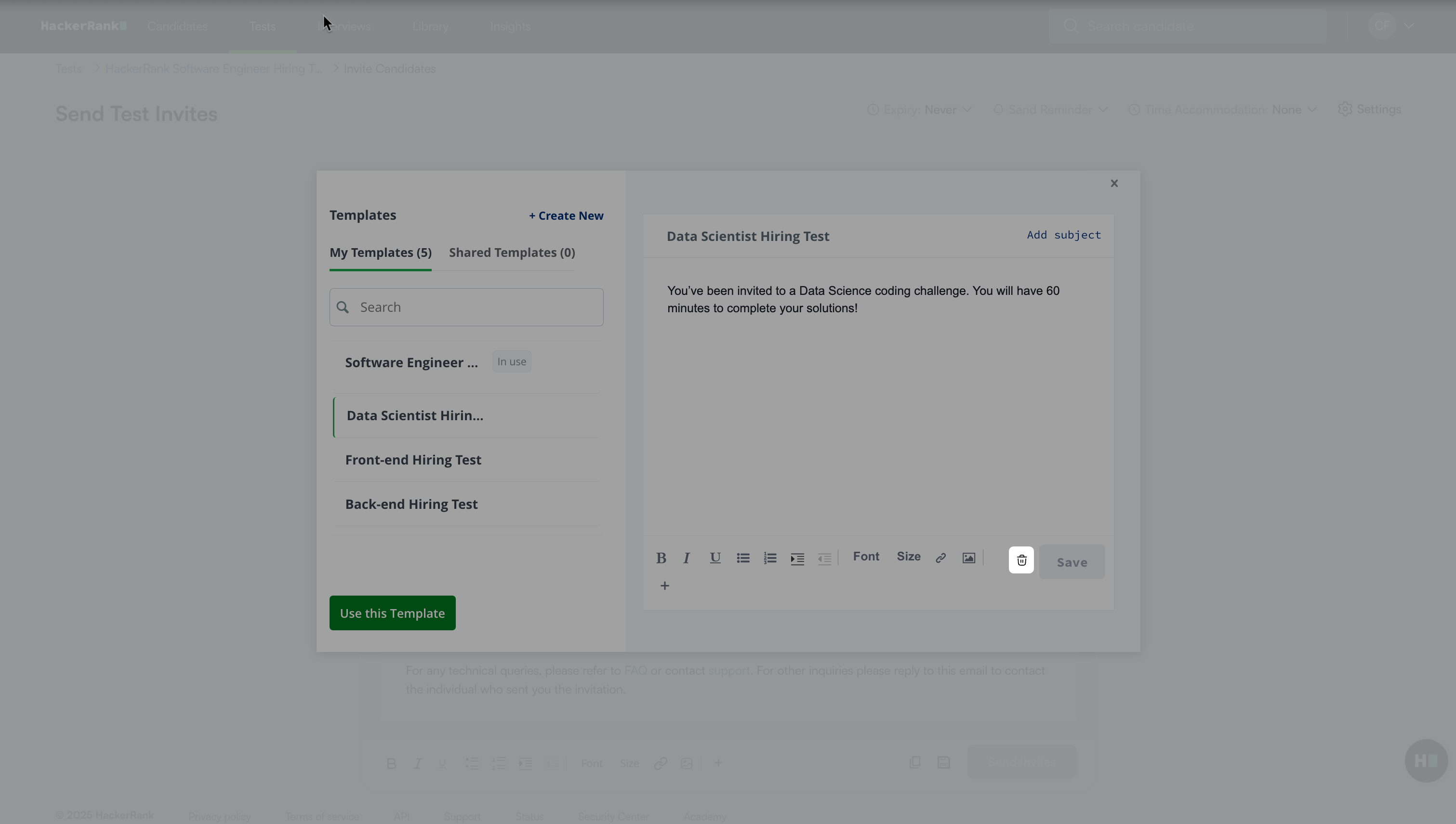
Click the Delete Template icon. A success message appears.